Author: Nazrul Islam

  • Why Facebook Lite Can not Open? Here Is The Solution 2025

    Why Facebook Lite Can not Open? Here Is The Solution 2025

    Why Facebook Lite Can not Open? Here Is The Solution – Are you currently looking for how to solve Facebook lite that cannot be opened? the first time, you check the internet connection that you use, or you are not at all connected to the internet.

    Why Facebook Lite Can not Open Here Is The Solution
    Why Facebook Lite Can not Open? Here Is The Solution

    Why Facebook Lite Can not Open? Here Is The Solution

    There are some mistakes why Facebook Lite can not open. Then how to fix Facebook lite that can not open? Let’s discuss and find the solution below.

    Read more:

    Solve Facebook Lite Can Not Open or Facebook Lite Not Working

    #1. Are you connected to the internet?

    Are you connected to the internet
    Are you connected to the internet?
    • Assuming you have the right login email and password (and you are connected to the internet) some things might cause your problem:
    • Do you get an error message? If so, check the Facebook help page for explanations and fixes for the problems at hand.
    • Make sure you do not have any extensions or running antivirus programs that block Facebook.

    #2. Have you tried clearing the app cache?

    Have you tried clearing the app cache?
    Have you tried clearing the app cache?

    Go to Settings> Applications> Facebook> Clear Cache. If this does not work, you can try clearing the data uninstalling Facebook Lite on Android, and then reinstalling the same application.

    #3. Did you register with your phone number?
    Did you register with your phone number?
    Did you register with your phone number?
    • Make sure you type in the country code also when logged in.
    • If the app tells you to update your email address, this is most likely because your email server labels your Facebook email as spam.
    • If you have just signed up for Facebook you may need to verify your account first by using the email you registered with Facebook. If you recently changed your password, make sure you try to login with a new password and not with the old password.
    • If you log in through a browser, make sure you have cookies enabled and facebook.com added to the list of secure sites.
    • Make sure you have the latest version of the Facebook app for Android.

    Method 2:

    #1. Update the Facebook Lite application

    Update the Facebook Lite application
    Update the Facebook Lite application
    If your friends have tried it but still can’t, chances are you need to update the system again, by going to the PlayStore selecting the Facebook application, and then you do an application update.

    #2. Delete the Application And Then Install it Again
    Delete the Application And Then Install Again
    Delete the Application And Then Install Again

    If you have updated the application but cannot open it too, try removing the Facebook lite application and then reinstalling it in the PlayStore.

    Something like that can happen when doing a system update, the system is not received 100% successfully overwritten or overwritten, so that the system can be updated more optimally, if you delete the application and then install it again in the play store, hopefully with such things can help you who are experiencing disaster like this.

    #3. Unload All Connected Devices

    Unload All Connected Devices
    Unload All Connected Devices

    This method is indeed a bit strange but it would be nice if you just try it first, which is to unload or remove all devices connected to your smartphone.

    How do you first turn off the power of the cellphone and then remove all the batteries, sim cards, and external memory, then leave them for 10 minutes? If it’s been 10 minutes, try to pair it again and turn on the mobile power, hopefully, in this way, it can help.

    If the word your smartphone has a battery that is planted, then you just need to turn off the cellphone power and then unplug the sim card and external memory, and let it stand for 10 minutes.

    Method3:

    #1. Verify Facebook Account

    The first reason Facebook Lite doesn’t want to open is that we have to verify our Facebook account first. For example, because we upload statuses, photos, or videos that violate Facebook’s provisions, our account is temporarily disabled and must be verified in the form of a friend’s photo identification or mention the date of birth and security questions.

    Why does this happen? Because Facebook Lite does not have a feature to verify if our account is deactivated. To overcome this, we must open Facebook through a browser, both on mobile and PC. Verify first and try again to log in to Facebook lite.

    #2. Removing Cache

    An excessive and piling cache can also make Facebook lite apk can’t open. The cache file contains data such as photos that have been viewed, the status of friends you’ve read, or videos that have been played. We must clear the cache regularly by:

    • Enter Settings
    • Select Installed Apps
    • Look for the Facebook Lite application
    • Click Clear Cache
    • Done

    Now, try opening the Facebook Lite application again. Already successful? If not, continue to the third alternative.

    #3. Force Stop and Erase Data

    If you can’t open Facebook Lite after clearing your cache, try forcibly stopping and erasing data first. Remember, clearing the cache and deleting data are different steps. If you delete data, all data stored in FB lite will be deleted, including accounts that have been logged in. How to delete data and force stop is:

    • Enter  Settings
    • Select  Installed Apps
    • Look for the Facebook Lite application 
    • Click  Force Close
    • Click Delete Data
    • Done

    Try again to open Facebook Lite. Can it work? If it works, then you must login and log in again. If it fails, follow this fourth step.

    #4. Updating the Application

    If it still doesn’t work, we can try to update the Facebook lite application through the Google Play Store. This step is very easy to do, we just need to follow the following way:

    • Enter the Google Play Store
    • Look for Facebook Lite in the search box
    • Click Update

    Wait until the download is complete. If so, try opening the application again, and good luck. But if it still fails too, there are other ways.

    #5. Uninstall Disassemble Device Connected to the HP

    This might sound strange, but it could be that the device connected to our cellphone causes the FB lite apk to not be opened. In addition, other applications also cannot be opened. This is quite confusing, but you can try it straight away.

    Unplug all devices connected to the cellphone such as data cables, microphones, headsets, USB OTG, and so on. Good luck and if it still fails too, see the last way.

    #6. Flash the Android System again

    This is the last way to fix FB lite that cannot be opened, namely by doing a flash reset or factory reset or erasing all existing data on Android phones such as Samsung, Xiaomi, Asus, Oppo, Vivo, OnePlus, Huawei, Advan and so on.

    Other phones will be updated regularly. This method is guaranteed to succeed because it erases all data on the Android mobile, not only data stored on Facebook Lite.

    Conclusion:

    So, friends, This is the explanation of why Facebook Lite can not open or does not work, and how to fix common Facebook Lite issues, I hope this article may be useful for you. Also, share your experiences and opinions below the comments box.
  • How to Select All Files on Windows 11 PC Laptop 2025

    How to Select All Files on Windows 11 PC Laptop 2025

    How to Select All Files on Windows 11 PC Laptop – We’ll explain how to select all files on a Windows 11 laptop, using the keyboard, mouse, or a combination of the two.

    How to Select All Files on Windows 11 PC Laptop
    How to Select All Files on Windows 11 PC Laptop

    How to Select All Files on Windows 11 PC Laptop

    When working in Windows 11, you may often have to select all files.

    The process hasn’t changed much in Windows 11 apart from the new option to select all files, which will be discussed later in this article.

    But, do you know how to select all files in Windows 11?

    Not many people do!

    Read more:

    And, this often leads them to choose methods that are too complicated or not very effective.

    Therefore, we have listed all the ways to select all on a Windows 11 laptop.

    Just open them all and choose the one you think is suitable.

    Also, remember that different methods will be useful in certain situations, so you should understand each method well.

    How to select All Files on Windows 11 laptop with Keyboard Shortcut

    How to select All Files on Windows 11 laptop with Keyboard Shortcut
    How to select All Files on Windows 11 laptop with Keyboard Shortcut

    This is perhaps the simplest of all methods, fast and effective at the same time.

    To select all files in Windows 11, open the folder where you want to select all files and press CTRL+ A.

    This will select all files in the specified folder.

    How to select all on a Windows 11 laptop from the File Explorer menu

    How to select all on a Windows 11 laptop from the File Explorer menu
    How to select all on a Windows 11 laptop from the File Explorer menu

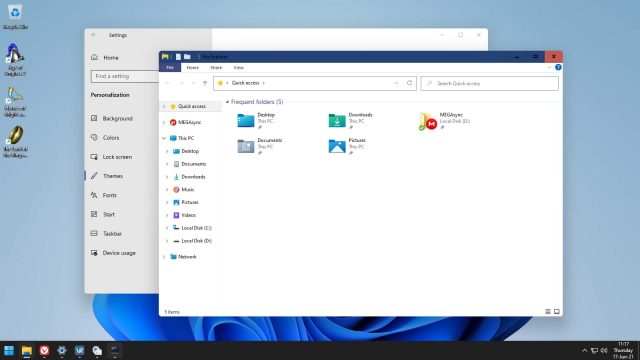
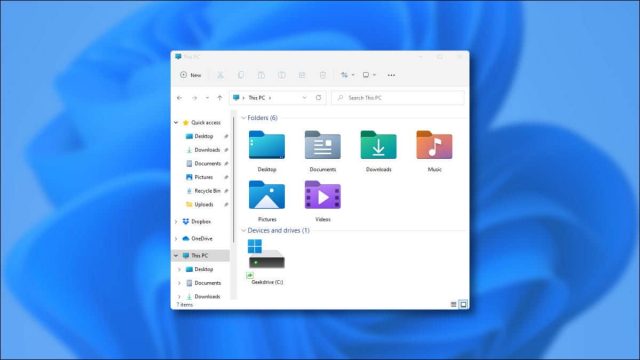
    How to select all files on a Windows 11 laptop which is also quite easy is from the ‘More Options’ icon at the top of File Explorer.

    It is simple and generally the first choice for those who are not comfortable with keyboard shortcuts.

    To select all files from ‘ More Options ‘, select the ellipsis in the Command Bar at the top of the File Explorer window, and click the Select All option from the menu.

    This will select all files in the specified folder that are currently open.

    How to select all files on a Windows 11 laptop with Mouse

    You can also select all files in a folder using just the mouse.

    All you have to do is create a box by holding down the left click and dragging the mouse until the box covers all the files in the folder.

    How to select all files on a laptop with a mouse drag is quite easy, move the mouse to the upper left corner, hold down the left click and create a box to cover all files.

    The box doesn’t have to cover the entire thumbnail, instead, the file will be selected even if it covers a small part of the thumbnail.

    All files in the folder are now selected.

    This method can also select a specific section or number of files.

    How to select All files on Windows 11 laptop with the Shift Key and Mouse

    There are two ways of selecting all files in Windows 11 by holding down the SHIFT key.

    One requires a mouse while the other requires arrow keys.

    Here’s how you do both.

    How to select all files on Windows 11 laptop with the SHIFT key and mouse

    Select the first file in the folder, press and hold the SHIFT key and then click the last file in the folder.

    You can also use this method to select a specific set of files by selecting the first one, holding down the SHIFT key, and selecting the last one from the set.

    This will select all files in between and the two you clicked on.

    How to select all files in Windows 11 with the SHIFT key and arrow keys

    Click on the first file, press and hold the SHIFT key, and then use the DOWN arrow key to select all files.

    Here, you will notice that two files are not selected when using the DOWN arrow key.

    In this case, use the RIGHT arrow key to select it while holding down the SHIFT key.

    All files will now be selected.

    How to select all files on a Windows 11 laptop with the CTRL key

    This method is useful when selecting multiple files scattered across a folder.

    However, you can also use it to select all files in a folder.

    It will take longer if there are multiple files to select, so you should use the faster method mentioned earlier.

    To select all files with the CTRL key, simply press and hold the CTRL key, and click all files.

    The file you clicked on will be immediately highlighted.

    Once you have selected all the files, you can perform various actions such as cutting, copying, pasting, or deleting files.

    Once all files are selected, any action taken will be applied to all.

    Read more:

    Conclusion:

    This is the explanation of how to select all files on a Windows 11 PC Laptop, While we’ve taken the File Explorer case for various methods, the method will also work well for Desktop icons.

  • How to Activate Microsoft Office 2010 Permanently Offline 2025

    How to Activate Microsoft Office 2010 Permanently Offline 2025

    How to Activate Microsoft Office 2010 Permanently Offline – Who doesn’t know MS Office? The office is software from Microsoft which is very helpful in office work. And if you haven’t activated Microsoft Office, then you must read the article on how to activate Microsoft Office 2010 on a laptop and computer.

    How to Activate Microsoft Office 2010 Permanently
    How to Activate Microsoft Office 2010 Permanently

    How to Activate Microsoft Office 2010 Permanently Offline For Free

    The reason is if the Microsoft Office that you just installed has not been activated, then all products in MS Office such as Word, Excel, PowerPoint, and others cannot be fully used.

    Read more:

    Even though Microsoft Office 2010 is an outdated version, Windows computer users feel that they are more comfortable using this version of Office 2010.

    This is quite reasonable because Microsoft Office 2010 already provides features that are quite complete and useful in work. So it would be a shame if some features from the office don’t work because they haven’t been activated yet.

    The most common problem when Microsoft Office 2010 has not been activated is that it cannot be used to edit or even open documents. Apart from that, several other important features also suffer from the same problem.

    In addition, the characteristic of a Microsoft Office that is not yet active is the appearance of a window asking for activation via the product key. Or when you open service from Office 2010, it only displays a Product Notice warning message.

    The warning message explains that Office 2010 is not yet active and you must immediately activate it to be used without problems.

    How Can I activate Office 2010 Permanently Offline 2024?

    There are several methods to activate Office 2010 permanently on a computer or laptop. For the Windows version, you are free to use Windows 10, Windows 8 / 8.1Windows 7, or even Windows XP.

    If you have an official product key from Microsoft, then you can enter it into the Office 2010 activation column so you can do it without the help of additional software.

    But what if we don’t have a product key? No need to worry, you can use the help of activator software for free. The following below are some of the methods you can use.

    #1. Activation of Office 2010 Offline

    Activation of Office 2010 Offline
    Activation of Office 2010 Offline

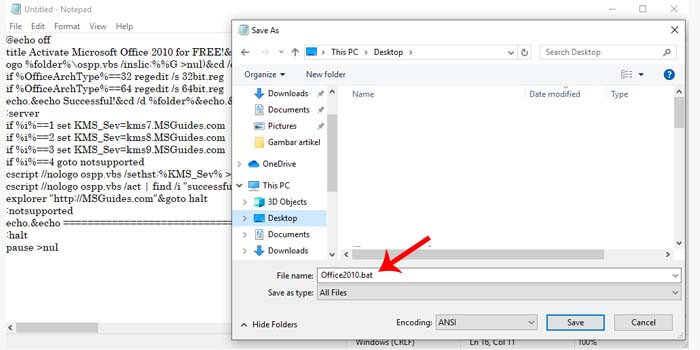
    Activating Microsoft Office 2010 is the easiest with CMD. The reason is, you can activate it offline, and without the help of additional applications or software.

    Here’s how to activate Office 2010 with CMD:

    1. First, visit this page here.
    2. Then copy the entire code from that page.
    3. After that open notepad and then pastes the code earlier.
    4. Save the notepad file with the name Office2010.cmd / Office2010.bat for windows 10.
    5. Right-click the Office2010.cmd file then Run As Administrator.
    6. Then the CMD will open, please wait for it to finish.
    7. Now Microsoft Office 2010 has been successfully activated.

    If you have problems running CMD, then disable Windows Defender on your laptop or PC first. Also, make sure to run CMD by right-clicking and then Run As Administrator.

    #2. Activate Office 2010 with KmsAuto

    Activate Office 2010 with KmsAuto
    Activate Office 2010 with KmsAuto

    The second way to activate Microsoft Office 2010 is to use the help of the KMSAuto activator. This software is very easy to use and is able to overcome the warning of product activation failure in Office 2010.

    How to activate Microsoft Office 2010 without a product key:

    1. First, download the KMSAuto file here. KMSauto Net 2024 Activator Windows 7, 8, 8.1, 10 and Office 2010-2016 Latest Version: Download KMSauto 1.4.9: Download KMSauto 1.5.0: Download KMSauto net 1.5.1: Download KMSauto net 1.5.3: Download
    2. After that extract the RAR file.
    3. Run the software with Run as administrator.
    4. Then enter the main window menu.
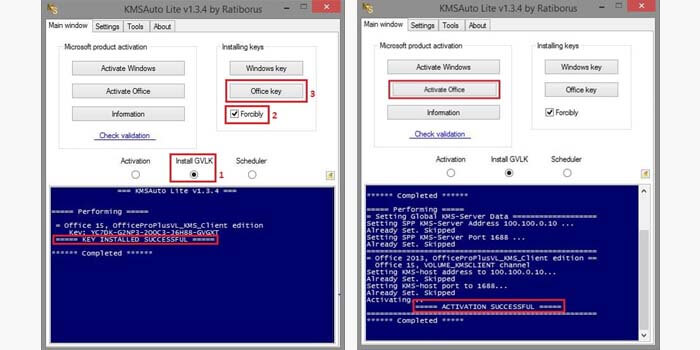
    5. Select the Install GVLK option and tick Forcibly.
    6. Then click the Office key in the box on the right.
    7. Wait for the KEY INSTALLED SUCCESSFUL to appear.
    8. The final step is to click the Activate Office button.

    If the information box displays the ACTIVATION SUCCESSFUL message, it means that Microsoft Office 2010 has been successfully activated and can be used without any problems.

    #3. Activation of Office 2010 via Toolkit

    Activation of Office 2010 via Toolkit
    Activation of Office 2010 via Toolkit

    This toolkit is software that can activate Office 2010 offline and permanently. Although this software has very useful features, you can use it for free.

    How to activate Office 2010 is free and permanent:

    1. Turn off the antivirus on the laptop or PC.
    2. Then download the software here. Password: Windows.
    3. After that extract the RAR file.
    4. Right-click the activator file then Run as administrator.
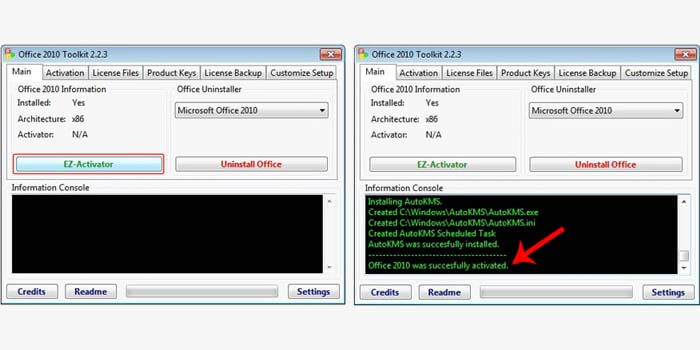
    5. If it is open, click the EZ-Activator button.
    6. The software will start the Office 2010 activation process.
    7. You have to wait for the process to complete.

    If the message Office 2010 was successfully activated in the information box, it means that you have successfully activated Microsoft Office 2010 so that it becomes the full version for free and permanently.

    Now you can close the activator and reactivate the antivirus so that your laptop or PC remains safe.

    Disclaimer: All forms of download files on the Technadvice.com site are just for educational purposes only.

    DMCA: Technadvice.com complies with 17 U.S.C. * 512 and the Digital Millennium Copyright Act (DMCA). It is our policy to respond to any infringement notices and take appropriate action. If your copyrighted material has been posted on the site and you want this material removed, Contact us.

    Read more:

    Conclusion:

    So, friends, this is the explanation of how to activate Microsoft Office 2010 permanently Offline, which has been proven to be able to permanently activate Microsoft Office on a laptop or PC. You only need to use one of the methods above which you think is the easiest.

  • What To Do if Windows 11 Doesn’t Work After Updating 2025

    What To Do if Windows 11 Doesn’t Work After Updating 2025

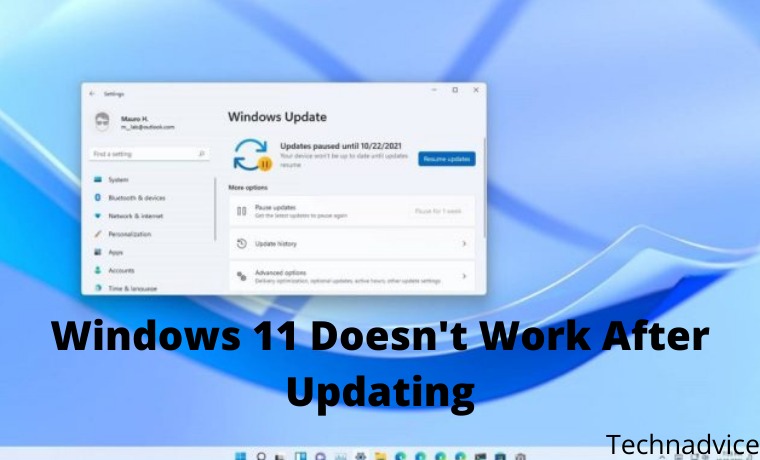
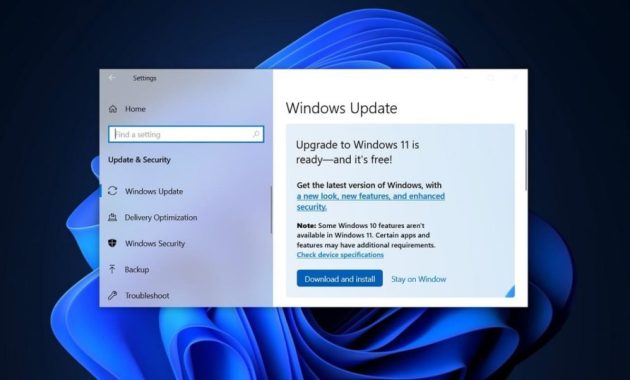
    What To Do if Windows 11 Doesn’t Work After Updating – Since its launch, and like every new version of Windows 11 that hits the market, Windows 11 continues to deliver new versions to address minor system bugs.

    What To Do if Windows 11 Doesn't Work After UpdatingWhat To Do if Windows 11 Doesn’t Work After Updating

    This version can have its faults, and it forces us to be careful and check that they do not affect the general performance of our computer and make it difficult for us.

    Read more:

    If so, there are some workarounds you can try on your computer.

    Windows 11 is Microsoft’s newest operating system for computers, and as is often the case, when this OS is updated, the number of updates we receive at the start can be overwhelming. This has to do with the need for developers to resolve minor conflicts they notice.

    But if you encounter problems after installing the latest version, in this article we will show you what to do in cases where Windows 11 doesn’t work after updating, so that it works again.

    10 solutions for Windows 11 that don’t work in 2023

    #1. Restart your PC

    The first solution is always the most obvious, but it’s still a good idea to restart your computer after upgrading. Indeed, your computer will usually restart automatically after completing that process, but if we’re working or playing with it,  we can delay the restart, so be sure to do so.

    #2. Uninstall updates

    Sometimes you need to uninstall the latest Windows 11 update, assuming it’s the one with the flaws. It could happen, even if it happened with previous versions of Windows, that the update was “bad”.

    Once you’ve uninstalled it, you can always try to install it again or wait for a newer update, which may have fixed a bug found in the previous version.

    You can do this from Start, Settings, Windows Update, History, and Uninstall updates. There, select the latest update and click Uninstall to revert to the previous one.

    Uninstall updates

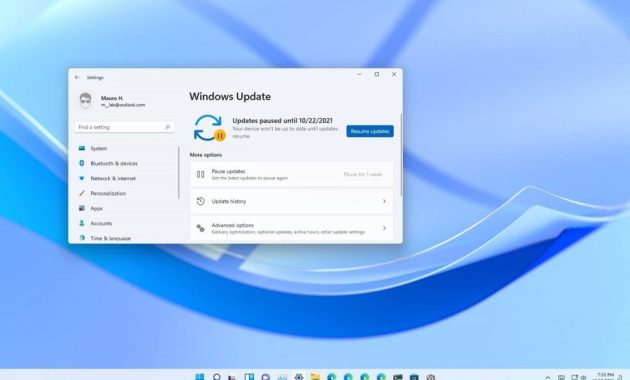
    #3. pause the update

    Once you’ve finished the previous tutorial, and to prevent those updates from continuing to bother you, you should pause them. remember you can stop automatic updates in Windows 11, just like in Windows 10.

    From the same Settings, in Windows Update, you will find the option to Pause updates.

    #4. Run the Windows Update Troubleshooter

    If you’re still seeing error messages when you try to upgrade, to a newer or earlier version of Windows, it’s likely accompanied by a random string of letters and numbers, such as Installation Error – 0x800f0831.

    You should google what it means and then run the Update Troubleshooter. This is done by going to Start, Settings, System, Troubleshooter, Other troubleshooters, running it, and waiting to see if that gets rid of this problem.

    #5. Disable your antivirus

    It’s a fact that antivirus software and Windows updates don’t go hand in hand.  , so you shouldn’t forget to try upgrading or downgrading Windows without disabling it first.

    With Windows Security’s real-time protection, you shouldn’t have any problems, so just leave it at that.

    #6. Pindai malware

    Viruses, malware, and other digital threats can stop your Windows PC from working properly. While it seems unlikely,  it also affects Windows Update from time to time.

    If in the case of antivirus, it is better to disable it for a moment, for anti-malware you should act differently, running it to find any malware causing a system crash after the update.

    If you don’t have a third-party anti-malware, the Windows Virus & Threat Protection option will still help. There you can specify the specific type of analysis that interests you, but we recommend the most comprehensive.

    Pindai malware

    #7. Run DISM and SFC

    Windows updates aren’t perfect, and that means, sometimes, we have to be willing to intervene in them.

    DISM -Deployment Image Maintenance and Management- and SFC -System File Checker- are two tools that Microsoft provides to avoid this inconvenience.

    From the Windows search magnifying glass, you can search for both commands and run them, and we recommend that you do so to see if the command contains the solution you need, before proceeding with other alternatives.

    #8. Boot Safe Mode

    Booting Windows 11 in Safe Mode is another thing you can do if Windows 11 is not working after updating, more so because it is a method that eliminates potential conflicts in the computer.

    To do this, turn off the computer, and when you turn it on again, before seeing the Windows logo, indicating that the operating system is starting, press F5 or F8 repeatedly. A new screen will appear, with many available boot options, among which we have to select Safe Mode.

    Boot Safe Mode

    #9. Reset Windows 11

    At this point with no concrete solution, it might be time to Reset Windows. Keep in mind that you can keep your files, although apps and settings will be deleted.

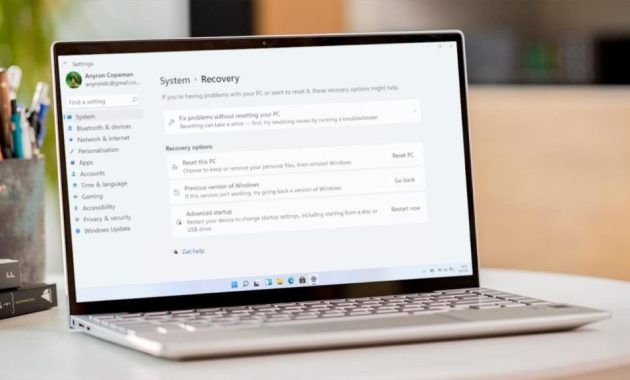
    You can do this from Start, Settings, System, Recovery, select Reset PC,

    #10. Perform a clean install of Windows 11

    If our other tips don’t work,  you can always do a classic clean install of Windows 11.

    We can say that this is a “last resort”, and you should have a bootable Windows 11 USB installation drive or Windows 11 recovery USB drive, booting from the Advanced Recovery environment, only if you are knowledgeable enough…

    Installing Windows 11 from USB is a bit more difficult, but you can still do it without any problems.

    Read more:

    Conclusion

    So, friends, This is the explanation of What To Do if Windows 11 Doesn’t Work After Updating, If Windows 11 doesn’t work after the upgrade, don’t panic because there are several workarounds. Hopefully, any of the above tips will help resolve any issues you’re having with the update.

    Also, keep in mind that if your computer is having problems, it may not be a software issue, but it could be a hardware issue as well. Watch for signs.

  • 8 Ways To Change Default Browser in Windows 10 and Mac PC 2025

    8 Ways To Change Default Browser in Windows 10 and Mac PC 2025

    8 Ways To Change Default Browser in Windows 10 and Mac PC – If you have Windows 10, your default browser is Microsoft Edge, while Mac laptops use Safari as their default browser.

    How to Change Default Browser in Windows 10 and Mac
    How to Change Default Browser in Windows 10 and Mac

    How to Change Default Browser in Windows 10 and Mac PC

    Although the manufacturer recommends using the default browser, you can change it at will. This means you can open the site in Google Chrome, Mozilla Firefox, or any other browser you want. Here’s how to change the default browser on Windows 10 or Mac.

    Read more:

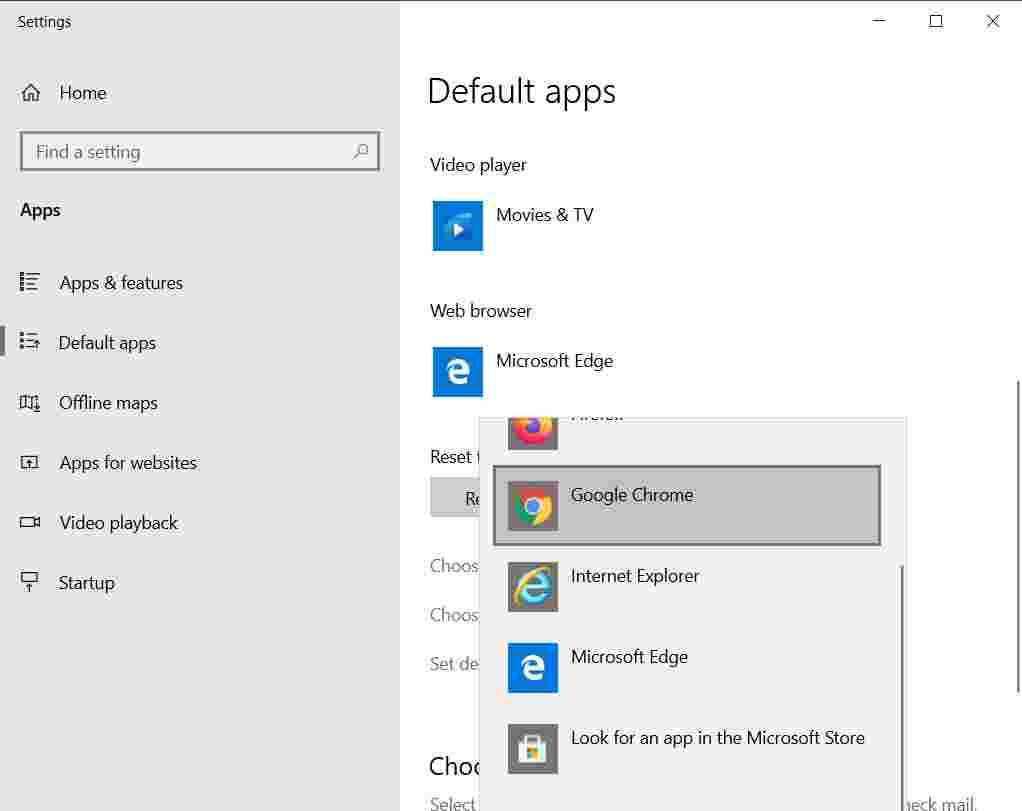
    To change your default web browser on a Windows 10 computer, go to Start  >  Settings  >  Apps  >  Default Apps. Then click your default web browser and select a new browser from the drop-down menu. If you don’t see a web browser, select Look for an app in the Microsoft Store.

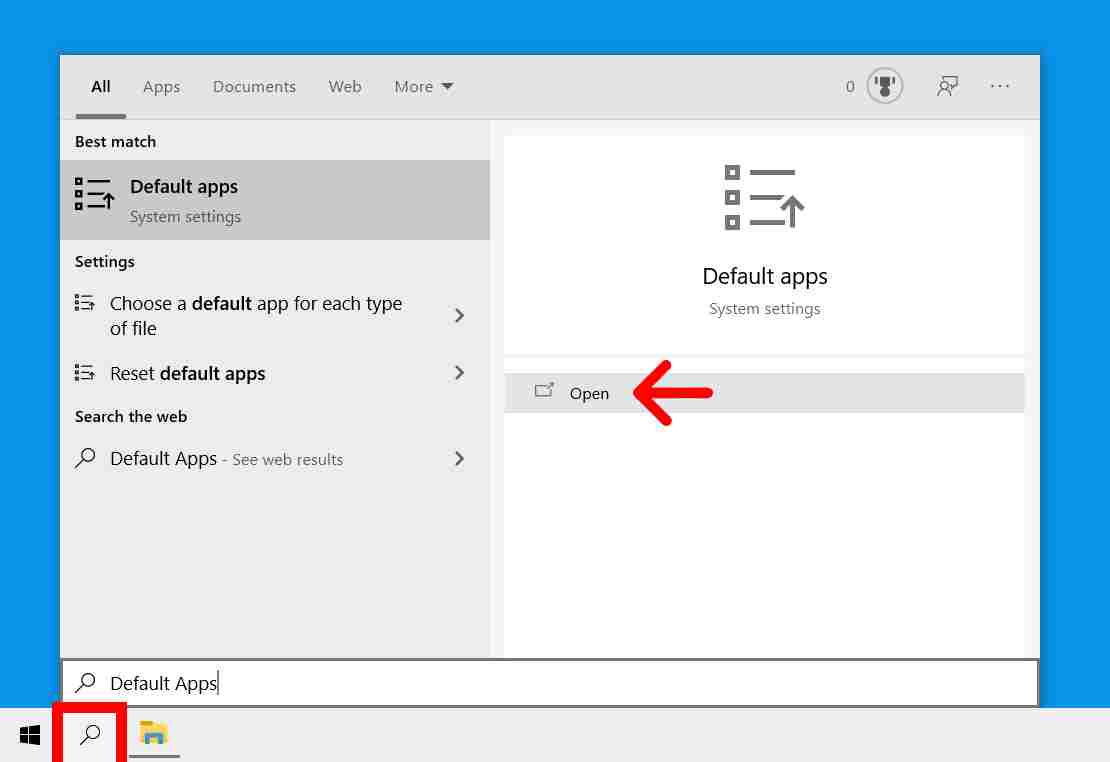
    Open the Windows search box. You can do this by clicking on the magnifying glass icon in the lower-left corner of your screen.

    1. Then type Default Apps into the search bar and click Open.

    How to Change Default Browser in Windows 10 and Mac

    3. Next, scroll down and select your default web browser.

    4. Finally, select the new web browser from the list. If you don’t see the web browser you want in the drop-down menu, click Look for an app in the Microsoft Store.

    How to Change Default Browser in Windows 10 and Mac

    How to Change Default Browser on Mac

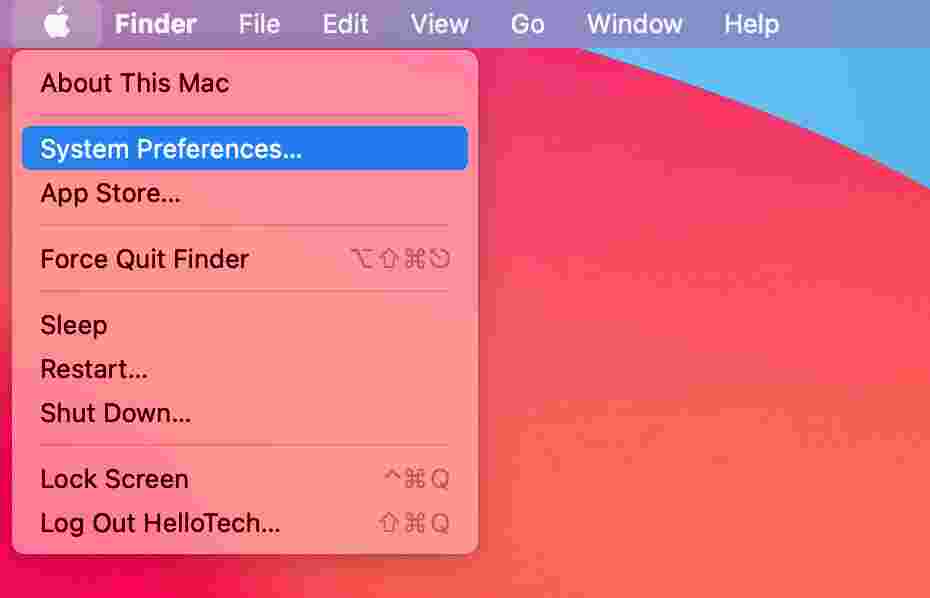
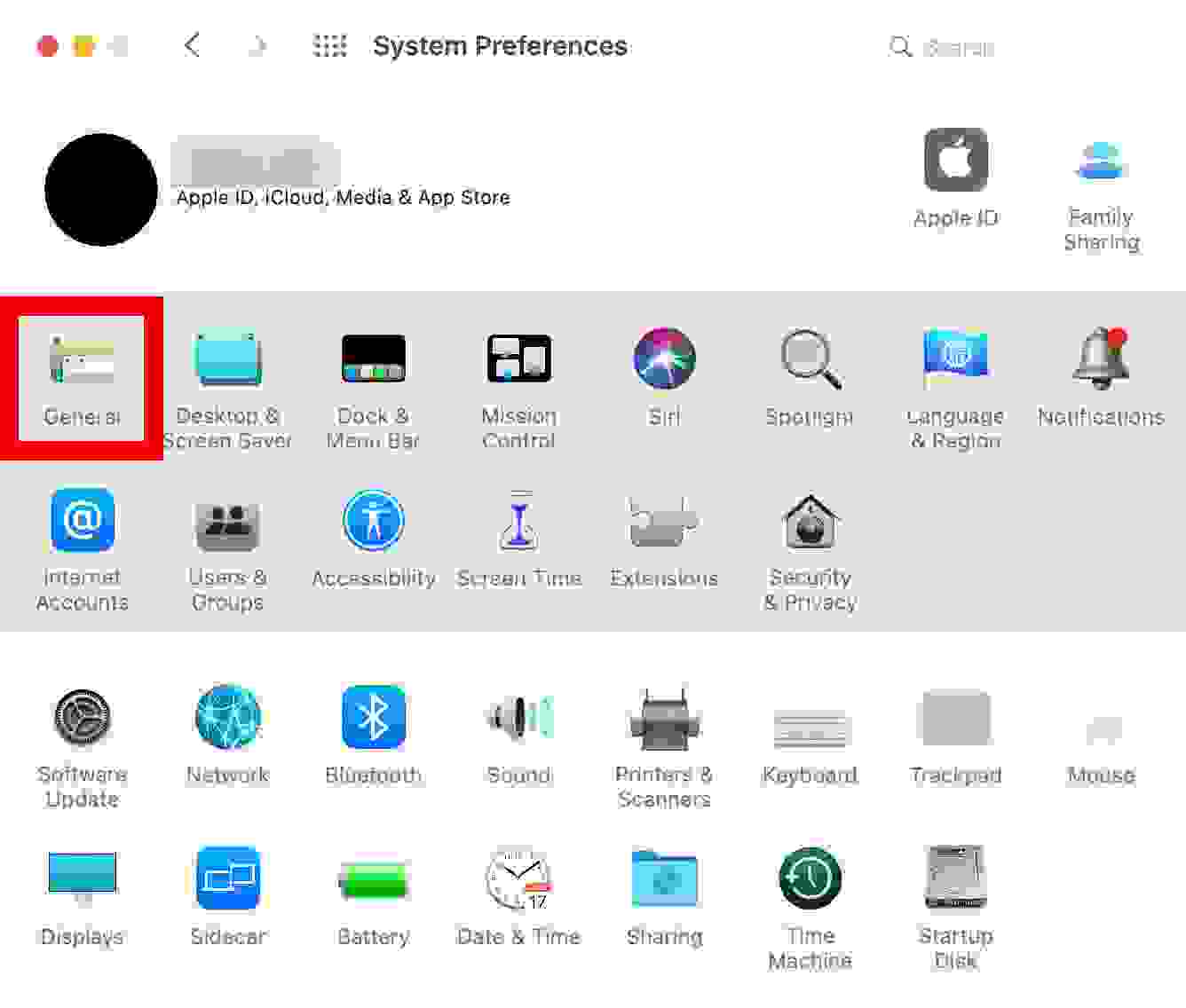
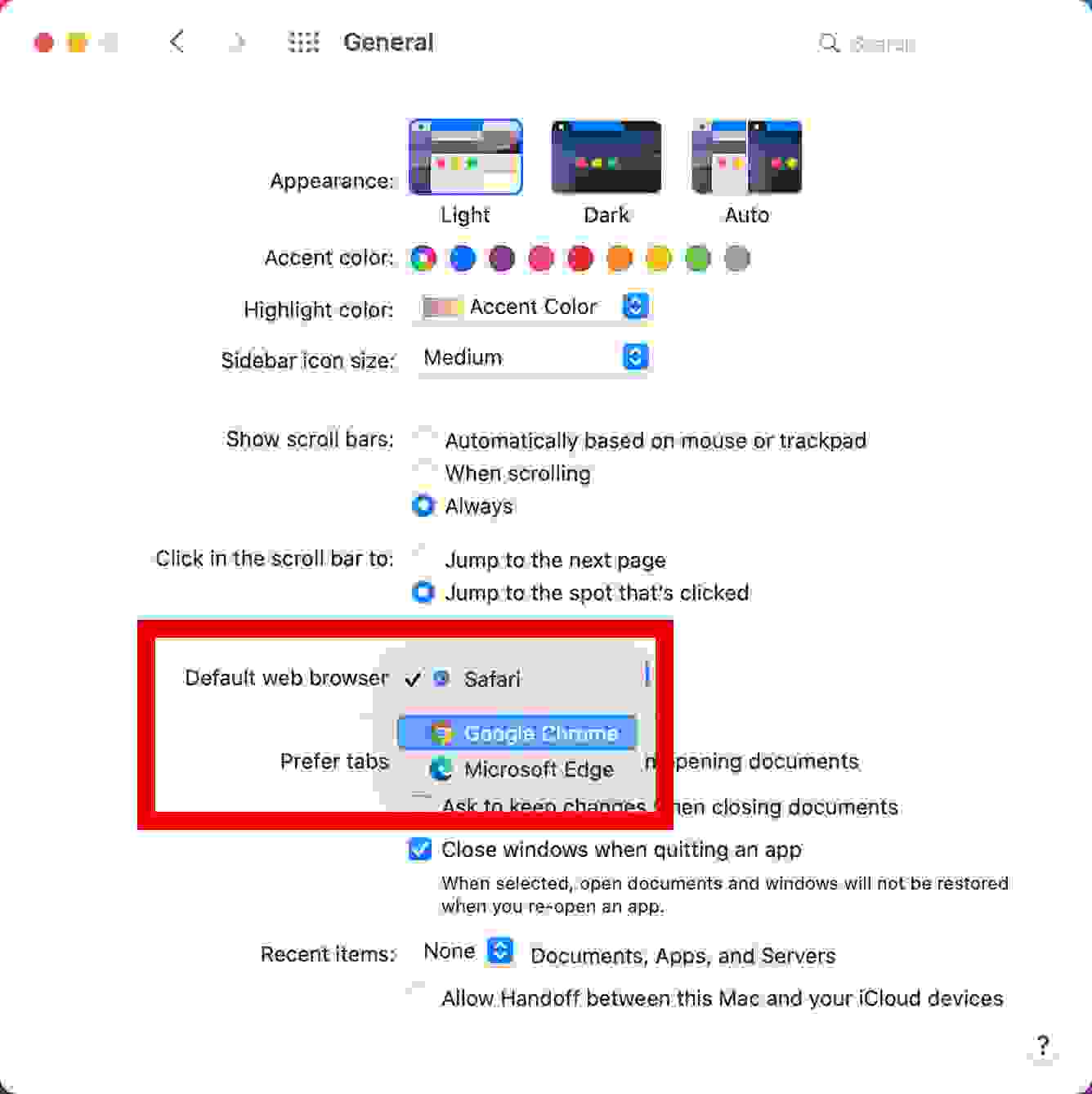
    To change the default web browser on a Mac computer, go to System Preferences> General. Then click the drop-down menu next to  Default web browser and select your preferred web browser from the list.

    1. Click the Apple icon in the top left corner of your screen.
    2. Then select  System Preferences.

    How to Change Default Browser on Mac

    3. Next, click General.

    How to Change Default Browser on Mac

    4. Finally, select the default web browser option and select the web browser of your choice.

    How to Change Default Browser on Mac

    You need to download and install a web browser before you can see it in the default list of web browsers. If you want to download a new browser, you can open the Microsoft Store or Apple App Store in the Applications folder.