Category: Android

Android – Here you can find Android-related updates, Games, Online Game, Offline Games, Multimedia Games, Tips & Tricks, information, and more.

  • 10+ Best Photo Editing Application for Android Phone 2025

    10+ Best Photo Editing Application for Android Phone 2025

    10+ Best Photo Editing Applications for Android Phones – Want to find recommendations for photo editing applications on the best Android phone? Then you will find the answer in this article. With this photo editor application, you will get the best experience in editing photos.
    10+ Best Photo Editing Application for Android
    10+ Best Photo Editing Application for Android

    Here are the 10 Best Photo Editing Applications for Android

    The reason is the existence of social media, especially Instagram, makes many people have a hobby of being on social media. Post great photos and get lots of likes.

    Read more:

    Some even now get jobs, by posting photos on social media. To get good photos, you don’t just need a good camera. You also need a photo editing application on Android. So that the photos are sharper, cool, and Instagramable.

    Well, so for those of you who like to take photos via cellphone cameras or digital cameras, you also have to use a photo editing application on Android. By editing your photos first, the photo quality might be even better.

    Each photo editing application has different features. Some are used for beginners or professionals. So that you don’t get confused, here are some applications that you can use.

    #1. PicsArt Photo Studio

    PicsArt Photo Studio
    PicsArt Photo Studio

    PicsArt Photo Studio is a popular photo editing application. It has been downloaded by more than hundreds of millions of users on the PlayStore. Various editing features will make your photos even better. You can choose the filters and effects as you like.

    The feature is also very easy to use for beginners. You can also delete parts of the photo that are not important, without any marks. Of course, many other features will make your photos even more stunning.

    Download Now

    #2. Adobe Photoshop Express

    Adobe Photoshop Express
    Adobe Photoshop Express

    In the world of editing, Adobe Photoshop is the most widely used application. Previously, this application could only be used on a PC, but now it can be used on an Android smartphone. Many professional photo editors use this application because it has complete features.

    As for the Android version, it has an easy-to-use interface. However, this application is quite different from the PC version because it has fewer features. The good thing is there you can adjust the brightness, white balance, and other filters.

    Download Now

    #3. Pixlr

    Pixlr
    Pixlr

    If you are looking for a full-featured photo editing app, Pixlr is the answer. There are many features that you can use. Not only adjust the brightness, but you can choose various filters, and photo collages, manipulate backgrounds, and more.

    Pixlr is also capable of producing photos like DSLR camera shots. You can try all the features of this application for free.

    Download Now

    #4. Snapseed

    Snapseed
    Snapseed

    The next photo editing application on Android is Snapseed. This app is also popular with professionals. This application developed by Google is equipped with various professional features that will make your photos even cooler.

    The filter options in Snapseed are more and better than in other applications. People who are first using this application usually will have difficulty. But if you learn more, you will find a lot of cool features.

    Download Now

    #5. Adobe Photoshop Lightroom

    Adobe Photoshop Lightroom
    Adobe Photoshop Lightroom

    The Adobe Photoshop Lightroom application will also make your photos even better because there are various filter effects that you can use. In addition, you can adjust the brightness of dark photos to light.

    There are lots of cool effects that can make your photos even better. This application has been downloaded by more than 10 million users on the Playstore and this application is also on the PC version which has more complete features.

    Download Now

    #6. Instasize

    Instasize
    Instasize

    Instasize was first launched in 2012 as a popular photo cropping application for Instagram.

    But over time, Instasize provides more features that make it a multi-functional editing application for those who want to edit photos or videos.

    Download Now

    #7. Aviary

    Aviary
    Aviary

    Aviary is a simple photo editing application but has quite complete features. Suitable for beginners, who don’t want to be complicated editing photos. Because with just a few clicks, you can get great photos.

    There are various filter and effect options that you can use there. This application has been downloaded by more than 50 million users on Playstore. The size is also not too heavy, making smartphone performance maximal.

    Download Now

    #8. Photo Lab

    Photo Lab
    Photo Lab

    Photo Lab is an application for those of you who like to edit photos with frames or filters. Because there are lots of cool frames and filters to choose from. There are approximately 800 choices of frames and filters that will make your photos even more amazing.

    Photo lab has features to change the face of a photo, become the face of another person, or transform it into various other shapes such as animals, cartoons, and others.

    Download Now

    #9. PhotoDirector

    PhotoDIrector
    PhotoDIrector

    The Photo Director is a unique photo editing application on Android. There are several effects and filters that other apps don’t have. The number of filters is not that many because this application focuses on using editing tools.

    So you can be creative with your photos such as adjusting HDR, RGB color, darkness, brightness, exposure, and more. You can also delete unimportant objects in photos without leaving any marks.

    Download Now

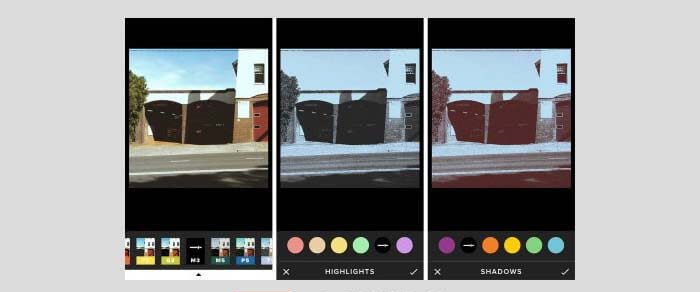
    #10. VSCO

    VSCO
    VSCO

    VSCO is a contemporary photo-editing application. Many people use this application for editing photos on Instagram because the VSCO application has many cool filter options. If you want a better filter, you have to buy it.

    Download Now

    #11. Photo Grid

    Photo Grid
    Photo Grid

    For those of you who like to combine several photos and edit them into funny photos, you can use this one application. The photo grid has various photo ratio options. Besides that, there are also lots of frame choices and you can also add funny filters and emoticons to your photos.

    Download Now

    Read more:

    Conclusion:

    So, friends, Those are the 10 best photo editing applications on Android that you can try for your Android device. Each photo editing application above has its advantages and disadvantages. So, choose the application that suits you.

  • How to Use Lucky Patcher Without Root on Android 2025

    How to Use Lucky Patcher Without Root on Android 2025

    How to Use Lucky Patcher Without Root on Android – Hi dear Android users, Today you are looking for how to download Lucky Patcher. if yes, then you are in the right place. because of this post, I will share with you how to install the Lucky Patcher application on Android without root.

    How to Use Lucky Patcher Without Root Your Phone

    Easy Ways to Use Lucky Patcher Without Root Your Phone

    Before going any further, there’s a lot to know about this app. It can remove ads, bypass permissions, modify apps, backup, and hack. Why do you need to remove ads and bypass permissions? Most Android developers receive revenue from advertising.

    Read more:

    You can install certain applications and there are advertisements on them. For some people, this is quite a hassle, but they don’t know how to remove it.

    Another function is the cut permit. All apps on the Play Store will ask permission to access your smartphone features, such as files, contacts, cameras, photos, audio, etc. Without this permission, you cannot access the full capabilities or lose the installation process.

    This is where the lucky patcher comes in to solve this problem. Therefore, you need to know how to download and use the latest lucky patcher.

    Lucky Patcher is an application that has the function of controlling applications that have been installed on Android, removing and blocking annoying advertisements while browsing the Internet, as well as other useful functions.

    How to use Lucky Patcher without Root to help download paid apps for free and can allow you to buy coins and money in the game for free.

    Before knowing how to use Lucky Patcher without root, it helps us to know the first feature of Lucky Patcher.

    #1: How to use the Lucky Patcher Application

    How to use the Lucky Patcher application without root here we will provide the best method for how to use the Lucky Patcher application without rooting. Check the method. They are very helpful for getting rid of root problems.
    To get and use paid apps for free, open the Google Play Store and install the Lucky Patcher App.

    How to use the Lucky Patcher application without root

    First, open the Lucky Patcher application and get root access.
    Without a doubt, your gadget should be redirected by using this App or if you are lucky, just have to try the non-artificial Android gadget.

    Now open the App which you want to install and go to the Purchase
    Click the Purchase app section and you will get the Lucky Patcher Google window

    Click Yes when you see “Would you like to try….” and wait a minute.

    Now the app has been hacked successfully and if your device is supported then it starts downloading

    In a few seconds, the App will be installed and will be saved on your device

    #2. How to use the Lucky Patcher application without root

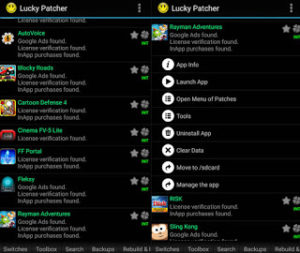
    • Open Lucky Patcher and you will find a list of Apps on your device
    • Here you can see what capacities should be allowed in the Application on your gadget
    • Click the Open menu for the Custom patch and patch options
    • You can see some of the available patches, select people from this list and click Apply

    Features of the Lucky Patcher Application:

    • Back up apps and restore as needed
    • Kill the unwanted apps that are running again to get rid of them
    • It is adjusted to limit authorizations and introduce application exercises
    • Save Android memory and battery life by taking up very little space
    • Lucky Patcher removes license checks on apps and premium ads on special apps
    • Build your modified application using the Lucky Patcher tool
    • Patch the application while you are running the Boot process.

    Download the Lucky Patcher Application Without Root, now ready to use. You can hack games, buy coins for free, manage the application, and also you can do a lot of things with it.

    Method 2:

    Lucky Patcher is an application that can be used to unlock locked features from other applications. For example, to get rid of advertisements that appear in openly locked feature applications and many others.

    In addition, Lucky Patcher no Root allows us to be able to get application purchases for free, and can also get License verification from the Android application.

    By installing the Lucky Patcher application without rooting, we will also be able to hack games without rooting.

    At the initial stage, Lucky Patcher will analyze the application that we will patch. Then it will give you several possible options that we can do.

    As the name implies, Lucky means lucky, apparently not all applications can be patched. If you are lucky, the patch you want can be done.

    Download Lucky Patcher without Root the latest 2024

    Download Lucky Patcher without Root the latest

    Lucky Patcher has a complete look. So that it will be confusing for people who are still beginners to use it.

    In the Lucky Patcher application, there is a color code that has and indicates its meaning. The following is a list of what the colors mean:

    • Green:    This means the application can be saved and disconnected from  Google Play.
    • Yellow:    This means the device has several patches available.
    • Blue:    This means the app contains Google ads.
    • Purple:    This means that this application is a system startup application.
    • Orange:    This means the app is a system app or system app.
    • Red:    This means that the application cannot be modified.

    Lucky Patcher is not a Malware, Virus, or malware app, but Google can give you a warning. Please disable   “Play Protect”   in the Play Store to hide this warning.

    Many websites share the lucky lucky patcher application. Therefore, we will share the original Lucky Patcher application through this podcast.

    Because we get this application through the official website Lucky Patcher application you will always get the original version from here.

    Application Info

    NAME LUCKY PATCHER
    Current version 10.2.4
    Price Free
    Size 10.10MB
    Developer ChelpuS
    Official Website www.luckypatchers.com
    Categorize Tool
    Total Downloads 1 Billion +
    Rating 4.+
    Android version Android 2.3+
    Update 06 July 2022

    To download the lucky patcher you need to click on the download button on this page. Then you will find this application in the latest version and some older versions of the application.

    If you click the Download Lucky Patcher button without root, the download will start automatically.

    #3. Download the Latest Lucky Patcher without Root APK 2023

    Download here

    Files are compressed in ZIP format. So you have to extract the ZIP file after downloading.

    After you extract the ZIP file, you will find the Lucky Patcher Apk file. To install the app, you have to open the APK file. For more details, see how to use the Lucky Patcher application below.

    #4. How to use Lucky Patcher With Root Your Phone

    Here are some steps to use the correct lucky patcher without root.

    1. Download the Lucky Patcher application     first on the link you provide
    2. Install Lucky Patcher no root on the Android phone you are using
    3. Open the Lucky Patcher Application
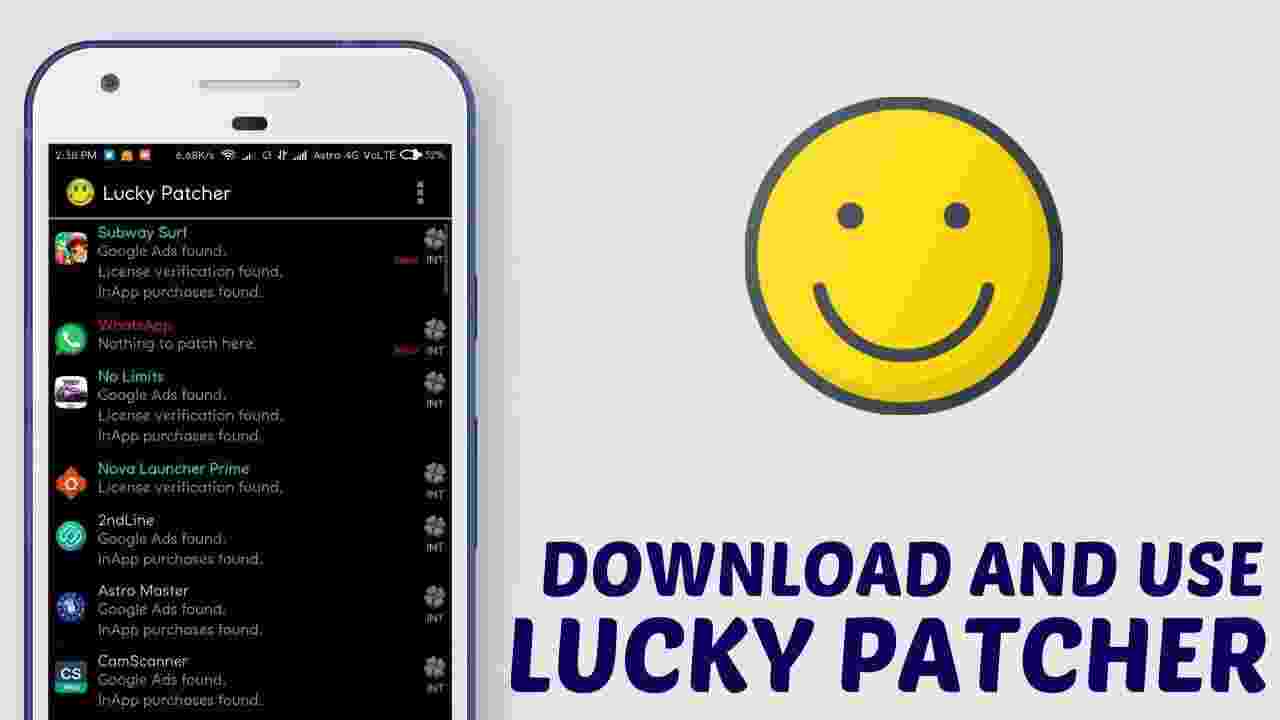
    4. Once open, you will see a list of installed applications available on your phone.
    5. Select the application that you want to patch.
    6. Then a statement will appear from the results of application analysis such as  Google Ads Found or In-app Purchase Found
    7. Then select    Open Menu of Patches
    8. After that, several patch options will appear in this application, such as    Remove Google Ads, Remove License verification, Change Application Components, Support Patch for Applications and Emulation LVL, Create Modified APK Files, and also manual patcher
    9. Just choose one patch according to your needs
    10. If so, then click    Apply
    11. Just wait a moment, until the process is complete
    12. Now you see the changes from the application.

    #5. How to use Lucky Patcher without Root Your Phone

    Lucky Patcher can still be used on an Android phone that is not rooted.

    1. First, download the Lucky Patcher application on the link provided
    2. Install Lucky Patcher no Root on the Android phone you are using
    3. An example is buying an application for free.
    4. Select the purchase option> then buy an application.
    5. Then the question will appear    “Do you want to try to get this application for free?”
    6. Just select    “Yes”    then select    “Send Reply to Application (Unsigned)”
    7. After that, just wait a moment.
    8. Apart from that, you can also use Lucky Patcher to select the   Create Modified Apk   option
    9. Wait for several modification options to become available.
    10. Please wait for the process to complete.

    Benefits of Downloading Lucky Patcher without Root

    • Can get the Full Version of the free application.
    • Can remove  “license verification”   from premium or paid applications.
    • Can remove ads from free apps.
    • Get free purchases from in-app purchases in apps and games.

    The Lucky Patcher application is indeed very useful because this application has a module that we can use for the needs and needs of our Android phones.

    For example, to hack offline games. For online games, we think it will be very difficult to hack because all available data is not in the  APK  we have but on the online game servers.

    Apart from the examples mentioned above, Lucky Patcher still has a lot of APK modification features that are just as cool.

    #6. How to solve the “Application not installed” problem:

    You might see an error called app not installed or installation blocked for security reasons. If you see this error, you need to disable ”  Play Protection  ” from the Play Store app. Here’s the process:

     Open the Play Store, in the menu click on the option “Play Protect”.

     Now turn off the “Security Threat Device Scan” by clicking the toggle.

     Now confirm by pressing the “OK” button.

     Now try installing Lucky Patcher again. We hope you install it successfully.

    What can you do with this application?

    1. Remove ads.
    2. Get gems, coins, chips, and more things to buy.
    3. Free access to features for paid apps.
    4. Change the application to a system application and a system application to another application.
    5. Move apps and game files to an SD card.
    6. You can back up application files and retrieve data from saved locations and more!

    Read more:

    Conclusion:

    So, friends, This is the explanation of how to download and install the latest Lucky Patcher Without Root on Android. So, you can use all the features of this Lucky Patcher application.

  • 3 Ways to Root Samsung Galaxy A10 without PC 2025

    3 Ways to Root Samsung Galaxy A10 without PC 2025

    3 Ways to Root Samsung Galaxy A10 without PC – In this article, I share with you how to root Samsung Galaxy A10 without a PC. And with easy step-by-step tutorials on how to successfully root. So, let’s jump right into the tutorial guide. Read to the end.

    3 Ways to Root Samsung Galaxy A10 without PC
    3 Ways to Root Samsung Galaxy A10 without PC

    How to Root Samsung Galaxy A10 without PC

    In recent times, Samsung has been focusing on low-cost smartphones with high specs. This year the company launched all of their new Galaxy M series followed by the Galaxy A series.

    Read more:

    Galaxy A10, Galaxy A30, and Galaxy A50 are specially designed to target offline buyers. After all, the new Galaxy A10 features everything you would expect from a mid-range smartphone.

    Samsung Galaxy A10 specifications

    The Samsung Galaxy A10 comes with a 6.2-inch HD IPS LCD screen with a resolution of 720 × 1520 pixels. It runs on One UI based on the Android 9.0 Pie version. The phone is powered by an octa-core Exynos 7884 SoC coupled with a Mali-G71 MP2 GPU. It packs 2GB of RAM and 32GB of internal storage which can be expanded up to 1TB.

    This smartphone uses a 13MP rear camera with an f / 1.9 aperture lens, LED flash, Panorama, HDR mode, etc. The front is equipped with a 5MP selfie camera with an LED flash. It has a 3.5mm audio jack, Wi-Fi 802.11 b / g / n, Bluetooth 5.0, GPS, A-GPS, GLONASS, FM Radio, MicroUSB 2.0, etc. It has a non-removable 3,400 mAh battery with an accelerometer and distance. sensor.

    Attention

    The root will void your phone warranty. In addition, Technowizah will not be responsible for any damages. I recommend proceeding at your own risk.

    Precondition:

    • To avoid any kind of distraction make sure your phone is at least 50% charged.
    • This process requires TWRP to be flashed on your phone.

    #1. How to Root Galaxy A10 without PC with Magisk

    How to Root Galaxy A10 without PC with MagiskSteps to Root Samsung Galaxy A10:

    Download the Latest Magisk and Magisk Manager

    MAGISK VERSION MAGISK DOWNLOAD LINK
    Latest Magisk Download
    Magisk v20 Download
    Magisk v19.4 Download
    Magisk v19.3 Download
    Magisk v19.2 Download
    Magisk v19.1 Download
    Magisk v18.1 Download
    Magisk v17.3 Download
    Magisk v16.7 Download
    Magisk v15.4 Download
    Magisk v14.5 Download
    MAGISK MANAGER VERSION DOWNLOAD LINK
    Latest Magisk Manager Download
    Magisk Manager v7.3.5 Download
    Magisk Manager v7.3.4 Download
    Magisk Manager v7.3.2 Download
    Magisk Manager v7.3.1 Download
    Magisk Manager v7.3.0 Download
    Magisk Manager v7.2.0 Download
    Magisk Manager v7.1.1 Download
    Magisk Manager v7.1.0 Download
    Magisk Manager v7.0.0 Download
    Magisk Manager v6.1.0 Download
    Magisk Manager v6.0.1 Download

    Step 2:  Turn off your phone and then turn it back into TWRP mode.

    Step 3:  To do so, press and hold the Volume Up + Power button simultaneously.

    Note:  If you can’t boot into recovery then use the TWRP Manager app from the Google Play Store.

    Step 4:  Click on the Install option from the main menu of TWRP.

    All files and folders present on your phone will appear on the screen.

    Step 5:  Just select the Magisk.zip file that was downloaded earlier.

    Step 6:  To start the root process, just swipe in the right direction.

    Wait for the root process to complete. It won’t last for a few minutes.

    Step 7:  Now restart your phone by simply selecting the Reboot System option.

    Finally! This is how you can root Samsung Galaxy A10 using Magisk and TWRP.

    Note:  To confirm root access, use the Root Checker app from the Google Play Store.

    #2. How to Root Samsung Galaxy A10 without PC with SuperSU

    How to Root Samsung Galaxy A10 without PC with SuperSU

    Steps to Root Samsung Galaxy A10:
    Step 1: SuperSU Root zip file

    • v2.52
    • v2.56
    • v2.65
    • v2.66
    • v2.74

    Step 2:  Same as Method 1, turn off your device and boot into TWRP recovery.

    Step 3:  In TWRP, click on the Install option.

    Step 4:  From your phone storage, select the downloaded SuperSU.zip file.

    Step 5:  On the next screen, swipe in the right direction to start the actual rooting process.

    As soon as the process is complete, a successful root message will appear in TWRP recovery.

    Finally! You have successfully rooted the Samsung Galaxy A10 using SuperSU and TWRP.

    #3. How to Root Samsung Galaxy A10 without PC with KingRoot

    • First, download the KingRoot application on your Samsung Galaxy A10.
    • Then, install the app on the phone. Also,  enable unknown sources in the settings menu.
    • And now open the application on your smartphone and click on the   “big button – No Root Permission”.
    • Don’t touch your screen while the process is in progress.
    • That’s it, your phone has root access now.

    Read more:

    Conclusion:

    This is an explanation of 3 ways to root the Samsung Galaxy A10 without a PC, I hope you have successfully rooted your Samsung Galaxy A10. If you face any issues, please write in the comments below.

  • 11+ Best Photos Selling Apps for Android Making Money 2025

    11+ Best Photos Selling Apps for Android Making Money 2025

    11+ Best Photos Selling Apps for Android Making Money – Android camera technology has developed so rapidly that many people don’t need another camera. If you have a gallery full of thousands of photos, sell them in the app to earn money.

    11+ Best Photos Selling Apps for Android Making Money11+ Best Photos Selling Apps for Android Making Money

    My interest in photography started with owning a smartphone these days. Those who take photos “in their way” by getting into mobile photography, and those who feel they have a photographer’s eye, take it to the point of buying a camera.

    Read more:

    Below I will recommend a photo-selling application to get the best money on Android 2024, as well as how to sell photos online for beginners.

    Best Photos Selling Apps for Android

    #1. 500px

    The 500px app offers both free and paid subscriptions. You can use this best-selling photo app on Android for free with more than 13 million members.

    The downside of the free subscription is that you can only upload 7 images per week. It has three membership tiers, each of which allows for unlimited uploads and more customization.

    This will be a great platform if you plan to test and don’t want to upload too many photos at once.

    #2. Agora Pictures

    One of the best features of Agora Pictures’ photo-selling app is that you save all your earnings. There are also no membership fees or commissions.

    Different commission rates are depending on how high you rank. The levels are Junior, Advanced, Pro, and Master.

    At Agora Images, you don’t sell all rights to a photo once. You can continue to sell the same photos to other businesses.

    The better you take pictures, the more you sell, thus getting a higher rating which boosts your ranking. A higher rating equals a higher payout.

    You can also participate in the app’s photo contests to earn money and even win trips. Contests are called “requests” and are run by businesses, brands, and bloggers.

    They will provide special image requirements for the request and the best photo wins.

    #3. Bylined

    Bylined is the best-selling photo app for Android that connects photographers and brands looking to create interactive photos on demand.

    The brand contacted Bylined to create a photography contest. Contests are sent to people who use the app. You take photos and get paid for your favorite brands.

    #4. Dreamtime

    The Dreamstime app allows you to save the copyright of your photos. Photographers get 25-50% of the profit sharing.

    Several options can increase your payout for selling your photos. Selling the exclusivity rights get a 10% bonus on this image. This right can be 1-3 years. You can also choose to sell all rights.

    If you sign up as a personal contributor and don’t sell your photos on other platforms, you’ll get a 60% revenue share.

    #5. MataEm

    EyeEm is a network of more than 25 million photographers worldwide. Similar to other apps, you earn money by selling your photos on the marketplace as well as through brand posts.

    In the EyeEm marketplace, you retain your copyright and receive a 50% commission every time a photo is sold. The lowest license they sell is $20 per photo, so you get $10 each time.

    This is a non-exclusive marketplace so you can place the same photo on multiple sites.

    EyeEm’s goal is to build a global creative community to offer free tutorials and tips to help you improve your photography skills.

    #6. Foad

    Foap is one of the most popular photo-selling apps and can be a lucrative selling platform as some of the big brands buy photos from there. The commission rate is 50%.

    One of its unique aspects is that for every photo you upload, you have to rate 5 photos from other people. This rating is used to help rank you and your photos.

    Foap is more than just a marketplace where people upload photos. Brands and companies send requests to Foap for the photos they’re looking for. They provide information about styles and types.

    Foap then organizes a competition or Challenge where photographers submit their best photos or videos. If your job is chosen, you can easily earn a few hundred dollars.

    Remember, your photos must have a resolution of at least 1280 x 960 pixels, but you can still sell the same photos over and over again.

    #7. Scoopshot

    Scoopshot is one of the best apps to sell photos on Android if you want to set your own price. This has the potential to earn more if your photos are the best.

    Another way to win is through daily quests and competitions. An assignment is a request for a specific photo of the brand. These missions are sent directly to your smartphone from Scoopshot based on your location.

    The daily contest is a photo contest created by Scoopshot that anyone can enter.

    Submitted photos are available for sale in the Scoopshot store. You will receive a notification in your app every time your photo is purchased.

    The interesting thing is that every photo you upload is available for free to publishers when an ad is placed on the photo by the display network.

    AGAIN VIRAL   5 Best and Free Stock Trading Apps 2021

    If your photos are used by online publishers, you will receive a share of the advertising revenue. Every view of your photos earns you money.

    #8. Shutterstock

    Shutterstock has been around for over 15 years and has millions of photos. They paid a total of over $1 billion to contribute to viewers.

    You must be a Shutterstock contributor to sell photos on their platform. A participant can earn between 20-30% of the price depending on the type of subscription the customer uses on the site.

    Becoming a large and well-known company can make it difficult for budding photographers to get in. You don’t have to sell exclusively on the Shutterstock marketplace, so this might be a good second app option.

    #9. Snapwire

    Snapwire has nearly 800,000 content contributors. You can also protect the copyright of your images.

    You can earn using Snapwire in two ways: through your portfolio and marketplace, and demands and challenges.

    Market sales take 50% commission, but requests and challenges receive 100% commission.

    Their app is tailor-made with content creators in mind, so it’s easy and intuitive to use.

    #10. Stockimo

    Stockimo is an app created by Alamy, one of the largest stock photography agencies.

    This is great for you because Alamy knows how to sell stock photos, so your chances of success are higher. Stocksimo sells licenses to use your photos to protect your copyright.

    Stocksimo is only for photos taken from your phone. If you have a photo taken with a camera, upload it to Alamy.

    You will receive 20% off each sale. One plus is that, depending on the license, sales can run into hundreds of dollars. The Stocksimo app states that the average selling price is $90.

    The downside is that it’s only an iPhone app so far.

    #11. Twenty20

    The Twenty20 app allows any photographer to create a gallery. You get your own private link where you can promote and sell your photos.

    You can also add your best photos to show off and get more views. Each photo sold earns a percentage of the subscriber’s share.

    For example, if a customer downloads 20 photos per month and 6 of them are yours, you will earn 30% of that customer’s contribution.

    If you participate in challenges, you can earn more. If a brand works with you directly through the Twenty20 platform, you will receive 100% commission.

    VIRAL AGAIN   6 Applications to Create Current Instagram Stories

    This platform is not exclusive, so you can also use other photo-selling apps.

    How to Sell Photos Online

    There are only a few steps you need to complete to start selling your photos.

    #1. Choose Your Photography App or Site

    I hope the list of apps for selling photos for money above has helped you sell photos.

    I recommend starting with the photos app so you don’t get overwhelmed with so many apps.

    Whichever app you choose, it doesn’t matter what catches your eye. Remember, just starting to use an app doesn’t mean you can’t use other apps.

    If you later decide to change the app where you want to sell photos, that’s no big deal. Migrating to a new photo-selling platform is usually easy.

    #2. Create an Account

    After selecting a photo-selling app from the list above, creating an account is the standard process.

    Fill in all the information for your profile in the text box. Make sure your information is correct.

    Some account profiles are used as applications to join stock photo networks.

    #3. Start Taking Pictures

    If the photo-selling app you decide to join has a review system, it may take up to a week to get their approval.

    This is a great time to start reviewing all the photos you already have or start taking new ones to sell on the photography market.

    #4. Upload and Share Your Works

    Once you are approved for the stock photo app or network, you can start uploading your photos to the photo store.

    Some apps have social sharing features to help you easily promote your photos.

    #5. Track Trends

    Not all photos are easy to sell for money. Some will do a better job than others. Check out popular photography trends for more of your photos to sell.

    Blogs and other businesses schedule their content for 3-5 months. They’re probably looking for Christmas photos in the middle of summer.

    Keeping up to date with the best-selling photos on your app platform allows you to determine which photos are likely to sell well. This will also give you ideas for your next shoot.

    Conclusion:

    Selling your photos online is a great way to make some extra money, but it can be confusing for beginners to figure out how to do it.

    This list of best-selling photo apps for Android 2022 makes it easy for you to decide where to start selling your photos.

  • 7 Best PS3 Emulators for Android and Laptop PC 2025

    7 Best PS3 Emulators for Android and Laptop PC 2025

    7 Best PS3 Emulators for Android and Laptop PC – You can play PS3 emulator games anywhere, on PC or Android. Before downloading the PS3 emulator, you should check the specifications of your device.

    7 Best PS3 Emulators for Android and PC Laptop
    7 Best PS3 Emulators for Android and PC Laptop

    7 Best PS3 Emulators for Android and Laptop PC

    The PS3 emulator is very useful for people who want to play PlayStation 3 games but don’t own a console. Even though the PlayStation 5 has been released in 2024, it does not close people’s curiosity to keep playing PS3.

    Read more:

    As is well known, this PlayStation 3 was released in 2006 and is the third generation console released by Sony. The PS3 is famous for having the advantage of the latest cell processor technology and can optimize floating-point operations.

    However, if you don’t have a console, don’t be sad because you can still play the PS3 emulator on Android and PC. Check out the following emulators from PlayStation 3 that can be played.

    #1. RPCS3

    RPCS3

    This RPCS3 game is quite popular and many people have already played it. You can play this game without experiencing lag on a computer or laptop that has good specifications.

    Downloading and setting up RPCS3 is also fairly easy.

    • How to install the PS3 emulator on a PC, first you have to download the RPCS3 emulator software. Don’t forget to also download LLE Modules so that later the emulator is complete.
    • Open the emulator, navigate to the config section then select settings. In this section, you must enable 4 files with the prx extension. Namely libresc, librtc, libsre, and libspurs_jq.
    • Next,
    • you have to select the VGA card in the ‘D3D Adapter’ column. We recommend that you choose a VGA that matches the PC specifications.
    • Don’t forget to download PS3 Firmware and install it.
    • Now it’s done and you can enjoy PS3 games on Windows.

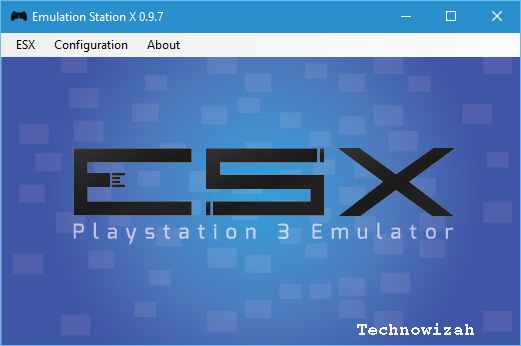
    #2. ESX PS3

    ESX PS3

    The emulator on the PlayStation 3, this one is very reliable for playing PS3 games on a Windows PC. The advantage is that it is very compatible with many popular PS3 games.

    The computer specs that you must have if you play ESX are a maximum of Windows 7 and below. RAM that is owned is at least 1 GB. Your computer must be at least an Intel processor and above.

    If you see, this emulator game can be compatible with many people’s computers. Especially now that computers or PCs that are owned by individuals are getting higher and higher. So ESX can be easily installed on a computer or laptop today.

    – Visit ESX Emulator

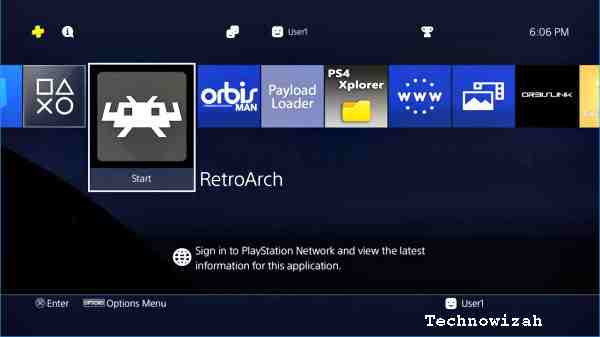
    #3. RetroArch

    RetroArch

    Download another PS3 emulator game for PC, namely RetroArch. This emulator is not only used to play PS3 games but can also be compatible with other consoles. Like the Xbox and Wii U.

    Uniquely, this emulator is open source. So it can not only be played on Windows but also on Linux or other operating systems commonly used for playing games.

    Seeing these advantages, RetroArch is quite promising in the future for playing the Playstation 3 emulator game. There is even another possibility that this game can be modified because of its open-source nature.

    VisiRetroArch

    #4. Short Waves

    Short Waves

    Download the PS3 PC emulator game, you have to try Short Waves. This game was developed in 2012 and already has a freeware license. However, this game is only in the development stage so it can run limited homebrew apps.

    The advantage of this emulator is that it can run fairly complex and complex test tests. Even so, RPCS3 can’t do it so complicated, but short waves can. For a new experience, you can try this PlayStation 3 emulator game, even though it’s limited.

    #5. Mednafen and your PS3

    Mednafen and your PS3

    Mednafen was formerly known as Nintecer. Being free software to play the best PS3 emulator. The advantage is that you can adjust the buttons on the PS3 by mapping them on the keyboard or joystick.

    Meanwhile, P3Semu, its function is to present a framework for porting PS3 games to x86_64 Linux. This emulator is increasingly having a lot of complaints from customers.

    The reason is that it is quite dangerous for Windows because it carries a virus in the emulator. Those of you who still want to try this Windows emulator is still careful and alert for viruses that can attack.

    #6. PS3 Emulator For Android

    PS3 Emulator For Android

    This Android emulator can be played offline and how to use it is easy, the smartphone does not need to be rooted.

    However, to play emulator games you must have a cellphone with a large memory capacity. At least 2GB of RAM must be owned and also a dual-core processor. To play it you must first install it this way.

    • You download the APK file and bios for the PS3 emulator application for Android.
    • Then you can find the BIOS file, if it doesn’t exist then you can download it.
    • Then find the BIOS file with the PS BIOS file.
    • After the BIOS can be found and detected, the game is ready to be played on mobile devices.
    • Don’t forget, to be able to use this emulator you must have an Android system with an OS of at least 4.0

    #7. PPSSPP

    PPSSPP

    Apart from the PS3 emulator for Android, you can also choose another alternative for playing games on Android, namely with PPSSPP. Although this emulator is better known as a PSP emulator, PS3 consoles can also be played using this application.

    The advantage is that it is quite solid and can be played smoothly even though in some conditions there is a lag. The application is also quite light, only 13 MB. You can play this emulator on Android 2.3 and above. The rating on Google is also quite good, namely 4 stars.

    Read more:

    Conclusion:

    So now you know the PS3 emulator that can be played. So if you don’t have a PS3 console or are bored with console games, you can choose this alternative. Not only can it be played on PC but also Android so it is very practical.