Category: Android

Android – Here you can find Android-related updates, Games, Online Game, Offline Games, Multimedia Games, Tips & Tricks, information, and more.

  • 5 Ways to Enter and Exit Xiaomi Fastboot of All Types 2025

    5 Ways to Enter and Exit Xiaomi Fastboot of All Types 2025

    5 Ways to Enter and Exit Xiaomi Fastboot of All Types – How to enter and exit fastboot mode? a question that Android cellphone users quite often seek after. Previously, do you know what the term fastboot is?
    5 Ways to Enter and Exit Xiaomi Fastboot of All Types
    5 Ways to Enter and Exit Xiaomi Fastboot of All Types

    How to Enter and Exit Xiaomi Fastboot of All Types

    In short, fastboot is a tool found on an Android device that includes features for repartitioning, recovering, updating the system, and much more.

    Read more:

    Causes of Xiaomi Fastboot

    On some Xiaomi cellphone devices, a problem is found where suddenly the device enters fastboot mode accidentally, the causes can be various, some of which are:

    • The system has crashed (firmware error) which prevents the system from loading properly.
    • There was a problem during the charging process.
    • Press the volume down button when the cellphone is in a new condition.

    Causes of Recurring Fastboot Occurrence

    In some cases, when we want to exit fastboot mode, when the cellphone turns on it returns to fastboot mode. This can happen when our Xiaomi cellphone has a bootloop problem.

    Because the system has crashed so it can’t load the operating system perfectly which results in opening fastboot mode as an alternative.

    For a solution, you can do flashing on the Xiaomi cellphone.

    How to Enter Xiaomi Fastboot Mode

    #1. Using Physical Key Combinations

    The easiest way to enter Xiaomi fastboot mode is by pressing a combination of several physical buttons on the cellphone.

    Here’s how:

    1. Turn off the cell phone.

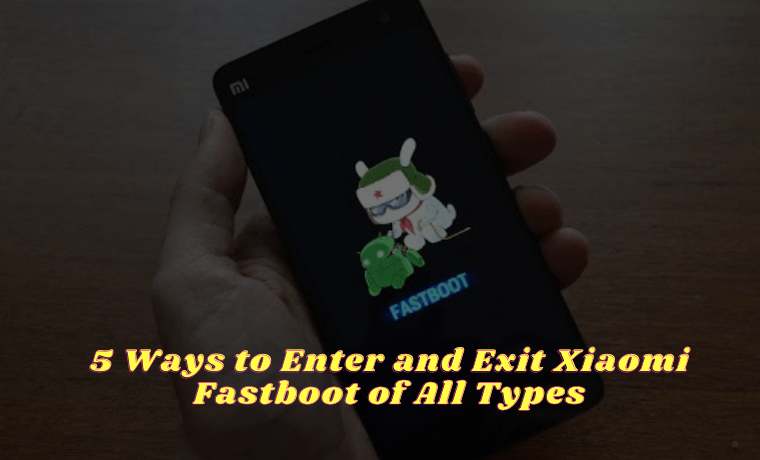
    2. Press the power + vol up button simultaneously until the fastboot logo appears as shown below and you have successfully entered fastboot mode.

    How to Enter Xiaomi Fastboot Mode

    But for some types of Xiaomi cellphones, there are a few different ways to enter fastboot mode, here’s how:

    1. Turn off the cell phone.

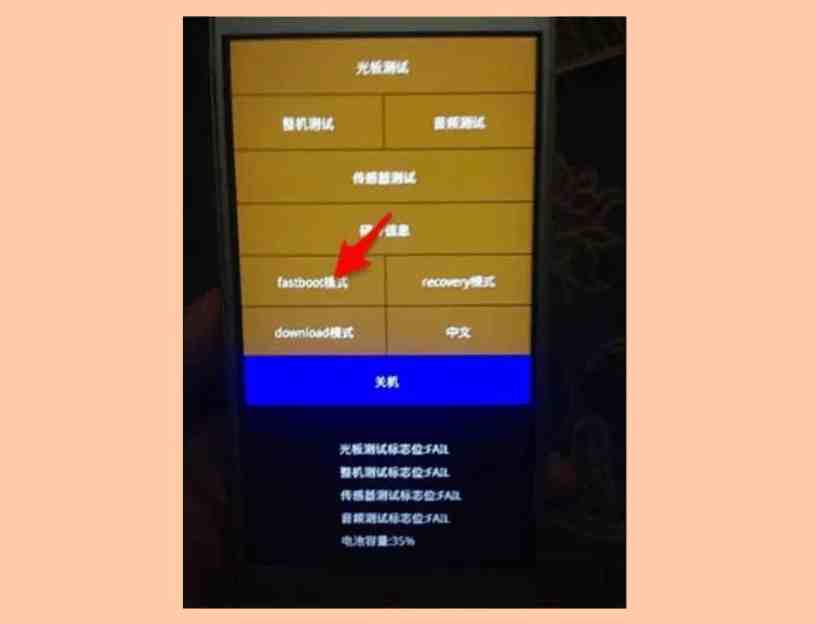
    2. Press the power + vol up button until the menu appears as shown below. Then please tap on the fastboot button, and you will automatically enter fastboot mode.
    How to Enter Xiaomi Fastboot Mode

    #2. Using CMD on a Laptop

    The second method is indeed a bit more complicated than the first, but for those of you who like to work on Android phones, of course, this is not a problem.

    This method can also be a solution when you have to enter fastboot mode but the physical buttons on the Xiaomi cellphone are damaged.

    Some things you have to prepare:

    1. USB cable.

    2. Laptops with operating systems Windows 7 and above.

    3. The cellphone is in a position to activate USB Debugging and OEM Unlock mode.

    Some of the tools that you must prepare:

    1. 15 Seconds ADB Installer, functions as a driver and fast boot command to manage your Xiaomi mobile.

    2. Xiaomi Android USB Driver, functions so that the laptop can recognize your Xiaomi cellphone.

    Here’s how to enter fastboot mode via CMD:

    1. Make sure your Xiaomi cellphone is connected to the laptop using a USB cable.

    2. Make sure you have installed the two tools above on your laptop.

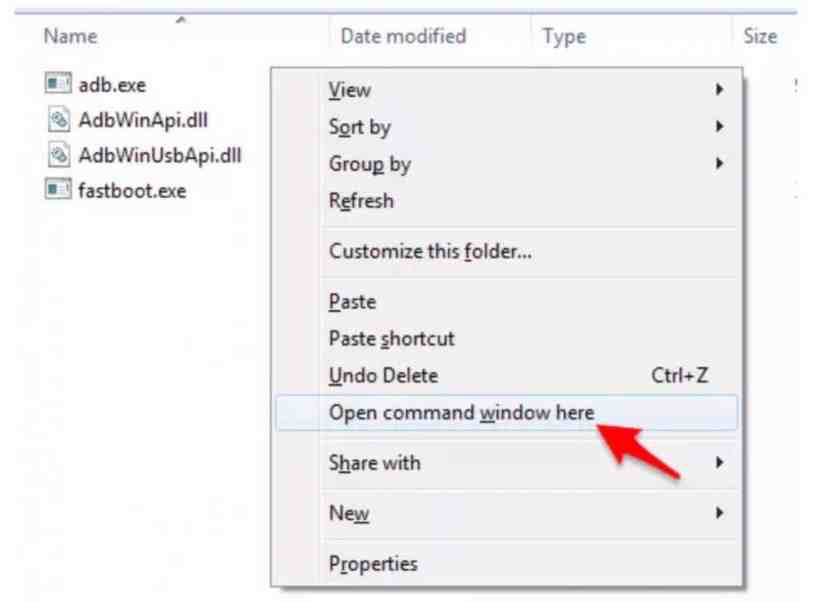
    3. Enter the c: \ ADB folder then press the shift key + right-click on an empty area in the folder, then click Open command window here.
    How to Enter Xiaomi Fastboot Mode

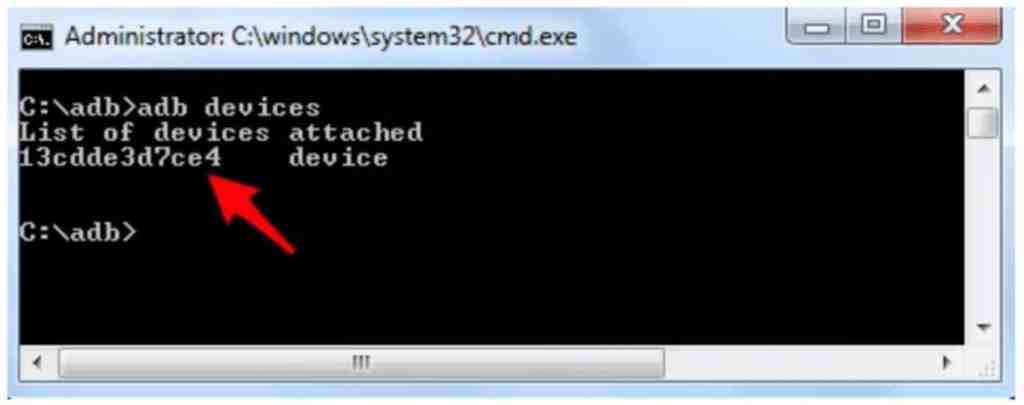
    4. Next you will see a new CMD window open, to make sure your cellphone is connected to the laptop, please enter the ADB device command in the CMD window. If successful you will see a message like in the following image.
    How to Enter Xiaomi Fastboot Mode

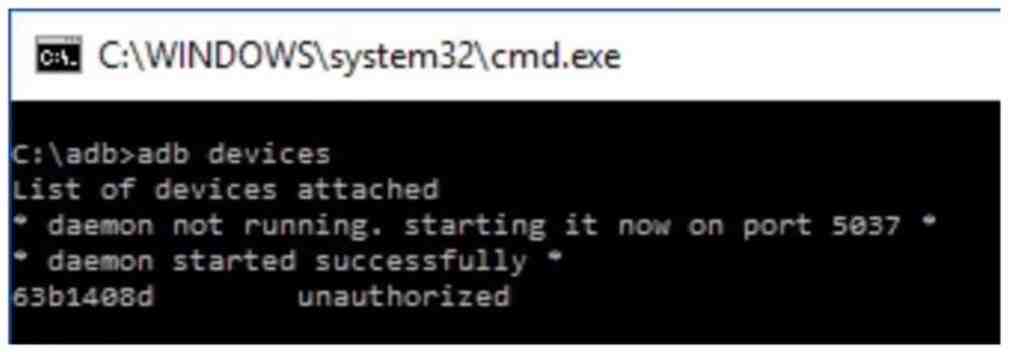
    5. If you find a message like the one in the image below when typing the adb device command, please provide USB Debugging access.
    How to Enter Xiaomi Fastboot Mode

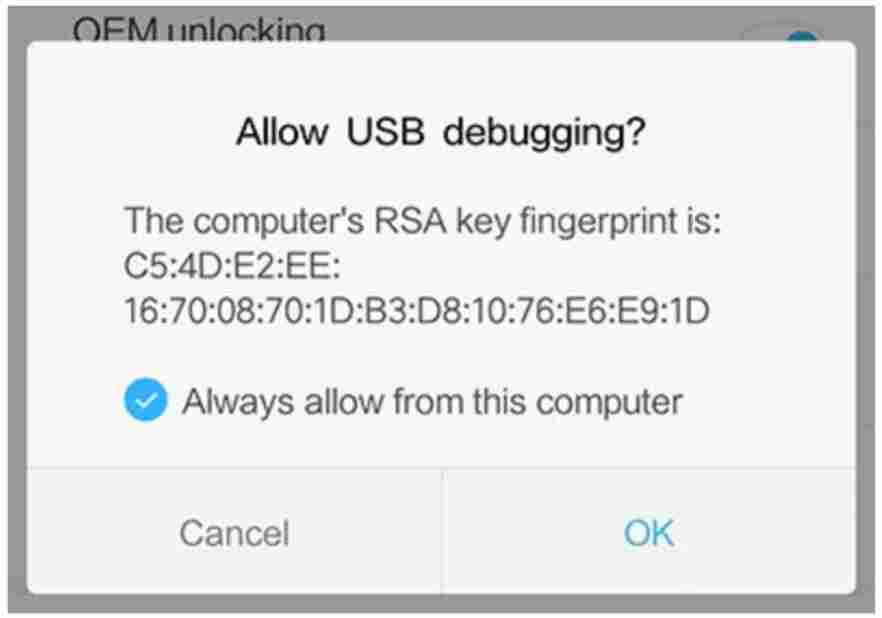
    6. To provide USB Debugging access, you will receive a notification as shown below. Please grant access by pressing the OK button.
    How to Enter Xiaomi Fastboot Mode

    7. To enter fastboot mode, please type the command adb reboot bootloader and your Xiaomi mobile will enter fastboot mode automatically.

    How to Exit Xiaomi Fastboot Mode

    # 1. Using Physical Key Combinations

    Besides being able to be used to enter Xiaomi fastboot mode, it turns out that there is a key combination that can also get out of the fastboot mode.

    1. When your Xiaomi cellphone enters fastboot mode, please press the power button + vol down. Or you can just press the power button for a few seconds until the cell phone turns off.

    2. Wait until your Xiaomi phone reboots.

    3. The Xiaomi cellphone should have returned to the home screen.

    # 2. Using CMD on a Laptop

    If the first method still doesn’t work, you can use this second method. It’s just that you have to prepare some tools and materials, the same as what was mentioned in the way to enter fastboot via cmd above, please scroll again.

    Here’s how:

    1. Make sure your Xiaomi cellphone is connected to the laptop using a USB cable.

    2. Make sure you have installed the two tools above on your laptop.

    3. Enter the c: \ adb folder then press the shift key + right-click on an empty area in the folder, then click Open command window here.

    4. After the cmd window has opened, please type the command fastboot reboot. Your Xiaomi cellphone will automatically reboot and enter the home screen.

    # 3. Removing the Battery

    If you have tried some of the methods above but they still fail, the last way is to remove the battery of your Xiaomi cellphone.

    After your Xiaomi cellphone is turned off, please reinstall the battery and then turn on the cellphone, as usual, this way you should have managed to get out of fastboot mode and enter the home screen as usual.

    Read more:

    Conclusion:

    Those are some ways to enter and exit Xiaomi fastboot mode that you can try, if all the methods above haven’t worked, please flash your Xiaomi cellphone. May be useful.
  • 8 Best Android Screen Recorder Apps (Updated 2025)

    8 Best Android Screen Recorder Apps (Updated 2025)

    8 Best Android Screen Recorder Apps (Updated)Recording the screen on a cellphone is usually carried out by smartphone users. The need for video recordings on cellphone screens is also quite high, especially in this online era. Whether it’s to record gameplay, make video tutorials, or just share interesting things with friends from activities on the cellphone screen.

    8 Best Android Screen Recorder Apps Updated
    8 Best Android Screen Recorder Apps Updated

    Best Android Screen Recorder Apps Updated

    Although some smartphones are equipped with a built-in screen recorder, many users still choose to use third-party applications. For example, installing an app from the Google Play Store.

    Read more:

    This is because third-party screen recording applications generally have many additional features when compared to the default screen recorder which incidentally has limited features.

    Well, on this occasion, Technowizah will provide some recommendations for the best cellphone screen recorder applications that you can try, and see the reviews until they run out.

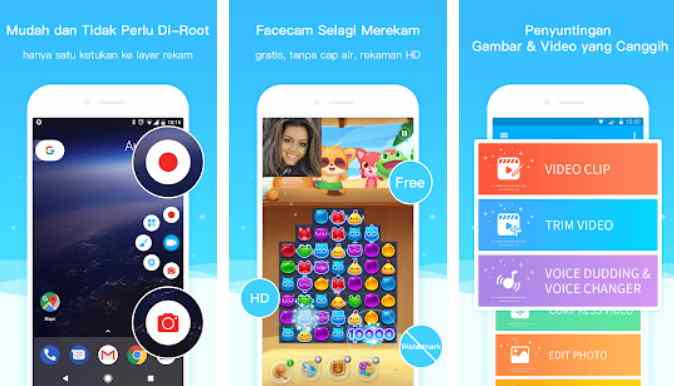
    #1. AZ Screen Recorder – No Root

    AZ Screen Recorder – No Root
    AZ Screen Recorder – No Root

    AZ Screen Recorder is a popular screen recorder app launched by AZ Screen Recorder.

    The screen capture application has many interesting features that make it better than the default screen recorder from a smartphone. In fact, AZ Screen Recorder has been equipped with video editing features in the application.

    Featured Features of AZ Screen Recorder

    • No need for root access
    • No watermark or time limit
    • Ad-free
    • Supports Full HD and QHD quality
    • Has a pause and start button
    • Recording sound from the mic
    • Display touch screen
    • Choose video resolution, frame rate, and bit-rate
    • Counting downtime
    • Display text and logo
    • Save videos to SD card
    • Choose time-lapse or slow-motion

    #2. Super Screen Recorder – screen and sound record apk

    Super Screen Recorder – screen and sound record apk
    Super Screen Recorder – screen and sound record apk

    Super Screen Recorder is an Android screen recorder app from HappyBees&Screen developer.

    The application carries screen recording with high-definition quality. Super Screen Recorder allows use as an easy screen recorder and is also equipped with video editing applications.

    Featured Features of Super Screen Recorder

    • Has supported HD recording quality
    • No need to root
    • No watermark
    • Unlimited recording duration
    • Support multi-platform RTMP (Real-Time Messaging Protocol) live broadcast
    • Save to SD card
    • Capable of recording mic sound while recording
    • Countdown setting
    • Set video speed
    • Add music in the background
    • There is a floating ball feature that can be personalized
    • Cut video

    #3. DU Recorder – Screen Recorder, Video Editor, Live

    DU Recorder – Screen Recorder, Video Editor, Live
    DU Recorder – Screen Recorder, Video Editor, Live

    DU Recorder is one of the top-quality Android screen recorder apps.

    In addition, DU Recorder is a stable application that can record the screen clearly and is equipped with video editing tools. DU Recorder can be a great choice to make screen recording easier for anyone who needs it.

    Featured Features of DU Recorder

    • Does not require root access
    • No recording time limit
    • Supports high-quality videos up to 1080p
    • Available in more than 20 languages
    • Capable of recording external sound
    • Storage to SD card
    • Brush feature for drawing screen recording
    • Can be connected to other devices
    • Live stream to social media
    • Trim and merge screen recording videos
    • Using the front camera while broadcasting
    • Add background

    #4. Screen Recorder

    Screen Recorder
    Screen Recorder

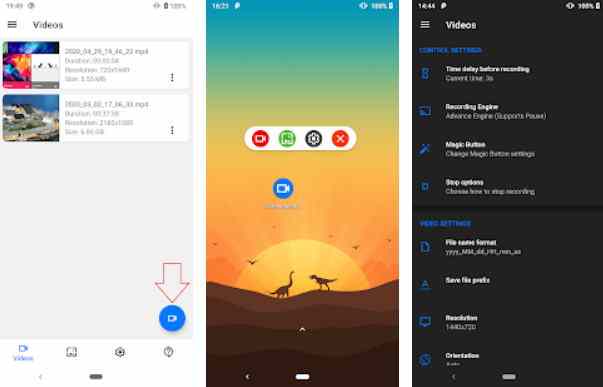
    Screen Recorder is a full-featured screen recorder app for Android.

    The application made by Kimcy929 is easy to use to record and take screenshots anywhere. The screen Recorder interface looks simple and supports several languages, so it can be relied on well.

    Featured Features of Screen Recorder

    • Supports FaceCam while recording
    • Magic Button support to stop or pause
    • Editor with overlay feature to draw notes on the screen
    • Cut the video after finishing recording
    • Voice recording with mic
    • Synagogue and night theme support
    • There is a quick shortcut in the notification panel
    • Built-in sound in games on Android Q to Android 10
    • Save on SD card
    • Has MP4 recording format
    • Does not require root access
    • Can add text or logo

    #5. Mobizen Screen Recorder

    Mobizen is a convenient and easy-to-use mobile screen recorder application. Best App award recipients of 2016 made directly by MOBIZEN.

    There is no doubt that Mobizen Screen Recorder has been used by 100 million users worldwide. Moreover, besides being easy to use, Mobizen screen recordings are also of high quality.

    Featured Features of Mobizen Screen Recorder

    • Clear and HD quality screen recording
    • Highest recorded video quality 1080p and 60fps
    • Able to record voice as well as record screen with FaceCam
    • Capable of recording long videos
    • Save in external memory or SD card
    • Video editor to trim or trim videos and more
    • There is no watermark on the recording
    • Can be used without rooting
    • Share the recording directly on social media
    • Screen recording countdown
    • Add your favorite music to the recording
    • Mobizen Premium features are available

    #6. ADV Screen Recorder

    ADV Screen Recorder
    ADV Screen Recorder

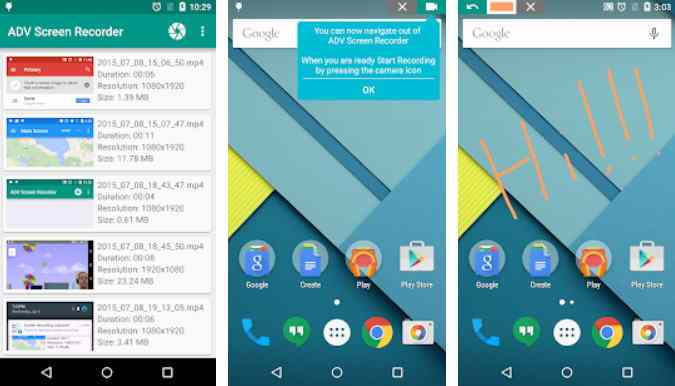
    ADV Screen Recorder is a well-known cellphone screen recorder application. The application launched by ByteRev is among the top choices in the Android community.

    Mainly because it is easy to use and without menus that fill the phone screen. So, it is very useful for content creators in the world.

    Featured Features of ADV Screen Recorder

    • Screen recording with two engine options, Default and Advanced
    • Pause recording with Advanced machine engine
    • Quickly draw on footage with your favorite colors
    • Set text with full customization
    • Cut the recorded video
    • Can use the front or rear camera while recording the screen
    • Change the resolution of the recorded video
    • Creating text and banner images on-screen recordings
    • Does not require root access
    • Capable of recording internal audio

    #7. Screen Recorder – Record with Facecam And Audio

    Screen Recorder – Record with Facecam And Audio, is the last best mobile screen recorder app.

    The application from the developer Prometheus Interactive LLC is equipped with HD screen recording that is fast and easy to use. So, it can be used to record games for upload to YouTube channels or social media.

    Featured Features of Screen Recorder – Record with Facecam And Audio

    • Turn on the camera and microphone
    • Casting for live-streaming
    • Screen recording in HD quality
    • Unlimited screen recording duration
    • Simple interface
    • No need for root access
    • Cut and edit recordings
    • Share the recording directly on social media
    • Watermark has a small size
    • Features of pausing video recording

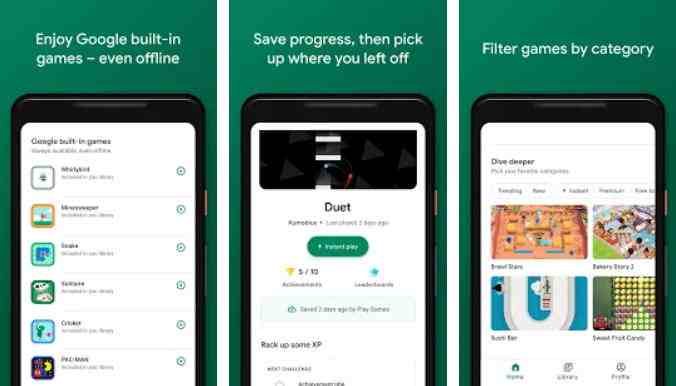
    #8. Google Play Games

    Google Play Games
    Google Play Games

    In addition to functioning to manage game applications on smartphones, Google Play Games can also be used to record screens.

    The flagship application from Google LLC for Android was developed to facilitate gaming features on smartphones. Therefore, sharing the best gaming moments can also be done with the Google application.

    Featured Features of Google Play Games Recorder

    • Recording in 720p or 480p
    • Add videos from FaceCam
    • Recording sound with the microphone
    • Editing video recordings
    • Easily upload directly to YouTube
    • Share to other social media from YouTube
    • Convenient recording button
    • Does not require root access
    Read more:

    Conclusion:

    Well, that’s the best Android smartphone screen recorder application you can try.

    Each application has superior features, so choose the one that suits you best. For those of you who want to create game content or video tutorials, there’s no need to worry anymore. Everything can be done directly from an Android smartphone.

  • Three APN Settings – Step by Step Configuration guide 2025

    Three APN Settings – Step by Step Configuration guide 2025

    Three APN Settings – Step by Step Configuration Guide – Actually, the APN is automatically set when you insert the provider card into the cellphone. But not infrequently you feel that your internet network is slow. Well, for that you need to set APN 3 (Tri) so that the internet connection becomes fast and stable.

    Three APN Settings – Step by Step configuration guide
    Three APN Settings – Step by Step configuration guide

    Three APN Settings – Step by Step Configuration guide

    You will be annoyed if your internet is slow like a snail even though there is a lot of quotas, so it will interfere with communication, especially for those of you who have to follow online for school or college.

    Read more:

    Well, that’s why you need the best Tri APN settings so that your internet connection is fast and stable.

    That’s why we need the best APN settings so that our connection becomes faster. Luckily provider 3 (TRI) has some of the best settings that you can use. Check out this article!

    Fastest and Stable Tri 4G APN Settings

    Each ISP provider has different APN settings. Every time you insert a Tri card into your phone, the APN settings will automatically default to use the internet connection.

    But sometimes the resulting internet speed is very slow or slow, while we need a fast and stable internet connection to play games or stream YouTube.

    That’s why you need to change the APN settings to make your internet connection faster. Below are some of the fastest and most stable APN 3 settings:

    #1. APN Default Tri

    For those of your card 3 users, there is usually an APN that automatically sets itself. Well, the automatic APN setting is called the default Default APN.

    • Name: GPRS
    • APN: 3gprs
    • Proxy: Default
    • Port: Default
    • Username: 3gprs
    • Password: 3gprs
    • Servers: Default
    • Mmsc: Default
    • Mms proxy: Default
    • Mms port: Default
    • Mcc: 510
    • MNC: 89
    • Authentication type: Pap Or Chap
    • APN type: default,supl
    • APN Protocol: IPv4
    • Roaming protocol: IPv4
    • Bearers: unspecified
    • Mvno type: None

    #2. APN 3 4G LTE

    For those of you who are not satisfied with the default APN and want to make the internet connection even faster, you can try this!

    • Name: TriLTE
    • APN: LTE
    • Proxy: APN 3 4G LTE
    • Port: Default
    • Username: 3gprs
    • Password: 3gprs
    • Servers: Default
    • Mmsc: Default
    • Mms proxy: Default
    • Mms port: Default
    • Mcc: 510
    • MNC: 89
    • Authentication type: Pap Or Chap
    • APN type: default,supl
    • APN Protocol: IPv4
    • Roaming protocol APN: IPv4
    • Bearers: unspecified
    • Mvno type: None

    #3. Fastest APN 3

    With this APN, your internet connection is guaranteed to be faster, and it won’t freeze again when you’re using the Zoom meeting application.

    • Name: APN Tri
    • APN: redir.tri.co.id
    • Proxy: Default
    • Port: Default
    • Username: 3gprs
    • Password: 3gprs
    • Servers: Default
    • Mmsc: Default
    • Mms proxy: Default
    • Mms port: Default
    • Mcc: 510
    • MNC: 89
    • Authentication type: Pap Or Chap
    • APN Type: default,supl
    • Protocol: IPv4
    • APN protocol: IPv4
    • Bearers: unspecified
    • Mvno type: None

    #4. APN 3 Stable

    A fast and stable network connection will certainly make you feel more at home to linger on social media, make sure you try this APN!

    • Name: TriStable
    • APN: Hutchison
    • Proxy: Default
    • Port: Default
    • Username: 3gprs
    • Password: 3gprs
    • Servers: Default
    • Mmsc: Default
    • Mms proxy: Default
    • Mms port: Default
    • Mcc: 510
    • MNC: 89
    • Authentication type: Pap Or Chap
    • APN type: default,supl
    • Protocol: IPv4
    • APN roaming protocol: IPv4
    • Bearers: unspecified
    • Mvno type: None

    #5. APN 3 Free Internet

    Not many people know about this APN, but you can use it if you don’t have a quota.

    • Name: TriFree
    • APN: Free
    • Proxy: Default
    • Port: Default
    • Username: 3gprs
    • Password: 3gprs
    • Servers: Default
    • Mmsc: Default
    • Mms proxy: Default
    • Mms port: Default
    • Mcc: 510
    • MNC: 89
    • Authentication type: Pap Or Chap
    • APN Type: default,supl
    • APN protocol: IPv4
    • Roaming protocol: IPv4
    • Bearers: unspecified
    • Mvno type: None

    #6. APN 3 4G Unlimited Anti FUP

    Unlimited is helpful because you can freely access the internet anywhere without worrying about SMS from the operator, this one will be perfect for you.

    • Name: UnlimitedTri
    • APN: Unlimited
    • Proxy: Default
    • Port: Default
    • Username: 3gprs
    • Password: 3gprs
    • Servers: Default
    • Mmsc: Default
    • Mms proxy: Default
    • Mms port: Default
    • Mcc: 510
    • MNC: 89
    • Authentication type: Pap Or Chap
    • APN type: default,supl
    • APN protocol: IPv4
    • APN Roaming Protocol: IPv4
    • Bearers: unspecified
    • Mvno type: None

    #7. APN Tri YouTube

    Watching YouTube will be more fun if it is smooth and has no buffering. One of the tips so that watching YouTube HD can run smoothly is to use an APN with a fast connection. Try this setting to be able to watch YouTube to your heart’s content.

    • Name: Tri
    • APN: tri.co.id
    • Proxy: Default
    • Port: Default
    • Username: 3gprs
    • Password: 3gprs
    • Servers: Default
    • Mmsc: Default
    • Mms proxy: Default
    • Mms port: Default
    • Mcc: 510
    • MNC: 89
    • Authentication type: Pap Or Chap
    • APN type: default,supl
    • Protocol: IPv4
    • Roaming APN Protocol: IPv4
    • Bearers: unspecified
    • Mvno type: None

    #8. APN 3 GPRS

    • Name: Tri GPRS
    • APN: 3gprs.net
    • Proxy: 82.145.208.20
    • Ports: 80
    • Username: 3gprs
    • Password: 3gprs
    • Servers: Default
    • Mmsc: Default
    • Mms proxy: Default
    • Mms port: Default
    • Mcc: 510
    • MNC: 89
    • Authentication type: Pap Or Chap
    • Type: default,supl
    • Protocol: IPv4
    • APN roaming protocol: IPv4
    • Bearers: unspecified
    • Mvno type: None

    #9. APN 3 For Games

    For gamers, signal strength is one of the important things that can support victory. How about it, if suddenly your signal slows down when you almost win, isn’t it stressful? it’s a problem. Because of that, you have to try this APN setting.

    • Name: APN 3 Gaming
    • APN: m.gameloft.com
    • Proxy: Default
    • Port: Default
    • Username: 3gprs
    • Password: 3gprs
    • Servers: Default
    • Mmsc: Default
    • Mms proxy: Default
    • Mms port: Default
    • Mcc: 510
    • MNC: 89
    • Authentication type: Pap Or Chap
    • APN type: default,supl
    • APN protocol: IPv4
    • Roaming apn protocol: IPv4
    • Bearers: unspecified
    • Mvno type: None

    Tri APN Settings on Android Smartphone

    The way to set APN 3 on an Android smartphone is very simple, all you need to do is follow the steps below and enter the APN settings menu.

    1. Open the settings menu on your phone.
    2. Then click on the mobile network menu.
    3. Select an option on the network and internet menu.
    4. After that select the advanced settings option and click the APN menu.
    5. If you have entered the APN menu box, click the add option in the upper right corner.
    6. Fill in the fields according to the APN settings provided above.
    7. Once done, click on the three dots in the top right corner and select the save option.
    8. Finished.

    Tri APN Settings on iPhone (iOS)

    For APN 3 settings on IOS smartphones, there are only slight differences in menu names or options to choose from. Here are the steps:

    1. The first step is to open your iPhone settings menu.
    2. Select the mobile menu and select the mobile network option then click APN.
    3. After that, a form will appear to change the APN settings on your smartphone.
    4. Then fill in the form with the above options.
    5. When finished, select the save menu.

    APN Settings 3 USB Modem (Laptop and PC)

    For you laptop and PC users who use a USB modem, you can follow these steps:

    1. Open any browser on your computer.
    2. Enter the IP address http://192.168.8.1.
    3. Go to the Settings menu > Dial-up > Profile Management.
    4. Click on the new profile option.
    5. Then enter the type of your APN settings.
    6. If you have clicked save.

    Conclusion:

    This is the explanation of three APN settings—a Step-by-Step Configuration guide. I have recommended improving network connectivity so that playing games, streaming YouTube, or even online can run smoothly. I just really recommend trying.

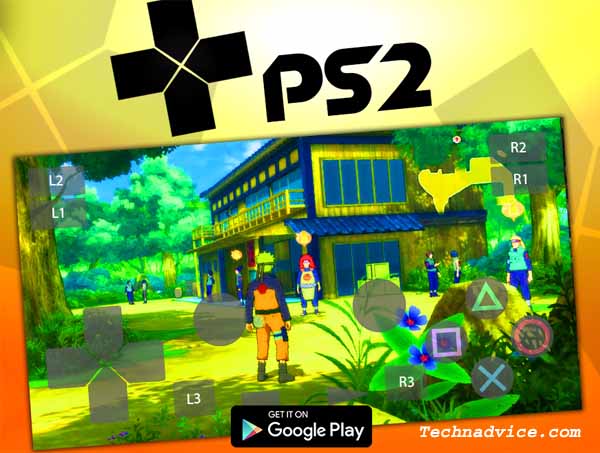
  • 12 Best PS2 Emulators for Android Smartphone 2025

    12 Best PS2 Emulators for Android Smartphone 2025

    Best PS2 Emulators for Android Smartphones – Looking for the best PS2 emulator on Android? Then you come to the right place. Because we will provide some PS2 emulator recommendations that you can use to play PS2 games on smartphones.

    12 Best PS2 Emulators for Android SmartphoneHere’ The 12 Best PS2 Emulators for Android Smartphone

    Of course, with this PS2 emulator, you can play all PS2 games from Grand Theft Auto (GTA) to other popular PS2 games.

    Read more:

    Instead of long, just read this article, guys. Then you can decide which PS2 emulator you want to use.

    Playing PlayStation games this year will make us happy again. What’s more, you can play on Android that you can play anywhere.

    Well, if you want to play PS2 games and are confused about what emulators you can use to play PS2 games on Android. You can watch carefully below.

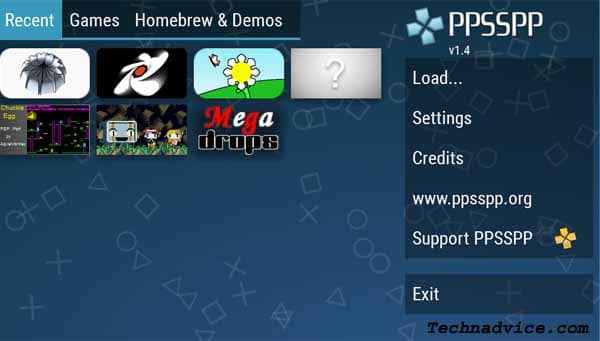
    #1. PPSSPP – PSP Emulator

    PPSSPP - PSP Emulator
    PPSSPP – PSP Emulator

    The first emulator is  PPSSPP. This emulator that has been developed by Henrik Rydgard has been downloaded approximately 50 million times and has a size of approximately  28 MB.

    This emulator is quite famous, many people who play PS2 games on Android use this emulator.

    Read more: How to Add Text on Your Android Lock Screen

    Its advantages are, you can adjust the graphics in which you can adjust to the specifications of your smartphone.

    This emulator only supports PPSSPP games that have an ISO or CSO format. PPSSPP is very simple and certainly very tasty for you to use.

    Download Size 29MB
    Advantages Light and easy to use
    Deficiency
    Download link  

    #2. PSP Emulator Gold Pro

    PSP Emulator Gold Pro
    PSP Emulator Gold Pro

    PSP Emulator Gold Pro is the next best PS2 emulator that we highly recommend. That way you can play all PS2 games on Android through this emulator.

    When you play PS2 games through this emulator, it will produce graphics that are quite satisfying. This PSP emulator runs well on a variety of smartphones.

    Download Size 25MB
    Advantages Fast in terms of data processing
    Deficiency
    Download link  

    #3. PS2 Emulator For PS2 Games: New Emulator For PS2

    PS2 Emulator For PS2 Games: New Emulator For PS2
    PS2 Emulator For PS2 Games: New Emulator For PS2

    Next, there is the PS2 Emulator For PS2 Games. With this emulator, you can play any PS2 game if you have the game file.

    The graphics that are presented when playing PS2 games on the emulator are also pretty good. The sound produced is also quite clear.

    Download Size 33MB
    Advantages Fast enough to read data
    Deficiency
    Download link  

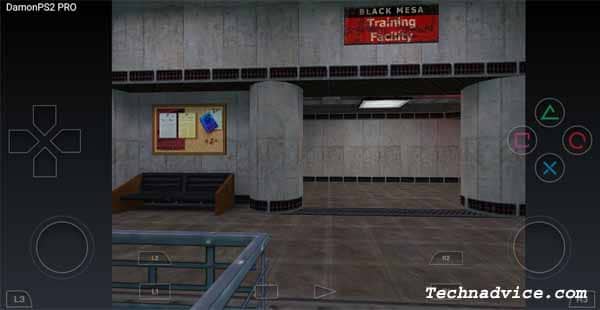
    #4. Damon PS2 Pro (Paid)

    Damon PS2 Pro (Paid)
    Damon PS2 Pro (Paid)

    This one emulator is predicted as the best PS2 emulator. Because this emulator is claimed to be faster than other emulators.

    Therefore you cannot use this emulator for free. To be able to use this emulator, you have to spend Rp 139,999, – guys. Interested in trying it?

    Download Size 11MB
    Advantages The fastest PS2 emulator
    Deficiency
    Download link  

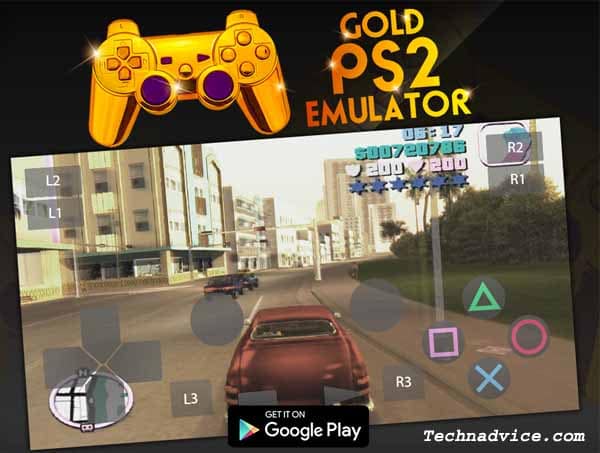
    #5. Gold PS2 Emulator

    Gold PS2 Emulator
    Gold PS2 Emulator

    The next emulator is the Gold PS2 Emulator. This emulator which has been developed by Exclusive Emulators LLC  has been downloaded 10,000 times and has a size of approximately 33 MB.

    This PS2 emulator provides amazing graphics quality when you play PS2 games. This emulator also supports all formats. In addition, this emulator has a simple display that will make it easier for you when using it.

    Download Size 33MB
    Advantages Fast data processing and easy to use
    Deficiency Some devices, often experience Force Close
    Download link  

    #6. Dolphin Emulator

    Dolphin Emulator
    Dolphin Emulator

    Next is the Dolphin Emulator. This emulator can indeed be relied upon to play PS2 games on your Android guys.

    In this emulator there are no PS2 games, so you have to download PS2 games through various PS2 game download sites.

    Download Size 12MB
    Advantages No lag and fast the data processing
    Deficiency Sometimes in some games, there are buttons that cannot be used
    Download link  

    #7. Free HD PS2 Emulator – Android Emulator For PS2

    Free HD PS2 Emulator - Android Emulator For PS2
    Free HD PS2 Emulator – Android Emulator For PS2

    The next emulator is the Free HD PS2 Emulator. This emulator has been downloaded approximately 50 thousand times in the Playstore.

    This emulator has a size of approximately 559 MB. The advantage of this emulator is that the sound produced is quite clear and uninterrupted.

    Download Size 599MB
    Advantages The sound and graphics produced are quite clear
    Deficiency
    Download link  

    #8. ePSXe for Android

    ePSXe for Android
    ePSXe for Android

    This emulator provides fairly high compatibility, and good speed, and the resulting sound is quite clear.

    Unfortunately, to enjoy this emulator you have to spend too. The price offered for this emulator is IDR 49,404, – only guys.

    Download Size 5MB
    Advantages The results of the sound and graphics are quite good
    Deficiency
    Download link  

    #9. Play!

    Play!
    Play!

    The next emulator is Play! guys. You can’t search for it in the Play Store, but you can use the link below to download this application.

    This emulator supports all types of PS2 games in ISO format. Its simple appearance also makes it easy for users to use it.

    Download Size 8.2MB
    Advantages Light and the resulting graphics are quite good
    Deficiency
    Download link  

    #10. PTWOE – Playstation 2 Emulator

    PTWOE - Playstation 2 Emulator
    PTWOE – Playstation 2 Emulator

    The last emulator was PTWOE – Playstation 2 Emulator. This emulator that has been developed by TeamEMU has been downloaded 100 thousand times and has a size of approximately 45 MB.

    With this emulator, the game you play will look so amazing. Because of the graphics quality that this emulator has is quite high. In addition, this emulator has a simple display that will make it easier for you when using it.

    Download Size 45MB
    Advantages Easy to use and fast in processing data
    Deficiency
    Download link  

    #11. PPSS2 Golden

    PPSS2 Golden
    PPSS2 Golden

    PPSS2 Golden is an Android emulator for PS2 that can satisfy your longing to play old PS2 games. This emulator is claimed to be able to run up to 90% of games on the PS2 and is also compatible with nearly 80% of Android phones on the market.

    This application is quite easy to install and doesn’t require a BIOS file to run, like other emulators. The need for specifications is also low, it can even run on Android 4.4 and above. This emulator also provides cheat codes and the save game can be saved directly to the SD Card.

    Download

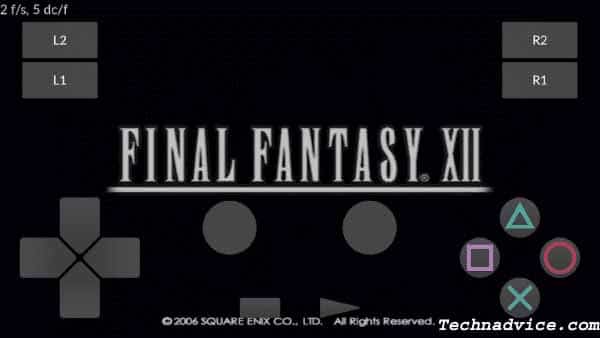
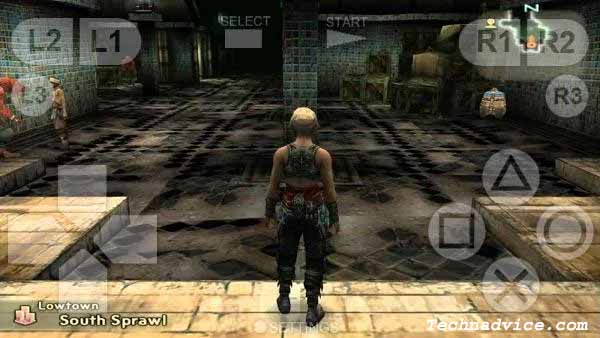
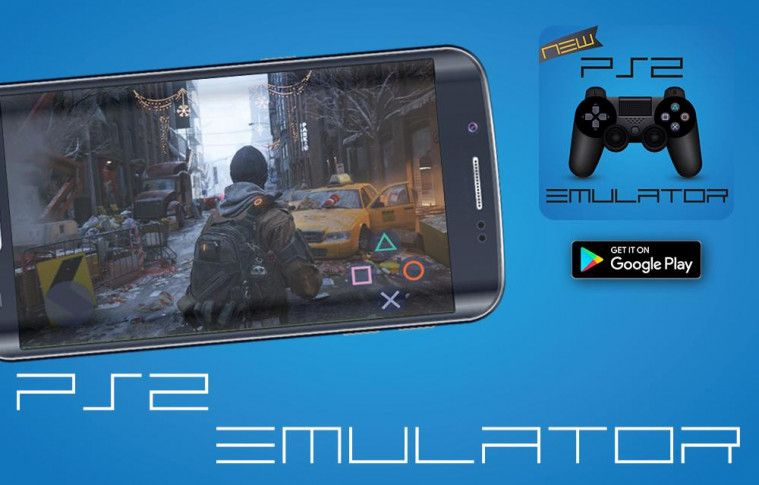
    #12. New PS2 Emulator

    New PS2 Emulator
    New PS2 Emulator

    The new PS2 Emulator is one emulator for free PS2 that you can use not only to play PS2 games on Android but also includes PSX and PSOne games.

    Even though you can’t play PS2 games as a whole, you can play games like Gran Turismo, Tekken 3, or Resident Evil 2.

    This Android emulator also supports several file types, such as .bin, MDF, or .img. Unfortunately, this emulator is still not too smooth to play heavy games because the results will lag, but you can play your favorite lighter games.

    Download

    Read more:

    Conclusion:

    So, friends, these above 12 best PS2 emulators for Android smartphones, that you can use on your Android smartphone. So don’t forget to share this article with your friends!

  • 20 Best Free Antivirus For Android [Secure Apps] 2025

    20 Best Free Antivirus For Android [Secure Apps] 2025

    20 Best Free Antivirus For Android [Secure Apps] – Currently, there are lots of the best free antivirus for Android that you can use. Using additional antivirus applications to maintain security is quite important at this time.

    20 Best Free Antivirus For Android [Secure Apps]

    20 Best Free Antivirus For Android [Secure Apps]

    Because cyber crimes are very common to attack Android users. The current Android security system is quite sophisticated. However, if you want to be more secure using an additional antivirus application can be the right choice.

    Read more:

    It is very important to maintain the security of the data on your phone. In addition, using an antivirus can also minimize attacks of various kinds of malware that will damage the software or system on your Android device.

    As previously said, you can easily find various kinds of antivirus applications for Android phones. Here are some of the best antiviruses that we recommend for Android users.

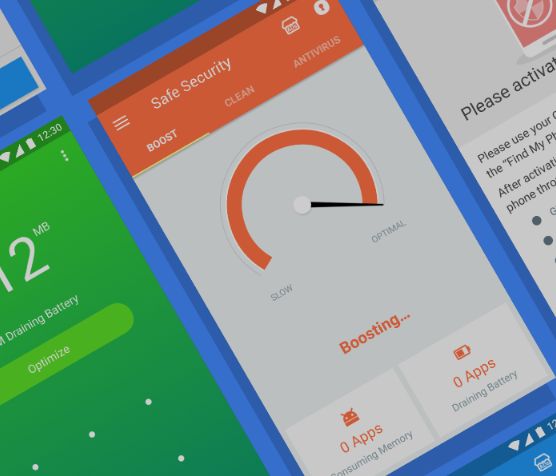
    #1. Safe Security

    Safe SecurityThe first best free antivirus for Android is Safe Security. This application has been downloaded more than 16 million times on the Play Store. There are various kinds of excellent features offered by this best antivirus.
    For example, the Speed ​​Booster and Cleaner-Lacking features are useful for deleting cache and junk files. Another very useful feature is the Smart Battery Saver to make your cellphone battery not run out quickly when using the Safe Security application.

    This application also guarantees the data security of its users. Therefore, you don’t have to worry about using this application.

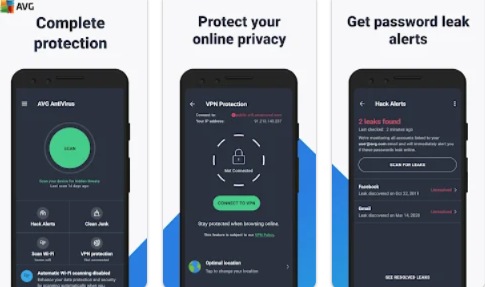
    #2. AVG antivirus

    AVG antivirusBesides being able to be used on computers, AVG Antivirus can also be used for Android users. You don’t have to pay a penny to use this app.
    The features built into AVG Antivirus make it possible to move all the files present on your Android phone. This will detect any existing viruses or viruses that will try to infect your phone.

    Besides being useful for scanning for viruses on your cellphone, this application can also guarantee security when you surf the Internet. Because this application has a feature to scan which websites have the potential to spread viruses or malware.

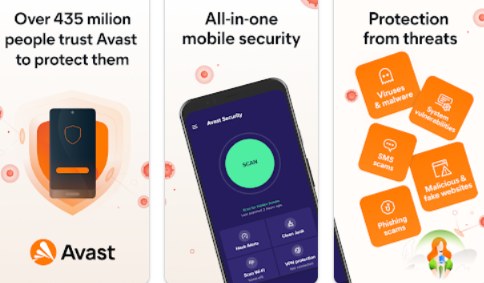
    #3. Avast Antivirus

    Avast AntivirusThe next free antivirus for Android is Avast Antivirus. This is one of the best apps to protect your phone from various virus attacks.
    There are various kinds of advanced features embedded in this application. One very useful feature is Anti-Theft. This is a feature that will take pictures and also record the sound of the thief when your cellphone is replaced by a SIM card.

    #4. Avira Antivirus

    Avira AntivirusAvira Antivirus is one of the best applications that can be used to protect your Android phone. This is an application that will provide security for all the data on your phone.

    Avira Antivirus will protect your phone from various kinds of attacks such as spyware and malware. When you have already lost data, Avira Antivirus can help you invite the existence of the data. Because sometimes, when a virus attacks your phone, its data gets scattered in other folders.

    This application will also provide or show notifications if there are applications that have the potential to spread viruses. You can enjoy this application for free and also paid. To get the full features of this application, you must use a paid service.

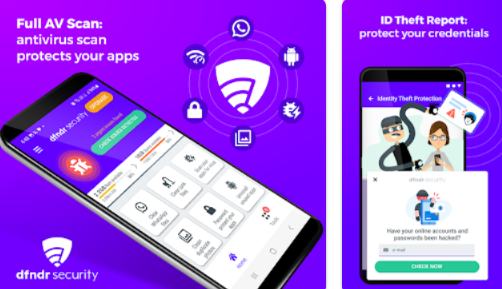
    #5. DFNDR Security

    DFNDR SecurityThe modes used by hackers are increasingly diverse today. Many hackers are experts in creating fake sites like the original site. This makes many people who are tricked into entering important and sensitive data.
    Therefore, you need this application to avoid or detect malware attacks as well as the attempts of hackers.

    DFNDR Security will notify you when there is an attempt to steal data or if someone else is trying to access your WhatsApp. This is one of the best free antiviruses for Android that can be used as an option.

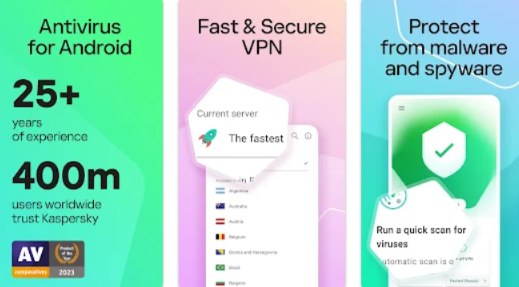
    #6. Kaspersky

    KasperskyThe next best antivirus application is Kaspersky. This application will work by detecting the position of the virus by using a background check.
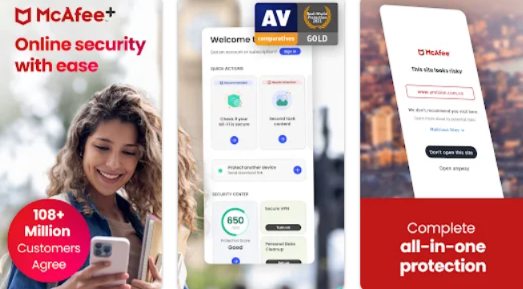
    Besides being able to be used to protect your cellphone from various kinds of virus attacks, it turns out that the Kaspersky application also provides a feature to track the whereabouts of your cellphone. This is an antivirus that has very complete features so it is suitable for you to use.

    #7. Lookout

    LookoutThis application has a simple interface, so it is straightforward to use. This is perfect for Android users who want to protect important data on their phones.
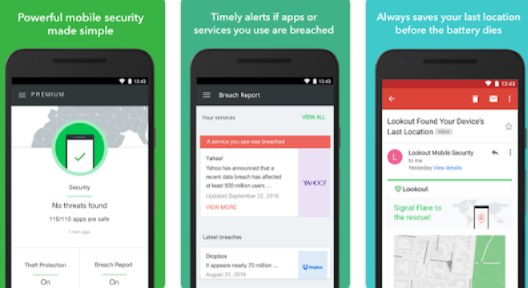
    Lookout will perform constant baths to ensure that your phone is completely safe from virus attacks. In addition, this application also has a feature to track the whereabouts of a lost cellphone.

    Lookout is also equipped with the ability to back up existing data on your Android phone. This is certainly very useful to avoid data loss. This could be the best free antivirus for Android suitable for you to use.

    #8. Mobile Security

    Mobile SecurityMobile Security is an application that is equipped with a scanning feature to find viruses on your Android phone. For those of you PC or laptop users, you can also use the Mobile Security application.

    In addition to being able to scan files on your phone’s internal memory, this application can also automatically scan the websites you visit. Automatically, websites that are indicated to be spreading viruses will be blocked.

    #9. Norton Mobile Security

    Norton Mobile Security is an antivirus that can be used as the best choice for Android phones. Norton is an antivirus that is considered to have very good quality.

    However, its use may be more popular on laptops or PCs. Norton is known as one of the safest antivirus applications on a PC or laptop.

    With the presence of Norton Mobile Security, it is certainly good news for Android users. Because you can enjoy antivirus from developers who are very experienced in this field.

    This application works by detecting gaps in the operating system, and then providing strong protection from the security side for your phone. When you surf using wifi, Norton Mobile Security will warn you if middlemen are peeking at your activity.

    One of the things that are quite special is that it can detect rogue apps that are trying to access your contacts without your consent. It is the right choice to keep your Android phone safe and also protect your privacy.

    #10. ESET Mobile Security & Antivirus

    The next best quality free antivirus for Android is ESET Mobile Security & Antivirus. This is the right choice of antivirus to protect your cell phone from various virus attacks.

    This application can perform scanning and also find various kinds of viruses found on your cellphone. If you want to keep your phone safe, this application can be the right choice for you to use.

    #11. Nox Security

    There are various features offered by this best antivirus application for Android. Various kinds of features can be used such as, free virus cleaner, message security, block notifications, application lock, file encryption, and many others.

    Nox Security can be the right choice for you when you want to enjoy an antivirus with a variety of very useful supporting features.

    #12. Web Security Space

    Web Security Space is an application that will always scan various files on your phone. In addition to the files that are on your cellphone, the installed applications are also inseparable from the scanning process.

    It’s the best antivirus app that’s lightweight and doesn’t use up too much battery either. You can use this app for 14 days for free, then you have to pay $9.99 per year.

    #13. TotalAV Antivirus

    This is the best free antivirus for Android that combines antivirus with various Android phone optimization features. So in addition to protecting your phone from virus attacks, this application is also useful for improving performance by eliminating files that are not used.

    The TotalAV Antivirus application also allows you to lock applications using a PIN or pattern. This can be a very appropriate antivirus for you to use so that your cellphone is protected from virus attacks.

    #14. Bitdefender

    Bitdefender works by scanning your cellphone to find out which viruses are lodged in your cellphone.

    This application is claimed to be able to find and remove viruses up to 99%. You also don’t have to worry about the battery running out quickly when using this application. This application has been designed using advanced technology so that it does not require large resources when running.

    #15. Malwarebytes Security

    Malwarebytes Security is the best free antivirus for Android that should not be forgotten. Malwarebytes is probably better known as an antivirus on a PC or laptop.

    This is an antivirus that is known to have a very good ability to scan various kinds of viruses that are lodged in your cellphone. You can use this application for free, but to enjoy all the features in this application you must use a paid service.

    #16. V3 Mobile Security

    If you want to use a lightweight antivirus, this could be the perfect choice for you. V3 Mobile Security works without consuming too much CPU so it won’t slow down your phone.

    The interface of this application is also very simple, so you will not have any difficulties when using it. This application is also equipped with various features to optimize your phone.

    One thing that is quite special is that there is an anti-blue ray filter available to protect your eyes. This is one of the antivirus apps for Android that we highly recommend.

    #17. Sophos Intercept X for Mobile

    Sophos Intercept X for Mobile is an antivirus that provides all its features for free for you. Therefore, you do not need to spend a dime when you want to use all the features in this application.

    This is an anti-virus application that has very complete features. Besides being able to prevent your phone from being infiltrated by malware, this application will also notify you of which applications have access to private data.

    #18. Android Antivirus: Security Systems Lab

    Do you often get annoyed when you wait too long while doing a scan? If you are complaining about this, Android Antivirus: Security Systems Lab can be a very good choice because it can perform a scan in just a few seconds.

    You can not only monitor the entire contents of the cellphone but also scan the contents of the micro SD if you use it.

    #19. Webroot Mobile Security & Antivirus

    If you want the best free antivirus for Android that can work alone, Webroot Mobile Security & Antivirus can be the right choice.

    Webroot Mobile Security & Antivirus is an application that can work automatically to protect your phone from various malware attacks and spam sites. You will not be bothered to deal with various kinds of Malware by using this application.

    #20. SAFE Internet Security: F-Secure Corporation

    SAFE Internet Security: F-Secure Corporation is an anti-virus that has a simple interface but has very complete features to protect your phone from various viruses.

    This application allows identifying various applications that have access to private data. Another very useful feature of this application is security when surfing using a browser.

    Read more:

    Conclusion:

    Keeping Android devices safe from malware attacks is of course a very important thing to do. The best free antivirus for Android above can be the right choice for you to use.