Author: Nazrul Islam

  • 5 Best Driver Updater Applications For Windows 2024

    5 Best Driver Updater Applications For Windows 2024

    5 Best Driver Updater Applications For Windows – Misconfigured and old drivers are one of the main causes of Windows crashes. Why not get an update by using the following best driver update applications?

    5 Best Driver Updater Applications For Windows
    5 Best Driver Updater Applications For Windows

    Best Driver Updater Applications For Windows PC Laptop

    Some of the most common problems you may encounter with your computer can stem from outdated drivers.

    Read more:

    However, an automatic driver update application can help make the whole process easier. Instead of having to search for every driver that needs updating, the driver app will do all the searching for you. Here are five of the best driver update applications.

    #1. Driver Easy
    Driver Easy
    Driver Easy

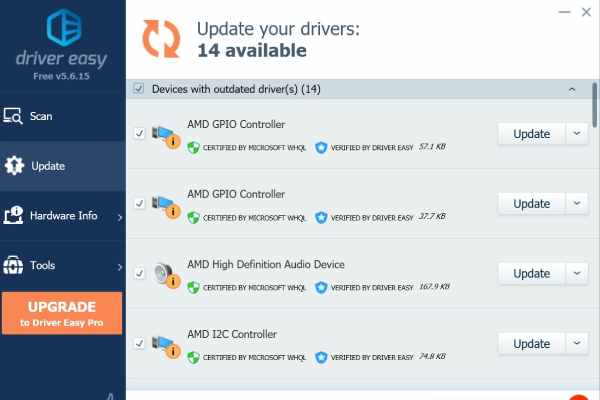
    Driver Easy is an application that helps users find, install, and manage drivers. It comes in three versions, although only two may be relevant to you. The first version of is the Lite version, which is completely free for some computers.

    This version can search for your computer’s drivers and detect missing, outdated, or incompatible drivers. After finding something wrong, the app then asks you to manually install the drivers.

    The second version is the Pro version, of course, this version is not free. But when you buy it, you will receive several additional features such as automatic driver installation, faster download speeds, free technical support, and automatic system backups.

    Visit:- Website

    #2. Driver Booster
    Driver Booster
    Driver Booster

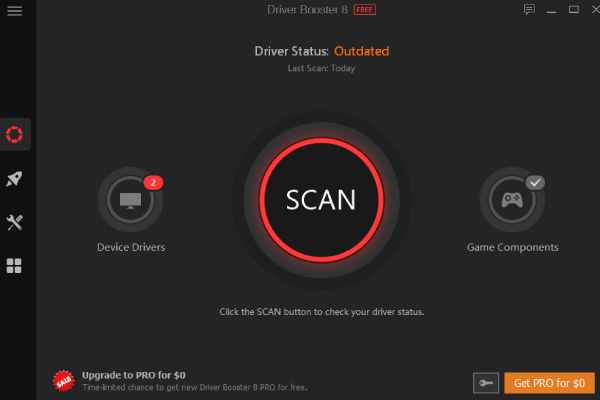
    Similar to Driver Easy, Driver Booster comes in two separate packages. The free version of Driver Booster has a claimed driver database of more than three and a half million and allows its users to update or install drivers in just one click.

    There is no manual installation of drivers here, even in the free version. In addition, this application is very fast to install your drivers.

    The Pro version of Driver Booster also has its advantages. You will get improved download speeds in this version, as well as an expanded driver database of more than four and a half million. Automatic updates and backups are also included in this version.

    And if you’re looking for game components, hardware repair, or technical support, then the Pro version might be for you. Driver Booster Pro version also has offline driver updates if you need to download drivers first. Useful if you have an internet connection or need to update network drivers.

    Visit:- Website

    #3. Bit Driver Updater
    Bit Driver Updater
    Bit Driver Updater

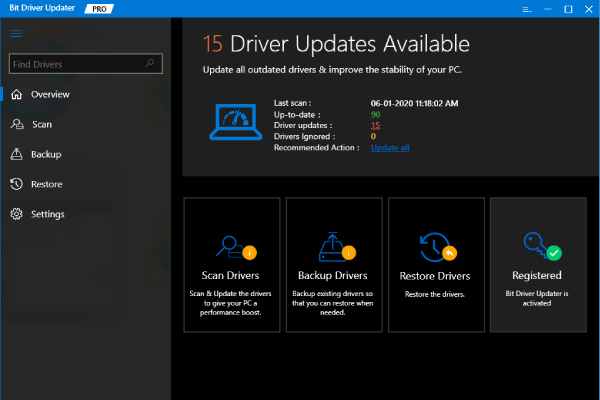
    Bit Driver Updater is another great option for those of you who are trying to prevent Windows from crashing due to configured drivers. With Bit Driver Updater, you get a choice between a free and a Pro version. With the free version, you can get access to most of its features. With one click, Bit Driver Updater can scan its users’ computers for any issues with their drivers.

    From there you users can verify the driver information and install them one by one. Bit Driver Updater automatically backs up all drivers that existed before this process. However, it is worth mentioning that Bit Driver Updater only allows its users to backup individual drivers in the free version.

    The Pro version has several additional features. Higher download speeds and a larger driver database are both included in this version, as well as one-click driver backup and installation. However, be careful, if you choose to buy the Pro version. Because Bit Guardian tries to combine its adblocker app with your purchase.

    Visit:- Website

    #4. Genius Drivers
    Genius Drivers
    Genius Drivers

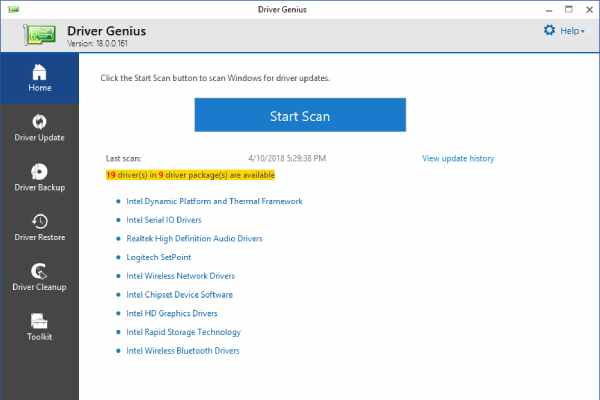
    Driver Genius is almost the same as other best driver update applications, although there are three different versions. With the free version, you can update outdated drivers in one click, even if only for a limited time. You can also backup drivers easily.

    The free version includes several other features such as cleaning useless drivers after updating and detecting hardware information. It works very fast.

    The two paid versions of Driver Genius are the Professional and Platinum editions and most of the features are pretty much the same. Both versions have more options available for use, such as automatic updates and faster download speeds, as well as the ability to back up their users’ drivers to a ZIP or EXE file. Technical support is also included.

    The main difference between the two is that the Platinum Edition includes a System Booster and a System Cleanup. These features help optimize your PC system settings and remove junk files that might be eating up your disk space.

    Visit:- Website

    #5. DriverPack
    DriverPack
    DriverPack

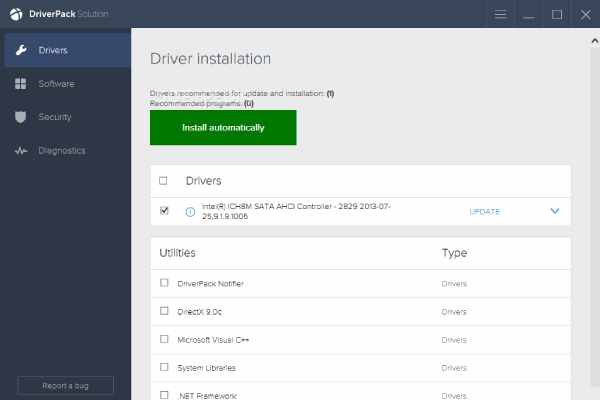
    DriverPack is the best driver update application which is completely free. There is no premium version of this app. Although there are several ads as a result. The program works well, but sometimes it’s slow. But you can still download and install any driver that needs updating in just one click.

    The best thing about DriverPack is that it is ideal for new users who are not familiar with using driver update applications because the program is filled with helpful tutorials and complete guides on what to do.

    This guide, however, is carried out by the talking robot head. DriverPack also features recommendations for useful apps as well as cleaning services that you might want to use.

    Read more:

    Visit:- Website

    Conclusion:

    So that’s the best driver update application. Whatever the case, a driver update service is just one solution among many. Sometimes it’s hard to figure out why Windows crashes and a driver update service acts as one of the solutions.


  • 20 Best Offline Adventure Games for PC Laptop Desktop 2024

    20 Best Offline Adventure Games for PC Laptop Desktop 2024

    20 Best Offline Adventure Games for PC Laptop Desktop– If you are a fan of adventure games but have a limited internet quota, here are 20 offline adventure PC games that you can play now!

    20 Best Offline Adventure Games for PC
    20 Best Offline Adventure Games for PC

    20 Best Offline Adventure Games for PC Laptop Desktop 2024

    Even though in this era there have been many developers who have developed the concept of online multiplayer games, it turns out that offline games also still have a lot of fans.

    Read more:

    One of the most sought-after is the type of adventure offline PC game.

    Apart from not requiring an internet connection when playing it, the game concept that provides exciting stories is also its mainstay.

    Here are 20 offline adventure games that you can play via PC.

    Select and Download the Offline Adventure Games on a PC Laptop Desktop

    Select and Download the Offline Adventure PC Game

    #1. Assassin’s Creed Odyssey

    As a gamer, you must be familiar with this Peloponnesian War game.

    This PC war game that raises the fictional history of Athens and Sparta has been widely downloaded and played.

    So, download this adventure offline PC game and feel the excitement of controlling the mercenary of your choice.

    #2. Dark Soul 3

    One of the best offline adventure PC games full of challenges is Dark Soul 3.

    So if you want a challenging adventure game with great graphics, try this game from From Software.

    #3. Detroit: Become Human

    This offline adventure PC game takes the background of a time in the future, which is an era where the buying and selling system of robots is very free.

    There are 3 main characters in this game, namely Connor a policeman, Mark the male robot, and the female robot Kara.

    The three of them play an important role in an interactive and interesting storyline.

    #4. Dishonored

    This offline adventure PC game takes the role of Corvo Attano, who is traveling in an industrial city full of ruins.

    Apart from having an interesting storyline, the graphics of this one game are unquestionable.

    #5. Dying Light

    This one game will take you as Kyle Crane, a secret agent in Harra.

    This zombie game has various cool features, such as building structures and day and night changes.

    An Exciting Adventure Game for PC Laptop To Play

    An Exciting PC Adventure Game To Play

    #1. Eastshade

    For those of you who like beauty and art, this one game will not disappoint you.

    In this game, you will play the role of a painter who travels in beautiful nature.

    #2. Far Cry 5

    This game offers natural exploration and settlement to conquer an area. Far Cry 5 is also included in the offline war game category.

    The mission of this game is to eradicate Project Eden’s Gate, which is an antagonistic cult.

    #3. Life is Strange

    This game provides the experience of processing a storyline and making challenging decisions.

    This game has a beautiful setting and a plot full of twists that can play with your emotions.

    #4. Life is Strange 2

    The advantage of this game is that you have the flexibility to determine the storyline.

    This game made by Square Enix is ​​arguably the best offline adventure PC game of all time.

    #5. Metro: Last Light

    If you are looking for a challenging shooter game with a dark aura and an interesting plot, this game is the answer.

    In this game, you will be treated to a variety of interesting ammunition and weapons.

    Best Offline Adventure Game for PC Laptop Desktop

    Best Offline Adventure Game for PC

    #1. Red Dead Redemption 2

    The uniqueness of this game is that it is slow so you can enjoy the storyline.

    In this case, you will taste the Wild West world by playing Arthur Morgan from the Dutch Van der Linde gang.

    #2. Resident Evil 2 Remake

    This game was created especially for those of you who are interested in horror games that elevate zombies as characters.

    This game is the result of a remake of Resident Evil 2 which was popular in the 1998 era.

    #3. Shadow of the Tomb Raider

    If you’ve ever played the game Rise of the Tomb Raider, there’s nothing wrong with continuing the fun by playing this game.

    The storyline is no less exciting, which tells the story of Lara Croft who goes on an adventure in Patti with various tense missions.

    #4. Sekiro: Shadows Die Twice

    This game has magical visual fiction from the Sengoku period in Japan. The level of difficulty presented by this offline game is relatively high.

    For those of you who like to do exploration and combat, this game is perfect for you.

    #5. Star Wars Jedi: Fallen Order

    If you are a fan of Star Wars, this one game will certainly spoil you.

    In the game, you will act as Cal Kestis who has a mission to revive the Jedi Order.

    Another Adventure Offline Game for PC Laptop Desktop

    Another Adventure Offline PC Game

    #1. The Elder Scrolls V: Skyrim

    The time setting taken in this game is in the era of 200 years after the Oblivion era with the open-world concept.

    In this game, you are free to play, such as attacking enemies, hiding, and even playing magical things.

    #2. Room Three

    As the name suggests, this game presents a challenging space exploration experience.

    This game with the puzzle adventure genre has an interesting plot for each series, no wonder this game has grown to the third series.

    #3. The Walking Dead: The Final Season

    This game is the final series of the entire previous The Walking Dead which tells of zombie adventures.

    During play, you will be presented with important choices that will lead you to the next storyline.

    #4. The Witcher 3: Wild Hunt

    This game tells the adventurer Geralt as the main character you play. Geralt is depicted as a monster hunter nicknamed the Witcher.

    This game is equipped with an extensive game map so that you are free to roam and take advantage of the strengths you have.

    #5. Wolfenstein 2: The New Colossus

    If you are one of those who like shooting games, this game from MachineGames can be an option.

    The storyline in this series is a slick series from before, namely a historical play in the 1961 era after the Nazi victory in WWII.

    Read more:

    Conclusion:

    Above are 20 offline adventure PC games that you can play anytime and anywhere. So, what adventure offline game would you like to try playing from now on?

  • 10 Ways to Open Camera in Laptop Windows 10/8/7 PC 2024

    10 Ways to Open Camera in Laptop Windows 10/8/7 PC 2024

    10 Ways to Open Camera in Laptop Windows 10/8/7 PC – Every laptop usually already provides a camera at the top of the screen, but many people don’t know the function of the camera.

    How to Open Camera in Laptop Windows PC
    How to Open Camera in Laptop Windows PC

    How to Open Camera in Laptop Windows 10/8/7 PC

    At the beginning of the emergence of laptop cameras, it was only used for photos or selfies, even though they were not so bright, and even more, dominant in dark black. So that the use of laptop cameras was abandoned because people prefer to use smartphone cameras with better clarity, not only that the price of smartphones is increasingly affordable.

    Read more:

    However, currently, there are several video call services available such as Skype and even the latest one is Zoom which is very useful for conducting important meetings remotely that usually use laptops. Therefore, many are required to be able to activate the application on their respective laptops.

    Before activating these applications, of course, you have to activate the laptop camera first. This is what makes some people confused about starting it because of various complaints, including there is no application to start the camera to the camera that doesn’t work. This time I will explain how to activate the laptop camera easily and completely.

    How to Open Camera in Laptop Windows 10 PC Laptop

    There are several ways you can activate the camera on a laptop, no need to worry, you only need to follow the method below to activate the camera on a laptop.

    #1. Install Laptop Camera Driver

    The first is to check and install the laptop camera driver. If you want to use the default Windows camera application, you don’t need to look for another camera application, but before that, you can check the camera driver in the device manager. If it’s not installed, please install it first.

    You are confused about how to install the driver and also how to get the camera driver? You can download the driver from the official site below.

    There is an easier way to install the drivers you want. Namely by using a driver pack. Usually, this driver pack has one one-finger pack, you don’t need to find the driver yourself, use this driver pack.

    Apart from using the camera driver and also the driver pack, you can install it directly through the device manager. The method is quite easy, you only need to find the camera driver in the device manager then right-click on the driver and select Update Driver Software.

    How to Open Camera in laptop Windows 10, 8, 7

    After installing the camera driver, now you can activate the camera by doing several steps in the settings.

    • Open the Start Menu
    • After that, please type Settings or Settings in the Search Program
    • Then type Camera Privacy Settings in the search column
    • If you have found it, please open Camera Privacy Settings
    • Then please turn on / ON on Allow Apps To Access Your Camera
    • After that, control which applications are allowed and require camera access in the Choose which Microsoft Store apps can access your camera
    • You can bring everything to life
    • Done

    How to open camera in Laptop Windows 7

    As I explained above, there is usually a camera application on the Windows operating system, so you can immediately use it. Still, confused about how to open the camera application on a laptop? After installing the camera driver, you can immediately activate the camera, there are several ways to activate the camera on Windows 7,8, and 10.

    In Windows 7, follow the steps below:

    • First, turn on your laptop
    • and click the star
    • To activate the laptop camera, please type Camera in the search program
    • If you have found it, open the application
    • Please use the camera from the default Windows application

    How to Open Camera in Laptop Windows 8

    How to activate the camera on Windows 8. Follow the steps below.

    • You guys open the laptop
    • Then click start
    • Cross-search for the camera application in the search
    • After the meeting open the application
    • And the camera on the laptop you can use

    How to open camera in Laptop Windows 10 PC

    Not much different from Windows 7 and 8 on Windows 10, please follow the steps below.

    • Open your laptop
    • Please write the camera in the search windows column
    • Then after the application is found, please open the application
    • Wait a few moments for the application to open
    • done

    How to Open Camera in Laptop With Applications

    If the windows you use do not have a camera application, then you can use the laptop camera application below.

    #1. Youcam

    Maybe those who are used to using laptop cameras are already familiar with the Youcam application. This widely used application can be a reference for laptop camera applications for you.

    #2. Multi Webcam Video Recorder Free

    There is also the Multi Webcam Video Recorder Free application which is also widely recommended by some people and there are also many trusted sites that recommend this Multi Webcam Video Recorder Free camera application.

    #3. Camersoft Webcam Capture

    One way to activate a laptop camera is with a third-party camera application. In addition to the two applications above, there is also the Camersoft Webcam Capture application that you can use. Please download the Camersoft Webcam Capture application.

    #4. Webcam Toy

    How are you still confused about which camera application you will use? If so, you don’t need to be confused, you can use the Webcam Toy camera application. Please try.

    #5. Windows Camera

    The last one is the Windows Camera. This one application has also been installed on various laptops, an application that is simple and easy to use compared to other camera applications.

    How to Fix a Laptop Camera That Is Not Working

    Have you tried several ways to activate the camera on a laptop but still can’t? If so, please follow how to fix a laptop camera that doesn’t work or the error that I gave.

    #1. Reinstall the Camera Driver

    The first is you can reinstall the existing camera driver. This method aims to fix the driver if there is an error. For now, please follow the step by step that I created above.

    #2. Performing a Driver Update in the Device Manager

    The second way is to update the driver in the device manager. This method is easy enough to do, you only need to be connected to the internet. Please open the device manager on your laptop, then look for the camera driver, after finding it, please right-click on the camera driver select Update Driver Software then follow the next method.

    #3. Reinstalling the Laptop

    If the two methods above still can’t help, please reinstall the laptop you are using. This method is done because maybe the operating system you are using doesn’t support or can’t use the camera application. Some are after reinstalling the camera, and the camera can be used immediately, so you can try it.

    #4. Repair the Laptop in place of the Laptop Service

    If all the methods have been done but still can’t, then you can immediately come to the nearest laptop service place where you are to service the laptop so that the camera can be used.

    Read more:

    Conclusion:

    How is it still unclear? You can use the method to activate this laptop camera immediately, but you have to be careful when installing it, whether it’s driver or a laptop.

  • Top 10 Best Japanese Games for Android 2024

    Top 10 Best Japanese Games for Android 2024

    Top 10 Best Japanese Games for Android – Who Doesn’t Know Japan? Of course, anime lovers are very familiar with this one country. Japan does have a smart population.

    Top 10 Best Japanese Games for Android
    Top 10 Best Japanese Games for Android

    Best Japanese Games for Android 2024

    In addition, by having an intelligent population, there are so many developers/developers of an interesting application or game. For example, the most popular game is anime.

    Read more:

    And what many people don’t realize, Japan can also compete in the world of mobile games in a very cool game, so many other countries like games made in Japan.

    Best Japanese Android Games

    There are several choices of the best and most interesting Japanese games for Android for you to play.

    #1. Mandora

    Mandora

    Mandora is a game that tells about a place called Moonycat Village. Where that place is a favorite of magicians for their cultivation.

    In addition, in this game, you will find a mandora seed somewhere. Mandora is a powerful magic potion and is commonly used as a pet by the residents of Moonycat.

    So, your task is to become a farmer who has to plant mandora seeds in order to get a large harvest. If you succeed then you get a time bonus item and a collection of mandora.

    #2. Neko Atsume

    Neko Atsume

    Neko Atsume is a game themed around cats, so in this game, you are assigned to take care of an adorable cute cat.

    In addition, later you also have to put food nearby so he doesn’t starve. And can give him all kinds of toys.

    Plus, you also have to give extra attention to him to attract the cat’s heart so that it can be tame.

    #3. Japan Food Chain

    Japan Food Chain

    Japan Food Chain is a game that is suitable for those of you who like food or are food-themed.

    Because in this game you become a chef who has to make delicious Japanese food recipes that are liked by customers.

    In addition, you also have to manage your restaurant so that it becomes liked by many customers.

    #4. Driving Zone: Japan

    Driving Zone Japan

    Driving Zone: Japan is a game where you are given the freedom to drive a sports car in a Japanese city.

    In addition, having a free-to-play concept will not make you dizzy to complete a certain mission.

    Plus, this game also offers very realistic 3D graphics and you should try it.

    #5. LoveLive! School Idol Festival

    LoveLive! School Idol Festival

    LoveLive! School Idol Festival is a game where you play songs by touching the screen in a timely manner according to the rhythm.

    In addition, to be able to achieve a high score, you need to create combos in a row until the perfect reading appears on the game screen.

    You should try this game, if you want to try it you can just download it on the Playstore.

    #6. Japanese Anime Jigsaw Puzzles

    Japanese Anime Jigsaw Puzzles

    Japanese Anime Jigsaw Puzzles is a game that is perfect for those of you who like the theme of anime cartoons.

    In this game, your goal is to assemble the separate puzzle pieces and place them in the right place.

    Plus, there are many available anime pictures provided by yojigsaw and you can take pictures through your photo gallery.

    #7. Ninja Kung Fu Fighting 3D

    Ninja Kung Fu Fighting 3D

    Ninja Kung Fu is an action game where you have to become the strongest fighter in the world of Kung Fu.

    In addition, you must succeed in defeating every enemy to the strongest rival to prove who you really are.

    In addition, there are many moves ranging from Taekwondo, Muay Thai, Kung Fu, Boxing, and various other moves.

    #8. Evolution Japan doll of Grudge

    Evolution Japan doll of Grudge

    Evolution Japan Doll of Grudge is a game that is perfect for those of you who like the world of horror.

    Also, the goal of the game is where just need to get as many candles as you can to feed the doll’s heart.

    If enough, the doll will later change shape into another doll with a scary shape.

    #9. ZombieGirl

    ZombieGirl

    Zombiegirl is a game with the theme of zombies or the living dead, and of course, the game is very fun.

    In this game, of course, you have to follow the story experienced by the lovers.

    Also, you have to collect 100 brains to give them to him so he can become a normal human.

    #10. Potion Maker

    Potion Maker

    Potion Maker is a game that requires you to make a potion or potion using certain ingredients.

    In addition, in making a potion you need speed when choosing one of the ingredients that pass through the top of the screen.

    Plus, this game made by Sinsiroad will make you feel at home when playing this game.

    Read more:

    Conclusion:

    That’s a discussion about recommended Japanese games for Android that are good and fun to play. So it doesn’t hurt you to choose one of the games above that you think is good and interesting.

  • 6 Ways To Remove Chromium from Windows 10, 8, 7, PC 2024

    6 Ways To Remove Chromium from Windows 10, 8, 7, PC 2024

    6 Ways To Remove Chromium from Windows 10, 8, 7, PC – Removing chromium from a PC is not like uninstalling programs as usual because chromium is an open-source default application. However, if you don’t know it, you don’t need to worry because you will find answers to this article on how to clean chromium from windows.

    How to Remove Chromium from Windows 10 PC Laptop
    How to Remove Chromium from Windows 10 PC Laptop

    6 Ways To Remove Chromium from Windows 10, 8, 7, PC Laptop 2024

    According to Wikipedia chromium, the Chromium browser is a free and open-source browser developed by Google. This browser takes most of the code from the Google Chrome browser. So, it is very natural that these two browsers have some similarities in function even in the logo.

    Read more:

    Chromium is also widely used by other browser developers to recreate their browsers. Out there, chromium is very beneficial to browser developers, but what causes chromium itself to fall out of favor with some? Here’s why.

    Cause Chromium was Removed from Computer windows 10

    Because Chromium looks like Google Chrome, some people think this browser is a virus that resembles fake Google Chrome. The way it works, which often opens itself up, is also one of the reasons that chromium is considered a virus and interferes with work and performance on a laptop or computer.

    Another reason is that internet users will prefer Google Chrome which is already good enough for surfing the internet rather than Chromium. Chromium is great if you want to develop your browser, but not suitable if you are a browser user who wants to use it as usual.

    How to uninstall Chromium is the same as uninstalling a program on Windows, but some people don’t know how. Here’s how to remove Chromium on Windows 7, Windows 8, and Windows 10 until it’s clean.

    How to Uninstall Chromium on Windows 7

    There are two steps you need to follow to be able to clean chromium on windows. Step first is to uninstall, as usual, then you have to delete the chromium folder so that it can be permanently deleted.

    How to remove the chromium below, you have to make sure which version of Windows you are using. Follow the tutorial below according to the Windows version.

    #1. Uninstall Chromium Windows 7Uninstall Chromium Windows 7

    1. Click the Windows logo in the corner then select the Control Panel menu.
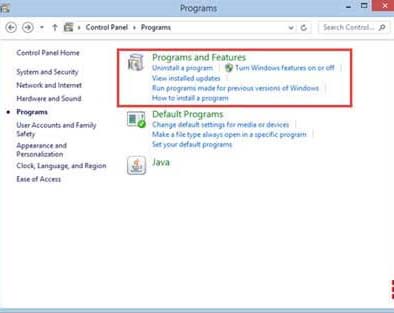
    2. Select the Program and Feature menu in the control panel menu list.
    3. Look for the Chromium program in the list of existing applications.
    4. Right-click then select the Uninstall option.

    #2. Uninstall Chromium Windows 8Uninstall Chromium Windows 8

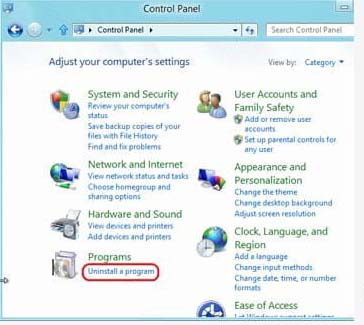
    1. Go to File Explorer and then click Control Panel.
    2. Select the Program menu then Program and Feature.
    3. Look for the Chromium program in the list of existing applications.
    4. Right-click and select the Uninstall option.

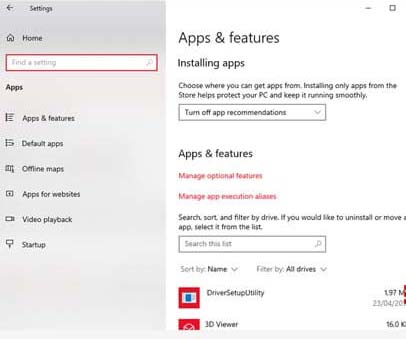
    #3. Uninstall Chromium Windows 10Uninstall Chromium Windows 10

    1. Click the Windows logo in the corner then click Settings.
    2. Select the Apps menu to enter Apps and Features.
    3. Look for the Chromium app, click it then select the Uninstall option.

    How to Permanently Remove Chromium

    If you have uninstalled Chromium from your Windows, now you must delete Chromium by deleting the folder in your Windows data so that Chromium can be permanently deleted and not come back again.

    There this stage may be slightly different for each existing version of Windows. So, make sure you follow the method to remove chromium in Windows that matches what you are using.

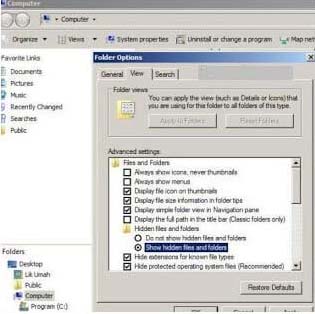
    #1. How to Remove Chromium in Windows 7How to Remove Chromium in Windows 7

    1. Open Windows Explorer or press the CTRL + E keys on your keyboard.
    2. Click the Tools menu option and then select the Options folder.
    3. Go to the View tab then check Show hidden files.
    4. Go to Drive (C 🙂 or Local Disc (C 🙂
    5. Click your Windows user.
    6. Click the Apps Data folder then select Local Folder.
    7. Find and delete the folder named Chromium.
    8. If the folder can’t be deleted, check the task manager by pressing the CTRL + ALT + Delete keys simultaneously, then end the Chromium task.

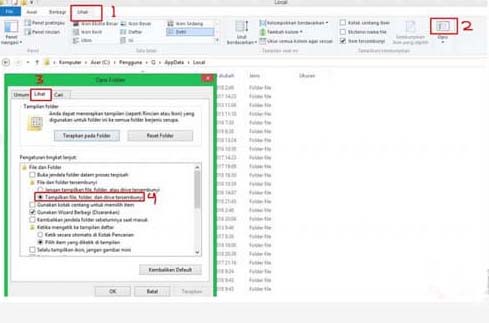
    #2. How to Remove Chromium on Windows 8How to Remove Chromium on Windows 8

    1. Open Windows Explorer and then go to the User folder or users.
    2. Go to folder C: \ Users \ NamaKomputer \ AppData \ Local (replace NamaKomputer with the name of your computer)
    3. Click the View menu tab then click Options then click the Change folder and Search options option.
    4. In the Hidden Files and Folders option, click the Show Hidden Files, folders, and Drivers option.
    5. Go back to the Local folder, then find and delete the folder named Chromium.

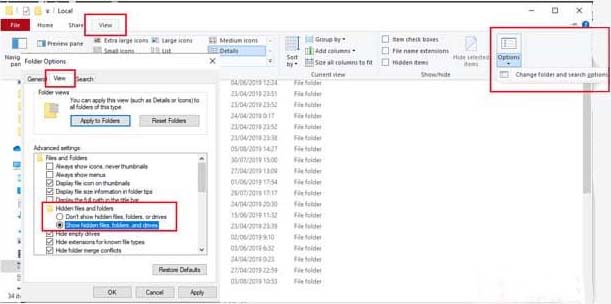
    #3. How to Remove Chromium on Windows 10How to Remove Chromium on Windows 10

    1. Open Windows Explorer then go to drive (C).
    2. Click the User or Users folder.
    3. Click the AppData folder then Local.
    4. Click the View menu tab then click Options then click the Change folder and Search options option.
    5. In the Folder Options option, click View, then in hidden files and folders, click the option Show hidden files, folders, and drivers.
    6. After that, the chromium folder will appear and is no longer hidden.
    7. Go back to the Local folder, find and delete the folder named chromium to wipe the chromium browser clean.

    Now chromium has been successfully removed permanently. Now you don’t have to worry about being bothered by Chromium which often opens on its own.

    Read more:

    Conclusion:

    So, friends, That’s above how to remove chromium from Windows 10 and clean it. This method has been proven successful for uninstalling the Chromium browser on a PC / laptop and won’t come back again.