Author: Nazrul Islam

  • How To Play Retro Console Games on Gaming PC 2024

    How To Play Retro Console Games on Gaming PC 2024

    How To Play Retro Console Games on Gaming PC – These days you can play countless games on your PC. If you have a gaming PC, then the list of possibilities is extremely long.

    How To Play Retro Console Games on Gaming PC
    How To Play Retro Console Games on Gaming PC

    How to Play Retro Console Games on Gaming Laptop PC

    But, what if you want to play retro console games? They are not compatible with computers and they are almost impossible to find.

    Read more:

    A decent console can be more expensive than a PC which makes the situation even more complicated. There is a simple solution and it will be mentioned below.

    #1. Get a suitable emulator
    Get a suitable emulator
    Get a suitable emulator

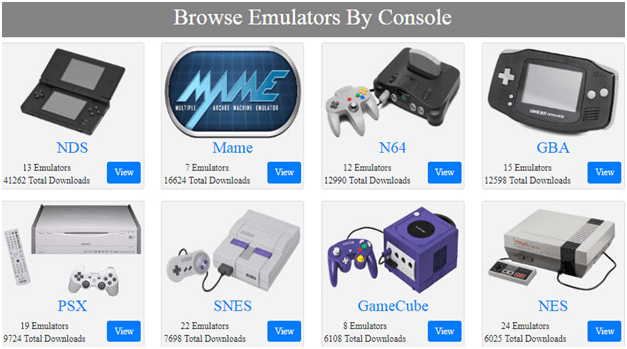
    To play retro games on any PC, you need special software called an emulator. They are made to emulate or better said simulate the operating system of a device to another device.

    In this example, you will need an emulator that can mimic the operating system of a Nintendo DS, Sony Play Station 1, or Sega Genesis on a PC.

    Yes, there are countless options and you need to know which one is a valuable choice. In essence, you need an emulator that is developed for a specific console you are trying to play games from. Some emulators can be used for multiple platforms while others run just one or two.

    The best way to find a suitable emulator is to Google something like ‘’best emulators for Play Station 1 for PC’’.

    You will get a list and you will get the ability to download it and start gaming. The main advantage here is the ability to use all sorts of features.

    #2. Get the ROMs
    Get the ROMs
    Get the ROMs

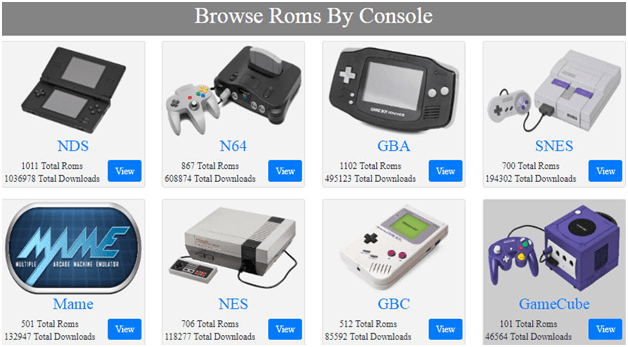
    Now you can download free ROMs. ROMs are games that are available in a specific format and compatible with a suitable emulator.

    Once you have the emulator, you need the games to load and start playing. Each ROM file is a separate game and the size will vary, depending on the type of game, version, etc.

    In most cases, you will end up with 200-500MB games, but some are much bigger and can reach a few gigabytes. Make sure to have an internet connection and leave the games until they are downloaded.

    For this guide, we advise you to place all the games in the same folder. You can change the names of the files but do not change the file extension. It can be NFS, RAR, ZIP, ISO, etc.

    If you change the file extension, the game won’t work. Simply replace the file extension with the original one and you are all set. In addition, you can delete and download the file again. They are free.

    #3. Load and start

    Now you need to open the emulator and click load or open. This will depend on the emulator itself and both options have the same purpose.

    Once opened you will see a window with the browsing option and you can locate the ROM file. Open it and the game will start.

    When you want to close the game, close the emulator and the game will be closed instantly.

    If or when you want to start another game, simply repeat the previous step and you are all set. The last but not least important thing here is to make sure the ROM files and emulator are compatible.

    Take a closer look at the aforementioned sections and you will get a better idea about this requirement.

    #4. Try all the features

    Try all the features
    Try all the features

    These emulators are simple software but very capable. You can use cheats, you can use joypads and various controllers, and you can also save or load a game whenever you like.

    To make sure this is possible, explore the additional options available and you will see that the emulators are much better than conventional retro consoles. They have all the pros but not a single drawback.

    Read more:

    Conclusion:

    As you were able to see, this type of gaming is extremely simple and easy. You need basic things such as a PC and internet connection and you are ready to start playing any of the retro games available online.

    The best part is the fact all of this is completely free and doesn’t require any, special tools, equipment, or anything similar. Make sure to invest in a joypad you like to maximize the gaming experience.
  • 5 Ways to Fix The Disk Structure Is Corrupted And Unreadable 2024

    5 Ways to Fix The Disk Structure Is Corrupted And Unreadable 2024

    5 Ways to Fix The Disk Structure Is Corrupted And Unreadable – If you experience the error message “The disk structure is corrupted and unreadable” when trying to access the drive partition, you can use the 5 solutions in this article to fix it.

    5 Ways to Fix The Disk Structure Is Corrupted And Unreadable
    5 Ways to Fix The Disk Structure Is Corrupted And Unreadable

    What Is The Disk Structure Is Corrupted And Unreadable Error?

    The disk structure is corrupted and an unreadable error usually occurs when a Windows user tries to access a partition from a hard drive whose structure is damaged. When a hard drive partition has an unreadable disk structure, it fails to access it.

    Read more:

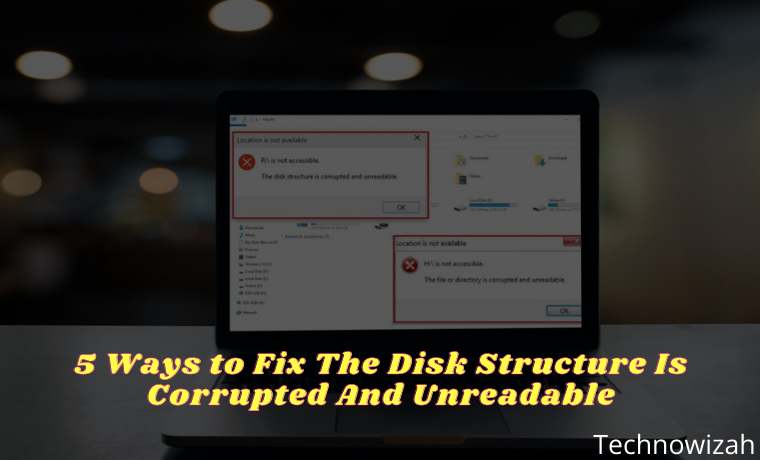
    This error can occur on both internal and external HDDs, but it is more common with removable media i.e. USB flash drives, SD Cards, etc. The correct error message is displayed in the “Location is not available” wizard which reads “The disk structure is corrupted and unreadable.” This means that the hard disk drive cannot be accessed because the Master File Table (MFT) is corrupted and the disk structure cannot be read.

    What Causes The Disk Structure to be Corrupted And Unreadable?

    Why is the hard drive, USB, or SD card suddenly inaccessible? Generally, the error “The disk structure is corrupted and unreadable” is caused by the reasons listed below:

    1. The Master File Table (MFT) of the NTFS drive is corrupted
    2. Incorrectly ejected or unplugged USB disk drive
    3. Broken file system which makes the RAW file system
    4. There are bad sectors on the hard disk drive
    5. Unstable Power Supply
    6. viral infection Infeksi

    How to Solve The Disk Structure Is Corrupted And Unreadable

    Don’t worry if you can’t figure out how your USB, SD card, or external or internal hard disk drive became unreadable. There are several solutions to overcome the error message “The disk structure is corrupted and unreadable” to return the problematic drive to normal again.

    #1. Unplug And Reinstall the External HDD Or USB Drive

    If you get the error message “The disk structure is corrupted and unreadable” with removable storage such as a USB drive, unplug the storage device. Then, close all the software on your taskbar and reinstall the external storage.

    Or, reboot Windows before you reconnect the external HDD. Then, try to open the same file as you did before when you get the error message “The disk structure is corrupted and unreadable”.

    #2. Use the Windows Error Checking Tool

    Windows systems have a built-in utility to check for and fix disk-related problems. One such utility is the Windows Error Checking Tool. You can use this tool to fix drive problems which can help resolve the “The disk structure is corrupted and unreadable” error message. To do this, follow the steps below:

    Use the Windows Error Checking Tool
    Use the Windows Error Checking Tool
    1. Connect the storage media (if external) to your Windows system.
    2. Go to  This PC  in the system.
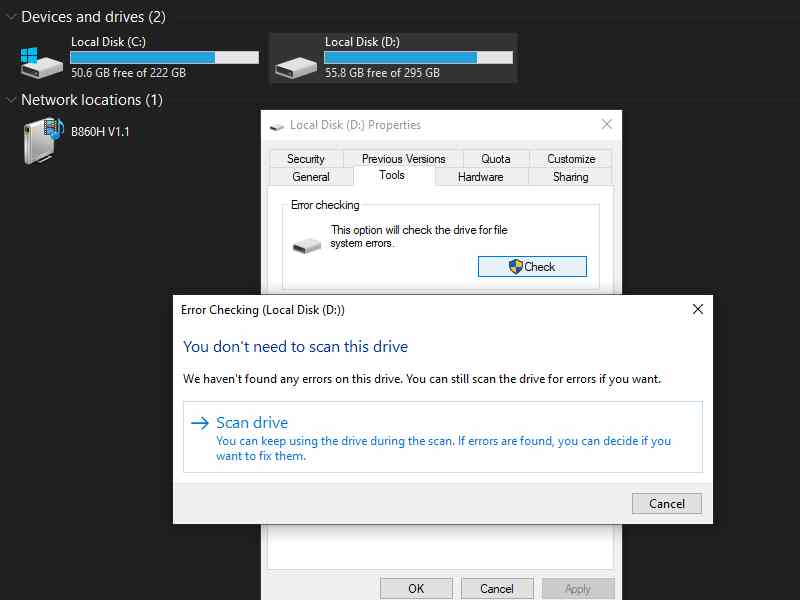
    3. Right-click on the drive showing the error, then select  Properties.
    4. Select  Tools and then click the Check button, then click. This will start checking the drive and be able to fix the problem if any.
    5. After the disk check process is complete, restart your computer system and check if the error message has disappeared.

    #3. Run CHKDSK

    CHKDSK is a built-in utility of the Windows OS, which can be used to troubleshoot and repair hard drives connected to the computer. Someone could run it on the HDD partition causing the problem and creating an error message the disk structure is corrupted and unreadable every time you try to access it. For this, follow the steps below:

    Run CHKDSK
    Run CHKDSK
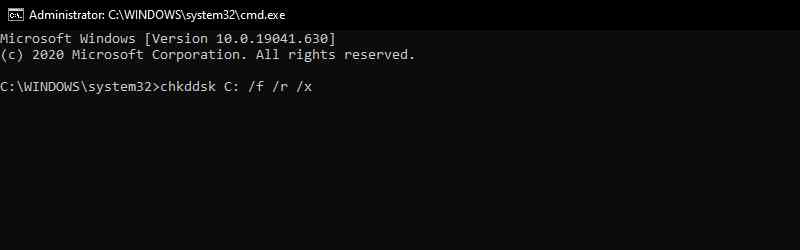
    1. Press the “ Windows Key + X  ” key and select  Command Prompt (Admin).
    2. Enter the command “ chkdsk C: /f /r /x ” in cmd then, press Enter key.
    3. Now,  Reboot your PC to save the changes, and check if the problem is solved or not.
    4. In most cases running the Check, Disk command fixes the error, however, if the same error message persists, move on to the next method.

    Note:  C is the drive letter of the associated hard drive indicating the error, make sure you enter the correct drive letter.

    #4. Uninstall & Reinstall Disk Drive

    Important Note: It is highly recommended not to try this solution on your system disk i.e., C: drive (the drive where Windows is installed), which displays the error message the disk structure is corrupted and unreadable. Skip this solution if this error occurs on your C: drive.

    Uninstall & Reinstall Disk Drive
    Uninstall & Reinstall Disk Drive
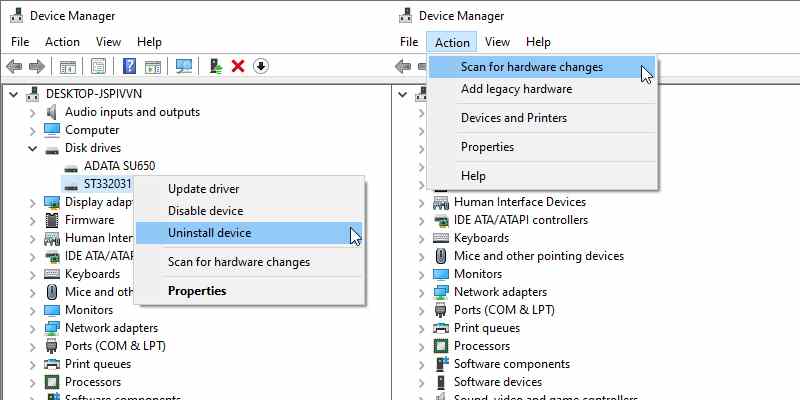
    1. Press “ Windows key + R ” and type “ devmgmt.msc “. Press the OK button.
    2. Expand the Disk drives section right-click on the damaged disk and hit  Uninstall device.
    3. Then, click  Action >> Scan for hardware changes to confirm the action taken.
    4. Wait for Windows to detect and install the driver from the deleted disk drive
    5. Once done, restart your computer and check if the problem is resolved or not

    #5. Repair HDD With M3 RAW

    There are many third-party programs that you can use to repair the disk structure that is corrupted and unreadable. M3 RAW checks and repairs file systems. Although this is not freeware, you can still use the trial version. You can download it here.

    1. Open M3 RAW and select the drive to repair.
    2. Click the Next button to scan the disk drive.
    3. This software will display a list of files on the disk drive. Press the Fix Drive button to repair the disk drive.

    #6. Format External Disk Drive

    This is a more specific fix for external drives that don’t include Windows, such as USB flash disks. Formatting the drive will erase all of its contents and create a new file system to replace the damaged one. This is a great fix if the files on the storage drive aren’t that important.

    But if you need to save some files on the drive, you can use an application like EaseUS Data Recovery Wizard which helps you recover data from inaccessible drives, including RAW drives. Then format the drive as follows:

    Format External Disk Drive
    Format External Disk Drive
    1. Plug the external storage device into your desktop or laptop.
    2. Open File Explorer and click  This PC  to open a list of devices and drives.
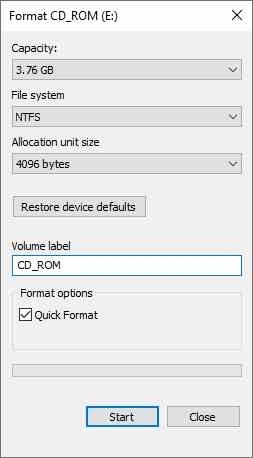
    3. Then, right-click the drive listed there and select  Format to open the window below.
    4. Select a file system format from the File System drop-down menu.
    5. Select the Quick Format option if it is not already selected, and press the Start button to format the drive.

    Read more:

    Conclusion:

    So those are some ways to fix the disk structure that is corrupted and unreadable with Windows tools and third-party software. While there are many potential causes for the error to occur, many users find the root cause to be a file system error, which can be perfectly fixed by formatting the device.

  • Best 3 Ways To Update Windows 10 Offline Permanently 2024

    Best 3 Ways To Update Windows 10 Offline Permanently 2024

    Best 3 Ways To Update Windows 10 Offline Permanently – Windows is an operating system that is widely used in the world. Computerworld wrote an article stating that Windows runs on 86% of all computers in the world with Windows 10 on 47% of all versions of Windows.

    How To Update Windows 10 Offline Permanently
    How To Update Windows 10 Offline Permanently

    How To Update Windows 10 Offline Permanently

    That’s impressive! To be fair to such a large user base, Microsoft continues to release new updates with updates and fixes every few weeks.

    Read more:

    However, not everyone has stable internet connectivity, and many users often complain about failed update attempts. And many users are wondering whether it is possible to install this update on a Windows 10 PC in offline mode, and how To update windows 10 offline.

    So I discussed it today along with recommendations for certain updates that you should install offline.

    For the most part, your computer will continue to function properly even if you don’t install any updates. However, that doesn’t mean you don’t have to update it.

    That’s not too many answers, right? It is recommended to install the update because it contains many patches that protect your system, files, and data, against possible threats.

    Researchers and hackers are always looking for new security holes and exploitable bugs. Microsoft and other related software makers have released patches and updates to improve the exploits.

    Then some new features are added or improved to help you achieve more. Finally, this update can fix several bugs that might hamper your PC’s performance and make some applications or features function correctly.

    Microsoft wants you to install this update on Windows 10 whether you want it or not. Changing the settings will only delay but cannot stop it, especially for Windows Home users. That was done because many users avoided updates on previous versions of Windows which caused security and hacking problems on a wider scale.

    Let’s see how you can update Windows 10 without an active Internet connection.

    #1. Download Updates locally (LAN)

    Not everyone has a super-fast internet connection and many users use slow networks. To help users, Microsoft introduced a new feature with Windows 10 that allows you to download updates from other computers on your LAN network that have received updates.

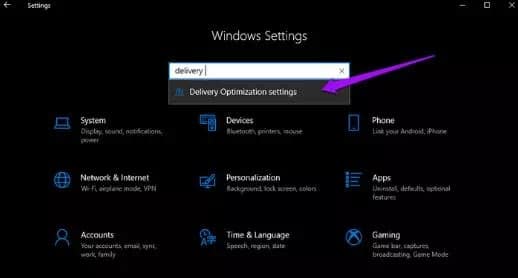
    To do that, make sure both computers are connected to the same network. From the Settings window, use the search feature to find Delivery Optimization settings.

    Download Updates locally (LAN)
    Download Updates locally (LAN)

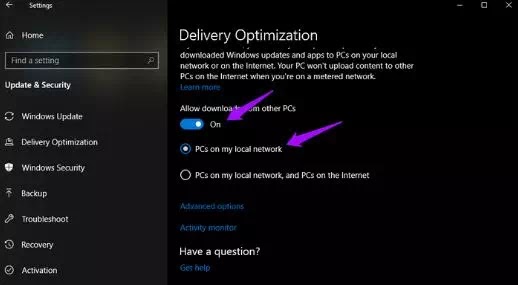
    That’s where you will enable Allow downloads from another active PC  and select PC on my local network.

    Download Updates locally (LAN)

    If you can use bandwidth and want to speed up the process, other options will tell your PC to download from the local network and the Internet. Because you are using a local network, you need to check for updates manually. If Windows detects them on a local network computer, it will start downloading them.

    #2. Media Creation Tool

    Microsoft’s Media Creation Tool helps users to create a USB flash drive that can be booted or burned. ISO to DVD. I prefer a USB drive because you can always start from scratch if there is a problem.

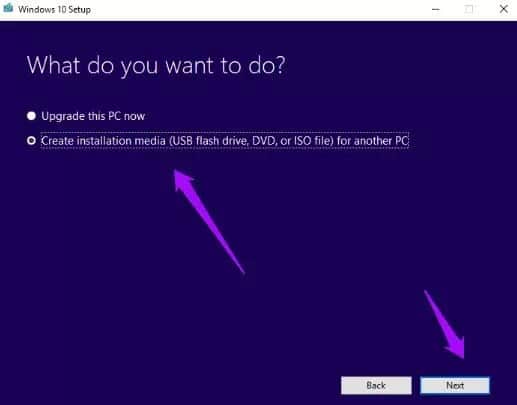
    This tool is available only after you complete the selection process to choose the right version of Windows 10 (32-bit or 64-bit) for you. After you receive the ToS, select Create Installation Media for another PC.

    Media Creation Tool
    Media Creation Tool

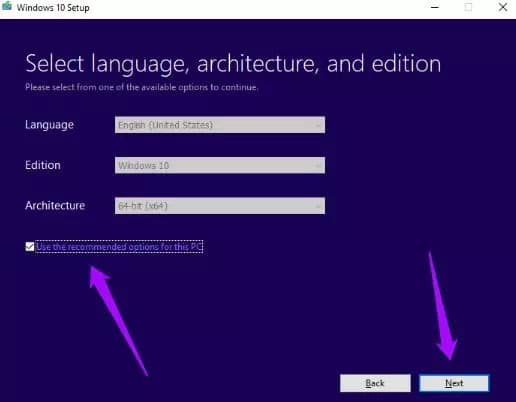
    It will detect your language, Windows edition, and architecture automatically or you can choose manually. I only go with the recommended options. Click Next.

    Media Creation Tool
    Media Creation Tool

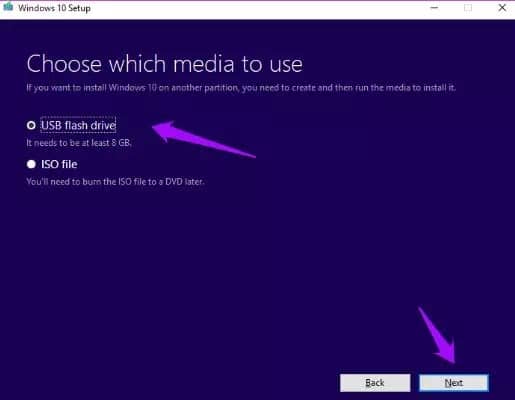
    That’s where I will choose a USB drive, but you can also choose to burn the.ISO file to DVD.

    Media Creation Tool

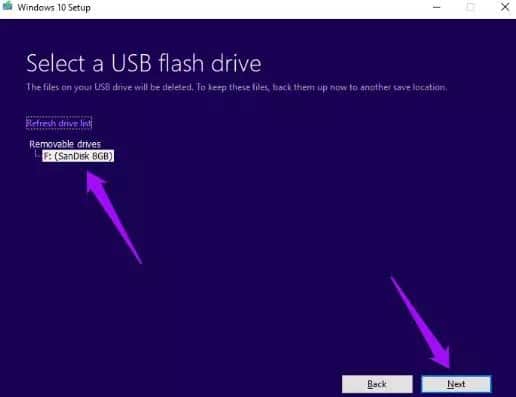
    Select your USB flash drive if you have more than one connected and click Next.

    Media Creation Tool

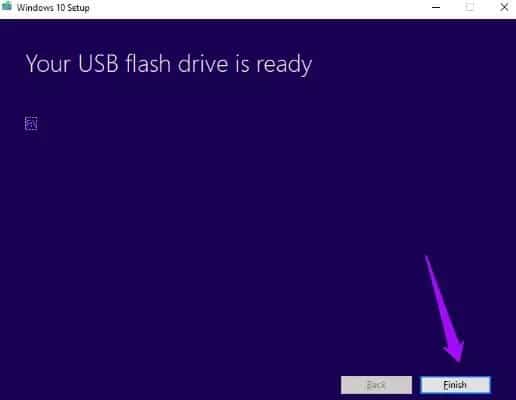
    You will now see a Progress screen where the tool will begin the download process. Depending on the size of the update, this might take a while. When finished, click Finish.

    Media Creation Tool

    You now have an update on the USB drive. You can trade whenever you want. Just connect the USB drive again and double-click on the Setup.exe file to start the process.

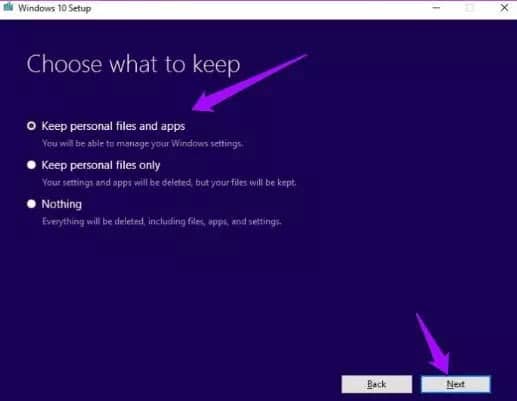
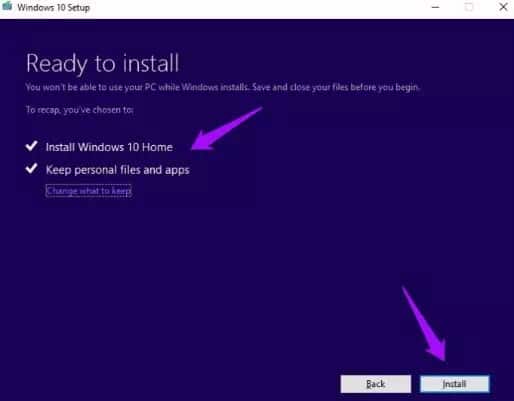
    This is important – here select ” Keep personal files and apps ” only to install updates. If not, you can lose data from your hard disk or SSD.

    Keep personal files and apps

    Click Install on the next screen and wait for the update to be installed. Windows might need time to apply the update, and your PC will restart several times, so don’t worry.

    Keep personal files and apps

    Sometimes, Microsoft will release a .exe file from an update or patch on their official site. If so, you can download it from there and install it later without an active internet connection. You can download the Media Creation Tool [ from here ].

    PS: You can use the same method to install a new copy of Windows 10 or upgrade from an earlier version of Windows to Windows 10. Just select Upgrade this PC now instead of creating an installation media for another PC.

    #3. Windows Update Catalog

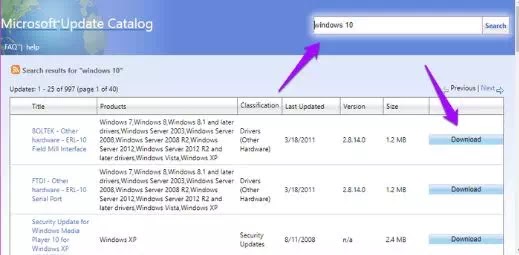
    Windows keeps a catalog of all updates that have been released for a particular OS. You can directly download updates from this catalog (.exe file) and install them offline without an Internet connection on any PC. Visit the catalog homepage using the link below. Look for your OS version or search by name if you know it.

    Windows Update Catalog

    Click the download button to save the file on your PC. After that, just double-click on the downloaded file to install it. You can visit the Windows Update Catalog [ from here ].

    Read more:

    Conclusion:

    So, friends, That the above how to update Windows 10 offline permanently, many of you are reluctant to install Windows updates for fear of damaging something.

    However, I advise you to update Windows 10 regularly so that all potential security holes and other bugs are fixed. If for some reason you want to install this update manually, I hope one of the methods above can help you, with how to update Windows 10 offline.

  • How to Change WhatsApp Theme on Smartphone 2024

    How to Change WhatsApp Theme on Smartphone 2024

    How to Change WhatsApp Theme on Smartphone – Recently, WhatsApp launched the Dark Mode feature in its application. With this feature, users can enjoy WhatsApp in a nuanced or dark theme.

    How to Change WhatsApp Theme on Smartphone
    How to Change WhatsApp Theme on Smartphone

    How to Change WhatsApp Theme on Smartphone

    So, not only have chat wallpapers changed, but every part of WhatsApp will also be dark.

    Read more:

    Well, then is there a WhatsApp theme other than the dark theme?

    There is a shuttlecock, but unfortunately, the theme features in addition to a dark theme are not available on the official WhatsApp application. To get a different WhatsApp look from the others you have to use the WhatsApp Mod application.

    For those of you who want to change the WhatsApp theme either with Dark Mode or WhatsApp Mod, please see the following article.

    How to Change WhatsApp Dark Theme (WA Dark Mode)

    Some people think that dark colors can reduce the light emitted from the gadget. So with a dark theme, we can be more comfortable looking at it.

    No doubt, some developers have also added a dark mode feature (Dark Mode) so that users can be more comfortable when using the application.

    The WhatsApp application is no exception, as it currently provides a Dark Mode feature. The feature that was released in 2024 finally answered requests from users.

    Especially those who believe that a dark display can make the application display more comfortable and can also save battery.

    Then how to change the WhatsApp theme to dark?

    For more details, follow the steps below.

    Steps to Change WhatsApp Dark Theme

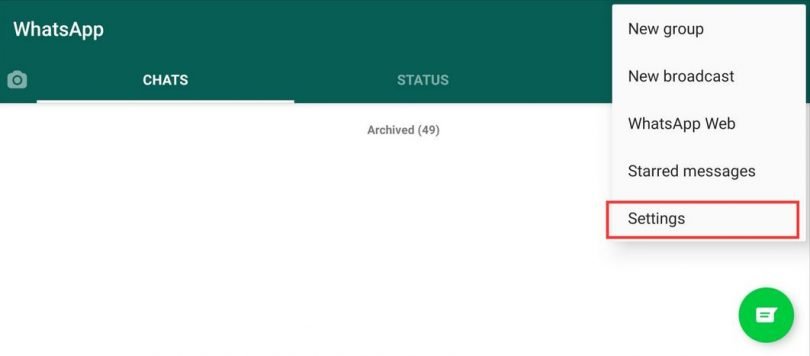
    • Run the WhatsApp application installed on the device. then tap the drop-down menu by clicking the three-dot icon in the upper right corner of the WhatsApp display
    • Several options will appear in the drop-down menu, to find Dark Mode settings on WhatsApp, please click Settings (Settings)
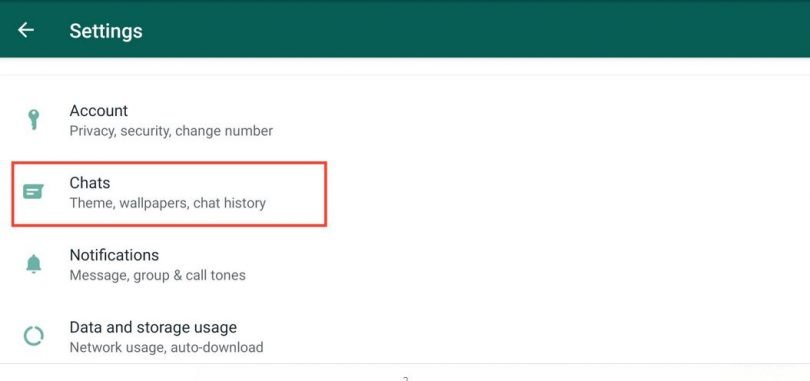
    • After you enter the Settings menu on WhatsApp, the next step is to select and click the Chats option (Theme, wallpapers, chat history)
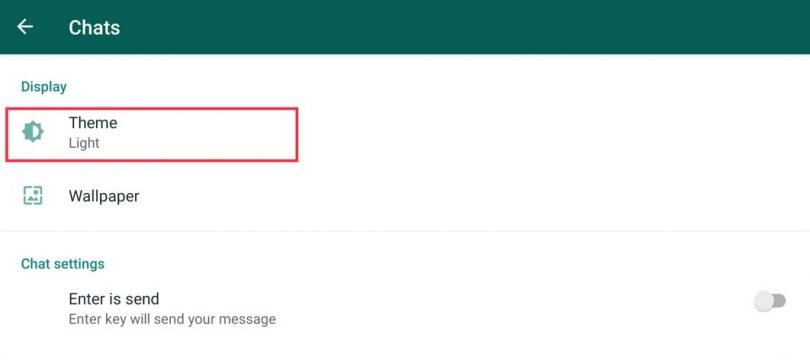
    • Next, you click Theme to open the Dark Mode feature
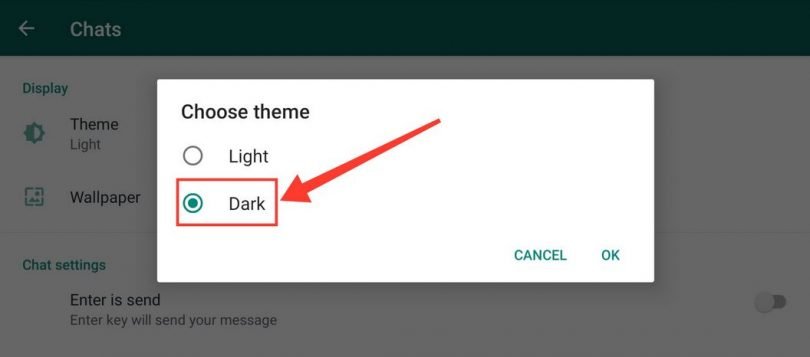
    • Then two options will appear, Light and Dark, the Light display is the default version of WhatsApp, so please choose Dark.
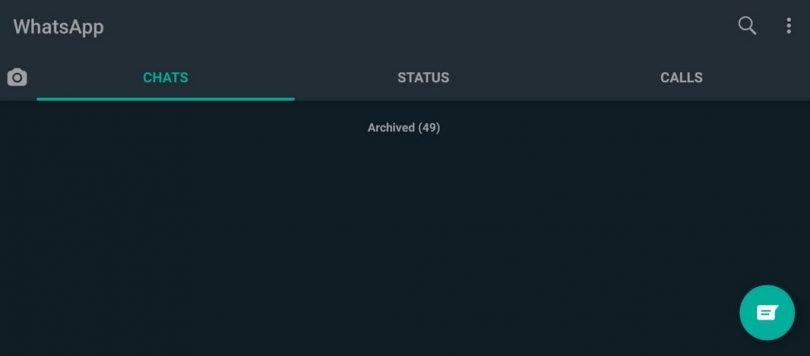
    • Done, the appearance of WhatsApp has also changed to dark or Dark Mode.
    Steps to Change WhatsApp Dark ThemeSteps to Change WhatsApp Dark Theme
    Steps to Change WhatsApp Dark Theme
    Steps to Change WhatsApp Dark Theme
    Steps to Change WhatsApp Dark Theme
    Steps to Change WhatsApp Dark Theme

    After you have done all the steps, the final result will be a dark WhatsApp display.

    Characterized by a mix of dark and green colors. Then the writing or text will turn white. So, to get the new look of WhatsApp you can use the Dark Mode feature available in the application.

    How to Change WhatsApp Themes with the WhatsApp Mod Application

    The next way to change the WhatsApp theme is to use the WhatsApp Mod application.

    The method is also very easy to do, For more details, please refer to and follow the steps as follows:

    #1. Using the YoWhatsApp application

    The first WhatsApp Mod application that you can use to change the theme is YoWhatsApp.

    Besides being equipped with various themes, YoWhatsApp also has several excellent features that are not available in the official WhatsApp application, namely:

    YoWhatsApp Featured

    • Have many themes
    • Can hide blue tick
    • View deleted messages
    • Viewing people’s stories without being noticed
    • Creating a fake Last Seen feature

    Then to change the theme on YoWhatsApp you can follow the following tutorial:

    Steps to Change Theme on YoWhatsApp

    • Download the WhatsApp Mod application from the official YoWhatsApp website or click on the link provided.
    • After successfully downloading, don’t install it right away, please uninstall or uninstall the official WhatsApp application first, and don’t forget to backup chats to Google Drive or device storage, if not, that’s fine.
    • Install the YoWhatsApp application until it is successfully installed on the device, don’t forget to activate Unknowns Source Apps
    • Run YoWhatsApp login and configure your WhatsApp account, you can also restore or restore previously backed-up messages
    • After logging in, the next step is to change the theme on YoWhatsApp, please click the three-dot icon or the drop-down menu in the upper right corner
    • Several options will appear that are not in the official WhatsApp application, just click FMThemes then select Download YoThemes
    • In the next step, you find the theme you want to use then click install to apply the theme
    • Finished.

    #2. Using the GBWhatsApp application

    In addition to using the previous WhatsApp Mod application, you can also try the well-known GBWhatsApp application.

    In addition to the theme features provided, the other features are also more complete. Some of its features are as follows:

    GBWhatsApp Featured

    • Has several theme options
    • Can be used as a dual WhatsApp application
    • Capable of sending large files up to 50MB
    • Can copy-paste status on Stories
    • Hide online status and double-tick
    • Creating fake online status
    • Send automatic chat replies

    So, for those of you who want to change the theme on GBWhatsApp, follow the tutorial below:

    Steps to Change Theme on GBWhatsApp

    • Download the GBWhatsApp application by clicking the link provided.
    • Just like the previous method, uninstall the official WhatsApp application and don’t forget to backup chats, but if you don’t, that’s fine
    • Install the application on the cellphone, and don’t forget to activate the Unknown Source Apps setting
    • After successfully installed, login to your WhatsApp account and do the configuration, you can also restore chats that have been backed up previously
    • If you are already logged in, please enter GB Settings (GB Settings) by clicking the three-dot icon in the upper right corner
    • Then select the Download Themes menu, and a variety of theme options will appear, please search and choose the most interesting theme
    • To apply the selected theme, click Apply.
    • Then GBWhatsApp will bring up a restart or restart command, just click the OK button
    • Done, the appearance of the GBWhatsApp theme has also changed.

    #3. Using the WhatsApp Plus application

    The next WhatsApp Mod application that you can also use to change the theme is WhatsApp Plus.

    Made by the same developer as GBWhatsApp, the application is also equipped with various other interesting features, including:

    WhatsApp Plus Featured Features

    • Change WhatsApp theme
    • Hide online status, blue tick, and double tick
    • Hide typing status
    • Capable of sending audio or VN up to 100 MB
    • Displaying HD images on Stories
    • Can post 7-minute videos in Stories

    To change the theme with WhatsApp Plus, please follow the following tutorial:

    Steps to Change Theme on WhatsApp Plus

    • Please download the WhatsApp Plus application file first or click the following link.
    • Then as usual, please uninstall the official WhatsApp application and just in case do a chat backup
    • After that, install WhatsApp Plus, remember to activate Unknown Source Apps first
    • If it has been installed, run the WhatsApp Plus application, then log in and do the configuration, you can also restore chats that have been backed up before
    • In the next step, when you are logged in, click the three-dot button and select Theme
    • Look for a theme that looks interesting and that you want to use, if you have clicked the Apply button or apply
    • Done, you have successfully changed the WhatsApp Plus theme

    Other WhatsApp Theme Changer Apps

    In addition to the three WhatsApp Mod applications that Kuotabro mentioned, there is also a Mod application that is indeed made with a unique appearance. So, when you use the WhatsApp Mod application, you don’t need to set a theme.

    If you want to try the WhatsApp Mod application in question, here are some applications to choose from:

    #1. WhatsApp Transparent

    As the name suggests, the application has a transparent display. To download, please click on the following link:

    #2. WhatsApp Aero

    WhatsApp Aero, the Mod application is relatively new but has a more modern and elegant appearance. If you want to try it click the following download link:

    Conclusion:

    That’s the article on how to change the theme of WhatsApp. So, the official version of the WhatsApp theme is only in dark mode. So if you want to change to another theme, you have to use the WhatsApp Mod application. Even so, this method can be used if you feel very bored with the appearance of WhatsApp.

  • Best Trick To Download Instagram Application on PC 2024

    Best Trick To Download Instagram Application on PC 2024

    Best Trick To Download Instagram Application on PC – Is there an official Instagram application from Microsoft for Windows 10 PC users? The answer is yes, and you can install it on your Windows 10 laptop.

    Best Trick To Download Instagram Application on PC
    Best Trick To Download Instagram Application on PC

    How To Download Instagram Application on PC Laptop

    The Instagram application for Windows 10 was made by Instagram for the Windows 10 operating system. So this is an official app and not a fake app made by obscure developers.

    Read more:

    The Instagram application for Windows 10 is a free download, so there is no need to pay because it is free to install on your Windows 10 laptop.
    The Instagram application for PC Windows 10 was first released on February 26, 2016, just like the information displayed on this Microsoft website page.
    But before you install and download Instagram on a Windows 10 laptop, you must first know the specifications of your laptop or computer. Don’t get an error later and it’s too late to run on your PC OS.

    System requirements

    Minimum OS: Windows 10 Mobile version 10240.0 or higher, Windows 10 version 10240.0 or higher.
    Minimum memory 2 GB.
    So what about Windows 7 and Windows 8? For Windows 7 and Windows 8 users, you cannot install this official Instagram application. So this Instagram application is specially made by Instagram Morning users of the Windows 10 operating system.
    So if you can’t wait to download and install it on your Windows 10 PC, just go ahead without waiting any longer, here’s how to download the Instagram application on a Windows 10 laptop easily and quickly:
    How to download the Instagram application on a Windows 10 laptop
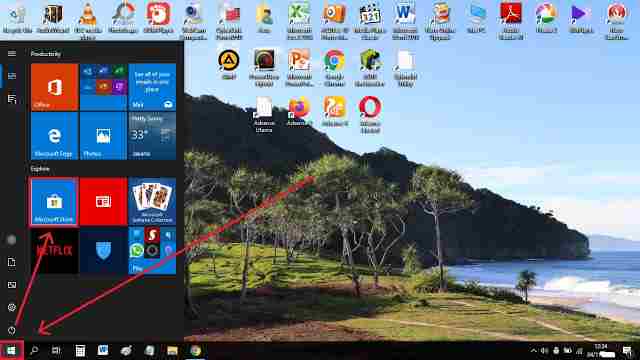
    1. The first step you have to do to download the Instagram application on a Windows 10 laptop is to open the Microsoft Store first. Please click “Start” in the lower-left corner, then click the “Microsoft Store” menu.
    How to download the Instagram application on a Windows 10 laptop
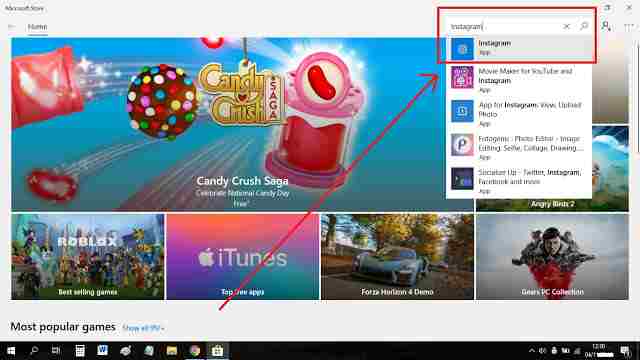
    2. Please click on the top right search box “Instagram”. When it appears, please click to open.

    How to download the Instagram application on a Windows 10 laptop

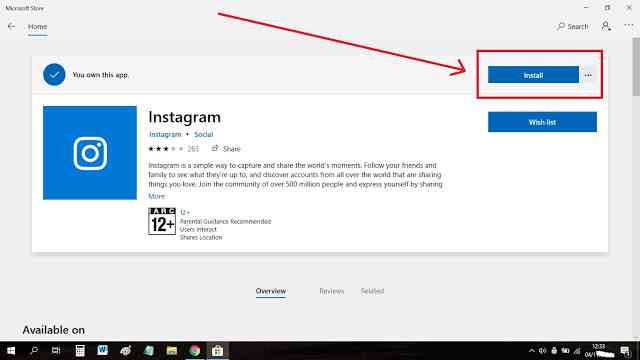
    3. Click “Install” to install the official Instagram app on your Windows 10 PC.

    How to download the Instagram application on a Windows 10 laptop

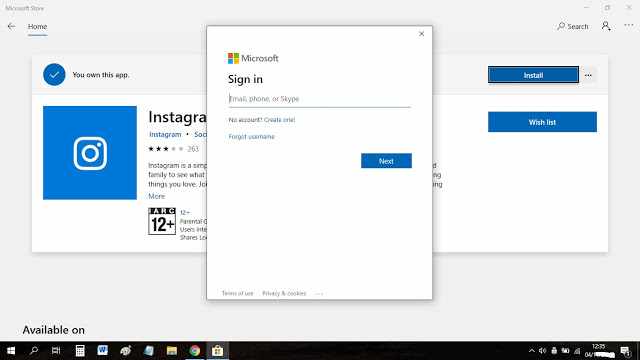
    4. When asked to sign in, it means that you are not logged in to your Microsoft account on your Windows 10 PC. Please login first with your Microsoft account email and password. If you don’t have a Microsoft account, you can create one here first.

    How to download the Instagram application on a Windows 10 laptop

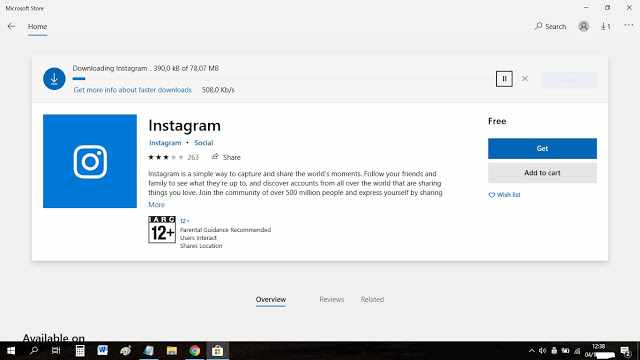
    5. If you have successfully logged in, the Instagram application for Windows 10 computers will automatically start the download process. Please wait until it’s finished because the size is quite large compared to the Instagram application on cell phones.

    How to download the Instagram application on a Windows 10 laptop

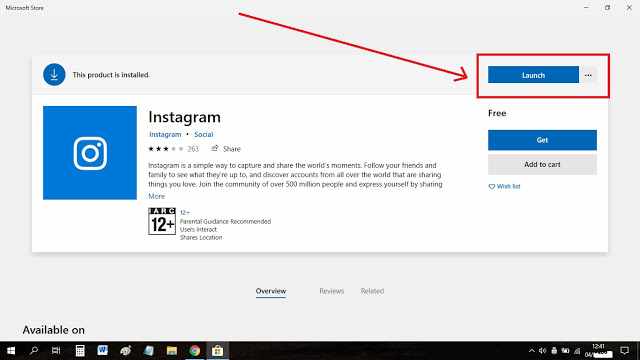
    6. Click “Launch” directly to open the Instagram application. You can also click the dot icon next to it so you can put the Instagram icon as a shortcut on your PC’s start taskbar.

    How to download the Instagram application on a Windows 10 laptop

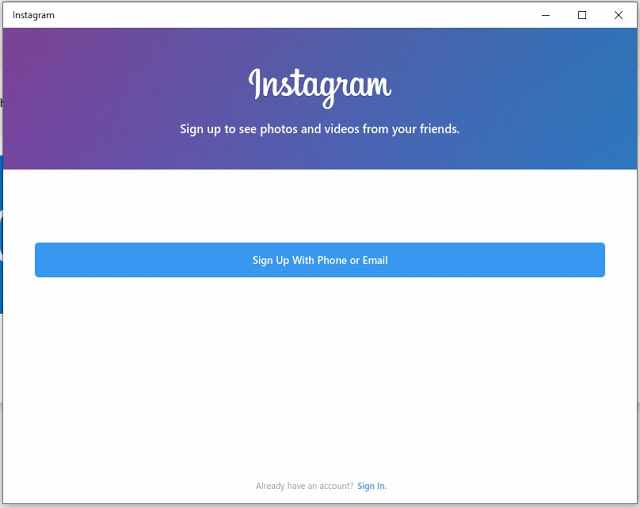
    7. Now that the Instagram application is open, please log in with your Instagram account, or you can also create a new Instagram account. Click “Sign Up With Phone or Email” to create a new Instagram account via cellphone number or email. Click “Sign In” to sign in with your existing Instagram account.

    How to download the Instagram application on a Windows 10 laptop

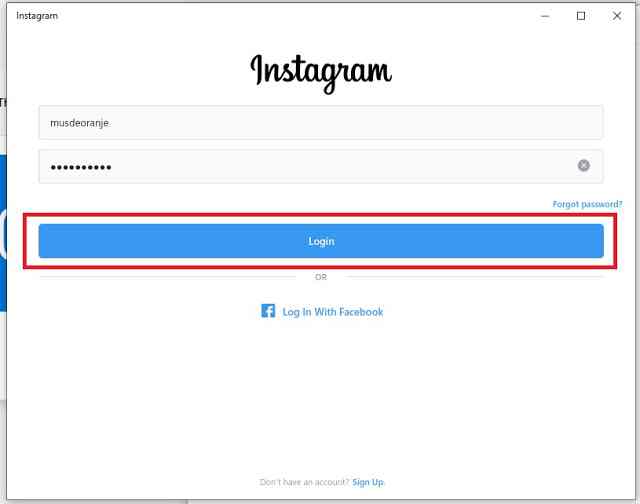
    8. Please enter your Instagram account username and password. Then click “Login”.

    How to download the Instagram application on a Windows 10 laptop

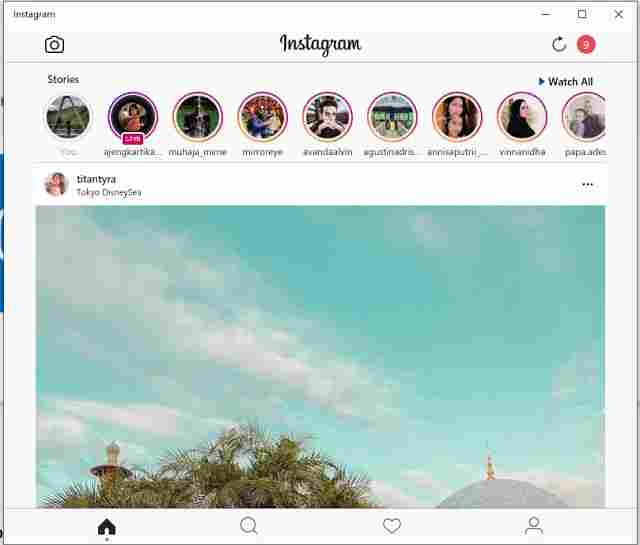
    9. Congratulations on successfully logging into your Instagram account via the Instagram application on your Windows 10 laptop.

    How to download the Instagram application on a Windows 10 laptop

    You can now use Instagram as you open the Instagram application via your Android or iPhone.

    The advantages of the Instagram application on a Windows 10 PC

    Through the Instagram application on your Windows 10 laptop, you can update your Instagram story via your laptop’s web camera, see the Instagram story viewers that you have created, see the stories of the accounts you follow, watch their live videos, read and reply to DM messages, see notifications, reply to and comment on posts, and like posts.

    If you want to see an Instagram story anonymously using the web you can try Gramvio. Gramvio is a fast secure and reliable site to view someone’s profile without logging in

    Lack of the Instagram application on a Windows 10 PC

    When this article was written, in addition to the above advantages, it turned out that there are many shortcomings of the Instagram application specifically for Windows 10 laptops in the Microsoft Store, namely you cannot upload photos or videos both on the Instagram story and on your Instagram account fees.

    The Instagram application for Windows 10 laptops also cannot open IGTV and makes calls and video calls among Instagram users.

    Hopefully, later these missing features can be added to the Instagram application for this laptop in the next update. So don’t forget to update the Instagram application when it’s time.

    So it turns out that there are also many shortcomings of the Instagram application from Microsoft for Windows 10. Have you installed it on your Windows 10 laptop?

    But at least when you are working on a laptop, if there are notifications and DM messages that come in, you can find out and read them first before replying and the person who sent the message will not know that you already know the contents of the message.

    Read more:

    Conclusion:

    That’s how to download the Instagram application on a Windows 10 laptop. To be able to upload photos on Instagram via a PC without an application, you can see in the article how to DM on Instagram on a PC without an application.