Author: Nazrul Islam

  • How to Flash Asus Zenfone 5 (T00F / T00J) 2025

    How to Flash Asus Zenfone 5 (T00F / T00J) 2025

    How to Flash Asus Zenfone 5 (T00F / T00J) – Of the many users of Asus Zenfone 5, there must be some who experience damage problems. For example, system errors are caused by the user, and one of the most common damages is the Bootloop.
    How to Flash Asus Zenfone 5 (T00F T00J)
    How to Flash Asus Zenfone 5 (T00F T00J)

    How to Flash Asus Zenfone 5 (T00F/T00J)

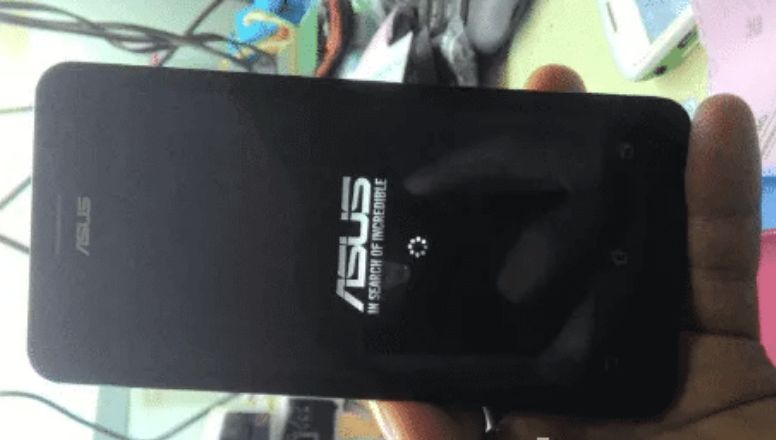
    Bootloop is a problem that occurs on Android devices in the form of a failure to enter the system.

    Read more:

    The characteristic is when your device is turned on, only to display the Asus logo or just the Android logo.

    The fix is ​​to flash it again. After successfully flashing, the Asus Zenfone 5 will return to normal and can be used again as usual.

    #1. How to Fix Zenfone 5 Bootloop & Matot

    In addition to overcoming Bootloop, re-flashing the Asus Zenfone 5 (T00F / T00J) can also solve other problems on the Android system.

    Such as application crashes, stop themselves, application errors, hangs, cellular data can not be active, slow/slow, and many other problems that can be resolved by doing a flashback, and your cell phone will return as before or the same as when buying a new one.

    Therefore, in this post, we will share a flash method that can be used to overcome various system problems experienced by the Asus Zenfone 5.

    #2. How to Flash Zenfone 5 T00F via ADB

    For you to be able to flash the Asus Zenfone 5 smoothly and successfully, the first thing you need to do is prepare the necessary equipment and files.

    Please download the files needed to flash the Asus Zenfone 5 via ADB Fastboot or ADB Sideload below.

    #3. Ingredients

    #4. Preparation of PC / Laptop

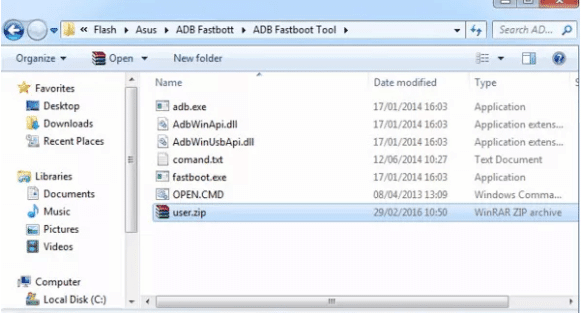
    • Download all the files above
    • Extract the Intel Drivers Android Driver file, then install it on the PC / Laptop
    • The,n extract also ADB Fastboot Tool
    • Next, change the name of the Asus Zenfone 5 firmware that has been downloaded to “user”; this is to facilitate the flash process again through the ADB Fastboot Tool.
    • If the above steps are done, now move the Asus Zenfone 5 firmware to the ADB Fastboot folder

      Preparation on PC / Laptop
      Preparation on PC / Laptop

    #5. Get started on mobile

    • The next step is to enter the apply update from ADB by pressing the Power + Volume up button simultaneously, then hold it until it enters fast boot mode.
    • Next, enter recovery mode. You can use the volume buttons for navigation and the power button to confirm
    • Your phone will restart automatically, then the Android logo or the ASUS logo will appear
    • At this stage, immediately press the volume up and down simultaneously until entering the recovery menu
    • If you have already entered the recovery menu, just select Apply update from ADB.

    #6. Flash Asus Zenfone 5 via ADB Fastboot

    1. Use a USB cable to connect your Zenfone 5 to a PC / Laptop
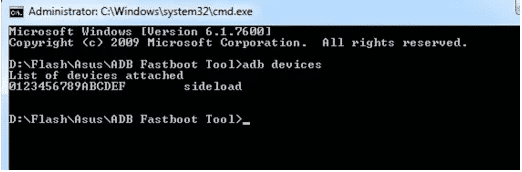
    2. Then run the Command Prompt in the ADB Fastboot folder, then double click on OPEN.CMD.
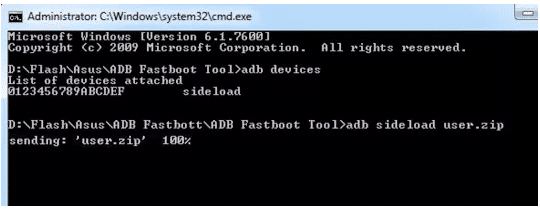
    3. Next, type the command “ADB devices”
    4. If all the above processes have been carried out correctly, then your cellphone will be detected and connected. For example, the following picture

      Flash Asus Zenfone 5 via ADB Fastboot
      Flash Asus Zenfone 5 via ADB Fastboot
    5. Then enter the command “ADB sideload user.zip” (firmware that has been renamed), then enter
    6. After that, it will look like the image below, which indicates the process is running

      Flash Asus Zenfone 5 via ADB Fastboot
      Flash Asus Zenfone 5 via ADB Fastboot
    7. After the process is complete, the Zenfone 5 will enter recovery mode again
    8. The next step is to select the system reboot option now
    9. Just wait until your Asus Zenfone 5 is turned on again (at this stage, it will take quite a long time, so just wait for it)
    How to Flash Zenfone 5 via Asus Flashtool

    • First, extract all the files that have been downloaded above.
    • Open the Asus Flashtool that you have downloaded.
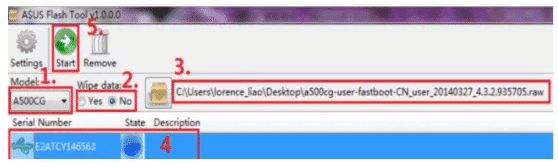
    • On the Model, the Menu selects the type Asus Zenfone 5.

      How to Flash Zenfone 5 via Asus Flashtool
      How to Flash Zenfone 5 via Asus Flashtool
    • Select yes on Wipe Data.
    • Next to the data wipe menu is the upload icon, click then enter the raw Asus file.
    • Turn off your cell phone. Next, enter Fastboot mode by pressing the Power and Volume up buttons together.
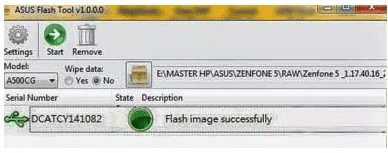
    • If the Asus Zenfone 5 driver is installed correctly on the PC / laptop that you are using, then the flash tool will be detected which is marked with a blue circle.
    • To continue flashing, click Start.
    • If Flashing succeeds, a Flash Image Successfully notification will appear

      Flash Image Successfully
      Flash Image Successfully
    • Done, your cellphone is ready to use again.
    Flashing yourself again requires patience and accuracy.

    That is the key to success in flashing the Zenfone 5 itself. If this is your first time trying it, it will certainly look complicated.

    How to Flash ASUS Zenfone 5 Without a PC

    This one method is perfect for those of you who don’t want to be complicated or don’t have a PC / laptop. This one method is to use the SD Card as a medium to flash again.

    In addition, firmware files are also very needed. As previously explained.

    If our cellphone is an ASUS WW, then we have to use WW firmware, as well as others.

    However, the ASUS Zenfone 5, which has the TW code, successfully flashes again using the WW firmware. Maybe you can try it too.

    Flash ASUS Zenfone 5 via SD Card

    • Prepare the firmware in advance, please download the following link
    Download here
    • If the file has been downloaded, now place the file on the SD Card, place it outside the folder
    • Now, turn off the Asus cellphone that you want to flash
    • Next, enter recovery mode by pressing and holding the power + volume down button simultaneously
    • If you have entered recovery mode, now select the Apply update from the external storage option.
    • Next, look for the Zip file that you moved to the SD Card, then select Ok by using the power button
    • Just wait until the installation process is complete. Approximately 5 minutes.
    • If it is successful and complete, reboot your Asus mobile.

    Asus ZenFone 5 Firmware Collection

    Click the link below to directly download it according to your Zenfone 5 type.

    1. Android L_UL-ASUS_T00F-WW-3.24.40.87-user.zip
    2. Android K_UL-ASUS_T00F-WW-2.22.40.540-user.zip
    3. Android K_UL-ASUS_T00F-CN-2.22.40.540-user.zip
    4. Android L_UL-ASUS_T00F-WW-3.24.40.87-user.zip
    5. Android L_UL-ASUS_T00F-TW-3.24.40.87-user.zip
    6. Android L_UL-ASUS_T00F-CN-3.24.40.87-user.zip
    7. ADB Fastboot Tool.rar
    8. IntelAndroidDrvSetup1.10.0
    9. ASUS_Android_USB_drivers_for_Windows.rar

    Asus ZenFone 5 specifications

    ASUS is a giant technology company from Taiwan. This company has produced various gadgets and equipment that we need.

    Ranging from computers, computer accessories, and power banks to various types of smartphones. For the quality itself, there is no need to doubt.

    One of its flagship products is the Asus Zenfone 5, which is a middle-class mobile phone that has sold millions of units. In Indonesia, Asus Zenfone 5 users can be said to have a lot of up to their community.

    Asus ZenFone 5 T00F or T00J are the two newest Asus smartphone variants, both of which have not many different specs.

    Both are still relying on the internet network on 3G HSDPA, and both carry dual GSM slots.

    In terms of both processors are also supported by chipsets from Intel Atom, and combined with 2 GB of RAM as well as GPU PowerVR SGX544MP2.

    What distinguishes the specs of these two smartphones can we know between the processor performance speed of Dual-core 1.2 GHz and Dual-core 2.0 GHz, and internal memory capacity?

    Asus ZenFone 5 T00J has internal memory with different sizes between 8/16/32 GB while Asus ZenFone 5 T00F itself is only 8 GB.

    Firstly, the two smartphones were launched with the Android v4.3 Jelly Bean operating system and both get the opportunity to update to the latest OS, Android v5.0.2 Lollipop.

    The screens of the two are also the same, with having 5-inch wide with IPS LCD screen panel technology and coated with a scratch-resistant protective type of Corning Gorilla Glass 3.

    The back camera and front camera look like they have no different resolutions, 8 MP and 2 MP, complete with LED flash.

    Likewise, from the supply of batteries, both have the same power capacity of 2110 mAh.

    Read more:

    Conclusion:

    So, friends, this is the explanation of how to flash the Asus Zenfone 5 (T00F / T00J), by flashing the Asus Zenfone 5 via ADB Fastboot Tool and Flashtool that we can share with you.

  • 9 Basic Computer Components And How To Upgrade It 2025

    9 Basic Computer Components And How To Upgrade It 2025

    9 Basic Computer Components And How To Upgrade It – You know how to use a computer, but how familiar are you with what’s inside? However complex the inner workings of a computer may be, they are made up of only a few component parts.

    9 Basic Computer Components And How To Upgrade It
    9 Basic Computer Components And How To Upgrade It

    9 Basic Computer Components And How To Upgrade

    But what is their function? What are the different parts of a PC? This time, we will show you how to identify the basic components of your computer.

    Read more:

    What are the Basic Parts of a Computer?

    A PC is made up of several discrete components that are designed to work together. With a desktop computer, these components can be easily replaced, less on a laptop. This is due to the dimensions of the laptop, its power and cooling requirements, and the lack of standardization.

    Fortunately, this is not a problem with desktop PCs. Designed to last longer, desktop computers can be customized and upgraded by replacing some or all of the components. But what is this component called?

    Computer Basic Components

    #1. Motherboards

    Motherboards

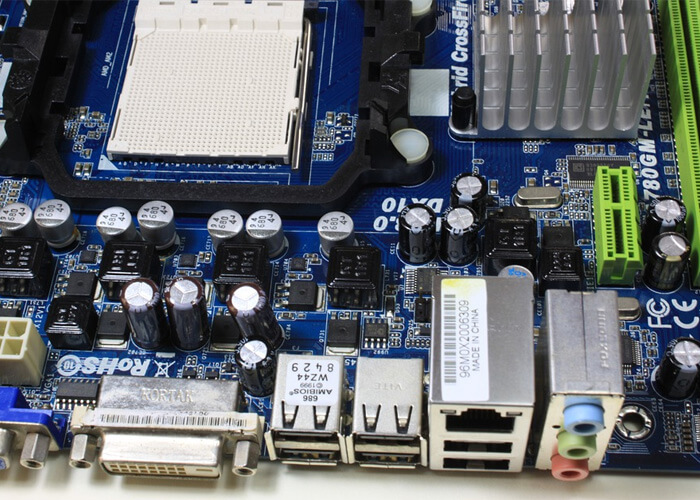
    The motherboard or commonly known as the mainboard is where all the components are connected. Inside there are slots for CPU, RAM, storage devices, GPU, and sound cards. If you are a beginner, we will not advise you to upgrade your motherboard yourself.

    This requires full compatibility with not only other components but also the PC case. However, the other components discussed here require you to unplug the cable from the motherboard.

    #2. Random Access Memory (RAM)

    Random Access Memory (RAM)

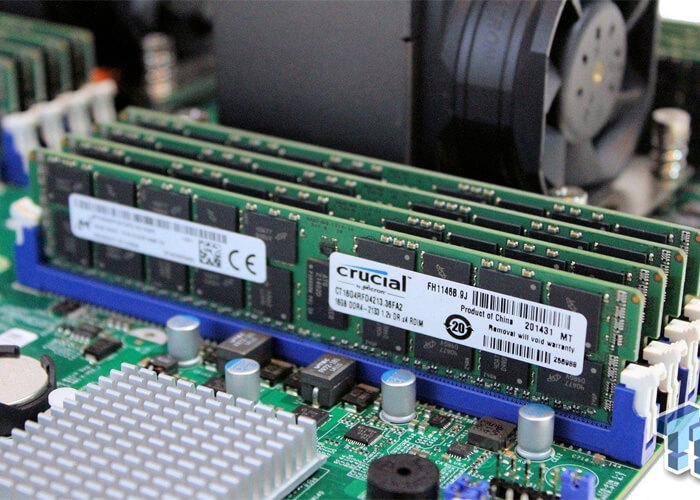
    RAM is temporary or short-term memory and is concerned with overall system performance and speed. The RAM module consists of a long stick that plugs directly into your motherboard. Your computer manual or motherboard manual will tell you what is the maximum amount of RAM supported by your system.

    The increase in RAM depends on how many slots you have and the maximum size each slot supports. Some computers require that you have the same amount of RAM in each slot. Check the PC manually to confirm this.

    Replacing RAM is very easy, you just release the latch at one end of the slot, and pull out the RAM. Thanks to the notch, the replacement module will only fit in one direction. Align the new module by the notches, and press firmly into the slot until the latch locks into place. Check if it is correct and safe.

    #3. Central Processing Unit (CPU)

    Central Processing Unit (CPU)

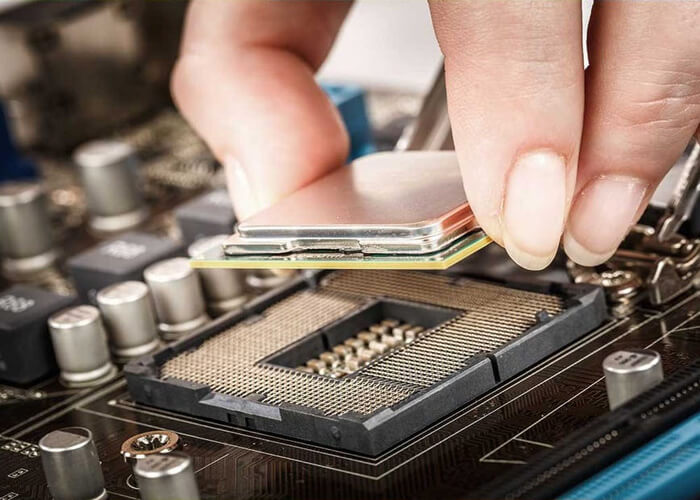
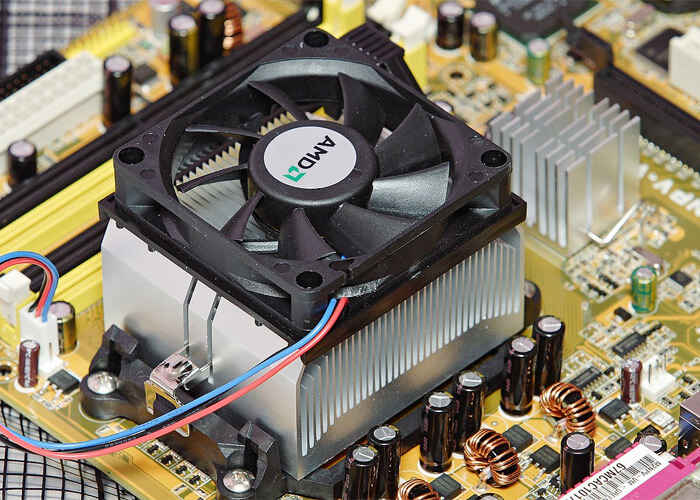
    If computers were humans, CPUs would be brains. This is the most important part of a computer. The CPU processes data calculates and controls most of the other components. The CPU sits on the motherboard in a special socket.

    It’s important to know that these sockets are sometimes specific to certain CPU generations. They are also specific to the CPU manufacturer (AMD or Intel).

    Once secured to the motherboard, the CPU is cooled by a heat sink, usually a heatsink and fan. However, there are other PC cooling solutions available. As with motherboards, never install your own CPU if you are a beginner. In most cases, upgrading your CPU will require a new motherboard, along with a cooler and possibly other components.

    #4. Power Supply Unit (PSU)

    Power Supply Unit (PSU)

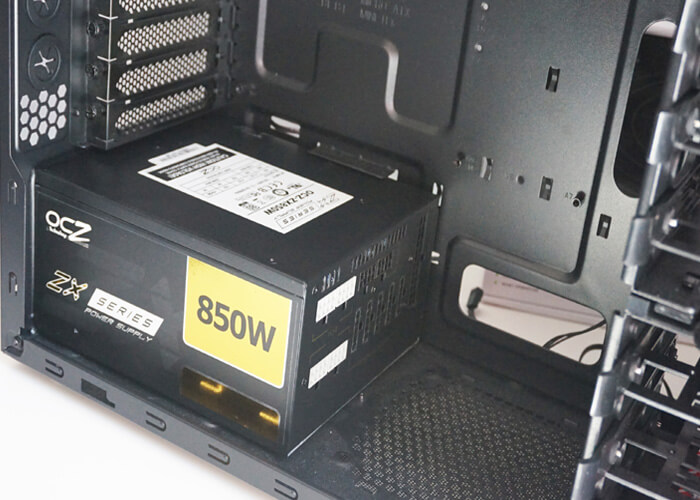
    Providing power to the PC is the job of the PSU, usually found on the back of the PC case. Looking at the back of your computer will show you where the power cable is plugged in. There is usually an on-off switch on this PSU, in addition to the power switch on the front of the computer.

    The PSU powers the motherboard and CPU via special cables. The SATA power cable powers everything else in the computer. PSUs are rated based on the amount of power they supply (eg 600 watts). It is important that your computer is properly powered. Otherwise, the components will not function properly, and the system will fail immediately.

    To upgrade your PSU, research the Video Card and CPU specifications first. You also want to make sure you get the right connector for your system. To replace the PSU, you have to make sure all the internal cables are disconnected. Follow this up by removing the screws that secure it to the PC case.

    #5. Fixed Storage Device (Hard Drive Or SSD)

    Fixed Storage Device (Hard Drive Or SSD)

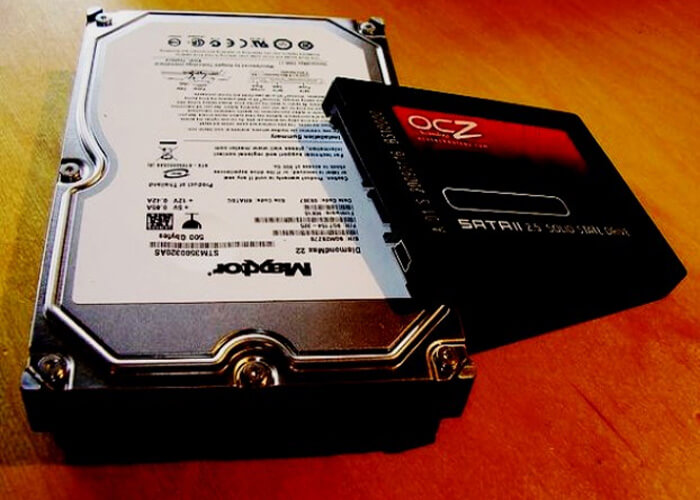
    The data is stored on your PC on the storage device. For decades, hard disk drives (HDDs) have served this purpose, but PCs have become increasingly dependent on other devices. A new device was created, namely Solid State Storage (SSD), a 2.5-inch device that looks like an HDD but is much faster.

    The HDD and SSD are found on the front of the PC case and are connected to the motherboard via a SATA cable. The drive requires two cables: one for power, and one for data. Older disk drives relied on a wider ribbon cable, known as PATA, with an IDE connector for data. They are powered by Molex plugs.

    If the HDD or SSD dies or you plan to upgrade to a larger capacity storage device, they can be easily replaced. Just take the necessary backup precautions, before you unplug the device and remove the screws/safety clips. The SSD or HDD can then be replaced.

    #6. Removable Storage: DVD-ROM Or Blu-ray

    Removable Storage DVD-ROM Or Blu-ray

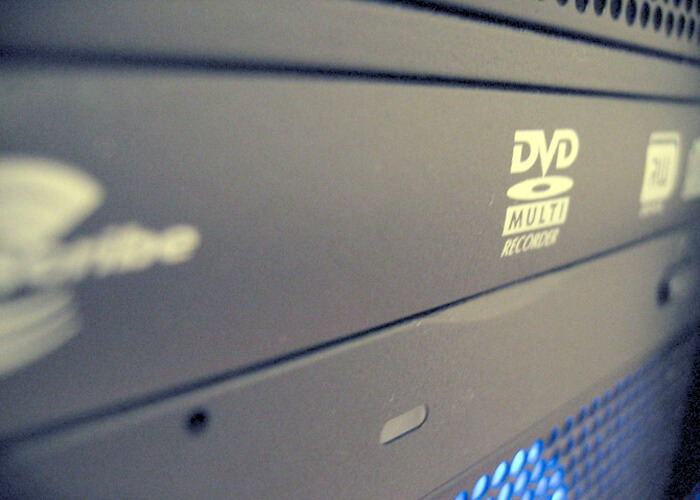
    Less common on laptop computers, desktops still seem to ship with optical drives. This is known as removable storage or removable storage, usually a DVD-ROM or Blu-ray drive, with reading and writing capabilities.

    Upgrading an optical drive is simple. Unplug, unscrew, or unlock the drive from the bay, pushing out the front of the case. USB sticks or SD cards are also based on flash RAM, which is removable storage.

    #7. Cooling Fans

    Cooling Fans

    The PC part that is often overlooked is the cooling fans. At least two are required: one for the CPU, and one for the case. The purpose of the CPU fan is to keep the CPU cool. Because of the heat inside the computer, the motherboard fan draws in cool air, the auxiliary fan draws hot air out.

    In most cases, there should be a fan on the back of the case, and another on the side or front. Many cases come with built-in fans, but these are usually low-end. Superior fans can be installed, and designed to replace or complement existing cooling solutions.

    Cooling fans are usually powered by cables from the PSU and secured to the case with screws. Many also add a built-in LED for cleaning PC cases.

    #8. Graphics Card (GPU)

    Graphics Card (GPU)

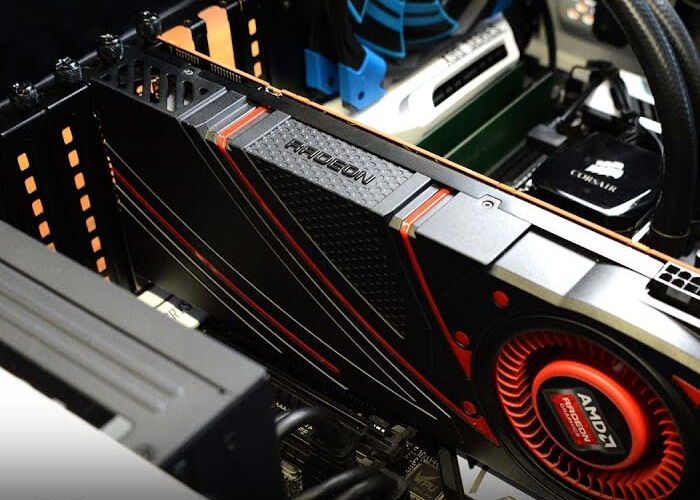
    Commonly known as a video card or VGA (Video Graphics Array). The GPU is the device that connects your computer to the display. While older PCs used VGA ports, today’s computers use HDMI to connect to HD displays. In most cases, the video out port is connected to the integrated graphics card on the motherboard. However, this is not always the case.

    Modern games require better graphics cards. As such, gamers, video editors, graphic designers, and other specialists use dedicated graphics cards. The GPU slot becomes a dedicated PCI-Express ( PCIe ) slot on the PC motherboard. This overwrites the motherboard GPU.

    Graphics cards are prone to compatibility issues such as size specifications, slot placement, motherboard type, processor speed, and power intake. However, the upgrades are quite simple like removing the securing screws and clips, unplugging the GPU, and snapping the replacement in place.

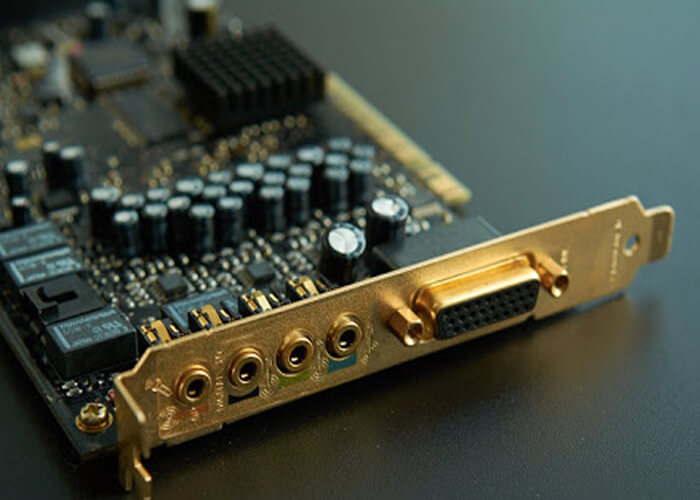
    #9. Sound Card

    Sound Card

    On the back of your PC, you will usually find three to five small circular ports. These are usually colored. In some cases, you may also find it on the front of your PC.

    This is the audio port that connects to your computer’s sound card. Like video cards, sound cards are usually integrated into the motherboard. However, for specialist uses such as game and audio development or recording purposes, a dedicated sound card can be used.

    The sound card offers various audio enhancements, such as advanced audio processing and Dolby surround sound 7.1. Like the GPU, the sound card is inserted into a PCIe slot on the motherboard (a different slot to the GPU, however). The new sound card has minimal compatibility issues.

    Read more:

    Conclusion:

    By now, you should know the names of the various PC parts on your computer. You also need to be able to recognize them and have an idea of how they can be replaced. Now you are on your way to understanding how to fix your computer and save money. Maybe later you can assemble your computer.

  • 3 Ways To Remove Shortcut Virus from Windows 10 PC 2025

    3 Ways To Remove Shortcut Virus from Windows 10 PC 2025

    How to Remove Shortcut Virus from Windows 10 PC – How to remove the shortcut virus on the flash and remove it from the laptop or on the computer is a relatively easy job. But unfortunately, not a few people are still having trouble dealing with this shortcut virus.

    3 Ways To Remove Shortcut Virus from Windows 10 PC
    3 Ways To Remove Shortcut Virus from Windows 10 PC

    How to Remove Shortcut Virus from Windows 10 PC Laptop

    Shortcut viruses are very annoying, not a few people have experienced shortcut virus attacks on flash drives or laptops. This virus came suddenly and without knowing its origin, which resulted in people experiencing this problem being confused about removing the shortcut virus from flash drives and laptops.

    Read more:

    What’s even more annoying is that this virus always attacks storage devices such as flash drives, hard drives, and storage drives. This virus is very easy to transmit from one device to another.

    For example, what is often found is on a Flashdisk connected to a PC that is infected with a shortcut virus. The flash has a high probability of being exposed to the same shortcut virus.

    How to Delete Shortcut Virus From Windows 10 Laptop PC

    There are several different methods but proven effective as a way to remove shortcut viruses on your flash drive and laptop. This article will guide removing all shortcut viruses in the flash or Windows computer.

    #1. Flashdisk

    If the flash is hit by a shortcut virus, then you don’t need to panic. You can remove the virus without worrying about the files and data on the flash being lost.

    Here’s how to remove the shortcut virus on the flash so it doesn’t come out again:

    1. Connect your flash drive to the PC.
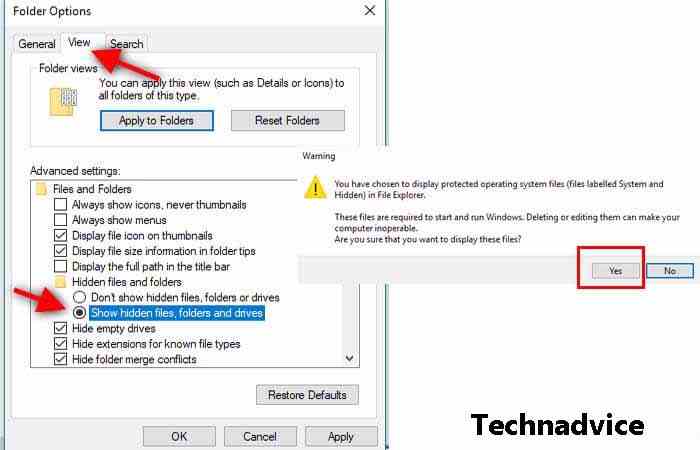
    2. Show hidden files on the flash by clicking Organize if using Windows 7 and 8 or going to View > Options if in Windows 10.
    3. Go to the View tab, and enable Show hidden files, folders, and drives.
    4. Uncheck Hide-protected operating system files (recommended).
    5. If a notification box appears, click the Yes button.

    Flashdisk

    1. All files on your flash drive that are affected by the virus will reappear, but you must delete the virus first.
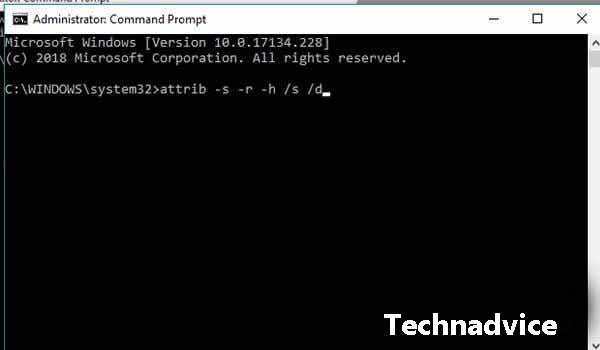
    2. To remove the shortcut virus, open Command Prompt as Administrator.
    3. Command CMD to go to the drive where your flash is located.
    4. Then, type the command attrib -s -r -h /s /d in CMD and press Enter.Flashdisk
    5. Finished.

    After that, your flash will return to normal. If there is a strange file, you can delete the file. You can also restore hidden file settings using the method described above. And to make sure that the shortcut virus is gone, scan your flash drive using anti-virus.

    #2. Via System configuration

    Via System configuration

    There are two ways to remove the shortcut viruses on laptops permanently. Both are proven effective to ward off shortcut viruses and ensure that they don’t come back again.

    How to remove shortcut virus on laptop:

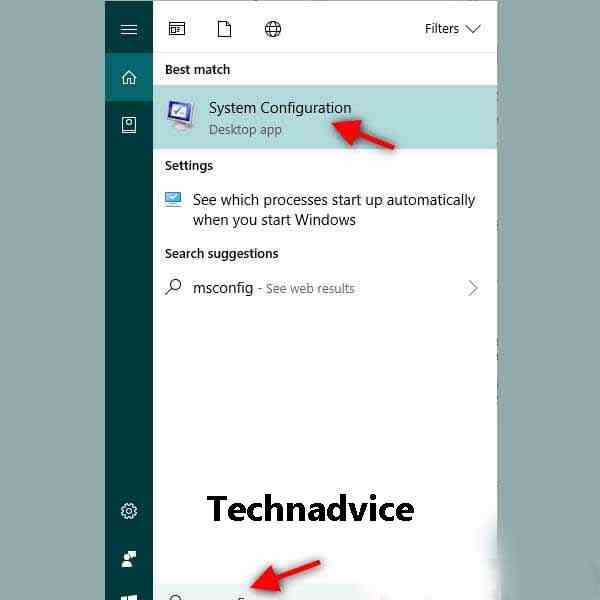
    1. Go to System Configuration by typing MSConfig in Windows search.
    2. Go to the Startup tab > Open Task Manager.
    3. When you are on the Startup tab, right-click nkvasyoxww.vbs and select the Disable option.

    #3. Via Temp File Files

    Via Temp File Files
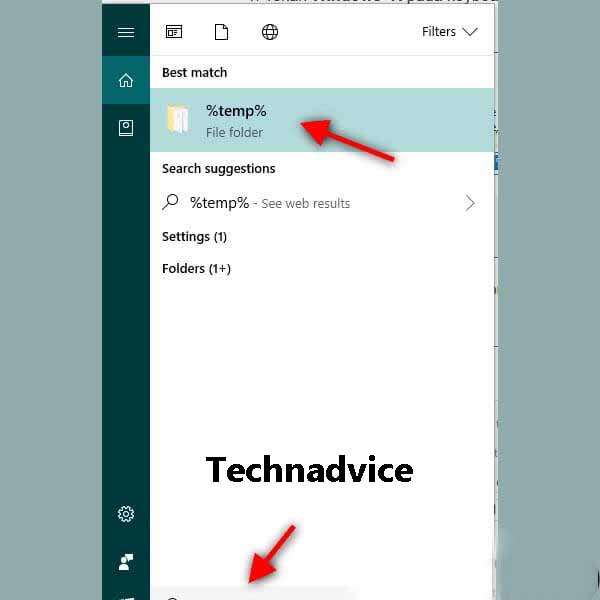
    1. Use the Windows search feature and type %temp% in the search field.
    2. Click the %temp% search result that appears.
    3. A folder window will appear then find the file named nkvasyoxww.vbs then delete the file.
    4. Also, delete the file if it goes to the Recycle bin.

    How to Prevent Shortcut Virus

    Anyone would not want their flash drive or PC to be infected with a virus, especially this shortcut virus that is very easy to spread. So besides already knowing how to get rid of shortcut viruses, in this article, you also need to know how to prevent shortcut viruses.

    Here are tips and how to prevent it:

    • Use a trusted anti-virus. It is recommended to use Windows Defender, but if you don’t want to use it, you can turn off Windows Defender and then use another anti-virus.
    • Schedule regular scanning of your laptop.
    • Do a scan when you connect your storage device.
    • Also, do a scan for storage devices that are connected to your PC for the first time.
    • Back up important files to Google Drive, Dropbox, or others.
    • Always be aware of the devices that are connected to your PC.
    • On the other hand, always be aware of the PC you want to connect to your flash drive.

    Read more:

    Conclusion:

    So friends this is the explanation of how to remove shortcut viruses that can help you to permanently remove the virus from your storage devices such as flash drives or hard drives on your computer. Hope it is useful!

  • How To Fix Corel Draw Cannot Save on X5, X7, X8 [2025]

    How To Fix Corel Draw Cannot Save on X5, X7, X8 [2025]

    How To Fix Corel Draw Cannot Save on X5, X7, X8 – When you open the Corel Draw application, maybe you will wonder why some functions of Corel Draw can’t be used. If you experience this problem, here’s how to solve Corel Draw cannot save, print, copy, paste, and others in Corel Draw x4, x5, x6, x7, x8 which can help improve your Corel Draw.

    How To Fix Corel Draw Cannot Save on X5, X7, X8
    How To Fix Corel Draw Cannot Save on X5, X7, X8

    How To Fix Corel Draw Cannot Save on X5, X7, X8

    Most people experience the same problem as this, Corel draw can’t save, print, copy, paste, or do other functions. We certainly also know that these functions have an important role and are needed when editing in Corel Draw.

    Read more:

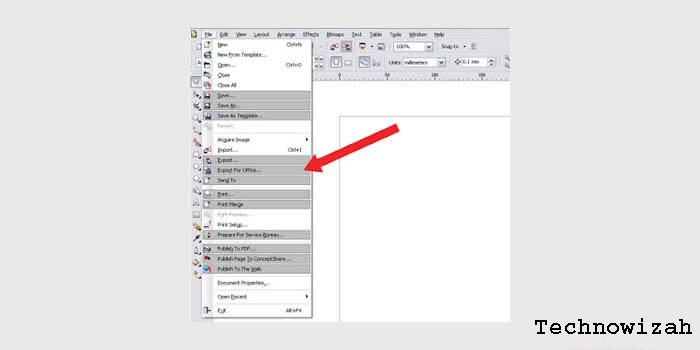
    If you check the unusable function, the features from the menu will usually appear in a different dark gray color from the functions that can still be used.

    How To Fix Corel Draw Cannot Save on X5, X7, X8For CorelDraw users or people who work every day using CorelDraw, they will definitely feel annoyed with the CorelDraw feature that cannot save, print, export, or other.
    Therefore, in this article, we will explain in full how to overcome Corel Draw cannot save, print and others for Corel Draw versions x4, x5, x6, x7, and x8 and it has been proven successful. However, before that, you also have to know what causes the Corel Draw error cannot to save and so on.

    Causes of Corel Draw Error Cannot Save

    Of the many cases found when Corel draw there are functions that cannot be used because the license from Corel draw has expired or has an error because it is detected aspirated.

    If your license has expired, you can renew the Corel Draw license that you are using. But if in the case of a license error, it is usually caused by the use of illegal files that aim to crack the Corel draw license.

    Although most Corel draws problems that cannot save, this is experienced by users of the x7 version of Corel draw. It turns out that there are also those who experience this problem in other versions of Corel Draw.

    For how to overcome Corel Draw, which cannot save and use other features, it is highly recommended that you buy the original CorelDraw product through the official website.

    But if you don’t want to spend some money to buy CorelDRAW products, you can do the following trick to reactivate the functions of Corel draw that can’t be used.

    How to Fix the Corel Draw Feature Cannot Be Used

    How to Fix the Corel Draw Feature Cannot Be Used

    All you need is a browser application, be it Google Chrome, Mozilla Firefox, Opera, or something else. Then make sure you are connected to the internet.

    Next, follow how to fix the following CorelDRAW:

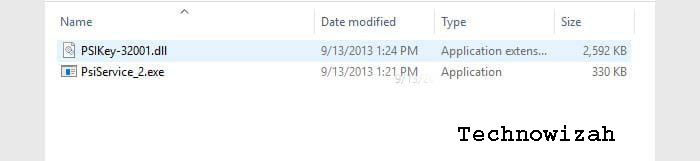
    1. Download the PSI_Key_2.dll file via the google drive link.
    2. If the download process is complete, turn off the internet connection.
    3. Extract the .zip file that you downloaded.
    4. Copy the PSI_Key_2.dll file to the C:\Program Files\Common Files\Protexis\License Service\ folder
    5. Finished.

    Well, after you have followed the guide above, the save feature in CorelDraw can be used. In addition, other features that previously had errors can now be fully used.

    To make sure your Corel Draw license is active, just do it by pressing the Windows logo key + R simultaneously, then type Services.msc and Enter.

    Look for the program with the name Protexis Licensing, and make sure the program is running or started. That way, Corel draw that can’t save, print, import, the export will function normally again.

    CorelDraw X7 activation

    If you are using CorelDRAW x7 and the first method doesn’t work, then you can try this guide. In this method, you must activate CorelDraw x7 using a keygen that can be obtained for free.

    How to solve Corel draw x7 can’t save:

    1. Download activator Corel x7 first here.
    2. Next, run your CorelDRAW x7.
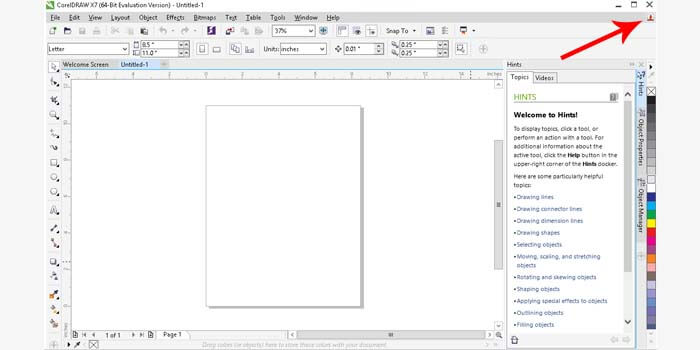
    3. Click Profile in the upper right corner of Corel Draw.CorelDraw X7 activation
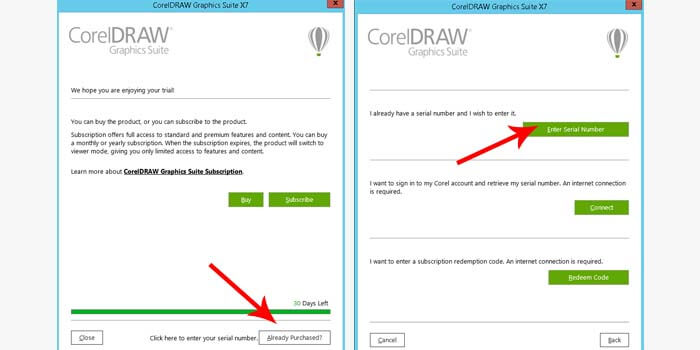
    4. Select Already Purchased > Enter Serial Number.CorelDraw X7 activation
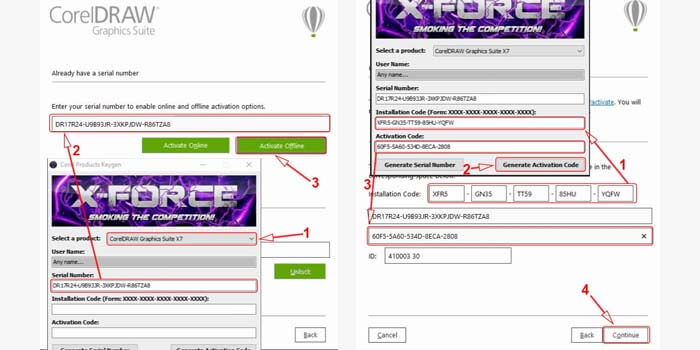
    5. Open the activator or keygen application that you downloaded.
    6. Select CorelDRAW Graphics Suite X7 in the drop-down options.
    7. Copy the serial number to Corel then click Activate Offline.
    8. Enter the Corel Installation Code into the activator.CorelDraw X7 activation
    9. Click the Generate Activation Code button and enter the generated code into Corel draw.

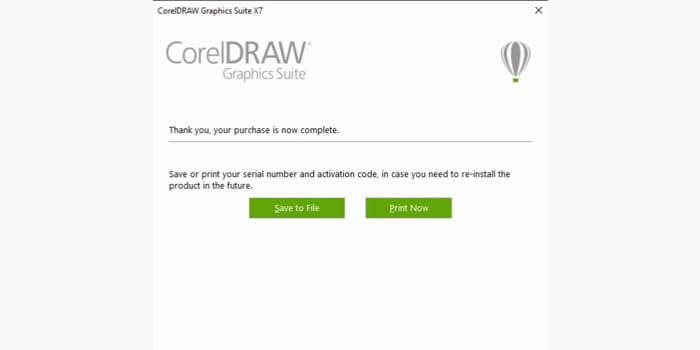
    After that click the Continue button to go to the last stage. If Corel Draw displays complete information as shown below, it means that you have successfully activated it so that all Corel Draw features can be used again.

    CorelDraw X7 activation

    Note: Before you download the Corel Draw x7 activator above, it is recommended to turn off the antivirus. Because antivirus will generally block the download process so you have to disable it first.

    Conclusion:

    So many solutions that might help you as a way to fix the Corel Draw error that cannot save and use other features. Hopefully, the article on how to solve CorelDRAW x7 can’t save, export, and print can be useful.

  • What is ROM on Android Smartphones Device 2025

    What is ROM on Android Smartphones Device 2025

    What is ROM on an Android Smartphone? ROM stands for Read-Only Memory. In the case of Android Smartphones, this ROM refers to the internal storage media where the firmware and default applications are stored.

    What is ROM on Android Smartphone Complete

    What is ROM on Android Smartphones Complete History

    A ROM is a piece of hardware that functions as an internal storage medium. The data in it can only be read (read). However, through the flashing process, this ROM can be written to/filled with data.

    Read more:

    When you or someone else wants to install ROM on an Android Smartphone, this means they are installing new firmware on their smartphone. Especially for this case, you can think of ROM, Firmware, and Operating System as the same thing.

    Types of ROM in General

    Because Android is an operating system derived from Linux, it is also an Open-Source license. This causes ROM or Android firmware to come in several types, namely:

    • Stock ROM
    • Custom ROM
    • Branded Stock ROM

    #1. Stock ROM

    Stock ROM
    Stock ROM

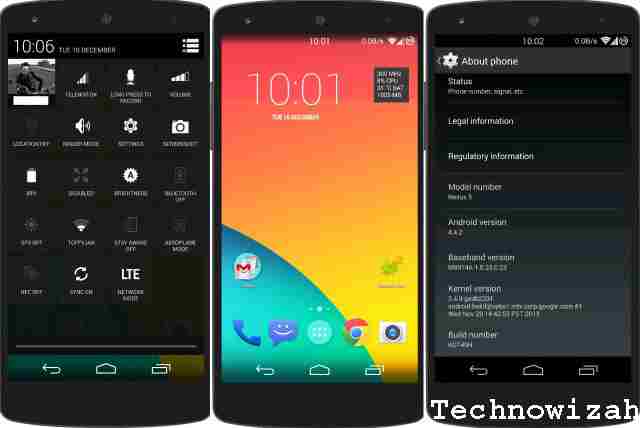
    Stock ROM is the basic firmware on an Android smartphone that is made for an Android smartphone to work. Stock ROM usually has a basic design without any branding. In essence, Stock ROM is made only until the Android smartphone and the hardware in it can work.

    #2. Custom ROM

    Custom ROM
    Custom ROM

    A custom ROM is an Android smartphone firmware released unofficially by a developer that may have new display features, new features to increase performance. Custom ROMs are usually made when a particular smartphone manufacturer has a weakness in its performance so to cover these weaknesses, changes to the ROM or firmware are needed.

    #3. Branded Stock ROM

    Branded Stock ROM
    Branded Stock ROM

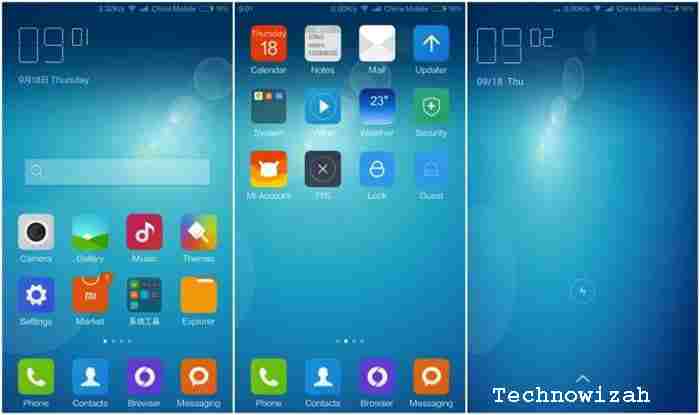
    A branded Stock ROM is a stock ROM that is customized and changed according to the wishes of the manufacturer or particular Android smartphone brand holder. Changes here usually include the design or appearance, certain applications, and changes made to increase the performance of an Android smartphone.

    Which is Better Stock ROM or Custom ROM?

    Each type of ROM has its advantages and disadvantages. For that, let’s learn one by one by comparing them based on common cases felt by Android users.

    #1. Pros and Cons of Stock ROM

    Stock ROMs are usually made by people who are very knowledgeable in the world of Android. By going through the long research and testing stages them, Stock ROM comes with the following advantages:

    • Most of the deficiencies have been resolved at the research and development stage.
    • High stability.
    • It is a universal Stock ROM that can be used on all official devices according to the specifications.
    • The update is very influential.

    Even though it has the above advantages, stock firmware also has the following disadvantages:

    • Updates are rare because development is carried out if there is cooperation with only certain manufacturers or brand holders.
    • If there is a weakness in the previous operating system, it will usually be fixed on the next smartphone because it is considered more profitable.
    • Despite the update, several countries did not receive it.

    #2. Pros And Cons of Custom ROM

    Although Custom ROMs are developed by people who don’t officially work for a particular Android smartphone manufacturer, they are highly knowledgeable and passionate. Here are some of the advantages of Custom ROM compared to Stock ROM:

    • A large selection of Custom ROMs for almost all types of Android smartphone devices, each ROM will provide optimizations that are not found on Stock ROM.
    • Frequently updated because it is developed by the community and its users directly.
    • Because there are many communities, we can easily provide feedback to developers directly without having to be complicated and costly.
    • Custom ROMs usually get rid of unnecessary applications.
    • Performance increases because Custom ROMs are made so that the hardware can work optimally.
    • Some Custom ROMs even come with more efficient battery consumption.
    • Custom ROM allows us to use microSD as an internal memory so that there is no more problem with full internal storage.

    Although there are many advantages of a Custom ROM, there are also some disadvantages the following:

    • Because it was released unofficially, we have to install it manually and there are often problems during installation.
    • Data loss risk during installation.
    • Android smartphones must be ROOT.
    • ROOT void warranty.
    • Risk of the bricked Android smartphone (won’t boot at all) if you do it wrong.

    Do I Need a Custom ROM?

    This is up to the Android smartphone user itself, if you have an Android smartphone with a Stock ROM that works optimally and suits your needs, then you don’t need to make any changes.

    Read more:

    Conclusion:

    However, if your Android smartphone feels that its performance is not optimal, such as the wasteful battery, loading takes a long time and a bug or weakness appears in the Stock ROM but has never been fixed by the developer, then the Custom ROM can be tried.