Author: Nazrul Islam

  • 6 Easy Steps To Enable Hibernate In Windows 10 [2024]

    6 Easy Steps To Enable Hibernate In Windows 10 [2024]

    6 Easy Steps To Enable Hibernate In Windows 10 Hibernate is a feature of Windows systems since the release of Windows XP by Microsoft. Generally, Hibernate is used when the computer battery is in a critical state, and we want to stop processes on the system without eliminating or stopping the previous computer’s activities.
    How to Enable Hibernate In Windows 10 Quick Ways
    How to Enable Hibernate In Windows 10 Quick Ways

    How to Enable Hibernate In Windows 10 Laptop PC

    Hibernate is often likened to Windows’ Sleep feature, both of which temporarily stop the computer system. It’s just that, on Sleep, the computer is not completely turned off.

    Read more:

    As for Hibernate, the computer is temporarily turned off and still leaves the activities on the previous computer when it is turned on. So, we can say that the Hibernate feature is more battery-friendly than Sleep.

    In this article, we will add the hibernate option in Windows 10.

    Follow the Steps: below.

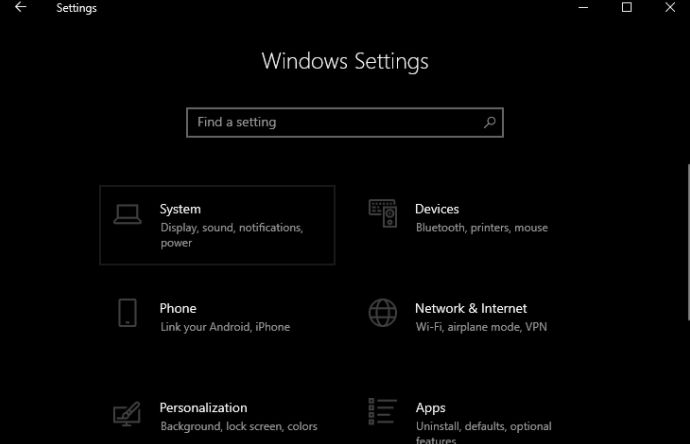
    1. Open the Windows Settings option (either by pressing WIN + I on the keyboard or by pressing the gear logo in the Windows Start section).
    How to Enable Hibernate In Windows 10

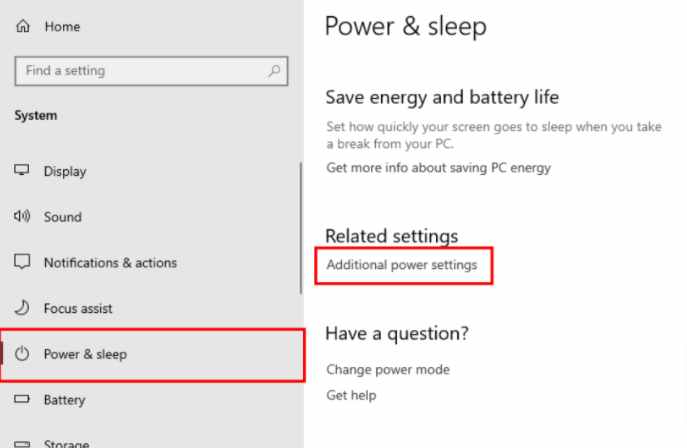
    2. Select the System option on the Settings page. Then, in the Power & Sleep section, click the Additional power settings option located in the Related settings column.
    How to Enable Hibernate In Windows 10

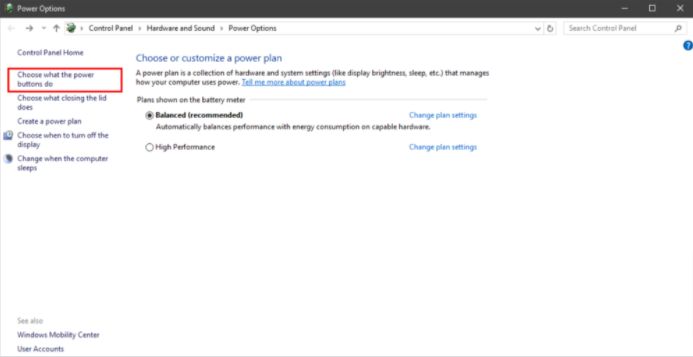
    3. Later, a new page will appear in the form of battery power settings in the Control Panel. Then, select the option Choose what the power buttons do on the left side of the page.
    How to Enable Hibernate In Windows 10

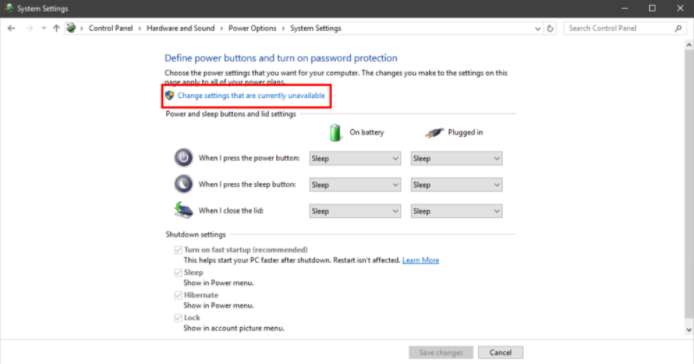
    4. Click the Change Settings option that is currently unavailable.
    How to Enable Hibernate In Windows 10

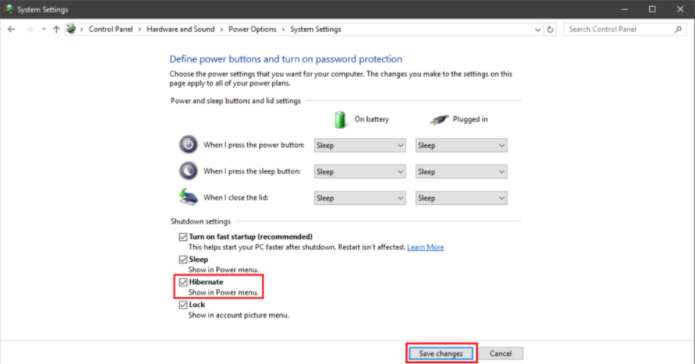
    5. In the Shutdown settings, check the Hibernate option in the column provided. Then, click the Save Changes button.
    How to Enable Hibernate In Windows 10

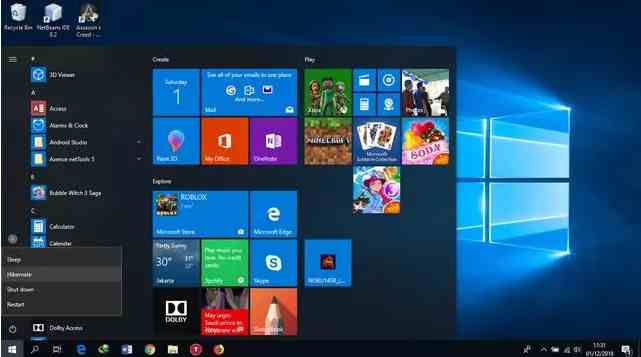
    6. To ensure that the Hibernate feature has been activated, on the Start page, the Hibernate option will appear in the Power column.
    How to Enable Hibernate In Windows 10

    #2 How to Enable the Hibernate option in Windows 10

    First, log in with a user account that is an administrator on your Windows 10 PC, laptop, or tablet. Then, open the Control Panel and go to  Hardware and Sound.

    Look for  Power Options and click or tap them.

    In the left column, click or tap the link that says: ”  Choose what the power button does.”

    You may see various  Shutdown settings, including  Hibernate, being disabled, like no other.

    Click or tap the link that says:  “Change settings that are currently unavailable.”

    This action makes  Shutdown settings editable. Check the box next to  Hibernate, and hit  Save Changes.

    You can now close the Control Panel.

    You can now use the Hibernate option in Windows 10

    The  Hibernate option is now available in the Windows 10 Power menu, as you can see below. To use it, click or tap  Start,  then  Power, then  Hibernate.

    Would you rather use Hibernate than Sleep?

    We like the Hibernate option, and we prefer Sleep sometimes. You most likely do, and that’s why you’ve read this tutorial. Before you close, let us know why you prefer  Hibernate, and how often you use it. Comment below and let’s get into it.

    Read more:

    Conclusion:

    That’s the article on how to use the hibernate feature in Windows 10. Hopefully, this is useful.
  • Wifi Is Often Disconnected on Laptop Here Is The Solution 2024

    Wifi Is Often Disconnected on Laptop Here Is The Solution 2024

    Wifi Is Often Disconnected on Laptops Here Is The Solution – Many users report that their Wifi wireless connection keeps dropping. According to info from Microsoft forums, this problem is caused by corrupted network drivers, improper Power Management configuration, and sometimes a damaged network adapter.

    Wifi Is Often Disconnected On Laptop Here Is The Solution
    Wifi Is Often Disconnected On Laptop Here Is The Solution

    6 Solution Wifi Often disconnected On Laptops or PC

    To help you fix this problem, we are listing an effective method for you to try on your laptop to see if that will solve the problem.

    Read more:

    How to Fix Wifi Often disconnected On a Laptop

    You will find 6 proven ways to fix Wi-Fi problems including Wi-Fi networks that often disconnect on laptops.

    Solution # 1: Reset or Reset Your Router

    Most routers are turned on for days or even weeks, sometimes just a simple reboot of the router can fix this problem.

    To do this follow the steps below.

    1. Turn off your Internet Router.
    2. Unplug your router.
    3. Wait 5 minutes before turning on your router.
    4. Turn on your router.
    5. Try connecting to your network now.

    Solution # 2: Forget Your Wireless Connection

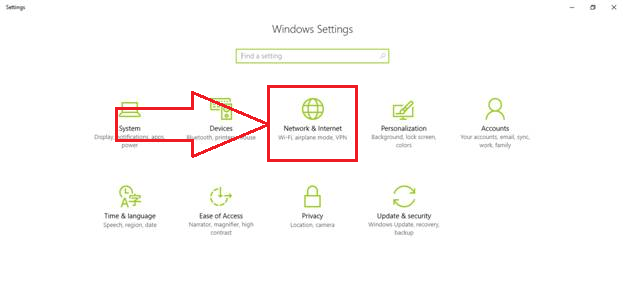
    1. Press the Windows + I keys simultaneously on the keyboard.
    2. Select Network & Internet.
    Forget Your Wireless Connection
    Forget Your Wireless Connection
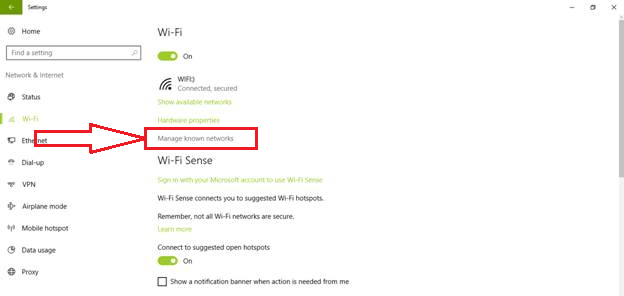
    1. Click on WIFI in the side menu.
    2. Click on Manage Know Networks.
    Manage Know Networks
    Manage Know Networks
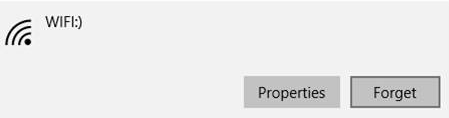
    1. Find the network you are trying to connect to and click on Forget.

    Forget Your Wireless Connection

    1. Try reconnecting to the network and see if the problem gets fixed.

    Solution # 3: Use the Network Troubleshooter / Network Troubleshooter

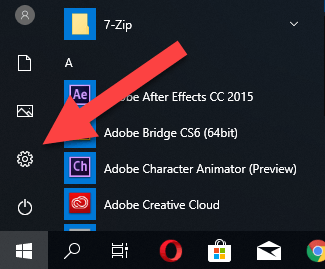
    1. Press on the Windows key on the keyboard then click on Settings.
    Use the Network Troubleshooter / Network Troubleshooter
    Use the Network Troubleshooter / Network Troubleshooter
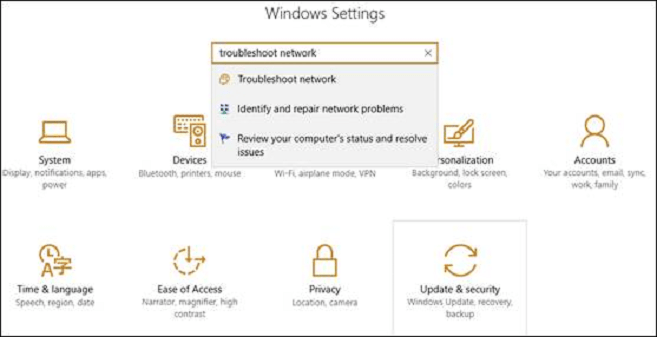
    1. In Settings, look for “Troubleshoot Network”.
    Troubleshoot Network
    Troubleshoot Network
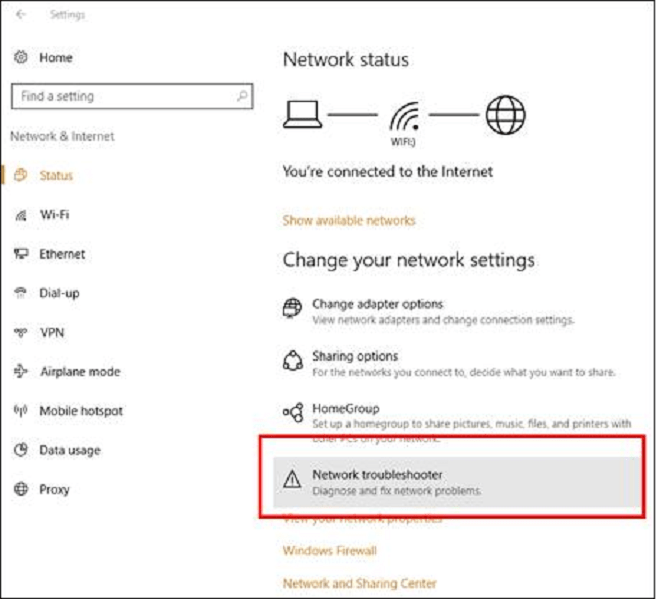
    1. Open the Network Troubleshooter.
    2. On the side, the menu clicks on Status.
    3. Find the Network Troubleshooter and run it.
    Network Troubleshooter
    Network Troubleshooter
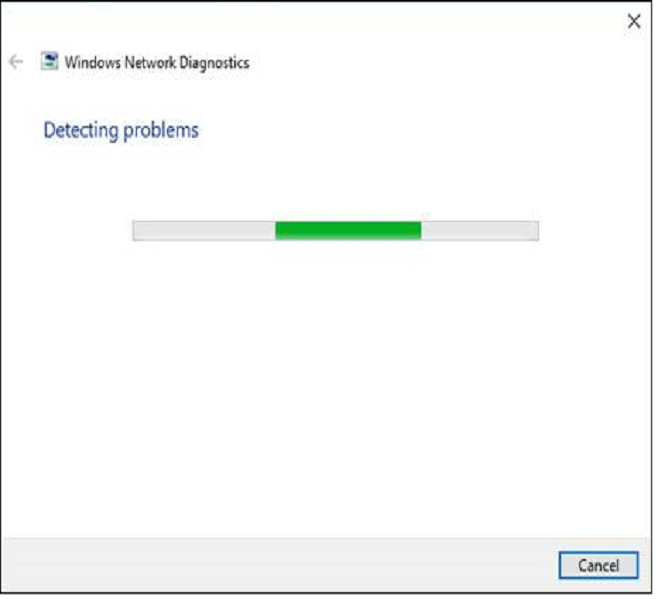
    1. Wait for the Network Troubleshooter to finish scanning your laptop.
    Network Troubleshooter to finish scanning your laptop
    Network Troubleshooter to finish scanning your laptop
    1. Try reconnecting to your Wifi and see if the problem gets fixed

    If you are still having problems after running the Network Troubleshooter then move on to the next method below.

    Solution # 4: Reinstall Network Adapter

    If your wireless network adapter driver is not installed properly, it can cause your wireless network adapter to experience an error.

    To reinstall your wireless network adapter driver properly follow the steps below.

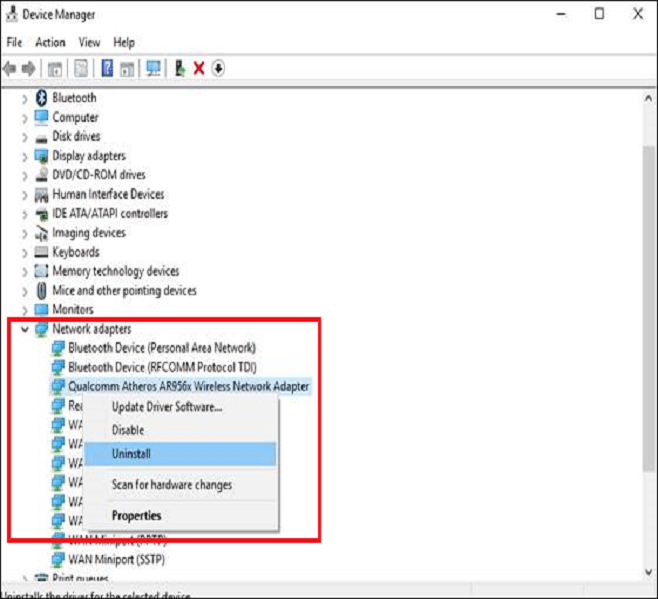
    1. Press on the Windows key + S and search for “Device Manager”.
    Reinstall Network Adapter
    Reinstall Network Adapter
    1. Open Device Manager.
    2. Find Network Adapters and select your adapter.
    3. Right-click on your Wireless Network Adapter and select Uninstall.
    Wireless Network Adapter and select Uninstall
    Wireless Network Adapter and select Uninstall
    1. Restart your computer and Windows will automatically install the latest driver for your Network Adapter.

    Solution # 5: Reset TCP / IP Configuration

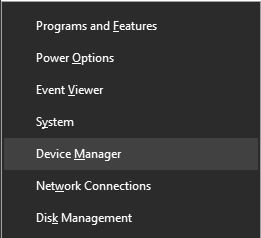
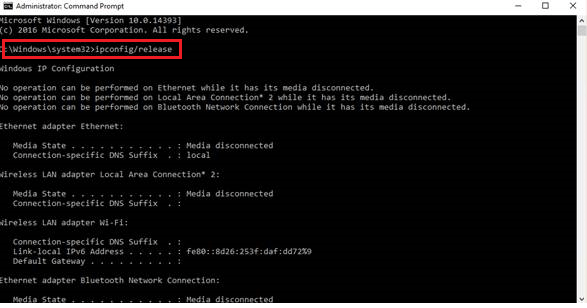
    1. Press Windows key + X and select Command Prompt (as Admin).
    2. At the Command Prompt, type the following command line and press Enter.
    ipconfig / release
    Reset TCP IP Configuration
    Reset TCP IP Configuration
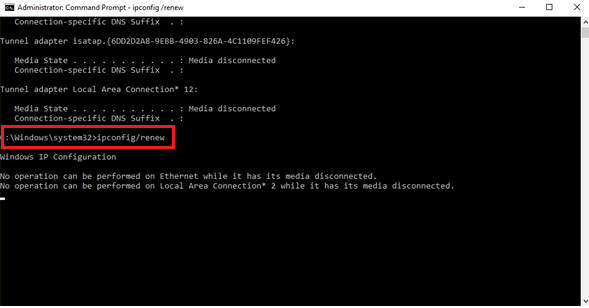
    1. After doing ipconfig / release, enter the following:
    ipconfig / renew
    ipconfig renew
    ipconfig renew
    1. Close the Command Prompt.

    Reboot Windows 10 and try to reconnect to your Wi-Fi network.

    Solution # 6: Change the Wireless Adapter Power Settings

    Now the last thing to check is your power management settings. Your laptop might turn off your wireless adapter to save power when you use the laptop with a battery.

    To disable this setting follow the steps below.

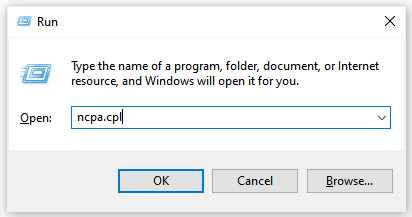
    1. Press on the Windows key + R on the keyboard.
    2. Type ncpa.cpl and press OK.
    Change the Wireless Adapter Power Settings
    Change the Wireless Adapter Power Settings
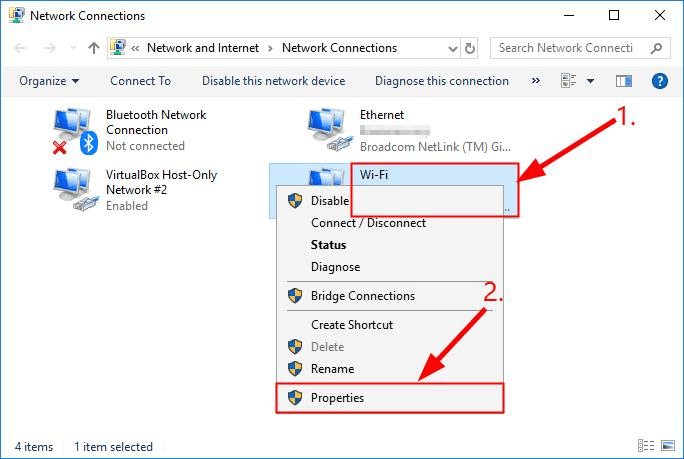
    1. In-Network Connections, locate your wireless network adapter and right-click on it, and select Properties.
    right-click on it, and select Properties
    right-click on it, and select Properties
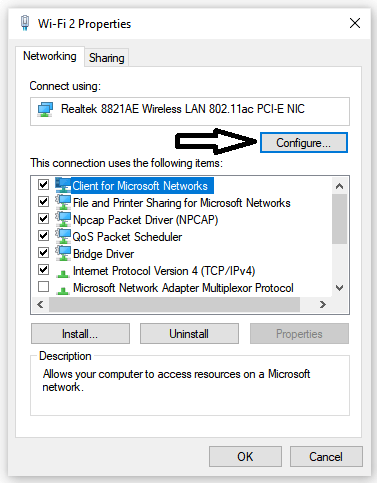
    1. Under Properties click on Configure.
    Wifi Configure
    Wifi Configure
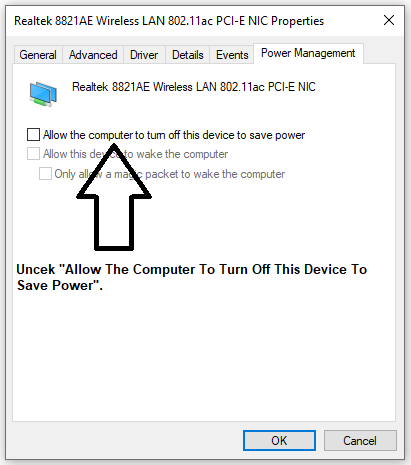
    1. In the popup window click on the Power Management tab.
    2. Make sure to uncheck “Allow the computer to turn off this device to save power”.
    Allow the computer to turn off this device to save power
    Allow the computer to turn off this device to save power
    1. Click OK and try to connect to your WIFI network.

    Another thing to check is your wireless router. The router may be damaged or damaged and cause an unstable connection to your laptop.

    Try connecting a laptop or other device to your router and see if the problem will occur. If other devices connect without problems on your router, this means your wireless network adapter is damaged.

    Visit your nearest laptop brand service center and have them check your laptop’s wireless network adapter.

    You can also add to your business by using Google’s public DNS, which is one of the recommended ways to overcome Wi-Fi always disconnecting on a laptop. As for the steps, you can go directly to how to use Google DNS on Windows 10. After that, you can ping Google to test your internet connection and see whether the problem is from the ISP, browser, or VPN.

    Apart from that at Technowizah we usually handle Wi-Fi problems, where several solutions have been archived around the Wi-Fi problems that we group on #tag Wifi which you can click to find solutions and methods of fixing Wifi always disconnecting even detecting Wifi thieves is at # the tag.

    Read more:

    Conclusion:

    So, friends, that’s was Wi-Fi is Often Disconnected on a Laptop Here Is The Solution, Wifi problems are always related to data signal sending connections from ISPs, Adapter drivers, laptop batteries, and also software devices that can affect Wifi working, such as antivirus and even viruses. Therefore, you should also look at antivirus and firewall program settings that might affect Wi-Fi performance and viruses.

  • Top 5 Best Automatic Call Recorder Apps for Android 2024

    Top 5 Best Automatic Call Recorder Apps for Android 2024

    Top 5 Best Automatic Call Recorder Apps for Android – in all Android phones and save those records in your phone’s storage. Some are such apps that you can lock with a Password so that only you can listen to those records.

    Top 5 Best Automatic Call Recorder Apps For Android
    Top 5 Best Automatic Call Recorder Apps For Android

    Top 5 Best Automatic Call Recorder Apps for Android

    If you call from your phone SIM, your call is recorded anyway by the SIM company, but you can not listen to that Call Record nor can you get it.

    Read more:

    So in this case, we have only one option, we will record a call on our phone. Because sometimes we talk to some people whose records are necessary for us to keep them.

    For Example-

    • If you are a businessman, you will be doing something like that with your business partner or financial Partner, on the phone, which can work for you in the future. You can call Call on your phone with the help of these apps
    • If you are in a relationship, Call Recorder is very important to you. As 60% of the cases of relation going to court are blackmailing. In this case, if you call Call while talking to your partner, you can avoid blackmail.

    Automatic Call Recorder applications for Android

    Very often it happens that when you are talking on the phone, you forget to turn on the Call Recorder.

    But if you use the Automatic Call Recorder, you do not need to ON. As soon as you have a Phone Call received you will call Receive as soon as possible.

    The Automatic Call Recorder will automatically turn on and if the call is Disconnected it will be saved by OFF. So let’s see.

    1. Automatic Call Recorder For Me

    Automatic Call Recorder For Me
    Automatic Call Recorder For Me

    If you want to have a Call Recorder App that has both an automatic and manual feature, then you have the Best Call Recorder App.

    Because sometimes we do not need to record all the calls, if you use this app then you can easily of the Call Record by turning on Manual Recorder.

    Along with this, you can also put a Password on the recorded call. This will keep your record safe.

    Download App

    2. Automatic Call Recorder Pro

    Automatic Call Recorder Pro
    Automatic Call Recorder Pro

    This app has received the award for Best Best App Call Recording from the Google Play Store.

    So, I do not need to tell you a bit more about this. With this app, you can record all Outgoing and Incoming Calls.

    To start Call Record, you will have to call a Call Phone just by dialing just like Call Recording will start. But this app is a problem, it does not support all Android phones.

    Download App

    3. Automatic Call Recorder

    Automatic Call Recorder
    Automatic Call Recorder

    This app is just launched in November. Many unique features in this make this app the Best Auto Call Recorder app.

    In this app, you can set which calls to record with Automatic Call Recorder, you can only call the people whose call is required and along with this you can also call the Samsung Phone Call You can record from

    With this app, you can find out from the contact number of whose call is recorded and how many times the call is registered.

    Download App

    4. Automatic Call Recorder

    Automatic Call Recorder
    Automatic Call Recorder

    People often say to me, tell me any call recorder app for my phone Android 2.3, Android 4.0.

    So this is for all those people who have an Android phone on Android 2.3 or above. This app is just like the Auto Call Recorder app.

    But Automatic Call Recorder is for Android version 4.4 or above and Automatic Call Recorder 2 is for all Android.

    Download app 

    5. Super Call Recorder App

    Super Call Recorder App
    Super Call Recorder App

    If you have a call when you want to have a call record, and when you want, it should be called a recording pause.

    So Super Call Recorder is the best Android app for you. Because it records Automatic Calls along with Automatic. And Record Call you’re after your Confirmation Phone Storage lets save in.

    Download Super App

    Read more:

    Conclusion:

    So, Friends, That’s the Top 5 best automatic call recorder apps for Android and you can use these apps on all Android smartphone brands like (Xiaomi Redmi Note 3 Samsung Smartphones, Lenovo Smartphones, Motorola all Smartphones, LG, Micromax, Yureka, etc.)  If you also need the Phone Call Recorder app then you can download it from the direct above link.

  • How to Play PS4 Games on Android Can Play Offline 2024

    How to Play PS4 Games on Android Can Play Offline 2024

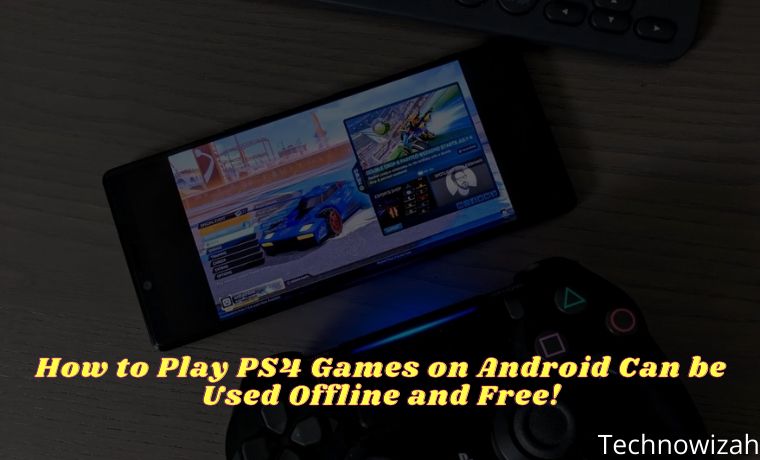
    How to Play PS4 Games on Android Can Play Offline – How to play PS4 games on Android below can be a solution if you want to taste the best games from this console. Curious about the steps? Just check it out, dude.

    How to Play PS4 Games on Android Can be Used Offline and Free!
    How to Play PS4 Games on Android Can be Used Offline and Free!

    How to Play PS4 Games on Android Can be Used Offline and Free!

    Until now, the Play Station 4 is still recognized as one of the most successful consoles. Beating its competitors, such as Nintendo and X-Box. However, not everyone has the opportunity to taste PS4 games.

    Read more:

    However, now there is no need to worry anymore. Because now technology has allowed us to play PS4 games on Android. And thanks to technological developments, now there are several ways to play PS4 games on Android.

    Some use the PS4 emulator application. There’s also a way to play PS4 Android games using fan-developed apps. To be sure, each method below does not cost money. It’s free and can make you play PS4 games on Android offline!

    Want to know what are the ways to play PS4 games on Android? Without further ado, follow the steps below, yes.

    How to Play PS4 Games on Android Can be Used Offline and Free!
    How to Play PS4 Games on Android Can be Used Offline and Free!

    #1. Using PS4 Android APK

    Among the various ways that Technowizah found, this application is considered the easiest. You see, developers have designed the application to be easy to use and run.

    However, due to the nature of the app is ‘piracy’ and violating the Play Store Community Terms, you won’t be able to find it through the Google app store. So, you need to set the device to install apps from unknown sources.

    Using PS4 Android APK
    Using PS4 Android APK

    If so, just follow the steps below:

    1. Download the PS4 Android APK and install it on the device. You can download the application here
    2. If the installation process is complete, immediately open the application. Click Deny on the request for access to devices, except access to Storage
    3. Next, tap the Settings menu, then tap Speed ​​Test
    4. Tap the Speed ​​All menu and wait a few moments for it to finish. Usually, this process only takes 1-3 minutes
    5. Once done, you will see the ideal Cloud Computing server service based on your location. You need this access to play PS4 games via Android
    6. Choose one of the recommended servers. For example, because we live in Asia, choose an Asian server
    7. Tap the Home menu then return to the main screen
    8. Now, tap the My Videos menu then tap Game List
    9. Tap the English Language so that game options and menus are presented in English
    10. Select the PS4 game you want to play
    11. Then, tap Start Game. Later, you will be connected to the queue list. Usually, the number of queues reaches 200-300 accounts
    12. Because this application service is free, you must be willing to wait until the queue is over. Generally, it only takes 20-30 minutes

    In addition, there is something you need to know about this application service. Based on the author’s trial, you can play PS4 games via an Android phone without time limits. Especially if you have a stable and smooth internet connection, it’s safer!

    You can also play almost all PS4 games through this application. Plus, you can play it for free! Very profitable and a pity to miss, right?

    Unfortunately, every progress of the game you play cannot be saved automatically. According to the author, that is the main weakness of this application service.

    #2. Using the Remote Play App

    Using the Remote Play App
    Using the Remote Play App

    Indeed, Sony launched the Remote Play application and you can find it through the Play Store. However, you will not be able to use it if the phone you are using is not a Sony Xperia.

    Luckily, there are members of the XDA-Developers forum who are kind enough. The user with the @twisted89 account has already created a package version of the Remote Play application. Amazingly, the app can be installed on Android 4.2 and up.

    Kindness is a pity to pass up, right?

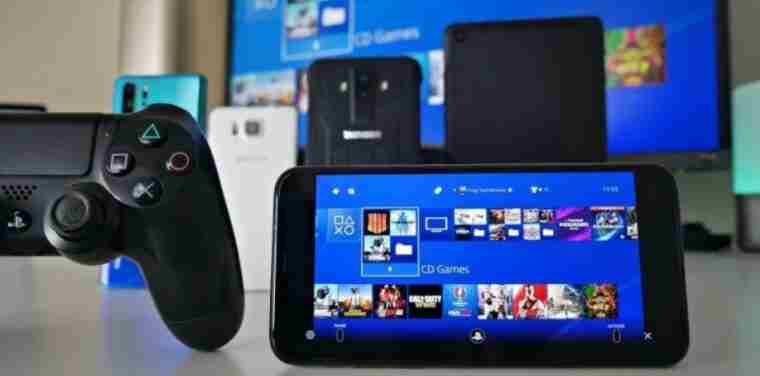
    Unfortunately, you need several things for the application to run optimally. Among other things, you must have a PS4 console, an account for the PlayStation Network, and a smartphone and console connected to the same internet network.

    If these conditions are met, then you can play PS4 games on Android more easily. Before starting to play PS4 games via Android, follow the steps below to set up your PS4 console.

    1. Click here to download the Remote Play app
    2. Allow the device to install apps from sources other than the Play Store
    3. Next, prepare the PS4 console so that you can play the games on it via your smartphone. To do this, go to Settings > Remote Play Connection Settings > then tap the Remote Play button
    4. Then, enable Rest Mode on the PS4 console. Settings > Power Saving Settings > Set Features Available in Rest Mode

    Read more:

    Conclusion:

    When the console is ready, the Remote Play app on your phone will detect the console automatically. Especially, if the smartphone and console are connected to the same network.

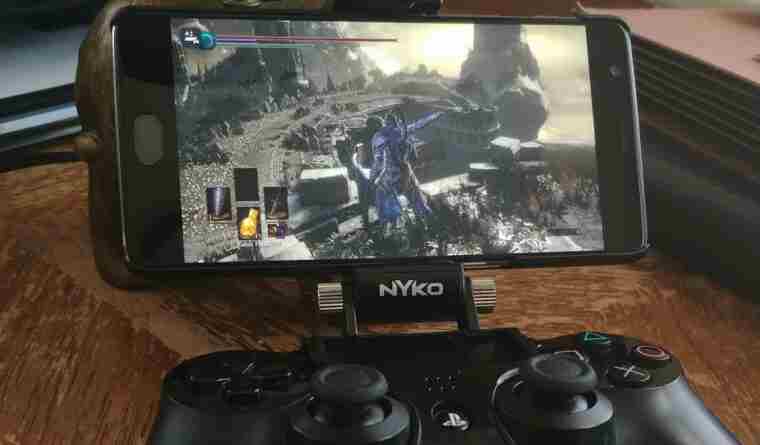
    On the screen, you can select the game you want to play. Furthermore, you can be more comfortable playing PS4 games via Android.