Author: Nazrul Islam

  • 5 Ways To Fix Laptop Keyboard Not Working Laptop PC 2024

    5 Ways To Fix Laptop Keyboard Not Working Laptop PC 2024

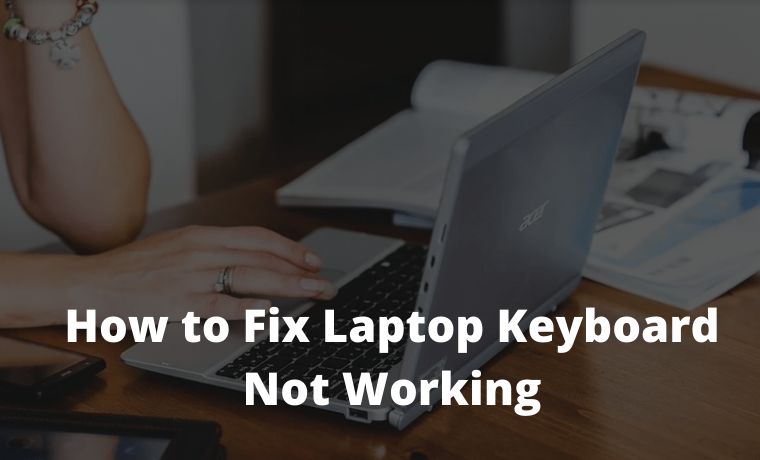
    5 Ways To Fix Laptop Keyboard Not Working Laptop PC – Causes of the Laptop Keyboard Not Working and How to Fix it. How to take care of a laptop keyboard to keep it durable and long-lasting.
    5 Ways To Fix Laptop Keyboard Not Working
    5 Ways To Fix Laptop Keyboard Not Working

    5 Ways To Fix Laptop Keyboard Not Working Laptop PC

    Have you ever had a problem with the laptop keyboard not working suddenly? Of course, this is very annoying and makes you panic, right?

    Read more:

    Especially if the deadline is in sight. If this happens, you don’t need to worry because currently there are many ways to solve this problem.

    The keyboard does have a very important role, so if it does not function properly it will greatly hamper work.

    Usually, keyboard damage comes from the hardware or software device.

    For that, after knowing the source of the problem, you need to fix it immediately in the following ways.

    Cause Laptop Keyboard Not Working

    Cause Laptop Keyboard Not Working

    Two things can cause a malfunction of the keyboard, namely because of the hardware and software. We have to make sure where the damage is.

    This assurance is very important because it will determine what kind of handling should be done later on the keyboard.

    The way to check is very easy, namely by accessing the BIOS on your laptop.

    If you can log in using your keyboard, then the damage is most likely in the software.

    But if not, the damage likely lies in the hardware.

    How to Overcome a Not-Working Laptop Keyboard

    #1. Repair the Keyboard Driver

    A malfunctioning keyboard can also be caused by keyboard drivers that may not be up to date.

    Or if not, it could be because the keyboard is less responsive. To find out, you can check it in the following ways.
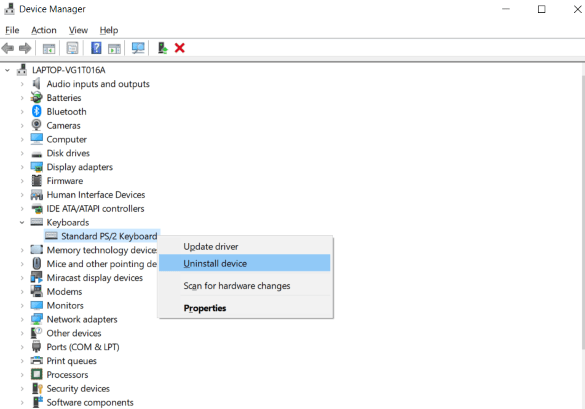
    Repair Keyboard Driver

    1. Click the Start Menu and press the Control Panel button
    2. Click System and Security, then click Device Manager
    3. Select the Keyboard menu and there you will find the driver menu at the bottom

    If the driver menu has a yellow triangle with an exclamation point on the inside, it means the laptop keyboard is messed up.

    If so, immediately update the keyboard driver that you have through the laptop manufacturer’s official website.

    #2. Restore Windows

    Well, if your keyboard has a problem after you change settings or install new applications, you can solve it by restoring Windows.

    That way, the keyboard will most likely work again.

    To restore Windows, please follow these steps:
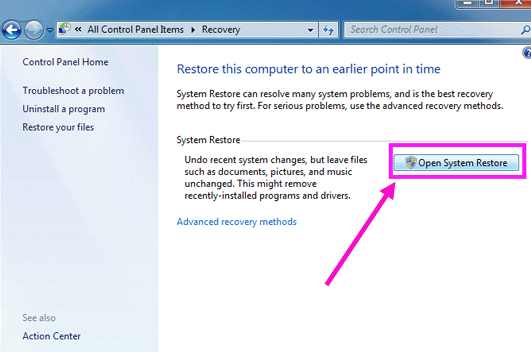
    Restore Windows

    1. Click the Start Menu and select the Control Panel menu
    2. Then select System and Security, then click the Backup your computer menu
    3. Then Open the System and Restore
    4. Wait for the reboot to complete

    If the keyboard failure is due to a system failure, the keyboard should be able to function again after rebooting.

    However, if it doesn’t change, immediately take it to a laptop repairman for further examination.

    #3. Change the Keyboard Layout

    If some of the methods above have not yet produced results, it could be that the cause of the laptop keyboard is not functioning partly lies in its layout.

    Damage to the keyboard layout can also result in the keyboard still functioning, but the resulting letters are not correct.
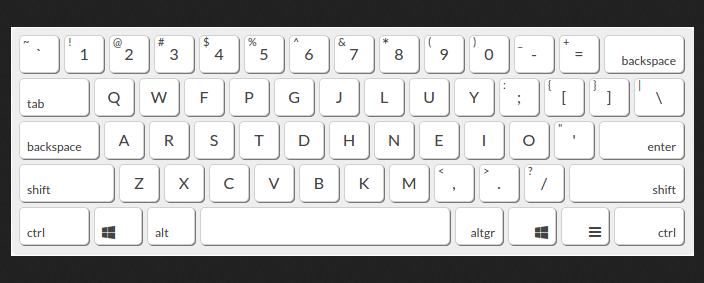
    Change the Keyboard Layout

    To be able to change the keyboard layout settings that might change, you can follow the steps below:

    1. Open the Start Menu
    2. Find the Region & Language setting menu. To make it easier, type “Language” in the search field
    3. Click the language that you will use
    4. Click Options and ensure that “US QWERTY” is located at the bottom of the Keyboards on the next page
    5. Delete any other unneeded keyboard layouts

    #4. Adjust Keyboard Settings

    The keyboard that still uses some of the built-in features and programs is messed up and doesn’t work properly.

    For example, if you set the “Repeat Delay” too short, it could be that when the keyboard button is pressed once, it seems as if it is being pressed many times.

    In addition, there could be a long time lag between the characters appearing with each other.

    If that happens, you can change the settings by fixing an error laptop keyboard as follows:
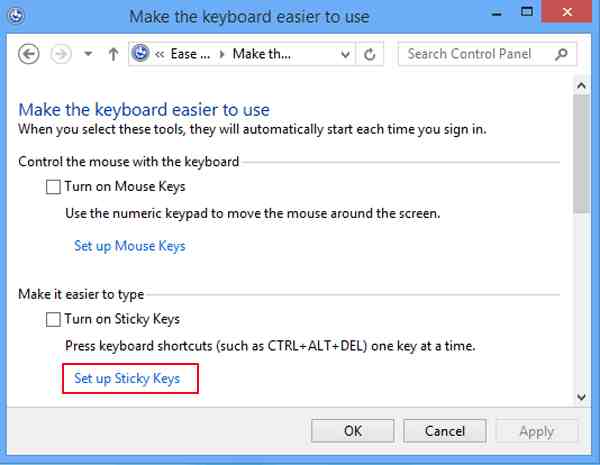
    Adjust Keyboard Settings

    1. Click the Start Menu and select the Control Panel menu
    2. Click the Ease of Access menu
    3. Press the button to Make the keyboard easier to use
    4. On the setup filter key, select Uncheck all

    If so, make sure again that the keyboard is functioning properly. If not, you can disable the Sticky Keys setting on the same menu.

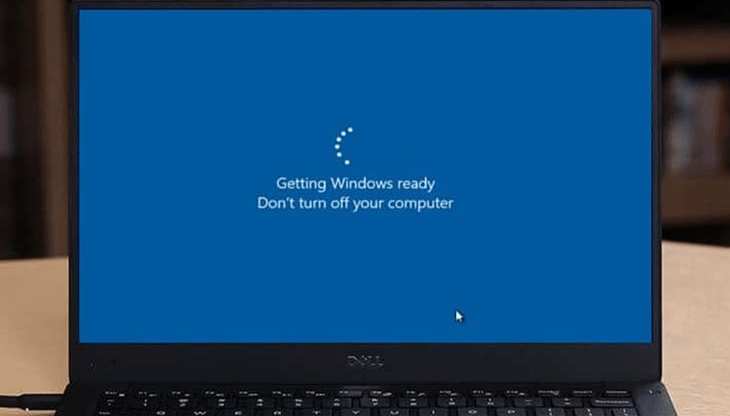
    #5. Restart the laptop
    Restart the laptop

    If the entire keyboard on the laptop suddenly doesn’t respond at all, then try restarting your laptop.

    However, if this method can’t solve it, chances are that the hardware connected to the laptop is having an error and is not working properly.

    How? Now that you know what to do if the keyboard is not working properly, right?

    However, before trying some of the methods above, make sure that you know exactly what is the cause of the keyboard failure.

    Because, the solution to the above problems may vary, depending on the cause.

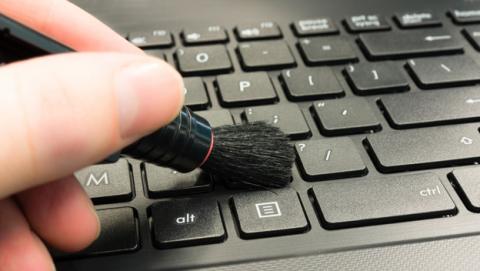
    Taking care of the keyboard to keep it durable
    Taking care of the keyboard to keep it durable

    We recommend that you regularly clean the keyboard as a treatment before problems like the one above occur.

    Usually, one of the keyboard keys that is not working is one of the problems that is due to accumulated dust.

    #1. Clean the dust on the keyboard

    You can clean the laptop keyboard keys from dust in a very effective way, namely by positioning the laptop at a 75-degree tilt.

    Then shake it slowly, but you have to make sure that the laptop is completely turned off.

    Only after that, slowly tilt the laptop to a 95-degree tilt.

    #2. Clean the Lower Keyboard with Tape

    Bottom of the laptop, usually, the way to clean it is by cleaning it using tape.

    Then check if all buttons function as normal after cleaning.

    Read more:

    Conclusion:

    Well, those were some solutions to the problem of a laptop keyboard not working.

    If some of the methods above haven’t worked, you should immediately bring your laptop to an official Service Center. This aims to minimize further damage.

  • 7 Ways to Download TikTok Video Without Watermark Without Application 2024

    7 Ways to Download TikTok Video Without Watermark Without Application 2024

    7 Ways to Download TikTok Videos Without Watermark Without Application – Some users want to know how to download TikTok videos without a watermark without an application, and some are on telegram without affecting the quality. Luckily, we’ve listed a few tips to help you out the easy way

    6 Ways to Download TikTok Video Without Watermark Without Application

    Download TikTok Videos Without Watermark Without Application

    However, when downloading any content from TikTok, be aware that the app’s watermark comes with it, which might not be very aesthetically pleasing when sharing elsewhere. What you may not know is that there is a way to download TikTok videos without a watermark.

    Read more:

    To download TikTok videos without watermarking on Telegram, you need to use a third-party application because this option is not available by default. In this article, we will learn about the features of an application that will help us in this matter.

    What is Tiktok?

    TikTok is a social media app, a website where 60-second videos are shared and people dance to music. TikTok, which has become one of the most popular social media platforms in recent years, is used by millions of users worldwide.

    #1. Download Tiktik Videos Without an Application

    • Open the TikTok app and open the video you want to download.
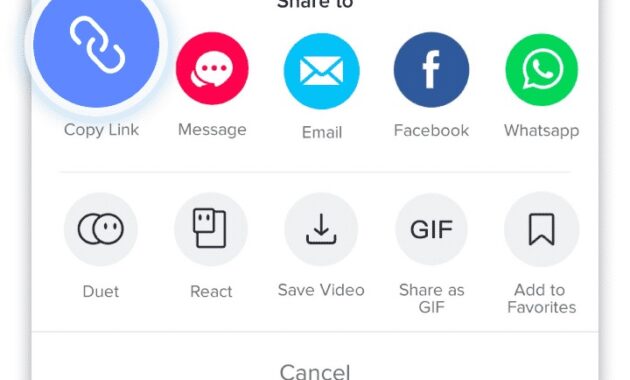
    • Click Share and select  Copy Link.
    How to Download TikTok Videos Without Watermark on Android Without Apps
    • Now, open the browser on your phone and navigate to  downloadtiktokvideos.com or musicallydown.com.
    How to Download TikTok Videos Without Watermark on Android Without Apps
    • Paste the link you just copied and tap the download button.
    • The website will open another page with a download button, tap on the Download button and the video will be downloaded on your phone.

    #2. Snaptube for Android

    This application has several features other than saving TikTok videos without Watermark. Snaptube displays interesting videos on the homepage which are constantly updated to speed up the process of searching and downloading videos. It has a file manager for easy access to what you have downloaded. There is also an integrated search engine and browser which are tools that facilitate the whole process.

    Visit:- Website

    #3. TubeMate (Android)

    TubeMate is the best app that lets you download TikTok videos from other video-sharing sites. It offers an intuitive interface and comes with a built-in browser where you can search for the TikTok video you want to download.

    In addition, the app offers the option to select the quality and format of the video before downloading. However, you cannot download TikTok videos without a watermark using this app. Apart from that, it has an APK format to install on your Android device. Follow the simple guide below to learn how to download TikTok videos.

    • Open your Android device and search for TubeMate.
    • Download and install the app on your device and run it.
    • Click the “Menu” option in the upper right corner of the interface to select a URL.
    • Paste the link in the input field and tap the download button.
    • Wait for the video to be processed.

    Visit:- Website

    #4. Download TikTok Videos Without Watermark on iPhone

    • Open the Appstore – Download and install  the Shortcuts Application
    • Open the Tiktok app and open the video you want to download
    • Now tap the Share icon on Video, tap More, then tap Shortcuts
    • In the Shortcuts app, select the TikTok Downloader shortcut and you have to wait for the Shortcut to do its job and your Video will download itself and be saved in your Camera Roll.

    Visit:- Website

    #5. Download TikTok Videos Without Watermark Through SSSTikTok

    SSSTikTok

    If you want a Site that helps you easily to download TikTok videos without watermarking online, then SSSTikTok is perfect for you.

    It is one of the most user-friendly and frequently used apps to save TikTok videos without watermarking online. Apart from that, it works on both PC and Mobile. Here’s how you can save TikTok videos without watermarking with this useful site.

    • Visit the official website from your favorite web browser.
    • Then go back to your TikTok account and select the video you want to download by tapping the “Copy link” button on the interface.
    • Once, go back to the tool and paste the link from the long box.
    • Finally, click on the “Download” button to process your TikTok video.
    Download TikTok Videos Without Watermark Online

    Download TikTok Videos Without Watermark Through SnapTik.App

    #6. SnapTik.App

    SnapTik.The app is also one of the best online sites that you can use to download TikTok without an online watermark. It lets you save TikTok videos on any of your devices like Android, PC, or iPhone.

    • Go to your browser and visit the official webpage.
    • Next, open your TikTok app on your device and copy the link of the video you want to download.
    • Go back to the tool and paste your download link into the input field, then click the download button.
    • Then wait for the site to process your TikTok video.

    Download TikTok Videos Without Watermark Online

    Visit:- Website

    Download TikTok Videos Without Watermark Through YooDownload

    #7. YooDownload

    Last on the list is  YooDownload, a web-based solution that lets you save TikTok videos very easily without a watermark. Needless to say, you need a third-party program that will be mentioned below which helps you to download TikTok videos without watermarking online.

    Apart from that, this online site provides an easy and easy-to-understand interface. So that you can learn how to use it, refer to the steps given below.

    • Go to your favorite web and search for YooDownload.
    • Next, go back to your TikTok account from your device and get the link of the video you want to download.
    • Once copied, go back to YooDownload and paste the link into the input field. Click the “Download” button to process.
    • A new page will appear and click the “Download” button. Then your video will play from the new tab and click the menu option to select the download button. Wait for your video to download.

    Visit:- Website

    #8. Download TikTok videos directly on Apps Without Watermark

    • First, open the TikTok app on any iPhone model.
    • Then enter the relevant video and click the Share button on the right.
    • Tap Live Photo from the options you will find.
    • TikTok will save the associated video as a photo directly to your iPhone.
    • Open the iOS sharing menu by going to the Live Photos section of your phone’s Photos app and tapping the Save as a Video option.
    • These live photos will be automatically converted into videos by the system.

    Conclusion:

    So, friends, These are the new 7 ways to download the TikTok video without a watermark. The article works and is one of the easiest.

    Don’t forget to bookmark and always visit every day Technadvice.com because here you can find the latest technology information such as How-to Guide Tips and Tricks Blogging Digital Marketing Windows Android Root Social Media games, ETC. Best of luck.

  • 7 Easy Ways To Fix Laptop Keyboard Not Working 2024

    7 Easy Ways To Fix Laptop Keyboard Not Working 2024

    7 Easy Ways To Fix Laptop Keyboard Not Working – Have you ever experienced the keyboard on a laptop that can’t function with some letters or even doesn’t work at all? It must be very annoying, right? You don’t need to panic and immediately take it to service because you can easily repair a laptop keyboard yourself.

    7 Easy Ways To Fix Laptop Keyboard Not Working
    7 Easy Ways To Fix Laptop Keyboard Not Working

    How To Fix Laptop Keyboard Not Working (100%) Fixed

    There are two types of laptop keyboard problems: errors and not working. The first is that the laptop keyboard does not work part of the letters, and the second is when the keyboard cannot function.

    Read more:

    These two problems can afflict all laptop brands from Asus, HP, Acer, Lenovo, Dell, Toshiba, and others. This problem is quite often encountered by laptop users of any brand.

    To fix this, you must know in advance whether this problem arises due to factors from hardware or software.

    Then make sure your laptop keyboard is not fully functional or only part of the letters. After that, please follow some of the following solutions below.

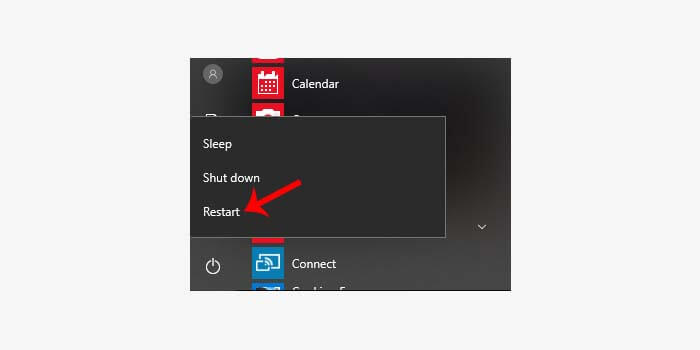
    #1. Restart the laptop

    Restart the laptop

    Restarting a laptop is one of the simplest solutions to fix an error or malfunctioning keyboard.

    Sometimes we don’t realize that we have disabled the keyboard so that it can’t be used. Or there is an error from an application that makes the keyboard unable to function.

    Try to turn off the laptop first, then wait a few minutes and restart your laptop.

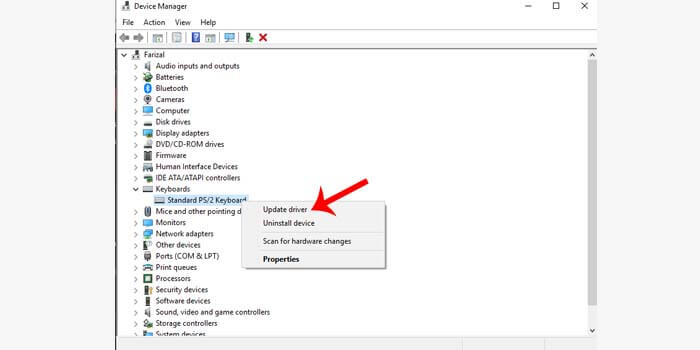
    #2. Update the Keyboard Driver

    Update Keyboard Driver

    The installed laptop keyboard driver does not match the suitable version, which will result in an error laptop keyboard not functioning completely.

    How to fix a laptop keyboard not working:

    1. Go to the Windows Start menu.
    2. Go to Control Panel> Hardware and Sound> Device Manager.
    3. Click the Keyboard option.
    4. Then right-click the driver from the laptop keyboard.
    5. Select the Update Driver option.
    6. Wait for the driver update process to complete.
    7. The complete process is indicated by the appearance of the restart command

    Next, you have to restart the laptop, and then wait for the laptop to turn back on. If the keyboard is working again, then the problem is from an outdated driver.

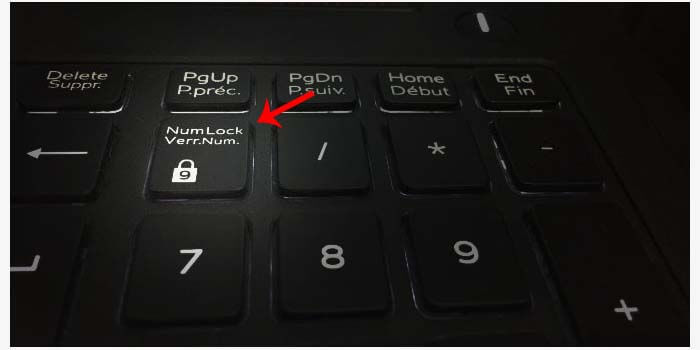
    #3. Disable Numlock

    Disable Numlock

    If you still experience the laptop keyboard doesn’t work through the two methods above, then make sure whether the num locks key on your keyboard is active.

    If so, then chances are the num lock key is making your laptop keyboard not work. Simply turn off the button, then try to test whether the keyboard is back to normal or not.

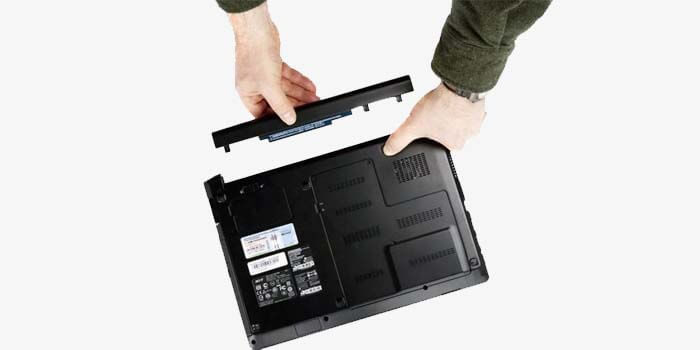
    #4. Remove the Laptop Battery

    Remove the Laptop BatteryShort circuit electricity can also be a factor in a laptop keyboard not functioning. How to fix a laptop keyboard, in this case, is you have to remove the battery on the laptop first for a few minutes.

    After that, reinstall the laptop battery and turn on your laptop. If it is true that electric current is the problem, the keyboard will now work normally again.

    #5. Restore Windows

    Restore Windows

    A laptop keyboard that does not work suddenly can also be caused because we are not aware that there are changes to the settings on the laptop. In Windows, you can easily restore laptop system settings.

    1. Click your Windows Start menu.
    2. Then enter the Control Panel menu.
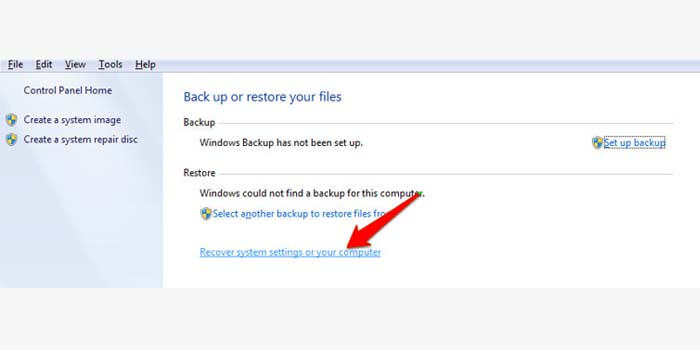
    3. Go to System and Security> Back up your computer.
    4. Click Recover system settings or your computer.
    5. Finally, click Open System Restore.
    6. Done.

    This command will restore your Windows settings to their original settings. If the keyboard error is due to an error in the system settings, then the keyboard can function normally again with this solution.

    #6. Remove Dirt and Dust

    Remove Dirt and Dust

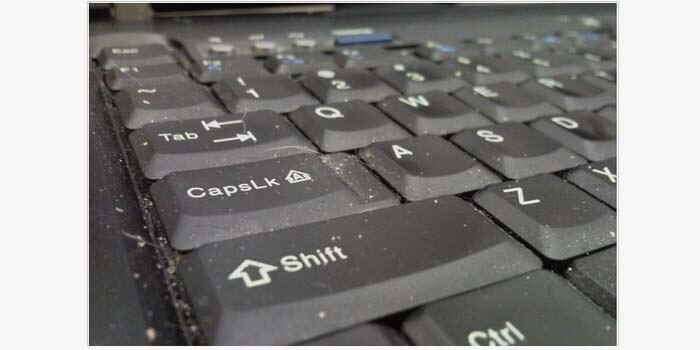
    A dirty and dusty keyboard can prevent the keyboard function from working properly. Usually, a dirty keyboard causes some letters to malfunction.

    How do fix a laptop keyboard error due to dirt and dust, then you have to clean it by removing the keyboard component that doesn’t work. Or to make it more leverage, you can remove all the components on the laptop keyboard and then clean it.

    #7. Go to Repairman

    Go to Repairman

    Taking the laptop to a laptop or PC repairman is the easiest and most common solution. This solution is effective if you don’t know the basics of repairing a laptop keyboard.

    Even more so if you still have a valid laptop warranty. You can take it to an authorized laptop service center, they will fix your laptop keyboard easily.

    Read more:

    Conclusion:

    So, friends, this is an explanation of 7 ways to fix a laptop keyboard not working, Hopefully, this article can solve your laptop keyboard that is an error and can’t work so that it can return to normal.

  • 10 Ways To Fix Applications Not Opening in Windows 10 PC 2024

    10 Ways To Fix Applications Not Opening in Windows 10 PC 2024

    10 Ways To Fix Applications Not Opening In Windows 10 PC – The application cannot be opened. You, Windows 10 users may have encountered this problem several times.
    How to Fix Applications Not Opening in Windows 10
    How to Fix Applications Not Opening in Windows 10

    How to Fix Applications Not Opening In Windows 10 PC

    The meaning of software cannot be opened here is twofold:

    • Due to the appearance of an error message
    • The application is opened but does not appear at all

    The message in question is in the form of dll is missing or stopped working

    Well, conditions like this are not only you who experience it, you know.

    Many other users who have even used Windows 10 since it was first released, also often experience this problem. I am no exception.

    Read more:

    Cause the application or game cannot be opened on Windows

    # 1. System Problems

    For example, your Windows 10 system has a bug or other things like that.

    # 2. Exposed to Viruses

    Just like before, it’s just that this is caused by a virus or malware.

    # 3. Fewer Data Required

    The data in question is a system application. NET Framework, Visual Credits, and the like.

    # 4. Corrupt application

    The application has a problem (damaged or corrupted ). Usually stopped working is a message that usually appears.

    How to Fix Applications Not Opening in Windows 10

    The causes are various, and for different ways to overcome them.

    Here I will explain. Incidentally I myself quite often encounter problems like this. And until now it can be overcome continuously.

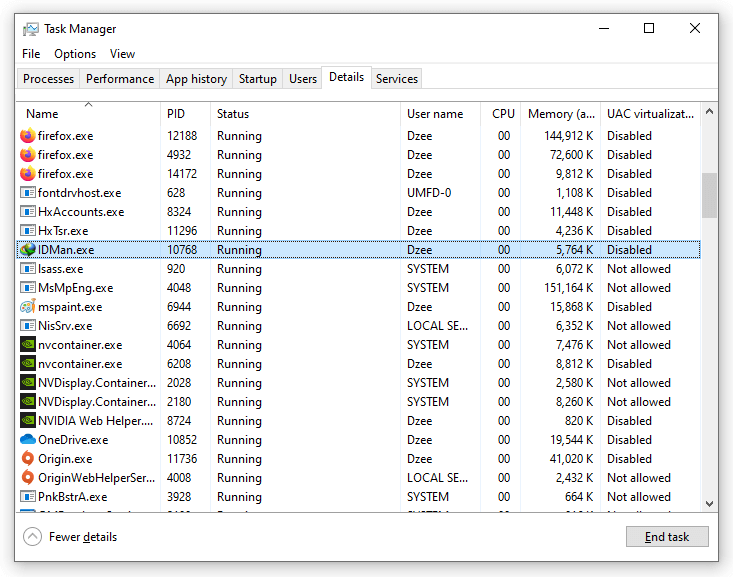
    # 1. End Application Task in Task Manager

    When a program is opened but nothing appears, usually, this is because Windows has not been able to fully load the application.

    How to fix it with End Task:

    • Click the Ctrl + Alt + Del keys
    • Then you will see the Task Manager
    • Please look for an application that cannot be opened. For example IDM
    How to Fix Applications Not Opening in Windows 10
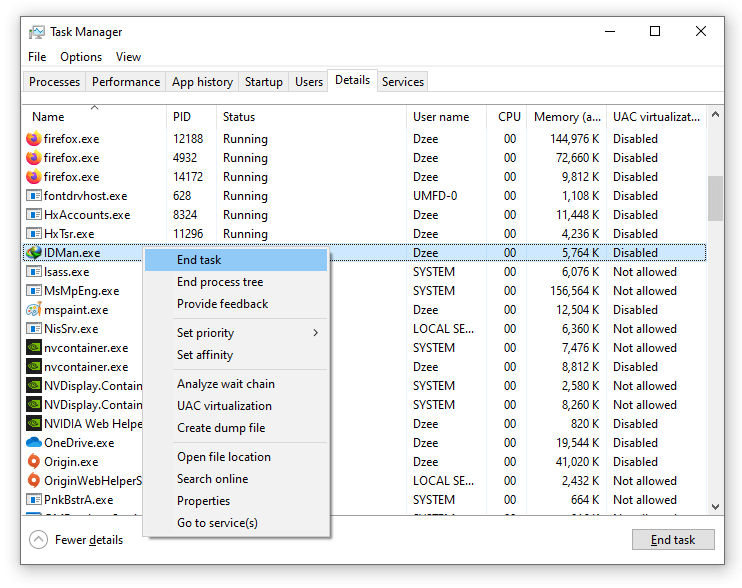
    • Right-click IDM> Then select End Task
    How to Fix Applications Not Opening in Windows 10
    • If so, please reopen IDM

    Done. This way I usually always succeed. In addition, after the End Task, you can also try restarting it first.

    # 2. Install System Programs

    How to Fix Applications Not Opening in Windows 10

    I mean the system program is very important. Especially for running applications that are a bit heavy. Like Photoshop, Illustrator, CAD, or games.

    If you don’t have it installed, then the app is very likely to have an error.

    Example:

    • The application cannot display an image ( blank )
    • The application cannot open
    • An error message appears, such as ” dll is missing ” or ” unable to start correctly “

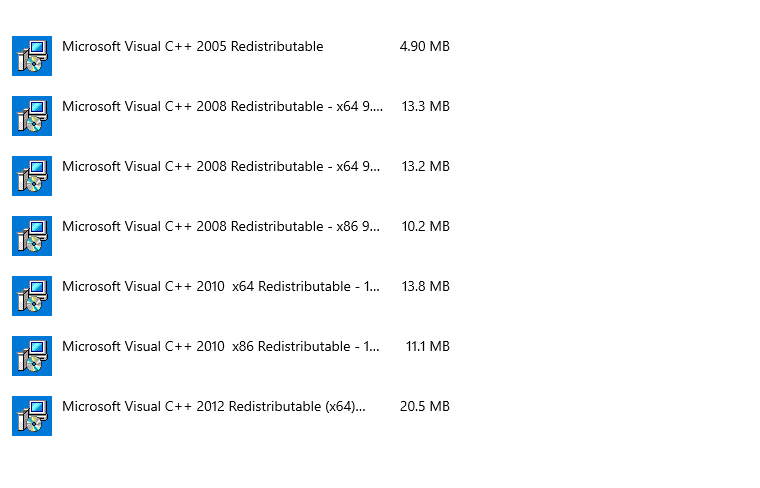
    Applications that must be installed:

    • NET Framework (Latest Version)
    • Microsoft Visual Credits (All versions)
    • DirectX

    For how to install the application, just visit the official Microsoft website.

    # 3. Clear Application Data

    This feature is used to clear application preference data. The aim is that the saved application settings can be lost.

    The result is a problematic application that cannot open, it can be normal as before.

    Follow these steps:

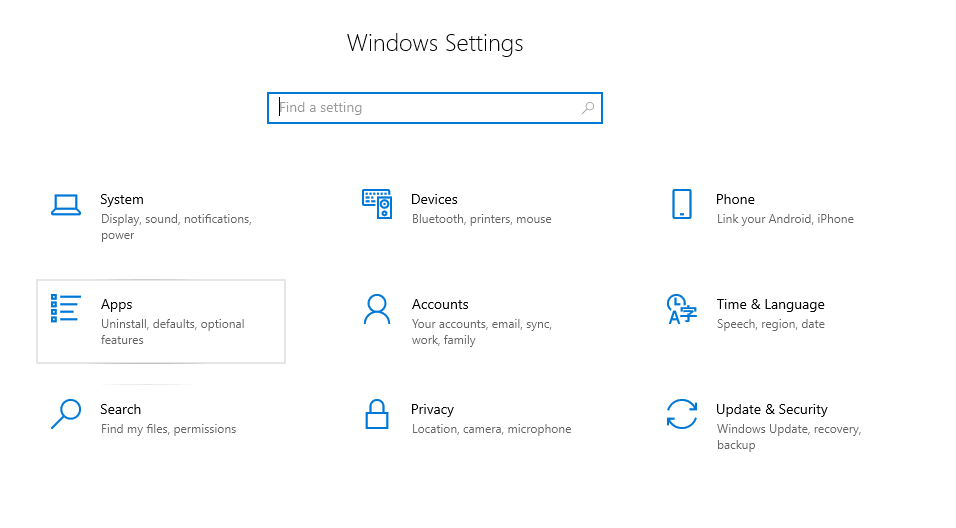
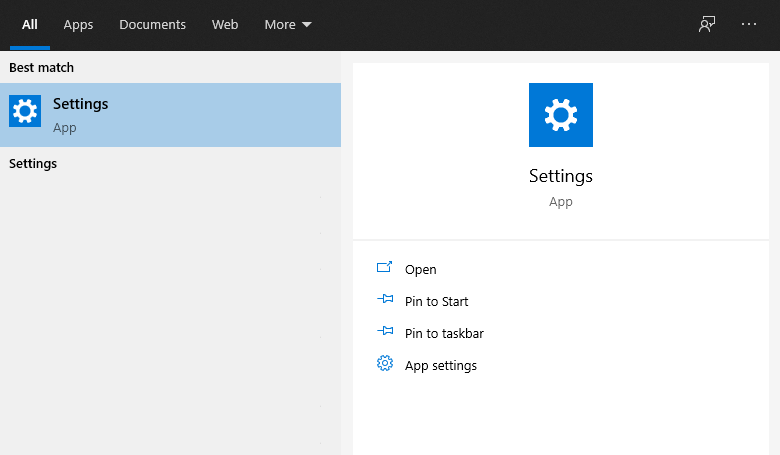
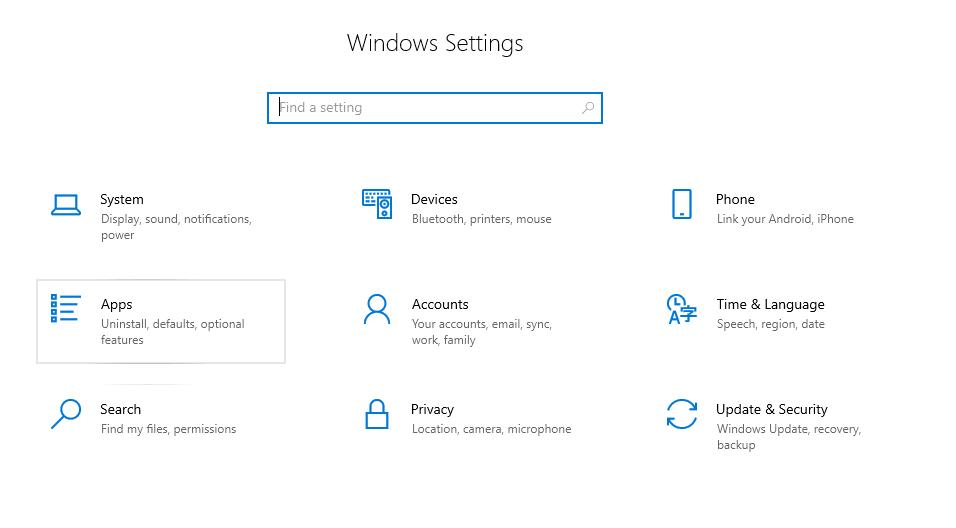
    • Please go to Settings.
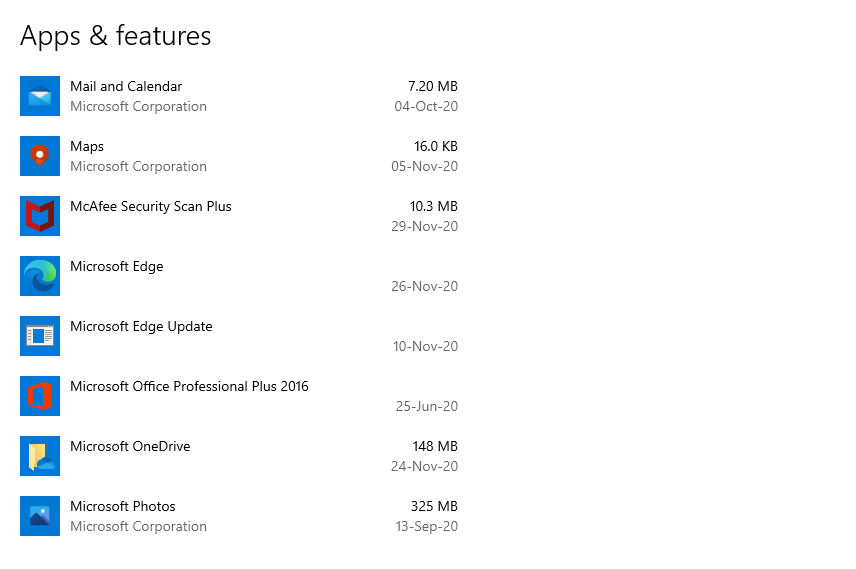
    • Search for Apps & Features.
    How to Fix Applications Not Opening in Windows 10
    • Please select the desired application.
    How to Fix Applications Not Opening in Windows 10
    • Then click Advanced Options.
    • In the next menu, please select Reset.

    This will delete all app preferences. After that, try restarting and running the application again.

    Note:

    • If the setting is not there, then first update your Windows 10 version to at least the Anniversary Update

    # 4. Set up Windows Service

    Applications that exist on Windows run based on services as well. So I can say this point is important.

    Especially for Windows default applications, such as XBOX, application settings alias settings, calculators, clocks, and the like.

    Follow these steps.

    Activating Windows Services:

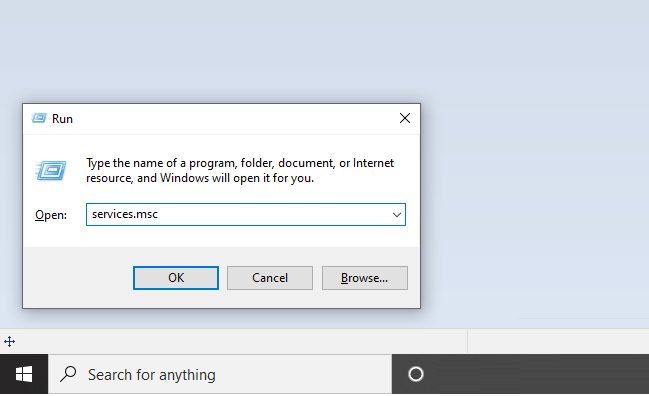
    • Press the Windows key + R
    • Type services.msc > Then click OK
    Set up Windows Service
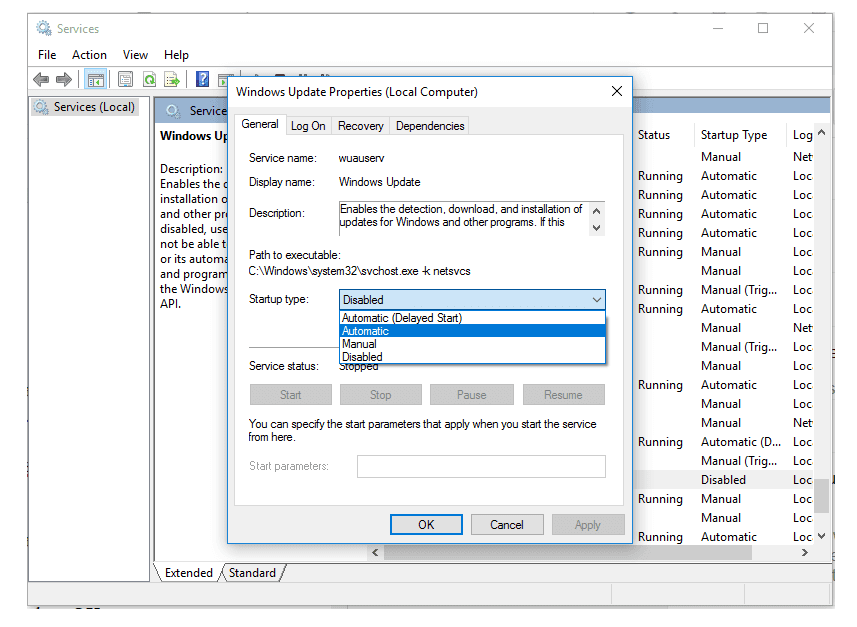
    • Then look for Windows Update > Double-click the configuration
    • In the startup type column, set it to manual or automatic

    Set up Windows Service

    • Click Apply > then click OK
    • After that, please restart your PC or laptop
    Automatic Manual
    Services will run automatically when Windows starts Services only run when activated

    Manage Application Services:

    • Press the Windows key + R
    • Type services.msc > Click OK
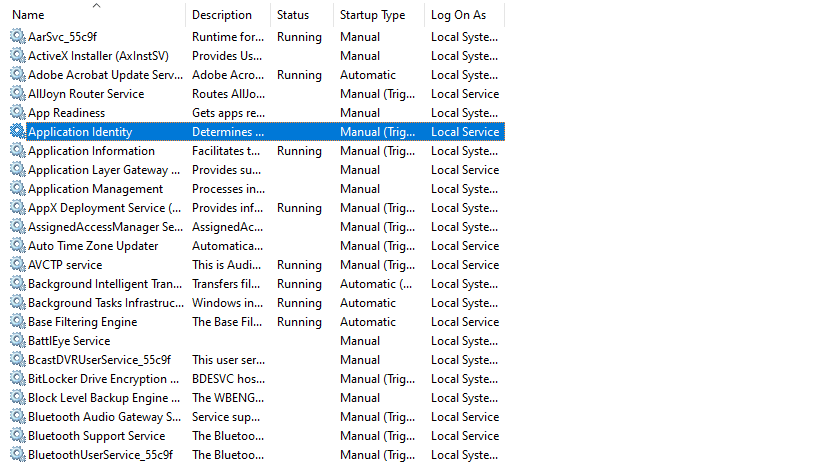
    • Next, please look for Application Identity
    Set up Windows Service
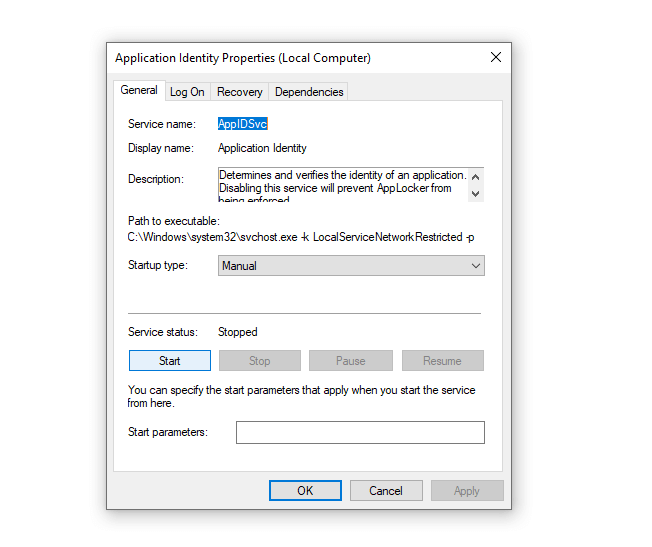
    • Then click the Start button to make the service run
    Set up Windows Service
    • Also, set the startup type to Automatic
    • Restart your PC or laptop

    After that, please check again the application you want to open.

    # 5. Set up System Administrator

    Applications cannot run, one of which is due to system administrator settings. Here you need to set it up too.

    How:

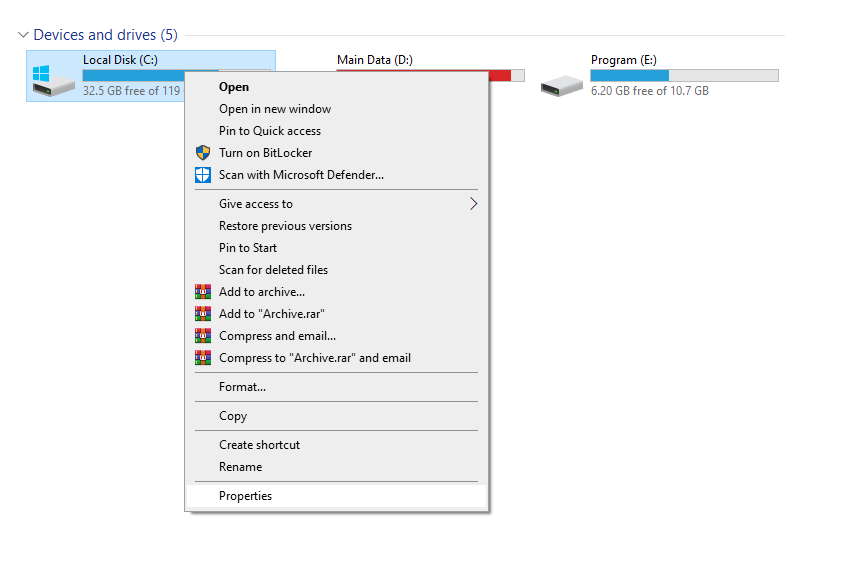
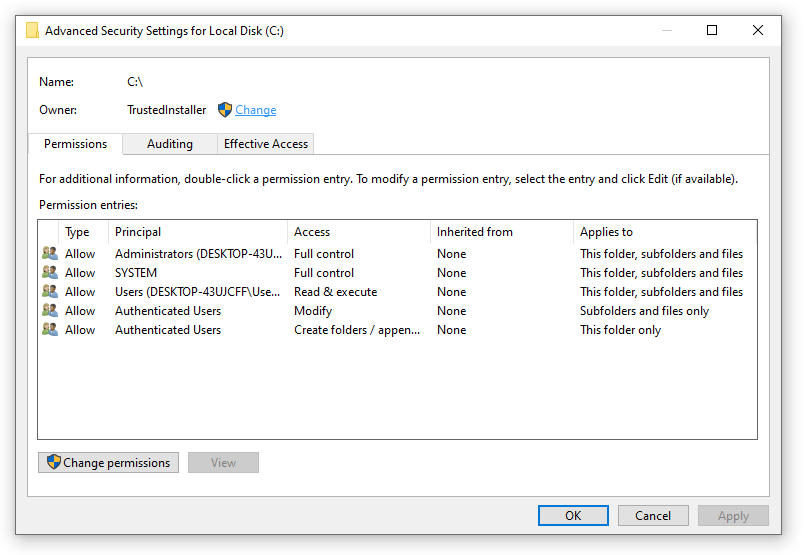
    • Open Explorer> Then right-click Drive C> Select Properties
    Set up System Administrator
    • Then open the Security tab > Then click Advanced
    • Well, there click the Change button
    Set up System Administrator
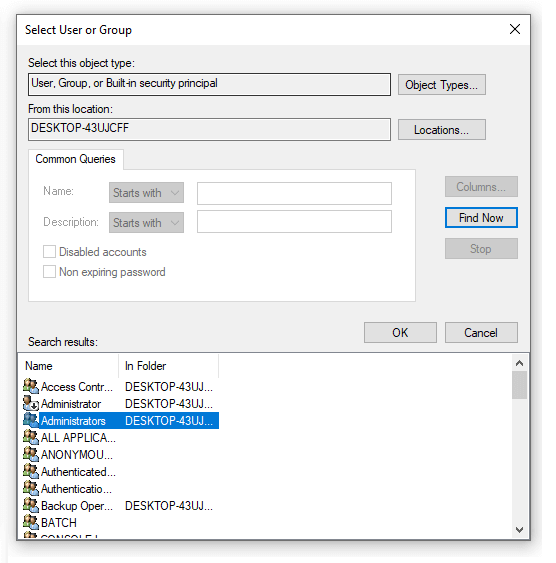
    • Then click the Advanced button again
    • Click the Find now button > Click Administrator again > Then select OK
    Set up System Administrator
    • If so, check the Replace owner column > Then click Apply

    Done. You just wait for the process.

    # 6. With Regedit

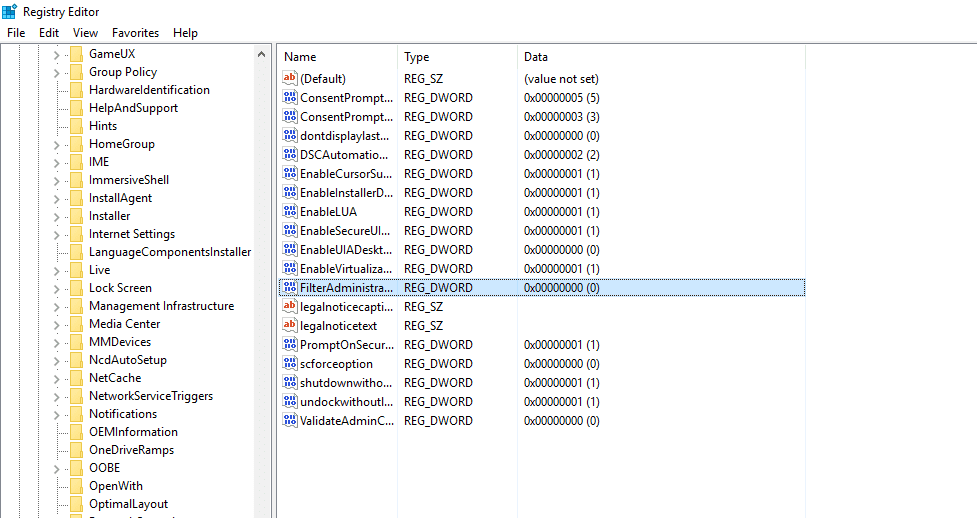
    For the problem that the program cannot be opened in Windows 10, we can try adjusting a registry setting called FilterAdministratorToken.

    This method I learned this from WindowsReport.com.

    The method is like this:

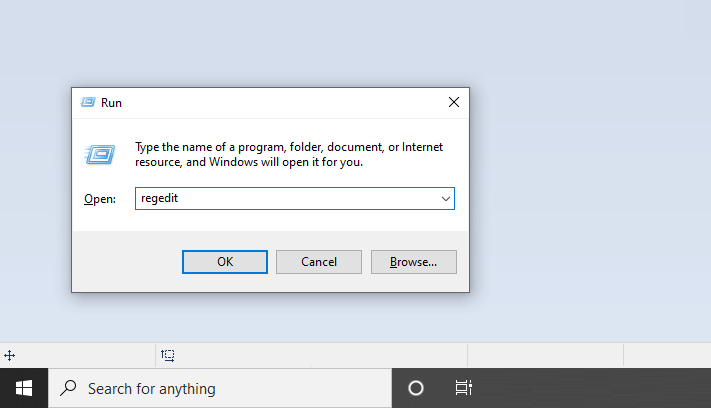
    • Click Windows key + R> Type Regedit > Then click OK
    With Regedit
    • On the left menu> Please enter HKEY_LOCAL_MACHINE > SOFTWARE
    • Open the Microsoft > Windows > CurrentVersion > Policies > System folder again

    With Regedit

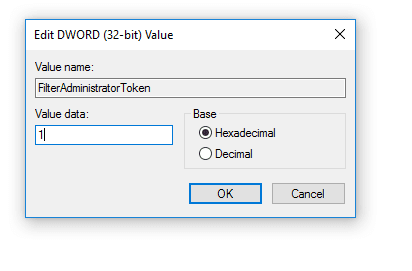
    • Double click on FilterAdministratorToken > Then change the value of its (value) to 1.

    With Regedit

    • Restart your PC or laptop.

    If the registry settings are missing:

    1. Right-click on the System section earlier.
    2. Select DWORD (32-bit) Value.
    3. Type ” FilterAdministratorToken “.
    4. Done.

    # 7. Clear Windows Store Cache

    For applications that come from the Windows Store, you can try this method. Its function is to reset the application data preferences.

    The method is like this:

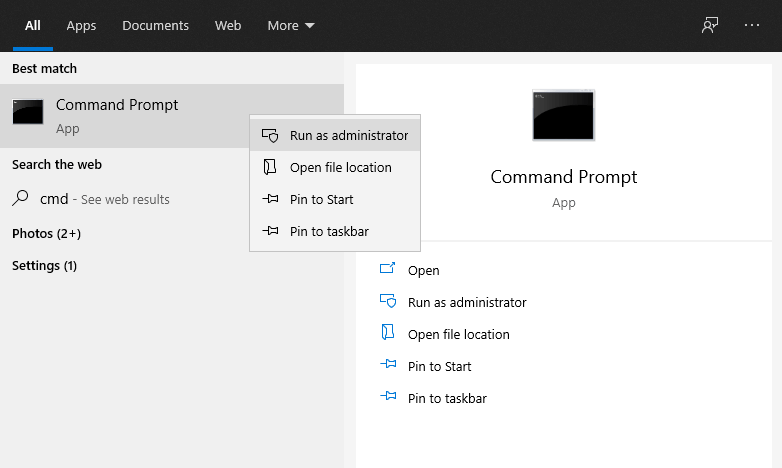
    • Type in the CMD search field
    • Right-click> Then select Run as Administrator
    Clear Windows Store Cache
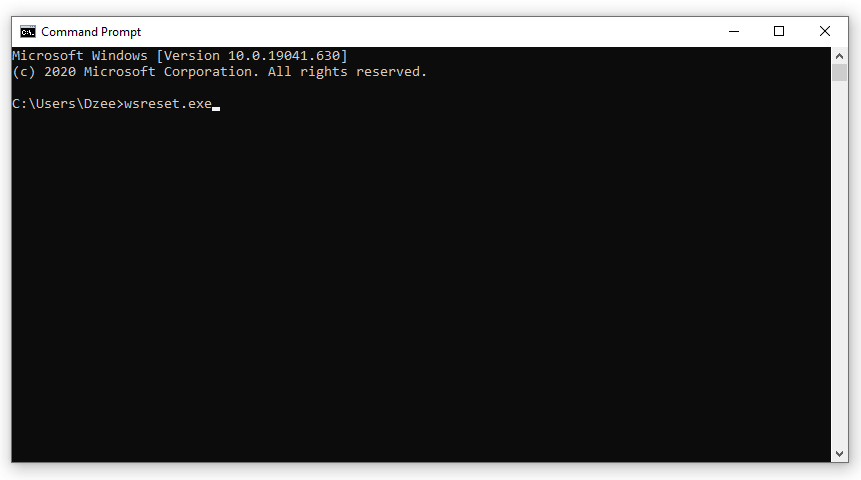
    • Type ” wsreset.exe ” on the CMD page.
    Clear Windows Store Cache
    • Wait a few moments, the Windows Store will open, then it will update existing applications.

    Note:

    This method will not erase or erase any data on your computer. So there’s no need to worry, huh.

    # 8. Reinstall Application

    Applications that have errors when opened, could be from a failed installation process. For example, there is a file that is missing or corrupt.

    Now, by reinstalling, problems like that should be resolved.

    To do this, we must first delete the application:

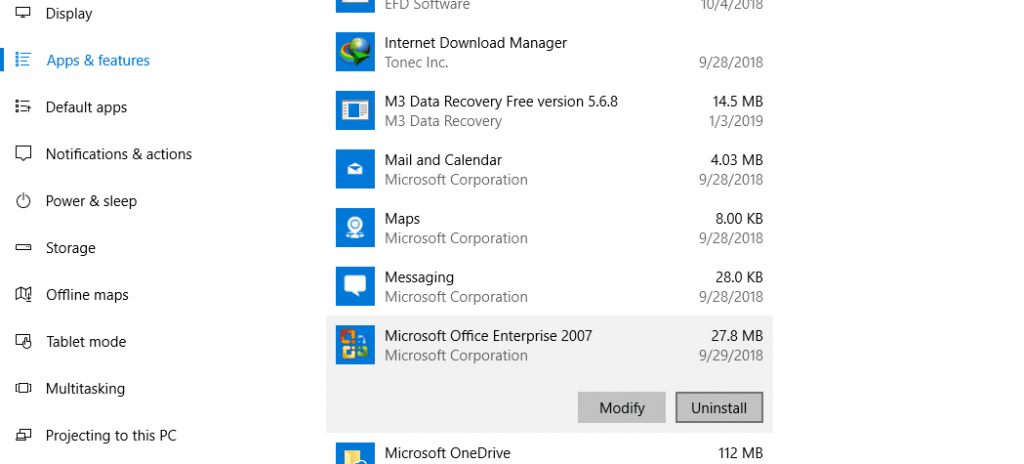
    • Go to Settings.
    Reinstall Application
    • Open Apps & Features.
    Reinstall Application
    • Find and select the desired application.
    • Then click Uninstall.

    Reinstall Application

    After that, now install the application again as usual.

    Addition: If you have an application like CCleaner , try doing a registry wipe too , to make the uninstall process cleaner.

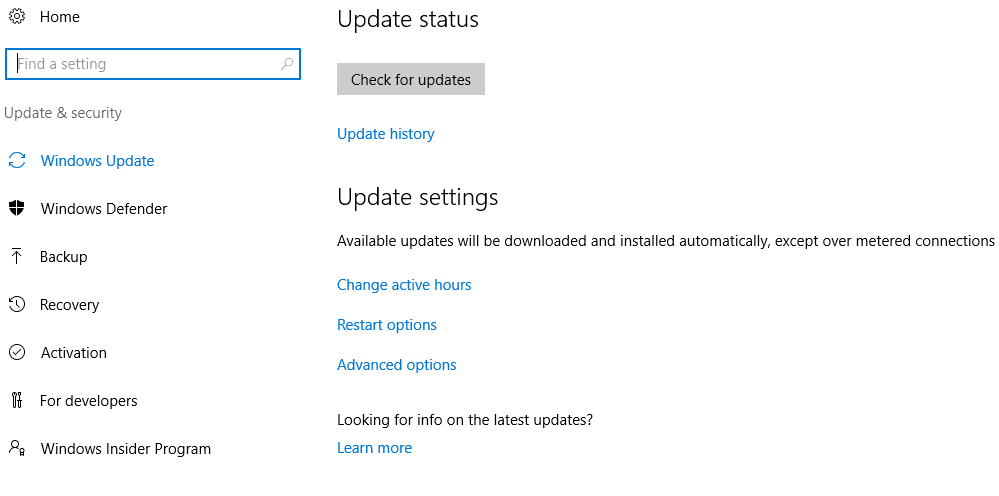
    # 9. Windows Update

    Windows Update

    As we know, every once in a while, Microsoft always updates the Windows 10 version to the newer one.

    Examples of famous updates :

    • Creators Update version
    • Fall Update version
    • Anniversary Update
    • And others

    Well, doing the update also doesn’t hurt to try.

    The reason:

    • Because in addition to being able to get a variety of new features, bug – a bug long that there would be eliminated, so that users can be more smoothly.
    • Including if you experience errors when opening certain applications, this can be normal after updating to the latest version of Windows 10.

    # 10. Reset your Windows 10

    Reset Windows 10 here is intended to delete all data, as well as the applications that we have installed so that the system can be fresh again.

    Actually, this solution option is more or less like reinstalling it. It’s just that, it can be said that it is simpler and the process is much faster.

    For those who want to try it, you can do it like this:

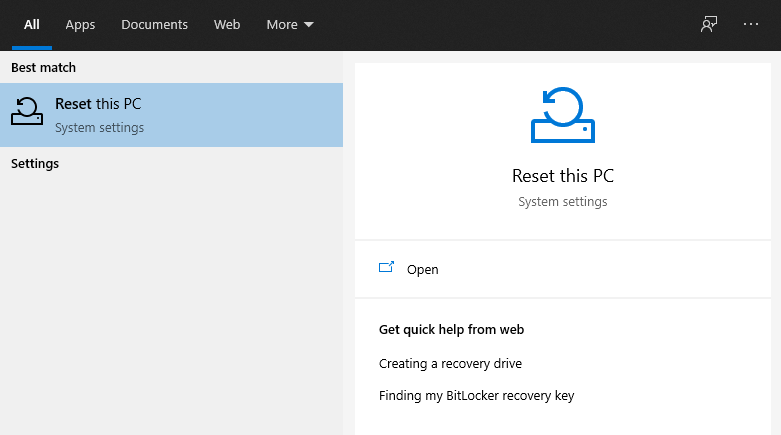
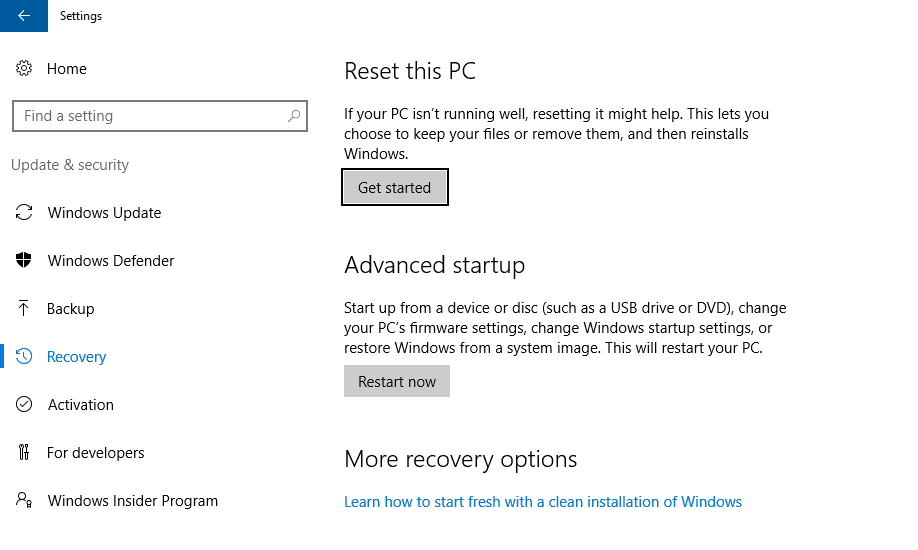
    • The column can type in the search ” Reset “
    Reset your Windows 10
    • Then you will go to the Recovery page
    • Select Get Started

    Reset your Windows 10

    • Then follow all the instructions

    Note:

    Because it can erase all data, make sure the important data you have is already in a backup position.

    Read more:

    Conclusion:

    The method here is what I use most often. There are many other tips, but my experience doesn’t matter at all. If you have questions, please ask directly via the comment box below.

  • 10 Best Free Premium KWGT Widgets for Android 2024

    10 Best Free Premium KWGT Widgets for Android 2024

    10 Best Free Premium KWGT Widgets for Android – Are you looking for a  KWGT Custom Widget that has a Simple and Minimalist design? Then you have to try the 10 Custom KWGT JAM Widgets below which of course support all Android users.

    10 Best Free Premium KWGT Widgets for Android 2021

    How to Download Free Premium KWGT Widgets for Android

    KWGT Widget is one of the most popular Personalization Tools on Android which has a lot of free and paid widgets that can be applied to all Androids and of course, you can get it very easily when browsing the Internet, one of which is ’10 Custom KWGT Simple Free Premium Widgets ‘ Below, By the 10 widget images below, of course, you can customize these widgets freely and for free.
    Read more:
    Before Downloading, make sure you are using the Pro version of the KWGT Widget. It’s mandatory because the widgets below require KWGT Widget Pro, of course, you can buy this directly on the Google Play Store, or if you want it free, you can also download the Mod version via the link below. admin has provided below.

    #1. KWGT Kustom (Day & Month)

    KWGT Kustom

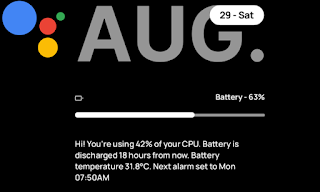
    #2. Custom KWGT (Month, Date, Day, Battery, and CPU Info)

    Custom KWGT

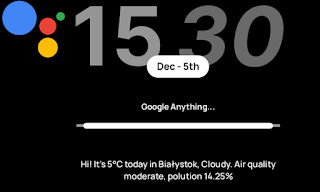
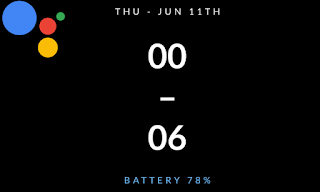
    #3. KWGT Kustom (HOUR, Month, Date, Google Text, and Temperature Info)

    KWGT Kustom

    #4. KWGT Kustom (Month, Date, and Year)

    KWGT Kustom (Month, Date, and Year)

    #5. Custom KWGT (Day, Month, and Date)

    Custom KWGT (Day, Month, and Date)

    #6. KWGT Kustom (Music and Text)

    KWGT Kustom (Music and Text)

    #7. KWGT Kustom (Day and Date)

    KWGT Kustom (Day and Date)

    #8. KWGT Kustom (Hello Text, Day, Month, and Date)

    KWGT Kustom (Hello Text, Day, Month, and Date)

    #9. KWGT Kustom (Day, Date, Month, and Battery)

    KWGT Kustom (Day, Date, Month, and Battery)

    #10. KWGT Custom (Day, Month, Date, HOUR & Battery Info)

    KWGT Custom (Day, Month, Date, HOUR & Battery Info)

    How to Install a Widget in the KWGT Kustom Widget Pro Application on Android.

    Download the Latest KWGT Kustom Pro Mod

    • Select Kustom Widget (Please select one of the titles above). If you want to download 10 Widgets directly in ZIP form, click here.
    • Make sure you have installed the KWGT Widget on your Android.
    1. Add a Widget.
    > Pinch Main Screen, Select Widget> Custom Widget: KWGT 1×1 / 2×2 (Freely customizable).
    2. Select Widget
    > Press one of the widgets that you created earlier
    > Then you will enter the KWGT Widget application, press the Folder Logo > Select Widget > Select Exported > Select Exported Widgets.
    3. Edit Widget
    > In the Layers section, you can set the Widget Size to match the size of the widget that you created earlier. Please set it and press Save Logo. ‘
     
    4. If saved successfully, Return to the Main Screen.
    Note: Please do the method above if you want to add a new Widget, and not only 1 Widget, you can also apply several widgets on the main screen which of course must also be adjusted to the size/spaces on your mobile screen.
    ●  Several Things to do.
    #How to keep the KWGT Widget Notifications Not Appearing continuously.
    – Open KWGT Widget, Select Settings> Notification Mode> Disable> Turn off Notifications.
    – No Hassle, Go to KWGT Widget App Info> Notifications> Turn Off Notifications.
    #Set Accurate Weather Updates: Go to Settings> Weather Service Provider> Allow Location> Select Free (Yahoo or Yr.No)
    #Set Manual Update Location: Go to Settings> Main Location> Find and Select Your Address> Yes.