What is XAPK? How to Install XAPK File on Android – Do you want to install XAPK on an Android cellphone but don’t know how? No need to worry, here you will find out how to install XAPK on Android easily, quickly, and completely.
What is XAPK And How to Install XAPK File on Android
What is XAPK? And How to Install XAPK File on Android 2024
As is well known, in general, the format of an Android application file is APK. But it turns out that there is still another format that is often used for the installation of android applications, namely XAPK.
XAPK is usually found when we search for an application or Android game on the internet. This is because the game or application we want is not available on Google Playstore.
With the XAPK file on the internet, you can install applications and games that are not actually on the Google Playstore easily and for free.
What is XAPK?
Before we go to the discussion regarding how to install XAPK, it helps you know what XAPK is and how it works so that you can understand XAPK.
XAPK is a combined file of an Android application or game installer in the APK format along with the OBB file.
OBB is a collection of supporting files or additional data that the application needs to run. That’s the reason why XAPK is always bigger than typical APK files.
This is intended to make it easier for Android users to install applications or games because when you install XAPK, the OBB file will be installed automatically.
How to install XAPK File on an Android phone
Although basically XAPK is intended to be able to install applications automatically without moving the OBB file, you can also open XAPK to retrieve the OBB file if you need one.
You can decide which method you want to use. Do you want to install XAPK automatically or install XAPK manually?
XAPK installer
XAPK installer
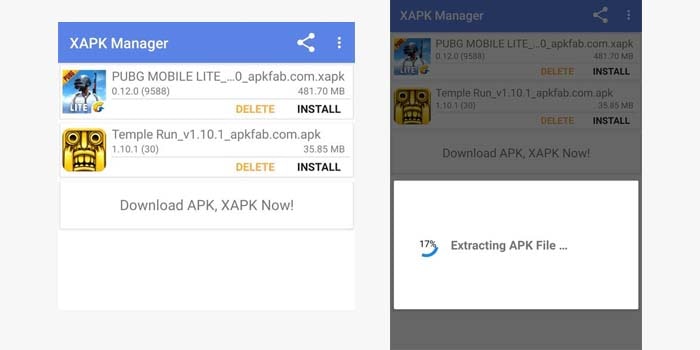
XAPK Installer is an application that can install XAPK files on Android phones automatically. Even though this application is small and quite light, the XAPK installer is able to install XAPK on an Android phone very quickly.
How to install XAPK on an Android phone automatically:
Then install the application on your Android phone.
Run the application then grant the required permissions.
Then this application starts detecting XAPK on cell phones automatically.
Tap the Install option on the XAPK file you want.
Then the XAPK installation will begin.
When finished, then XAPK is installed.
Done.
With the steps for installing XAPK above, the OBB file is installed automatically. So, now you can run the game or application. Very easy, right?
Manual way
Manual way
The manual method is often used when someone wants to unload the contents of an XAPK file. The reason is, this will make the XAPK file separate into an APK file and its OBB folder.
How to install XAPK manually:
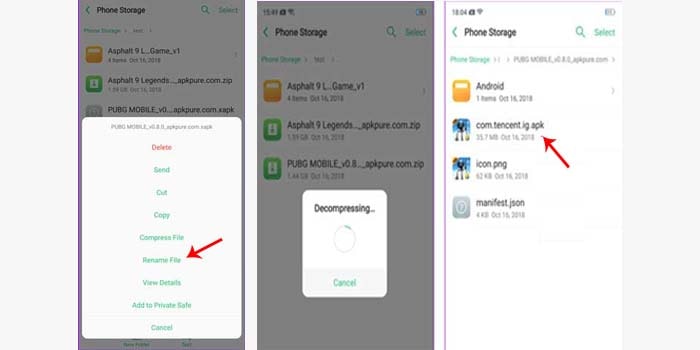
Search for XAPK files through the file manager application.
Rename or change the XAPK file format to ZIP.
Then extract the file using the ZARCHIVER application.
Go to the extracted folder.
Then you will find the APK file and the OBB folder.
Install the APK, for example, the APK from the PUBG game.
After that move the OBB folder to the / Android / OBB / folder.
Done, you’ve successfully installed manual XAPK.
Make sure you move the OBB folder to the appropriate folder. The reason is, if the OBB is not placed in the right place, then you have to download the supporting files or additional data.
Why XAPK Cannot Be Installed
Even though installing XAPK is relatively easy, some people still experience some problems. Here are some problems and reviews to solve them:
Installation Failed
This type of error is generally caused by not having enabled the installation from unknown sources. To enable this option, you must go to the Security feature on the Android Mobile Settings menu.
Corrupt XAPK file
A corrupted XAPK file will not work, and even installing it will fail. This is because the internet network is less stable when downloading XAPK files so XAPK files are damaged.
Memory Full
XAPK files generally have a size that is quite large because there is already an OBB folder or additional data required. So before you install XAPK on an Android cellphone, make sure the storage still has enough space.
Disclaimer: All forms of download files on the Technowizah.com site are for educational purposes only.
DMCA:Technowizah.com complies with 17 U.S.C. * 512 and the Digital Millennium Copyright Act (DMCA). It is our policy to respond to any infringement notices and take appropriate action. If your copyrighted material has been posted on the site and you want this material removed, Contact us.
Those are some ways how to install XAPK on an Android phone, Hopefully, with the information above, you can install XAPK files on Android phones smoothly and without any or problems.
Top 12 Best Quiz Games For Android and IOS – A quiz is one game that can certainly make the players feel happy. Because this game is educational, it can add knowledge to the quiz participants.
Top 12 Best Quiz Games For Android and IOS
The Best Quiz Games For Android and IOS 2024
With the development of modern technology, now many developers can make quiz games. So it can be played anytime via smartphone, Android, or iOS.
Here we will recommend some quiz games that you can play, see below.
#1. WIB: TTS Cak Lontong
WIB TTS Cak Lontong
WIB: Cak Lontong TTS is a game that contains things to solve difficult puzzles from Cak Lontong.
In addition, this game made by the developer of PT Net Mediatama Televisi makes the same game as on TV.
Plus, each player’s answer will be given a funny and interactive comment from Cak Lontong.
#2. Racing in Indonesian Melody
Racing in Indonesian Melody is a fun quiz game to play on Android devices.
In addition, various categories of songs are also embedded in the game Berpacu Dalam Melody Indonesia.
This game has been downloaded more than 30,000 times which will test the players about popular songs in Indonesia.
#3. Deal For Millions
Racing in Indonesian Melody
Deal For Millions is one of the most fun and exciting quiz games when playing.
In this game, players will be asked to beat the banker by guessing the contents of the suitcase.
But before that, players will be asked to choose one of the available suitcases. The smallest amount is 0.01 dollars and the largest is 1,000,000 dollars.
#4. Quiz Survey 100
Quiz Survey 100
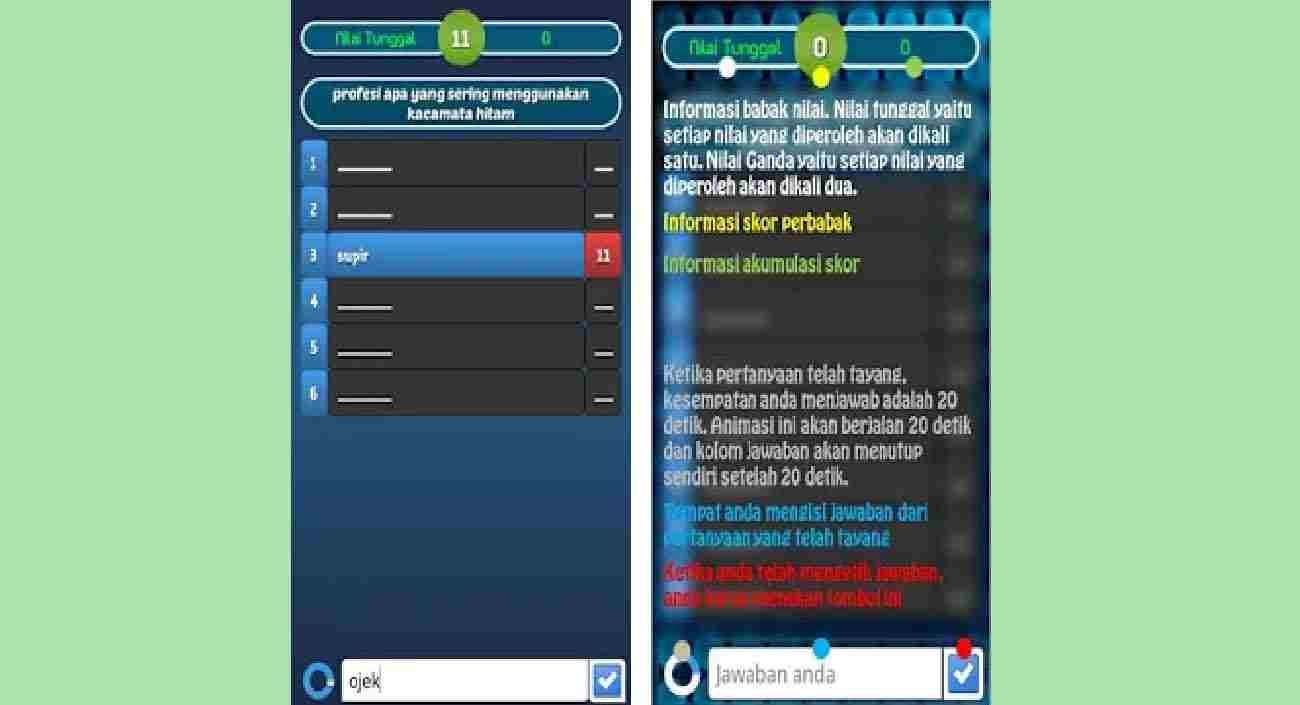
Quiz Survey 100 is a quiz concept game that was inspired to develop and create this Quiz game.
Apart from that, this game is interesting because you only need to use an Android-based smartphone.
Plus, players only need to answer the answers that might appear based on a survey of 100 people.
#5. Lontong Quiz
Quiz Lontong is a game that is present that challenges players to answer quizzes from cak lontong.
In addition, the quiz made by the developer Nymphonia is a quiz that makes players confused.
Because every question has two questions. Do not choose the correct answer according to you because it is not necessarily correct either.
#6. Family 100 Indonesia
Family 100 Indonesia is a game that is quite a lot of inspiration in a game.
This game will display the animation of an artist guiding the quiz, Eko Patrio.
In addition, Family 100 Indonesia also presents figures such as Tukul Arowana and Omes.
#7. Quiz 1 Billion
Quiz 1 Billion is a game where players are asked to guess the correct answer for each question that appears.
In addition, what makes it interesting is that from the first question to the final question there is a prize in the form of money.
So, the higher the money offered, the more difficult the questions asked.
#8. True Or False Quiz
True or False Quiz is an educational-themed game that aims to test your knowledge and insight.
In this educational game, a statement will be displayed that the user must guess.
And that the statement is a true statement or a false statement.
#9. Guess the Song Game
Guess the Song Game is a game that asks you to guess the most popular Indonesian songs of its time.
In addition, the Guess the Song Game provides assistance features in the form of Pass, 50:50, and Replay.
So, this does have a concept that is not much different from Racing in a Melody.
#10. Quiz Family 100
Quiz Family 100 is a game where players are only asked to answer with the most points.
In addition, if the most appropriate answer is calculated based on a survey of 100 people.
So, the more accurately you answer the question, the more points you will get.
#11. Hexagon War Quiz
Quiz Hexagon War is a game that will make you compete on who’s knowledge is wider.
In addition, every Hexagon War Quiz player will be given a capital of 30 points.
If, if you answer the question correctly, the points will increase, but if you get it wrong, it will decrease.
#12. Family Survey Quiz 100
Family Survey Quiz 100
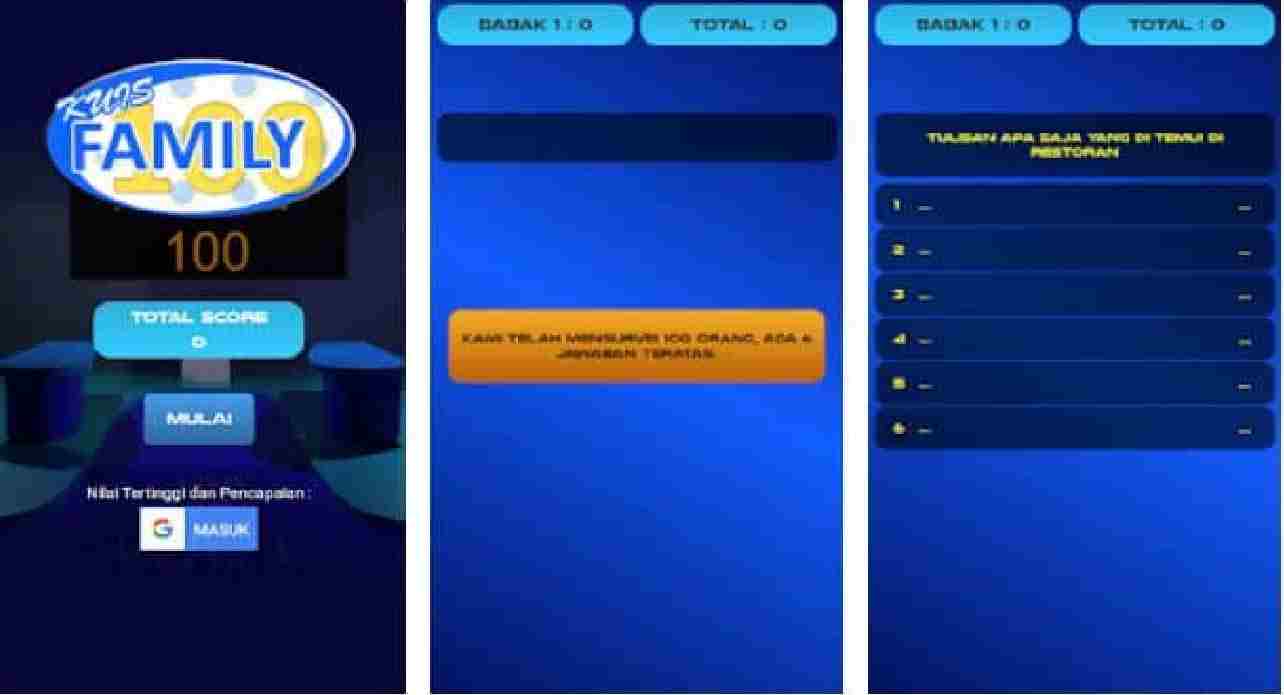
Quiz Survey Family 100 is a game inspired by real quizzes that are on TV.
In addition, you only need to guess the answers to questions based on a survey of 100 people.
If you want to try this game, you can just download this game on Playstore.
15 Best 2GB RAM PC Games Really Light! Laptop PC – Of the many AAA PC games in circulation, sometimes make gamers feel sad. Because their PC specs don’t match the demands of the game.
15 Best 2GB RAM PC Games Really Light!
15 Best 2GB RAM PC Games Really Light! Laptop PC 2024
So, we can only restrain our lust first and start raising money to upgrade PCs/computers. However, did you know that the old games are still feasible and interesting to play?
These old games are no less interesting than the latest games today. In addition, old games do not require high specs. So, it can be played on computers with low specifications.
Best 2GB RAM PC Games Really Light! PC Laptop
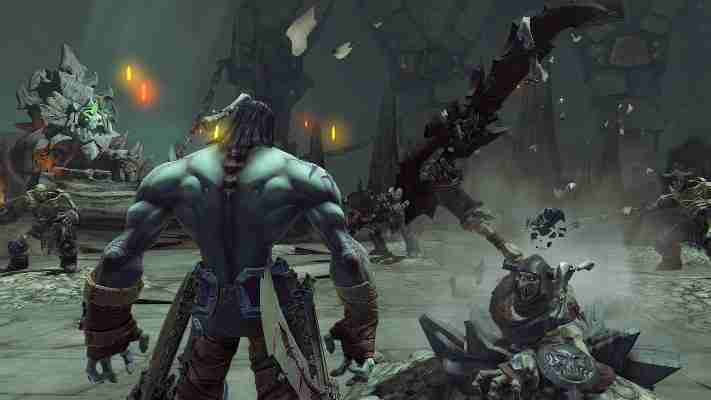
#1. Darksiders 2
After the success of its initial series, the Hack and Slash game is back with a follow-up series entitled Darksiders 2. However, in this second series, the game genre changed drastically into Action RPG.
A skill that consists of 2 parts and is equipped with items and equipment to strengthen the main character. Not only that but the game Darksiders 2 also provides a challenging Slide Mission with various rewards. Thus, the game atmosphere becomes more interesting.
System Requirements (Minimum):
OS: Windows XP, Windows Vista SP1 / Windows 7
Processor: 2.0Ghz Intel Core2 Duo Processor
RAM: 2GB
Graphics: NVIDIA 9800 GT 512 MB
Storage: 20 GB
#2. Tomb Raider (2013)
The next best 2GB RAM PC game is Tomb Raider. Our adventurous spirit will be trained in this one game. You can improve your skills, weapons, and equipment in this game and you have to solve quite difficult puzzles.
System Requirements (Minimum):
OS: Windows XP Service Pack 3, Windows Vista, 7,8 (32bit / 64bit)
The next 2GB ram pc game recommendation is Dead Space 3. In this game, we will explore outer space that is quiet, dark, and filled with dangerous monsters. Players can shoot these monsters, of which there are many variants and numbers.
One of the best 2GB RAM PC games that you should try to play is Batman Arkham City. This game is adapted from the superhero film series, where we wear a mask. And equipped with a sharp weapon that resembles a bat shape.
Our job is to defeat the enemy with only bare hands. With an extensive map and many missions, Batman games are very interesting to play.
Graphics: ATI 3850HD 512 MB / NVIDIA GeForce 8800 GT 512MB / Intel HD Graphics 2000
Storage: 17 GB
#5. Outlast
Outlast is a PC Horror game where the innate sensation of playing is terrible. Why? To finish this game we can only run from the endless darkness.
Gamers have to run from dangerous and sadistic enemies with only a HandyCam and a battery. Therefore, children are prohibited from playing this outlast game.
System Requirements (Minimum):
OS: Windows XP / Vista / 7/8 – 64 bits *
Processor: Dual Core 2.2 GHz
Memory: 2 GB RAM
Graphics : NVIDIA GeForce 9800GTX / ATI Radeon HD 3xxx series (512 MB)
DirectX: Version 9.0c
Storage: 5 GB
#6. Dirt 3
This 2GB RAM game, named Dirt 3, is an Off-Road car racing game. Various types of off-road are offered in this game from Rally to Trail Blazzer.
System Requirements (Minimum):
OS: Microsoft Windows XP, Vista, or Windows 7
CPU : AMD Athlon 64 X2 2.8 GHz, Intel Pentium D 2.8 GHz
RAM: 2 GB
Graphics: AMD Radeon HD 2000 256 MB, NVIDIA GeForce 8000 Series 256 MB
Storage: 15 GB
#7. Don’t Starve
This Don’t Starve game will tell players to survive various life-threatening dangers. With simple graphics, this game still makes players feel alert in every challenge.
There are 3 indicators that must be considered in this game, namely hunger, health, and sanity. We must keep all three indicators at optimal levels. In addition, collect resources around the map to make items that are useful for survival.
System Requirements (Minimum):
OS: Windows XP / Vista / Windows 7 / Windows 8
Processor: 1.7+ GHz
Memory: 1 GB RAM
Graphics: Radeon HD5450 256 MB
DirectX: Version 9.0c
Storage: 500 MB
#8. Assassin’s Creed IV
The next best 2GB RAM PC game is Assassin’s Creed IV Black Flag. By carrying out a fantastic pirate history theme, this game offers a different sensation from other games.
An interesting feature of this game series is the presence of bombastic ship wars with thrilling ship hijacking. In addition, the open-world theme with its various contents is very interesting to explore.
System Requirements (Minimum):
OS : Windows Vista SP2 / Windows 7 SP1 / Windows 8 (32 / 64bit)
If you like sniper games then try to play Sniper Elite 3. Even though it can be played on low-spec computers/laptops, this game still offers good graphics. As well as slow animation when the sniper bullet hits the enemy’s vital organs.
System Requirements (Minimum):
OS: Microsoft® Windows Vista (Service Pack 2) or Windows 7 (Service Pack 1) / Windows® 8 / Windows 8.1.
Graphics: NVIDIA GeForce 8800 series / ATI Radeon HD 3870 256 MB
DirectX: Version 11
Storage: 18 GB
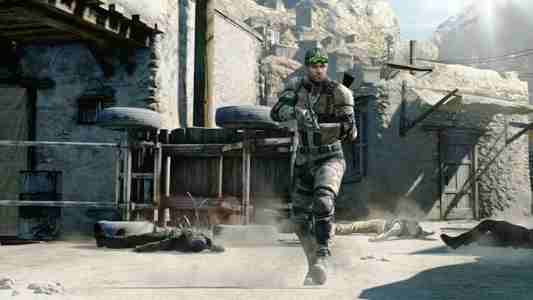
#10. Tom Clancy’s Splinter Cell Blacklist
This game has the theme of fighting using future-style weapons. With a thick stealth element, making this game is very exciting and challenging as well as tactical gameplay. We have to be smart in playing this game because the weapons are limited and the AI enemies are quite clever.
System Requirements (Minimum):
OS: Windows XP (SP3) / Windows Vista (SP2) / Windows 7 (SP1) / Windows 8
Graphics: Anything with 512MB of DirectX with Shader Model 4.0 or greater
DirectX: Version 9
Storage: 25 GB
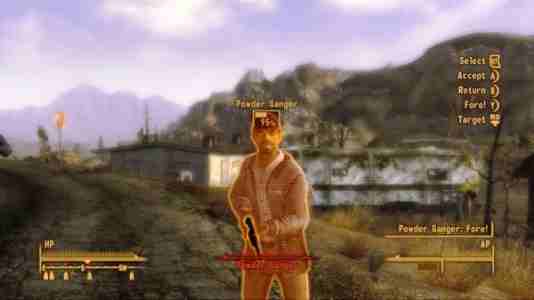
#11. Fallout New Vegas
Fallout is one of the RPG games that have the most community today. With the presence of a new Vegas map and item variants, it is hoped that this will increase the popularity of this Fallout game.
System Requirements (Minimum):
OS: Windows 7 / Vista / XP
Processor: Dual Core 2.0GHz
Memory: 2GB RAM
Graphics: NVIDIA GeForce 6 series, ATI 1300XT series
Storage: 10 GB
#12. Hitman Absolution
The next best 2GB RAM PC game recommendation is Hitman Absolution. In this game, the developer maximizes the ability of Bald, or the main character to kill his opponent. With AI enemies that are smart enough, players must deftly choose effective enemy-hunting methods.
System Requirements (Minimum):
OS: Windows Vista, 7
Processor: Dual-core CPU (Intel, AMD)
Memory: 2 GB RAM
Graphics: NV8600 512 Mb
DirectX: Version 10
Storage: 24GB
#13. Max Payne 3
In this third series, the Max Payne game still presents the same taste with better visual graphics. The design of the main characters is diverse, the controls are easy to master, the unique features remain and the bullet time looks more epic.
Life is Strange is an interactive story game developed by Square Enix. This game tries to be different from other stories. In this game, we can explore all the places, interact with NPCs and turn back the clock to gather all the information needed.
System Requirements (Minimum) :
OS: Windows Vista
Processor: Dual Core 2.0GHz
Memory: 2 GB RAM
Graphics: ATI / NVidia card 512 MB RAM (Not recommending Intel HD Graphics cards)
DirectX: Version 9.0
Storage: 5 GB
#15. Devil May Cry
The next list of 2GB ram pc games is Devil May Cry. With a new story setting and world atmosphere, now DMC has 2 battle modes, namely Angel mode and Devil mode. By enriching the combination of existing attacks and the Upgrade and Item system which are now separated. Of course, after that, all of these games are still loyal to maintain their essence with a more humanized character, of course.
15 Ways To Speed Up Windows 10 Laptop PC – Windows 10 is one of Microsoft‘s most widely installed products after Windows XP, besides having a cool appearance and spoiling its users.
15 Ways To Speed Up Windows 10 Laptop PC
How To Speed Up Windows 10 Laptop PC (Effective15 Ways) 2024
It turns out that behind the super elegant appearance, it turns out Windows 10 is one of the most wasteful windows in consuming memory on your computer. This makes Windows 10 very frustrating for users who have low PC specifications.
Lots of factors that will affect Windows 10 are slow. starting from hardware compatibility, bugs, malware, or viruses that can damage the hardware. In my opinion, in the security issues that are found in some versions of Windows itself.
Windows 10 is the latest release that has a more sophisticated antivirus that can ward off viruses or malware.
Here’ How To speed up Windows 10
Of course, in this day and age, all hardware that is ‘old-fashioned’ will always be replaced with more high-performance ones, and of course, you are required to upgrade your PC, for example, such as games that are always doing updates so that it forces you to replace your PC’s hardware.
However, if you have low computer specifications, you can also use this method to speed up the slow performance of Windows 10 so that the performance of Windows 10 feels light.
Below we will provide Best15 Ways to Speed Up the Performance of Windows 10, which has proven to be effective!
#1. Turn off Startup Applications
Lots of programs or applications that are installed on your computer do automatically open and run behind the scenes (background). These typical application makers deliberately install this so that you easily open the application.
However, if you do not use the application every day, you are advised to turn off the application so that it does not automatically open which can indeed slow down your PC’s performance.
In Windows 10, you can turn off applications running at Startup by using Task Manager:
Right-click on the Taskbar.
Select Task Manager.
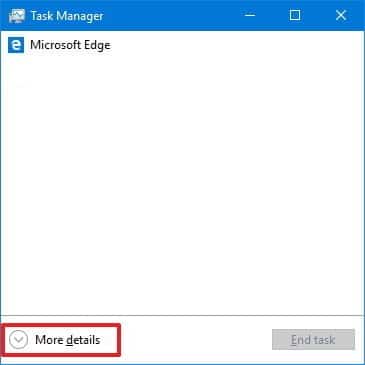
If you have never opened the task manager in detail, then click More details.
More details
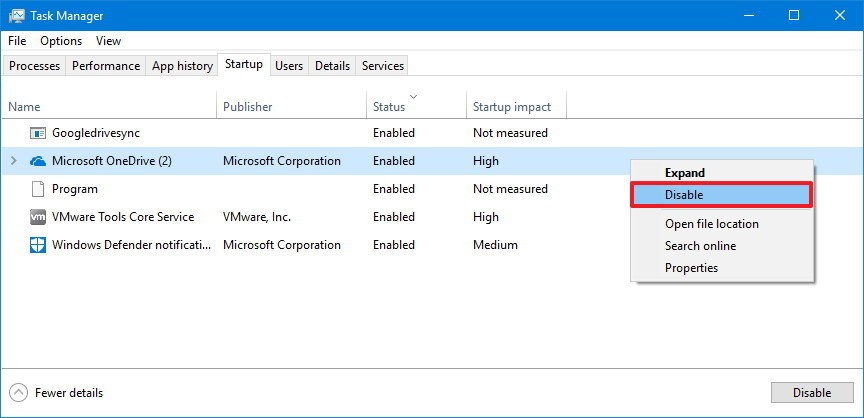
Click on the Startup tab.
Click on the application that you want to turn off.
Then right-click on the application and then click Disable. (I suggest disabling all applications found at startup).
Disable
Repeat step 6 to turn off other applications.
Restart your computer.
If you have completed the first step, then your computer will feel light so that it has the effect of speeding up Windows 10 booting.
#2. Remove useless applications
In general, if you buy a new PC / laptop, the person selling it will automatically give the application installed where you don’t need it. So that these useless applications will create space and resources on your computer.
You have to uninstall applications that are not useful to improve the performance of the Windows 10 system
Open Settings (type in search).
Click on Apps.
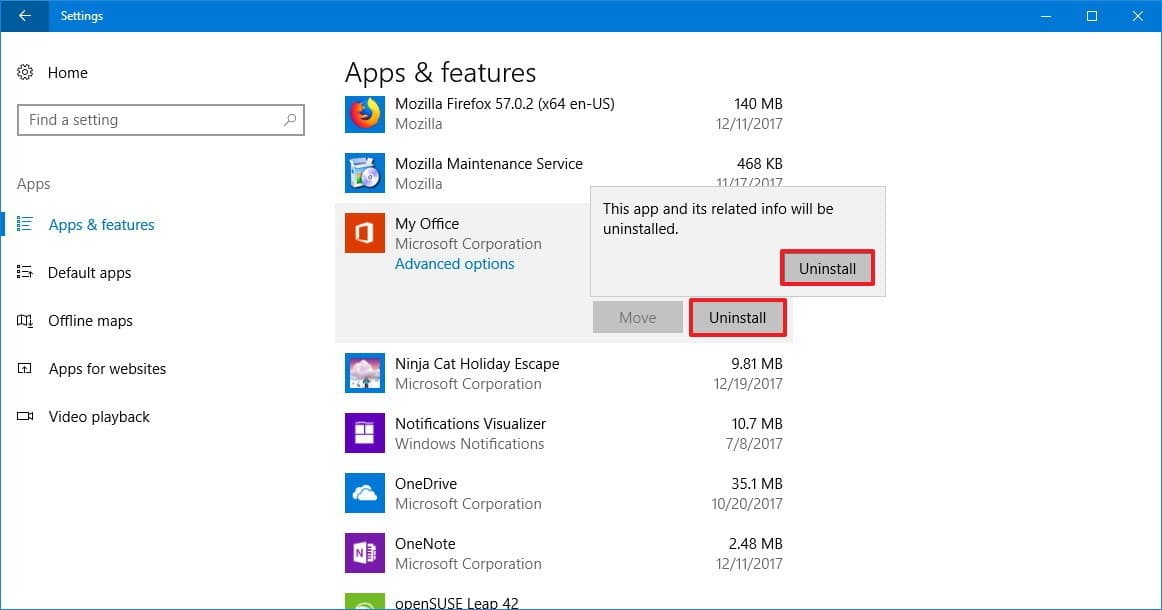
On the left, click Apps & features.
Select the application that you want to delete.
Press the Uninstall button.
If you delete the Microsoft Store application, a message will appear that asks you to confirm.
Remove useless applications
Perform steps 4,5,6 to uninstall other applications.
#3. Choose Application Wisely
The poor design creates a burden when opening the application. So that it hurts performance. However, I think that all professional developers will make their applications as light as possible.
#4. Clean the Disk
One way to improve the performance of Windows 10 is by cleaning the disk. This does not mean that you unplug your hard drive (HDD) or Solid-State Drive (SSD) and then clean it from ash.
The purpose of cleaning the disk is to clean it by using the features found in Windows. It has no effect if you use an SSD or HDD, cleaning the disk is an obligation to be able to recover useless space.
To get full storage, you can delete junk files using the Disk Cleanup tool found on your computer:
First, open File Explorer. (Or with the Windows + E shortcut)
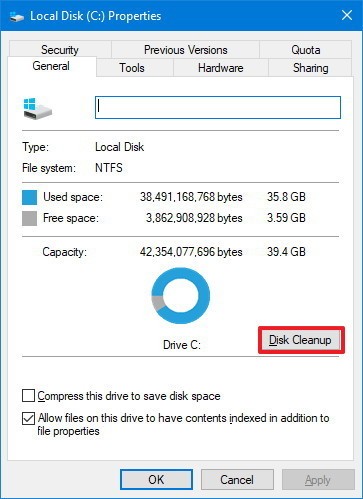
On ” This PC “, right-click on the primary system (main disk, usually Local Disk C) then select Properties.
Click the Disk Cleanup button.
Disk Cleanup
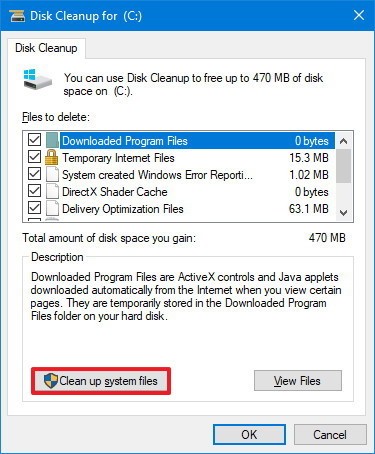
Select all options below if you want to delete them all.
Press the Clean up system files button.
Clean up system files
Select some files below to delete them so that your disk can not be too heavy, including:
Windows Update Cleanup.
Windows upgrade log files.
Downloaded Program Files.
Temporary Internet Files.
The system created Windows Error Reporting.
Delivery Optimization Files.
Recycle Bin.
Temporary files.
Temporary Windows Installation Files.
Previous Windows installation (s).
If you have previously uninstalled Windows, the option Previous Windows Installation does not exist.
Press the OK button.
Then click Delete Files, then the process of removing useless files will run.
If you have finished the steps above, then your computer will automatically get additional hard disk space. And automatically you successfully take steps to speed up Windows 10.
#5. Drive Upgrade
One of the many ways to speed up Windows 10 is to upgrade the drive if you have an old computer. In this day and age, drives that are often used to accelerate the performance of Windows 10 are using Solid-State Drive commonly referred to as SSDs.
SSD itself has a technology that has very high data access speeds. This SSD device is usually equipped with an internal battery and a backup data storage system. The price of an SSD is indeed much higher than the price of a hard disk in general. (2 times).
#6. Perform malware checking
Sometimes, the cause of your device’s slowness is not only Windows 10 or its application. Maybe there might be malware/viruses that enter your device.
Some applications that can be dangerous such as viruses, spyware, adware, or others that can eat processor, memory, and disk resources, making your device useless.
The most effective way to deal with viruses or other malware is to do an antimalware or antivirus update that you use.
In Windows 10, you can use Windows Defender to scan and delete malware contained on your device:
Open Start.
Type Windows Defender Security Center, to open the default application from Windows.
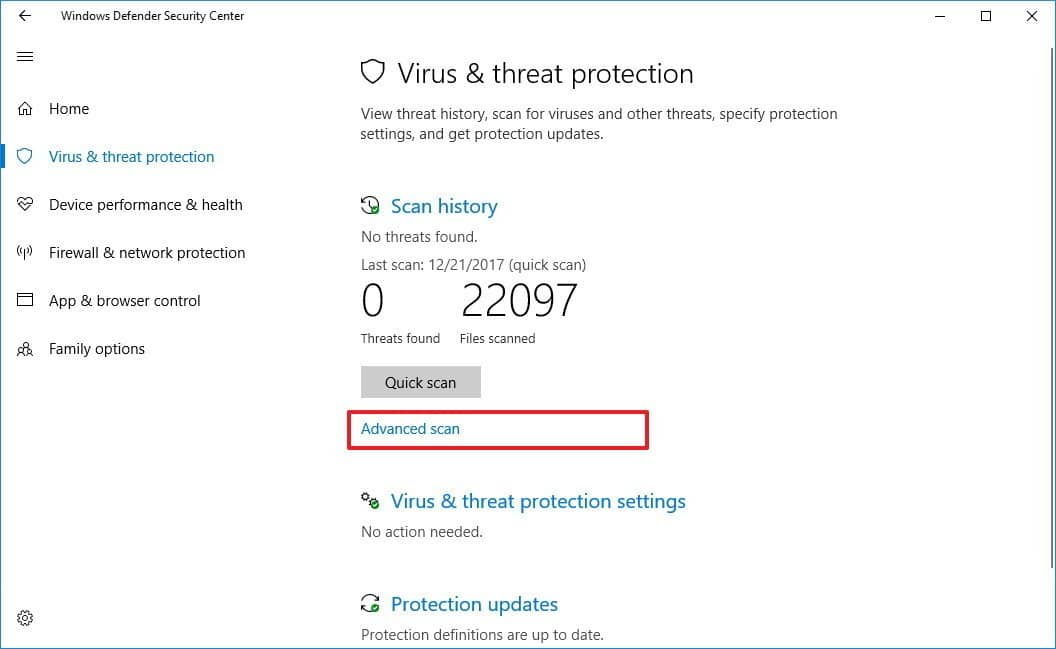
Click on Virus & Threat Protection.
Under Quick Scan or Scan Now, click Advanced Scan or Run a new Advanced Scan.
Perform malware checking
Select a Full Scan to do a full scan.
And press the Scan Now button.
Your computer will automatically scan all data contained on your computer. You can also use other antivirus applications such as Smadav, NOD32, Norton, or others.
#7. Install the latest updates
Take care of the system and drivers so that they are always updated to improve the performance of Windows 10.
Open Settings.
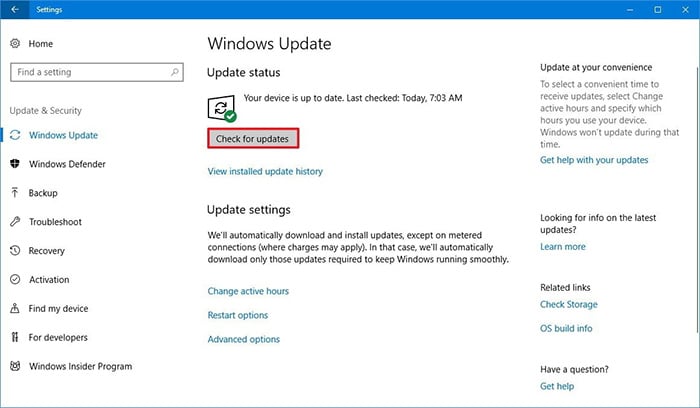
Click on Update & Security.
Click the Check for updates button.
Do the installation of your windows not been updated?
Install the latest updates
#8. Change Power Plan Configuration
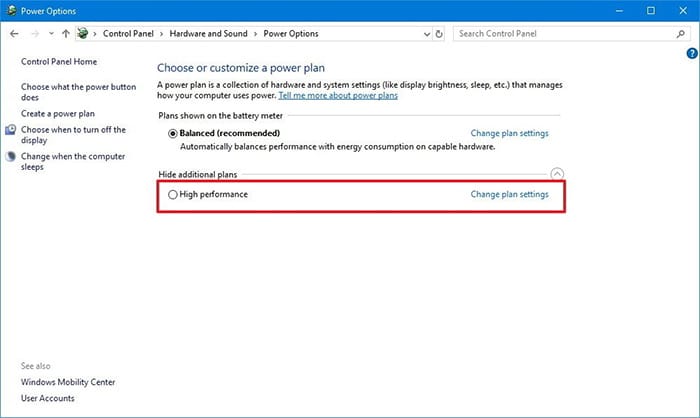
Windows 10 provides features that can be configured to improve the performance of a computer, including a Balanced, power saver, and High performance that can optimize power consumption on your device. If you want to add performance to your PC, then you must choose High performance.
To change the power plan on your device, do the following:
Open the Control Panel (or search and type Control Panel).
Click on Hardware and Sound.
Click on Power Options.
Select High Performance.
Change Power Plan Configuration
#9. Turn off Visual System Effects
Windows 10 has a lot of new visual systems that are not shared by many other windows. This does indeed enhance the use or appearance, but make no mistake, it can slow down the performance of your Windows 10.
Although many of these effects can help improve user experience, they also require greater system resources. If you turn off the system’s visual effects, then you can make Windows 10 feel faster.
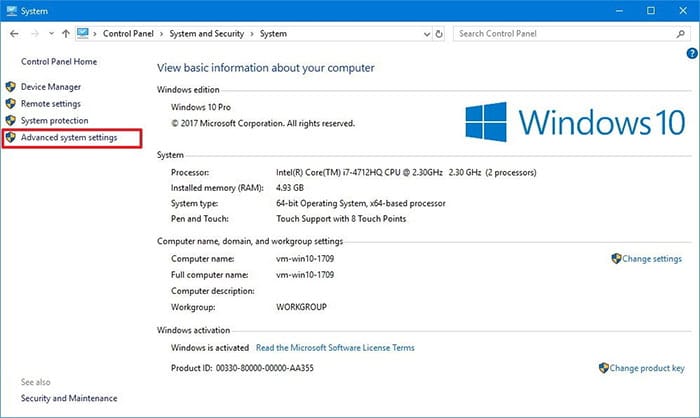
To turn off animations, shadows, subtle fonts, or other effects, do the following:
Open the Control Panel.
Click on System and Security.
Click on System.
Click on Advanced System Settings on the left panel.
Advanced System Settings
On the ” Advanced ” tab, click the Settings button.
Under Performance Options, click Visual Effects, and select Adjust for best performance options to disable all the effects and animations.
If you want to lighten Windows 10 but do not affect fonts on the Desktop then you delete all checklists except Smooth edges of screen fonts.
Click OK and Apply.
#10. Turn off the Acrylic Material and Reveal Highlights
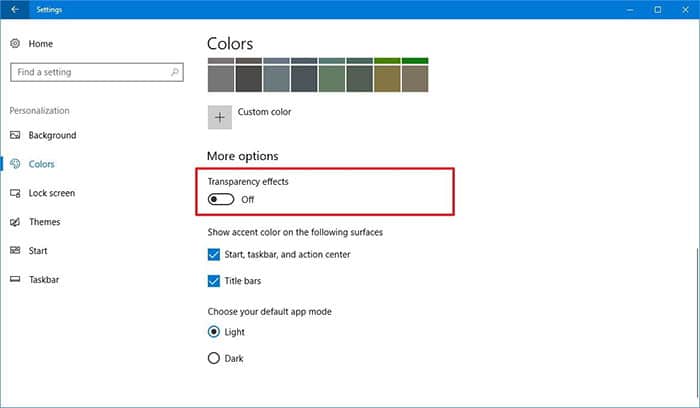
To turn off some elements contained in the Fluent Design System in Windows 10, do the following steps:
Open Settings.
Click on Personalization.
Click on Colors.
Turn off Transparency effects.
Turn off Acrylic Material and Reveal Highlights
If you have done the above steps, Windows 10 on your device will not experience faster, but your computer will add some system resources to be allocated for more important tasks.
#11. Turn off Search Indexing
Although the search is one of the most important features in Windows 10, this index section temporarily takes up a lot of system resources which can affect performance on low or low-end devices.
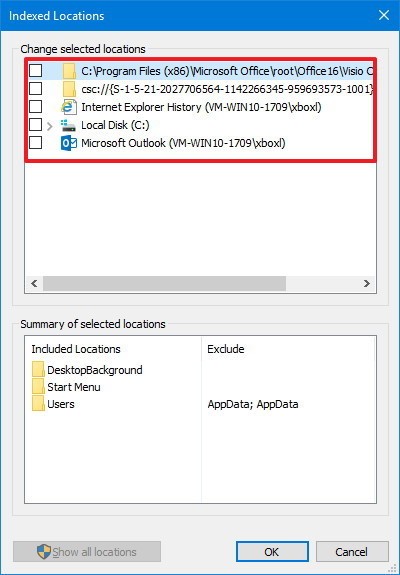
If you are not a person who likes searching, you can turn off indexing on Windows 10:
Open Start.
Type and search for Indexing Options and click the top result.
Press the Modify button on the left.
Click on Show all locations that are below the left.
Delete the selected checklist.
Turn off Search Indexing
Click OK.
The instructions above will not completely turn off indexing. Instead, it will prevent Windows 10 from indexing the content that follows. This can speed up your Windows 10.
#12. RAM Memory Upgrade
Perhaps this is one of the most effective and widely known methods by many people. RAM certainly can speed up your Windows 10, especially for those of you who like to browse and open a lot of tabs contained in the browser.
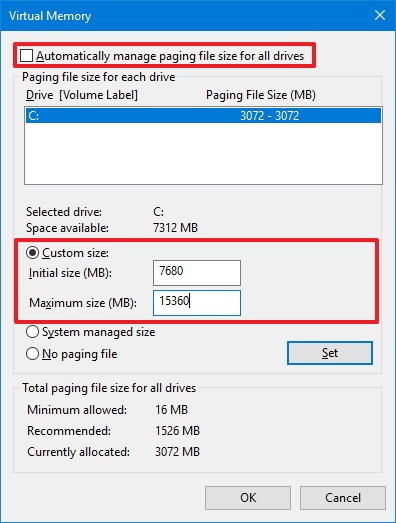
#13. Increase Paging File Size
The paging file is a hidden file on your hard drive. Windows 10 uses it as memory. This creates performance accordingly because the memory is needed for applications that are running on your computer.
How do I increase the paging file size? let’s check below:
Click Control Panel.
Click on System and Security.
Click on System.
Click on the Advanced system settings in the left pane.
On the ” Advanced ” tab under ” Performance ” click the ” Settings ” button.
Click on the Advanced tab.
Under the Virtual Memory tab, click the Change button.
Uncheck the Automatically managed paging file size for all drives.
Select Custom Size.
Enter the core size and maximum for the paging file in megabytes.
Increase Paging File Size
Tip: Usually it is recommended to use 1.5x greater than the total memory available at the Initial Size and 3x of the available memory at the Maximum Size.
Click the Set button.
Click OK.
Click Ok again.
Restart your computer.
After completing the steps above, your computer will restart, and you will then see an increase in performance when running the application (even more if you increase the size of the paging file in Solid-State Drive).
If you experience problems, you can add a checklist to the Automatically manage paging file size for all drives to change to default.
#14. Returns the previous Job
Sometimes when updating drivers, or applications that you just installed can be the reason why your computer is running slowly. In this case, you can quickly reverse the changes to improve performance.
Open Start.
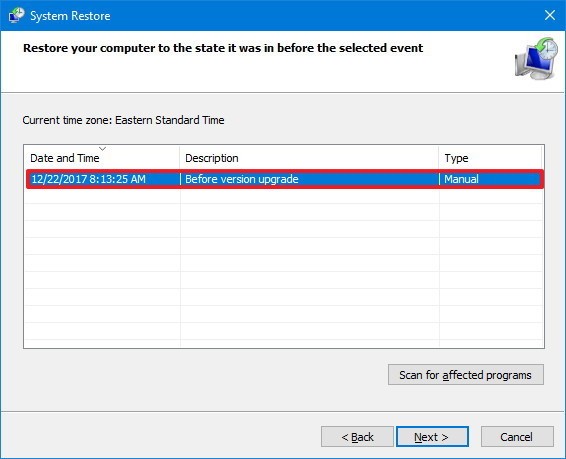
Locate and type Create a restore point.
Click the System Restore button.
Click Next.
Select the most recent restore point to resolve the problem that occurred during the update.
Returns the previous Job
Click the Scan for Affected Programs button to see the applications that will be deleted or not installed before making a restore point.
Click Close.
Click Next.
Click Finish.
When you have completed all the steps above, then your windows will return to normal when you make the restore point.
#15. Perform Repair System
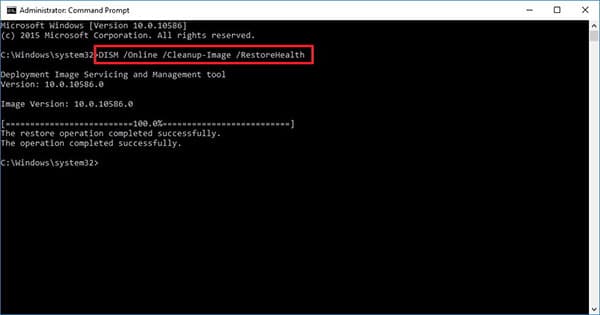
If you experience a corrupt Windows 10 or error caused by several kinds such as a virus attack or force close or suddenly the computer dies. You can use the DISM tool to solve problems that occur without reinstalling Windows 10.
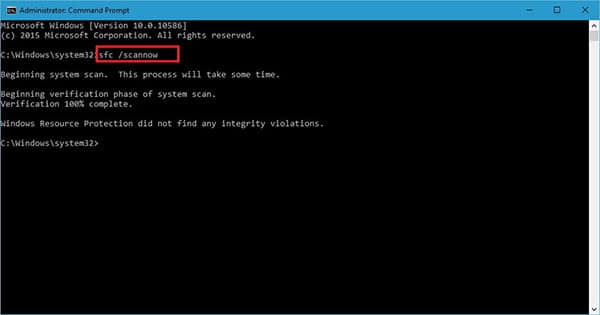
Windows 10 has a tool called SFC that can download and replace corrupt or corrupt files using Windows Update.
Using DISM
To use DISM to improve the performance of Windows 10, do the following:
Click Start.
Search and type CMD, in the search, right-click on the CMD, then select Run as Administrator.
When DISM / Online / Cleanup-image / Restorehealth at the command prompt.
Then press the Enter key.
Using DISM
Using SFC
Click Start.
Search and type CMD, in the search, right-click on the CMD, then select Run as Administrator.
When SFC / scannow at the command prompt.
Then press the Enter key.
SFC / scannow
#16. Reset your device
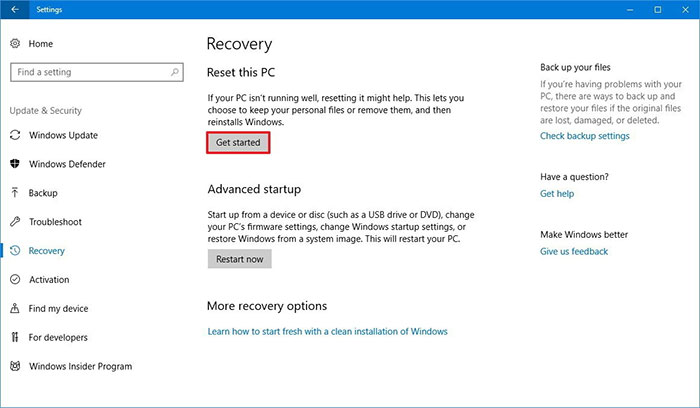
As an alternative, if some of the above methods do not appear to improve performance, you can reset your device.
Warning!: Before doing so, you are advised to back up your PC to an external hard drive.
Open Settings.
Click on Update & Security.
Click on Recovery.
On the ” Reset this PC ” tab, click the Get Started button.
Get Started
Click on the Keep My Files button. You can also delete installed applications.
Review the application you want to delete then click the Next button.
So, friends, This is the explanation of 15 ways to speed up a Windows 10 laptop PC, After you perform the steps above, Windows 10 will reinstall to remove the settings, configurations, and previous applications so that you can speed up your Windows 10.
How to use hashtags for social media optimization – Have you used hashtags on your social media account? Hashtags can help to increase the range of posting on social media but also can make your social media account image worse.
How to Use Hashtags for Social Media Optimization
How To Use Hashtags Effectively In Social Media Marketing 2024
When you use hashtags correctly it will increase the range of a post, increase the number of shares, and likes, increase followers, and increase traffic towebsite visitors.
But if you use it with the wrong way of thinking can make you look like spam and will reduce the credibility of your brand.
As a guide to using the right hashtags and to increase your knowledge about posting strategies on social media, you can follow which rules to do and which ones not to do, which we will discuss shortly.
#1. The Brief History of Hashtags
In 2007 Chris Messina introduced the hashtag to Twitter, and two years later in 2009 Twitter officially launched the hashtag as a new feature.
Google began using the hashtag on its social networks in 2012. Then Facebook 2013 introduced the use of hashtags.
Until now there have been many social media sites using hashtags, and various hashtags have also been created by users in their posts.
#2. How to choose a potential hashtag
Using hashtags can certainly be as we like, but to get more benefits from the use of hashtags, of course, we can choose the right hashtag and the potential to attract other people’s interests. Here are some ways to choose hashtags.
What’s the trend? Discover what hashtags have been most often used by social media users for the past 30 days.
Take advantage of the hashtags.org website. You can also use various tools including sites that provide a hashtag summary that is currently in trend.
Twitonomy. You can use personal hashtags that are similar to the content you have.
#3. How to make a perfect hashtag
How to make a perfect hashtag
Hashtags can bring many benefits if we can use them in the right way, make sure the hashtags you use are memorable or easy to remember by others, other than that hashtags can also be unique, but as much as possible remain relevant to the content you want to convey.
Then what is no less important is that the hashtag must still be made simple but specific.
#4. Number of hashtags in a post
Number of hashtags in a post
Using hashtags must be proportional, and don’t disturb the post itself. Then how many hashtags should be used? Check out the following review.
Engagement on Twitter will decrease by 17% if you use 3 hashtags, but engagement will increase by 21% if you only use 1-2 hashtags. So to be on Twitter you should not use too many hashtags.
Photos uploaded to Instagram using 11 hashtags or more will get more interaction, but remember not to spam the hashtag.
Posts on Facebook should only use 1-2 hashtags. Try to use one popular hashtag and another homemade hashtag related to your brand or fill in your post.
Facebook = #custom + #popular
Use 1 or 2 hashtags on Pinterest. Pinterest is usually used to search for content with certain categories, so use your unique hashtags to help Pinterest users find your content.
Other social media
Other social media is not much different from what we have discussed above, use only a maximum of four hashtags for maximum results.
#5. Don’t do this when using a hashtag
To get better results from using this hashtag, you should not do the following.
Don’t use spaces or word separator characters.
Don’t use the @ symbol on the hashtag.
Don’t use hashtags if your account is in a private setting.
Don’t make the hashtag too long.
Don’t use too many hashtags at once.
Don’t spam hashtags.
#6. The best way how to use hashtags
We recommend that you follow the usage rules recommended below if you want to be more successful in using hashtags on social media.
Use the social media you want to achieve
Use hashtags consistently to do branding
Make a promotion based on the hashtag used
Create a memorable but short hashtag
Use uppercase letters in the first letter of each word
So, friends, That’s above how to use hashtags for social media optimization, you can use various ways on your social media, like Facebook, Twitter, Instagram, medium, and YouTube.