Category: Windows

Windows – Here you can find Computer-related updates Windows 10, Windows 8, Windows 7, Linux, technology information, and more.

  • Best Tips for Taking Care of Your MacBook Battery

    Best Tips for Taking Care of Your MacBook Battery

    Best Tips for Taking Care of Your MacBook Battery – Macs are used and valued by many people around the world. Macs are great for entertainment, arts, and for productive work, so there is no surprise why so many digital artists choose Macs to create and edit their creations.

    Best Tips for Taking Care of Your MacBook BatteryHow To Taking Care of Your MacBook Battery

    But as efficient as a new Mac would be, you need to know the specifics of this computer to keep it running smoothly and fast for a long period. In other words – you need to take care of your Mac properly if you want it to be fully efficient.

    Read more:

    One of the most important factors that you should always be taking care of is Mac’s battery. Therefore here, in this article, we are going to share some effective tips that will help you take care of Mac’s battery and extend its lifetime. 

    1. the First Step – Checking Your Battery Health

    First Step - Checking Your Battery Health
    First Step – Checking Your Battery Health

    Before you do anything, you should check the current state of your Mac’s battery health. You should also form a habit and do it occasionally – so that you know in what state the battery is and if it needs any maintenance work done.

    So to check your battery health, click on the Apple icon in the upper left corner and click the Option key at the same time.

    Hold it like this until you see a functions list that is updated. The next step is to go to the System Information option and click on the Hardware category and the Power tab.

    Now, you will be able to see the information about Cycle count and Condition. The usual Cycle is the battery going from 100% to 0%. Even if you recharge your Mac after 50%, it is still considered as one Cycle.

    A lithium-ion battery has a limited count of Cycles, so it is important to keep track of them. When the battery is out of Cycles, its performance of it will become significantly lower. 

    2. the Second Step – Checking Your Battery Status   

    If you do not want to keep checking on the Cycle count too often, there is a simpler and faster way to quickly check the status of your Mac’s battery so that you know if you are close to replacing your battery or you do not need to worry about it for quite a while.

    To check your battery status quickly, click on the battery icon in the top right corner of your Mac’s screen. There are four different battery statuses.

    Normal means that you have plenty of cycles left and should not worry about changing your battery any time soon. 

    If you see a battery status that says Replace Soon, you should know that the battery is close to running out of its lifespan cycles and will start draining out faster soon.

    Replace Now status means that the performance of your battery has dropped to 80% of its normal level.

    And Service Battery status means that your battery has started to malfunction. Therefore you should replace it or get it checked out any time soon. 

    3. Solutions For a Failing Battery

    Solutions For a Failing Battery
    Solutions For a Failing Battery

    If your Mac’s battery starts to fail, the first thing you should do is to check if you are still in the first year of your warranty.

    If you are, then you should bring the computer to its seller as soon as possible because this is the cheapest and most effective way to deal with a failing battery.

    But if you are way past the one-year warranty, then you should still bring your Mac to the store.

    You will have to pay money for them to fix your battery, but it is still way much better than having bigger problems on your Mac as a result of a failing battery.

    You could experience important data loss and much worse scenarios because a failing battery can seriously damage various parts of your computer.

    On the other hand, if you own a very old Mac and have experienced battery failure and other technical issues with your computer, maybe the best idea would be to purchase a new Mac.

    Sure, it is a big investment but if you sum up how much money you pay to constantly fix your old computer which is not cheap, buying a new, better-performing Mac is worth it. 

    4. Tips for Extending the Lifetime of Mac’s Battery

    Tips for Extending the Lifetime of Mac’s Battery
    Tips for Extending the Lifetime of Mac’s Battery

    There are also some methods you can use to prevent your battery from wearing off for longer. For example, if you are charging your device, make sure you are using it at the moment – it will reduce the cycle count. Taking better care of application management, such as your browser, would also help quite a bit.

    Read more:

    Conclusion:

    Another thing to do is to keep the perfect operating temperature for Mac’s battery, which is from 16°C to 22°C. If you happen to work in a hot environment, then you should consider investing in a cooling pad for your Mac so that the heat doesn’t damage the battery.

    Don’t forget to bookmark and always visit every day Technadvice.com because here you can find the latest Technology information such as How-to Guide Tips and Tricks Blogging Digital Marketing Windows Android Root Social Media games, ETC. Best of luck.

  • Fix Error Unable To Start Correctly 0xc0000005 in Windows 2024

    Fix Error Unable To Start Correctly 0xc0000005 in Windows – In this article we will describe a solution to the error message The application was unable to start correctly (0xc0000005) that occurs on Windows 7, 8, and 10.

    Fix Error Unable To Start Correctly 0xc0000005 in Windows
    Fix Error Unable To Start Correctly 0xc0000005 in Windows

    6 Ways To Fix Error Unable To Start Correctly 0xc0000005 in Windows 2024

    This error message often appears when we want to run a program or application in excel format.

    Read more:

    In addition, error 0xc0000005 also often appears when trying to update Windows.

    Fix Error Unable To Start Correctly 0xc0000005 in Windows

    The error message The application was unable to start correctly 0xc0000005 can be resolved in the following ways:

    #1. Fix Registry Files

    The first way you can try is to repair the registry file, by following these steps:

    1. Press “Windows key + R” to open Windows Run.
    2. Then type “regedit” then press “Enter” or click the “Ok” button.
    3. Next will appear approval to enter the Registry Editor, just click “Yes”.
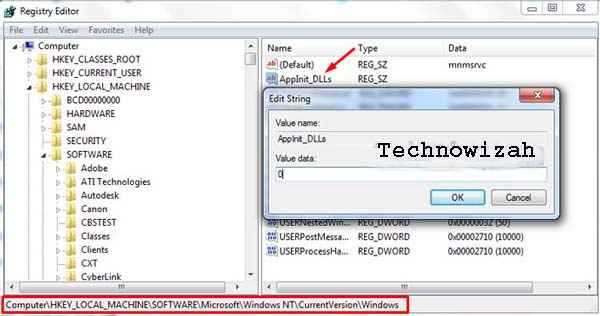
    4. Then open the “HKEY_LOCAL_MACHINE\SOFTWARE\Microsoft\Windows NT\CurrentVersion” folder.

    Fix Registry Files
    Fix Registry Files
    1. Then click 2x (double click) on the “AppInit_DLLs” file.
    2. Then change the number “value data” to “0”.
    3. Then click “Ok” to confirm.
    4. If so, please restart your PC/laptop.

    #2. Run Hardware Troubleshooter

    Hardware Troubleshooter can also be used to solve error code 0xc0000005 windows 10. The trick is as follows:

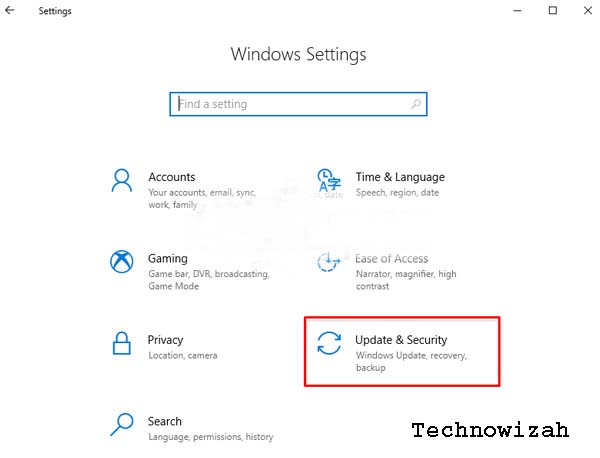
    1. Open the “Settings” menu.

    Run Hardware Troubleshooter
    Run Hardware Troubleshooter
    1. After the Settings menu opens, please click the “Update & security” menu.
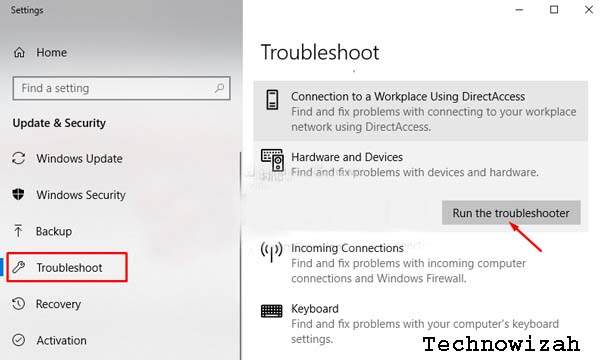
    2. Then click “Troubleshoot”.

    Run Hardware Troubleshooter
    Run Hardware Troubleshooter
    1. Then click “Hardware and Devices”.
    2. Then click “Run the troubleshooter”
    3. After the process of the detecting problem is complete, please click “Close”.

    After the Troubleshoot process is complete, the error problem unable to start correctly (0xc0000005) should no longer appear.

    If the second method doesn’t work, try the next method.

    #3. Run Scannow or SFC

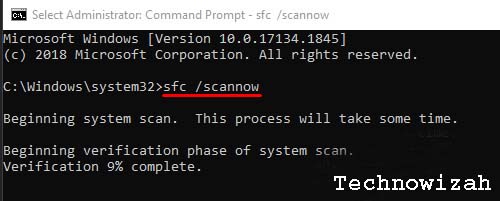
    Scannow or more often referred to as SFC is a system file inspection process that can be used to overcome file damage that causes the 0xc0000005 error message to appear.

    How to run the Scannow command is as follows:

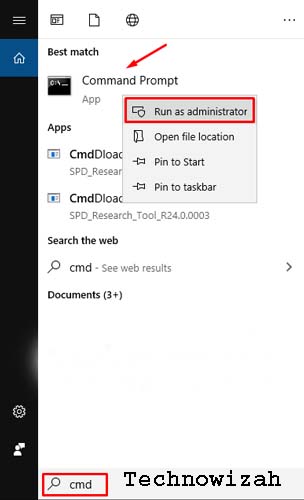
    1. Click the search menu, then type “CMD”.
    2. Then right-click on “Command prompt”, then click “Run as administrator”.

    Run Scannow or SFC
    Run Scannow or SFC
    1. Then click “Yes”.
    2. Then enter the command “sfc /scannow” then press “Enter”.

    Run Scannow or SFC
    Run Scannow or SFC
    1. Wait a few moments until the Scannow process is complete.

    If the cause of the problem comes from the system, then Scannow will notify and fix the cause of the problem automatically.

    #4. Run CHKDSK

    If your computer’s hard disk is having problems, it is usually the cause of the 0xc0000005 error message.

    To make sure whether the hard drive used is still in good condition, you should check it.

    This check can be done by running CHKDSK through the Command prompt.

    It’s like this:

    1. Press the “Windows key + R”.
    2. Then type “CMD” then press the “Enter” key.
    3. Once CMD is open, enter the command “chkdsk /fh:” and then press “Enter”.
    4. You can change the letter to the name of the Drive letter that is having problems.
    5. Wait a few moments until the process is complete.

    #5. Repair the Disk drive

    If some of the methods above still can’t fix the error 0xc0000005, try repairing the disk drive that your PC/laptop is using.

    It is possible that the system used already has the latest driver updates that must be updated.

    Because updating drivers can fix bugs and some other errors in older versions of drivers.

    Usually, after the driver is updated it will fix some errors on the Windows operating system that previously often appeared.

    You can follow the tutorial below to fix the problematic Disk drive.

    1. Make sure your PC/laptop is connected to the internet.
    2. Click “Windows Explorer”.
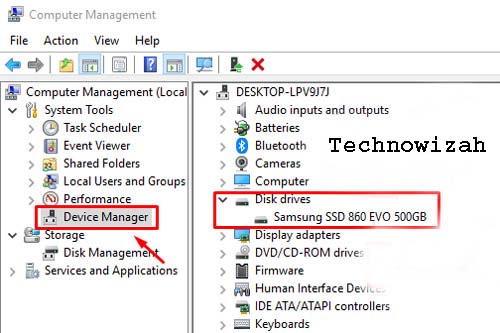
    3. Then right-click on “This PC”, then click “Manage”.
    4. Then click “Device Manager”.
    5. Then click “Disk drives”.

    Repair Disk drive
    Repair Disk drive
    1. Then right-click on the driver where the Windows operating system is installed and select “Update driver”.
    2. After that, click the “Search automatically for updated driver software” option.
    3. Wait a while until Windows manages to find the required driver.

    If the automatic method doesn’t work, you can choose the manual method, click the “Browse my computer for software drivers” option.

    Make sure you have the latest version of the driver file that fits on your computer’s storage.

    #6. Disable Data Execution Prevention

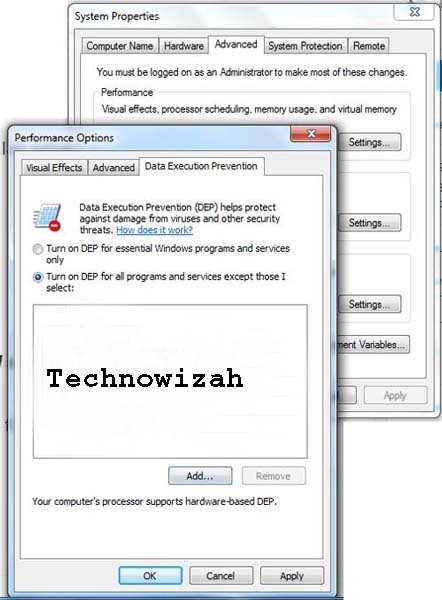
    DEP or Data Execution Prevention is a feature in charge of protecting the system from virus attacks and various other security threats that cause damage.

    While this feature is well-intentioned, not all Windows programs are compatible with the DEP feature which is sometimes the cause of the 0xc0000005 error message.

    Therefore, Data Execution Prevention needs to be disabled so that error 0xc0000005 does not appear again.

    1. Make sure you are logged into Windows as an administrator.
    2. Open Windows Run (press Windows key + letter R ).
    3. Then type “sysdm.cpl” then press “Enter” to open System Properties.
    4. Then click the “Advanced” tab, then click “Settings”.
    5. Then click the “Data Execution Protection” tab.
    6. Then select the “Turn on DEP for all programs and services except those I select” option.
    7. Then click “Add”.

    Disable Data Execution Prevention
    Disable Data Execution Prevention
    1. Then enter the .exe file that is causing the error.
    2. If so, please click OK.
    3. Then restart your PC/laptop.

    Read more:

    Conclusion:

    Those are 6 ways that you can use to resolve the error message The application was unable to start correctly (0xc0000005) on Windows 7, 8, or Windows 10 so that it does not appear again.

    Don’t forget to bookmark and always visit Technowizah.com every day because you can find here the latest Tech Computer Android games How-to Guide Tips&Tricks Software Review etc, Which we update every day.

  • 10 Linux Distros For Beginners And Stable To Use 2024

    10 Linux Distros For Beginners And Stable To Use 2024

    10 Linux Distros For Beginners And Stable To Use – Are you looking for a Linux distro that is suitable for beginners? Find out all through the list of Linux distros for beginners below.

    10 Linux Distros For Beginners And Stable To Use
    10 Linux Distros For Beginners And Stable To Use

    10 Linux Distros For Beginners And Stable To Use 2024

    When all must know that some Linux distributions come with a lot of complexity for their users. But over time, the Open source community has made great efforts to bring Linux closer to ordinary Windows and mac users by making it more user-friendly and easy to use. In this article, we will provide a list of Linux distros for beginners.

    Read more:

    #1. Ubuntu

    Ubuntu
    Ubuntu

    Ubuntu is a well-known Linux distro. It is ideal for users who want to dabble in Linux on a daily basis while learning the basics. Technically, Ubuntu comes from Debian and comes with a Long Team Support (LTS) release.

    You can install a stable version of the OS on your desktop without causing unnecessary problems. It ships with the GNOME desktop environment by default and has out-of-the-box applications like Firefox, LibreOffice, music players, and video players like Rhythmbox and Audacious pre-installed for use.

    Download: Ubuntu

    #2. Linux Mint

    Linux Mint
    Linux Mint

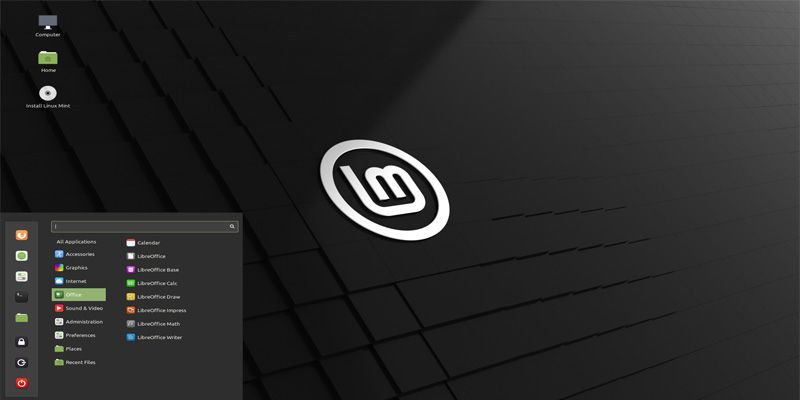
    Are you looking for a lightweight Linux distro? If so, then try using Linux Mint. It can provide a person-friendly experience for beginners and is light to use. Linux Mint doesn’t come with the GNOME desktop. Instead, it comes with its own native environments, such as Xfce, Cinnamon, and MATE.

    It is only available 64-bit, as Linux Mint has discontinued its support for the 32-bit version. After installation, you can enjoy a new look and feel enriched with polished icons, new themes, revamped taskbar, and high-resolution background images.

    Download: Linux Mint

    #3. Elementary OS

    Elementary OS
    Elementary OS

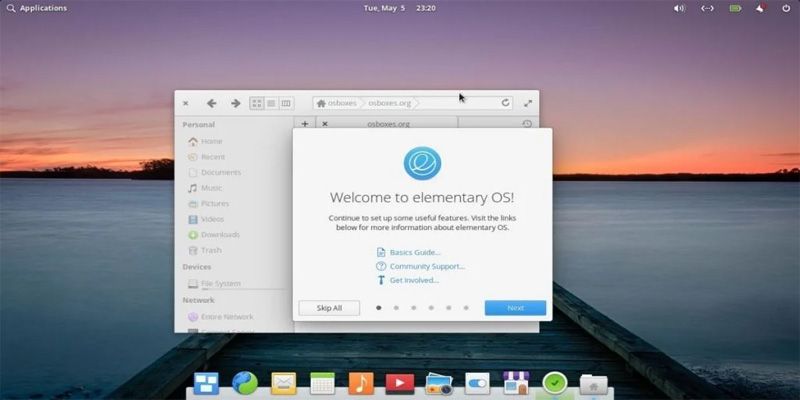
    If you are a big fan of Windows, then you will probably love Elementary OS. This distro replicates the look and feels of Windows, proving to be an ideal platform for designers and creative people. Its modern, sleek and intuitive desktop design makes the Elementary OS distro easy to use for beginners.

    The initial installation and layout are fairly light, focusing on productivity and privacy. In its latest release, Elementary OS offers a multitasking interface, Do Not Disturb mode, and Picture-in-Picture to ensure an optimal productivity experience. Like Ubuntu, it is built on top of GNOME and comes with its Pantheon desktop environment.

    Download: Elementary OS

    #4. Pop!_OS

    Pop!_OS
    Pop!_OS

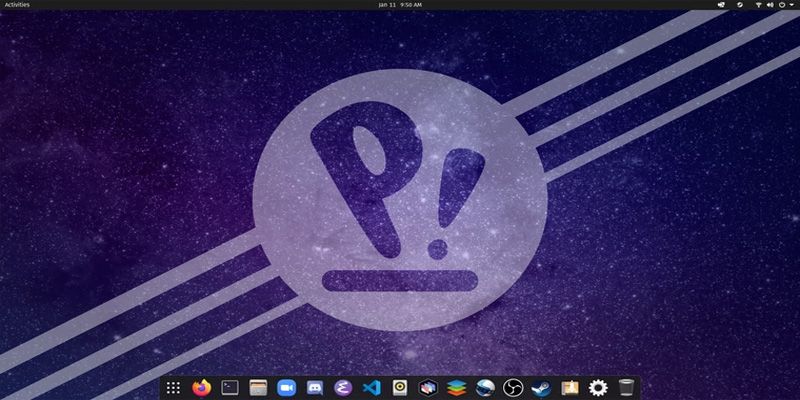
    In recent years, Pop!_OS has managed to gain tremendous traction thanks to some of its unique features like Pop Shell and a separate version of the distro which comes with NVIDIA drivers pre-installed, which makes it one of the best distros for gaming.

    Not only that, Pop!_OS has also become an Ubuntu-based distro which means it is quite stable. Pop!_OS’s default desktop is GNOME. Now, System76 decided to create its own environment called COSMIC, which is based on GNOME. Overall, it is definitely one of the best Linux distros for beginners.

    Download: Pop!_OS

    #5. Zorin OS

    Zorin OS
    Zorin OS

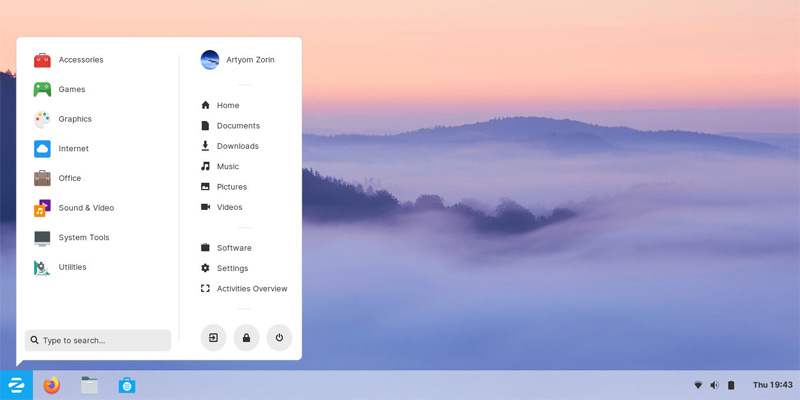
    Apart from Linux Mint, Zorin OS is another major player focused on user-friendliness. Zorin OS calls itself a replacement for Windows and macOS. With a Windows-like interface and designed to be friendly to new Linux users, Zorin OS is easily the best Linux distro for Windows users.

    Its Windows 10-styled desktop is great and makes things easier for Windows lovers. It also ships with a version of Ubuntu Software that answers most beginner software needs. Zorin is also highly recommended for older PCs or systems with low CPU and RAM specifications.

    Download: Zorin OS

    #6. MX Linux

    MX Linux
    MX Linux

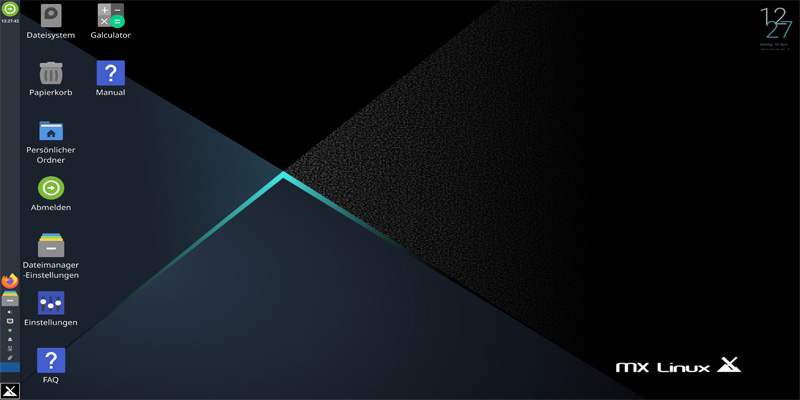
    Unlike other distros that call it lightweight or performance-focused, MX Linux labels itself as a mid-range operating system. Thanks to the easy installation process and familiar interface, new users feel at home when using MX Linux.

    With decent hardware recognition and automatic configuration for an out-of-the-box experience, this GNU/Linux-based Debian is also stable for reliable performance. The default desktop environment used by this beginner-friendly distro is Xfce.

    Download: MX Linux

    #7. Solution

    Solution
    Solution

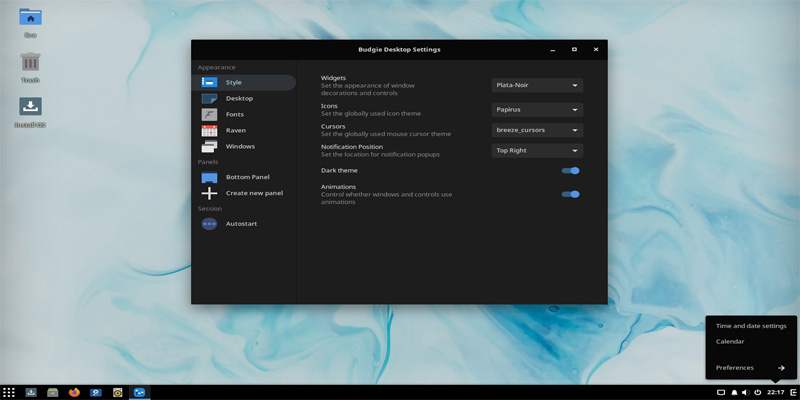
    Solus is an independent Linux distribution built from scratch. It follows the “Install today. Updates forever” model that promises to provide regular updates with a rolling release model. In addition to offering installation media with various desktop environments, the Solus team has also created its own Budgie desktop environment.

    Linux beginners will love Solus’s look and feel because it’s elegant and clean. While Solus’s selection of dedicated software is smaller compared to other distros, its apps are really refined to make the default software really useful.

    This distro is also known for its smooth and hiccup-free experience when it comes to hardware issues. Other than that, as expected, the installation was smooth, and you can get a working system up and running in no time. It also comes with pre-bundled developer tools, which makes it one of the best distros for programming. It’s also one of the best non-Ubuntu-based distros out there.

    Download: Solus

    #8. Deepin Linux

    Deepin Linux
    Deepin Linux

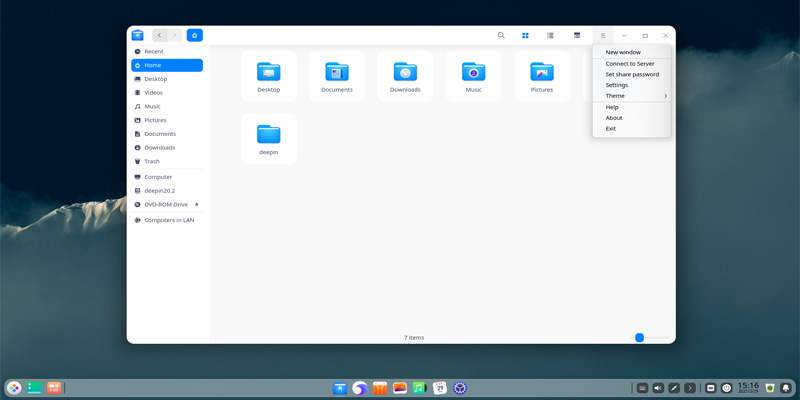
    Just like Elementary OS, Deepin Linux is another visually appealing Linux distro for beginners. Developed by the Chinese Linux community, Deeping was created to provide a functional Linux desktop experience. One thing that sets Deepin apart is its installation process, which is one of the simplest.

    Deepin Linux offers beginners a clean and simple user interface. Icons and color themes look modern and eye candy. To access system settings, you need to access the right panel which allows the user to manage all settings, users, themes, wallpapers, etc. Deepin Linux uses the Deepin Desktop Environment (DDE).

    This Linux disktro also comes with many useful pre-installed programs like Chrome, Nautilus file manager, Deepin media player, USB Creator, PDF viewer, LibreOffice, etc. Even Deepin is also suitable for experienced Linux users.

    Download: Deepin Linux

    #9. Manjaro Linux

    Manjaro Linux
    Manjaro Linux

    After Linux Mint and Elementary OS, Manjaro is the admin’s third favorite Linux distro on this list of Linux distros for beginners. Manjaro is one of the best non-Ubuntu Linux distros for users who are tired of Ubuntu-based distros.

    It is often called Arch Linux, and there are many good reasons to support this argument. However, it should be noted that the learning curve is more difficult compared to other distros.

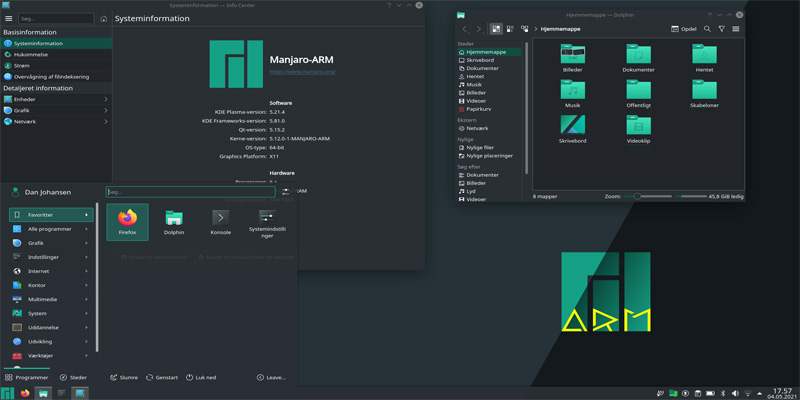
    Manjaro is based on Arch Linux and is one of the fastest-growing Linux distros. It’s an attractive Linux distro, easy to use, and looks like the perfect Windows replacement. Manjaro maintains its own package repository to make it a user-friendly Linux distro.

    It comes with its own installer for easy installation. It should be noted that Manjaro is a Rolling Linux distribution, which means it is constantly being updated.

    Another great feature of Manjaro is that a beginner will love its ability to switch between different Linux kernels without hassle. The main editions of Manjaro Linux are Xfce and KDE. There are also other community editions.

    Download: Manjaro Linux

    #10. Linux Lite

    Linux Lite
    Linux Lite

    If you want to use a Linux distro that is suitable for beginners and works well on rebdag-specific computers? Well, in that case, you should give Linux Lite a try. As the name suggests, it doesn’t demand much from you.

    Based on the Ubuntu LTS release, it is fully functional out of the box. What does it mean? This means that new Linux users don’t need to install additional software to do their daily work. This includes Firefox, GIMP, LibreOffice, Thunderbird, VLC media player, etc.

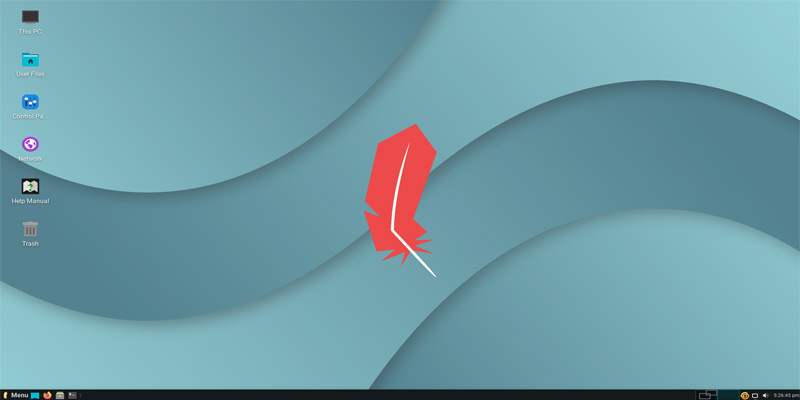
    Linux Lite has a menu similar to Windows, making it easy for Windows users planning to move to Linux. It also provides automatic upgrades for smooth operation. So, if you want to try Linux on a laptop/PC with low specs, Linux Lite is the right choice. Linux Lite runs the Xfce desktop environment by default.

    Download: Linux Lite

    Read more:

    Conclusion:

    So those are some Linux distros for beginners. Although there are still many other distributions that are suitable for beginners, the admin only includes the distributions that are considered the most popular and recommended for newcomers. If you are a beginner, I hope this guide will help you make the right decision when starting to switch to Linux.

    Don’t forget to bookmark and always visit every day Technowizah.com because you can find here the latest Tech Computer Android games How-to Guide Tips&Tricks Software Review etc, Which we update every day.

  • 6 Ways to Fix Windows Can’t Communicate With The Device Or Resource 2024

    6 Ways to Fix Windows Can’t Communicate With The Device Or Resource – If you get the “Windows can’t communicate with the device or resource” error. This is not a common thing. Let’s see the steps to fix it.

    6 Ways to Fix Windows Can't Communicate With The Device Or Resource
    6 Ways to Fix Windows Can’t Communicate With The Device Or Resource

    How to Fix Windows Can’t Communicate With The Device Or Resource 2024

    There’s nothing worse than receiving a Windows error preventing you from accessing the internet. See an error message that reads, “Windows can’t communicate with the device or resource”. This can get you into trouble.

    Read more:

    If you receive this message, there is no need to panic. Karen admin will explain exactly what this error means, and how you can solve it.

    What Is Windows Can’t Communicate With The Device Or Resource?

    Usually, you will see a “Windows can’t communicate with the device or resource” error when you can’t connect to the internet, and run Network Diagnostics.

    When you encounter this error, it means that your computer cannot connect to the internet phone book, aka Domain Name System (DNS). This system automatically translates website names into IP addresses, allowing you to browse the web easily.

    Your computer’s primary DNS server is usually provided by your internet service provider. Secondary DNS servers are also set up in case the primary server goes down. However, your computer settings can sometimes get corrupted, causing you to experience problems connecting to the internet.

    If you can’t get rid of “windows can’t communicate with the device or resource (primary DNS server)”, here are some fixes that might help.

    #1. Make sure the DNS and DHCP client is running

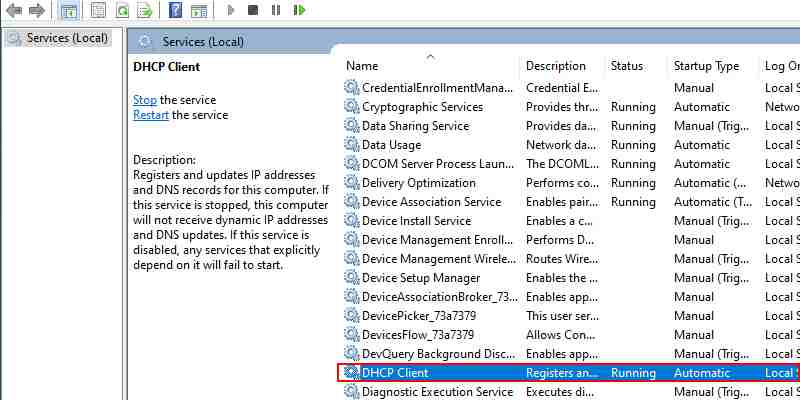
    Before you try any of these fixes, you’ll want to make sure that your DNS and DHCP clients are running. To do this, open the Start menu search bar, and type “Services.”

    Make sure the DNS and DHCP client are running
    Make sure the DNS and DHCP client are running

    Select the Services app  , and you will see a list of all the services running on your device. Check the services labeled DNS and DHCP. If “Running” is not listed under the “Status” column for any of the services, then you need to fix it.

    Make sure the DNS and DHCP client are running
    Make sure the DNS and DHCP client are running

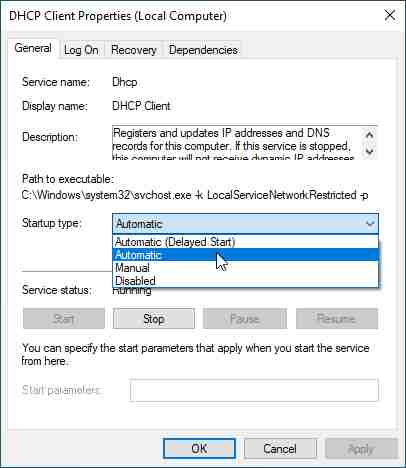
    Enable DNS and DHCP by double-clicking on each service. If the service has been stopped, just select  Start. You should also make sure that you select  Automatic from the “Startup type” dropdown menu. Once done, click   Apply > OK.

    #2. Uninstall And Reinstall the Network Device

    Outdated or faulty drivers can sometimes cause “Windows can’t communicate with the device or resource”. In this case, it is best to remove the slate and uninstall your network device.

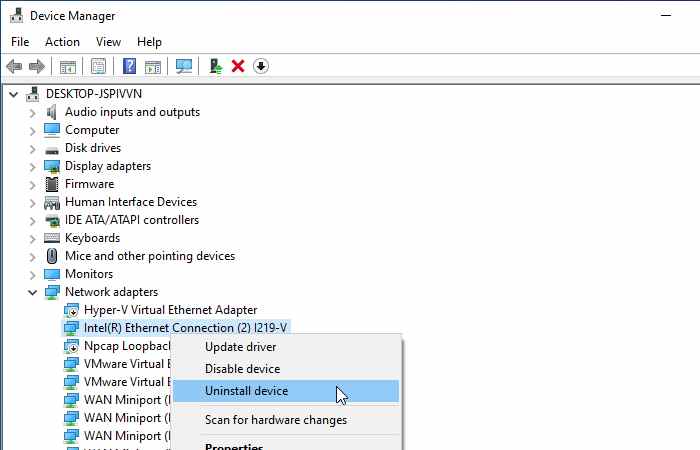
    To access your network device, press  Windows + X  to open the Quick Link menu. Select  Device Manager from the list, and click  Network adapters.

    Uninstall And Reinstall Network Device
    Uninstall And Reinstall Network Device

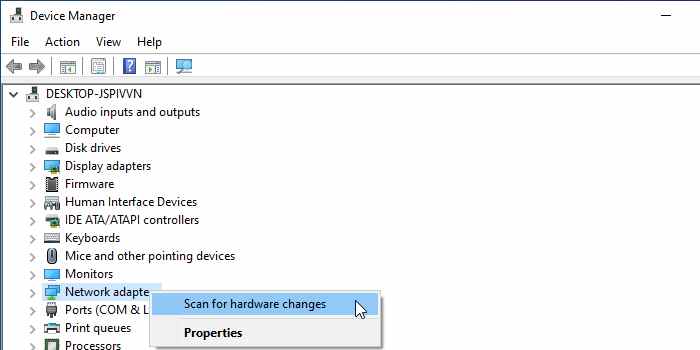
    Select your network device, and click   Uninstall device. Once done, right-click  Network adapters and then hit   Scan for hardware changes.

    Uninstall And Reinstall Network Device
    Uninstall And Reinstall Network Device

    Windows will automatically detect the “new” network device. It will then proceed to install the default drivers that came with the device. Now you can reboot your computer and check your connection.

    #3. Update Network Drivers Manual

    Although network drivers are usually updated automatically on Windows 10, it never hurts to try updating your network drivers manually. To do this, press  Windows + X > Device Manager > Network adapters.

    Update Network Drivers Manual
    Update Network Drivers Manual

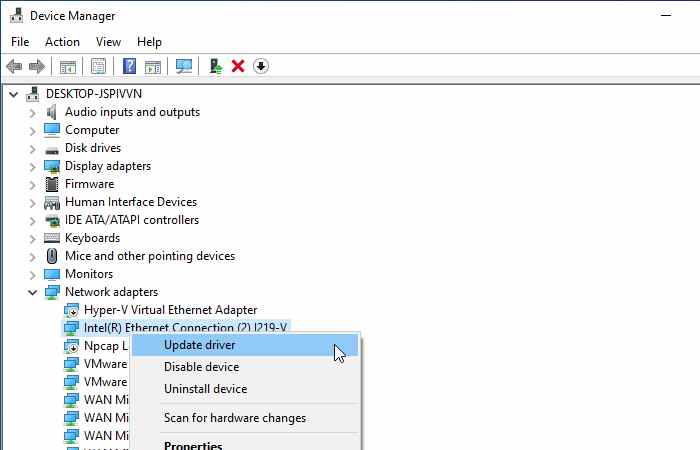
    Find your network device in the dropdown menu, right-click it, and hit  Update driver.

    Windows will now give you two ways to find new drivers. Select the option that says Search automatically for updated driver software.

    From here, Windows will look for any updates on your computer and the internet. If there is a new driver, make sure to install it.

    #4. Clear DNS Cache

    A corrupted DNS cache can also cause error messages. To fix this, you have to clear your DNS cache.

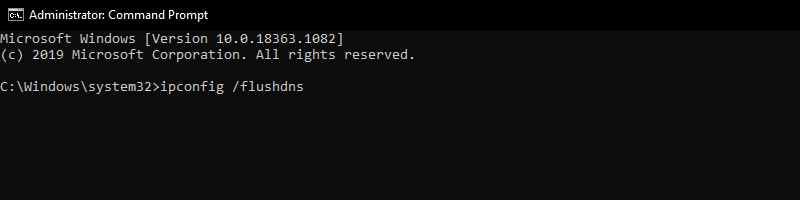
    To get started, type “Command Prompt” into your Windows 10 search bar. Right-click  Command Prompt from the search results, then select  Run as administrator.

    Clear DNS Cache
    Clear DNS Cache

    Once the program appears, type the following lines of code, one at a time:

    ipconfig /flushdns
    ipconfig /registerdns
    ipconfig /release
    ipconfig /renew

    This not only clears your DNS cache but also makes your computer reset a corrupted configuration that can cause error messages. After that, press   Enter, and you can close the Command Prompt.

    #5. Configure Adapter Settings

    If the fix above still doesn’t work, your network adapter settings might be interfering with your connection. To start configuring your settings, open the Control Panel, and select  View network status and tasks under the Network and Internet heading.

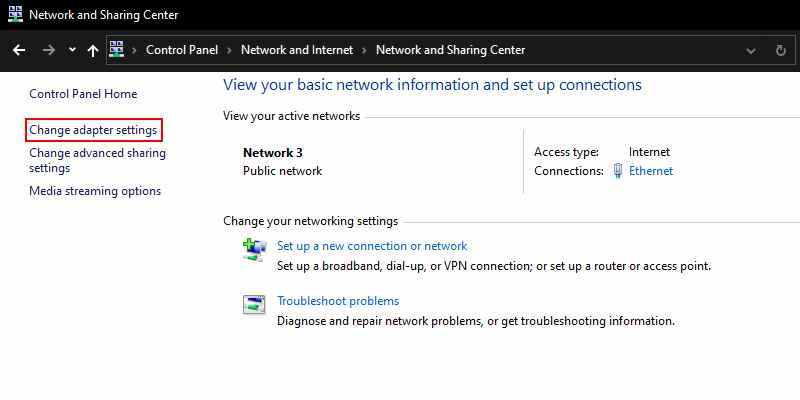
    After that, select  Change adapter settings from the menu on the left side of the screen.

    Configure Adapter Settings
    Configure Adapter Settings

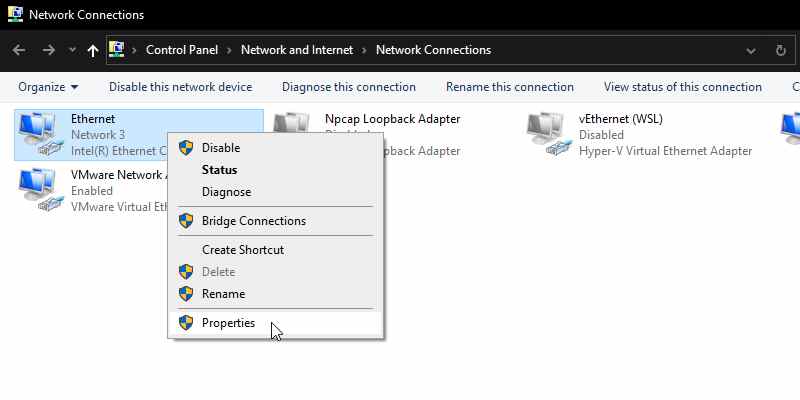
    Right-click on your connection, and select  Properties.

    Configure Adapter Settings
    Configure Adapter Settings

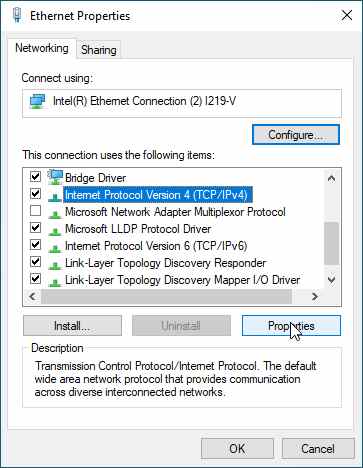
    Make sure that the box next to  Internet Protocol Version 4 (TCP/IPv4) is checked. From here, double-click on the IPv4 option.

    Configure Adapter Settings
    Configure Adapter Settings

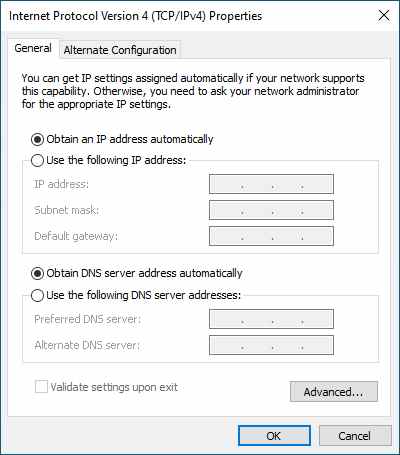
    Make sure you use Obtain an IP address automatically and  Obtain DNS Server address automatically. Once done, press   OK.

    Configure Adapter Settings
    Configure Adapter Settings

    #6. Switch to Public DNS

    If you are still unable to connect to the internet, you may be having problems with your DNS. Switching to a public DNS, such as Google’s DNS, can help resolve this issue. You may even find that switching to a different DNS can help you improve your internet speed.

    To get started, you will need to access your network settings using the same method outlined in the previous step. Just open Control Panel, navigate to  View networks status and tasks > Change adapter settings. Right-click on your connection, and select  Properties.

    Switch to Public DNS
    Switch to Public DNS

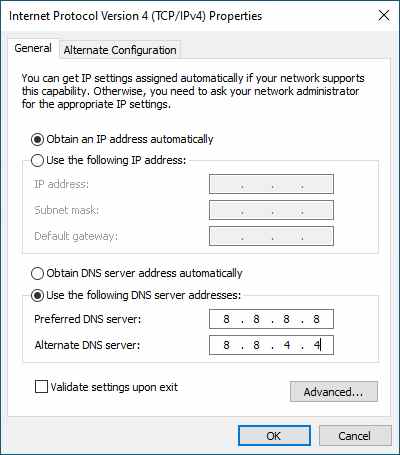
    Double-click on  Internet Protocol Version 4 (TCP/IPv4) again. This time, make sure you fill in using the following DNS server addresses.

    Now, type in the address for Google DNS. In the field below, type these numbers:

    • Preferred DNS server: 8.8.8.8
    • Alternative DNS server: 8.8.4.4

    After pressing   OK, restart your computer to see if your internet connection is back.

    Read more:

    Conclusion:

    Fixing Windows 10 errors is not always the most pleasant task. This is especially annoying when you really need to use the internet, and your computer suddenly starts to malfunction. Nonetheless, this workaround should make the troubleshooting process a lot easier.

    Having communication issues between your PC and your main DNS server is not a very difficult fix. Once you’ve finally resolved this issue, it’s important to be prepared for more troublesome issues in the future, like the infamous Windows blue screen error.

    Don’t forget to bookmark and always visit every day Technowizah.com because you can find here the latest Tech Computer Android games How-to Guide Tips&Tricks Software Review etc, Which we update every day.

  • 25 Windows Keyboard Shortcuts You Must Know 2024

    25 Windows Keyboard Shortcuts You Must Know – If you often play on the computer, then you should already understand and know the keyboard shortcut keys. A computer shortcut is a set of one or more keys that execute commands in software or operating systems.

    25 Windows Keyboard Shortcuts You Must Know
    25 Windows Keyboard Shortcuts You Must Know

    Windows Keyboard Shortcuts You Must Know 2024

    So, you can increase your productivity by executing commands with few keystrokes, otherwise, it can only be accessed via the menu, mouse, or other aspects. If you still don’t know much about various keyboard shortcuts. Here is a list of 25 Windows Keyboard Shortcuts You Should Know.

    Read more:

    #1. Ctrl + Z: Undo

    Surely you are familiar with this shortcut and you also know where to do Ctrl + Z . Because this shortcut serves to undo the last action or help you return to the last input you did. So don’t worry if you make mistakes while typing.

    #2. Ctrl + A: Select All

    This shortcut is also very important because it functions to select all text, files folders, or elements in the program depending on what you are using. And you don’t have to drag the mouse anywhere.

    #3. Ctrl + C: Copy

    This shortcut is also probably one of the most important shortcuts when you work on a Windows system. Because this shortcut will make it easier for you to copy anything.

    #4. Ctrl + V: Paste

    Paste everything you have copied. It can be text, files, images, or folders. Because this feature is very useful for bringing everything together. If you want to paste simple text, without the original formatting, just add Shift to it. i.e. Ctrl + Shift + V .

    #5. Ctrl + X: Cut

    By using the shortcut Ctrl + X . Then you will cut the text/table/image/file by deleting and then copying it. Then just use the paste shortcut to paste it.

    #6. Alt + Tab: Switch Screen / Tab

    This shortcut has been around for some time and has been improved with the advent of new Windows OS versions. By pressing Alt and then the Tab key you will switch to the next tab/screen.

    #7. Ctrl + Alt + Del: Start Task Manager

    This shortcut is suitable for use when you are running an application that starts to lag or stops responding or when running Windows OS but is silent and can’t move anything. You just press  Ctrl + Alt + Del . Then the task manager will open and can check which program/application is making your PC slow and kill it from the task manager itself.

    #8. Alt + F4: Close Application

    This shortcut has also been around for decades now. Simply press alt plus the F4 function key and you will see the applications you closed. However, be careful when using it, try to save your work before turning it off.

    #9. Ctrl + F: Find

    This Windows keyboard shortcut is very useful when you are typing something you can’t find or you are looking for certain keywords in a document or browser. By pressing Ctrl + F then you will open the quick bar and you can type keywords.

    #10. Ctrl + H: Find & Replace

    You not only want to find some keywords but also replace them. Then you can use the shortcut Ctrl + H then a box will open and you just type the word you need to find and replace. Works for most document types.

    #11. Ctrl + E: Select Search Box

    Whether you are in a file explorer or browser, by pressing Ctrl + E then you select the search/navigation bar.

    #12. Ctrl + N: Open New Window

    Typing Ctrl + N together will open a new file or window depending on whether you are working in a browser or offline. This keyboard shortcut works well with most offline apps and online browsers built for Windows.

    #13. Ctrl + Mouse Scroll Wheel

    If you are, for example, creating files and folders but they appear larger, and if you are in a browser, and want to enlarge the page. You can use this shortcut to do the job.

    #14. Win + L: Lock Screen

    If you don’t want to shut down the system? Win + L is a nice shortcut. Because it can help in locking your screen in an instant.

    #15. Win + D Show Desktop

    This is actually a quick minimize option. No matter how many tabs/windows are open, this shortcut quickly minimizes them all, shows you the desktop, and allows you to access files/applications in a few clicks.

    #16. Win + Tab (+ Shift): Toggle Task View

    Pretty much the same as Alt+Tab does but it’s a further-level Windows application navigator. When you press it, a tile of all open programs and the most used programs will appear. You can drag or jump between them by pressing the additional shift key with the Win + Tab command.

    #17. Win + M: Minimize All Windows

    This Windows keyboard shortcut is very useful if you want to minimize all windows of running applications directly.

    #18. Win + Prtscn: Save the Screenshot

    The Prtscn shortcut lets you take a screenshot, and pressing the Windows button on the side allows you to save the screenshot automatically.

    #19. Win + I: Go to Settings

    I need to open the settings tab quickly. You can try it by pressing the Win key + I and you can open the settings menu for Windows.

    #20. Win + S: Search for Windows

    You will always have files or applications that you can’t find on your PC. For that, windows introduced this shortcut. Because you can easily open it by pressing Win + S and typing the name of the file you want to find.

    #21. F2: Rename

    Depending on the hardware manufacturer, in particular, the F2 key performs various tasks like volume up/down, and toggle/turn off wifi. However, you can use it by pressing Fn + F2 you can quickly use the Rename file option when a file/folder is selected. But if you are using a regular PC keyboard you can simply press F2.

    #22. F5: Refresh

    Your PC crashes and the processor can’t keep up. Refreshing is a great old method of getting things moving. Pressing F5 can refresh windows or if you are running a browser, it can refresh too.

    #23. Win + X: Hidden Menu

    Did you know that Windows has a hidden menu? By pressing Win + X and seeing it appear. This will give you access to all important areas of the system.

    #24. Win + R: Open The Run Window

    This shortcut is also important if you want to open a folder or application without clicking on it. You just press Win + R and type the folder you want to go to.

    #25. Win + E: Open Microsoft Explorer

    If you are too lazy to open the directory. You just press Win + E  then the explorer directory will appear instantly.

    Conclusion:

    Keyboard shortcuts can significantly boost your productivity on a Windows computer. Knowing the most commonly used shortcuts can save you time and help you navigate your system more efficiently.

    Don’t forget to bookmark and always visit Technowizah.com every day because you can find here the latest Tech Computer Android games How-to Guide Tips&Tricks Software Review etc, Which we update every day.