Category: Windows

Windows – Here you can find Computer-related updates Windows 10, Windows 8, Windows 7, Linux, technology information, and more.

  • 3 Ways to Enable Dark Mode on Mac PC Laptop 2024

    3 Ways to Enable Dark Mode on Mac PC Laptop 2024

    3 Ways to Enable Dark Mode on Mac PC Laptop – Your Apple Mac or MacBook has a dark mode that can help you work better at night and in low light conditions.
    3 Ways to Enable Dark Mode on Mac
    3 Ways to Enable Dark Mode on Mac

    How to Enable Dark Mode on Mac PC Laptop 2024

    Once enabled, supported apps and websites automatically switch to dark mode with white text. In the following, we will discuss how to enable Mac dark mode.

    Read more:

    #1. How to Enable Mac Dark Mode from the Control Center

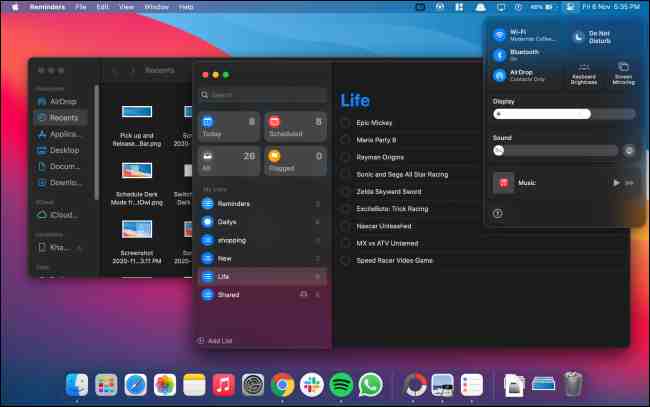
    The dark mode was first introduced with macOS Mojave. You can enable or disable it from System Preferences. Mac users running macOS Big Sur and later can now enable or disable dark mode right from the Control Center.
    How to Enable Mac Dark Mode from Control Center

    Click the ” Control Center ” icon from the top right corner of your screen.

    How to Enable Mac Dark Mode from Control Center

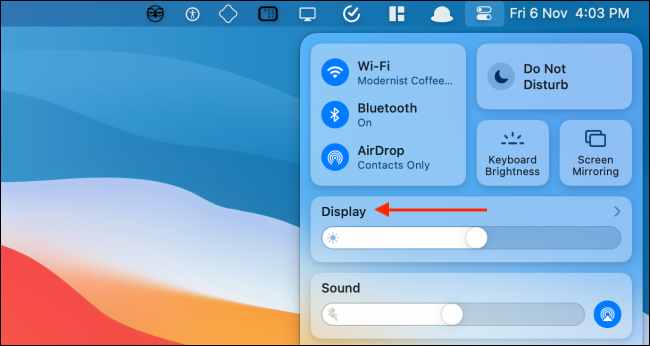
    From the Control Center drop-down window, click the “ Display ” module.
    How to Enable Mac Dark Mode from Control Center

    The Display Module will now expand. Here, select the ” Dark Mode ” button to enable or disable the feature.
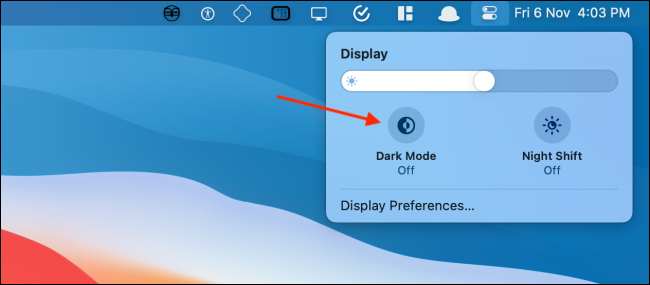
    How to Enable Mac Dark Mode from Control Center

    #2. How to Enable Dark Mode Switch Mac in Menu Bar

    With previous versions of macOS, you needed a third-party app to access the dark mode switch from the menu bar. Thanks to the Control Center introduced in Big Sur, you can add this switch to the menu bar without installing anything.

    Open ” Control Center ” on your Mac, then drag and drop the ” Display ” panel onto the menu bar.
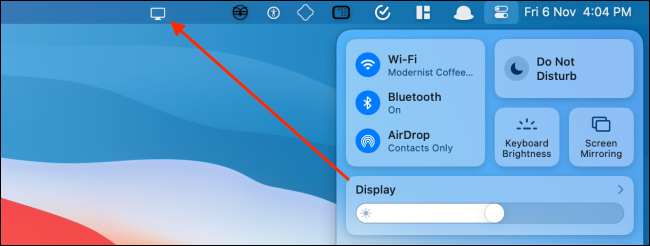
    How to Enable Dark Mode Switch Mac in Menu Bar

    The Display Panel will change to an icon and reside permanently on the menu bar of your Mac. Click the ” Display ” button to expand the window. From here, select the “ Dark Mode ” button to quickly enable or disable visual features.
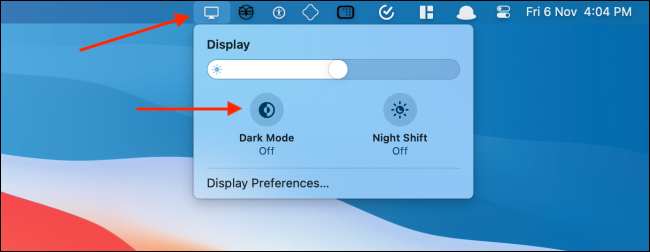
    How to Enable Dark Mode Switch Mac in Menu Bar

    You can rearrange or remove the “ Display ” icon from the menu bar quite easily. Press and hold the “ Command ” key then drag and drop the Display icon where you want to move it.

    If you want to remove the “ Display ” icon, drag it to the “ Desktop ” and then release it.
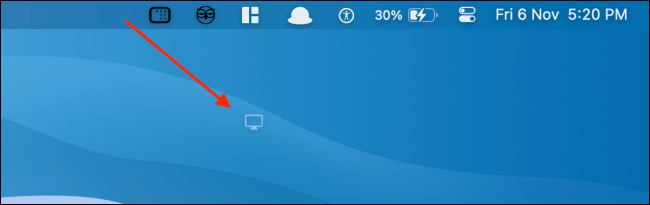
    How to Enable Dark Mode Switch Mac in Menu Bar

    #3. How to Enable Mac Dark Mode from System Preferences

    If you use macOS Mojave or Catalina on a Mac, you don’t have access to Control Center. Luckily, you can enable or disable dark mode from System Preferences on modern versions of macOS.

    Click the ” Apple ” button from the menu bar and select the ” System Preferences ” option.
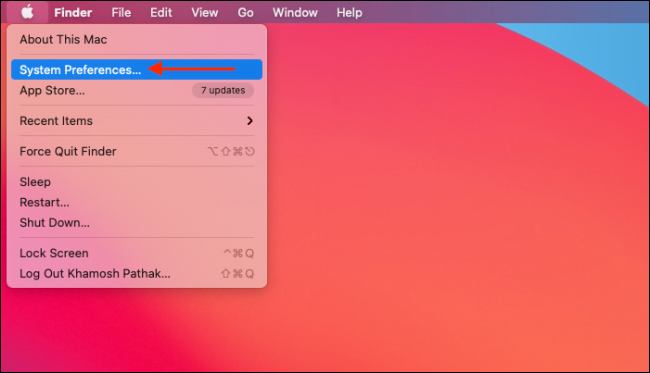
    How to Enable Mac Dark Mode from System Preferences

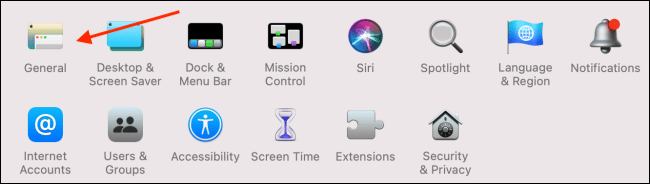
    Here, go to the ” General ” section.

    How to Enable Mac Dark Mode from System Preferences

    From the ” Appearance ” section, you can switch between ” Light ” and ” Dark ” modes.
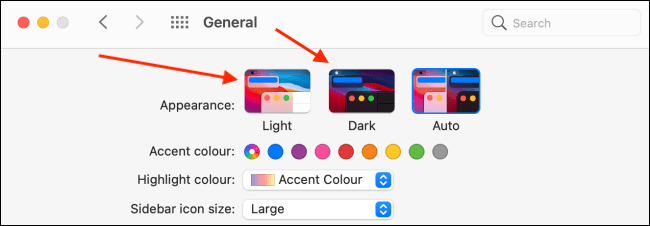
    How to Enable Mac Dark Mode from System Preferences

    How to Schedule Dark Mode on Mac

    macOS can also turn dark mode on or off automatically based on the time of day. Go to System Preferences> General, and from the ” Appearance ” section, select the ” Auto ” option.
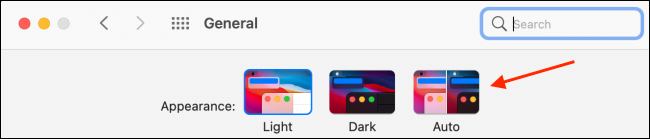
    How to Schedule Dark Mode on Mac

    Once this option is enabled, macOS will automatically enter dark mode at night. And when you open your Mac in the morning, macOS will return to light mode.

    If you want to turn on dark mode at a certain time, you can use a third-party app called  NightOwl. This app is a free menu bar utility that works with macOS Mojave or higher.

    This utility also functions as a quick toggle to enable and disable dark mode from the menu bar. Just right-click the “ NightOwl ” icon from the menu bar to enable or disable dark mode.

    After NightOwl is installed and you agree, you can click the ” NightOwl ” button and activate the ” Scheduled ” feature. Then, enter the time when you want to turn on the Light or Dark mode.
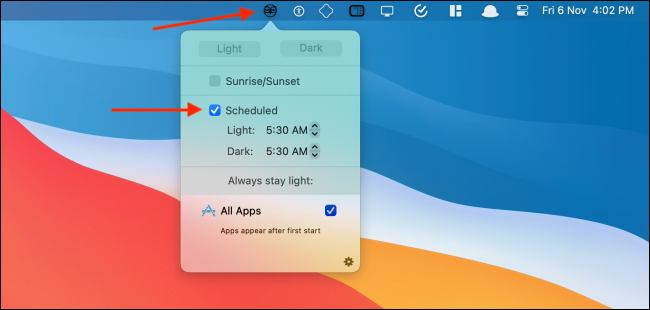
    How to Schedule Dark Mode on Mac

  • 7 Ways To Find IP Address on Windows 10 Laptop PC 2024

    7 Ways To Find IP Address on Windows 10 Laptop PC 2024

    7 Ways To Find IP Address on Windows 10 Laptop PC – Your IP Address (Internet Protocol) is like a home address, but for your WiFi network. Without an IP Address, the internet won’t know where to send all the data you want, such as e-mails and websites. Here’s how to find your IP address on a Windows 10 computer.

    How to Find IP Address on Windows 10 PC
    How to Find IP Address on Windows 10 PC

    How to Find IP Address on Windows 10 Laptop PC 2024

    To find your IP address on a Windows 10 computer, go to Control Panel  >  Network and Internet  >  Network and Sharing Center> Change adapter settings. Right-click Ethernet and go to  Status  >  Details.

    Read more:

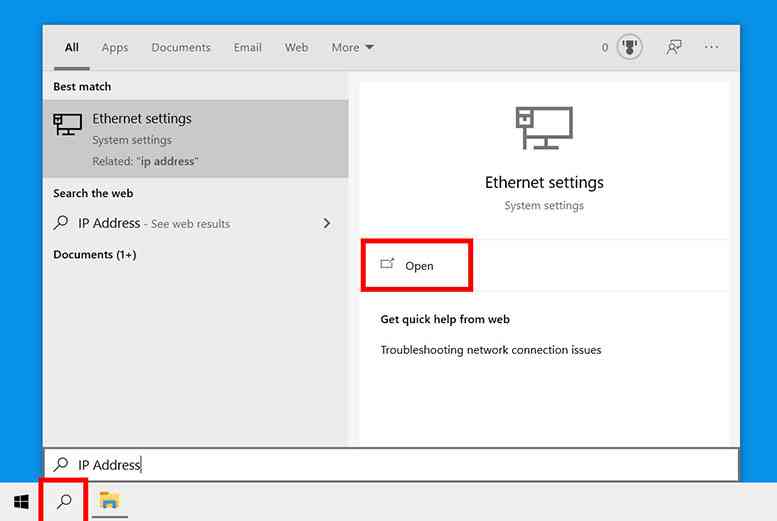
    1. Click the magnifying glass icon in the lower-left corner of the screen.
    2. Then type the IP Address into the search bar.
    3. Next, click Open.
      How to Find IP Address on Windows 10 PC
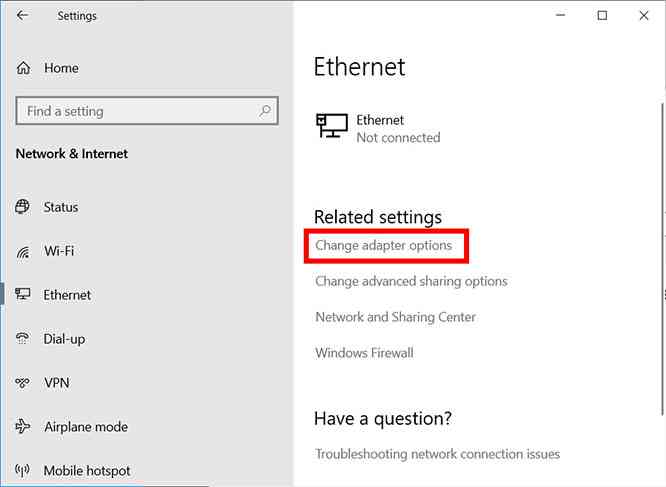
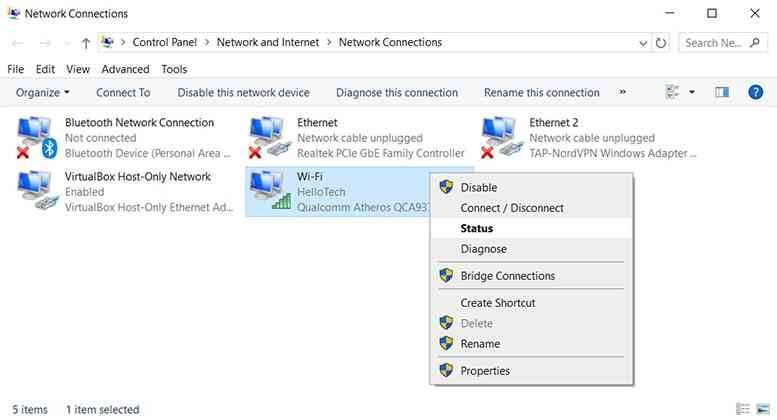
    4. Then click Change adapter options.
      How to Find IP Address on Windows 10 PC
    5. Next, right-click your network and select Status. If you are connected to the internet via WiFi, right-click it, and if you are using an Ethernet connection.
      How to Find IP Address on Windows 10 PC
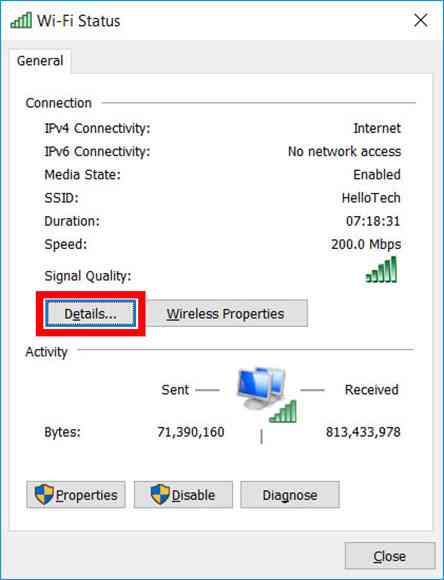
    6. Then click  Details.
      How to Find IP Address on Windows 10 PC
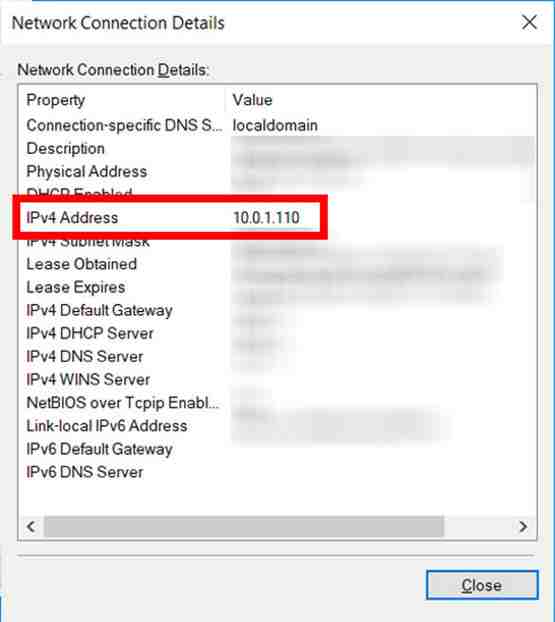
    7. Finally, you will see the computer’s IP Address next to the IPv4 Address.

    How to Find IP Address on Windows 10 PC

    What is the Difference Between Private and Public IP Addresses?

    A public IP address is a globally unique IP address assigned to devices by internet service providers. Private IP addresses are assigned to devices in a private network by routers. This is why you can have the same local IP Address as someone else, but not the same private IP Address.

    Read more:

    Conclusion:

    Think of it like this: A public IP Address is like the address of your apartment building, whereas a private IP Address is like your apartment number.

  • 5 Ways To Fix Proxy Server Error in Windows 10 [2024]

    5 Ways To Fix Proxy Server Error in Windows 10 [2024]

    5 Ways To Fix Proxy Server Error in Windows 10 – When you are busy browsing, suddenly a proxy server error should not panic, please follow the repair steps described in this article.

    5 Ways To Fix Proxy Server Error in Windows 10
    5 Ways To Fix Proxy Server Error in Windows 10

    How To Fix Proxy Server Error in Windows 10 [2024]

    As time goes by, internet users are increasing rapidly. One of the problems that are often encountered when browsing is Unable to connect proxy server.

    Read more:

    As an active internet user, you are expected to know every cause of errors while surfing the internet, such as the Windows 10 proxy server error for example.

    Usually what causes proxy errors is a change in Windows 10 settings itself, either intentionally or unintentionally.

    The presence of malware on the computer can also cause setting errors which result in the computer not being able to connect to the network due to interference.

    The way to solve proxy server errors is not difficult, besides that it does not require additional software.

    If the computer you are using is experiencing problems as mentioned above, then the way to fix it is to apply one of the following methods:

    #1. Check Proxy Settings

    The first simple way you can try is to disable the proxy and then return it to its default settings. It’s like this:

    1. Press the key combination “Windows+S”.
    2. Then type “control panel” then press the Enter key.
    3. Then click the “Network and Internet” menu.
    4. Then click “Internet Options”.
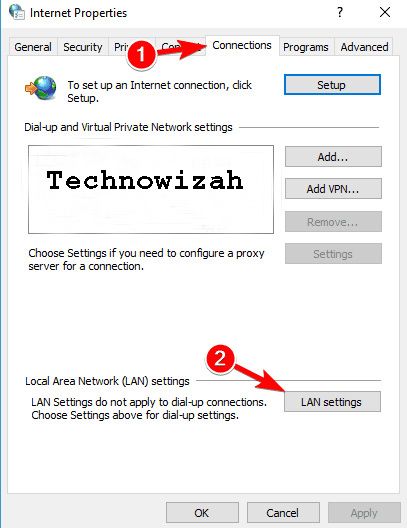
    5. Then click the “Connections” tab.

    Check Proxy Settings
    Check Proxy Settings
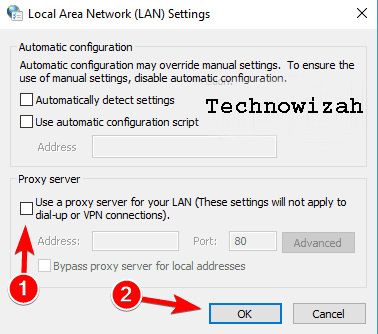
    1. Then click the “LAN settings” button.
    2. Then uncheck the option “Use a proxy server for your LAN”.
    3. Put a checkmark on the “Automatically detect settings” option.

    Check Proxy Settings
    Check Proxy Settings
    1. Finally, click OK to save and apply the settings.
    2. Please exit all programs.

    After the process returns the proxy settings to default, the server that is used switches to the ISP server or internet provider from the provider used.

    Now try using a computer or laptop for streaming or browsing. If successful means that the cause lies in the previous incorrect proxy configuration.

    #2. Reset Internet Options

    Internet Options is a settings menu provided by Windows to set proxy, security, connection, and other similar functions.

    If your computer is having problems with proxies, try resetting Internet options in the following way:

    1. Click the Start menu.
    2. Then type “Internet options”, then press Enter.
    3. After the Internet Options settings menu opens, please click the “Advanced” menu.
    4. Then scroll down, then click the “Reset” option.
    5. Next, an approval question will appear, at this stage please click the “Delete Personal Settings” option.
    6. Then click Reset again.
    7. If so, the computer will restart.
    8. After the restart process is complete, please connect the computer to the internet and try browsing again. The proxy server error problem should have been resolved.

    #3. Delete Proxy

    Maybe the cause of the proxy error is because someone else or we forgot to add a new proxy in the internet options settings.

    So that we can find out the cause, please delete the newly added proxy settings and leave it using the default settings in the following way:

    1. Go to the Internet options menu.
    2. Then click Connections.
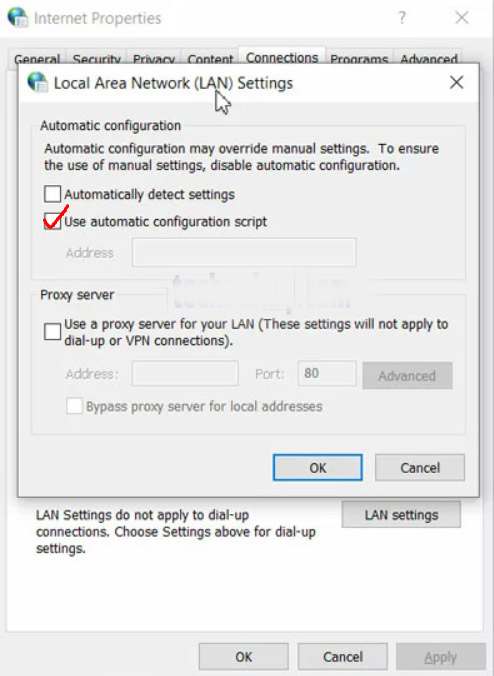
    3. Then click LAN Settings.

    Delete Proxy
    Delete Proxy
    1. Uncheck the Use A Proxy Server For Your LAN section.
    2. Then put a checkmark on the Automatically detect settings option.
    3. If so, please click Ok to save the settings.

    Then the computer will use the IP provided by the internet provider that is used. To make sure, try opening Chrome and then visiting the site you want to open.

    #4. Reset Google Chrome

    Some users are having proxy issues stating that the problem is caused due to Chrome settings.

    Therefore, try reverting Google Chrome Settings to their default settings.

    But keep in mind that this method will clear the cache as well as the extensions that have been installed.

    It’s best to make a backup first. After that, just follow these steps:

    1. Open Google Chrome.
    2. Then click the three-dot icon menu in the upper right corner.
    3. Then click “Settings”.
    4. Next, scroll down and click “Continue”.
    5. Then click the “Restore to original default” option in the Reset menu and clean it.
    6. Then click the Reset settings button.

    After Chrome has returned to its default settings, the Windows 10 proxy error problem should have been resolved.

    #5. Reinstall Chrome

    If the previous method didn’t solve the problem, it could be because of the Chrome installation process.

    To fix this, try reinstalling Chrome with the latest version.

    In addition, you can also try the beta version of Chrome or Canary.

    The Canary version of Chrome provides the latest fixes, but it’s not entirely for the smooth running of the operating system.

    There is a possibility that you will experience other problems if you use this version.

    In addition, Google always releases bug fixes via beta which can be the best choice.

    Read more:

    Conclusion:

    Those are some of the methods that you can try to use to solve proxy errors in Windows 10 and other versions of Windows.

  • 7 Ways to Enable Dark Mode in Windows 10 PC 2024

    7 Ways to Enable Dark Mode in Windows 10 PC 2024

    7 Ways to Enable Dark Mode in Windows 10 PC – If you stare at your computer screen all day long, it is highly recommended that you turn on Dark Mode for your eyes.

    How to Enable Dark Mode in Windows 10
    How to Enable Dark Mode on Windows 10

    How to Enable Dark Mode in Windows 10 Laptop PC 2024

    Dark Mode is a setting that turns your light white screen a little darker. This means that most of your Windows applications and features will have white text on a black or gray background.

    Read more:

    Turning on Dark Mode makes it much easier to read and is said to aid concentration. Plus, a study by Google found that you’ll use 60% less energy on devices that have Dark Mode enabled. Ready to turn to the dark side? Here’s how to turn on Dark Mode in Windows 10.

    You can use the Dark Mode feature on your laptop or desktop in several ways. This feature can be launched across the user interface, in all applications, only in certain applications, and even on web pages.

    #1. How to Set Dark Mode on the Windows Interface

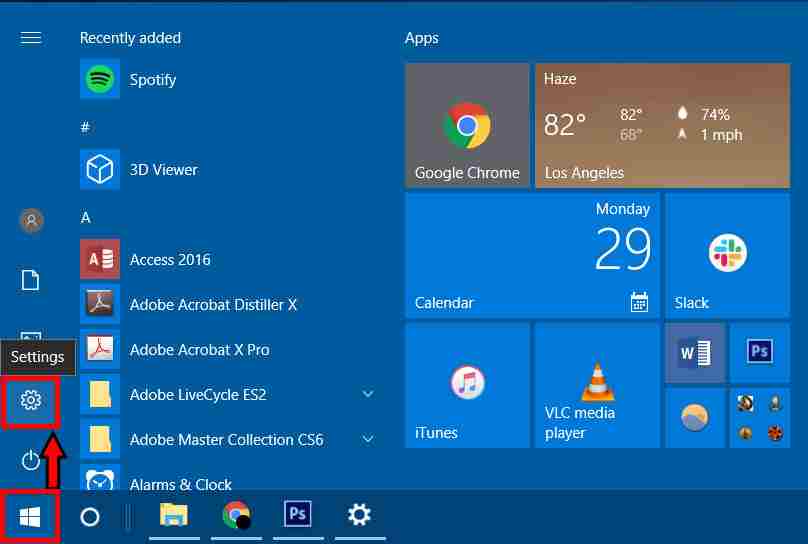
    1. Open the Start menu. You can do this by clicking on the Windows icon in the lower-left corner of your screen.
    2. Open Settings. It looks like a gear icon and is located directly above the power icon in the start menu.

    How to Enable Dark Mode in Windows 10

    Alternatively, you can simultaneously open the Settings window by pressing Windows + “i” on your keyboard.

    How to Enable Dark Mode in Windows 10

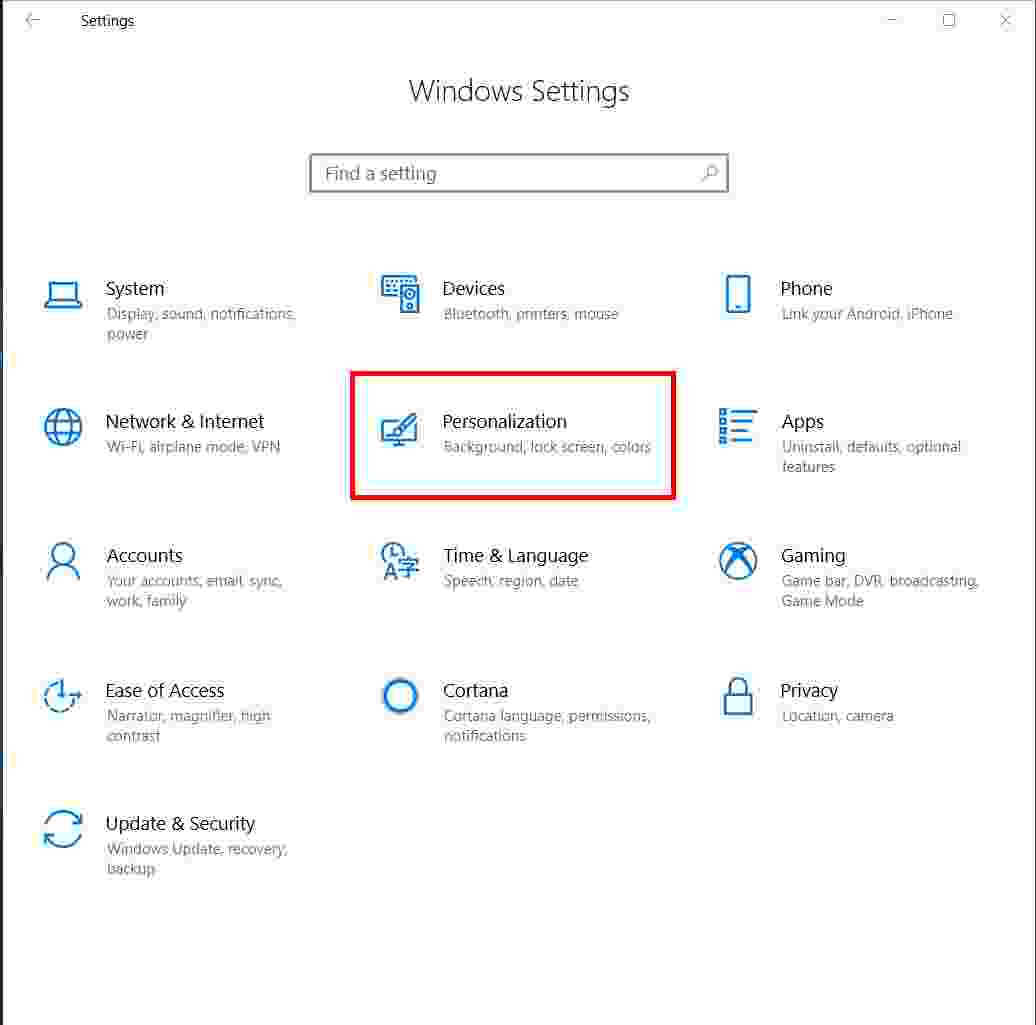
    3. Click Personalization.

    How to Enable Dark Mode in Windows 10

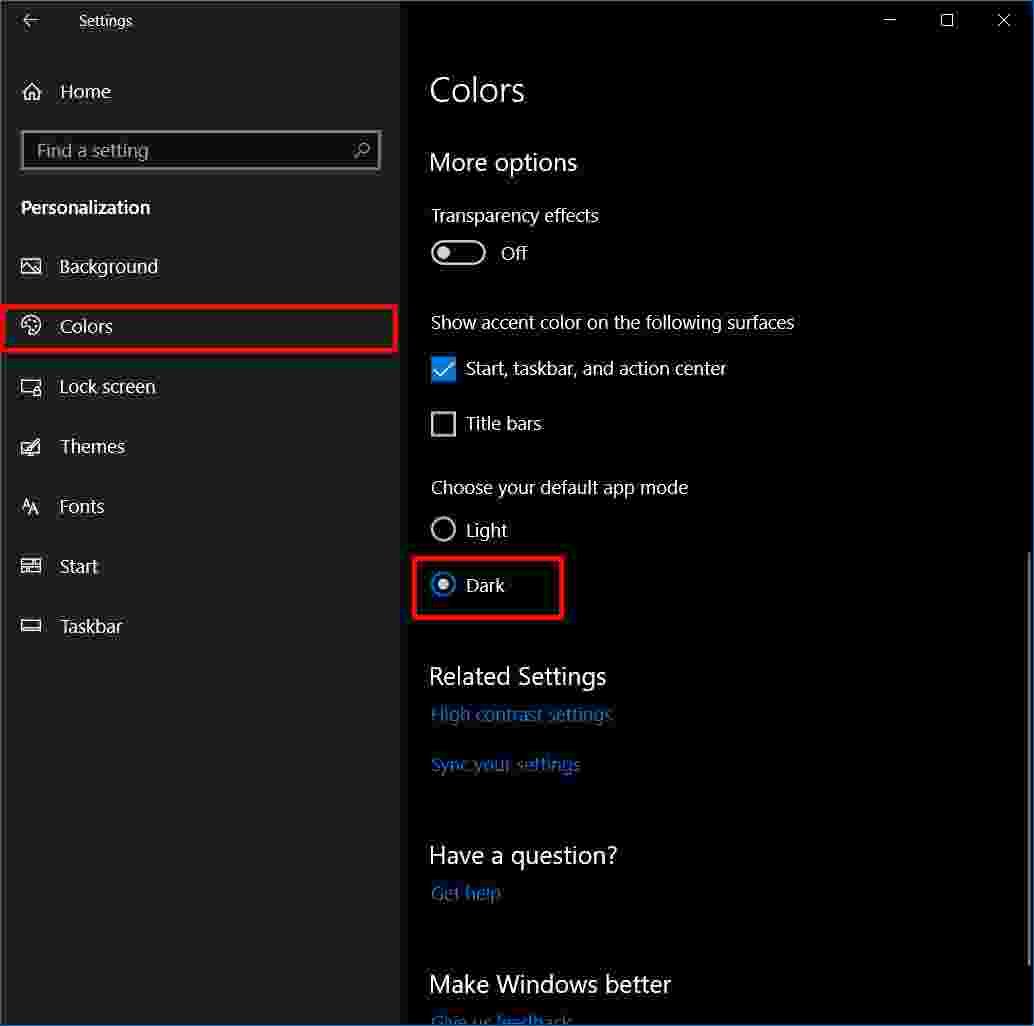
    4. Open the Colors tab.

    5. Scroll down and click the Dark button under “Choose your default app mode ”.

    How to Enable Dark Mode in Windows 10

    After selecting Dark Mode, your Settings app will immediately go dark (as well as other Windows apps).

    But if you want a true Dark Mode experience, you can also turn your desktop dark. Here’s how to turn your desktop black.

    #2. How To Turn Your Desktop To Black

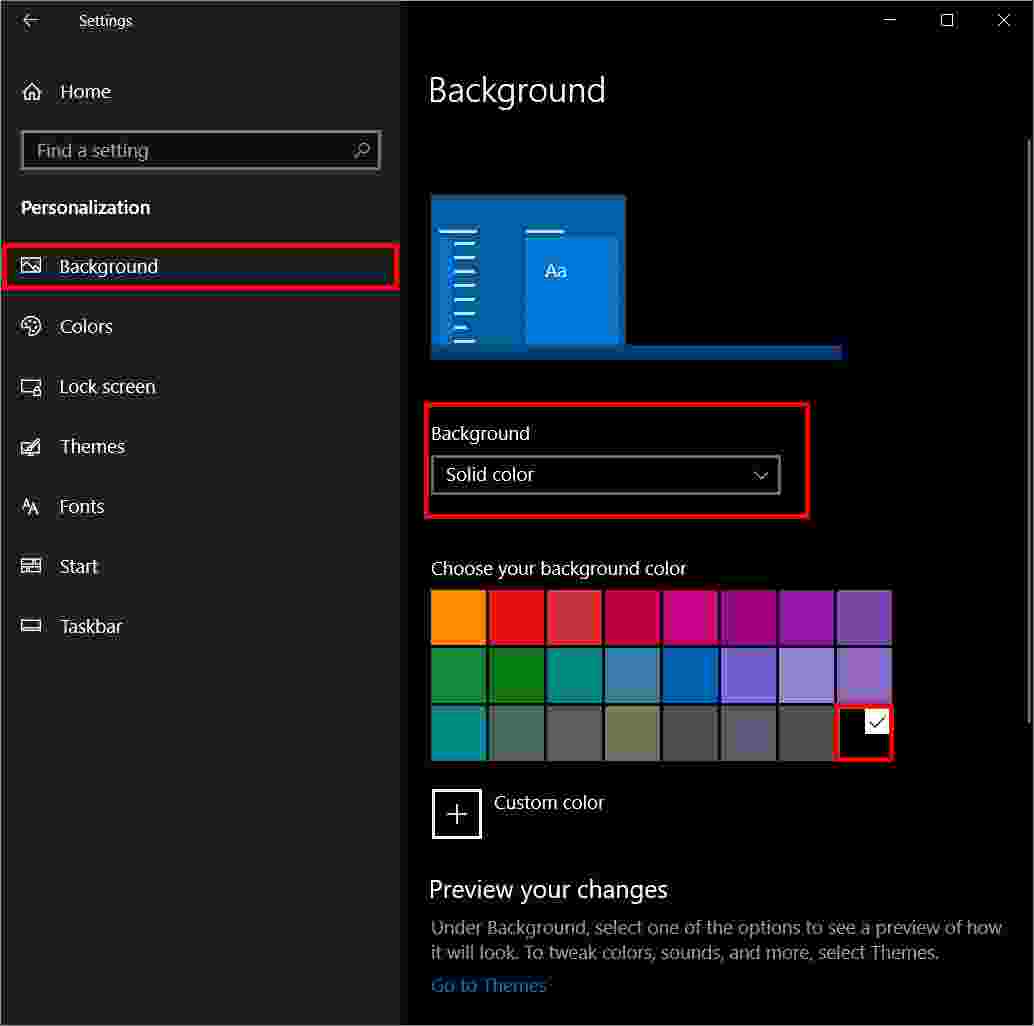
    1. Go to Settings> Personalization> Background.
    2. Under Background, select Solid color from the drop-down menu.
    3. Select the black option under “Choose your background color”.

    How To Turn Your Desktop To Black

    You can also choose a custom color if you don’t like the deep black options that it provides.

    Now you notice that the taskbar at the bottom of the screen is still bright. Here’s how to make the taskbar and accent color dark.

    #3. How to  Change the Accent Color to Dark

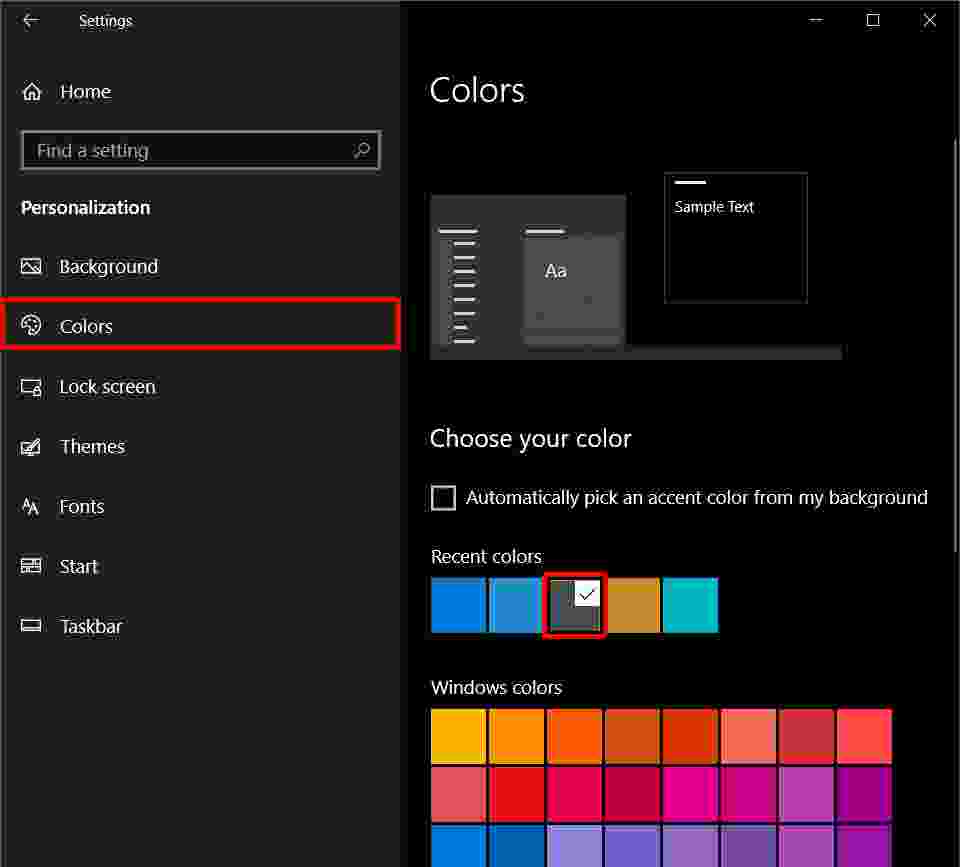
    1. Go to Settings> Colors.
    2. Under “Choose your accent color”, choose a dark gray color. You can also let Windows choose an accent color for you based on the background. If you want to choose a color yourself, you can choose one of the Windows colors.
      How to  Change the Accent Color to Dark
       You can also choose a custom color if you don’t like the options provided. Windows gives warnings for certain colors where text might be difficult to read.
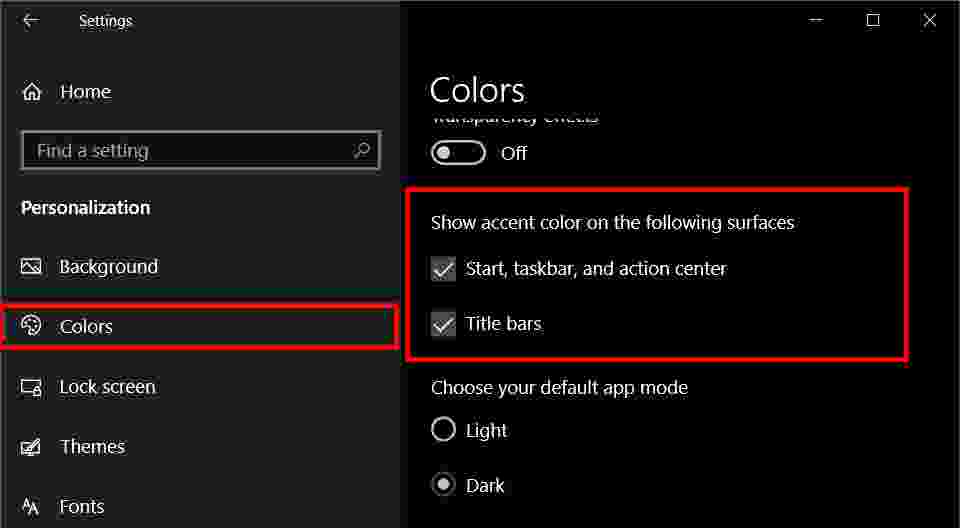
    3. At the bottom of the Color menu, check the option under “Show Accent color on the following surfaces”.

    How to  Change the Accent Color to Dark

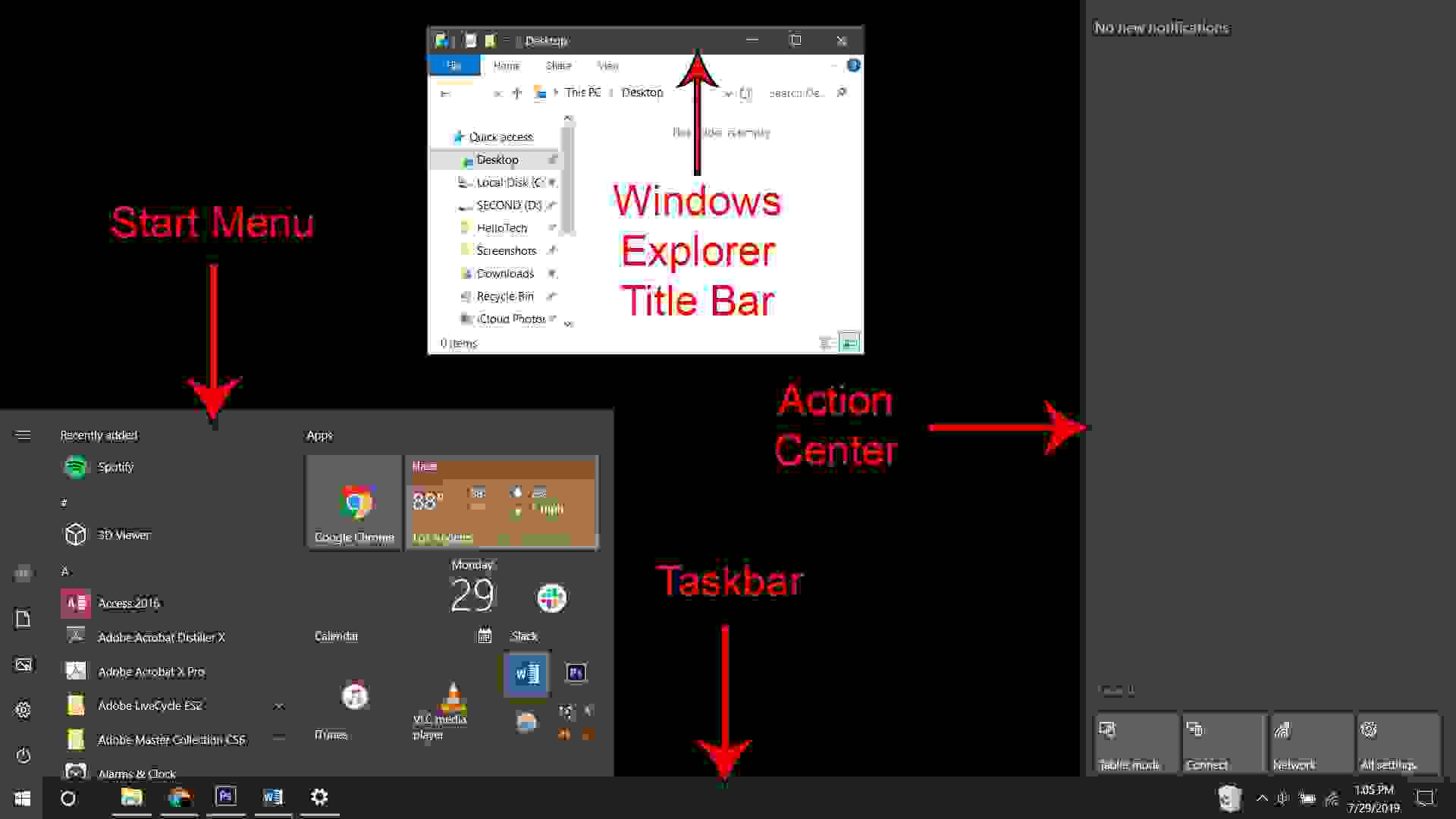
    You can choose to apply the accent color to the Start Menu, Taskbar, and Action Center, and/or to the title bars and window borders. Here’s what will change when you enable that option:

    How to  Change the Accent Color to Dark

    #4. How to Turn File Explorer and Control Panel Dark

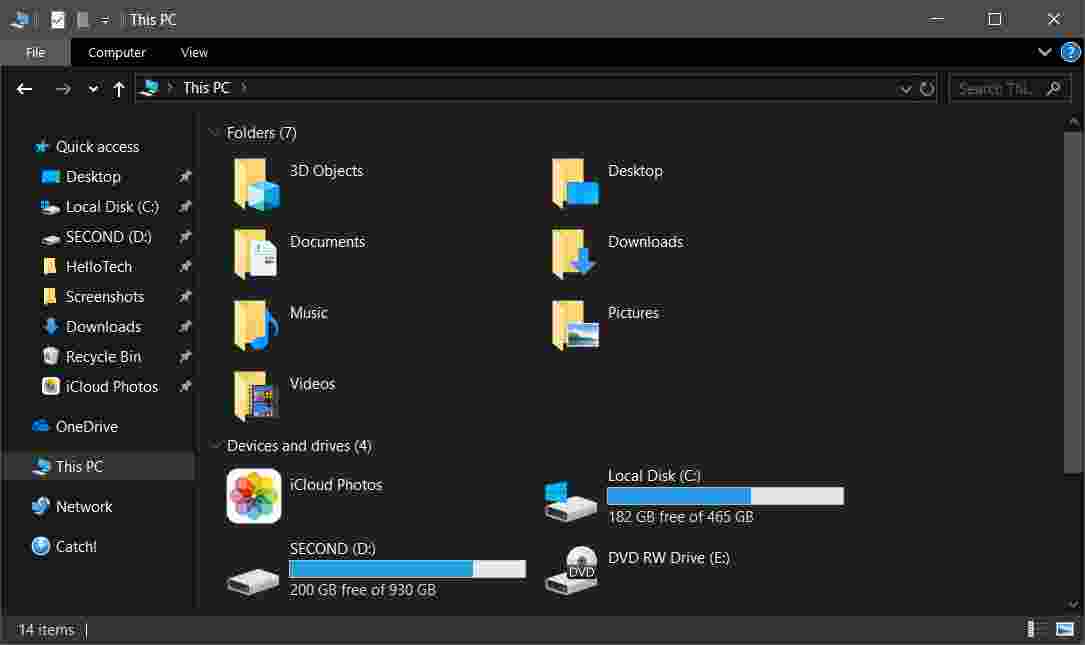
    Setting the default Windows mode to dark automatically does not enable the feature for File Explorer or Control Panel. But you can change this by setting the default app mode tonight.

    Follow the steps below to change your default app settings to Dark Mode.

    1. Update Windows to version 1809 or later

    You can update Windows by going to Settings> Update and Security> Windows Update. Then click Check for Updates on the right side of the window. If you still can’t update, try downloading  Windows Update Assistant.

    Note: This option is only available for Windows version 1809 or later. You can check which version of Windows you have by going to Settings> System> About. The version number will be indicated under the Windows specifications.

    2. Go to Settings> Personalization> Colors. The default application mode will be set to Light.

    3. Change the settings by clicking the “Dark” button under “Choose your default app mode ”.

    4. This will turn File Explorer dark.

    How to Turn File Explorer and Control Panel Dark

    The Control Panel will also darken if you follow the steps above.

    #5. How to turn other Windows applications dark

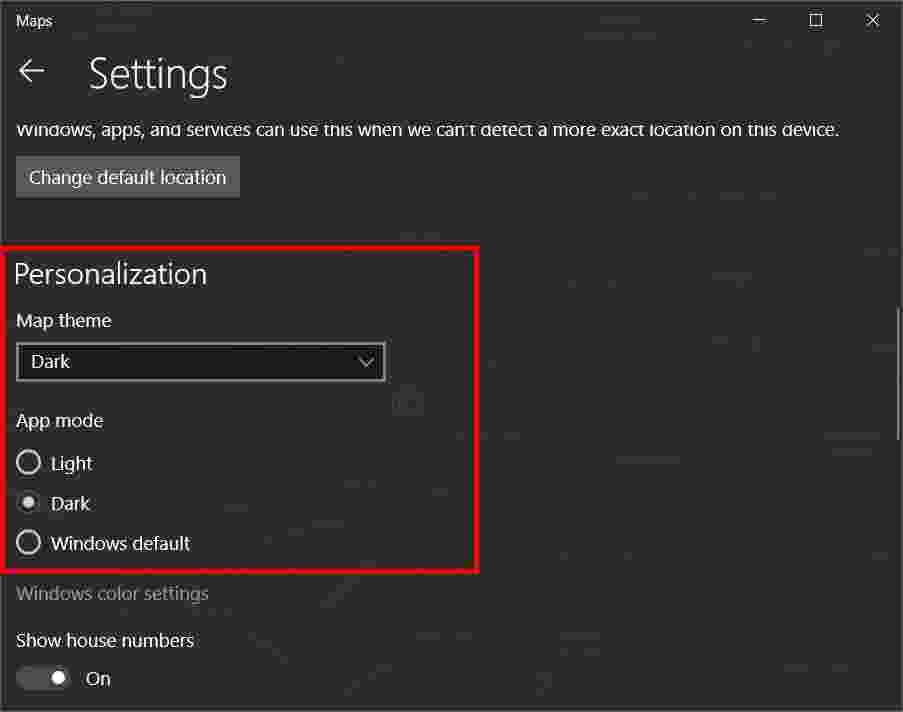
    If you have downloaded Windows version 1903, or at least the May 2019 update, you will also have the option to enable Dark Mode in any Windows application.

    1. Update to Windows version 1903.
    2. Open any Windows application.
    3. Open Settings.
    4. Find and select Dark Mode. In Windows Maps, you can find it under Personalization.

    How to turn other Windows applications dark

    #6. How to Enable Dark Mode in Microsoft Edge

    If you want to enable Dark Mode in the Edge browser, you’ll need to set it up manually.

    1. Open Microsoft Edge.
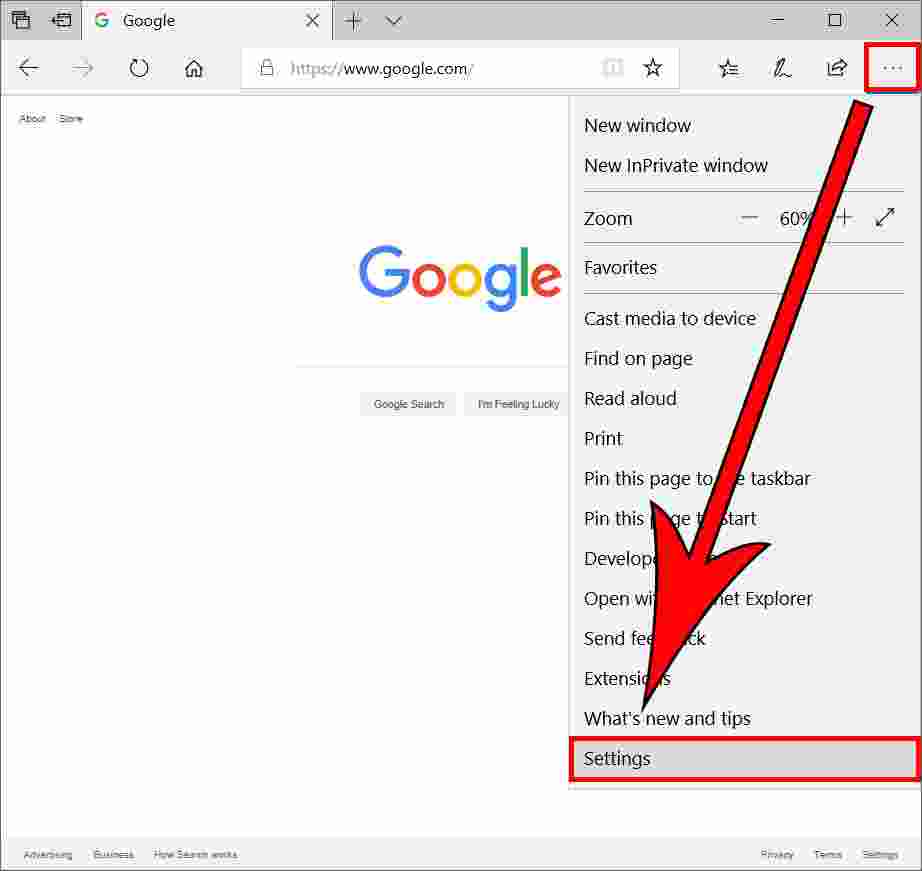
    2. Click Settings and more. It’s the icon with three dots on the top right near the address bar.
    3. Select Settings.

    How to Enable Dark Mode in Microsoft Edge

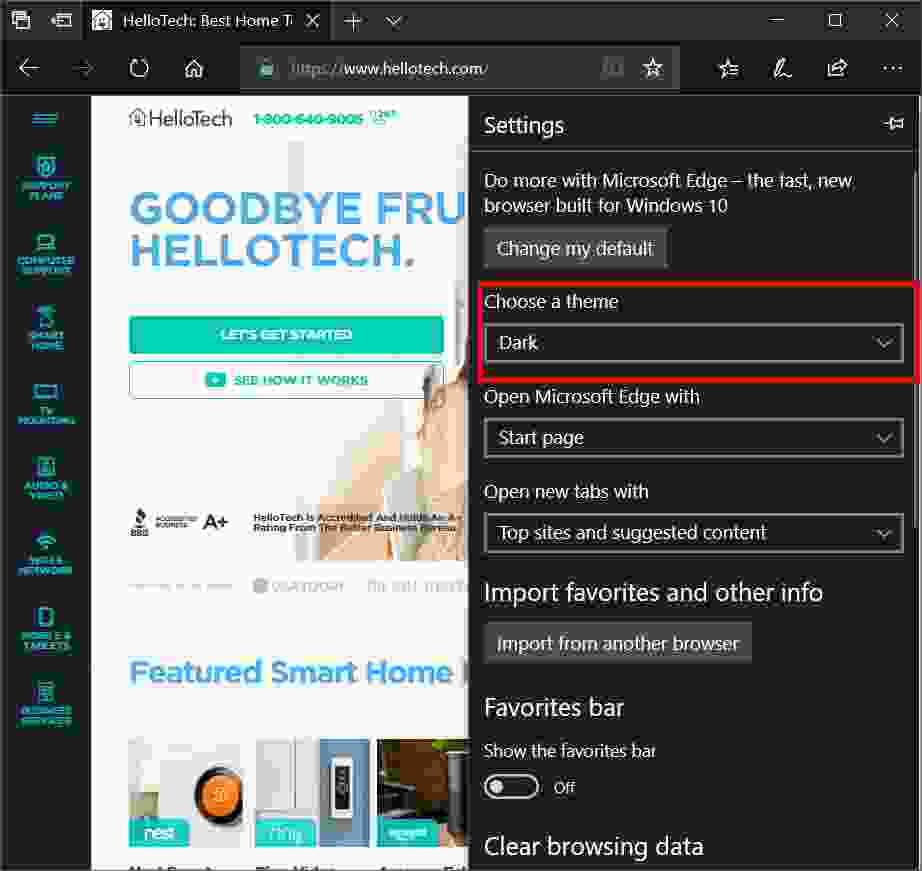
    4. Under “Choose a theme”, select Dark.

    5. You can now start browsing in Dark Mode.

    How to Enable Dark Mode in Microsoft Edge

    If you are using another web browser, check out our article on how to darken a web browser.

    #7. How to Enable Dark Mode in Microsoft Office

    Dark Mode can be activated in MS Office programs individually. The example below uses Word, but the steps are the same for Excel, PowerPoint, and OneNote.

    For Outlook, you’ll need to first go to File> Office Account before seeing customization options for your account, including turning on Dark Mode.

    1. Open Office applications anything
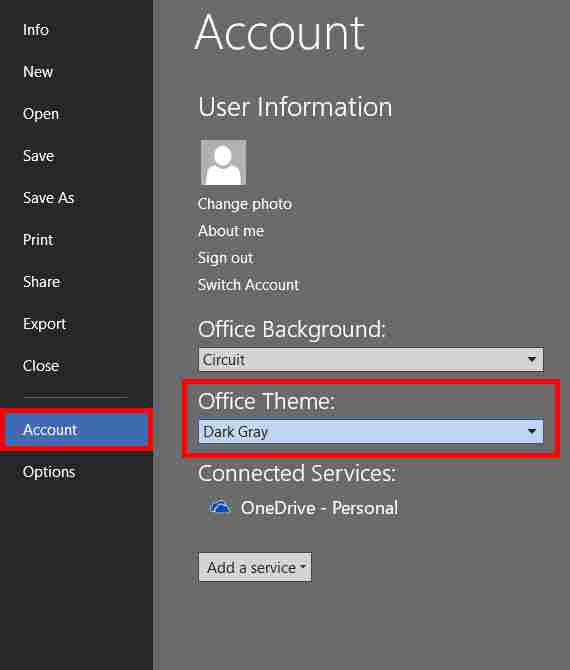
    2. Click File> Account.
    3. Change the Office Theme to Dark Gray or Black.

    How to Enable Dark Mode in Microsoft Office

    Read more:

    Conclusion:

    Dark Mode is a great way to change the appearance of your screen. Now that you know how to turn on the Dark Mode feature in Windows, here’s How to Enable Mac Dark Mode.

  • How to Install Apps from Microsoft Store on Windows 2024

    How to Install Apps from Microsoft Store on Windows 2024

    How to Install Apps from Microsoft Store on Windows 10 PC – Windows 10 includes the Microsoft Store, which allows you to download free or paid applications/software from the internet. Here’s how to install an application via the Microsoft Store.

    How to Install Apps from Microsoft Store on Windows 10
    How to Install Apps from Microsoft Store on Windows 10

    How to Install Apps from Microsoft Store on Windows 10 PC 2024

    Free vs. Paid Application

    Before using the Microsoft Store, it’s important to understand the differences between the two types of software in the Store: Free apps and paid apps.

    Read more:

    With “Free” software, you can download applications without making a purchase, but there are usually problems. This app works with subscription services (such as Amazon, Netflix, Apple, Adobe, Facebook, or Slack), or lets you use the basic version of the app for free, sometimes with annoying ads. If you wish to unlock the feature, you may be asked to make app purchases.

    The second type is a “paid” application or software, which you buy before downloading and you usually have the right to fully use it.

    How to Install Apps from Microsoft Store on Windows 10

    Before we start, make sure you have a Microsoft account and are logged into the Microsoft Store. For app purchases, you will need several forms of payment linked to your Microsoft account.

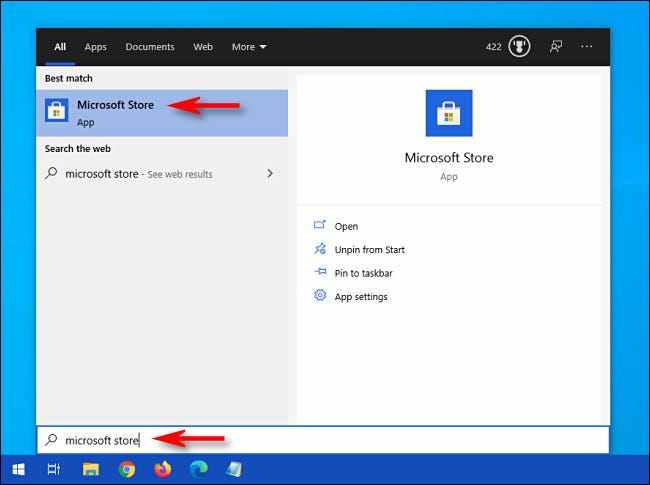
    First, open the ” Microsoft Store “. If you can’t find it, open the Windows 10 “ Start ” menu and type “ Microsoft Store ”, then click the “Microsoft Store” icon. Or you can find it in your application list.

    How to Install Apps from Microsoft Store on Windows 10

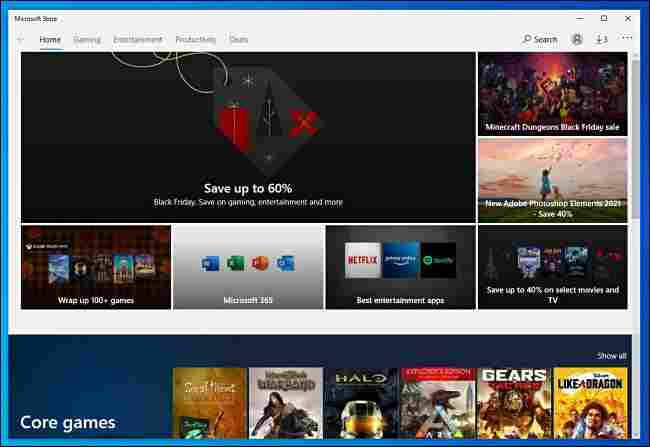
    When the “ Microsoft Store ” app opens, you will see a screen filled with lots of flashy banners advertising the latest offers and promotions.

    How to Install Apps from Microsoft Store on Windows 10

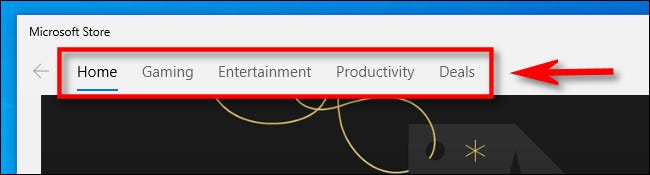
    If you’re looking for a specific app, click a category at the top of the window, such as “Gaming,” “Entertainment,” or “Productivity”.

    How to Install Apps from Microsoft Store on Windows 10

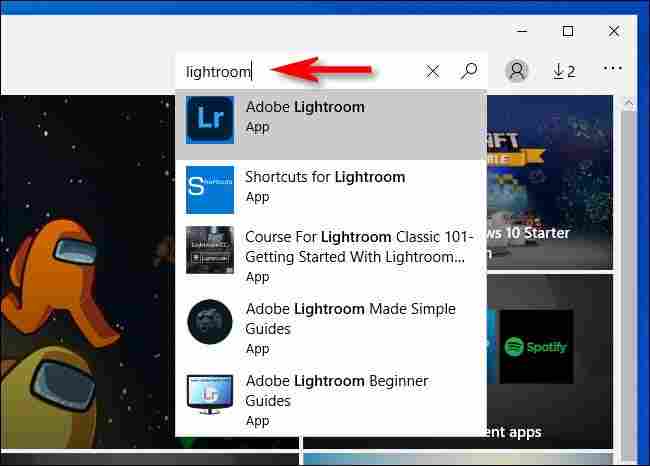
    Or you can search for the application by clicking the search button. In the search bar that appears, type what you want to find, and then click the item in the results list.

    How to Install Apps from Microsoft Store on Windows 10

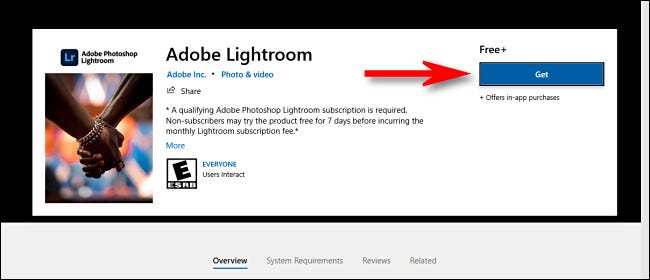
    Once you’ve found a program you want to install, first check whether it’s a free or paid app. If the app is free, you will see the words “Free” just above the “Get” button. Click the ” Get ” button and it will change to the ” Install ” button. After you click “Install”, the download starts automatically.

    How to Install Apps from Microsoft Store on Windows 10

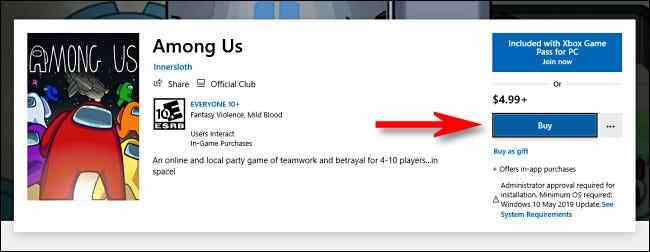
    If the program requires a purchase, you will see the price listed just above the “ Buy ” button. If you want to buy the item, click ” Buy ”

    How to Install Apps from Microsoft Store on Windows 10

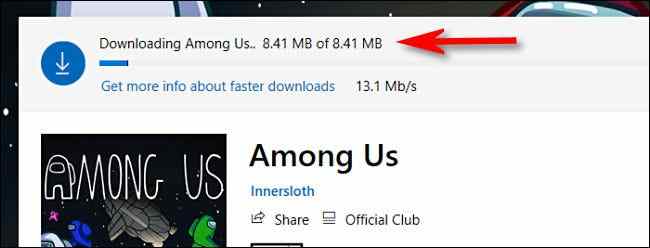
    After following the purchase steps, the download process will begin. You will see the status bar when the program is downloaded from the Internet to your computer.

    How to Install Apps from Microsoft Store on Windows 10

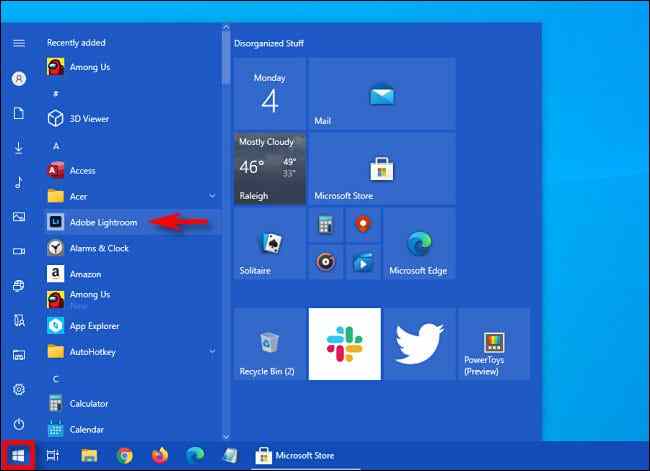
    Once the application is installed, you can launch it by clicking on the ” Launch ” or ” Play ” button which is located just beside the download indicator bar. Or you can open the “ Start ” menu and search for the name of the application in an alphabetical list. Click the app icon when you find it, and the app will launch.

    How to Install Apps from Microsoft Store on Windows 10

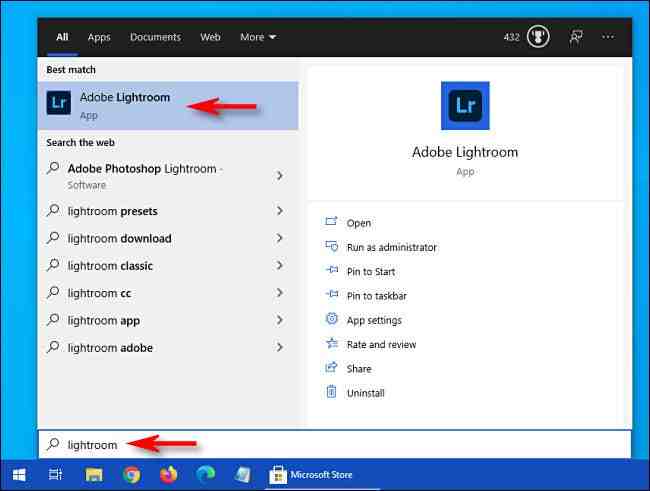
    If you have trouble finding the application you just downloaded in the “Start” menu, open “Start” and start typing the name of the application to perform a search.

    How to Install Apps from Microsoft Store on Windows 10

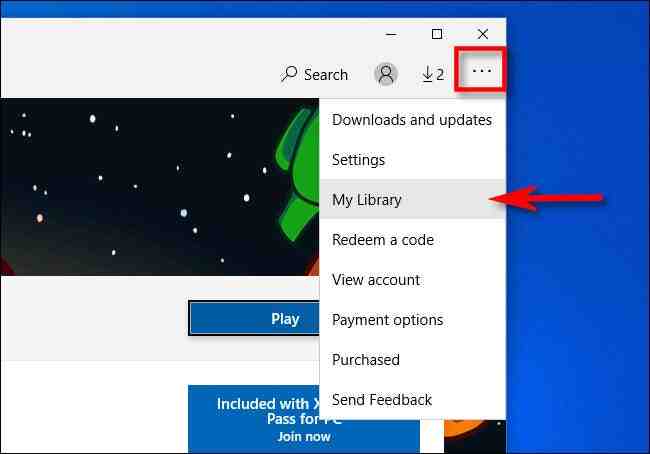
    Also, if you want to see a complete list of all the applications that you have purchased or installed from the Microsoft Store, open the “Microsoft Store” application and click the ellipsis (three dots) button on the toolbar. Then select ” My Library “.

    How to Install Apps from Microsoft Store on Windows 10

    Conclusion:

    Now that you know how to install apps from the Microsoft Store on Windows 10, you will see a list of all the apps you have installed via the Microsoft Store, and you can sort them by install date and other criteria.

    If you want to remove an application, you can go to Settings> Apps, select the program, then click ” Uninstall “.