Category: Windows

Windows – Here you can find Computer-related updates Windows 10, Windows 8, Windows 7, Linux, technology information, and more.

  • 9 Ways To Fix Avast Error Can’t Open on Windows 10 [2024]

    9 Ways To Fix Avast Error Can’t Open on Windows 10 [2024]

    9 Ways to Fix Avast Error Can’t Open on Windows 10 – Avast is a third-party Antivirus program designed to analyze and detect malicious programs that might attack the system. In the process, Avast performs analysis and detects all strange activity in real time. Within a few days or weeks, Avast always updates the viruses that develop around the world.
    9 Ways to Fix Avast Error Can't Open on Windows 10
    9 Ways to Fix Avast Error Can’t Open on Windows 10

    How to Fix Avast Error Can’t Open on Windows 10 [2024]

    The goal is that users are always safe and comfortable when doing any activity in front of a computer screen. Unfortunately, some Avast users get a lot of complaints about the program crashing and can’t be used. In some cases, Avast users encounter program errors, such as;

    Read more:

    How to Solve Avast Can’t Open on Windows 10 PC

    All those problems occur on Windows 7, Windows 8, Windows 8.1, and Windows 10. From the various information that the author got, the causes can vary, from Antivirus that is not up to date, programs that are corrupt (damaged), viruses that damage Antivirus, to problematic Windows systems.

    To solve this problem, here are some simple solutions that you can do;

    #1. Setting Remote Device Service to Automatic
    Setting Remote Device Service to Automatic
    Setting Remote Device Service to Automatic

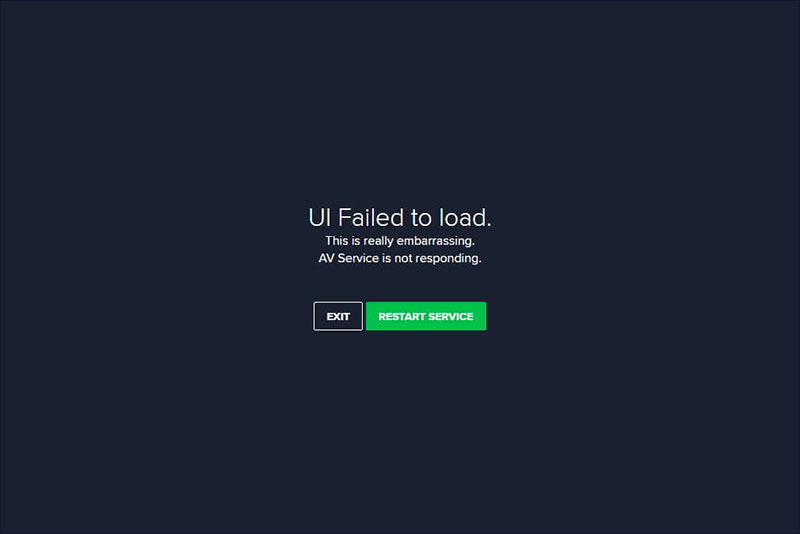
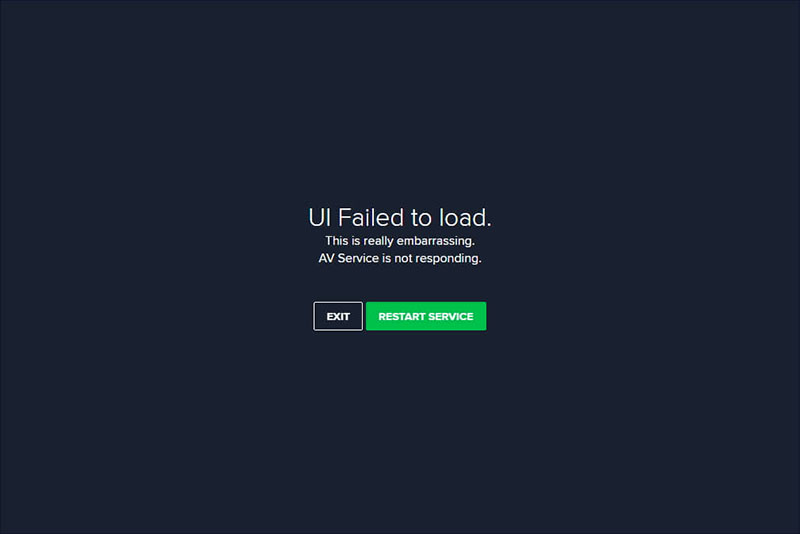
    The first step, try to make a few changes to the Remote Device Service section through the services.msc feature. From some of the information the author got, the error regarding the words ” UI failed to load” can be fixed through changes in that section. Even if later the problem still occurs, you can try some of the following solutions.
    Setting Remote Device Service to Automatic
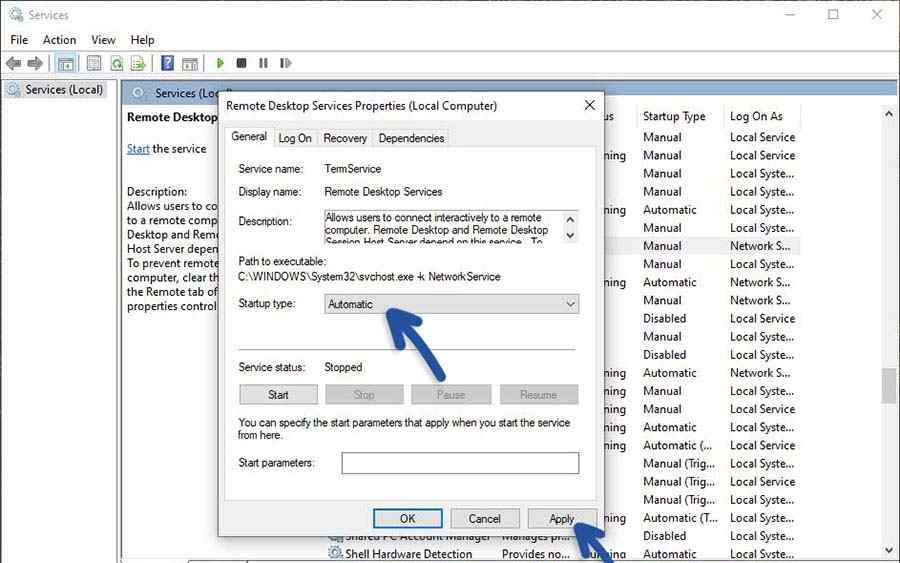
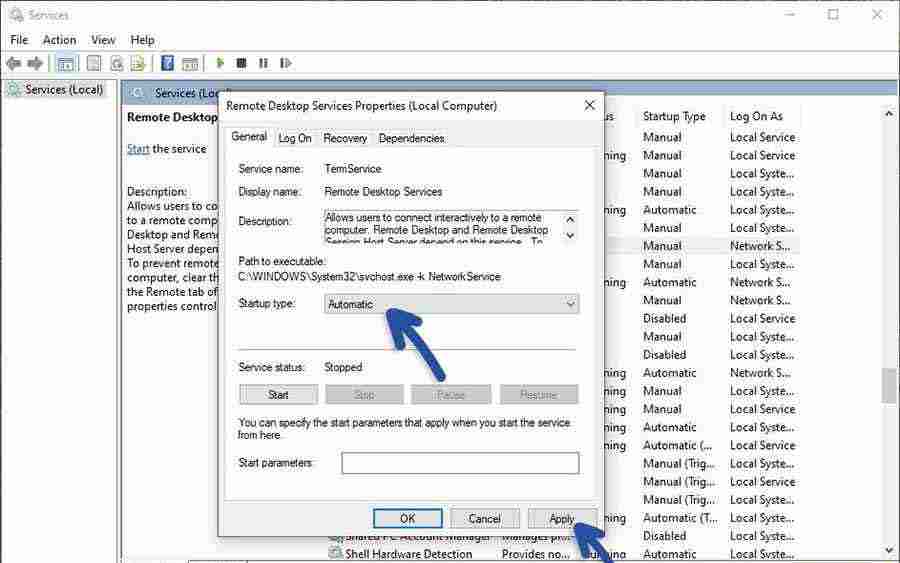
    1. In the first step, please enter the Run feature on your Windows, click Start, type Run, and Enter. Or you can use the keyboard shortcut Windows + R.
    2. Then, enter the command services.msc and click OK.
    3. Then find the Remote Desktop Service feature, right-click » then select Properties.
    4. In the Startup type section, change the setting to Automatic.
    5. Do Apply and click OK.
    6. Try restarting the computer and re-opening your Avast program.
    7. Finished.

    #2. Clear Cache with CCleaner

    Next, try to clean junk, temporarycache, and cookies files that are still attached to your computer. By doing this, the hope is that all the bugs in Avast Antivirus are gone and the program can run normally. It doesn’t have to be a CCleaner, you can also use other cleaning programs like AVG TuneUp, Disk Cleanup, and so on.

    The reason for choosing CCleaner is that the program is free. If you don’t have it, please download CCleaner first. Check out how to use the following;
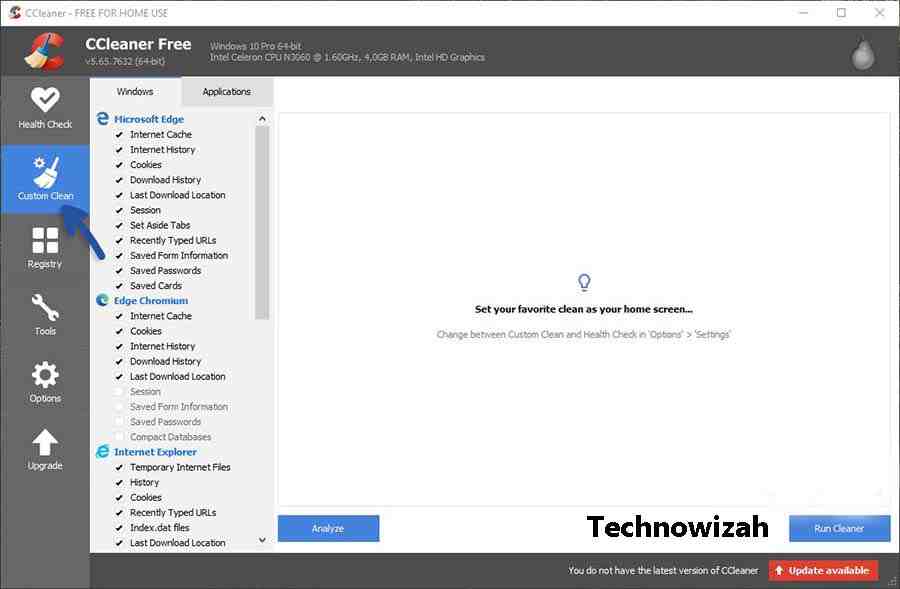
    Clear Cache with CCleaner
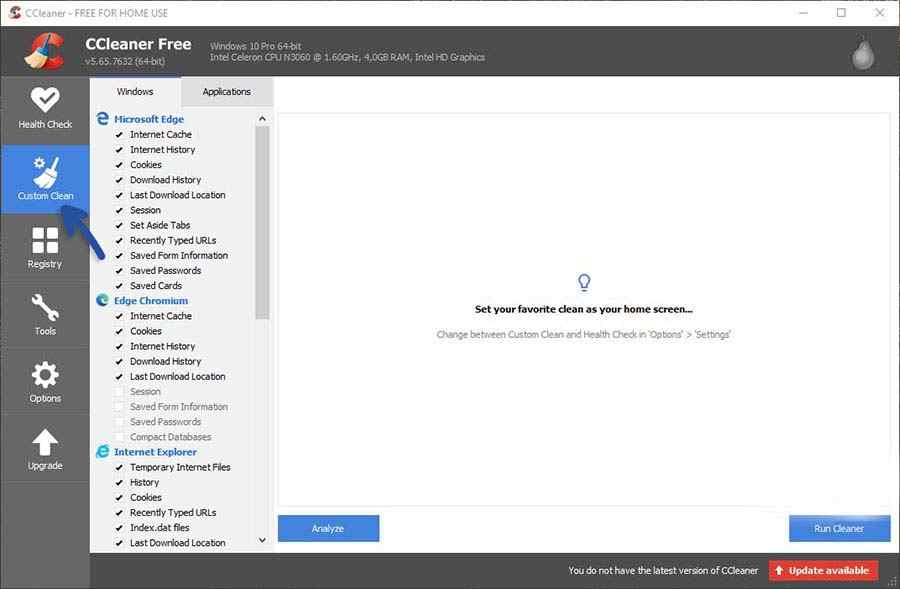
    1. The first step after installation, open the program and you will see the initial appearance of the CCleaner program.
    2. Go to the Custom Clean feature, then check the programs that need to be cleaned of trash, cachecookiesregistry, and other temporary files.
    3. Click Run Cleaner to do the cleaning and wait for the cleaning process to finish.
    4. After that, restart the computer and reopen the Avast program.
    5. Finished.

    #3. Make sure not to use 2 Antivirus

    Many computer users do not understand that users are only allowed to install 1 Antivirus program, nothing more. Windows 10 itself has been equipped with Windows Security (Windows Defender). Then you install Avast then Windows Defender will be connected or replaced with Avast, so Windows Defender doesn’t work.

    Well, therefore you just need to install 1 additional Antivirus apart from Windows Defender. So, when you install Avast and then Avira, for example, it is likely that there will be conflicts, errors, and not functioning properly.

    Although in use it may be normal this is not allowed. Just use 1 that you think is best.

    #4. Perform Avast End Task

    The next solution is to stop the Avast process ( end task ) that is running in the background. To do this, you can use the Task Manager featureThis way usually makes the bugs disappear and the program can be normal again. Here are the steps;
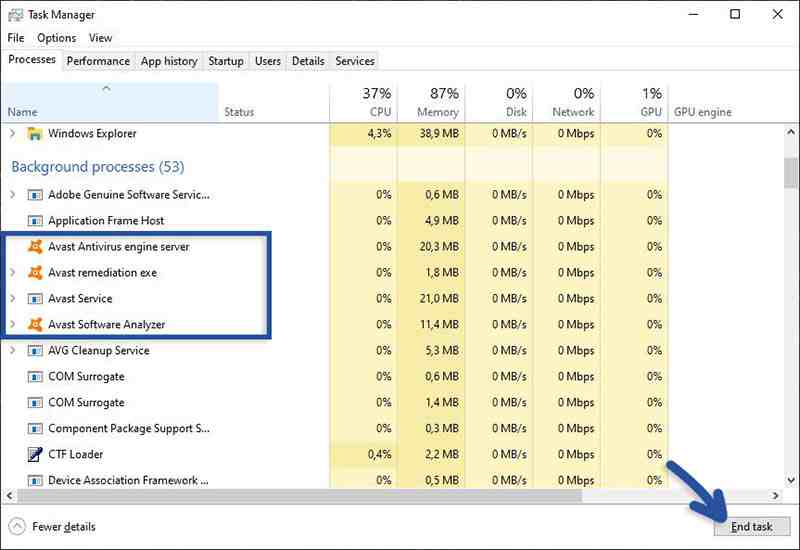
    Perform Avast End Task
    1. Click the Start menu, then type Task Manager and Enter. Or it could be with a shortcut combination; CTRL + Shift + Esc.
    2. Then you will see the Task Manager view.
    3. Please End the Task on all processes that occur in the Avast program.

    After doing this, the Avast program will close and stop running, either in the interface or in the background. Please reopen the Avast program, and see the results.

    #5. Update Avast Program

    Another option is to update or update the Avast program to the most recent version ( up to date ) at this time. With the update, it is hoped that all bugs and damage to the program can be repaired and can return to normal. Here are the steps;
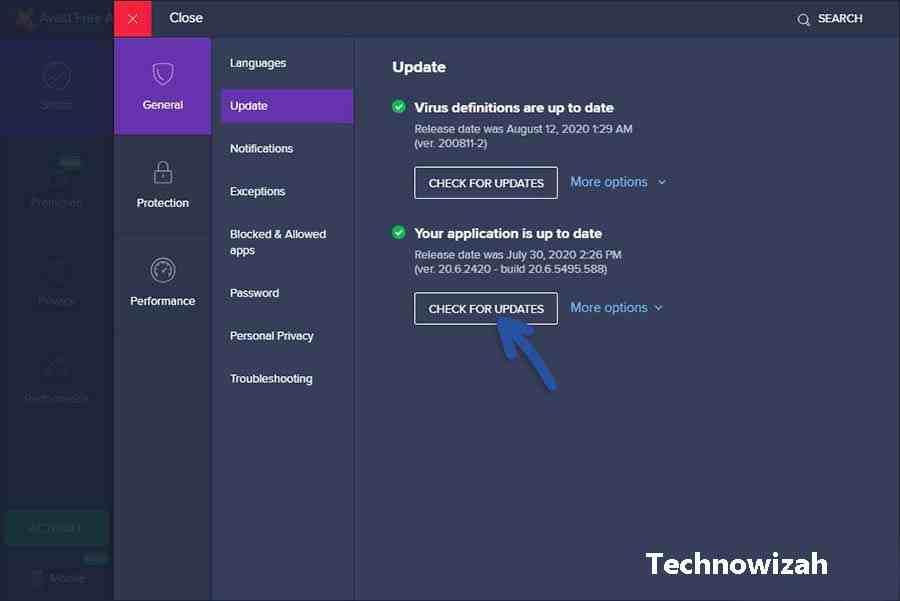
    Update Avast Program
    1. Open the Avast program installed on your Windows.
    2. Click the menu at the top right.
    3. Click Settings » General, then click Update.
    4. Check it by clicking Check for Updates.
    5. If a newer version is available, please update it.
    6. Finished.

    NOTE: This method can only be done for users who can still enter the Avast Settings feature as shown in the picture.

    #6. Try Repair Avast

    In addition to the Update option, you can also try to repair or repair. The function of this feature is to repair the damage that occurs to the Antivirus program because it could be that a corrupt or missing program file makes Avast unable to run normally.
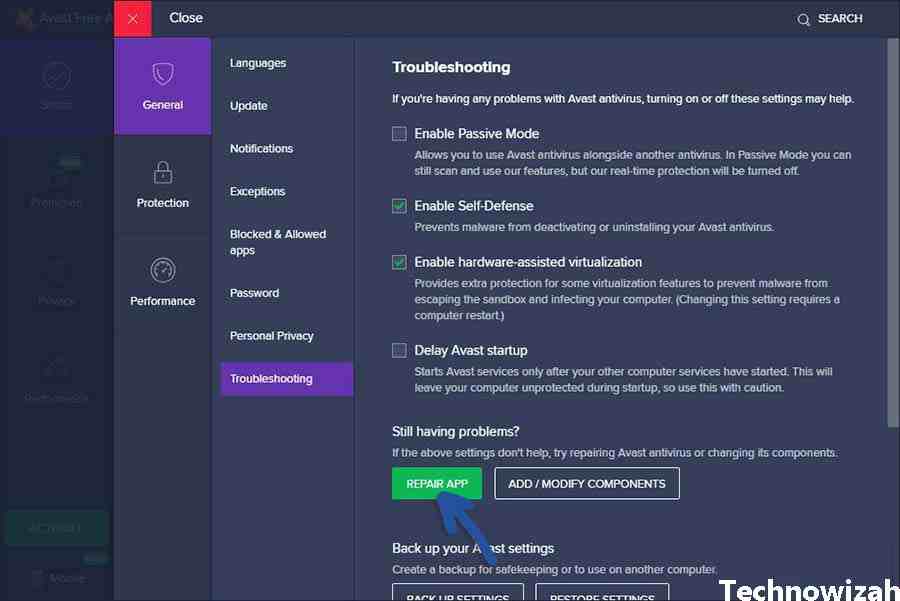
    Try Repair Avast
    Try Repair Avast

    To do this, please open your Avast program and go to Settings » General » then click Troubleshooting. In that section, you click Repair App to make repairs. If a pop-up appears, confirm with OK.

    NOTE: The repair process will take a long time and you can wait until the process is complete.

    #7. Reinstall Avast

    The last is to reinstall or delete and reinstall your Avast program. If you have previously installed not from the official Avast website, then it is possible that the program has a problem and needs to be replaced with a new program. To do this, please go to the Add or Remove Programs feature.
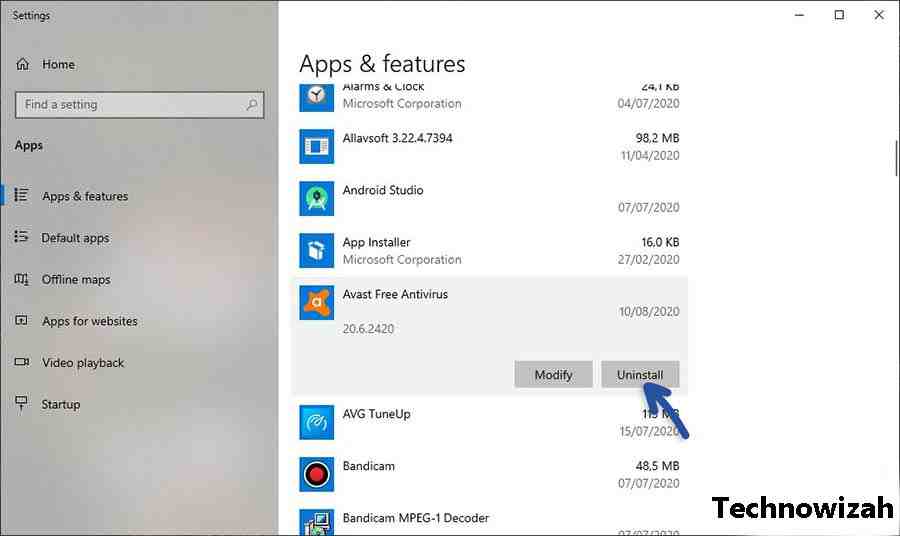
    Reinstall Avast
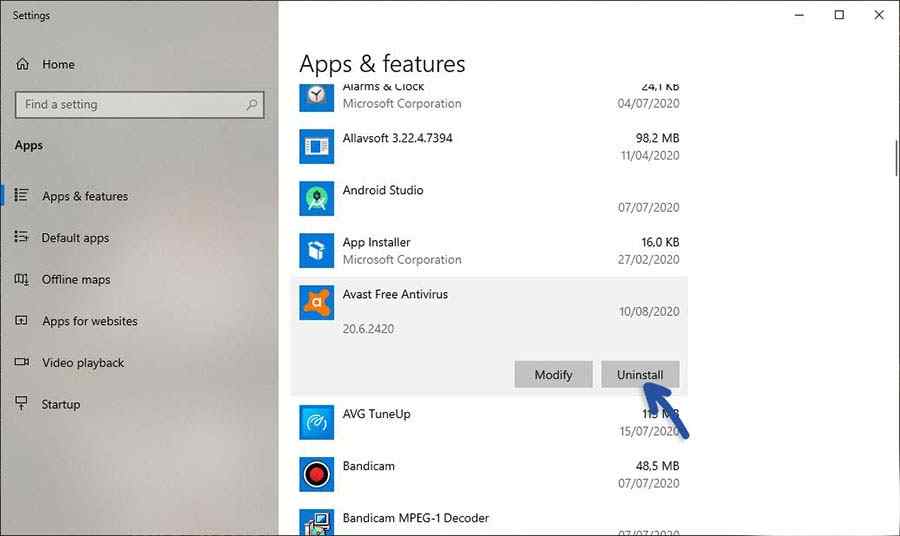
    1. Open the Start menu in your Windows, search, and click Add or Remove Programs.
    2. Scroll down and find the Avast Free Antivirus program.
    3. Click the program, then select Uninstall.
    4. Follow the deletion process until it’s finished.
    5. Restart the computer.

    After the removal is complete, try to install the latest version of the Avast program. To avoid problems, please download Avast on the official website.

    Other Possibilities!!

    In addition to the above, other possibilities make the Avast program unusable. What’s that? Check out some of the possibilities below.

    #1. Your Antivirus is blocked by Virus

    It could be that your antivirus cannot function properly because it is blocked by a virus. It is a little strange and difficult to understand but this is the fact that some Windows programs cannot run normally due to viruses and malware that damage the system.

    The solution is, to try to use the AdwCleaner program from Malwarebytes. You can enable the program to clean the virus without the need to install it. After all the viruses are gone, you can reinstall the Avast program.

    #2. Your Windows has a problem

    Another possibility is, that your Windows has a problem or an error so it can’t function properly. The solution is to repair your Windows system. Errors on the system are usually also marked by other programs or software that also have problems.

    Better to check and if necessary reinstall your Windows system. These are possibilities that may not necessarily happen on your Windows because every user has different problems.

    Read more:

    Conclusion:

    Of all the solutions that the author describes above, you can try them one by one. If there are still problems later, please write your complaint in the comments column below.
  • 5 Ways to Fix Cannot Install Antivirus on Windows 10 PC 2024

    5 Ways to Fix Cannot Install Antivirus on Windows 10 PC 2024

    5 Ways to Fix Cannot Install Antivirus on Windows 10 PC – In-running a computer, Antivirus becomes very necessary where its function is very important to protect you as a user ( user ) and prevent data loss or damage due to attacks from various viruses and malware. Even though Windows 10 itself has been equipped with pretty good security protection, namely Windows Defender, some users still want to use other Antivirus.

    5 Ways to Fix Cannot Install Antivirus on Windows 10 PC
    5 Ways to Fix Cannot Install Antivirus on Windows 10 PC

    How to Fix Cannot Install Antivirus on Windows 10 PC 2024

    Antivirus functions not only to protect your data offline but also to protect your privacy from spyware attacks on the internet or from the sites you visit. In fact, more users are attacked via the internet than spyware programs that usually install themselves automatically and steal all available information.

    Read more:

    Through this article, the author will explain some of the things that make the Antivirus program unable to be installed on Windows 10.

    This discussion becomes very important considering that the Antivirus program is needed by many Windows computer users. Viruses are also the reason why the Antivirus program cannot be installed. Very strange indeed, but that’s one of the reasons.

    Some things that make Antivirus can’t be installed

    Some of the things below might be the reason why the Antivirus software/program cannot be installed. Here’s why;

    • Antivirus is not compatible with your Windows OS – Before installing, make sure you check that the program is compatible with your Windows OS. Because it is possible that some Antivirus programs are not compatible with old Windows OS such as Windows XP, 7, and 8.
    • Viruses prevent you from installing Antivirus – A little strange indeed, but that’s the fact that there are viruses that prevent you from installing software. The solution must be cleaned first using a cleaner program without installation. An alternative could be to use Malwarebytes.
    • Antivirus program file corruption occurred – Another possibility is that the Antivirus program is corrupt (damaged) or the data from the program is incomplete so that when the installation fails, right until the middle of the error message appears.
    • Installation is blocked by another Antivirus program – If you have used another Antivirus program, then it could be a barrier that prevents the new Antivirus program from being installed. So you have to uninstall it first.

    Solve Can’t Install Antivirus on Windows 10 PC

    After knowing some of the causes above, here are some simple solutions that you can do.

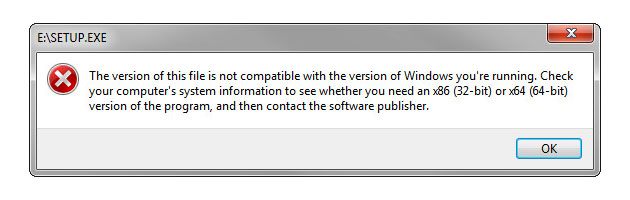
    #1. Make sure the Antivirus is compatible with your Windows

    Make sure the Antivirus is compatible with your Windows
    Make sure the Antivirus is compatible with your Windows

    In installing software, you need to make sure that the software is compatible with the OS you are using. First, what OS version are you currently using? Is it 32-bit or 64-bit? If it’s 32-bit, then the software you install must be 32-bit, not 64-bit. As for the 64-bit OS, you can install 32-bit or 64-bit software. Everything can work well but will be more leverage when using 64-bit.

    Well, also make sure the Antivirus program supports the type of Windows you are using, whether Windows 7, Windows 8, or Windows 10. Usually, on the official website, there are terms and conditions for installation. For now, most Antivirus such as Avast, Avira, Kaspersky, and others still support Windows 7. But in the future, it may no longer support it.

    #2. UI Failed to Load

    UI Failed to Load
    UI Failed to Load

    One of the errors that are often encountered when using Antivirus is ‘UI Failed to Load’. This happens with Avast Antivirus where the program crashes after opening or after installation. Actually, the program can be installed, but cannot be used at all. To solve this problem, you can go to the Service feature in Windows 10, then change the Startup type from Remote Desktop Service. Here are the steps;

    UI Failed to Load
    UI Failed to Load
    1. First, please use the Windows + R keyboard shortcut combination.
    2. Then enter the command services.msc then click Ok.
    3. After that, find the Remote Desktop Service feature, and right-click» Properties.
    4. In the Startup type section, change the setting to Automatic.
    5. Then Apply and Ok.
    6. Restart the computer and try to open the Antivirus again.
    7. Finished.

    #3. Uninstall Pre-installed Antivirus

    Uninstall Pre-installed Antivirus
    Uninstall Pre-installed Antivirus

    Make sure you don’t install and use another Antivirus program when you want to install a new Antivirus. Because usually this also makes the installation fail or sometimes a message appears that you have used the Antivirus. Remove the Antivirus by going to the Add or Remove Program feature. Here are the steps;

    1. First, please click your Windows 10 Start menu, then type Add or Remove Program. Click the feature.
    2. Next, find the Antivirus program that needs to be removed. Click the program, and select Uninstall.
    3. Confirm with Uninstall and follow the next uninstall instructions.
    4. Finished.

    #4. Turn Off Windows Defender

    Turn Off Windows Defender
    Turn Off Windows Defender

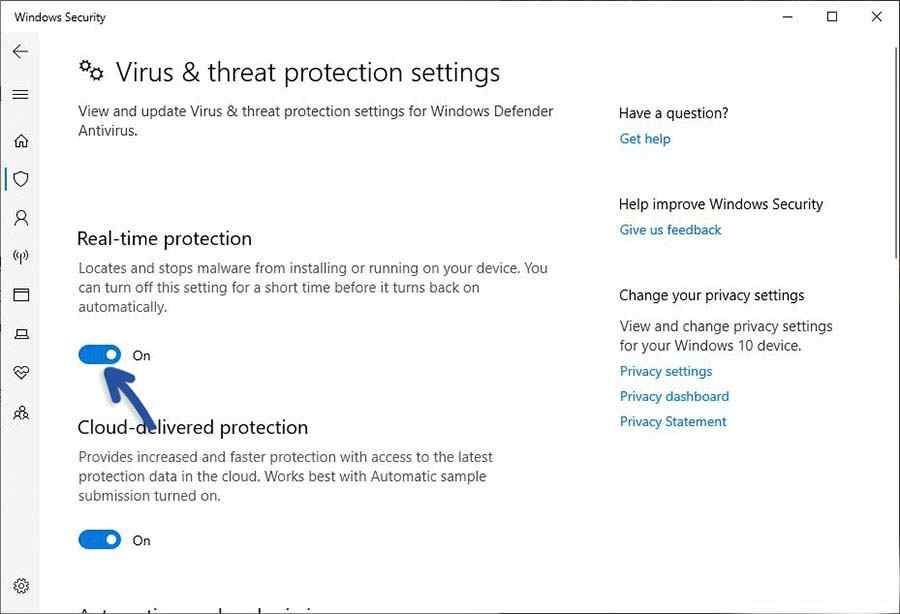
    Before installing the new Antivirus, be sure to turn off ( turn off ) Windows Defender. Because in some cases, installing Antivirus or other programs is blocked by Windows Defender. Even though Windows Defender is also an Antivirus, many users are having problems installing the program. So you need to add an exception or turn it off for a while.

    1. First, click the Windows 10 Start menu, then type Windows Security.
    2. Once found, click the software.
    3. Then select the Virus & Threat Protection feature, then select Manage Settings.
    4. In the toggle button for the Real-time Protection feature, you can turn off the feature with the On to Off option.
    5. That way, Real-time Protection has been turned off and you can try installing a new Antivirus.
    6. Finished.

    #5. Clear Windows Cache

    Clear Windows Cache
    Clear Windows Cache

    In addition to doing some of the things above, try to clean cache files and temporary Windows so that installed programs can run normally. Junk files that accumulate on the system also sometimes make the installation process problematic, you can use the built-in cleaner software such as Disk Cleanup to clean it. In addition, the author’s recommendation can use CCleaner. The software is very powerful and can clean the cache and registry faster and easier. If interested, please download it here.

    1. To use CCleaner, open the program.
    2. Go to the Custom Clean section, then check the programs you want to clean the cacheregistry, and other temporary files.
    3. You can exclude programs that you don’t want to clear the cache.
    4. Click Run Cleaner to start and wait for the cleaning process to finish.
    5. Finished.

    Read more:

    Conclusion:

    Those are some simple solutions that you can do to solve the error problem when installing Antivirus on Windows.

  • 5 Ways to Fix DRIVER_IRQL_NOT_LESS_OR_EQUAL on Windows 10 [2024]

    5 Ways to Fix DRIVER_IRQL_NOT_LESS_OR_EQUAL on Windows 10 [2024]

    5 Ways to Fix DRIVER_IRQL_NOT_LESS_OR_EQUAL on Windows – Windows 10 has a large number of error messages, and the DRIVER_IRQL_NOT_LESS_OR_EQUAL error is one of them. If you find this stop code, you don’t need to worry, because this time we will discuss how to solve this DRIVER_IRQL_NOT_LESS_OR_EQUAL error.

    5 Ways to Fix DRIVER_IRQL_NOT_LESS_OR_EQUAL on Windows
    5 Ways to Fix DRIVER_IRQL_NOT_LESS_OR_EQUAL on Windows

    What is DRIVER_IRQL_NOT_LESS_OR_EQUAL Error?

    This DRIVER_IRQL_NOT_LESS_OR_EQUAL error is related to your system driver and carries a stop code  0x000000D1. The error indicates “that the kernel-mode driver attempted to access pageable memory while the process IRQL was too high.”

    Read more:

    This error comes from a communication problem between your hardware and your processor. When your hardware wants to tell the CPU that something is going to happen, it creates an interrupt. If too many hardware bits try to communicate simultaneously, or rather, there’s an incorrect configuration somewhere, the interrupt request level (IRQL) goes up.

    In this case, the hardware is trying to access a part of your system memory that it can’t access because the CPU is processing other things. Drivers help with hardware communication, allow your GPU to talk to the CPU, and so on.

    If a driver tries to access a memory address that it doesn’t have proper access to, it can cause your system to crash. One of the most common drivers involved with error 0x000000D1 is your network driver, specifically the ndis.sys system file.

    How to Fix DRIVER_IRQL_NOT_LESS_OR_EQUAL

    Since the DRIVER_IRQL_NOT_LESS_OR_EQUAL error is related to your system drivers, there are some easy fixes available.

    #1. Check for Updates

    Check for Updates
    Check for Updates

    It’s obvious, you should always check for updates or updates. There might be a bug fix in a future update related to your faulty driver, and installing the update might make things fine.

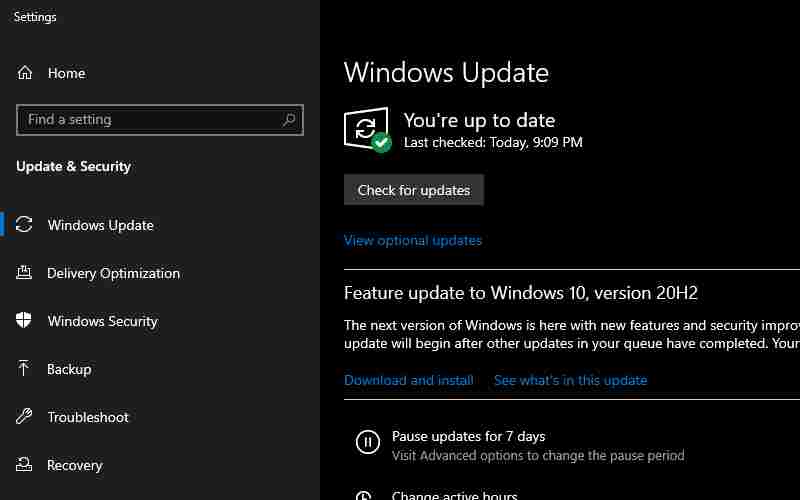
    Press the Windows key + I  to open the Settings panel. Now, go to  Update & Security, then check under  Windows Update for pending updates. If there is an update, save any important files, then press  Restart now. Your system will reboot during the process.

    #2. Update System Driver

    Windows 10 takes care of updating your drivers, but that doesn’t mean the drivers will be updated to the appropriate version. It also doesn’t stop driver corruption, where drivers become buggy or corrupt over time. Driver errors are less common on Windows 10 compared to older versions of Windows, but they still happen.

    Update System Driver
    Update System Driver

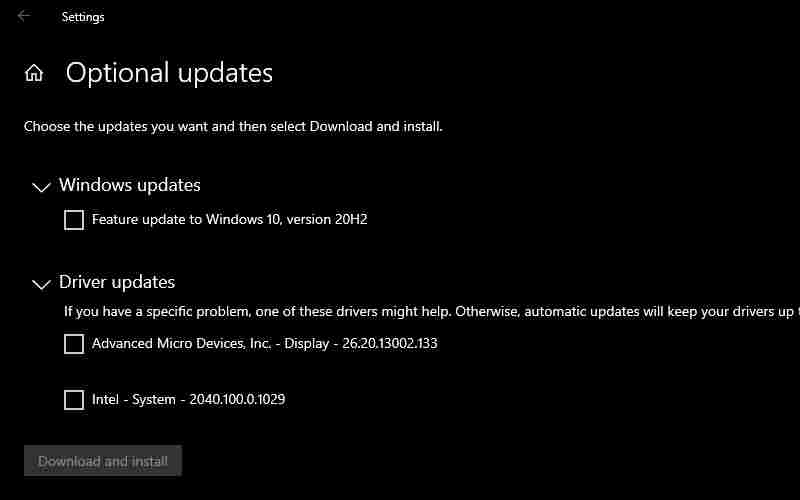
    If you want to see the latest driver updates, Press Windows key + I  to open the Settings panel, then select  Update & Security > View update history. You can find any drivers that need updating here.

    Update System Driver
    Update System Driver

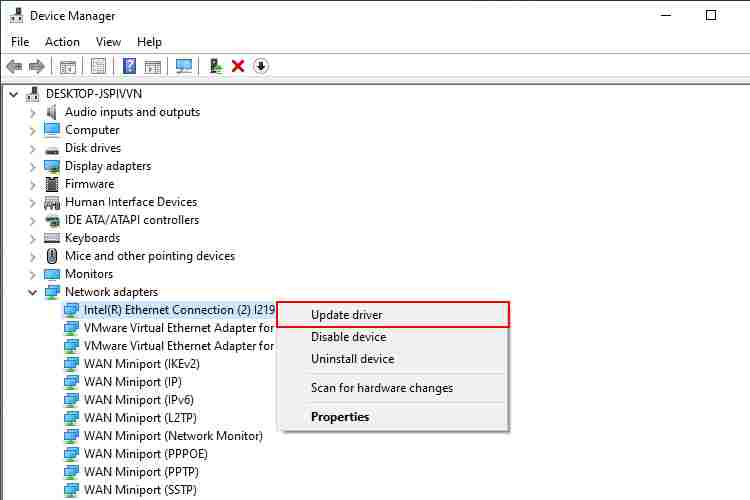
    If the driver update history page doesn’t say anything, it’s time to check the Device Manager. Type  Device Manager in the Start Menu search bar and select the most appropriate one. Check the list for any yellow error indicators. If it’s not there, it’s less likely that the driver is the source of the problem.

    However, DRIVER_IRQL_NOT_LESS_OR_EQUAL is often associated with the ndis.sys system file, you’ll need to do a manual network adapter update here.

    Go to the Network adapters section, right-click the driver for the Wi-Fi adapter or Ethernet adapter (or both), and select  Update Driver. Now, select  Search automatically for updated driver software,  and Windows will automate the update process for you.

    #3. Uninstall And Reinstall the Network Driver

    If updating Windows 10 and updating drivers still doesn’t work, you can try to install a clean driver. That means you have to remove the driver from your system, and then install the latest version without any help from Windows.

    Since it is related to the network adapter, you need to download the correct driver beforehand, because once you delete your network adapter driver, your internet connection may stop working.

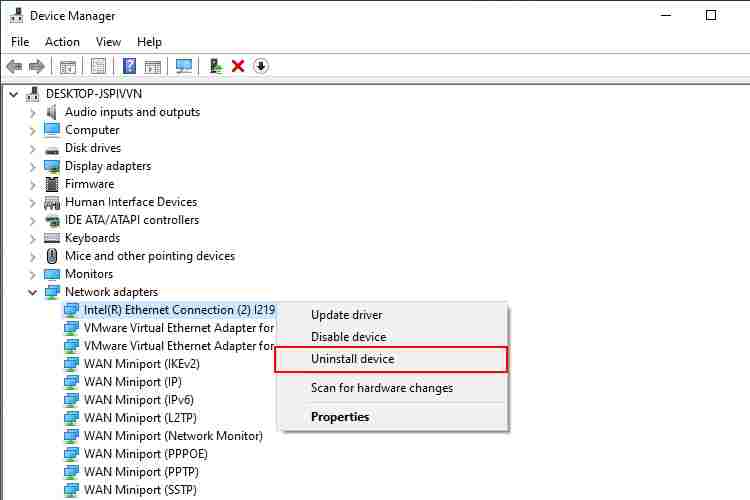
    Go back to Device Manager and open the Network Adapters section. Now, copy and paste the driver’s name into an internet search engine. For example, the admin will search “Intel(R) Ethernet Connection” to find the latest driver for the Ethernet adapter.

    Browse and download the latest version of the network adapter available for your hardware. Most drivers come with an automatic installation file called  setup.exe, which you will find somewhere in the downloaded driver file.

    Uninstall And Reinstall Network Driver
    Uninstall And Reinstall Network Driver

    Once you have downloaded the correct network adapter driver, you can go ahead and uninstall the existing network adapter driver. In Device Manager, right-click your existing network adapter driver and select  Uninstall.

    When you have finished uninstalling the driver, find the new network adapter driver and run the installation program. After the installation is complete, restart your computer.

    #4. Run SFC And CHKDSK

    Windows 10 includes several integrated system tools that will repair corrupted file systems. If updating and replacing drivers doesn’t work, it could be a corrupt file somewhere else on your system.

    The DRIVER_IRQL_NOT_LESS_OR_EQUAL error could be related to your paging file, which is a type of virtual system memory. Running SFC and CHKDSK can fix any crashes related to the paging file.

    Windows System File Check (SFC) fixes errors related to Windows system files, automatically scanning for and repairing errors.

    Before executing the SFC command, it is important to check if the system is functioning properly. To do this, you can use the Deployment Image Servicing and Management, or DISM tool.

    Like SFC, DISM is an integrated Windows utility with multiple functions. In this case, the DISM Restorehealth command ensures that your next repair will work properly. Perform the following steps.

    Run SFC And CHKDSK
    Run SFC And CHKDSK
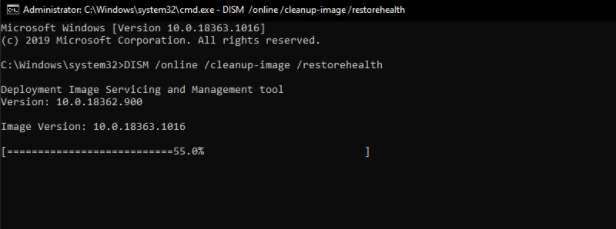
    1. Type  Command Prompt (Admin)  in the Start menu search bar, then right-click and select  Run as administrator to open a Command Prompt with admin privileges.
    2. Type the following command and press Enter:  DISM /online /cleanup-image /restore health
    3. Wait for the command to finish. The process can take up to 20 minutes, depending on the health of your system. The process seems to crash at times, but wait for it to finish.

    Run SFC And CHKDSK
    Run SFC And CHKDSK

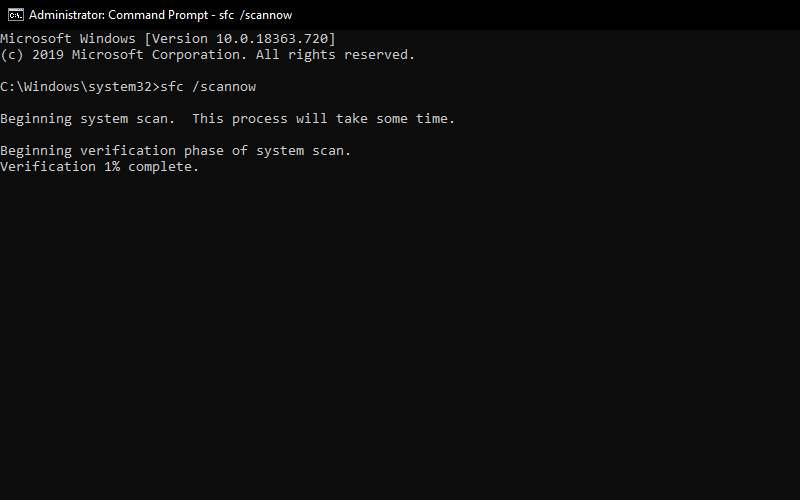
    When the process is complete, type sfc /scannow and press Enter.

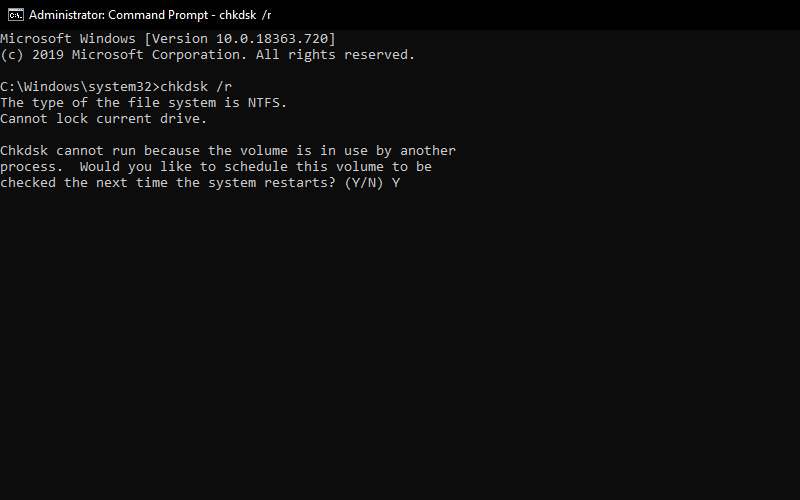
    CHKDSK is another Windows system tool that checks your file structure. Unlike SFC, CHKDSK scans your entire drive for errors, whereas SFC scans your Windows system files specifically. Like SFC, run a CHKDSK scan from the Command Prompt to repair your machine.

    Run SFC And CHKDSK
    Run SFC And CHKDSK
    1. Type the command prompt in the Start menu search bar, then right-click the most suitable one and select  Run as administrator. (Alternatively, press the Windows key + X, then select  Command Prompt (Admin)  from the menu.)
    2. Next, type chkdsk /r  and press Enter. The command will scan your system for errors and fix any issues along the way.

    #5. Check for Viruses/Malware

    We all have a strong desire to download or use files and software for free from unverified sources. Oftentimes, such activities can prove deadly, such as malware or virus infection inside a PC.

    These files can also cause network drivers to become corrupted. If this is the case, then it is recommended to immediately remove the software or file from the computer and perform a complete virus scan on the system with reliable antivirus software or Windows Defender.

    Read more:

    Conclusion:

    So those are some ways to solve the DRIVER_IRQL_NOT_LESS_OR_EQUAL error. Admin hopes one of these fixes can solve your problem. While the DRIVER_IRQL_NOT_LESS_OR_EQUAL error is frustrating, it is not a very difficult problem to remove from your system. Perform these steps one by one, and your system will be back up and running in no time.

    The important thing to remember is to download the new network adapter driver before deleting the old one. If you do it the wrong way, for example, by uninstalling the driver first, you might have a hard time downloading the new network adapter driver, especially if you don’t have any other devices available.

  • 6 Ways to Fix Slow Boot Time in Windows 10 PC 2024

    6 Ways to Fix Slow Boot Time in Windows 10 PC – One of the most frustrating Windows problems is a slow startup. When Windows takes a long time to boot up, you are afraid of turning on or rebooting your computer.

    6 Ways to Fix Slow Boot Time in Windows 10 PC
    6 Ways to Fix Slow Boot Time in Windows 10 PC

    How to Fix Slow Boot Time in Windows 10 PC [2024]

    Certain versions of Windows 10 are particularly vulnerable to this. But luckily, a slow boot is a problem that can be solved.

    Read more:

    #1. Disable Fast Boot

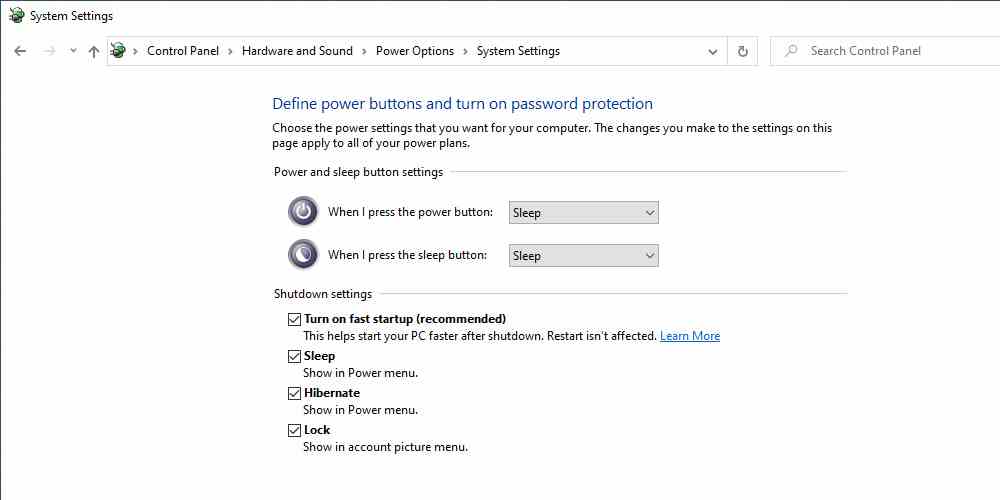
    By far, the most problematic setting when it comes to boot time in Windows 10 is the Fast Startup option. It’s enabled by default and should reduce startup time by loading boot information before your PC shuts down.

    It causes problems for many people. So, this is the first step that you should try when you have slow boot issues. (Note that restarting your computer is not affected by this feature.

    Open Settings and browse to  System > Power & Sleep. On the right side of this screen, click Additional Power Settings to open the Power Options menu in the Control Panel. Here, click  Choose what the power buttons do in the left sidebar.

    You will need to give the administrator permission to change the settings on this page, so click on the text at the top of the screen that says Change settings that are currently unavailable. Now, uncheck Turn on Fast Startup (recommended), and Save Changes to disable this setting.

    Disable Fast Boot
    Disable Fast Boot

    If you don’t see the Fast Boot option, you don’t have hibernation so it won’t show up. To enable hibernation, open an administrator’s Command Prompt or PowerShell window by right-clicking the Start button and selecting  Command Prompt (Admin)  or   Windows PowerShell (Admin). Type the following command to enable it, then try disabling Fast Startup again:

    powercfg /hibernate on

    #2. Adjust Virtual Memory Settings

    Virtual memory is a feature Windows uses to dedicate a portion of your hard drive as pretend RAM. Of course, the more RAM you have, the more tasks your system can handle at once. So if Windows is close to maximizing actual RAM, it goes into virtual memory.

    Some users have reported that Windows 10 can change virtual memory settings, causing boot problems. You should therefore take a look at your virtual memory settings and see if you can change them to fix the slow boot issue.

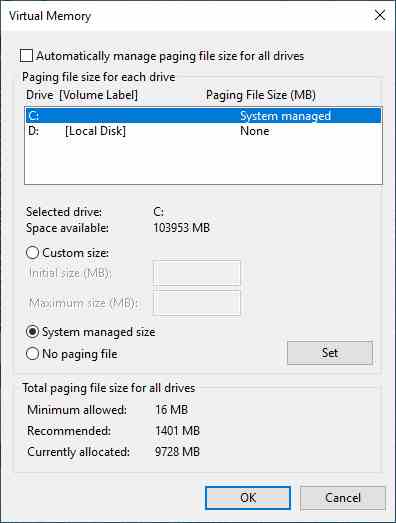
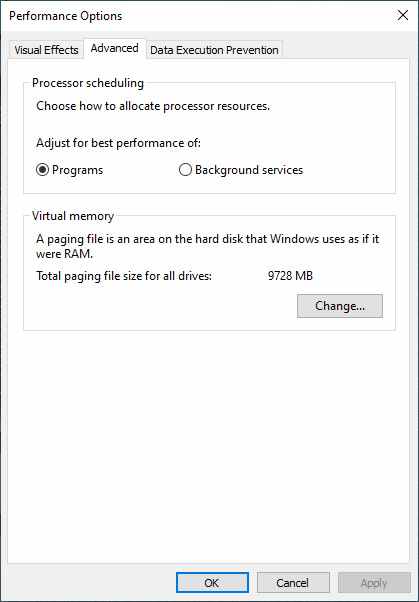
    Type Performance into the Start Menu and select Adjust the Appearance and Performance of Windows. Under the Advanced tab, you will see the size of the paging file (another name for virtual memory), click Change to edit it.

    Adjust Virtual Memory Settings
    Adjust Virtual Memory Settings

    In the resulting window, what matters is at the bottom. You will see the Recommended amount of memory and the number Currently Allocated. Some people experiencing this problem have found that their current allocation is well above the recommended figure.

    If yours is the same, uncheck Automatically manage paging file size for all drives to make changes. Then select Custom Size and set the Initial Size and Maximum Size to the suggested values ​​below.

    Adjust Virtual Memory Settings
    Adjust Virtual Memory Settings

    #3. Shutdown Linux Terminal

    A while back, Windows 10 got a full Linux bash terminal. This is of interest to developers, but may also be the cause of your boot problems. This feature is not enabled by default.

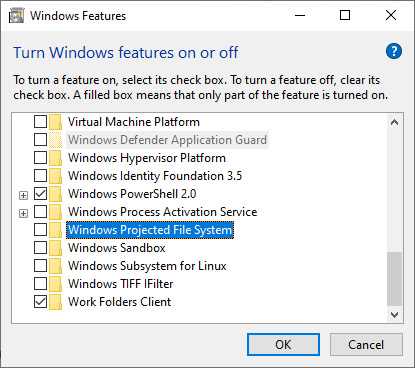
    So, if you don’t know what Bash is, you probably don’t need to try this step because you’ll know when you turn it on. To turn off the Linux shell, type Windows features into the Start Menu to open the Turn Windows on or off menu. Scroll down to Windows Subsystem for Linux, uncheck it, and restart.

    Shutdown Linux Terminal
    Shutdown Linux Terminal

    #4. Update Graphic Driver Driver

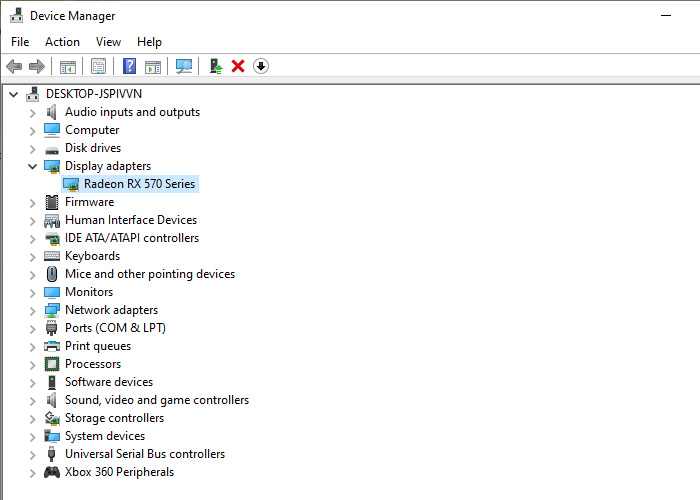
    Windows 10 is known to mess with drivers. Updating your graphics card drivers can sometimes fix boot issues, so let’s have a look. Open Device Manager by right-clicking the Start button and selecting  Device Manager. Navigate to  Display adapters to see which graphics card you are using (usually Nvidia or AMD if you have a dedicated graphics card).

    Update Graphic Driver Driver
    Update Graphic Driver Driver

    You can usually open the appropriate software on your PC to check for updates. If you don’t have one, you’ll need to navigate to the vendor’s website (or your laptop manufacturer’s website, if you’re using integrated graphics on a laptop) to check for driver updates. Install all new versions available.

    #5. Remove Some Startup Programs

    Maybe the slow boot time isn’t caused by any of these issues. If you are experiencing lags between logging in and using your computer, too many startup programs could be to blame. Many software sets themselves to run automatically at startup. If you have dozens of apps that load as soon as you log in, this can crash your system right away.

    #6. Do a Reset

    Do a Reset
    Do a Reset

    If you’ve tried all of the solutions above and still can’t speed up your boot time, it’s probably best to cut your losses and reinstall a fresh copy of Windows 10. You have several options to reset your PC.

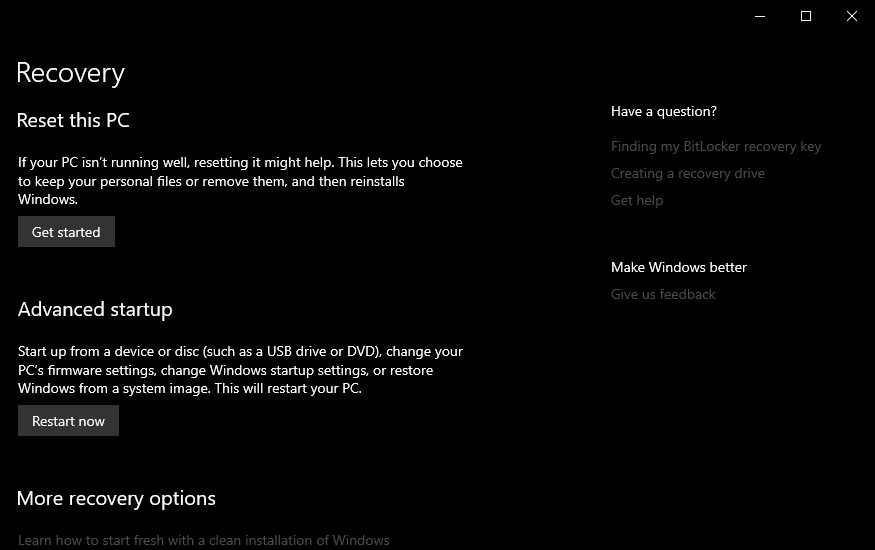
    The built-in Refresh option can reinstall Windows without deleting your files. But you still have to back up your computer data before this. Go to Settings > Update & Security > Recovery and select  Get Started under Reset this PC to get started.

    Read more:

    Conclusion:

    So those were 6 Ways to Fix Slow Boot Time In Windows 10. Hopefully, applying one or all of these fixes worked for you. The slow startup is a big problem, but you luckily have options to work around it. If nothing else works, hold on for the next major Windows 10 release, which should solve this problem.

  • Fix Nvidia Geforce Experience Error 0x0003 on Windows 2024

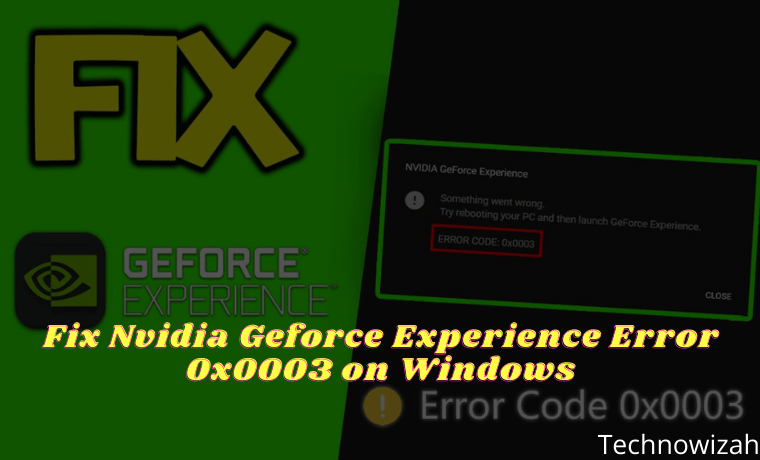
    Fix Nvidia Geforce Experience Error 0x0003 on Windows 10 PC – NVIDIA is one of the world’s leading graphics card manufacturers and is widely used by gamers, including professionals. But what will you do if you encounter an error while running the program? Many users reported that NVIDIA Geforce experienced error 0x0003. Are you one of them too?

    Fix Nvidia Geforce Experience Error 0x0003 on Windows 10 PC
    Fix Nvidia Geforce Experience Error 0x0003 on Windows 10 PC

    5 Ways to Fix Nvidia Geforce Experience Error 0x0003 on Windows 10 PC 2024

    Because if NVIDIA Geforce Experience crashes, users can’t use it. This error often occurs on Windows 7, Windows 8, and Windows 10.

    Read more:

    But you don’t have to worry! You are at the right place. Here you will find every detail about the problem and solutions to resolve NVIDIA Geforce experience error 0x0003.

    Causes of NVIDIA Geforce Experience Error 0x0003

    #1. Faulty NVIDIA Driver

    The error might be caused by a faulty NVIDIA driver. If one or all of the drivers are corrupted, there is a good chance that you will see this error. This can be resolved by reinstalling each driver component.

    #2. NVIDIA Services Stopped Working

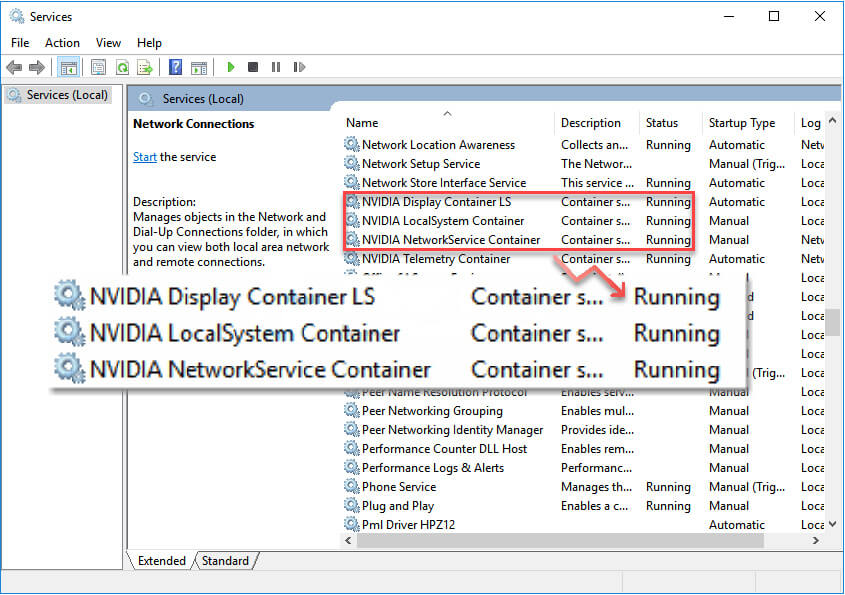
    Error code 0x0003 can occur because some Nvidia services have stopped running or are working. In this case, you have to force start all services, including Nvidia Display Service, Nvidia Local System Container, and Nvidia Network Service Container.

    #3. Compatibility Error

    Many users reported this error occurred after the Windows update. It is possible that the NVIDIA drivers are not compatible with the current version of Windows. To solve this problem, you will have to uninstall the existing Nvidia driver and install the updated version.

    #4. Glitched Network Adapter

    Sometimes a problematic network adapter can also be the reason that causes Nvidia Geforce Experience error 0x0003. Take the test and solve the problem. This might solve the Geforce experience 0x0003 error as well.

    #5. NVIDIA Telemetry Services Restrictions About Interacting With Desktop

    There are times when the NVIDIA Telemetry Container is not allowed to interact with the desktop screen, it generates a certain error. If so, allow interaction with this service view.

    So the above mentioned are the reasons that can make you face the NVIDIA Geforce Experience dialog box saying,  “ Something went wrong. Try rebooting your PC and then launch GeForce Experience. Error Code: 0x0003. “

    After you know the common cause of NVIDIA Geforce experience error code 0x0003. Admin also provides a short solution for the same. Follow these steps to resolve the error in no time.

    Solve NVIDIA Geforce Experience Error Code 0x0003

    #1. Stop And Relaunch All Nvidia Geforce Experience Tasks

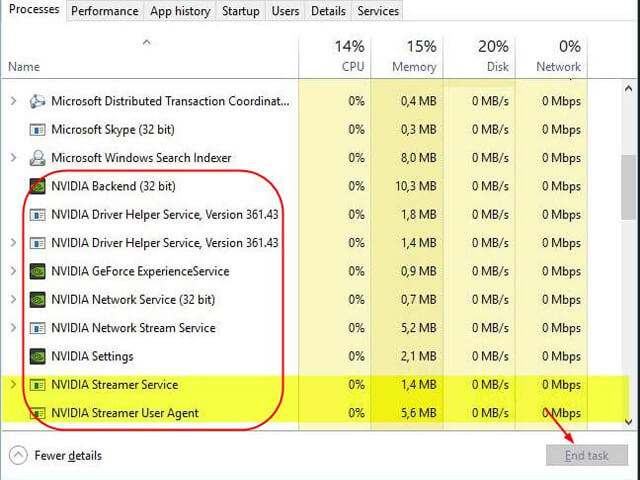
    1. Open the task manager by pressing Ctrl + Shift + Esc.

    2. Select all running NVIDIA tasks and click End task.

    Fix Nvidia Geforce Experience Error 0x0003 on Windows 10 PC

    3. Right-click on your GeForce Experience application icon and click  Run as administrator. Check to see if it works.

    If you are still facing the error then try another method.

    #2. Allow Nvidia Services To Interact With The Desktop

    As said earlier, if the Nvidia service is not allowed to interact with the desktop, it can cause this error. Solve this error in the following way:

    1. Open the Run dialog box by pressing the Windows logo + R.

    2. Type services.msc and press Enter.

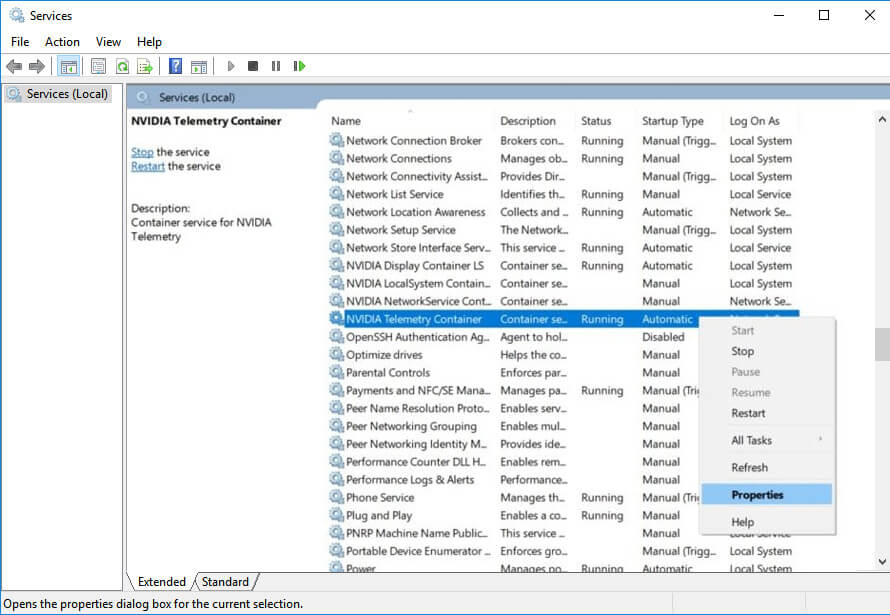
    3. The Services screen will open, now scroll down and look for  NVIDIA Telemetry Container. Then Right-click and click Properties.

    Allow Nvidia Services To Interact With The Desktop

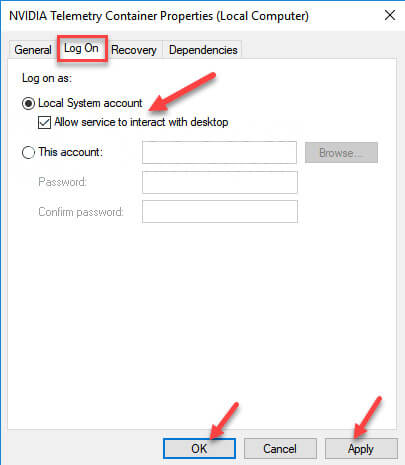
    4. In the Properties dialog box, find the Log on tab and make sure “Allow service to interact with desktop” is checked. Then click on Apply to save changes.

    Allow Nvidia Services To Interact With The Desktop

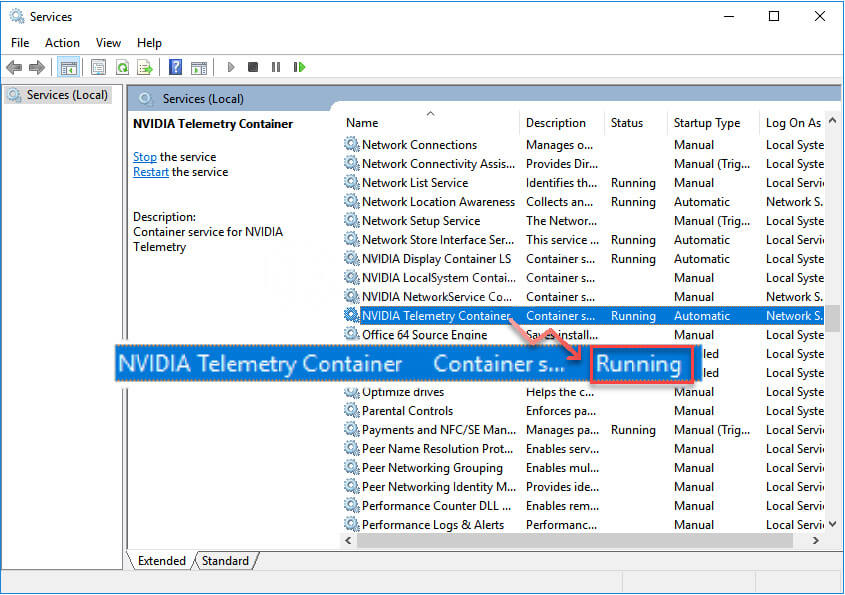
    5. Go back to the Services screen, right-click on Nvidia services, and select Start. This is to get the NVIDIA Telemetry Container service up and running.

    Allow Nvidia Services To Interact With The Desktop

    Now run the program where the error was shown again and check if the problem is solved. If not, check to see if other GeForce Experience services are running, such as NVIDIA Display Container LS, NVIDIA NetworkService Container, and NVIDIA LocalSystem Container.

    Allow Nvidia Services To Interact With The Desktop

    If still, showing the same error? Move to the next method.

    #3. Reinstall Every Nvidia Component

    Many people who have tried reinstalling, were able to solve Nvidia Geforce Experience Error Code 0x0003. For that you should try it, maybe this is suitable for solving your error.

    1. Press the Windows logo + R to open the Run Dialogue box.

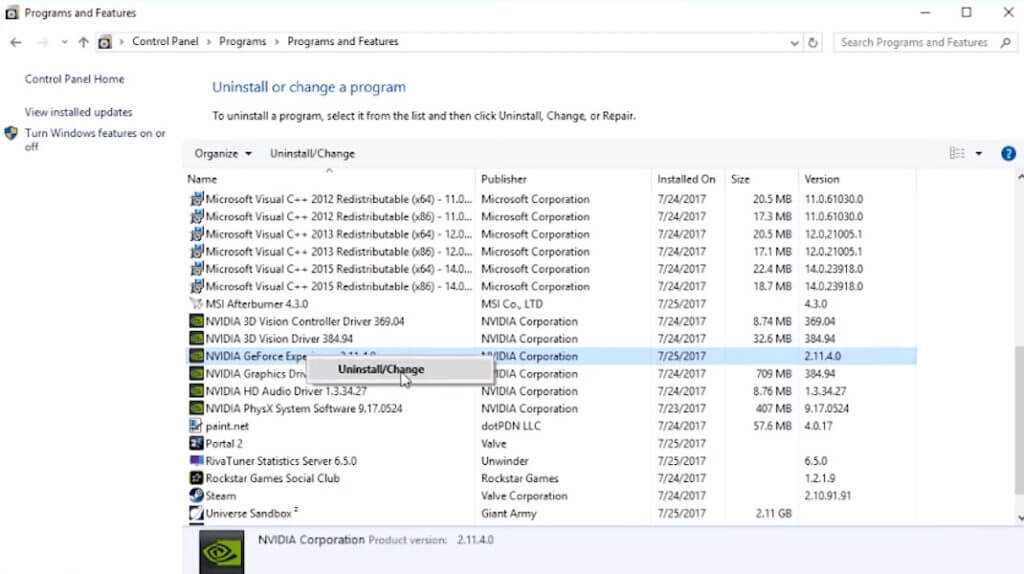
    2. Then type appwiz.cpl and press Enter.

    3. This will open the Programs and Features list, where all installed programs are displayed.

    4. Now, right-click and uninstall all Nvidia components in order (in order).

    Reinstall Every Nvidia Component

    5. After making sure every application related to Geforce is removed, restart the PC.

    Your next step is to download Geforce Experience from the NVIDIA website. Make sure you download the updated version. Then Install Geforce Experience, it will automatically install the remaining or missing drivers. As soon as the installation is complete, restart the computer.

    This will definitely fix the error and will allow you to perform your games and other tasks smoothly.

    There are actually 2 out of 10 cases, where Nvidia installs errors even after updating drivers. If that happens, there must be a problem with the Network Adapter. Follow the next steps to solve it too.

    #4. Fix Network Adapter Problem

    The method I’m going to write about here will work on Windows 7, Windows 8, and Windows 10.

    1. Open the Run dialog box by pressing the Windows logo + R.

    2. Next, write cmd in the box and press Ctrl + Shift + Enter.

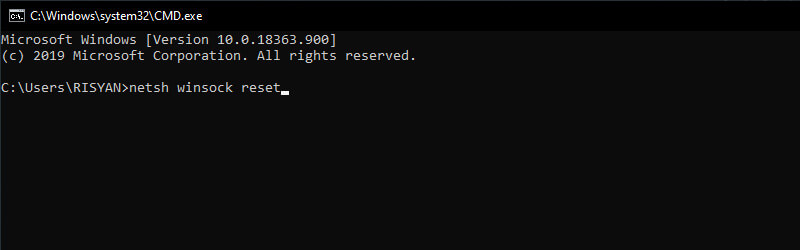
    3. This will open an Administrator command prompt. There, type command > “  netsh Winsock reset  ” and press Enter.

    Fix Network Adapter Problem

    4. After the command is processed completely, restart your computer.

    #5. Check Windows Update

    If your Windows is old, this may cause you to be unable to use GeForce Experience. So make sure to check for updates for Windows.

    1. Click on the Windows start menu then type and search for Settings.

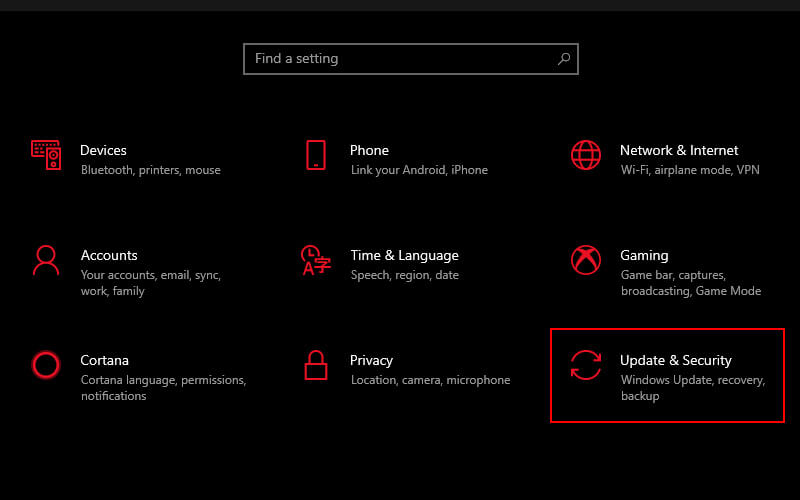
    2. After Windows settings open. Click  Update & Security.

    Check Windows Update

    3. Then click Check for updates

    Check Windows Update

    4. Install any available updates.

    5. Reboot your Windows 10 and run GeForce Experience to see if it works.

    Read more:

    Conclusion:

    So those are some solutions to fix or solve NVIDIA Geforce Experience error 0x0003, so you can play games normally and hassle-free. You can always check NVIDIA’s website for more information on updates.

    Don’t forget to bookmark and always visit every day Technowizah.com because you can find here the latest Tech Computer Android games How-to Guide Tips&Tricks Software Review etc, Which we update every day.