6 Easy Steps To Enable Hibernate In Windows 10– Hibernate is a feature of Windows systems since the release of Windows XP by Microsoft. Generally, Hibernate is used when the computer battery is in a critical state, and we want to stop processes on the system without eliminating or stopping the previous computer’s activities.
How to Enable Hibernate In Windows 10 Quick Ways
How to Enable Hibernate In Windows 10 Laptop PC
Hibernate is often likened to Windows’ Sleep feature, both of which temporarily stop the computer system. It’s just that, on Sleep, the computer is not completely turned off.
As for Hibernate, the computer is temporarily turned off and still leaves the activities on the previous computer when it is turned on. So, we can say that the Hibernate feature is more battery-friendly than Sleep.
In this article, we will add the hibernate option in Windows 10.
Follow the Steps: below.
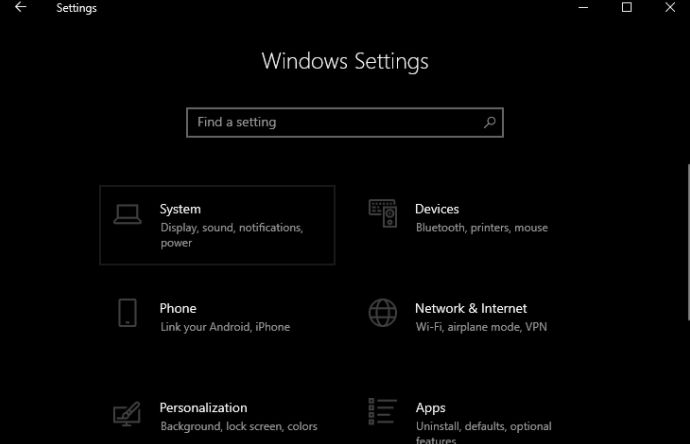
1. Open the Windows Settings option (either by pressing WIN + I on the keyboard or by pressing the gear logo in the Windows Start section).
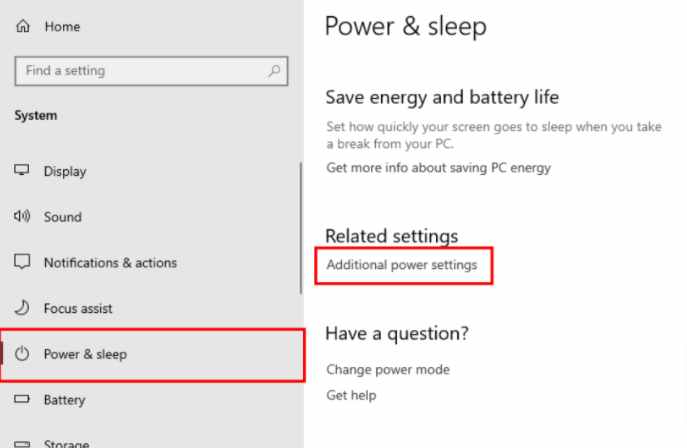
2. Select the System option on the Settings page. Then, in the Power & Sleep section, click the Additional power settings option located in the Related settings column.
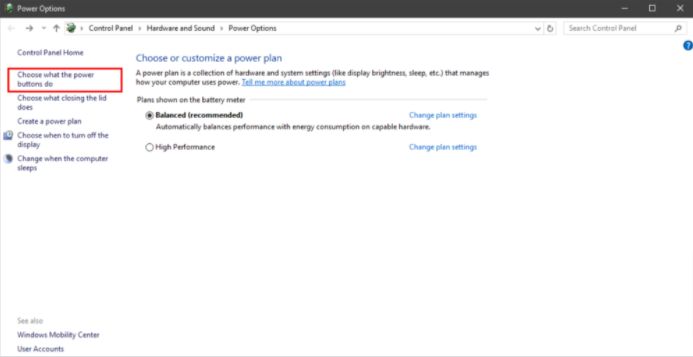
3. Later, a new page will appear in the form of battery power settings in the Control Panel. Then, select the option Choose what the power buttons do on the left side of the page.
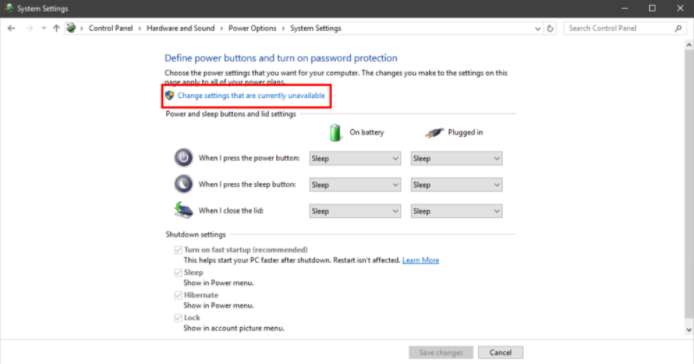
4. Click the Change Settings option that is currently unavailable.
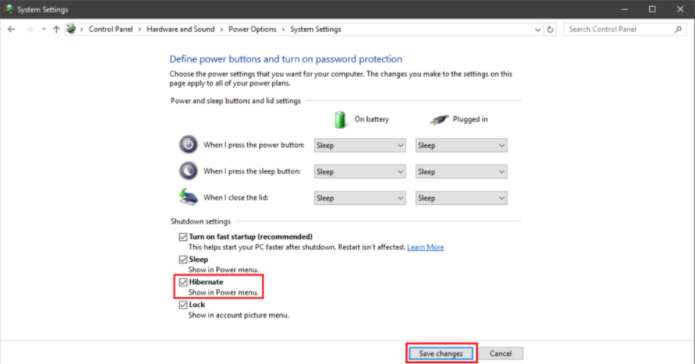
5. In the Shutdown settings, check the Hibernate option in the column provided. Then, click the Save Changes button.
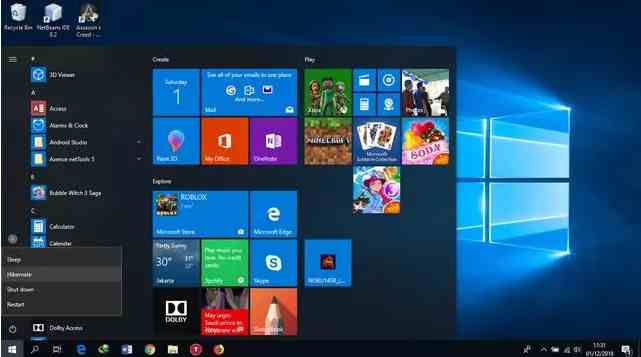
6. To ensure that the Hibernate feature has been activated, on the Start page, the Hibernate option will appear in the Power column.
#2 How to Enable the Hibernate option in Windows 10
First, log in with a user account that is an administrator on your Windows 10 PC, laptop, or tablet. Then, open the Control Panel and go to Hardware and Sound.
Look for Power Options and click or tap them.
In the left column, click or tap the link that says: ” Choose what the power button does.”
You may see various Shutdown settings, including Hibernate, being disabled, like no other.
Click or tap the link that says: “Change settings that are currently unavailable.”
This action makes Shutdown settings editable. Check the box next to Hibernate, and hit Save Changes.
You can now close the Control Panel.
You can now use the Hibernate option in Windows 10
The Hibernate option is now available in the Windows 10 Power menu, as you can see below. To use it, click or tap Start, then Power, then Hibernate.
Would you rather use Hibernate than Sleep?
We like the Hibernate option, and we prefer Sleep sometimes. You most likely do, and that’s why you’ve read this tutorial. Before you close, let us know why you prefer Hibernate, and how often you use it. Comment below and let’s get into it.
How to Activate Windows Defender on Windows 10 PC – Windows Defender is a tool to prevent ordinary viruses often called antivirus programs. Where your laptop or PC is protected by it. Therefore, how do I activate Windows Defender on Windows 10 laptops?
How to Activate Windows Defender on Windows 10
How to Activate Windows Defender on Windows 10 PC
Why does it have to be Windows 10? because the default antivirus is only obtained when you use Win 10.
Windows antivirus itself is already embedded directly after the purchase of a new laptop or computer.
Windows Defender function
Windows Defender has functions for the health of the operating system, but not only that, the following functions – functions:
Hold the virus in
Detect virus
Provides security through a firewall
If you will use the method of permanent turn on Windows Defender.
Where your device will be protected from the dangers of viruses. For that, please refer to the review of turning on Windows Defender below.
How to Activate Windows Security
#1. How to turn on Windows Defender in the Security Center
In this first step, I recommend that you are a beginner who does not want to be complicated in the process of turning on the Windows Security Center by default.
However, you need this basic method where you are only told to open Windows’s default antivirus settings.
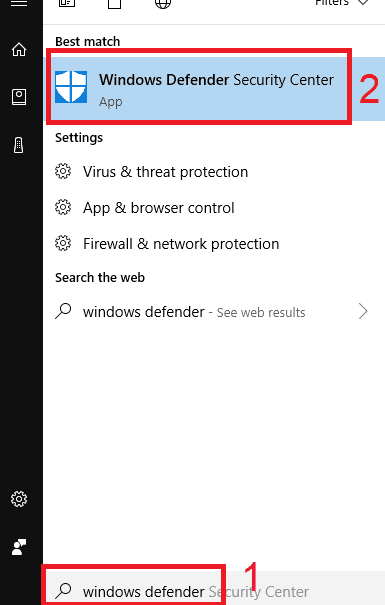
First, enter the Start Menu or press the Win icon Shortcut combination. Then type Windows Defender. Then the display will appear as drawn, press on the Windows Defender.
How to turn on Windows Defender in the Security Center
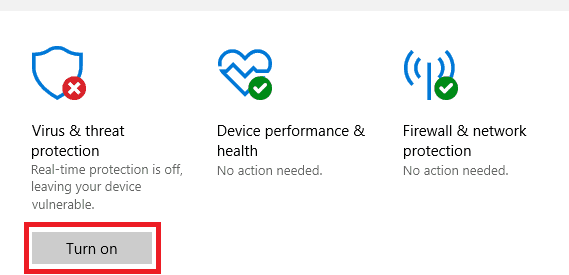
Second, there will be a new look where you tell me to press the Turn On menu under the words Virus & Threat Protection.
Turn On
If before this virus and threat protection has not been active then there will be a red button with a cross in the right corner according to the picture.
Then turn off by group policy just by pressing the Turn On button then a pop-up will appear, press Yes.
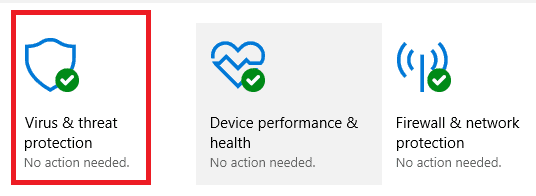
Once turned on, you can see the red mark with the cross image has disappeared.
The button has changed color to green with a checkmark that looks like the image below.
Then turn off by group policy just by pressing the Turn On button then a pop-up will appear, press Yes
After doing the above method, how to revive Windows Defender with the basic tutorial. You can see in full if your defender does not want to be turned on.
#2. How to Activate Windows Defender on Windows 10 via Group Policy
For Windows 10 home edition users, the group policy editor display will not appear. This program can only be displayed on Windows 10 Pro and Windows 10 Enterprise.
If you want to try it, please follow it below:
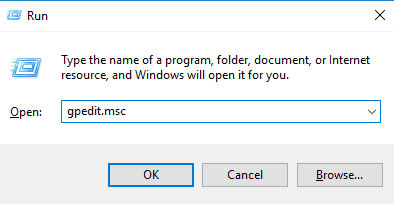
First, you can open Group Policy Editor via the start menu. You can also press the CTRL + R key combination and then type gpedit.msc.
How to Activate Windows Defender on Windows 10 via Group Policy
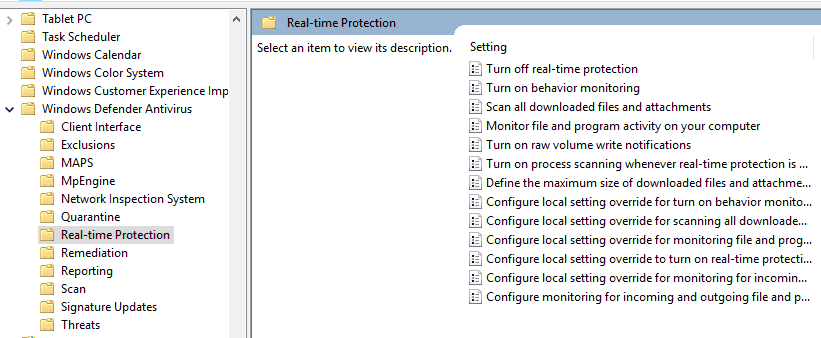
After entering the Local Group Policy Editor, you can enter a new window by selecting Computer Configuration -> Administrative Templates -> Windows Components -> Windows Defender Antivirus -> Real-time Protection.
Then you can double-click or double-click on the Turn Off Real-Time Protection menu.
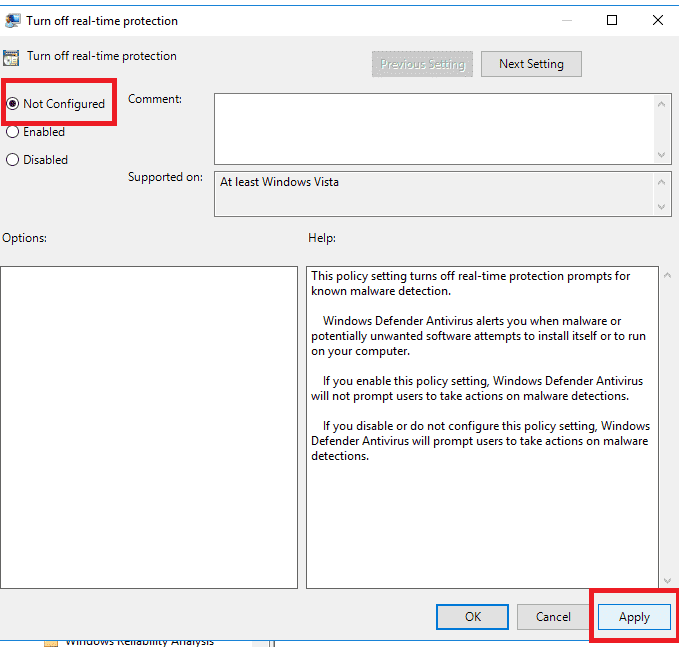
A new window will appear, here you can match the image. Where you have to choose Not Configured.
Not Configured
After setting, the next step in how to turn on real-time protection Defender is to press Apply then OK.
Then you can restart your computer or laptop to turn it on automatically
#3. How to turn on Windows Defender through Regedit
So that this process runs smoothly, you can first activate the system restore point.
If there is a slight error from editing the registry, then your PC might not be able to live again.
Open Regedit, by pressing Win + R type Regedit, or you can use the start menu type Regedit as well then press enter. If the UAC confirmation appears, press Yes to proceed to the next step.
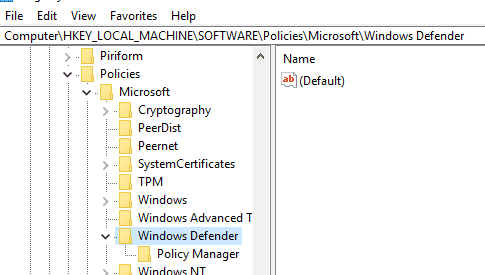
After Regedit is open, you can open the folder by what I required like this: HKEY_LOCAL_MACHINE -> SOFTWARE -> Policies -> Microsoft -> Windows Defender
How to turn on Windows Defender through Regedit
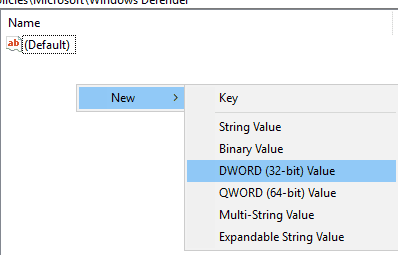
On the right blank bar at the bottom of the file (Default), you can press Right-click on your cursor. Then select New and then choose DWORD (32-bit) Value.
Warning: If you previously disabled Windows Defender using Regedit, there might already be a file called DisableAntiSpyware. You just double-click on the file change the value data to 0 then press OK.
DWORD (32 bit) Value
Next, you can enter the file name like this: “DisableAntiSpyware” without the quotes.
DisableAntiSpyware
Then you can change the value data to 0 if you have previously turned on the defender via Regedit. Then to apply it you can press the OK button.
At this point, it’s finished, just restart your computer or laptop.
How to Activate Windows Defender Windows 7
All this time, you only realize that Windows 10 only provides Windows Defender features.
There are secret ways you can use it to make Windows Defender live on Windows 7 OS.
Open the Start menu
Type Defender then select
Select the Tools menu
Select the Options menu
Select the Administrator menu
Then put a checkmark in the Use This Program section
Then press Yes
Now Windows Defender on Windows 7 is active.
Can Real-Time Protection Windows Defender Not Be Active?
If you feel the way above does not work there may be obstacles where you install a third-party anti-virus. This third-party antivirus can block Windows Defender from being active.
If you feel you have installed it, please uninstall it first so you can turn on Windows Defender.
If you install an antivirus such as Avast, Smadav, and so on, please turn it off first to turn on the Defender.
How to Overcome Windows Defender Cannot be Opened
Windows defenders can not only be opened and active by themselves. Sometimes this defender can’t be opened.
This problem often occurs in all Windows OS series, especially in Windows 10 and 7.
Thus the review that I can convey about the case of how to turn on Windows Defender on a laptop or computer.
So, friends, This is an explanation of the virus & threat protection on your laptop & computer that can be turned on, If you look hopeful then please do it with your friends.
10 Best Reminder Software for Laptop PC – To make it easier for you to manage your daily schedule, there are several reminder software that you can use on your Laptop PC. By utilizing this software you can set a schedule and create reminders of what to do today so that all your work and activities become more organized.
10 Best Reminder Software for Laptop PC
If you are the forgetful type, then installing this software will be very helpful, because it usually includes an alarm feature that will remind you of scheduled activities ranging from small things to important activities every day.
Here we provide some recommendations for the best reminder software for Laptop PCs that you can try:
#1. Microsoft To-Do
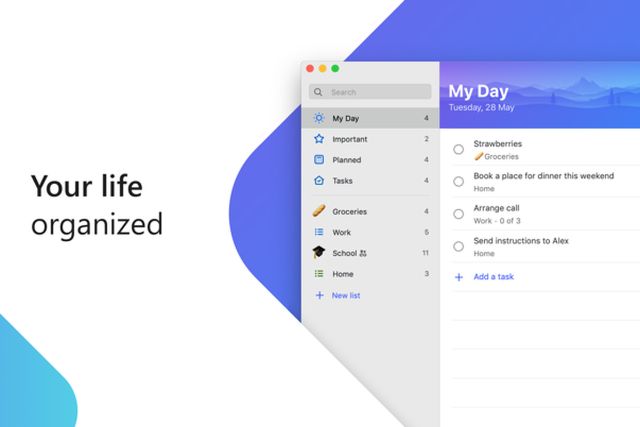
Microsoft released reminder software for Laptop PCs under the name Microsoft To-Do. With a simple and simple interface, this application allows you to record everything that needs to be done, from doing assignments to wanting to remind yourself before a meeting.
You can access it for free on any device, be it a PC or Smartphone. This app is available on Windows 10 as well as on Android.
For its features, this reminder software has all the features that you often find in other reminder applications. In addition, there is a distinct advantage of Microsoft To-Do, namely that you can add subtasks or sub-works that must be done.
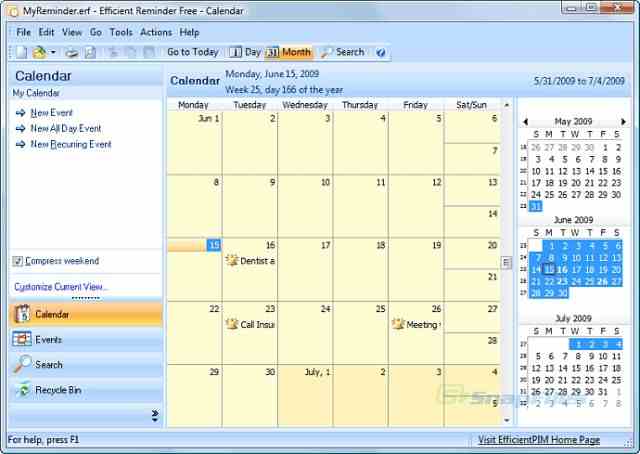
An efficient Reminder is a reminder software for Laptop PCs that offers complete features for managing daily schedules and tasks. This software takes up very little hard disk space to install and has a simple but beautiful interface. This software can provide notifications via voice, popup window, or email, so you won’t be missed to complete your task.
This application can make your work more efficient. We often forget what we have to do, and even our daily schedule is often missed. Therefore, use this application and you will be more efficient at work.
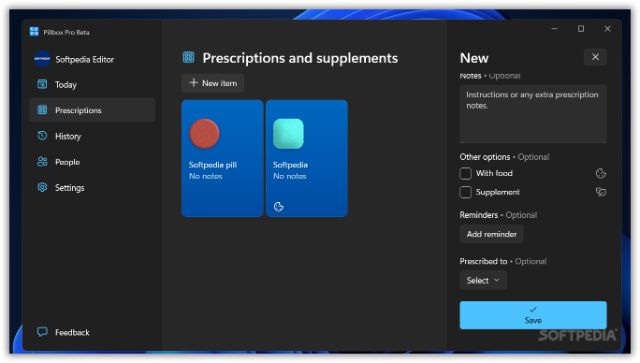
Do you often forget to take your medicine? Try this Pillbox software. Free software is in charge of reminding us to take the drug. In addition, this software can also remind you when to take medicine and what dose. When we forget, the software will give a warning or the right time to take the drug.
Here are some features of this software:
Provides more than 200 types of drugs to choose from.
Offers reminders when to take medication at a predetermined time.
Mark if you have taken the drug.
Can count how many pills are left in the box.
Calculate the total cost of drugs purchased each month.
Pillbox makes it easy for you to calculate the time from a previous reminder, or just set a set time. To set a reminder, go to the main screen and click the “Add New Alarm” button.
Visit: Website
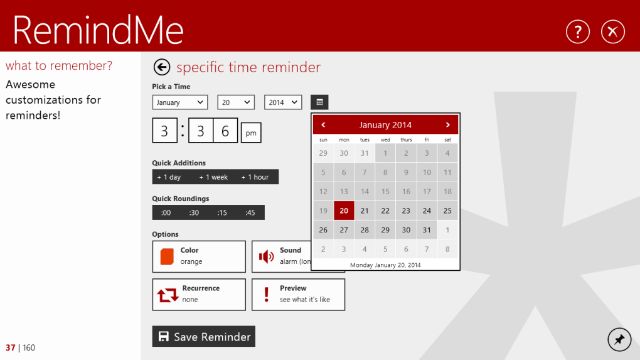
#4. RemindMe for Windows
RemindMe is a reminder software for Laptop PCs that reminds us when the specified date has arrived. RemindMe can be used as alarm software and reminder software when there are important days, important work, or events to attend.
The simple graphical interface makes it easy to use, the features are also quite complete such as schedule settings, notifications, and also popup screens. Using this app you can manage your schedule for a whole month throughout the year.
This software allows you to jot down and save all your tasks, plans, and “to-do” lists. When you create a reminder, you can specify the exact time and it can also be seen on your desktop.
If you have more than one device, the schedule that has been created can be synchronized because this application can be connected to several other devices such as PCs, tablets, or smartphones.
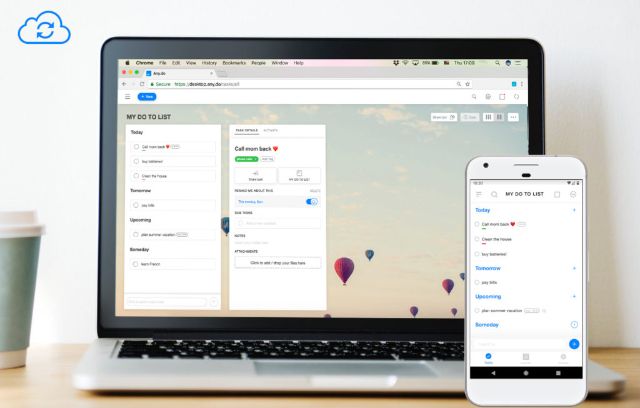
Any.do Fitur features
View all reminders on your desktop
Easily add or remove reminders
Create to-do lists to share with friends and family
Set new reminders with efficient focus
Work with temporary reminders without having to pick up your phone
Any.do Reminders makes it easy for you to easily manage all your daily or monthly schedules. In addition, you can also share your schedule with those closest to you, such as friends and family who are your co-workers or classmates.
Any.do Reminders also has a feature to provide notifications on every schedule that will be undertaken so that you are not easy to forget.
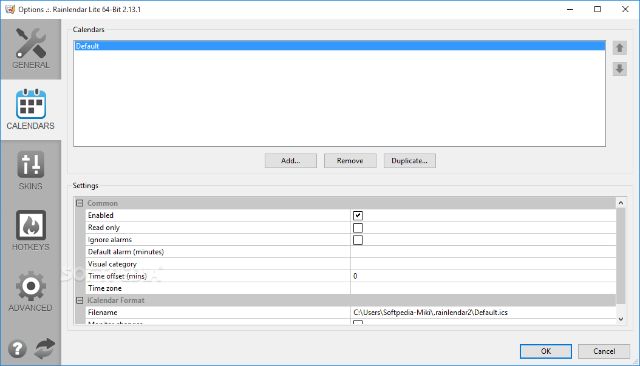
Rainlendar is a reminder software for Laptop PCs that works on a desktop. Rainlendar is designed as a lightweight application that has cross-platform capabilities. Its main function is to remind the user about things that must be done on certain days and dates according to the schedule.
Rainlendar is very useful as a reminder of various activities, both routine and occasional, such as meetings, reports/presentations, class schedules, children’s activity schedules, to bill payments. You can use it for free and it has various features which are very useful for users.
This software is also easy to use. Just right-click on the date to which the event will be added, and a form will appear to enter the name and description of the event. The calendar view can be customized with the skins available on the web. We can also make our skins (and can also share them with other users on the web).
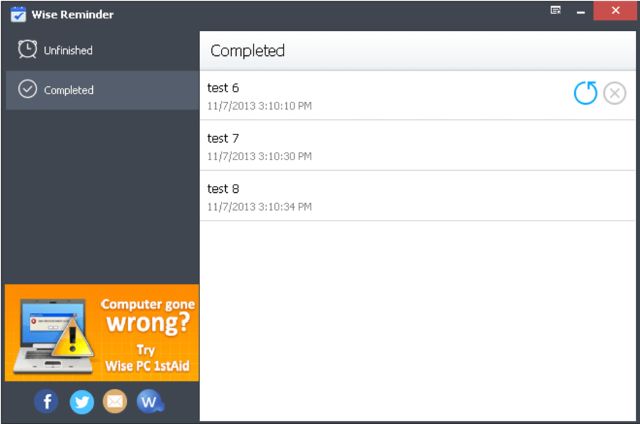
A wise Reminder is a reminder software for a Laptop PC that is installed on your computer and will provide comprehensive notifications about important events that you can manage. This reminder software allows you to avoid delays in work, task execution, meeting appointments, or routine schedules that are often missed.
This reminder software is suitable for those of you who don’t want to miss out on time and can be a virtual assistant who acts as a reminder. With Wise Reminder, you can set reminders automatically and easily for important events as needed.
Features
Schedule reminders by voice or pop-up window
Show a soft lock screen when there is no reminder schedule
Receive notifications at certain hours every day
Opens files automatically every time there is a new reminder
Collaborate with Google Calendar and Exchange Calendar
Wise Reminder has a simple interface with additional facilities such as Reminder Time, Repeat Interval, Sound File, and Snooze Time.
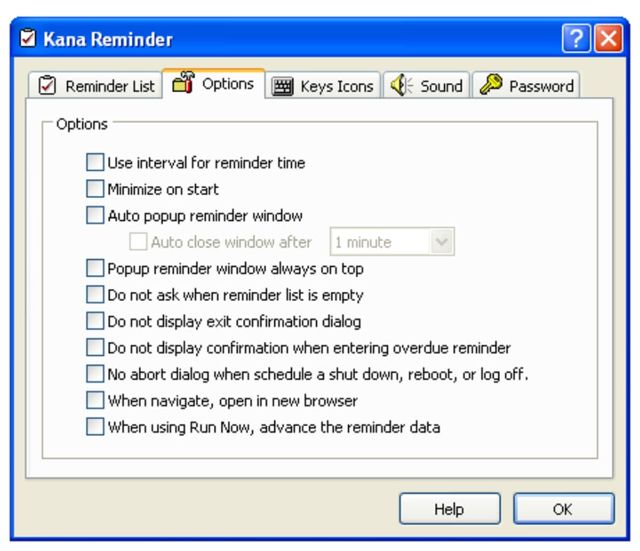
Kana Reminder is a reminder software for Laptop PCs. This software can be used to remind you what work you will or should do. In addition, if you like to collect your favorite pictures on your computer, then Kana Reminder can also be used as an automatic wallpaper changer.
Kana Reminder lets you remind me whatever and whenever you want. You can create a schedule that suits your needs and this app will remind you daily, weekly, monthly, yearly, or even once as needed.
Kana Reminder has a simple and easy-to-use interface. This software also supports various sound effects so you can choose one of the sound effects according to your wishes and mood.
If you want a reminder tool that is very easy to use, then this software will be the right choice. This software allows users to easily add dates, times, and reminder messages. If you also want to provide an alarm setting, then this can also be done very easily.
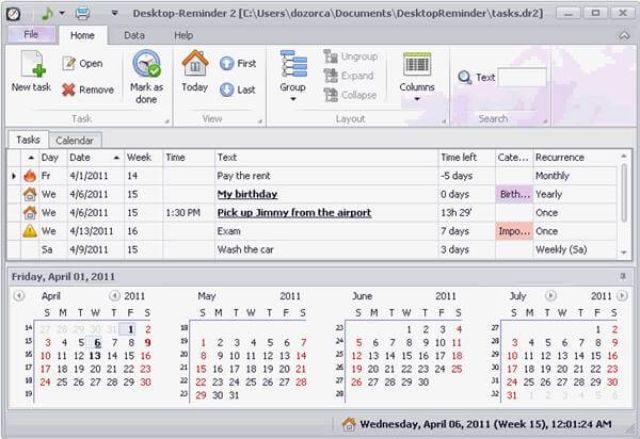
This app works like a calendar, but unlike a regular calendar app, Desktop Reminder has some very useful additional features to help you organize your daily activities.
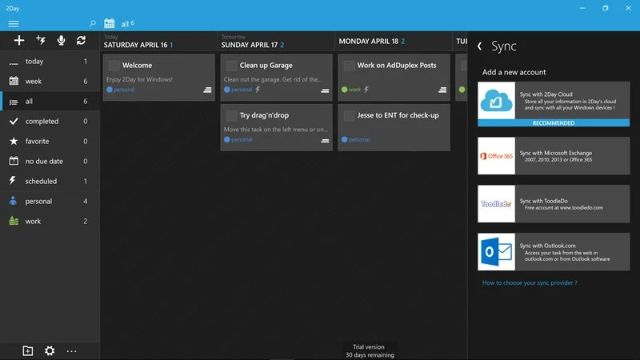
2Day is a lightweight and easy-to-use reminder software to manage your daily schedule. You can set it as an alarm, a to-do list, or another reminder.
Features:
Set a schedule of activities
Set unlimited tasks (To Do list)
Displaying a warning message
Add text and image notes
Create shortcuts that are stored on the desktop and taskbar
Showing the dashboard of this program on the desktop
Opens the browser and text editor automatically when the program is running
2day is designed with a simple but attractive appearance that makes it easier for users to use it. Apart from that, 2day is also equipped with useful features such as a “lock-down” mode for people who forget easily and make it possible to schedule activities in one day.
Best 3 Ways To Update Windows 10 Offline Permanently – Windows is an operating system that is widely used in the world. Computerworld wrote an article stating that Windows runs on 86% of all computers in the world with Windows 10 on 47% of all versions of Windows.
However, not everyone has stable internet connectivity, and many users often complain about failed update attempts. And many users are wondering whether it is possible to install this update on a Windows 10 PC in offline mode, and how To update windows 10 offline.
So I discussed it today along with recommendations for certain updates that you should install offline.
For the most part, your computer will continue to function properly even if you don’t install any updates. However, that doesn’t mean you don’t have to update it.
That’s not too many answers, right? It is recommended to install the update because it contains many patches that protect your system, files, and data, against possible threats.
Researchers and hackers are always looking for new security holes and exploitable bugs. Microsoft and other related software makers have released patches and updates to improve the exploits.
Then some new features are added or improved to help you achieve more. Finally, this update can fix several bugs that might hamper your PC’s performance and make some applications or features function correctly.
Microsoft wants you to install this update on Windows 10 whether you want it or not. Changing the settings will only delay but cannot stop it, especially for Windows Home users. That was done because many users avoided updates on previous versions of Windows which caused security and hacking problems on a wider scale.
Let’s see how you can update Windows 10 without an active Internet connection.
#1. Download Updates locally (LAN)
Not everyone has a super-fast internet connection and many users use slow networks. To help users, Microsoft introduced a new feature with Windows 10 that allows you to download updates from other computers on your LAN network that have received updates.
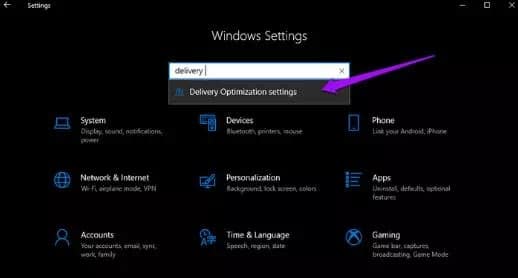
To do that, make sure both computers are connected to the same network. From the Settings window, use the search feature to find Delivery Optimization settings.
Download Updates locally (LAN)
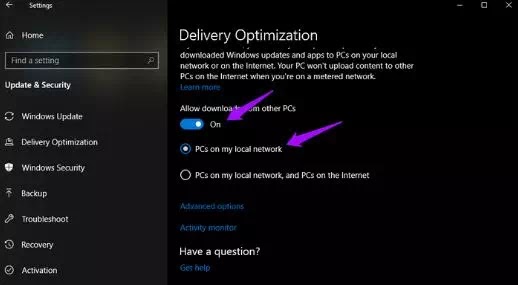
That’s where you will enable Allow downloads from another active PC and select PC on my local network.
If you can use bandwidth and want to speed up the process, other options will tell your PC to download from the local network and the Internet. Because you are using a local network, you need to check for updates manually. If Windows detects them on a local network computer, it will start downloading them.
#2. Media Creation Tool
Microsoft’s Media Creation Tool helps users to create a USB flash drive that can be booted or burned. ISO to DVD. I prefer a USB drive because you can always start from scratch if there is a problem.
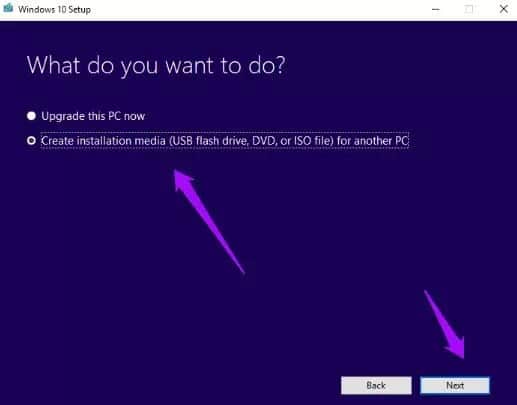
This tool is available only after you complete the selection process to choose the right version of Windows 10 (32-bit or 64-bit) for you. After you receive the ToS, select Create Installation Media for another PC.
Media Creation Tool
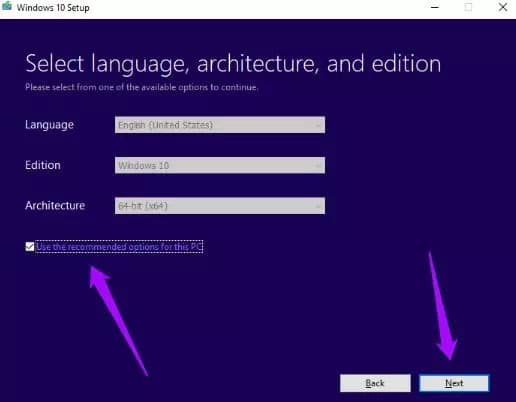
It will detect your language, Windows edition, and architecture automatically or you can choose manually. I only go with the recommended options. Click Next.
Media Creation Tool
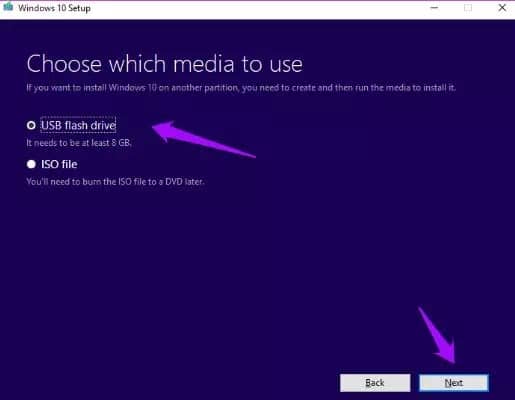
That’s where I will choose a USB drive, but you can also choose to burn the.ISO file to DVD.
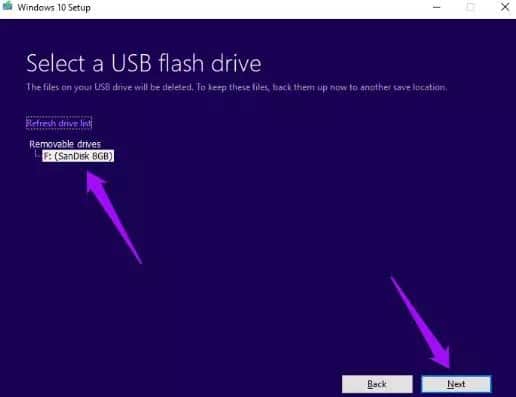
Select your USB flash drive if you have more than one connected and click Next.
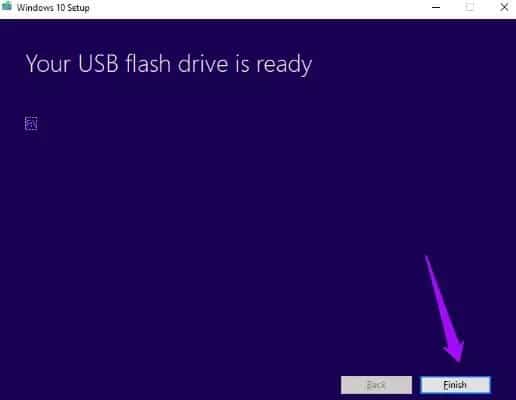
You will now see a Progress screen where the tool will begin the download process. Depending on the size of the update, this might take a while. When finished, click Finish.
You now have an update on the USB drive. You can trade whenever you want. Just connect the USB drive again and double-click on the Setup.exe file to start the process.
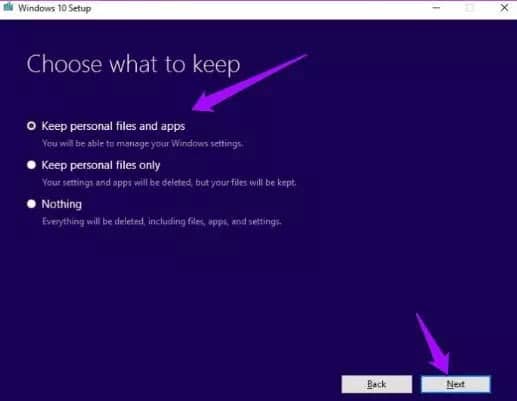
This is important – here select ” Keep personal files and apps ” only to install updates. If not, you can lose data from your hard disk or SSD.
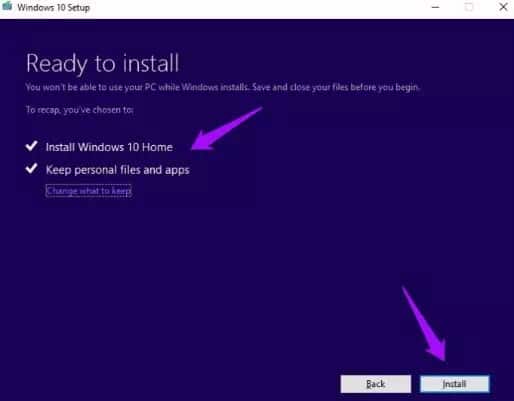
Click Install on the next screen and wait for the update to be installed. Windows might need time to apply the update, and your PC will restart several times, so don’t worry.
Sometimes, Microsoft will release a .exe file from an update or patch on their official site. If so, you can download it from there and install it later without an active internet connection. You can download the Media Creation Tool [ from here ].
PS: You can use the same method to install a new copy of Windows 10 or upgrade from an earlier version of Windows to Windows 10. Just select Upgrade this PC now instead of creating an installation media for another PC.
#3. Windows Update Catalog
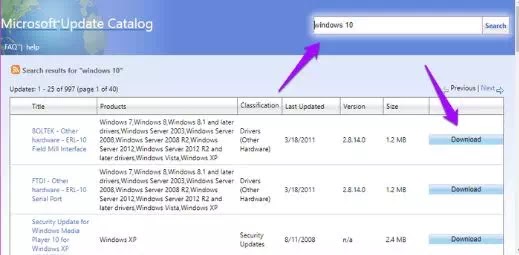
Windows keeps a catalog of all updates that have been released for a particular OS. You can directly download updates from this catalog (.exe file) and install them offline without an Internet connection on any PC. Visit the catalog homepage using the link below. Look for your OS version or search by name if you know it.
Click the download button to save the file on your PC. After that, just double-click on the downloaded file to install it. You can visit the Windows Update Catalog [ from here ].
So, friends, That the above how to update Windows 10 offline permanently, many of you are reluctant to install Windows updates for fear of damaging something.
However, I advise you to update Windows 10 regularly so that all potential security holes and other bugs are fixed. If for some reason you want to install this update manually, I hope one of the methods above can help you, with how to update Windows 10 offline.
Free Screen Recorder For Mac and Windows – In this article, we are discussing a very easy but, in some sense, a little complicated topic on how to record screens on Mac. The reason is intuitively simple as most of the time; we get encounters with some of the awesome videos and clips that we love intensely and want to record for many purposes.
Best Free Screen Recorder For Mac and Windows PC
It might be a great reel, viral video clip, YouTube live streaming, Free Fire or Pubg live stream, streaming movies or shows, webcam, sports match, FIFA live match or moment, cricket live shots, or anything in the internet world.
There is undoubtedly a lot of stuff that we can not download due to many privacy issues or official channels. When we want something to be captured for sure so that we can share it with our friends or loved ones or create some editing outlook for its best. Sometimes there are good causes that you want to get viral or share with media outlets.
And so it’s an avid need of the Mac users to get something like that which can easily record or capture the screen moments in all ultra-bright and HD resolution. More benefits are welcomed as we would love to record audio with an mp3 recorder, along with that, background sound, and most of the stuff.
So here, we, for our beloved users, as always, are offering creative and iconic tools that can simplify the needs of screen recording or simply the Free Screen Recorder For Mac.
Below you can discover some of the best tools and software that allows you to record and capture the screen and many other benefits along with that. These tools are free and some are paid, but don’t worry; we will let you know some of the hacks that can make it feasible for you to use any tool for free;
Best Free Screen Recorder For Mac Windows PC
Free Screen Recorder For Mac are some of the tools discussed below; they offer several other benefits along with the screen capture or recording of Mac devices. This software lets you easily record or capture video clips, streaming videos, audio, and live streaming of anything.
You can also record or interact in meetings like in Google Meet. If you use a proper tool, it will guide you on how to record Google Meet. Simply put into words, it’s like you can record anything that happens to your screen in the most effective and enhanced way.
Most of the time, it’s beneficial for users in other terms apart from recording the live streaming. As if you gave your device to someone or left it on the bed or somewhere, and if somebody uses it- in that case, if the recording is on, you can watch anytime what they have done on your device. All their surfing, browsing, playing, or anything they have done will be readily available.
Explore below some of the popular Free Screen Recorder For Mac you can use to perform the recording functions.
Free Screen Recorder For Mac
We are discussing some of the iconic tools and software that are authentic and help you record the screen and capture the moments. There is no shortcut or ease to using this software is simple, so you don’t need to bother much. These Free Screen Recorders For Mac are authentic and trusted.
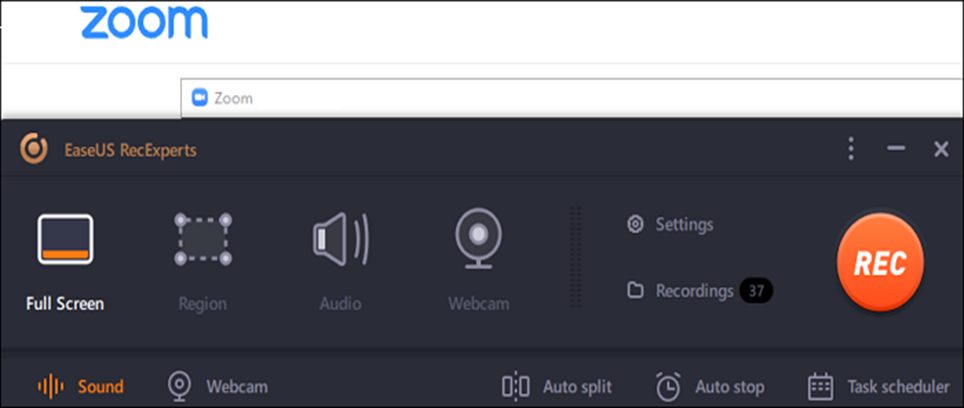
EaseUS RecExperts
Maybe for some people, the screen recorder is not important. A screen recorder or screen recorder is an application that can help us to do many things.
Especially if your work is related to recording or downloading your PC screen, from recording the screen to taking layer images with high quality, everything can be done using a screen recorder application.
Of course, this resulted in screen recorder applications mushrooming on the internet, and all of them promoting themselves as the most suitable screen recorder for everyone.
One of these applications is EaseUS RecExpert. Does this streaming audio recorder for the Mac application have the quality features it says?
Benefits of EaseUS RecExperts
#1. Layout: simple but attractive
The first thing we can see with EaseUS RecExperts is that their layout is quite simple.
When you open the application, you are immediately presented with a medium-sized bar with a bright black color. If you open the app, you will be given brief instructions for using it. The simplicity of their toolbar is a plus point of this free video recording software.
You will not feel dizzy or confused when you see it. The icons used can be seen clearly and neatly arranged. The font for instructions is also easy to read. In the visual aspect, EaseUS RecExperts has a simple design, however, this simplicity is what makes them different from other applications. This simplicity makes them look unique, simple, elegant, and attractive.
#2. Easy to use
How about the user interface of the application? EaseUS RecExperts for Mac has an easy and smooth interface to use.
The tutorial given at the beginning of use is very useful for those who are not familiar with the application. We can learn to use it in less than 5 minutes!
This is all thanks to their straightforward system. You can change settings quickly with just a few clicks. Recording and taking pictures can also be done quickly and not grandiose.
Of course, they also have enough features. You can set the recording resolution and audio used. When you finish recording, you can see it again in the list of recordings that have been provided.
Before starting the recording, it would be better if you stop by the Settings section and then adjust the settings to what you want.
When you’ve finished adjusting, then you can start recording sessions, from screens to streaming using a webcam.
Of course, just like most screen recorder apps, you also record only the sound, the screen, or even the game you’re playing. This feature is suitable for those who have a hobby of streaming online games.
EaseUs RecExperts’ features don’t stop there. You can edit your video and do basic editing such as trimming, adjusting video speed, adding intro and outro text, and also adding watermark. Overall, EaseUS RecExperts is fully featured for those who want to record their laptop screen.
They have an additional feature, namely a video editor. But of course, you shouldn’t expect to get the perfect editor.
Their focus is to provide excellent video recorder services, and they have succeeded in doing so.
#3. Live Chat
The last advantage of this application is its customer service. They have Live Chat that can be contacted at any time.
Don’t worry about the duration, because they will reply as soon as possible. So, you can ask them or complain about the product without having to wait a very long time.
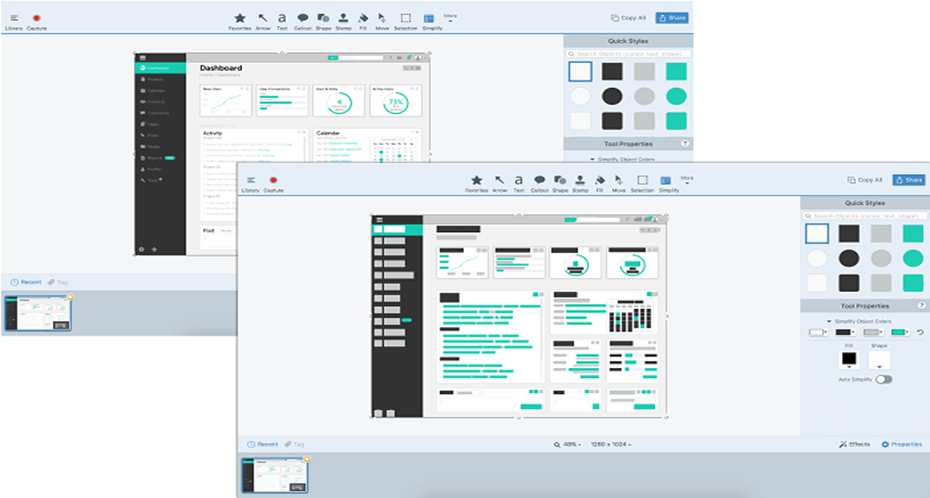
#4. Snagit
Snagit is the most popular and iconic recording tool that lets you capture the screen with ultra-improved resolution and unmistakable quality. It’s programming that sticks every minor moment in your device and offers you the most accessible outcome. Encourage teamwork through its feasibility and better feedback options.
Features
Capture everything on the screen
Options to add visuals
Allows commenting on with arrows, shapes, etc
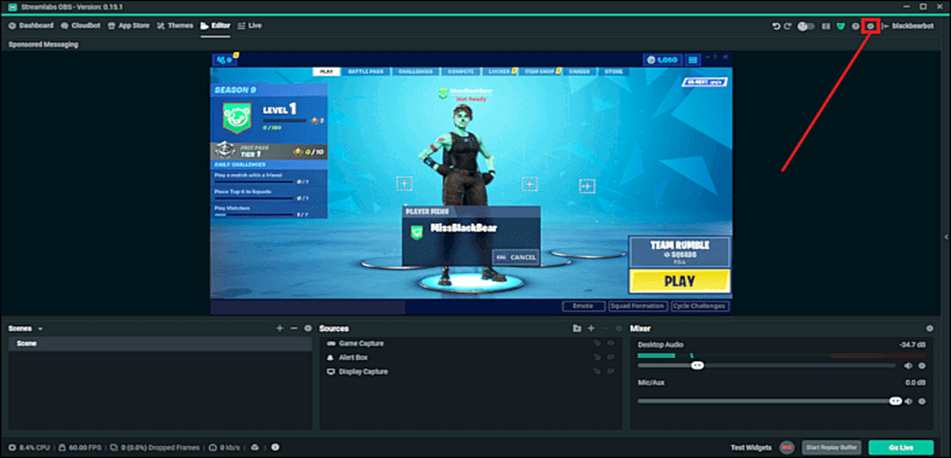
#5. OBS
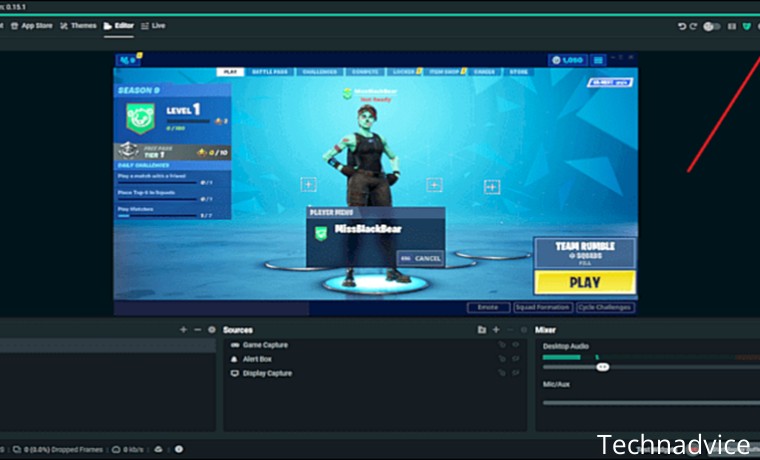
Open Broadcaster software is one of the fantastic tools and screen recording on various live streaming and screen moments. It’s free to use and compatible with almost all devices. It offers the users a variety of features like accurate time sourcing, scene composition, recording, broadcasting, encoding, etc., along with a variety of plugins to even extend the options.
Features
An endless number of scenes and sources allowed
Output in MP4 and MLV
Bilinear and lanczos3 resampling
H264 and AAC encoders
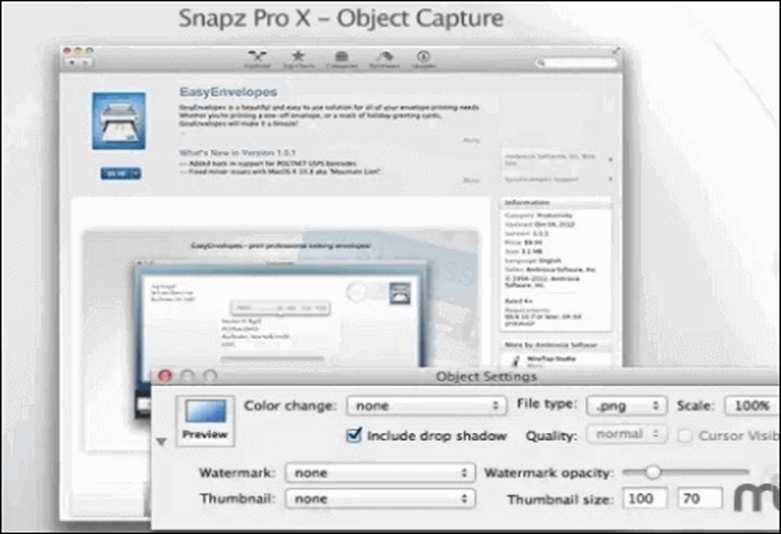
#6. Snapz Pro
Mainly used for book production and is offered by Ambrosia Software. It is particularly based on recording screen moments doing random moments like mouse icons surfing and clicking on various items or options. It is one of the most widely used tools in doing simple tasks.
Features
Preview options to choose correctly your recording
Nuance-based recording and capturing
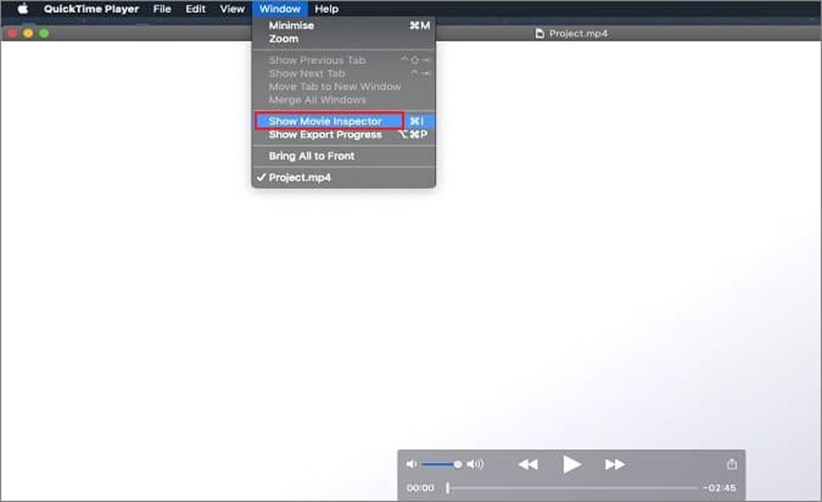
#7. Quicktime
It is one of the best tools and software to record streaming and movie kind of content with easy feasibility. It is crafted purposely for multimedia-oriented works.
It is a vastly used tool for panoramic images, digital activity, interactivity, pictures, and more in most digital companies. It is the latest and allows users to record instantly with the most effortless approaches.
Features
Smooth and easy interface
Integrates itself into third-party programs to record perfectly
Limits on recording but classic editing tools
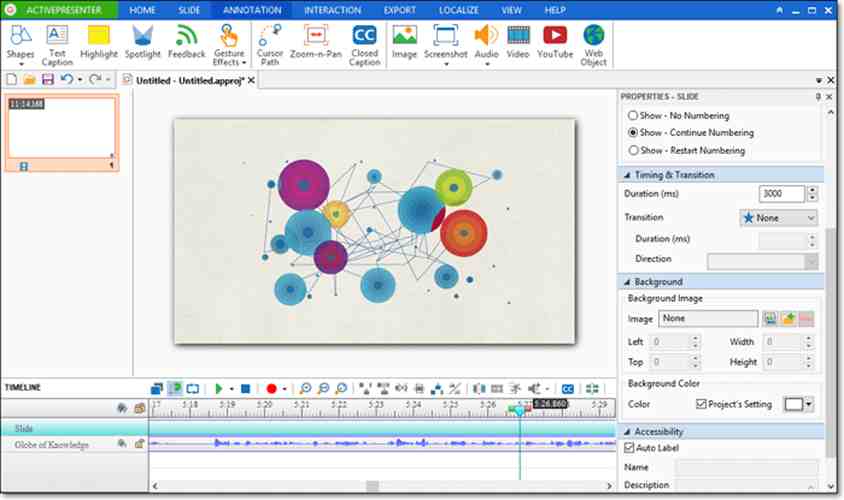
#8. Active presenter
The active presenter is one of the most accessible and exciting screen recorders that allows users to record and capture nuances of the screen. It will enable users to record screens, edit screencasts, and create live courses. It’s best for the person who wants to create classes based on the practical options shown on the screen, on YouTube, or on another platform.
Features
Configurational hotkeys for best course-creating
Full motion recording
Annotations inserting
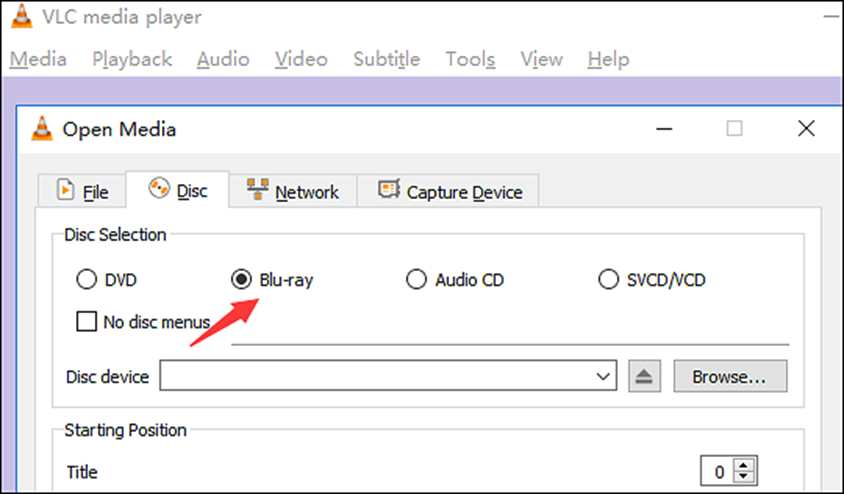
#9. VLC
It’s a free and vastly used program that is mainly used as a video player for playing all formats of documents, including videos of all resolutions, formats, audio, CD, DVD, VCDs, etc., and it’s excellent in its video player work. But it’s not limited to only being a video player as its screen recording capacity is incredible. Most of the users don’t even know about its ability.
Features
Controls playback easily
Capable of Streaming media over any network or the internet
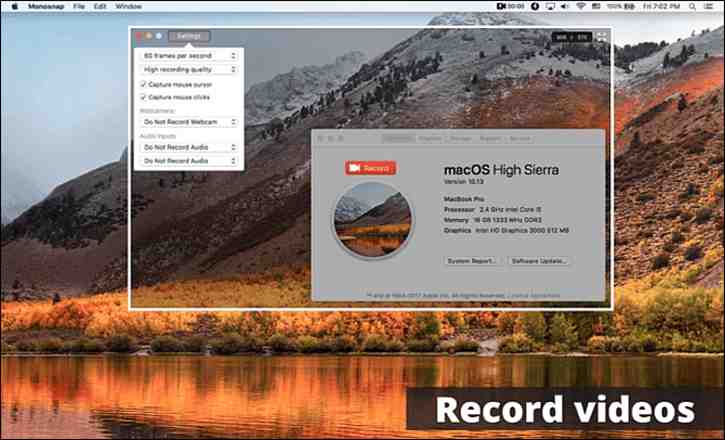
#10. Monosnap
Monosnap is one of the widely popular screenshot-capturing tools for Mac users that allows you to capture deadly clear screenshots and then share them with anyone you want on many platforms.
Features
Storage access in one click
Highlights essential details and points
Markers, text, attributes, pen, shapes, arrows, and other infusions
Captures selected part or full screen
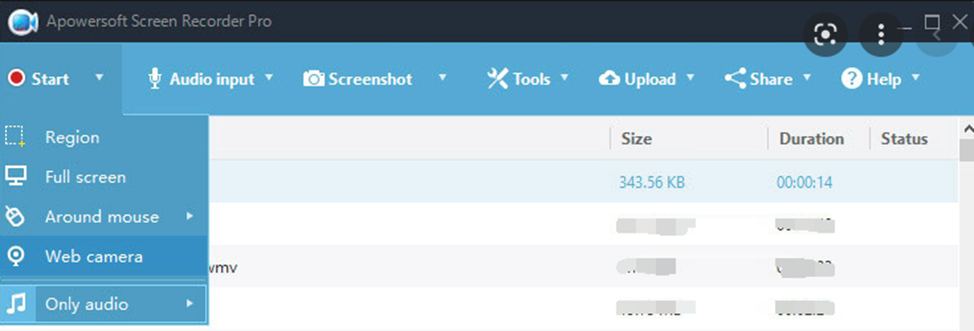
#11. Apowersoft screen recorder
You were an extremely luring screen recorder that also records audio and syncs it to screencast. One of the best screen recorders allows you to record, pause, and resume recording anytime to make your personalized content.
Features
Accessible and easy user interface
Selected part recording and flexible screen motions’
Automatic recording by scheduling
Conclusion:
We have offered the possible answer to Free Screen Recorder For Mac, and we believe that it satisfies you; if any issue is left over, please write it down in the comment section.
All the tools and software discussed above are authentic and trusted, so no worry about their security measures. Carefully install them and enjoy your unique journey of personalized work through the best screen recording.


 2Day is a lightweight and easy-to-use reminder software to manage your daily schedule. You can set it as an alarm, a to-do list, or another reminder.