Category: Windows

Windows – Here you can find Computer-related updates Windows 10, Windows 8, Windows 7, Linux, technology information, and more.

  • How to Make a Tables In Microsoft Word 2024

    How to Make a Tables In Microsoft Word 2024

    How to Make a Tables In Microsoft Word – Complete by modifying it so that the table suits your wants and needs.

    How to Make a Tables In Microsoft Word Complete Guide

    how to Create Tables In Microsoft Word Complete Guide 2024

    In writing, sometimes tables are needed as supporting data or information. In Microsoft Word, we can also make it easy. For those who want to know how to create a table in Word, we’ll explain it here.

    Read more:

    How to make it is not complicated. How to create a table in Word 2007, is generally the same as in other versions. However, usually, the newer the version of Word is used, the more features we add to make it easier for us.

    What is the function of Microsoft Word?

    What is the function of Microsoft Word

    Before explaining how to create tables in Word 2013, and other versions, we will briefly tell you what this software does. There are 3 basic functions of Microsoft Word, here are the explanations:

    • Serves To Create Documents

    This software serves to create documents that we can then print. The results of the documents that are made, we can print according to various paper sizes.

    • Serves To Format The Document

    There are various document format options available. So, every user can create more professional documents. Apart from paper size, there are also many other options such as footnotes, numbering, typeface, table creation, to mathematical equations.

    • Serves To Edit Documents

    Word can also be used to edit other documents, either from the same application or from another word-processing application.

    how to Make a Tables In Microsoft Word

    Unlike how to create a table in Microsoft Excel, the Word application provides relatively limited features. Even so, it is quite powerful for making tables as supporting information in writing.

    Well, here we describe the steps for making it:

    #1. How to Add Blank Table in Word
    How to Add Blank Table in Word

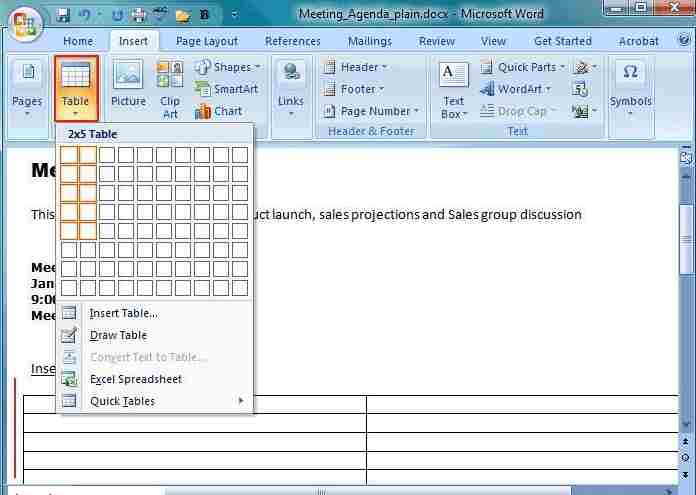
    How to create a table in Word 2010, and other versions, you must first create an empty table. To add it, please follow the steps below:

    • Please place the text cursor in the worksheet where the table will be added.
    • Select the Insert tab at the top, and close to the Home tab.
    • Please select the Table menu.
    • After clicking the Table menu, a drop-down menu will appear. The contents of the menu are boxes. Please

    You drag with the mouse cursor according to the line you want. Also, adjust the number of orange squares according to the number you need.

    • If the column or box fits your needs, please remove your finger. After that, the table is ready to use.
    • To fill in the text in the column, please place the cursor in the table. Then, please start writing.
    • If you want to move to another box to write, please use the Tab key. Or, you can also use the arrow keys on the keyboard.

    #2. How To Convert Text To Table
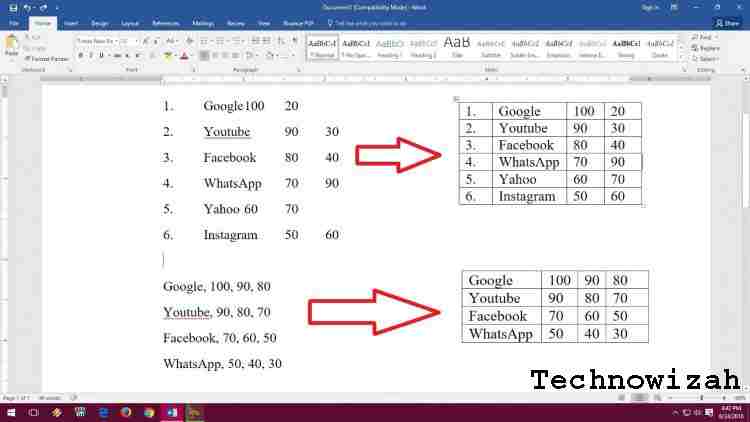
    How To Convert Text To Table

    You can also add tables to existing text. How to add a table in Word is also quite easy. If the writing is ready to create a table, please follow the steps below:

    • Select all the text that you will turn into a table.
    • Please click the “Table” menu on the Insert tab.
    • After you click Table, a drop-down menu will appear. This time, hover the mouse over the bottom, then select “Convert Text to Table”.
    • After that, a new window will appear in the form of a dialog box. Please select the option “Separate text at”.

    The function options in this new window, namely to make Word settings that will be inserted into each column of the table created based on text.

    • Then you just click OK. Then, the text that was selected will be displayed directly in the table.

    #3. How to Modify Tables
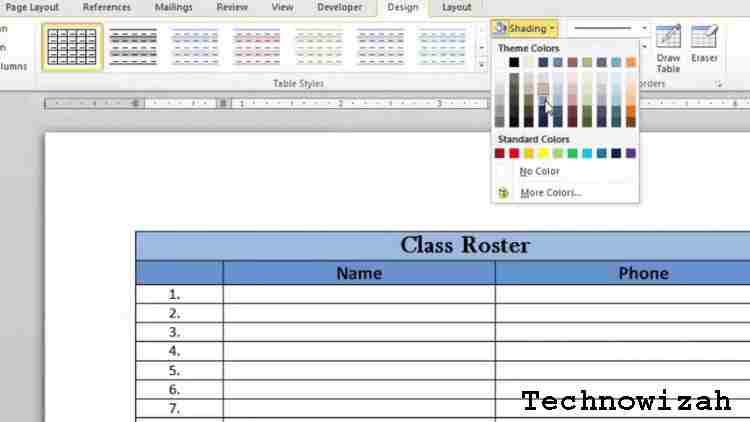
    How to Modify Tables

    After knowing how to make a box in Word, then we also share how to modify it. To modify, please follow the steps below:

    #4. How to Add Tables or Columns

    In Word 2016, you can add a column by clicking the plus sign on the left or right side. Clicking on it will automatically add the table.

    Adding a table can also be done by clicking the right button on the table that has been created. After that, please select Insert> Insert Rows Below.

    #5. How to Delete Columns

    To delete a column, please place the cursor on the column to be deleted. Then right-click, then click “Delete Cell”. Once clicked, a new window will appear. Check “Delete entire row”, then click OK.

    #6. How to Apply a Design

    To style the table, please click the “Design” tab on the “Table Tools” ribbon. In the “Table Styles” section, click the “More” drop-down. Please complete the styles available as you wish.

    #7. Set Border

    The border is the dividing line on the created table. Its function is to emphasize the existing content in the table box. Well, we can also adjust the borders that are made.

    To set it up, please select a few boxes in the table. Select the “Design” tab, then, in the “Borders” section, please adjust the Pen Color, Line Weight, and Line Style. Set as needed.

    You can also set the border type on the tab “Design”, then “Borders”. In the drop-down menu, please select the border type as needed.

    #8. How to Modify Tables Using Layout Tabs

    Every time you select a table, the Layout tab will always appear. The layout of this tabbed layout is on the “Table Tools” ribbon. There are several layouts that you can choose from as follows:

    • Change Cell Size: To set the row height or column width in the table.
    • Align Cell Text: Function to change text alignment in the table.
    • Merge and Split Cells: Its function is to combine several table boxes that are close together.
    • Rows and Columns: To delete or insert table rows and columns.
    • Change Text Direction: To change the text direction from horizontal to vertical.
    • Distribute Rows / Columns: To keep tables neat and organized.

    Read more:

    Conclusion:

    That is the explanation and information about how to create a table in Word, Easy right? Now you can add it to complete the information on writing in Microsoft Word.

    Don’t forget to bookmark and always visit every day Technowizah.com because you can find here the latest Tech Computer Android games How-to Guide Tips&Tricks Software Review etc, Which we update every day.

  • 29 Ways to Activate and Use Cortana in Windows 10 [2025]

    29 Ways to Activate and Use Cortana in Windows 10 [2025]

    29 Ways to Activate and Use Cortana in Windows 10 – Cortana is Microsoft’s virtual assistant that can do various jobs on a computer with voice commands. Cortana is built with artificial intelligence technology or artificial intelligence that seeks to imitate human intelligence and behavior.

    How to Activate and Use Cortana in Windows 10

    How to Activate and Use Cortana in Windows 10 PC

    In the early days of using Cortana, I was quite amazed by this digital assistant, especially how it responds to conversations and performs commands exactly as we want. But over time, some limitations have made Cortana still look like a program, not as perfect as a human.

    Read more:

    However, using Cortana is still fun, and in some cases quite useful. Cortana can do many things, from doing web searches and displaying snippets (snippets) on the Start menu, playing music and radio, reading incoming emails, taking notes, and making schedules, to playing guessing games for movie titles.

    There are several other virtual assistants built with AI, like Apple’s Siri and Amazon’s Alexa, but since we are in the Windows 10 ecosystem, Cortana is the best.

    In this post, Technadvice will show you how to activate Cortana in Windows 10 and a brief guide on how to use it.

    How to activate Cortana on a Windows 10 PC or Laptop

    #1. Update Windows

    Updating is one of the things that must be done after installing Windows 10, especially for those of you who use the old version of the ISO package that doesn’t have Cortana in it. So we have to update first so we can install Cortana.

    How to update can be done by going to Settings > selecting Update & Security > clicking the Check for updates button. Wait until the update process is complete.

    #2. Login Microsoft account

    The next step is to login using a Microsoft account (email Outlook) on Windows 10. The trick is to click the Start button > Account > login.

    #3. Change the language and region to the United States

    Until now, Cortana still doesn’t support Hindi, so to use it, we have to change the language and region of Windows 10 to a supported country.

    The United States is a country that has full support for all Windows features, including applications in the Microsoft Store, so it is recommended to use this country.

    The trick is to go to Settings > select Time and Language > select Region.

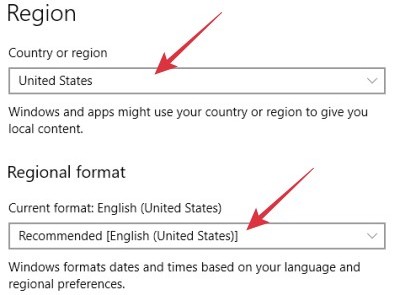
    In the Country or Region option, select the United States.

    In the Regional format option, select English (United States).

    How to activate Cortana in Windows 10

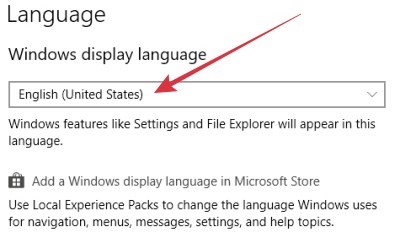
    Then go to the Laguange menu then select English (United States).

    How to activate Cortana in Windows 10

    When finished, restart the computer so that the changes can be applied perfectly.

    #4. Enable Cortana

    Then we can activate Cortana. The trick is to click on the circle icon to the right of the search bar, or you can also click the Start button and then find a menu called Cortana.

    Enable Cortana

    On the user agreement page, select I agree.

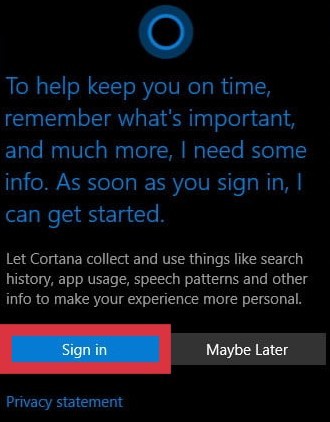
    Click Use Cortana > click Yes > click Sign in

    Enable Cortana

    So far, we have managed to activate Cortana in Windows 10, but the voice command feature still can’t be used. We have to activate it first.

    #5. Activate the “Hey Cortana” feature to be able to use voice commands

    Hey, Cortana is a voice command that will activate Cortana’s listening mode, so when we say “Hey Cortana,” the microphone will activate and our next words will be a command for Cortana.

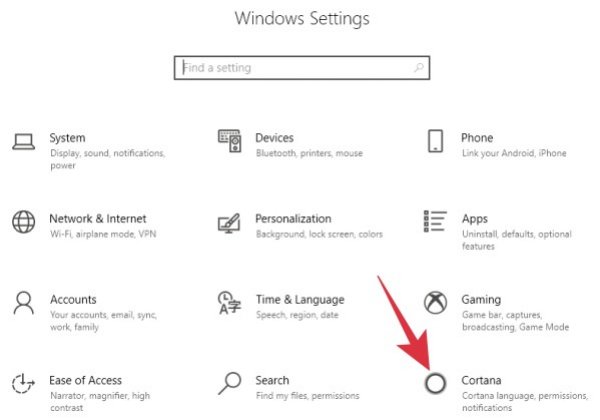
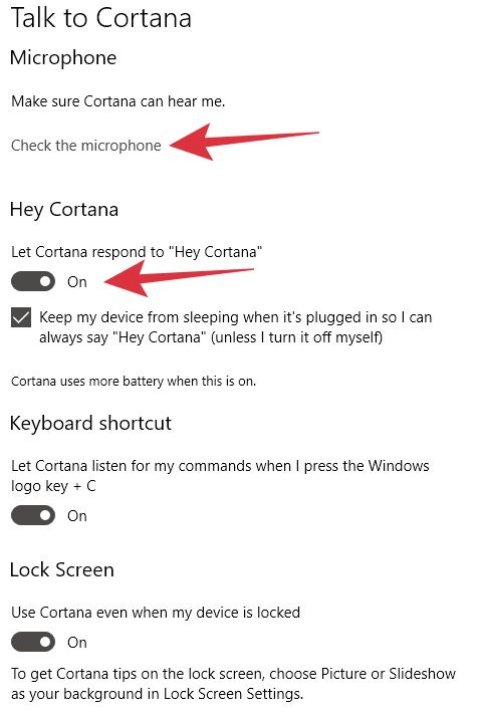
    To activate this feature, go to Settings > select Cortana.

    Activate the “hey Cortana” feature to be able to use voice commands

    Click on Check the microphone. Make sure the voice input is detected properly. You can use the built-in microphone from a laptop or use an external device such as a headset with a mic.

    On the Hey Cortana option-click until it becomes On.

    Check the option “Keep my device from sleeping when it’s plugged in so I can always say ‘Hey Cortana” (unless I turn it off myself) – this function prevents the laptop from sleeping when it is connected to the charger.

    Activate the “hey Cortana” feature to be able to use voice commands

    Once done, exit the settings and try using the Hey Cortana feature. If it is set correctly, every time we say “Hey Cortana,” Cortana will be activated immediately.

    How to use Cortana in Windows 10 PC Laptop

    Using Cortana is fun. Cortana can do many things from doing technical work, singing, and reading poetry and quotes, to laughing. Using Cortana every day can also practice our ability to speak English, this is one of the reasons why I use Cortana every day.

    To use Cortana with voice commands, you must start by saying “Hey Cortana” and then say the command.

    For example, if we want to create a new alarm, then we have to say “Hey Cortana” > then Cortana will be active and in listen mode > then say “Set the alarm”.

    There are many other things we can do with Cortana, I will share a complete list of voice commands that Cortana can do.

    Remember!
    Each voice command below must start by saying “Hey Cortana”.
    Must use English.

    #1. Open the app

    Open “application name”
    or
    Go to “application name”
    Example: Open Google Chrome, Open Mail, Open Mozilla Firefox, Open Notepad

    #2. Checking and reading incoming email

    Check my email
    or
    Check my inbox

    #3. Make notes (notes)

    Create a note
    can also make a note directly with the title,
    Create a (title) note, for example: create a Sunday note.

    #4. Make a schedule

    Set a schedule
    or
    Set a schedule for (name of the day)

    #5. Turn off the computer

    Shutdown
    Shutdown the computer
    Turn off
    Turn off the computer

    #6. Playing music (via Spotify)

    Play the music
    Play the (song title)

    #7. Create an alarm

    Set the alarm
    or
    Set the alarm for (number of minutes) – the alarm will count down based on the number of minutes we specify.

    #8. Turn off the alarm

    Turn off the alarm
    Turn off the alarm for (time)

    #9. Translate words from English to other languages

    Translate “say” to “language”
    Example: Translate sleeping to Indian.
    or
    How do I say “say” in “Language”
    Example: How do I say sleeping in Italian?

    #10. Define the meaning of a word

    Define “word.”
    Example: Define peculiar – Cortana will explain the meaning of the word “peculiar”.

    #11. Get weather forecast information

    Tell me about the weather.
    What is the weather like?
    What is the weather like in (location)? Example.: What is the weather like in India?
    How is the weather “time”? Example: How is the weather tomorrow?, How is the weather on Sunday?

    #12. Get sunrise and sunset times

    When does the sunrise?
    When does the sunset?

    #13. Currency conversion

    “Currency” in “currency”
    “Nominal currency” in “currency”
    Example: US dollar to Indian Rupees, 10 US dollars to Indian Rupees

    #14. Become a playmate

    Let’s play the movie game
    Let’s play rock, paper,r scissors

    #15. Sing

    Sing
    Sing a song for me
    Sing a good song for me

    #16. Laughing

    Laugh
    Laugh for me
    Can you laugh?

    #17. Read funny stories, quotes, and poems

    Tell me a story
    Tell me a good story
    Tell me a joke
    Tell me a bad joke
    Tell me a poem
    Tell me a quote

    #18. Get someone’s biographical information

    Who is the “person name”
    Example: Who is Bill Gates?, Who is Mark Zuckerberg?, Who is Jeff Bezos?

    #19. Image search

    Show me the pictures of “objects”
    or
    Show me the photos of the “object”
    Example: Show me the photos of a Leopard

    #20. Video search

    Show me the videos of “objects”
    Example: Show me the videos of Lion in the Savannah

    #21. Search for size information (height, area, distance, depth)

    How tall is an “object” – to get the height information of a person, building, or another object?
    Example: How tall is a Lion?, How tall is Bill Gates?, How tall is Burj Khalifa?
    How large is “location” – to get information about the area of ​​an area?
    Example: How large is London?, How large is Jakarta?
    How far between “location” and “location” – to get distance information from one place to another
    Example: How far is it between London and New Jersey? How far between Jupiter and Mars?
    How deep is the “water area” – to find information about the depth of a water area?
    Example: How deep is the Indian Ocean?, How deep is Lake Toba?

    #23. Calculate like a Calculator

    Percentage:
    What is (percentage of (number)? Example: What is 20% of 1.300.000
    Multiplication:
    What is (number) times (number)? Example: What are 77 times 98?
    Division:
    What is (number) divided by (number)? Example: What is 99 divided by 19?
    Square root:
    What is the square root of (number)? Example: What is the square root of 999?
    Conversion:
    How many (number) (units) in (units)? Example: How many 1,000,000 Kilograms are in Milligrams?

    #24. Answering questions (conversing)

    Cortana can answer a lot of questions, sometimes there’s a bit of humor in there. You can try some of the following questions:
    Who are you?
    How are you?
    How do you make it?
    Who made you?
    How do you look?
    Who is your voice?
    Are you smart?
    Are you fat?
    Are you beautiful?
    Are you a man or a woman?
    Who is your father?
    Who is your mother?
    Do you have siblings?
    Are you happy?
    Are you mad at me?
    Do you love me?
    Do you feel good?
    Do you love Bill Gates?
    What is in your mind?
    What are you thinking right now?
    What happened today?

    Conclusion:

    This is the explanation of how to activate and use Cortana in Windows 10. a lot more Cortana can do, you can try it for yourself. The key to using Cortana is to start with “Hey Cortana” and then say the command word or question, followed by the keyword.

  • 7 Ways To Fix Error Code 0xC0000225 In Windows 10 PC 2025

    7 Ways To Fix Error Code 0xC0000225 In Windows 10 PC 2025

    7 Ways To Fix Error Code 0xC0000225 In Windows 10 PC—When you are trying to boot your PC, you come across error 0xC0000225 in your Microsoft Windows 10. You are confused about how to fix it because this error is preventing your PC from booting up.

    7 Ways To Fix Error Code 0xC0000225 In Windows 10 PC
    7 Ways To Fix Error Code 0xC0000225 In Windows 10 PC

    How To Fix Error Code 0xC0000225 In Windows 10 PC Laptop 2025

    Luckily, you can usually fix these errors with a little work. The admin will show you how to fix the error code 0xc0000225 on Windows 10.

    What is Error Code 0xC0000225?

    You will see this error code when you try to boot your PC. Windows displays it with a message saying “Your PC needs to be repaired,” and below it, “An unexpected error has occurred.” It is also sometimes said that a required device isn’t connected or can’t be accessed.

    Read more:

    Microsoft Windows throws this error when it cannot find the correct system files to boot. This important information is known as Boot Configuration Data or BCD When you turn on your PC, it tells Windows how to boot properly.

    This error is more common on disks using the newer UEFI specification with a GPT partition scheme than on older systems. Windows’ message about it isn’t very clear, so we’ll have to put on our Windows troubleshooting hat to sort it out.

    What Causes Error Code 0xC0000225?

    Since this error is related to corrupted system files, it often appears after an OS upgrade (such as upgrading from Windows 7 to Windows 10). This can also happen if your PC shuts down during an important update, from malware attacking system files, or even from faulty hardware. Follow the steps below to fix your problem, whatever the cause.

    #1: Create a Windows 10 Installation Disc

    Like other boot errors, you cannot solve this problem from within Windows. As such, you should have a Windows 10 installation disc so that you can run the repair tool from there.

    You will need a flash drive with at least 8GB of space, or a DVD. Note that creating a Windows 10 disc will erase everything on the drive, so it’s best to use a blank flash drive or DVD.

    After you create the install media, insert it into your computer. Press the appropriate key to open the boot menu, and load the Windows 10 disk from your external device.

    #2: Windows Automatic Repair

    First, you might want to try the built-in Windows 10 troubleshooter. The system automatically checks for problems and attempts to fix them. Hopefully, this will fix your broken BCD so you can get back to work.

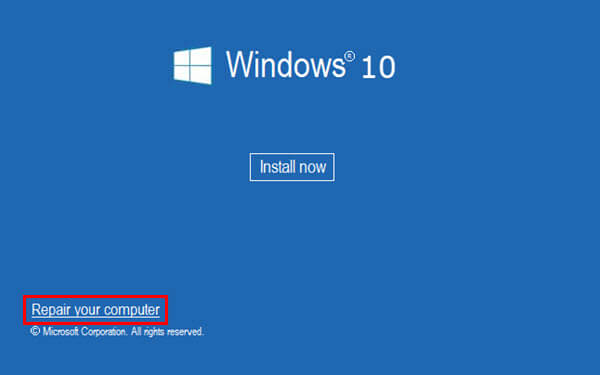
    After booting from your Windows 10 installation disc, wait until you see the Windows Setup screen Confirm your language options, then click Next.  When you see the Install Now screen, click the Repair your computer link at the bottom left.

    Windows Automatic Repair

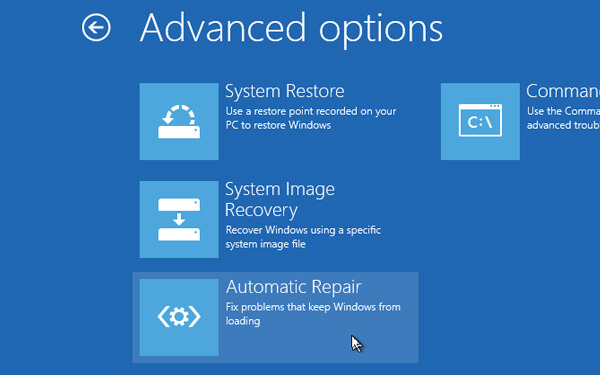
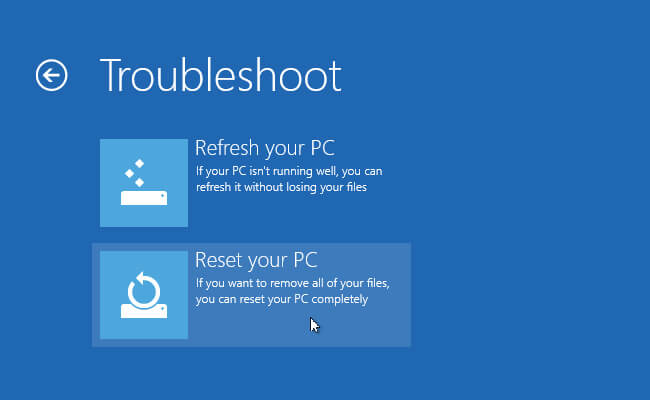
    You will see a menu of options; select  Troubleshoot, then Advanced options.  From this Advanced options menu, select Automatic Repair.  Let the process go through, then restart your computer when it’s done.

    Windows Automatic Repair

    Try booting again normally. If error code 0xc0000225 doesn’t appear, you’ve fixed the problem!

    #3: Run SFC And Check Disk Scans

    If Windows automatic repair doesn’t work, you can try some system scans. To do so, repeat the above process to open the Advanced options menu, but don’t select Automatic Repair.  Instead, select  Command Prompt to open the command-line interface.

    First, run the System File Checker (SFC) command, which checks for corrupt or missing Windows system files and attempts to repair them:

    sfc /scannow
    

    Once this is done, run a Disk Check scan to check for errors on your hard disk. Use the following command, replacing  c: with the letter of your primary partition if you have changed it:

    chkdsk c: /r
    

    Once you have run these two scans, reboot and try loading your PC normally again. Hopefully, the error won’t appear again.

    #4: Rebuild BCD

    If you are still having problems, the next step you can try is the command to rebuild the BCD. Since this is what often causes errors, this might be the trick for you guys.

    Again, boot from your Windows 10 installation media and open the Advanced options menu Select  Command Prompt again. Run the following commands one by one:

    bootrec /scanos 
    bootrec /fixmbr 
    bootrec /fixboot 
    bootrec /rebuildbcd

    The first command scans your disk for compatible installations, which can help it find your “lost” Windows installation. Commands two and three write a new MBR and boot sector to your disk. The last command scans again for the Windows installation after repair. Restart your computer once again, and hopefully, this will clear error code 0xc0000225.

    #5: Set Your Active Partition

    Windows allows you to change the active partition so you can tell the system where to boot. If this somehow goes wrong, you can change it to point Windows to the correct partition.

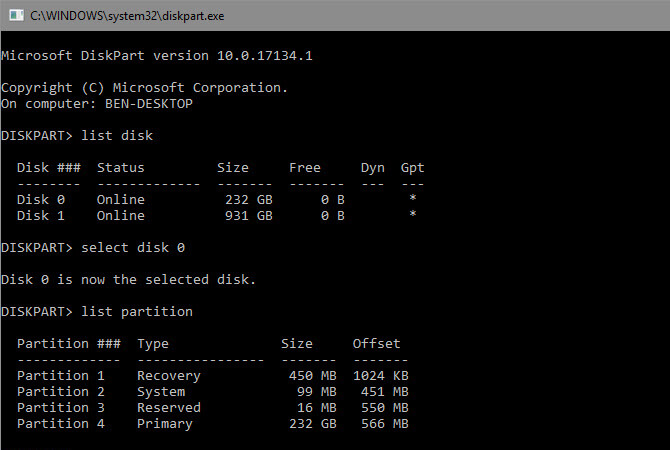
    Open the Command Prompt as above from your Windows repair disc. Type the following commands one by one to open the Disk Partition tool and list your available disks:

    diskpart list 
    disc
    

    You will see a series of entries labeled Disk 0,  Disk 1, and so on. Your internal hard drive is most likely Disk 0 — you can tell by Size.  Type the following one by one, replacing  X  with  0 or whatever number of HDDs you have:

    select disk X 
    list partition
    

    The second command will list all the partitions on your internal drive. Your primary partition maybe 0 or marked as Primary.

    Set Your Active Partition

    Then enter this command, replacing  X with your partition number:

    select partition X 
    active
    

    Exit the Command Prompt, reboot, and see if your problem is fixed. This marks the partition where you installed Windows as the one Windows uses to boot.

    #6: Check for Damaged Hardware

    At this point, you have done a lot of software troubleshooting to fix this error. If you still won’t boot, you should consider checking your hard disk for physical problems.

    Check to make sure the drive cable is not damaged, and plug it back in if possible. Depending on your computer manufacturer, you may also have some internal diagnostic tests that can check for drive problems.

    #7: Try System Restore Or Reinstall Windows

    If this problem started recently, you can try System Restore from the recovery disc to go back to before the error occurred. Boot from your install media again, navigate to the Advanced options menu, and select System Restore. Select the most recent restore point, and Windows will return to those point without affecting your files.

    Try System Restore Or Reinstall Windows

    If you don’t have restore points or recovery doesn’t fix the problem, we recommend reinstalling Windows to replace corrupted system files and make everything else fresh. It’s time-consuming, but it’s your best bet if you’ve come this far. You will find the Reset this PC option under Advanced options > System Restore on your recovery disc.

    Read more:

    Conclusion:

    Hopefully, one of these methods will clear error 0xc0000225 on Windows 10 for you guys. Whether this is caused by a failed upgrade or a hardware glitch, you luckily have the option to fix it. If the error is specifically related to Windows updates, Microsoft’s free SetupDiag tool can help you solve the problem.

  • 5 Ways to Turn Off Cortana In Windows 10 (100% Working) 2025

    5 Ways to Turn Off Cortana In Windows 10 (100% Working) 2025

    5 Ways to Turn Off Cortana in Windows 10 (100% Working) – Are you planning to turn off or disable Cortana, but don’t know how to do it? Follow this article guide to find out how to turn off Cortana in Windows 10.

    5 Ways to Turn Off Cortana In Windows 10 (100% Working)
    5 Ways to Turn Off Cortana In Windows 10 (100% Working)

    How to Turn Off Cortana in Windows 10 (100% Working)

    Although Cortana is a pretty useful virtual assistant in Windows 10, not everyone needs it. If you don’t like it, you can disable or turn off Cortana on your PC. Here are some ways to turn off Cortana in Windows 10.

    Read more:

    How To Turn Off Cortana on Windows 10 Laptop PC

    #1. Turning off Cortana via Startup

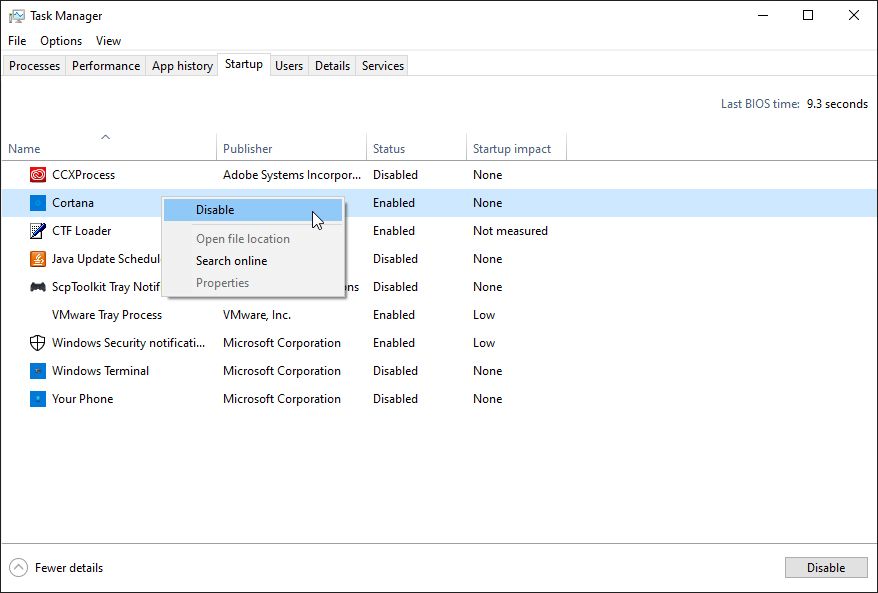
    The first way to turn off Cortana in Windows 10 is to use Startup in the Task Manager. Here’s how to do it:

    How To Turn Off Cortana In Windows 10 Laptop PC
    1. In the  Start menu search bar, search for  Task Manager and select the Best match.
    2. Go to the Startup tab.
    3. Right-click  Cortana and select  Disable.
    4. Reboot your PC.
    5. Check Task Manager again to check for changes.

    #2. Turning Off Cortana Through the App

    This is a safe way to disable or turn off Cortana, and you can easily revert your changes whenever you want.

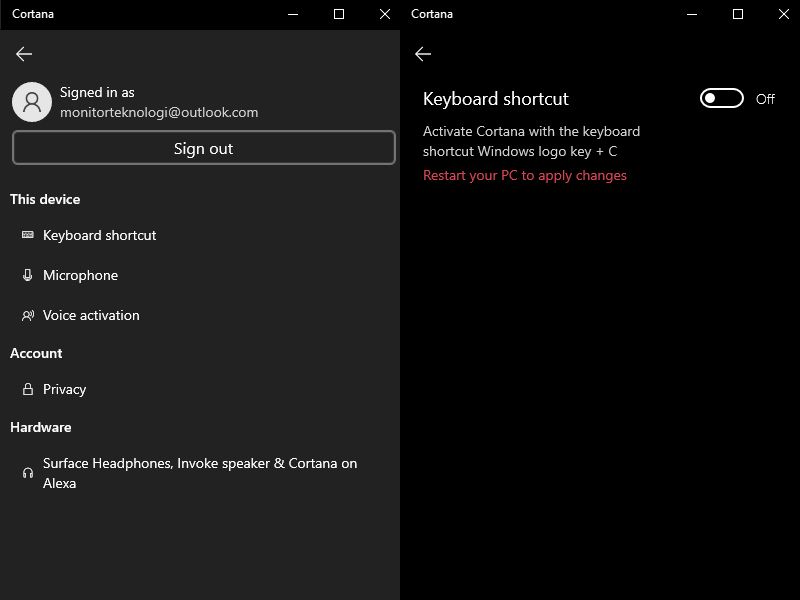
    Disable the Cortana Keyboard Shortcut

    Turning Off Cortana Through the App
    1. Open  Cortana.
    2. Click the three-dot menu from the top-left corner, then select  Settings.
    3. Click the Keyboard shortcut and turn off the toggle.
    4. Reboot your PC.

    This way, you can’t accidentally activate Cortana using a keyboard shortcut.

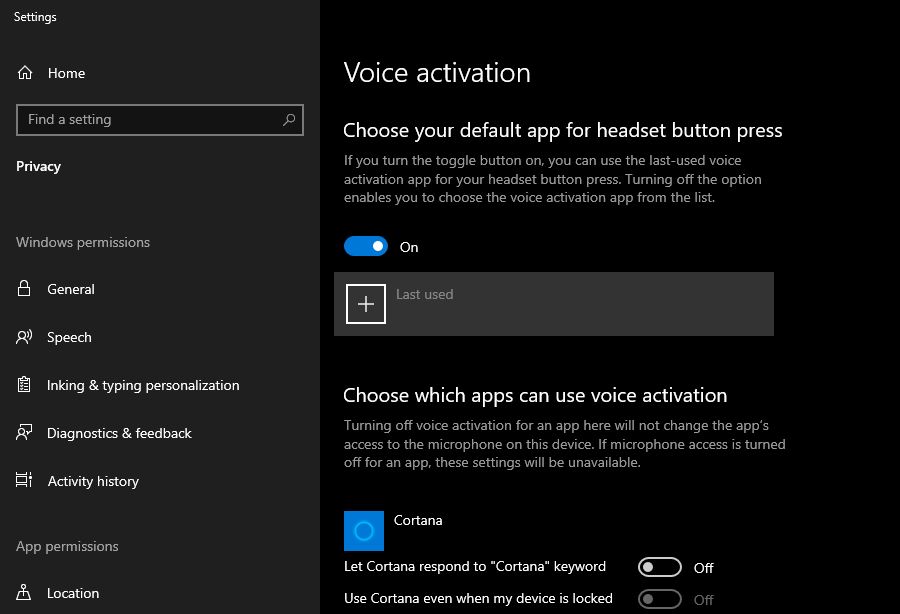
    Disable Voice Activation

    You can do this if you want to keep Cortana microphone access but don’t want to accidentally activate it:

    Disable Voice Activation
    1. Go to the Cortana Settings menu.
    2. Click  Voice Activation > Voice activation permissions.
    3. Scroll down to choose which apps can use voice activation.
    4. Turn off the toggle for  Cortana.

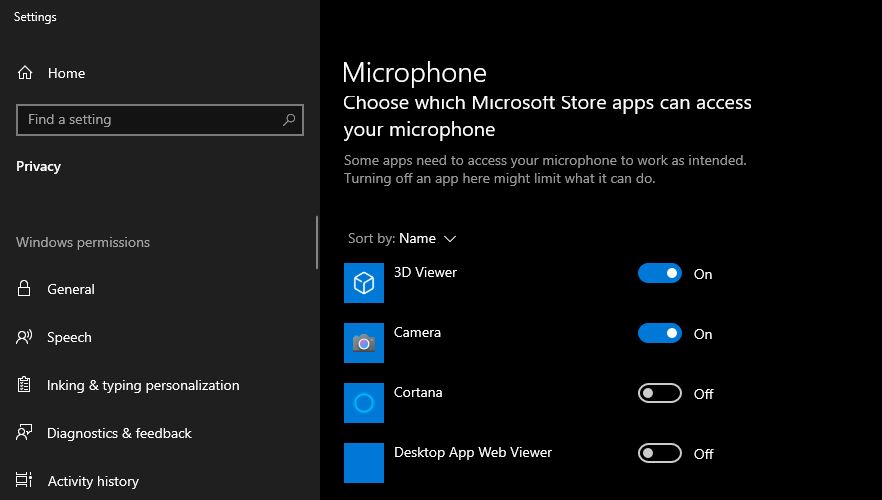
    Disable Cortana Microphone Access

    Disable Cortana Microphone Access
    1. Open the Cortana Settings menu.
    2. Click  Microphone > Microphone Permissions.
    3. Scroll down to choose which Microsoft Store apps can access your microphone.
    4. Turn off the toggle for  Cortana.

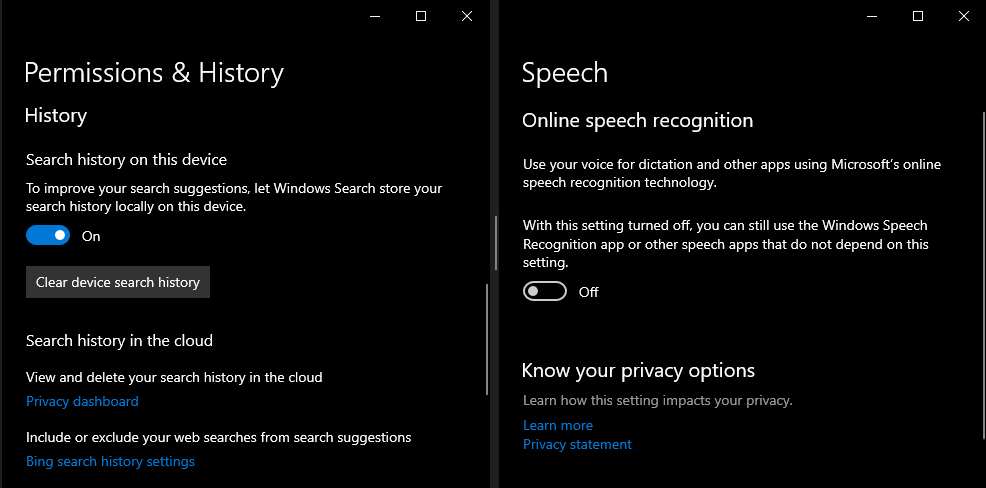
    #3. Turn Off Cortana To Record And Save Search Habits And History

    If you are concerned about the information being managed by Cortana, you can turn off the settings that allow it to record and store information about you. Follow these steps to change Cortana’s default settings:

    Turn Off Cortana To Record And Save Search Habits And History
    1. Right-click Start > Settings.
    2. In the Find, a settings search bar, look for  Permissions and History.
    3. Scroll down to the History section, then turn off the toggle and click  Clear device search history to clear Cortana’s search history.
    4. Look for  Speech Privacy Settings in the Find a setting search field.
    5. Turn off the toggle under  Online Speech Recognition.

    After changing this setting, Cortana will not be able to collect and report information or interact with you in any way. If you want to go back to the original settings, follow the steps above and turn on the toggles.

    #4. Turn off Cortana in Windows 10 Home

    If you are using Windows 10 Home, you will have to edit the Windows Registry to disable Cortana. Keep in mind that you have to be careful while editing the Windows Registry as this tool can stop your system from working properly. Follow these steps to edit the Windows Registry:

    Turn off Cortana in Windows 10 Home
    1. Press the Windows key + R  to open the Run window.
    2. Type  Regedit, then press Enter.
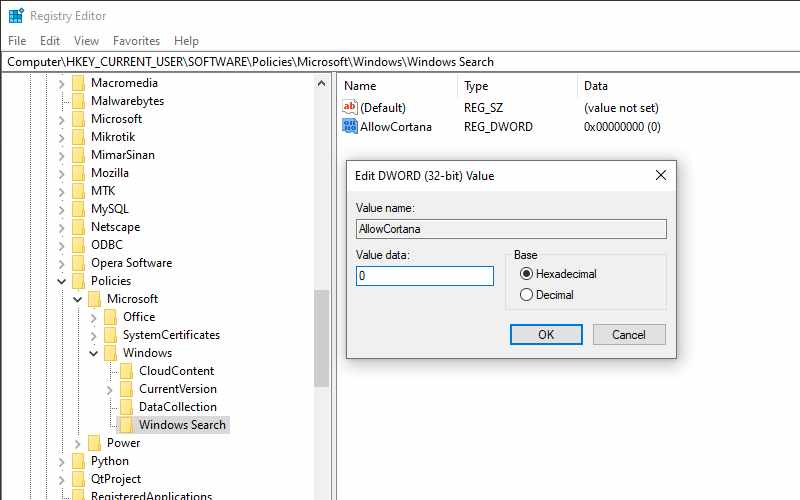
    3. Open the HKEY_CURRENT_USER menu, then go to  Software > Policies > Microsoft > Windows > Windows Search.
    4. Open Allow Cortana.
    5. Set  Base to  Hexadecimal and set  Value data to 0.
    6. Reboot your PC.

    If no Windows Search folder  is available:

    1. Right-click  Windows, then select  New > Key.
    2. Name it as  Windows Search.
    3. Right-click the Windows Search > New > DWORD (32-bit) Value folder.
    4. Name it  AllowCortana.
    5. Open  AllowCortana, set  Base to  Hexadecimal, and set  Value data to  0.
    6. Reboot your PC.

    #5. Turning Off Cortana On Windows 10 Enterprise Or Pro

    On Windows 10 Enterprise or Pro, you need to access the Local Group Policy Editor to disable Cortana. If you’re using a company-owned device, you’ll need to contact the admin first as the device may be part of a domain.

    However, the domain policy will override the local group policy. To disable Cortana through the Local Group Policy Editor, follow these steps:

    Turning Off Cortana On Windows 10 Enterprise Or Pro
    1. Press the Windows key + R  to open the Run window.
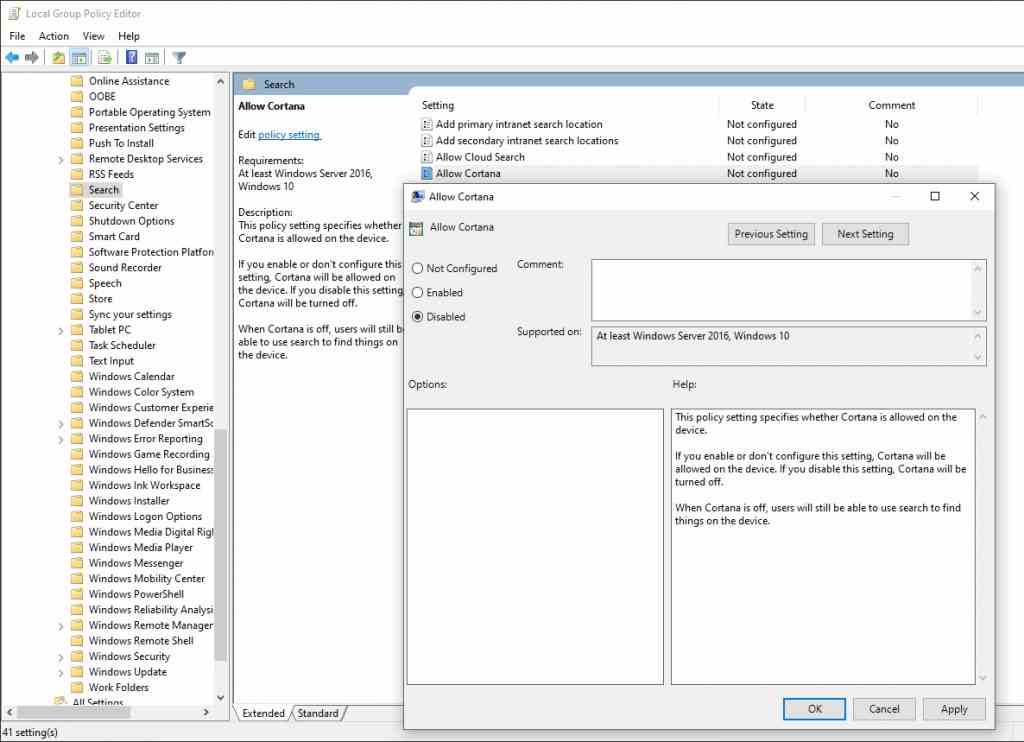
    2. Type gpedit.msc, then press  Enter.
    3. Using the left menu, go to  Computer Configuration > Administrative Templates > Windows Components > Search.
    4. Open  Allow Cortana.
    5. Under  Allow Cortana, select  Disabled.
    6. Reboot your PC or log out and log back in.

    If you want to re-enable Cortana, do steps 1-4; in step 5, select Enabled.

    Read more:

    Conclusion:

    So those were some ways to turn off Cortana in Windows 10. Since the Windows 10 Anniversary Update, you can’t turn off Cortana with a toggle. However, if you are looking for a method to remove some of its capabilities or disable Cortana completely, this article will show you how.

  • 3 Ways To Remove Eliminate Red Lines in Word 2025

    3 Ways To Remove Eliminate Red Lines in Word 2025

    3 Ways To Remove Eliminate Red Lines in Word – When you make college assignments or work again using Microsoft Word.

    How To Remove Eliminate Red Lines in Word Complete
    How To Remove Eliminate Red Lines in Word Complete

    How To Remove Eliminate Red Lines in Word

    When you type words, a wavy red line appears on each word.

    Those red lines are annoying, right? Yes, I agree with you. When we do the red-line task, we fail to focus.

    Read more:

    No need to worry first, because there are still many ways to eliminate red lines in words. I am discussing this because it is my experience that is uncomfortable with this feature.

    The Red Line Feature Function in Microsoft Word

    Before we remove this feature, you should know what this feature was created for by Microsoft. Not only do red lines appear in words, but there are also green lines that have their own function.

    So, if you don’t know what its function is, I will briefly explain the use of the red and green line feature in Microsoft Word.

    • Redline

    The red line in Microsoft Word has a very useful use for some people as well. Usually, for foreigners who use English, this feature is very valuable.

    This feature functions as a spell-checker, which is useful for correcting the spelling of a word, depending on the language you use.

    In general, Word will always correct English users, so it would be very useful if you are one of those people who often make typing typos, so that you can correct typing mistakes.

    • GreenLine

    The green line is different from the red line, the green line doesn’t appear very often in MS. Word. The function of the green line is more detailed than the red line.

    A green line will appear if the grammar of your typing is problematic. It will appear more often if you use English.

    The green line in Microsoft Word is actually one of the advantages, although it is very annoying too. Just like red lines, green lines can also be removed.

    Na, curious, right? How do you get rid of the red line in the word? Keep listening to our discussion until it’s finished so that you understand.

    How to Get Rid of Red Lines in Word

    On this occasion, I will give you 2 ways to get rid of the red line in the word. The method I will teach you is the easiest way that you can immediately practice it yourself.

    #1. Eliminating Red Lines in Word Through MS Settings. Word

    How to get rid of the red line in Word can be done manually on the settings menu. This method can immediately erase red lines or green lines permanently.

    So, without the need for much further ado, please immediately follow some of the steps I teach you below.

    • Step 1 – Open the Microsoft Word Office application on your Laptop / PC.
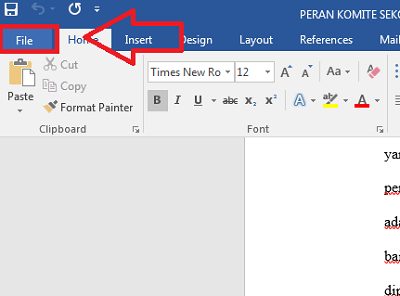
    • Step 2 – After you open it, please click the File menu in the top menu bar.
    How To Remove Eliminate Red Lines in Word Complete
    Click File
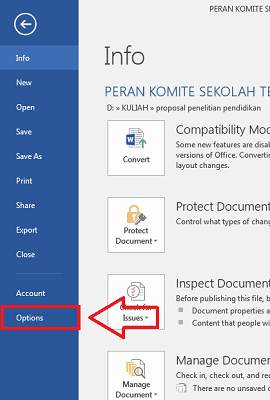
    • Step 3 – Then you click the Options menu at the bottom of the File menu.
    How To Remove Eliminate Red Lines in Word Complete
    Click Options
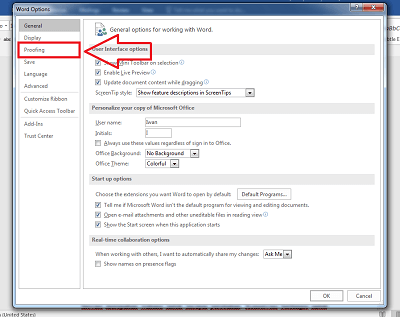
    • Step 4 – After that, the Options menu page will appear. Please select the Proofing sub-menu.
    How To Remove Eliminate Red Lines in Word Complete
    Click Proofing
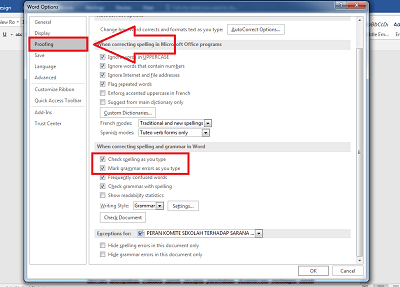
    • Step 5 – In the Proofing sub-menu, there are many settings; you should pay attention to When Correcting Grammar in Word.
    • Step 6 – Please remove the Check Spelling as you type the checklist column to remove the red line.
    • Step 7 – Also, remove the checklist in the Mark grammar errors as you type column to remove the green line.
    How To Remove Eliminate Red Lines in Word Complete
    Follow Pictures

    Well done! Now you can check the results of your typing, there are no red lines or green lines anymore. Good luck!

    #2. How to Get Rid of Red Lines in Word Through the Language Menu

    Apart from using the Microsoft Word settings menu, you can also use the Language menu in Word..

    However, this method has a drawback, namely that you only delete the file you are working on. For example, a red line will appear again if you open a new file.

    Even so, I will still teach you. The following is how to get rid of the red line in the word through the language menu, just follow the steps!

    • Step 1 – Open the file in which you want to get rid of the red lines.
    • Step 2 – After you block all the posts you have to type the command Ctrl + A.
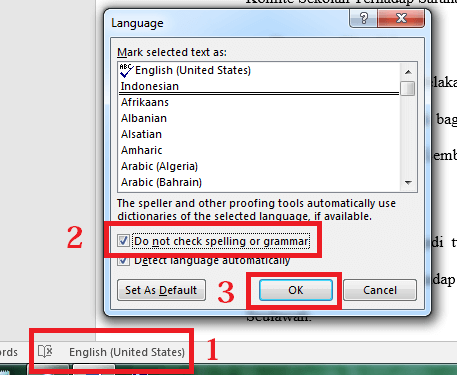
    • Step 3 – After completing all writing blocks, please click Language at the bottom. Make sure the Language menu is checked! If it is checked, the menu will be like the image below.
    • Step 4 – After that, you click the Language menu again, and then the Language menu page will appear. Please check. Do not spell check or use grammar.
    How To Remove Eliminate Red Lines in Word Complete
    Follow Pictures

    Well done! Please check your typing again to see whether the red line is gone. If so, then your writing will look cleaner and tidier.

    It’s easy, isn’t it? How do I get Rid of Red Lines in Word? Please practice it yourself in your Microsoft Word.

    Read more:

    Conclusion:

    So, friends, this is the explanation of the 3 ways to remove and eliminate red lines in words. Thank you for agreeing to read our article. If there is an error in the delivery of information, please comment in the section below.