Tag: How To Fix Windows License Will Expire Soon

  • How To Fix Windows 10 License Will Expire Soon 2024

    How To Fix Windows 10 License Will Expire Soon 2024

    How To Fix Windows 10 License Will Expire Soon – The Windows License Will Expire Soon warning message that always appears will certainly be very annoying, and if you experience it then you should immediately find a solution as a way to overcome and eliminate it from the PC or laptop you are using.
    How To Fix Windows 10 License Will Expire Soon
    How To Fix Windows 10 License Will Expire Soon

    How To Fix Windows 10 License Will Expire Soon

    In the English language, the warning message means that the Windows license on your laptop or PC will expire or expire soon.

    Read more:

    Usually, the message Your Windows License Will Expire Soon appears on Windows 8 and Windows 10 on a laptop or PC whose license will expire a few days later.

    Fix Windows 10 License Will Expire Soon

    Although Your Windows License Will Expire Soon a warning that appears on a laptop or PC, not many people know about it. But in fact, this warning message is caused by three reasons, along with his review:

    • Using Windows in trial or trial mode.
    • The Windows you are using has expired.
    • Use a Windows activator that gives a few months of the active period.

    After you already know the reason why the warning message with the words Your Windows License Will Expire Soon often appears on your laptop or computer.

    Now you will find it easier to find a solution to the emergence of Your Windows License Will Expire warning message soon. You can try one of the solutions from the following two methods below.

    #1. Through the Task Manager
    Through the Task Manager
    Through the Task Manager

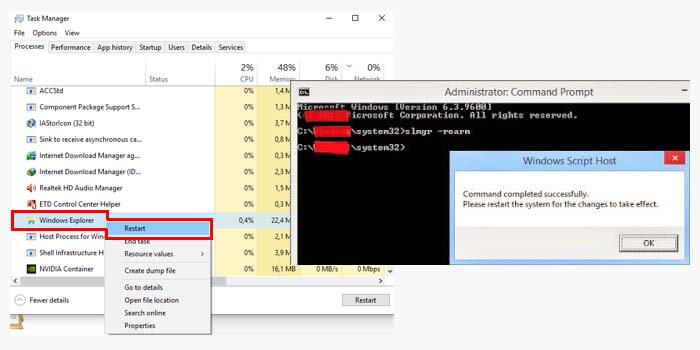
    The first way to overcome Your Windows License Will Expire Soon that often appears is to use the task manager. Task manager is a feature that is already available by default in Windows, so you don’t need to install any additional applications.

    How to get rid of Your Windows License Will Expire Soon that appears:

    1. Open the task manager by pressing Ctrl + Shift + Esc.
    2. On the Processes tab, look for Windows Explorer.
    3. If you have found it, right-click> and Restart or End Task.
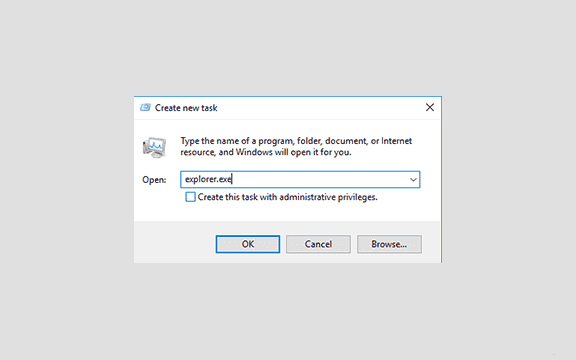
    4. Then click File> Run new tasks> type explorer.exe> ​​OK.
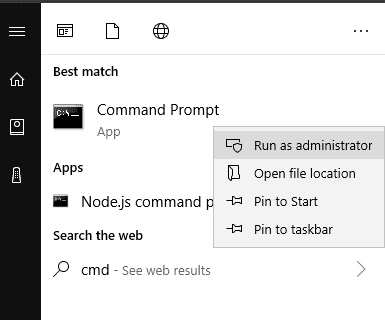
    5. Open the Command Prompt run as Administrator.
    6. Type slmgr -rearm in CMD then Enter.
    7. If the message Command is completed successfully and the command restart appears, click OK.

    After the PC or laptop has been restarted, if the status is Windows is not activated then you must activate using the activator. However, if the situation changes to Windows is Activated, you don’t need to activate it.

    Now, Your Windows License Will Expire Soon warning message that always appears has been successfully removed from your PC or laptop.

    #2. Remove Windows License
    Remove Windows License
    Remove Windows License

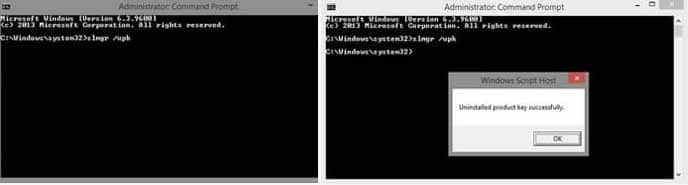
    The second solution for how to get rid of the Your Windows License Will Expire soon message is to use Command Prompt / CMD. The way this method works is that you will delete the license from your Windows product key.

    Here’s how to resolve Your Windows License Will Expire Soon:

    1. Run the command prompt with Administrator access.
    2. In CMD, type slmgr / upk then press Enter on the keyboard.
    3. Then the message Uninstalled product key successfully appears.
    4. Click the OK option on the message.
    5. Finally, you must restart your PC or laptop.

    After your laptop or PC is active again, your Windows license will be deleted so that the message Your Windows License Will Expire soon will not reappear.

    But because your Windows license key has been removed from the laptop and PC, it means you have to reactivate Windows using your mainstay activator.

    #3. Using the Activator

    An activator is software that can provide an extension of the active windows that have expired for free. In addition, some activators can permanently activate Windows so that the message “Your Windows License Will Expire soon” will no longer appear.

    Read more:

    Conclusion:

    So, friends, that’s how to fix the Windows 10 license that will expire soon, This method can be a solution for those of you who feel disturbed by the appearance of the warning message on Windows 10.
  • (100% Working) 6 Ways To Fix Windows License Will Expire Soon 2024

    (100% Working) 6 Ways To Fix Windows License Will Expire Soon 2024

    (100% Working) 6 Ways To Fix Windows License Will Expire Soon – Is your laptop/computer having “your Windows license will expire soon”? It would be nice if you overcome or eliminate the notification message so that your windows are permanently active.

    (100% Working) 6 Ways To Fix Windows License Will Expire Soon
    (100% Working) 6 Ways To Fix Windows License Will Expire Soon

    How to Get Rid of Your Windows License Will Expire Soon 2024

    Cause

    The message that appears in Windows 10 can be caused by two reasons, namely:

    1. You use an activator whose active period is only 180 days
    2. Using the original Windows 10 license but with a limited active period.

    You will not be disturbed when you have removed the notification.

    Get Rid of Your Windows License Will Expire Soon

    When the laptop appears, the license has expired, it indicates that your Windows has expired.

    Read more:

    So that means, your Windows license is no longer valid (but it can still be used).

    It’s just that you will find a watermark in the lower right corner that says Activate Windows- Go to settings to activate Windows.

    You can remove the text in the following way too.

    #1. Reactivate Windows

    To deal with a laptop whose Windows license will expire soon, you can use this first method.

    This method is included in the easiest category and you can do it yourself. Still using the help of software programs or applications.

    You can get this application on the internet, under the name KMSPico. In full, you can see my previous post about how to activate Windows.

    There I have explained step by step how to activate Windows.

    #2. End Windows Explorer Process

    How to Fix Windows License Will Expire Soon
    End Windows Explorer Process

    If you want to deal with expired windows, do the steps below.

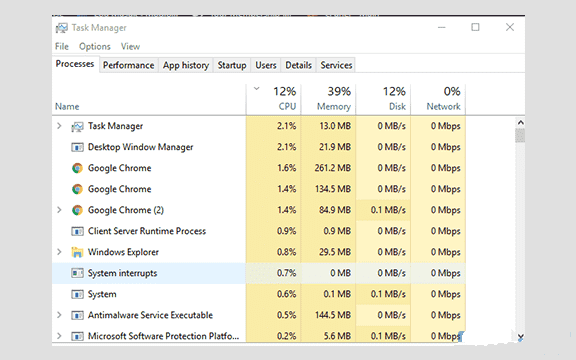
    First, you have to enter the task manager program. See the guide below for more details.

    • To enter the Task Manager program, you can use the shortcut CTRL + SHIFT + ECS.
    • After logging in, you can search for programs in the Processes menu.
    • Look for a running program called Windows Explorer.
    • Right-click on the program and select End Task.

    #3. Rerun the Windows Explorer program

    After you do the End Task in the steps above. You can use the method below to reactivate your Windows manager. The method is the same, just follow the steps below.

    How to Fix Windows License Will Expire Soon
    Rerun the Windows Explorer program
    • First, please enter the task manager or those who have previously opened the task manager program, and go to the next step.
    • Select the File menu then select the menu in the new window at the bottom called Run New Task.

    How to Fix Windows License Will Expire Soon
    Rerun the Windows Explorer program
    • Then enter the sentence as drawn or you can just copy this sentence “explorer.exe” without the quotes.
    • Then after it has been entered into the box, please press the OK menu at the bottom.

    How to Fix Windows License Will Expire Soon
    Rerun the Windows Explorer program
    • You can open CMD by pressing the Start Menu -> typing CMD -> Then selecting the Command Prompt section -> Right-click -> selecting Run As Administrator.
    • You can type the following sentence slmgr -rearm then press enter on the keyboard to start the process.
    • Wait a few moments, a notification window will appear containing the Command completed successfully.
    • After that, there will also be a notification to restart the computer.
    • Please press OK to restart your laptop PC.

    At this point, it’s finished, but if there is still writing Windows is not activated on your computer, then you have to reactivate using the method I explained above.

    #4. Uninstall Product Key

    This second method is quite extreme because you have to remove your Windows license.

    The product key is the name, so you have to uninstall it first to solve Windows 10 expiring soon.

    The stages are below:

    • First, you have to open CMD, the steps to open cmd can use the previous step. Don’t forget to Run As an Administrator in the Command Prompt program.
    • After the CMD program is open, please enter the following sentence: slmgr / upk .
    • Then press enter on your PC laptop keyboard.
    • If the uninstall process is complete and running successfully, usually a message like this “Uninstalled product key successfully” will appear.
    • After that, you can press OK.

    Then you can restart your computer or laptop. After turning it on, you will not see the window expired warning again.

    However, your windows are now not activated or there is no product key.

    To get a product key or activate Windows please use the previous method for Windows activation.

    #5. Changing Group Privacy

    To get rid of the words Windows 10 expired product key, I often use the method to change the group privacy.

    Are you curious about using it too? Please follow the steps below so that you get a way to get rid of the license that will expire soon win 10.

    • First, you must open a program called Group Policy Editor via the start menu search or use the steps below.
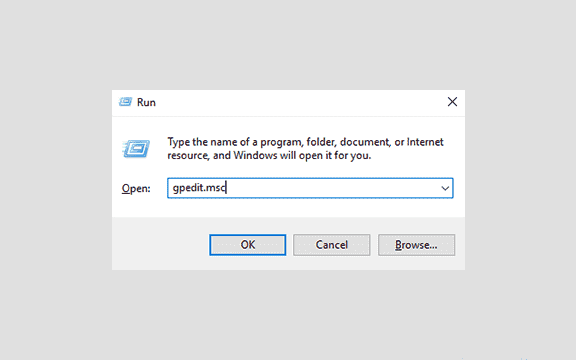
    • Please press the CTRL + R combination on your keyboard enter the following sentence gpedit.msc in the search field then press OK.

    Changing Group Privacy
    Changing Group Privacy
    • After that, a new window will appear showing the program from Gpedit.
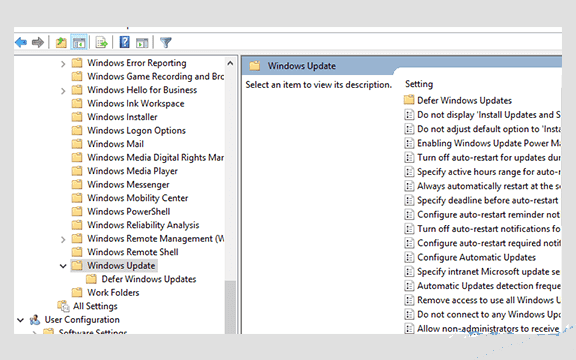
    • Please enter into the following folder: Computer Configuration> Administrative Templates> Windows Components> Windows Update.

    Changing Group Privacy
    Changing Group Privacy
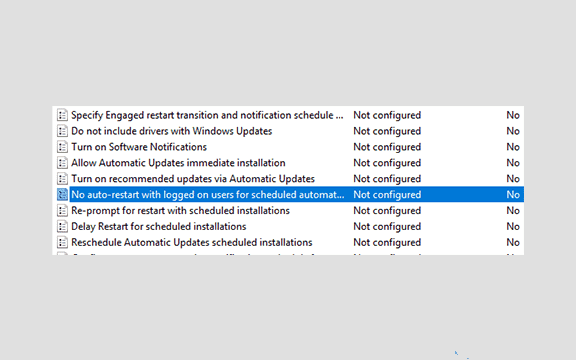
    • Then just select the file called No Auto Restart with Logged on User For Scheduled Automatic.

    no auto restart
    no auto restart
    • Double-click or double-click on the file to open it.

    Double click or double click on the file to open it
    Double click or double click on the file to open it
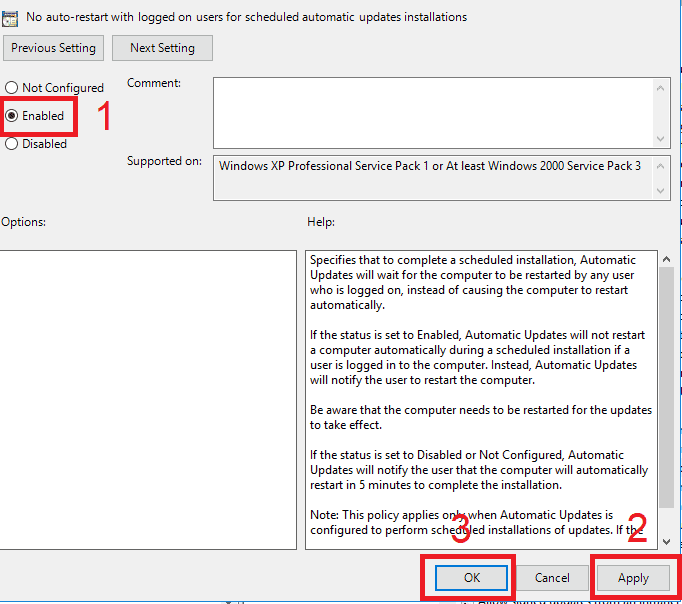
    • You can change what was not configured to be enabled. Then you can press the Apply button then OK.
    • After that is all done, you can restart the computer or laptop you are using. Look what happened, your problem is solved.

    #6. Find the Product Key in CMD

    Previously, you uninstalled the product key, but the uninstallation step still didn’t work.

    You can use the steps below to deal with outdated windows.

    • Open Command Prompt then run it using Run As Administrator.
    • You can type in a sentence like this: wmic path SoftwareLicensingService get OA3xOriginalProductKey.
    • Then press enter on your keyboard.
    • After that, the product key that you use on laptops and computers will appear.
    • Retype the product key into Notepad or the like because the CMD program can’t copy it.
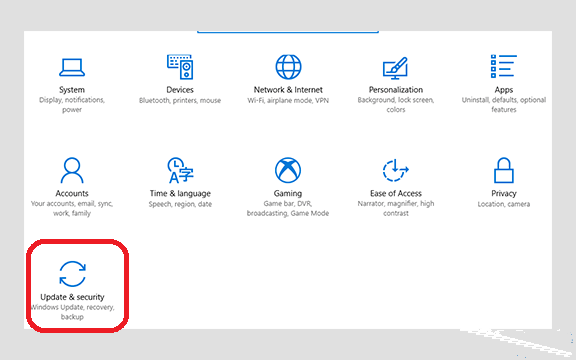
    • The next step is, please open your Windows Settings by pressing the shortcut CTRL + I on your keyboard.

    Find the Product Key in CMD
    Find the Product Key in CMD
    • Then a new window will appear, please select the Activation menu. Then you select Change Product Key.
    • Later the Enter a Product Key window will appear. Please enter the product key that you noted earlier in the notepad and then enter it in the column provided in the Windows settings.

    How to Overcome Windows 7 Expired Without Reinstalling

    In Windows 7, the active period can also expire, but with different notifications.

    If in Windows 7 it will display a Windows 7 notification note with the desktop display turning black.

    Read more:

    Conclusion:

    So, friends, That’s my brief review of the Windows that appears notification that your Windows license will expire soon.