The 9 Most Useful Google Chrome Shortcuts You’ll Ever Need – Like computers, the Google Chromebrowser is also equipped with keyboard shortcuts. While Google Chrome shortcuts are available on all devices, they will vary slightly depending on the operating system the user is using.
The 16 Most Useful Google Chrome Shortcuts You’ll Ever Need
The 16 Most Useful Google Chrome Shortcuts You’ll Ever Need
Shortcuts are proven to save users a lot of time. For that, Google Chrome makes using keyboard shortcuts much easier. Below is a list of the complete set of Google Chrome shortcuts.
Close tabs
(or close Chrome if only one tab is open)
Ctrl + 1 to Ctrl + 8
Switch to the first tab, the second, etc.
Ctrl + 9
Switch to the last tab
Ctrl + Tab / Ctrl + Page Up
Switch to the next tab
Ctrl + Shift + Tab / Ctrl + Page Down
Switch to the previous tab
Ctrl + N
Open a new window
Ctrl + Shift + N
Open a new incognito window
Ctrl + Shift + W / Alt + F4
Close the current window
Ctrl + left click
Open the link in the new tab background
Ctrl + Shift + left click
Open the link in the foreground in a new tab
Shift + left click
Open the link in a new window
Alt + left click
Download link
Ctrl + click “Search Google” from the drop-down menu
Open Google search in the new tab background
Shift + click “Search Google” from the drop-down menu
Open Google search in a new window
Drag the link to an existing tab
Open the link in the selected tab
Drag the link to the tab bar
Open a link in a new tab in the specified position on the tab strip
Hold Ctrl + click on the tab in the tab bar
Select multiple tabs (to rearrange or create new windows)
Hold Shift + click on two tabs in the tab bar
Select all tabs between two tabs (to rearrange or create new windows)
#2. Address Bar
Ctrl + L / Alt + D
Set focus to address bar (highlight current web page URL if available)
Shift + Alt + T
Set focus to the toolbar
Ctrl + E / Ctrl + K.
Enter a search query in the address bar
Arrow Down to highlight, then Shift + Delete
Remove predictions from the address bar
Type a search term and press Enter
Perform a search using a search engine related to a keyword or URI
Type and press Alt + Enter
Open the site or search in the foreground for a new tab
Type and press Win + Enter
Open the site or search in a new tab background (it doesn’t work in Windows 10)
Type and press Alt + Shift + Enter
Open the site or search in a new tab background (works on Windows 10)
Type and press Shift + Enter
Open the site or search in a new window
Type and press Ctrl + Enter
Add www. to start and .com to the end of input and open the web address in the current tab
Type and press Ctrl + Alt + Enter
Add www. to start and .com to the end of input and open the web address in the foreground new tab
Type and press Ctrl + Win + Enter
Add www. to start and .com to end input and open web address in new tab background (doesn’t work in Windows 10)
Type and press Ctrl + Shift + Enter
Add www. to the beginning and .com to the end of the input and open the web address in a new window
Type the name of the search engine and press Tab
Tab-to-Search feature. For example, Typing in the ‘yahoo.com’ tab plus opens a Yahoo search.
#3. View Webpage
F6
Alternative focus between address bar, bookmarks bar, and webpage
Arrow Down /Arrow Up
Scroll down / scroll up
Page Down / Page Up
Scroll one page down/up
Space / Shift + Space
Scroll one page down/up
Home / End
Jump to the start/end of the webpage
Ctrl + [ + ] / –
Zoom in/out (or Ctrl + mouse wheel)
Ctrl + 0 (zero)
Return zoom to normal text size
Ctrl + U
View page source
F11
Enable/disable fullscreen
F
Enable/disable the full screen for some video types (e.g. YouTube)
M
Mute/unmute some types of videos (e.g. YouTube)
#4. Browse Between Webpages
Alt + Home
Jump to the veranda
Alt + Arrow Left / Arrow Right
Jump to the previously visited webpage/jump to the next webpage
F5 / Ctrl + R
Reload current webpage
Ctrl + F5 / Shift + F5
Reload the current web page with cache override
ESC
Stop loading webpage
#5. Browse Within Webpages
Tab / Shift + Tab with a focus on the web page
Jump to the next/previous link
Login at the link
Open the link in the current tab
Ctrl + Enter on the link
Open the link in the new tab background
Shift + Ctrl + Enter on the link
Open the link in the foreground in a new tab
Shift + Enter on the link
Open the link in a new window
Alt + Enter on the link
Download link
Shift + F10
Open context menu (simulate right mouse button)
Ctrl + A
Select all content on a webpage
Ctrl + C with content selected
Copy selected content to the clipboard
#6. Access Browser Features
Ctrl + P
Print current web page (Chrome Print Dialog)
Ctrl + Shift + P
Print the current web page (Native Windows Print Dialog)
Ctrl + O
Open file
Ctrl + S
Save current webpage
Alt + F
Open Wrench Menu
Ctrl + H
Open history tab
Ctrl + J
Go to the Download tab
Shift + Esc
Check out Google Task Manager
F1
Chrome Help
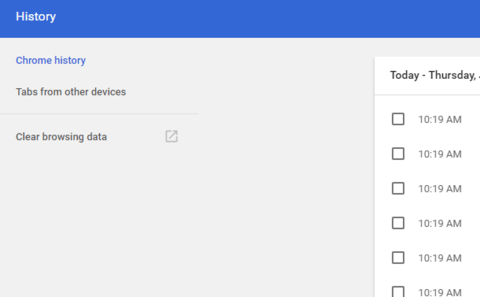
Ctrl + Shift + Del
Go to the Clear Browsing Data option
#7. Search
Ctrl + F / F3
Find text on a web page.
Enter / Shift + Enter with the text found on the web page
Find next / find the previous match
Ctrl + G / Ctrl + Shift + G with text found on the webpage
Find next / find the previous match
ESC
With a focus on the Search box: Close the Search box
#8. Bookmarks Shortcuts
Ctrl + Shift + B
Show or hide the bookmark bar
Ctrl + Shift + O
Open Bookmark Manager
Ctrl + D
Add a bookmark for the current webpage
Ctrl + Shift + D
Save all open pages as bookmarks in a new folder
Drag the URL to the bookmark bar
Bookmark the web page (can be a URL from the address bar or a link from a page)
Alt + F, then B
Open Bookmark Manager Tab
Manage Chrome DevTools
#1. Accessing DevTools Basics
Ctrl + Shift + I (or F12 )
Go to Developer Tools
Ctrl + Shift + J
Open Developer Tools (With Focus on Javascript Console)
Ctrl + Shift + C
Switch Element Inspection mode
Ctrl + Shift + C (2x)
Switch Focus on Developer Tools (there’s no shortcut to focus on Developer Tools, but this is a workaround. Notice the Inspector Mode Icon changes color when you press for hints. Lastly, this only works if DevTools are docked; if they aren’t, you can switch between windows with Alt + Tab )
?
Show General Settings Dialog (press Esc to exit)
Ctrl + [ / ]
Switch to the next panel / Switch to the previous panel (add Alt to combination to reverse direction)
Ctrl + D
Dock / Undock Developer Tool
Ctrl + Shift + M
Toggle ( mobile) Device Mode
Ctrl + F
Search Text in Source
Ctrl + Shift + F
Search Text across all sources
Ctrl + O
Search by File Name
Ctrl + [ + ] / –
Zoom in/out Developer tools
Ctrl + 0 (zero)
Zoom to default
#2. Elements Panel
Ctrl + Arrow Up
Focus on Elements of content
Arrow Up / Arrow Down
Navigate up/down
Ctrl + Z / Ctrl + Y
Undo/Redo Changes
Arrow Right / Arrow Left
Expand / Collapse
Left-click on Arrow
Expand node
Ctrl + Alt + Arrow Left
Expand/collapse node with all children
Enter
Edit the element
H.
Hide the elements
F2
Switch edit as HTML
#3. Styles Panel
Left-click
Edit Rules
Left-click on a space
Insert new property
Ctrl + Left click on properties
Go to line style rule property declaration
Shift + Left click on properties
Browse color definition values
Tab / Shift + Tab
Edit next property/edit previous property
Arrow Up/Arrow Down
Increase/decrease value by 1
Page Up / Page Down
Increase/decrease value by 10
Shift + Page Up / Page Down
Increase/decrease value by 100
Alt + Arrow Up/Arrow Down
Increase/decrease value by 100
#4. Source Panel
F8 , Ctrl + \
Pause/resume script execution
F8 , Ctrl + \
Pause/resume script execution
F10 , Ctrl + ‘
Skip the next function call
F11 , Ctrl + ;
Go to the next function call
Shift + F11 , Ctrl + Shift + ;
Exit the current function
Ctrl +. /,
Select next frame / select previous call frame
Left-click on line number
Toggle breakpoint condition
Right-click on line number
Edit breakpoint condition
Alt + Delete
Delete words one by one
Ctrl + /
Comment on the selected line or text
Ctrl + S
Save changes to local modifications
Ctrl + Alt + S
Save all changes
Ctrl + G
Go to line
Ctrl + O
Search by Filename
Ctrl + P + number
Jump to line number
Ctrl + O + number + number
Jump to column
Ctrl + Shift + O
Go to members
Alt + W
Close active tab
Ctrl + Enter
Run snippet
#5. Code Editor
Ctrl + M
Go to the suitable bracket
Ctrl + P + number
Jump to line number
Ctrl + O + number + number
Jump to column
Ctrl + /
Redirect comments
Ctrl + D
Choose the next event
Ctrl + U
Undo the last selection
#6. Timeline Panel
Ctrl + E
Start/stop recording
Ctrl + S
Save timeline data
Ctrl + O
Open/Load timeline data
#7. Profile Panel
Ctrl + E
Start/stop recording
#8. Console Panel
Arrow Right
Thank Suggestion
Arrow Up/Arrow Down
Previous/next command
Ctrl + `
Focus Console
Ctrl + L
Clean Console
Shift + Enter
Multi-line entry
Enter
Operate
Conclusion:
So, friends, that’s a list of Google Chrome shortcuts you can use, These keyboard shortcuts not only make it easy to use, but they can also improve the overall working performance of the Google Chrome browser.
4 Ways to Upload Files on Google Drive — Google Drive is an online storage service and a product of Google. It is very popular for uploading and downloading files because of its simple access and easy-to-understand navigation.
How to Upload Files on Google Drive
How to Upload Files on Google Drive Android PC
You can easily upload files to Google Drive using any device. and you can access it via PC, laptop, Android, and iPhone smartphones etc.
Google Drive provides a capacity of 15GB for free to store your data. In addition, on Google Drive, there will be no annoying advertisements like upload and download places in general.
Therefore, Google Drive can be a mainstay for backing up data. Data files that have been uploaded on Google Drive can be guaranteed not to be lost as long as the Google account is still accessible.
Then how do I upload files to Google Drive? You will find all the answers in this article in full. Please read the steps below.
How to Upload Files on Google Drive Android and PC
#1. Via PC / Laptop
How to Upload Files on Google Drive
First, make sure you already have a Google account and are connected to the internet network. Then follow the steps for uploading files on Google Drive below:
Open a web browser application on your PC or laptop.
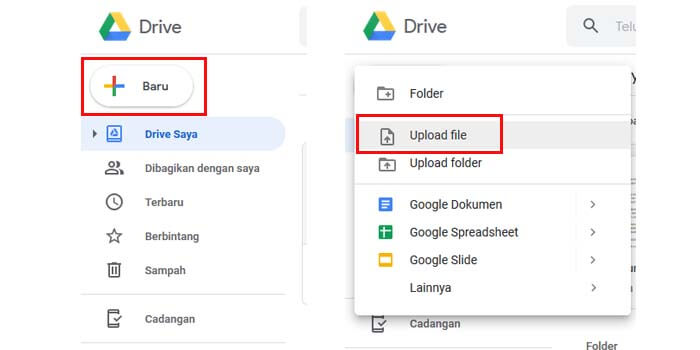
Click the New button and then select the Upload file option.
Choose which files you want to upload to Google Drive.
You just have to wait until the upload is complete.
The file has been successfully uploaded to your Google Drive account.
Done.
If you want to upload lots of files to Google Drive at once with just one step. You can also do this by selecting the Upload folder option in step number 3 above.
#2. Via an Android phone
Android smartphones have the Google Drive application in them, right? But if it’s still not there, you can search for this application through the Playstore and then install the application.
How to upload files to Google Drive using an application on an Android phone is very easy. First, of course, you have to open this application on your cellphone.
Then touch the plus icon and select the Upload option in the menu that appears. You have to choose which files you want to upload to Google Drive. If you have chosen, the file will be processed to upload to Google Drive.
Just wait for the file upload process to your Google Drive account to complete. The time it takes depends on the file size and the speed of your internet network.
How to Share Google Drive Links
If you already know how to upload files, it will not be right if you still don’t know how to get the download link from the file that you have uploaded on Google Drive.
By sharing the Google Drive download link, you can download files without having to log in to the Google account first. In addition, you can also share the file with your friends.
There are 2 methods to share the Google Drive download link. The first is sharing to certain people only, and the second is for everyone without Google account login access.
#1. Share Google Drive Link with Specific People
Right-click the file you want or tap if using a cellphone, then select the Share option. In the people field, type the email address of the person you want to share the Google Drive file link with, Done.
The email address will get a link from the Google Drive file for them to download. Open the email, then click the Google Drive link, and finally download the file as usual.
#2. Share the Google Drive Link with Everyone
Right-click the file you want or tap if using a cellphone, then select the option Get shareable link. The link will automatically be copied, to see it, just paste or press CTRL + V.
Thus the tutorial on how to upload files and folders on Google Drive, you can try on a laptop or computer, and an Android cellphone. If you still don’t understand how to use it, leave a comment below.
How To Delete Browser Cache And Cookies on PC Laptop – Whenever you have a problem with the website, one of the first suggestions you will hear from an IT support person is usually, “Please try to clear your browser cache”, and at the same time it’s also a sentence, “and delete the web cookie browser You”.
How To Delete Browser Cache And Cookies on Laptop PC
How To Delete Browser Cache And Cookies on Laptop PC
So what is this browser cache? What is stored, and what is its use? What does your browser cache do? Why do we need to delete it, and how to do it?
If you are looking for Linux browsers, then you can read this post 10 Web Browsers For Linux Operating System
We need to know, that the web browser or browser that we use, often saves the file in the form of cookies and cache.
What Is Cache Browser? and How to remove it
What Is Cache Browser? and How to remove it
Browser cache is a temporary storage location on your computer, for files downloaded by browsers to display website pages.
Locally stored files include documents that make up a website, such as HTML files, CSS style sheets, JavaScript scripts, as well as graphic images, and other multimedia content.
So when you visit a website, the browser checks for content that has just been updated and only downloads the files that have just been updated, or stores anything that has not been stored in the cache space.
This reduces bandwidth usage on both sides, both from the user (visitor) side and also from the server side, allowing web pages to load faster.
Therefore, a cache is very useful when you have a slow or limited internet connection.
Why Do We Need To Delete The Cache?
The browser cache can have considerable space capacity and take up a lot of space on your hard disk, containing data from websites you’ve opened, and probably never visited again.
While you can have a large capacity limit, it’s still a good idea to delete them occasionally to fix some issues that may arise.
Sometimes, cached versions of websites can cause problems. For example when the browser does not download a copy of the new web page, even though the content has been updated since last caching.
Because the issue of browser cache relates heavily to website issues, IT support will usually advise removing your browser cache when you report the issue you are facing.
In addition, the cache data will also show the history of any site you’ve visited before.
How To Remove The Easiest Cache Browser
An easy way to rid the browser cache, can too by reloading the pages of the website and forcing it to display the page without cache data. The general formula is to press the [Ctrl] + [F5] key.
Reload the web page and without cache: [Ctrl] + [F5] or [Ctrl] + [SHIFT] + [R] or [Shift] + Reload button browser
Clear cache: [Ctrl] + [Shift] + [Del], use the menu at the top to select the amount of data you want to delete. Choose from the start to clear everything. Click the CLEAR BROWSING DATA button
Reload page: [Ctrl] + [F5] or [Shift] + [F5] or [Ctrl] + Reload button browser
Reload the web page without cache: [Ctrl] + [Shift] + [R] or reload the page above twice in a row
Clear cache: [Ctrl] + [Shift] + [Del] Use the menu at the top to select the amount of data you want to delete. Choose from the start to clear everything. Click the CLEAR BROWSING DATA button
Clear cache: [Ctrl] + [Shift] + [Del] then click DELETE button
You can also clear the cache through the browser menu. Again, the exact path depends on the browser you’re using.
So, friends, this was above how to delete browser cache and cookies, Also, share this article, and your experiences and opinions with Technadvice.comin the comments field below.
How to Enable IDM in Firefox 6 Quick Ways — Downloading is one of the most frequently carried out by internet users. They usually download files of various types, such as images, music, videos, or even applications.
How to Enable IDM in Firefox 6 Quick Ways
How to Enable IDM in Firefox 6 Quick Ways
Generally, someone uses a browser such as Mozilla Firefox to facilitate downloading activities. In addition, there is also additional IDM software to make the download process faster.
Yes, Internet Download Manager is arguably one of the mandatory applications for downloaders. It is specially designed to help us manage the download process and make it faster and more effective.
Almost all computer and PC users install this one software on their devices. It is very popular and has very useful features.
Usually, when IDM is installed on a PC or computer, it will immediately connect and appear automatically when the download process starts. But sometimes that doesn’t always happen. Now what we will discuss is how to activate IDM in Mozilla Firefox.
Sometimes when we want to download a file such as a video using Mozilla Firefox, IDM doesn’t even appear automatically. Why did this happen and how to solve it ?.
Several things might cause IDM not to appear automatically when there is a download process. Usually, it is not integrated with the browser used.
Sometimes IDM is not compatible with the browser version that is being used. So, what’s the solution? It’s quite easy, you only need to make settings to integrate IDM and the browser so that it is perfectly connected.
Internet Download Manager is indeed very useful for downloading download activities. Now, if IDM is not compatible and is connected to the browser, of course, it will not function properly. S
How to Enable IDM in Mozilla Firefox
Have you been bothered by this kind of problem? It, we have a solution and how to fix it. Please follow the guide on how to activate IDM so that it appears on Mozilla Firefox.
#1. Down the Addon
First of all, we need to open Mozilla Firefox, if you have clicked the button below to be able to install IDM in Firefox.
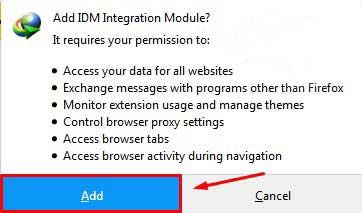
Then a notification will appear to integrate between IDM and Firefox, please click Add.
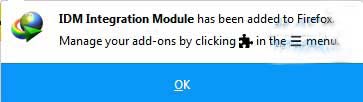
#3. Confirm the Addon
If a notification appears like this, it means that it is connected to Mozilla Firefox.
#4. Open the IDM Folder
For the next step, you need to make a few changes to IDM settings. Please follow the tutorials and guides below:
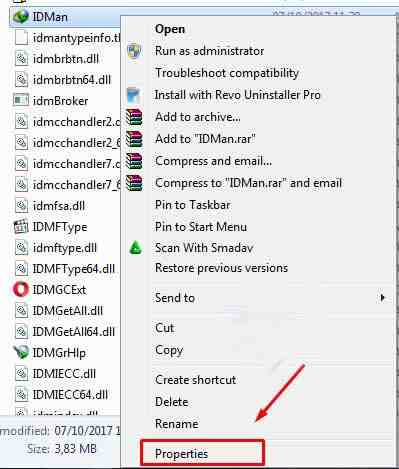
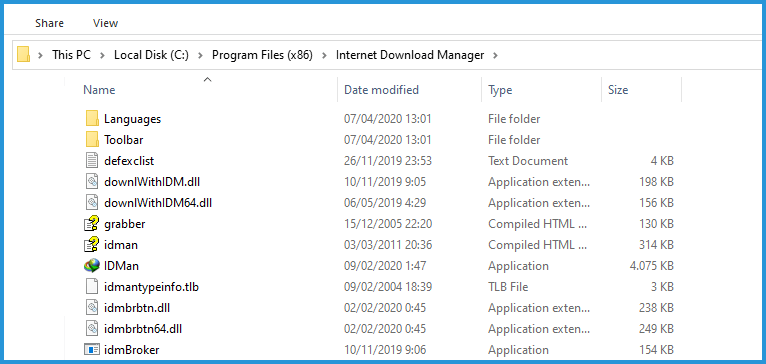
Enter the directory C: \ Program Files \ Internet Download Manager.
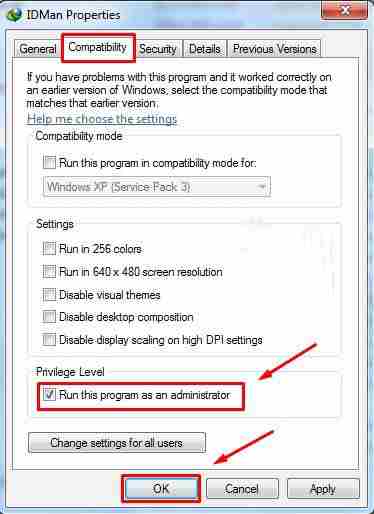
Then right-click on the IDMan file and select Properties.
#5. Run As Administrator
Then paste the menu tab give a checklist on the Run this program as administrator option and click OK.
So, congratulations, now that IDM and Mozilla Firefox are connected, and will automatically appear while downloading.
Installing IDM on Mozilla Firefox
For the second step, if the first step has not been successful, then you can follow the steps below.
Open the Internet Download Manager application
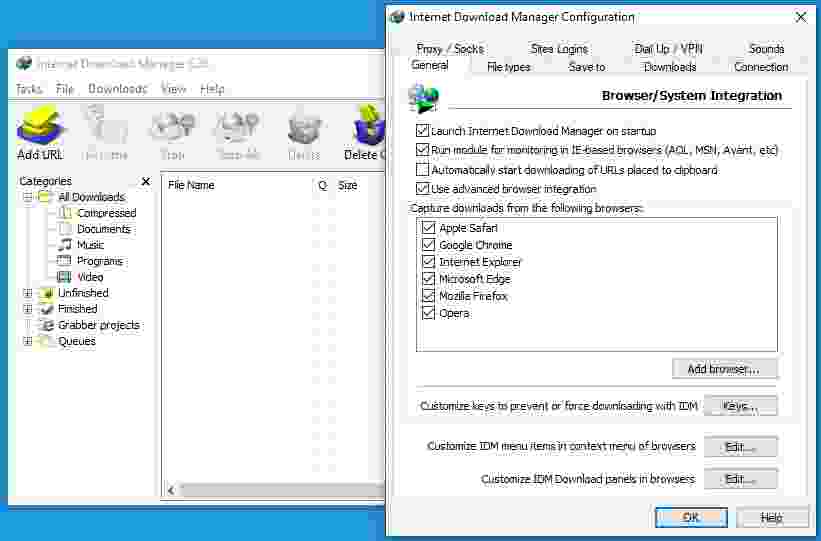
Click the options button
Check Mozilla Firefox, on the display (as shown above).
Click ok, and issue IDM.
Then open it again to download and try downloading with IDM in Firefox.
Some of the methods above can be tried to activate the internet download manager that does not appear during download. So if Google Chrome also experiences? you can read how to activate IDM in Chrome, the steps above have been tested and guaranteed success.
That’s how to Install IDM on Mozilla Firefox so that it can function properly. Hopefully, the tips above can be a solution and overcome the Internet Download Manager that doesn’t want to appear on Mozilla.
For example, how to bring up IDM integration in Google Chrome, as I want to discuss here.
Previously Need To Know Here
First, it should be noted here, as I said earlier that IDM is usually already active in the browser when it’s finished installing.
So why do some users have to turn it on manually?
The answer is that either IDM or Google Chrome is used, it is not the latest version.
So that the compatibility of the two does not match, and the application is unreadable, and even cannot be active.
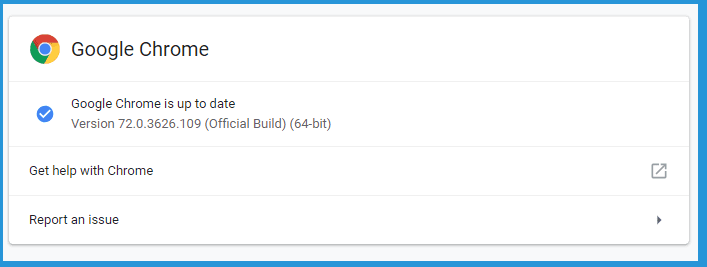
For that, please try to first update the IDM Application and the Google Chromium Application to the latest version.
But, if you want to manually activate IDM in Chrome, you have to do certain steps.
Let’s discuss this in full below:
How to Activate IDM in Google Chrome
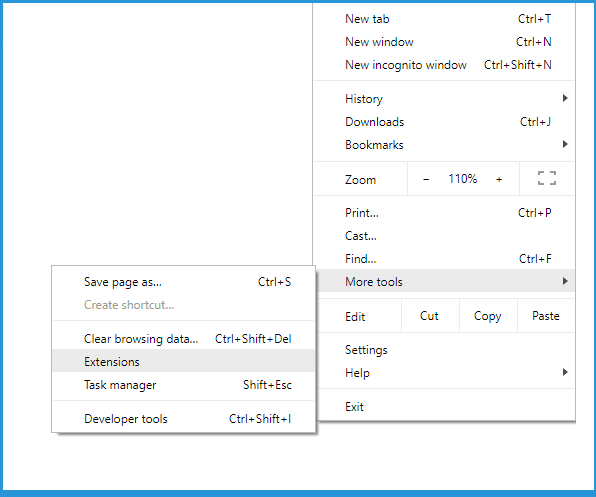
Step 1: Please open Google Chrome, then click the menu at the top right, select more tools then click Extensions.
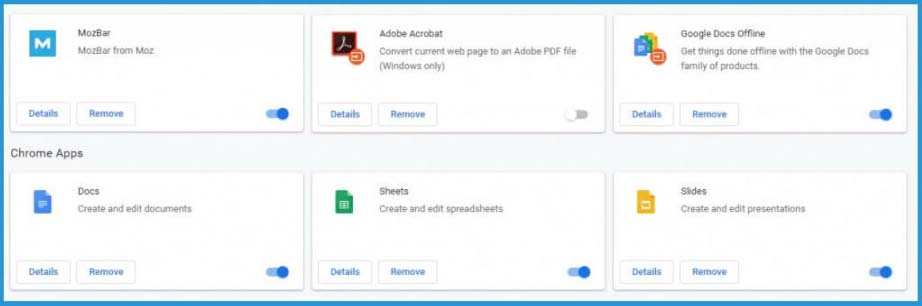
Step 2: Then the Chrome Extensions page will appear.
Step 3: Minimize Google Chrome temporarily. Next, go to the Folder where IDM is installed.
The default is in C: \ Program Files \ Internet Download Manager . If there isn’t, please search first ..
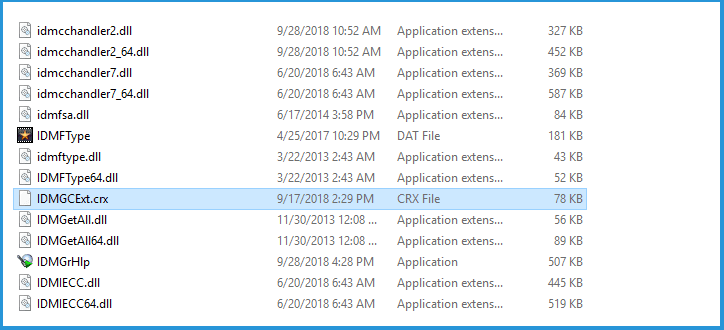
Step 4: In that folder, find a file named IDMGCExt.crx .
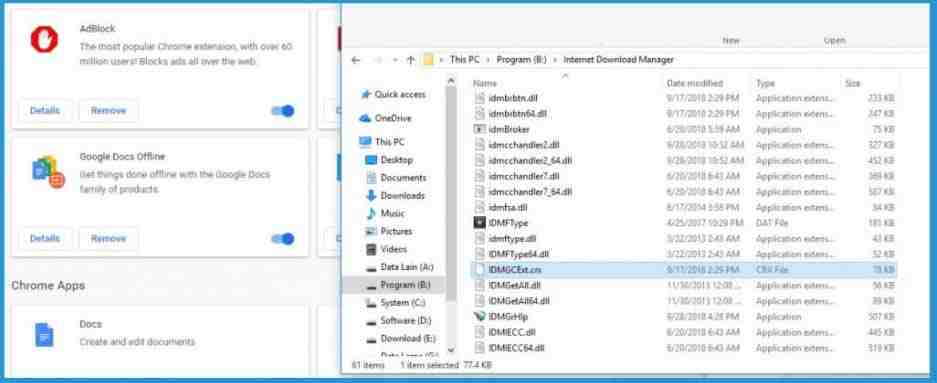
Step 5: Re-open the Google Chrome page, and position it next to the IDM Folder file list.
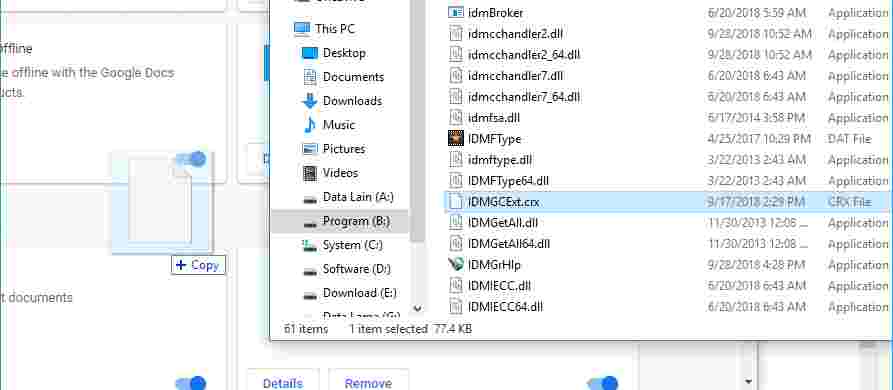
Step 6: Click and hold on the IDMGCExt.crx file then drag it to the Google Chrome Extensions page.
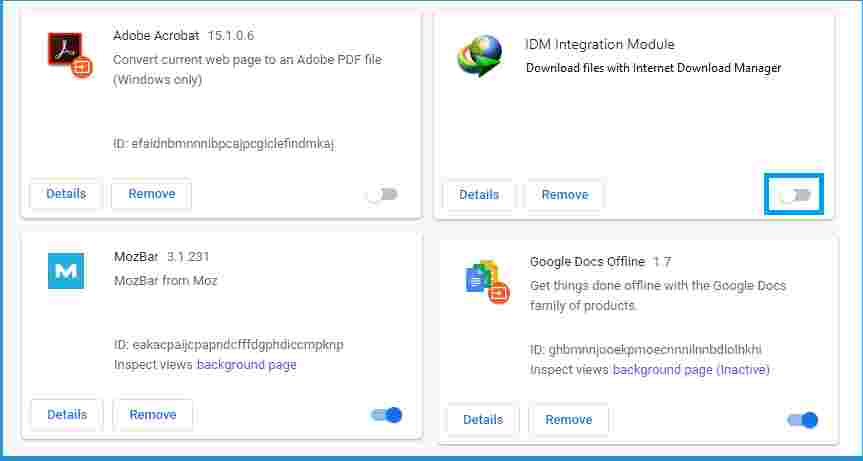
Step 7: If so, click Continue on the notification at the bottom of Chrome. Later a new extension will appear called IDM Integration Module (IDM). Please search and select Activate.
Frequently Asked Questions
Can I Create All IDM Versions? : Of course, I can. For this tutorial, I use the latest version of the application. For the old version, it’s not that different.
IDM is Already Active, But Sometimes You Like Not Working. : Make sure the IDM tray icon in the bottom right taskbar menu is running. Because if it’s not active, it automatically won’t work. Integrating the IDM must also be by the previous steps.
When you drag IDM to the extension page, why isn’t it detected? : The solution is to try reinstalling Google Chrome. I tried it and it worked.
How to turn off IDM?: Please go back to the extensions page. Then select Deactivate on IDM. Then IDM will automatically turn off.
Are There Other Settings That Must Be Done? : So far nothing. Enough with the steps to display IDM above, then IDM is 100% ready to use.
How to Overcome If IDM Still Doesn’t Appear in Chrome
With the above method, IDM should be automatically integrated. I have tried it several times and it works.
Well, you’ve tried it but it hasn’t worked, try to follow these suggestions again:
#1. Make sure IDM settings in Chrome are active
IDM has a special setting that by default should be active.
Even so, sometimes this setting just doesn’t turn on. Whether because it’s accidentally disabled or for other reasons.
Follow these steps:
Open IDM in the Windows Taskbar Tray Icon
Click the Options button
Make sure Google Chrome is checked there
Next:
Right-click IDM in the Windows Taskbar Tray Icon
Then select Exit
Open the IDM again when done.
This method is suitable for:
Fixed problematic IDM integration
Fix IDM on Google Chrome not working, even though it is already active
#2. Update IDM and Google Chrome to the Latest Version
It’s like I said before. The IDM update here is intended so that IDM that does not appear in Chrome can be normal again.
The method is really easy:
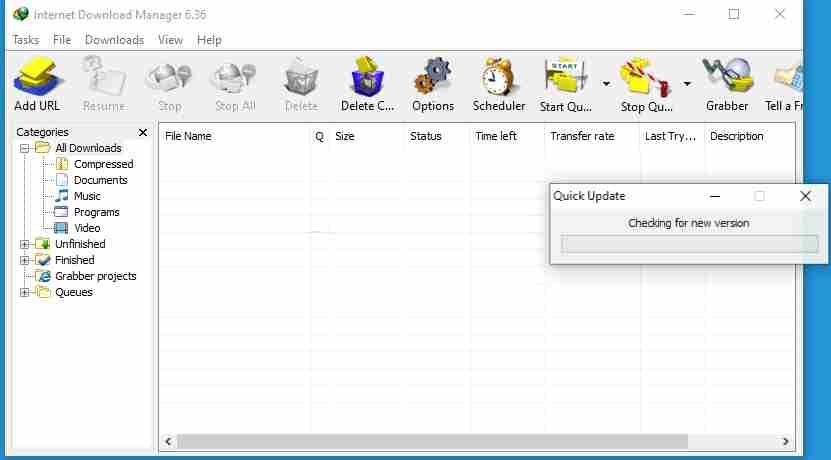
Open IDM via the Tray Icon
Click Help at the top
Then click Check For Updates
Just wait until the IDM is finished checking for updates. Then also check for updates for the Chromenya:
Open Google Chrome
Click the top right three dots button
Click Help then select About Chrome
There we can update Google Chrome.
Make sure both are the latest versions
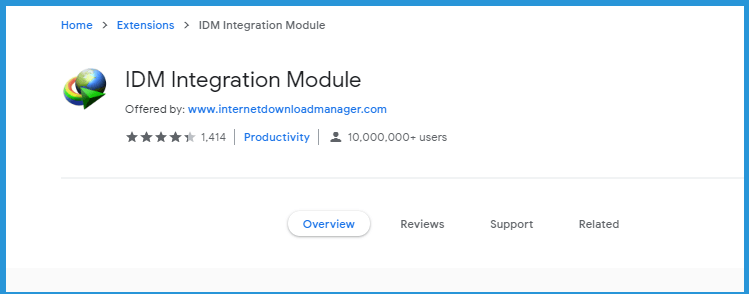
#3. Install IDM Extension on the Google Web Store
In the Google Web Store, there is also an IDM extension. This can help to bring up IDM in Google Chrome.