Category: Guide

Guide – Here you can find Reviews-related updates, How-to, Tips & Tricks, information, and more.

  • 7 Ways to Fix Server IP Address Could Not Be Found on Chrome 2025

    7 Ways to Fix Server IP Address Could Not Be Found on Chrome 2025

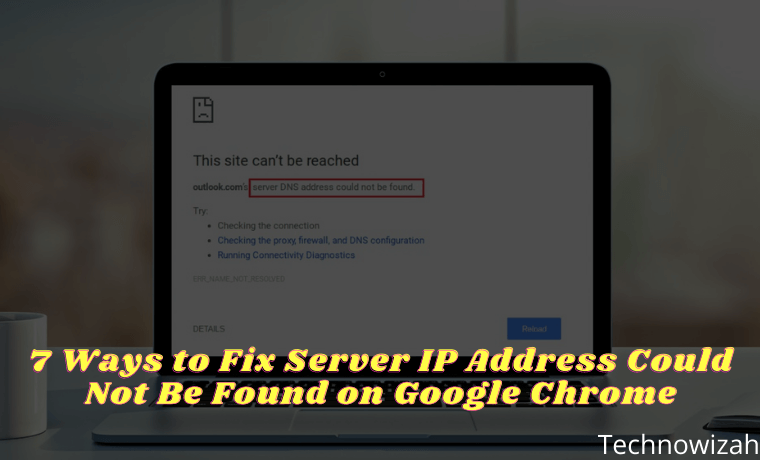
    7 Ways to Fix Server IP Address Could Not Be Found on Chrome – Is the Google Chrome you’re using having problems loading web pages? Read this article’s solutions to fix it and get you back online.
    7 Ways to Fix Server IP Address Could Not Be Found on Chrome
    7 Ways to Fix Server IP Address Could Not Be Found on Chrome

    How to Fix Server IP Address Could Not Be Found on Chrome

    We all know that Google Chrome is one of the most popular web browsers. This web browser has many features that allow us to enjoy browsing the internet while saving data, Chrome is one of the best browsers out there.

    Read more:

    But behind its greatness, occasionally Chrome still experiences errors and one of them is Server IP Address Could Not Be Found. This error can occur for several reasons, so let’s find out how to solve the Server IP Addresses that Could Not Be Found in Chrome.

    #1. Check Internet Connection

    The first thing to do when you encounter the Server IP Address Could Not Be Found an error in Chrome is to check your internet connection. It’s possible that you’re not even connected to the internet, and if that’s the case, then Chrome isn’t the culprit. Because no browser can browse the internet without the internet.

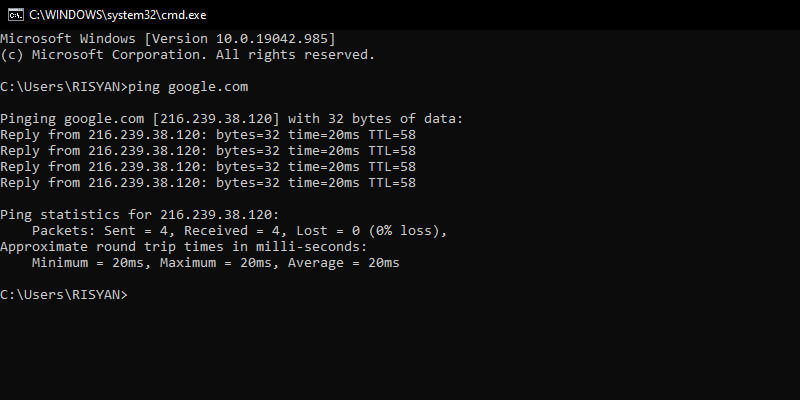
    A quick way to check the internet connection is to use the ping command in Command Prompt. To do this, follow the instructions below:
    Check Internet Connection
    Check Internet Connection
    1. Go to the Start menu, search for  Command Prompt, and open it.
    2. In the Command Prompt, type the command ping google.com and press  Enter.
    3. Investigate the results.

    If you get a reply within a reasonable time then the connection is fine. However, if you get Request Timed Out or other errors, then you need to check the internet connection further.

    #2. Check Proxy Settings

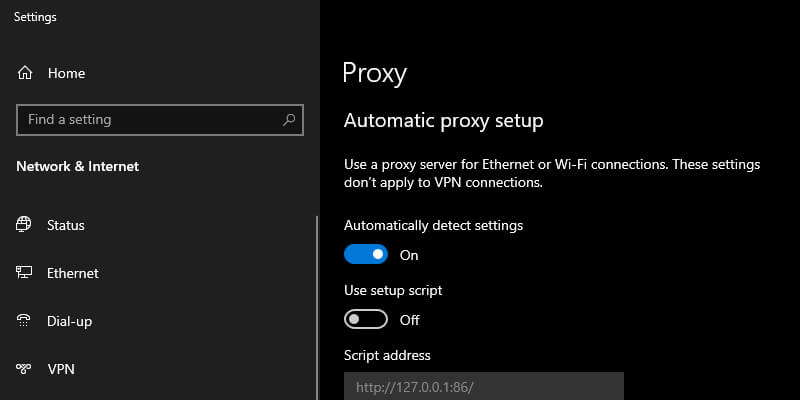
    Another possible cause of the Server IP Address Could Not Be Found error is a bad or offline proxy server. You (or the application on the computer) may have set up a proxy that is not working by now. You can set up a new proxy or disable all proxies in Proxy settings. Here’s how to do it:
    Check Proxy Settings
    1. Go to the Start menu search for  Proxy, then select  Proxy settings.
    2. In the Proxy settings window, disable  Automatically detect settings.
    3. Scroll down to  Manual proxy setup and disable that too.
    4. Open Chrome and check if your problem is solved.

    #3. Change Network Adapter Settings

    By default, the network adapter is set to use DHCP which allows it to automatically obtain an IP address.

    However, if you have changed these settings, then IP and DNS will need to be configured manually. You can restore the settings to DHCP via the Control Panel. Follow these steps to do this:
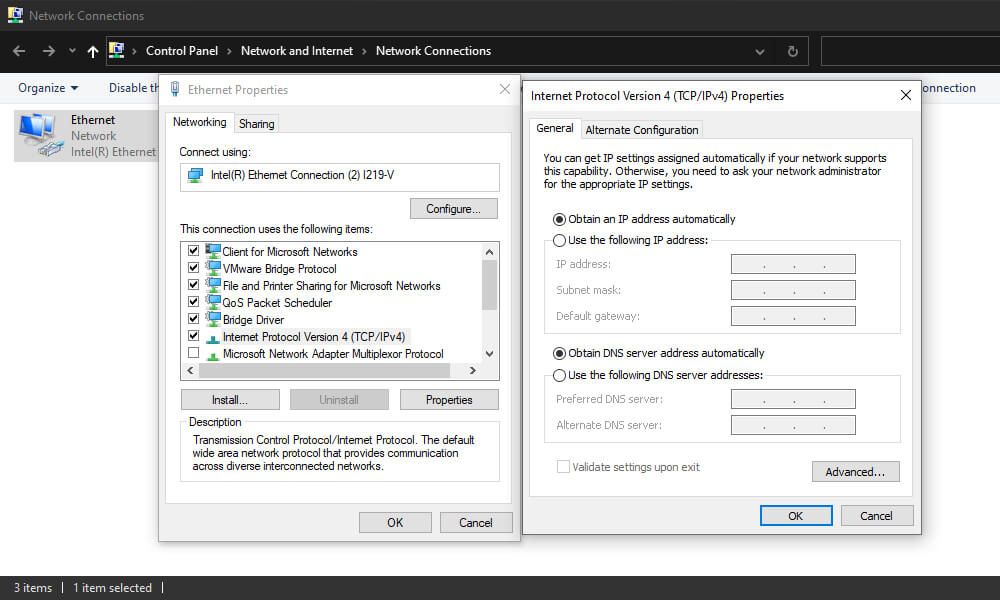
    Change Network Adapter Settings
    1. Open  Control Panel, and select  Network and Internet.
    2. From here, select  Network and Sharing Center.
    3. In the Network and Sharing Center, click  Change adapter settings from the left menu bar. This will open a window showing all your network adapters.
    4. Right-click on the network adapter you are using, then select  Properties.
    5. Double-click on  Internet Protocol Version 4 (TCP/IPv4)  to open its properties.
    6. Select  Obtain an IP address automatically and Obtain DNS server addresses automatically.
    7. Click  OK  to save the settings.
    8. Open Chrome and check if the problem is solved.

    #4. Update Network Driver

    Another cause of network problems is the lack of proper drivers for your hardware. This can happen if you do not install it properly or the driver is outdated. Windows 10 does a great job of automatically finding and installing drivers. Here’s how to update the network driver:
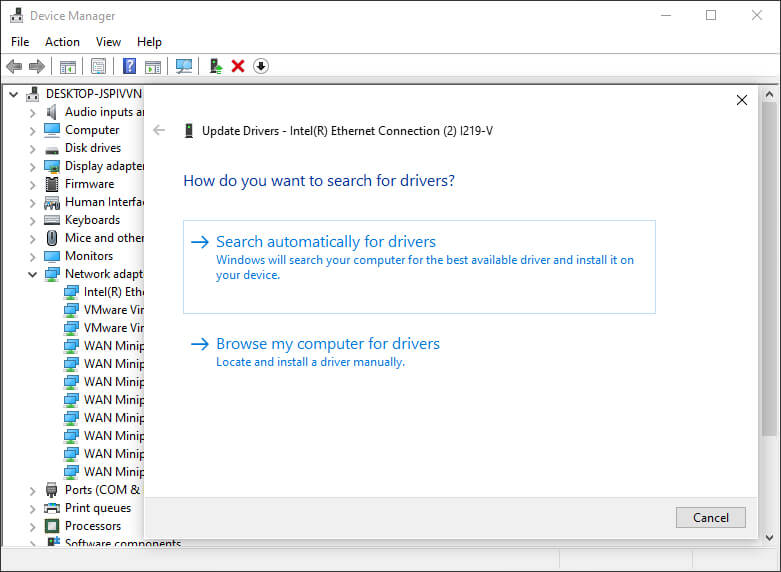
    Update Network Driver
    1. Open  File Explorer.
    2. Right-click on  This PC. From the menu, select  Manage. This will bring up the Computer Management window.
    3. From the left bar, under System Tools, click  Device Manager.
    4. In the Network adapters category, right-click on your adapter and select  Update Driver.
    5. Then select Search automatically for drivers.
    6. Windows will then look for new drivers and install them if found. You can also manually install the drivers provided by the hardware manufacturer (eg Qualcomm or Realtek).

    #5. Use Windows Network Diagnostics

    Google Chrome will not be able to function properly if the network is not configured properly. Fortunately, Windows’ troubleshooter tool does a good job of finding and fixing configuration-related problems. To use it, follow the instructions below:
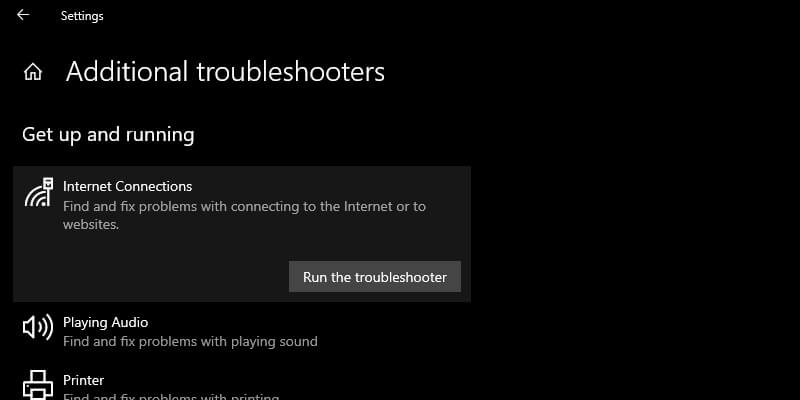
    Use Windows Network Diagnostics
    1. Go to the Start menu, search for  Troubleshoot settings, and open it.
    2. Scroll down and click on the Additional Troubleshooter section.
    3. Under  Get up and Running, click  Internet Connections.
    4. Click  Run the troubleshooter.
    5. Follow the instructions given by the troubleshooter. Usually, the troubleshooter can take care of the problems it detects on its own.

    #6. Restart Windows DNS Client Service

    Windows uses a service called DNS Client to store DNS and register computer names. There is a possibility that your DNS Client service might not work and need to be restarted.
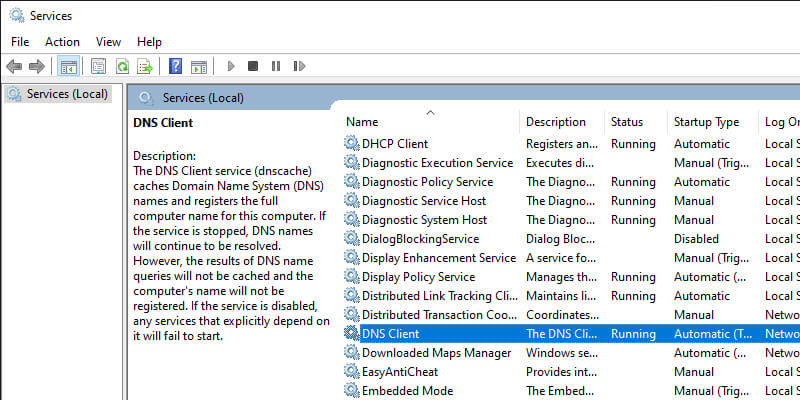
    Restart Windows DNS Client Service
    1. Press the Win key  +  R  on the keyboard to open the  Run dialog.
    2. Type services.msc in the text box and press  Enter. This will bring up a window containing all Windows services.
    3. Scroll down to find  DNS Client.
    4. Right-click  DNS Client service and select  Stop. Wait a minute or two for the service to stop completely.
    5. After that, right-click  DNS Client service and select  Start to start the service again.

    If the DNS Client service option is grayed out and cannot be clicked, you can disable the service via Windows config.
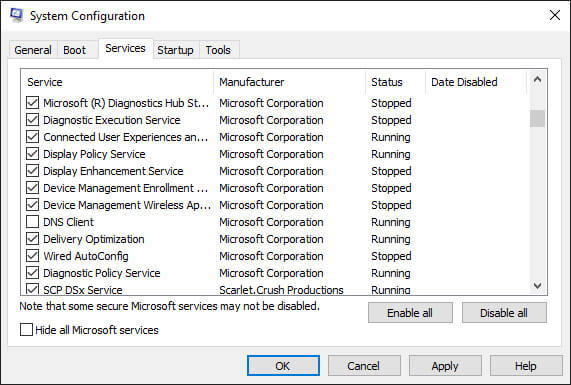
    Restart Windows DNS Client Service
    1. Press the Win key  +  R  on the keyboard to open the Run dialog.
    2. Type  MSConfig in the text box and then press  Enter.
    3. In the window that opens, go to the Services tab and find  DNS Client.  Sort services by name to make this search easier.
    4. Uncheck  DNS Client service, and then click  OK  to stop the service.
    5. Wait a minute and then tick  DNS Client service. Click  OK  to start the service again.

    #7. Reset Winsock And IPv4 Settings

    If none of the above solutions work, you can try resetting Winsock and IPv4 settings to default. This will return most network settings to their defaults and potentially fix conflicting configurations. To do this, follow the instructions below:
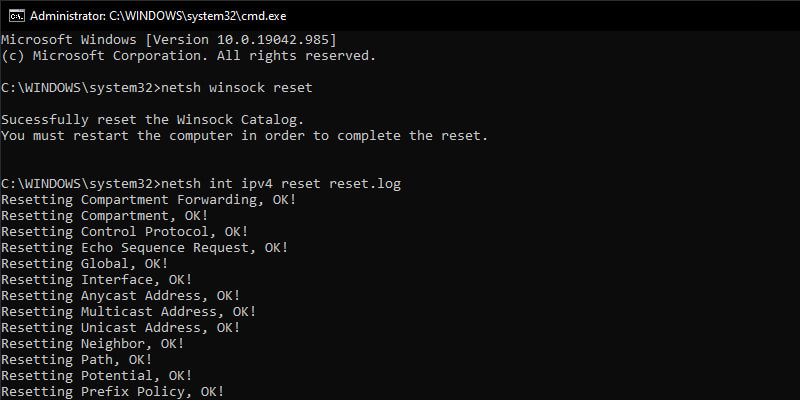
    Reset Winsock And IPv4 Settings
    1. Go to the Start menu and search for  Command Prompt.
    2. Right-click  Command Prompt and select  Run as administrator.
    3. In the Command Prompt, type the command netsh Winsock reset and press  Enter. This will reset Winsock.
    4. After the command is executed, restart the computer.
    5. Launch Command Prompt as administrator and type the command netsh int ipv4 reset reset.log.
    6. Restart your computer and then check if the problem is solved.

    Read more:

    Conclusion:

    This is the explanation of 7 ways to fix server IP addresses that could not be found on Chrome. Now you know the various methods to fix the Server IP Address Could Not Be Found error. We hope that one of the methods above can fix the problem and get you back online in no time.
  • How to Reset Epson L120 Printer 100% Working In 2025

    How to Reset Epson L120 Printer 100% Working In 2025

    How to Reset Epson L120 Printer 100% Working – Does your Epson L120 printer experience an error that it cannot print or only displays an indicator light that is always blinking? If so, then you must know how to reset the Epson L120 printer to fix your printer from these errors and problems.

    How to Reset Epson L120 Printer 100% Working
    How to Reset Epson L120 Printer 100% Working

    Best 2 Ways to Reset Epson L120 Printer 100% Working

    Epson L120 printer which displays a flashing indicator sign with a symptom of a full service required or waste ink notification means giving you a message or code that the printer is having a problem or error.

    Read more:

    It must be very annoying not when we are in need of a printer to print a document but the printer cannot be used and can only display a flashing indicator light.

    But not to worry, how to fix the Epson L120 printer is actually very easy. You only need to reset the printer so that it can work normally again.

    And how to reset the Epson L120 printer is also very easy. There are even 2 types of ways to do this, namely without software and using the software.

    Here’s How to Reset Epson L120 Printer

    L120 printer that is an error or cannot be used can be caused by various causes. Therefore there are 2 types of ways to reset the L120 printer that you can use.

    The first way is how to sell without the need for software or applications. This method is used if the Epson L120 printer has an ink level error after filling the ink or a sign that the ink has run out.

    While the second way is to use the help of the Epson printer reset application. You can use this method if your Epson L120 printer always displays a blinking or blinking light indicator (waste ink pad counter).

    In addition, these two methods can actually be used as a solution to overcome Epson printers in all L series such as Epson L110, L120, L200, L210, L220, L300, L310, L350, L355, L360, L365, L385, L405, L455, L485, L550, L555, and others.

    #1. How to Reset Epson L120 Printer Manual

    How to reset the Epson printer because this ink level is enough to manually reset without software. This problem is indicated by the ink indicator light that turns on and then idles and the printer cannot be used for printing.

    Here’s how to reset Epson L120 after ink filling or running out of ink:

    1. Turn on your Epson printer.
    2. Press the power button and the resume button for 5 seconds.
    3. Press the two buttons again for 3 seconds.
    4. Leave the printer for a few moments.
    5. Then the Epson printer will work again normally.
    6. Done.

    If the method above is still unable to solve your Epson L120 printer which is an error. You can try the next method using the help of the Epson resetter application.

    #2. Epson L120 Resetter application

    The Epson resetter application can help you to solve all the problems that exist in your Epson L120 printer. In addition, this resetter can be used for free and is suitable for all L series Epson.

    How to reset Epson L120 using the latest resetter:

    1. Download the application first here.
    2. Extract and install on your computer or laptop.
    3. Turn on your Epson printer.
    4. Then open the resetter application.
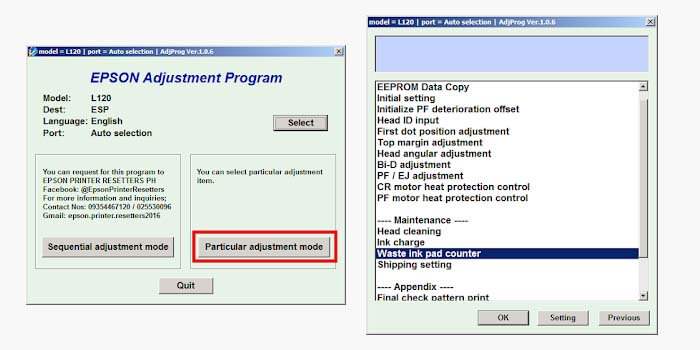
    5. Then click the Select button.
    6. Select L120 or adjust the version of your Epson printer.
    7. You must select the Particular Adjustment Mode menu.
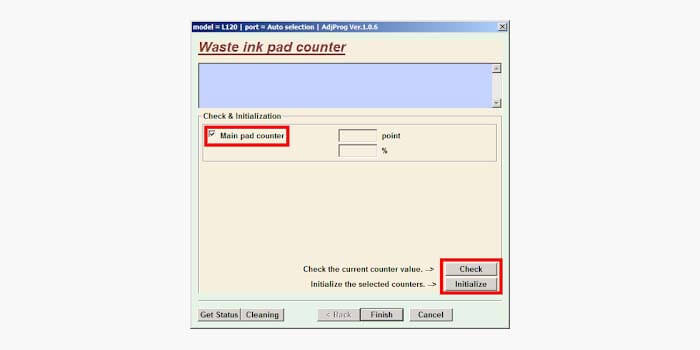
    8. Select the Waste Inkpad counter.

      Epson L120 Resetter application
      Epson L120 Resetter application
    9. Check the play pad counter box.
    10. Click Initialize then click Ok on the pop-up message that appears.

      Epson L120 Resetter application 2
      Epson L120 Resetter application 2
    11. Restart your Epson printer.

    After you have followed the guidelines above, your Epson L120 printer will return to work normally. The problem that occurred with the Epson L120 printer is now gone using the resetter application.

    Read more:

    Conclusion:

    So, friends, That’s on above how to reset the Epson L120 printer using an application or manually without software that you can use as a printer solution after the ink is not printed and only displays a flashing light indicator.

  • Edit Like a Pro: Top Free Online Video Editing Tools

    Edit Like a Pro: Top Free Online Video Editing Tools

    Editing videos is easier than ever with free online tools. You don’t need fancy software to create stunning content. Many platforms offer powerful features for video editing tools video editor at zero cost.

    Want to trim, cut, or add music quickly? These tools let you do it in just a few clicks. You can now create school projects, short clips, or fun reels.

    Everything runs on your browser-no downloads needed. How do you choose the best editor for your needs? Keep reading to find out the top tools you can try today.

    Edit Like a Pro: Top Free Online Video Editing Tools

    Clipchamp – Fast and User-Friendly Editing

    Clipchamp is a web-based tool designed for quick, easy editing. Its layout is simple, so beginners learn it fast.

    You can trim, split, and add effects without any delays. It even offers stock audio and video clips for free. Clipchamp supports direct sharing to platforms like YouTube and TikTok.

    You don’t need advanced skills to use its drag-and-drop system. Features like filters and transitions help make content pop. It also includes AI voiceovers and text-to-speech tools.

    Exporting is smooth and includes options up to 1080p resolution. Students love it for class videos and personal vlogs. Clipchamp makes video editing feel less scary and more fun.

    Kapwing – Quick Projects With Smart Tools

    Kapwing gives you smart, AI-powered tools for fast video projects. You can work in your browser without installing anything. Trim, crop, add text, or insert music easily.

    Kapwing even lets you subtitle videos automatically. Collaboration is simple-just share the project link with friends. It’s great for making memes, reaction videos, or class assignments.

    Kapwing also supports green screen effects and resizing for social media. Everything autosaves to the cloud, so nothing gets lost. You’ll enjoy how clean and clear the interface is.

    Editing feels natural and quick, even for beginners. Kapwing helps turn creative ideas into cool videos with ease.

    Canva – More Than Just Design

    Canva is known for designs, but it also edits videos. Its timeline feature helps arrange clips, audio, and text smoothly.

    Canva includes a library of effects, stickers, and sounds. It’s great for school, social posts, and creative projects. You can drag and drop elements into your video quickly.

    Use templates to save time and inspire creativity. Even beginners can make something professional-looking.

    Canva keeps projects organized and autosaved online. It’s perfect for visual storytelling and presentations. You can add voiceovers and animations without stress.

    Canva works well for both short clips and longer videos. Its flexibility makes it stand out.

    FlexClip – Easy for Quick Edits

    FlexClip offers a balance of simplicity and editing power. It’s ideal for making short videos like announcements or intros. The interface is beginner-friendly and smooth to navigate.

    You can trim clips, add captions, or insert transitions easily. FlexClip has helpful templates to speed up your work. The media library offers music, images, and motion elements.

    Everything is done online, so no software is needed. Videos export fast and maintain good quality. It’s great for time-saving tasks and simple storytelling.

    You can even create slideshows with text and effects. FlexClip is a great choice for fun and polished video projects.

    WeVideo – Cloud Editing with Team Access

    WeVideo makes cloud editing simple, especially for group projects. You can edit from different devices using the same login. It has drag-and-drop features, music, and visual effects.

    WeVideo is perfect for classwork, group stories, or video diaries. You can choose from many stock photos and clips.

    Students appreciate the ability to share access and collaborate. It also supports green screen and voice recording. The layout is friendly and not overwhelming.

    WeVideo saves your work as you go, so nothing is lost. Exporting includes options for multiple formats. It’s ideal for teamwork and learning how to edit smoothly.

    Adobe Express – Smart Editing for Students

    Adobe Express lets you create and edit videos in minutes. It works online, and no special computer is needed. The timeline editor is clean and easy to use.

    You can trim, cut, and layer video clips with no delay. Adobe’s design tools add polished effects to your clips. Templates make it easy to start a new project quickly.

    This is a video editor online free with Adobe Express that’s perfect for students. You can make school projects or fun videos that look professional.

    Adobe Express also helps you add text, transitions, and background music. It’s built for quick, quality results.

    InVideo – Templates for Fast Video Creation

    InVideo gives you thousands of ready-made templates to use. Just add your clips, type text, and it’s done. The platform focuses on saving time and reducing effort.

    You can use its drag-and-drop tools for fast editing. It’s great for social media content, class tasks, and video posts.

    InVideo includes a music library and sound effects. It also offers voiceover features for personal narration. Everything is stored online, and your videos are easy to export.

    InVideo is useful for anyone with limited time. Even with no experience, your project can look well-made and smooth. It’s built for speed and quality.

    Magisto – Smart Video Edits With AI Help

    Magisto uses AI to help create impressive videos quickly. Upload your clips, choose a theme, and add music.

    Magisto then edits your video for you automatically. It’s great for storytelling without spending hours editing. The app picks the best parts of your video to highlight.

    You can still fine-tune things after the AI edit finishes. It’s ideal for school recaps, birthday greetings, or mini-ads.

    Magisto’s smart tools save time and reduce stress. It works well for mobile use and quick shares.

    If you want polished videos with little effort, Magisto helps a lot. Smart features do most of the hard work.

    Discover the Top Free Online Video Editing Tools

    Editing videos doesn’t have to be hard or expensive. These free online tools give you everything needed to make great content. Whether you’re making videos for class, fun, or social media, there’s a tool that fits your needs.

    You don’t need advanced skills to create something special. With options like Adobe Express, Kapwing, and Canva, editing becomes fun and stress-free. Pick a platform that works for your project and style.

    Did you find this article helpful? If so, check out the rest of our site for more informative content.

  • How To Restore WhatsApp Videos From Google Drive?

    How To Restore WhatsApp Videos From Google Drive?

    For recovering WhatsApp videos from Google Drive, you just have to uninstall and reinstall WhatsApp, that triggers the recovery process. Although this seems to be a simple method of recovering your WhatsApp videos and memories, there are a few factors that influence the success rate, including your backup frequency, internet availability, account compatibility and storage capacity.

    But beyond all these technical aspects, there’s a deeper problem with WhatsApp backup restoration that many users ignore. Knowing them is important for every Android device owner  who uses WhatsApp and wants a complete & foolproof restoration strategy for recovering WhatsApp videos to Google Drive.

    How To Restore WhatsApp Videos From Google Drive

    Losing your WhatsApp Videos can be annoying. Suppose you mistakenly delete any chat containing videos and mistakenly hit the Delete All media Files from Gallery, and the next moment, boom all your videos are gone. 

    How do you usually recover deleted chats from Google Drive? 

    Everybody believes it’s simple to recover WhatsApp chats and media files from Google Drive. Simply uninstall WhatsApp, reinstall it, and go through the process. Generally, that is all it takes to get your chats and videos back. But many a time, things might not work out as you want. Let’s understand how and why this occurs, the issues you could have, and how to fix them in the most effective ways.

    When you install WhatsApp on your Android device, it looks for a backup in Google Drive. If there is one, you receive a prompt if you wish to restore chats and media, including videos. You click on “Restore,” and the app restores your messages and videos. This is possible if your backup is a recent one, you have a good internet connection, and your phone has sufficient storage space.

    What are the problems people face while restoring WhatsApp videos?

    Most users may encounter problems while restoring chats from the Google Drive WhatsApp backup and. Here are the most popular problems:

    1. No Restore Prompt: During reinstallation, WhatsApp may fail to prompt the user to restore from Google Drive. This occurs if there’s a network or connectivity issue, Google account or number is not the same as in the backup, or if the backup is outdated or older than 5 months.
    2. Restoration Process Gets Stuck: The app may get stuck at – Preparing to restore messages. This is usually due to slow internet, a damaged or corrupt backup, or an older WhatsApp version.
    3. Videos Missing after Restoration: Sometimes, despite a successful restore, certain videos may not get show or restore back in your device. Either, the backup was interrupted, it was a technical glitch, or videos were deleted prior to the last backup.
    4. Human Error:  This is common, where many of us mistakenly ignore the backup alert, use a two-step verification, or your backup gets removed from Google Drive, this can make it difficult to recover.

    Easy Solutions To Avoid Problems with WhatsApp Backup Restoration 

    Let’s walk through some simple solutions for this issue. 

    1. Check Everything Twice

    • Ensure that you’re using the same Google account and phone number that you used before.
    • Confirm that your Google Drive backup is the latest one.
    • Check your phone’s storage. Not enough space can stop the restore.
    • Turn off two-step verification on your Google account if you’re having trouble restoring.

    2. Update and Prepare

    • Update WhatsApp to the latest version from the Play Store.
    • Clear the app’s cache and data before reinstalling.
    • Use a strong Wi-Fi connection during the restore process.

    3. Manual Restoration (Not Recommended)

    If the WhatsApp backup still refuses to restore from Google Drive, you can attempt restoring from a local backup. WhatsApp also stores a daily copy of your chats on your phone but only for the past 7 days. If you are using a new device, you can transfer the backup file from your old phone to your new phone, reinstall WhatsApp, and restore from the local backup. However, we don’t recommend this method as it is highly technical, and risky, and your data can get lost in the process.

    4. Use a Smart Recovery tool

    There are times when, despite trying everything, you are unable to restore you videos from WhatsApp Google Drive backup. Maybe you missed the restore step by accident, or your backup got stuck and not restored due to other issues. That is where you might need a special WhatsApp backup data recovery tools.

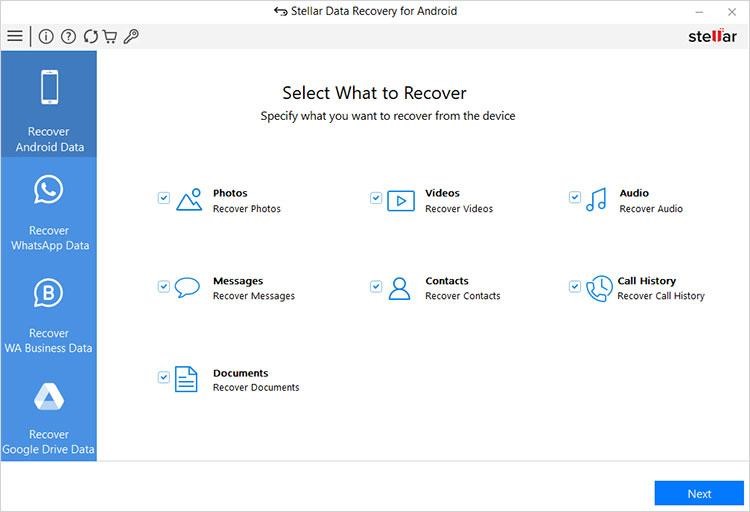
    Stellar Data Recovery for Android is one such software that also offers WhatsApp Backup restoration from Android phones. It can recover deleted WhatsApp conversations, images, and videos, even if you did not get the Google Drive restore or the backup has been lost.All you need to do is install the tool on your computer, plug in your phone to your computer, run the software, and select the correct module, it also recovers lost or deleted Android data including photos, videos, audio, contacts, call logs and others with a few easy steps.

    Select the Recover from Google Drive, log in to your Google  Drive and wit for the tool to get your files, now select the WhatsApp backup files such as videos, pictures, and messages. You can select what you want and save it securely.

    Use a Smart Recovery tool

    Best thing about this tool is – 

    • No rooting of phone required, and it uses Google API, so your data is not shared with any other third party.
    • Compatible with leading Android phone manufacturers such as Samsung, Google, Xiaomi, OnePlus, and others.
    • Restores data wiped by mistake deletion, system failure, or even cracked screens.
    • You can test the software for free to determine what files can be recovered before you purchase.

    Useful Tips for WhatsApp users: 

    • Regularly backup WhatsApp information so that any issues do not arise later.
    • Use Google Photos as a secondary backup for your videos.
    • If you’re stuck, refer to WhatsApp’s official help center or seek advice in the tech forums.

    Final Thoughts

    Restoring WhatsApp videos from Google Drive is generally easy, but occasionally something does go wrong. If the standard procedures don’t succeed, don’t worry. Check your settings twice, use a high quality network, or try out a recovery app like Stellar Data Recovery for Android.