Category: Guide

Guide – Here you can find Reviews-related updates, How-to, Tips & Tricks, information, and more.

  • 5 Steps to Take Screenshot on Samsung S5 ORI and Supercopy

    5 Steps to Take Screenshot on Samsung S5 ORI and Supercopy

    5 Steps To Take Screenshot on Samsung S5 ORI and Super copy – Want to capture important information on your cellphone, like screenshots, but don’t know what to do?
    How to Take Screenshot on Samsung S5 ORI and Supercopy
    How to Take Screenshot on Samsung S5 ORI and Supercopy

    How to Take Screenshot on Samsung S5 ORI and Super Copy

    have you heard screenshots? A screenshot or screen capture is a screen display image taken from a particular gadget such as a computer laptop, tablet PC, or cellphone with support for an operating system such as the iPhone (with iOS), a smartphone with Android OS, or other OS.

    Read more:

    Saving screenshots is the only easy way to capture everything you want to save. Likewise, testimonial ‘evidence’ when using online shops, funny things on social media, or success when playing certain games.

    In doing screenshots, there are several different ways on each cellphone. However, using the Samsung Galaxy S5 is not much different from some cellphones in general. The method is straightforward, you can not find it difficult to do it at all. Curious? The future team has a way for you.

    1. Select the screen you want to screenshot
    2. Press the Power button (or Lock Screen Button) and the Home button simultaneously (together).
    3. Do not release and hold the button for 3 seconds.
    4. You can release the button when the cellphone screen blinks or you hear the camera sound.
    5. Now screenshots are stored in the Gallery folder; Screenshot.

    After following the steps above, guaranteed, you will continue to take screenshots without difficulty on your favorite cellphone. How? very easy right?

    How to Screenshot Samsung Galaxy S5 Super copy, KW, and Replica
    How to Screenshot Samsung Galaxy S5 Super copy, KW, and Replica
    How to Screenshot Samsung Galaxy S5 Super copy, KW, and Replica

    Some of you certainly have a Samsung Galaxy S5 smartphone with a KW, Super copy, or Replica version that is confused in taking screenshots.

    Of course, this doesn’t need to mess around anymore because taking screenshots of all those cell phones is not difficult because it is designed to do it easily.

    How to screenshot the Samsung Galaxy S5 Replica, KW, and Super copy can be said to be the same as how to screenshot the Samsung Galaxy S5 Original or the original.

    There is no change because the KW, Replica, and Super copy versions of the Samsung Galaxy S5 still use the Android operating system which is designed to be similar to the original Samsung Galaxy S5.

    Read more:

    Conclusion:

    So you don’t need to be confused anymore to take screenshots of Replica, KW, or Supercopy Samsung Galaxy S5.

    Don’t forget to bookmark and always visit Technadvice.com every day because here you can find the latest technology information such as How-to Guide Tips and Tricks Blogging Digital Marketing Windows Android Root Social Media games, ETC. Best of luck.
  • 3 Ways To Take Screenshot On Samsung Galaxy S8 S8 Plus

    3 Ways To Take Screenshot On Samsung Galaxy S8 S8 Plus

    3 Ways To Take Screenshot On Samsung Galaxy S8 S8 Plus – I will discuss here the best how to take a Screenshot of Samsung Galaxy S8 and S8 Plus, this screenshot includes a long page screenshot or full all pages will be a screenshot.

    Best Tricks To Take Screenshot On Samsung Galaxy S8 S8 Plus
    Best Tricks To Take Screenshot On Samsung Galaxy S8 S8 Plus

    How To Take Screenshot On Samsung Galaxy S8 S8 Plus

    And on this occasion, we will also give you how to use screenshots with Palm Gesture, what is Palm Gesture? please read this article.

    If you are looking for how can I take a screenshot of the Samsung galaxy note 9? then you can follow this article, screenshot on Samsung Galaxy Note 9

    Maybe everyone already understands what capture or screenshots are, which is a feature that makes it easy for us to take the display on the mobile screen and save it as an image file (.jpg or .png) that can be captured or sent.

    As technology develops, the screenshot feature also experiences development, for example; the use of palm gesture to use this feature, or commonly called palm gesture, so we don’t need to use the old way of using a combination of keys to do it.

    But recently, the development of capture features or screenshots on mobile phones has a new development, namely long page screenshots.

    A long page screenshot is a screenshot feature that can take full-view images, for example when we open a website, you will scroll down to read further information if we use the usual screenshot feature.

    only the display that we can see is stored on the screen, in contrast to the long page screenshot, this feature can save everything displayed on the website to the lowest position. For the method, please refer to the method below.

    #1. Capture or Screenshot of the Samsung Galaxy S8 with a key combination

    1. Press and hold the Volume Down Button and the Power Button simultaneously, and press and hold until the screen finishes shooting.
    2. When it’s finished, take the two buttons off.
    3. Finished.

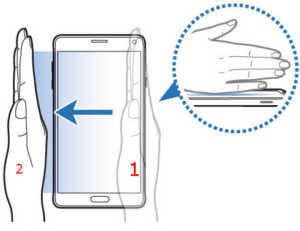
    #2. Capture or Screenshot of the Samsung Galaxy s8 with your palm

    1. Position your hand like number 1 in the image below.

      Capture or Screenshot of Samsung Galaxy s8 with your palm

      Image from: Online Gadget Guide

    2. Then slide to the left of your palm. like picture number 2 in the picture above.
    3. Finished.

    To use this method, you must first activate the palm gesture feature for screenshots in the settings, how enter Settings, then search for and select Advanced Features, then activate the Palm Swipe to Capture setting. If you use other language settings, please adjust the name of the settings according to your language.

    #3. How to Long Page Screenshot of Samsung Galaxy S8

    1. In the first step, please take screenshots, as usual, you can use a key combination or palm gesture.
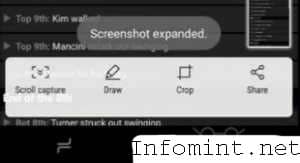
    2. After the screenshot, you will see a preview of the screenshot, in the preview you will get an option at the bottom of the screen such as Scroll Capture, Draw, Crop, or Share.
    How to Long Page Screenshot of Samsung Galaxy S8
    How to Long Page Screenshot of Samsung Galaxy S8
    1. Please select Scroll Capture, then swipe down or up to the view that you want to screenshot further, and select Scroll Capture again if you want to expand it again.
    2. Finished.

    To use this feature, you need to activate the Smart Capture feature, how to enter Settings, then Advanced Features, then activate the Smart Capture feature.

    Read more:

    Conclusion:

    So, friends, this is the explanation of how to take screenshots on Samsung Galaxy S8 S8 Plus, I hope hopefully this information you can take a screenshot of all Samsung Galaxy S8 users using the screenshot feature.

    Don’t forget to bookmark and always visit every day Technadvice.com because here you can find the latest technology information such as How-to Guide Tips and Tricks Blogging Digital Marketing Windows Android Root Social Media games, ETC. Best of luck.