Easy Ways to Change Windows 10 Lock Screen Background – Tired of seeing the background provided by Microsoft on your Windows 10 lock screen, By opening Settings, you can select a custom image background or set a custom slideshow of multiple images. Here’s how to quickly change the Windows 10 lock screen background.
How to Change Windows 10 Lock Screen Background
How to Change Windows 10 Lock Screen Background
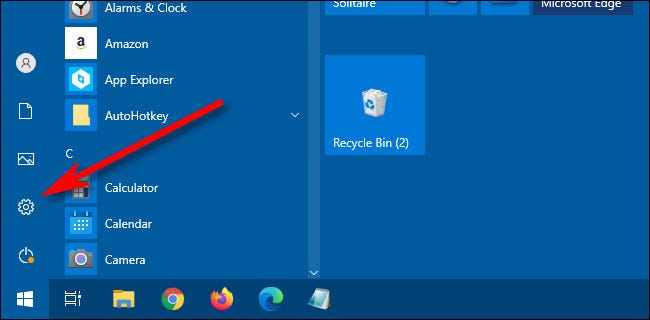
First, open ” Settings ” by clicking on the ” Start ” button and selecting the little gear. Or you can press Windows + I on the keyboard.
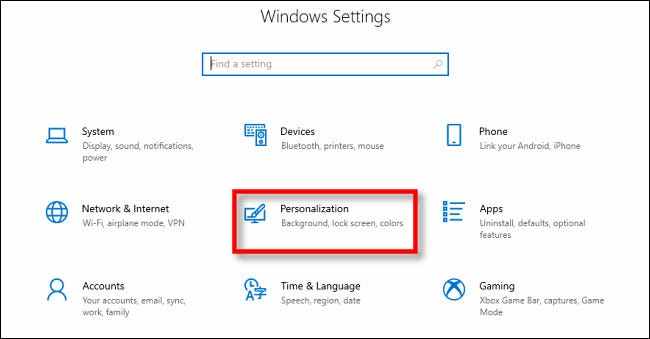
In ” Settings “, select ” Personalization “.
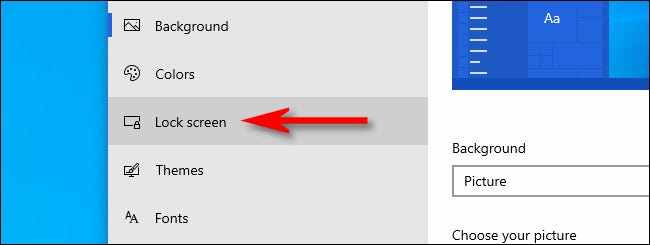
Under ” Personalization,” select ” Lock screen ” from the sidebar.
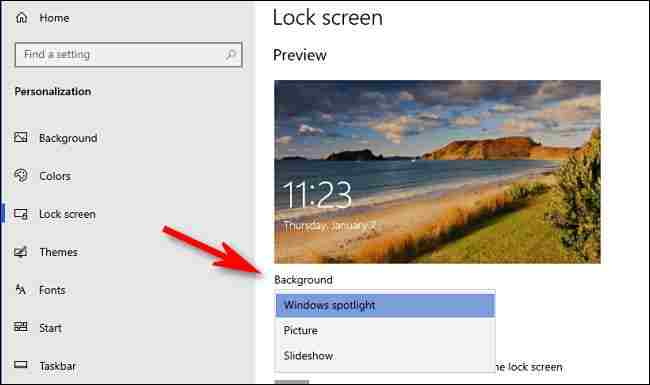
In the Lock screen settings, look for the drop-down menu labeled ” Background “, which is directly below the lock screen preview image. Click the menu, and you will see three options.
Windows spotlight: Displays images provided by Microsoft over the Internet. You will see new pictures every day.
Picture: Choose your background image for the lock screen.
Slideshow: Provide your picture folder which is used as a slideshow on the lock screen.
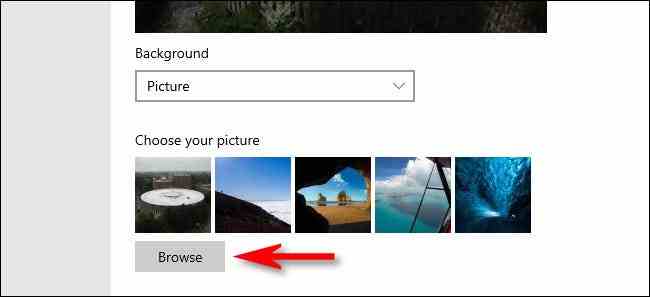
The default option is ” Windows Spotlight “, which pulls new Microsoft-provided images from the Internet. If you want to use your own image, select ” Picture ” from the menu, then click ” Browse ” to select the image you want to use.
Tip: If you want to use a “blank” screen as the lock screen background, create a solid-color image and browse when “Picture” is selected from the menu.
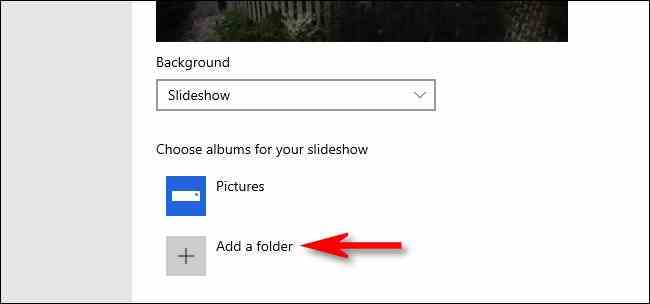
If you prefer to have a customized slideshow, select “Slideshow” from the drop-down menu. Next, select a photo album to use as the image source. Windows will cycle through the lock screen, changing it every few seconds. You can select the “ Pictures ” folder or click “ Add a folder ” to add a group containing specific pictures to use.
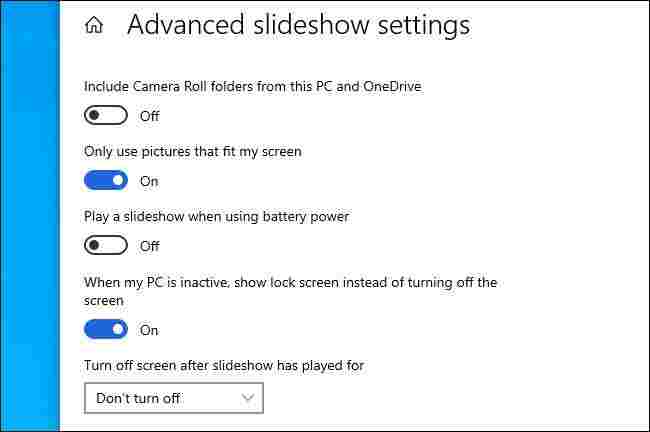
When “Slideshow” is selected, you can also change the slideshow options by clicking ” Advanced slideshow settings ” just below the ” Choose albums ” area. Once you’ve selected it, you can change options like “Only use pictures that fit my screen” where the slideshow uses the Camera Roll folder of your OneDrive.
If you have configured it, exit ” Settings “, and the changes will take effect immediately. You can press Windows + L on the keyboard to open the lock screen and check it.
5 Ways To Activate Microsoft Office 2013 Permanently Offline – When you have just installed Microsoft Office 2013 on your computer or PC, usually Office will ask for a product key. Solving this problem is quite easy because the way to activate Office 2013 can even be done without a product key.
How to Activate Microsoft Office 2013 Permanently Offline
How to Activate Microsoft Office 2013 Permanently Offline
Even though Microsoft Office 2013 has been around for a long time, many Windows users still rely on it. This is because Microsoft Office 2013 has features that are easy to understand.
But so that you can use Microsoft Office 2013 freely, you must have a product key to activate it first.
If Microsoft Office 2013 is not active, then some of the features and services in it cannot be used. This also applies to product keys that have expired or have expired.
So, it is very unfortunate that Microsoft Office 2013 is not activated. Given that Office 2013 is very useful software, especially in the office sector.
How to Permanently Activate Office 2013 on a Windows 10 PC Laptop
One way to activate Microsoft Office 2013 is to have a product key. To get a product key, you can buy it officially and legally.
However, if you don’t want to get a product key by buying it, then you can use several Microsoft Office 2013 activator services so you can activate it even without a product key.
Below are some ways to permanently activate Office 2013 on a PC or laptop using Windows 10, Windows 8/8.1, or Windows 7.
#1. How to Activate Office 2013 Without Software
How to Activate Office 2013 Without Software
Even if you don’t buy an Office 2013 product key, here EzTekno will share it in CMD script format so you can activate Office 2013 without the help of an activator application/software.
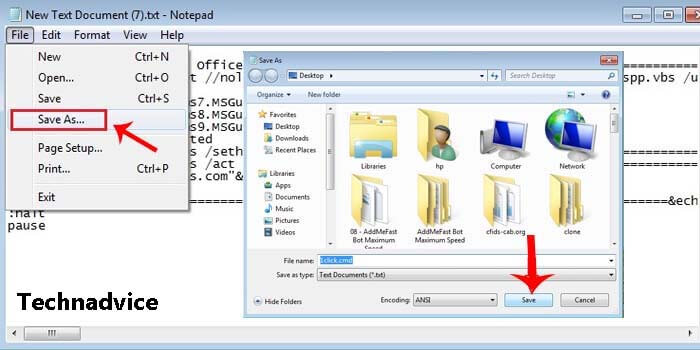
Click the File menu and then select the Save As option.
Name the file 1click.cmd then Save.
If so, right-click the file and then Run it as administrator.
A CMD window will appear, wait until the message Product activation successful appears.
Done, Office 2013 has been successfully activated.
To make sure whether Office 2013 is active or not, run the Microsoft Word program click the File menu, and then select the Account option. If there is a Product Activated message, it means that Office 2013 is already active.
Note: If the above CMD file does not run or has problems opening, try disabling antivirus and Windows Defender first.
#2. Activation Using Activator
Activation Using Activator
If the method above is quite complicated, then you can use the help of the Office 2013 activator. This software can activate Office 2013 without entering a product key so it is very easy to use.
If so, extract the file with the EzTekno password.
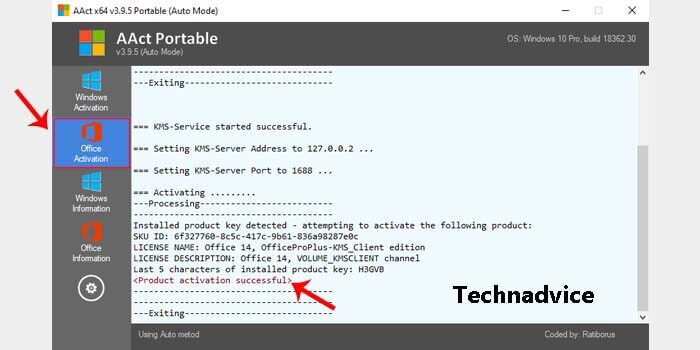
Then run the AAct or AAct_x64 file for 64bit.
Then click on the Office Activation section.
Wait for the activation process until Product activation successfully appears.
Done.
To make sure, go to the File menu > Account. If there is a description of Product Activated, it means that Microsoft Office 2013 has been successfully activated.
#3. Office 2013 activation with KMS Auto Lite
Office 2013 activation with KMS Auto Lite
KMS Auto Lite is a software that is quite popular because it can activate Office 2013 permanently. Although the size is quite small, this software is reliable for in-office activation.
If so, extract the rar from the office 2013 activator.
Run the KMSAuto file according to the Windows bit.
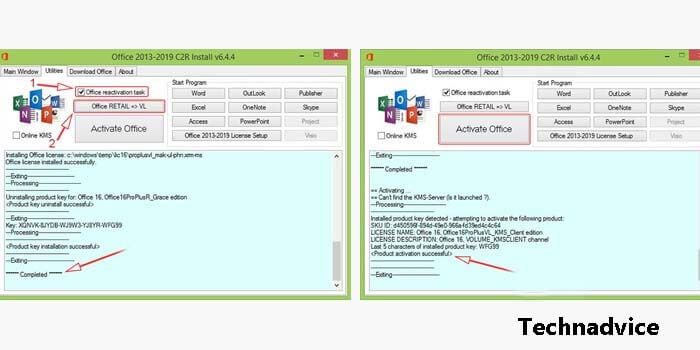
Go to the Tools menu and check Convert Office RETAIL => VL.
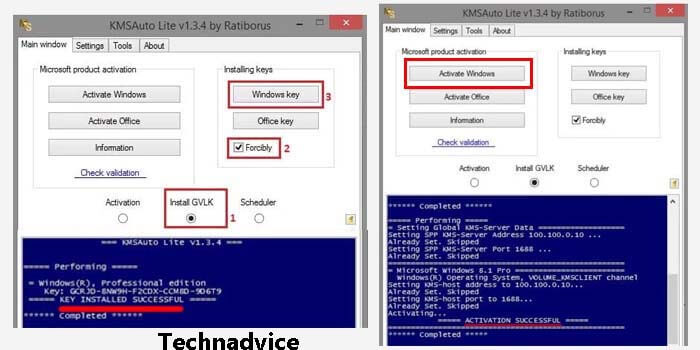
Back to the Main Window menu, click the Install GVLK option.
Check the Forcibly box and then click the Office key button.
Then wait until the message KEY INSTALLED SUCCESSFUL appears.
Click the Activate Office button and wait for it to finish.
If the description box below displays the message ACTIVATION SUCCESSFUL, then Microsoft Office 2013 is active and can be fully used.
#4. Office 2013 activation with KMSPico
Office 2013 activation with KMSPico
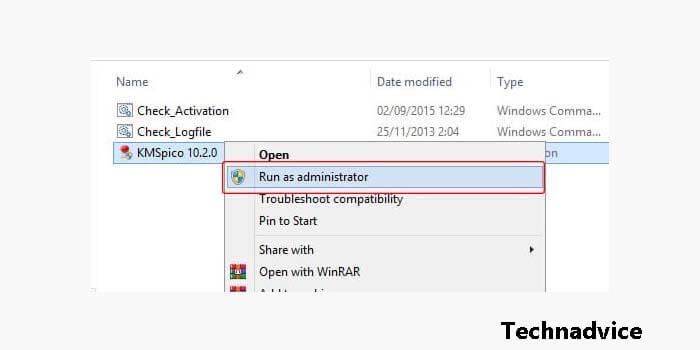
KMSPico is an activator service that is very popular because of its ability to activate Office 2013 offline, permanently, and without the need for a product key.
Then just wait for the activation process to finish.
Office 2013 has been activated.
One of the signs, that the activation process is complete and successful, is the appearance of a sound. Or to be sure, you can check through one of the Microsoft Office 2013 programs.
#5. Office 2013 activation with KMS Office
Office 2013 activation with KMS Office
From the name alone, we must have known that this software is intended for activating MS Office products. The great thing about this software is that it can activate the old version of the office to the new one.
In the last step, click the Activate Office button.
After following the guide above, the Office 2013 activation process will run, just wait for the process to complete. If the message Product activation successful appears in the description box, it means it was successful.
Using the Office 2013 activator above requires you to turn off the antivirus first. After the activation process is complete, you can activate the antivirus again.
Disclaimer: All forms of download files on the Technadvice.com site are just for educational purposes only.
DMCA: Technadvice.com complies with 17 U.S.C. * 512 and the Digital Millennium Copyright Act (DMCA). It is our policy to respond to any infringement notices and take appropriate action. If your copyrighted material has been posted on the site and you want this material removed, Contact us.
Well, those are some ways to activate Microsoft Office 2013 offline and permanently without a product key. This method can be used to activate Office 2013 on a PC or laptop with Windows 10, Windows 8/8.1, or even older versions of Windows.
5 Ways To Remove Windows Activate Watermark on Windows 10/11 – If you are using a trial version of Windows 10, you may have seen the ‘Activate Windows’ watermark in the lower right corner of your screen. The watermark appears on every Windows application you open in the operating system.
How to Remove Windows Activate Watermark in Windows 10 and 11
You cannot personalize your desktop or get Windows Defender updates without activating Windows. Also, the Activate Windows watermark everywhere looks annoying. What if I told you you could remove the activation watermark without triggering the operating system?
This is possible on Windows 10, but you must make some changes to the Windows registry. So, in this article, we are going to share a detailed guide on how to remove the Windows 10/11 activation watermark. Let’s check.
#1. Remove Activate Windows Watermark via Powershell
Well, in this method, we will be using Windows Powershell to remove the activation watermark. Here are some simple steps that you need to implement.
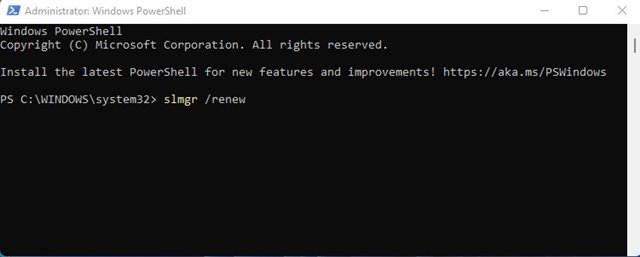
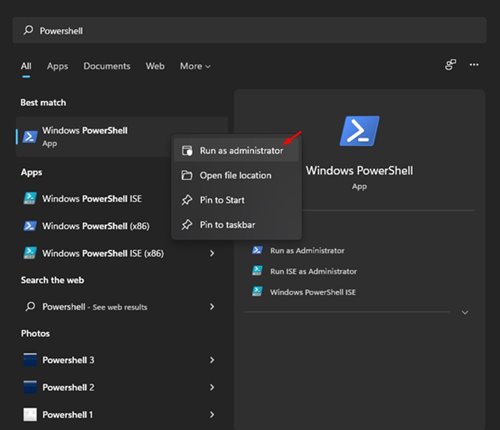
1. First of all, open Windows search and type Powershell. Right-click on Windows Powershell and select Run as administrator.
2. In the Windows PowerShell Window, you need to run the command given below and press the Enter key.
slmgr/renew
3. Once done, restart your computer.
This will extend the trial period offered by the company. You will not see the Activation watermark on your screen during the trial period.
#2. Remove Activate Windows Watermark via Registry
In this method, we will use the Windows Registry to remove the Activate Windows watermark. Here are some simple steps you need to follow.
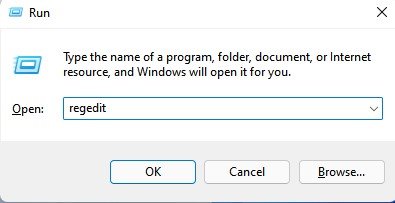
1. Press Windows Key + R to open the Run dialog box. In the RUN dialog box, enter regedit and press the Enter key.
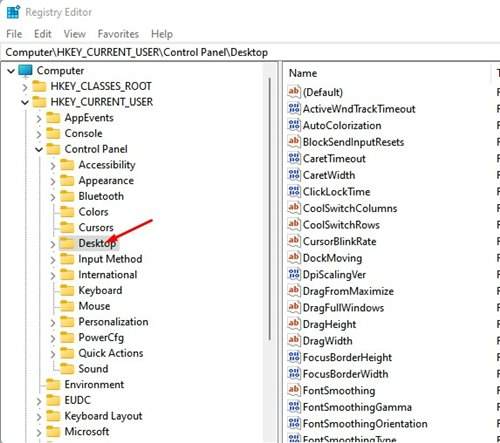
2. In Registry Editor, navigate to the following path: Computer > HKEY_CURRENT_USER > Control Panel > Desktop.
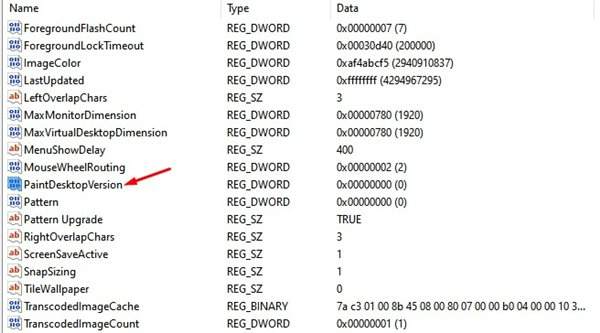
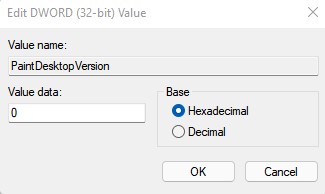
3. In the right pane, find the PaintDesktopVersion key and double-click on it.
4. In the Value data field, enter 0 and click the ‘OK‘ button.
There he is! You’re done. After making the changes, restart your PC to remove the Activate Watermark Window.
#3. Remove Enable Windows Watermark via Notepad
Well, Notepad may be a simple, but very powerful tool for power users. Notepad can be used to remove the Activate Windows watermark. This is what you need to do.
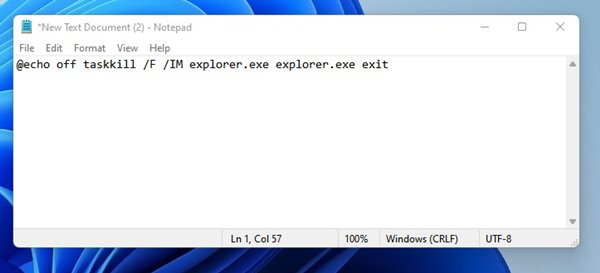
1. First of all, open Notepad and enter the script shared below.
@echo off taskkill /F/IM explorer.exe explorer.exe exit
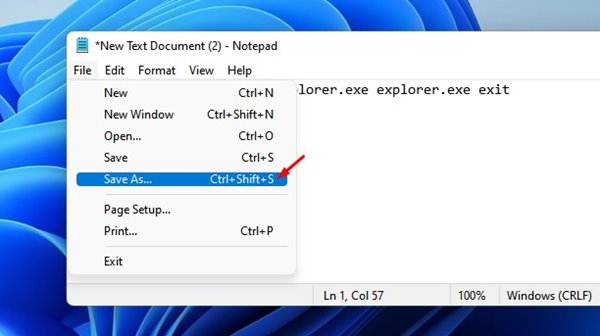
2. Now click on File > Save as an option.
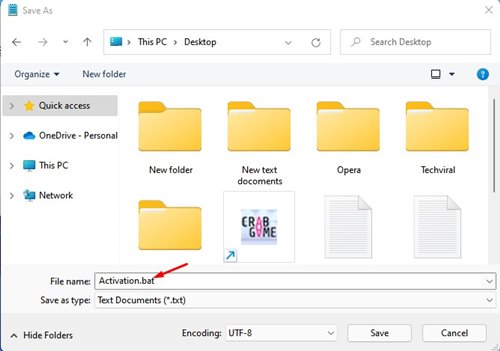
3. You need to save Notepad with the .bat extension. For example, the width of activate.bat.
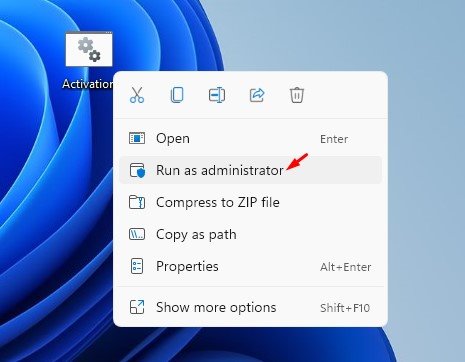
4. To remove the Activate Windows watermark, right-click on the file.bat and select the Run as administrator option.
There he is! You’re done. The script will refresh your computer and will remove the active Windows watermark.
#4. Purchase a License Key
Since the Activate Windows watermark appears when the Windows version is not activated, you can purchase a license key to remove the watermark.
This seems to be the easiest option to remove the activation watermark in Windows. You can purchase a digital key from the Microsoft Store directly.
You can also purchase an activation key from Amazon. The standard home version of Windows 10 costs around $139. The professional edition of Windows 10 costs around $200.
#5. Enter the Activation Key in Windows
If you already have a Windows Product key, you can enter it in Windows Update settings to permanently remove the Windows Activate Watermark.
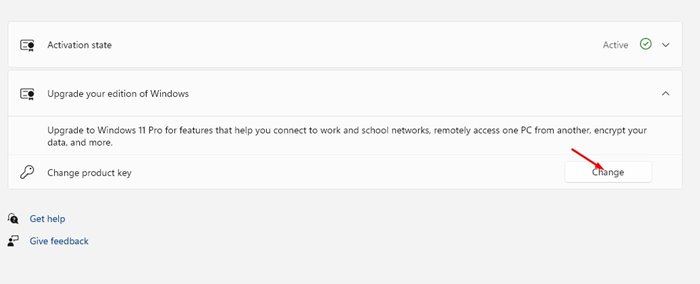
You have to head to Settings > Update & Security > Activation to activate Windows.
Now, on Windows Activation, you need to click on the Change Product key select, and enter the product key.
Conclusion:
We are pretty sure that this method will help you to remove the Activate Windows watermark. However, some of the ways listed in the article may not work with the latest versions of Windows.
4 Ways To Fix PUBG Mobile Server Timed Out Not Responding – PUBG is a very popular game today with the number of downloads reaching tens of millions of people.
4 Ways To Fix PUBG Mobile Server Timed Out Not Responding
How To Fix PUBG Mobile Server Timed Out Not Responding
Maybe you are a PUBG player, of course, you have fun with this game, and almost every time you feel bored you always play.
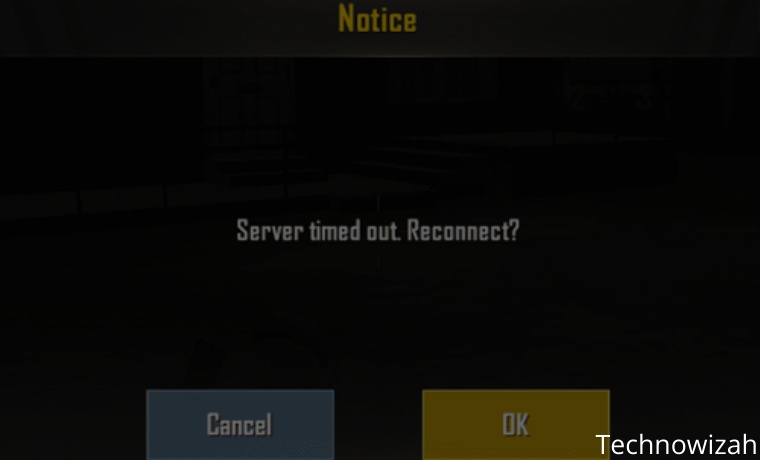
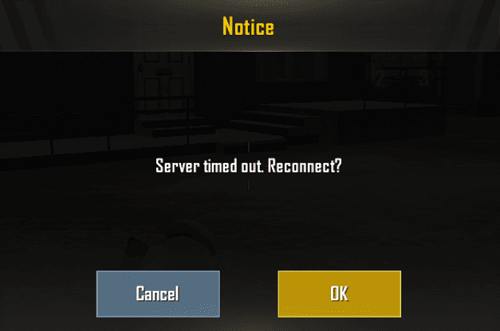
There is an error that PUBG players may sometimes experience when talking about PUBG. Is it a “Server Timed Out” or “ Server Timed Out” problem? Please return to the login page and try again.”.
Translated, it means “Server Time Out”, and “Server timed out, please return to the login page and try again”.
So, what is the real cause of this problem, and how to solve it?
There are several causes for this server time-out error. But most often, is an internet connection problem.
This error also usually appears in the middle of the game. However, there are also people who experience errors on the login page continuously (Until they can’t enter the game).
So this time we want to discuss how to solve this problem
Fix PUBG Server Not Responding (Server Timed Out)
#1. Check the Internet Connection
Check Internet Connection
Of course, all online games, definitely require an internet connection with a different number of pings.
And if we feel when playing, PUBG doesn’t need a small ping (the smaller the ping the better).
With a ping of 100ms, you can play PUBG smoothly (but relatively).
So even though the ping required is not so small, we still need a stable internet connection.
Maybe the thing you have experienced is when the ping suddenly rises (Up to 500ms). PUBG is lagging.
When the ping is continuously high, an error message will appear “Server did not respond” or ‘Server timed out’ like earlier.
How to solve it :
Check the ping on your cellphone. Make sure the ping is below 100ms so that playing PUBG will also run smoothly.
Try changing your internet connection if it’s slow. Try to get the signal full, and the connection doesn’t drop out or slow down suddenly when it’s in use.
You can also try looking for Provider / WIFI optimization articles on this site (Use the Search Feature)
#2. Use a VPN
Use a VPN
A VPN is a virtual network that can connect your cellphone to a certain server before starting the internet as usual.
So, for those of you who experience server problems like this, it never hurts to try using a VPN.
This method is recommended by many people, especially PUBG players themselves.
Using a VPN is not complicated. you can use a VPN application that can be obtained from the Playstore.
How to use it usually just tap the connect button, it will be connected immediately.
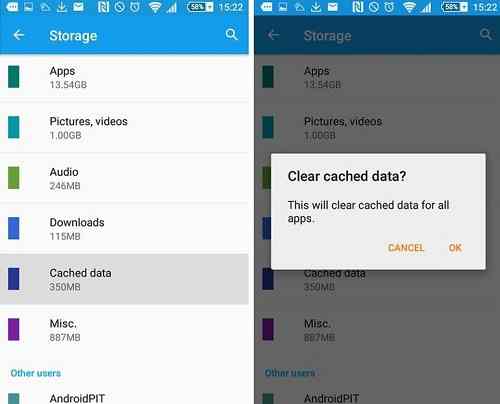
#3. Clear data and cache PUBGM
Clear data and cache PUBGM
In PUBG games, the data is also stored on the cellphone, including cache files.
So, there is one option to fix the server connection timed out, namely by doing Clear data and clearing the Cache from the PUBG Game.
You can’t hurt to try this method. Because it can be said to be quite effective.
The trick is to go to Settings >> Applications >> Search PUBG >> Then Clear Cache and Clear Data.
Note: Clearing data will remove data from PUBG. Usually, you will have to re-download some data later. So first prepare WIFI or quota.
#4. Reinstall PUBGM
Reinstall PUBGM
If you can’t, the last way that can be done is to reinstall PUBG on your cellphone.
Doing a reinstall, will delete data from the game, then replace it again with a new one. Then all files will be fresh again.
No different from the clear data and cache options, so it never hurts to try it.
The trick is to open Playstore >> Search PUBG >> Then click Uninstall > If so, just install again as usual.
So by overcoming the problem of connecting to the server in PUBG, actually to solve this problem, the most important thing is that the internet connection used must only be stable.
Because everything is not just PUBG, if you play other online games, you must also pay attention to the internet connection. If not, it will disconnect.
8 Best Fake Numbers Providers Sites For Online Verification – When going to register on social media such as WhatsApp, Instagram, Facebook, line, and other social media, sometimes cellphone numbers become obstacles.
5 Best Fake Numbers Providers Sites For Online Verification
Here are the Best Fake Numbers Providers Sites For Online Verification
It could be that your cellphone number is missing or other conditions. Surely this is an obstacle for you when asked to enter a cellphone number.
Likewise when you want to shop online. No need to be confused because now you can make fake numbers for free.
Fake numbers are no longer a strange thing in this day and age.
Fake numbers themselves are now available paid as well as free fake numbers. If you also want to use this fake number, it can be done from an Android or iPhone computer.
Even more interesting, this fake number turns out to be from a variety of countries ranging from Britain, America, Belgium, and even Indonesia.
For work systems that are in fake numbers, this is more or less using virtual numbers provided by the website for certain applications.
Do you also need a free fake number? If so.
8 Best List of Fake Numbers Providers Sites For Online Verifications
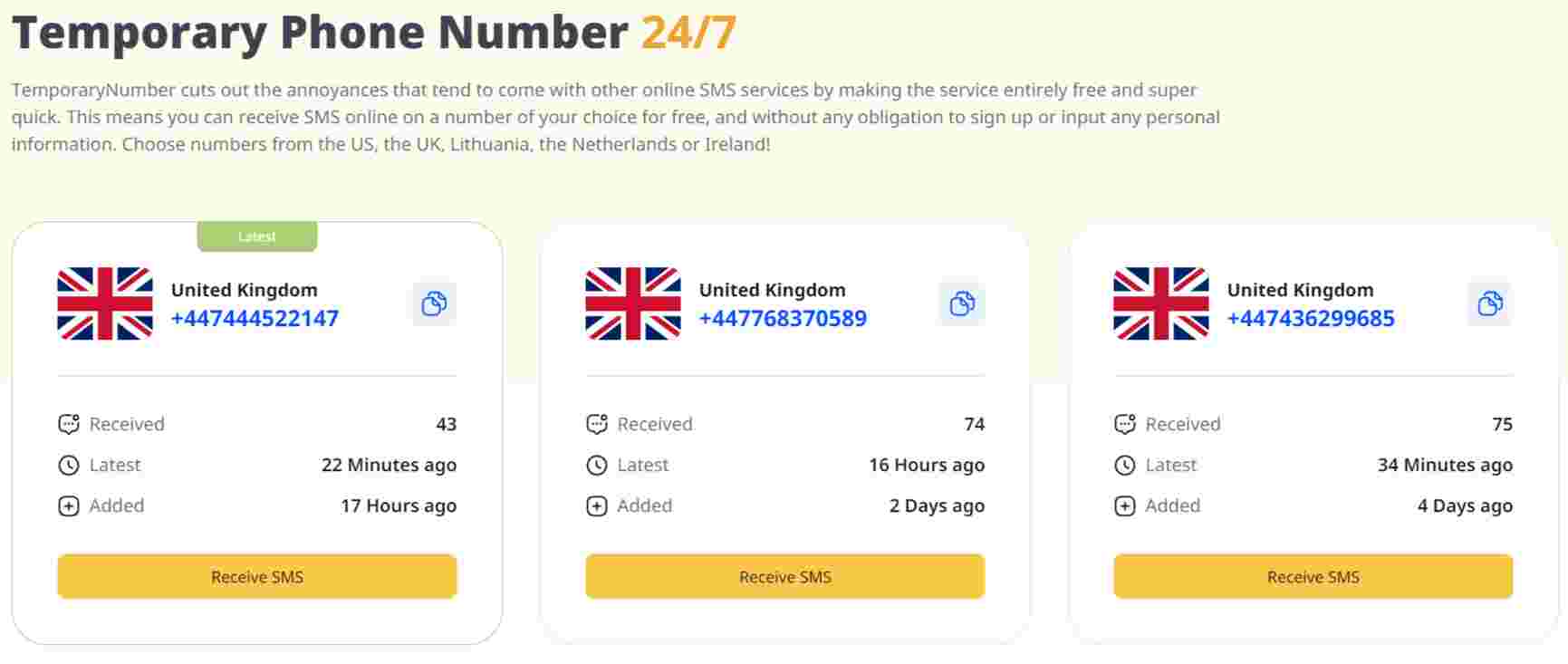
#1. TemporaryNumber
What is it and how it work?
TemporaryNumber, is a free, super easy, and user-friendly service. If you’re looking to get a free temporary phone number for a specific website, service, or app verification, you can receive your verification code within mere minutes with them.
Simply choose the country code you’d like to receive it on – choose from the US, the UK, Lithuania, the Netherlands, or Ireland – double-click on a specific number from that light, and hey, presto! You’re ready to input this number into whichever service you’re trying to register with. Seconds later, you’ll receive your verification code right there on their website. You can use those numbers however often you wish!
Regardless of the country code, every single one of the numbers is entirely free to use, with no catches! You won’t even need to register or enter a credit card to use this service, meaning it is 100% free to use.
What is it used for?
When it comes to what you can verify with TemporaryNumber, there aren’t any limitations. So think of things like:
Social Media
Careers / Business Apps
Messaging Services
Dating Apps
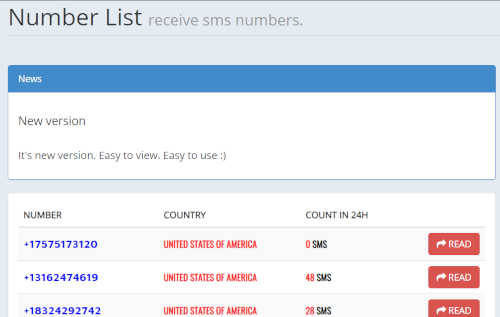
#2. sms.ndtan.net
sms.ndtan.net
The sms.ndtan.net site provides virtual fake numbers from various countries in the world, including Indonesian numbers.
The number on sms.ndtan.net you can use to verify social media such as Instagram, WhatsApp Facebook, and others.
Visit Sitesms.ndtan.net
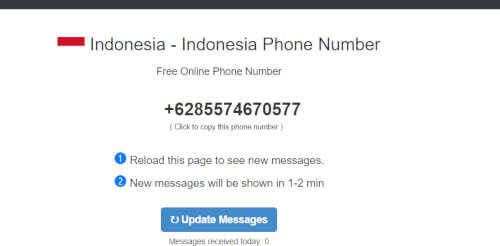
#3. www.receivesms.co/indonesia-phone-number/161/
www.receivesms.co/indonesia-phone-number/161/
Another site that also provides free fake numbers is www.receivesms.co/Indonesia-phone-number/161/.
This site provides Indonesian numbers and other country numbers. However, Indonesian numbers from this site tend to be limited.
At present, there is only one number that can be used to receive SMS and telephone calls. If you want to get an Indonesian number, then just copy and paste the address of the site.
https://www.receivesms.co/
#4. TextPlus application
TextPlus application
It’s not just websites that provide fake numbers. There is also a textplus application that provides fake numbers that can be used completely ranging from telephone, and SMS to receiving OTP codes.
If you want to get a virtual number, first register your email and also your original mobile number.
If you don’t have a cellphone number, then later you will get a separate virtual number. However, numbers in this application are only international numbers available.
Like nextplus, this application also provides fake numbers. You also have to register yourself first. Nextplus applications tend to focus more on American numbers and no Indonesian numbers.
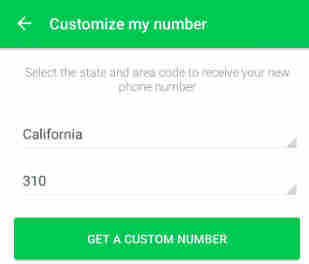
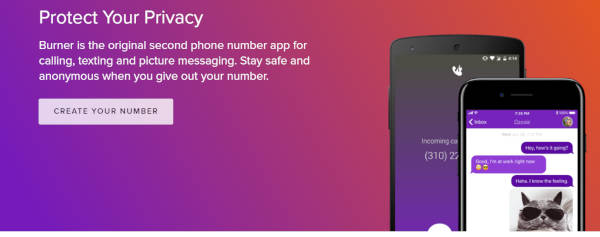
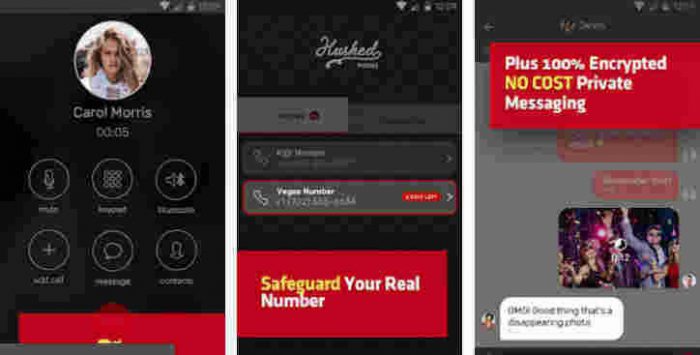
Burner: Smartphone Phone Number is a paid virtual mobile number application. So you cannot use the service of receiving telephone and SMS verification codes for free.
However, this application has the advantage of providing at least 40 telephone numbers from various countries.
So you can choose the numbers alternately for a social media account or chat that is created.
So, friends, These were the best fake numbers provider sites For Online Verification, recommendations, and fake number applications that could be an option. Thus, the matter of verification now will not be a problem anymore.
![5 Ways To Remove Windows Activate Watermark on Windows 10/11 [2024]](https://technadvice.com/wp-content/uploads/2022/02/5-Ways-To-Remove-Windows-Activate-Watermark-on-Windows-10.jpg "5 Ways To Remove Windows Activate Watermark on Windows 10/11 [2024] 4")
 2. In the Windows PowerShell Window, you need to run the command given below and press the Enter key.