Author: Nazrul Islam

  • 3 Easy Ways To Access Steam Screenshot Folder Windows 2024

    3 Easy Ways To Access Steam Screenshot Folder Windows 2024

    3 Easy Ways To Access Steam Screenshot Folder Windows – I will discuss the Best Tips To Access the Steam Screenshot Folder, In any Steam game, you can click the shortcut button (default is F12) to take screenshots of the screen in the current game.
    How To Access Steam Screenshot Folder
    How To Access Steam Screenshot Folder

    How To Access Steam Screenshot Folder Windows 10 PC 2024

    You can publish this screenshot on your Steam profile or upload it to other social media forums. However, sometimes you might face a problem because you can’t find the picture you took.

    Read more:

    There are two ways you can access Steam Screenshot Folder; one of them is accessing it through screenshot manager in Steam and the other is accessing it through hard drive storage.

    Method #1: (Screenshot Manager)

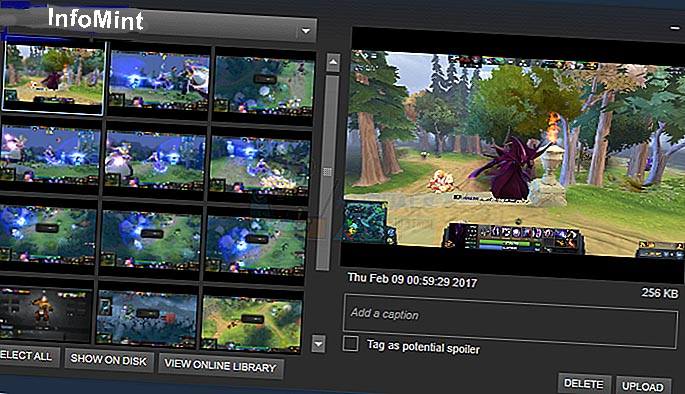
    You can use your Steam client to see all screenshots taken in the game using the Screenshot Manager.

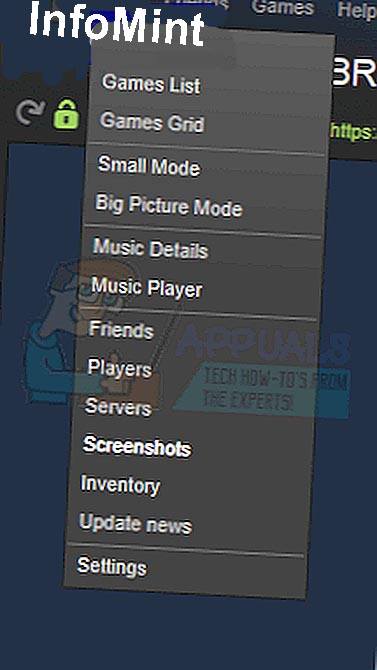
    First, open your steam window. At the top left where all the drop-downs are, click [ view> screenshots ].
    Screenshot Manager
    Screenshot Manager

    Using the Screenshot Manager, you can upload the desired image or delete it. You can also access the screen directly through your hard drive by clicking the [ show on disk ] button. There is also an option to permanently delete certain screenshots from your hard drive directly from here.

    Steam Screenshot Folder 2
    Steam Screenshot Folder 2

    Method #2: (Accessing the Screenshot folder physically)

    Each user has their screenshot folder where all screenshots taken in the game are stored physically. This folder is located where your Steam is currently installed. The default location is on the Local C disk.

    Open your drive C: \ Program files (x86) \ Steam \ user data \ 760 \ remote screenshot.

    Accessing the Screenshot folder physically
    Accessing the Screenshot folder physically

    3. How do you find your SteamID?

    If you don’t know your SteamID, you can access it by opening your Steam client. Click on the display and select settings. Go to the interface and you will find a box that reads the Display URL address when available. Check and save.
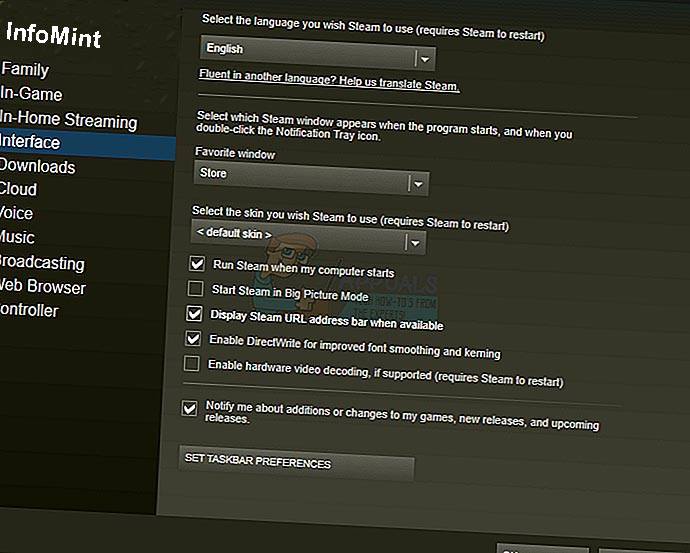
    How do you find your SteamID
    How do you find your SteamID

    Now go to your Steam Profile and click View profile. The number at the end that is located in the URL is your SteamID and you can use it to search for the image you saved as described earlier.

    SteamID

    Read more:

    Conclusion:

    TIP: If none of the Methods have resolved the issue for you, we recommend using the Reimage Repair Tool which can scan the repositories to replace corrupt and missing files.

    This works in most cases, where the issue originated due to a system of corruption. Reimage will also optimize your system for maximum performance. You can download Reimage by Clicking Here
  • 4 Ways To Fix api-ms-win-crt-runtime-l1-1-0.dll is missing 2024

    4 Ways To Fix api-ms-win-crt-runtime-l1-1-0.dll is missing 2024

    4 Ways To Fix api-ms-win-crt-runtime-l1-1-0.dll is missing – When you fail to open a program or file on your Windows computer, and you see this error: The program can’t start because api-ms-win-crt-runtime-l1-1-0.dll is missing from your computer. Try reinstalling the program to fix this problem, it can be very frustrating.

    How To Fix api-ms-win-crt-runtime-l1-1-0.dll is missing
    How To Fix api-ms-win-crt-runtime-l1-1-0.dll is missing

    How To Fix api-ms-win-crt-runtime-l1-1-0.dll is missing 2024

    But there’s no need to panic. You are not the only one. In this article, you will certainly be relieved to know that this is an easy matter to fix.

    IMPORTANT: Do not download dll files from dll download websites! Not only their dll files are not up-to-date, but also the source is unclear. And there are lots of other reasons you shouldn’t do that. But if you have already downloaded it, I hope to remove it completely.

    Why is api-ms-win-crt-runtime-l1-1-0.dll missing?

    The api-ms-win-crt-runtime-l1-1-0.dll file is included in the Microsoft Visual C ++ Redistributable for Visual Studio 2015.

    Read more:

    If this software does not exist, or the existing software is missing, incompatible or corrupt, you will likely face this problem.

    How to fix api-ms-win-crt-runtime-l1-1-0.dll is missing error?

    Since the api-ms-win-crt-runtime-l1-1-0.dll file is included in the software, we can solve this problem by doing a reinstall on this software:

    Note: If you already have Visual C ++ Redistributable for Visual Stadio 2015 on your computer then follow the 3rd way to repair the software.

    Method # 1: Install software via Windows Update

    Microsoft has built the Visual C ++ Redistributable for Visual Studio 2015 in Windows Update KB2999226. So you can install it via the Windows Update feature.

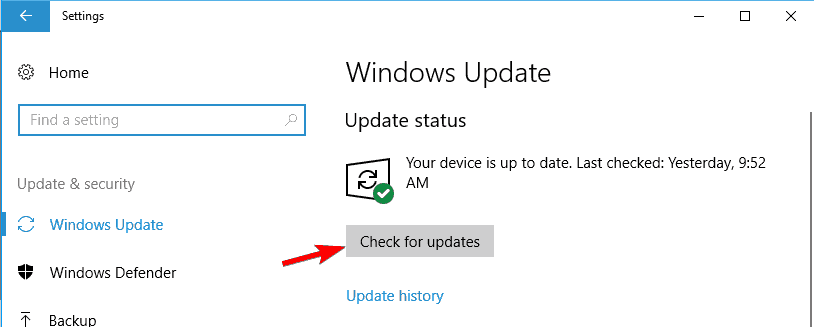
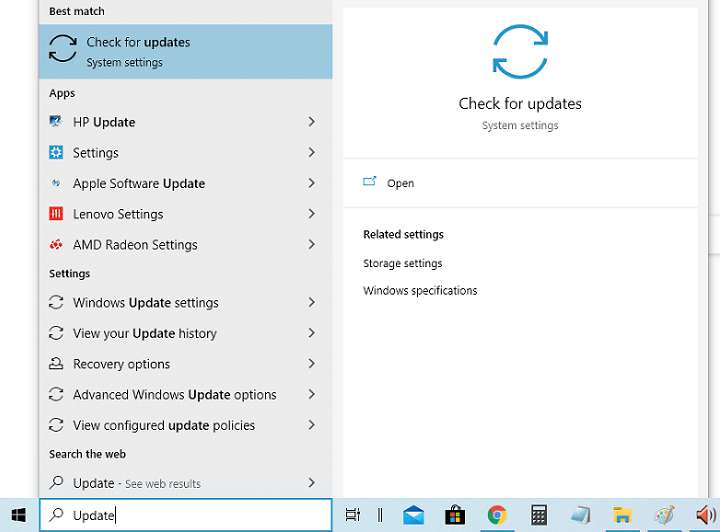
    1. Type Update in the search box from Start. Then click Check for updates ( Windows 10 ) or Windows Update (Windows 7) from the results.
    Install software via Windows Update
    Install software via Windows Update
    1. Click Check for updates.
    Install software via Windows Update
    Install software via Windows Update
    1. Windows will then check for updates automatically.
      If you are using Windows 10, Microsoft will install updates that are detected automatically;
      If you are using Windows 7, click Install Update.
    2. Restart your computer. Then repeat the steps above again until there are no more updates available.
    3. Open the same program or file to see if it works. If you open the program successfully, great!

    If this error is still there, don’t worry, there is something else you can try. Please continue to the second solution below.

    Method # 2: Download Visual C ++ Redistributable for Visual Studio 2015 from Microsoft directly

    You can download the software directly from the official Microsoft website. Here’s how you can do it:

    1. Go to the Microsoft Download website.
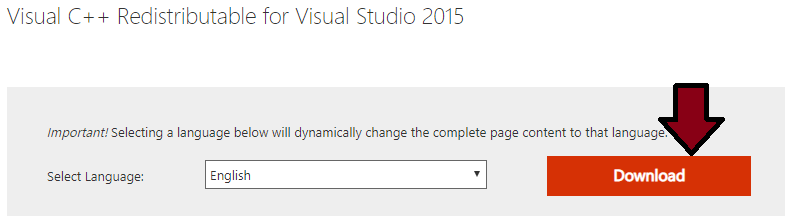
    2. Click Download.

    Download Visual C ++ Redistributable for Visual Studio 2015 from Microsoft directly

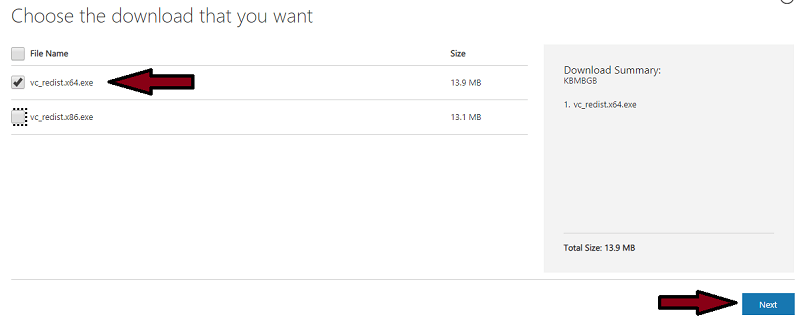
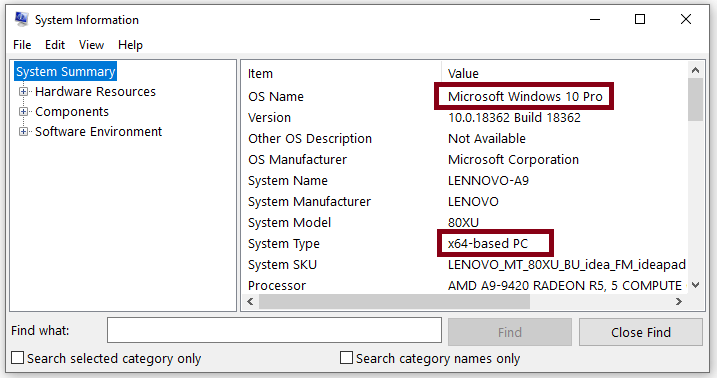
    1. Choose your system type x64 or x86 (x32), for example, I choose 64-bit according to my system then I select vc_redist.x64.exe, then click Next.

    Download Visual C ++ Redistributable for Visual Studio 2015 from Microsoft directly

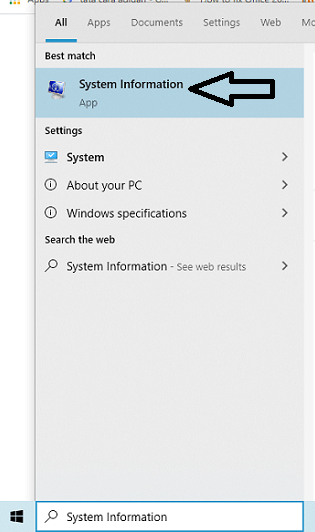
    NOTE: If you are not sure which type of System your Windows is running, check it like this: type system in the search box from the Start menu , then click System Information (Windows 10) or System Information (Windows 7) from the results. You will then see your system type in the popup window.

    1. Then the file will be downloaded.
    2. Once done, double-click the downloaded .exe file and follow the on-screen instructions to complete the installation.
    3. Open the same program or file to see if it works. If you open the program successfully, great! If the error is still there, don’t worry, move on to solution 3.

    Method # 3: Repair Visual C ++ Redistributable for Visual Studio 2015 on your computer

    If you already have Visual C ++ Redistributable for Visual Studio 2015 on your computer, you can try to fix it to solve this problem.

    Follow these steps:

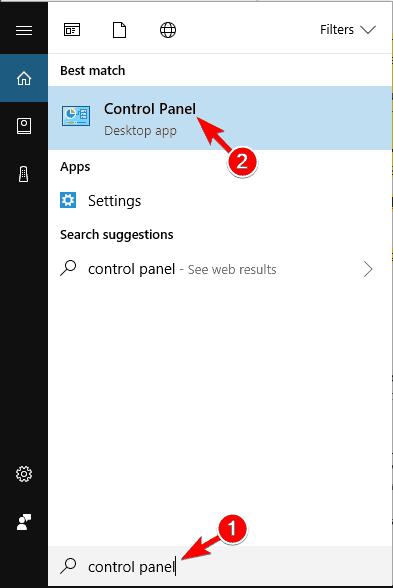
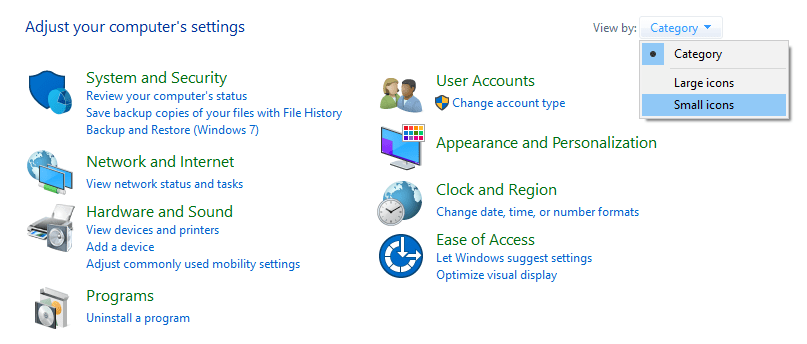
    1. Type Control Panel in the search box from the Start menu. Then click Control Panel.

    Repair Visual C ++ Redistributable for Visual Studio 2015 on your computer

    1. In the View By section, change the Category to Small Icons.

    Repair Visual C ++ Redistributable for Visual Studio 2015 on your computer

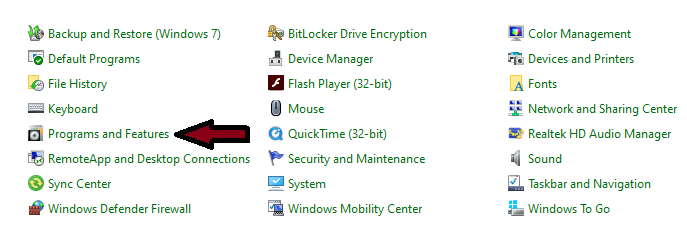
    1. Then click Program And Feature.

    Repair Visual C ++ Redistributable for Visual Studio 2015 on your computer

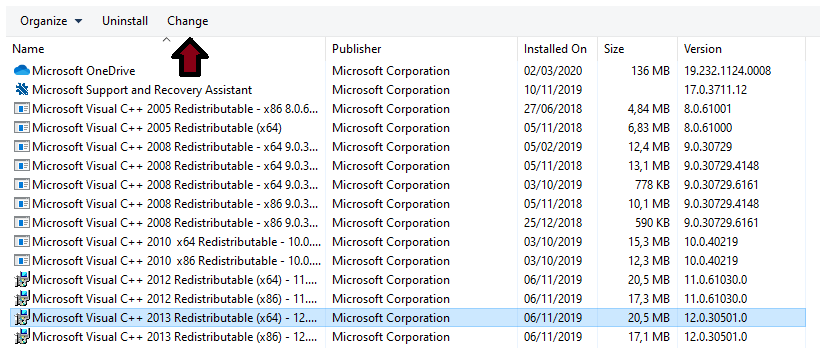
    1. Click Microsoft Visual C ++ 2015 Redistributable, then click Change.

    Microsoft Visual C ++ 2015 Redistributable

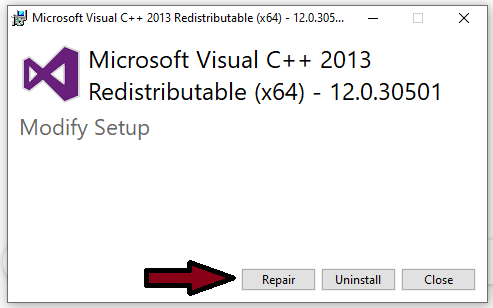
    1. Click Repair.

    Microsoft Visual C ++ 2015 Redistributable

    1. Click Yes when prompted by User Account Control and continue to follow the on-screen instructions to complete the repair.

    Method 4: copy api-ms-win-crt-runtime-l1-1-0.dll file from your friend’s PC

    If all the above methods failed to fix the api-ms-win-crt-runtime-l1-1-0.dll is a missing problem, then you can copy or copy the api-ms-win-crt-runtime-l1-1-0 file. dll from a PC running the same Windows system as yours.

    Part 1: Check your Windows system type and find the computer running the same system as yours.

    Here’s how you can check your Windows computer type:

    1. On your keyboard, press the Windows logo key to open a search box.
    2. Type in System Information and then select System Information from the results.

    copy api-ms-win-crt-runtime-l1-1-0.dll file from your friend's PC

    1. You will then see your computer system type.

    copy api-ms-win-crt-runtime-l1-1-0.dll file from your friend's PC

    Part 2: Copy the api-ms-win-crt-runtime-l1-1-0.dll file from your friend’s computer and then paste it onto the problematic computer.

    Here’s how you can find dll files:

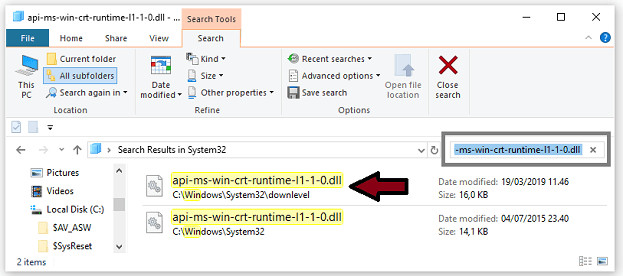
    1. On a working computer keyboard, press the Windows logo key and E simultaneously to open File Explorer.
    2. Go to C: \ Windows \ System32, then type api-ms-win-crt-runtime-l1-1-0.dll and press Enter. If it doesn’t show any results, go to C: \ Windows \ SysWOW64 and search for api-ms-win-crt-runtime-l1-1-0.dll again.

    copy api-ms-win-crt-runtime-l1-1-0.dll file from your friend's PC

    1. Copy the api-ms-win-crt-runtime-l1-1-0.dll file if it is found and paste it in the same location where you copied the files on your problematic computer.

    Note: Keep in mind that not all computers that come with the same system type have dll files that you want to restore, so this method only works on two computers that have the same Windows version and bit.

    Read more:

    Conclusion:

    That’s the whole way to fix api-ms-win-crt-runtime-l1-1-0.dll is missing that you can follow and has proven successful in fixing this problem according to the admissions of several Windows 10 and Windows 7 users.

  • How to Find Your Computer System Specifications 2024

    How to Find Your Computer System Specifications 2024

    How to Find Your Computer System Specifications – Knowing how to check the specs ( specifications ) laptop or computer can be helpful in several ways. You may wish to upgrade your computer or find out the system requirements for a program you want to install. Here’s how to find out how much RAM you have, and what type of GPU, motherboard, and CPU you have.

    How to Find Your Computer System Specifications
    How to Find Your Computer System Specifications

    How to Find Your Computer System Specifications 2024

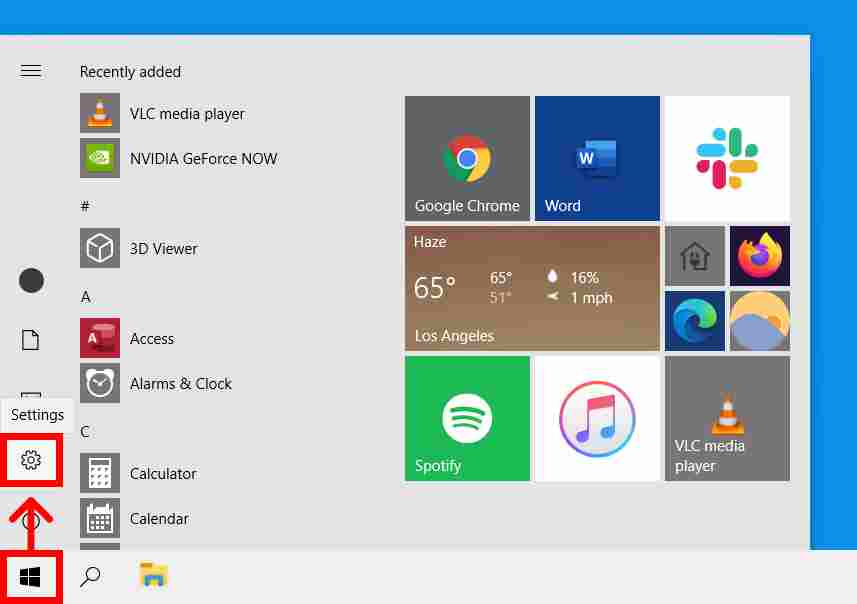
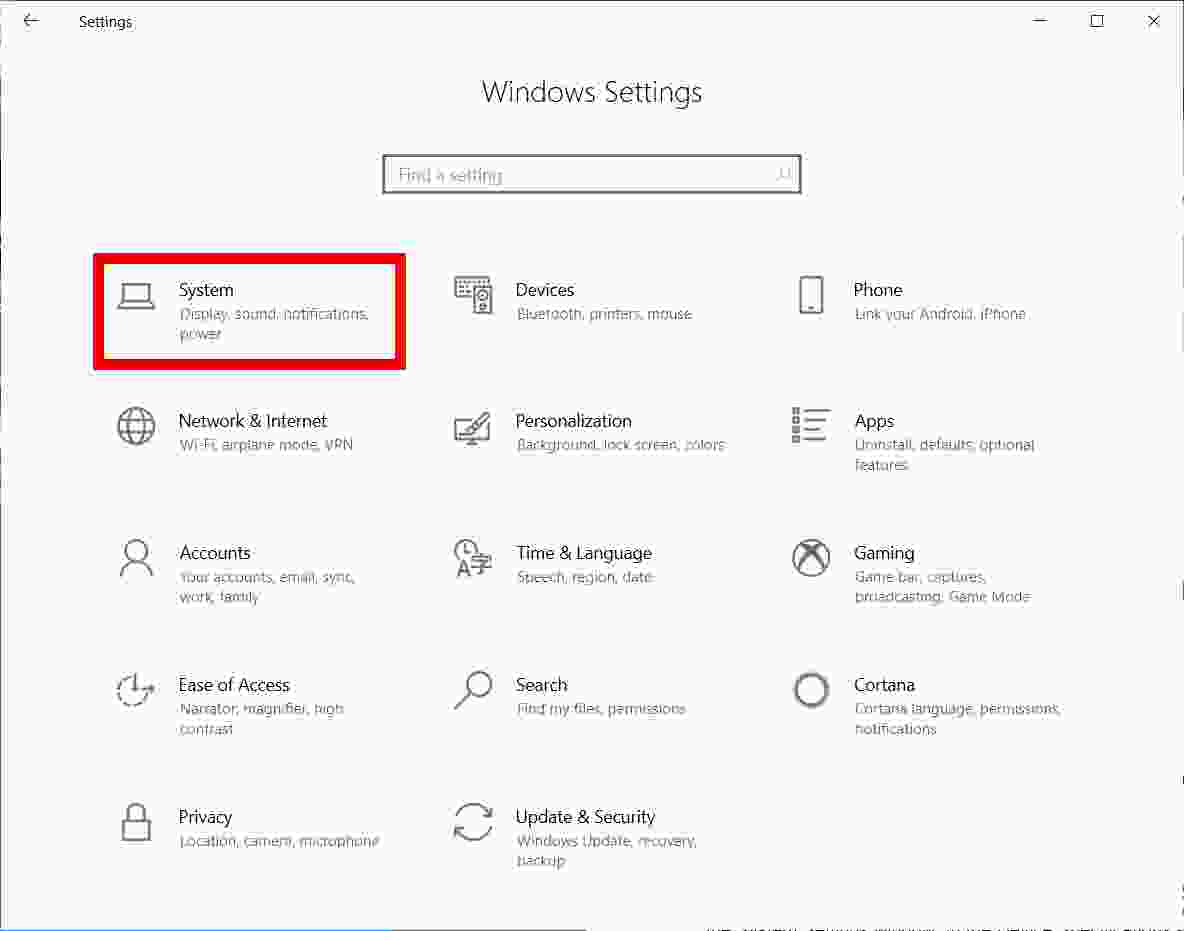
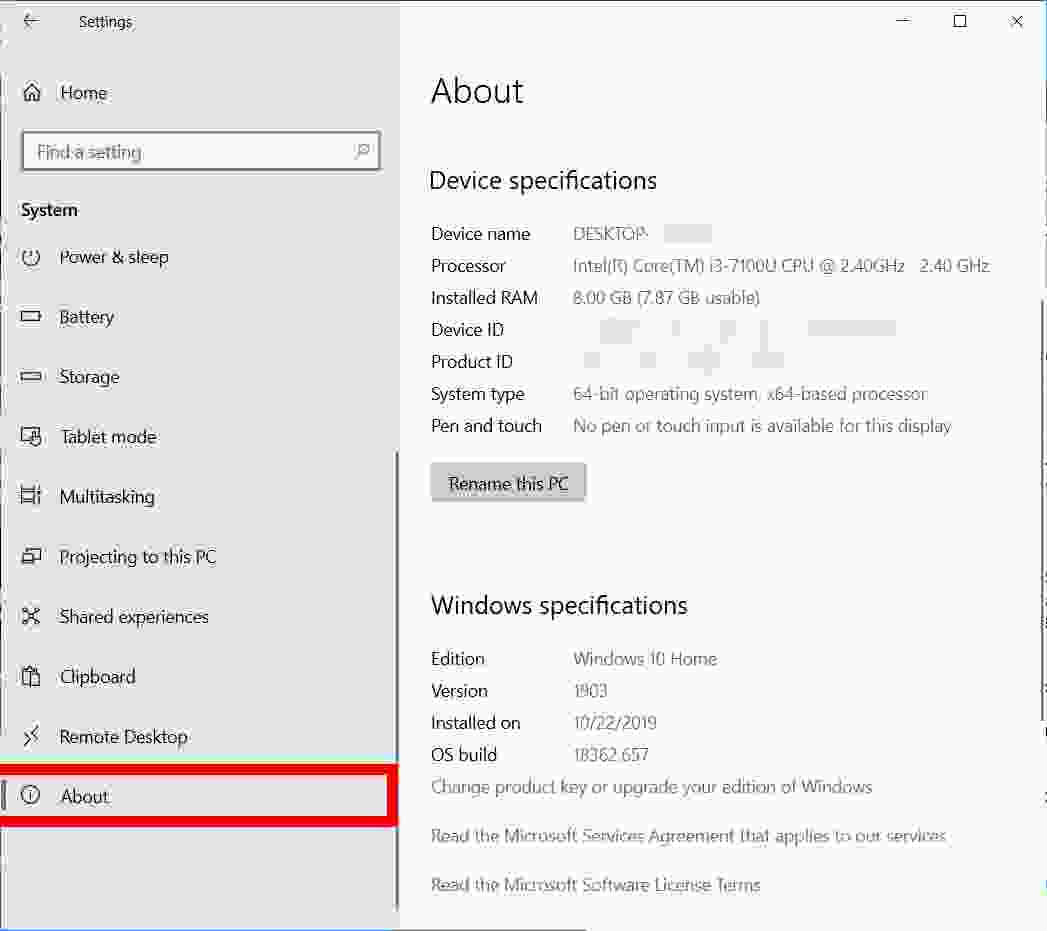
    To check the specifications of your laptop or computer in Windows 10, click the Windows Start button, then click the gear icon for Settings. On the Windows Settings menu, select System. Scroll down and select  About. From here, you’ll see processor specs, RAM, and other system info.

    Read more:

    1. Click the Windows Start buttonIt’s a button with the Windows logo in the lower-left corner of the screen.
    2. Then click Settings. It’s the gear icon directly above the power button.

    How to Check Windows 10 Laptop specifications

    3. Next, click  System

    How to Check Windows 10 Laptop specifications

    4. Scroll down and click  About in the left sidebar.  Here, you can find details about the processor, RAM, and other info.

    How to Check Windows 10 Laptop specifications

    How to Find Out the RAM You Have on Your PC

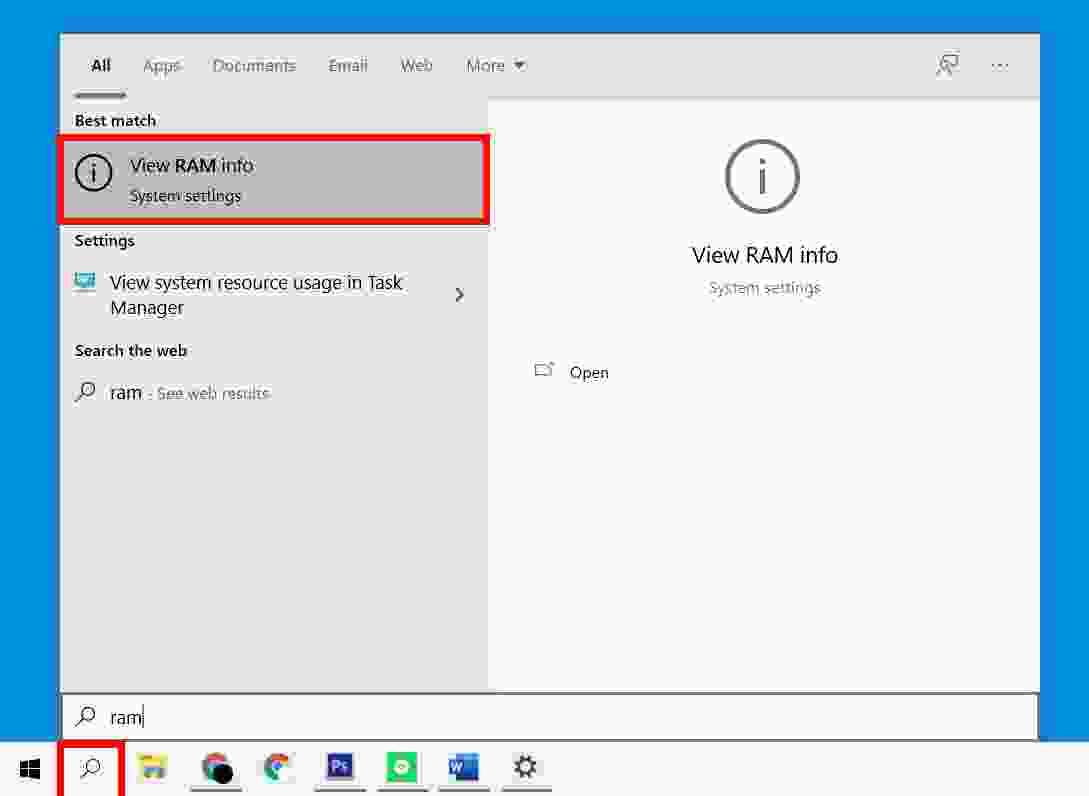
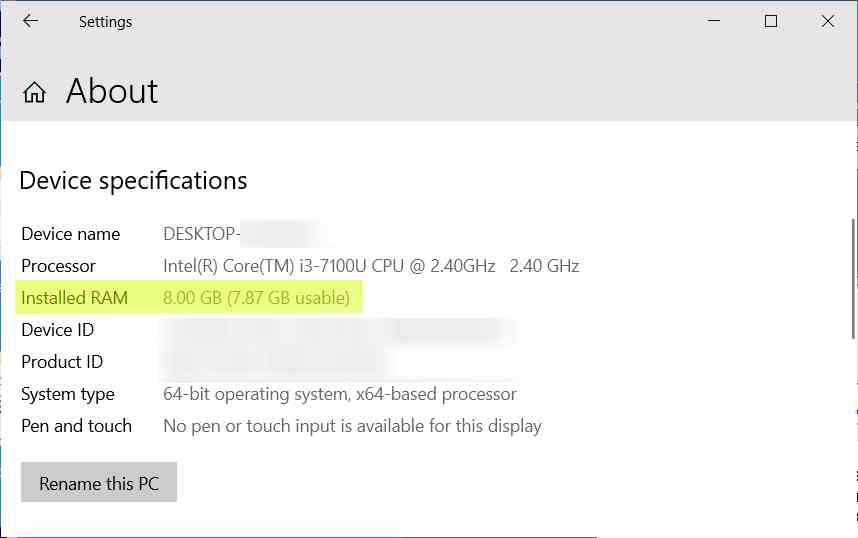
    The easiest way to find out how much RAM you have is by typing  RAM  into the Windows search bar. The search results box will return results for the View RAM Info option. Click this to open the System Settings window. In the Device Specifications section, check the Installed RAM field.

    1. Click the magnifying glass icon in the lower-left corner of your screen.
    2. Then type  RAM  in the Windows search bar.
    3. Press Enter or click  View RAM Info from the search results.

    How to Find Out the RAM You Have

    4. Check the Installed RAM infoWindows will tell you how much RAM you have installed and how much you have used. You will find it under the Device Specifications section.

    How to Find Out the RAM You Have

    How to Find Out Which GPU You Have

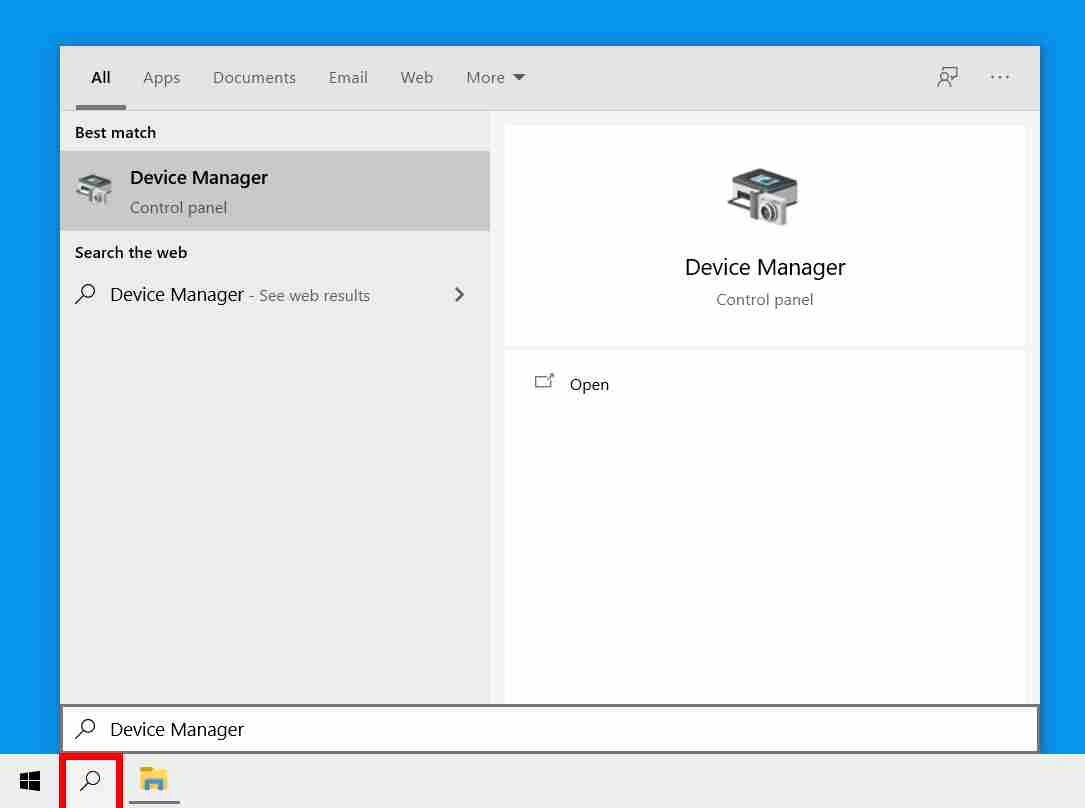
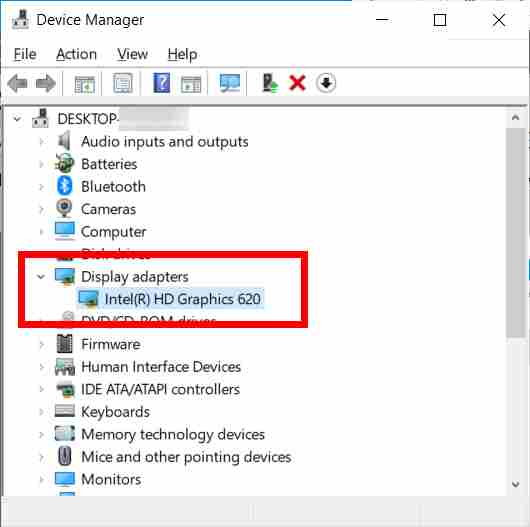
    To find out which Graphics Processing Unit (GPU) you have, type Device Manager in the Windows search bar and hit enter. Then click the arrow next to  Display adapters.

    1. Type Device Manager in the Windows search bar. Windows will load the search results before you even finish typing the search term.
    2. Press Enter or click the Device Manager application icon that appears. The  Device Manager application icon will look like a camera next to the printer. Pressing Enter or clicking the icon will open the Device Manager window.

    How to Find Out Which GPU You Have

    3. Finally, click the arrow next to Display adapters to see which GPU you have. The entry under  Display adapters shows which GPU you have.

    How to Find Out Which GPU You Have

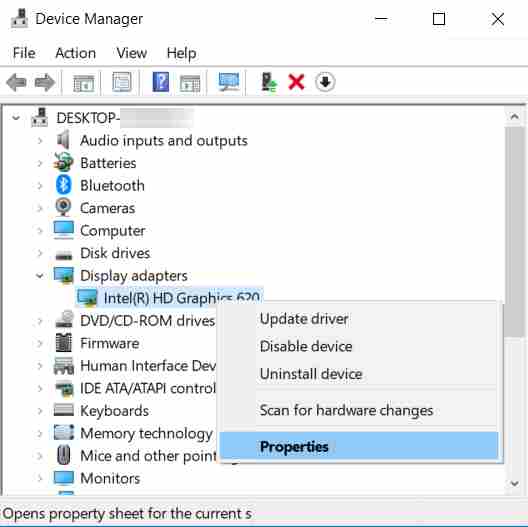
    Note:  If the entry does not show the name of the manufacturer, do the following:

    • Select GPU name. It will be highlighted in blue.
    • Right-click GPU.
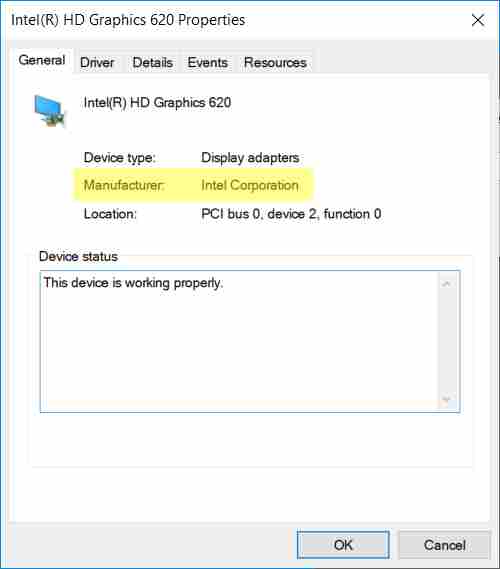
    • Select  Properties on the menu that appears. The Properties window will open to the General tab by default.

    How to Find Out Which GPU You Have

    4. From the General tab, find the column labeled Manufacturer.

    How to Find Out Which GPU You Have

    How To Find Out Which Motherboard You Have

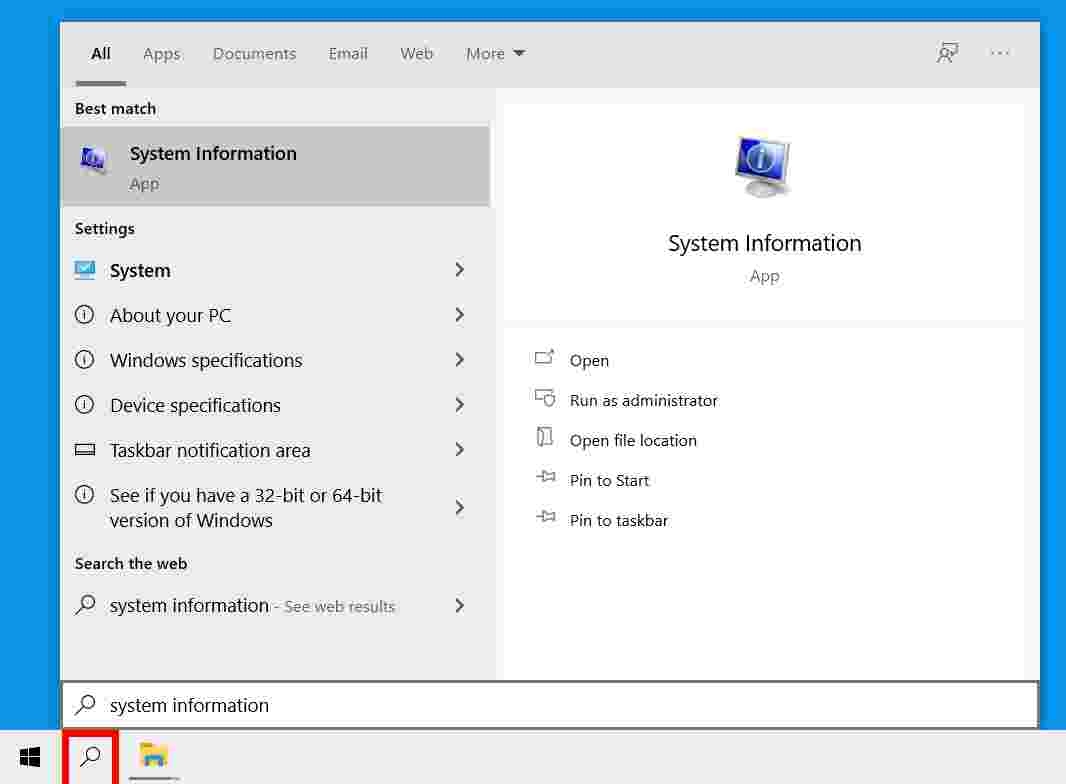
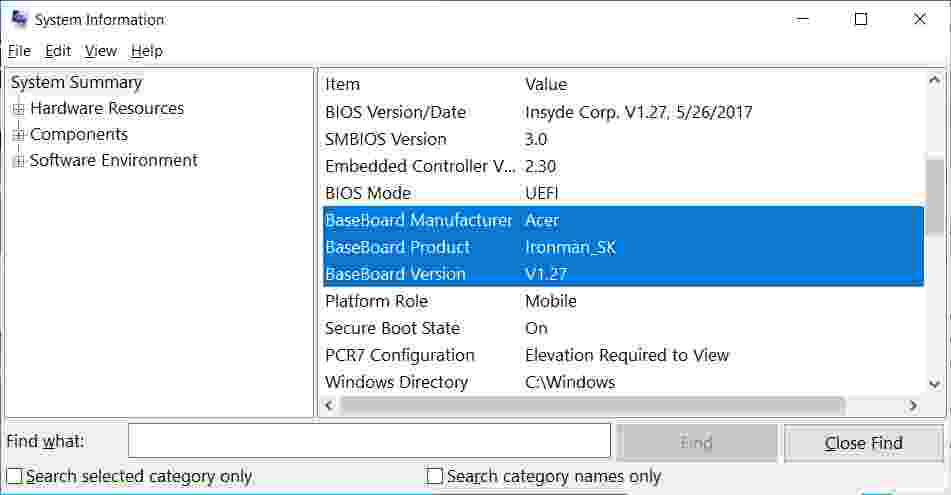
    To see what type of motherboard you have, type system information in the Windows search bar and hit enter. Then look for the fields labeled System Manufacturer and  System Model. This will tell you the make and model of your motherboard.

    1. Type system information in the Windows search barWindows will load the search results before you even finish typing the search term.
    2. Press Enter or click the system information application icon. The application icon System information looks like a computer with a blue screen with the letter “i” in the middle. Pressing Enter or clicking the application icon by default opens the System Summary section.

    How To Find Out Which Motherboard You Have

    3. See the fields for Manufacturer, Product,  and  BaseBoard Version 

    How To Find Out Which Motherboard You Have

    How to Find Out Which CPU You Have

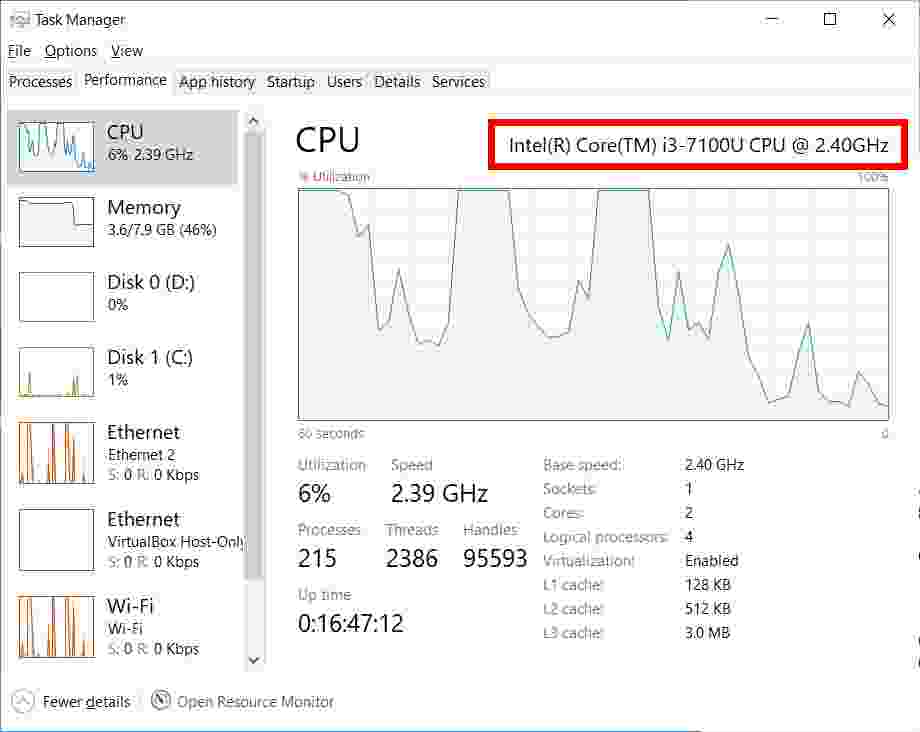
    To find out which CPU you have, press  Ctrl + Alt + Delete on your keyboard. Click on  Task Manager and go to the Performance tab. You’ll find your CPU details on the top right side of the window, just above the CPU usage graph.

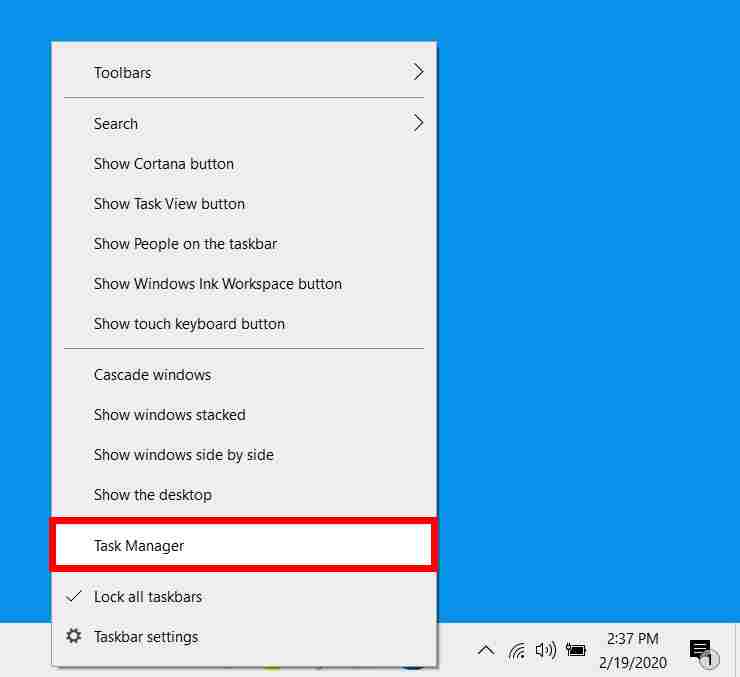
    1. Right-click on your taskbar. This is the bar that’s always at the bottom of your screen.
    2. Then select Task Manager. This will open the Processes tab, which contains a list of all your currently running programs.

    How to Find Out Which CPU You Have

    3. In the Task Manager window, open the Performance tabIf you don’t see the Performance tab, make sure to click More Details

    4. Click on the CPU section in the left pane. This will make the selection highlighted in blue.

    5. You will see what kind of CPU you have next to the word “ CPU ” in the upper right corner of the window.

    How to Find Out Which CPU You Have

    Don’t forget to bookmark and always visit every day Technowizah.com because you can find here the latest Tech Computer Android games How-to Guide Tips&Tricks Software Review etc, Which we update every day.

  • 5 Easy Ways to Activate Windows 11 Using Licence 2024

    5 Easy Ways to Activate Windows 11 Using Licence 2024

    5 Easy Ways to Activate Windows 11 Using Licence – Looking for how to activate Windows 11 with a license key? if yes you are in the right place, we took the time to make a step-by-step activation of Windows 11.

    5 Easy Ways to Activate Windows 11 Using Licence

    How to Activate Windows 11 Using Licence 2024

    The reason is that many Windows users are still confused about the activation of Windows 11. Let’s say that Windows 11 needs a new license.

    In fact, Windows 11 can still use the original Windows 7 and 8.1 licenses to activate without having to buy a new license.

    For Windows 10, you also don’t need to worry because you can install Windows 11 with an operating system update via Windows 10 update Assistant.

    Thus the Windows 10 license will carry over to Windows 11 and Windows 11 will also be activated automatically.

    But for those of you who installed Windows 11 from the ISO installer, you need to activate the latest OS if your license is not embedded in the motherboard. For that, here are the complete steps:

    Materials needed

    Actually, you don’t need complex materials. Just prepare an original Windows 7, 8.1, or Windows 10 license.

    For example, if you don’t have an original license, use an OEM or retail license purchased from an online marketplace.

    #1. Copy Product Key

    The first step you have to do is copy the product key. The product key is a special set of codes to activate the Windows operating system so that it becomes a full version.

    Well, usually the product key that you bought will be sent to your email (if you bought a retail Windows license). Try copying the license code right now.

    #2. Open the Settings Menu

    Open the Settings Menu

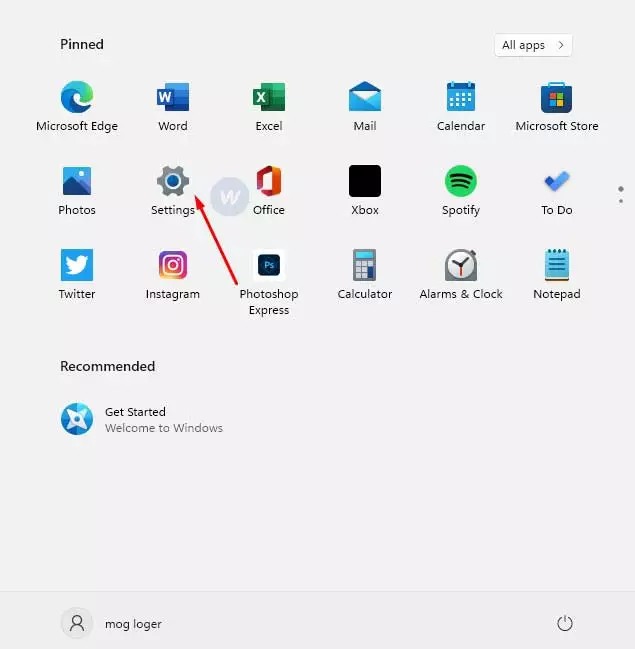
    After copying the code, it’s time for you to go to a computer that has Windows 11 installed. Then go to Settings.

    Generally, the Settings place is the same as in Windows 10, it is located in the Start Menu, and then press the button with the gear icon.

    #3. Then Open “System”

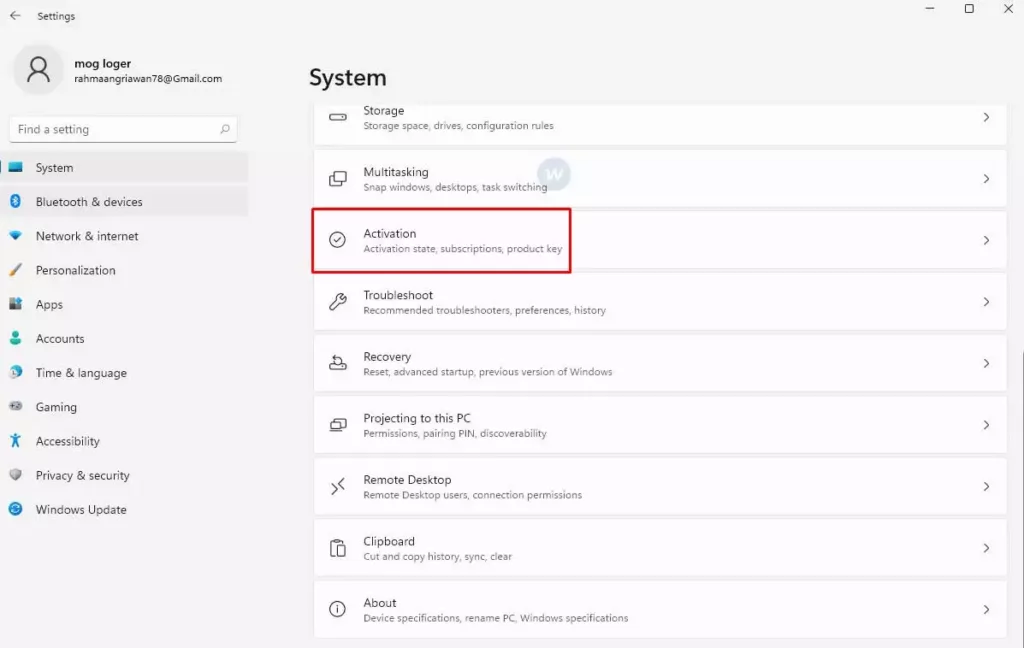
    The main appearance of Settings in Windows 11 is almost the same as in Windows 10. For that, now is the time for you to click the  “System” menu.

    #4. Click the Activation Menu

    Click the Activation Menu

    Next, you need to select the  Activation menu. This menu is in the middle of the Windows 11 System settings window.

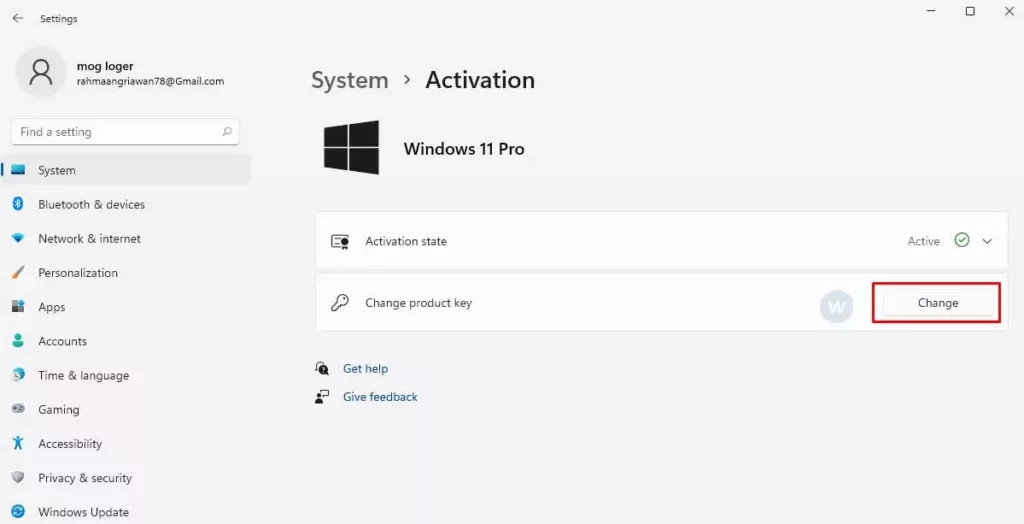
    Then look to the right, there will be written  “Change Product Key”, and click  Change to start opening the activation window.

    Click the Activation Menu

    #5. Enter Windows License

    This is the last step, where you simply paste the copied license into the activation window column.

    Here Windows 11 activation requires internet access for the license verification process that you are using. So you need to connect your computer to the internet first.

    After that click the  Next button and follow the instructions given, it’s really easy!

    Note: As a Windows fan and loyal user, you should avoid activating Windows 11 using pirated programs such as KMS Pico, KMS Auto-Lite, and so on. This is intended to avoid the dangers of ransomware threats.

    Conclusion:

    So, friends, this is an explanation of 5 easy ways to activate windows 11 Using a Licence, I hope this article will be helpful for you. If you have any questions regarding the discussion above, write questions in the comments column.

  • How to Install Naruto Ninja Storm 4 PPSSPP 2024

    How to Install Naruto Ninja Storm 4 PPSSPP 2024

    How to Install Naruto Ninja Storm 4 PPSSPP – For how to install the Naruto Ultimate Ninja Storm 4 PPSSPP game so that it can be played smoothly on an Android device, please follow the following tutorial:

    How to Install Naruto Ninja Storm 4 PPSSPP Complete Guide
    How to Install Naruto Ninja Storm 4 PPSSPP Complete Guide

    (Complete Guide) Here is How to Install Naruto Ninja Storm 4 PPSSPP 2024

    1. Download and Install ZArchiver Pro v1.0.8.
    2. Install PPSSPP Emulator, then open it briefly and remove it again.
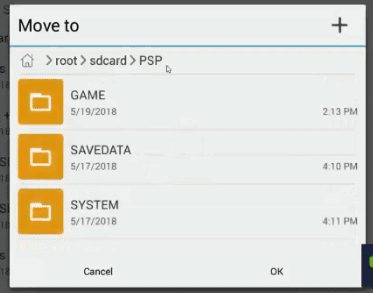
    3. Move the file in the textures + save the data folder to the PSP folder (place it here).
    4. Also, move the files in the system + cheats folder to the PSP folder (paste here).
      How to Install Naruto Ninja Storm 4 PPSSPP Complete Guide
      How to Install Naruto Ninja Storm 4 PPSSPP
    5. Open Zarchiver then extracts the file from the Naruto Ultimate Ninja Storm 4.rar game that you downloaded earlier until you get the game file in the.ISO format.
    6. If the game file is in ISO format, it means you don’t need to extract it.
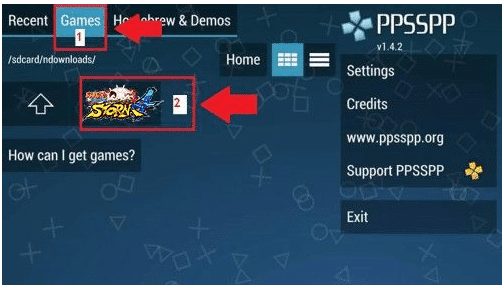
    7. Open the PPSSPP Emulator then look for the ISO file from the Naruto Ultimate Ninja Storm 4 game which is located in the extracted folder.
    8. If you’ve found it, just click on the Naruto Ninja Storm 4 game icon and start the game.
      How to Install Naruto Ninja Storm 4 PPSSPP Complete Guide
       How to Install Naruto Ninja Storm 4 PPSSPP

    Apart from the games above, there are other versions of games that are smaller in size. So it will still run smoothly even if it is played on a potato]

    o cellphone.

    Naruto Ultimate Ninja Storm 4 PPSSPP

    SaveData Textures File

    Don’t forget to bookmark and always visit every day Technadvice.com because here you can find the latest technology information such as How-to Guide Tips and Tricks Blogging Digital Marketing Windows Android Root Social Media games, ETC. Best of luck.