Category: Windows

Windows – Here you can find Computer-related updates Windows 10, Windows 8, Windows 7, Linux, technology information, and more.

  • 5 Ways To Fix USB Port Not Working on Linux 2025

    5 Ways To Fix USB Port Not Working on Linux 2025

    5 Ways To Fix USB Port Not Working on Linux – If you have connected a USB flash drive, keyboard, or mouse to your Linux PC. Nothing happened, but maybe you’re confused about what’s going on right now. Why is your Linux computer not detecting the device? Is this a Linux problem, or has your USB device stopped working? Here are the steps to fix the USB port not working on Linux
    5 Ways To Fix USB Port Not Working on Linux
    5 Ways To Fix USB Port Not Working on Linux

    How To Fix USB Port Not Working on Linux

    Disk drives, card readers, phones, media players, and media peripherals. All of them are useful, but if there is a problem with your USB port or system drivers, it won’t work. This can be very frustrating if you use a Bluetooth keyboard or mouse (with a USB dongle) because it means digging for wired USB alternatives.

    Read more:

    However, it may not be a non-working port. Maybe the USB device you are using has developed an error and cannot be detected. Dealing with USB issues can be tricky, but it’s not impossible to diagnose the error and make the necessary repairs. There are five steps to follow to fix USB problems on Linux:

    1. Confirm the USB port is detected
    2. Make necessary repairs to the port
    3. Repair or repair USB device
    4. Restart your Linux operating system
    5. Confirm the presence of the device driver

    Let’s look at each of these in turn and learn how to handle dodgy USB devices in Linux.

    #1. Is Your Device Detected By Linux?

    The first thing to check after inserting your USB device into a Linux computer is to check if the device is detected. USB device detection is usually not as verbal or audible as in Windows or macOS, which means that you should frequently check that the device has been picked up by the operating system. Fortunately, it’s simple.
    Is Your Device Detected By Linux
    Is Your Device Detected By Linux

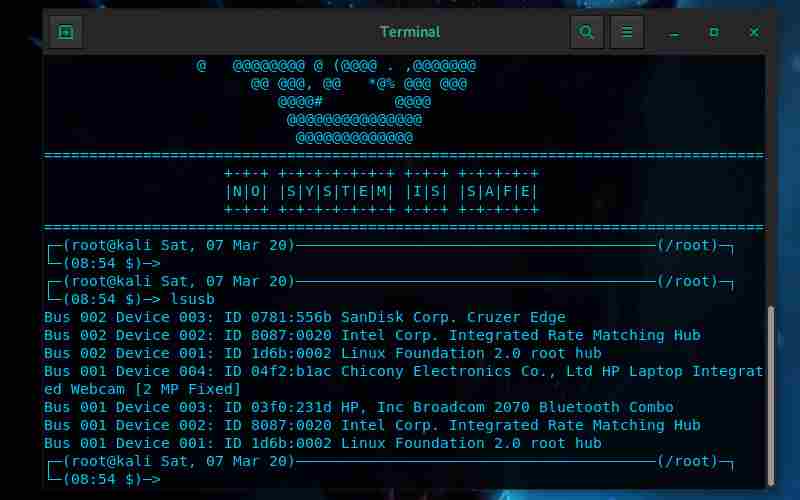
    First, remove the USB device you asked about. Then, open a terminal window and enter the command “list USB”:

    lsusb

    Record the results, then connect the USB device, and run lsusb again. This time, you will see additional devices listed, with Bus ID, Device ID, USB ID, and description. If you can’t figure out the enhancement (you might have an internal USB device, maybe Ethernet), try a different command.

    dmesg | grep -i USB

    The dmesg command will list the USB devices connected to your system. It will also cover non-USB hardware, but unfortunately offers a lot of information. To solve this, you can try

    dmesg | less

    Finally, you can count on a more user-friendly one

    usb-devices

    It’s like a cross between the dmesg and lsusb commands, listing connected USB hardware with enough information to identify them. So, is the USB you guys connected to listed here? If not, then maybe the port is damaged or there is a problem with the device. Similarly, the device may not be compatible with Linux.

    #2. How to Check USB Port

    If the USB device doesn’t show up, it could be caused by a problem with the USB port. The best way to quickly check is to use a different USB port on the same computer. If the USB hardware is now detected, then you know you have a problem with the other USB port.

    If other USB ports are not available, you should try USB devices on another PC or laptop. However, this may not be ideal, as you may only have a Windows or macOS computer as an alternative.

    Since some USB devices are unusable on Linux, it will be difficult to tell whether it is a USB device or a USB port that is causing you problems. For best results, if possible stick to Linux-compatible hardware when troubleshooting USB devices.

    #3. Repair Damaged USB Hardware

    If your USB device is damaged, you have two options: repair or restore. A repair usually involves checking USB ports, as well as devices that are currently not working. Repairs will almost always center around  USB cables, and ports on your computer.

    However, USB cables can usually be replaced, while ports can be repaired. Physical inspection of the USB device is a good idea. The cable must be sturdy, without splitting; plugs must be solid, with metal parts firmly attached.

    USB ports, meanwhile, should be checked with your PC turned off, and disconnected from the mains supply. Check if the port is plugged in correctly; a wobbly USB port is an indication of shabby hardware.

    If the USB port is loose, you may be able to solder it back into place. Of course, you should already know how to solder, never try a DIY job without prior experience. Also, check for dust and dirt on your USB ports, especially those on the back of your PC where dust collects regularly.

    Dust is the enemy of PCs, so it’s a good idea to keep your system in a dust-free environment to boost performance. Since dust can enter your PC via the USB slot, take the time to keep this port clean. Use compressed air to remove dust and dirt.

    Can you restore your USB device? If the device is new, then maybe. The problem is, unless it’s explicitly labeled as running on Linux, then, the retailer is unlikely to accept returns. You may need to be a little selective with the facts you share with them.

    #4. Restart Linux To Fix the USB Port

    In some cases like if you are using a laptop the power issue might affect its ability to detect USB devices. The auto-suspend setting is designed to reduce power usage on Linux laptops, but it can prove counterproductive. So, what can you do?

    First, check if auto-suspend is causing the problem. You can do this by rebooting your computer, if the USB device is working, then the USB port is receiving power. The next step is to make sure this doesn’t happen again. The following command line tricks are for both Ubuntu and Debian, so check the correct procedure on your Linux distribution of choice. Open a terminal window and enter:

    cat /sys/module/usbcore/parameters/autosuspend

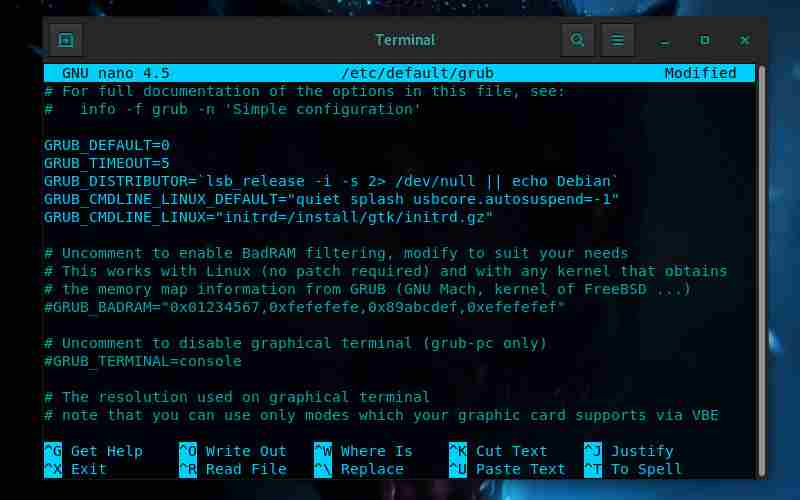
    It should return a value of  2, which means auto suspend is enabled. You can fix this by editing the grub file. Enter:

    sudo nano /etc/default/grub
    Restart Linux To Fix USB Port
    Restart Linux To Fix USB Port

    Here, search

    GRUB_CMDLINE_LINUX_DEFAULT="quiet splash"

    Change this to

    GRUB_CMDLINE_LINUX_DEFAULT="quiet splash usbcore.autosuspend=-1"

    Press  Ctrl + X  to save the file, and exit. Next, update-grub:

    sudo update-grub

    When that’s done, restart Ubuntu. After rebooting, log into your account and enter the cat command again:

    cat /sys/module/usbcore/parameters/autosuspend

    This time, the value returned should be  -1. You have disabled auto suspend, so USB devices connected to your laptop shouldn’t fail due to power issues.

    #5. Checking USB Device Driver In Linux

    Once upon a time, USB devices didn’t often work on Linux. Only devices manufactured by OEMs interested in Linux (perhaps they use it for development) offer Linux drivers. Today, things are very different, with most manufacturers offering Linux drivers.

    In most cases, it is already available on your Linux operating system, via the kernel. You don’t need to install any USB drivers. If the driver is not available, you may be able to find it by contacting the USB device manufacturer.

    Read more:

    Conclusion:

    Following the steps above can solve the problem of the USB port not working on your Linux PC. But with built-in drivers and broad support for various types of USB devices, it should be easy to diagnose problems with your computer’s USB hardware. While faulty hardware may need to be repaired or exchanged, software repairs are also available.
  • 3 Ways to Send Large Files or Videos to WhatsApp 2025

    3 Ways to Send Large Files or Videos to WhatsApp 2025

    3 Ways to Send Large Files or Videos to WhatsApp – The WhatsApp application allows you to exchange any content with the person you are talking to. And while some images or GIFs are easy to send, some larger files may not be able to be sent.

    3 Ways to Send Large Files or Videos to WhatsApp

    How to Send Large Files or Videos to WhatsApp

    However, there are various tricks to send large files in your WhatsApp conversations and we present them to you below.

    Read more:

    Just follow the easy steps in How to Send Large Files to WhatsApp.

    Due to WhatsApp’s file size limit, you need some tips for uploading large video files. Here we offer two alternatives that will help you to send videos larger than 16 MB to WhatsApp.

    #1. Google Drive

    The first and probably best way to send large files, large videos on WhatsApp that you can use is Google Drive.

    Yes, you can download and share great videos on WhatsApp using Google Drive links.

    How to send large files using Google Drive:

    Step 1:  Open Google Drive on your phone and click on the ‘+’ icon on the Home screen. It will show you several options and press ‘ telecharger‘.

    Step 2:  After that, your file will be uploaded to Google Drive. Now in the menu with three dots next to this file and the target option that will appear, select the ‘  Copy link  ‘ option.

    Step 3:  Now open WhatsApp and go to the conversation of the person with whom you want to share the file. In the text field, paste the link and submit.

    The Google Drive link will allow your contacts to view files and even download them.

    #2. WeTransfer

    WeTransfer is an App that can help you share large files via a link that can be shared with anyone.

    The app is easy to use and supports most file formats. The free version allows you to upload files up to 2 GB and if you want the pro version you can share up to 20 GB.

    Follow these steps to transfer files via WeTransfer:

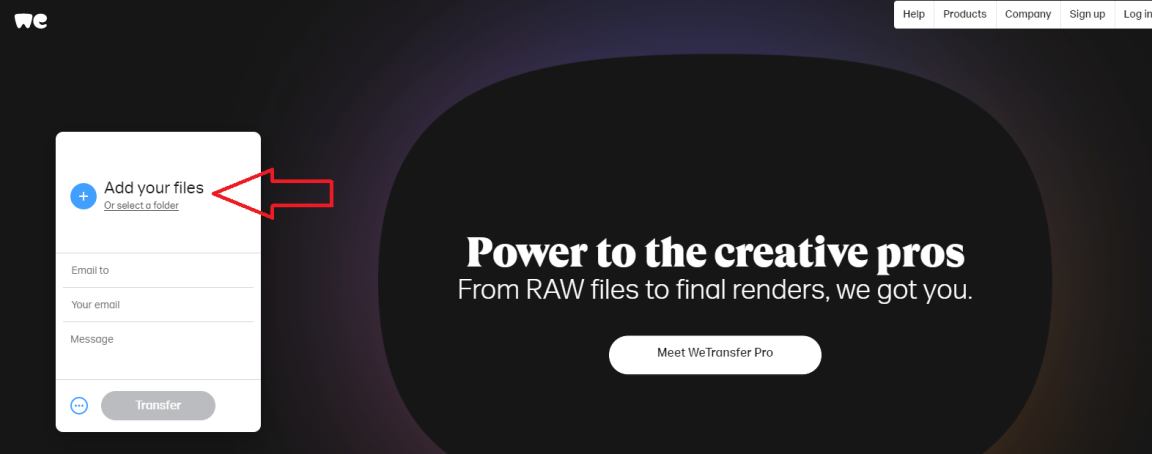
    1.  Go to the WeTransfer website.

    2  . Click Add your file and browse for the file, download it and click Open.

    How to Send large files or large videos on WhatsApp

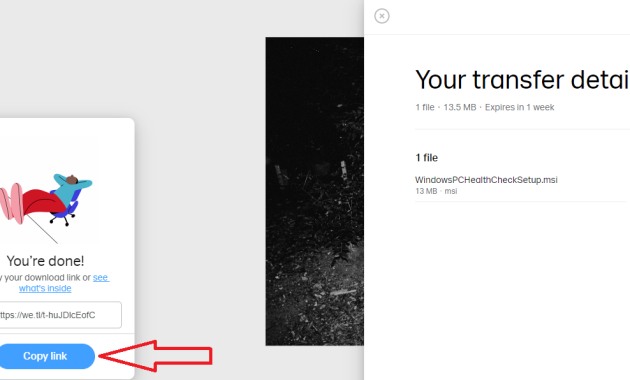
    3.  After adding the file, click  “Download Link”  to get the shared link.

    How to Send large files or large videos on WhatsApp

    4.  Now click on “Copy link”  then paste it into WhatsApp chat to share it with your contacts.

    How to Send large files or large videos on WhatsApp

    Your contact can then open the link and download the file using the WeTransfer website.

    #3. Video compressor

    You can also use a video compression application to compress the video to the recommended size and then send it.

    This application will not only reduce the size of the video but also convert it to all formats. Here we use the “UniConverter” software for Windows.

    How to compress video size for WhatsApp

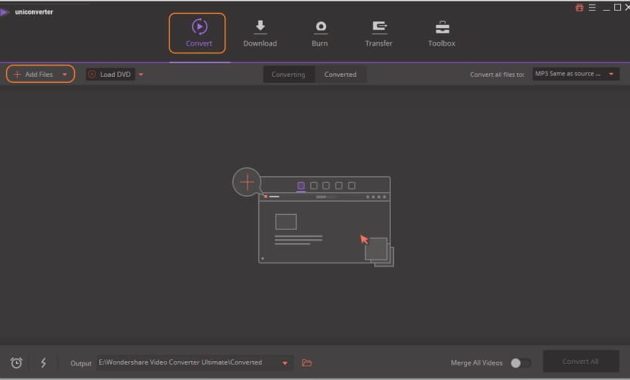
    1.  After installation, launch the software and the  Convert  Default tab will open.

    How to compress video size for WhatsApp

    2.  Click  Add Files or you can also drag and drop the file.

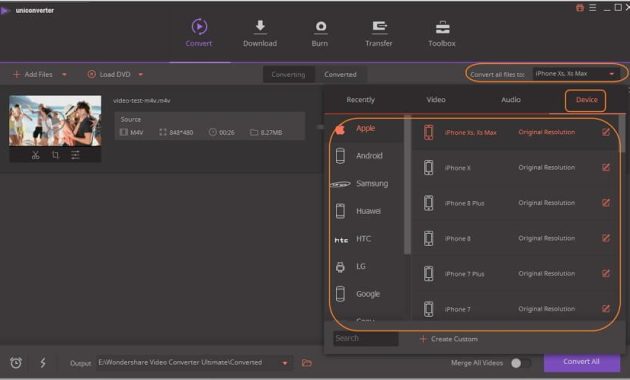
    3.  Tick  Convert all files to the top right corner and select your phone from the drop-down menu.

    How to compress video size for WhatsApp

    You can also select the video format in the  Video language.

    4.  Now click  Compress and select the file size, resolution, and bit rate for video compression.

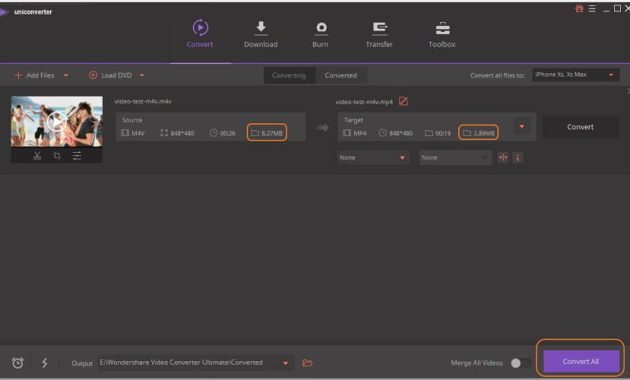
    5.  Click the  Convert All option at the bottom to finish the compression.

    How to compress video size for WhatsApp

    Finally, find the compressed video in the Cover tab and transfer it to your phone to send via WhatsApp.

    Conclusion:

    So, friends, This is the explanation for 3 ways to send large files or videos to WhatsApp, You can use any of the listed Ways to Send Large Files to WhatsApp to share files on the platform.

    Let us know in the comments which of these 3 ways to send large files, and large videos on WhatsApp is the most suitable for you. Also, if you have any questions, ask us in the comments below.

  • How To Fix Boot Loop In Windows 10 Laptop PC 2025

    How To Fix Boot Loop In Windows 10 Laptop PC 2025

    How To Fix Boot Loop In Windows 10 Laptop PC – In previous versions of Windows if it fails to boot maybe we need a full reinstall to fix it. But in the Windows 10 version, the reboot loop can be completed relatively quickly.

    How To Fix Boot Loop In Windows 10 Laptop PC
    How To Fix Boot Loop In Windows 10 Laptop PC

    How To Fix Boot Loop In Windows 10 Laptop PC

    Here’s how to fix a boot loop in Windows 10 and get your PC or laptop up and running in minutes.

    Read more:

    What is Infinite Boot Loop?

    Windows 10 isn’t particularly prone to infinite boot loops, but that’s not unheard of. It’s easy to spot, especially by Windows’ failure to load properly after turning on your computer. Otherwise, the computer will fail to reach the login screen before resetting to the boot screen and attempting to reload Windows. Now caught in an infinite loop booting and crashing.

    This error occurs because of a problem with the Windows system registry. Unfortunately, without booting into Windows, the registry cannot be repaired. This is called a Catch-22 situation. To solve this problem, use the Windows 10 Recovery option.

    What Causes the Windows 10 Boot Loop?

    The Windows 10 reboot loop can be frustrating to deal with. But what caused it? Usually, the error can be traced to one of three things:

    1. Windows Update
    2. Updated or new Windows drivers
    3. New software installation (app or game)

    Something in the process went awry. The result is a computer caught in an infinite reboot loop. This is a problem that has plagued Windows for years. But don’t worry, there are some tips to fix the boot loop in Windows 10.

    Wait for Windows 10 Automatic Repair Boot Loop Repair

    If you’re lucky, the Windows Repair or Automatic Repair feature might come in without being asked by you. Usually, this will only happen after a few reboots, so give your computer some time to get to this stage. Some manual interaction may be required, use the Automatic Repair option here and follow any steps. However, if this hasn’t happened in 15 minutes, it probably won’t.

    Access Safe Mode to Fix Windows 10 Endless Boot Loops

    Three other options are available to fix the infinite boot loop in Windows 10:

    • Safe Mode: this allows you to access the operating system and uninstall the software, driver, or Windows Update that is causing the error
    • System Recovery:  a quick way to undo recent changes
    • Reinstall Windows 10: last option, is to use when nothing else is working or you don’t mind losing data.

    Accessing Safe Mode will depend on how the boot loop is presented, as well as your system settings.

    #1. Windows Dual Boot System

    If you have multiple versions of Windows installed on your computer, wait for the OS selection screen to appear. When given a choice, make sure you choose Change defaults or choose other options.  Then follow the steps above to access Safe Mode.

    #2. Access Safe Mode Manually

    In some cases, you will be able to access Safe Mode from within Windows 10. This will be possible if a reboot loop is triggered on launching an app or certain connected hardware. Before the reboot is triggered, you have three options to reboot Windows 10 in Safe Mode:

    • Hold  Shift then Start  > Restart to boot Windows 10 into Advanced startup options.
    • You can also open Settings (press WIN + I) then Update & Security > Recovery > Advanced startup > Restart now.
    • In the Command Prompt (search for cmd in the Start menu, then right-click and select Run as administrator  ) enter shutdown /r /o to reboot the computer into Advanced Boot Options.

    As mentioned, you may not need long to enter the command. The first option is probably the fastest.

    #3. Using Installation Media To Access Safe Mode

    Windows 10 users should have a recovery partition on their PC’s hard disk drive. Otherwise, a recovery USB drive or DVD can be created by downloading the Windows 10 installation media.

    Note that this must be created on a different computer. With Windows 10 stuck in a reboot loop, all you need to do is insert the installation media. Alternatively, access UEFI/BIOS (tap Del,  F8, or  F1  when the system boots) and find the boot manager.

    Select the recovery partition as the primary device and then restart the computer. These two methods should have walked you through the Automatic Repair tool, or given you access to the Advanced options screen.

    Fix Infinite Boot Loop in Windows 10 Safe Mode

    With the computer in Safe Mode, you can take steps to prevent further boot loops. This can be anything from uninstalling drivers to uninstalling Windows Update in the Command Prompt.

    Solving Windows Update-Based Boot Loops

    In the Command Prompt (which you have to open as Administrator on the desktop) enter

    net stop wuauserv

    Follow this with

    net stop bits

    Wait for a response, then browse to  C:\Windows\SoftwareDistribution. Here, delete all the contents of the directory.

    But if you can only access the Advanced options screen, use the Command Prompt. This is also an option in Safe Mode. When you restart Windows 10, it should boot as usual.

    Our Apps/Games Causing Boot Loops In Windows 10?

    Maybe you should suspect that the boot loop is caused by the installation of an application. Maybe it’s a game you just installed. However, this can be resolved by uninstalling the software. Just find the software in the Start menu, right-click it, and select Uninstall. When you restart Windows 10, the boot loop should be fixed.

    Stop Hardware Driver Boot Loops

    If the system is in a boot loop due to hardware drivers, this can also be solved in Safe Mode. Right-click Start and select Device Manager. 

    Here, look for the suspect device. Usually, this will be something you just added, though not always.

    Right-click the device, select Properties > Drivers, and select  Roll Back Driver.  If this doesn’t work, disable it, and uninstall the driver.

    With the device selected, right-click and select  Disable Device, then  Uninstall Driver. Then you can restart Windows 10.

    Restore/Reinstall Windows 10 To Fix Infinite Boot Loop

    If you can’t access Safe Mode, or the fix doesn’t work, the best solution is to use the refresh option. You may also have to reset Windows 10 back to factory settings. This process basically reinstalls Windows 10 for you. Remember to always back up your personal data first!

    Did You guys Fix the Windows Boot Loop?

    Reboot loops have long been a problem with Windows. While previous versions offered several solutions in recovery options, this solution is far from comprehensive. Luckily, Windows 10 has great recovery tools and makes boot loop problems easy to deal with.

    While following the steps outlined above, please be careful to follow them exactly. The error you made while using the command line interface cannot be undone.

    If you’re lucky enough to recover from Windows 10’s infinite boot loop, it’s time to take precautions against the things you already know can make boot loops happen.

    Read more:

    Conclusion:

    That’s an article on How to Fix the Boot Loop on Windows 10, Wait for other interesting articles, and don’t forget to share this article with your friends.

  • How To Turn off Touchscreen on Windows 10 PC 2025

    How To Turn off Touchscreen on Windows 10 PC 2025

    How To Turn Off Touchscreen on Windows 10 PC – In this article, we will explain how to disable the touchscreen in Windows 10. The touchscreen is a very useful feature, but sometimes you may want to disable it for some reason.

    How To Turn off Touchscreen on Windows 10 PC
    How To Turn off Touchscreen on Windows 10 PC

    How To Turn off Touchscreen on Windows 10 PC

    Caution: Do not disable your Touchscreen if it is the only input method for your device. If the keyboard and mouse don’t work on your laptop 2-in-1 device or a tablet without a keyboard accessory, don’t turn off the Touchscreen. You cannot reactivate it without connecting to another type of input device.

    Read more:

    The touchscreen can be disabled in Windows 10 via the Device Manager, which you can access via the Control Panel or directly from the search box on your taskbar.

    The device manager is where Windows 10 keeps track of all your devices, and also where you can disable or enable any device connected to your computer.

    Here’s how to disable the touchscreen on a Windows 10 laptop:

    1. Select the search box on the taskbar.

    2. Type Device Manager in the search box.

    3. Select Device Manager in the list of search results.

    4. Select Human Interface Devices.

    5. Select HID-compliant touch screen.

    6. Select Action in the upper left corner.

    7. Select Disable Device in the drop-down menu.

    8. Select Yes if this warning is displayed: Disabling this device will cause it to stop functioning. Do you want to disable it?

    9. Make sure your touchscreen is disabled.

    Note: To turn the touchscreen back on, follow the same steps as above and select Enable in the Action drop-down menu in the Device Manager window.

    Reasons to Turn Off Touchscreen

    The touchscreen input is most useful on tablets and 2-in-1 devices.

    If you find that the touchscreen on your traditional laptop is more confusing and less useful to you, turn it off.

    Another reason to disable the touchscreen is to prevent children from touching the screen while you’re trying to watch a video or get work done.

    Also, in some cases, the screen doesn’t work and behaves as if you were touching it when you weren’t.

    Read more:

    Conclusion:

    Turning off a Windows 10 laptop touchscreen works the same way on all types of devices, including laptops, desktops, tablets, 2-in-1 devices, and computers from manufacturers such as HP, Asus, Acer, Lenovo, and Dell.

  • 6 Ways To Fix Windows Cannot Access The Specified Device 2025

    6 Ways To Fix Windows Cannot Access The Specified Device 2025

    6 Ways To Fix Windows Cannot Access The Specified Device – This is one of the most common error messages on Windows 7, Windows 8, and Windows 10.

    6 Ways To Fix Windows Cannot Access The Specified Device
    6 Ways To Fix Windows Cannot Access The Specified Device

    How To Fix Windows Cannot Access The Specified Device

    The message usually appears when we want to open a drivefolderfile, or even an application.

    Read more:

    Causes of Windows Cannot Access Error

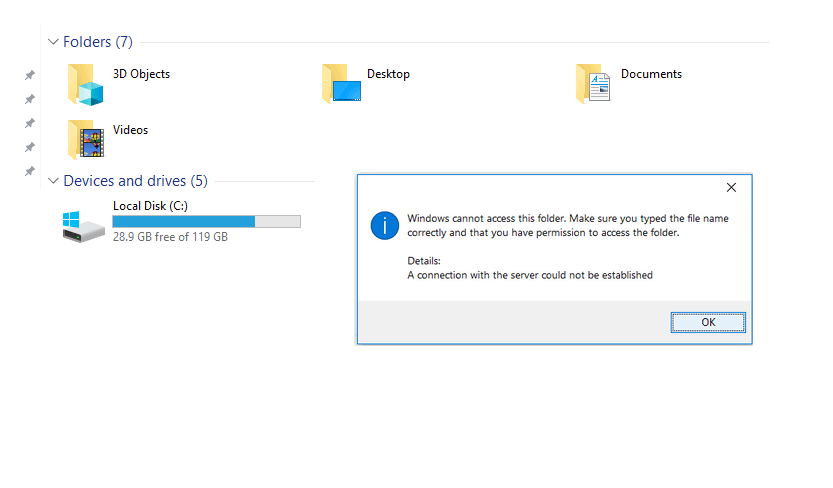
    Sample Message Cannot Access Windows System

    For those of you who don’t know it, there are actually several things that can cause this problem, you know. However, most of them are due to:

    #1. Lost Drive Location

    For example flash. If you connect it, a new drive will appear, right? Now try to remove the flash.

    So when we access the flash drive, we can’t find it anymore.

    #2. Network Not Connected

    If this happens in the process of transferring data via LAN (FTP), then there is a network disconnect, then the file location will certainly be lost because it has been disconnected.

    #3. Lost Data Access

    Not all files can be accessed as usual. Sometimes there is also limited access, so the message appears.

    #4. Data Has Been Deleted

    Say you delete a game. Then you want to open the game folder again. But because it has been deleted, the folder you want to open earlier cannot be found.

    #5. Missing Shortcut Location

    Shortcuts ( shortcut ) is related, is a file that is connected directly to the original data. Well, if the data is lost, you will also encounter this error message.

    Actually, there are a few more, really. But I don’t think it’s necessary to include all of them here. Because I think it’s better to just discuss ways to deal with it at all.

    How to Fix “ Windows Cannot Access The Specified Device, Path, or File ”

    Here are some ways you can do, in order to resolve the error message “ Windows cannot access ”.

    #1. Preset Drive Permissions

    The drive’s permissions are set automatically, according to the device settings.

    Actually, this setting is normally open. But for some types of drives may be locked, so we can not access them.

    Therefore, we have to open it first, in the following way:

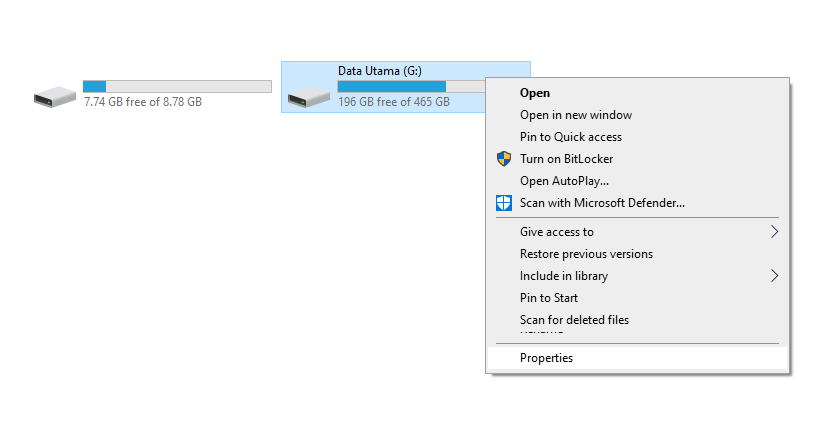
    • Please right-click on the desired drive.
    • Then click the Properties menu.
    Preset Drive Permissions
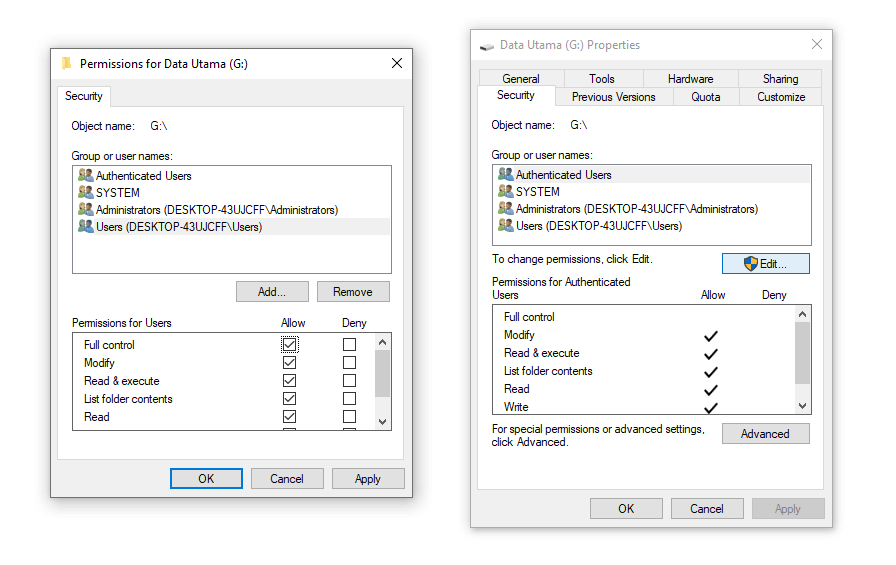
    • Go to the Security tab.
    • In the user list, select the one you are using, then check all the fields below, except Special Permission.
    Preset Drive Permissions
    • If so, click Apply.

    In addition to drives, this method can also be used on locked folders. Please try it first, okay?

    #2. Check if The Drive You Want To Open Is Still Connected

    Check The Drive You Want To Open Is Still Connected

    If you are opening a file on a flash drive, then the message “ cannot access ” appears, then you must first check whether the flash drive is still connected or not.

    Because as I said earlier, conditions like this can have an effect. Especially when it is in the process of copying the.

    Furthermore, if indeed the flash is not readable, then you can remove it first, then reconnect it.

    That way, the error message will disappear.

    #3. Make sure the file you want to open is not deleted or moved

    Make sure the file you want to open is not deleted or moved

    If you want to open a file (such as a photo), then this error message appears, then you need to check if the photo data is still there.

    This is not without reason, you know. If the photo is no longer there, either because the file was deleted or it was moved by cut, then obviously the system cannot find the location of the file.

    Well, there happens to be a trick to finding the file, here. The trick is to use the search feature.

    1. First, open File Explorer on your computer.
    2. Type the file name in the search field at the top right.
    3. Please wait until the scanning process is complete (as I did above).

    Notes:

    • Conditions like this are relatively common, especially for users who like to use the Quick Access feature in Windows 8 or Windows 10.

    #4. Check the Network Used

    If we transfer data via a network, then we must ensure that the network used is not disconnected, so that access to the file location is not interrupted.

    I myself often experience this condition, you know. Usually when you are transferring files using a WiFi network.

    Then make sure the network settings are correct. The method:

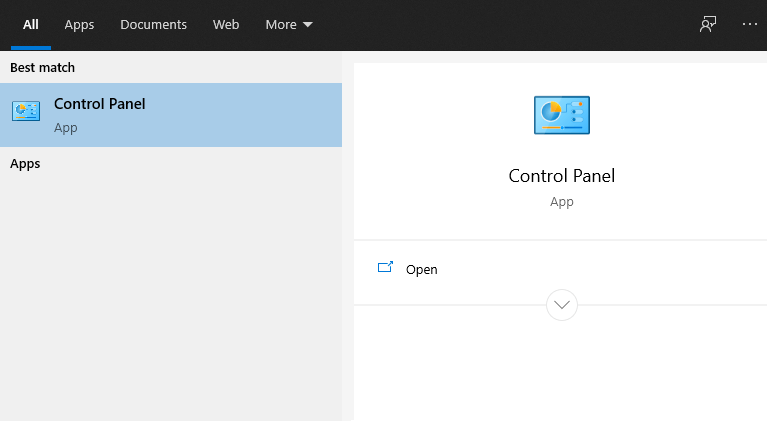
    • Open Control Panel via Windows search
    Check the Network Used
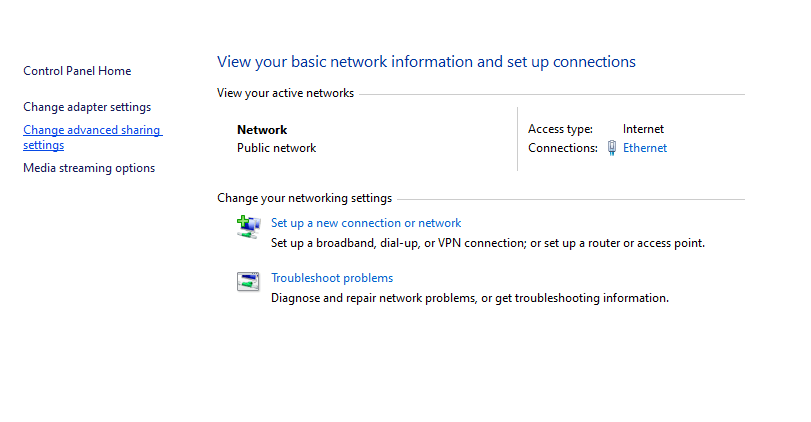
    • Open the Network and Internet menu > Network and Sharing Center > Then click Change Advanced Sharing Settings
    Check the Network Used
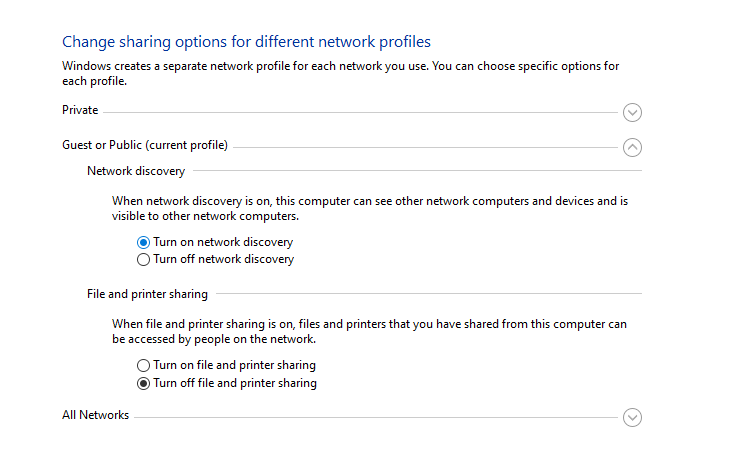
    • Please enable Network Discovery there

    Check the Network Used
    Check the Network Used

    Please re-check the data you want to access via the network earlier.

    #5. Create a New Shortcut File

    file shortcut will make access to the original desired file.

    But what must be known, if we move the original file, the location of the target shortcut remains in its old location, so we have to change it again.

    The method is not as difficult as imagined, really. Just create a new shortcut again.

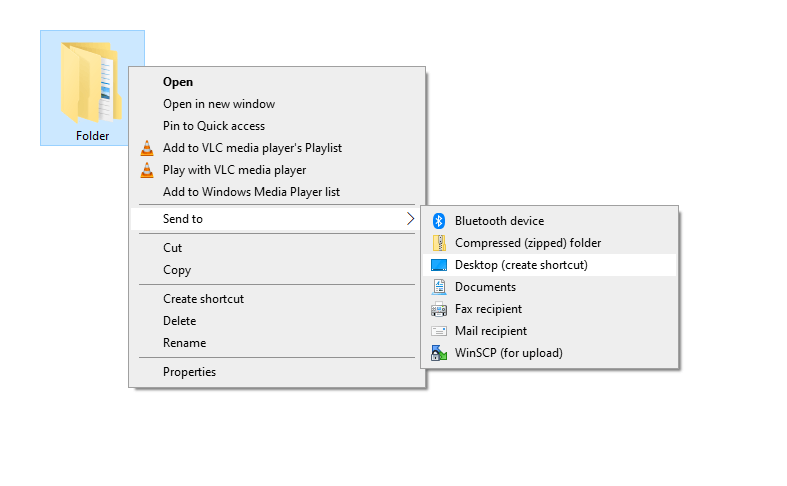
    • Just right-click the desired file or folder, then click the Create Shortcut option.

    Create a New Shortcut File
    Create a New Shortcut File
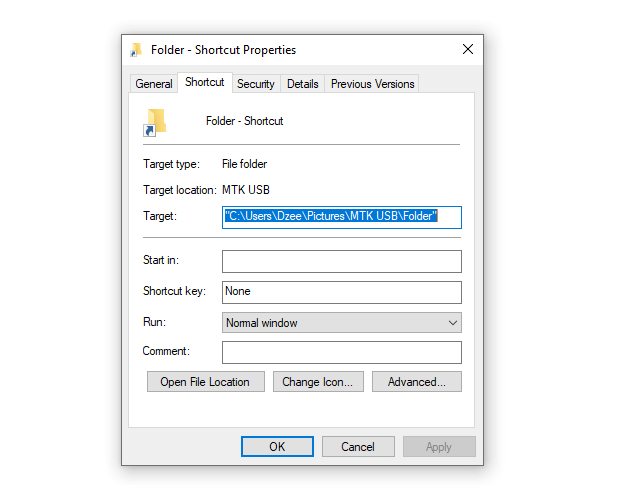
    • In addition, you can also right-click on the shortcut > Click the Shortcut tab > Then change the Target column to the destination file or folder directory.

    Create a New Shortcut File
    Create a New Shortcut File

    #6. Check Antivirus

    Check Antivirus
    Check Antivirus

    Lastly, is the antivirus. As you know, every antivirus has an automatic feature, which works to block any files that are considered suspicious.

    Well, if you have a file, then the file suddenly cannot be accessed, then it could be that the file has been blocked by your antivirus.

    If so, then you have to return it first.

    The method:

    • You have to learn which antivirus you are using because the steps must be different in each antivirus.
    • Please google according to the antivirus you are using.

    Notes:

    • However, I don’t recommend this step.
    • But if you think the file is safe, give it a try. At your own risk, yes.

    Read more:

    Conclusion:

    The message “ Windows cannot access the specified device, path, or file “. I thought of sharing this article because I have experienced it quite often.