Category: Windows

Windows – Here you can find Computer-related updates Windows 10, Windows 8, Windows 7, Linux, technology information, and more.

  • How to Reinstall Original Windows 10 on PC Laptop 2025

    How to Reinstall Original Windows 10 on PC Laptop 2025

    How to Reinstall Original Windows 10 on PC Laptop – If your computer has been infected with a virus or becomes slow to use, you may need to reinstall Windows. You can install clean or reinstall Windows 10 using the guide below. Here’s how to reinstall Windows 10 on your PC.
    How to Reinstall Original Windows 10
    How to Reinstall Original Windows 10

    How to Reinstall Original Windows 10 on PC Laptop

    Windows 10 allows you to reinstall the latest version of your current operating system. Before doing a reinstall, back up your files or delete them for a new installation. Follow one of the three steps below:

    Read more:

    How to Reinstall Windows 10 from PC Settings 2023

    1. Click the Start button. Button in the lower-left corner of your screen with the Windows logo.
    2. Then click Settings. It is a gear icon just above the power button.
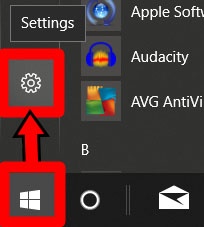
    How to Reinstall Windows 10 from PC Settings

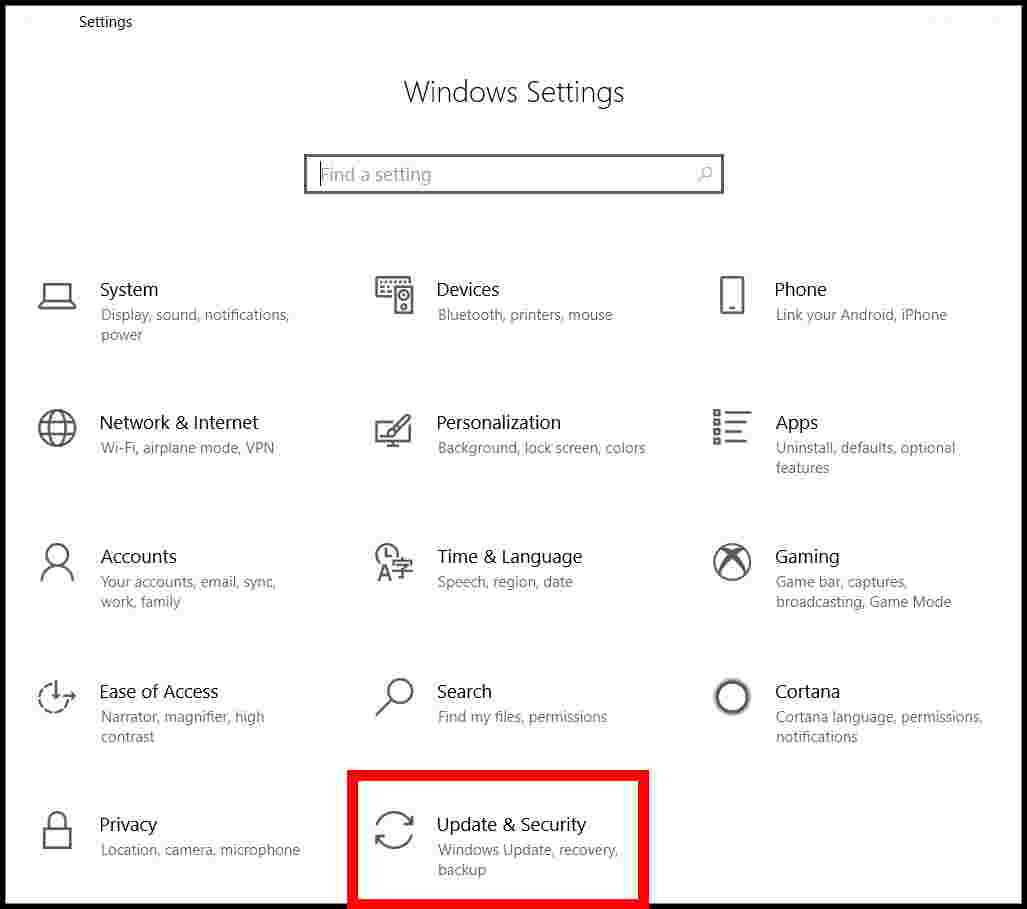
    3. Next, select Update & Security.

    How to Reinstall Windows 10 from PC Settings

    5. Click Recovery in the left menu bar. The right pane will show options for recovery.

    6. Under Reset this PC, click Create.
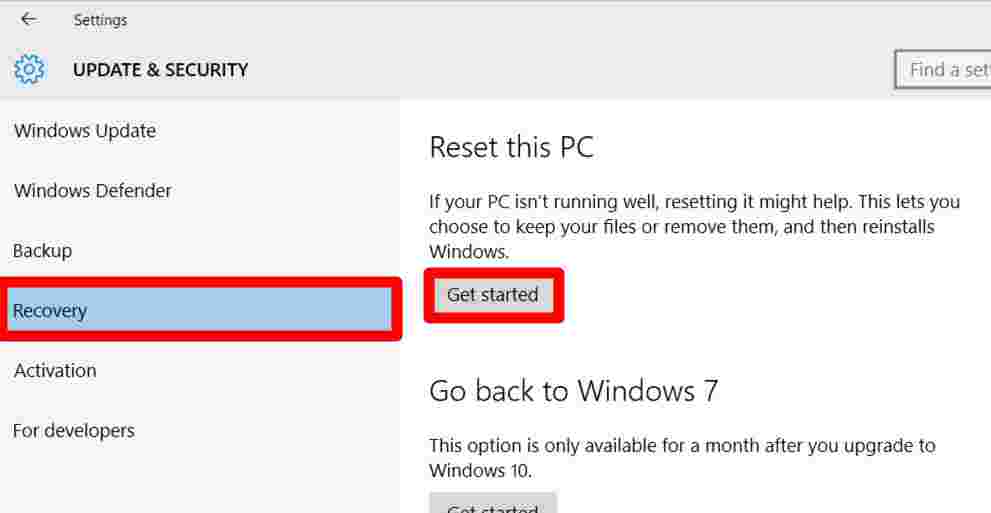
    How to Reinstall Windows 10 from PC Settings

    6. Choose to keep your files or delete them all.

    Note: Even if you choose to keep your files, only your personal files will be saved. All the applications and settings you have on your PC will be deleted.

    7. Finally, select Reset. The computer will restart with the new installation of your operating system (OS).
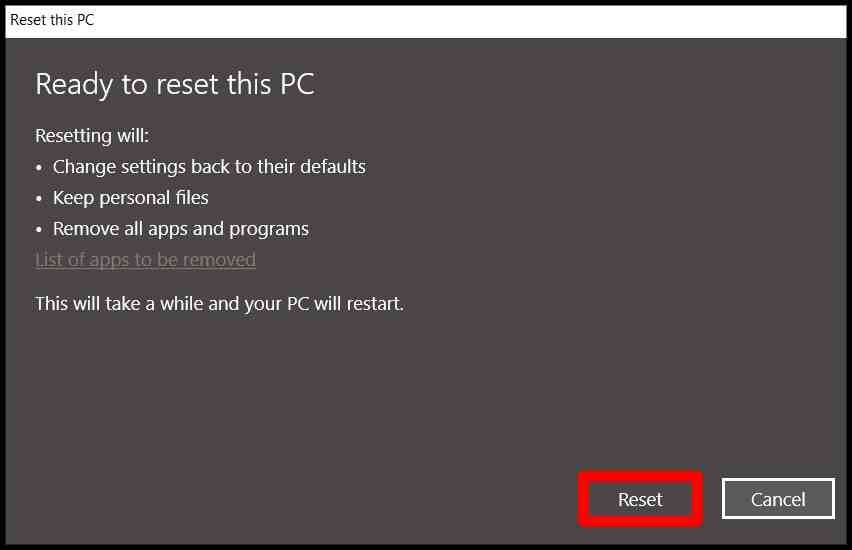
    How to Reinstall Windows 10 from PC SettingsHow to Reinstall Windows 10 from PC Settings

    If your PC doesn’t work, you will need to create a recovery drive. To do this, you’ll need a USB flash drive with at least eight gigabytes (8GB) of storage.

    How to Make a USB Recovery Drive

    If you can’t reinstall your operating system (OS) using the reset settings, you can use the recovery drive. Here’s how to create a Windows 10 recovery USB drive.

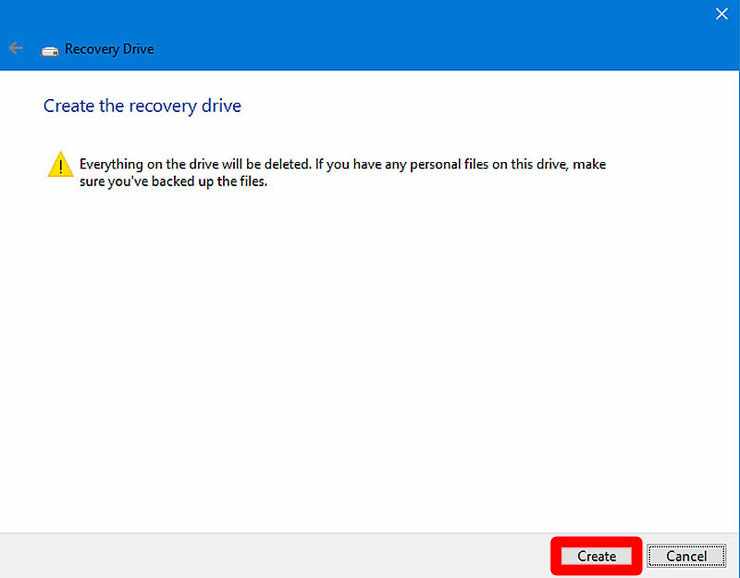
    Warning: When you create a recovery drive, you will lose all data on the USB hard drive. Don’t forget to back up your data first.

    1. Click on the Search button and type “recovery drive” in the search box. The search button is a magnifying glass in the lower-left corner of your screen.
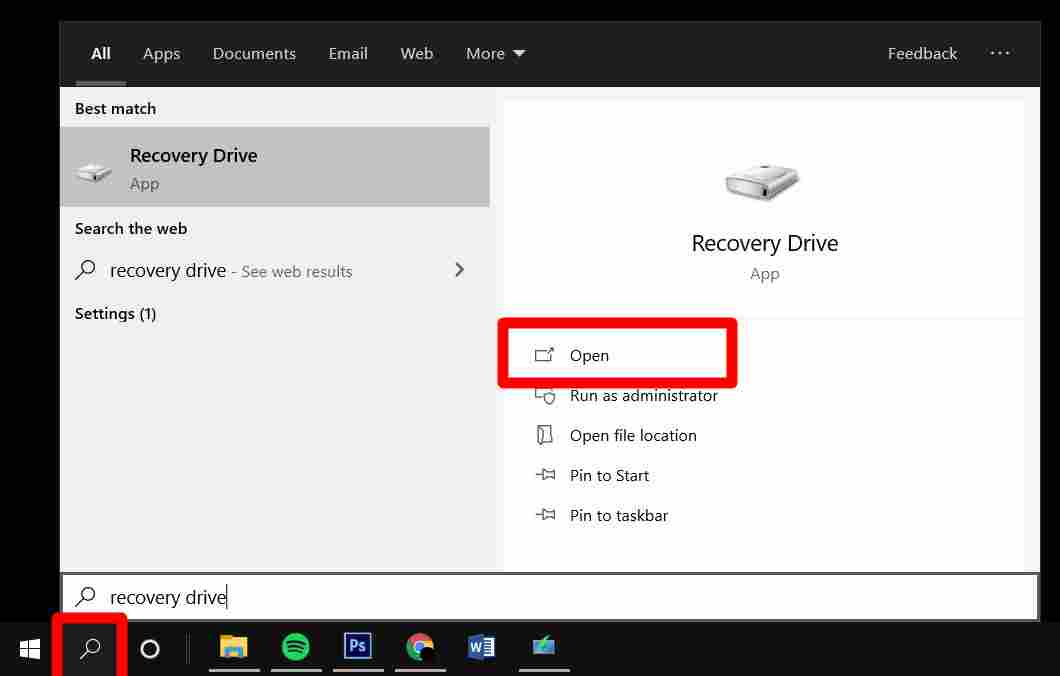
    How to Make a USB Recovery Drive

    2. Open the drive recovery application and select your drive.

    3. Then click Create.
    How to Make a USB Recovery Drive

    It will take a few minutes to create your recovery drive.

    How to Reinstall Windows 10 from a USB Recovery Drive

    Now that you have a recovery drive, here’s how to reinstall Windows using a USB recovery drive.

    Note: When you restore from a USB drive, you will lose all files on your computer. A clear installation will be carried out and provide the latest version of the operating system.

    1. Plug in the USB Recovery drive to your PC.

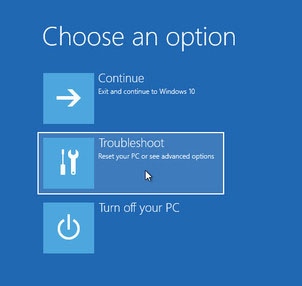
    2. Restart the PC. If it is turned on, you will need to reboot. When it starts, you will see a Choose an Option screen.

    3. Select Troubleshoot.
    How to Reinstall Windows 10 from a USB Recovery Drive

    4. Then select Recover from Drive.

    5. Next, click “Just remove my files”. If you plan to sell your computer, click Full clean drive. This option will take longer, so make sure your computer is connected to power.

    6. Finally, set up Windows.

    How to reinstall Windows 10 on a malfunctioning PC

    If your PC is not responding, you can try reinstalling Windows with Microsoft’s media creation tool.

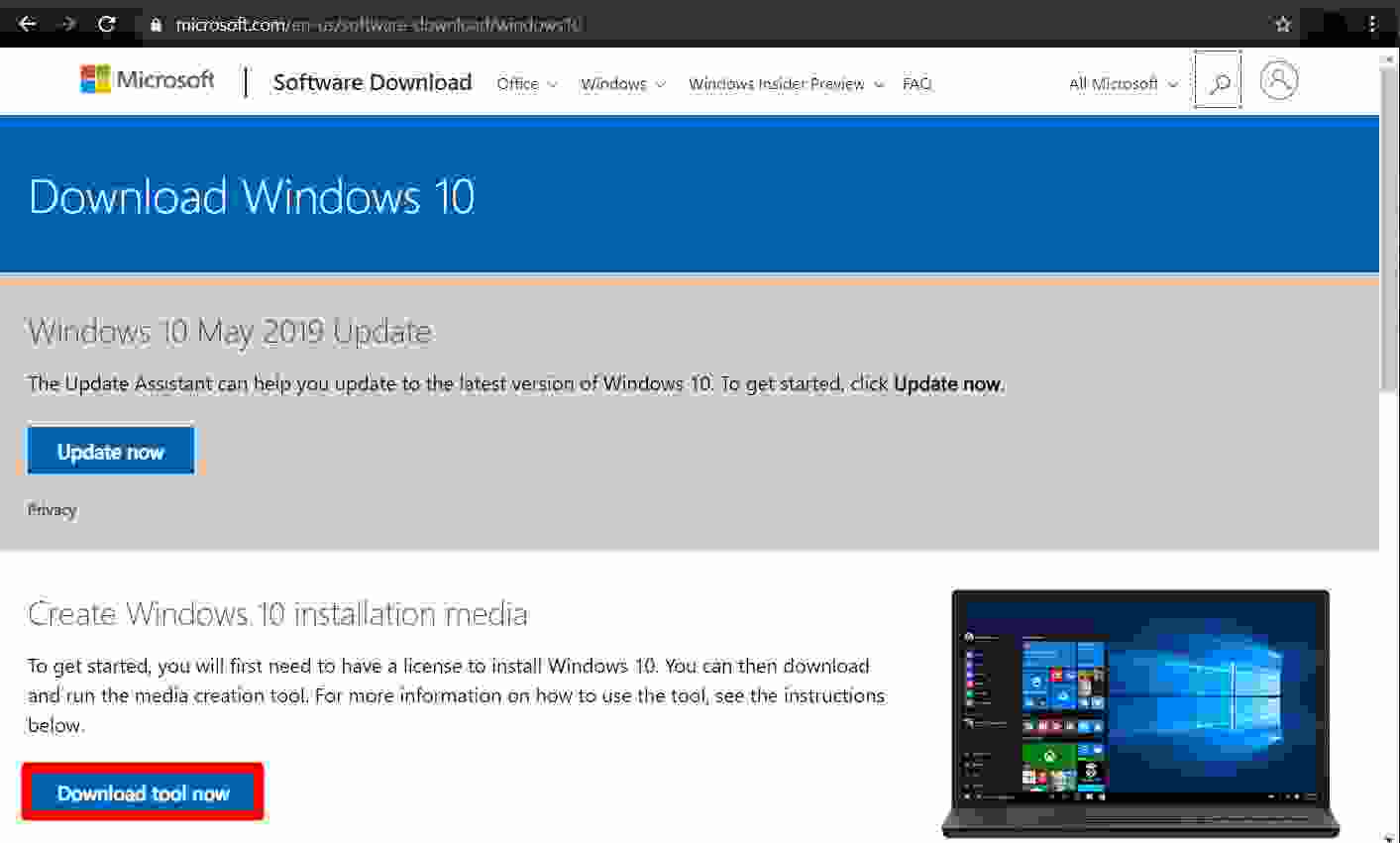
    1. Download Microsoft’s media creation tool from the computer.
    How to reinstall Windows 10 on a malfunctioning PC

    2. Open the downloaded tool. You can find the file in the Downloads folder.
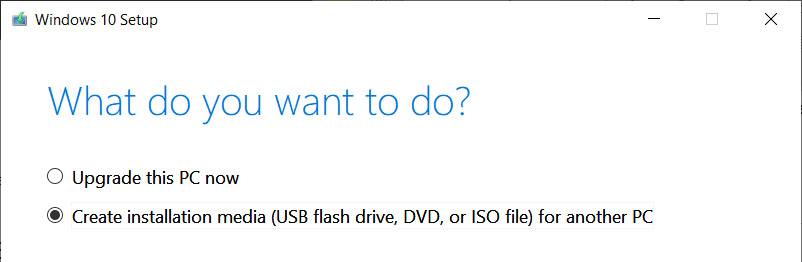
    3. Select the option “create installation media”.
    How to reinstall Windows 10 on a malfunctioning PC

    4. Use the options recommended for this PC. This is where you can change the language, operating system version, and architecture of your recovery drive.

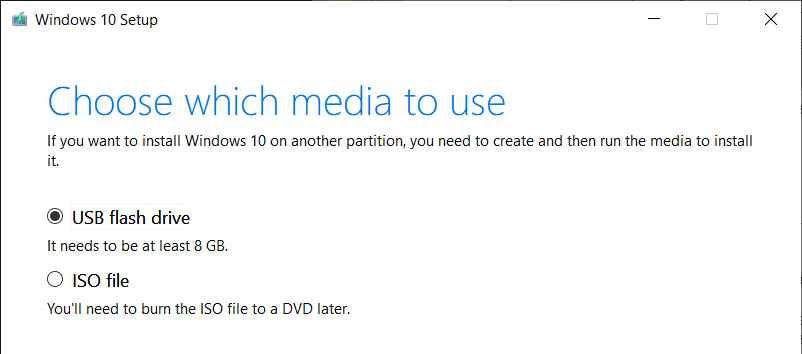
    5. Then select the USB flash drive.
    How to reinstall Windows 10 on a malfunctioning PC

    6. Select your USB drive from the list. Wait for the media creation tool to download.

    7. Plug in the USB drive to the computer that is not working.

    8. Restart the computer. It will start from the USB drive it is plugged in, and the installation process will begin.

    9. Select your information and preferences, then click Next.

    10. Click Install now.

    11. Enter your Windows product key when prompted. You will find it on a sticker affixed to your PC or laptop.

    12. On the Term page, click Next. You will be taken to the next steps for installing the OS. Follow the instructions until the process is complete. When the clear installation is complete, you can set it up like a new laptop or PC.
  • How to Download and Install Windows 11 ISO File 2025

    How to Download and Install Windows 11 ISO File 2025

    How to Download and Install Windows 11 ISO File – Microsoft has released Windows 11 to the public. But maybe you haven’t received the update directly. Well, if you can’t wait, you can download the official Windows 11 and do the installation yourself.

    How to Download and Install Windows 11 ISO File

    How to Download and Install Windows 11 ISO File

    If your computer meets Windows 11 specifications, you will find notifications for system updates on the Windows Update page in Settings. It’s just that, the process of launching Windows 11 is running in stages.

    Read more:

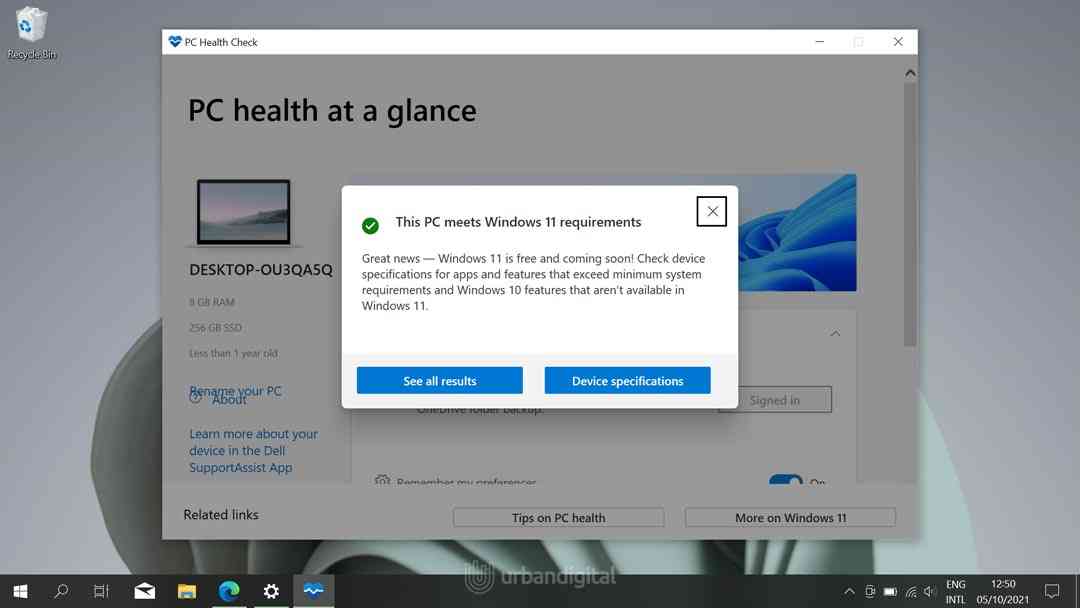
    Fortunately, Microsoft offers a way to download Windows 11 officially. But before downloading it, it’s a good idea to first check the feasibility of the computer for Windows 11 with the PC Health Check application.

    PC Health Check applicationIf indeed your computer meets the requirements. You can try one of the 3 ways that Microsoft offers to download Windows 11.
    #1. Windows 11 Installation Assistant

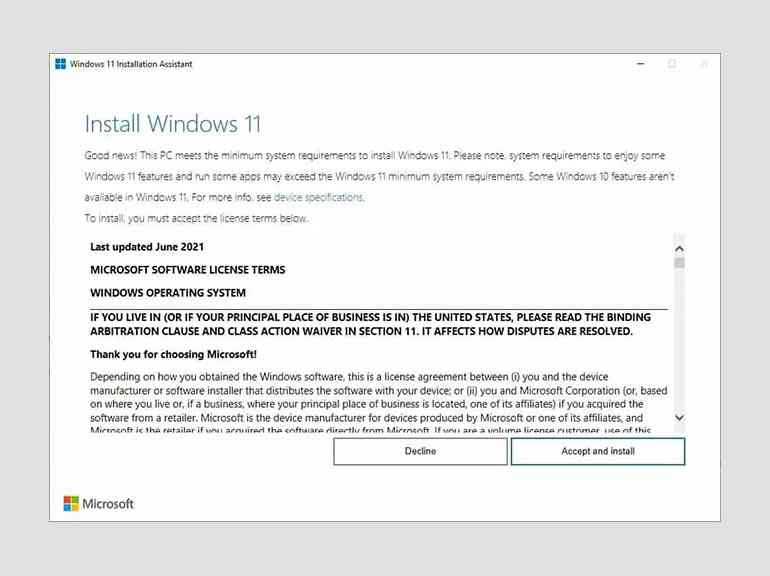
    This application will help you to update to Windows 11. To be able to run this application you must use Windows 10 version 2004 or later. You must also act as an Administrator on Windows.

    Windows 11 Installation Assistant

    The method:

    1. Download the Windows 11 Installation Assistant.
    2. Select ‘ Run ‘ to run the application (remember, must be Administrator).
    3. After the application confirms that the computer is eligible to install Windows 11, click ‘ Accept and Install’.
    4. Click ‘ Restart Now ‘ when everything is ready to do the installation.
    5. The Windows 11 installation process will run (the computer may restart several times).

    #2. Windows 11 Installation Media

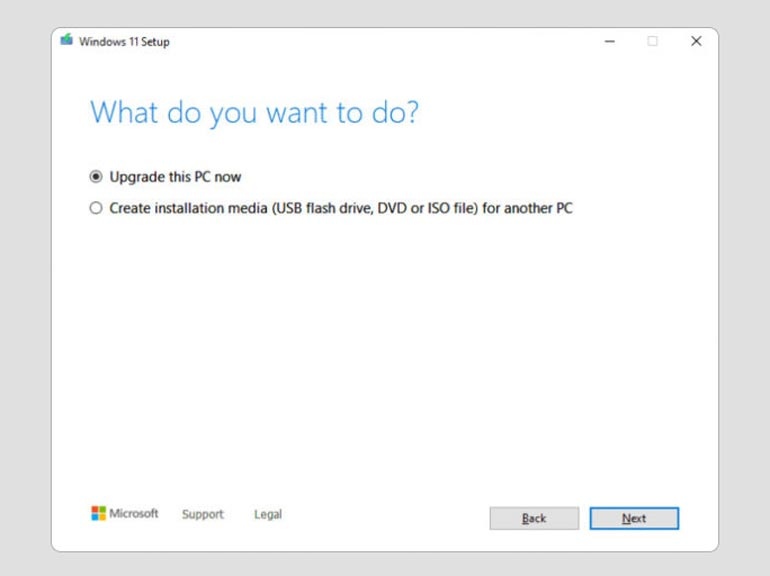
    This method is useful if you want to install or reinstall Windows 11 on a new/old computer or on an ARM64-based computer. This method will download the Windows Media Creation Tools to create a bootable flash drive (USB drive) or DVD for the installer.

    Windows 11 Installation Media

    The method:

    1. Download Media Creation Tool
    2. Run this application as a computer Administrator.
    3. Select ‘ Accept ‘ to confirm the action.
    4. In the “ What do you want to do? “, select ‘ Create installation media for another PC ‘ and click ‘ Next ‘.
    5. Specify Language, Edition, and Architecture (64-bit) for Windows 11.
    6. Select the media you will use as the installer
      • USB Flash Drive: Requires a minimum of 8GB capacity. The contents of the flash drive will be completely erased.
      • ISO file: Download the ISO file to create an installer from a DVD.

    If you have already created the media as a Windows 11 installer, you can insert the media (flash drive or DVD) and start the installation.

    #3. ISO files

    This method is useful if you want to create a Windows 11 installer on DVD. Similar to the method above. However, this method directly downloads the ISO file and requires a product key to open the appropriate edition of Windows 11.

    Read more:

    Conclusion:

    This is the explanation of how to download and install the Windows 11 ISO File, This method above especially with the Media Creation Tool can be useful too if you need a backup of the Windows 11 installer.

    If you want to use the method above, please visit the official page to download and use it.

  • 6 Ways To Fix Windows 10 Crash Complete Guide 2025

    6 Ways To Fix Windows 10 Crash Complete Guide 2025

    6 Ways To Fix Windows 10 Crash Complete Guide – Windows 10 crashing is annoying and frustrating. Moreover, when work or college assignments are on a deadline and must be done quickly.

    6 Ways To Fix Windows 10 Crash Complete Guide
    6 Ways To Fix Windows 10 Crash Complete Guide

    How To Fix Windows 10 Crash Complete Guide

    It’s the same with a PC that crashes or hangs. Usually, there are some software or drivers that are not compatible with the operating system of our device.

    Read more:

    This can cause Windows 10 to hang and certainly make us absurdly upset. But don’t worry, because now the Technowiah team will help you to solve the Windows 10 crash problem easily. Let’s see more!

    Causes of Windows 10 Crash Issue

    Before we discuss how to fix Windows 10 hangs, it’s a good idea to know some of the reasons why this can happen.

    There are several main reasons why the performance of this operating system from Microsoft often declines. Here are some of them:

    • Junk data/cache files piling up

    Cache files or junk data usually build up with the use of Windows 10.

    • Many unused programs

    Many people still like to install various programs or applications on their devices. But in fact, these applications are rarely used, which makes system performance decrease.

    • Full storage memory

    Storage memory, especially the HDD type, if it is full, will certainly affect the performance of the device. It’s a good idea to save photos, videos, and other files to external memory.

    • Too many programs running

    When we enter the Task Manager, many programs are running either appearing or running in the background.

    • There is a faulty hardware component

    Faulty components, such as HDD, processor, GPU, and others can also affect the performance of the Windows 10 operating system.

    How to Fix Windows 10 Crash

    Well, here are the 6 best ways to solve the Windows 10 crashing problem. Check this out!

    #1.  Don’t Be a Windows 10 Insider

    For those of you who don’t know, Windows 10 Insider is a feature that allows users to experience the latest Windows 10 operating system that has not yet been released to the public.

    Users will get the update first to be tested on their device before the update is released publicly.

    The name is also the Beta operating system, of course, it is not stable. There must be some system that makes your Windows 10 PC or laptop crash or hang.

    How to Fix Windows 10 Crash

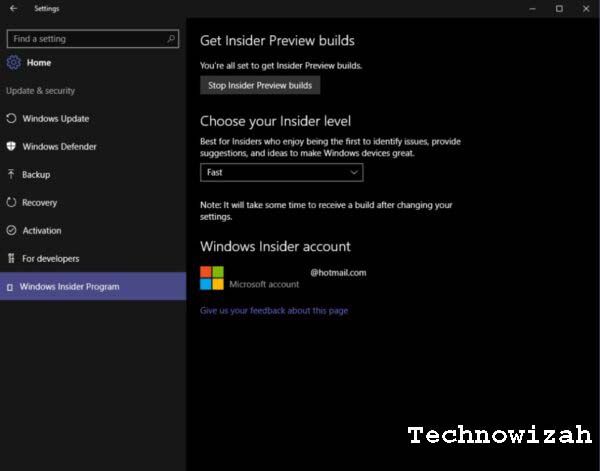
    We recommend that those of you who are in the Windows Insider Program just stop it. To do this, go to  Settings >  Update & security > Windows Insider Program > press the Stop Insider Preview builds button.

    #2. Always Update OS

    In every OS update, Microsoft usually provides a system upgrade. This of course can prevent Windows 10-based devices from crashing.

    By default, Windows 10 will usually automatically update itself. However, if you want to update Windows manually, here’s how:

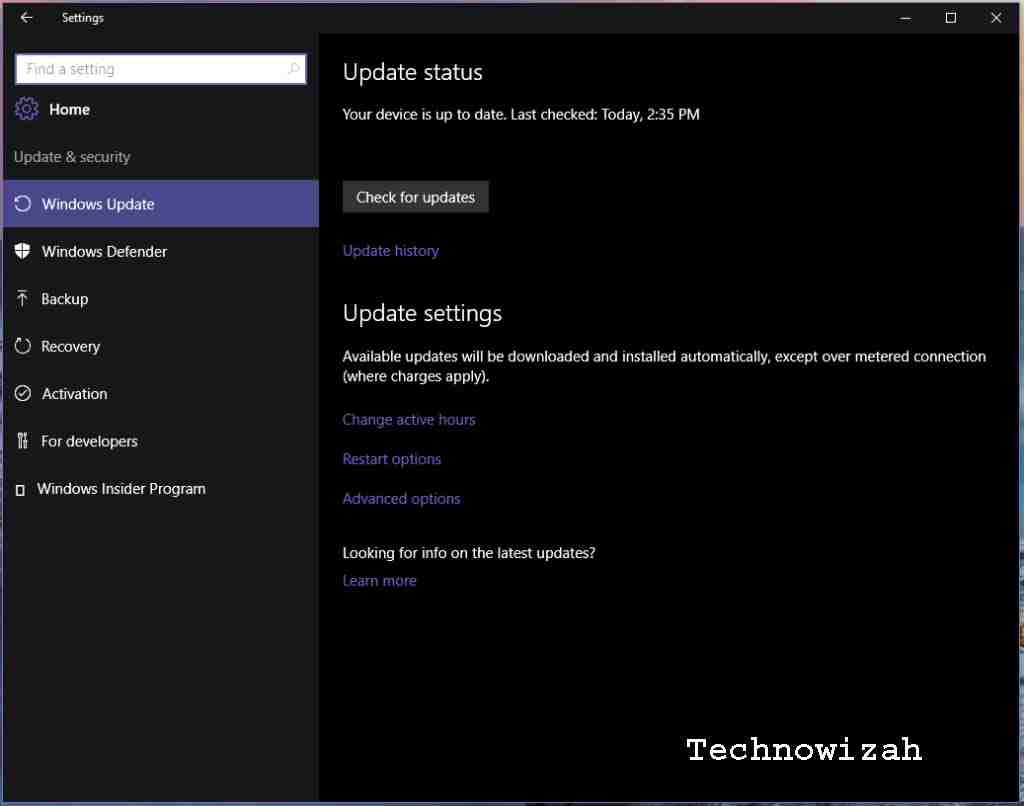
    Always Update OSGo to Settings > Update & security > Windows update > press the Check for updates button.
    #3.  Back to the Initial Version

    Although it is recommended always to update the operating system of the device, there are times when Windows 10 updates also bring complicated problems.

    For example, when the Windows 10 update version 2004 was released. The update brings crashes and bugs to users’ devices. Not a few experience problems with their PCs or laptops.

    Starting from audio drivers, Bluetooth Realtek, One Drive, Intel Optane, slow devices, and more. Users have complained about it via Microsoft forums.

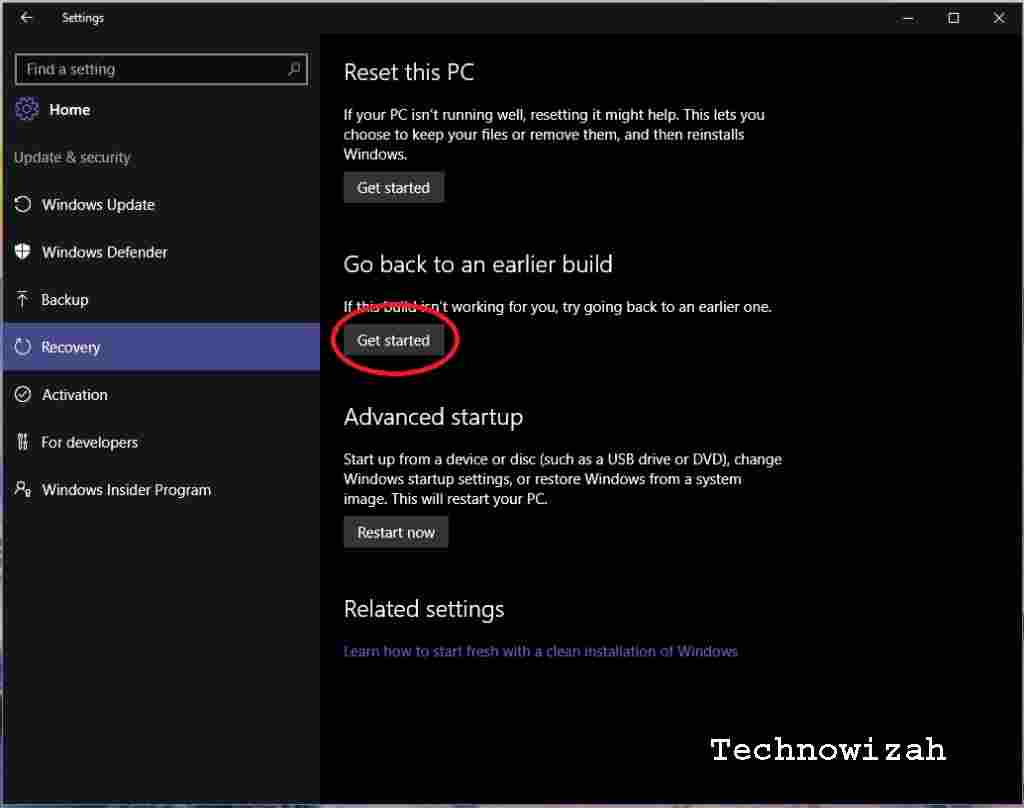
    If you happen to be using the Windows 10 operating system which causes problems, it’s a good idea to roll back to the previous OS version or an earlier version. Here’s how:

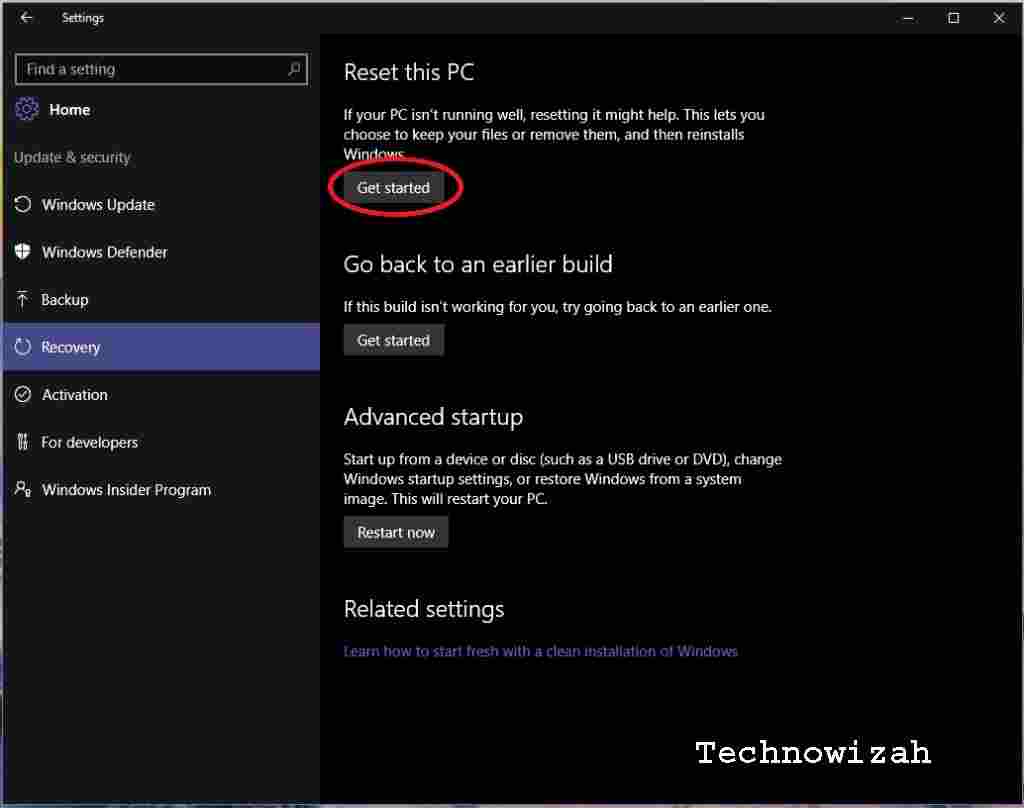
    Go to  Settings > Update & security, then click Recovery, and in the Go back to an earlier build section, click Get Started.Back to Initial Version You will see a page asking you why to remove the latest update.
    Select the option that you think is correct and click Next. You will be given the choice again whether you want to check for the latest updates or not, otherwise, click Next.

    #4. Reinstall Windows 10

    When the problem is not resolved, you should reinstall Windows 10. Don’t worry, you can do this without losing personal data from your PC.

    But if you want, you can do a reset which means erasing all personal data, settings, and programs.

    Reinstall Windows 10

    To reset the PC, go to  Settings and go to Update & security. Click Recovery and in the Reset this PC section, click Get Started.

    You will be given the option to Keep your files which will keep your data safe but apps and settings will still be deleted, or Remove everything which will delete everything including personal data.

    #5. Activate Windows Defender

    Admittedly, who often disables Windows Defender to run applications without any security warnings? It’s best if you don’t do that again.

    Activate Windows Defender

    Or, if you are using a third-party antivirus, we recommend just using Windows Defender. Because this security system is provided by Microsoft as a major and important part of Windows 10.

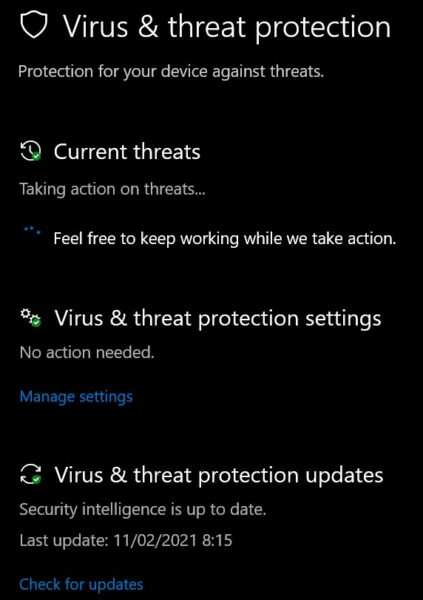
    By activating Windows Defender and updating its security system, it will solve several problems on the system including Windows 10 crashing.

    #6. Change Application Installation Location

    The final method to solve the Windows 10 crash problem is to change the installation location of the app. By default, the application will usually be installed on the C drive.

    Try to change it to a D drive or another secondary drive. To do this, go to  Settings and select  System.

    Change Application Installation Location

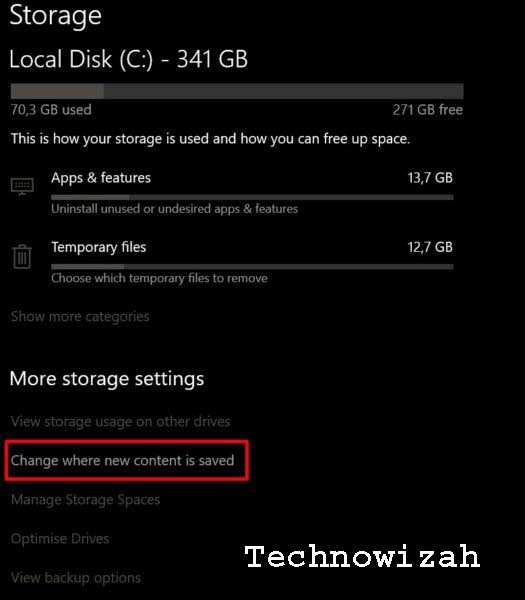
    Then, select  Storage. Then press the Change where new content is saved menu. In the New Apps will save to section, select another drive to save your apps.

    Change Application Installation Location

    You can also make other adjustments to your saved files, documents, videos, and more in these settings.

    Read more:

    Conclusion:

    Well, that’s how to fix the Windows 10 crashing problem. Hopefully, this information is helpful for you.

  • 8 Ways to Fix Steam Can’t Open on Windows 10 PC 2025

    8 Ways to Fix Steam Can’t Open on Windows 10 PC 2025

    8 Ways to Fix Steam Can’t Open on Windows 10 PC – Is Steam not opening on your computer and causing you to be unable to play games? There are many reasons why this could happen. Here are some ways to solve Steam can’t be opened.

    8 Ways to Fix Steam Can't Open on Windows 10 PC
    8 Ways to Fix Steam Can’t Open on Windows 10 PC

    How to Fix Steam Can’t Open on Windows 10 PC Laptop

    #1. Check If Steam is Down

    If Steam opens but can’t get past the connection screen, or if it doesn’t load at all, there may be a problem with the Steam servers. The server may experience an outage, and this causes all Steam users to stop working.

    Check If Steam is Down
    Check If Steam is Down

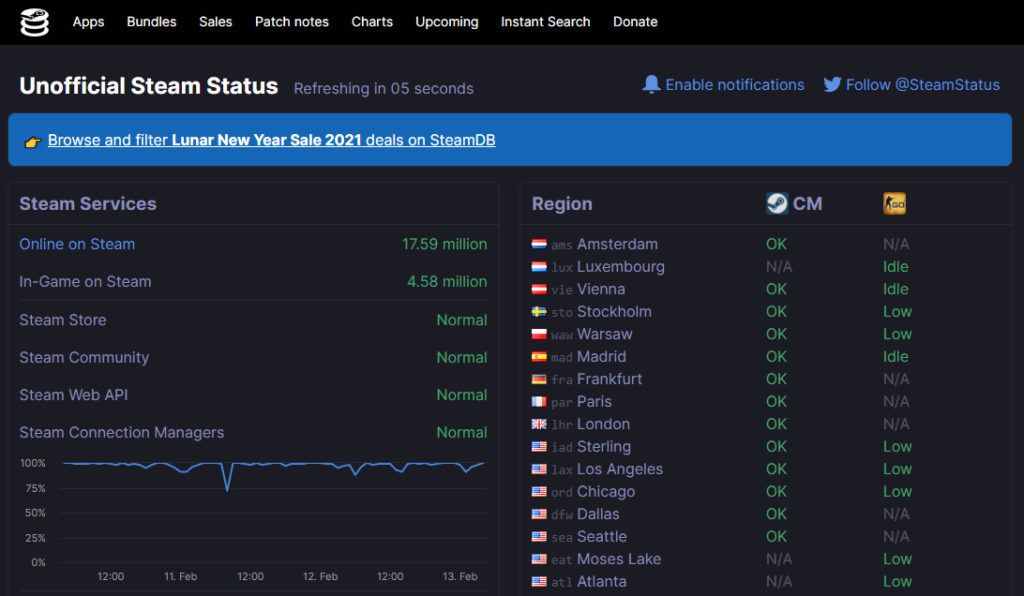
    There are websites like Steam Status that can tell you the current status of the application server. If you see downtimes there, maybe that’s why Steam won’t open on your computer.

    Read more:

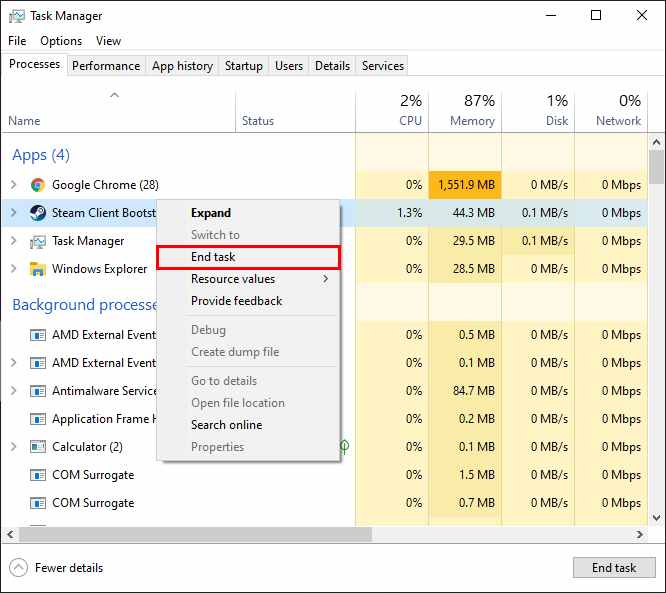
    #2. End Steam Process Using Windows Task Manager

    If Steam opens but is stuck on the home screen, you can kill the Steam process using Task Manager and see if that fixes the problem. Here’s how to end the Steam process on your PC using Windows Task Manager:

    End Steam Process Using Windows Task Manager
    End Steam Process Using Windows Task Manager
    1. Right-click your Windows taskbar and select  Task Manager.
    2. Click the Processes tab in Task Manager.
    3. Find  Steam Client Bootstrapper in the list of processes, click it, and click the End task button at the bottom right.
    4. Task Manager should force close Steam on your PC.
    5. Relaunch  Steam and see if it works.

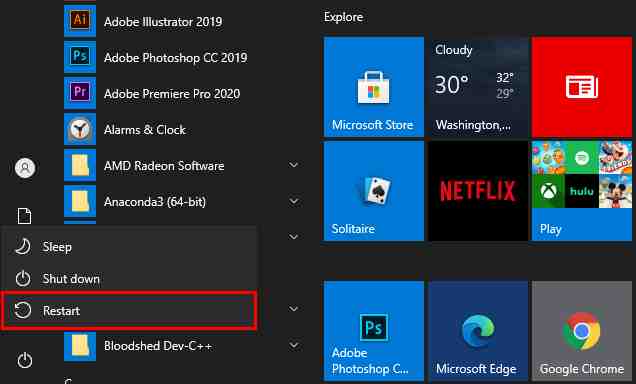
    #3. Restart Computer

    If your computer has any minor glitch, it can actually prevent Steam from opening. If you are experiencing this, rebooting your computer will most likely fix the problem.

    Close all open applications, then follow these steps to reboot your PC:

    Restart Computer
    Restart Computer
    1. Open the Start menu.
    2. Click the power icon.
    3. Select  Restart.

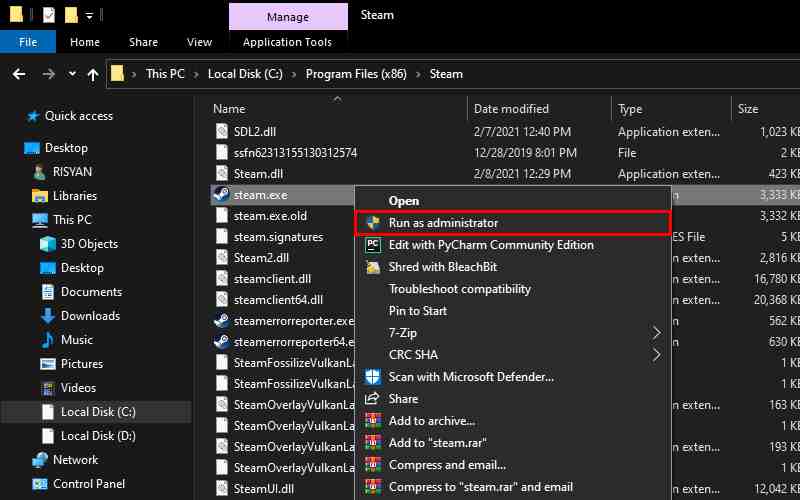
    #4. Run Steam As Admin

    One possible reason Steam won’t open is that the app doesn’t have the necessary permissions. This type of problem is common on Windows PCs. You can fix this by running your application with administrator privileges.

    You can launch Steam as an administrator and see if that helps you open the app without any issues. Here’s how you do it:

    Run Steam As Admin
    Run Steam As Admin
    1. Right-click the Steam shortcut on your desktop and select  Open file location from the context menu.
    2. Find  steam.exe  in the list of files, right-click this file, and select  Run as administrator.
    3. Press  Yes at the prompt.
    4. Steam should now launch with admin rights.

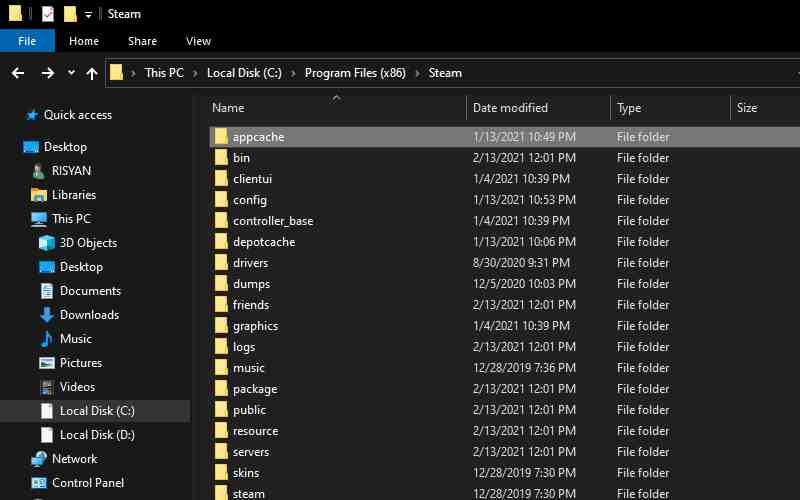
    #5. Delete Steam Cache Files

    Like other applications, Steam also creates and stores cache files on your computer. This cache file is sometimes the reason you experience various problems with Steam.

    The steam that fails to open could be the result of a malfunctioning cache file. If this is the case, your best option is to delete all Steam cache files from your computer.

    You can clear cache files without causing any problems with the app, and here’s how to do it:

    Delete Steam Cache Files
    Delete Steam Cache Files
    1. Close  Steam if it is running on your PC.
    2. Right-click the Steam shortcut on your desktop and select  Open file location. The Steam folder will open in File Explorer.
    3. Go to the top of the folder and find a folder called app cache.
    4. Copy this app cache folder to another directory on your computer to create a backup folder.
    5. Then, right-click the original app cache folder and select  Delete. This removes the folder from the Steam directory.
    6. Launch  Steam and see if it works.

    #6. Delete Steam Configuration And Refresh the Application

    Since Steam has a lot of configuration files, the app actually comes with a command that lets you refresh the Steam configuration and installation on your computer.

    You can use this command to solve many problems with Steam. Here are the steps to refresh the Steam configuration file:

    Delete Steam Configuration And Refresh Application
    Delete Steam Configuration And Refresh Application
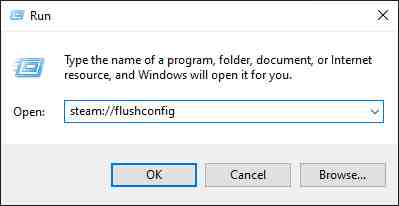
    1. Press Windows key  + R simultaneously to open Run.
    2. Type the following command into the Run box, then press  Enter.
      • steam://flushconfig
    3. Steam says that running the above command will clear the download cache and log you out of the app. You need to click  OK  to continue.

    #7. Fix Date And Time Settings

    Many applications require that you have the correct date and time settings on your computer. If Steam doesn’t open, maybe your date and time settings are wrong.

    You can head to the Windows 10 Settings app and enable the automatic time option to fix it. Here’s how to do it:

    Fix Date And Time Settings
    Fix Date And Time Settings
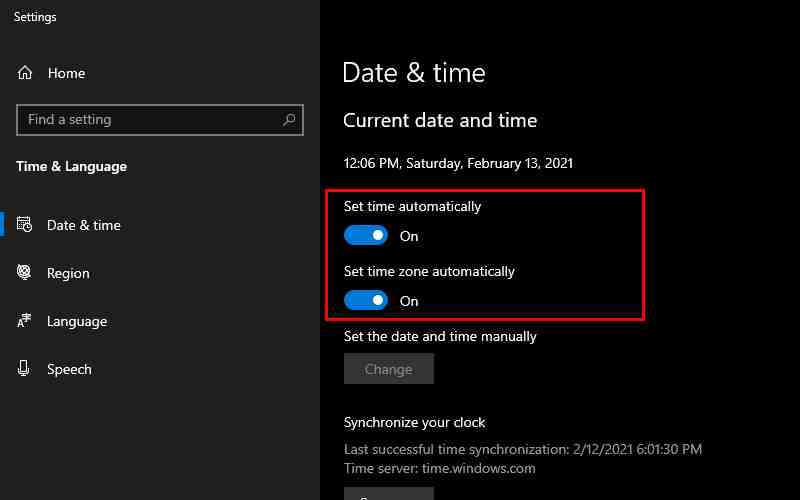
    1. Open the  Settings app from the  Start menu.
    2. Click  Time & Language.
    3. Select the Date & time on the left.
    4. Make sure the Set time automatically is in the ON position.
    5. Do the same on  Set time zone automatically too.
    6. Open  Steam and see if the issue is resolved.

    #8. Reinstall Steam

    If nothing else works, your last resort is to uninstall and reinstall Steam on your computer. This means that you will have to delete Steam and all of its files from your computer. After that, you can install Steam again from scratch.

    Reinstalling the app will fix most problems with Steam on your computer, including the issue where the app refuses to launch. To delete Steam on your computer, you can follow the steps below:

    Reinstall Steam
    Reinstall Steam
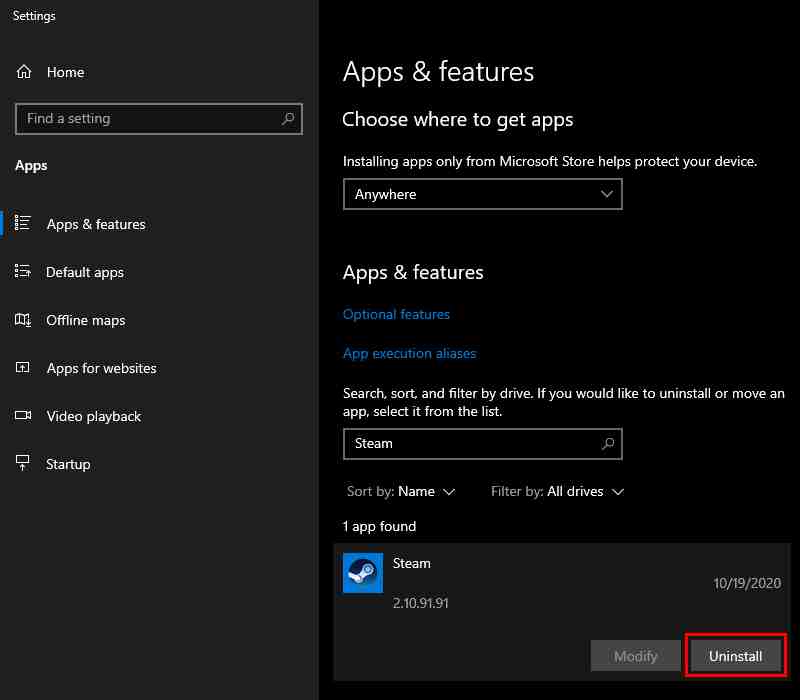
    1. Launch the  Settings app on your PC.
    2. Click  Apps.
    3. Find  Steam in the application list, and click it.
    4. Click the Uninstall button to uninstall Steam.

    To reinstall Steam you can follow the steps below:

    1. Open the Steam site using your web browser.
    2. Download and launch Steam setup on your PC.
    3. Go through the installation wizard.

    Read more:

    Conclusion:

    So, that’s some ways to solve Steam can’t be opened. Actually, problems with Steam are very rare, but that doesn’t mean you’ll never find them. If you’re having issues where Steam won’t open, you know what to do.

  • 6 Ways to Fix Windows Boot Manager Error 0xc00000e9 PC 2025

    6 Ways to Fix Windows Boot Manager Error 0xc00000e9 PC 2025

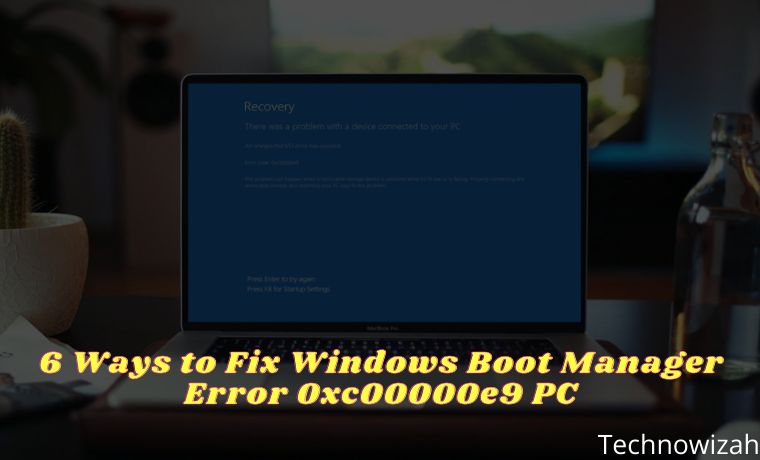
    6 Ways to Fix Windows Boot Manager Error 0xc00000e9 PC – Windows error code 0xc0000e9 is a common Windows Boot Manager error that indicates a hardware failure or corrupted system files encountered during the boot process. It appears when the computer starts up, but before the Windows login screen, the following error appears: “An unexpected I/O error has occurred. Error code: 0xc0000e9″.

    6 Ways to Fix Windows Boot Manager Error 0xc00000e9 PC
    6 Ways to Fix Windows Boot Manager Error 0xc00000e9 PC

    How to Fix Windows Boot Manager Error 0xc00000e9 PC Laptop

    If you are experiencing the error code 0xc0000e9 on your computer, don’t panic. This is one of the most common errors in Windows 10, 8, and 7. The good news is, there are several ways to fix this 0xc0000e9 windows boot manager error.

    Read more:

    Cause of Error Code 0xc0000e9

    Error code 0xc0000e9 is always related to the boot process for Windows. I/O (input/output) errors occur when the system cannot access the drive or disk, which means it cannot read or copy data. Therefore error 0xc0000e9 can be caused by many problems, such as:

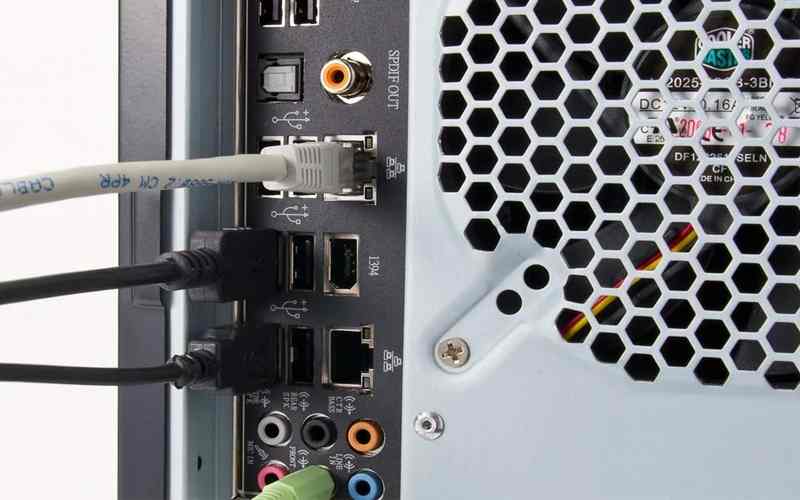
    • Damage to external hardware or PC components.
    • I/O ports are damaged.
    • Incorrectly installed components.
    • Incorrectly configured UEFI, BIOS, or CMOS settings.
    • Corrupted system files or Windows Registry problems.
    • Problems with Windows Updates.
    • Virus or malware corrupts Registry files or data which is responsible for booting the operating system successfully.

    How to Solve Windows Boot Manager Error 0xc0000e9

    After you know the causes of the “0xc0000e9 Unable to Boot Error”, you can start the troubleshooting process. Here’s how to solve Windows boot manager error 0xc0000e9.

    #1. Check Hardware Compatibility

    Check Hardware Compatibility
    Check Hardware Compatibility

    If you have multiple external devices connected to your PC, such as an external hard drive or USB flash drive, disconnect them all (leave your mouse and keyboard connected), then restart your computer.

    If the error stops, you can re-enter your peripherals/external devices individually. Then you can identify which device is causing the problem. After identifying the malfunctioning device, you can replace the device or update the driver to the latest version recommended by the manufacturer.

    #2. Change BIOS Settings

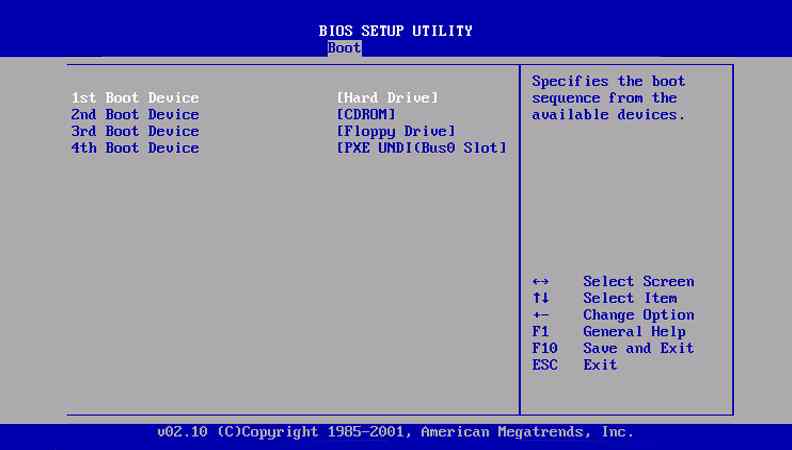
    You can try to boot your computer with the hard drive to fix 0xc0000e9. Follow the steps below:

    Change BIOS Settings
    Change BIOS Settings
    1. Turn off the computer, then press the Power button to boot the computer.
    2. Press and hold a key to enter the BIOS setup, usually the ESC,  F2,  F12, or  Delete key.
    3. Once you are at the BIOS Setup Utility screen, go to the Boot options.
    4. Once you are in the Boot options, make sure your PC’s Hard drive should be at the top of the list. You can press the arrow keys to highlight the hard drive and move it to the top of the boot device list.
    5. Save the BIOS settings changes, and reboot the computer. This should fix the problem.

    #3. Check the Hard Drive Condition

    A bad disk or bad sectors can be one of the causes of error code 0xc0000e9 on your Windows PC. So it is highly recommended to test the condition of the disk to find errors.

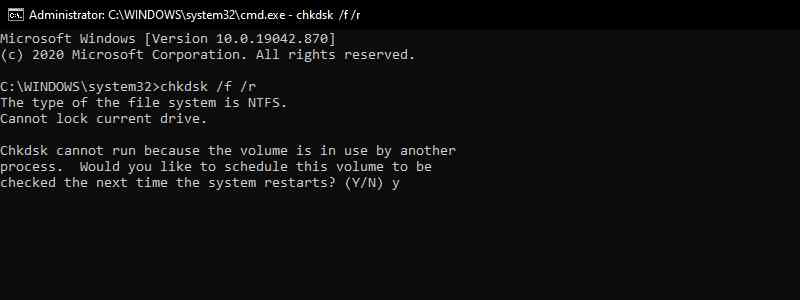
    Check Hard Drive Condition
    Check Hard Drive Condition
    1. Boot the PC into Safe Mode.
    2. In the search box on your desktop, type cmd. Then right-click Command Prompt and click Run as administrator. Then click Yes to confirm.
    3. In the Command Prompt, type “ chkdsk /f /r “, and press “ Enter “.
    4. Press Y on your keyboard to run the process.

    #4. Update Drivers

    Driver problems can also be the cause of error 0xc0000e9 because the hardware cannot communicate with the software if there is a problematic driver. You have to verify that all your devices have the correct and latest drivers.

    Note: Before updating drivers, you must boot your computer in Safe Mode.

    You can update the driver manually by visiting the manufacturer’s website and looking for the latest correct and suitable driver for your device. If you don’t want to bother with updating your drivers manually, you can do it automatically with the help of third-party applications.

    #5. Scan PC for Viruses/Malware

    If a virus is preventing Windows from booting, use a bootable antivirus tool. Download an antivirus application for Windows on another computer and copy it to a bootable drive. Most antivirus applications include a bootable rescue tool that scans the system from the command prompt.

    #6. Repair Master Boot Record (MBR) Using Windows PE

    Error 0xc00000e9 can occur when you install Windows without setting the Master Boot Record (MBR), so you have to set your C drive as MBR to fix 0xc00000e9. Here are the steps:

    Note: This is a complicated and difficult process. You should try it only if you are confident in your computer’s capabilities.

    1. Connect an external drive or hard drive with Windows PE to your computer.
    2. Run Windows PE, then set the C: drive as MBR.
    3. Restart your computer.
    4. Try reinstalling Windows and check if the problem is fixed.

    Read more:

    Conclusion:

    So those are some ways to solve windows boot manager error 0xc0000e9. Now you know the cause and how to fix error 0xc0000e9 on your Windows PC. We hope that one of the methods above can fix your PC problem.