7 Free Fake Number Generators For Mobile Verification – When registering on social media, for example, WhatsApp, Instagram, Facebook, line, and other social media, sometimes the cellphone number becomes an obstacle.
7 Free Fake Number Generators For Mobile Verification
Best Free Fake Number Generators For Mobile Verification
It could be that the cellphone number that you have is lost or other conditions. Surely this is an obstacle for you when asked to enter your cellphone number.
Likewise when you want to shop online. No need to be confused because now you can make fake numbers for free.
Fake numbers are no longer a strange thing in this day and age.
Fake numbers themselves are now available for free as well as free fake numbers. If you also want to use this fake number, it can be done from an Android or iPhone computer.
What is even more interesting is that these fake numbers exist in various countries including England, America, Belgium, and even Indonesia.
For work systems that are in this fake number, more or less use a virtual number that has been provided by the website for certain applications.
Do you also need a free fake number? If so.
Here are some websites and applications for creating free fake numbers for verification:
#1. sms.ndtan.net
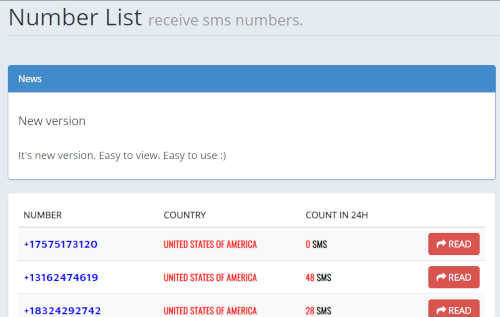
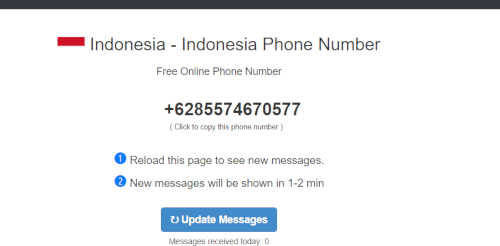
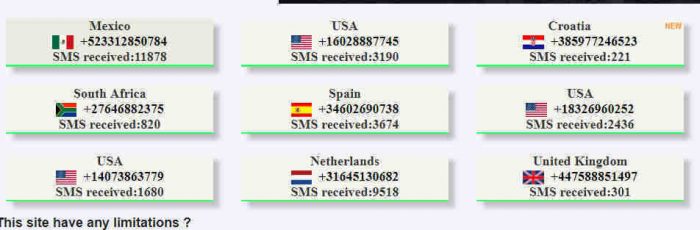
The sms.ndtan.net site provides virtual fake numbers from various countries in the world, including Indonesian numbers.
You can use this number on sms.ndtan.net for social media verification, for example, Instagram, WhatsApp Facebook, and others.
#2. www.receivesms.co/indonesia-phone-number/161/
Another site that also provides free fake numbers is www.receivesms.co/Indonesia-phone-number/161/.
This site provides Indonesian numbers as well as other country numbers. However, Indonesian numbers from this site tend to be limited.
Currently, there is only one number that can be used to receive SMS and telephone calls. If you want to get an Indonesian number, then just copy and paste the site address.
#3. www.receive-sms-online.info
For www.receive-sms-online.info, it tends to focus more on SMS so that it can only be used to receive SMS.
The SMS in question is SMS verification, and registration to SMS with friends. However, www.receive-sms-online.info does not provide Indonesian numbers, so the only numbers available are international.
Take it easy, you can still use it to shop at online stores, you know.
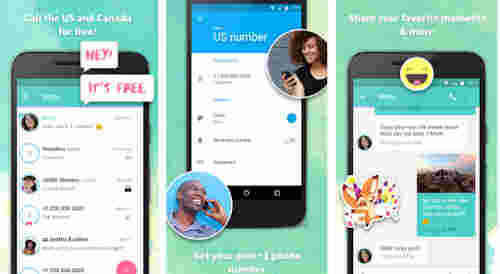
#4. Textplus application
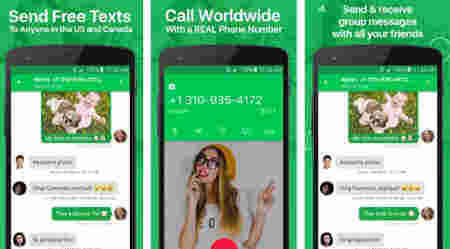
It’s not just websites that provide fake numbers. There is also the textplus application which provides fake numbers that can be used completely from telephone, and SMS to receiving OTP codes.
If you want to get a virtual number, then register your email and your original cellphone number first.
If you don’t have a cellphone number, then later you will get a separate virtual number. However, numbers in this application are only available for international numbers.
#5. Nextplus application
Like Nextplus, this application also provides fake numbers. You also have to register yourself first. Nextplus applications tend to focus more on American numbers and not Indian numbers.
#6. Talkatone application
If you want to get a fake number but an Indonesian number, then Talkatone can be chosen.
Numbers from Talkatone can only receive OTP codes which are usually used for verification and registration, both SMS and telephone.
Burner: Smart Phone Number
Burner: Smart Phone Number is a paid application that provides complete and different features.
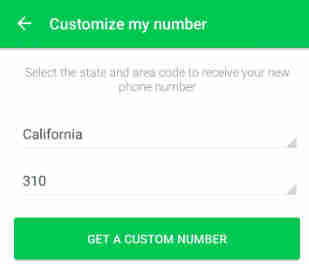
For virtual numbers from Burner: Smart Phone Numbers can also be chosen as you like.
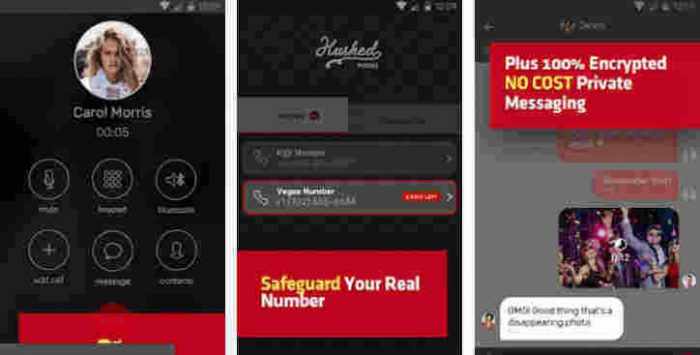
#7. Hushed Anonymous Phone Numbers
This application not only provides free virtual fake numbers but can also block foreign numbers.
Isn’t that cool? Even Hushed Anonymous Phone Numbers can help you hide your cellphone number when calling other people.
This is the explanation of 7 free fake number generators for mobile verification, Recommendations for free fake number generators for mobile verification, you can use them for various work.
11 Best Apps To Change JPG to PDF Image Files on Android – Along with the rapid development of technology, changing the file format to another form is very easy to do, including converting image format files to PDF.
11 Best Apps To Change JPG to PDF Image Files on Android
How To Change JPG Formats to PDF Image Files on Android
This is quite important to do, considering that when we use a scanning system to convert documents to digital form, the format of the scanning results is usually in the form of images, even though we often need to send documents in PDF format.
Therefore, for those of you who do not know how to convert image files to PDF, you can follow the steps on how to change the JPG to PDF image file in the following review.
#1. Change JPG Formats to PDF Image Files on Android
First of all, you need a PDF file editor application, in this case, I use Microsoft Word 2016
Open the Microsoft Word application that you have
Then select the Insert tab, and select Pictures in the Illustration section
If File Explorer appears, find the location and select the image you want to export to PDF by tapping it twice
Next set the image size and also adjust the page layout from Microsoft Word, whether it’s Landscape or Portrait
When finished setting it up, click File in the upper left corner of the screen
Then select Export and select the Create PDF / XPS Document button in the Create PDF / XPS Document menu
Specify the PDF storage location, write the file name in the File name column and make sure Save as type shows PDF
Last Click Publish
Actually, by using the steps above, you can not only convert JPG to PDF format images, but you can also change images that have other formats whose formats are also supported by Microsoft Word applications.
In addition, you can also use a writing editor application other than Microsoft Word to do this, one example you can use WPS Office which has a pretty similar appearance.
Of course, with this similar look, you can use it to convert image files to PDF with more or less similar steps, with differences in naming or the location of the buttons.
You can also use Smallpdf to do this. You only need to upload the image file you have to the smallpdf.com page and download it in PDF format if it’s finished.
But for those of you who use a mobile device, you can use the CamScanner application to scan your important documents. You can use the application that is free in this application store to change the capture of the camera directly to PDF.
#2. Image to PDF and Sharing Starting
Image to PDF and Sharing Starting
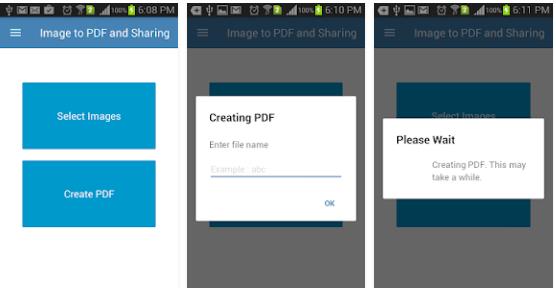
with an application called Image to PDF and Sharing, with this application you can make changes to the format from JPG to PDF format easily. Here, you only need to click a select image to select the image you want to convert to PDF.
After you specify the image you want to change the format to, you can immediately convert it to PDF.
Previously, this application would also provide notifications to change file names. If you want to change the file name, then type the file name in the rename section.
Having finished changing the file name, now is the time to do the conversion and wait a while until Image to PDF and Sharing finish converting your file to PDF. Very easy and simple, right?
#3. JPG to PDF Converter
JPG to PDF Converter
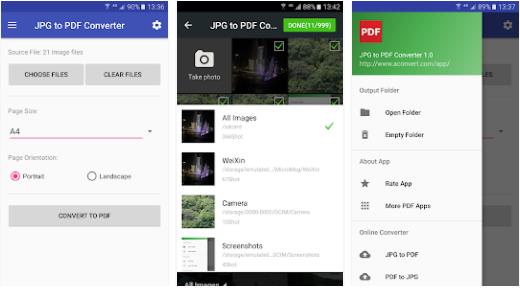
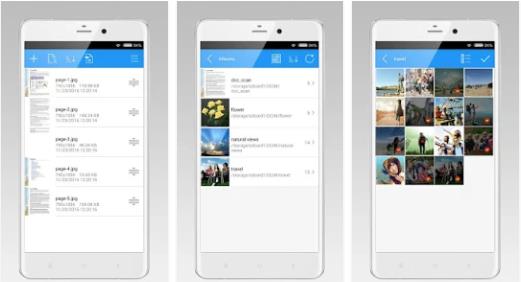
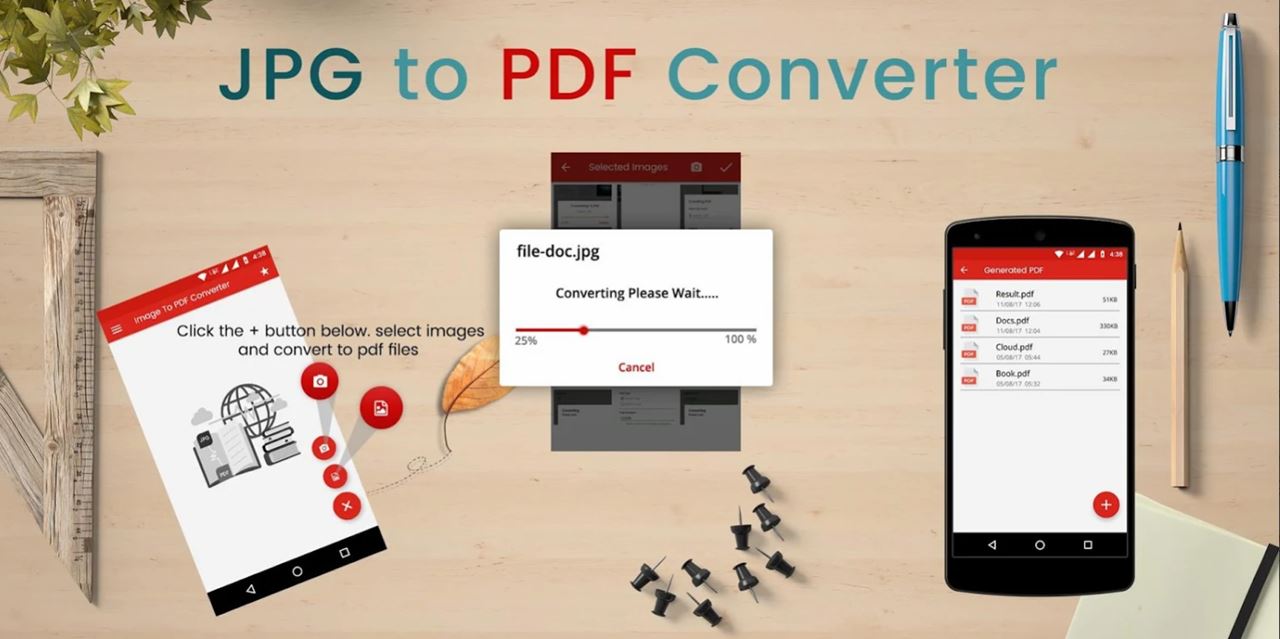
The application to convert JPG to PDF this time came from the developer of Weeny Software. Just as easy as the previous application, JPG to PDF Converter also has a feature that can directly convert your JPG files to PDF format
How? Easy, first, you only need to download the JPG to the PDF Converter application. Then, enter the application. Then, select the image that you want to convert to PDF.
Have you finished? Simply click on convert to PDF and wait a few moments until JPG to PDF Converter finishes the process of converting. How do you want to try using this application?
#4. Image to Pdf Converter
Image to Pdf Converter
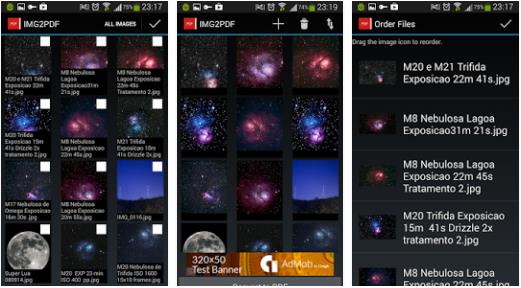
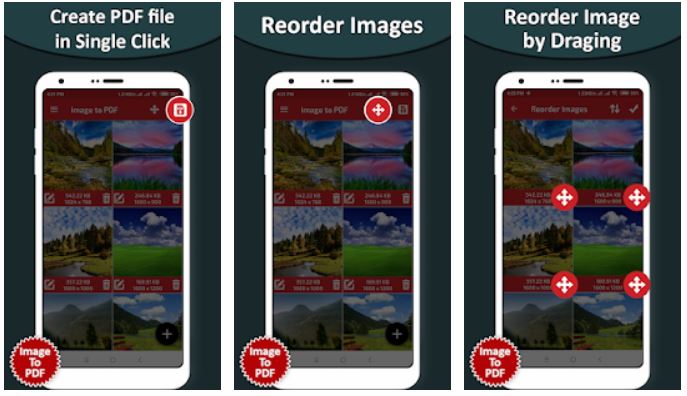
Next, there is an Image to PDF Converter as one of the applications to convert the best JPG to PDF on Android.
This time the name of the application is Image to PDF Converter. This is an application that has a relatively simple interface making it easier for users to use this application.
In addition to a simple interface, you will also find it easy to juggle JPG files to PDF in one click. Here, you have to go through the stages of selecting photos that you want to convert to PDF.
After that, with just one click, you can immediately convert your photo files to PDF, and the Image to PDF Converter will save them in your gallery.
5. Convert JPG to PDF and scanner
Convert JPG to PDF & Scanner
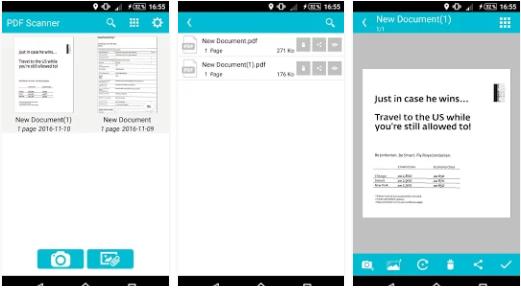
As the name implies, of course, this is an application to convert JPG to PDF. In this application, users will be facilitated in converting JPG to PDF. In fact, you can also directly save the results of the conversion in cloud storage!
Besides being able to convert, this application made by Fun LOL APPS can also be used as a scanner file to be a PDF or JPG format.
You can also save it directly in the HP photo gallery or in cloud storage. If you are interested in using it, you can simply click on this link and get the application, it’s free!
#6. Image to PDF Converter – Infosoft DLM
Image to PDF Converter – Infosoft DLM
Furthermore, you can choose Image to PDF Converter as one of the applications to convert the best JPG to PDF on Android.
Why? Because, with this application, you only need to go through a short stage to make a JPG as a PDF. Simply, select the image and directly convert it to PDF. How, very easy and simple, huh? Want to try too? It can be downloaded here.
#7. Image to PDF Converter – BG Studio
Image to PDF Converter – BG Studio
Not to be outdone by other developers, BG Studio also makes and develops an application that allows you to juggle JPG files into a PDF file easily and practically. Want to know how?
It’s easy, but make sure you already have the Image to PDF Converter application. If you have downloaded it, you can immediately select the image you want to change the format. When done, you can change the file name first, then just convert the file. Easy and not complicated, right?
#8. JPG to PDF Converter Free
JPG to PDF Converter Free
The next application is JPG to PDF Converter Free. In the application, you can use all of its features for free. In addition, the JPG to PDF Converter Free application can also be used offline you know! What’s interesting again, this application also has a passcode feature to prevent others from seeing your files.
In addition to its complete features, JPG to PDF Converter Free also has tools to determine the PDF size.
For example, you want to convert an image file to PDF with Letter, Legal, or A4 size. Oh yes, besides being able to set the file size, this application also supports image formats such as JPG, PNG, GIF, BMP, and others.
#9. Image to PDF Converter – Rectfy
Image to PDF Converter – Rectfy
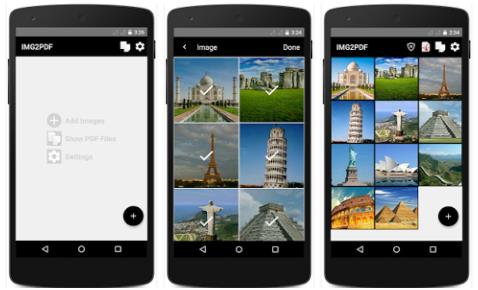
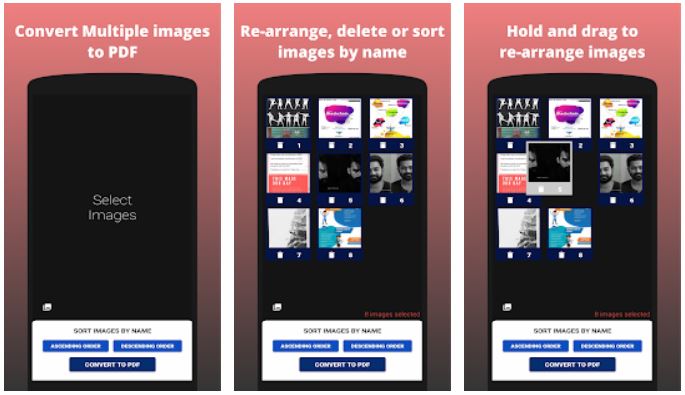
Next, we recommend an application from Rectfy with the name Image to PDF Converter. In this application, you can convert multiple images into PDFs offline.
In addition, how to use this application is also very easy. But, before you know how to use it, you must first download the application Here.
Now, after you have the application, the first step is to choose the image that you want to convert to PDF. After that, you can directly click Convert to PDF. Finally, wait a few moments until the application has finished converting your files
#10. Image to PDF – Social Tools App
Image to PDF – Social Tools App
For the next application, we recommend the Image to PDF application created by Social Tools App.
This application supports various image formats, ranging from JPEG, PNG, BMP, and GIF, to WebP. In addition to supporting many formats, this application can also be used offline so you don’t have to bother connecting to the internet.
In fact, this application can also convert more than two images at once you know. Pretty complete, right? It can be downloaded here.
#11. JPG To PDF Converter – The AppGuru
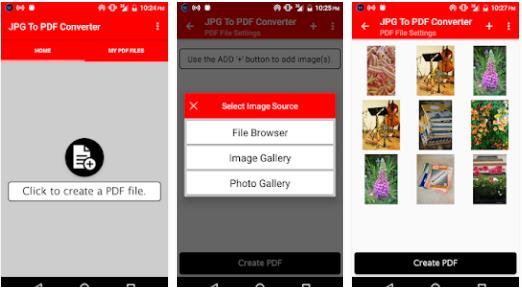
JPG To PDF Converter – The AppGuru
One more application to convert JPG to PDF. This is an application called JPG To PDF Converter and can easily convert JPG to PDF. You only need to select the image you want to convert to PDF, then let the JPG To PDF Converter work to change it.
In addition to being able to change the JPG format, you can also juggle PNG, BMP, and JPE formats to the PDF format the way before.
Very easy, right? If you want to have this application, then you can download and install it on PlayStore or click Here.
So, Friends, This is the explanation of the 11 best ways To change JPG to PDF Image Files, If you have any queries about this article, then you must comment below.
Top 10 Best Graphic Design Applications for Beginners – Especially graphic design, has begun to be noticed. Many companies or businesses use this service for various purposes such as branding and marketing.
Top 10 Best Graphic Design Applications for Beginners
Not only for business purposes, but many people have also started to have a hobby of designing. For most people, making designs is easier than using existing applications on the computer.
With the times, there are now many graphic design applications that can be installed and downloaded with smartphones. This method is considered the easiest for junior or novice designers.
In addition to the existing application, you also have to know some principles and elements in designing. Because there’s a science to designing.
What is Graphic Design?
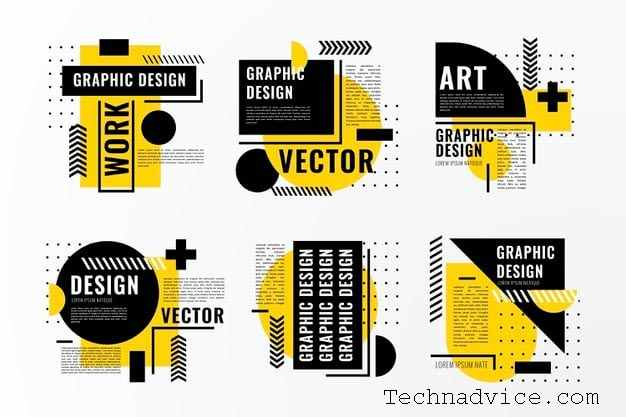
Graphic design is the same as science-oriented to the art of design by requiring the help of tools such as computers for the process of making the design. The design is intended as a means of delivering messages.
So that people who see it can form the same perception of the designer with a combination of several visual elements, shapes, and writings.
Graphic Design Principles
Sensitivity is the most important thing in the world of design. It is used to consider all the principles used in the world of design.
So that the design or work produced can be satisfactory. Although sometimes the works created depend on the tastes of each client, designer, and community.
There are those who say that image A is good, but there are also people who say that image A is not good. Regardless of each person’s taste, there are principles in drawing designs such as:
#1. Balance
Just like the life of a human being must be balanced in work, worship, and rest. All design elements must look balanced, and not highlight one element to make it look harmonious.
A designer must be able to combine elements such as color, text, and images in a balanced way so that one element doesn’t appear that stands out. A balanced design will add aesthetic value and be pleasing to the eye.
#2. Unity
In unitary design is the principle of cohesion, which includes consistency, singleness or wholeness. This principle is the principle of a relationship so that the design looks peaceful.
By adhering to these principles, you can combine elements into a coherent whole so that you can produce a strong, assertive theme, and create a relationship of interrelated elements.
#3. Emphasis
In making a design, of course, it must have a focus that is highlighted. This is done so that it becomes a powerhouse and has firmness in terms of messages to be conveyed from a design.
You can capitalize the letters or give a striking color to the design. So that the work created can be the center of attention.
#4. Rhythm
Rhythm is a design principle that forms a rhythmic design. In addition, it can also be interpreted as repeating or providing variations of design elements continuously. Rhythm can create a movement and form a certain pattern.
#5. Proportion
In the world of graphic design, proportion is an equally important principle. By applying proportions, the artwork will produce harmony.
Proportion is a mathematical comparison between large and small elements. This principle relates the heart between one part to another in one design. This element can form the weight and depth of an object.
For example, a smaller object recedes backward while a larger object protrudes forward.
Elements in Graphic Design
In terms of design, it turns out that there are several factors that will affect the overall design result. Where these elements are combined into one and become a design. The influencing elements are:
#1. Line
The line is the main element in a design. Line elements are connecting elements from one point to another so that they will form a desired image or design.
The line in question is not always a straight line, it can also be a curved line, zigzag, vertical, horizontal, or oval.
#2. Shape
A shape or shape is a formation that has a width and height diameter such as a triangle, box, circle, and so on.
#3. Texture
The texture is an image embodiment whose visualization looks like it has a pattern, rough, patterned, soft, or rough when witnessed. For example, the picture will look like a canvas, cloth, or wooden wall that looks real.
#4. Space
In graphic design, space can be interpreted as distance, which provides distance to interrelated elements.
These elements can be like backgrounds, text, and objects, where if these elements are combined with each other at the appropriate distance, it will definitely produce a design that is very pleasing to the eye.
#5. Size
Size in graphic design is the most important thing. The sizes in question are long, short, high, low, large, and small.
When creating a design, you definitely want to highlight one object to emphasize the message you want to convey. That way you need to adjust other supporting elements so that the results don’t look lame.
#6. Color
Color is an element that is quite important in serving a design. Where in the selection of colors can determine the purpose and message of the graphic design.
In choosing colors, you should choose colors that match the concept or theme and choose colors that can blend together to make it look smooth and pleasing to the eye.
#7. Dark Light
Dark – light or value is an element that gives a visual impression of whether or not the design looks good. The value means the size of the dark and light of an object, background, text color, or so on.
It can be exemplified as green if it is light it will turn light green, and it will be darkened to dark green.
Learn Graphic Design Self-taught
Before pursuing science or something you have to learn the technique first, such as learning to design this. Maybe many of you who are beginners or new to design are confused about how to start a design.
Learning to design, especially graphics, is easy. Anyone can learn even self-taught. Here’s how to learn to design:
#1. Have Strong Intentions
The intention is something that everyone must have if they want something. Likewise, if you want to learn and understand graphic design.
If you don’t have a strong will you will feel bored and hopeless. So you have to keep your intention in your heart.
#2. Using Simple Apps
Choice of software that you think is easy and fun like Adobe and Macromedia. Prioritize one of the software you choose along with the tools you have to learn.
Before you master one software, don’t turn to try other software. The risk is that you will not even master any of the software at all.
#3. Don’t be afraid to try
Start directly diving into the design and ignore the tutorial books. Because it will be easier to learn when practicing directly.
If an error occurs, it will be easier to correct it if you do direct practice and provide more experience.
#4. Create a Simple Object
If you are a beginner or new to graphic design, make an easy design or object first. Like a picture of a TV, refrigerator, or another object if you think it’s easy. Start slowly so that there is no brain crash because it is wrapped in a line hehe.
#5. Join the Community
Joining the community will certainly give you more knowledge that you can apply in graphic design. Which usually often conducts discussions and questions and answers. Join to improve your graphic design skills and knowledge.
Android Graphic Design Apps
For those of you who want to learn to design, there are many choices of graphic design applications that are easy to operate. Now there are many applications that can be used via cellphone or smartphone, you know, such as:
#1. Adobe Photoshop Express
This graphic design application has similarities to the PC version. Making it easier for you to make designs from the smartphone you have.
You can also find features such as noise remover and filters in this application, as well as quite complete tools.
Features: Has many features such as Perspective correction, noise removal, filters, and others.
Pros: Has complete tools and features.
Disadvantages: Requires large storage space.
#2. Canava
Are you a beginner and want good design results? Canava is the solution. This application has many features which are perfect for creating logos or posters.
Using this application you are guaranteed to become a professional in no time. Because this application is very easy to use.
Features: Templates, backgrounds, fonts, colors, formats, duplication, extra content, share, and download.
Pros: Has many professional tools.
Disadvantages: Paid, if you want to add professional features.
#3. Sketchbook
This application is the right choice if you want to make a sketch or want to draw manually. Like drawing anime or cartoons.
This application also has many tools such as various sizes of pens, brushes, and so on.
Features: Pen, Brush, Brush, Eraser, and many others.
Pros: Has a large selection of tools that can be used.
Weaknesses: Only focuses on sketch design.
#4. PicsArt
This application is very friendly to online business people or online shop traders. This application makes it very easy to provide text and combine images which are often done by online shop traders.
Features: Crop, size, curve, text, frame, clone, brightness, contrast, and so on.
Pros: Very easy to use.
Disadvantages: Paid applies to certain features.
#5. Adobe Illustrator Draw
This application is very suitable for learning graphic design for beginners because it has many good features in it.
By having supporting features, this application makes it easy to create designs to your heart’s content and get good results.
Features: Zoom 64 times, Layers, Colors, and much more.
Pros: Easy to use with a variety of tools owned.
Cons: Paid.
PC Graphic Design Apps
Making designs through smartphones is easy and practical. However, using a smartphone has many limitations.
Your movement will be limited to finger movement. Even though sometimes you have to be precise in making designs.
Therefore, many graphic designers, especially those who are already pros, continue to use computers, PCs, or laptops. The following are recommendations for graphic design applications for PC.
#1. Adobe Photoshop
Adobe Photoshop is the most popular software for photographers and graphic designers. Various types of designs can be made such as banners, stickers, logos, and others.
Features: Change the background, change the tone, and merge photos.
Pros: Can be used for various types of designs.
Cons: Too many layers are used.
#2. Corel Draw
Corel Draw is graphic software for creating vectors that are still in great demand for beginners and the printing world. This software is often considered a competitor of an illustrator who has the same concept of vector design.
Features: Tool Box, Tool Bar, Menu Bar, Property Bar, Docker, Rulers, Status bar, Drawing Page, Color Palette
Pros: Easy to use, better vector image results, has more import and export formats.
Disadvantages: Files are very large, have differences such as colors when printed, not suitable for photo editing.
#3. Adobe Illustrator
Adobe Illustrator has something in common with Corel Draw, which is the same as vector design software. This software is also a favorite choice for designers to create designs, you know.
This software is also very suitable for sketching, and complex typography. Because it is supported by its features in it.
Pros: Complete toolbar, able to load files above 50MB, when printed the colors are not much different.
Disadvantages: Requires high PC specifications, images are not realistic when displayed, and complicated when making layouts.
#4. Adobe Indesign
This software is often used as an option for printing programs for publishing a book, magazine, or brochure.
But you can also use this software to create e-book designs, for example by formatting them and giving typographic effects that will definitely look cool.
Features: PDF Forms, Content Collector, Grayscale Previews
Pros: Can open PMD files, redraw logos, images, or objects, can create tables.
Disadvantages: When using MathType moving process is very difficult, Layout is limited.
#5. Xara Designer
This software may still be rarely heard by designers, especially beginners. This software also has the same vector design concept carried by CorelDraw and Illustrator.
Features: Illustration graphic design, web design, 3D animation design, layout, and many others.
Pros: Requires little storage space, not too many tools, can make edits directly to files.
Disadvantages: The lack of tutorials because the users rarely become less attractive.
Conclusion:
So, friends, This is the explanation of the top 10 best graphic design applications for beginners. If you don’t have a device such as a PC, laptop, or computer, just download the graphic design application from your smartphone. These ten applications are very suitable for both beginners and advanced users.
11 Best Open Source Browsers For Linux PC—A web browser is a software that provides an interface for browsing the web. Since its introduction around 1991, it has undergone considerable development and progressed to its present stage.
11 Best Open Source Browsers For Linux! PC
11 Best Open Source Browsers For Linux! PC
In the past, most sites were text-based with little to no image and graphic content, so only text-based browsers sufficed with some of the early browsers: Lynx, Netscape, and Opera. Linux open-source browser.
However, with the advancement of technology to support audio, video, images, and even flash content, browsers must also be sophisticated to support such content. This has driven browser advancements as we see them today.
Modern browsers require the support of many software which includes: web browser engines such as Geeko, Trident, WebKit, KHTML, and rendering engines to render website content and display it in a proper format.
Linux as an open-source community gives developers around the world the freedom to experiment with the features they expect from an ideal browser.
Multiple Open Source Browsers on Linux
Listed below are some of the perfect Open Source web browsers. Usually, the features that distinguish a normal browser from a good one are the ability to support all types of data including audio, video, flash HTML, and HTML5, fast performance, memory friendly to fully adapt to old and new systems, ability to support maximum architectures such as Intel, AMD and operating systems such as Windows, Mac, Unix-like, and BSD.
#1. Google Chrome
Considered the most popular web browser on smartphones and PCs with more than half the share of web browser usage, Google Chrome is freeware developed by Google. No wonder we put Google Chrome at the top of our list of the best open-source Linux browsers.
Chrome used the WebKit layout engine until version 27 and Blink thereafter. Written mostly in C++, it is available for many Operating Systems including Android, iOS, OS X, Windows, and Linux.
Features provided by Chrome include: bookmarks and synchronization, enhanced security, malware blocking, and the addition of external plugins such as AdBlock are available on the Google Web Store and is provided as a default extension in Chrome. Also, it supports a user-tracking feature which can be enabled if needed.
It’s fast due to the inbuilt mechanism it uses, it’s also very stable with tabbed browsing mode, speed dial, and incognito mode (private browsing), providing custom themes that can be installed as extensions from the web store. It is widely accepted as one of the default browsers that can be found on almost all systems, with mostly positive reviews.
#2. Firefox
One of the popular Web Browsers, Firefox is also Open Source and available for major operating systems including OS X, Linux, Solaris, Linux, Windows, and Android. Firefox is written in C++, Javascript, C, CSS, XUL, and XBL and is released under the MPL2.0 License.
Since its introduction, it has been praised for its speed, and security and has even been cited as the spiritual successor of Netscape Navigator. Firefox uses the Geecko web engine on all supported platforms leaving the latest on iOS which doesn’t use Geecko.
Features supported by Firefox include tabbed browsing, spell check, incremental search, direct bookmarks, private browsing, and additional support that allows easy integration of many features.
Moreover, it supports many standards including HTML4, XML, XHTML, SVG, APNG, etc. It has become one of the popular web browsers in many Asian and African countries with more than one billion users worldwide.
#3. Opera
Another popular web browser, Opera is one of the oldest to date, with the initial version being released in 1995, 20 years ago. Opera is written in C++ with marked availability for all Operating Systems including Windows, OS, Linux, OS X, Symbian, and mobile phones including Android, and iOS. It uses the Blink web engine, whereas previous versions use Presto.
Features of this browser include: speed dial for quick search, tabbed browsing, download manager, Page Zoom which allows Flash, Java, and SVG to be increased or decreased according to user requirements, HTTP cookie deletion, browsing history, and other data on click. a button. Despite its critics for compatibility and other UI-related issues, it has become one of the favorite browsers with a total of around 291 million users as of mid-2015.
#4. Chromium
A widely known web browser formed from taking its source code i.e. Google Chrome, Chromium is another open-source web browser available for Linux, Windows, OS X, and Android Operating Systems. It is mainly written in C++ with the latest release in December 2016. Chromium is designed with a minimalistic user interface making it light and fast.
Chromium features include a tabbed window manager, support for Vorbis, Theora, WebM codecs for HTML5 Audio and Video, Bookmarks, and History and Session management. Apart from Google Chrome, Chromium also forms the basis for a large number of other Web Browsers some of which are still active while others have been discontinued. Some of them are Opera, Datum, Epic Browser, Vivaldi, Yandex Browser, Flock (discontinued), Rockmelt (discontinued), and many more.
#5. Midori
Midori is an open-source web browser developed in Vala and C with the WebKit engine and GTK+2 and GTK+3 interfaces. With an initial stable release in 2007 and the latest stable release in August 2015, Midori is currently the default browser on many Linux distributions including Manjaro Linux, Basic OS, SliTaz Linux, Bodhi Linux, Trisqel Mini, SystemRescue CD, Raspbian old version.
Key features provided by it include HTML5 Support, Bookmark Management, Private Browsing, Windows, Tab and Session management, Speed Dial, Easy integration of extensions writable in C and Vala, and Unity Support. Midori has been mentioned as one of the alternative web browsers for Linux by LifeHacker and many other sites including TechRadar, ComputerWorld, and Gigaom.
#6. QupZilla
QupZilla is another known web browser that started as just a Research Project with its first release in December 2010 written in Python and later released with C++ to develop a mobile web browser. It is licensed under GPLv3 and available for Linux, Windows, OS X, and FreeBSD.
QupZilla uses the WebKit engine with QtWebKit to sync with modern web standards. It provides all the functionality of a modern web browser including Speed Dial, built-in Ad Block feature, bookmark management, etc. Additional features that will make you choose this browser include Performance Optimization with lower memory consumption than most popular web browsers including Firefox and Google Chrome.
#7. Konqueror
Another multipurpose Web Browser and File Manager, Konqueror is another one on the list. Developed in C++ (Qt) and available for Operating Systems including Linux and Windows and licensed under GPLv2. As the name suggests, Konqueror (starting with ‘K’) was the default browser for the KDE Desktop environment, replacing the then-known KFM.
As a web browser, it uses the KTML-derived web rendering engine and also supports JavaScript, Java applets, CSS, and JQuery. Its rendering capabilities are unquestionable and better than most web browsers highlighting its performance optimizations.
Other features include a Customizable search service (even custom search shortcuts are also included which can be added), the ability to display multimedia content within web pages due to Kpart integrated, the ability to open PDF, Open Document, and other specific file types, integrated I/O plugin system that allows multiple protocols including HTTP, FTP, WebDAV, SMB, etc, ability to browse user’s local file system. Konqueror Embedded is another embedded version of Konqueror that is also available.
#8. Web (Epiphany)
Originally named Epiphany is another browser that deserves a mention on the list. Written in C (GTK+) it was originally a fork of Galeon and has since been part of the GNOME project and adheres to GNOME guidelines at every stage of its development.
Initially, it used the Geeko engine but with version 2.20, it started using the WebKitGTK+ engine. The Web provides support for Linux and BSD operating systems with source code available under GPLv2.
Features include HTML4, CSS1, and XHTML support including support for HTML5 and CSS3, inbuilt plugins from Adobe Flash and IcedTea, bookmarks and “smart bookmarks” features that allow easy search in a find-as-you-type way, full integration with GNOME Features include GNOME Network Manager, GNOME printer, etc, and other features supported by most browsers. While it has received mixed reviews, one ability that many have praised is its fast launch and page readability.
#9. SwiftFox
A browser based on Mozilla Firefox, SwiftFox is next on the list. It is built specifically for Linux with code carrying fully Open Source under MPL 1.1 and proprietary binaries.
SwiftFox is an optimized version of the Firefox platform for Linux. It employs Binary Code Optimization techniques with -O3-level compilation, and optimizations specific to architectures including AMD, AMD64, and Intel.
Other features that make it more advanced than Firefox are security improvements and Pango disabled to reduce package size and rendering. Version 1.5.6.0 has been reported to have a speed increase of around 1.7%.
Another browser based on Mozilla Firefox, Pale Moon is a replacement for Firefox on Linux, Windows, and Android. It is developed in C/C++ with source code available under MPL2.0 License. It retains the user interface seen in previous versions of Firefox, focusing solely on web browsing capabilities. The latest version will use Gonna, which is an offshoot of Geeko the Firefox web browser engine.
Pale Moon focuses on speed optimization features and leverages Microsoft C Compiler’s auto-optimization and automatic parallelization features. In addition, it removes unnecessary add-ons to unneeded features i.e. crash reporter, and accessibility hardware features, and targets Windows Vista and newer OS because of which it may fail on older hardware. Other features include DuckDuckGo’s default search engine, IP-API geolocation service, functional status bar, and increased customization.
#11. Links
Links is an open-source text and graphical web browser written in C and available for Windows, Linux, OS X, Open VMS, and DOS systems. This browser is released under the GPLv2+ license.
Links is the ideal browser for those who want to experience GUI elements in a text-only environment. Links 2 is the latest version released in September 2015 and it is an advanced version of Links that supports JavaScript, resulting in a much faster web browser.
The main feature of Links is that it can run in graphical mode even for systems that don’t have X Server due to its support for Graphics drivers for X Server, Linux Framebuffer, svgalib, OS/2 PMShell, and Atheos GUI.
This is the explanation of some best open-source browsers for the Linux version Technowizah.com, most of which are the best and most popular browsers of choice.
Best 3 Ways To Fix LAN Network Cable Unplugged – have you ever had problems with the LAN network in your office experiencing problems like the Network cable being Unplugged? or the LAN not wanting to connect to the computer? Office computer users who have or are connected to a LAN network must have experienced this error.
Best 3 Ways To Fix LAN Network Cable Unplugged
How To Fix LAN Network Cable Unplugged
According to my personal experience, those who build office computer networks have experienced this problem. The internet network is not connected or the cable is not connected even though it is already connected is a natural thing in the networking world.
At the initial setup of the computer to connect to the internet or a Local Area Network / LAN, you must know some basic settings.
By knowing the computer network settings, especially the LAN network, you will no longer find a network connection that is not connected. If the problem is that the LAN network is not connected, you have to check the settings section in your office network.
What Causes Network Cable Unplugged / Internet network is not connected?
Several causes make Network Cable Unplugged, so you must analyze them first in order.
RJ45. Cable Quality
LAN Card or LAN connecting Hardware.
Rooters and HUBs.
Rooter Microtik.
Computer Servers.
Here are the sections or settings that you should check first:
#1. Check the LAN Hardware
Make sure the RJ45 cable you use to connect the LAN network is of good quality. A good LAN cable is made of copper wire, not copper fiber.
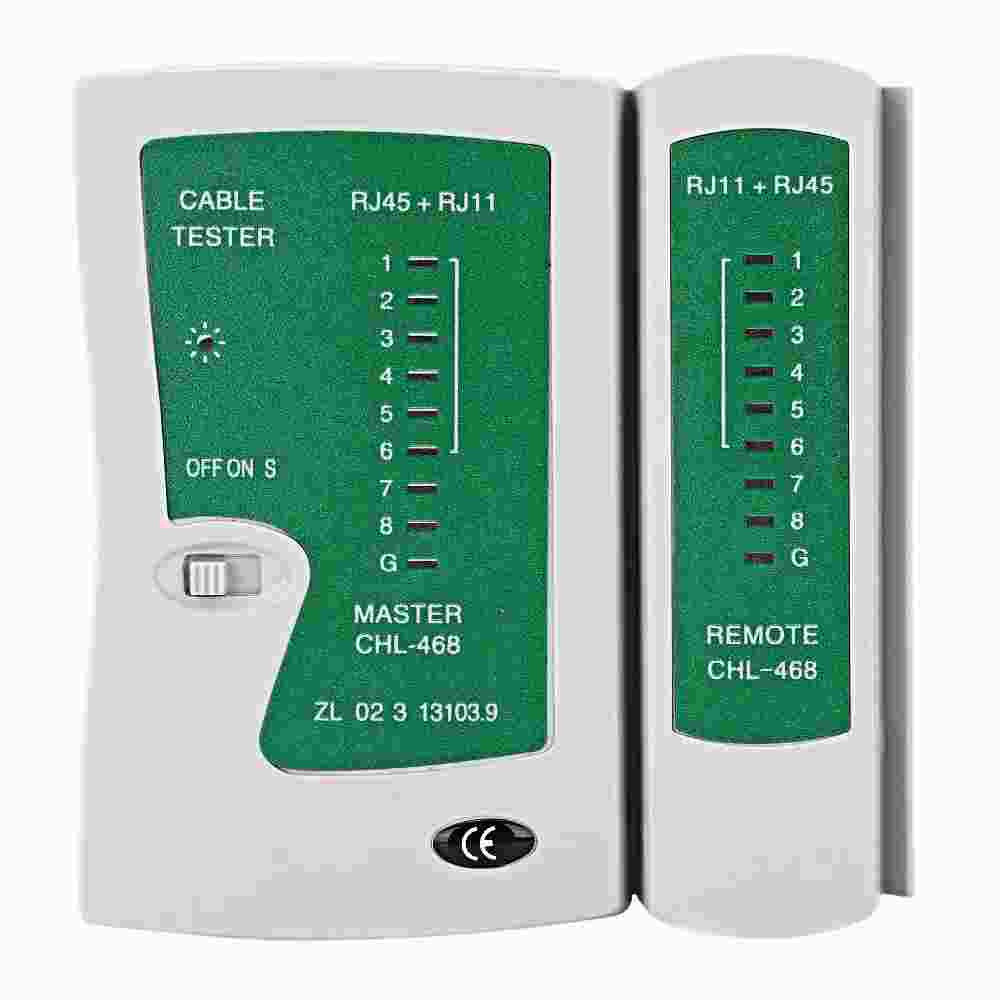
Make sure the RJ45 cable is arranged according to the LAN groove, to make it easier to check, use a special tool to check the RJ45 LAN cable.
Check the LAN Hardware
Make sure the LAN Card is installed correctly, if the LAN card is on board check the socket is still good whether there is dirt or corrosion.
If the hardware has been confirmed to be in a normal state and installed correctly then you must follow the next steps which will be discussed in the section below.
#2. Check Networking Settings
To connect or build a local area network, settings are needed because networking involves several hardware such as a Server, Rooter, Hub or connection, and Client / Computer user. For the networking network to be connected and connected, the correct settings must be made.
Here is the Local Area Network Settings to Connect between Server and Client:
Make sure the Ethernet Driver is installed correctly.
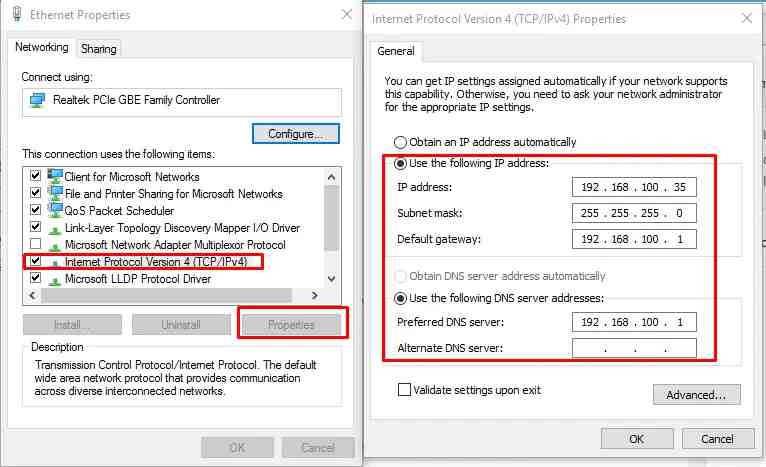
The first setting is on the server computer and Rooter. You must specify a Static IP for the server so that it can be accessed by the client.
Specify an internet IP Gateway as a bridge to connect to the internet, for IP Gateway on telecom indihome is usually 192.168.100.1 without this IP gateway you will not be able to connect to the internet.
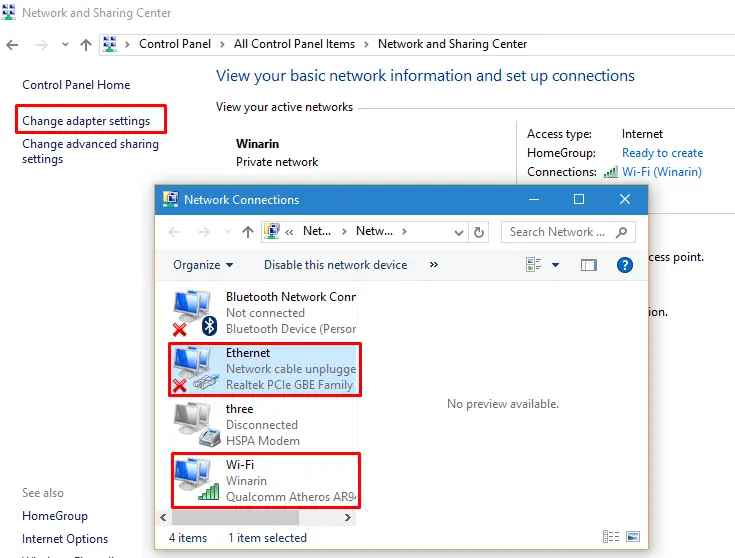
Please go to Control Panel / Settings > Network and Sharing Center settings to configure server or client computers.
Check Networking Settings
Select change adapter setting then the Ethernet and Wi fi network names will appear.
If you use a cable then select the Ethernet right click select Properties. then select Internet Protocol Version 4 (TCP/IPv4) > Select Properties, and a new window will appear as shown in the image below.
Check Networking Settings
Fill in the IP Address that has been determined according to the quota of each client.
Fill in the Default Gateway from the Indihome Rooter or the rooter you have with IP number 1.
The contents of the Preferred DNS Server if you do not have a special root server only from indihome can be filled with the same as the Default gateway.
After everything is filled in, click OK to save the settings.
I hope that if you have followed the steps above, the problem of the unplugged network cable has been resolved. To be able to create a LAN network you must set the final IP which has a digit range between 1 to 255.
#3. Troubleshooting Networks
If you have followed the two methods above but the unplugged chili network problem still appears and cannot connect to the internet, then you need to do troubleshooting. This troubleshooting aims to detect errors or computer device errors. By doing troubleshooting, the computer will automatically detect errors or network errors experienced and will provide suggestions to fix them.
So how do I troubleshoot a LAN network? Here I will discuss below:
Go to Network Connection settings like the IP settings above.
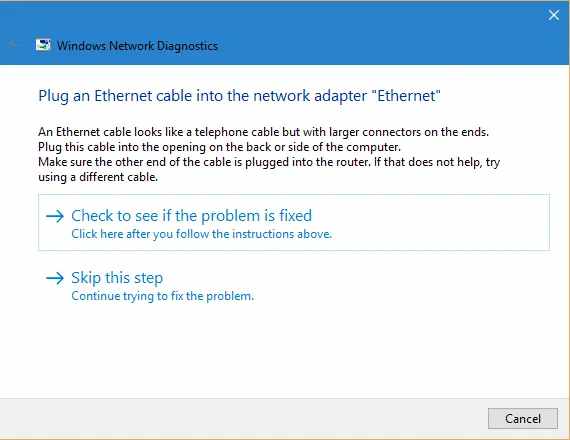
Right-click on the name of the network that will be troubleshooting, namely Ethernet or wifi, and select Diagnose, then the computer will scan detecting problems, and wait for it to finish.
Troubleshooting Networks
If a new window appears, please select Check to see if the problem is fixed
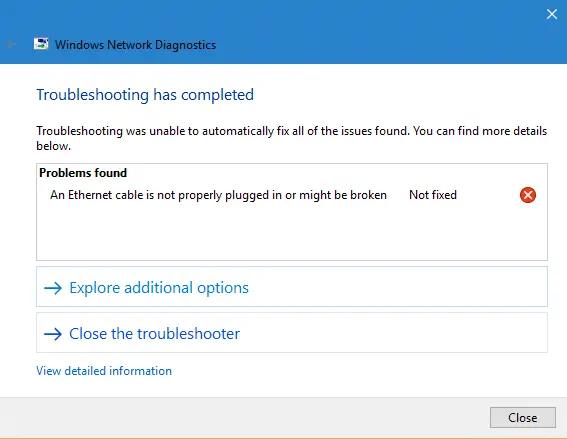
Then the system will carry out Resolving Problems, namely improving drivers, after which a new window will appear where the problem will be displayed or other actions need to be taken.
Troubleshooting Networks
If the Note Fixed statement and a red cross appear, the trouble cannot be resolved or the system corrected.
This is the explanation of the best 3 ways to fix the LAN network cable unplugged, by using the correct three steps. If you have followed the tutorial above but your problem has not been resolved you can leave a comment below so that I can help with your problem.

 Graphic design is the same as science-oriented to the art of design by requiring the help of tools such as computers for the process of making the design. The design is intended as a means of delivering messages.
 Sensitivity is the most important thing in the world of design. It is used to consider all the principles used in the world of design.
 In terms of design, it turns out that there are several factors that will affect the overall design result. Where these elements are combined into one and become a design. The influencing elements are:
 Before pursuing science or something you have to learn the technique first, such as learning to design this. Maybe many of you who are beginners or new to design are confused about how to start a design.
 For those of you who want to learn to design, there are many choices of graphic design applications that are easy to operate. Now there are many applications that can be used via cellphone or smartphone, you know, such as:
 Making designs through smartphones is easy and practical. However, using a smartphone has many limitations.