For now, of course, the Samsung Galaxy S5 is old enough, so many users want to customize it.
How to root the Galaxy S5 is not much different from other Android, and there is no need to enter Samsung’s Save mode.
For the root process, everything is almost the same, the only difference is the performance of the cellphone itself.
Root Samsung Galaxy S5 Without PC
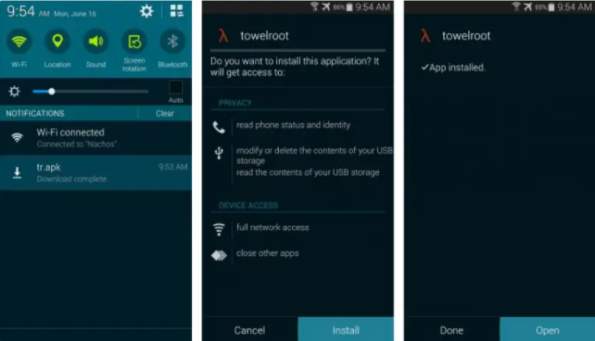
Download the Towelroot APK application.
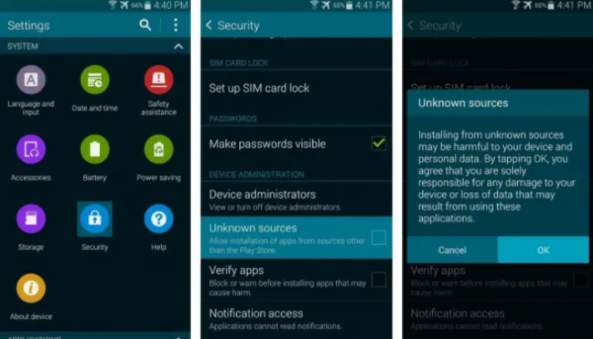
Enable Permissions to install third-party applications, how to open the menu S etings> security> device administrators then enable the option unknown sources.
Next, install the Towelroot application.
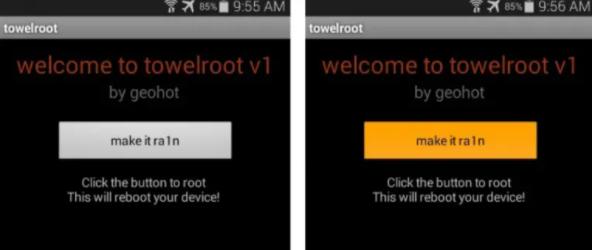
Then open and run the Towelroot application that has been installed.
Once open, please press the ” make it ra1n ” button.
The installation will start, wait for it to finish and your S5 will automatically restart.
Don’t forget to install & update Supersu.
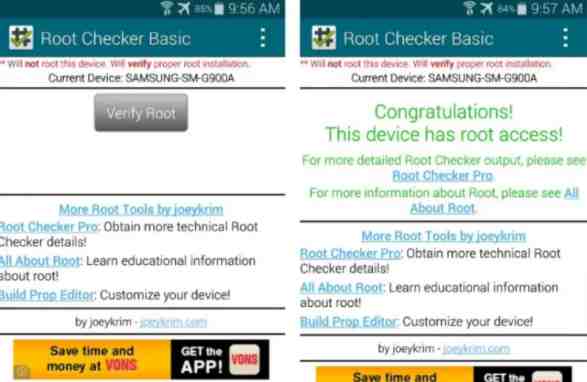
To see if it is true that Root has been installed, you can install Root Checker.
Done.
How to Root Samsung Galaxy S5 Marshmallow
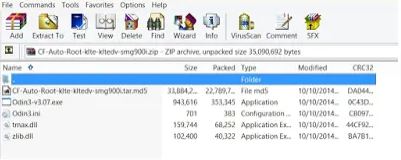
Download CF-Auto-Root on the http://autoroot.chainfire.eu/ page (choose the appropriate type for your Android device) or for the sm-900i type.
If it has been downloaded now Extract the file on the PC then run Odin3-v3.07.exe.
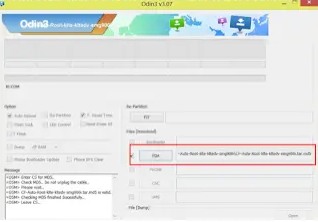
Click the PDA button then browse to the CF-Auto-Root-klte-kltedv-smg file.
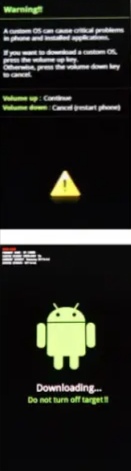
Turn off your cellphone then enter Download Mode, how to press and hold the power button + volume down + home button simultaneously.
After that will appear a notification to get into the mode “download”, please press the ” volume up “to continue to proceed.
Then connect the Samsung S5 to the PC / Laptop using a USB cable.
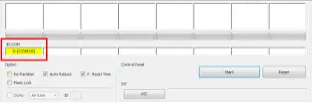
If successful, a Yellow code will appear in the ODIN Column.
Then click the start button on ODIN. Wait until the process is complete and the cellphone will restart automatically.
Install & update Supersu.
To see if it is true that Root has been successful, you can use the Root checker application which you can download on the Playstore.
Done.
We need to know that root access is very useful for doing various things, for example, such as deleting unnecessary default applications.
Even for experienced people, root can be a prerequisite for replacing the entire operating system by replacing a custom ROM, for example, MIUI or Cyanogen Mod.
But root access cannot get rid of Safe Mode on Samsung cellphones.
With Galaxy S5 Root Access you can operate more freely and suit your needs.
In this sense, you can choose what applications you want to use without being bothered by junk applications.
Top 24 Free Websites to Receive SMS Online Without Real Number – are you looking for a freeSMS-sending website? if yes then you are in the right place.
Top 23 Free Websites To Receive SMS Online
Top 24 Free Website To Receive SMS Online without any Real Phone Numbers
who does not know about a free SMS website? Surely you guys ever whose name uses a short message delivery feature that is now starting to lose its fame for being shifted by Chat Messenger like Line, BBM, KakaoTalk, BeeTalk, WeChat, WhatsApp, YM, etc. And also lose competitiveness with emails that are more trendy today.
But, for the rural area, it turns out an SMS is still often used, because it may be difficult for the network obtained there to get 3G or 4G signals.
6 years ago I still often use SMS to tell my friends, relatives, and family information that I want to convey.
But since the development of technology, there is now called BlackBerry Messenger, Line, Facebook Messenger, etc.
Which is certainly more comfortable in its use and also free! We only need to cut the quota pulse only. This is one of the most influencing factors of SMS landslides.
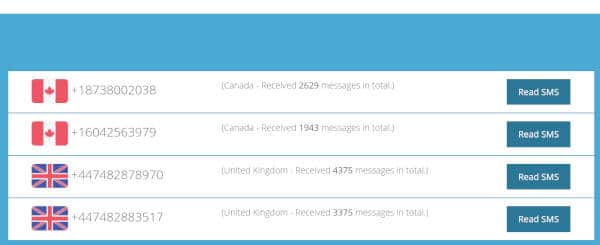
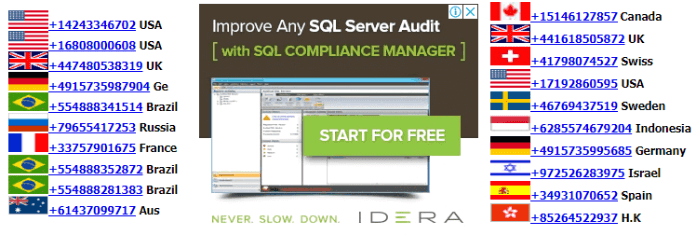
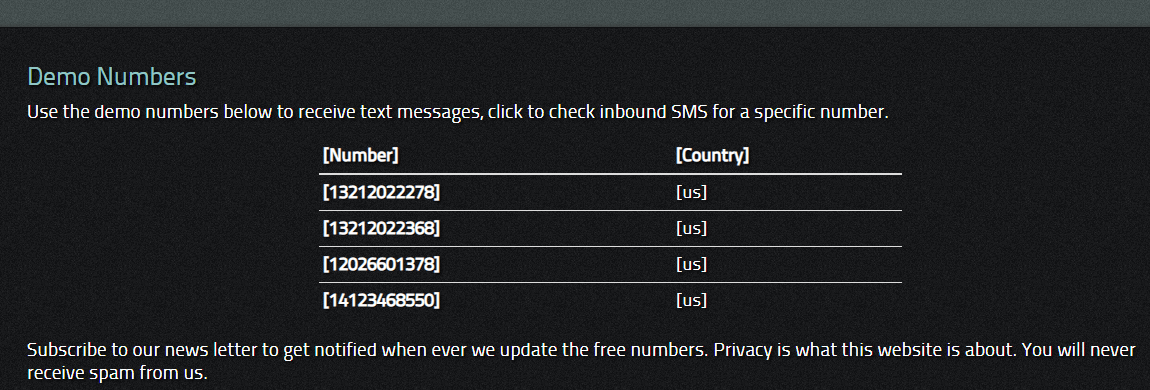
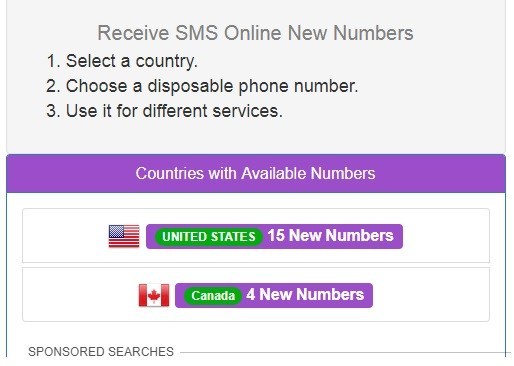
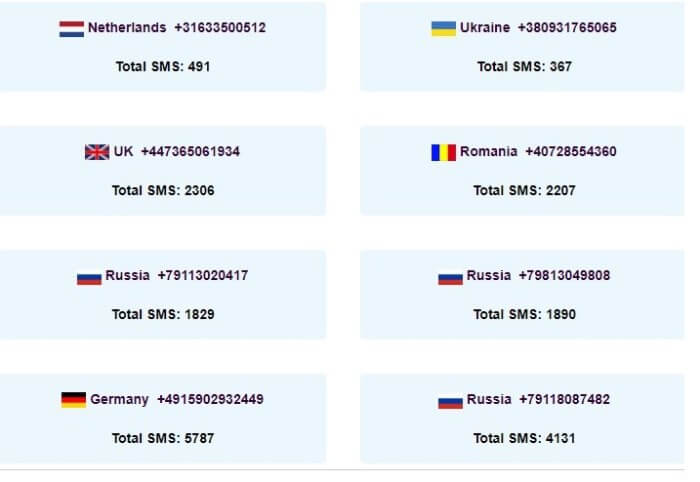
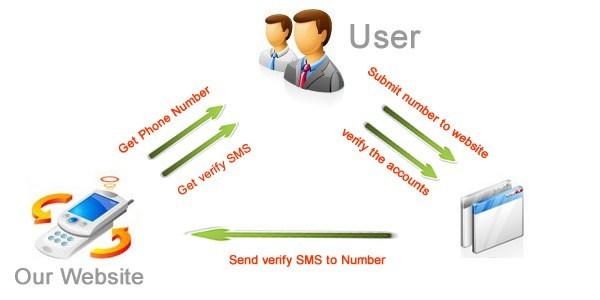
Ok, I’ll just share with you some sites that you can use to receive SMS online.
This is very useful for those of you who want to verify the account on a website that you yourself are lazy to use your own personal number.
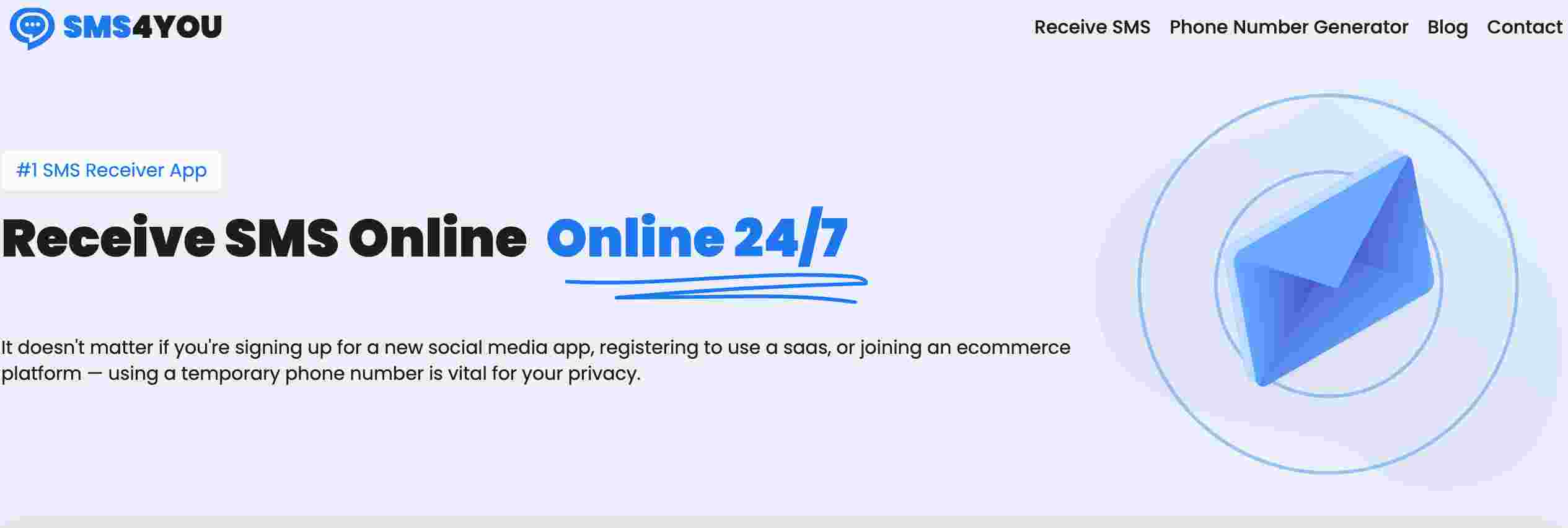
#1. SMS4you.net
SMS4you.net is an online service designed for receiving SMS messages on the web. The website offers a convenient platform for individuals and businesses to receive SMS notifications, verification codes, and important messages without the need for a mobile phone.
With SMS4you.net, users can create an account and receive SMS messages from various sources directly on the website. The platform supports receiving SMS from different countries and mobile operators, ensuring broad accessibility.
The website provides a user-friendly interface where users can view their received messages, search for specific content, and manage their inbox efficiently. SMS4you.net prioritizes security and privacy, ensuring that your received messages are protected and accessible only to you.
Whether you need to receive important notifications, verify online accounts, or stay informed while on the go, SMS4you.net offers a reliable solution for receiving SMS messages conveniently from any internet-connected device.
Experience the convenience of receiving SMS messages online with SMS4you.net, your trusted platform for staying connected and receiving important information effortlessly.
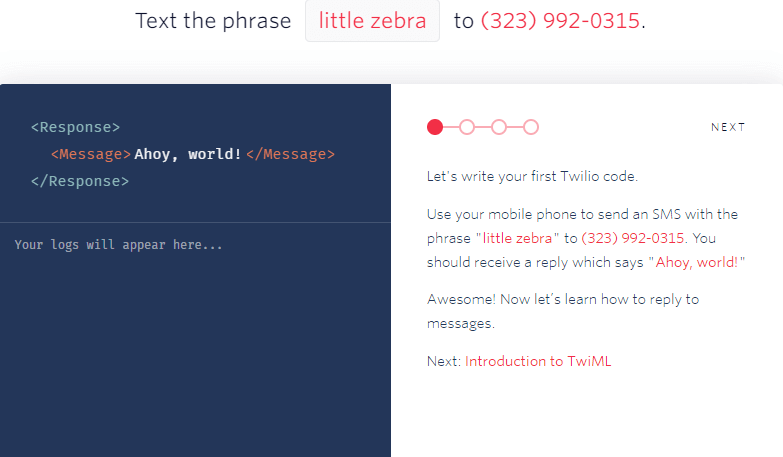
Twilio gives you a free private phone number in the trial account if you give them a mobile number to receive a verification code.
Luckily you can use one of the temporary phone numbers from the above site to receive a verification code to activate a Twilio test account.
You can see the private phone number provided by Twilio by clicking the number on the menubar at the top of the page. To view SMS text messages received, click on the log followed by the message.
Note that Twilio’s trial account is unable to send messages to the verification number but can receive online SMS from phone numbers without any problems.
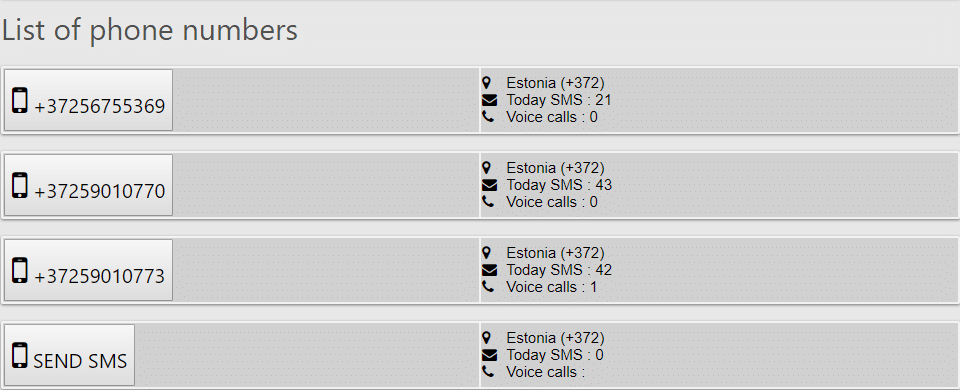
The country of public phone numbers offered by Sellaite SMS recipients to receive online SMS is Estonia, which is very different from its competitors.
We found that they are quite reliable because they are very quick to record phone numbers from web pages if it does not work. If you see a phone number available, it’s very likely to work unless the SMS gateway cannot send text messages to Estonia.
Just click on the available online phone number on the web page and the message that has received the number will be displayed.
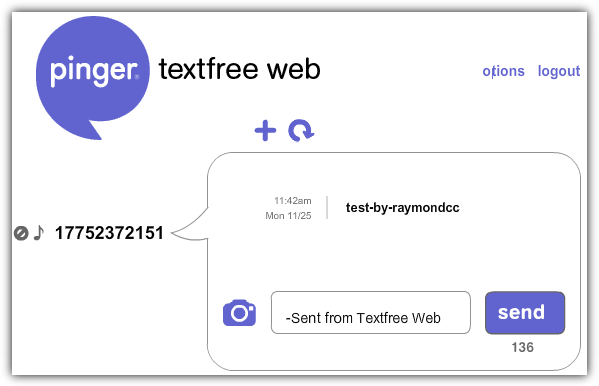
If you are having trouble registering with TextNow because you can not find a working US proxy or VPN, Pinger Textfree Web is an alternative because anyone can register and use it for free.
When registering you will need to provide a valid US postal code (example 01001) which can be found by searching on Google.
Then you will be presented with our list of phone numbers that you choose to use. If you can not remember the phone number you selected, a simple click on Options and your phone number will be displayed on the first line when your account information appears.
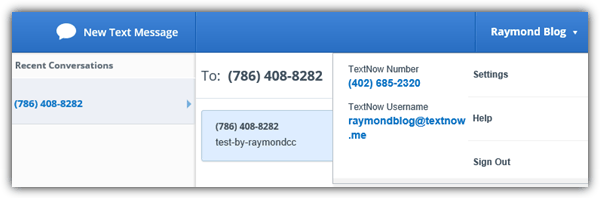
TextNow is a good choice if you’re looking for a reliable and free personal phone number that only you have access to an SMS text message received.
You will need to sign up for a free account and you will be automatically assigned a unique phone number.
The problem is just general that most people get a generic error message “something goes wrong with your registration.
Please try again!” When trying to sign up. To solve this problem, all you need to do is use a US-based VPN or proxy to do a one-time registration and you can log in normally using your own IP address.
Unique US personal phone number to receive SMS online displayed in Account details after login.
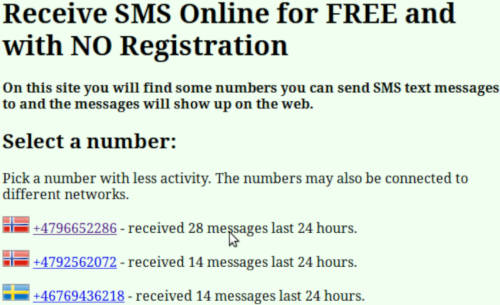
Then you can visit the site receive-sms-online.com as a free site to get the next number.
This site will be very helpful for receiving messages online if you want to keep your phone number hidden.
Accessing this site is even easier because you are only asked to choose a number from the number of lists provided.
This server can be accessed for free, but what you should be aware of is the existence of a secondary domain server that can prevent your access to this site.
From this site, you will be offered telephone numbers from the US and Hungary. This site sometimes also carries the wrong message.
But you don’t need to worry, just ignore the message and click on one of the registered numbers to get your SMS.
Unfortunately, the weakness of the site http://gre.im/ is that the US numbers provided are not so many choices and the numbers cannot be really relied on.
This site is also included as the best site that you can choose specifically to receive online technology.
This site provides more than 228 countries with global coverage. Customer service can also be accessed 24/7.
The most advantage is that you can choose any number you need to receive verification text. However, this site also has weaknesses where sometimes the numbers given do not work.
You don’t need to worry because this problem will be resolved immediately. To access it you can visit the page http://www.freeonlinephone.org/
Receivefreesms.com You can use this site once to receive online SMS verification.
You don’t need to register because the numbers are used temporarily and randomly.
There are many numbers that can be used including Indonesian, UK, USA numbers, and many more.
The advantages of Receivefreesms.com are free and can receive verification codes quickly to activate Gmail, Whatsapp, Beetalk, Wechat, Facebook accounts, and much more.
Among the list of sites to get free numbers, this site is probably the best. This site will provide 6 free phone numbers from Sweden and the UK for verification.
If you use this service, your verification SMS will be displayed on the webpage publicly, unless you register for premium services.
There is no significant weakness of this site in the outline. Direct access at http://recieve-sms.com/ to enjoy the service.
SMS-Receive.net is a site that provides virtual cellphone numbers and real phone numbers stored on the SIM card.
This website provides users with free services with public telephone numbers where they can receive online SMS on various social websites or forums such as NAVER LINE, Yahoo, Microsoft, server loft, CloudSigma, Facebook, Amazon, VK, OKru, Instagram, RealStatus, etc.
Confirm registration using our number. Remember that all messages received on this website will be visible to everyone and cannot be deleted.
The online SMS recipient for further verification is getsmscode.com. Personally, I have used the services of Getsmscode.com for quite a long time and rather cheaply from previous services.
Here you can receive verification numbers from China, Cambodia, England, the USA, Malaysia, and Indonesia, rather expensive.
The advantages of the virtual cellphone number service from getsmscode.com are fast, many discounts, and affordable. However, for Indonesia, it is rather expensive at around $ 0.30 – 0.50 per SMS.
If you access this site, you will see the similarity of this site to the freeonlinephone.org site.
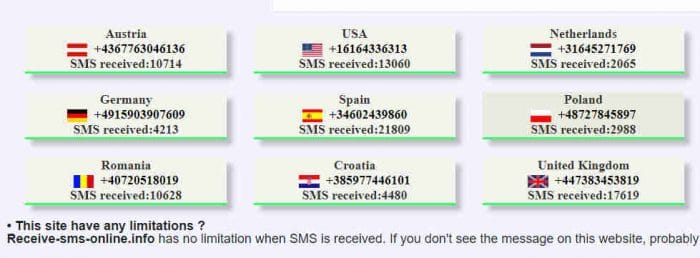
This is reasonable because both of them are indeed made by the same company. This site will offer 5 numbers from the US and 3 numbers from the UK that you can use.
The weakness of this site is that when receiving an SMS there is usually a delay. To enjoy the service you can access it at https://www.recieve-sms-online.info/
If you visit freeOnlinePhone.org, you will find that the site looks similar to this one except that there are differences in color.
This is because they were created by the same company called “Cicklow”. Offers 5 telephone numbers from the US and 3 from the UK to receive online text messages.
One disadvantage of their services is that there is a delay in receiving SMS from a number that matches their users.
Looking to raise your profile in Japan, but reluctant to open an office on the ground? A TollFreeForwarding.com number brings Japan to you by phone.
Your number comes with a host of great features, including smart-call forwarding, enabling you to route calls from Japan to your office, home phone, mobile, PBX or call center. You can also convert voicemails and faxes to email.
You can add and delete numbers as you choose, as you’re not locked into any long-term arrangements and you don’t need any new equipment. Just choose a number from our online inventory and have it activated in 60 seconds!
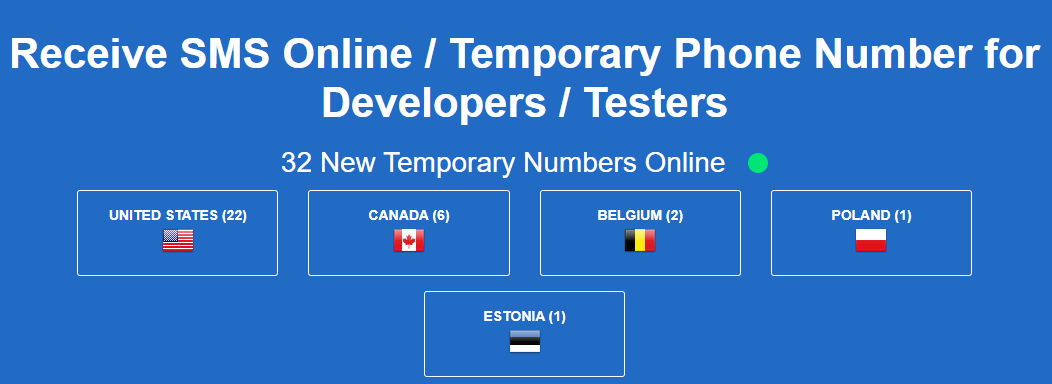
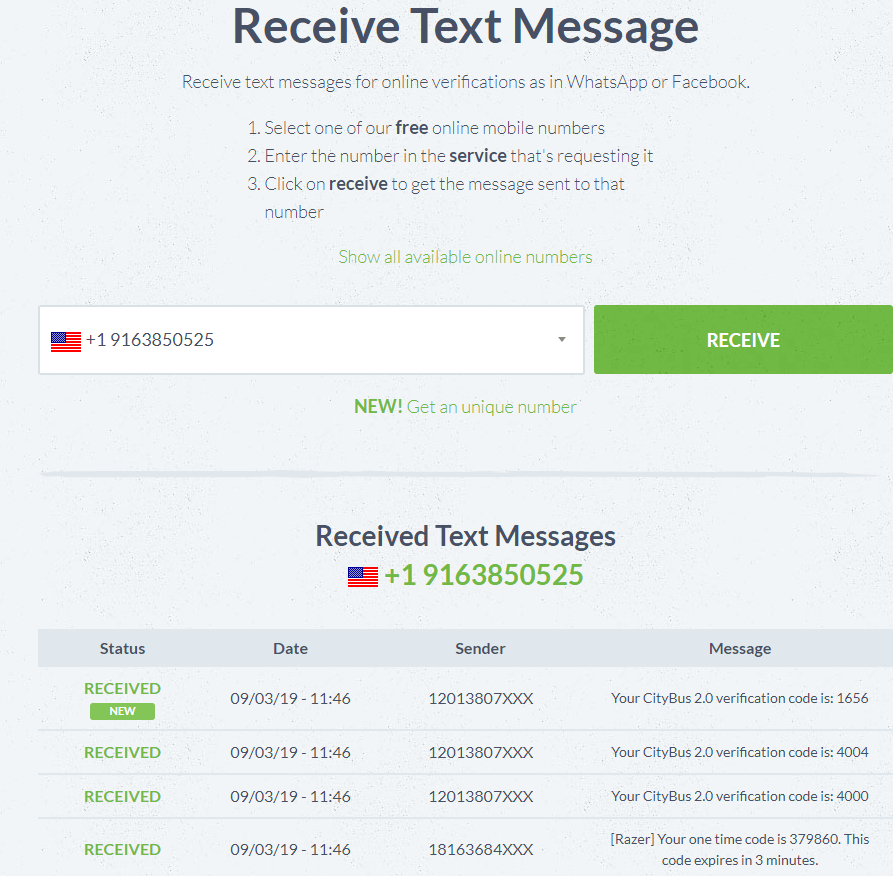
FreePhoneNum.com is a free virtual phone number provider site for receiving verification SMS with a large collection of numbers.
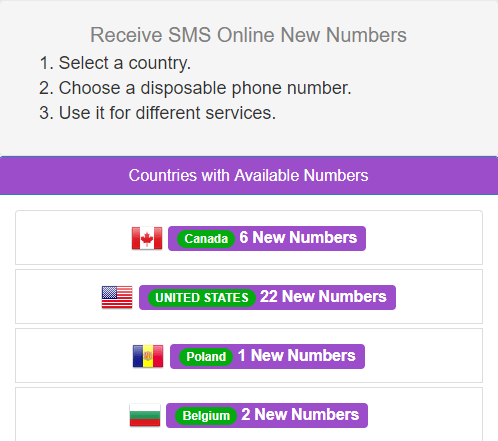
There are a total of 87 active telephone numbers from various countries, namely America, Canada, the United Kingdom, Belgium, and Puerto Rico.
All telephone numbers are active and can be used to receive verification SMS. I have tried using it to verify Go-Jek, Instagram, WhatsApp, PayPal, Proton, Lybrate, Tinder, Lyft, Google, CoinX, Almami, Coinbase, and Uber, and it works.
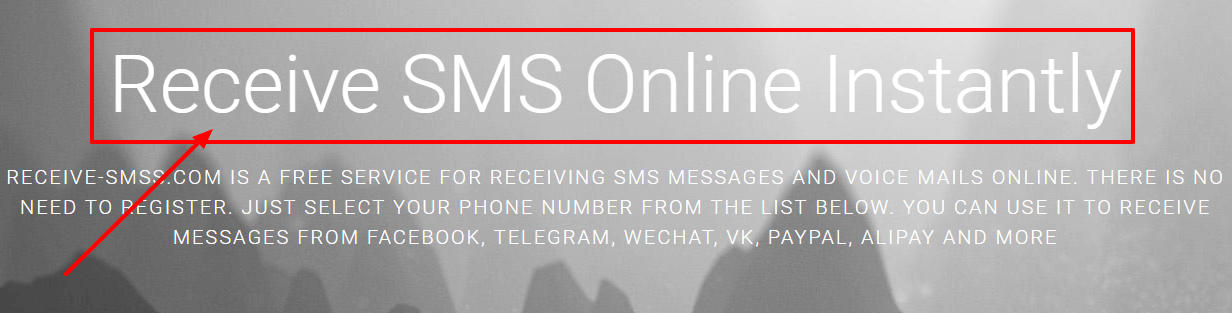
Receive-SMSS.com is a temporary virtual phone number provider site to receive verification SMS that I also use often.
Country variants that can be chosen are also quite diverse. Of the total 26 telephone numbers available free of charge from the United States, Canada, South Africa, Belgium, Latvia, Romania, England, Sweden, Poland, France, Germany, the Netherlands, and Italy.
All of these numbers can be used to receive SMS verification for Go-Jek, Instagram, WhatsApp, PayPal, Proton, Lybrate, Tinder, Lyft, Google, CoinX, Almami, Coinbase, Uber, and others.
ReceiveSMS.co is a temporary virtual phone number provider site for receiving verification SMS with more variation numbers.
The numbers come from Austria, Australia, Belgium, Canada, Switzerland, Denmark, Estonia, Spain, France, England, Ireland, Lithuania, Italy, Latvia, Poland, Puerto Rico, Portugal, Russia, Sweden, Slovakia, and America A union with a total number of active telephone numbers of more than 60 pieces.
You Can use it to receive Go-Jek SMS verification, Instagram, WhatsApp, PayPal, Proton, Lybrate, Tinder, Lyft, Google, CoinX, Almami, Coinbase, Uber, and others.
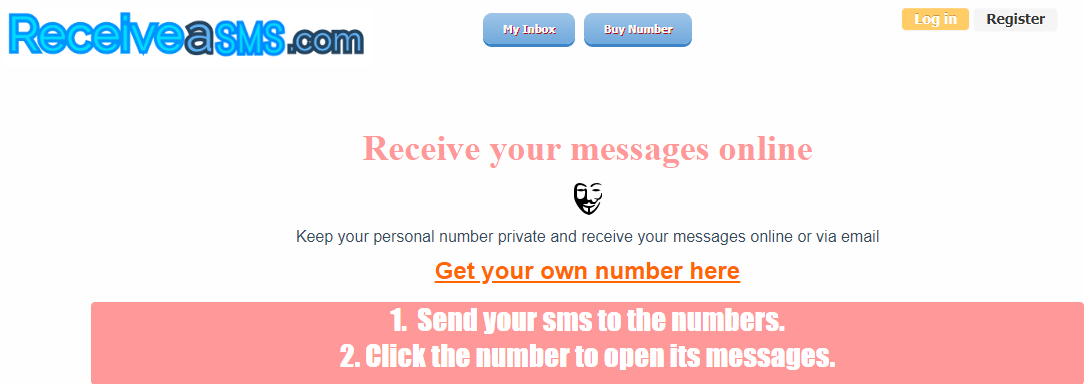
Receive-A-SMS.com. The site for providing virtual numbers to receive the next verification SMS.
This site provides numbers from Australia, Slovakia, Switzerland, the United States, Sweden, the United Kingdom, Portugal, Germany, South Africa, Canada, the Netherlands, Mexico, Lithuania, Malaysia, Hong Kong, the Czech Republic, Italy, and Poland with a total number more than 30 numbers.
According to the site’s information, you can use this service to receive SMS verification on the services of WeChat, Baidu, Yuilop, Instagram, Odnoklassniki, eBay, Facebook, Google, Upload.net Premium, Chatroulette, Easyusenet, Yahoo, Microsoft, WePay, Gumtree, QIWI Wallet, Global Call, Youtube, Localbitcoins, Uber, Voxo x, Vichatter, and Visa.
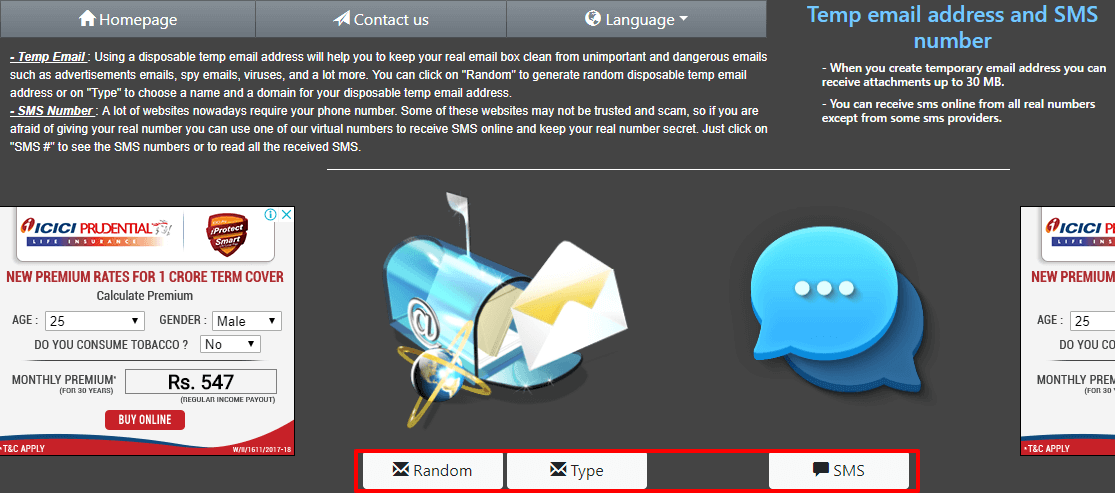
Temp-Mails.com actually not only provides a free virtual phone number to receive verification SMS but also provides a temporary email to register an account.
The numbers provided include the United States, United Kingdom, Poland, Australia, Switzerland, Lithuania, Belgium, Italy, France, and Hong Kong.
The website clearly states a warning that these numbers should not be used to receive important SMS.
Just like everything else, this service can you used to receive SMS verification of WeChat, Baidu, Yuilop, Instagram, Odnoklassniki, eBay, Facebook, Google, Upload.net Premium, Chatroulette, Easyusenet, Yahoo, Microsoft, WePay, Gumtree, QIWI Wallet, Global Call, Youtube, Localbitcoins, Uber, Voxo x, Vichatter, and Visa.
MyTrashMobile.com is a free virtual phone number service provider for receiving account verification SMS.
The numbers you can use variables in various countries including South Africa, the United States, Italy, Hong Kong, the United Kingdom, and Canada.
Just like everyone else, this service can you used to receive SMS verification of WeChat, Baidu, Yuilop, Instagram, Odnoklassniki, eBay, Facebook, Google, Upload.net Premium, Chatroulette, Easyusenet, Yahoo, Microsoft, WePay, Gumtree, QIWI Wallet, Global Call, Youtube, Localbitcoins, Uber, Voxo x, Vichatter, and Visa. You can use this service through the website or through the Android and Apple applications.
ReceiveTxt.com is a virtual number provider service for receiving free verification SMS that routinely updates its phone number within a few weeks depending on how many users it has. You can also send an email asking for a new phone number from your country for free.
Currently, available numbers include the United States, United Kingdom, Canada, Puerto Rico, and Belgium.
All telephone numbers are active and can be used to receive verification SMS. I have tried using it to verify Go-Jek, Instagram, WhatsApp, PayPal, Proton, Lybrate, Tinder, Lyft, Google, CoinX, Almami, Coinbase, and Uber, and it works.
GetFreeSMSNumber.com provides a free virtual phone number to receive verification SMS.
Each telephone number will be active and can be used for one month. It can even be faster if the number has received a lot of SMS and get a blacklist.
The numbers available include countries from Canada, the United Kingdom, France, the United States, and Belgium.
This service can be used to receive SMS verification for WeChat, Baidu, Yuilop, Instagram, Odnoklassniki, eBay, Facebook, Google, Upload.net Premium, Chatroulette, Easyusenet, Yahoo, Microsoft, WePay, Gumtree, QIWI Wallet, Global Call, Youtube, Localbitcoins, Uber, Voxo x, Vichatter, and Visa.
So, friends, This is the explanation of the top 24 free sites to receive SMS online, That’s on you can receive and even send SMS online to almost all countries, such as Australia, Sweden, Nederland, Spain, England, USA, China, Japan, Thailand, Philippines etc.
How To Fix PCI Simple Communications Controller Error – PCI Simple Communications Controller is a driver that has the function of managing network work on a computer or laptop. So this one driver has a very important role in the performance of the computer that we use.
How To Fix PCI Simple Communications Controller Error
How To Fix PCI Simple Communications Controller Error
If the computer does not install the PCI Simple Communications Controller driver or the drivers are not installed correctly, the computer will not function normally.
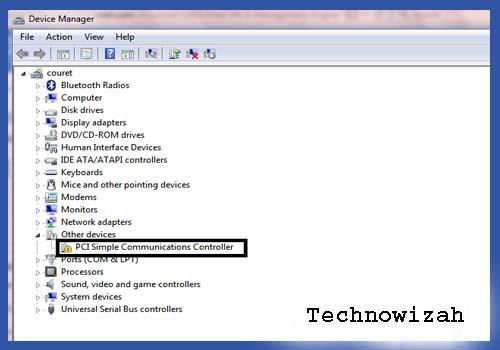
If the PCI driver is not installed properly, a yellow exclamation mark will appear on the PCI Simple Communications Controller in the Device Manager.
This also applies if you have not installed the PCI driver on the computer or laptop you are using.
The PCI Simple Communications Controller Error problem can be solved in the following ways.
How to Manually Fix PCI Simple Communications Controller Error
This method requires no additional application help, but it is a little tricky.
For the process to run smoothly and successfully, you should follow the guide on how to manually resolve the PCI Simple Communications Controller Error below:
Open Windows Explorer.
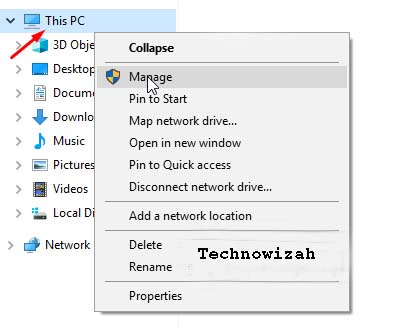
Then right-click on My Computer / This PC then click Manage.
Then click Device Manager.
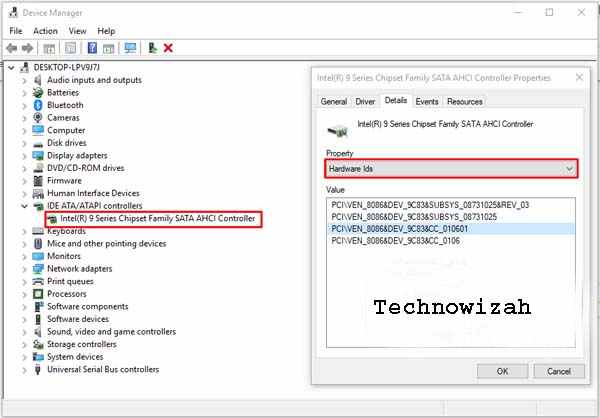
Then right-click on Intel(R) 7 Series Chipset Family SATA AHCI Controller or PCI Communications Controller.
Then click Properties.
After that a new page will appear, please click the Details tab.
In the Properties section, select Hardware IDs.
Make sure in the value section there are several entries as shown below.
Please copy one of the entries in the value. For example, here I copy the words “ PCI\VEN_8086&DEV_9C83&CC_010601 “.
Next, please open the web browser that you normally use.
Then paste PCI\VEN_8086&DEV_9C83&CC_010601 in the Google search field.
Then find and download the appropriate file.
To speed up the search process, you can search through the pcilookup.com site.
Use Driver Pack Solutions
If the first method is too confusing and too difficult to do, we recommend using Driver Pack Solutions to fix the PCI Simple Communications Controller error problem.
But you have to download the Driver Pack Solutions application first if you don’t have it.
Make sure the Driver Pack Solutions file you downloaded has an ISO format.
Make sure your computer or laptop is connected to a stable internet connection.
Open the Driver Pack Solutions that you have downloaded. How to right-click and select mount.
After the Driver Pack Solutions is open, please select the driver to be updated or installed.
Make sure you also select the PCI Simple Communications Controller driver.
Then click Install Automatically.
Wait until the driver installation process is complete.
When the installation process is complete, please click Finish.
Then restart your computer/laptop.
After your computer or laptop restarts, the PCI Simple Communications Controller problem no longer appears.
Conclusion
Please try one of the methods above which you think is the easiest to do.
Hopefully, after applying one of the methods above, the error problem can be resolved and your computer or PC will return to normal as before.
6 Ways To Fix ERR_NAME_NOT_RESOLVED Issues In Chrome – Google Chrome is free, fast, easy to use, secure, and the most popular web browser available.
How To Fix ERR_NAME_NOT_RESOLVED Issues In Chrome
How To Fix ERR_NAME_NOT_RESOLVED Issues In Chrome
One of the reasons for this popularity is Chrome’s compatibility with many devices and operating systems. Apart from these features, you may have encountered the “ERR_NAME_NOT_RESOLVED” error in Google Chrome and are currently looking for a solution.
The ERR_NAME_NOT_RESOLVED error usually appears when you try to log in to websites. When this error occurs, there is also a message informing you that the web page is unavailable. You can’t go past this error and open a website.
The ERR_NAME_NOT_RESOLVED error results from your DNS address problem. Your Internet DNS address is blocked for various reasons and hence this ERR_NAME_NOT_RESOLVED error occurs.
Fix ERR_NAME_NOT_RESOLVED Issues In Chrome
You may not need to try them all; just go down the list until you find one that works for you.
#1: Clear your Chrome browser cookies
Browser cookies can block your Internet DNS and then cause an ERR_NAME_NOT_RESOLVED error. You can try clearing browser cookies to fix this error.
On Google Chrome, you can:
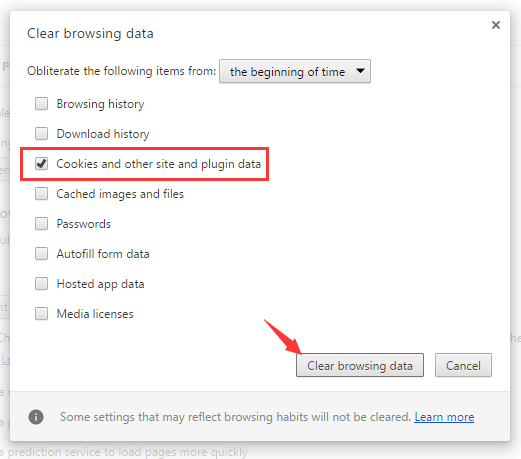
1) Type “ chrome: // settings / clearBrowserData ” in the address bar and press Enter on your keyboard.
Try the solution to fix the ERR_NAME_NOT_RESOLVED problem in Chrome
2) Only check Cookies and other sites and plugin data. (This means you only want to delete this type of data.) Then click Clear browsing data.
Try the solution to fix the ERR_NAME_NOT_RESOLVED problem in Chrome
All cookies on your browser are deleted. You can check and see if the problem is fixed.
#2: flush and update DNS
Flush and DNS updates are an excellent way to fix the ERR_NAME_NOT_RESOLVED error – this method is quite easy to do and very effective.
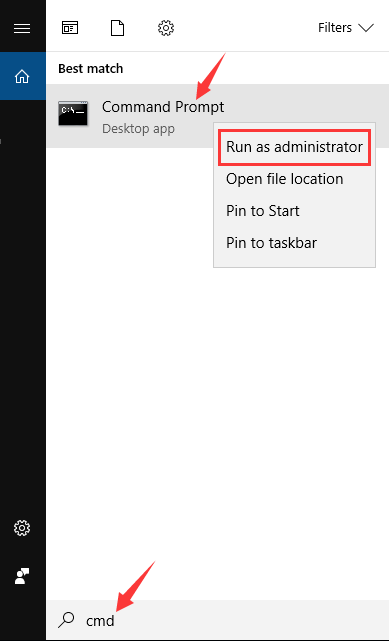
1) Press the Windows logo key or click Start Menu and then type “ cmd ”. Right-click on Command Prompt in the result and select Run as administrator.
flush and update DNS
2) Type the following lines.
(Press Enter after each line of code and wait for the completion of each process, then type the next line).
Close the Command Prompt and restart your computer. Then see if the error is fixed.
#3: Change the DNS address to Google Public DNS
Changing your DNS address to a public address can help you fix browsing problems caused by DNS. You can change it to open the DNS server addresses provided by Google.
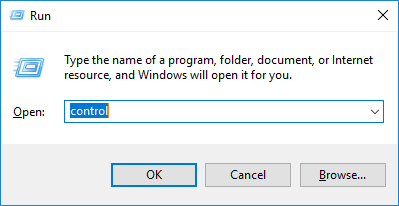
1) Press Win + R . Type “Control” and press Enter.
Control
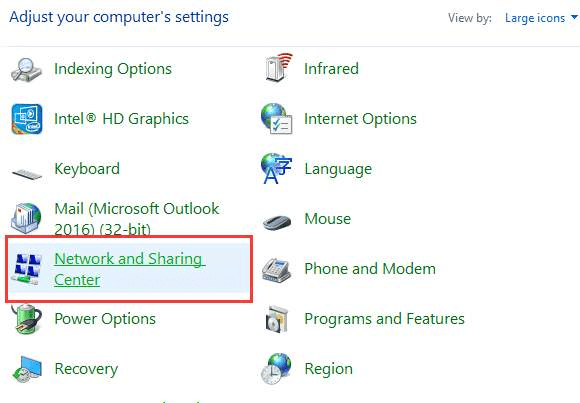
2) In the Control Panel, click Network and Sharing Center.
Network and Sharing Center
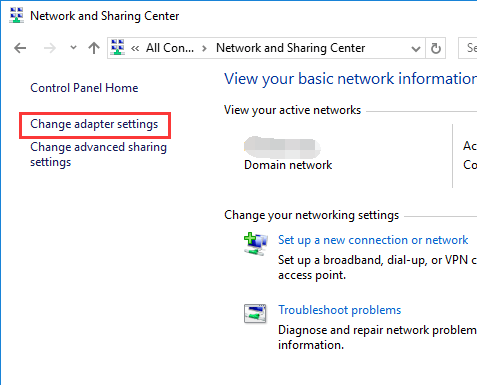
3) Click Change adapter settings in the left pane.
Change adapter settings
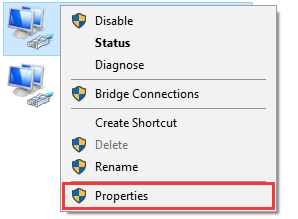
4) Right-click on the connection that connects your computer to the Internet, and then select Properties.
Properties Connection
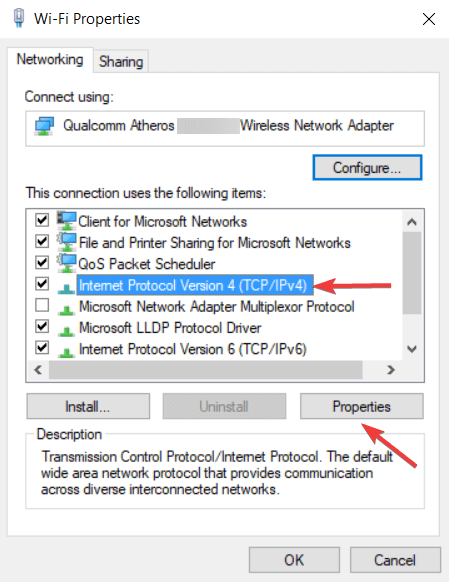
5) Select the Internet Protocol Version 4 (TCP / IPv4) item, and then click Properties.
Internet Protocol Version 4 (TCP IPv4)
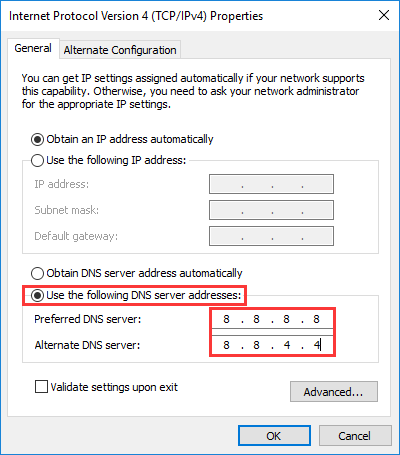
6) Select Use the following DNS server address. Enter 8.8.8.8 for the Preferred DNS server and 8.8.4.4 for the Alternate DNS server.
Use the following DNS server address
7) Click OK completely and see if this method solves the problem.
#4: Check your Firewall and security software
The firewall or security software you are using can block network or browser connections and thus create DNS block errors. Check your firewall and security software settings.
You may need to unblock your browser and network connection. Or you can try disabling your firewall or security software to see if the error gets fixed.
#5: Use a VPN
You may be experiencing the ERR_NAME_NOT_RESOLVED error because your connection to the website is being lost. To avoid this annoyance, you should try using a VPN.
There are two ways you can set up a VPN on your computer:
Option 1 – Manually – You will need computer skills and patience to set up a VPN connection this way, as you will need to have a VPN server to connect to, and change your connection settings step by step.
OR
Option 2 – Automatically – This is the fastest and easiest option. Everything is done with just a few mouse clicks – easy even if you are a computer newbie.
Option 2 – Automatically set up a VPN connection
You can set up a VPN connection using a VPN service. And the service we recommend is NordVPN.
NordVPN helps you set up a fast and stable Internet connection anywhere, and you can use it to fix Internet distractions with ease.
2) Run NordVPN, then select the location you want to connect to.
3) Try accessing the website with Chrome and see if the error goes away.
If so, great! But if not, you may need to go through the following solutions.
#6: reload the router
Unplug your modem (or router) from the main power supply and let it unplug for a few minutes. Then reconnect it and wait for the process to finish (self-test).
So, friends, this is the explanation of how to fix ERR_NAME_NOT_RESOLVED Issues In Chrome, If you know of another solution to this problem, and it’s not mentioned in our guide, feel free to share it with us by leaving a comment in the section below.
6 Ways To Connect Printer to Laptop Wirelessly PC – Can it be done? This may be done in addition to the times that are all utilizing a network. This includes printers commonly used to print documents.
How to Connect Printer to Laptop Wirelessly Windows 10 PC
How to Connect Printer to Laptop Wirelessly Windows 10 Laptop PC
Wireless printers work using your Wi-Fi network to print documents from a laptop. With a wireless printer, your laptop doesn’t need to be connected directly to the printer. Document files to be printed can be sent from any room when at home or office.
Well, for those of you who are already using or buying a wireless printer and don’t know how to use it. I suggest reading the article below.
How to Connect Printer to Laptop Wirelessly
Wireless or cordless printers work over a network connection. If you use it at home, it will become your local home network. If you work in an office, there will be a network in your office.
Instructions for connecting your wireless printer to your Wi-Fi network are various. So, before you get started, read your printer manual and follow the manufacturer’s instructions for connecting the printer to a Wi-Fi network.
#1. Configure Internet access on the printer
Below are general steps for connecting a wireless printer to a Wi-Fi network
First, you turn on the Wi-Fi router and laptop.
Then turn on the printer.
Go to the ” Start ” menu and then open the ” Control Panel “, and open the ” Wireless settings”.
Select the wireless “ SSID ” (name of the Wi-Fi network) of the WI-FI network
Enter the password or password (Setting the password on the Wi-Fi Router). The WEP password is the entered password or the WPA default password on the router.
Note:
If you are using an Epson printer, navigate to Settings> Wireless LAN Settings.
If you are using an HP printer, open Network.
#2. How to Solve Problems in Connection
This is done if you have problems connecting the printer to Wi-fi:
First, connect the printer to the laptop with a printer cable or USB cable. If the printer can print using a cable, it may not be able to connect to Wi-Fi.
Move the printer to get a better Wi-Fi signal. Something might be blocking printer access. Check the printer display for Wi-Fi strength (some printers do not have this feature.)
Delete all pending print jobs. There may be a problem with the document that is preventing the printer’s ability to connect to Wi-Fi.
restart your printer.
Make sure the printer firmware is updated to the latest version.
#3. How to Connect a Printer to a Laptop Via Wi-Fi
After the printer is connected to a Wi-Fi network, then add a wireless printer to your laptop.
#4. Adding a Printer to a Windows 10 Laptop
First, turn on the printer.
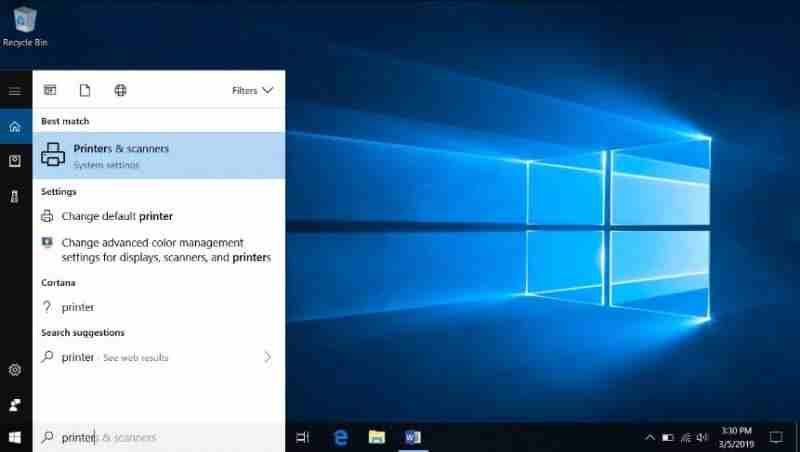
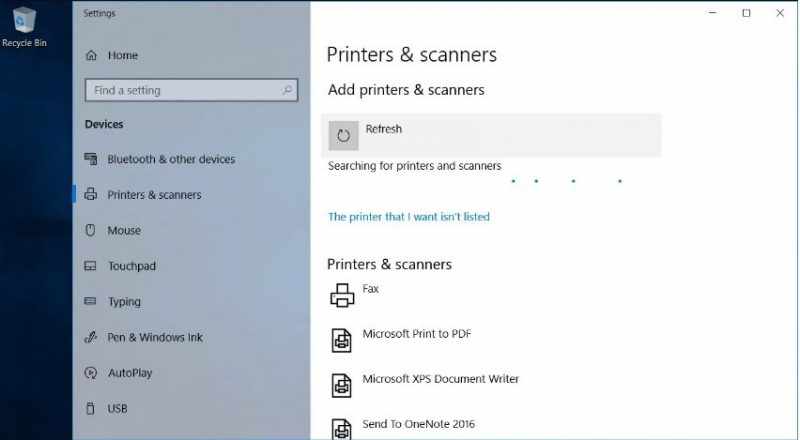
Open a search window and type ” printer ” in the column. Then select ” Printers & Scanners “.
www.lifewire.com
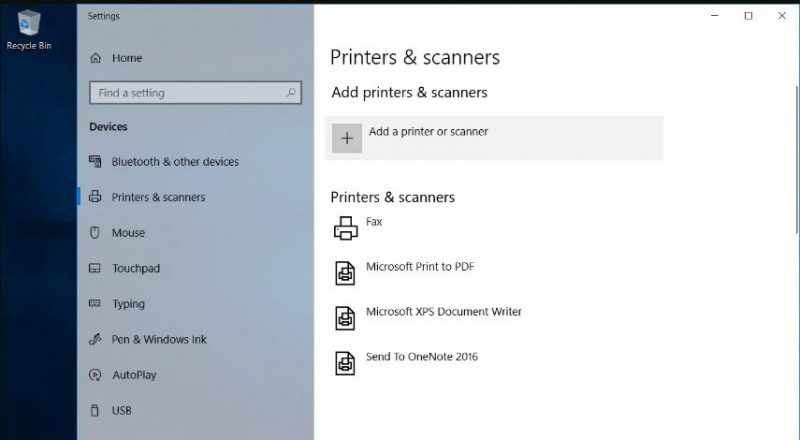
In the settings window, you select ” Add a printer or scanner .”
www.lifewire.com
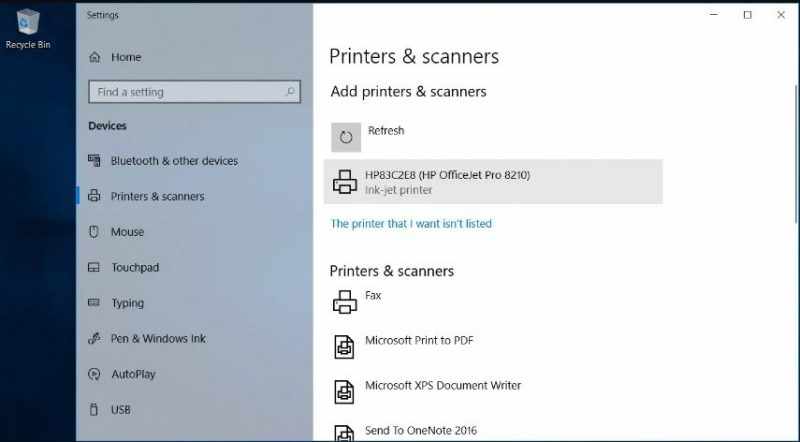
Then you select the printer used
www.lifewire.com
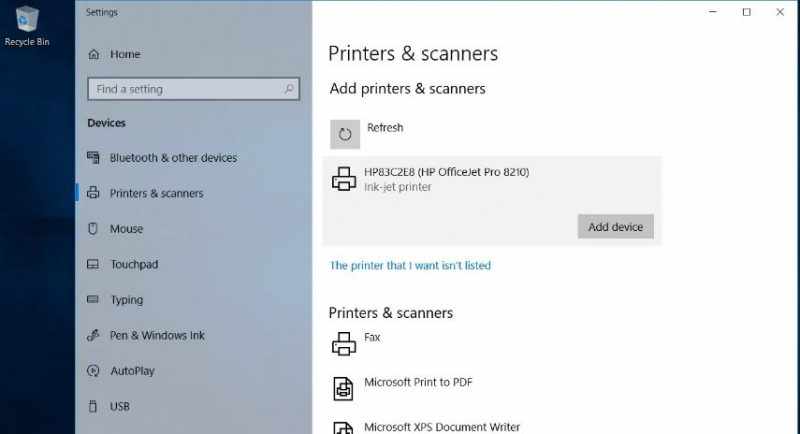
Select ” Add device “
www.lifewire.com
Then wait for Windows to set up whatever drivers are needed and add the printer to the laptop.
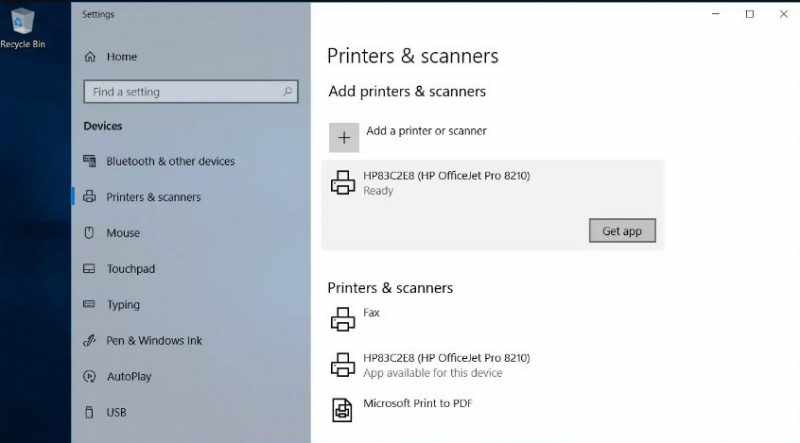
After that Windows will ask you to install additional software. If so, select ” Get application ” to download and the software will be installed from the Microsoft Store.
www.lifewire.com
When everything is set up, the laptop can print to a wireless printer without connecting using a USB cable or the printer cable itself.
If Windows doesn’t recognize the printer, return to the Printers & Scanners setting.
Note:
If Windows can’t find the printer, make sure the laptop and printer are on the same network. If you are using a Wi-Fi Range Extender, the extended area is the second network.
You open the menu ” add a printer or scanner .”
Click ” The printer that I want isn’t listed .”
www.lifewire.com
Select ” Add a Bluetooth, wireless, or network discoverable printer .”
Select ” wireless printer .”
Close the settings when you’re done.
Adding a Printer to Windows 8 and 7 Laptops
Select ” Add a printer. “
In the Add Printer wizard, select ” Add a network “, then select wireless or Bluetooth printer.
On the list of ” available printers “, select the printer you are using.
Click ” Next “
To do that Windows needs to install a printer driver. Therefore, select ” Install driver ” to continue.
Finish according to the guidelines.
Select ” Finish ” when you are done working on it.
#5. How to print on a wireless printer using Wi-Fi
Printing a document from your laptop via a wireless printer is still the same as when printing on an ordinary printer device.
Make sure the printer is turned on, connected to Wi-Fi, and has paper available in the printer slot.
Open the application or web browser for the document you want to print.
Open the document that you want to print.
Select the Printer icon.
www.lifewire.com
Select a wireless printer.
Change the print settings as needed.
Select Print.
www.lifewire.com
Then the document will be printed as usual.
#6. How To Print Wirelessly When Away From Wi-Fi
Several printer manufacturers offer print services via email. When you register on their website, a printer will be assigned an email address.
You will use this email address to send documents to your printer. When you are away from home or outside the office, it is possible to print documents on your wireless printer.
Email addresses can be found by searching through the printer menu. On an HP printer, look for HP ePrint. To print a document when your laptop is not on the same Wi-Fi network as the printer:
Make sure the Wi-Fi router is turned on, the printer is turned on and connected to Wi-Fi, and there is paper in the printer tray.
Open your favorite email application.
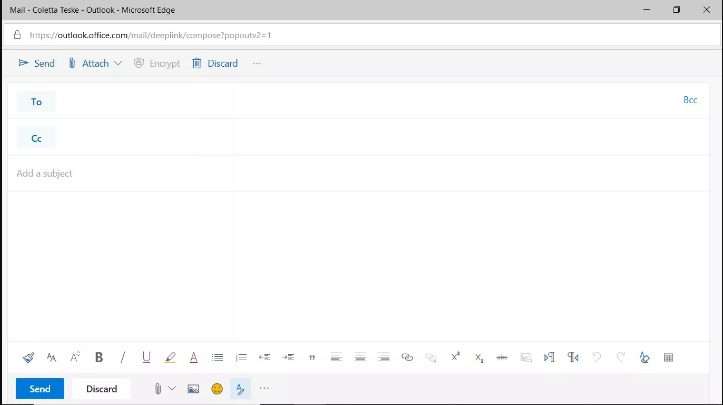
Compose a new e-mail message.
www.lifewire.com
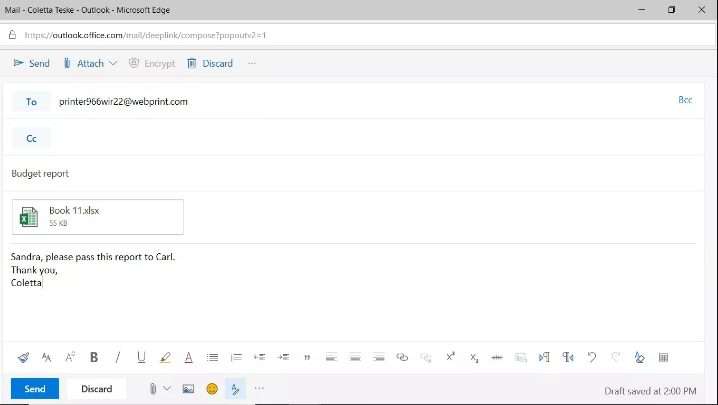
In the To text box, enter the email address assigned to the wireless printer by the manufacturer.
For a subject, enter a description of the print job.
Attach the documents you want to print.
www.lifewire.com
The e-mail print service can limit the size and number of attachments. Also, the supported file types may be limited.
Type a message if you want to print a separate sheet with information about the document, or other instructions.
Select Submit.
The file is sent to a wireless printer and then printed.
Below are some of the advantages of a wireless printer.
Print documents easier.
You don’t need to be close to the printer, because you only need to be connected to WI-Fi.
When you are outside your home or office, you can still print when needed.
Note:
Some email printing services require a subject. If there is no subject, the print job is canceled.
This is the explanation of 6 ways to connect the printer to a laptop wirelessly PC. It’s easy to do if you pay attention to the steps properly. If you can, then you have successfully followed the steps correctly. If not, I suggest reading it in more detail.
Yes, for those of you who haven’t used it or are still confused about whether to use a regular printer or a wireless printer. I highly recommend using a wireless printer, because there are many advantages when you use it.






 Wireless or cordless printers work over a network connection. If you use it at home, it will become your local home network. If you work in an office, there will be a network in your office.