Category: Guide

Guide – Here you can find Reviews-related updates, How-to, Tips & Tricks, information, and more.

  • 4 Ways To Delete Blank Pages in Microsoft Word 2025

    4 Ways To Delete Blank Pages in Microsoft Word 2025

    4 Ways To Delete Blank Pages in Microsoft Word – Want to know how to delete blank pages in Microsoft Word? is a very popular application. Ms. Word is one of several application packages included in Microsoft Office.

    How to Delete Blank Pages in Microsoft Word
    How to Delete Blank Pages in Microsoft Word

    How to Delete Blank Pages in Microsoft Word

    You will automatically get this word-processing application when installing Ms. Office on a computer or laptop.

    Read more:

    Word offers a simple interface.

    In addition, its features are also complete, making it easier for you to work when creating documents.

    But have you ever found a Word document that has a blank page in it?

    Maybe some people don’t mind the blank page.

    But not for some others. Especially if the blank page is in the middle or at the beginning.

    This will inevitably affect the neatness of the document.

    Causes of Blank Pages to Appear in Word

    The appearance of the blank page can be intentional or not.

    But most likely the main cause is because you accidentally added the blank page.

    The appearance of a blank page can be due to Page Break which is on the Insert tab.

    For those who are not on purpose, usually because you unconsciously press Enter many times.

    Your document could have one blank page but it could also have several blank pages in it.

    Therefore, we will share a guide on how to take steps to delete these blank pages whether they are at the beginning, middle, or end.

    Here’s How to Delete Blank Pages in Microsoft Word

    For the documents that you create or receive, you have a neat arrangement, then you need to delete these documents.

    Deleting documents on Ms. Word isn’t difficult.

    For more information, please refer to the information that we will share below.

    #1. How to Delete Blank Start Pages

    As we have explained, if the blank page is at the beginning, it will be annoying.

    It may discourage someone from reading the document.

    For that, you need to delete it by following the steps which we will share below.

    • Click on the bottom right corner of the page
    • Please press the  Backspace or Delete  key on the keyboard until you have successfully deleted the page
    • The blank page should have been deleted

    #2. How to Delete Blank Pages in Microsoft Word with the Navigation Pane

    If it turns out that a blank page in the Word document is in the middle, then you can take advantage of a feature that is already available.

    This feature is called the Navigation Pane. The method is also very simple as follows:

    • First, click the View tab
    • Second, in the Show section, you must put a checkmark in  the Navigation Pane checkbox
    • If the sidebar or  thumbnails of the entire page appear, please click the Page tab
    • You just need to use the slider and find a blank page
    • Click on the blank page
    • Please press Delete  on the keyboard and now you have successfully deleted it

    #3. How to Remove Page Break

    What is Page Break? Page Break is a feature related to page settings.

    This feature allows you to start content or fill in the next new page.

    Page Break includes non-printing characters or characters that are not printed and hidden.

    But actually, you can still display this feature.

    Sometimes there are blank pages generated via Page Break and you have to delete them. The steps are:

    • To bring up Page Break, activate the Home tab
    • In the Paragraph section, please click  Paragraph Mark
    • If you want to remove Page Break, double click or double click  Page Break to complete or highlight it
    • Then please press  Delete

    You can also delete several documents from the Page Breakthrough a feature called  Find and Replace.

    To be able to open it, please press the Ctrl + H combination key.

    In the dialog box that appears, make sure that Replace is active.

    In the Find What box, please type ^ m.

    In the Replace with section, leave it blank. Next, please press Replace All.

    In the final step, please press  OK.

    Now some of the blank pages have been deleted.

    #4. How to Delete Blank Pages (End Pages)

    Then what if the blank page is at the end?

    We often find that there is always a blank end page.

    Usually, this condition is caused by non-printing characters or characters that are not printed.

    One example is that you pressed the Enter key several times.

    How to delete blank pages in Microsoft Word on this one is also not difficult.

    You need to display the non-printed characters via Paragraph Marks as explained earlier.

    Then you have to select or highlight the character.

    In the final step, please press the Delete key on the keyboard.

    Read more:

    Conclusion:

    This is an explanation of how to delete pages in Microsoft Word, which you should know. It is not difficult to do the methods above. By deleting the page or page number as described above, the document you create will look neater, nicer, and easier to read.

  • 7 Ways to Fix YouTube Not Working With Chrome on PC 2025

    7 Ways to Fix YouTube Not Working With Chrome on PC 2025

    7 Ways to Fix YouTube Not Working With Chrome on PC – If you are having trouble using YouTube on Chrome or streaming YouTube videos, don’t worry as you will see how to fix this issue in this article.

    Fix YouTube Not Working With Chrome
    Fix YouTube Not Working With Chrome

    How to Fix YouTube Not Working With Chrome on PC

    You may find YouTube not working or a problem opens in Chrome like there is no sound available for YouTube videos, instead of the video you just see a black screen, etc. then don’t worry as the main cause of this problem seems to be an outdated chrome browser or a chrome cache or cookie issue.

    Read more:

    So without wasting time, we are going to see how to solve the problem that YouTube does not work in Chrome with the help of the guide that appears below.

    Make sure to create a restore point in case something goes wrong.

    #1: Make sure the chrome is up to date

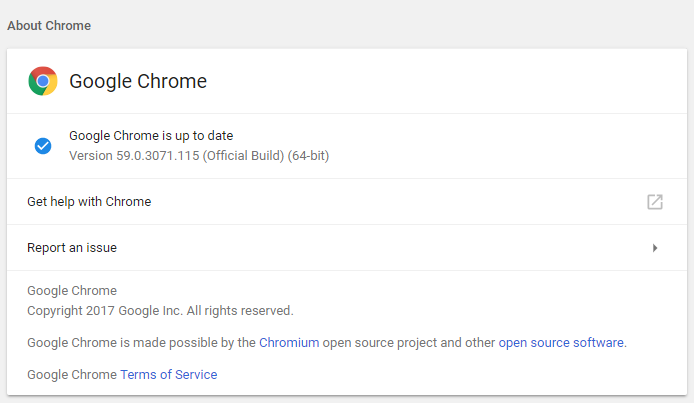
    1. To update Google Chrome, click the Three dots in the upper right corner of Chrome, select Help, and then click About Google Chrome.

    Make sure the chrome is up to date

    2. Now make sure Google Chrome is up to date, if not, you will see an update button, click on it.

    Make sure the chrome is up to date

    This will update Google Chrome to its latest version, which could help you fix YouTube not working on Chrome.

    #2: Clear the cache and cookies on the chrome

    When the browsing data is not cleared after a long time, this can also cause Youtube to not work on Chrome.

    It may interest you:   How to see the password saved in Chrome

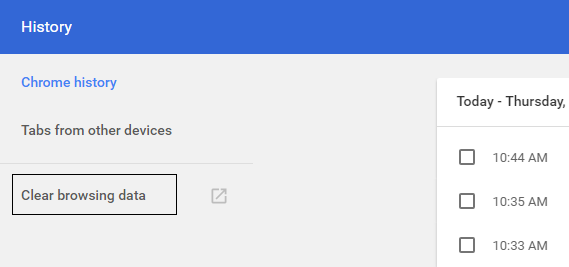
    1. Open Google Chrome and press Ctrl + H to open the history.

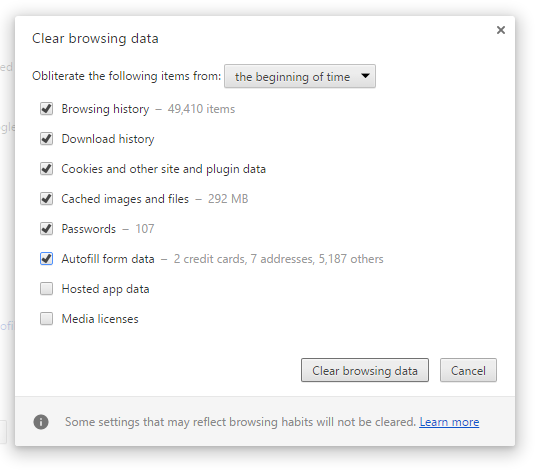
    2. Then click Clear browsing data in the left panel.

    Clear the cache and cookies on the chrome

    3. Make sure “beginning of time” is selected in Obliterate the following items.

    4. Also, check the following:

    Browsing history Download history Cookies and other stud and plugin data Cached images and files Autocomplete form data Passwords

    Clear the cache and cookies on the chrome

    5. Now click the Clear browsing data button and wait for it to finish.

    6. Close your browser and restart your PC to save the changes

    #3: Disable Hardware Acceleration in Chrome

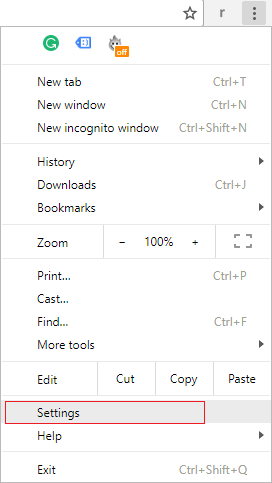
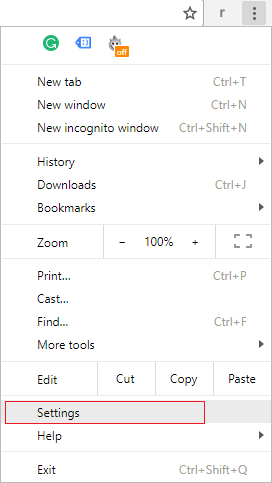
    1. Open Google Chrome click on the three dots in the upper right corner and select Settings.

    Disable Hardware Acceleration in Chrome

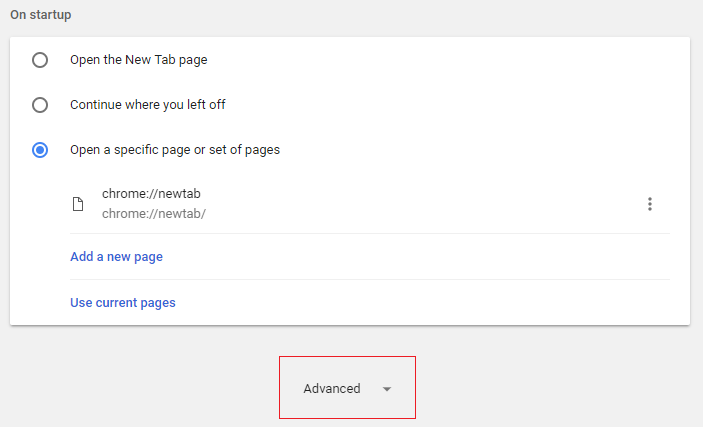
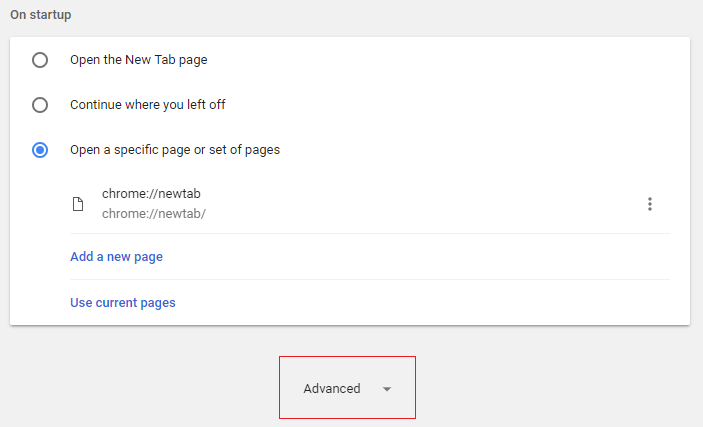
    2. Now scroll down until you find Advanced (which is probably at the bottom) and click on it.

    Disable Hardware Acceleration in Chrome

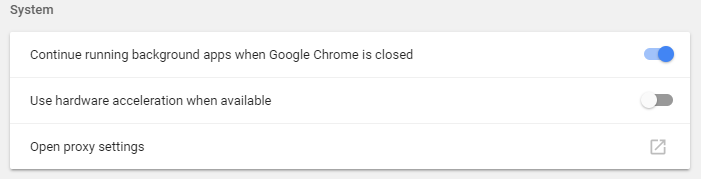
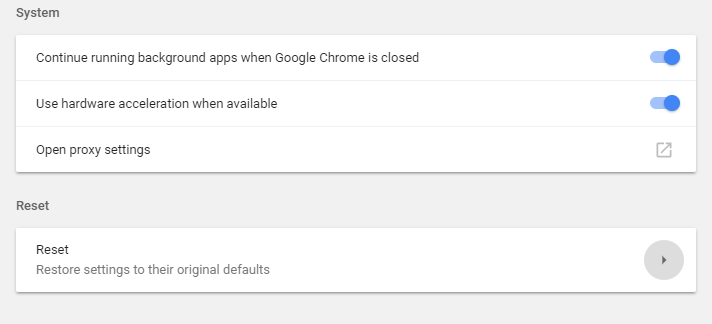
    3. Now scroll down until you find the system settings and make sure to disable the “Use hardware acceleration when available” option.

    Disable Hardware Acceleration in Chrome

    4. Restart Chrome and this should help you fix Youtube Not Working on Chrome.

    #4: Disable all third-party extensions

    Extensions are a very useful feature in Chrome to extend its functionality, but you should know that these extensions take up system resources while running in the background. In short, even if the particular extension is not in use, it will still use your system resources. So, it is a good idea to remove all the unwanted / deleted Chrome extensions that you may have installed before.

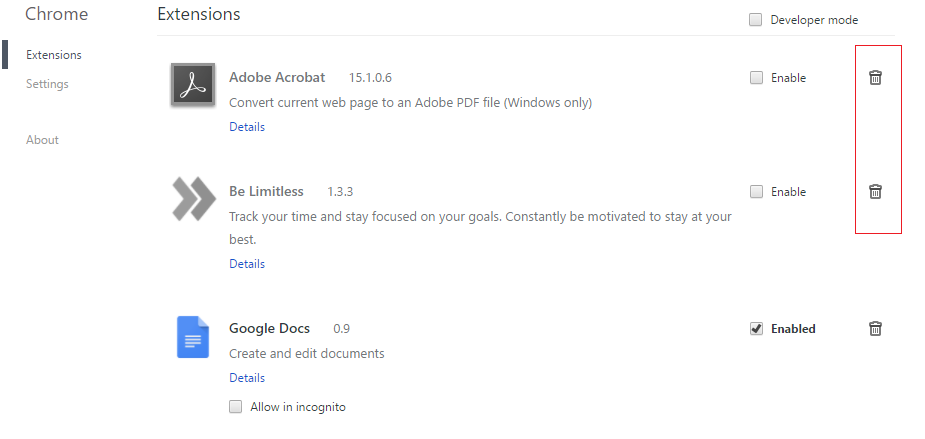
    1. Open Google Chrome and type chrome: // extensions in the address and hit Enter.

    It may interest you:   Turn your Smartphone into a universal remote control

    2. Now first disable all the unwanted extensions and then delete them by clicking on the delete icon.

    Disable all third-party extensions

    3. Restart Chrome and see if you can fix YouTube not working issue on Chrome.

    4. If you are still having trouble with YouTube videos, then disable the entire extension.

    #5: Reset Chromium to Default

    1. Open Google Chrome and click on the three dots in the upper right corner and on Settings.

    Reset Chromium to Default

    2. Now in the settings window, scroll down and click on Advanced at the bottom.

    Reset Chromium to Default

    3. Go back down to the bottom and click on the “Restart” column.

    Reset Chromium to Default

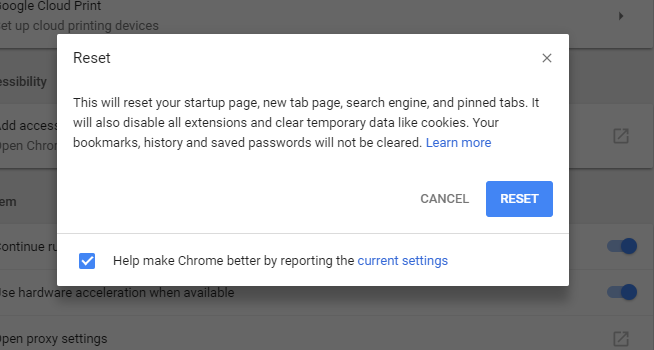
    4. This would open a pop-up window again asking if you want to Reset, so click Reset to continue.

    Reset Chromium to Default

    #6: Use the Chrome Cleaning Tool

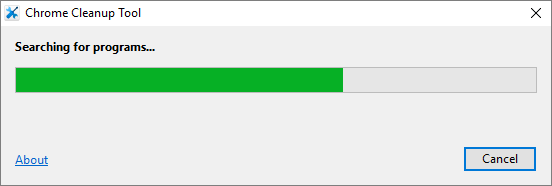
    The official Google Chrome cleaning tool helps scan and remove software that may be causing the Chrome problem, for example, crashes, unusual home pages or toolbars, unexpected ads that you cannot get rid of, or changes to the browsing experience.

    Use the Chrome Cleaning Tool

    #7: Reinstall the Google Chrome browser

    Well, if you’ve tried everything and still haven’t been able to fix the error, then you need to reinstall Chrome again. But first, make sure to completely uninstall Google Chrome from your system and then download it again from here. Also, make sure to delete the user data folder and then reinstall it from the old source.

    1. Press Windows Key + R type the following and hit Enter:

    Google Chrome user data (tixag).

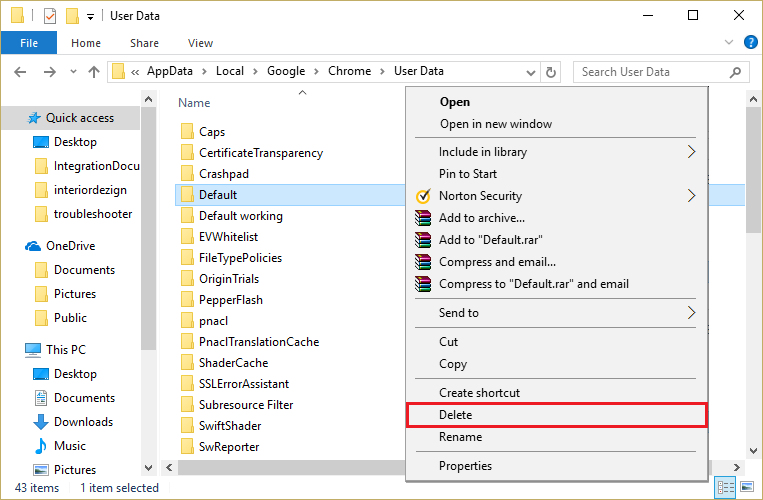
    2. Right-click on the default folder and select Rename or you can delete if you feel comfortable losing all your preferences in Chrome.

    It may interest you:   3 ways to hide applications on Android without root

    Reinstall Google Chrome browser

    3. Rename the folder to default. old and press Enter.

    Note: If you can’t change the folder name, make sure to close all instances of chrome.exe from Task Manager.

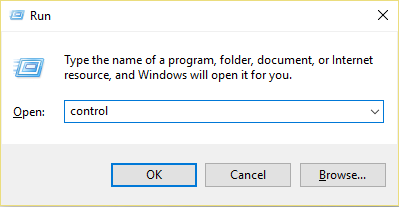
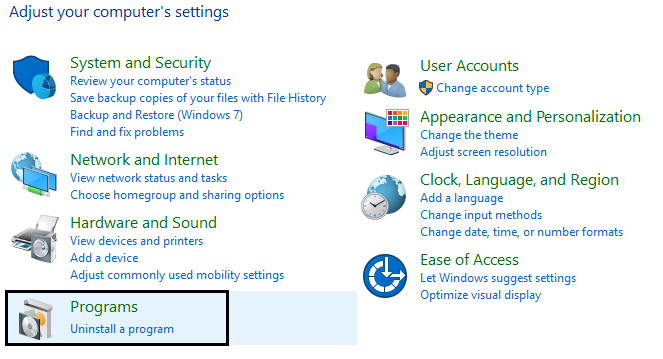
    4. Now press the Windows key + R, then type control and press Enter to open the Control Panel.

    Reinstall Google Chrome browser

    5. Click Uninstall a program and then search for Google Chrome.

    Reinstall Google Chrome browser

    6. Right-click Chome and select Uninstall.

    7. Now restart your PC to save the changes and again download and install Chrome.

    Read more:

    Conclusion:

    This is the explanation of 7 ways to fix YouTube not working with Chrome on PC, but if you still have any questions regarding this tutorial, feel free to ask them in the comment section.

  • Download Resetter Canon iP2770 / iP2700 [100% Test Successful] 2025

    Download Resetter Canon iP2770 / iP2700 [100% Test Successful] 2025

    Download Resetter Canon iP2770 / iP2700 [100% Test Successful]—Canon is one of the most well-known printer vendors in India. One of the best-selling variants is the iP2770. It is in demand because of its quality and attractive price.

    How To Download Resetter Canon iP2770 iP2700
    How To Download Resetter Canon iP2770 iP2700

    How to Download Resetter Canon iP2770 / iP2700 [100% Test Successful]

    However, there are some users of this type of printer who experience error problems when printing.

    Read more:

    The causes vary, it can be due to an error from the machine or using this printer too much. Maybe you have encountered the error code  Error 5200  Waste ink Tank Absorber Full or  Error 5200.  Now the good news is that you can reset the printer.

    In resetting the printer we need the help of a printer resetter tool or it can be manual. Later you can try it yourself which method works to reset your Canon printer?

     Preparing to Reset the PrinterHow To Download Resetter Canon iP2770 iP2700

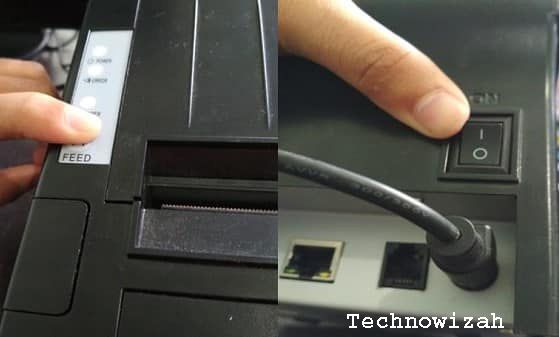
    1. Turn off your printer.
    2. Then press and hold the RESUME button.
    3. While holding down the Resume button, continue by pressing the POWER button until the printer’s green light turns on.
    4. Then release the RESUME button but the POWER button is still being held.
    5. Then proceed by pressing the RESUME  button for  5 x  the LED lights will turn on alternately orange, and green, and end with an orange color.
    6. Now release all buttons.
    7. Don’t be surprised because the LED light will edit and finally it stops green.
    8. Please wait, the computer is detecting the printer.
    9. Done … now the printer is in  SERVICE MODE  and ready to be reset.

    Printer Reset Process

    1. Download Resetter Canon P 2770/2700
    2. If it has been downloaded then immediately install the resetter above.
    3. Then open the Canon IP 2770 Printer Resetter software.
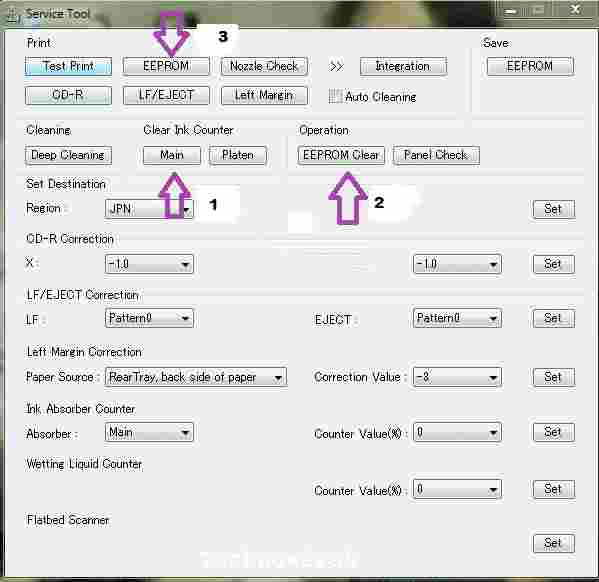
    4. Then click the MAIN button, and the printer will automatically print with the text  D = 000.0
    5. Then click EEPROM Clear.
      How To Download Resetter Canon iP2770 iP2700
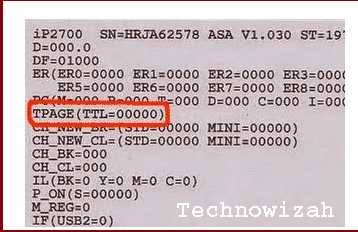
    6. The printer will print the results of resetting the Resetter iP2770 software,  please see the reset text, it should say  TPAGE (TTL = 00000).
      How To Download Resetter Canon iP2770 iP2700
    7. Turn off the printer and turn it back on.
    8. Done.

    DMCA: Technowizah.com complies with 17 U.S.C. * 512 and the Digital Millennium Copyright Act (DMCA). It is our policy to respond to any infringement notices and take appropriate action. If your copyrighted material has been posted on the site and you want this material removed, Contact us.

  • 3 Ways to Activate IDM on Google Chrome Laptop PC 2025

    3 Ways to Activate IDM on Google Chrome Laptop PC 2025

    3 Ways to Activate IDM on Google Chrome Laptop PC – Did you know that IDM is software that can increase download speed? But unfortunately, some people have problems because IDM often doesn’t appear on Chrome when needed. But there’s no need to worry, there’s still a way to activate IDM on Google Chrome that doesn’t appear.

    3 Ways to Activate IDM on Google Chrome
    3 Ways to Activate IDM on Google Chrome

    How to Activate IDM on Google Chrome Laptop PC

    As is well known, IDM is a third-party tool that helps in managing downloads. When the IDM installation stage is carried out, basically IDM will provide an additional extension so that IDM can connect to the Google Chrome browser automatically.

    Read more:

    That is the reason why IDM notifications always appear automatically when you are about to download a file or play a video from YouTube and other social media.

    In addition, IDM is also known as software that provides higher download speeds. IDM is arguably a mandatory application for those of you who like to download large files.

    Although it is very useful, there are times when IDM has problems when it is used. In some cases, IDM often won’t appear in the google chrome browser.

    There are several ways to solve this problem, the following are below.

    #1. IDM Integration Module

    IDM Integration Module
    IDM Integration Module

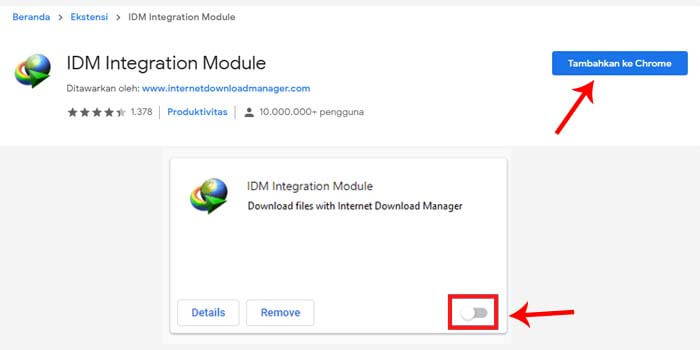
    IDM Integration Module is a google chrome extension that functions to connect IDM with Chrome. By adding this extension, IDM will be active on the Google Chrome browser.

    Here’s how to activate IDM on google chrome:

    1. Run the google chrome browser first.
    2. Go to the IDM Integration Module page.
    3. Click the Add to Chrome button.
    4. Wait until the process of adding extensions is complete.
    5. Close Chrome then reopens it for use.
    6. Done.

    After the IDM Integration Module extension has been installed on Chrome, it is certain that IDM is active on Google Chrome. To be sure, you can visit the extensions page or in Chrome: // extensions /

    #2. Update IDM

    Update IDM
    Update IDM

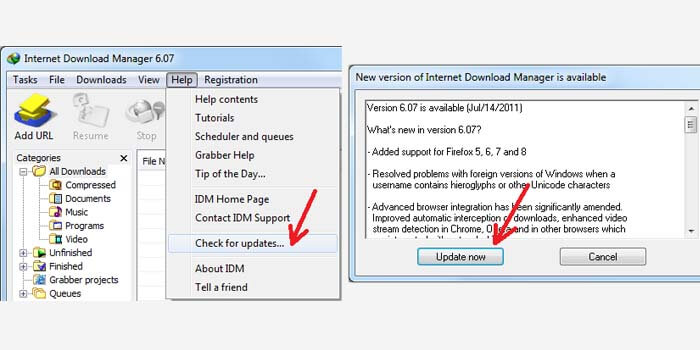
    The outdated IDM version usually can’t connect with the google chrome browser. Therefore, the second way to overcome this is by updating IDM to the latest version.

    How to display IDM on the latest Chrome:

    1. Open IDM on your computer or laptop.
    2. Then click the Help menu > Check for updates.
    3. Then wait a moment.
    4. The latest IDM version notification window will appear.
    5. Click the Update Now button.
    6. Finally, just wait for the update process to complete.

    If IDM has been successfully updated to the latest version, then IDM is automatically active in the Google Chrome browser.

    #3. Reinstall

    Reinstall
    Reinstall

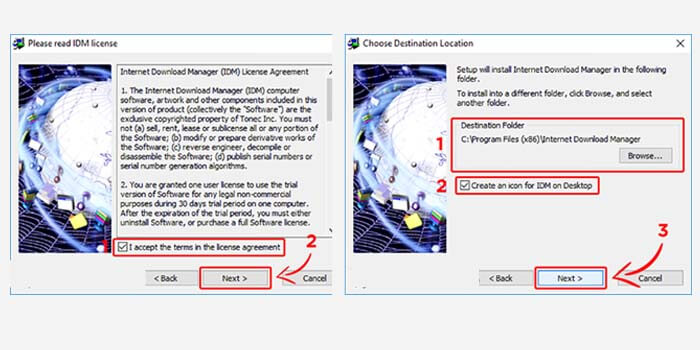
    IDM can connect to Google Chrome because of the addition of extensions at the installation stage. So by reinstalling, IDM will provide an extension to Chrome so that it can be reconnected.

    1. Make sure you have the IDM installer file.
    2. If you already have, double-click the file.
    3. In the first stage, namely, the Installation Wizard, click Next.
    4. In the License Agreement, check the box below then click Next.
    5. Specify the IDM installation folder, add a shortcut, and click Next.
    6. Wait for the IDM installation process to complete.
    7. Click Next and the final step is to click the Finish button.

    Then make sure IDM is active and the IDM icon appears in the Windows system tray. If the IDM icon does not exist, simply run IDM that you have installed to activate it.

    Read more:

    Conclusion:

    This is the explanation of 3 ways to activate IDM on a Chrome laptop PC, which often doesn’t appear. The method described above is quite easy to do, just decide which method is suitable for your computer or laptop.