Author: Nazrul Islam

  • How To Flash Samsung J1 Ace SM-110G Easy Way 2024

    How To Flash Samsung J1 Ace SM-110G Easy Way 2024

    How To Flash Samsung J1 Ace SM-110G Easy Way – Samsung J1 Ace is an Android smartphone that has been released in the market for a long time. When it was first sold in the market, there were many enthusiasts. Even today there are still many who use it.
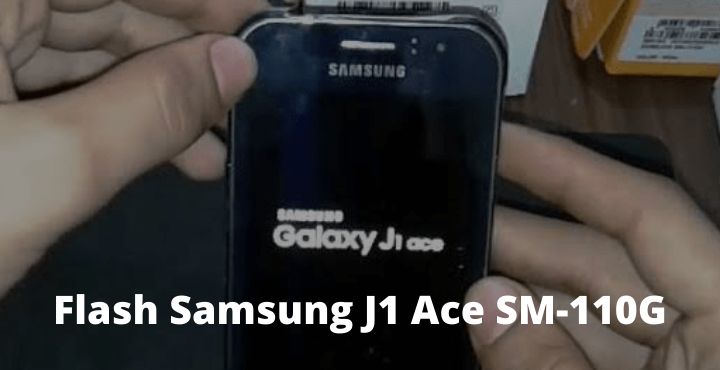
    How To Flash Samsung J1 Ace SM-110G
    How To Flash Samsung J1 Ace SM-110G

    How To Flash Samsung J1 Ace SM-110G

    So it is not surprising that at this time many smartphones are experiencing system problems. This kind of thing is indeed normal for Android smartphones.

    If you are currently looking for how to Flash Asus Zenfone 5 (T00F / T00J) you can read this post.

    Not only Samsung J1, but other brands of Android smartphones also have the same problem.

    Read more:

    System damage that is generally experienced by Samsung J1 is that it has begun to slow down, it often comes out on its applications, noisy, bootloop even some are dead.

    One solution that can be used to restore the performance of the Samsung J1 Ace as before is by re-flashing or flashing.

    Flashing is a way to reinstall the firmware of the Samsung J1 Ace which aims to repair the damage to the system so that the phone’s performance returns to normal.

    In this article, the admin will give 2 tutorials for Samsung J1 Ace’s Flash Repeat, namely with the help of a PC / laptop and via SD Card without a PC.

    How To Flash Samsung J1 Ace via ODIN

    Before you flash again, you must first prepare some equipment and supporting files.

    In addition, you are advised to back up your important data in advance on your cellphone, because the flash reset will erase all files in the Smartphone.

    Also, try a cellphone battery above 50%. This aims to avoid dropping when flashing.

    The most important file you make is Samsung Galaxy J1 Ace SM-110G, the firmware used this time is the original firmware developed by Samsung

    Prepare and download several files above and then extras and put them in one folder, so that it is easier to find the file that will be installed into Odin later.

    How to Flash via ODIN

      1. Install USB Driver pad PC / laptop used
      2. Enable USB Debugging on mobile by entering the Settings menu >> Developer Options >> USB debugging
        Then check the OEM Unlock option
      3. If Developer Options are not in the Settings menu, you must first activate it by going to Settings> About Device and then clicking 6-8 times in the Base Band Version section
    1. Next, turn off the Samsung J1 Ace, then turn it on again by pressing the Power + Home + Volume up button simultaneously until the Warning appears
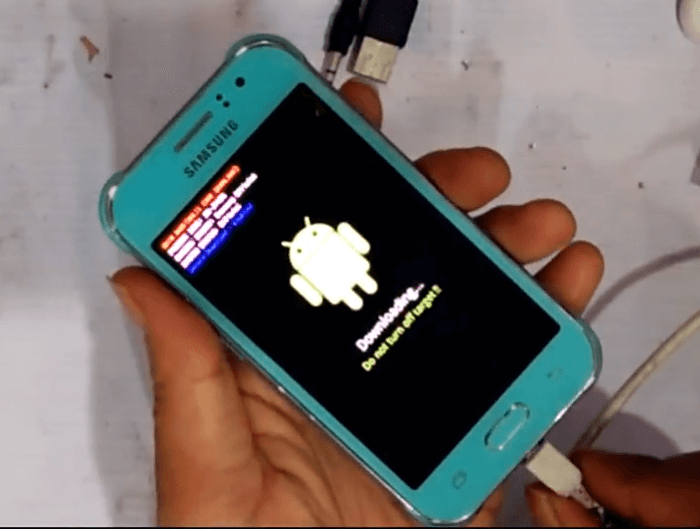
    2. After that, press the volume up once to continue entering Download Made
    3. Use the USB cable that was previously slammed to connect the Samsung J1 Ace to the PC / laptop

      How to Flash via ODIN
      How to Flash via ODIN
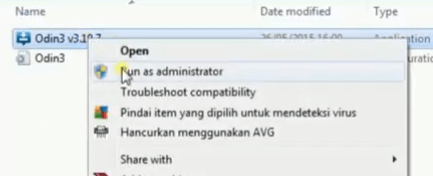
    4. Open and run ODIN

      How to Flash via ODIN
      Open and run ODIN
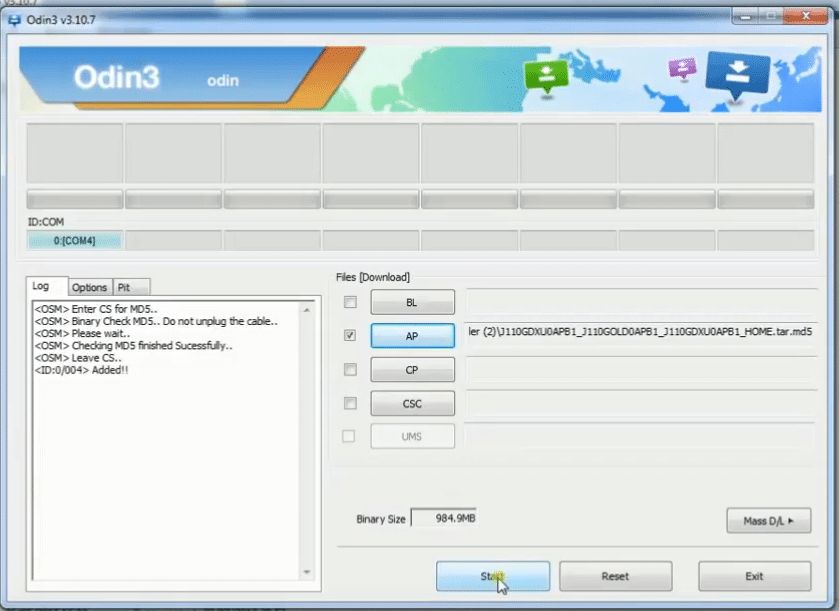
    5. Look at the Port ID: COM printed in the upper right corner of ODIN, make sure your Samsung J1 Ace is fully connected and read correctly
    6. Enter firmware Samsung Galaxy J1 Ace SM-110G firmware by clicking the AP button in ODIN

      Enter firmware Samsung Galaxy J1 Ace SM-110G firmware by clicking the AP button in ODIN 
      Enter firmware Samsung Galaxy J1 Ace SM-110G firmware by clicking the AP button in ODIN
    7. After the firmware has been successfully inserted, now click START to begin the flashing process
    8. Just wait until the repeat flash process is complete
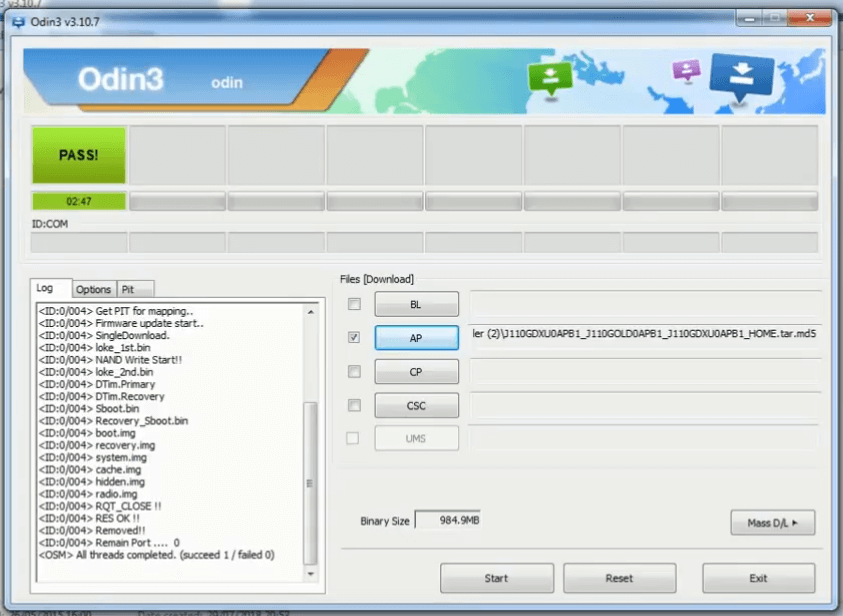
    9. When a green PASS notification appears on ODIN, it means that the flashing process is complete and successful

      PASS notification appears on ODIN
      PASS notification appears on ODIN
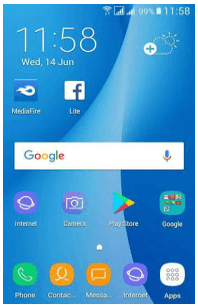
    10. Wipe your Samsung j1 Ace from the PC / laptop then turn it on
    11. When first booting after a flash reset, it will usually take a while. So just be patient waiting for him.
    Those of you who are the first time to flash themselves again will be a little confused. But don’t worry, all you have to do is follow all the tutorials above so you don’t miss anything that will work.

    In addition to the above method, there are still other methods that are more simple, namely without a PC using only an SD card. As the following tutorial.

    How To Flash Samsung J1 Ace SD Card

    This flash method is fairly simple because it does not require a PC / laptop, it is suitable for those of you who don’t want to be complicated or have problems because no PC / laptop can use this method.

    In this method, all we need is Samsung J1 Ace and Micro SD firmware stock only. How you can follow a few steps below

    • Download the first Stockod Deodex Samsung J1 Ace (SM – J110G) in ZIP format
    • Transfer the file to the SD card that has been prepared
    • Turn off the Samsung J1 Ace
    • Next, enter recovery mode by pressing the Home + Power + Volume Up button simultaneously
    • Then select the Wipe Data/factory reset option followed by selecting Yes – delete all user data
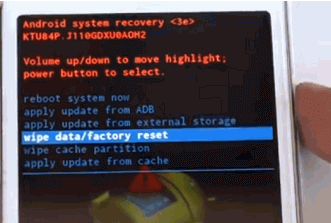
    Wipe Data/factory reset option followed by selecting Yes - delete all user data
    Wipe Data/factory reset option followed by selecting Yes – delete all user data
    Wipe Data/factory reset
    • If you have now selected the Apply Update from the External Storage option then navigate to the Samsung J1 Ace Stockrom Deodex file that has been downloaded and transferred to the SD Card earlier
    • Just wait until the installation process is complete
    • When done, select the system reboot option now and your phone will restart automatically
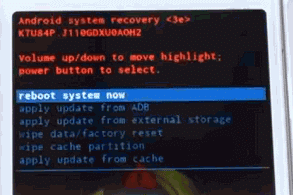
    Apply Update from External Storage
    Apply Update from External Storage
    Select reboot system now

    Done.

    Select reboot system now
    Select reboot system now
    Deodex Samsung J1 Ace ROM

    Deodex Samsung J1 Ace ROM
    Deodex Samsung J1 Ace ROM
    Display of Samsung J1 Ace Deodex ROM

    Read more:

    Conclusion:

    So, friends, This was about the complete How to Flash Samsung J1 Ace via ODIN & SD Card without a PC.

  • 6 Best PS1 Emulators For Android and Laptop PC 2024

    6 Best PS1 Emulators For Android and Laptop PC 2024

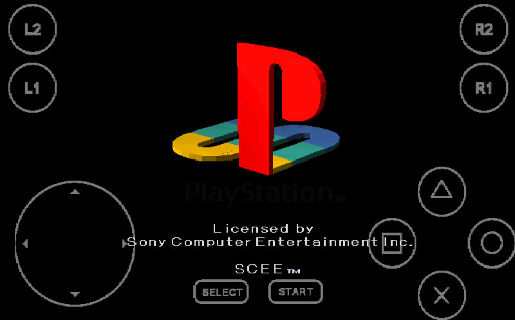
    6 Best PS1 Emulators For Android and Laptop PC – Information for using the PS1 emulator. Complete with recommendations for the best emulator software for PC and Android that you can choose as you wish.

    6 Best PS1 Emulators For Android and Laptop PC
    6 Best PS1 Emulators For Android and Laptop PC

    6 Best PS1 Emulators For Android and Laptop PC Windows 10

    The PlayStation 1 is Sony’s first-generation console. This console is fairly successful in the market.

    Although it was first released in 1994 in Japan, his games are still often played today.

    This is because of the PS1 emulator application. Through this application, we can play it even without a console.

    Read more:

    Currently, we can even download the PS1 emulator for Windows 10. In addition, it can still be used in previous Windows series.

    There is also an emulator that we can install on Android, you know.

    Best PS1 Emulators For Android and PC Laptops

    You need to know, that this emulator can run on a PC / laptop with low specs. Likewise, on Android, we don’t need to have PCs/laptops and smartphones with high specs.

    Well, here we describe some of the best types of PC emulators and also for Android that you can install and use.

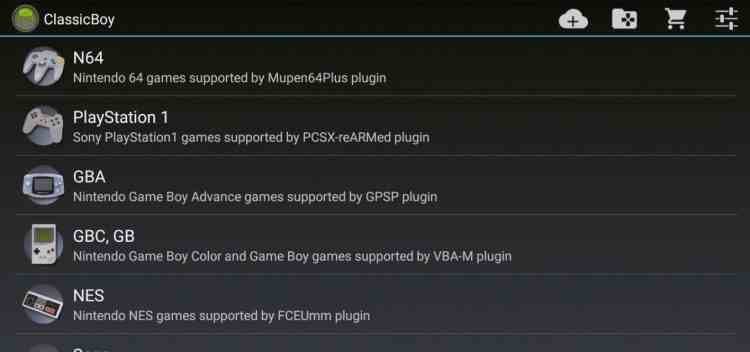
    #1. ClassicBoy (For Android)

    ClassicBoy (For Android)

    For those who want to play PS1 games on mobile, this application can be a solution for your cellphone.

    This application is one of the best recommended PS1 Android emulators.

    You can download ClassicBoy directly on the Play Store. Once installed, please download the PS1 game which can be searched via Google.

    In addition to PS1, this Android emulator can also be played for other types of classic games.

    #2. EPSXe emulator (PC and Android)

    EPSXe emulator (PC and Android)

    This software is very popular. Because it is one of the most reliable emulators for PCs/laptops.

    In addition, now there is also the ePSXe application that you can use on an Android cellphone. This application offers a lot of feature options that we can customize.

    Not only that but there are also many ePSXe PC plugins and bios to choose from. Bios and plugins can be downloaded separately.

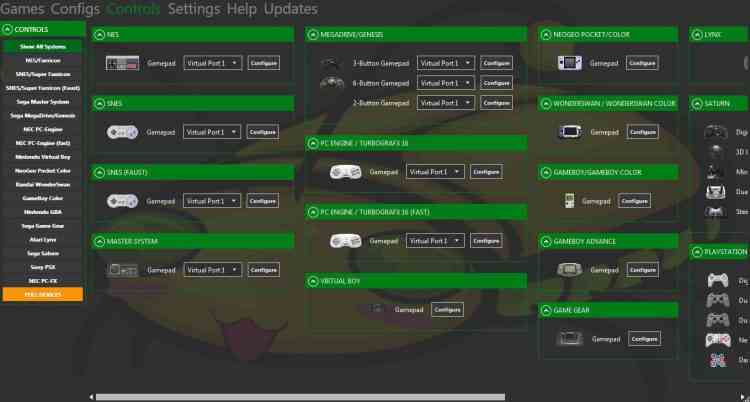
    #3. Mednafen (For PC / Laptop)

    Mednafen (For PC Laptop)

    This emulator software is available for PC only. Mednafen is even distributed free of charge, meaning that anyone is free to use it.

    This application was created by a group of developers and also volunteers. Besides being able to play the PlayStation 1, you can also play games from the NES and Game Boy consoles.

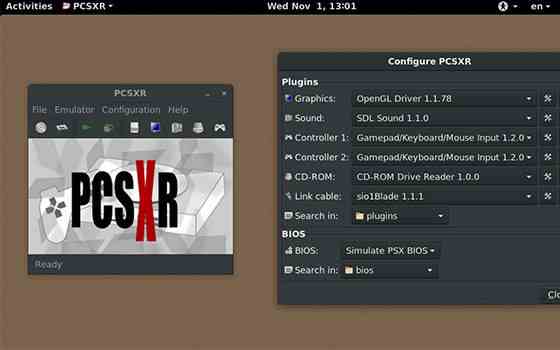
    #4. PcsxR (For PC)

    PcsxR (For PC)

    This emulator is quite old. It’s been used since the 2010s.

    Currently, the application already has several developments. It is claimed to be more responsive and also capable of producing better images.

    PcsxR has a relatively small size. So, anyone who wants to play PS1 games can immediately download them quickly at any time.

    #5. FPse (For Android)

    FPse (For Android)

    Through this application, you can play all PS1 games with stunning graphics. Because this application allows us to use OpenGL software.

    In addition, the interface design is quite attractive and easy when choosing your favorite game.

    #6. EmuBox (For Android)

    EmuBox (For Android)

    This emulator is for Android, just like ClassicBoy. We can not only play PS1 games, but also other games from SNES, GBC, NDS, and GBA.

    This software has also been supported by external game controls such as a gamepad. The application is also quite popular. Lots of people have downloaded it on the Play Store.

    How to Play PS1 Games on PC

    To play all PlayStation 1 games on a PC, please download the emulator first.

    Choose one of several emulators that we informed above. After that, please follow the steps below:

    1. If the download is in the form of RAR, please extract it first. After the emulator icon appears, please click or open it.
    2. Install the application by following the instructions that already exist.
    3. Make sure you download the emulator complete with the bios. If the bios are not included, please download it separately.
    4. After the application is installed, please enter the bios into the bios folder in the emulator installation folder. After that, please open the emulator by double-clicking it.

    Generally, bios that have been placed in the installation folder will automatically be read. So, you can immediately use the emulator.

    1. Please prepare the PS1 game that you want to play. If you don’t have it, please download it first. Information on where to download PS1 games is easy to find on Google.
    2. If the PS1 game downloaded is in the form of RAR, please extract it first. Then an ISO game file will appear.
    3. Please start playing the game through the emulator. Select the game earlier in the place where you saved it.

    How to Play PS1 Games on Android

    As we mentioned above, besides on PC, we can also play it on Android. For those who are curious to try, please follow the steps below:

    1. Please choose one of the best PS1 emulators for Android. After that, search for and download it on the Play Store.
    2. Please install the application on the smartphone.
    3. Once installed, don’t open it yet. Please download the PS1 game first, or you can ask a friend.

    Next, extract the game until an ISO game file appears. Put the game file on the SD Card for later scanning and running.

    1. Step number 3 above, can be skipped if you already have a PS1 game on your cellphone.
    2. To play it, please open the application. After that, select the menu “Run the game” (the menu to run the game will be different in each application). Then, you select or click the game to be played.

    For additional information, PS1 games are quite large. That is, it will take up storage space. So, prepare an SD card with a large size.

    Read more:

    Conclusion:

    The PS1 emulator is a solution for gamers who want to reminisce about playing Playstation 1 games. For those who miss old-school games, let’s download one of the applications above to play them.

  • How to Download PSP Games on Android and PC 2024

    How to Download PSP Games on Android and PC 2024

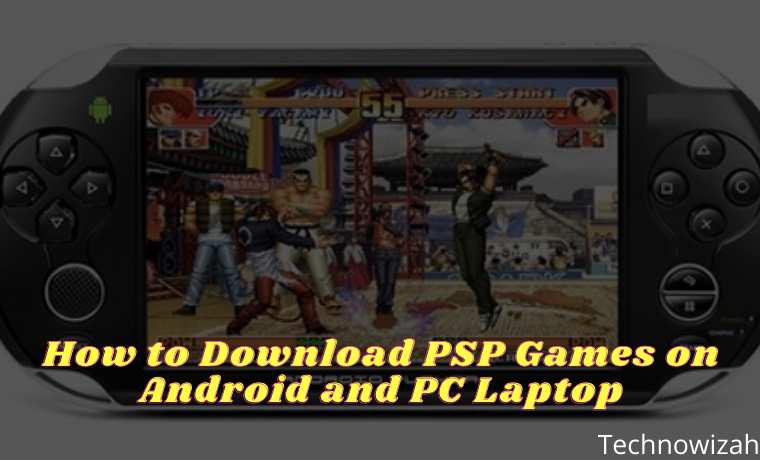
    How to Download PSP Games on Android and PC – Before you know how to download PSP, of course, first you must know PPSSPP. PPSSPP is a PSP  ( Playstation Portable ) game emulator for playing portable console games at Sony.

    How to Download PSP Games on Android and PC Laptop
    How to Download PSP Games on Android and PC Laptop

    How to Download PSP Games on Android and PC Laptop

    Launched in 2004, where PSP is a concept game released by Sony to rival the Boy from Nintendo game.

    Read more:

    PPSSPP emulator for PSP games

    For a game console, of course, it has a usage age limit. Therefore, the existence of the emulator itself is needed by PSP game lovers.

    The emulator that is often used is PPSSPP to play PSP games with the type of iSO. If the ISO is not suitable, of course, it will not be able to do the installation/installation.

    PPSSPP consists of 2 types, including ordinary PPSSPP and PPSSPP Gold. Both types of PPSSPP are available on Google Playstore, only the paid Gold type.

    If you want a free PPSSPP emulator, get it on Google. Then, if you have downloaded PPSSPP, usually there is only an emulator in it and not including the game. So we have to download it separately.

    How to Download PSP Games?

    Before you follow the tutorial on how to download PSP games, of course, you must know the specifications of the device used to download this game first. You only need a smartphone or computer connected to the internet to be able to install PSP games for free.

    However, to download it on Android, we must have a smartphone with a minimum OS specification from Android 2.3 Gingerbread +. The minimum RAM capacity of mobile phones that we have to download games PSP is 2GB with storage of 5 GB.

    For the minimum specifications RAM used on PC, devices is 2GB. So if you force yourself with a lower quality RAM, it can make PC devices often experience lag. So, try to use a PC or laptop with 2GB of RAM capacity with 5GB of storage for ROM and PPSSPP. With OS Windows XP, Windows 8.10, Windows 10, and Windows Vista.

    If your device meets the specifications allowed above, now is the time to follow the tutorial on how to download PSP games below!

    How To Download PSP Games on Android and PC Laptop

    How To Download PSP Games on Android and PC
    How To Download PSP Games on Android and PC

    Interested in playing PSP games on your Android smartphone? From now on you can play PSP games on an Android phone. How to? You must know in advance how to download PSP games. Listen and pay attention to the following method steps.

    #1. Download PSP Games via CoolROM

    CoolRom is one of the web recommendations that can be used to download PSP games. How do I download ISO game files through the CoolRom website? Pay attention to the following steps carefully.

    • Open the website www.coolrom.com.au using your favorite browser.
    • Search and select your favorite game, you can use the search field or by looking at the Top 25 Downloaded ROMs in the sidebar of the website.
    • For example, we will show downloading the PSP Crash Bandicoot 3 game. Type the keyword “Crash Bandicoot 3” in the search field then press Go.
    • Select one of the games that are displayed.
    • To download the game, you must press/click the Alternative download link at the bottom of the Download button.
    • Wait for the advertisement for 15 seconds.
    • Press/click Download Your File.
    • Save the game files in the form of .zip / .rar / .7z to a folder that is easy to find.

    #2. Download PSP Games through RomsMania

    RomsMania has also become a website that provides various PSP games for Android. Through this site, we can download unlimited PSP games until our memory is full.

    How:

    • Open and visit the website www.romsmania.cc using your favorite browser.
    • Search and select the game you want.
    • For example, we download the game Grand Theft Auto 2.
    • On the game posting page, press / click the More Options button at the bottom of the Download button.
    • Select and click Browser download (slowest).
    • PSP ROM game files in the form of .zip / .rar / .7z will be downloaded automatically through the browser you are using.
    • Wait until the download is complete. Or, to speed up downloads you can use the latest IDM software.

    Well, after the PSP game files (.zip / .7z / .rar format) are downloaded properly. Then we can extract to get the ISO file of the game. Just extract it using File Explorer or WinRAR. After the .zip / .7z file is successfully extracted and gets an ISO file, then pay attention to the next step.

    #3. Download and Install PSP Application

    Have you selected and downloaded a PSP game? The next stage is that we must have the PPSSPP application which can later be used to play PSP games on Android. How:

    • Open the Google Play Store application, then look for the PPSSPP application. To speed up, you can download the PPSSPP application here or there.
    • After the PPSSPP apk file is downloaded successfully, just install the PPSSPP application on your Android.

    After the PPSSPP application is installed it can be used to play previously downloaded games. How to play the game? Check out the next step.

    #4. How to Play PSP Games on Android

    Before you can play PSP games on Android, please note that we must have an ISO game PSP file that was downloaded to Android storage.

    Those who previously downloaded ISO game files via PC / Laptop can directly transfer them to your Android’s internal/external storage.

    Next, pay attention to the steps of playing the PPSSPP game on the following Android.

    • Make sure you have installed the PPSSPP application on your Android smartphone.
    • Open the PPSSPP application.
    • Search for the PSP game’s ISO file according to the folder where you put it in memory.
    • Tap/tap the game to start playing it.
    • You can also set the game Performance so that it doesn’t lag by tapping the Settings menu in the PPSSPP application.
    • Adjust Performance as you wish and the Android spec that you use.

    For PC / laptop users, can you also play this PSP game on your device? Of course, you can bang, the way is also quite simple. Consider the following methods and stages.

    How to Play PSP Games on PC Laptop Desktop

    Before you can play PSP games on a PC or laptop you must have game files that can be downloaded via the RomsMania or CoolROM website.

    Perform the steps to download the PSP game above to download the game file. After getting the ISO game file, you can directly download the PPSSPP application on a PC / Laptop. How to do it?

    • Open your favorite browser, you can use Google Chrome or Firefox.
    • Open and visit the website www.ppsspp.org/downloads.html.
    • Scroll down and find PPSSPP for Windows.
    • Click the Download button that is already available. You can also choose .exe or .zip files.
    • Wait a while until the application/software PPSSPP for Windows has finished downloading.
    • Once downloaded, install the PPSSPP application for Windows to the PC / Laptop that you are using.
    • To be able to play PSP games on a PC, you can do the exact steps discussed in the previous paragraph.

    Recommended PPSSPP Best Games for 2023

    In addition, our team has also compiled a list of recommendations for the best PSP games throughout 2020. This list is adapted from the website sources RoomsMania and CoolROM.

    The list of recommendations for the best and most popular PPSSPP 2023 games is as follows:

    1. Assassin’s Creed – Bloodlines
    2. Bloody Roar II
    3. Brigandine – The Legend of Forsena
    4. Crash Bandicoot
    5. CTR – Crash Team Racing
    6. Digimon World
    7. Digimon World 3
    8. Dino Crisis 2
    9. Dragon Ball GT – Final Bout
    10. Dragon Ball Z – Shin Budokai
    11. Dragon Ball Z – Shin Budokai 2
    12. Dragon Ball Z – Tenkaichi Tag Team
    13. FIFA Soccer 2005
    14. Final Fantasy VII (Disc 1)
    15. Final Fantasy VIII (Disc 1 )
    16. God of War – Chains of Olympus
    17. God of War – Ghost of Sparta
    18. Grand Theft Auto – Vice City Stories
    19. Jackie Chan Stuntmaster
    20. Marvel vs. Capcom – Clash of Super-Heroes
    21. Naruto Shippuden – Ultimate Ninja Impact
    22. NASCAR Rumble
    23. Need For Speed ​​- Most Wanted 5-1-0
    24. Pepsiman (Japan)
    25. Resident Evil 2 (Disc 1)
    26. Spider-Man
    27. Suikoden II
    28 Super Shot Soccer
    29. Tekken 3
    30. Tekken 6
    31. Tenchu ​​2 – Birth of the Stealth Assassins
    32. Twisted Metal 4
    33. Vigilante 8 – 2nd Offense
    34. WWF SmackDown! 2 – Know Your Role
    35. Yu-Gi-Oh! Forbidden Memories

    Read more:

    Conclusion:

    So, friends, that’s above on how to download PSP games with the most complete method that is easy to understand and try yourself at home. Don’t forget to share/share this article with your friends.

  • How To Download PPSSPP Games on Android and PC 2024

    How To Download PPSSPP Games on Android and PC 2024

    How To Download PPSSPP Games on Android and PC – The PPSSPP emulator which is often used to play PSP games on PC / Android does not provide a place to download games on the emulator. Therefore, users are certainly confused when using this emulator application to look for any exciting games that can be played at PPSSPP.

    Download PPSSPP Games on Android and PC
    Download PPSSPP Games on Android and PC

    How to Download PPSSPP Games on Android and PC

    About the PPSSPP Game Emulator

    PPSSPP is just an application that emulates PSP games so that it can run on a PC or Android. Similar to the original PSP device, in the PPSSPP emulator, there are no games. So you have to find the game yourself. Now, PPSSPP can play PSP games with ISO and CSO extensions.

    Read more:

    Then, What’s the Difference between ISO and CSO?

    Both are the same. CSO itself is only a compressed version of the ISO version. Both of them contain games that can be played in PPSSPP.

    Furthermore, if we download PPSSPP but don’t find the game in it, we no longer need to be confused.

    The format of the game PPSSPP is usually a CSO / ISO with different sizes. on Google itself, there are many links to download PPSSPP games that are lightweight or high compresses but when played the screen will blank. So the game can’t run smoothly.

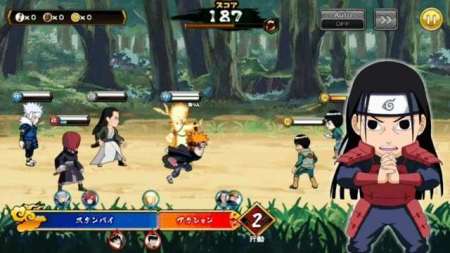
    Therefore, we should download the PPSSPP game in ISO format and not CSO so that the size does not need to be compressed again. In addition, the game file format ISO on PPSSPP itself is very much like the games PES, Naruto, and FIFA until games else we can find.

    How to Play PSP Games on PPSSPP?

    It is very easy, you can follow how to download the game at PPSPP on the internet. You just need to put the game PSP device smartphone, run or PPSPP emulator application installation, and then select the ISO-shaped game earlier. Furthermore, the game can be played easily.

    To download the PPSSPP game on Android itself, we can choose a website that has provided a PPSSPP game emulator file. If you are curious, here’s how to download games on PPSSPP easily via an Android device!

    How to download games on PPSSPP on an Android Laptop PC

    How to download games on PPSSPP
    How to download games on PPSSPP

    Before you can play PSP games on Android, you must first download the ISO-shaped game files through the recommendation website to download PSP games.

    #1. Download PPSSPP Game via CoolROM.com

    The first recommended web that can be used to download PSP games is coolrom.com, how to download ISO game files via the CoolROM site? Check out the following steps.

    • Open the website www.coolrom.com.au using your favorite browser.
    • Search and select your favorite game, can use the search field, or by looking at the Top 25 Downloaded ROMs in the sidebar of the website.
    • For example, we will show you download the Tekken 3 PPSSPP game. Type the keyword “Tekken 3” in the search field then press Go.
    • Select one of the games that are displayed.
    • To download the game, you must press/click the Alternative download link at the bottom of the Download button.
    • Wait for the advertisement for 15 seconds.
    • Press/click Download Your File.
    • Save the game files in the form of .zip / .rar / .7z to a folder that is easy to find.

    #2. Download the PPSSPP game through RomsMania

    How:

    • Open and visit the website www. Romania. cc using your favorite browser.
    • Search and select the game you want.
    • For example, we download the game Resident Evil 3.
    • On the game posting page, press / click the More Options button at the bottom of the Download button.
    • Select and click Browser download (slowest).
    • PPSSPP ROM game files in the form of .zip / .rar / .7z will be downloaded automatically through the browser you are using.
    • Wait until the download is complete. Or, to speed up downloads you can use the latest IDM software.

    Now, after the PPSSPP game file (.zip / .7z / .rar format) is downloaded properly. Then we can extract to get the ISO file of the game. Just remove it using File Explorer or WinRAR. After the .zip / .7z file is successfully extracted and gets an ISO file, then pay attention to the next step.

    #3. Download and install the PPSSPP application

    The next stage is that we must have the PPSSPP application which can later be used to play PSP games on Android. How:

    • Open the Google Play Store application, then look for the PPSSPP application. To speed things up, you can download the PPSSPP application there.
    • After the PPSSPP APK file is downloaded successfully, just install the PPSSPP application on your Android.

    After the PPSSPP application is installed, it can play previously downloaded games. How to play the game? Check out the next step.

    #4. How to Play PPSSPP Games on Android

    Before you can play PSP games on Android, please note that we must have an ISO game PSP file that was downloaded to Android storage.

    For those who previously downloaded ISO game files via PC / Laptop, you can directly transfer them to your Android’s internal/external storage.

    Next, pay attention to the steps of playing the PPSSPP game on the following Android.

    • Make sure you have installed the PPSSPP application on your Android smartphone.
    • Open the PPSSPP application.
    • Search for the PSP game’s ISO file according to the folder where you put it in memory.
    • Tap/tap the game to start playing it.
    • You can also set the game Performance so that it doesn’t lag by tapping the Settings menu in the PPSSPP application.
    • Adjust Performance as you wish and the Android spec that you use.

    For PC / laptop users, can you also play this PSP game on your device? Of course, you can bang, the way is also quite simple. Consider the following methods and stages.

    How to Play PPSSPP Games on a PC / Laptop

    Before you can play PPSSPP games on a PC or laptop you must have game files that can be downloaded via the RomsMania or CoolROM website.

    Perform the steps on how to download the PPSSPP game above to download the game file. After getting the ISO game file, you can directly download the PPSSPP application on a PC / Laptop. How to do it?

    • Open your favorite browser, you can use Google Chrome or Firefox.
    • Open and visit the website www.ppsspp.org/downloads.html.
    • Scroll down and find PPSSPP for Windows.
    • Click the Download button that is already available. You can also choose .exe or .zip files.
    • Wait a while until the application/software PPSSPP for Windows has finished downloading.
    • Once downloaded, install the PPSSPP application for Windows to the PC / Laptop that you are using.
    • To be able to play PSP games on a PC, you can do the exact steps discussed in the previous paragraph.

    Recommended PPSSPP Best  Games for 2023

    In addition, we have also summarized a list of the best PPSSPP Game recommendations throughout 2021. This list is adapted from the website sources RoomsMania and CoolROM.

    The list of recommendations for the best and most popular PPSSPP 2021 games is as follows:

    1. God of War – Ghost of Sparta
    2. Naruto Shippuden – Ultimate Ninja Impact
    3. Tekken 6
    4. Grand Theft Auto – Vice City Stories
    5. Dragon Ball Z – Shin Budokai 2
    6. Dragon Ball Z – Shin Budokai
    7. Assassin’s Creed – Bloodlines
    8. God of War – Chains of Olympus
    9. Need For Speed ​​- Most Wanted 5-1-0
    10. Dragon Ball Z – Tenkaichi Tag Team
    11. Tekken 3
    12. Crash Bandicoot
    13. Jackie Chan Stuntmaster
    14. CTR – Crash Team Racing
    15. Digimon World 3
    16. WWF SmackDown! 2 – Know Your Role
    17. Final Fantasy VII (Disc 1)
    18. Bloody Roar II
    19. Yu-Gi-Oh! Forbidden Memories
    20. Digimon World
    21. Vigilante 8 – 2nd Offense
    22. Pepsiman (Japan)
    23. Final Fantasy VIII (Disc 1)
    24. Resident Evil 2 (Disc 1)
    25. FIFA Soccer 2005
    26. Twisted Metal 4
    27. Dino Crisis 2
    28. Marvel vs. Capcom – Clash of Super-Heroes
    29. Tenchu ​​2 – Birth of the Stealth Assassins
    30. Dragon Ball GT – Final Bout
    31. Suikoden II
    32. Spider-Man
    33. Super Shot Soccer
    34. NASCAR Rumble
    35. Brigandine – The Legend of Forsena

    Read more:

    Conclusion:

    So, friends, That’s the above complete How to download PPSSPP games on an Android PC, along with install methods and tutorials to play very easy games. Do not forget to share/share this article with your friends.

  • Best 8 Video Editing Tools To Edit Gaming Videos 2024

    Best 8 Video Editing Tools To Edit Gaming Videos 2024

    Best 8 Video Editing Tools To Edit Gaming Videos – Creating stunning gaming videos doesn’t require you to be a professional video editor. A feature-rich, user-friendly, and intuitive video editing tool is all you need. However, finding that one professional tool is not as simple as it sounds.

    Best 8 Video Editing Tools To Edit Gaming Videos
    Best 8 Video Editing Tools To Edit Gaming Videos

    Video Editing Tools To Edit Gaming Videos

    With tons of video editing tools out there, it is hard to spot the one that will match your needs and work wonders for you. You are likely to spend many hours researching the best option. But, not to worry, we’ve made it easy for you.

    Read more:

    We’ve conducted extensive research and compiled a list of the eight best editing tools to help you get started. Just add them to your collection now and complete your project in no time.

    Let’s get started!!

    #1. VideoPad

    Let’s kick off with a premium video editor tool, VideoPad. Ideally designed for beginners, this feature-packed editing tool is an excellent pick for those who wish to create a superior-quality gaming video without leaving a hole in their pocket. 

    This tool offers a gamut of functions, including 3D video editing, a sound effects library, and different video compositions and styles. Once you are done editing, this tool can simply export your video to any platform you want, including YouTube, Google Drive, Facebook, etc. The only shortcoming of this editing tool is that it may be too simple for advanced users. 

    Features:

    • A massive library of customizable transitions
    • Compatible with Mac and Windows
    • Double built-in screen
    • Allows social media sharing 

    #2. VSDC Free Video Editor

    A desktop-based video editing tool, the VSDC Free Video Editor is a powerful, user-friendly program to edit your favorite videos easily. It is only compatible with Windows and is available in both free and paid versions. What makes it worth it is its free version includes a complete video editing suite, including a chroma key and mask tool. 

    Developed by Multilab LLC, it is a non-linear editing tool that can efficiently process high-resolution footage, including 4K UHD, VR 360-degree, and 3D videos. 

    Features:

    • Video stabilization
    • Social media sharing
    • Robust post-production effects
    • Easy to use

    #3. InVideo

    It is a professional video editing tool that allows you to create stunning videos without spending a dime. It is loaded with tons of features and is suitable for beginners and professional video makers alike. It features 5000+ readymade templates that can add a professional touch to your videos in no time. 

    On top of everything, this video editing tool is simple to use. Referred to as the best online video editor,  All you need to do is just select the template that fits your project, customize it by adding a free stock of music or images, and download or export the video to whatever platform you feel like.

    Features:

    • Works across all languages
    • User-friendly interface
    • Gives access to the premium video library
    • Allows to add unlimited team members

    #4. Lightworks

    Simple and intuitive, Lightworks is one of the most accessible and easy-to-learn Linux video editing tools to add to your collection. It has a vast array of detailed video tutorials and boasts a suite of original stock videos and music clips. 

    This free video editing tool is compatible with Windows, Mac, and Linux. Built by world-leading editors, it is a non-linear editing system ideal for students, schools, colleges, and universities for editing and mastering digital video. 

    Features:

    • Supports a wide range of video formats
    • Allows real-time project sharing
    • Speed optimization
    • Easy sharing of videos 

    #5. HitFilm Express

    Robust and powerful, HitFilm Express is a free gaming video editing tool with professional-grade VFX tools and everything you require to create stunning gaming video content. 

    It performs the role of both editor and compositor within a single platform and can stack unlimited videos as long as your system can handle it. It may seem advanced initially if you are new to the video editing field, but it is worth the learning curve. It includes various animation tools to create audio and video transitions, thus eliminating the need to capture composite shots. 

    Features:

    • An adaptive trimmer to re-trim your videos
    • Unlimited audio and video timeline-track creation
    • Auto-stabilization
    • Compatible with Mac and Windows

    #6. DaVinci Resolve

    The only video editing tool that combines editing, visual effects, motion graphics, color correction, and audio post-production in one platform, DaVinci Resolve is an ideal pick for advanced video makers. 

    Developed initially by DaVinci Systems, it supports online and offline editing and features a dual timeline for quick navigation, cutting, and trimming. It has an intelligent audio editing system that automatically syncs audio and visual clips to create a stunning gaming video. 

    Features:

    • Works great with Mac, Windows, and Linux
    • Supports processor-intensive file formats, including H.264 and RAW
    • Boasts a high-performance playback engine
    • Built-in tools for adding picture-in-picture effects

    #7. Shotcut

    An open-source, accessible, and cross-platform online video editor, Shotcut supports a wide range of video formats, including 4K, ProRes, FFmpeg, and a lot more. It also offers a good collection of tutorial videos. 

    Since it was initially designed for Linux, you may find its interface a bit tricky compared to others. It is equipped with a native timeline editing feature that allows users to import their gaming videos directly to their project files to save time and effort. 

    Features:

    • Excellent compatibility
    • Free to use
    • Simple user-interface
    • Support for the latest audio and video format

    #8. iMovie

    Created by Apple Inc., iMovie is mainly designed for iOS, macOS, and iPadOS devices. It is equipped with a simple drag-and-drop interface that allows you to move your files from your drive to the workstation before you commence work. 

    It comes with a streamlined design and intuitive multi-touch gestures to create gaming videos like a pro. Since Apple designed it for iOS only, it has no Windows PC version. The developers constantly update this video editing tool and add new features regularly. 

    Features:

    • Simple and easy-to-use
    • Supports 4K resolution
    • Available for free
    • Contemporary video filters 
    • Cloud-storage functionality
    • Speed control

    Conclusion:

    So, that’s all about the best gaming video editing tool out there for those who play Android or PC games. We hope this guide helps you make the right choice. All of these editing tools come with their own set of advantages and disadvantages.

    Therefore, it is recommended that you pick the feature-packed option that meets your video editing requirements. Spend time checking the various tools available before identifying the one that works best for you. There’s no point investing in the most expensive tool if you are never going to use all the features it provides.

    So, if you are new to the video-making process and looking for the best editing tool, your search ends with these 8 tools. With thousands of readymade templates, this platform is the best choice for making awesome gaming videos.