Author: Nazrul Islam

  • 13 Ways To Fix Error 0x80070643 on Windows 10 PC 2025

    13 Ways To Fix Error 0x80070643 on Windows 10 PC 2025

    13 Ways To Fix Error 0x80070643 on Windows 10 PC – What to do when you get error 0x80070643 while updating? When Windows updates fail to install, error code 0x80070643 may appear as follows:

    13 Ways To Fix Error 0x80070643 on Windows 10 PC
    13 Ways To Fix Error 0x80070643 on Windows 10 PC

    How To Fix Error 0x80070643 on Windows 10 PC

    Error 0x80070643 can also occur when you install or update any of the Windows applications.

    Read more:

    Note: The instructions in this article apply to Windows 10, Windows 8, and Windows 7.

    Cause of error 0x80070643

    Cause of error 0x80070643

    The error message 0x80070643 is usually the result of improperly configured system settings, corrupted drivers, malware or virus infection, corrupted or missing system files, or an old version of a program that was not properly removed when a new version was downloaded.

    Error 0x80070643 can also occur when a Windows computer or tablet is improperly shut down or disconnected from a power source during use.

    If you think you have malware on your computer, run your antivirus software to find and remove it before doing anything else.

    How to Solve Error 0x80070643 in Windows 10 PC

    How to Solve Error 0x80070643 in Windows 10 PC
    How to Solve Error 0x80070643 in Windows 10 PC

    If error 0x80070643 occurs on your device, here are some ways to solve error 0x80070643 that you can try until the message disappears and the update is successful:

    #1. Retry the installation

    Sometimes, trying to install or update again will work.

    This is how to solve error 0x80070643 on Windows 10 or other versions which is quite easy and can solve the problem immediately.

    So it’s worth trying at least one more time before proceeding with further troubleshooting.

    #2. Check internet connection

    If the update requires a connection to an online server, then a problematic internet connection can stop the installation process.

    If the internet speed test shows a weak connection, there are several ways to fix a slow internet connection.

    #3. Close all other programs

    Sometimes running other programs can affect updates or installations by accessing important files and using up device resources.

    Close all open programs on your Windows laptop, and close any programs that might be running in the background (like Zoom, Telegram, etc).

    #4. Re-download files

    If you download an update or app and it shows the error message 0x80070643, the file may be corrupted during the download process.

    Download again to see if that fixes the problem.

    Delete the original files you downloaded first so you don’t accidentally install those files instead of the new download.

    #5. Uninstall and reinstall the app

    If error 0x80070643 occurs during an app update, the existing version of the app may be corrupted.

    Use the Windows uninstaller to remove the program, then reinstall it.

    The latest version must be installed so you don’t need to update it.

    To quickly uninstall an app in Windows 10, right-click its name in the Start Menu and select Uninstall.

    #6. Pause the current download and update

    Other downloads and updates may interfere with the application you are trying to update.

    In Windows 10, open the Microsoft Store app and select the ellipse (…) in the upper right corner, then select Downloads and updates.

    Make sure no other apps are updated or installed, then try the installation again.

    #7. Run Windows Update Troubleshooter

    Windows Update Troubleshooter scans for and fixes problems related to the operating system and application updates.

    On Windows 10, go to Settings > Update & Security > Troubleshooter > Windows Update and select Run Troubleshooter.

    Tip: If you see error 0x80070643 when running, installing, or updating relatively old software, run the Program Compatibility Troubleshooter, which can be found on the same screen as the Windows Update Troubleshooter.

    #8. Restart the computer

    Rebooting a Windows PC can fix various problems on a Windows laptop or computer.

    #9. Install the latest .NET Framework

    A corrupted .NET Framework can cause installation and update errors.

    Make sure the latest .NET Framework update from Microsoft is installed on the computer.

    #10. Run the .NET Framework Repair Tool

    If you have the latest .NET Framework update and you’re still getting error 0x80070643, run the .NET Framework Repair Tool.

    #11. Disable antivirus software

    Antivirus programs are notorious for triggering conflicts with application installations and system functions.

    Turn off any software you have installed, then try updating or installing again.

    Tip: Restart your antivirus program after you complete this task.

    #12. Perform an SFC scan

    An SFC scan can detect and repair corrupted system files on a computer.

    To run a scan, open Command Prompt, type sfc /scannow, then press Enter.

    #13. Restart Windows Installer

    Windows Installer errors sometimes result in error 0x80070643.

    Open Windows Services and select Windows Installer once to highlight it, then select the Restart link on the left.

    Read more:

    Conclusion:

    This is the explanation of how to fix error 0x80070643 in Windows 10 for any type of laptop or PC, Hopefully, this short guide can help you solve errors that occur on your Windows laptop.

  • 4 Ways To See Your Own Forgotten Facebook Password 2025

    4 Ways To See Your Own Forgotten Facebook Password 2025

    4 Ways To See Your Own Forgotten Facebook Password – Facebook is still one of the most popular communication media with the largest number of users. So don’t be surprised if losing access to your own Facebook account is often considered a ‘disaster’ for its users.

    4 Ways To See Your Own Forgotten Facebook Password
    4 Ways To See Your Own Forgotten Facebook Password

    How To See Your Own Forgotten Facebook Password

    On average, those who have difficulty accessing their own Facebook account are due to forgetting their password or forgetting their password. For that, DuniaBelajar will give you tutorial tips on how to find your FB password easily.

    Read more:

    It’s not just forgetting what we will discuss, sometimes you must have been curious about someone’s FB password, right? especially your boyfriend.

    Therefore, here we will not only give you a tutorial on how to see your own forgotten FB password, but we will also discuss a tutorial on how to see someone else’s Facebook password.

    Forgetting is human nature, I have forgotten about something, even though it just happened. Forgot your Facebook password itself is a natural thing to happen.

    Don’t panic first, here we will share some tutorials on how to find out your own FB password that forgot password. Check out the following discussion:

    #1. How to find out the forgotten Facebook password

    The nature of forgetting often occurs in humans, especially in some of the social media passwords that we have. One of them is Facebook.

    For those of you who have forgotten your personal FB password and are lazy to create a new Facebook account, here’s an easy tutorial to get your forgotten FB password back.

    • Open the Facebook software.
    • Select the option ” Forgotten account? “.
    • Enter the email address or cellphone number used for your FB account.
    • Choose an option for Facebook to send you a password reset code.
    • Continue by clicking Continue.
    • Wait for Facebook to send you the security code.
    • Enter the security code, then select Continue.
    • Enter the new password for your Facebook account.
    • If so, select the Continue button.

    For those of you who are looking for a tutorial on how to open Facebook who forgot the password but whose cellphone number is not active, then in the third step you can change to ” Sending reset code via Email ”

    #2. How to find out other people’s Facebook passwords

    Curious about all the activities of your boyfriend’s Facebook account? Want to try logging in with your boyfriend’s account but don’t know the password?

    This condition is not infrequently faced by some people, especially me personally. Especially for those of you who are suspicious if your boyfriend is playing behind your back, have you ever thought about knowing what their behavior is behind us?

    However, unfortunately, until now DuniaBelajar has not found a tutorial on how to find out other people’s Facebook passwords.

    Moreover, if you are looking for an instant and easy Facebook password, it will certainly be very difficult.

    Knowing other people’s Facebook passwords falls into the category of hacking.

    Many Facebook account hacking techniques are usually done by hackers.

    In other words, your chances of successfully knowing someone’s FB password will be much greater when compared to just using this Forgotten Account technique.

    However, if that person has logged in to Facebook from the browser software on your PC or device, you can find out and view the password through the 2 tutorials below.

    #3. How to Know Facebook Password Via Firefox

    The third way you can use to find out someone else’s Facebook password, you use the Mozilla Firefox browser. But with a note, the prang has not had time to log out of the Mozilla Firefox browser.

    Here are the steps to find out and see other people’s FB passwords in Mozilla Firefox:

    • Open Mozilla Firefox from PC or HP.
    • Click the ‘ Tools ‘ icon, then select the ‘ Options ‘ menu.
    • Select the ” Privacy & Security ” menu.
    • In the Logins & Save Passwords stage, click the ” Saved Logins ” button.
    • Select your Facebook account, then click the ” Show Password ” button.

    Easy isn’t it? That was the tutorial on how to see your own or someone else’s Facebook email and password via Firefox software.

    #4. How to View FB Password and Email Via Chrome

    Apart from using Mozilla Firefox, you can also view your own and other people’s Facebook emails and passwords from the Chrome browser software.

    Here also you don’t need to install any Google Chrome extension to do it.

    However, the same as in the steps via Firefox, here you are also required to ensure that the Facebook account remains logged in to your Google Chrome software.

    Well, for more details, you can read the tutorial on how to see your own Facebook password or someone else’s, Curious? here are the steps:

    • Click the three-dot icon in the upper right corner, then select the ‘ Settings ‘ menu.
    • Click the ‘ Autofill ‘ menu, then select the ‘ Passwords ‘ option.
    • Select the Facebook account for which you want to see the email and password.
    • Click the ‘ Show Password ‘ icon next to it.
    • FB password will also be directly displayed.

    Read more:

    Conclusion:

    So, friends, This is the explanation of 4 ways to see your own forgotten Facebook password,  I hope this article is helpful for you guys.

  • How to Delete Files on Windows 11 laptop 2025

    How to Delete Files on Windows 11 laptop 2025

    How to Delete Files on Windows 11 laptop – Everything there is to know about deleting files, recovering them, and emptying the Recycle Bin in Windows 11.

    How to Delete Files on Windows 11 laptop 2022
    How to Delete Files on Windows 11 laptop 2022

    How to Delete Files on Windows 11 Laptop

    Windows 11 is the latest iteration of Microsoft which offers a user-friendly interface.

    Opinions can be divided on whether that is the case, but one thing we will all agree on is that there has been a lot of change.

    Read more:

    From the Taskbar, Action Center, and Settings to File Explorer, everything looks fresh and alive.

    One of the changes you might notice is the revamped context menu.

    Right-clicking on a file doesn’t bring up the same context menu we used to do for years.

    Despite the changes, the relevant options remain, some in the form of tiles while others in the form of icons.

    If you plan to delete a file or folder, these options are still accessible with the same ease, but the steps are slightly different.

    However, the DEL key still works like a charm.

    How to delete files on Windows 11 laptop using the Delete icon in the Context Menu

    How to delete files on Windows 11 laptop using the Delete icon in the Context Menu
    How to delete files on Windows 11 laptop using the Delete icon in the Context Menu

    When you right-click on a file, a neat new context menu with far fewer options appears.

    If you can’t find the Delete option, here’s how to do it.

    To delete a file, right-click on it and select the Delete icon at the top or bottom of the context menu.

    The icon resembles a trash can and is placed together with icons for CutCopyRename, and Sharing.

    Click Yes, if a confirmation box appears.

    Note: The confirmation box only appears if configured in the ‘Recycle Bin’ properties.

    How to delete files on Windows 11 laptop from the Command bar File Explorer

    When you launch File Explorer, you’ll see the Command Bar at the top.

    This is a quick way to access some basic tools including the Delete icon.

    To delete a file, select it, then click the Delete icon in the Command Bar.

    How to delete files on Windows 11 laptop from the Legacy Context Menu

    After years of working on the old context menu, we don’t expect you to get to know the new one right away, and neither does Microsoft.

    Therefore, they have not completely removed the old context menu and it is still accessible.

    Here’s how you do it.

    To delete a file, right-click to open the context menu, then select Show More Options to access the old context menu. Alternatively, select a file and press SHIFT + F10 and the old context menu will appear.

    Next, click the Delete option to delete the file.

    How to delete files on Windows 11 laptop using Keyboard Shortcuts

    You can also delete files and folders in Windows 11 by selecting them and pressing the DEL key on the keyboard.

    When you press it, the file is moved to the recycle bin.

    To permanently delete a file in Windows 11, select the file you want to delete in File Explorer, then press the keyboard shortcut SHIFT + DEL.

    When the confirmation box appears, click Yes to confirm the deletion of the file.

    Files deleted this way will not be found in the Recycle Bin.

    That’s how to delete files on a Windows 11 laptop that you can choose according to the most convenient and easy way for you.

    How to restore deleted files on Windows 11 laptop

    If you accidentally delete a file, you can recover it from the Recycle Bin.

    However, you should restore it immediately because the recycle bin starts cleaning old files when the storage space runs low.

    You can recover many specific files or all those stored in the Recycle Bin at once.

    To restore a specific file, launch the Recycle Bin from either the Desktop icon or the Start Menu, right-click on the file, and select Restore from the context menu.

    To restore multiple files, hold down the CTRL key, click all the files you want to recover, and then click Restore the selected items near the top right corner.

    To recover all files in the Recycle Bin, simply click ‘Recover all items’ near the top right corner.

    Click Yes in the confirmation box that appears.

    How to empty the Recycle Bin to delete Files Permanently

    Files you delete will go into the ‘Recycle Bin’ and continue to take up space on the hard drive.

    If you don’t want it on your computer, you can empty the recycle bin and free up some space.

    To empty the Recycle Bin, click the Empty Recycle Bin option in the Command Bar at the top.

    Next, click Yes on the confirmation box that appears.

    Conclusion:

    You should now understand how to permanently or temporarily delete files on a Windows 11 laptop. Deleting files that are no longer needed can help increase your laptop’s performance and free up your storage.

  • 6 Ways to Fix Download Failed Network Error in Chrome 2025

    6 Ways to Fix Download Failed Network Error in Chrome 2025

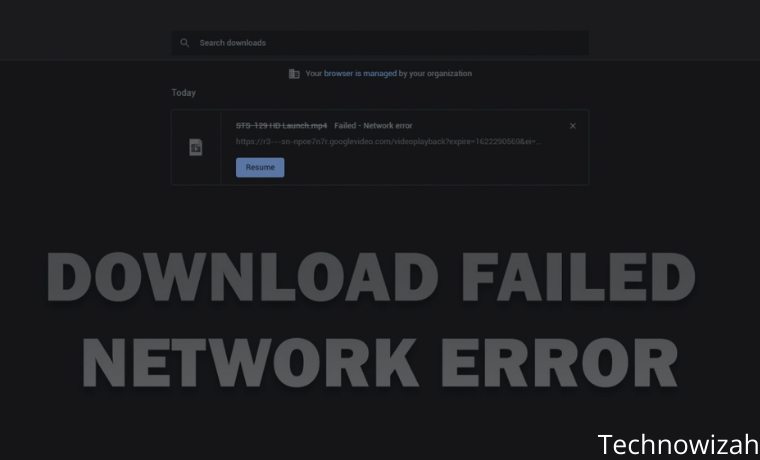
    6 Ways to Fix Download Failed Network Error in Chrome – Are you getting errors while downloading on Chrome? This solution might solve your problem. Errors while downloading are common in Google Chrome and come in many forms. In this article, we will discuss the “Download Failed Network Error” issue. This error message usually appears when downloading a file.

    6 Ways to Fix Download Failed Network Error in Chrome
    6 Ways to Fix Download Failed Network Error in Chrome

    How to Fix Download Failed Network Error in Chrome

    This error will continue to occur even if you try several times, the downloaded file will still fail. Even if the error message indicates that the problem is with the “network”, this is not always the case. For that, the admin will tell you how to solve the download failed network error in Chrome.

    Read more:

    #1. Check Internet Speed ​​And Connection

    Check Internet Speed ​​And Connection
    Check Internet Speed ​​And Connection

    You need a stable internet connection to download files. For this reason, you should first check if the internet connection you are using is active and stable.

    First, test the Wi-Fi speed with a reliable speed test tool. If your internet speed is fine, you may consider restarting your router and refreshing your connection.

    #2. Change Antivirus Settings

    Change Antivirus Settings
    Change Antivirus Settings

    Usually the appearance of the error message “Download Failed Network Error” can be caused by an antivirus program on the computer. Because most antivirus programs include traffic monitoring features such as HTTPS scanning.

    These features help protect PCs from malware hidden behind secured and encrypted websites. However, this feature can sometimes be overkill by blocking all files that will be downloaded even though they are not harmful.

    Try disabling HTTPS scanning or temporarily disabling the antivirus program to resolve this issue. Remember to re-enable the HTTPS scan or antivirus program after you finish downloading.

    #3. Use Incognito Mode

    Use Incognito Mode
    Use Incognito Mode

    A Chrome plugin or extension might help improve the user’s browsing experience. However, they can also limit Chrome’s functionality, as extensions can become corrupted or outdated. In some cases, extensions suddenly become incompatible with the version of Chrome you are currently using.

    To check if an extension is responsible for this error, enable Incognito mode. This will disable all third-party extensions and allow users to browse privately. Try again to download the file and check if the problem persists.

    If this solves your problem, then one of your extensions is causing this error. A good way to solve this problem is to disable all extensions and then re-enable them one by one. This will help you identify the problematic extension.

    #4. Reset Chrome Or Try Another Browser

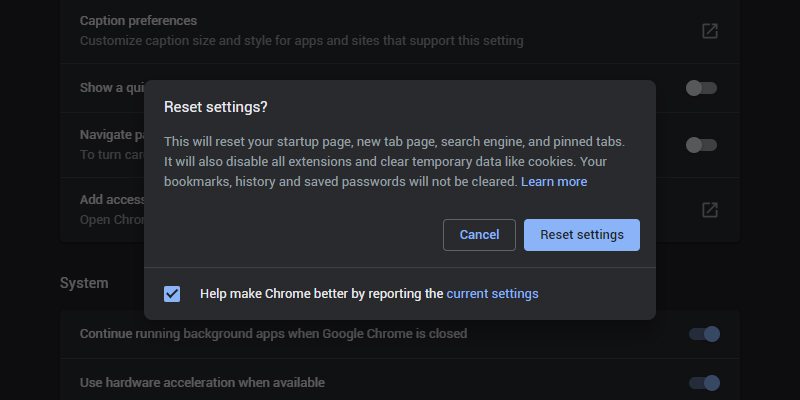
    To resolve this error, you may have to reset Chrome and return it to its default settings. This will disable all third-party extensions and will clear cache and cookies. It will not affect your browsing history, saved passwords, and bookmarks. Here’s how to reset Google Chrome.

    Reset Chrome Or Try Another Browser
    Reset Chrome Or Try Another Browser
    1. Click the menu button  (three vertical dots) in the upper right corner of the screen and select  Settings.
    2. In the next window, select the Advanced dropdown menu.
    3. Select the Reset and Clean up option.
    4. Select  Restore settings to their original defaults.
    5. Click the Reset settings button on the next screen.

    If this doesn’t solve the problem, you can try downloading the file you want to download using another web browser.

    #5. Update Network Drivers

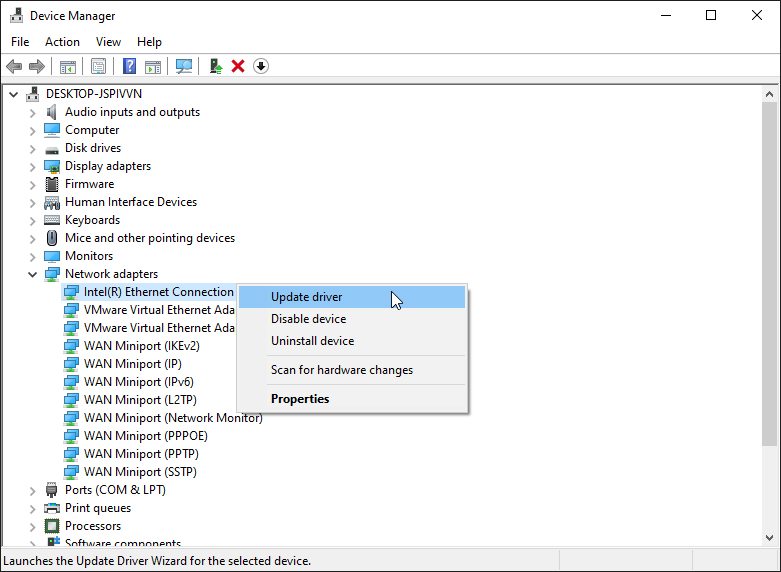
    Network drivers control the interface between your Windows PC and a specific network. If you are running outdated or corrupted network drivers, it can cause various network connection problems. Updating network drivers can help fix your problem. Here’s how to do it:

    Update Network Drivers
    Update Network Drivers
    1. Type  Device Manager in the Windows Start Menu and select   Device Manager when it appears.
    2. Select the Network adapters option.
    3. Right-click your PC’s network driver and select  Update Driver.
    4. In the next window, select  Each Automatically for Updated Driver Software. Follow the given instructions to complete the process.

    #6. Configure Windows Attachment Manager Settings

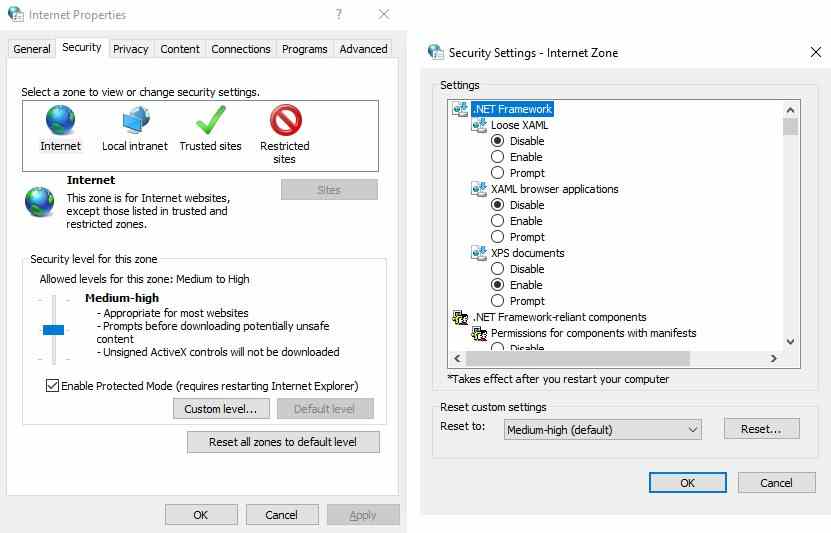
    Windows Attachment Manager helps protect your computer from unsafe files that you download or receive via email. If Windows Attachment Manager deems the file unsafe, it will block you from downloading it. In this case, you will have to configure the Windows Attachment Manager settings to resolve the issue. Here’s how to configure it:

    Configure Windows Attachment Manager Settings
    Configure Windows Attachment Manager Settings
    1. Press the Windows key + R  to open the Run command dialog box.
    2. Type inetcpl.CPL  and press  Enter.
    3. Navigate to the Security tab in the Internet Properties window.
    4. Click the Custom Levels button.
    5. In the Security Settings window, scroll down and find the Download option. From there, check the Enable button under  File Download.
    6. Scroll further down and find the Miscellaneous option. Next, check the  Prompt (recommended) option under the Launching Applications and Unsafe Files option. Click  OK.
    7. Click Apply and then OK in the Internet Properties window. Finally, restart your PC to apply the changes.

    Read more:

    Conclusion:

    So, those are some ways to solve the download failed network error in Chrome. Chrome is sometimes prone to issues that affect functionality, such as downloading files. As the admin has pointed out, this error can also come from your computer. Hopefully, you can solve this problem using the admin’s method.