Author: Nazrul Islam

  • Top 24 Free Websites To Receive SMS Online 2025

    Top 24 Free Websites To Receive SMS Online 2025

    Top 24 Free Websites to Receive SMS Online Without Real Number – are you looking for a free SMS-sending website? if yes then you are in the right place.

    Top 23 Free Websites To Receive SMS Online
    Top 23 Free Websites To Receive SMS Online

    Top 24 Free Website To Receive SMS Online without any Real Phone Numbers

    who does not know about a free SMS website? Surely you guys ever whose name uses a short message delivery feature that is now starting to lose its fame for being shifted by Chat Messenger like Line, BBM, KakaoTalk, BeeTalk, WeChat, WhatsApp, YM, etc. And also lose competitiveness with emails that are more trendy today.

    Read more:

    But, for the rural area, it turns out an SMS is still often used, because it may be difficult for the network obtained there to get 3G or 4G signals.

    6 years ago I still often use SMS to tell my friends, relatives, and family information that I want to convey.

    But since the development of technology, there is now called BlackBerry Messenger, Line, Facebook Messenger, etc.

    Which is certainly more comfortable in its use and also free! We only need to cut the quota pulse only. This is one of the most influencing factors of SMS landslides.

    Ok, I’ll just share with you some sites that you can use to receive SMS online.
    This is very useful for those of you who want to verify the account on a website that you yourself are lazy to use your own personal number.

    #1. SMS4you.net

    SMS4you.net

    SMS4you.net is an online service designed for receiving SMS messages on the web. The website offers a convenient platform for individuals and businesses to receive SMS notifications, verification codes, and important messages without the need for a mobile phone.

    With SMS4you.net, users can create an account and receive SMS messages from various sources directly on the website. The platform supports receiving SMS from different countries and mobile operators, ensuring broad accessibility.

    The website provides a user-friendly interface where users can view their received messages, search for specific content, and manage their inbox efficiently. SMS4you.net prioritizes security and privacy, ensuring that your received messages are protected and accessible only to you.

    Whether you need to receive important notifications, verify online accounts, or stay informed while on the go, SMS4you.net offers a reliable solution for receiving SMS messages conveniently from any internet-connected device.

    Experience the convenience of receiving SMS messages online with SMS4you.net, your trusted platform for staying connected and receiving important information effortlessly.

    Visit: SMS4you.net

    #2. Twilio
    Twilio
    Twilio

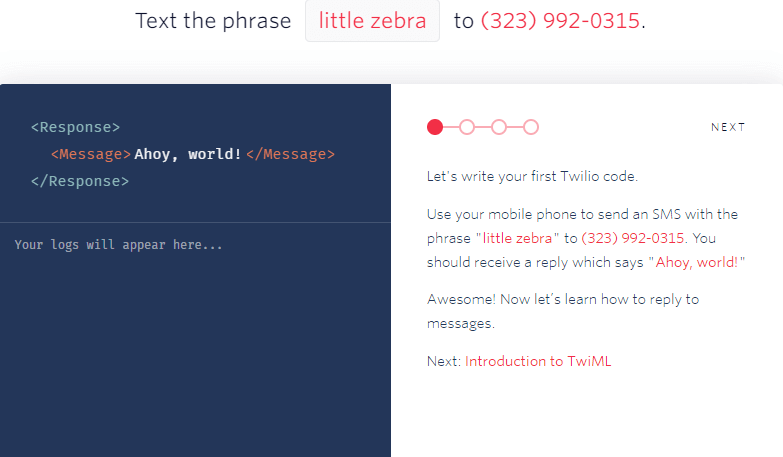
    Twilio gives you a free private phone number in the trial account if you give them a mobile number to receive a verification code.

    Luckily you can use one of the temporary phone numbers from the above site to receive a verification code to activate a Twilio test account.

    You can see the private phone number provided by Twilio by clicking the number on the menubar at the top of the page. To view SMS text messages received, click on the log followed by the message.

    Note that Twilio’s trial account is unable to send messages to the verification number but can receive online SMS from phone numbers without any problems.

    Visit:- Website

    #3. Sellaite SMS RECEIVER

    Sellaite SMS RECEIVER
    Sellaite SMS RECEIVER

    The country of public phone numbers offered by Sellaite SMS recipients to receive online SMS is Estonia, which is very different from its competitors.

    We found that they are quite reliable because they are very quick to record phone numbers from web pages if it does not work. If you see a phone number available, it’s very likely to work unless the SMS gateway cannot send text messages to Estonia.

    Just click on the available online phone number on the web page and the message that has received the number will be displayed.

    Visit:- Website

    #4. Pinger Textfree Web
    Pinger Textfree Web
    Pinger Textfree Web

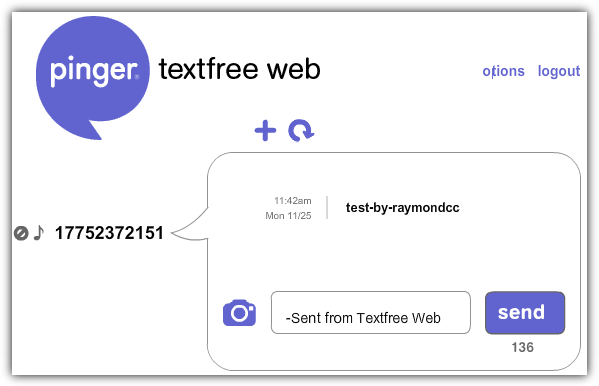
    If you are having trouble registering with TextNow because you can not find a working US proxy or VPN, Pinger Textfree Web is an alternative because anyone can register and use it for free.

    When registering you will need to provide a valid US postal code (example 01001) which can be found by searching on Google.

    Then you will be presented with our list of phone numbers that you choose to use. If you can not remember the phone number you selected, a simple click on Options and your phone number will be displayed on the first line when your account information appears.

    Visit:- Website

    #5. TextNow.com
    TextNow
    TextNow
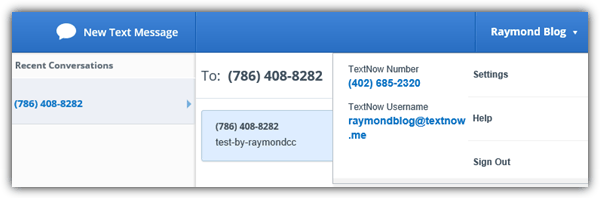
    TextNow is a good choice if you’re looking for a reliable and free personal phone number that only you have access to an SMS text message received.
    You will need to sign up for a free account and you will be automatically assigned a unique phone number.
    The problem is just general that most people get a generic error message “something goes wrong with your registration.
    Please try again!” When trying to sign up. To solve this problem, all you need to do is use a US-based VPN or proxy to do a one-time registration and you can log in normally using your own IP address.
    Unique US personal phone number to receive SMS online displayed in Account details after login.
    Visit:- Website

    #6. Receive-SMS-Online.com

    Receive-SMS-Online
    Receive-SMS-Online

    Then you can visit the site receive-sms-online.com as a free site to get the next number.

    This site will be very helpful for receiving messages online if you want to keep your phone number hidden.

    Accessing this site is even easier because you are only asked to choose a number from the number of lists provided.

    This server can be accessed for free, but what you should be aware of is the existence of a secondary domain server that can prevent your access to this site.

    Visit:- Website

    #7. GRE.im

    GRE
    GRE

    From this site, you will be offered telephone numbers from the US and Hungary. This site sometimes also carries the wrong message.

    But you don’t need to worry, just ignore the message and click on one of the registered numbers to get your SMS.

    Unfortunately, the weakness of the site http://gre.im/ is that the US numbers provided are not so many choices and the numbers cannot be really relied on.

    Visit:- Website

    #8. FreeOnlinePhone.org

    FreeOnlinePhone
    FreeOnlinePhone

    This site is also included as the best site that you can choose specifically to receive online technology.

    This site provides more than 228 countries with global coverage. Customer service can also be accessed 24/7.

    The most advantage is that you can choose any number you need to receive verification text. However, this site also has weaknesses where sometimes the numbers given do not work.

    You don’t need to worry because this problem will be resolved immediately. To access it you can visit the page http://www.freeonlinephone.org/

    Visit:- Website

    #9. ReceiveFreeSMS.com

    ReceiveFreeSMS
    ReceiveFreeSMS

    Receivefreesms.com You can use this site once to receive online SMS verification.

    You don’t need to register because the numbers are used temporarily and randomly.

    There are many numbers that can be used including Indonesian, UK, USA numbers, and many more.

    The advantages of Receivefreesms.com are free and can receive verification codes quickly to activate Gmail, Whatsapp, Beetalk, Wechat, Facebook accounts, and much more.

    Visit:- Website

    #10. Receive-SMS.com

    Receive-SMS
    Receive-SMS

    Among the list of sites to get free numbers, this site is probably the best. This site will provide 6 free phone numbers from Sweden and the UK for verification.

    If you use this service, your verification SMS will be displayed on the webpage publicly, unless you register for premium services.

    There is no significant weakness of this site in the outline. Direct access at http://recieve-sms.com/ to enjoy the service.

    Visit:- Website

    #11. Receivetxt.com
    Receivetxt
    Receivetxt

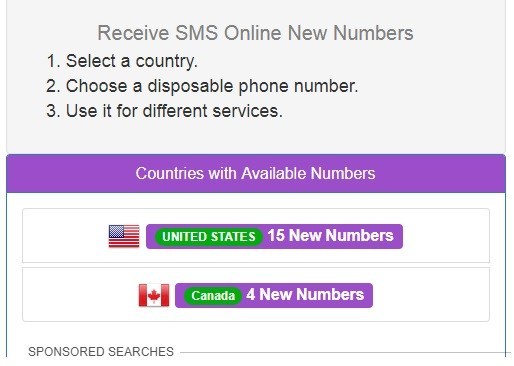
    Receivetxt.com is an online SMS receive site for account verification.

    These services are free and some are premium (Paid). You can receive SMS with free telephone numbers registered on FreePhoneNum.

    Users can use numbers to register or verify for any services such as Facebook, Google, Gmail, WhatsApp, Viber, Line, WeChat, KakaoTalk, etc.

    All SMS/text messages are automatically displayed on the page as soon as we receive an SMS / Text from the service.

    Visit:- Website

    #12. SMS-Receive.net

    SMS-Receive
    SMS-Receive

    SMS-Receive.net is a site that provides virtual cellphone numbers and real phone numbers stored on the SIM card.

    This website provides users with free services with public telephone numbers where they can receive online SMS on various social websites or forums such as NAVER LINE, Yahoo, Microsoft, server loft, CloudSigma, Facebook, Amazon, VK, OKru, Instagram, RealStatus, etc.

    Confirm registration using our number. Remember that all messages received on this website will be visible to everyone and cannot be deleted.

    Visit:- Website

    #13. Getsmscode: Receive SMS Online Service
    Getsmscode: Receive SMS Online Service
    Getsmscode: Receive SMS Online Service

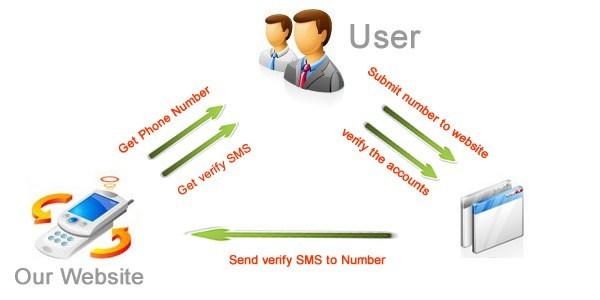
    The online SMS recipient for further verification is getsmscode.com. Personally, I have used the services of Getsmscode.com for quite a long time and rather cheaply from previous services.

    Here you can receive verification numbers from China, Cambodia, England, the USA, Malaysia, and Indonesia, rather expensive.

    The advantages of the virtual cellphone number service from getsmscode.com are fast, many discounts, and affordable. However, for Indonesia, it is rather expensive at around $ 0.30 – 0.50 per SMS.

    Visit:- Website

    #14. Receive-SMS-Online.info

    Recieve-SMS-Online
    Recieve-SMS-Online

    If you access this site, you will see the similarity of this site to the freeonlinephone.org site.

    This is reasonable because both of them are indeed made by the same company. This site will offer 5 numbers from the US and 3 numbers from the UK that you can use.

    The weakness of this site is that when receiving an SMS there is usually a delay. To enjoy the service you can access it at https://www.recieve-sms-online.info/

    Visit:- Website

    #15. ReceiveSMSOnline.net

    ReceiveSMSOnline
    ReceiveSMSOnline

    If you visit freeOnlinePhone.org, you will find that the site looks similar to this one except that there are differences in color.

    This is because they were created by the same company called “Cicklow”. Offers 5 telephone numbers from the US and 3 from the UK to receive online text messages.

    One disadvantage of their services is that there is a delay in receiving SMS from a number that matches their users.

    Visit:- Website

    #16. Receive SMS online japan

    receive SMS online japan
    receive SMS online japan

    Looking to raise your profile in Japan, but reluctant to open an office on the ground? A TollFreeForwarding.com number brings Japan to you by phone.

    Your number comes with a host of great features, including smart-call forwarding, enabling you to route calls from Japan to your office, home phone, mobile, PBX or call center. You can also convert voicemails and faxes to email.

    You can add and delete numbers as you choose, as you’re not locked into any long-term arrangements and you don’t need any new equipment. Just choose a number from our online inventory and have it activated in 60 seconds!

    Visit:- Website

    #17. FreePhoneNum.com
    FreePhoneNum
    FreePhoneNum

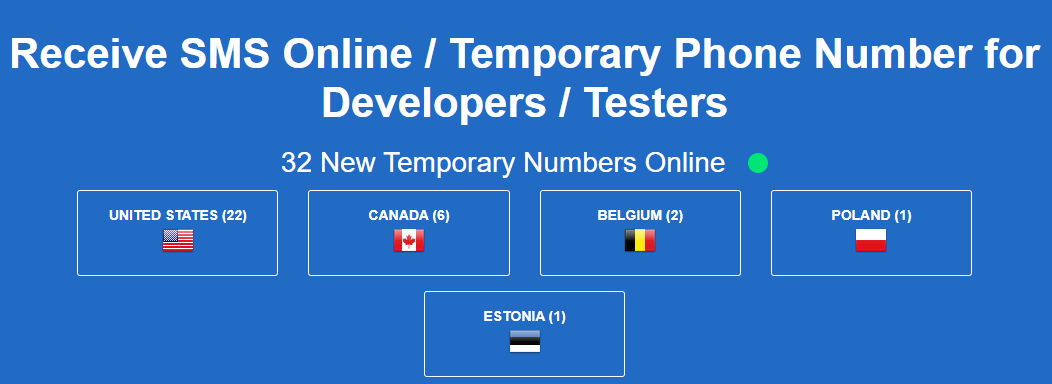
    FreePhoneNum.com is a free virtual phone number provider site for receiving verification SMS with a large collection of numbers.

    There are a total of 87 active telephone numbers from various countries, namely America, Canada, the United Kingdom, Belgium, and Puerto Rico.

    All telephone numbers are active and can be used to receive verification SMS. I have tried using it to verify Go-Jek, Instagram, WhatsApp, PayPal, Proton, Lybrate, Tinder, Lyft, Google, CoinX, Almami, Coinbase, and Uber, and it works.

    Visit:- Website

    #18. Receive-SMSS.com

    Receive-SMSS
    Receive-SMSS

    Receive-SMSS.com is a temporary virtual phone number provider site to receive verification SMS that I also use often.

    Country variants that can be chosen are also quite diverse. Of the total 26 telephone numbers available free of charge from the United States, Canada, South Africa, Belgium, Latvia, Romania, England, Sweden, Poland, France, Germany, the Netherlands, and Italy.

    All of these numbers can be used to receive SMS verification for Go-Jek, Instagram, WhatsApp, PayPal, Proton, Lybrate, Tinder, Lyft, Google, CoinX, Almami, Coinbase, Uber, and others.

    Visit:- Website

    #19. ReceiveSMS.co

    ReceiveSMS
    ReceiveSMS

    ReceiveSMS.co is a temporary virtual phone number provider site for receiving verification SMS with more variation numbers.

    The numbers come from Austria, Australia, Belgium, Canada, Switzerland, Denmark, Estonia, Spain, France, England, Ireland, Lithuania, Italy, Latvia, Poland, Puerto Rico, Portugal, Russia, Sweden, Slovakia, and America A union with a total number of active telephone numbers of more than 60 pieces.

    You Can use it to receive Go-Jek SMS verification, Instagram, WhatsApp, PayPal, Proton, Lybrate, Tinder, Lyft, Google, CoinX, Almami, Coinbase, Uber, and others.

    Visit:- Website

    #20. Receive-A-SMS.com

    Receive-A-SMS
    Receive-A-SMS

    Receive-A-SMS.com. The site for providing virtual numbers to receive the next verification SMS.

    This site provides numbers from Australia, Slovakia, Switzerland, the United States, Sweden, the United Kingdom, Portugal, Germany, South Africa, Canada, the Netherlands, Mexico, Lithuania, Malaysia, Hong Kong, the Czech Republic, Italy, and Poland with a total number more than 30 numbers.

    According to the site’s information, you can use this service to receive SMS verification on the services of WeChat, Baidu, Yuilop, Instagram, Odnoklassniki, eBay, Facebook, Google, Upload.net Premium, Chatroulette, Easyusenet, Yahoo, Microsoft, WePay, Gumtree, QIWI Wallet, Global Call, Youtube, Localbitcoins, Uber, Voxo x, Vichatter, and Visa.

    Visit:- Website

    #21. Temp-Mails.com
    Temp-Mails
    Temp-Mails

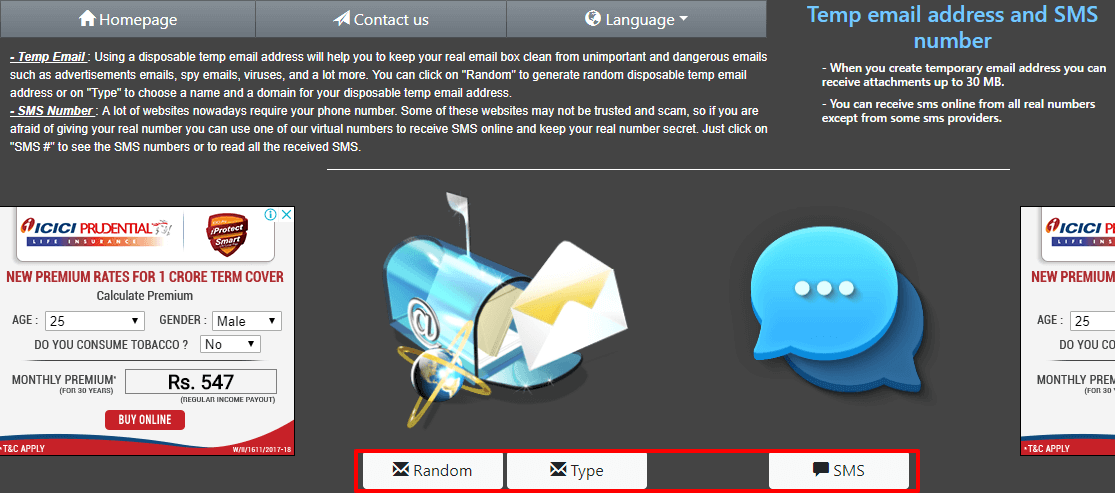
    Temp-Mails.com actually not only provides a free virtual phone number to receive verification SMS but also provides a temporary email to register an account.

    The numbers provided include the United States, United Kingdom, Poland, Australia, Switzerland, Lithuania, Belgium, Italy, France, and Hong Kong.

    The website clearly states a warning that these numbers should not be used to receive important SMS.

    Just like everything else, this service can you used to receive SMS verification of WeChat, Baidu, Yuilop, Instagram, Odnoklassniki, eBay, Facebook, Google, Upload.net Premium, Chatroulette, Easyusenet, Yahoo, Microsoft, WePay, Gumtree, QIWI Wallet, Global Call, Youtube, Localbitcoins, Uber, Voxo x, Vichatter, and Visa.

    Visit:- Website

    #22. MyTrashMobile.com

    MyTrashMobile
    MyTrashMobile

    MyTrashMobile.com is a free virtual phone number service provider for receiving account verification SMS.

    The numbers you can use variables in various countries including South Africa, the United States, Italy, Hong Kong, the United Kingdom, and Canada.

    Just like everyone else, this service can you used to receive SMS verification of WeChat, Baidu, Yuilop, Instagram, Odnoklassniki, eBay, Facebook, Google, Upload.net Premium, Chatroulette, Easyusenet, Yahoo, Microsoft, WePay, Gumtree, QIWI Wallet, Global Call, Youtube, Localbitcoins, Uber, Voxo x, Vichatter, and Visa. You can use this service through the website or through the Android and Apple applications.

     Download Trash Mobile  [ Play Store ]

    #23. ReceiveTxt.com

    ReceiveTxt
    ReceiveTxt

    ReceiveTxt.com is a virtual number provider service for receiving free verification SMS that routinely updates its phone number within a few weeks depending on how many users it has. You can also send an email asking for a new phone number from your country for free.

    Currently, available numbers include the United States, United Kingdom, Canada, Puerto Rico, and Belgium.

    All telephone numbers are active and can be used to receive verification SMS. I have tried using it to verify Go-Jek, Instagram, WhatsApp, PayPal, Proton, Lybrate, Tinder, Lyft, Google, CoinX, Almami, Coinbase, and Uber, and it works.

    Visit:- Website

    #24. GetFreeSMSNumber.com

    GetFreeSMSNumber
    GetFreeSMSNumber

    GetFreeSMSNumber.com provides a free virtual phone number to receive verification SMS.

    Each telephone number will be active and can be used for one month. It can even be faster if the number has received a lot of SMS and get a blacklist.

    The numbers available include countries from Canada, the United Kingdom, France, the United States, and Belgium.

    This service can be used to receive SMS verification for WeChat, Baidu, Yuilop, Instagram, Odnoklassniki, eBay, Facebook, Google, Upload.net Premium, Chatroulette, Easyusenet, Yahoo, Microsoft, WePay, Gumtree, QIWI Wallet, Global Call, Youtube, Localbitcoins, Uber, Voxo x, Vichatter, and Visa.

    Visit:- Website

    Read more:

    Conclusion:

    So, friends, This is the explanation of the top 24 free sites to receive SMS online, That’s on you can receive and even send SMS online to almost all countries, such as Australia, Sweden, Nederland, Spain, England, USA, China, Japan, Thailand, Philippines etc.
  • 7 Ways to Fix Mouse Not Working in Windows 10 PC 2025

    7 Ways to Fix Mouse Not Working in Windows 10 PC 2025

    7 Ways to Fix Mouse Not Working in Windows 10 PC – Is the mouse you are using not working and you don’t know why it happened? Here’s how to fix the mouse not working in Windows 10.

    7 Ways to Fix Mouse Not Working in Windows 10 PC
    7 Ways to Fix Mouse Not Working in Windows 10 PC

    How to Fix Mouse Not Working in Windows 10 PC Laptop

    Problems that occur on computers are often annoying and frustrating to users. One of them is like a mouse that doesn’t work or is broken.

    Without a mouse to navigate the system will be complicated. Fortunately fixing it is not too complicated. Here are six ways to fix the mouse not working in Windows 10.

    Read more:

    The first fix for dealing with a mouse not working in Windows 10 is to check the mouse connection. This is a very simple thing to overlook. But sometimes, a loose cable is the only thing causing problems.

    • Check if your mouse or wireless adapter is not disconnected in the port
    • Try completely disconnecting the mouse cable or wireless adapter and reconnecting it in a different port
    • If this is a new issue, sometimes restarting your system will give an immediate fix

    If the quick fix above doesn’t work, you can try the tips below to fix the mouse not working problem in Windows 10.

    #1. Driver Incompatible

    One of the causes of the mouse not working problem in Windows 10 is the system driver. Windows 10 takes care of updating your drivers for most of your hardware. However, it’s not always exact, and sometimes, it doesn’t always find driver updates after release. That doesn’t mean you can’t manually install driver updates.

    1. Driver Incompatible
      Driver Incompatible

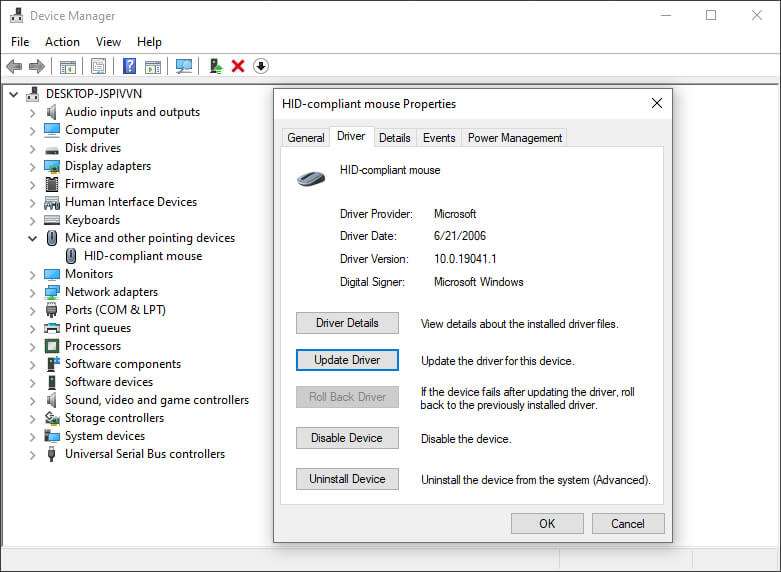
      Type device manager in the Start Menu search bar and select Best Match.

    2. Browse down to  Mice and other pointing devices, select it, then right-click your mouse input and select  Properties.
    3. Select the Driver tab, then  Update Driver.

    If You Have The Right Driver

    If you have downloaded the correct driver, you should Browse my computer for driver software. On the next page, use the Browse option to locate the driver, then press Next. Drivers will install. Reboot your system once done.

    If You Don’t Have The Right Driver

    If you haven’t downloaded the driver directly from the manufacturer, select Search automatically for updated driver software. Windows will now automatically scan your computer and the internet for any driver updates and install the appropriate ones. Windows will notify you if no updates are available.

    No Driver Update Available

    If no driver updates are available, you can try manually reinstalling the mouse drivers. Write down the name of your mouse or touchpad in Device Manager, then go to the manufacturer’s website. The manufacturer must provide a download of the latest version of your mouse driver.

    If you can’t find the relevant download on the manufacturer’s site, do an internet search for “[PC model] Windows 10 mouse driver” or “[laptop model] Windows 10 touchpad driver.” This should return the correct driver for your hardware.

    After downloading the new mouse driver, return to Device Manager. Then, go back to the Mouse Properties and Device tab. Select Uninstall and follow the prompts. Now, install the mouse driver you downloaded manually, and reboot your system.

    #2. Mouse Freezing And Cursor Disappear

    Common Windows 10 mouse problems are related to Realtek HD Audio Manager. Unfortunately, Realtek HD Audio Manager is also the cause of audio driver problems.

    1. Right-click the Taskbar, select  Task Manager and head to the Start-up tab.
    2. If you see  Realtek HD Audio Manager, right-click it and select  Disable.
    3. Now, reboot your system.

    Disabling Realtek HD Audio Manager is known to fix mouse freezing and cursor disappearing issues.

    #3. The mouse is lagging and there is a beeping sound

    The fix for your third mouse problem is that it is still related to other drivers. Your mouse is slow and makes a strange beeping sound.

    Microsoft first addressed this issue in April 2016, with Cumulative Updates KB3147458 and KB3147461. However, you will benefit from trying the following fixes if you are still experiencing mouse lag in Windows 10.

    Mouse is lagging and there is a beep sound
    Mouse is lagging and there is a beep sound
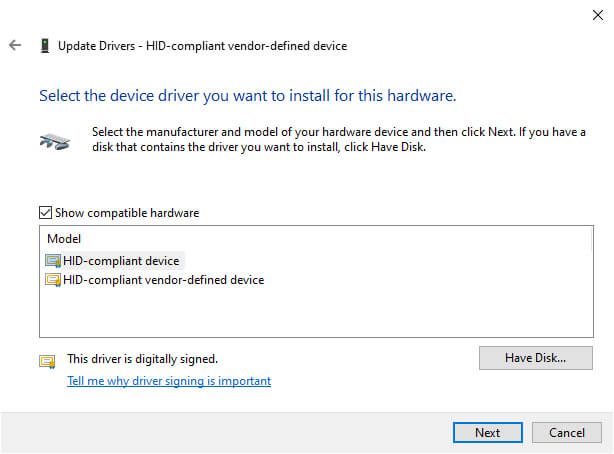
    1. Open  Device Manager and search for  Human Interface Devices. If you see a XINPUT Compatible HID or HID-compliant vendor listed, this fix might work for you.
    2. Right-click and select  Update Driver Software.
    3. Choose to Browse my computer for driver software, followed by  Let me pick from a list of device drivers on my computer.
    4. On the next screen, select  Have Disk. This lets you browse the system to find the driver of your choice. Find the extracted file using the Browse button. Select xinputhid or HID-compliant device,  then Open  >  OK. 
    5. You should now return to the driver selection screen, where the “new” driver will be available to choose from. Press Next, then reboot your system.

    Note:  that the Human Input Device (HID) list may vary from system to system. This fix has been shown to work on a variety of systems, using different hardware settings.

    #4. Windows 10 Touchpad Freezing

    Some Windows 10 users are reporting touchpad freezing issues when using the laptop. Touchpad freezing or jumping issues usually stem from out-of-date touchpad drivers, depending on the device manufacturer. The process of updating your Windows 10 touchpad settings is similar to that of a regular mouse.

    Windows 10 Touchpad Freezing
    Windows 10 Touchpad Freezing
    1. Type device manager in the Start Menu search bar and select Best Match.
    2. Explore Mice and other pointing devices and expand using arrows.
    3. Right-click your touchpad driver and select Update Driver > Search automatically for drivers.

    #5. Manufacturer Touchpad Settings

    Depending on the manufacturer of the device or touchpad, you may have a second set of touchpad settings hiding somewhere in your system. When your Windows 10 touchpad starts acting weird, it could be that the settings are wrong.

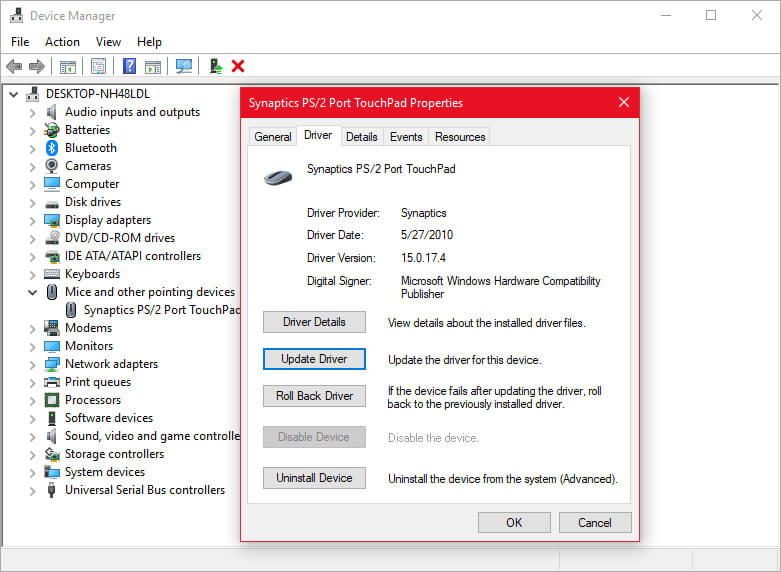
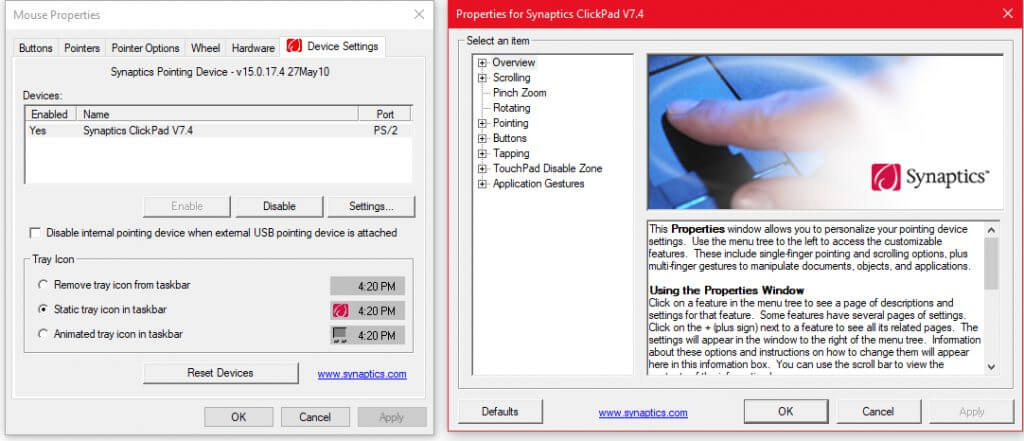
    In the touchpad screenshot above, you will see the name   Synaptics PS/2 Port Touchpad.  The manufacturer’s name is Synaptics, so that’s the manufacturer or touchpad settings we’ll be looking for. You can find the name of your touchpad manufacturer using Device Manager. As an alternative, some manufacturers include an extra tab in Windows 10 Mouse Properties.

    Manufacturer Touchpad Settings
    Manufacturer Touchpad Settings
    1. Enter the mouse in the Start menu search bar and select Best Match.
    2. Select Additional mouse options.
    3. Check for an extra tab with the manufacturer’s name or touchpad or something similar.
    4. Adjust any settings that appear broken, or restore the touchpad settings to their default configurations.

    The above process may differ between manufacturers but gives you a rough idea of ​​what to expect.

    #6. Mouse Acceleration

    The mouse acceleration issue is very frustrating, especially for gamers among us. Windows 10 users report mouse acceleration issues in some scenarios.

    There is no single fix for the mouse acceleration issue, but you can try some of the fixes below to see which one works for you.

    Turn Off And Turn On the Mouse Acceleration

    First, try turning mouse acceleration on and off in your system settings.

    Turn Off And Turn On Mouse Acceleration
    Turn Off And Turn On Mouse Acceleration
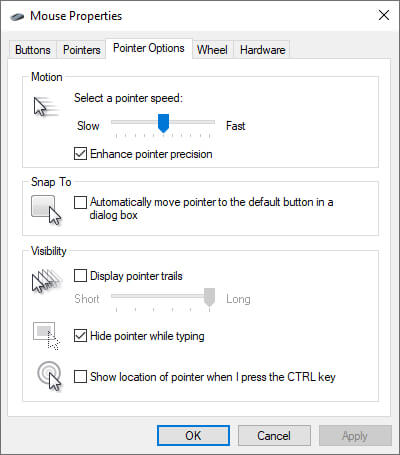
    1. Go to  Control Panel > Hardware & Sound > Mouse.
    2. Select the Pointer Options tab.
    3. Uncheck the Enhance pointer precision box to turn off acceleration.
    4. Select  Apply and  OK. Check how your mouse is now responding.

    Mouse MarkC Fix

    If trying to turn it off and on still doesn’t work, you can try using Mouse MarkC Fix to fix your Windows mouse acceleration issue. MarkC Mouse Fix is ​​a registry file that removes Windows 10 mouse pointer acceleration, adjusting the feature to the level of accuracy you expect.

    Mouse MarkC Fix
    Mouse MarkC Fix
    1. First, download the compressed MarkC Mouse Fix file and extract it to an easy-to-remember location.
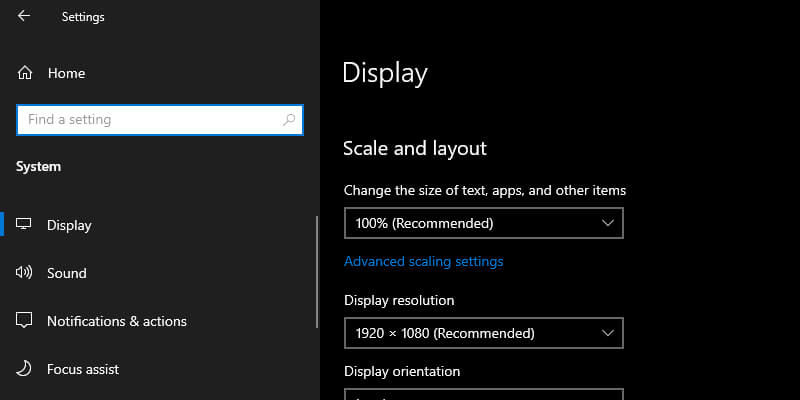
    2. Next, you need to know the DPI (Dots Per Inch) display you are using by pressing Windows Key + I, then go to System > Display.
    3. Under Scale and Layout, check the current settings you are using. For example,   100% (Recommended is the default scale option. Depending on your screen size and resolution, you may see a scaling option up to 350 percent.
    4. Note the current scale setting.
    5. Go back to the extracted MarkC Mouse Fix folder, find your version of Windows, and open the folder.
    6. Select the registry file that matches your display DPI, then double-click to import the file. Answer  Yes or  OK  to the prompts that appear. Now reboot your system for the repair to complete.

    You should now enjoy precise 1-to-1 control, with no acceleration or pauses between moves.

    Mouse and Xbox Game Bar Problems

    Xbox Game Bar, formerly known as Windows 10 Game Bar, is a handy feature for gamers. Of course, another option can be recording and streaming your game. But Microsoft knows that the Xbox Game Bar’s integration with Windows 10 gives gamers an edge on both desktops and Xbox.

    Anyway, back to the Windows 10 mouse issue. The Xbox Game Bar in Windows 10 can trigger mouse acceleration issues. Unfortunately, this is not a problem of this kind. Therefore, there is no definite fix. Some users reported that other mouse acceleration improvements had a positive effect. Others have gone so far as to completely remove the built-in gaming features via Windows PowerShell.

    A common trick for those experiencing mouse acceleration issues when using the Windows 10 Game Bar is to use the Windows key + G shortcut key to trigger a recording event. Try it yourself and see if your mouse acceleration problems start after doing that.

    #6. Nvidia drivers

    After a Windows 10 update, users report mouse problems in certain environments or scenarios. In particular, the mouse button continues to work, but the movement stops. One common fix for this problem comes from outdated Nvidia drivers.

    To update your Nvidia drivers, first, go to the Nvidia drivers page. Select your Nvidia product from the dropdown box, then select Start Search. The latest drivers for your Nvidia graphics card will appear in the results below. Download and install the latest version.

    #7. Fix Mouse Problems With Hardware Troubleshooter

    Windows 10 includes several troubleshooters that you can use to identify and fix mouse problems automatically. The success of these troubleshooters varies depending on the problem, and you may have to take their advice cautiously.

    For example, the Wi-Fi troubleshooter often suggests a complete network reset, returning your settings to their defaults if your internet drops, rather than simply suggesting turning the router off and on first.

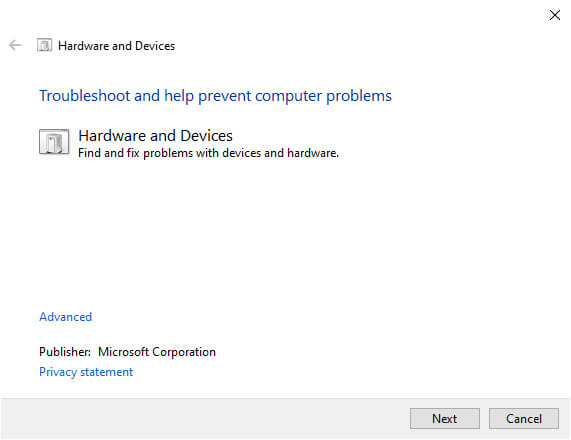
    To find the Windows 10 hardware troubleshooter:

    Fix Mouse Problems With Hardware Troubleshooter
    Fix Mouse Problems With Hardware Troubleshooter
    1. Press the Windows key + R   to open Run Box.
    2. Type the following command ” msdt.exe -id DeviceDiagnostic “.
    3. Follow the next steps according to the instructions given.

    Windows 10 will try to detect any mouse issues, and then ask if you want to apply a fix.

    Read more:
    Conclusion:

    This is the explanation of 7 ways to fix a mouse not working on a Windows 10 PC, I hope one of the above methods solves your Windows 10 mouse or touchpad problem. The Windows Update system always has a chance to break something, somewhere.

    Because Microsoft has relaxed the strict Windows 10 update rules that previously could only help end-users, if buggy updates don’t install automatically, you stand a better chance of avoiding time-consuming mouse-related bugs.

  • 17+ Lightest Browsers for Windows PC with Low Specs 2025

    17+ Lightest Browsers for Windows PC with Low Specs 2025

    17+ Lightest Browsers for Windows PC with Low Specs – Choosing the lightest browser to use on a low-spec laptop/PC is sometimes frustrating. If this is the case, there are only two solutions: upgrading your laptop/PC specs, or switching to a more RAM-efficient browser.

    17+ Lightest c for Windows PC with Low Specs
    17+ Lightest c for Windows PC with Low Specs

    17+ Lightest Browsers for Windows PC with Low Specs

    But what makes us confused is, that many browsers claim that the browser is the lightest. But after installing it, it still makes it slow.

    Read more:
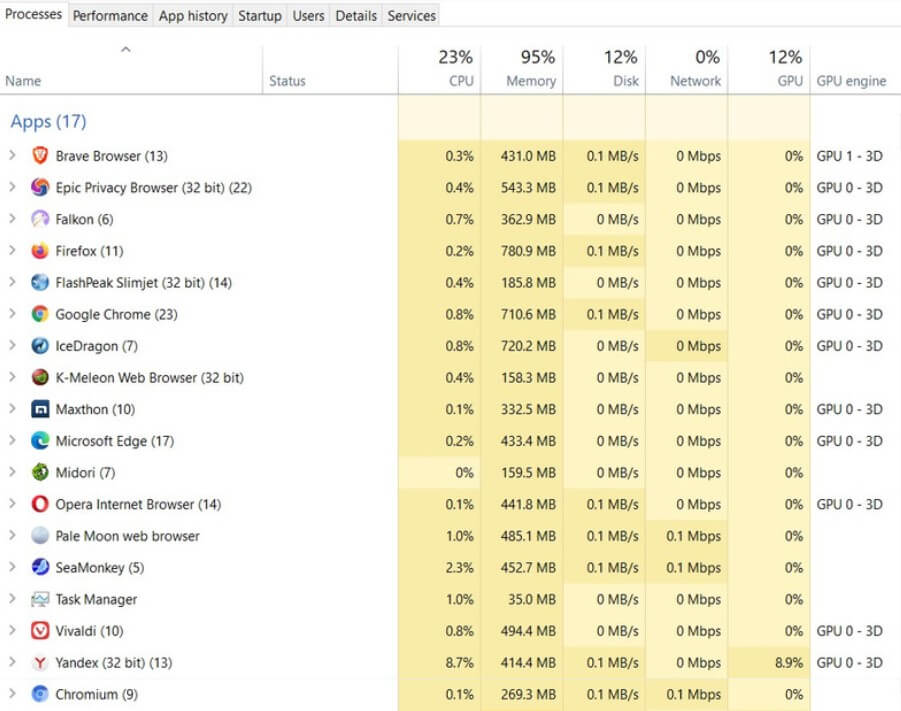
    Don’t worry, No need to rush to change laptops or upgrade PCs. Here I will compare 17 browsers to go through a series of tests to find which browser consumes the least RAM.

    And here are the results.

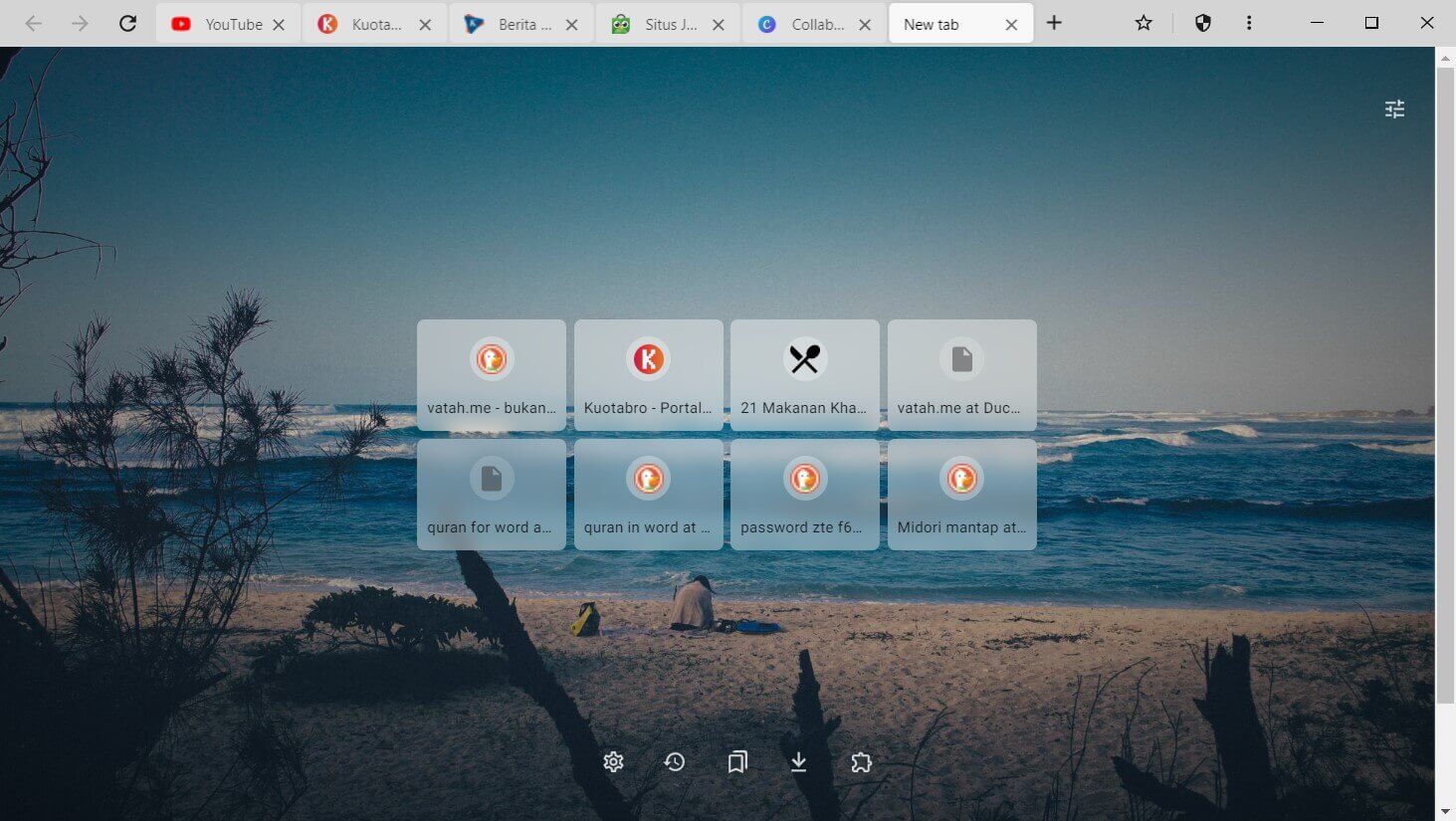
    17+ Lightest Browsers for Windows PC with Low Specs

    It should be noted that the lightest browser is not the same as the best browser. Some browsers can’t open one or two of the five experimental websites above.

    Well, if you are confused about which one to choose, I will discuss the advantages and disadvantages one by one. Please choose the most suitable for your needs.

    Let’s start with the lightest browser…

    #1. K-Meleon

    K-Meleon

    Browser Name

    K-Meleon

    Developer

    Dorian, KKO, et al.

    Base

    Mozilla

    Browser Engine

    Goanna (Gecko-fork)

    Built-in Search Engine

    DuckDuckGo

    If you are looking for the lightest browser, then K-Meleon is the answer.

    K-Meleon is a super-duper lightweight browser based on the Gecko engine developed by Mozilla.

    Having the tagline “ The Browser You Control ”, K-Meleon gives us the option to customize this browser. Starting from skins, button locations, toolbar locations, menus, proxies, cookies, javascript, and much more.

    As the lightest browser, K-Meleon certainly only consumes less RAM than other browsers. Another plus point is obtained because this browser can be opened quickly, is responsive, and is powerful. The ecosystem is also well developed so this browser is very stable.

    The drawback, this browser is officially available for Windows users only. To use it on Mac OS, you need a Windows emulator which of course is not recommended because it makes it even more difficult.

    The interface is also old-fashioned and reminds me of how browsers looked in the early 2000s. In addition, what is quite disturbing is that the scrolling is not smooth, it even tends to break.

    K-Meleon

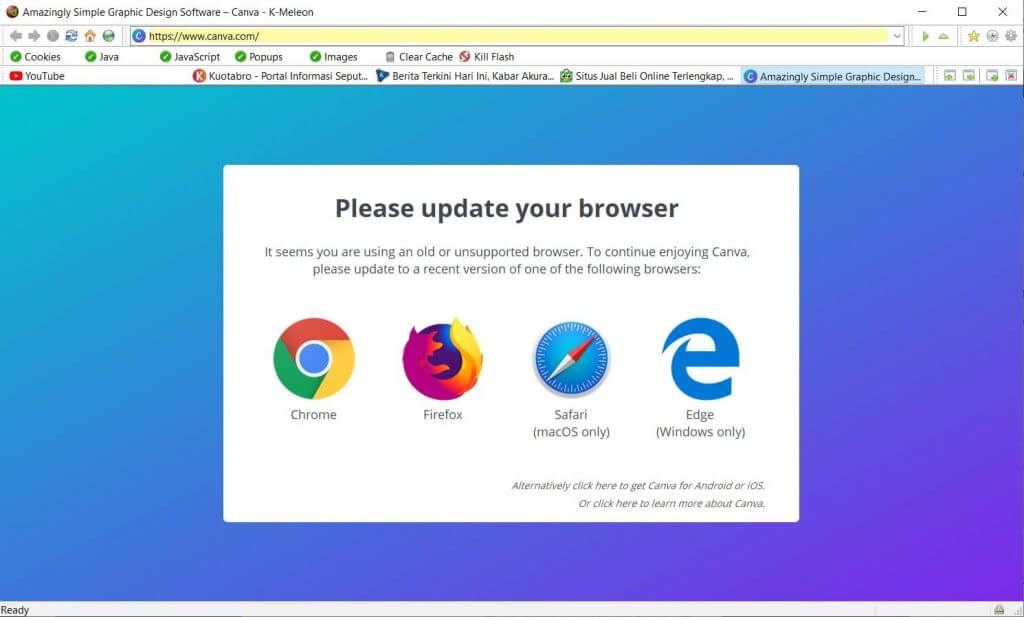
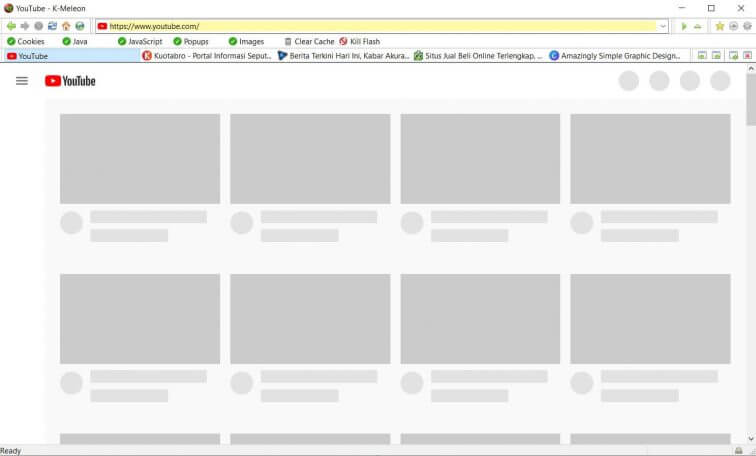
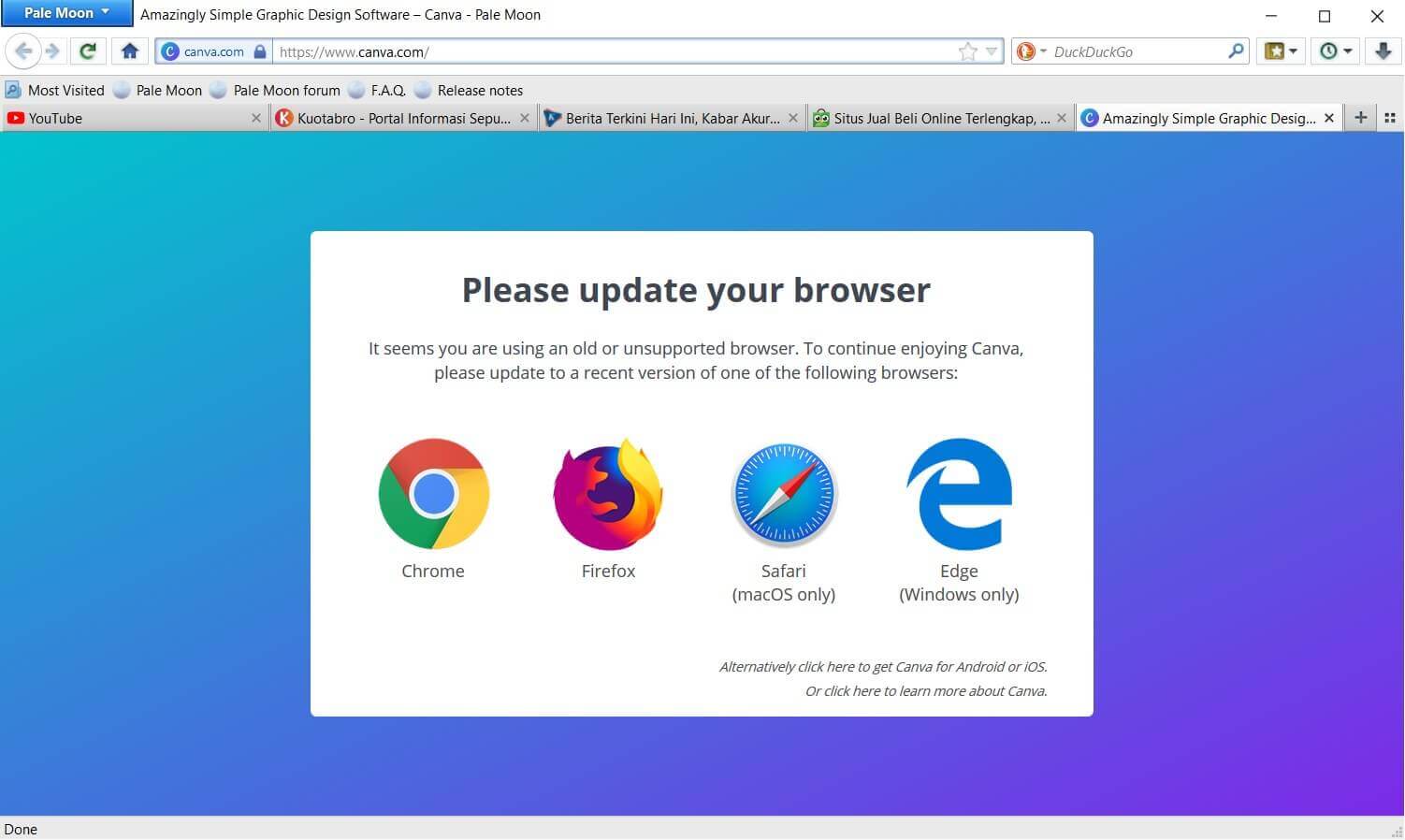
    One very unfortunate thing is, when I did a test by opening 5 tabs at once, K-Meleon couldn’t open Canva and YouTube. And possibly other multimedia services too.

    Advantages

    • lightest (absolutely!)
    • the display can be customized
    • very stable software

    Deficiency

    • ancient interface
    • only available for Windows
    • scrolling a bit broken
    • Can’t open Canva & Youtube
    K-Meleon is a browser suitable for old-school PCs/laptops. Guaranteed not to lag.

    #2. Midori

    Midori

    Browser Name

    Midori

    Developer

    Astian Foundation

    Base

    Browser Engine

    WebKit

    Built-in Search Engine

    DuckDuckGo

    Speaking of lightweight browsers, it seems impossible not to include Midori in this list. This browser is very light, even Midori claims that the browser requires six times less RAM than Google Chrome.

    This browser is perfect for use on old-school laptops or PCs with low specs. The start-up is also fairly fast even though it is opened on a laptop/PC with small RAM.

    Besides being lightweight, the excellent feature of Midori is its availability on multi-platforms ranging from Windows, Mac OS, and Linux, to Android. Not to forget, security features such as anonymous and do not track are also embedded in it. Plus it already has a built-in adblocker.

    It looks modern and minimalist, smooth, and comes with three theme variants: auto, light, and dark. Well, this dark mode feature makes it superior to other browsers.

    Some of the shortcomings of Midori are that some Midori users also report crashes when running this browser. But I’ve been using it for a week and so far haven’t found any crashes or bugs, instead, I like this browser.

    In addition, Midori does not display a lock icon ( secure ) or a warning icon ( not secure ) on the left side of the address bar to inform us whether the website we are accessing is already using HTTPS or not.

    However, Midori is one of the lightest on this list. So it never hurts to try.

    Advantages

    • save RAM consumption
    • has a built-in adblocker
    • available on many platforms

    Deficiency

    • there is no http/https icon
    • some users reported crash
    • scrolling a bit broken
    • Can’t open Canva & Youtube
    Midori browser is suitable for those of you who want a lightweight browser with a fantastic dark mode.

    #3. Slimjet

    Slimjet

    Browser Name

    Slimjet

    Developer

    FlashPeak Inc.

    Base

    Chromium

    Browser Engine

    Blink

    Built-in Search Engine

    Google

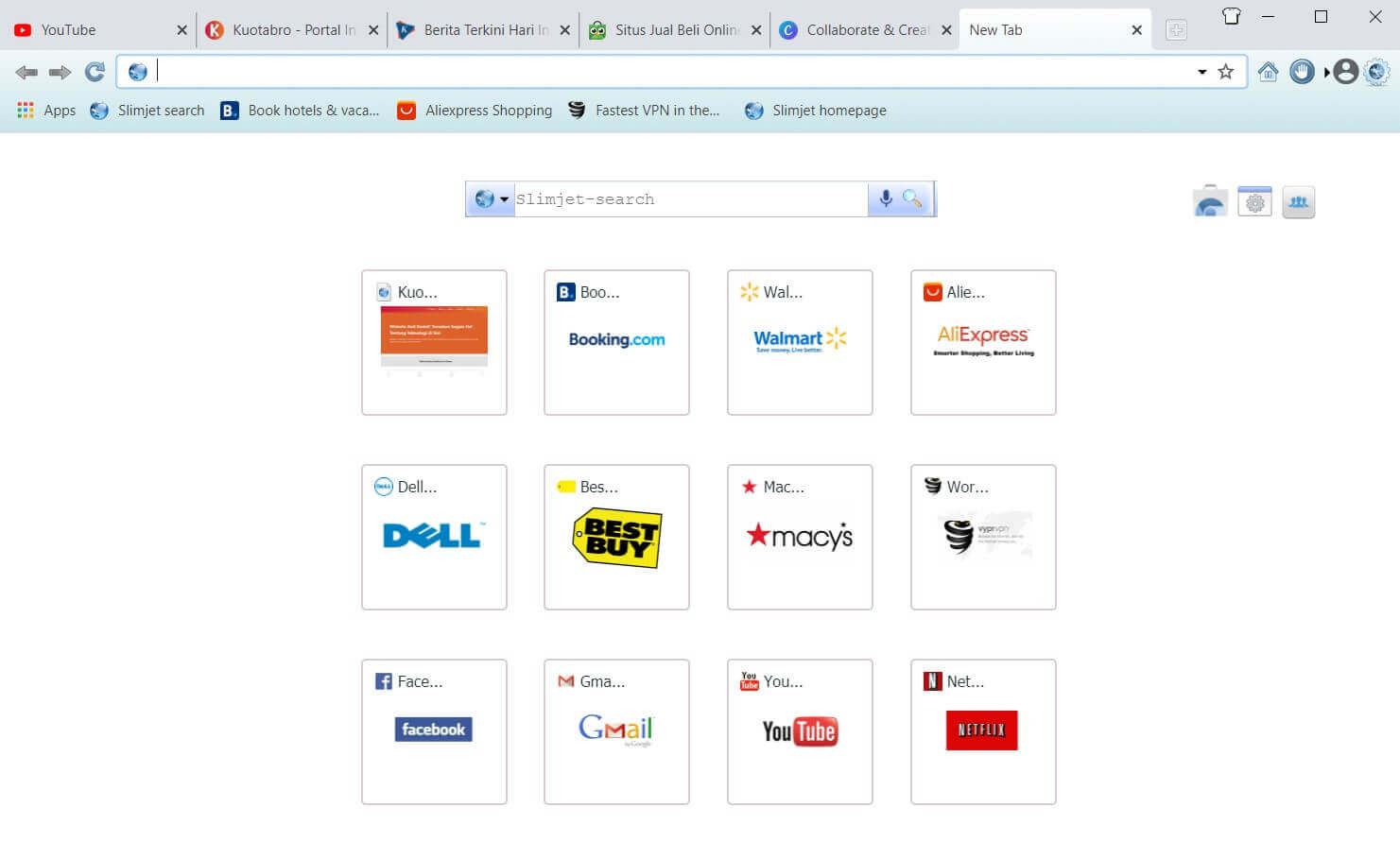
    Slimjet is a Chromium-based browser that is quite popular among other lightweight browsers.

    This browser is equipped with many features, including form filler, and built-in AdBlock, can record screens directly from the browser, can change themes, can add plugins, and can edit photos before uploading.

    For those of you who like to download, you will like this browser because it has embedded the Turbocharged Download Manager feature.

    It doesn’t stop there, the Slimjet browser also has a YouTube/HTML5/flash downloader feature which you can use to download MP3s directly from YouTube without the need for a converter. Interesting right? Just download it below.

    There’s more, so even though it looks old-fashioned, SlimJet is equipped with screenshots and screen recording features up to 1080p you know.

    Advantages

    • has a built-in download manager
    • has a built-in MP3 conversion
    • Can screenshot & screen record up to 1080p

    Deficiency

    • the display still feels old-school
    The Slimjet browser is for those of you who like to download.

    #4. Chromium

    Chromium

    Browser Name

    Chromium

    Developer

    The Chromium Project

    Base

    Browser Engine

    Blink

    Built-in Search Engine

    Google

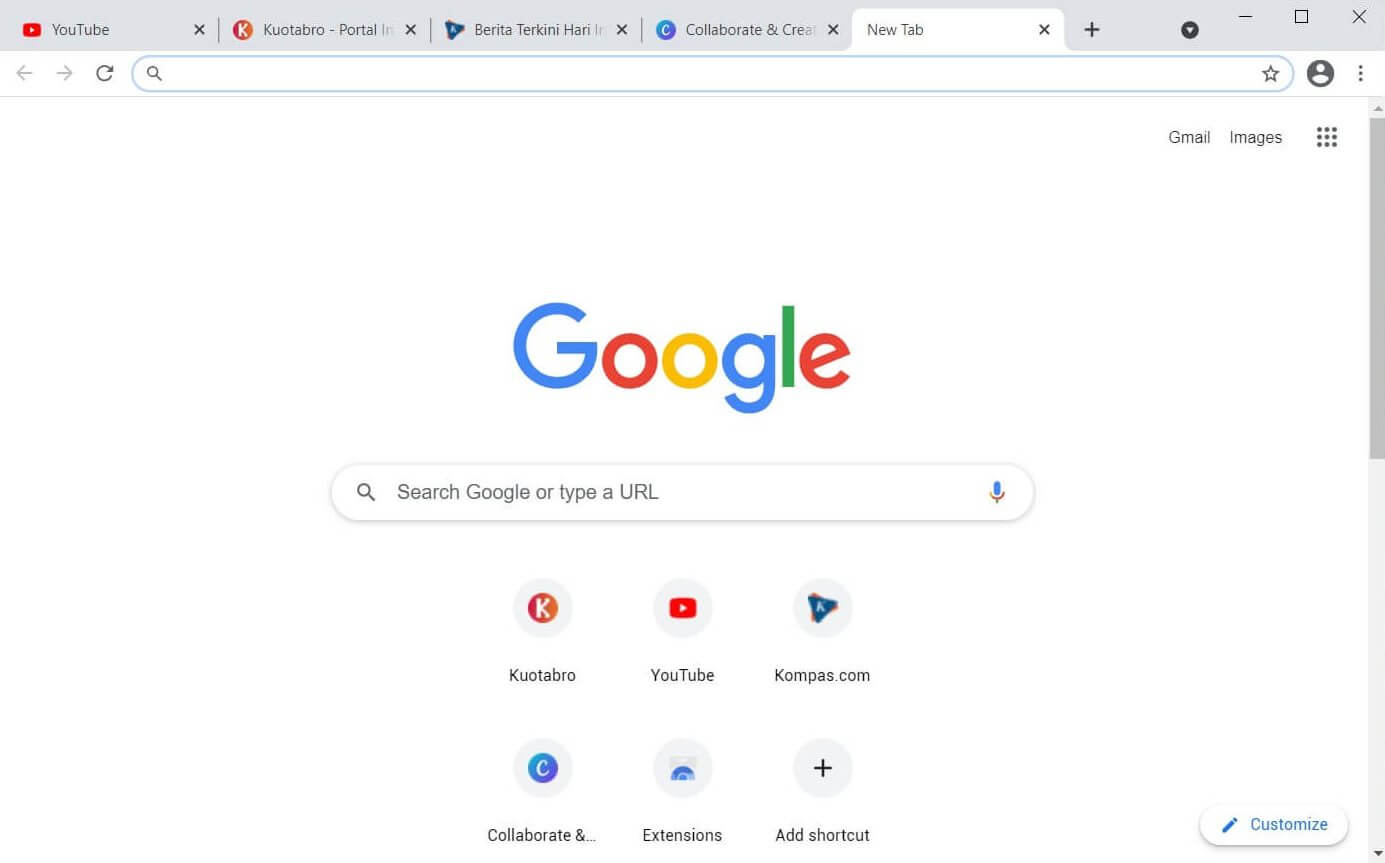
    Chromium will be suitable for those of you who are used to using Google Chrome and want to move to a lighter browser. With a display that is the same as Google Chrome, of course, you will not feel awkward the first time you use it.

    Chromium is of course equipped with abundant features that you may not need.

    This browser is equipped with a sandboxing feature, meaning that each tab and plugin that is run does not affect the browser’s performance because it is processed separately. But, this feature makes Chromium eat more RAM.

    As a browser that takes the source code from Google Chrome, here you can also install extensions from the Chrome Web Store.

    Some of the disadvantages of Chromium include:

    There is no auto-update feature like Google Chrome.

    Some Chromium users say that they find it difficult to uninstall Chromium from the root.

    Because it is open-source, anyone can modify this browser, including inserting viruses or malware into it. Therefore, you need to be careful when downloading Chromium. Make sure to download it directly from the official website.

    Advantages

    • have a good level of security
    • lighter than Google Chrome
    • look identical to Google Chrome
    • has a sandboxing feature

    Deficiency

    • prone to malware insertion if you download carelessly
    • no auto-update feature
    • hard to uninstall to the root
    Chromium is suitable for those of you who want a browser that is lighter than Google Chrome but with a similar experience.

    #5. Maxthon

    Maxthon

    Browser Name

    Maxthon

    Developer

    Maxthon International Ltd

    Base

    Browser Engine

    WebKit, Trident

    Built-in Search Engine

    Google

    Advantages

    • available on multiplatform
    • lots of skins and extensions
    • cloud sync

    Deficiency

    • no auto-update
    • no malware/trojan warning
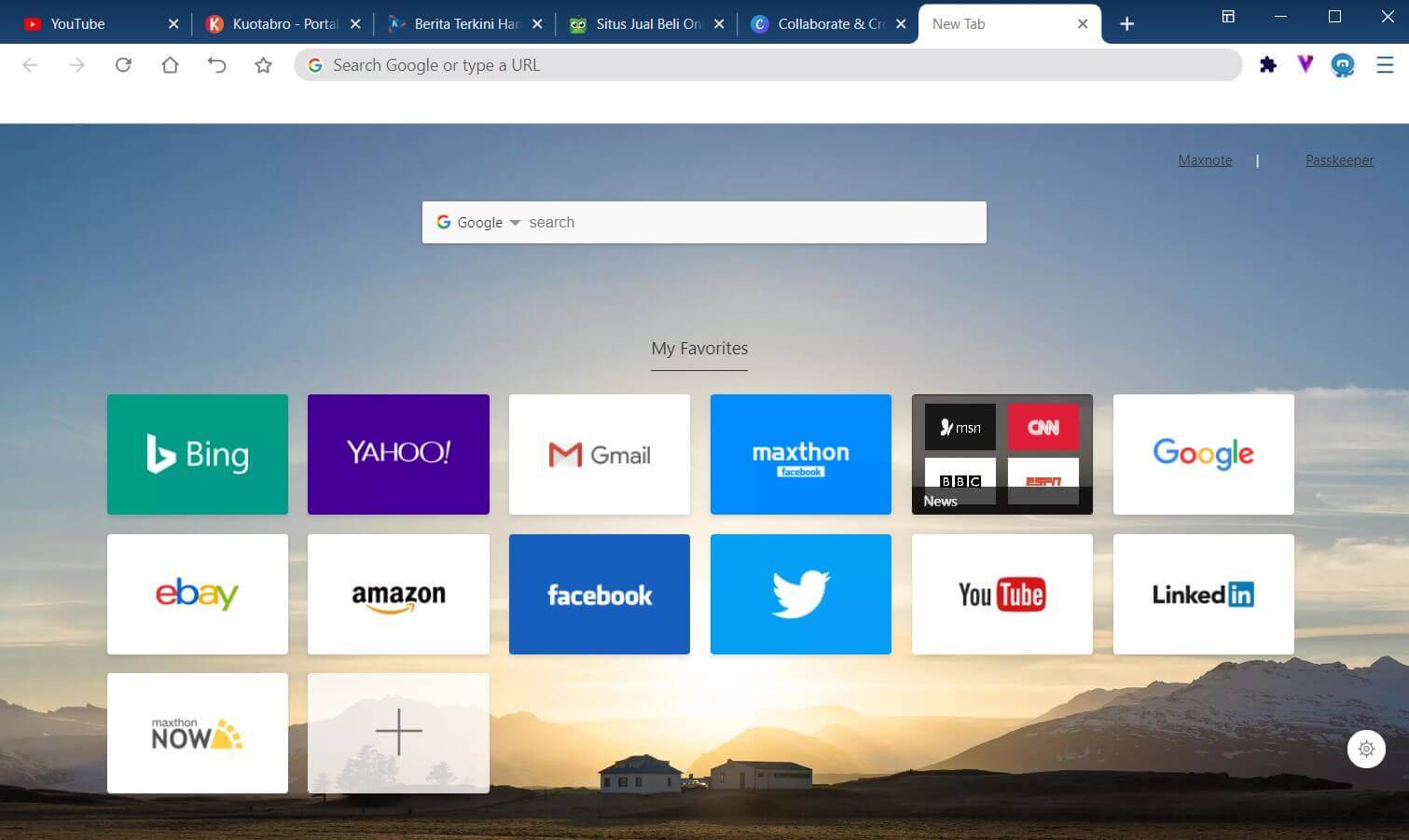
    Maxthon is a browser whose logo looks like Xiaomi.

    #6. Falcon

    Falcon

    Browser Name

    Falcon

    Developer

    KDE Projects

    Base

    QupZilla

    Browser Engine

    Blink

    Built-in Search Engine

    DuckDuckGo

    Falkon browser was previously known as QupZilla since 2010, then changed its name to Falkon after being under the auspices of the KDE Project.

    From the start, Falkon’s goal was to become a lightweight browser available on all platforms. And until now, Falkon has become one of the lightest browsers available.

    The appearance is not grandiose, the features are also standard. But when it comes to memory consumption, this browser can run smoothly with 1GB of RAM, you know.

    There is no need to ask about stability. With more than 10 years of age, it certainly makes Falkon a very stable browser.

    Website rendering and other graphic elements can also be smoothed over. Several other features of Falkon are history, tabs, and bookmarks, and are equipped with a built-in AdBlock.

    I found some complaints on the internet from Falkon users saying that sometimes Falkon can’t play videos. But so far, I still haven’t found the complaint. Curious? Download via the link below.

    Advantages

    • can run with small RAM
    • has a built-in AdBlock feature
    • very stable software
    • can customize themes/skins

    Deficiency

    • there is a complaint about the video not playing
    • bookmark management is not simple
    • not many people use it yet
    Falkon browser is suitable for those of you who want a lightweight, simple, and stable browser.

    #7. Yandex

    Yandex

    Browser Name

    Yandex Browser

    Developer

    Yandex

    Base

    Chromium

    Browser Engine

    Blink

    Built-in Search Engine

    Yahoo!

    Many think that Yandex is a virus. It’s not though. Yandex is a powerful Russian search engine company.

    Like Google, Yandex has many services, including email, image search, video search, translation, and maps, including a browser.

    The advantage of Yandex is in speed because this browser is equipped with the Turbo Speed ​​feature which will optimize internet speed on weak connections.

    Even cooler, Yandex also has features that are very useful for laptop users who often move from place to place.

    First, there is a video compression feature that is very useful for saving quota when you are using tethering. Second, it has a save power feature that will save battery usage when your laptop is low on the bat.

    The security features are also fairly complete; Yandex can ensure that the file you are about to download is safe, supports anti-phishing protection, and Yandex by default will encrypt your data when you use public Wi-Fi.

    Advantages

    • has a Turbo Speed ​​feature
    • friendly to quota
    • has a power save feature
    • the security features are pretty good

    Deficiency

    • track user activity
    • the extension is still minimal
    • not the lightest browser
    Yandex browser is suitable for those of you who use a laptop or have a slow connection.

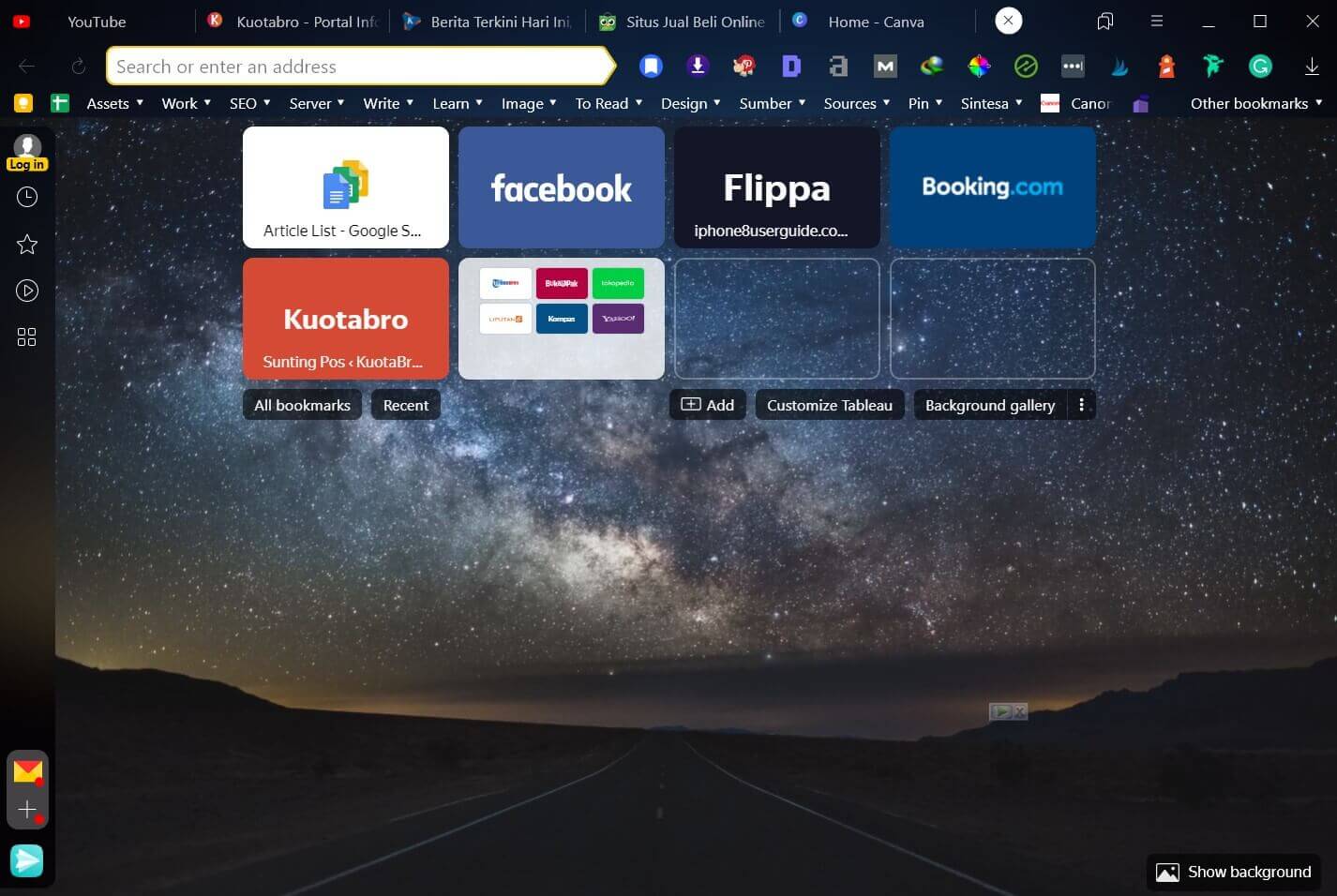
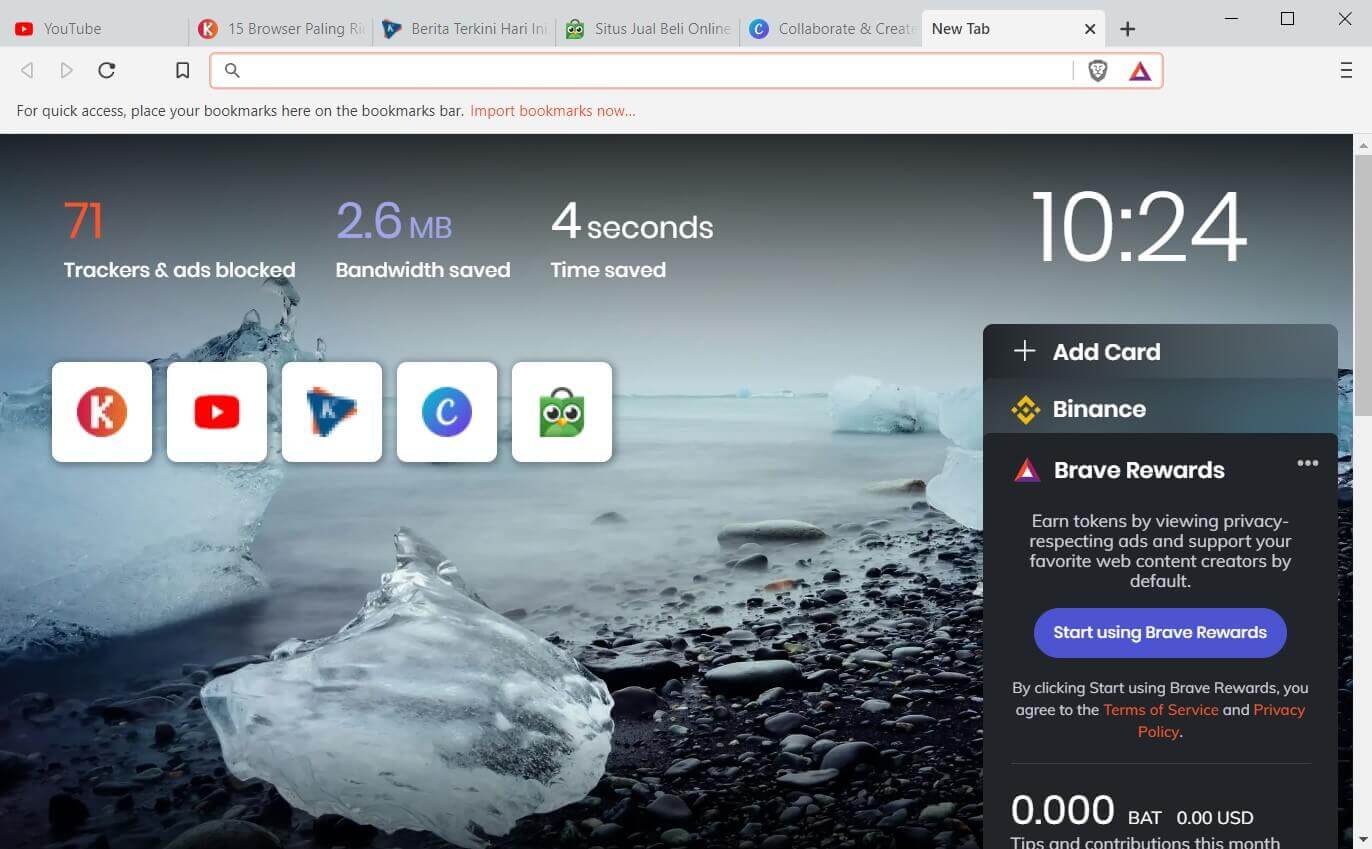
    #8. Brave

    Brave

    Advantages

    • loading is claimed to be 3-6x faster
    • complete privacy & security features (including AdBlock)
    • can earn & share money

    Deficiency

    • too many features outside of browsing
    • wasteful of battery consumption
    Brave browser is a browser that is suitable for those of you who like innovation.

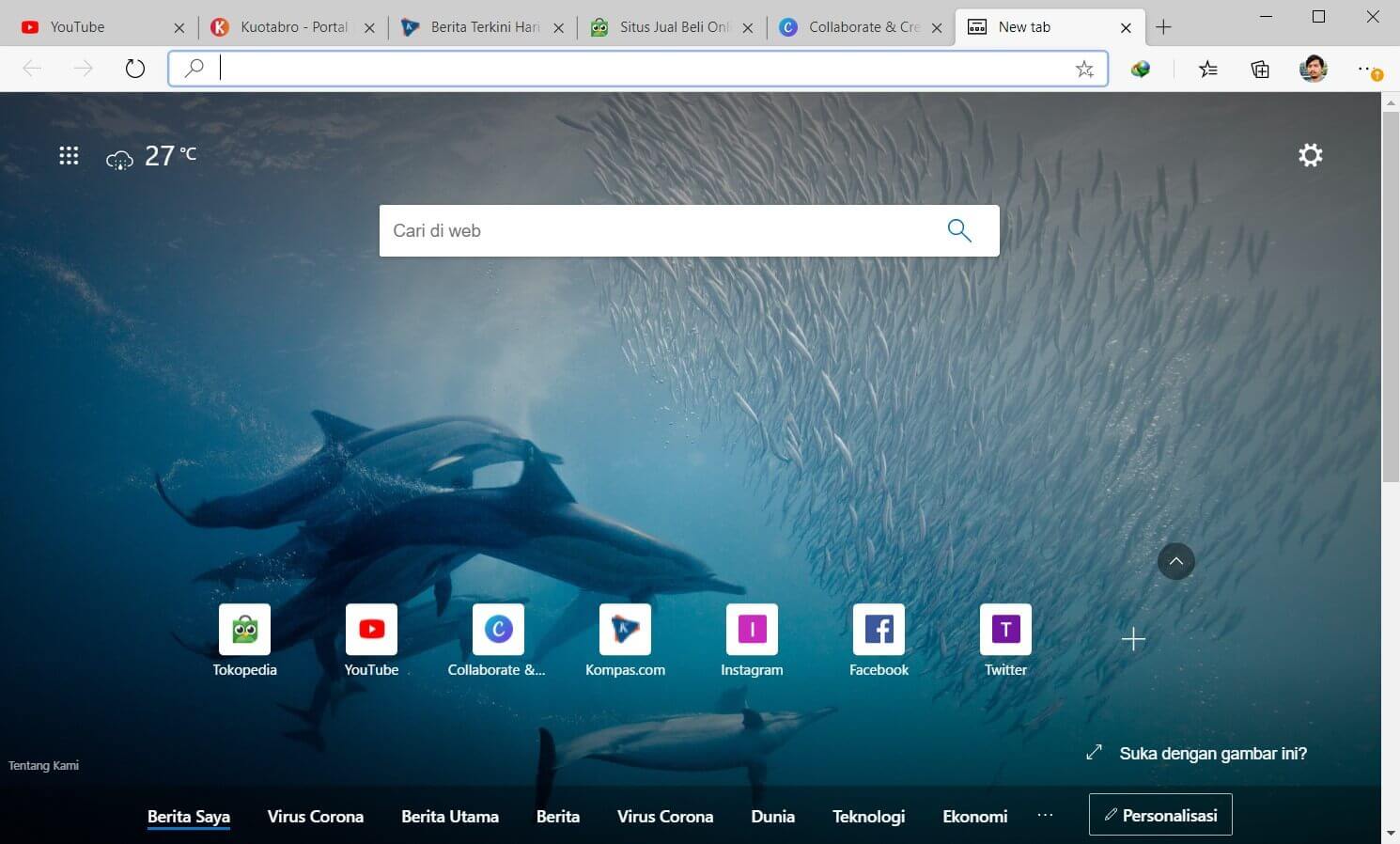
    #9. Microsoft Edge

    Microsoft Edge

    Browser Name

    Microsoft Edge

    Developer

    Microsoft

    Base

    Chromium

    Browser Engine

    Blink

    Built-in Search Engine

    Bing

    Advantages

    • already installed in Windows
    • has a reader feature that will block ads
    • power saving
    • compatible with the Chrome extension

    Deficiency

    • weak synchronization between devices
    • collect user data (weak privacy)
    Microsoft’s default browser is much more powerful than its predecessor.

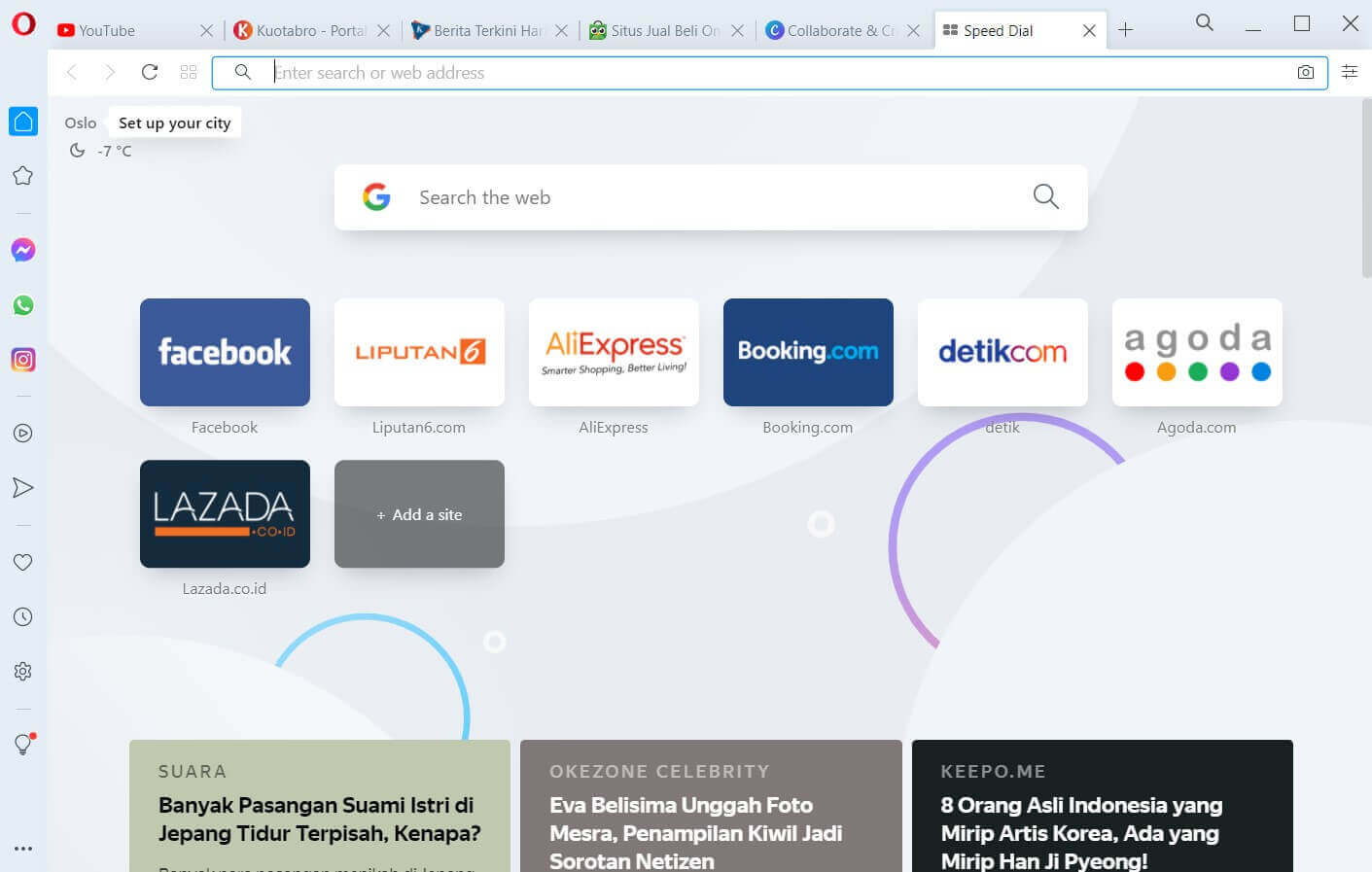
    #10. Opera

    Opera

    Browser Name

    Opera

    Developer

    Opera Software

    Base

    Chromium

    Browser Engine

    Blink

    Built-in Search Engine

    Google

    Opera was one of my favorite browsers of its time. Opera’s appearance is now much fresher than when I last used it (2008).

    Not just a ‘facelift’, but it turns out the features have also increased a lot. Here are the Opera features I like:

    • Sidebar (can be turned off)
    • Dark mode
    • Block ads
    • Block trackers
    • Free VPN
    • Can screenshot
    • There is a battery-saver

    Regarding speed, Opera can access websites faster than K-Meleon, although K-Meleon is certainly lighter. In the tests I did, Opera occupied the 10th position with 442 MB of RAM consumption.

    Advantages

    • there is a dark mode
    • there is an Adblock feature
    • there is a built-in screenshot feature
    • free VPN

    Deficiency

    • a bit difficult to access the add-on it
    • the developer is not focused on developing Opera
    Opera is suitable for those of you who need a free VPN. Download directly below.

    #11. Seamonkey

    Seamonkey

    Browser Name

    SeaMonkey

    Developer

    SeaMonkey Council

    Base

    Mozilla

    Browser Engine

    Gecko

    Built-in Search Engine

    DuckDuckGo

    Seamonkey is a super lightweight Firefox-based browser that also comes with Thunderbird-based email integration. The features are also fairly standard, but it is more than enough to accommodate internet needs such as browsing, multimedia, and online learning.

    Some additional features that might be useful are a password manager, mouse gestures, custom toolbars, restore sessions, and multiple accounts, and are equipped with a lightweight theme as well.

    Although not the best on this list, it never hurts to try. Click the link below to download.

    Advantages

    • have a mouse gesture feature
    • the display can be customized
    • has email and chat features

    Deficiency

    • old school interface
    • startup is slow
    • consuming CPU resources
    Seamonkey browser is suitable for those of you who want a lightweight browser but still can be customized.

    #12. Pale Moon

    Pale Moon

    Browser Name

    Pale Moon

    Developer

    Moonchild Productions

    Base

    Firefox ESR 38

    Browser Engine

    Goanna

    Built-in Search Engine

    DuckDuckGo

    Pale Moon is one of my favorite browsers. Besides being lightweight, Pale Moon also has an easy-to-use interface. It looks pretty old-school in appearance, but it still looks clean and user-friendly.

    Not only in terms of appearance, but the rendering engine used by Pale Moon is also outdated. This browser uses the Goanna rendering engine which is a fork of Mozilla’s Gecko.

    That doesn’t seem like a big deal, because Pale Moon focuses on usability, not on abundant but unimportant features.

    Another advantage of Pale Moon is the matter of privacy. You can enjoy this browser in peace because this browser is ad-free, spyware-free, and free from data theft activities.

    Interested to try?

    Advantages

    • focus on function, not much gimmick
    • protect user privacy
    • have their add-on ecosystem
    • can customize the theme

    Deficiency

    • old school interface
    • some Mac OS users report a crash
    • still using the old-school rendering engine
    The pale Moon browser is suitable for those of you who want flexibility but still prioritize a lightweight browser.

    #13. Vivaldi

    Vivaldi

    Browser Name

    Vivaldi

    Developer

    Vivaldi Technologies

    Base

    Chromium

    Browser Engine

    Blink, Webkit for iOS

    Built-in Search Engine

    Bing

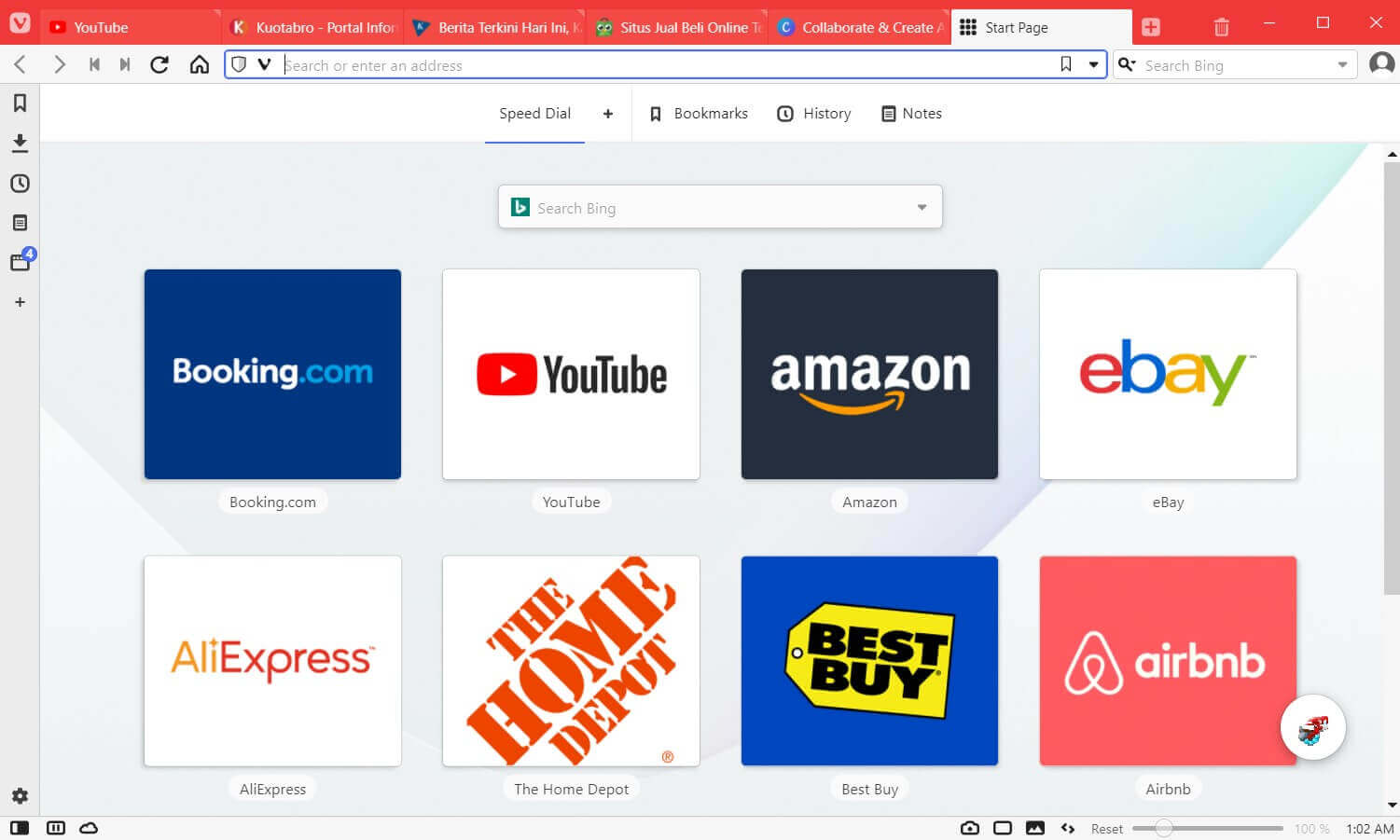
    Vivaldi is a browser that carries a layout that is almost similar to Opera. Both have a built-in sidebar and screen capture options. Vivaldi was also created by the founders of the Opera browser himself.

    However, Vivaldi has some cool additional features. Among them is easier tab management, notes that are directly stored in the browser, page tilting (a kind of split-screen), an ad blocker, and a take-a-break feature that will pause all browsing activities for a moment.

    The drawback of the Vivaldi browser is that it uses a lot of RAM and is not yet available for iOS devices. The rest is fine.

    Advantages

    • very good tab management feature
    • page tilting feature to open 2 tabs at once
    • built-in take-a-break feature
    • available on Android

    Deficiency

    • not yet available for iOS
    • RAM usage is quite large
    Vivaldi is a powerful browser for work and multitasking.

    #14. Epic Browser

    Epic Browser

    Browser Name

    Epic Privacy Browser

    Developer

    Hidden Reflex

    Base

    Chromium

    Browser Engine

    Blink

    Built-in Search Engine

    Yahoo!

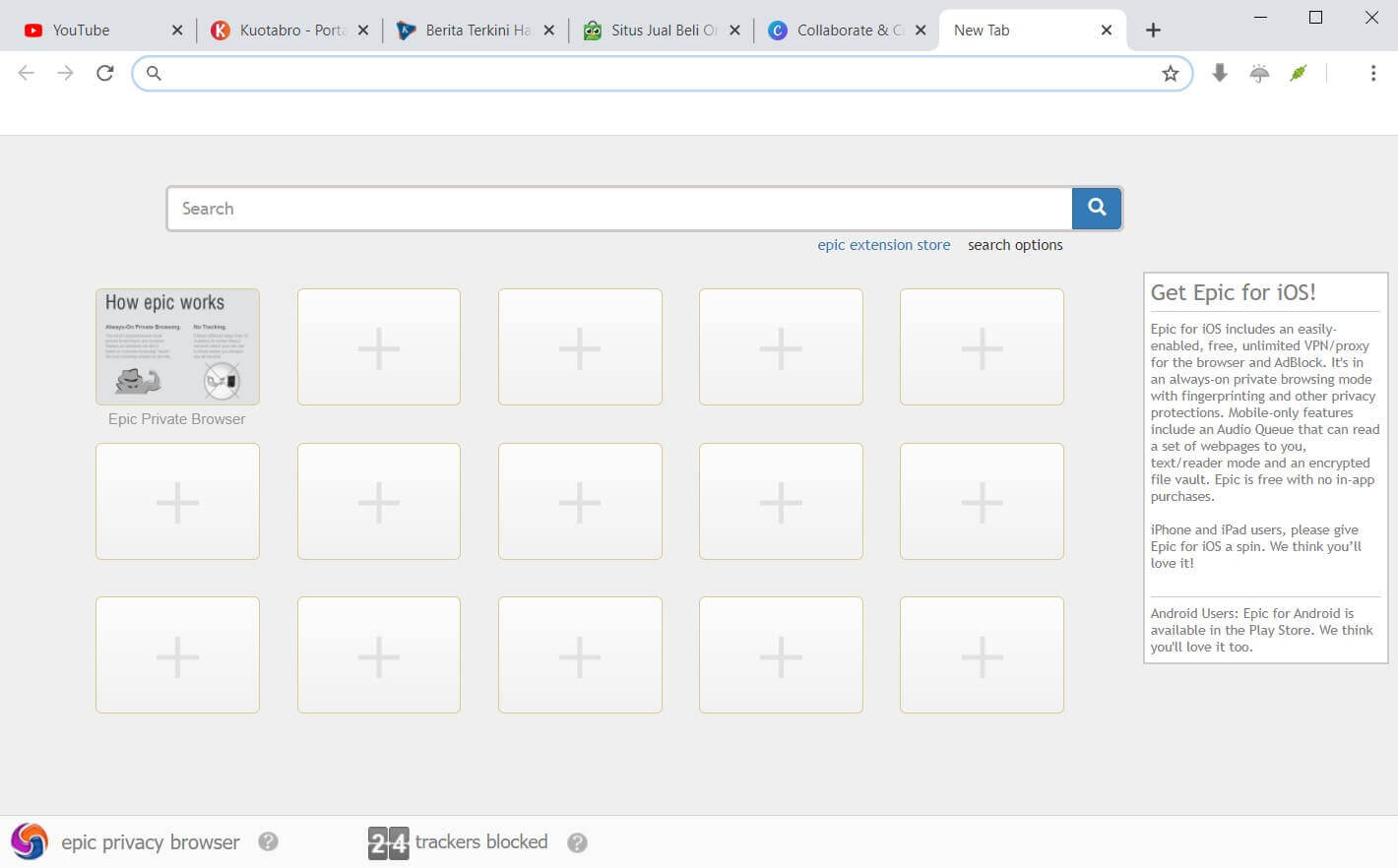
    In short, Epic Browser is a browser developed from Chromium but has been optimized in terms of resource consumption so that it is lighter.

    As open-source software, there are many other browsers developed from Chromium, one of which is Epic Browser. But unlike Chromium, Epic Browser focuses on the speed, privacy, and security of its users.

    Epic Browser protects the privacy of its users from data misuse, tracking, spying, crypto mining, and others. Not to forget, the adblocker feature is also embedded in it.

    Plus, Epic Browser has an Instant Proxy feature that will redirect your traffic to Epic’s New Jersey proxy server. With this feature, the websites you visit cannot track your IP.

    Because it is based on Chromium, Epic Browser has the same powerful performance as Chromium.

    Advantages

    • has a very good level of security
    • has a built-in adblocker
    • focus on privacy and speed
    • has the Instant Proxy feature

    Deficiency

    • does not record browsing history
    • don’t have many add-ons
    • not suitable for accessing sites that require privacy
    If you are very concerned about privacy & security, Epic Browser is the right choice.

    #15. Chrome

    Chrome

    Browser Name

    Chrome

    Developer

    Google

    Base

    Chromium

    Engine Layout

    Blink

    Built-in Search Engine

    Google

    Advantages

    • regular updates and maintenance
    • easy to use
    • abundant extension
    • seamless on all platforms

    Deficiency

    • consumes a lot of rams
    • not suitable for those of you who prioritize privacy
    The best browser for all your browsing needs.

    #16. Comodo IceDragon

    Comodo IceDragon

    Browser Name

    Comodo IceDragon

    Developer

    Comodo IceDragon

    Base

    Mozilla

    Browser Engine

    Gecko

    Built-in Search Engine

    Yahoo!

    Advantages

    • fast browsing speed
    • can use Firefox add-ons
    • complete security features

    Deficiency

    • some users crash when opening multiple tabs
    • it takes a long time to open the program
    Comodo IceDragon is a fast, secure, and feature-packed Firefox-based browser.

    #17. Firefox

    Firefox

    Browser Name

    Mozilla Firefox

    Developer

    Mozilla Foundation

    Base

    Netscape>Mozilla Suite

    Browser Engine

    Gecko, Webkit for iOS

    Built-in Search Engine

    Google

    Advantages

    • complete security features
    • the display can be customized
    • has a dark mode feature
    • has a picture-in-picture (PiP) feature

    Deficiency

    • need to create an account to access advanced settings
    • a few tools for developers
    Firefox is the right browser for multitasking and multimedia.
    Read more:
    Conclusion:

    Choosing a lightweight browser must also be adjusted to the needs. Generally, the more features a browser has, the heavier its performance will be. The number of extensions/addons installed is also very influential.

    Beyond that, the optimization of laptop/PC performance is also a big influence, you know. So before that make sure the performance of your laptop / PC is well-optimized.

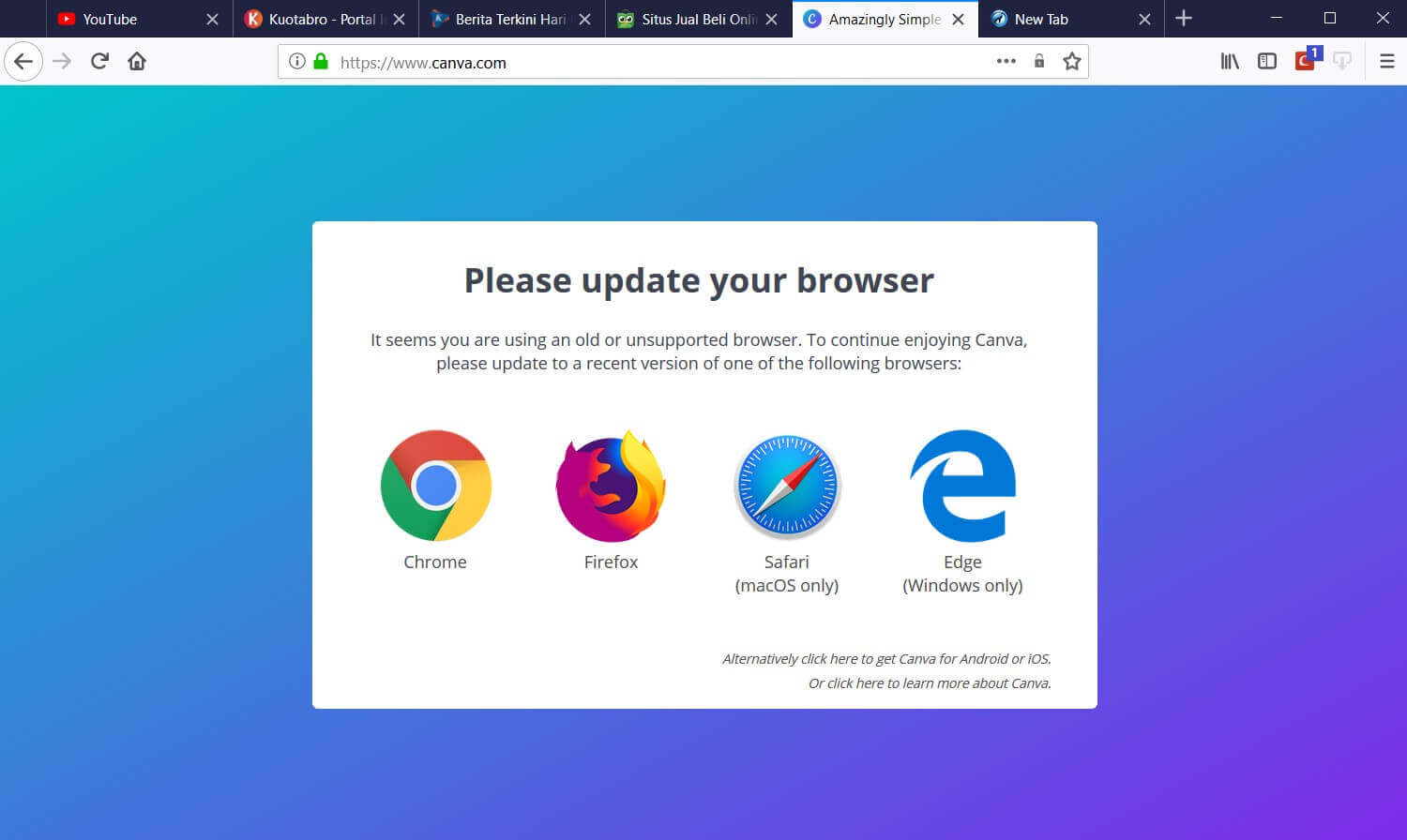
    In our opinion, the lightest browser overall is Midori, then Slimjet and Pale Moon. If your device has low specs and you just need to browse, use one of the three. Surely your laptop or PC RAM will be saved.

    Meanwhile, if you want a browser with more features but still light enough for low-spec devices, you can use Vivaldi or Chromium.

    Personally, as a Chrome user, I’ve been quite satisfied with using Vivaldi because it has many features that are not available in Chrome. Which one are you?

  • How To Fix PCI Simple Communications Controller Error 2025

    How To Fix PCI Simple Communications Controller Error 2025

    How To Fix PCI Simple Communications Controller Error – PCI Simple Communications Controller is a driver that has the function of managing network work on a computer or laptop. So this one driver has a very important role in the performance of the computer that we use.

    How To Fix PCI Simple Communications Controller Error
    How To Fix PCI Simple Communications Controller Error

    How To Fix PCI Simple Communications Controller Error

    If the computer does not install the PCI Simple Communications Controller driver or the drivers are not installed correctly, the computer will not function normally.

    Read more:

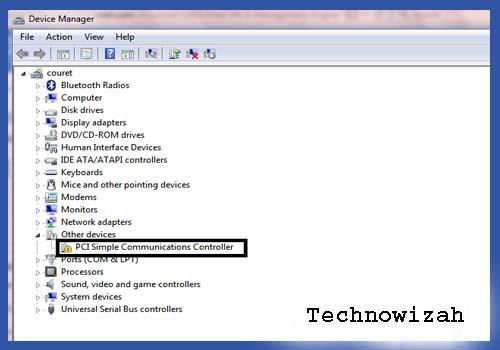
    If the PCI driver is not installed properly, a yellow exclamation mark will appear on the PCI Simple Communications Controller in the Device Manager.

    This also applies if you have not installed the PCI driver on the computer or laptop you are using.

    The PCI Simple Communications Controller Error problem can be solved in the following ways.

    How to Manually Fix PCI Simple Communications Controller Error

    How to Manually Fix PCI Simple Communications Controller Error

    This method requires no additional application help, but it is a little tricky.

    For the process to run smoothly and successfully, you should follow the guide on how to manually resolve the PCI Simple Communications Controller Error below:

    1. Open Windows Explorer.
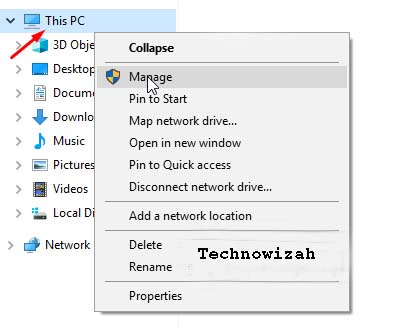
    2. Then right-click on My Computer / This PC then click Manage.
    How to Manually Fix PCI Simple Communications Controller Error
    1. Then click Device Manager.
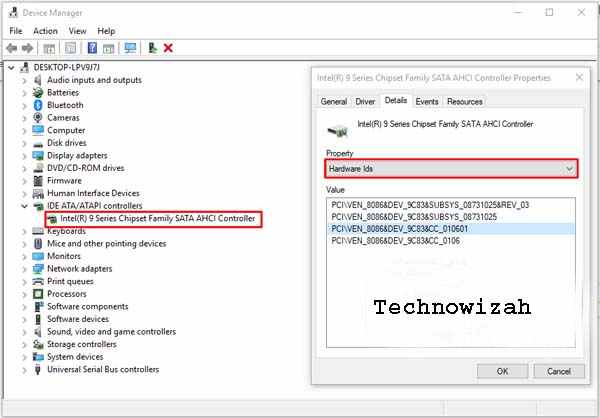
    2. Then right-click on Intel(R) 7 Series Chipset Family SATA AHCI Controller or PCI Communications Controller.
    3. Then click Properties.
    4. After that a new page will appear, please click the Details tab.
    5. In the Properties section, select Hardware IDs.
    6. Make sure in the value section there are several entries as shown below.
    How to Manually Fix PCI Simple Communications Controller Error
    1. Please copy one of the entries in the value. For example, here I copy the words “ PCI\VEN_8086&DEV_9C83&CC_010601 “.
    2. Next, please open the web browser that you normally use.
    3. Then paste PCI\VEN_8086&DEV_9C83&CC_010601 in the Google search field.
    4. Then find and download the appropriate file.

    To speed up the search process, you can search through the pcilookup.com site.

    Use Driver Pack Solutions

    If the first method is too confusing and too difficult to do, we recommend using Driver Pack Solutions to fix the PCI Simple Communications Controller error problem.

    But you have to download the Driver Pack Solutions application first if you don’t have it.

    1. Make sure the Driver Pack Solutions file you downloaded has an ISO format.
    2. Make sure your computer or laptop is connected to a stable internet connection.
    3. Open the Driver Pack Solutions that you have downloaded. How to right-click and select mount.
    4. After the Driver Pack Solutions is open, please select the driver to be updated or installed.
    5. Make sure you also select the PCI Simple Communications Controller driver.
    6. Then click Install Automatically.
    7. Wait until the driver installation process is complete.
    8. When the installation process is complete, please click Finish.
    9. Then restart your computer/laptop.

    After your computer or laptop restarts, the PCI Simple Communications Controller problem no longer appears.

    Conclusion

    Please try one of the methods above which you think is the easiest to do.

    Hopefully, after applying one of the methods above, the error problem can be resolved and your computer or PC will return to normal as before.

  • 6 Ways To Fix ERR_NAME_NOT_RESOLVED Issues In Chrome 2025

    6 Ways To Fix ERR_NAME_NOT_RESOLVED Issues In Chrome 2025

    6 Ways To Fix ERR_NAME_NOT_RESOLVED Issues In Chrome – Google Chrome is free, fast, easy to use, secure, and the most popular web browser available.

    How To Fix ERR_NAME_NOT_RESOLVED Issues In Chrome
    How To Fix ERR_NAME_NOT_RESOLVED Issues In Chrome

    How To Fix ERR_NAME_NOT_RESOLVED Issues In Chrome

    One of the reasons for this popularity is Chrome’s compatibility with many devices and operating systems. Apart from these features, you may have encountered the “ERR_NAME_NOT_RESOLVED” error in Google Chrome and are currently looking for a solution.

    Read more:

    The ERR_NAME_NOT_RESOLVED error usually appears when you try to log in to websites. When this error occurs, there is also a message informing you that the web page is unavailable. You can’t go past this error and open a website.

    The ERR_NAME_NOT_RESOLVED error results from your DNS address problem. Your Internet DNS address is blocked for various reasons and hence this ERR_NAME_NOT_RESOLVED error occurs.

    Fix ERR_NAME_NOT_RESOLVED Issues In Chrome

    You may not need to try them all; just go down the list until you find one that works for you.

    #1: Clear your Chrome browser cookies

    Browser cookies can block your Internet DNS and then cause an ERR_NAME_NOT_RESOLVED error. You can try clearing browser cookies to fix this error.

    On Google Chrome, you can:

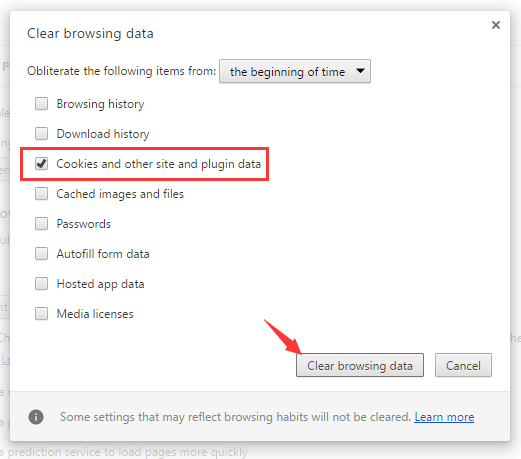
    1) Type “ chrome: // settings / clearBrowserData ” in the address bar and press Enter on your keyboard.

    Try the solution to fix the ERR_NAME_NOT_RESOLVED problem in Chrome
    Try the solution to fix the ERR_NAME_NOT_RESOLVED problem in Chrome

    2) Only check Cookies and other sites and plugin data. (This means you only want to delete this type of data.) Then click Clear browsing data.

    Try the solution to fix the ERR_NAME_NOT_RESOLVED problem in Chrome
    Try the solution to fix the ERR_NAME_NOT_RESOLVED problem in Chrome

    All cookies on your browser are deleted. You can check and see if the problem is fixed.

    #2: flush and update DNS

    Flush and DNS updates are an excellent way to fix the ERR_NAME_NOT_RESOLVED error – this method is quite easy to do and very effective.

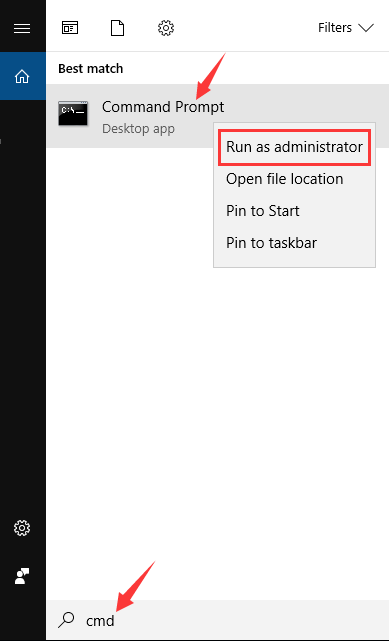
    1) Press the Windows logo key or click Start Menu and then type “ cmd ”. Right-click on Command Prompt in the result and select Run as administrator.

    flush and update DNS
    flush and update DNS

    2) Type the following lines.

    (Press Enter after each line of code and wait for the completion of each process, then type the next line).

    ipconfig / flushdns
    
    ipconfig / extend
    
    ipconfig / registerdns

    Close the Command Prompt and restart your computer. Then see if the error is fixed.

    #3: Change the DNS address to Google Public DNS

    Changing your DNS address to a public address can help you fix browsing problems caused by DNS. You can change it to open the DNS server addresses provided by Google.

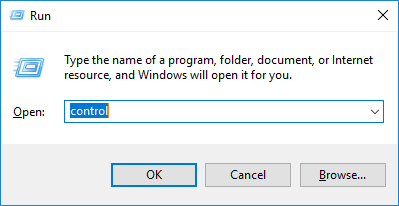
    1) Press Win + R . Type “Control” and press Enter.

    Control
    Control

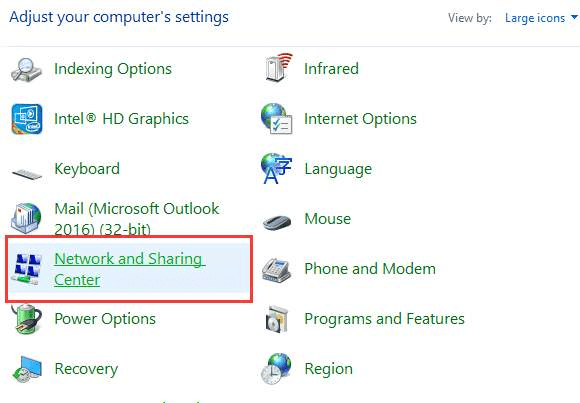
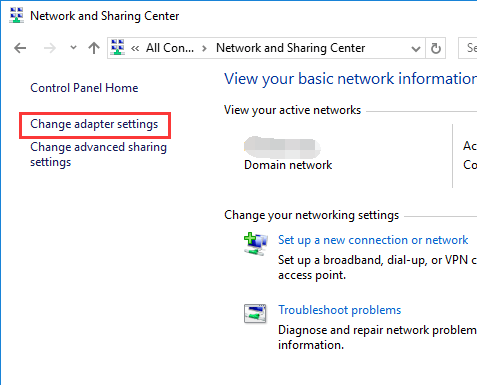
    2) In the Control Panel, click Network and Sharing Center.

    Network and Sharing Center
    Network and Sharing Center

    3) Click Change adapter settings in the left pane.

    Change adapter settings
    Change adapter settings

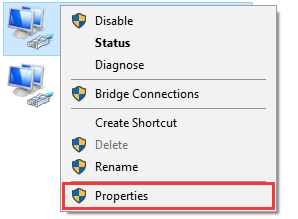
    4) Right-click on the connection that connects your computer to the Internet, and then select Properties.

    Properties Connection
    Properties Connection

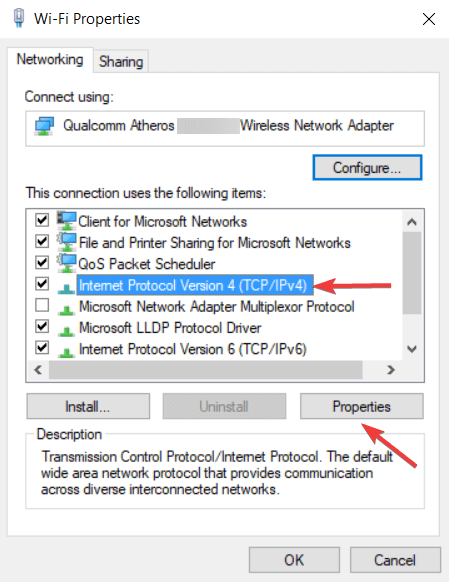
    5) Select the Internet Protocol Version 4 (TCP / IPv4) item, and then click Properties.

    Internet Protocol Version 4 (TCP IPv4)
    Internet Protocol Version 4 (TCP IPv4)

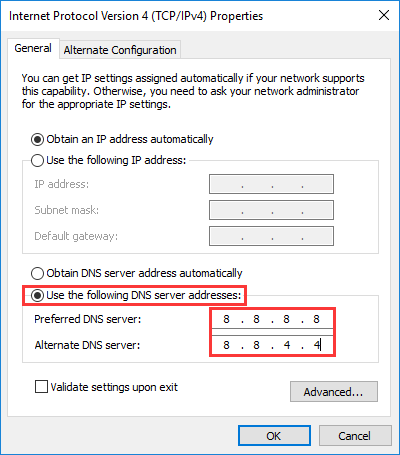
    6) Select Use the following DNS server address. Enter 8.8.8.8 for the Preferred DNS server and 8.8.4.4 for the Alternate DNS server.

    Use the following DNS server address
    Use the following DNS server address

    7) Click OK completely and see if this method solves the problem.

    #4: Check your Firewall and security software

    The firewall or security software you are using can block network or browser connections and thus create DNS block errors. Check your firewall and security software settings.

    You may need to unblock your browser and network connection. Or you can try disabling your firewall or security software to see if the error gets fixed.

    #5: Use a VPN

    You may be experiencing the ERR_NAME_NOT_RESOLVED error because your connection to the website is being lost. To avoid this annoyance, you should try using a VPN.

    There are two ways you can set up a VPN on your computer:

    Option 1 – Manually – You will need computer skills and patience to set up a VPN connection this way, as you will need to have a VPN server to connect to, and change your connection settings step by step.

    OR

    Option 2 – Automatically – This is the fastest and easiest option. Everything is done with just a few mouse clicks – easy even if you are a computer newbie.

    Option 2 – Automatically set up a VPN connection

    You can set up a VPN connection using a VPN service. And the service we recommend is NordVPN.

    NordVPN helps you set up a fast and stable Internet connection anywhere, and you can use it to fix Internet distractions with ease.

    1) Download and install NordVPN.

    2) Run NordVPN, then select the location you want to connect to.

    3) Try accessing the website with Chrome and see if the error goes away.

    If so, great! But if not, you may need to go through the following solutions.

    #6: reload the router

    Unplug your modem (or router) from the main power supply and let it unplug for a few minutes. Then reconnect it and wait for the process to finish (self-test).

    Read more:
    Conclusion:
    So, friends, this is the explanation of how to fix ERR_NAME_NOT_RESOLVED Issues In Chrome, If you know of another solution to this problem, and it’s not mentioned in our guide, feel free to share it with us by leaving a comment in the section below.