Tag: Why Facebook Lite Can not Open? Here is the solution

  • Why Facebook Lite Can not Open? Here Is The Solution 2025

    Why Facebook Lite Can not Open? Here Is The Solution 2025

    Why Facebook Lite Can not Open? Here Is The Solution – Are you currently looking for how to solve Facebook lite that cannot be opened? the first time, you check the internet connection that you use, or you are not at all connected to the internet.
    Why Facebook Lite Can not Open Here Is The Solution
    Why Facebook Lite Can not Open? Here Is The Solution

    Why Facebook Lite Can not Open? Here Is The Solution

    There are some mistakes why Facebook Lite can not open. Then how to fix Facebook lite that can not open? Let’s discuss and find the solution below.

    Read more:

    Solve Facebook Lite Can Not Open or Facebook Lite Not Working

    #1. Are you connected to the internet?

    Are you connected to the internet
    Are you connected to the internet?
    • Assuming you have the right login email and password (and you are connected to the internet) some things might cause your problem:
    • Do you get an error message? If so, check the Facebook help page for explanations and fixes for the problems at hand.
    • Make sure you do not have any extensions or running antivirus programs that block Facebook.

    #2. Have you tried clearing the app cache?
    Have you tried clearing the app cache?
    Have you tried clearing the app cache?

    Go to Settings> Applications> Facebook> Clear Cache. If this does not work, you can try clearing the data uninstalling Facebook Lite on Android, and then reinstalling the same application.

    #3. Did you register with your phone number?
    Did you register with your phone number?
    Did you register with your phone number?
    • Make sure you type in the country code also when logged in.
    • If the app tells you to update your email address, this is most likely because your email server labels your Facebook email as spam.
    • If you have just signed up for Facebook you may need to verify your account first by using the email you registered with Facebook. If you recently changed your password, make sure you try to login with a new password and not with the old password.
    • If you log in through a browser, make sure you have cookies enabled and facebook.com added to the list of secure sites.
    • Make sure you have the latest version of the Facebook app for Android.

    Method 2:

    #1. Update the Facebook Lite application

    Update the Facebook Lite application
    Update the Facebook Lite application
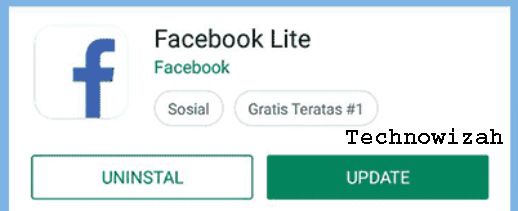
    If your friends have tried it but still can’t, chances are you need to update the system again, by going to the PlayStore selecting the Facebook application, and then you do an application update.

    #2. Delete the Application And Then Install it Again
    Delete the Application And Then Install Again
    Delete the Application And Then Install Again

    If you have updated the application but cannot open it too, try removing the Facebook lite application and then reinstalling it in the PlayStore.

    Something like that can happen when doing a system update, the system is not received 100% successfully overwritten or overwritten, so that the system can be updated more optimally, if you delete the application and then install it again in the play store, hopefully with such things can help you who are experiencing disaster like this.

    #3. Unload All Connected Devices

    Unload All Connected Devices
    Unload All Connected Devices

    This method is indeed a bit strange but it would be nice if you just try it first, which is to unload or remove all devices connected to your smartphone.

    How do you first turn off the power of the cellphone and then remove all the batteries, sim cards, and external memory, then leave them for 10 minutes? If it’s been 10 minutes, try to pair it again and turn on the mobile power, hopefully, in this way, it can help.

    If the word your smartphone has a battery that is planted, then you just need to turn off the cellphone power and then unplug the sim card and external memory, and let it stand for 10 minutes.

    Method3:

    #1. Verify Facebook Account

    The first reason Facebook Lite doesn’t want to open is that we have to verify our Facebook account first. For example, because we upload statuses, photos, or videos that violate Facebook’s provisions, our account is temporarily disabled and must be verified in the form of a friend’s photo identification or mention the date of birth and security questions.

    Why does this happen? Because Facebook Lite does not have a feature to verify if our account is deactivated. To overcome this, we must open Facebook through a browser, both on mobile and PC. Verify first and try again to log in to Facebook lite.

    #2. Removing Cache

    An excessive and piling cache can also make Facebook lite apk can’t open. The cache file contains data such as photos that have been viewed, the status of friends you’ve read, or videos that have been played. We must clear the cache regularly by:

    • Enter Settings
    • Select Installed Apps
    • Look for the Facebook Lite application
    • Click Clear Cache
    • Done

    Now, try opening the Facebook Lite application again. Already successful? If not, continue to the third alternative.

    #3. Force Stop and Erase Data

    If you can’t open Facebook Lite after clearing your cache, try forcibly stopping and erasing data first. Remember, clearing the cache and deleting data are different steps. If you delete data, all data stored in FB lite will be deleted, including accounts that have been logged in. How to delete data and force stop is:

    • Enter  Settings
    • Select  Installed Apps
    • Look for the Facebook Lite application 
    • Click  Force Close
    • Click Delete Data
    • Done

    Try again to open Facebook Lite. Can it work? If it works, then you must login and log in again. If it fails, follow this fourth step.

    #4. Updating the Application

    If it still doesn’t work, we can try to update the Facebook lite application through the Google Play Store. This step is very easy to do, we just need to follow the following way:

    • Enter the Google Play Store
    • Look for Facebook Lite in the search box
    • Click Update

    Wait until the download is complete. If so, try opening the application again, and good luck. But if it still fails too, there are other ways.

    #5. Uninstall Disassemble Device Connected to the HP

    This might sound strange, but it could be that the device connected to our cellphone causes the FB lite apk to not be opened. In addition, other applications also cannot be opened. This is quite confusing, but you can try it straight away.

    Unplug all devices connected to the cellphone such as data cables, microphones, headsets, USB OTG, and so on. Good luck and if it still fails too, see the last way.

    #6. Flash the Android System again

    This is the last way to fix FB lite that cannot be opened, namely by doing a flash reset or factory reset or erasing all existing data on Android phones such as Samsung, Xiaomi, Asus, Oppo, Vivo, OnePlus, Huawei, Advan and so on.

    Other phones will be updated regularly. This method is guaranteed to succeed because it erases all data on the Android mobile, not only data stored on Facebook Lite.

    Conclusion:

    So, friends, This is the explanation of why Facebook Lite can not open or does not work, and how to fix common Facebook Lite issues, I hope this article may be useful for you. Also, share your experiences and opinions below the comments box.

  • Why Facebook Lite Can Not Open? Here Is The Solution 2025

    Why Facebook Lite Can Not Open? Here Is The Solution 2025

    Why Facebook Lite Can Not Open? Here Is The Solution – There are two versions of the Facebook application for Android, namely the official and the lite version. In the liter version, there are problems, for example, FB lite cannot be opened.

    Why Facebook Lite Can Not Open Here Is The Solution

    How to Fix Facebook Lite Not Working on Android

    The first time you want to open the Facebook homepage, only the stacks continue to load. Only a white dot icon appears flickering. This problem arises due to several factors.

    Read more:

    One of them is the network you are currently using. When your Facebook Lite can not be open or has a problem, you can find the best solution in the following review.

    Maybe some users feel that they have never done their Facebook Lite. Meanwhile, the problem continued to befall him.

    Because you are a beginner in accessing your Facebook account via Facebook Lite. Maybe yes, not yet fluent in how to deal with Facebook, it can’t be opened.

    Reasons Why Facebook Lite Can Not Opening

    A new problem arises where you cannot access the FB lite home page. Several supporting factors signal that you must stop playing Facebook first.

    Well, the reasons why FB lite cannot be opened are as follows. The first is a network problem, the second is a problem with the application, and the third is a problem with the device you are using.

    A notification appears sorry there is a problem please try again. It often happens when the network you are using is experiencing interference.

    So that you get a way to fix it, you can see the explanation that I will give you through the review below.

    #1. How to Fix Why Facebook Lite Can Not Open on Smartphones

    Potato cellphone users, in particular, must use the lite version of the application. The FB lite social media application is no exception. Almost all Android cellphone users use the lite version to open Facebook.

    Sure enough, because it’s small in size and does not take up excessive storage space. They prefer to use the lite version of Facebook rather than the official.

    But there is a problem where you have to involve all aspects. Starting from the network, and the software even to your smartphone device. Below is how to fix Facebook can’t be opened.

    # 1. Check Network

    How to Fix FB Lite Can't Open on your android device or all Smartphone

    This network problem is common in several other social media applications. Not only on Facebook, applications like Instagram, WhatsApp, and Line still have the same problem.

    You can check the internet network using a network speed check tool. For example, you can download an application called speed net, or use the fast.com site.

    If your internet speed is slow, then it is certain that the network in the area does not support opening the FB lite application.

    # 2. Change APN

    If you have checked the network the network you are using is still fairly slow. You can take advantage of the features found on Android itself.

    Namely changing the APN or access point names in Indonesian is the Access Point Name. You can change your APN settings using the INTERNET APN or other APN – APNs.

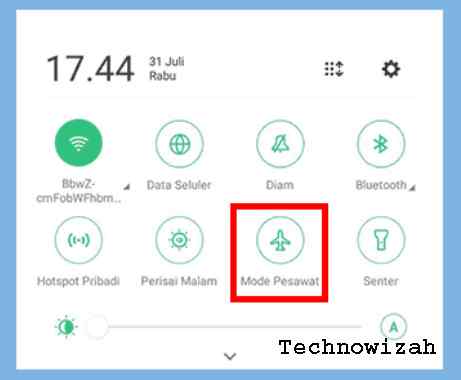
    # 3. Turn on Airplane Mode

    How to Fix FB Lite Can't Open on your android device or all Smartphone

    You can’t solve the network problem by opening Facebook Lite by activating airplane mode. Make no mistake, this feature is actually activated when boarding an airplane.

    But you can use it when the signal and network strength are down again. By turning on airplane mode, your network will be temporarily lost.

    Then you can turn off the airplane mode. When turned off the signal will automatically appear with a new IP address. Where you can have even stronger network strength.

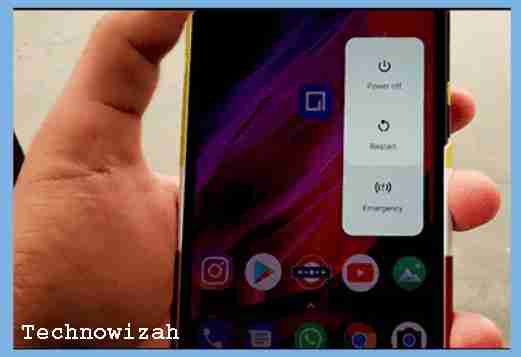
    # 4. Restart the Smartphone

    How to Fix FB Lite Can't Open on your android device or all SmartphoneIf the network you are using is still fairly slow and slow. Then it cannot be used to open the FB lite application. You can reload on the smartphone.
    For how, please press the Power button on your smartphone. Press and hold for a few seconds and a screen will appear on the hp option Reboot / Restart and Shut Down. You can choose to reboot/restart to reload the phone.

    # 5. Clear Facebook Lite Application Data and Cache

    How to solve the FB application error by deleting cache files and deleting data .. Oftentimes you get FB lite errors like that, the problem is in the application itself

    You can clean up the garbage that has accumulated in applications by deleting and clearing the application cache. In this way, you can lighten the burden of apps.

    The method is quite easy, you can enter the settings menu then application management -> select FB lite -> memory usage -> clear data to clean data and clear cache to clean the application cache.

    In addition, you can do combinations such as force stop and clean application data. Stopping and deleting data is a very solution in overcoming unfortunately and the Android system will run normally.

    # 6. Uninstall Then Install Back

    You can temporarily delete or uninstall the Facebook application. Once it’s erased, you can let it sit for a few hours if you can.

    Then you can re-download the Facebook Lite application on Google Playstore. Once downloaded, you can access Facebook by entering your account login data.

    In addition, before reinstalling the Facebook application, use a clean master so that Facebook data and cache files are properly deciphered.

    # 7. Update the Facebook Lite application

    How to Fix FB Lite Can't Open on your android device or all Smartphone

    If you have done everything, you still cannot fix the difficulty of entering Facebook. You can update the FB lite application on the application store.

    With an update from the app store, you can get bug fixes. Then you can have no trouble accessing Facebook Lite.

    How do I update it? Follow these steps:

    1. Open the Play Store.
    2. Swipe right to open the menu on the Play Store.
    3. Then select My Apps & Games.
    4. Search for Facebook and then select the Update button.
    5. Done.

    Why Facebook Lite Cannot Be Opened With Cellular Data

    As for the problem of lite not being able to enter when using cellular data. This will usually cause, among others, that the network in your area does not have maximum speed access.

    How to Overcome FB Lite Cannot Open Using Wifi

    When using wifi, for example, a wifi corner or just using wifi from a hotspot. But to open the FB lite application you cannot enter. You can disconnect the wifi network first then reconnect the wifi to the previous wifi.

    Why does Facebook Lite continue to load

    The cause is a network that is not strong or the internet network is out of order. Network problems are often one of the main causes of social media problems.

    You can apply the above method to Android smartphones in vivo, Samsung, oppo, Asus Zenfone, Lenovo, Realme, and so on.

    #2 How to Fix Facebook Lite Cannot be Opened on Android

    There are several reasons why the Facebook Lite application cannot be opened. The first cause is the occurrence of internet network problems.

    Then there is a problem with the application itself and finally, there is a problem with your cellphone. For how to fix this, follow the method below:

    #1. Change the APN

    Then further improvements can be made by replacing the APN. Although this is rarely noticed, many Facebook Lite users have managed to open the application after changing APNs. Here’s how:

    1. Open your mobile and go to ” Settings “.
    2. Then look for the SIM Card settings menu and tap on that menu.
    3. Then in it look for the settings menu with the words ” Access Point Name (APN) “, or ” Access Point Name “.
    4. After that, make changes to the APN writing to ” Internet ” or another APN according to your provider.
    5. Finally, check again by opening the Facebook Lite application.

    #2. Enter Airplane Mode

    Indeed, the way to overcome this one seems very simple and easy to do, namely entering Airplane Mode. Even though it’s easy, it turns out that this method is quite effective for improving your internet network.

    By changing the cellphone to Airplane Mode, all connections will be disconnected directly from Bluetooth, WiFi, Hotspot, and also the internet network. Its purpose is to update the network to make it smoother.

    If you have entered Airplane Mode, return to normal conditions and open the Facebook Lite application.

    #3. Clean Application Data

    The next way is related to applications, namely deleting application data including cache data. The method is very easy, namely go to ” Settings “, and” Installed Applications ” and search for ” Facebook Lite “.

    In it, tap on the words ” Clear Data ” and the button ” Clear Cache “. Even better, press the “ Force Stop ” button and re-open the Facebook Lite app.

    #4. Reinstall the Application

    Another alternative you can do is uninstall the Facebook Lite application. Not infrequently the cause of an application not being able to open is a system failure in the application. So the way out is to uninstall and install again.

    Re-installation with a new application allows system updates to occur in the application.

    #5. Update the application

    You can actually encounter application problems that suddenly cannot be opened or crashed, not only on Facebook Lite. Usually, by updating or updating the application, this problem can be resolved.

    You can try this method if the Facebook Lite application cannot be opened. Here’s how:

    1. Open the Android Play Store app center
    2. Tap on the search field and type ” Facebook Lite “.
    3. Tap on the top search result.
    4. Look for the words ” Update ” or ” Update ” and wait for the process to complete.

    #6. Restart the HP

    Restarting the cellphone or rebooting it can also solve the problem that Facebook Lite cannot be opened. Usually, the HP RAM is full or running too many applications simultaneously.

    In this way, the HP system will be refreshed and fresher. So that it can run the application without problems.

    Read more:

    Conclusion:

    This was an explanation of why Facebook Lite cannot open. Here Is The Solution, and I have described some of the steps above to fix Facebook Lite that cannot be opened. Thank you and hope it is useful for you this article.