Category: Guide

Guide – Here you can find Reviews-related updates, How-to, Tips & Tricks, information, and more.

  • How to Download QFIL Latest Version on Android 2024

    How to Download QFIL Latest Version on Android 2024

    How to Download QFIL Latest Version on Android – Most Android smartphone tablets come with a Qualcomm chipset, and if you want to flash your device then you need a tool to load a flash image file that helps you flash your Qualcomm device if you are looking a tool QFIL which is also known as Qualcomm flash image for your device then this is the right page.
    How to Download QFIL Latest Version on Android
    How to Download QFIL Latest Version on Android

    How to Download QFIL Latest Version on Android

    today we will share a little knowledge to help you download QFil the latest version is version 2.0.2.3, which is the latest QFIL edition that supports the latest Qualcomm devices.

    Read more:

    Along with the links for download and installation, how to use and Download QFIL, and helps you with some of the most important things you should keep in mind before proceeding.

    Important thing

    • If you are not aware of Qualcomm Flash Image Loader, let me tell you that it is an application developed for your Windows device.
    • QFIL supports Windows XP Vista, Windows 7, Windows 8, and Windows 10.
    • QFIL can help you flash stock firmware as well as custom recoveries like TWRP, CWM, and many more.

    Not to mention, it’s very simple and easy to remember even for beginners. We’ve also included details and features in addition to the system requirements for downloading and installing it as further assistance.

    What is Qualcomm Flash Image Loader

    Qualcomm Flash Image Loader also known as QFiL, is designed for Android customization on devices with custom stock flash from all Qualcomm Soc powers.

    Where this software is used to operate on Windows systems, and you don’t need to have complicated technical knowledge to use it.

    Meanwhile, the process of using it is relatively easy to flash the stock firmware on your Qualcomm device. As we mentioned, this tool supports all major Windows platforms, including Windows Vista to Windows 10.

    In simple words, the Qualcomm flash image loader is an application that helps you connect your Android smartphone or tablet to a PC or do more customization based on your wishes, which includes flashing stock ROM.

    What are the features of Qualcomm Flash Image Loader?

    There are many features that Qualcomm Flash Image Loader offers, but we only mention a few important things that you need to know. QFIL brings core-functional features which you can consider the main features of this tool.

    Portable application

    The first thing to know is that QFIL is a portable application, whereas a portable application refers to the simplicity of installing it on a computer.

    Where you don’t need to know many important technical details before you flash your device. What you have to do is download QFIL the latest supported by your device and go ahead and extract the Qualcomm Image Loader File.

    Even installing it is quite easy. All you have to do is download and right-click on the .exe file and select Run As Administrator to open and install it, and after that, you are ready to start the flashing process with QFIL.

    Flashing Stock Firmware

    The feature that most of the Qualcomm flash image loader users use is that it allows users to flash the firmware on all Qualcomm Soc smartphones.

    Quite easy and practical to use

    QFIL is not a very large file to download, it helps you load the correct firmware file into the QFil application. In the end, it works fine on Qualcomm devices. Apart from that, you just need to select the correct stock ROM and select the MBN file in the stock ROM folder to select Load XMI and flash it.

    Recovery flash

    If you feel frustrated with your stock ROM that has been installed on your device, but has a problem with junk files or for other reasons, then you need to flash a custom recovery or stock recovery using this QFIL.

    Where you only need to use the correct recovery image file with the .img extension, and you can install the popular TWRP or CWM recovery using QFiL tools.

    Logfile to check for errors

    If you have a problem with your device. So this tool is useful for finding errors or bugs on the device.

    There are many developers who use this tool to find out the default key file for the user and to check the error log when installing the stock firmware.

    Download QFIL all of the latest versions

    This is a list of all versions of the QFIL tool that you can download from the old version to the newest version.

    QFIL version Size Download Format
    QFIL v2.0.2.3 Newest! 3.57MB Download ZIP
    QFIL v2.0.1.9 3.5MB Download ZIP
    QFIL v2.0.1.8 3.5MB Download ZIP
    QFIL v2.0.1.7 3.5MB Download ZIP
    QFIL v2.0.1.1 3.2MB Download ZIP
    QFIL v2.0.0.5 3.0MB Download ZIP
    QFIL v2.0.0.4 2.6MB Download ZIP
    QFIL v2.0.0.3 2.3MB Download ZIP
    QFIL v2.0.0.2 2.2MB Download ZIP
    QFIL v2.0.0.0 2MB Download ZIP
    QFIL v1.0.0.5 3.03MB Download ZIP
    QFIL v1.0.0.3 3MB Download ZIP
    QFIL v1.0.0.3 3MB Download ZIP
    QFIL v1.0.0.2 3MB Download ZIP

    How to flash Qualcomm with QFIL

    Here is a guide on how to flash the stock firmware using Qualcomm Flash Image Loader (QFIL Tool) on any Qualcomm chipset-based device.

    Note: Use this tutorial only if the stock firmware of your Qualcomm device is a .mbn file or hex file format. If your Qualcomm device firmware is not a .mbn file or hex file format then this guide will not work for you.

    For this guide, you will need:

    • You must have a Windows computer/laptop.
    • Qualcomm USB Driver.
    • QFIL Flash Tool.
    • Stock Firmware of your Qualcomm device.
    • USB cable to connect your device to a computer/laptop.

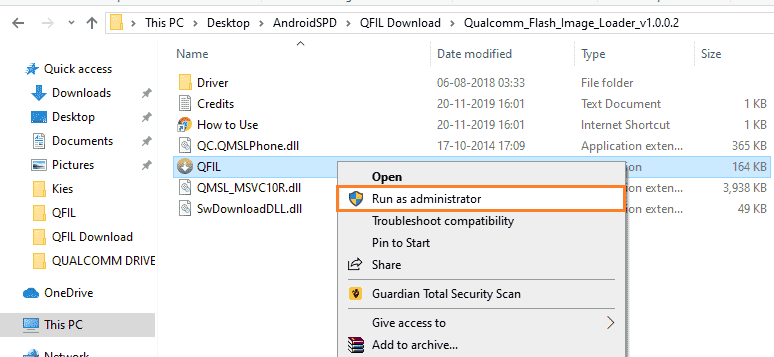
    Step 1.  Download and extract QFIL on your computer, then click on QFIL.exe to open QFIL.

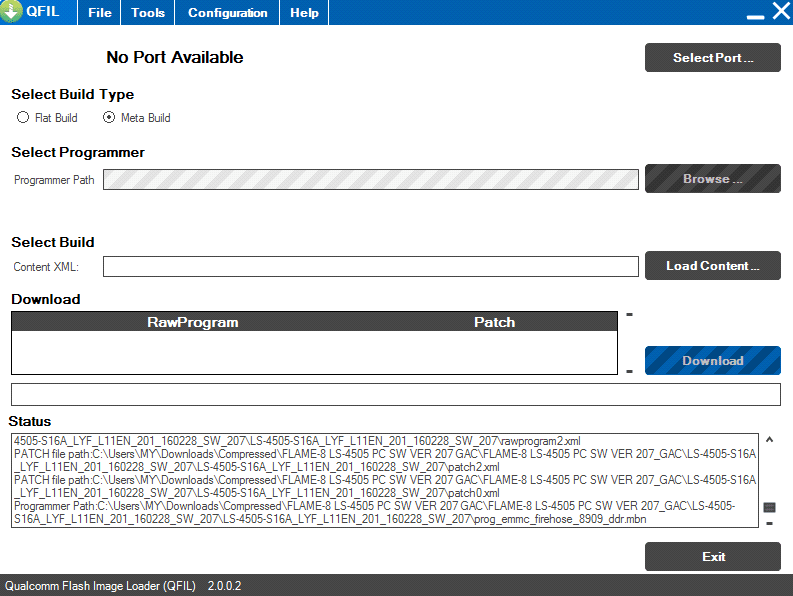
    Step 2.  After QFIL has opened, you will see a screen like this.
    How to flash Qualcomm with QFIL

    How to flash Qualcomm with QFIL 1

    Step 3 .: You have to turn off your Android handset using the Power Off button.

    Step 4.  After your Android handset turns off, now press and press the Volume Up button and connect your Android handset to the computer using a USB data cable.

    connect your Android handset to the computer using a USB data cable

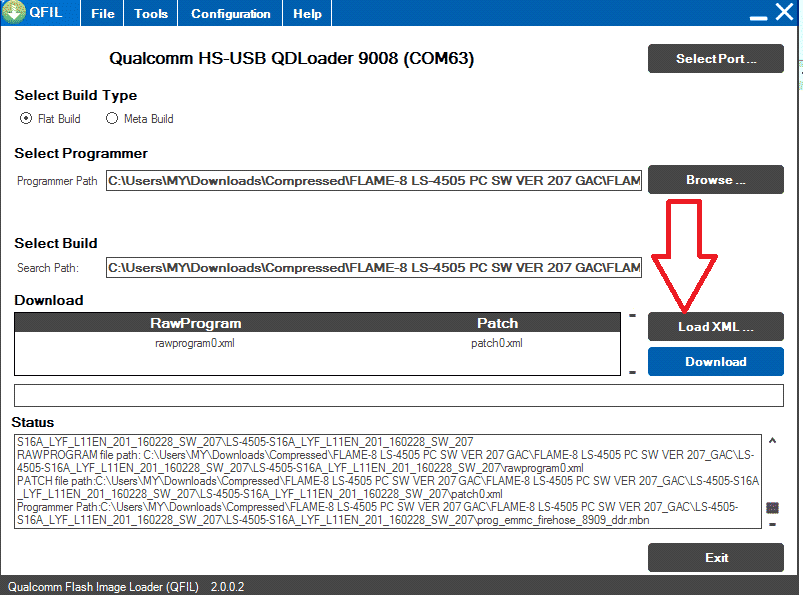
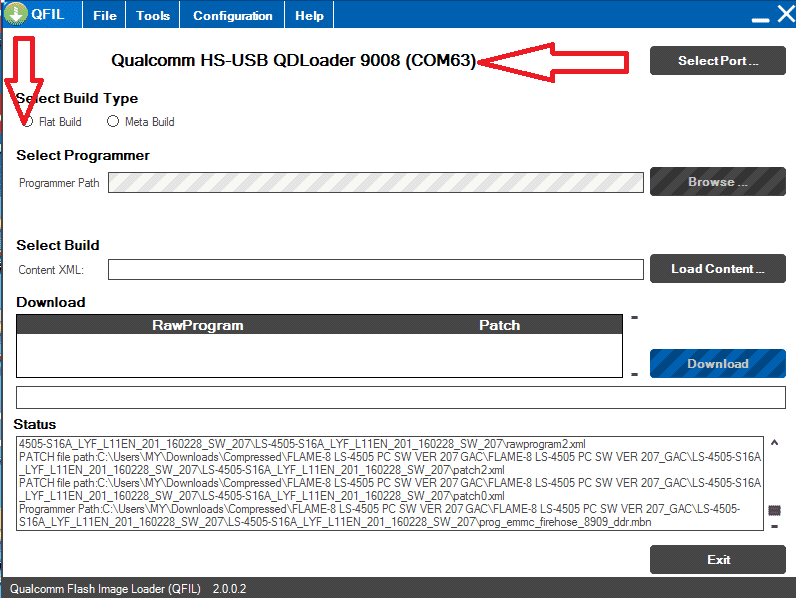
    Step 5. After your mobile device is connected successfully, you will be able to see “Qualcomm HS-USB QDLoader 9008” in the QFil tool. Next, Under Select Build Type, check Flat Build.
    Qualcomm HS-USB QDLoader 9008

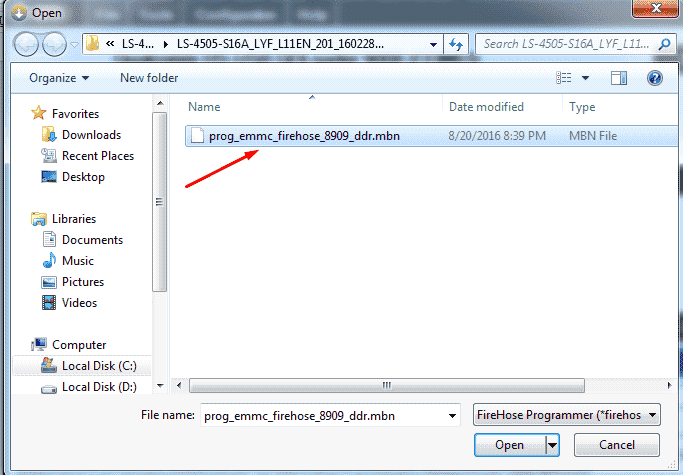
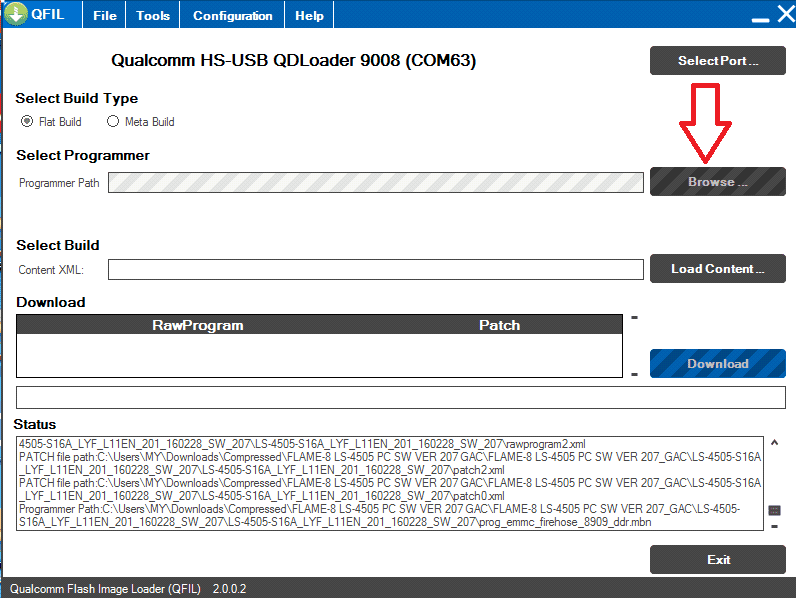
    Step 6. Now click the Browse button in QFIL to get the firmware file, namely  .mbn. And from here follow the instructions on the screen.
    Browse File Firmware QFIL

    File Firmware mbn QFIL Flash
    File Firmware mbn QFIL Flash

    Step 7. Click Load XML.

    Load XML QFIL QualComm

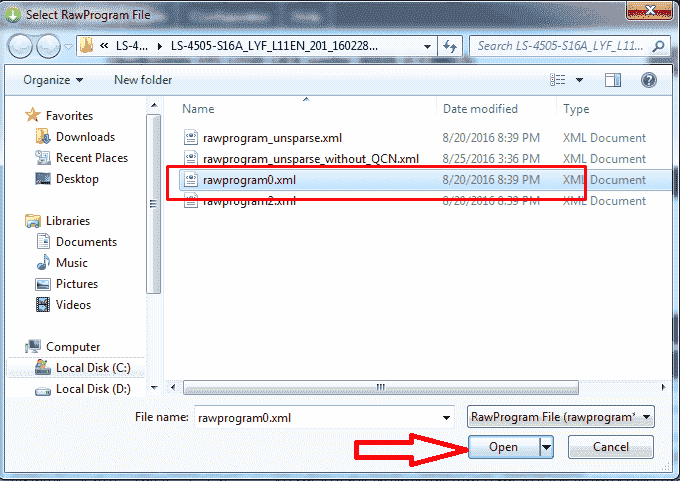
    Step 8. After clicking the “Load XML” button a pop-up window will open, select the rawprogram0.xml file in this window and click Open.
    File XML QFIL

    Step 9. Another pop-up window will automatically open again, select the patch0.xml file in this window then click Open.
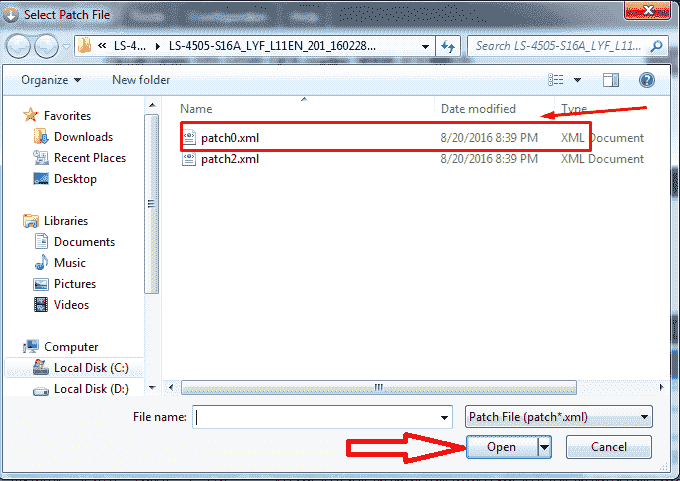
    select the patch0.xml file in this window then click Open

    Step 10. Next, press the Download button to start flashing the firmware on your Qualcomm Android device.
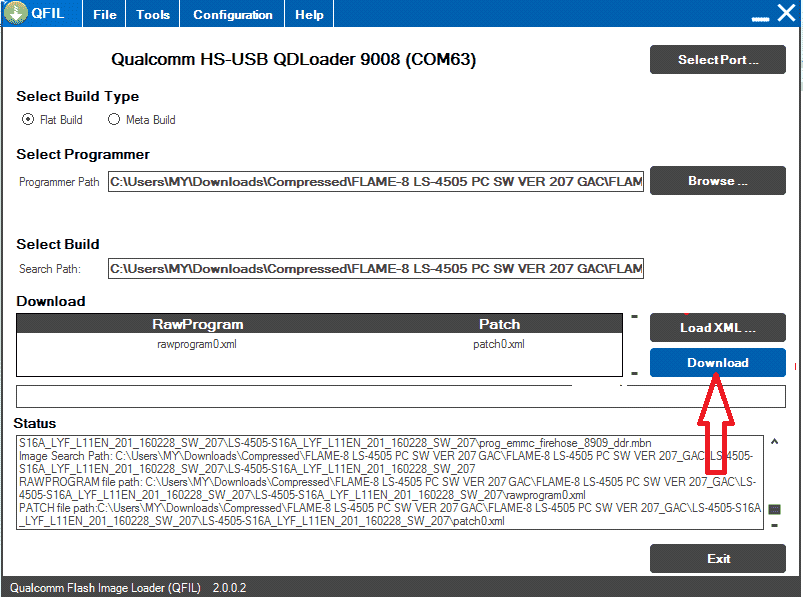
    click download QFil

    Step 11. After pressing the Download button, the flashing process will start on your Qualcomm device. And you can see a progress bar that will run. Wait for the download dialog box to finish.
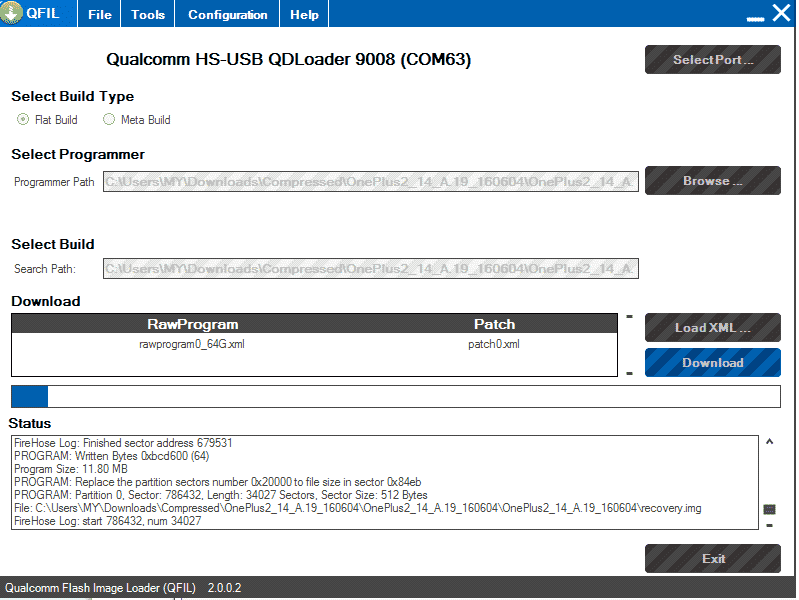
    Wait for the download dialog box to finish

    Step 12. After the flashing process is complete, you will see the message Download Succeed or Finish Download in the Qfil tool. This means that you have successfully flashed your Qualcomm device using Qfil. Now unplug your device from the computer and wait a while as it will take 5-10 minutes after the first boot.

    Additional information

    Help: If you’re getting an error flashing your device with QFIL and want help, please leave a comment below. We will help you solve your problem.

    Perform a Backup: It is important to back up your device data before using the Qfil flash tool as the flashing process will erase all data from your device.

    Qualcomm USB Drivers: If you are looking for USB drivers for your mobile device.

    OS Compatibility: Qfil Tool will not support Linux or Mac operating systems; This QFIL will work on all versions of Windows (x86 or x64 bit).

    Credits: The QFIL Tool is created and distributed by Qualcomm Mobility LLC. thanks to them for building and distributing the tool to us.

    Read more:

    Conclusion:

    Don’t forget to bookmark and always visit every day Technowizah.com because you can find here the latest Tech Computer Android games How-to Guide Tips&Tricks Software Review etc, Which we update every day.
  • How to Root Android Using Kingroot (100% Successful) 2024

    How to Root Android Using Kingroot (100% Successful) 2024

    How to Root Android Using Kingroot (100% Successful) – Nowadays, getting root privileges on Android phones is getting easier. This is due to the increasing number of applications and methods that we can use. Starting from the root using a PC, even without a PC.

    How to Root Android Using Kingroot (100% Successful)
    How to Root Android Using Kingroot (100% Successful)

    How to Root Android Using Kingroot (100% Successful)

    One of the well-known applications that Android users often rely on to root is KingRoot.

    Based on statistics from the official website, KingRoot can now be used to root more than 100 thousand types of Android phones.

    Read more:

    So many, right?

    I’m sure the type you are using can also be rooted by KingRoot.

    So, get on with it.

    The following is a tutorial on how to root Android using KingRoot.

    How to Root Android Using KingRoot on Laptop and PC

    1. First, please download the KingRoot application on the official website. After that install it on your PC.

    2. Once installed, immediately open the application.

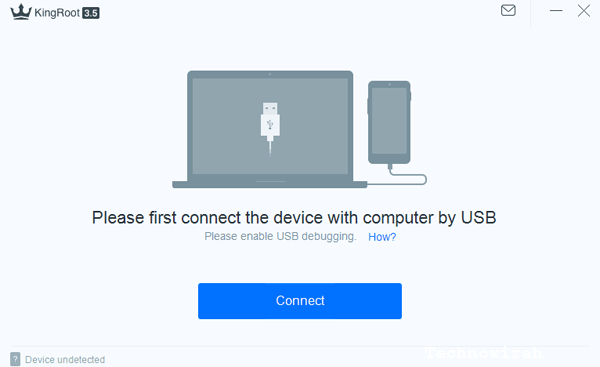
    3. Then connect your Android phone to the PC using a USB cable. If there is a request to activate USB Debugging, please activate it. Because if it is not activated, the rooting process cannot continue. If you don’t know how to enable USB Debugging, you can read the tutorial here.

    4. If so, please click the Connect button on the KingRoot application on your PC.


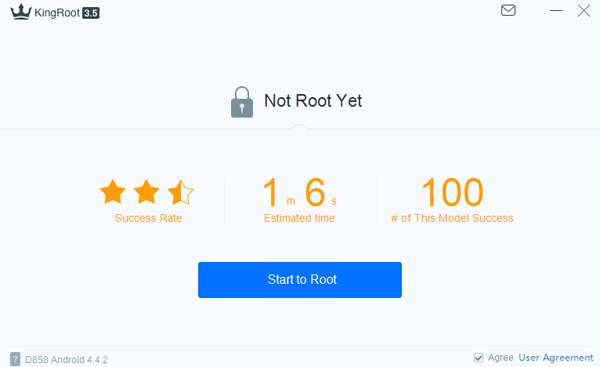
    How to Root Android Using Kingroot (100% Successful)5. If your device is successfully connected, then you will see Not Root Yet. This means KingRoot detects that your device is still not rooted. To start the rooting process, you can click the Start to Root button.
    How to Root Android Using Kingroot (100% Successful)

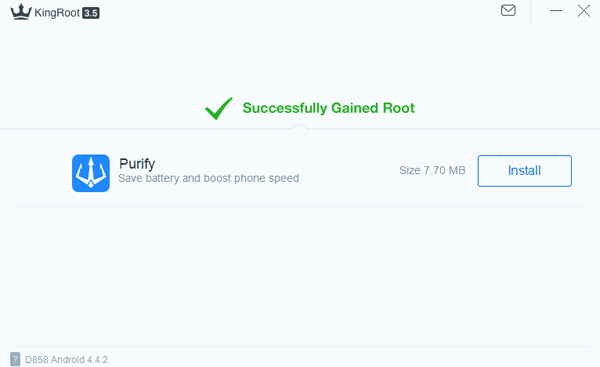
    6. After that the rooting process will run. Buddy Androbuntu just needs to wait. During the process, your Android phone will restart later, that’s normal. So don’t panic. When it’s finished, it will say Successfully Gained Root.

    How to Root Android Using Kingroot (100% Successful)

    Very easy, right?

    For those who may not have a PC or laptop, you can also use the KingRoot application directly on Android.

    Follow the tutorial below.

    How to root Android without a PC using the KingRoot application

    1. Please visit the KingRoot website, then click the Download for Android button to download Kingroot.apk, then double-click the apk file to install it on your Android.

    2. After that, please open the KingRoot application that you just installed. Then click the Start Root button.

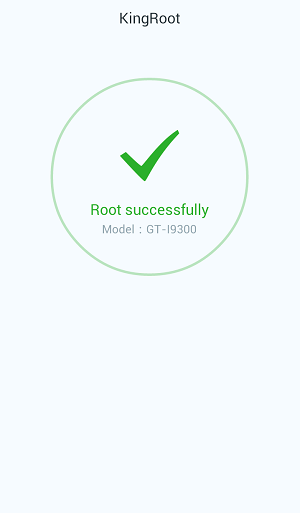
    How to Root Android Using Kingroot (100% Successful) 3. Wait a few moments for KingRoot to finish rooting your Android phone. When it is finished, you will see a green check button and then write Root successfully.
    How to Root Android Using Kingroot (100% Successful)

    How, easy and very simple right?

    Read more:

    Conclusion:

    That was how to root Samsung, Xiaomi, Oppo, Vivo, Acer, Asus, LG, Advan, and all brands of Android phones using KingRoot.

  • How to Create A4 Paper Size In Photoshop 2024

    How to Create A4 Paper Size In Photoshop 2024

    How to Create A4 Paper Size In Photoshop – As is well known, paper sizes vary widely. Maybe ordinary people only know A4 or F4 paper sizes. There are many types of paper based on their size.

    How to Create A4 Paper Size In Photoshop
    How to Create A4 Paper Size In Photoshop

    How to Create A4 Paper Size In Photoshop

    Speaking of A4 paper, do you know what size this paper is? Knowing the A4 paper size is quite important. Especially if you often print documents, posters, photos, and so on using this paper.

    Read more:

    A4 paper is one of the sizes of the A series paper which has an international standard (ISO 216). This paper is one of the most widely used in Indonesia. Starting from printed material, scientific papers, thesis, and so on. Even photo paper or glossy paper is also A4 size.

    Setting paper in applications such as Microsoft Word, and Adobe Photoshop can be done easily. Because each software already provides A4 paper options in the paper settings menu. However, to better understand the following, we will discuss further A4 paper size in Adobe Photoshop.

    #1. Paper Size A4

    A4 paper has a size of 21 x 29.7 cm. Of course, the size is expressed in centimeters. So what if the units are different? The following are A4 paper sizes in several types of units.

    Paper Type unit cm mm . unit Inches
    A4 21.0 x 29.7 210 x 297 8.27 × 11.69

    In addition to the units above, A4 size is also available in pixels or px. In addition, A4 paper size can also be converted to point or picas units.

    Pixel units are usually used in graphic design. Such as the design of posters, brochures, flyers, and so on. In addition, it is also commonly used in photo editing.

    Here is the A4 paper size in pixels:

    Paper size Width (pixels) Height (pixels)
    A4 – 72 PPI 595 842
    A4 – 200 PPI 1,654 2,339
    A4 – 300 PPI 2,480 3,508
    A4 – 400 PPI 3.307 4.677
    A4 – 600 PPI 4.961 7.016
    A4 – 1200 PPI 9.921 14,031

    To note, PPI or Pixels per Inch is a unit that expresses the pixel density of a screen. Both the screen of mobile phones, PCs, notebooks, and other devices. The greater the PPI value, the greater the pixel density in inch area units. This makes the image quality clearer and clearer.

    #1. Creating an A4 Canvas in Photoshop

    As mentioned above, most number, word, graphic design, and photo editing software currently available already provide several paper sizes to choose from, including A4 paper. In this section, we discuss how to set a Photoshop canvas to A4 size.

    Previously make sure your PC or notebook has Adobe Photoshop installed. You can use any version, just adjust it to the PC specifications. Alright, just follow the steps:

    • Please open Adobe Photoshop installed on your device. In this example, we use Adobe Photoshop CC 2018. In older versions, there will be differences in appearance. However, the steps that need to be done are the same.
    • After the application opens, please create a new project. How to click the File menu and select New. You can also press the Ctrl combination key on the keyboard. However, in some versions, you can find the menu on the initial screen when the software is opened for the first time.
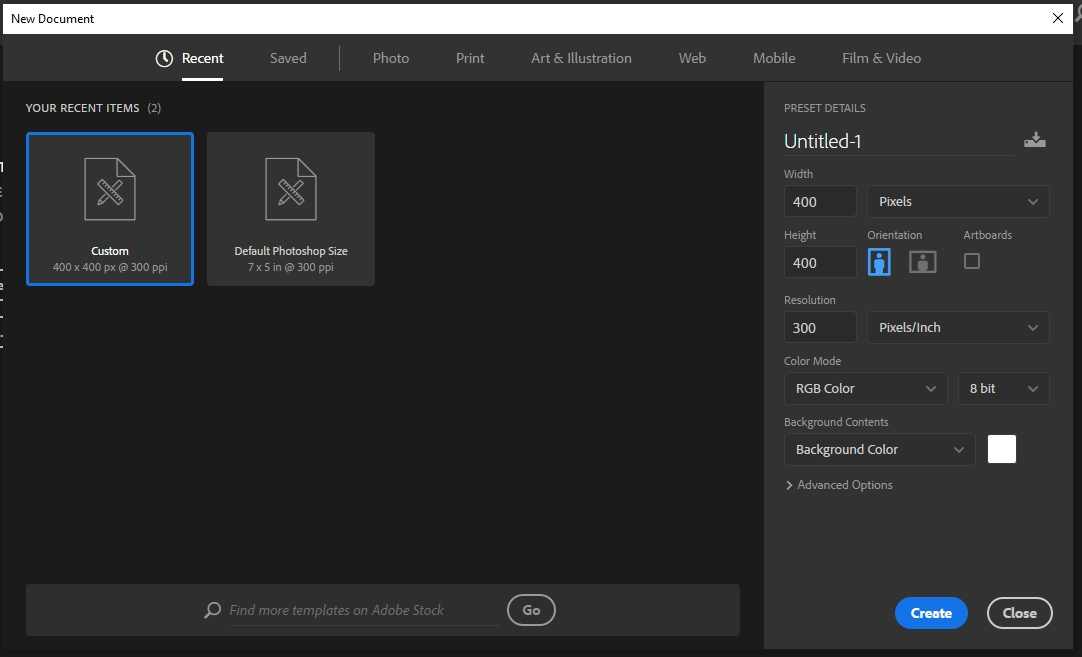
    • After that, the New Document dialog box will appear. In this menu, you can name your document. In addition, you can also specify several other things. Such as width or width, height or length, orientation, resolution, color mode, to background contents. You can also find advanced options below.
    Creating an A4 Canvas in Photoshop
    Creating an A4 Canvas in Photoshop
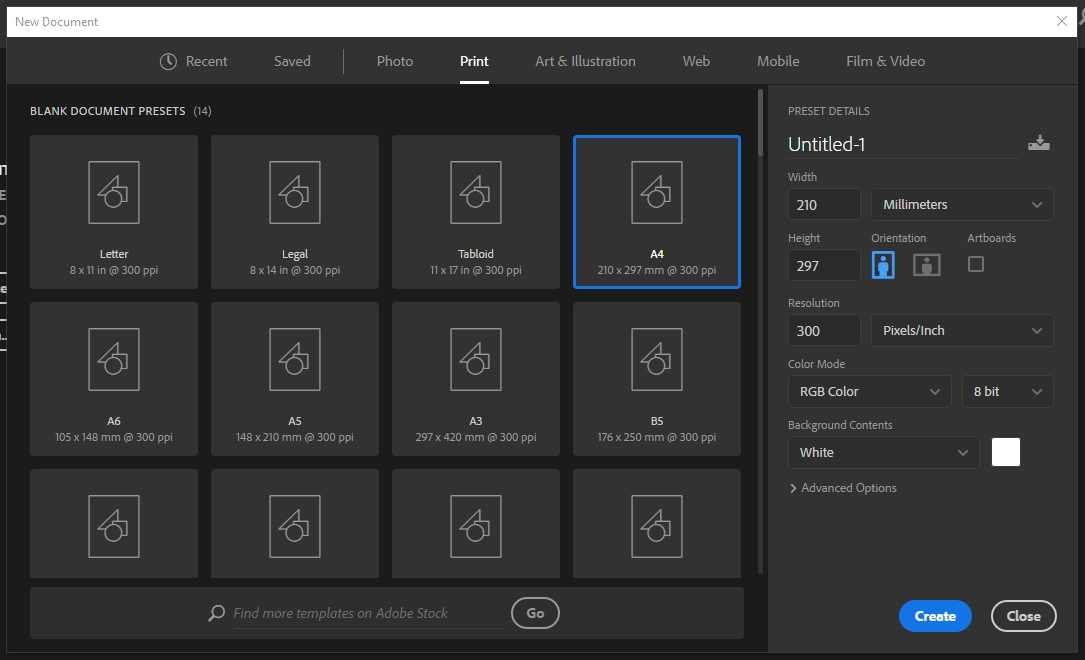
    • Next is to determine the canvas size. You can find the canvas sizes provided by Photoshop on the Print tab. In this section, you will see there are quite several paper sizes. Starting from Letter, Legal, Tabloid, A4, A6, and so on.
    Creating an A4 Canvas in Photoshop
    Creating an A4 Canvas in Photoshop
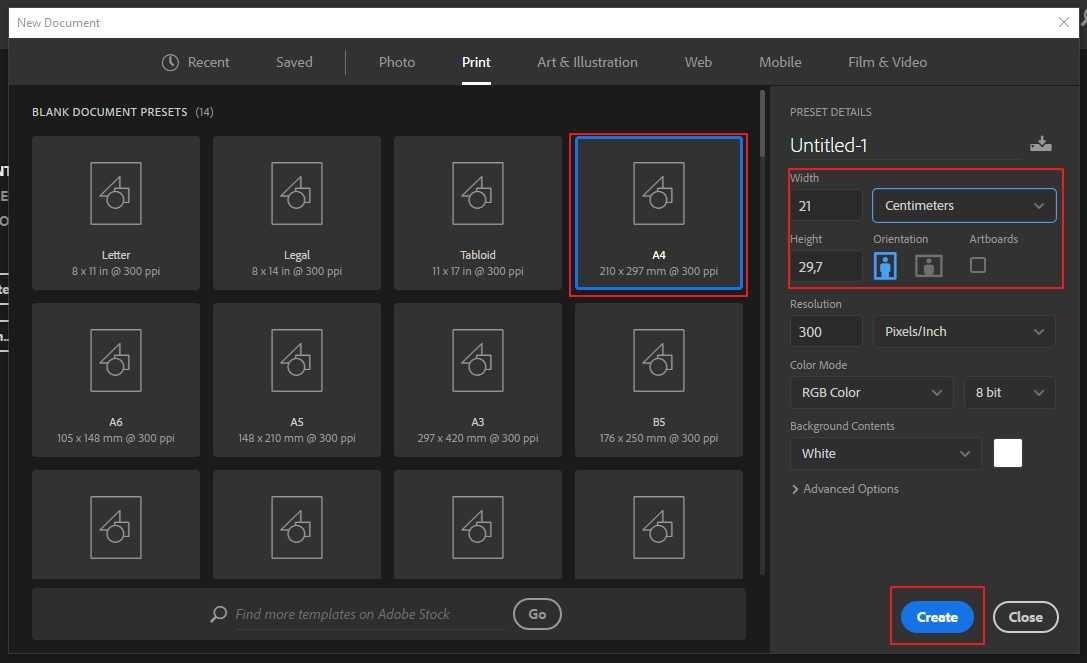
    • If we want to choose the A4 paper size, then please click the A4 option. Automatically the width and height of the canvas will adjust to the paper size we choose. You can change the units to the right of the width to make it easier for you to read the size.
    Creating an A4 Canvas in Photoshop
    Creating an A4 Canvas in Photoshop
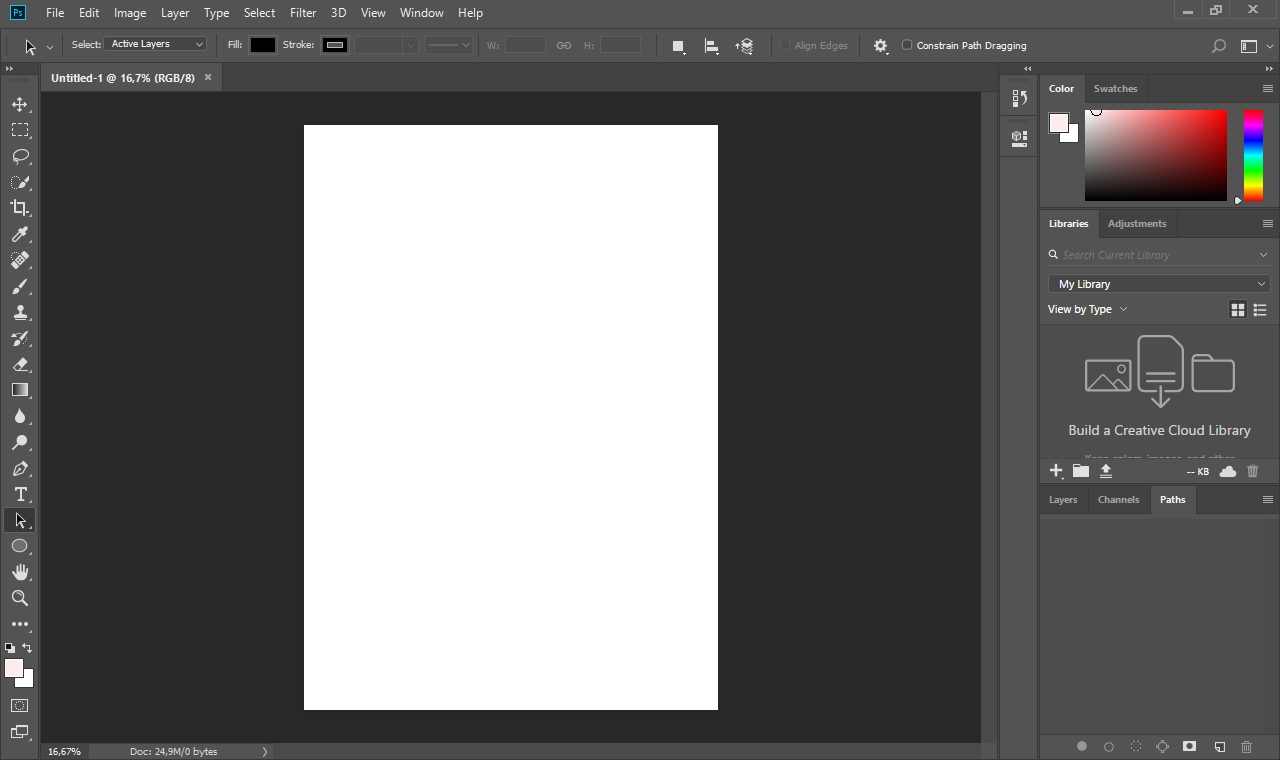
    • You can also set the canvas orientation, whether you want to make it landscape or portrait. When finished, please click the Create or OK button. A new document will be created automatically in Photoshop according to the one you set earlier. You can already do your job, editing photos, making designs, and so on.
    Creating an A4 Canvas in Photoshop
    Creating an A4 Canvas in Photoshop

    As a side note, apart from selecting the canvas size from the Print tab, you can also enter it manually by setting the width and height. For example, if you want to set the canvas size to A4, then set the width to 21 and the height to 29.7 centimeters. Meanwhile, if in other sizes, just adjust to the table above.

    For older versions of Photoshop, such as the CS6 version, the flow for creating a canvas and resizing it to A4 is as follows:

    • Open the Photoshop app
    • Click the File menu and select New.
    • The New dialog box will open. In the Presets section please click International Paper.
    • Then click the Size dropdown menu and select A4. The width and height of the canvas will adjust automatically.
    • If you have clicked the OK button.

    #3. Paper Grammage

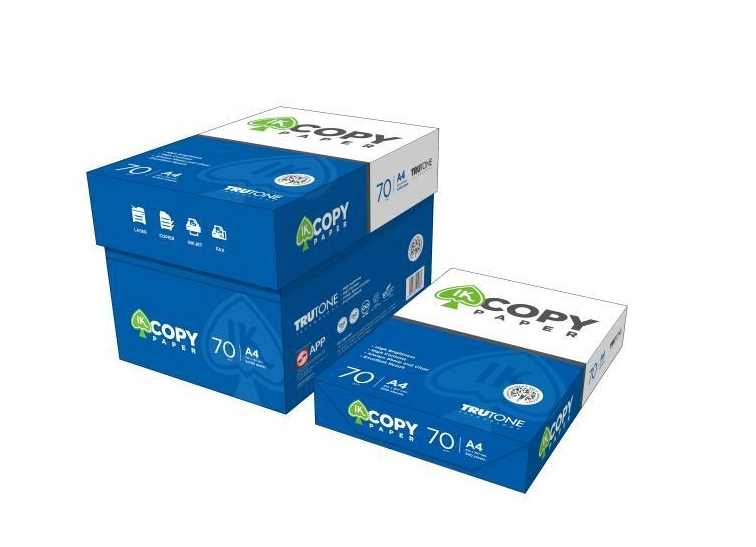
    If you’ve ever looked at paper packs sold in 1 ream, you’ve come across the term GSM. For example 70 Gsm or 80 Gsm. Then what is GSM?

    Paper Grammage
    Paper Grammage

    To note, GSM stands for Grams per Square Meter. This GSM unit is used as a standard reference for measuring and calculating the paperweight.

    Paper grammage is divided into four kinds. Here we will explain briefly:

    1. Grammage 70-80 gsm: paper with this grammage is usually used to print documents. Such as manuscripts, books, theses, final assignments, reports, and so on. Examples of paper sizes available in this grammage are A4, A3, F4, and Q4 or quarto.
    2. Grammage 100-150 gsm: this paper is usually used to print the contents of magazines. It is also often used for documents, brochures, or letterhead. The types of paper that have a grammage of 100-150 gsm are art paper, matt paper, HVS, Concorde, and Coronado.
    3. Grammage 190-260 gsm: this paper is generally used to print invitations, certificates, posters, to book covers. There are quite a few examples of paper of this weight. Among them are Art Carton 190 gr, 210 gr, and 260 gr, Concorde 220 gr, Coronado 270 gr, and Blues White 250 gr.
    4. Grammage 270-310 gsm: this paper is commonly used to make posters, invitations, or business cards. Included in this category are Coronado art paper and cardboard paper.

    As mentioned above, most A4 paper sold in the market has a weight or grammage of 70 GSM or 80 GSM. And there are other interesting things. The size of A4 paper is half the size of A3 paper and twice the size of A5 paper.

    Conclusion:

    This is the explanation of how to create A4 paper size in Photoshop, So much information about A4 paper size in Photoshop that we can convey.

  • 3 Ways to Flash Asus Zenfone C Z007 100% Success 2024

    3 Ways to Flash Asus Zenfone C Z007 100% Success 2024

    3 Ways to Flash Asus Zenfone C Z007 100% Success – Problems that are fairly serious on the Asus Zenfone C Z007 cellphone can be resolved using Flash.

    3 Ways to Flash Asus Zenfone C Z007 100% Success
    3 Ways to Flash Asus Zenfone C Z007 100% Success

    How to Flash Asus Zenfone C Z007 100% Success

    As for the problem or damage here, namely bootloop, force closed the app, app system error, to completely shut down alias completely dead.

    Read more:

    Here, I present 3 ways to flash the Asus Zenfone C Z007 device.

    How to Flash Asus Zenfone C via Flash Tool

    Before starting, please prepare some of the materials needed as follows :

    1. PC / Laptop using Windows OS.
    2. Data cable (use the built-in data cable).
    3. Download the Asus Zenfone C Z007 Firmware, then extract it.
    4. Download the  Asus Android USB Driver.
    5. Download Asus Zenfone C Flashtool .

    When all the ingredients above are ready, follow the steps below:

    1. Make sure the power capacity on the smartphone is more than 50% filled for flashing.
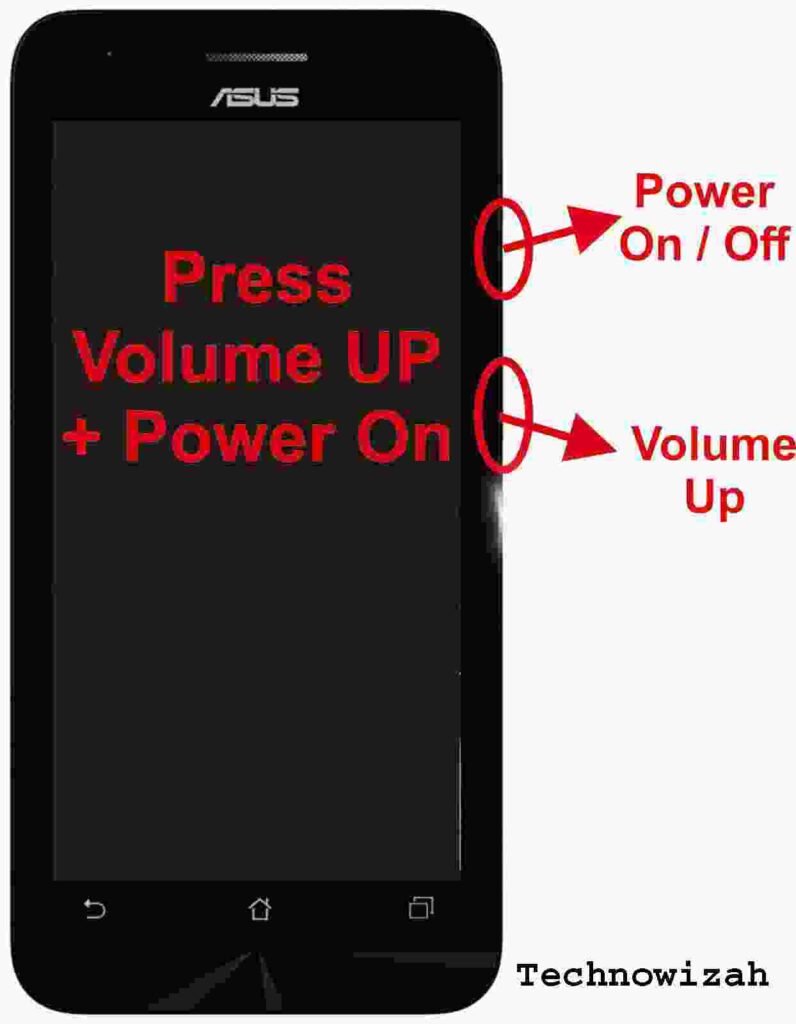
    2. Enter Droidboot Mode. That way, press the power + volume UP button simultaneously. If you have entered Droidboot Mode, release the two buttons.
      3 Ways to Flash Asus Zenfone C Z007 100% Succsess
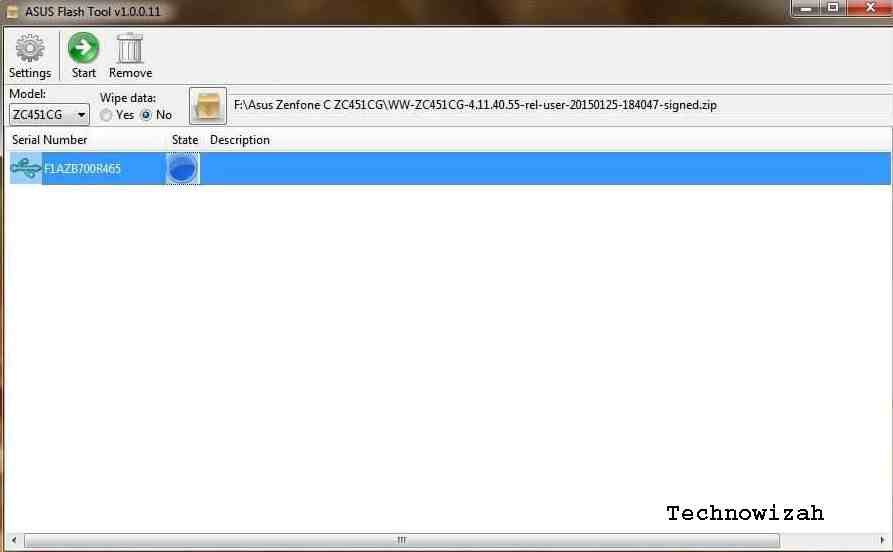
    3. Then, open the Asus Flash Tool application, and run it as administrator. To do this, right-click and select Run as administrator.
    4. Then, connect the Asus Zenfone C Z007 smartphone to your PC / Laptop using a USB cable. If the USB icon appears, it is a sign that the device has been detected by the computer.
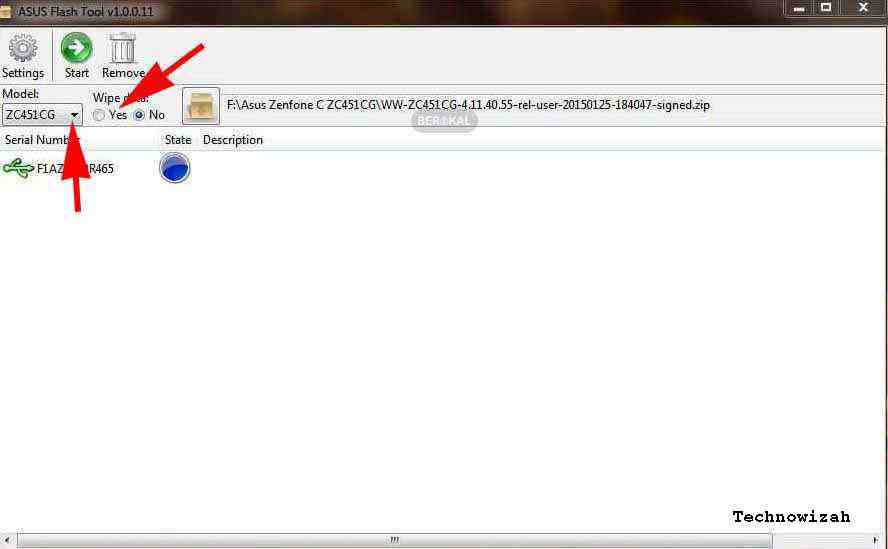
    5. Below, please select the ZC451CG type. Then, on Wipe Data, select the Yes option.3 Ways to Flash Asus Zenfone C Z007 100% Succsess
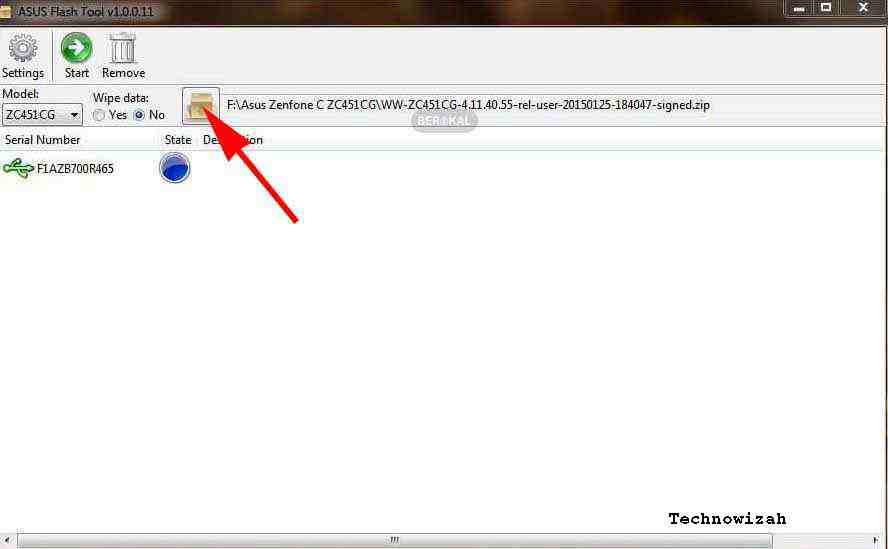
    6. Then, click browse to enter the Firmware that you extracted.3 Ways to Flash Asus Zenfone C Z007 100% Succsess
    7. Next, click on the USB icon, then click the Start button to start the Asus Zenfone C flashing process. Wait for the flashing process to finish.3 Ways to Flash Asus Zenfone C Z007 100% Succsess
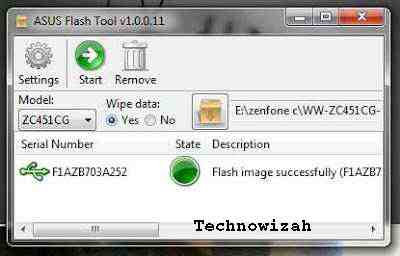
    8. If the state has turned green and the notification “Flash image successfully” appears, it means that the flashing process has been completed and has been successfully executed.3 Ways to Flash Asus Zenfone C Z007 100% Succsess
    9. After that, close the Asus Flash Tools application and remove the USB cable from the computer. Then select the reboot menu in Droidboot to restart the device.
    10. Then, wait for the boot process to run (usually, the first boot takes a while).
    11. Later, an Android standard start-up will appear to set the language, Google account, network, etc.
    12. The smartphone has been flashed successfully.

    If you have done all the above processes correctly and thoroughly, chances are that your smartphone will come back to life soon.

    How to Flash Asus Zenfone C via SD Card

    The advantage of Flash using an SD Card or MMC is that it can be done without a PC.

    This method is somewhat more practical, easy, and fast. The steps are:

    1. Prepare an SD card that has been formatted to Fat 32 Default.
    2. Download the latest Asus Zenfone C Firmware  HERE.
    3. If so, copy the file to the SD Card in the .zip form.
    4. Next, attach the SD Card to the Asus Zenfone C.
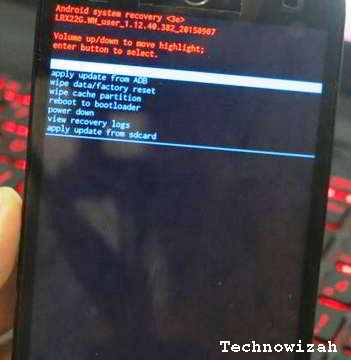
    5. Turn off the cellphone and enter Recovery Mode by pressing the Volume Down + Power button at the same time, and the following display will appear.How to Flash Asus Zenfone C via SD Card
    6. Then, select the bottom menu, namely ” apply update from sd card “.
    7. Locate the firmware file that you copied to the SD Card.
    8. At this point, the flash process will take about 5-8 minutes.
    9. When finished, the screen will return to the Recovery menu, then tap ” reboot system “.
    10. The cellphone will restart automatically and load to the settings/home screen wizard (please wait, because it will take quite a while).
    11. Done.

    How to Flash Asus Zenfone C via QFIL

    There are so many types of cell phones that can be flashed using QFIL. For more details, Berakal has presented it in full in the article How to Flash Using QFIL

    Prevents Bootloop from Occurring

    For prevention from boot loop, you can do the following:

    1. Discipline in Battery Charging

    Try to wait for the battery to reach 100%, and do not make it a habit to finish charging the battery before it is fully charged.

    2. Frequently removing the battery

    Removing the battery while the cellphone is on is tantamount to forcing the operating system on the smartphone to be suddenly disconnected.

    This kind of thing can cause damage to the operating system on your cellphone, even the components contained in it.

    3. Be vigilant in Downloading and Installing Applications

    You must be selective in downloading and installing an application. If you want to download an application, first check the application.

    4. Frequent Cleaning of Applications

    There are already many antivirus applications available on the Play Store or App Store, even well-known antivirus companies such as AVG, Avira, Avast, and Kaspersky also provide free antivirus applications for Android and iOS users.

    So there is no reason for your cellphone to be hit by a virus until a bootloop occurs. Remember, prevention is better than cure.

    Read more:

    Conclusion:

    Please choose one of the Asus Zenfone C flash methods that you think is the easiest to practice. But if it still fails, you can convey the reasons why flashing is still failing in the comments column.

    Attention! Make sure the downloaded firmware is suitable for your device, firmware incompatibility may brick your device.
  • 3 Ways To Root Lenovo A7700 and Install TWRP Recovery 2024

    3 Ways To Root Lenovo A7700 and Install TWRP Recovery 2024

    3 Ways to Root Lenovo A7700 and Install TWRP Recovery—The root process is used for mobile users who want more access to their cell phones. Of course, there is a separate way to root, whether it’s with a PC or without a PC. In this article, I will discuss how to root Lenovo A7700.

    How to Root Lenovo A7700 and Install TWRP Recovery
    How to Root Lenovo A7700 and Install TWRP Recovery

    How to Root Lenovo A7700 and Install TWRP Recovery

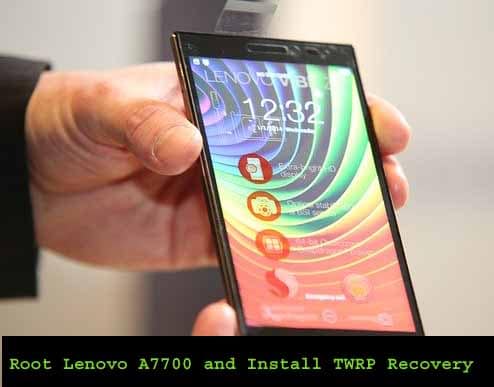
    Lenovo A7700 is the successor of the Lenovo A700 which was launched in 2014 ago. This phone has fulfilled TKDN rules in India so that Lenovo can integrate 4G LTE technology into their cell phones.

    Read more:

    The design of the Lenovo A7700 itself is not too different from its predecessor. The material used is still polycarbonate, which is now combined with a metal frame to make it look more attractive.

    The cellphone battery is also a removable type which means you can remove it to be replaced or just to insert the SIM card.

    However, when compared to the A7000, this phone looks bigger but is also thinner and somewhat lighter for a 5.5-inch phone size.

    The screen of this cellphone even though there is no official information on whether there is a protector or not, in several tests, it turns out the screen is quite resistant to scratches, so the user does not need to worry too much to put the phone somewhere.

    And lucky also because it uses polycarbonate, the widescreen is easier to grip because the polycarbonate material does not give a slippery effect on cellphones. As is typical of Lenovo, this A7700 cell phone has a power and volume button located on the right side of the phone.

    At the top, there is a micro USB and a 3.5mm audio jack hole for using a headset. While the left and bottom sides of the cell phone have nothing.

    But unfortunately, in terms of specifications, Lenovo A7700 has specifications that are arguably less developed than its predecessor series.

    This time, Lenovo offers a MediaTek MT6752 processor which has a higher performance than the processor used by Lenovo A7000 but has lower power management. As for matters of RAM capacity and internal memory, both still have the same capacity of 2 GB and 16 GB.

    As I mentioned earlier, Lenovo A7700 has a 5.5-inch landscape display with HD resolution (720p) with a pixel density of 268PPI.

    For business cameras, Lenovo A7700 has a main camera 8MP resolution that is equipped with LED flashlights, while the front camera has a 2MP resolution.

    Lenovo A7700 runs on a typical Lenovo Vibe UI with Android 6.0 Marshmallow. The battery itself has a capacity of 2900 mAh. There are two SIM slots and both of them can be used to maximize the speed of the 4G network in India.

    But unfortunately, Lenovo’s embedded sensor in this phone tends to be still minimal, say only there are an accelerometer, proximity, and light sensors without the compass and gyroscope sensors.

    Although the sensor is minimal, the Lenovo A7700 has its advantages that lie in the audio.

    This phone uses two stereo speakers located on the back of the phone. To support the audio hardware, Lenovo also buried supporting software in the form of Waves MaxxAudio which allows users to be more satisfied when playing music using speakers.

    In the sales package, Lenovo provides a complete set of USB cables, chargers, warranty cards, manuals, and additional screen protectors.

    Before Root Lenovo A7700

    Because this Lenovo A7700 already supports being able to open the bootloader, finally this smartphone also has its own TWRP version. This TWRP version is specifically for Lenovo A7700

    You can also root through this TWRP, so if your smartphone already supports and installed TWRP or another custom recovery, then your smartphone will almost certainly be rooted.

    But before the TWRP flash, you must open your Lenovo A7700 bootloader first. Please open the Lenovo A7700 How to Unlock Bootloader, then just follow the instructions. You will not be able to install TWRP if the bootloader is still locked.

    Before you can root your Lenovo A7700, first download the file below:

    We are not responsible for what happens to your Lenovo A7700 phone. Do With Your Own Risk.

    This method will also erase all data on your cellphone, so make sure to back up first.

    How to Install Lenovo A7700 TWRP

    Step # 1. Extract the TWRP file and copy the TWRP file into the Minimum ADB Fastboot folder located at C /: Program Files (x86) / Minimal ADB and Fastboot. Also, copy the Noverity and Magisk files into the folder.

    Step # 2. Rename the Noverity file to Noverity and rename the Magisk file to Magisk.

    Step # 3. Make sure USB Debugging is active, then connect your phone to a PC and open the Minimum ADB Fastboot application.

    Step # 4. Connect the phone to the PC and wait a minute. Then in the CMD window, type:

    ADB devices

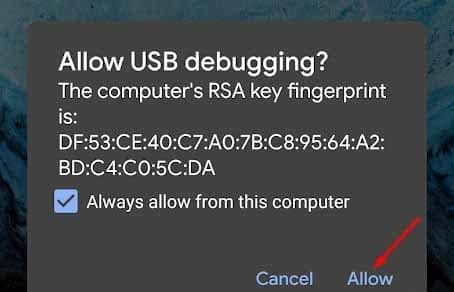
    Step # 5. Watch your Infinix Note 4 screen, and make sure you select OK or Allow USB Debugging.

    How to Install Lenovo A7700 TWRP
    How to Install Lenovo A7700 TWRP

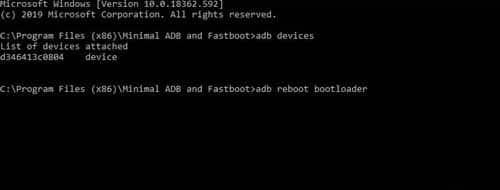
    Step # 6. After that, type the following command again:

    adb reboot bootloader

    adb reboot bootloader
    adb reboot bootloader

    This command is used to reboot the Infinix Note 4 phone into fastboot mode.

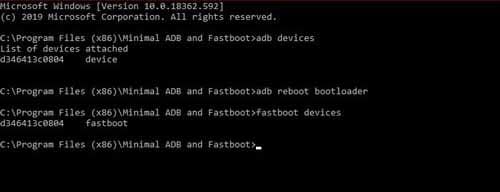
    Step # 7. After that, re-type the following command to make sure the phone is properly connected:

    fastboot devices

    fastboot devices
    fastboot devices

    There will be random numbers and letters next to the words fastboot if the phone is well connected.

    Step # 8. When it enters bootloader mode, install TWRP by typing the following command:

    fastbooot flash recovery recovery.img

    The TWRP installation process will take place and wait until the process is complete. After it’s done, you have finally succeeded in installing TWRP on the Lenovo A7700.

    How to Root Lenovo A7700

    We assume you have successfully installed TWRP and the phone is still in Fastboot mode. Do not turn on the phone first, but press and hold the Volume Up + Power button. After the phone turns off and vibrates, release the Power button, but still hold the Volume button.

    Step # 1. By following the above method, you should have entered TWRP Recovery mode and for the first time TWRP might ask for a password, just click cancel.

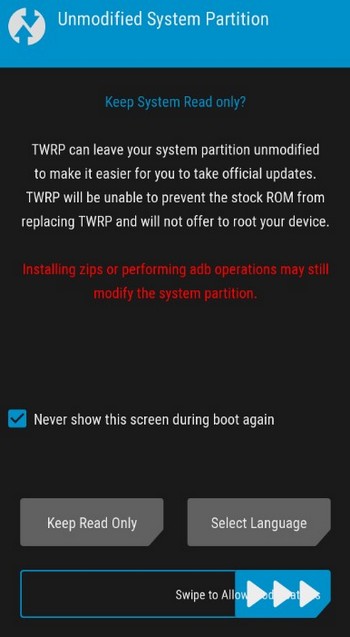
    Step # 2. Then TWRP will ask permission to modify the system, so swipe to Allow Modification.

    How to Root Lenovo A7700
    How to Root Lenovo A7700

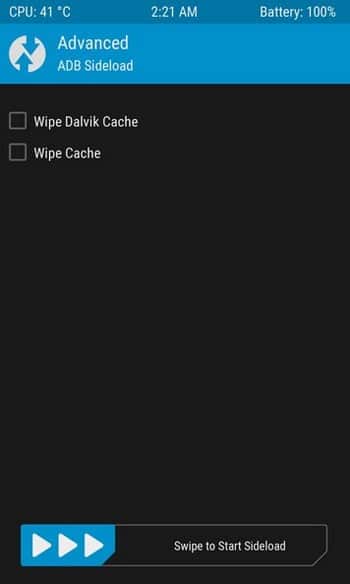
    Step # 3. Then select Advanced and select ADB Sideload.

    Then select Advanced and select ADB Sideload
    Then select Advanced and select ADB Sideload

    Step # 4. Then in the Minimum ADB Fastboot application, type the following command:

    adb sideload Noverity.zip

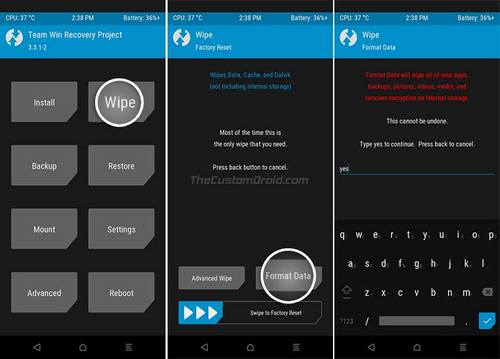
    Step # 5. After installing Noverity is complete, return to the TWRP main menu and this time choose Wipe> Format Data.

    adb sideload Noverity.zip
    adb sideload Noverity.zip

    Step # 6. This time, again enable ADB Sideload as above, and type this command in the Minimum ADB Fastboot application:

    ADB sideload Magisk.zip

    Wait until the process is complete

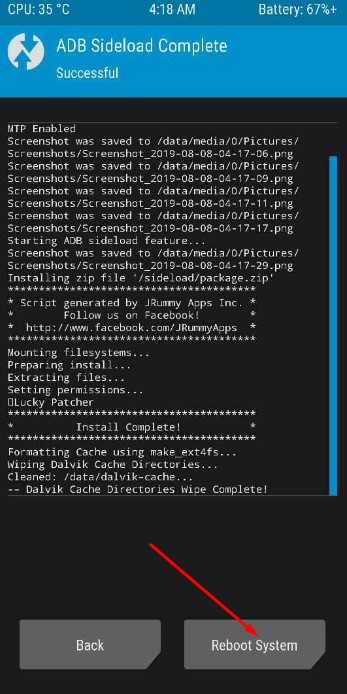
    Step # 7. After the process is complete, select Reboot System to restart the phone.

    After the process is complete, select Reboot System to restart the phone
    After the process is complete, select Reboot System to restart the phone

    The reboot process is indeed quite long, so we recommend you be more patient. The time needed to reboot can reach 10 to 15 minutes. After rebooting, your Lenovo A7700 has been rooted successfully.

    Read more:

    Conclusion:

    To make you even more sure, you can download the Root Checker application in the Play Store to re-check whether the Lenovo A7700’s root method has been successful.