Category: Guide

Guide – Here you can find Reviews-related updates, How-to, Tips & Tricks, information, and more.

  • 8 Ways to Fix WHEA Uncorrectable Error Windows 10 PC 2025

    8 Ways to Fix WHEA Uncorrectable Error Windows 10 PC 2025

    8 Ways to Fix WHEA Uncorrectable Error Windows 10 PC – Windows often has a history of blue screen error messages. Known as the Blue Screen of Death, this error also contains important information regarding sudden death on your system.

    8 Ways to Fix WHEA Uncorrectable Error Windows 10 PC
    8 Ways to Fix WHEA Uncorrectable Error Windows 10 PC

    How to Fix WHEA Uncorrectable Error Windows 10 PC Laptop

    Some Windows crash errors are more subtle than others and therefore more difficult to troubleshoot. WHEA Uncorrectable Error is one of them. In this article, we will explain how to Fix the WHEA Uncorrectable Error and how to stop it from happening again.

    Read more:

    What is WHEA Uncorrectable Error?

    WHEA_UNCORRECTABLE_ERROR (Windows stop code 0x0000124) is a hardware error. There are several common causes for WHEA_UNCORRECTABLE_ERROR, most of which are directly related to your system hardware:

    •  Faulty hardware Faulty hard drive, GPU, CPU, PSU, faulty RAM, etc.)
    • Driver compatibility issues
    • Heat and voltage issues  (Overclocking and voltage changes)
    • Corrupt Windows system files or registry files

    Although not always the source of the problem, voltage issues are a very common cause of this WHEA Uncorrectable Error. The WHEA message and stop code 0x0000124 give us an indication of the nature of the error, but viewing the error dump file will provide more information. Your Error dump file (.DMP) was found in C:/Windows/Minidump and will have timestamps. Unfortunately, we can’t offer a solution for every problem, but the following fixes should reduce or remove your WHEA Uncorrectable Error.

    How to Fix WHEA Uncorrectable Error

    Step 1: Run CHKDSK

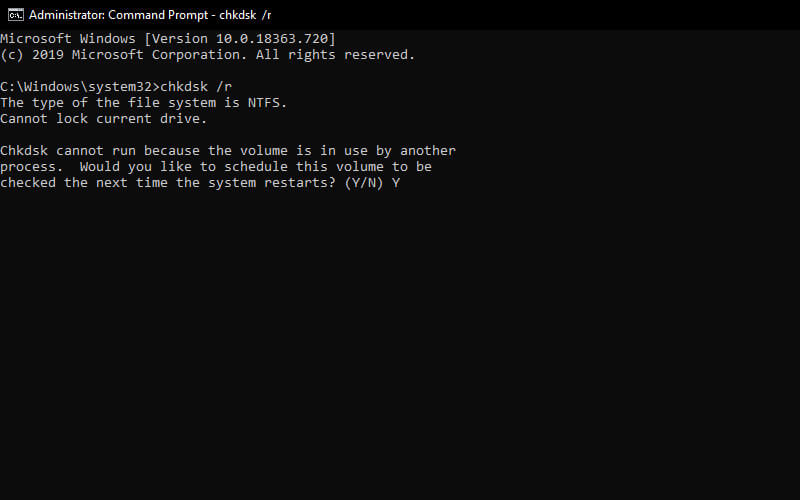
    First, before making any specific hardware changes, try running Windows Check Disk from the Command Prompt. CHKDSK is a Windows system tool that verifies the file system and with certain settings, fixes problems as it runs.

    Type the command prompt in your Start menu search bar, then right-click the most suitable one and select Run as administrator. (Alternatively, press  Windows Key + X, then select  Command Prompt (Admin)  from the menu.) Next, type chkdsk /r  and press Enter. This command will scan your system for errors and fix any issues along the way.
    8 Ways to Fix WHEA Uncorrectable Error Windows 10 PC

    Step 2: Check Your System Hardware

    WHEA_UNCORRECTABLE_ERROR is closely related to your system hardware. Before proceeding with the system reset and memory tests, physically check your system hardware. Check if the cooling system is working properly, your RAM is securely in its slots, and make sure the CPU is not loose, and so on.

    Step 3: Reset System Overclocking

    If you’ve overclocked your system in search of higher speeds, there’s a good chance you’ll run into WHEA_UNCORRECTABLE_ERROR. The easiest way to cross this off the list is to reset your system BIOS and remove the effects of any overclocking.

    You have to enter your system BIOS or UEFI menu. To do this, shut down your system. Next, restart your system, by pressing your BIOS/UEFI menu access button.

    BIOS and UEFI settings vary by manufacturer, but menu titles are usually similar. You are looking for the Overclocking option For the most part, overclocking options are found under the Advanced, Performance, Frequency, or Voltage menus. Find the menu and reset your overclocking options. A reset will return your system to its out-of-box state and may also remove WHEA_UNCORRECTABLE_ERROR in the process.

    Step 4: Reset BIOS/UEFI Settings

    If removing your BIOS/UEFI overlock settings doesn’t fix the WHEA_UNCORRECTABLE_ERROR, try resetting your entire BIOS. Try looking for options in the BIOS to complete a full BIOS settings reset or restore BIOS settings to default.

    Step 5: Update BIOS/UEFI Settings

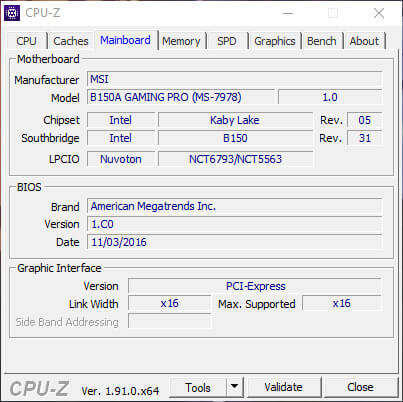
    Again, this process varies greatly depending on your system’s motherboard manufacturer. Some BIOS/UEFI settings can be automatically downloaded and updated using a desktop utility. Other manufacturers ask you to download the BIOS update and flash the firmware yourself. If you’re not sure what motherboard you have? Try downloading the CPU-Z app and running it. Go to the Mainboard tab and find your motherboard manufacturer and model. You can find your BIOS brand and version in this tab as well.
    8 Ways to Fix WHEA Uncorrectable Error Windows 10 PC

    Step 6: Check the Driver

    Sometimes new drivers have a bad effect on your system. But in this day and age, it’s getting rarer as Windows 10 takes care of most of the driver updates. However, that doesn’t mean the new drivers can’t interfere with your system. Luckily, Windows 10 lists updated drivers in the Windows updates section, so you can quickly figure out where this problem is coming from.

    Press  Windows Key + I to open the Settings panel, then select Update & Security > View update history. You can find updated drivers here. Now, type the device manager in the Start menu search bar and select the most suitable one. Go down the list and check for the error symbol. If not, your driver status is probably not the source of the problem.

    Step 7: Check RAM Using MemTest86

    Windows has an integrated memory checker, called Windows Memory Diagnostic. Unfortunately, this tool does not have a good reputation and often misses the problems found using other tools such as MemTest86.

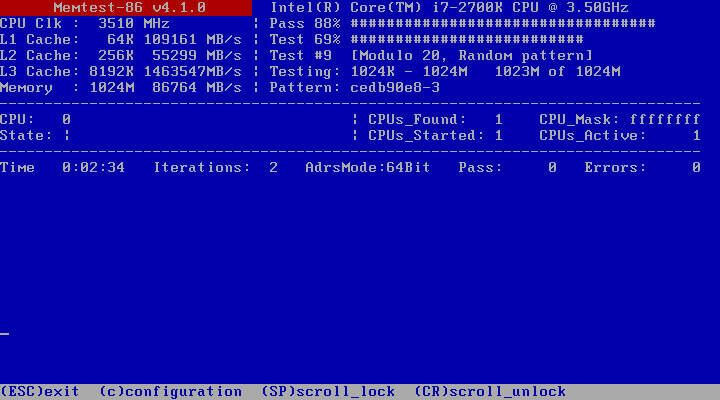
    MemTest86 is a free memory testing tool for x86 machines. You can boot MemTest86 from a USB flash drive (or bootable disk) and leave it to check your system RAM. Now, the MemTest86 RAM check takes a long time to complete, a single pass can take hours depending on the amount of RAM you have installed.
    8 Ways to Fix WHEA Uncorrectable Error Windows 10 PC

    To get the full MemTest86 experience, you’ll need to run at least two passes. However, by most reports, MemTest86 should expose serious RAM issues after a short time.

    Go to the MemTest86 download page and download the Image for creating a bootable CD (ISO format). Next, you need to mount the MemTest86 ISO to a USB flash drive.

    Burn MemTest86 using the tools of your choice, then shut down your system. Restart the system while pressing the key for your Boot Selection menu (usually F10, F11, DEL, or ESC), then select the bootable MemTest86 USB flash drive. The memory test will start automatically. If it returns a RAM error, complete an internet search for the error code and type it in to find the next course of action.

    Step 8: Reset Windows 10 (Final Option)

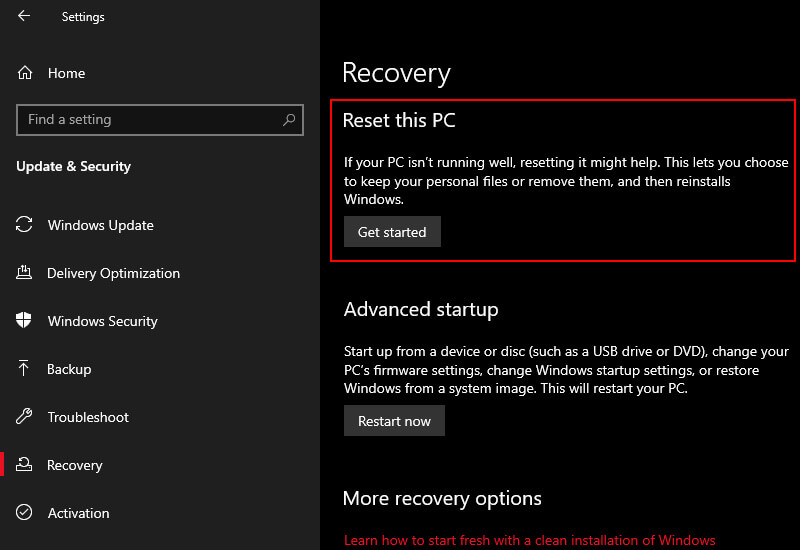
    If nothing else works, you can use Windows 10’s Reset function to refresh your system. Reset Windows 10 replaces your system files with a completely new set of files and it can remove all the issues related to WHEA_UNCORRECTABLE_ERROR while keeping most of your important files intact. Go to Settings > Update and Security > Recovery, then under Reset, this PC select Get Started.

    Your system will restart as soon as you press the button, so make sure you back up important files beforehand. Your system will restart, then you can choose to Keep my files or Remove everything.
    Reset Windows 10 (Final Option)

    Conclusion:

    This is the explanation of how to fix WHEA’s uncorrectable error in Windows 10.  Look forward to other interesting articles and don’t forget to share this article with your friends. Thank you…

  • [100% Working] How to Create Free Edu Email 2025

    [100% Working] How to Create Free Edu Email 2025

    [100% Working] How to Create Free Edu Email – The email with the Edu domain is usually given to students at certain universities, the email is given with the aim that students have an email with the name of a university and to indicate that the person is a student studying at that university.

    [100% Working] How to Create Free Edu Email

    [100% Working] How to Create Free Edu Email

    However, one of the Edu email domains can also be owned by the public without the need to be in school, college or currently studying at a university or educational institution.

    The name of the email that will be obtained is  [email protected]. Here’s a tutorial on how to create a free Edu email forever.

    1. Go to the site apply.vccs.edu

    2. Tick CAPTCHA for verification.

    [100% Working] How to Create Free Edu Email

    3. Next, fill in the form data correctly, except for the red box after which save & continue.

    Description:
    Red Box: Do Not Fill.
    Black Box: Fill or Click.

    [100% Working] How to Create Free Edu Email

    4. Then click Apply.

    [100% Working] How to Create Free Edu Email

    5. Then click Apply Now.

    [100% Working] How to Create Free Edu Email

    6. Fill in the form data correctly, except for those marked in red (For the year of birth, you must be at least 18 and over).

    [100% Working] How to Create Free Edu Email

    7. Next, fill in the data as indicated by the arrow and click save & continue.

    [100% Working] How to Create Free Edu Email

    8. Enter all the following data (data information is taken from the fake name generator site except in the name section, fill in your own name) then click Save & continue.

    [100% Working] How to Create Free Edu Email

    9. Then you will get a notification, then select the continue button and save & continue.

    [100% Working] How to Create Free Edu Email

    10. Next, fill in the data again according to the arrow as shown below.

    [100% Working] How to Create Free Edu Email

    11. Next select the edit high school button.

    [100% Working] How to Create Free Edu Email

    12. Then fill in the arrow and the year as in the following picture, then save & continue.

    [100% Working] How to Create Free Edu Email

    13. Next, fill in the data information according to the following image and click save & continue.

    [100% Working] How to Create Free Edu Email

    14. Next, fill in the data information again as shown below and save & continue.

    [100% Working] How to Create Free Edu Email

    15. Then click  Apply.

    [100% Working] How to Create Free Edu Email

    16. Fill in the data according to the following image and save.

    [100% Working] How to Create Free Edu Email

    17. Then select Continue.

    [100% Working] How to Create Free Edu Email

    18. Lalu Submit Application.

    [100% Working] How to Create Free Edu Email

    Info: Don’t close the browser, it takes a few minutes to wait for the submission process to finish. You will immediately get your email account.

    19. Then your browser will be redirected, then select the continue button.

    [100% Working] How to Create Free Edu Email

    Save the  SIS ID code then continue.

    [100% Working] How to Create Free Edu Email

    Save the Username and  Password information then continue.

    [100% Working] How to Create Free Edu Email

    Done, please enter your account based on your username and password. For the first login, you will be asked to choose a login method, select the SIS ID method, and then enter the SIS ID code that you saved earlier.

  • 5 Ways To Open Password Protected Excel File 2025

    5 Ways To Open Password Protected Excel File 2025

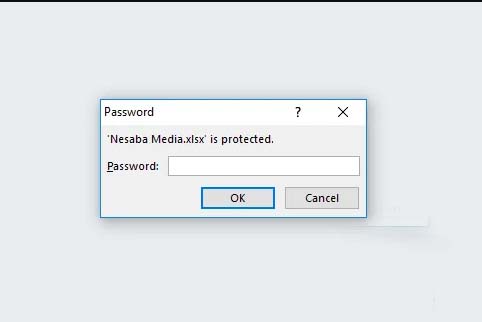
    5 Ways To Open Password Protected Excel File – Are you currently having problems with your Excel files? Your Excel file cannot be opened because it is locked by a password. In this article, I will provide a tutorial on how to easily open a locked Excel.

    5 Ways To Open Password Protected Excel File
    5 Ways To Open Password Protected Excel File

    How To Open Password Protected Excel File

    Microsoft Excel is an application that is used to create financial reports and so on. However, sometimes Excel is locked, this is caused by the sender forgetting to send the password or deliberately not being notified.

    Read more:

    Even though Excel files are very important for a job or task. There are also secret Excel files that only certain people can open and know.

    Therefore, if you are experiencing problems like this, we will provide a solution for how to easily open an Excel password. Read on for the review in the article below.

    Open Password Protected Excel File

    There are several ways that you can use to open a forgotten Excel password that makes it locked. Some of the methods below have previously been tried and worked successfully.

    #1. Opening Excel Password Without Application

    Opening Excel Password Without Application
    Opening Excel Password Without Application

    How to open a forgotten Excel password:

    1. The first step is for you to open an Excel file that is locked or protected by a password.
    2. if you have, then you press the Alt + F11 key combination on the keyboard and wait a while Microsoft Visual Basic will automatically appear.
    3. If it appears, please select the Insert menu and select Module to be able to open the module menu. 
    4. Later on your computer screen, the module menu will appear.
    5. Next, please input and copy the following code into the module menu.

    Here’s the source code that you have to copy

    Sub InternalPasswords()
    Dim I As Integer, j As Integer, k As Integer
    Dim l As Integer, m As Integer, n As Integer
    Dim i1 As Integer, i2 As Integer, i3 As Integer
    Dim i4 As Integer, i5 As Integer, i6 As Integer
    On Error Resume NextFor i = 65 To 66: For j = 65 To 66: For k = 65 To 66
    For l = 65 To 66: For m = 65 To 66: For i1 = 65 To 66
    For i2 = 65 To 66: For i3 = 65 To 66: For i4 = 65 To 66
    For i5 = 65 To 66: For i6 = 65 To 66: For n = 32 To 126
    ActiveWorkbook.Unprotect Chr(i) & Chr(j) & Chr(k) & _
    Chr(l) & Chr(m) & Chr(i1) & Chr(i2) & Chr(i3) _
    & Chr(i4) & Chr(i5) & Chr(i6) & Chr(n)
    ActiveSheet.Unprotect Chr(i) & Chr(j) & Chr(k) & _
    Chr(l) & Chr(m) & Chr(i1) & Chr(i2) & Chr(i3) _
    & Chr(i4) & Chr(i5) & Chr(i6) & Chr(n)
    If ActiveWorkbook.ProtectStructure = False Then
    If ActiveWorkbook.ProtectWindows = False Then
    If ActiveSheet.ProtectContents = False Then
    Exit Sub
    End If
    End If
    End If
    Next: Next: Next: Next: Next: Next
    Next: Next: Next: Next: Next: Next
    End Sub

    If the text above has been copied, then paste it into the module menu. then follow the steps below.

    1. Next, you select which sheet you want to open in the Excel file and then select ” Run Macro ” which is green
    2. After the “ Macro ” window pops up, click “ Run ” to start cracking the Excel password on your computer.
    3. Now you just have to wait for the process to finish.
    4. The length of time depends on how much data and size the Excel file has
    5. After the process is complete, you can open or change the Excel file data freely because the protection has been lost.

    #2. Unlocking Protected Excel File Password

    Unlocking Protected Excel File Password
    Unlocking Protected Excel File Password

    The solution for how to solve an Excel file that cannot be opened is to bring up the password again. After we know the password, we can immediately open it by looking in the ” Unprotect ” menu.

    In the following, you can learn how to display the password embedded in an Excel file with a series of scripts and codes.

    How to open a locked Excel password:

    1. The first step is to open your Excel file.
    2. Once open, press the ” ALT + F11″ key to bring up ” Microsoft Virtual Basic “
    3. Next, enter the script by clicking ” Insert ” and then after that select ” Module “
    4. After the module form appears, enter the script below into the form

    Here’s the source code that you have to copy

    Sub PasswordBreaker()
    ‘Breaks worksheet password protection.
    Dim I As Integer, j As Integer, k As Integer
    Dim l As Integer, m As Integer, n As Integer
    Dim i1 As Integer, i2 As Integer, i3 As Integer
    Dim i4 As Integer, i5 As Integer, i6 As Integer
    On Error Resume Next
    For i = 65 To 66: For j = 65 To 66: For k = 65 To 66
    For l = 65 To 66: For m = 65 To 66: For i1 = 65 To 66
    For i2 = 65 To 66: For i3 = 65 To 66: For i4 = 65 To 66
    For i5 = 65 To 66: For i6 = 65 To 66: For n = 32 To 126
    ActiveSheet.Unprotect Chr(i) & Chr(j) & Chr(k) & _
    Chr(l) & Chr(m) & Chr(i1) & Chr(i2) & Chr(i3) & _
    Chr(i4) & Chr(i5) & Chr(i6) & Chr(n)
    If ActiveSheet.ProtectContents = False Then
    MsgBox “One usable password is ” & Chr(i) & Chr(j) & _
    Chr(k) & Chr(l) & Chr(m) & Chr(i1) & Chr(i2) & _
    Chr(i3) & Chr(i4) & Chr(i5) & Chr(i6) & Chr(n)
    Exit Sub
    End If
    Next: Next: Next: Next: Next: Next
    Next: Next: Next: Next: Next: Next
    End Sub
    1. The next step is to select which sheet you want to open and click ” F5 ” to bring up the ” Run Macro ” dialog box.
    2. After the ” Run Macro ” window appears, click the ” Run ” option to start the process of bringing up the password
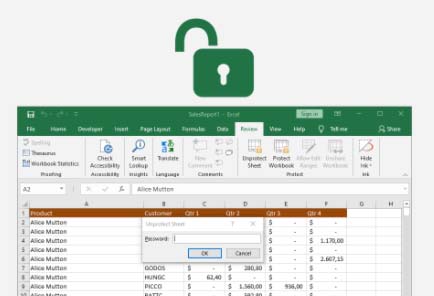
    3. If so, close the ” Microsoft Virtual Basic ” window then select ” Review ” then click ” Unprotect Password”
    4. After that enter the password and click “OK”. Now you can get full access to the data in the file

    #3. Opening Excel Online Password

    Opening Excel Online Password
    Opening Excel Online Password

    When you want to open an Excel password, we will give you another option to open a protected Excel file, namely by using the excel.xartifex.com website. Through this website, you will be able to upload protected Excel files online.

    How to open an Excel password online:

    1. First, open the address  excel.xartivex.com  using a PC or smartphone browser.
    2. Then click ” Selected File ” look for the protected Excel file then click ” Open “
    3. Wait a few moments until the Excel file has been successfully opened by the system. This website has been tested to open Excel files that are protected with a fairly complex password
    4. If Excel is already open, you can re-download the file and then edit it freely as needed

    #4. Remove Excel Password With Google Drive

    Remove Excel Password With Google Drive
    Remove Excel Password With Google Drive

    You can follow this tutorial with the help of the Google Drive application, the method is quite easy to do. Here’s how to open an Excel password with the application:

    1. The first step is to open Google Drive through the application/browser. You need login access if you already have an account, if not then you have to create an account first
    2. Then click “ + New ” to add a protected Excel file. Then click ” File Upload”, then click the Excel file then click ” Open “
    3. if it has been uploaded, double-click on the Excel file to be able to open it. Then click the ” Open with ” menu then click ” Google Sheets “
    4. The file will open in the form of Google Sheets and the protection will automatically disappear. To download it again, you just click ” File ” then ” Download As ” then select ” Microsoft Excel (.xlsx)”
    5. Give a new name that is different from the original file then click ” Save ” to download it.

    #5. Opening Excel Password With ZIP

    Opening Excel Password With ZIP
    Opening Excel Password With ZIP

    This method can be used to unlock a forgotten Excel password, but you must have the WinRAR application or a 7-zip application that you can download for free.

    How to open an Excel password with ZIP:

    1. First, open an Excel file that forgot the password so that it is locked.
    2. Then click View on the menu then put a checkmark on the File Name Extension section.
    3. In the Excel file format change from  .xlsx  to  .zip  then click  Enter and select  Yes.
    4. After that open the Excel file with the ZIP application and change the format of your filename from .xml to .txt
    5. Open the file with the notepad application and find the  <sheetProtection code then delete the code until the /> limit then click Ctrl + S.
    6. If a notification appears, click  Yes.
    7. Then return the Excel file format to .xml close the ZIP application and change the format to .xlsx as before.
    8. Finished.

    Read more:

    Conclusion:

    There on about 5 ways to open a password-protected Excel file. You can choose which methods and steps you think are easiest to apply.

  • What is Kodi? Everything You Need to Know About Kodi 2025

    What is Kodi? Everything You Need to Know About Kodi 2025

    What is Kodi? Everything You Need to Know About Kodi – Kodi is slowly but surely growing and evolving providing an experience for anyone who wants to share content from home.

    What is Kodi Everything You Need to Know About Kodi
    What is Kodi Everything You Need to Know About Kodi

    What is Kodi? Everything You Need to Know About Kodi

    This Kodi service itself has actually been available since 2003, at that time was known as Xbox Media Player.

    Read more:

    From 2003 to 2014, it changed to Xbox Media Center (XBMC).

    So, Kodi was originally thought to use XBMC, which is an entertainment media center for streaming videos, music, and games using open sources that grew and developed according to an amateur project to play content on the original Xbox.

    Kodi gives users access to online streaming media content, including videos & music, as well as shows how to store and watch that content at home.

    And what’s even better, Kodi can run on almost every major operating system on thousands of smart devices today.

    So, What is Kodi?

    Kodi is an open-source software media center, which allows you to access all kinds of content, including videos and music.

    And can run that content on any device you choose, including TVs, laptops, phones, tablets, and more.

    It can even run on your Raspberry Pi.

    Kodi comes with a user-friendly interface and can work with any local or network storage service you are using.

    And you need to know, Kodi not only comes in the form of an Android TV Box purchase package bundle, but you can also install and install it with some add-ons from third parties that can enhance your Kodi experience.

    Advantages and Capabilities based on Kodi

    when it comes to entertainment, Kodi is the answer.

    Music?

    Kodi can play a variety of music formats, including AAC, MP3, and OGG. It even comes with a smart playlist feature and the ability to mark out-of-sync tracks.

    Videos?

    Kodi can play files using ISO, 3D, & H.264, among other formats, and can also run online content over the Internet.

    After you import a movie, Kodi can even add posters, fan art, trailers, additional videos, and more to each item of content.

    Kodi can even run Television (TV) shows, which allows you to save your favorite TV shows to the Kodi service.

    The TV show section is also supported using posters and tags, which will give you a complete picture of the program & actors.

    Kodi can even stream images (slideshows), as a result of which you can import image archives into the Kodi library list & start a slideshow, among other features.

    You can even search, record & save a list of your favorite television exclusives for later viewing.

    You can also stream and record private TV from the software.

    To do this, you must use one of the many backend services that support this feature, including MediaPortal, MythTV, TVheadend, & NextPVR.

    Also, be sure to keep the program updated to add new features as they become available.

    How Kodi Works

    Kodi is made to run on various popular OS (Operating Systems), for example on Android, iOS, Linux, macOS, Windows, & Raspberry Pi.

    This means you can install it on almost any of your devices and can access its content whenever & wherever you are.

    Interestingly, you can run on television with a set-top box or Android TV Box & other streaming devices.

    This application can install for free, and provides many functions that you will not find in other applications.

    And Kodi is constantly adding more and more new features from time to time.

    Once Kodi is installed & running on your device then you will see a list of menus for you to choose from, for example, Images, Videos, Music, and so on.

    All you do is simply use open what you want & upload the content you choose.

    Your content should be stored somewhere locally or on a network drive that will allow you to access it around your home and potentially also be accessed remotely.

    Kodi will catalog all your content sources & make them easily accessible on all devices where Kodi is installed.

    Kodi settings

    Kodi has a Wiki list of simple instructions that can provide you with step-by-step instructions on how to install, run and enjoy the service.

    Lay talk has also prepared several posts about this simple guide to installing and setting Kodi.

    We made this post separately, and we started using an introduction to socialization about what Kodi is in this article.

    We hope that this post will help you understand the installation process and determine the right settings for each device OS you are using.

    What you need to remember is that Kodi is designed as a home entertainment medium for your family room.

    So you can also set up a remote control that can work with the Kodi system making it easier for you to run this Kodi service event.

    In essence, you must have a remote control that can be linked using Kodi to make it easier to use.

    If you want to extend the features of the service based on Kodi itself, you can check out the available Add-Ons, which offer more opportunities to make Kodi a better entertainment device.

    But you should also be careful, to run Kodi on iOS, you need a jailbroken iPhone, iPad, or iPod Touch, or one of the devices running iOS 6.0 or higher.

    Kodi recommends that you run iOS 8.0 or above to get the best service experience from Kodi.

    And a Mac running Xcode 7 or higher to install the Kodi software.

    In other words, installing Kodi on iOS might not be as simple as you think.

    Kodi Supported Devices

    Instead of having to list all devices that support Kodi, XBMC itself as a Kodi developer company provides minimal hardware and software requirements that must be owned so that Kodi can function properly and optimally.

    As we said above, for iOS users to run Kodi on iPhone or iPad, the device must be jailbroken.

    Unlike Android devices, you just need to run Android 5.0 or later & install the app via Google Play Store.

    Kodi also works with the fourth-generation Apple TV, as well as the second-and first-generation Apple TVs.

    If you want to run Kodi on Linux, you’ll need at least an Intel Pentium 4 or later hardware (processor) and a modern generation graphics card (VGA), and 4GB of hard drive space.

    As for Mac devices, Kodi can run on Mac OS X 10.7 (Lion) or later.

    For Windows users, it requires Windows Vista OS or later to run Kodi.

    If you want Kodi to be able to run on other hardware, such as televisions, Android TV Box, or Set-Top-Box, and other devices, you should check this Kodi Wiki list for which software you might need and how to apply it.

    Stream Live TV using Kodi

    You can stream live TV (Live TV) with Kodi, but it takes a little effort.

    Kodi also comes with video recording functionality, so you can record & save content privately.

    However, to get it up and running, you’ll need to connect the PVR to a backend TV server that can stream private television broadcasts and record content over the Internet.

    Kodi also works with most PVR backends, and you should be able to choose the right PVR backend for the operating system on your device.

    Again, Kodi has a handy Wiki to give you all the options for each operating system.

    Kodi has all the features you need to upgrade your Cable TV, satellite dish, or UHF at home.

    Have the ability to stream and record live TV, and your own content that you’ve downloaded & loved.

    But Kodi doesn’t come with on-demand content like UseeTV, Iflix, Hooq, and so on. So if you prefer on-demand content like UseeTV & others, then Kodi is not the best choice.

    Kodi Add-Ons

    Kodi comes with a variety of add-ons designed to enhance the experience of using the service holistically.

    This add-on executes a holistic set of features, from simple screensavers, and weather apps to the senses that let you enhance your movie, music, and television viewing experience.

    In the videos section, you’ll find add-ons for several television channels, such as Fox, NGC, Bravo, ABC Family, and DIY Network, which can be plugged into the Kodi service.

    There are also apps for streaming podcasts, such as the Apple iTunes Podcasts option, and shows that will display lyrics using every song you play.

    You can even track what’s happening on social media using the Twitter feed add-on.

    The add-ons are made by independent developers who have nothing to do with the XBMC Foundation.

    So, how to install and run it will also likely vary, and the best thing to do is to check the Kodi forums and other places to make sure the program you are about to download and run is completely legal and works the way you want it to.

    Is Kodi Legal?

    Yes, Kodi is legit.

    Kodi is like a blank canvas, offered as-is, which allows you to do whatever you want with your home entertainment.

    So when you download Kodi & run it, it’s fine.

    However, technically Kodi can also be used to host illegally copyrighted content, and as mentioned above there are plenty of TVAddons and extensions that you can use to access and distribute pirated content.

    Is Kodi Safe?

    In general, Kodi is safe.

    However, in the installation and setting of add-ons enhancements to add services, sometimes without us knowing it we add add-ons that are discontinued and even endanger your privacy.

    Many current party add-ons may be unstable or even create problems in your hardware.

    Therefore, it’s a good idea to check the quality of the add-ons that you are going to install.

    Is Kodi Worth Using?

    As for whether or not Kodi is suitable for use, it all comes down to how you plan to use the service.

    If you’re looking for a way to access and stream content like movies, television shows, photos, & music, to all the devices in your home, Kodi is the winner.

    But if you’re looking for a standalone streaming service to access content with little or no copyright concerns, then Kodi might not be for you.

    Kodi is suitable for those with knowledge of software and how to receive content from services that are out of sync in one place.

    Read more:

    Conclusion:

    There are several Wikis and other teaching guides to help you when you use Kodi, but you must have some technical knowledge.

  • What Is BIOS In Computer And How Does It Work 2025

    What Is BIOS In Computer And How Does It Work 2025

    What Is BIOS In Computer And How Does It Work – Older desktop and laptop computers have a hidden software feature called BIOS. Making changes to the BIOS can improve how your computer works or prevent it from running properly.

    What is BIOS In Computer And How Does It Work
    What is BIOS In Computer And How Does It Work

    What Is BIOS In Computer And How Does It Work

    But what is a BIOS? How do you access it, and what changes can you make while doing it? Here’s everything you need to know about your computer’s BIOS.

    What is Bios?

    What is BIOS In Computer And How Does It Work

    BIOS  stands for  Basic  Input  Output  System is software that is stored on a small memory chip on the motherboard that can be replaced or upgraded. This chip is known as a Complementary Metal Oxide Semiconductor (CMOS). Acts as an interface between the computer hardware and the operating system, allowing the software to control the hardware.

    Read more:

    This is low-level software that starts when you boot your computer. It performs a POST (power-on self-test), initializes your hardware, and passes control to the boot loader on the connected device. It then boots your operating system like Windows, Linux, or whatever you are using.

    All of this is automatic, but the BIOS also has a settings screen, which you can access. Used to configure various low-level system settings, you can use it to manage things like:

    • Boot orders
    • Video memory
    • Overclocking
    • Virtualization
    • power management
    • Wake-on-LAN
    • Fan management
    • And much more…

    Note that you shouldn’t change any settings in the BIOS unless you know what you’re doing. When you make a mistake while configuring it you can change the low-level CPU and memory which can make your computer unstable.

    So, make sure you are familiar with your computer’s BIOS before saving any changes. Keep reading for tips for changing some of the most frequently used settings.

    BIOS Functions

    The BIOS has 4 main functions, namely:

    • POST  – Used to test the computer hardware and ensure that there are no errors before loading the operating system.
    • Bootstrap Loader  – Finds the operating system. If a capable operating system is found, the BIOS will give control to it.
    • BIOS Drivers  – Low-level drivers are systems that give your computer basic operational control over your computer hardware.
    • BIOS setup or  CMOS setup  – A configuration program that allows you to configure hardware settings including system settings, such as computer passwords, time, and date.

    How BIOS Works

    When the computer boots, the CPU activates the BIOS ROM chip. The ROM BIOS then initiates a series of system checks, called the power-on self-test (POST). POST tells the CPU to check the bus (a series of connections that connect all PC components), memory (RAM), peripherals (keyboard, mouse, etc.), and disk drives.

    This system check is quick and not very thorough. POST determines if everything is connected properly, but doesn’t check if everything is working perfectly. After the POST check is complete, the computer is ready to load the computer operating system.

    At this point, users may notice that the light in drive A comes on again as the CPU checks to see if a bootable disk has been placed in the drive. Otherwise, find the operating system software there.

    BIOS History

    BIOS was invented in 1975 by a computer scientist named Gary Arlen Kildall. Before the BIOS came into existence, the operating system was the first software that was run when the computer was turned on. That means the computer can only run the default operating system.

    In addition, the failure of the operating system makes the computer it is running on not work, because there is no other software that can fix it. After all, it cannot run before the operating system.

    Kildall coined the term “BIOS” to describe the part of the machine that loads at boot and communicates with other hardware on the machine. BIOS provides added value flexibility, allowing users to install the operating system they want or to repair the current operating system if something goes wrong.

    Popular BIOS Manufacturers

    The following are some of the most popular BIOS vendors:

    How to Access BIOS

    To access the BIOS, restart your computer first. Press the appropriate key at the start of the boot-up process to access the BIOS setup screen. The key you need to press will appear on the screen at the start of the boot process. Note that if there is no keyboard attached to your PC, you cannot access the BIOS.

    Usually, this is the Delete key, although some computers may use other keys such as  F2, Esc(ape), F1,  or  F10. If you don’t know which key you need to press and it doesn’t appear on the screen, consult your computer manual. Alternatively, do a Google search for your computer model name and “BIOS key”.

    Navigating BIOS

    Navigating BIOS

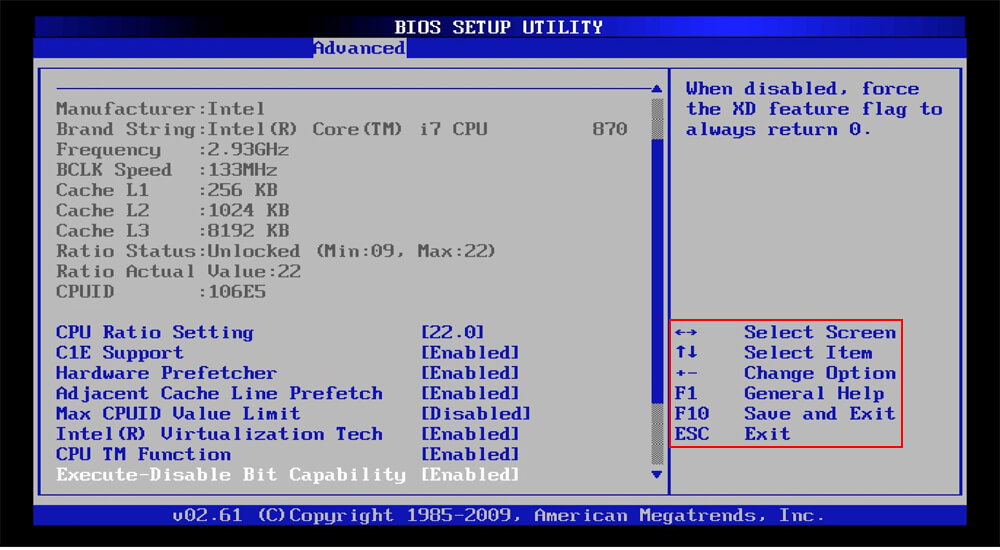
    Note that each computer’s BIOS is different. Your computer’s BIOS may look very different from the screenshots here, or it may look similar but have different options.

    To navigate the BIOS, use the arrow keys on your keyboard. A list of other keys that you need to use usually appears on the screen. Usually, you will use:

    • Left and right arrow keys to switch between setting screens
    • Up and down arrow keys to select an option on the current screen
    • Enter to select an option or enter a sub-menu
    • + and  keys to move items up and down in the list

    If this sounds a bit complicated, it isn’t, you’ll mostly be using the arrow keys and Enter.

    3 Most Common Settings Changed in BIOS

    With access to the BIOS, you will find settings that you should ignore as well as some that may need to be changed. The most common BIOS settings for modification are:

    1. Changing the boot order
    2. Adjusting the available video memory
    3. Setting BIOS password

    Here’s how to do each of these.

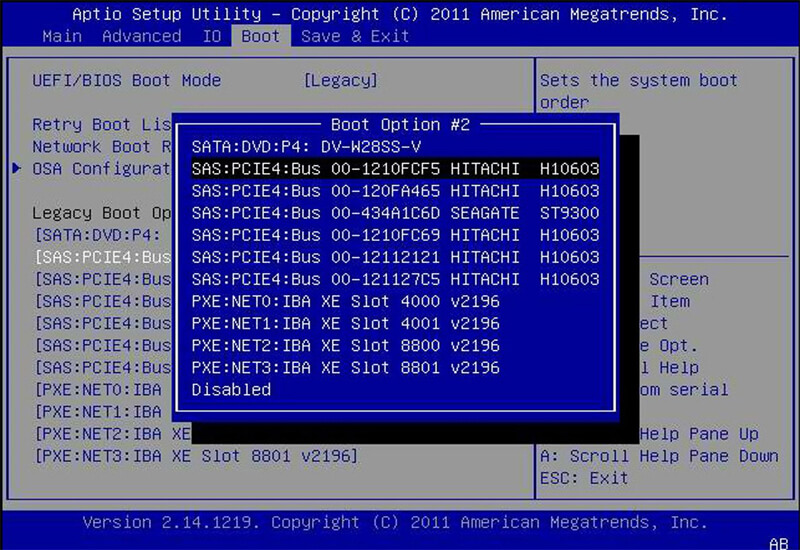
    1. Boot Order

    Boot Order

    One of the most changed options in a computer’s BIOS is the boot order. After the BIOS starts and initializes your hardware, it passes control over to the boot loader that boots your operating system. The boot order determines which devices are controlled by the BIOS.

    For example, you install Windows on your computer and a Linux live CD on your disk drive. (Or, a USB drive is plugged into your computer.) When you boot your computer, which operating system starts? The answer is determined by your boot order.

    It is so-called because it controls the order in which the boot device checks for the OS. For example, a typical computer might have a DVD drive higher in the boot order list than an HDD. This means the computer will try to boot the operating system installation disc or live CD that was inserted first.

    If there is no bootable disc in the DVD drive, the computer will try the next option on the list. This will most likely be the hard drive. You can boot your PC from:

    • Optical drives (CD, DVD, Blu-ray, etc)
    • USB drive (hard disk, thumb drive, or even USB optical drive)
    • Network drives

    If you want to boot another boot device, simply move it up in the boot order list. Usually, you’ll find a boot order on the screen called  Boot or something similar. Use the + and — keys to reset the device in the boot order list.

    Note: on some computers, USB drives may not appear in the list unless they are connected when you enter BIOS.

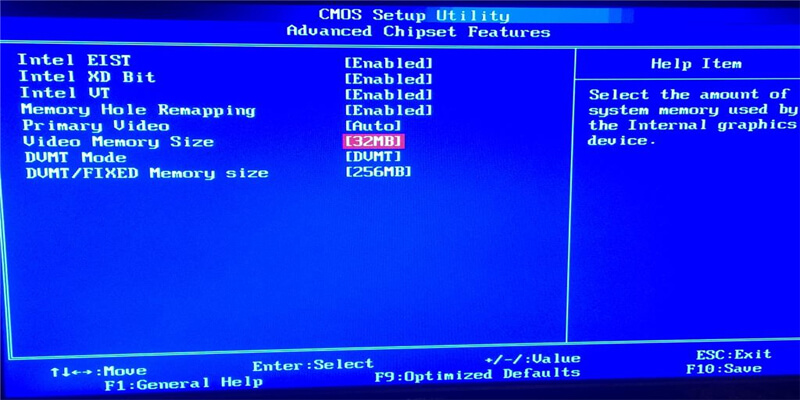
    2. Video Memory

    Video Memory

    Computers with onboard graphics hardware, such as Intel integrated graphics, may have a Video Memory setting. The onboard graphics hardware does not have its own memory the way a dedicated graphics card does. Instead, it takes over a portion of the computer’s RAM and uses it as its video memory.

    On some computers, the Video Memory option allows you to control how this memory is allocated. You can use this to allocate additional video memory or reduce it, reclaiming some of it for system tasks.

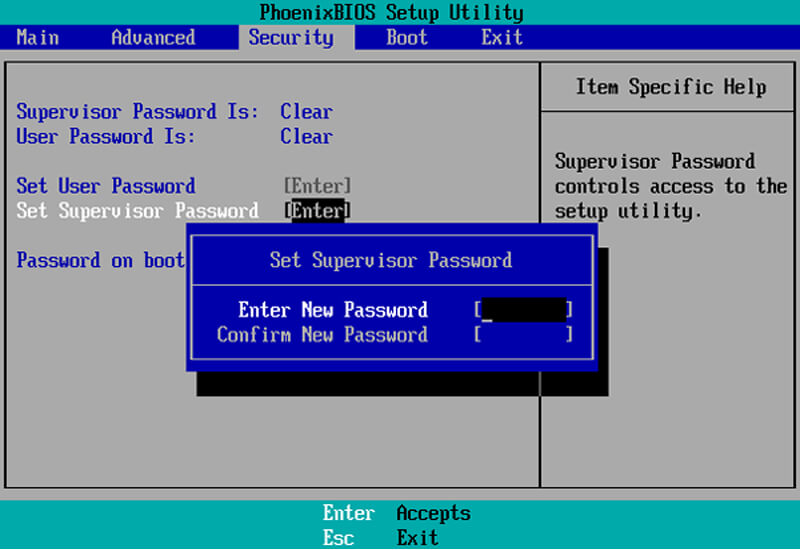
    3. BIOS Password

    BIOS Password

    Although your operating system must have a login password, you can further secure your computer with a BIOS password. This can be set to control access to the BIOS, but you can also set a boot password.

    With this enabled, no one can access the operating system or attached media. Be aware that this is not a perfect security feature. Anyone with physical access to your computer can reset the CMOS to clear this password.

    What Do Save Changes And Reset In BIOS Do?

    The changes you make to the BIOS settings do not take effect immediately. To save changes, look for the Save Changes and Reset option on the Save & Exit screen. This option saves your changes and then resets your computer.

    There is also a Discard Changes and Exit option. This is selected if you make a mistake or decide you don’t want to change your BIOS settings at all. Just use this option to exit the BIOS setup screen without saving your changes. This option may have a slightly different name, but it is available in all BIOSes.

    You can also use the appropriate keyboard shortcuts to save and exit quickly. Usually, this is F10 but again, it may be different in your BIOS.

    What Happens When Selecting the Default Load Setup?

    Your BIOS also contains the option  Load Setup Defaults or  Load Optimized Defaults. This option resets your BIOS to factory default settings, loading the default settings optimized for your hardware.

    This performs a complete BIOS reset, removing any BIOS passwords apart from resetting your hardware settings and boot order. You probably won’t be using this, but it can be useful for quickly changing configurations after adding new hardware.

    Other Less Common Settings Changed In BIOS

    The BIOS contains several other settings and options. For example, there is a System Information screen that displays information about the hardware on your computer.

    Overclockers may be able to use the CPU settings screen to change their CPU voltage and multiplier. This increases CPU performance but it can create additional heat, power usage, and possible instability. (However, some BIOSes lock this setting.)

    Meanwhile, if your PC has support for virtualization, you can enable Hyper-V or Intel Virtualization Technology (or however it’s labeled) in the BIOS. For a full selection of settings that you can modify in the BIOS, check your computer or motherboard manual.

    Read more:

    Conclusion:

    So, what is a BIOS? A BIOS is low-level software, more precisely, the first software that runs when you turn on the computer. The BIOS is a key component of any computer, and knowing how to use it can provide more flexibility and performance benefits.

    When configuring the BIOS, make sure you make your BIOS choices carefully because errors in BIOS settings can cause problems.