Author: Nazrul Islam

  • 10+ Best Free Screen Recorder For Mac and Windows 2024

    10+ Best Free Screen Recorder For Mac and Windows 2024

    Free Screen Recorder For Mac and Windows – In this article, we are discussing a very easy but, in some sense, a little complicated topic on how to record screens on Mac. The reason is intuitively simple as most of the time; we get encounters with some of the awesome videos and clips that we love intensely and want to record for many purposes.

    Free Screen Recorder For Mac and WindowsBest Free Screen Recorder For Mac and Windows PC

    It might be a great reel, viral video clip, YouTube live streaming, Free Fire or Pubg live stream, streaming movies or shows, webcam, sports match, FIFA live match or moment, cricket live shots, or anything in the internet world.

    There is undoubtedly a lot of stuff that we can not download due to many privacy issues or official channels. When we want something to be captured for sure so that we can share it with our friends or loved ones or create some editing outlook for its best. Sometimes there are good causes that you want to get viral or share with media outlets.

    See also: How to record Zoom meetings without permission

    And so it’s an avid need of the Mac users to get something like that which can easily record or capture the screen moments in all ultra-bright and HD resolution. More benefits are welcomed as we would love to record audio with an mp3 recorder, along with that, background sound, and most of the stuff.

    So here, we, for our beloved users, as always, are offering creative and iconic tools that can simplify the needs of screen recording or simply the Free Screen Recorder For Mac.

    Below you can discover some of the best tools and software that allows you to record and capture the screen and many other benefits along with that. These tools are free and some are paid, but don’t worry; we will let you know some of the hacks that can make it feasible for you to use any tool for free;

    Best Free Screen Recorder For Mac Windows PC

    Free Screen Recorder For Mac are some of the tools discussed below; they offer several other benefits along with the screen capture or recording of Mac devices. This software lets you easily record or capture video clips, streaming videos, audio, and live streaming of anything.

    You can also record or interact in meetings like in Google Meet. If you use a proper tool, it will guide you on how to record Google Meet. Simply put into words, it’s like you can record anything that happens to your screen in the most effective and enhanced way.

    Most of the time, it’s beneficial for users in other terms apart from recording the live streaming. As if you gave your device to someone or left it on the bed or somewhere, and if somebody uses it- in that case, if the recording is on, you can watch anytime what they have done on your device. All their surfing, browsing, playing, or anything they have done will be readily available.

    Explore below some of the popular Free Screen Recorder For Mac you can use to perform the recording functions.

    Free Screen Recorder For Mac

    We are discussing some of the iconic tools and software that are authentic and help you record the screen and capture the moments. There is no shortcut or ease to using this software is simple, so you don’t need to bother much. These Free Screen Recorders For Mac are authentic and trusted.

    EaseUS RecExperts

    Maybe for some people, the screen recorder is not important. A screen recorder or screen recorder is an application that can help us to do many things.

    Especially if your work is related to recording or downloading your PC screen, from recording the screen to taking layer images with high quality, everything can be done using a screen recorder application.

    Of course, this resulted in screen recorder applications mushrooming on the internet, and all of them promoting themselves as the most suitable screen recorder for everyone.

    One of these applications is EaseUS RecExpert. Does this streaming audio recorder for the Mac application have the quality features it says?
    Free Screen Recorder For Mac

    Benefits of EaseUS RecExperts

    #1. Layout: simple but attractive

    The first thing we can see with EaseUS RecExperts is that their layout is quite simple.

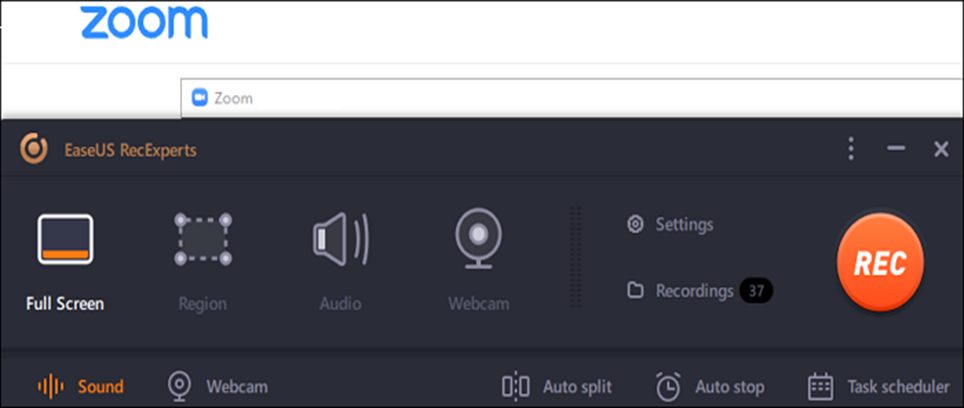
    When you open the application, you are immediately presented with a medium-sized bar with a bright black color. If you open the app, you will be given brief instructions for using it. The simplicity of their toolbar is a plus point of this free video recording software.

    You will not feel dizzy or confused when you see it. The icons used can be seen clearly and neatly arranged. The font for instructions is also easy to read. In the visual aspect, EaseUS RecExperts has a simple design, however, this simplicity is what makes them different from other applications. This simplicity makes them look unique, simple, elegant, and attractive.

    #2. Easy to use

    How about the user interface of the application? EaseUS RecExperts for Mac has an easy and smooth interface to use.

    The tutorial given at the beginning of use is very useful for those who are not familiar with the application. We can learn to use it in less than 5 minutes!

    This is all thanks to their straightforward system. You can change settings quickly with just a few clicks. Recording and taking pictures can also be done quickly and not grandiose.

    Of course, they also have enough features. You can set the recording resolution and audio used. When you finish recording, you can see it again in the list of recordings that have been provided.

    Before starting the recording, it would be better if you stop by the Settings section and then adjust the settings to what you want.

    When you’ve finished adjusting, then you can start recording sessions, from screens to streaming using a webcam.

    Of course, just like most screen recorder apps, you also record only the sound, the screen, or even the game you’re playing. This feature is suitable for those who have a hobby of streaming online games.

    EaseUs RecExperts’ features don’t stop there. You can edit your video and do basic editing such as trimming, adjusting video speed, adding intro and outro text, and also adding watermark. Overall, EaseUS RecExperts is fully featured for those who want to record their laptop screen.

    They have an additional feature, namely a video editor. But of course, you shouldn’t expect to get the perfect editor.

    Their focus is to provide excellent video recorder services, and they have succeeded in doing so.

    #3. Live Chat

    The last advantage of this application is its customer service. They have Live Chat that can be contacted at any time.

    Don’t worry about the duration, because they will reply as soon as possible. So, you can ask them or complain about the product without having to wait a very long time.

    #4. Snagit

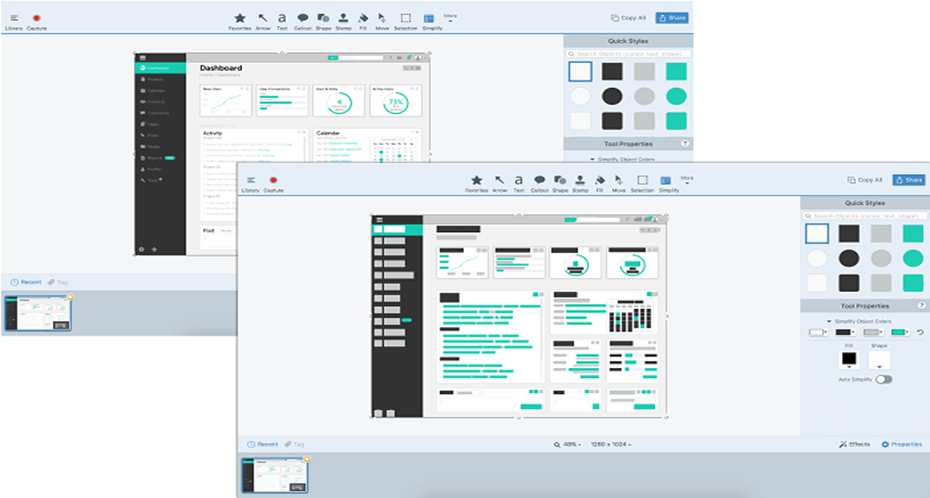
    Snagit is the most popular and iconic recording tool that lets you capture the screen with ultra-improved resolution and unmistakable quality. It’s programming that sticks every minor moment in your device and offers you the most accessible outcome. Encourage teamwork through its feasibility and better feedback options.
    Snagit

    Features

    • Capture everything on the screen
    • Options to add visuals
    • Allows commenting on with arrows, shapes, etc

    #5. OBS

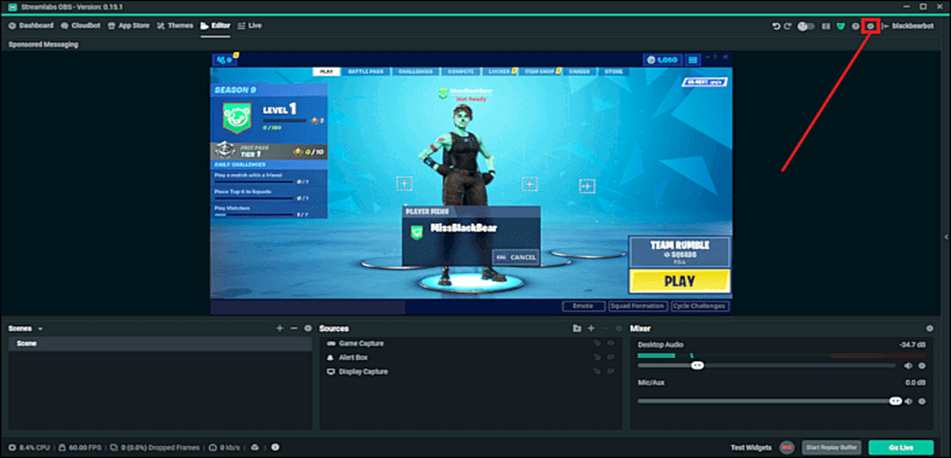
    Open Broadcaster software is one of the fantastic tools and screen recording on various live streaming and screen moments. It’s free to use and compatible with almost all devices. It offers the users a variety of features like accurate time sourcing, scene composition, recording, broadcasting, encoding, etc., along with a variety of plugins to even extend the options.
    OBS

    Features

    • An endless number of scenes and sources allowed
    • Output in MP4 and MLV
    • Bilinear and lanczos3 resampling
    • H264 and AAC encoders

    #6. Snapz Pro

    Mainly used for book production and is offered by Ambrosia Software. It is particularly based on recording screen moments doing random moments like mouse icons surfing and clicking on various items or options. It is one of the most widely used tools in doing simple tasks.
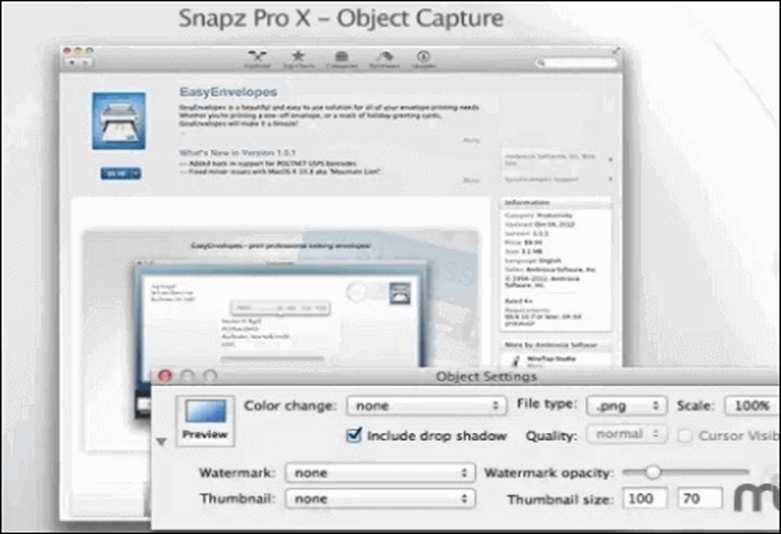
    Snapz Pro

    Features

    • Preview options to choose correctly your recording
    • Nuance-based recording and capturing

    #7. Quicktime

    It is one of the best tools and software to record streaming and movie kind of content with easy feasibility. It is crafted purposely for multimedia-oriented works.

    It is a vastly used tool for panoramic images, digital activity, interactivity, pictures, and more in most digital companies. It is the latest and allows users to record instantly with the most effortless approaches.
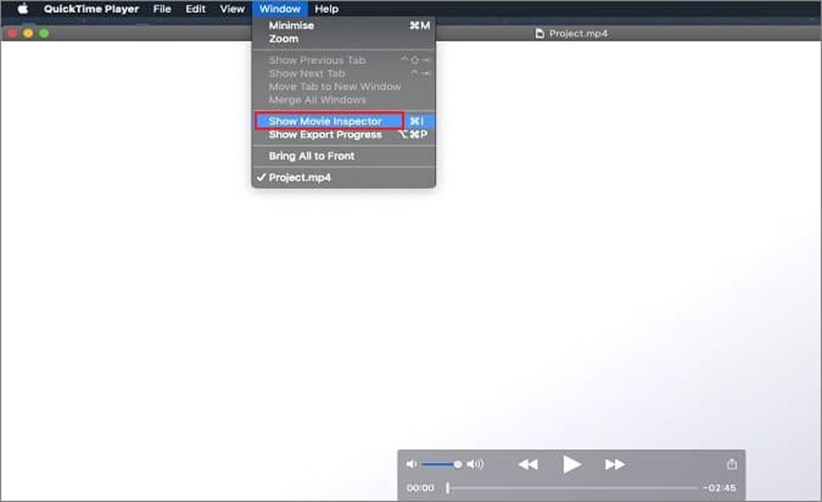
    Quicktime

    Features

    • Smooth and easy interface
    • Integrates itself into third-party programs to record perfectly
    • Limits on recording but classic editing tools

    #8. Active presenter

    The active presenter is one of the most accessible and exciting screen recorders that allows users to record and capture nuances of the screen. It will enable users to record screens, edit screencasts, and create live courses. It’s best for the person who wants to create classes based on the practical options shown on the screen, on YouTube, or on another platform.
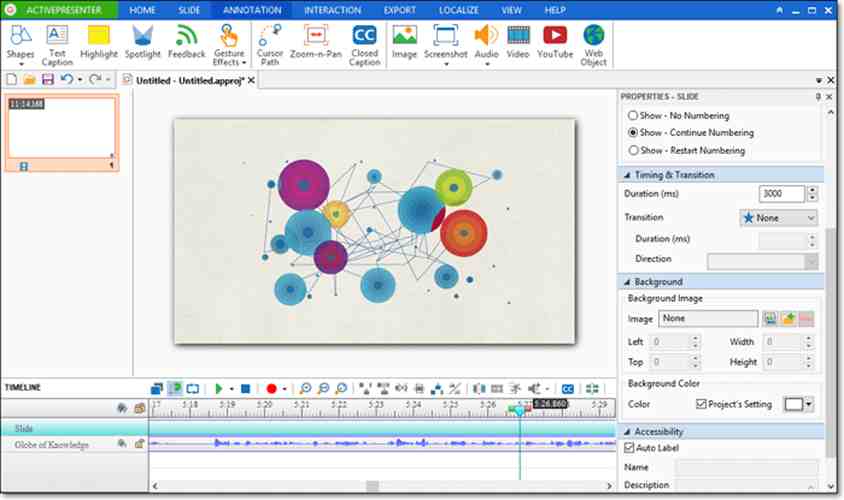
    Active presenter

    Features

    • Configurational hotkeys for best course-creating
    • Full motion recording
    • Annotations inserting

    #9. VLC

    It’s a free and vastly used program that is mainly used as a video player for playing all formats of documents, including videos of all resolutions, formats, audio, CD, DVD, VCDs, etc., and it’s excellent in its video player work. But it’s not limited to only being a video player as its screen recording capacity is incredible. Most of the users don’t even know about its ability.
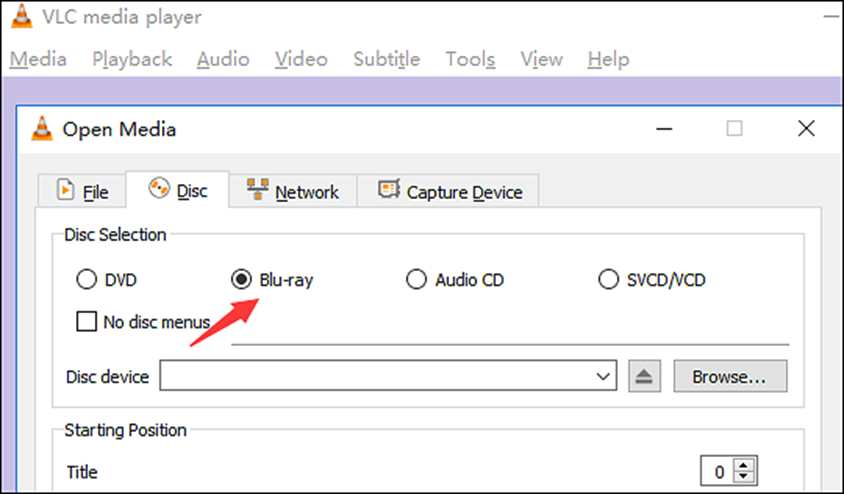
    VLC

    Features

    • Controls playback easily
    • Capable of Streaming media over any network or the internet

    #10. Monosnap

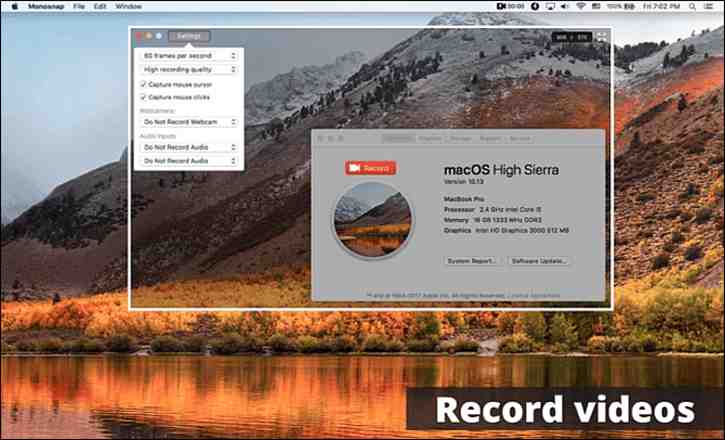
    Monosnap is one of the widely popular screenshot-capturing tools for Mac users that allows you to capture deadly clear screenshots and then share them with anyone you want on many platforms.
    Monosnap

    Features

    • Storage access in one click
    • Highlights essential details and points
    • Markers, text, attributes, pen, shapes, arrows, and other infusions
    • Captures selected part or full screen

    #11. Apowersoft screen recorder

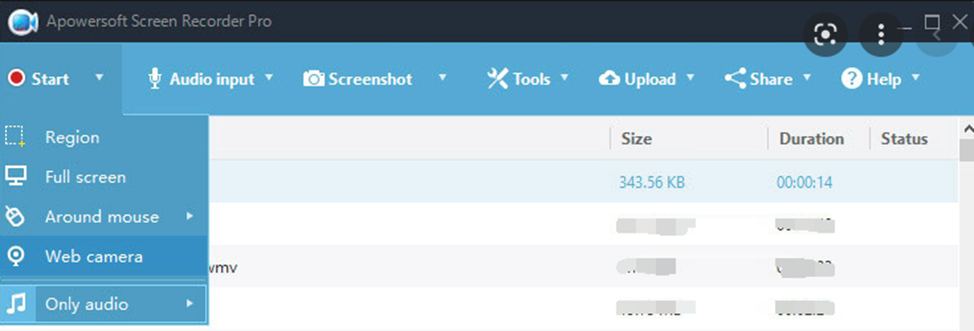
    You were an extremely luring screen recorder that also records audio and syncs it to screencast. One of the best screen recorders allows you to record, pause, and resume recording anytime to make your personalized content.
    Apowersoft screen recorder

    Features

    • Accessible and easy user interface
    • Selected part recording and flexible screen motions’
    • Automatic recording by scheduling

    Conclusion:

    We have offered the possible answer to Free Screen Recorder For Mac, and we believe that it satisfies you; if any issue is left over, please write it down in the comment section.

    All the tools and software discussed above are authentic and trusted, so no worry about their security measures. Carefully install them and enjoy your unique journey of personalized work through the best screen recording.
  • What Is The Difference Between Virus And Malware 2024

    What Is The Difference Between Virus And Malware 2024

    What Is The Difference Between Virus And Malware – If you are one of those people who think Malware and Viruses are the same things, then you are currently wrong. So, let’s find out the difference between viruses and Malware in detail.

    What Is The Difference Between Virus And Malware
    What Is The Difference Between Virus And Malware

    What Is The Difference Between Virus And Malware

    Have you ever tried to understand the difference between viruses and malware? Even though they are meant to damage devices, steal data, and spy on victims, why are they given different names?

    Read more:

    What is Malware?

    Malware is an acronym for the phrases Malicious and Software. Malware is software specifically designed to work undercover with the aim of damaging devices, stealing data, and causing chaos. Malware is usually created by a group of hackers who want to make money by spreading it or selling victim data to buyers at the highest price. However, Malware is also often created to test the security of a system.

    What are Viruses?

    The virus is a type of malware that attaches itself to files and infects other files. They can spread uncontrollably, destroy core system functions, and then delete or at least corrupt files so that you can’t open or use them again. Viruses are usually in file format (.exe). W32.Sfc! mod, ABAP.Rivpas. A, Accept.3773 are some examples of virus programs.

    Difference Between Virus And Malware

    Viruses are one type of Malware. Malware is a general term for malicious software designed to damage computers such as viruses, trojans, ransomware, bots, spyware, etc. So basically, terms like virus or trojan are one type of malware.

    Why Do People Create Malware?

    After reading all this, you might be wondering why people create malware. Here are some reasons that might compel coders to write malware programs:

    • Controlling someone’s computer for personal or group reasons.
    • For financial gain. This also includes hackers who collect money for a purpose. Maybe you’ve heard of cases of ransomware attacks where hackers collect money to feed people. But that doesn’t mean what they are doing is right.
    • To steal confidential data.
    • To prove their point. For example, by committing a security breach on a vulnerable system.
    • To log individual computers or complete networks.

    Impact of Malware on Computers

    Many people have become victims of the malignancy of malware. Hackers use it to steal passwords, delete files, and render computers inoperable. Malware infections can cause many problems that affect day-to-day operations and long-term security. Reporting from  Console Tech, the impact of malware on computers includes:

    • Interfere with the operation.
    • Steal sensitive information.
    • Allows unauthorized (illegal) access to system resources.
    • Slow down computer speed.
    • Creates problems when connecting to the network.
    • Often results in freezing or crashing.

    How to Prevent Malware?

    Maybe you’ve heard the saying prevention is better than cure. So before you learn how to remove Malware, you should first know the things that can be the entrance of the Malware to your device. Below are some actions that can minimize the entry of Malware.

    • Keep the system up to date.
    • Use genuine software or not pirated.
    • Install an anti-virus or anti-malware application and update it regularly.
    • Use a unique password.
    • Check the software you want to download.
    • Never open unknown emails which are generally in the Spam folder.
    • Never open unknown links or sites, use the online website security checker tool if you are not sure to open the website.

    By taking these simple steps, you can effectively keep your device free from Malware and other potential threats.

    Read more:

    Conclusion:

    So that’s the difference between viruses and Malware. In essence, Virus is a type of Malware and it is a threat to any device that is connected to the internet. Because hackers are now more creative in developing ways to infect a device’s system.

    Staying aware of your online activity, and knowing the signs of a Malware attack is the best way to protect your device from Malware attacks. Therefore, make sure your device is strongly protected.

  • 4 Best PUBG PC Emulator Recommendations for Android 2024

    4 Best PUBG PC Emulator Recommendations for Android 2024

    4 Best PUBG PC Emulator Recommendations for Android – PUBG Mobile is an Android game that has recently been favored by smartphone users. PUBG Mobile’s total downloads to date have reached more than 200 million downloads.

    4 Best PUBG PC Emulator Recommendations on Android
    4 Best PUBG PC Emulator Recommendations on Android

    4 Best PUBG PC Emulator Recommendations for Android 2024

    This Android game offers an endless battle battle battle sensation. This game was adapted from PlayerUnknown’s Battlegrounds game which was previously popular on the PC platform.

    Read more:

    The enthusiasm of the players is so great, making developers intend to bring this game to the mobile platform.

    Now smartphone users can enjoy, the excitement of fighting battle royals through their cellphones, by playing PUBG Mobile.

    Until this day, the enthusiasm of the players was increasingly unstoppable. But unfortunately, there are still many players who cannot try this game, because the cellphone used is not capable enough.

    One way to try to play this battle Royale game without a smartphone is to play it on a laptop or PC.

    Players who have a middle to upper-class laptop or PC can actually play PUBG Mobile on a PC.

    But you have to download the PUBG Mobile emulator first, to be able to install the game on your laptop or PC.

    For those who don’t know what an emulator is, emulators are software that can be used to run games and android applications on a PC.

    Following this, GizNET has prepared a mobile emulator PUBG recommendation for the best PC.

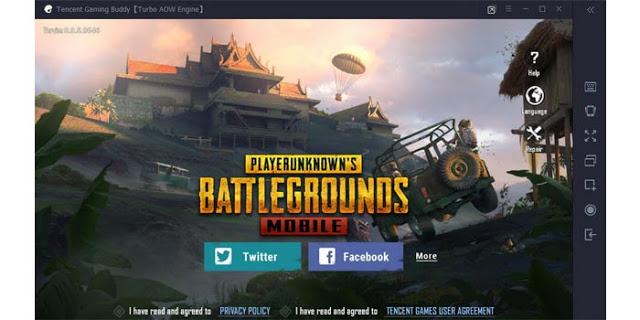
    #1. Tencent Gaming Buddy

    Tencent Gaming Buddy
    Tencent Gaming Buddy

    The first Android emulator that can be used to play PUBG Mobile on PC, is a Tencent Gaming Buddy emulator.

    As is known, Tencent is a developer of PUBG Mobile. They also released an Android emulator that is devoted to playing PUBG on Mobile PCs.

    This Tencent emulator is an official emulator, which can be chosen to play the PUBG Mobile game on a PC.

    You can download Tencent Gaming Buddy directly from the official site for free. But before that, make sure that your PC meets the criteria for running the PUBG emulator.

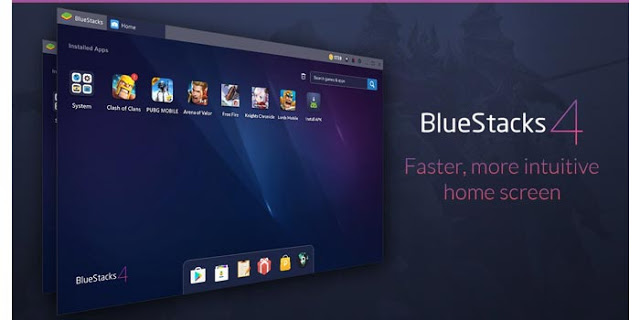
    #2. BlueStack

    BlueStack
    BlueStack

    BlueStack is another Android emulator, which you can also use to play PUBG Mobile on a laptop.

    This emulator can not only be used to play PUBG Mobile PC, but also various other Android games.

    But before installing this Android emulator, your PC should meet the minimum system requirements, to avoid lags.

    Download Bluestacks emulator

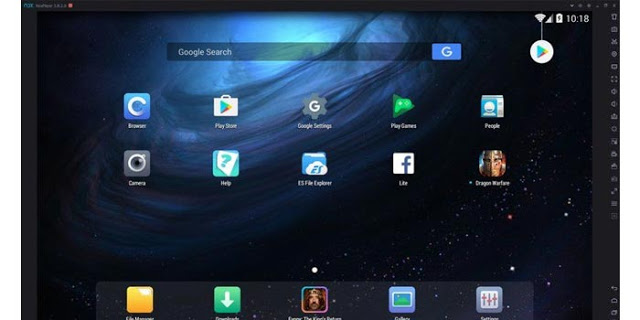
    #3. Nox Player

    Nox Player
    Nox Player

    Next is Nox Player, which is included in the best PUBG Mobile emulator series. Many vlogger games use this emulator, to play various kinds of Android games. This

    Android emulator is equipped with features for recording screens, so players can record their games and share them on social media like YouTube.

    The computer specifications needed to install this software are quite high, you can see the details directly through the official website.

    Download the Nox App Player emulator

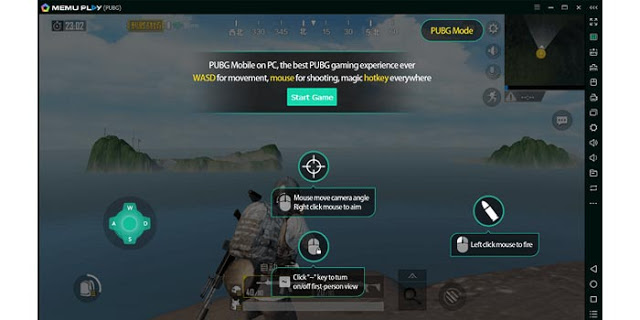
    #4. Memu Play

    Memu Play
    Memu Play

    Memu Play is also the best PUBG Mobile emulator, which you can download and use for free.

    Besides playing PUBG Mobile, you can also play other Android games, such as Free Fire and Mobile Legends.

    If you want to install this emulator on your computer, make sure the specifications of the computer you are using already meet the minimum criteria.

    Of the four Android emulators mentioned above, the Tencent Gaming Buddy emulator is the lightest and most suitable for playing PUBG Mobile.

    Armed with computer specifications that are not too sophisticated, you can already play this game via a PC.

    Because it’s a Tencent emulator able to run smoothly, on a PC that has 4GB of RAM and a Core i3 processor.

    Unduh emulator MEmu

    Read more:

  • How To Download PUBG on Laptop PC 2024

    How To Download PUBG on Laptop PC 2024

    How To Download PUBG on Laptop PC – PUBG is a game that was first launched on a PC before the mobile version was released. However, the problem is that PUBG for PC is usually paid, whereas mobile PUBG itself can be obtained free of charge.

    How To Download PUBG on Laptop PC
    How To Download PUBG on Laptop PC

    How To Download PUBG on Laptop PC 2024

    For this reason, not a few PUBG players end up using an emulator to be able to play the PUBG Mobile game for free on PC.

    Read more:

    What is the difference between PUBG mobile and PUBG on PC?

    Actually, the mobile PUBG with the PC version are the same, even though both are played using a similar server so that players can meet in the game. For those of you who are not satisfied with playing the mobile version of PUBG, we will, therefore, share how to download PUBG on a laptop.

    Minimal PC Specifications for PUBG

    Before downloading and installing PUBG on a PC / Laptop, we must first know the minimum specifications of the laptop or PC needed to play the mobile version of PUBG games. At the very least, your PC must have the following minimum specifications so that no lag occurs when playing PUBG.

    • CPU Specifications: 1.8 GHz Dual Core from AMD or Intel
    • ATI / AMD from Radeon HD2600 / 3600
    • Minimum GPU capacity of NVIDIA GeForce 8600/9600 GT
    • OS for Windows 7, 8, 8.1, and 10.
    • The minimum RAM capacity of 4GB
    • The minimum storage capacity of 2GB

    What is the Official Emulator from PUBG?

    Before downloading the PC version of PUBG, we must first download the emulator. We can use any type of emulator we want. But one of the official types of PUBGM emulators that are often used is Tencent Gaming Buddy.

    Different from other types of emulators, playing this game using the Tencent Gaming Buddy emulator itself means that you will get the support of the original developer directly. You don’t need to worry about bugs, other than that the network is also more stable, and the keyboard layout settings are automatic.

    Installation stages PUBG Mobile In Laptop / PC

    How to download PUBG on a laptop must follow the steps below, first, you have to install the emulator first. Then you can install the PUBG mobile game on a PC. For more details, you can see the PUBG download tutorial on the following laptop!

    Best Tricks To Download PUBG on a Laptop PC

    Best Tricks To Download PUBG on Laptop PC
    Best Tricks To Download PUBG on Laptop PC

    Apart from being created for PUBG games, mobile phones are also available and can be played on laptops. How to play PUBG on a laptop? There are several steps that you must do before you can play PUBG games on a laptop / PC. Check out the details thoroughly …

    #1. Download PUBG Game on your Laptop

    Of course, the first step that must be followed before you can play PUBG games on a laptop is to download them first. This stage requires us to download the emulator first.

    There are a lot of emulators for PUBG games on laptops, it’s just that we recommend downloading Tencent Gaming Buddy, which is very easy to become an official Emulator of PUBGM.

    Well, how do I download this Tencent Gaming Buddy? The method is like this:

    • Visit the official website here » https://tgb.qq.com/en/games/pubg.html
    • Simply press the Download button.
    • Then you will be given a .exe file to install on a laptop / PC.
    • Wait until the download is complete.

    #2. Install PUBG on Laptop / PC

    Well, after waiting a few minutes and downloading the emulator is downloaded. Now we enter the installation phase. Already know how to install the easiest? For those who might not know, this is how to install PUBG on a Laptop / PC.

    • Open Windows Explorer (Ctrl + E). Search where the PUBG game file storage folder was downloaded.
    • After finding the file, Double click (click 2x) to open.
    • Select and click Customize.
    • Determine the location of PUBGM storage, which drives you to want to put in. You can click Browse to place the appropriate storage in your desired Drive / Folder. Recommendation: Put it on a drive that still has a lot of space.
    • After that, you can directly click Install.
    • Wait for the installation process to finish.
    • After the Emulator installation process is complete, the next step is to click Start.
    • Wait until the Engine install process is complete. (Note: Internet connection must be stable and good)
    • After the Engine install is complete, continue to download the PUBGM game data automatically. Please be patient, because the data is large, and the process takes longer. Just wait until the data download is complete. To expedite the process, it is also important to ensure that your internet connection must be stable and not uninterrupted.
    • After installing PUBGM complete 100% then we proceed to the next stage.

    #3. PUBGM initial settings on the laptop

    After the game is installed and the data is downloaded, we can immediately start playing PUBG games on the laptop / PC that we have. However, in the initial stages, you have to do the initial settings.

    Keep calm, PUBGM settings on the laptop are not complicated really. It is very easy, especially if you have often played PUBG games on an Android phone before.

    Still don’t know how to set it? Look …

    • Make sure you have opened the PUBG game on your laptop / PC.
    • At the beginning of the main page, we are required to login first using a PUBG account that we already have.
    • There are 3 button options to log in, namely Twitter, Facebook, and Google Play Games.
    • If you don’t want to log in, you can also use the Guest mode provided.
    • After that, first, select your region or country. For those who live in Indonesia, you can choose the Asian Region.
    • Press Continue.
    • Select and set the character/avatar according to your preference. You can choose a model ranging from Face, Hair, and others.
    • Determine your favorite nickname. After all the characters are finished, just click Create.
    • Then choose your experience options. Rookie for Beginners, Experienced for Experienced, or Pro.
    • Select and adjust the graphic display according to the specs of the laptop / PC that you are currently using.
    • After everything is set, click the Got It button. And you will be directed to the lobby game.

    #4. PUBG Control Settings on the Laptop

    The next step is to do the control settings. The default PUBG game has already been set to control the game. It’s just that, sometimes there is no Nikulina. So it can be adjusted to adjust the Nikulina control.

    To set it, all the control buttons are on the right. You can select Key Mapping (pictorial keyboard) to adjust the parts of the play control.

    #5. Tencent Gaming Buddy Graphic Settings

    To expedite game performance so as not to lag and jam, we can set the Tencent Gaming Buddy graphics emulator. The trick is like this:

    • Enter Tencent Gaming Buddy
    • In the upper right corner, click the three vertical lines then select Settings.
    • A dialog box appears, then select the Engine menu.
    • In the Rendering section, select DirectX + and check all settings starting from Render Cache, Enforce Global Render Cache, and Prioritize Dedicated GPU.
    • If the GPU you are using is still below the GTX1060, it is strongly recommended to select the Close option in the Anti-Aliasing option.
    • Allocate your 2GB of memory to minimize lag.
    • For Processors, Resolution, and DPI adjust to the maximum capabilities of your CPU and GPU so that you can get a better FPS.
    • After completing the engine, then move to the Game option in the Settings Center.
    • In the Gaming Resolution option, you can choose HD settings if you use a minimum of GTX 660 or Ultra HD 2K if you use a minimum of GTX 1060.
    • Select the HD option in Display Quality.
    • Next enter the PUBG Mobile game and open the options/settings menu then maximize the FPS, Frame Rate, and all available options according to the Tencent Gaming Buddy engine settings
    • Keep in mind, in the graphic settings make sure not to try to set the graphics beyond the ability of your laptop / PC so that lag in the game can be avoided.

    Read more:

    Conclusion:

    So, friends, that’s on above how to Download PUBG on a Laptop/PC. So, we have done enough to review the how-to download PUBG on a laptop or PC easily and quickly.

  • How to Download PUBG Lite On PC Windows 10 [2024]

    How to Download PUBG Lite On PC Windows 10 [2024]

    How to Download PUBG Lite On PC Windows 10 – For those of you who have limited PC or laptop specifications but like to play PUBG, now there is PUBG Lite for PC.

    How To Download PUBG Lite On PC
    How To Download PUBG Lite On PC

    How To Download PUBG Lite On PC Windows 10 Laptop 2024

    PUBG Lite is a lite or lightweight version of PUBG Steam. Developed by Thai developers (Project Thai), PUBG Lite has a small size that is friendly to play on most PCs. Although the game size is small, the gameplay is 99% similar to the Steam version.

    Read more:

    To install and play this game you must use a Thai IP. This is because PUBG Lite is still Open in Beta in Thailand. This game is suitable for those of you who have specifications for a PC or laptop that is low (low).

    • Open the PUBG Lite official site, and click here. (Don’t be surprised because when the site is opened in Thai. Later the language will automatically change to English.)
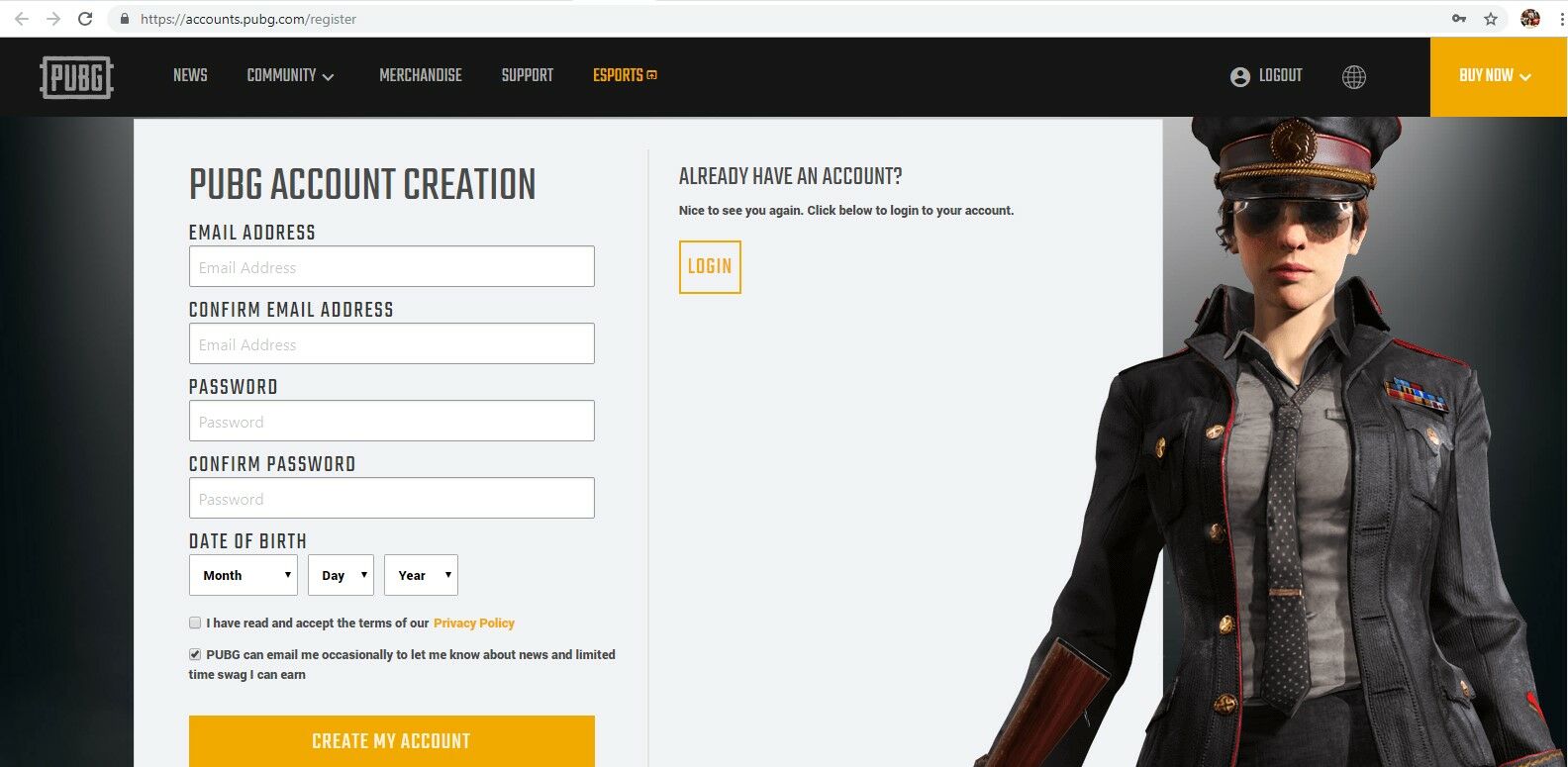
    • Before downloading the PUBG Lite game, click ‘Apply PUBG ID’ in the upper right corner to register your account. Fill in the blank fields with your data (e-mail, password, date of birth). Then, click ‘Create My Account and verify it.
    Create My Account
    Create My Account
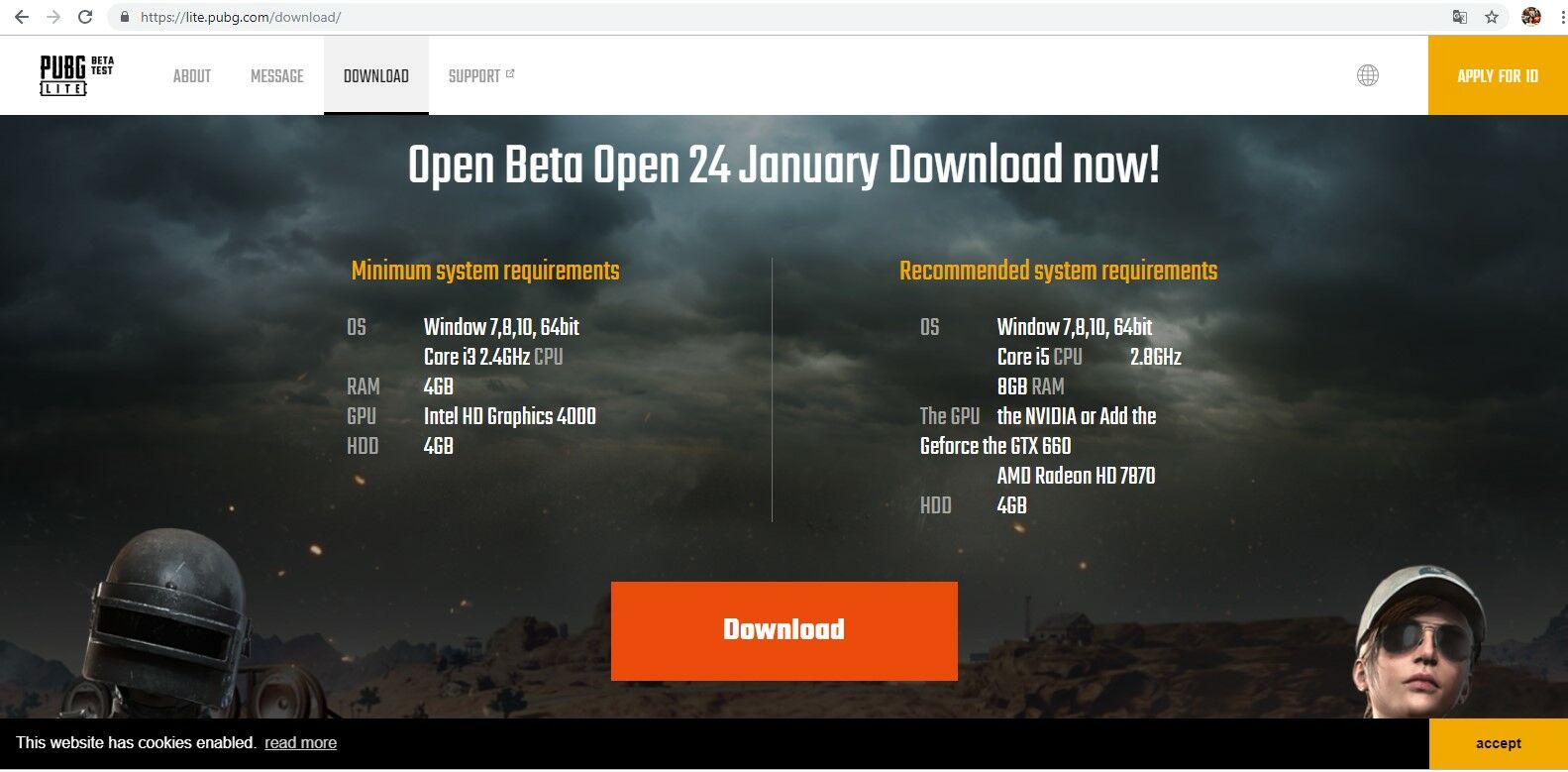
    • After completing registration, click ‘Download’ on the home page.
    After the registration process is complete
    After the registration process is complete
    • Next, scroll down and click on the orange box that says ‘Download’. And, wait until the download is complete. The downloaded file is around 60MB.

    How to Install PUBG Lite on a PC

    Follow the steps below to install PUBG lite on your computer.

    • After you have finished downloading PUBG Lite Launcher, you must download the VPN first before playing. There are many free VPN options available.

    • After installing a VPN, open your VPN, and select the Thai server.

    • Next, click PUBG Lite Launcher which was previously downloaded above.

    • Enter the ID and password that you created earlier.

    • After logging in, click the orange button on the bottom left (translated from Thai means to install).
    • Wait until the download is complete, then close the PUBG Lite launcher.

    How to play PUBG Lite on a PC

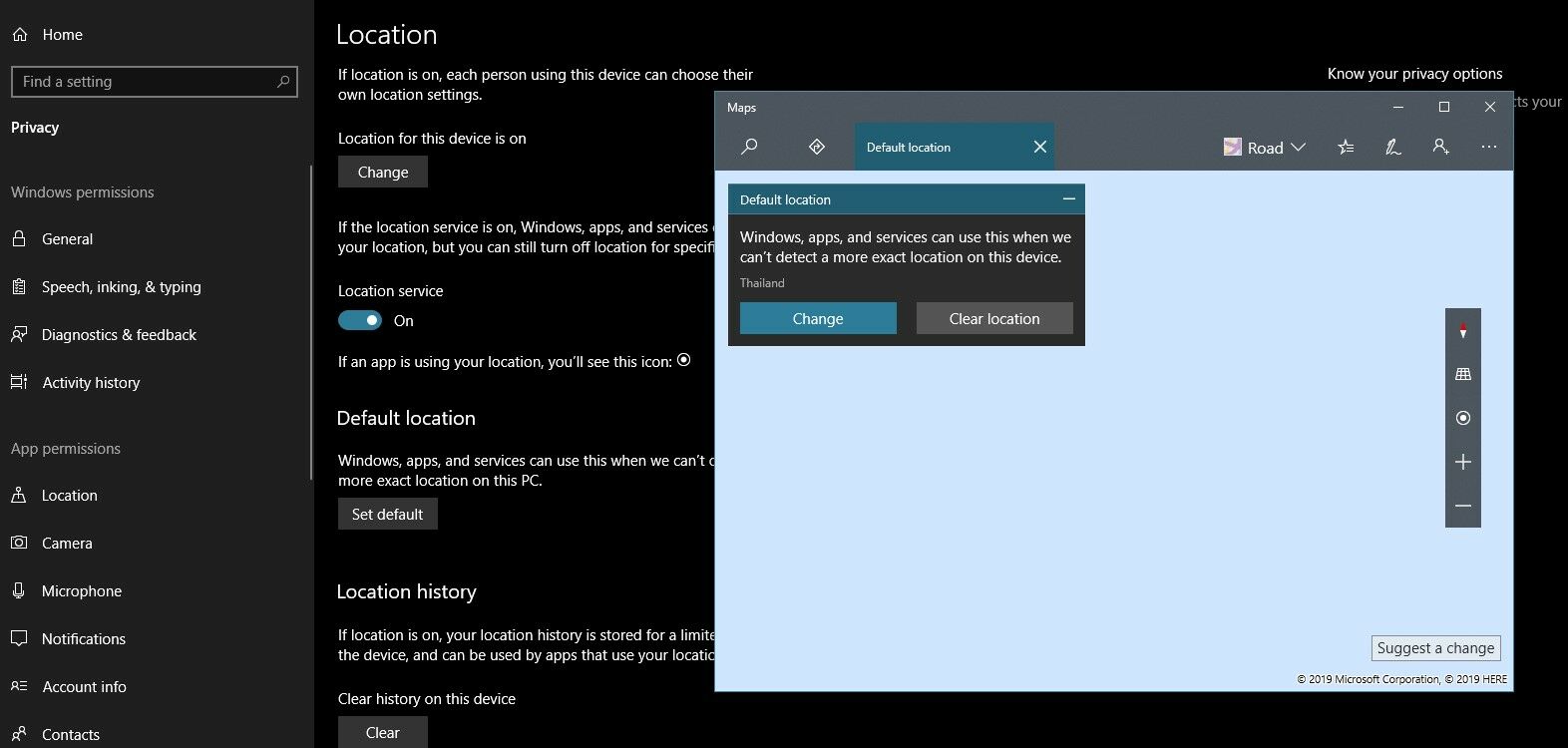
    Before playing, you must first change the location on your PC. If you use Windows 10, open ‘Settings-> Privacy-> Location’.

    Click ‘Set the default’ to change the location and search for ‘Bangkok City, Thailand‘.

    How to play PUBG Lite on PC
    How to play PUBG Lite on PC

    Photo Source: Gig Gadget Youtube Account

    After that, still in the Settings menu, click Time & Language, and change Time Zone to (UTC + 7: 00) Bangkok, Hanoi, Jakarta.

    Now, you can play PUBG Lite on a PC. Don’t forget the VPN must stay on. Enjoy!

    Details PUBG Lite specifications on PC
    OS Windows 10 (64bit)
    The CPU Core i5-650 3.2GHz
    RAM 8GB
    GPU NVIDIA Geforce GTX 660 or AMD Radeon HD 7870
    Hard disk 4GB
    Direct X DX 11

    Now work is done! and you can enjoy this.

    Read more:

    Conclusion:

    So, friends, This is the explanation of how to download PUBG lite on a PC, I hope this article is helpful for you, also share this article on your social media with your best friends.