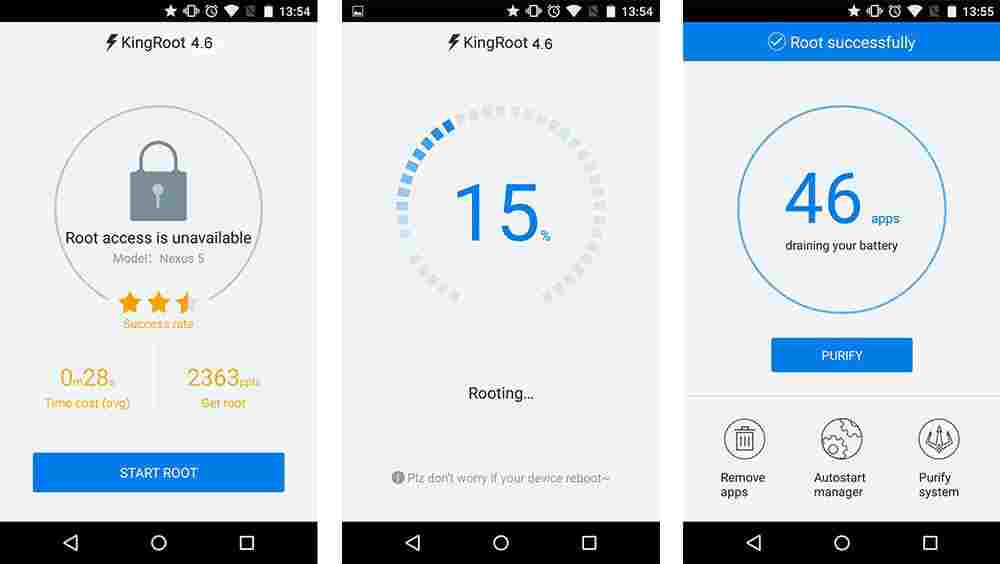
[100% Work] How to Root Asus Zenfone GO without PC – For current Asus Zenfone GO cellphone users, you don’t need to be difficult to root the device. It can even be done without a PC by using the latest Kingroot apk which can be done with just one click.
[100% Work] How to Root Asus Zenfone GO without PC
There are many reasons that Android users have for rooting their devices, one of which is because they can run cool root applications where with the help of the application we can make the appearance of the cellphone more beautiful.
One of the root APK applications that is often used for root is KingRoot APK. This application is trusted by many users to easily open root access. Besides, this apk is only installed then with one click it has succeeded in rooting.
This time we will give you how to root Asus Zenfone Go with Kingroot to make it easier for users to further optimize the Asus Zenfone GO device. Please see below the tutorial.
How to Root Asus Zenfone GO without a PC
First, prepare the application, you can download KingRoot APK via the official website directly.
Run the kingroot application, then press Try to Root or Start Root
Then wait for the root process to complete
When it’s finished, now you can check it with the Root Checker application Done.
It’s very easy, right, how to root Asus Zenfone Go without a PC?
If you have finished rooting, now do some helpful tips from us below 7 Android Tricks Once the ROOT You Must Do
But beforehand, make sure you know the impact of the root and the negative things.
Advantages of Root
We get many advantages from rooting, one of which is being able to tweak the RAM, change the appearance of the status bar and UI, and modify applications and data on an Android smartphone.
The most interesting thing is that we can install CWM where this application is handy when we want to try a Custom ROM (ROM modified by people) so that we can try other cellphone displays such as custom ROM iOS, MIUI, Nexus, and many more.
Disadvantages of Root
Before rooting, make sure you already know the risks, namely loss of cellphone warranty, system security is reduced because viruses easily enter if there is root access and several other problems regarding the system.
Rooting the Asus Zenfone GO is the best way for those who want to experience another custom ROM with a different cellphone display. Likewise, root apps are cooler than ever.
There are still more advantages to root than disadvantages, so hopefully, this tutorial can make it easier for users to root and have a good try.
How to Activate Windows Defender on Windows 10 PC – Windows Defender is a tool to prevent ordinary viruses often called antivirus programs. Where your laptop or PC is protected by it. Therefore, how do I activate Windows Defender on Windows 10 laptops?
How to Activate Windows Defender on Windows 10
How to Activate Windows Defender on Windows 10 PC
Why does it have to be Windows 10? because the default antivirus is only obtained when you use Win 10.
Windows antivirus itself is already embedded directly after the purchase of a new laptop or computer.
Windows Defender function
Windows Defender has functions for the health of the operating system, but not only that, the following functions – functions:
Hold the virus in
Detect virus
Provides security through a firewall
If you will use the method of permanent turn on Windows Defender.
Where your device will be protected from the dangers of viruses. For that, please refer to the review of turning on Windows Defender below.
How to Activate Windows Security
#1. How to turn on Windows Defender in the Security Center
In this first step, I recommend that you are a beginner who does not want to be complicated in the process of turning on the Windows Security Center by default.
However, you need this basic method where you are only told to open Windows’s default antivirus settings.
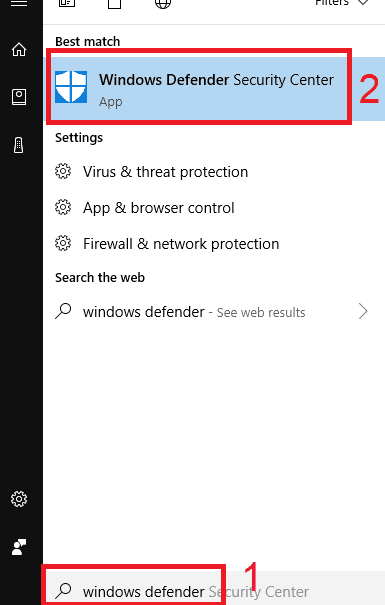
First, enter the Start Menu or press the Win icon Shortcut combination. Then type Windows Defender. Then the display will appear as drawn, press on the Windows Defender.
How to turn on Windows Defender in the Security Center
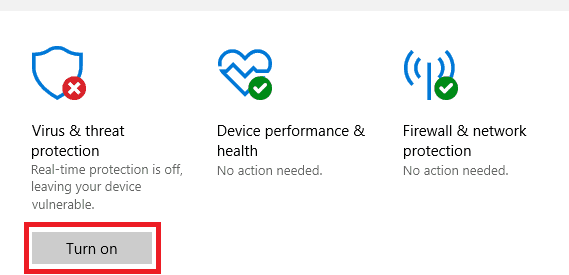
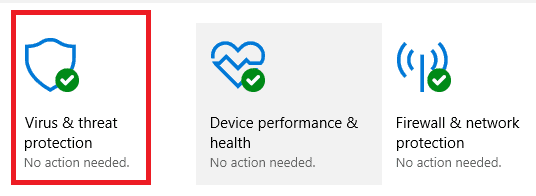
Second, there will be a new look where you tell me to press the Turn On menu under the words Virus & Threat Protection.
Turn On
If before this virus and threat protection has not been active then there will be a red button with a cross in the right corner according to the picture.
Then turn off by group policy just by pressing the Turn On button then a pop-up will appear, press Yes.
Once turned on, you can see the red mark with the cross image has disappeared.
The button has changed color to green with a checkmark that looks like the image below.
Then turn off by group policy just by pressing the Turn On button then a pop-up will appear, press Yes
After doing the above method, how to revive Windows Defender with the basic tutorial. You can see in full if your defender does not want to be turned on.
#2. How to Activate Windows Defender on Windows 10 via Group Policy
For Windows 10 home edition users, the group policy editor display will not appear. This program can only be displayed on Windows 10 Pro and Windows 10 Enterprise.
If you want to try it, please follow it below:
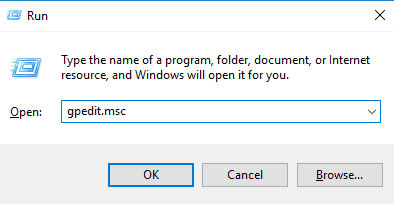
First, you can open Group Policy Editor via the start menu. You can also press the CTRL + R key combination and then type gpedit.msc.
How to Activate Windows Defender on Windows 10 via Group Policy
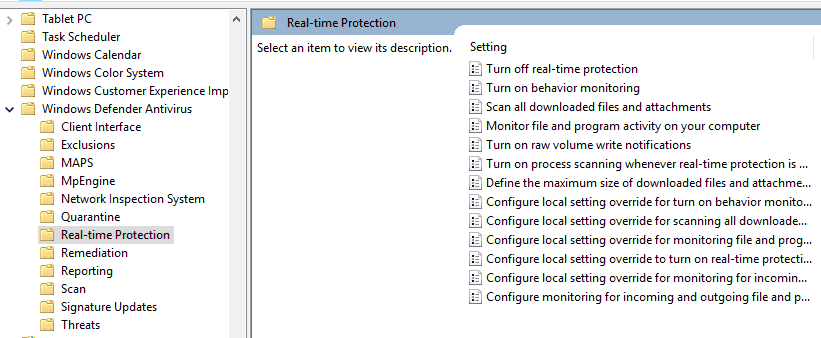
After entering the Local Group Policy Editor, you can enter a new window by selecting Computer Configuration -> Administrative Templates -> Windows Components -> Windows Defender Antivirus -> Real-time Protection.
Then you can double-click or double-click on the Turn Off Real-Time Protection menu.
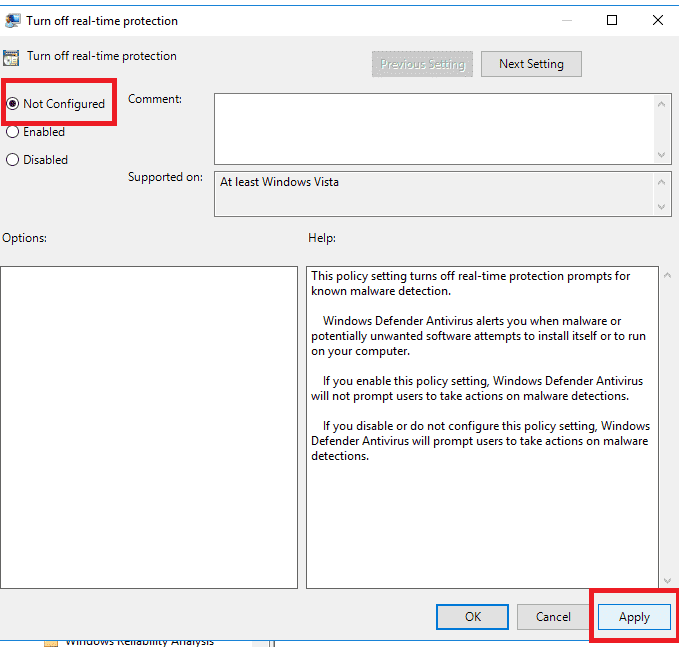
A new window will appear, here you can match the image. Where you have to choose Not Configured.
Not Configured
After setting, the next step in how to turn on real-time protection Defender is to press Apply then OK.
Then you can restart your computer or laptop to turn it on automatically
#3. How to turn on Windows Defender through Regedit
So that this process runs smoothly, you can first activate the system restore point.
If there is a slight error from editing the registry, then your PC might not be able to live again.
Open Regedit, by pressing Win + R type Regedit, or you can use the start menu type Regedit as well then press enter. If the UAC confirmation appears, press Yes to proceed to the next step.
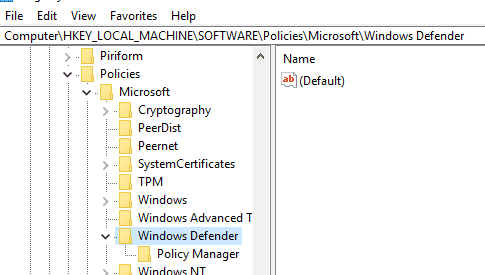
After Regedit is open, you can open the folder by what I required like this: HKEY_LOCAL_MACHINE -> SOFTWARE -> Policies -> Microsoft -> Windows Defender
How to turn on Windows Defender through Regedit
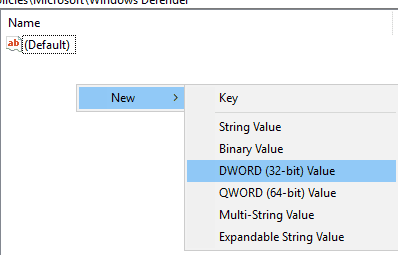
On the right blank bar at the bottom of the file (Default), you can press Right-click on your cursor. Then select New and then choose DWORD (32-bit) Value.
Warning: If you previously disabled Windows Defender using Regedit, there might already be a file called DisableAntiSpyware. You just double-click on the file change the value data to 0 then press OK.
DWORD (32 bit) Value
Next, you can enter the file name like this: “DisableAntiSpyware” without the quotes.
DisableAntiSpyware
Then you can change the value data to 0 if you have previously turned on the defender via Regedit. Then to apply it you can press the OK button.
At this point, it’s finished, just restart your computer or laptop.
How to Activate Windows Defender Windows 7
All this time, you only realize that Windows 10 only provides Windows Defender features.
There are secret ways you can use it to make Windows Defender live on Windows 7 OS.
Open the Start menu
Type Defender then select
Select the Tools menu
Select the Options menu
Select the Administrator menu
Then put a checkmark in the Use This Program section
Then press Yes
Now Windows Defender on Windows 7 is active.
Can Real-Time Protection Windows Defender Not Be Active?
If you feel the way above does not work there may be obstacles where you install a third-party anti-virus. This third-party antivirus can block Windows Defender from being active.
If you feel you have installed it, please uninstall it first so you can turn on Windows Defender.
If you install an antivirus such as Avast, Smadav, and so on, please turn it off first to turn on the Defender.
How to Overcome Windows Defender Cannot be Opened
Windows defenders can not only be opened and active by themselves. Sometimes this defender can’t be opened.
This problem often occurs in all Windows OS series, especially in Windows 10 and 7.
Thus the review that I can convey about the case of how to turn on Windows Defender on a laptop or computer.
So, friends, This is an explanation of the virus & threat protection on your laptop & computer that can be turned on, If you look hopeful then please do it with your friends.
10 Best Reminder Software for Laptop PC – To make it easier for you to manage your daily schedule, there are several reminder software that you can use on your Laptop PC. By utilizing this software you can set a schedule and create reminders of what to do today so that all your work and activities become more organized.
10 Best Reminder Software for Laptop PC
If you are the forgetful type, then installing this software will be very helpful, because it usually includes an alarm feature that will remind you of scheduled activities ranging from small things to important activities every day.
Here we provide some recommendations for the best reminder software for Laptop PCs that you can try:
#1. Microsoft To-Do
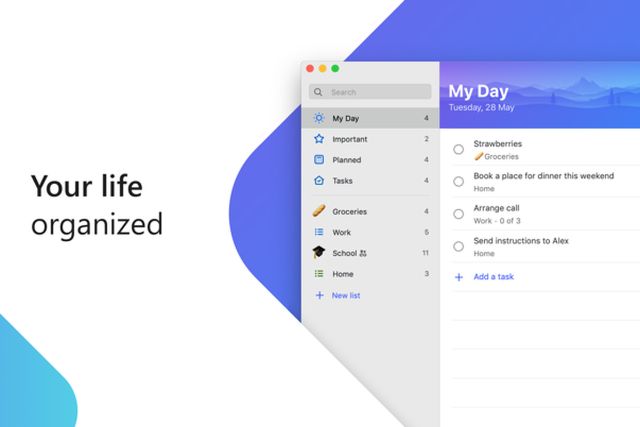
Microsoft released reminder software for Laptop PCs under the name Microsoft To-Do. With a simple and simple interface, this application allows you to record everything that needs to be done, from doing assignments to wanting to remind yourself before a meeting.
You can access it for free on any device, be it a PC or Smartphone. This app is available on Windows 10 as well as on Android.
For its features, this reminder software has all the features that you often find in other reminder applications. In addition, there is a distinct advantage of Microsoft To-Do, namely that you can add subtasks or sub-works that must be done.
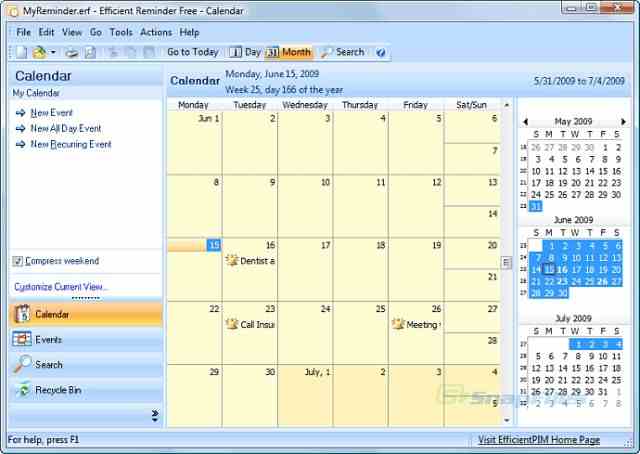
An efficient Reminder is a reminder software for Laptop PCs that offers complete features for managing daily schedules and tasks. This software takes up very little hard disk space to install and has a simple but beautiful interface. This software can provide notifications via voice, popup window, or email, so you won’t be missed to complete your task.
This application can make your work more efficient. We often forget what we have to do, and even our daily schedule is often missed. Therefore, use this application and you will be more efficient at work.
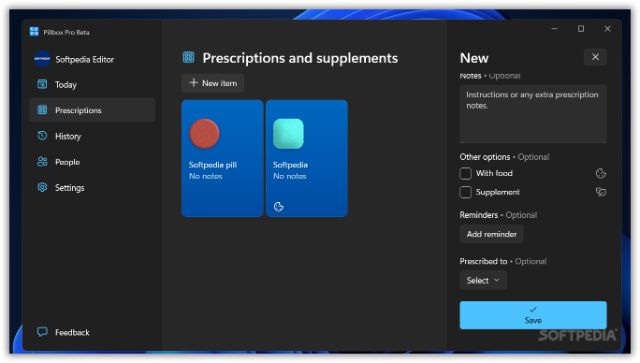
Do you often forget to take your medicine? Try this Pillbox software. Free software is in charge of reminding us to take the drug. In addition, this software can also remind you when to take medicine and what dose. When we forget, the software will give a warning or the right time to take the drug.
Here are some features of this software:
Provides more than 200 types of drugs to choose from.
Offers reminders when to take medication at a predetermined time.
Mark if you have taken the drug.
Can count how many pills are left in the box.
Calculate the total cost of drugs purchased each month.
Pillbox makes it easy for you to calculate the time from a previous reminder, or just set a set time. To set a reminder, go to the main screen and click the “Add New Alarm” button.
Visit: Website
#4. RemindMe for Windows
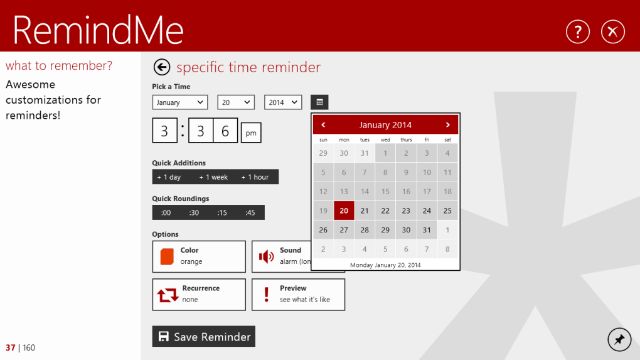
RemindMe is a reminder software for Laptop PCs that reminds us when the specified date has arrived. RemindMe can be used as alarm software and reminder software when there are important days, important work, or events to attend.
The simple graphical interface makes it easy to use, the features are also quite complete such as schedule settings, notifications, and also popup screens. Using this app you can manage your schedule for a whole month throughout the year.
This software allows you to jot down and save all your tasks, plans, and “to-do” lists. When you create a reminder, you can specify the exact time and it can also be seen on your desktop.
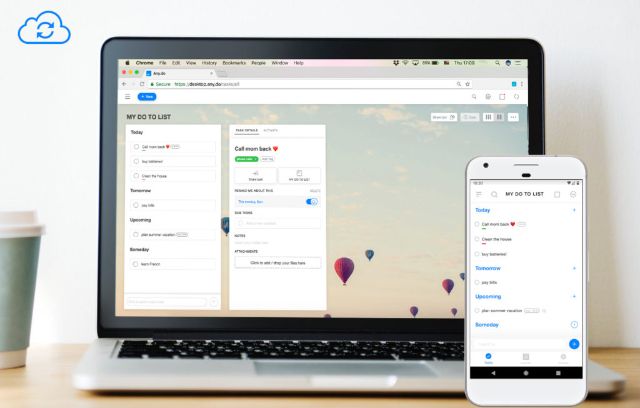
If you have more than one device, the schedule that has been created can be synchronized because this application can be connected to several other devices such as PCs, tablets, or smartphones.
Any.do Fitur features
View all reminders on your desktop
Easily add or remove reminders
Create to-do lists to share with friends and family
Set new reminders with efficient focus
Work with temporary reminders without having to pick up your phone
Any.do Reminders makes it easy for you to easily manage all your daily or monthly schedules. In addition, you can also share your schedule with those closest to you, such as friends and family who are your co-workers or classmates.
Any.do Reminders also has a feature to provide notifications on every schedule that will be undertaken so that you are not easy to forget.
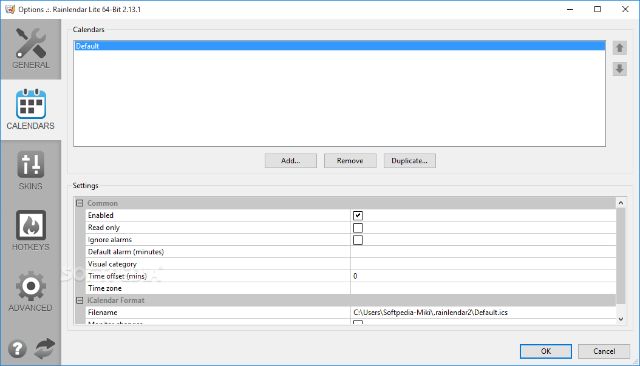
Rainlendar is a reminder software for Laptop PCs that works on a desktop. Rainlendar is designed as a lightweight application that has cross-platform capabilities. Its main function is to remind the user about things that must be done on certain days and dates according to the schedule.
Rainlendar is very useful as a reminder of various activities, both routine and occasional, such as meetings, reports/presentations, class schedules, children’s activity schedules, to bill payments. You can use it for free and it has various features which are very useful for users.
This software is also easy to use. Just right-click on the date to which the event will be added, and a form will appear to enter the name and description of the event. The calendar view can be customized with the skins available on the web. We can also make our skins (and can also share them with other users on the web).
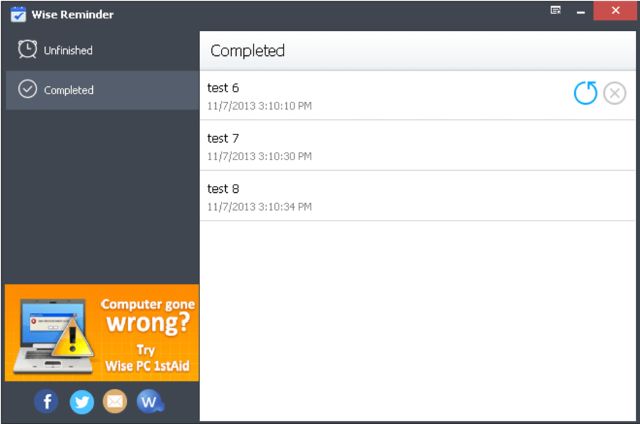
A wise Reminder is a reminder software for a Laptop PC that is installed on your computer and will provide comprehensive notifications about important events that you can manage. This reminder software allows you to avoid delays in work, task execution, meeting appointments, or routine schedules that are often missed.
This reminder software is suitable for those of you who don’t want to miss out on time and can be a virtual assistant who acts as a reminder. With Wise Reminder, you can set reminders automatically and easily for important events as needed.
Features
Schedule reminders by voice or pop-up window
Show a soft lock screen when there is no reminder schedule
Receive notifications at certain hours every day
Opens files automatically every time there is a new reminder
Collaborate with Google Calendar and Exchange Calendar
Wise Reminder has a simple interface with additional facilities such as Reminder Time, Repeat Interval, Sound File, and Snooze Time.
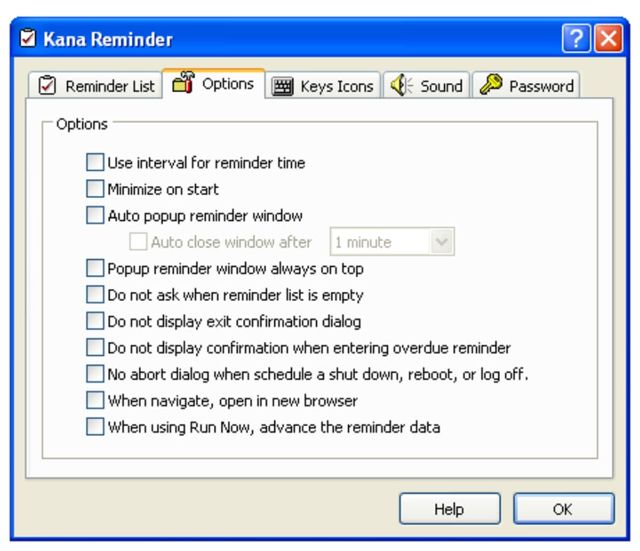
Kana Reminder is a reminder software for Laptop PCs. This software can be used to remind you what work you will or should do. In addition, if you like to collect your favorite pictures on your computer, then Kana Reminder can also be used as an automatic wallpaper changer.
Kana Reminder lets you remind me whatever and whenever you want. You can create a schedule that suits your needs and this app will remind you daily, weekly, monthly, yearly, or even once as needed.
Kana Reminder has a simple and easy-to-use interface. This software also supports various sound effects so you can choose one of the sound effects according to your wishes and mood.
If you want a reminder tool that is very easy to use, then this software will be the right choice. This software allows users to easily add dates, times, and reminder messages. If you also want to provide an alarm setting, then this can also be done very easily.
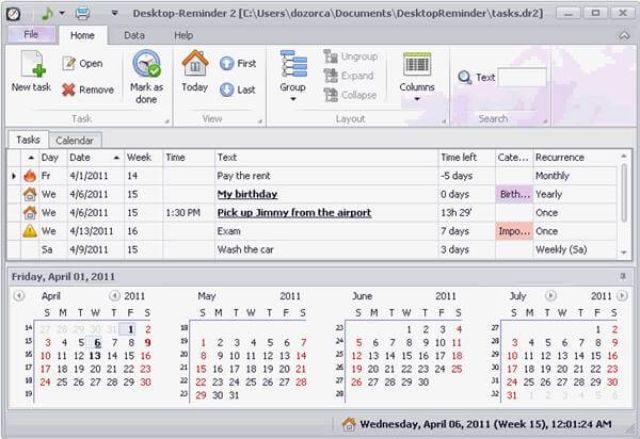
This app works like a calendar, but unlike a regular calendar app, Desktop Reminder has some very useful additional features to help you organize your daily activities.
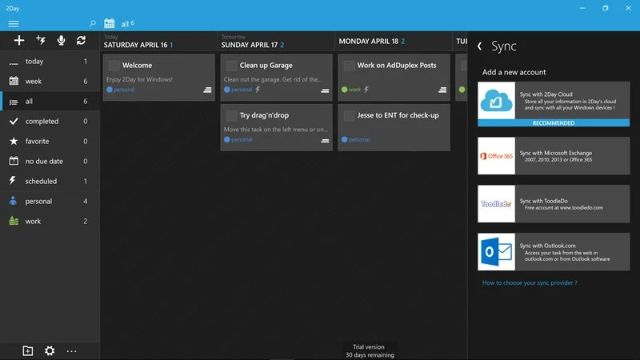
2Day is a lightweight and easy-to-use reminder software to manage your daily schedule. You can set it as an alarm, a to-do list, or another reminder.
Features:
Set a schedule of activities
Set unlimited tasks (To Do list)
Displaying a warning message
Add text and image notes
Create shortcuts that are stored on the desktop and taskbar
Showing the dashboard of this program on the desktop
Opens the browser and text editor automatically when the program is running
2day is designed with a simple but attractive appearance that makes it easier for users to use it. Apart from that, 2day is also equipped with useful features such as a “lock-down” mode for people who forget easily and make it possible to schedule activities in one day.
10 Ways To Download TikTok Videos Without Watermark – TikTok has become one of the most popular applications today with various short-duration video applications. Almost every teenager today has the TikTok application on their respective Android smartphones.
10 Ways To Download TikTok Videos Without Watermark
How To Download TikTok Videos Without Watermark
The size of the application is quite light and there are lots of exciting short video appearances that make this application the most popular. This popular application has been proven to have been downloaded by many people in the number of more than 100 million users around the world.
This time, the admin will give you instructions on how to download TikTok videos without TikTok writing. Because at this time there are still many people who do not know how to do it. Lots of people like TikTok videos, but they don’t know how to download them. So they can only save it in the video view they like.
There are several things that people usually do, such as Download TikTok Videos to Music, HD Videos, iPhone Videos, Logoless Videos, Privacy Videos, Watermarkless Videos, and various other things. And of course, there is a hidden way to be able to download various videos from TikTok.
Therefore, for those of you who don’t know the methods yet, then you can read this article to the end. Here, the admin will share a collection of places to download TikTok videos for those of you who don’t know how, please read carefully the following reviews.
About Download TikTok Videos
There are several ways to download TikTok videos, namely the way you can do it without using the help of the application and also the way through the application. The places to download TikTok videos that the admin shares below are popular and frequently used places to download TikTok videos.
Here, the admin has shared with you a collection of places to download TikTok videos that are very popular, both those using the application and those not using the application. For how to download Tiktok videos without an application, you can use various sites such as the following:
TikTok Video Download Site Without Watermark
SSSTikTok.io
id.saveform.net
ttdownloader.com
TikTokdownload.online
Qload.info
Snaptik.App
You just need to enter the site and then use the video link that has been copied from the TikTok application directly, enter the link in the empty column that has been prepared by some of the sites above.
Now, for how to download TikTok videos with the application, you can also do it with various official applications that are already available on the Play Store or AppStore, for example, the following applications:
TikTok Video Download Application Without Watermark
Tikmate Downloader
Downloader for TikTok
Snaptik
That’s the place to download the most popular TikTok videos, now you can access the downloads quite easily and of course for free. By downloading through the place that the admin shared above, the video you download does not have a watermark (WM).
However, if you don’t know how to download TikTok videos through these places. So in the following, the admin will tell you the ways for all of you, especially loyal visitors to this website.
How to Copy TikTok Video URL Without Watermark
For where to download it, the admin has told you above. However, for those of you who don’t know how to download through the places above, please refer to the following methods.
For how to download TikTok videos through the application or site that the admin shared above, it’s actually the same as you have to copy or copy the URL of the video you want to download now.
If you are confused, then the following admin will share how to download TikTok videos without a watermark (Watermark) through the application or site that the admin recommends.
#1. Copy Url
To be able to download TikTok videos without wm (watermark) through the place that the admin recommended earlier, the first way you have to copy the URL. If you don’t know how to copy the URL in the video you want to download, then the admin has shared the method for all of you below:
The main step you have to do is to enter the TikTok application.
If you are already logged in, then you can select the video you want to download now.
Next, please select the Share menu.
If you have selected the Share menu, then the next step is to select the Copy Link menu view.
If so, then you can copy or copy the URL in the video.
Finished!
This method is a very important method because if you haven’t copied or copied the URL in the video you want to download it without a watermark. So you can’t do this one thing if you haven’t copied or copied the URL.
If you have copied or copied, then the next step is that you only need to choose places to download TikTok videos without the watermark or watermark.
How to Download TikTok Videos Without Watermark
There are lots of TikTok videos for you to download, examples of places like what the admin has told you above. But for those of you who don’t know how to download TikTok videos without a watermark through the places that the admin has shared above, then please see the following methods.
#1. SSSTikTok.io
If you want to download TikTok videos without using an application or without a watermark, then you have to use the site. The first site that you can use to download TikTok videos without a watermark is https://ssstiktok.io/. Now to download TikTok videos using the site, you can see how you can do this:
The main step you have to do is to copy or copy the URL in the video that you want to download through the method that the admin has shared above.
If you have copied the URL in the video, then the next step is you can open the browser on your respective smartphone.
Please type https://ssstiktok.io in the Bowser.
If you have entered the site, then please directly paste the video URL that you copied earlier into the available column on the site.
If so, please paste the URL of the video that you want to download, then you can select the Download menu.
Please wait for some time until the download process is complete.
When finished, a video will automatically be saved in the gallery of each of your smartphones.
Finished!
That’s an easy way to download TikTok using the ssstiktok.io site, but if you don’t want to use this one site. Then you can use others in the same way, for more details, the following admin has explained for you the ways.
#2. Id.Saveform.net
How to download TikTok videos without using the next application is that you can use the id.saveform.net site. Now, this one site is very popular because indeed on this site you can not only download TikTok videos, but you can also download videos from Facebook, Youtube, Instagram, and so on using this one site.
Also Read: How to Check XL Quota
To download TikTok videos using the id.saveform.net site, you can see the steps below. Please read carefully so that there are no unwanted errors.
The first step you have to do is copy the URL of the video you want to download, the admin explained how to copy the URL above.
If you have copied or copied the video URL, then you can immediately open a browser such as Mozilla, Chrome, or other browsers that are on your respective smartphone.
If you have opened the browser on your smartphone, then the next step, please type id.saveform.net.
If you have entered the id.saveform.net site, then the next step is to paste the video URL link that you copied.
Please paste the URL link into the column provided on the id.saveform.net site.
Next, if you have pasted it, you can select the Download menu.
Please just wait for some time until the download process is completely finished.
When it’s completely finished, congratulations, you’ve downloaded TikTok videos without using a watermark.
Finished!
By downloading TikTok videos using the id.saveform.net site, the videos you will get will not have a watermark. If you want to use other sites to download TikTok videos, then you can check out other sites to download TikTok videos below.
#3. TTDownloader.com
Unlike the id.saveform.net site above which not only can download TikTok videos. The ttdownloader.com site is specifically for TikTok application users who want to download TikTok videos without a watermark.
For how to download TikTok videos without a watermark using the ttdownloader.com site, you can see how to download TikTok videos below.
The main step you have to do is to copy the URL of the TikTok video that you want to download.
If you have copied the URL of the video that you want to download, then the next step please visit the ttdownloader.com site by using the search “Browser” on your respective smartphone.
If you have browsed the ttdownloader.com site, then on this site there is a column where you have to paste the URL of the video that you copied.
Please paste the TikTok video URL that you copied into the column on the site.
If you have pasted the URL into the column, then the next step, please click the Get Video menu next to the column.
If you click, the site will automatically download the video you want at this time.
Next, if the download process is completely finished, the video will automatically be saved in your smartphone gallery and this TikTok video will not have a watermark.
Finished!
If you download TikTok videos using this site, then the videos you get will not have a watermark or watermark.
#4. TikTokDownload.online
The next TikTok video download site is TikTokDownload.online. Well, this site is dedicated to downloading TikTok videos. Well, how to download TikTok videos using the TikTokDownload.online site. You can see how this is done:
The main step you have to do to download TikTok videos using the TikTokDownload.online site is that you have to copy or copy the URL of the video that you want to download.
If you have copied or copied the URL, then the next step is to visit the TikTokDownload.online site.
Furthermore, if you have entered into this one site, then you can see on this site there are columns.
Please “Paste” the URL that you copied into this column.
If you have pasted it, then the next step you can directly click the Download menu.
Please wait for the “Download” process until it is completely finished.
If the download is completely complete, a video will automatically be saved in the gallery of your respective smartphone.
Finished!
Also Read: How to Earn Money on Snack Video
Actually, there are many other sites that can download TikTok videos without a watermark. In essence, how to download it is the same, namely you need to copy or copy the URL of the video that you will download first.
However, for those of you who don’t want to be complicated, then you can download TikTok videos directly using the TikTok application directly. But the drawback is that the video you download has a watermark.
Now for how to download TikTok videos from the TikTok application directly. Then you can immediately see the method below properly and correctly so that there are no mistakes that we don’t want.
Download TikTok Videos Using Application
If you don’t want to bother opening a browser, then here we will share a tutorial on how to download TikTok videos using the application. Below are complete steps for saving TikTok videos on android phones and iPhones using the app.
First of all, please open the Google Play Store or App Store applications.
Next, please look for one of the TikTok video download applications such as Tikmate Downloader, Downloader For TikTok, and Snaptik.
Then, please “Install” until it’s completely finished.
Finished!
Download TikTok Videos Directly from TikTok App
There are still a lot of people who don’t know how that from the TikTok application you can immediately have the videos you like. However, there are still many people who don’t know this method and if you download directly from TikTok videos, this video will have a watermark. If you are curious, then the following admin will share a tutorial on how to download TikTok from the application directly.
First of all, please enter the TikTok application.
Next, please select the video that you want to “Download” right now.
If you have selected the video that you want to download, then you can select the “Share” menu view.
If you have done the above method, then you can directly select the Save Video menu.
If you click the Save Video menu, the video will automatically be saved directly in your respective smartphone gallery.
Finished!
However, if you download videos directly from the TikTok application, the videos you download will have a watermark.
That’s a very easy and simple way to download TikTok videos via the app or not. If you don’t want to bother, then please download the video from the TikTok application. However, the drawback is that if you directly download videos from the TikTok application, the videos you download will have a watermark.
Maybe that’s all we can share with all of you regarding how to Download the Latest TikTok Videos Without a Watermark. Hopefully, the above review can be useful for all of you, especially TikTok application users.
Top 10 Best and Most Popular Light Games for PC – There are still many lightweight PC games that can be played offline, even in those days they were very popular. Suitable for PCs with old-school specifications and mini storage.
Top 10 Best and Most Popular Light Games for PC
Top 10 Best and Most Popular Light Games for PC
Now many offline games are scattered around, but unfortunately, not all games are suitable for your PC specifications.
The solution is you have to find a lightweight PC game offline that has specifications that match the PC you have. Take it easy now that there are many choices.
Why choose offline PC games? No need for an internet connection, the game is more stable and less burdensome for PC performance.
Especially if you are still using an early generation old school PC, of course, it will be difficult to use large games and have to be connected to the internet.
It is no less exciting than the online games that are now widely scattered.
#1. Minecraft
The most popular game and still in demand today, even Minecraft includes a lightweight 2GB RAM PC game that has super gameplay. You are free to build your fantasy world so you are free to explore other fantasy worlds.
Many things can be done here, from gathering raw materials and equipment to building a dream city. This game is relatively light and can be played on OS Windows 7 (64-bit) and only needs 1GB of internal memory.
The graphics system needed is only 256MB NVIDIA or Intel HD graphics, your PC is suitable. Visit the Official Site
#2. Portal 2
The best and most unique game in 2017 is still worth playing. Games that apply the laws of physics intelligently and educatively.
This FPS-themed game developed by Valve is classified as futuristic and the most modern of its time.
The best light pc game with 1GB RAM has a mechanism like a puzzle, where later there will be a portal and you have to go through it to continue to the next level.
All PCs can play Portal 2 games, the article only has dual-core intel specifications but requires large storage of up to 7.6 GB. Try playing Portal 2
#3. The Walking Dead Season 1
This game developed by Telltale Games follows the series ‘The Walking Dead’. It’s not just a survival game but has a lot of learning and most gamers will be touched to tears.
This 512 ram PC game is indeed much liked because the lowest operating system like XP can already be used. However, Pentium 4 specifications are needed to be more stable, besides that, so that games can run normally without loading, you should upgrade the RAM to 3GB.
This light war PC game is quite old but still addictive after playing. Even many gamers are frustrated because of the difficulty of leveling up.
This game made by an indie developer, Motion Twin, is indeed very annoying but makes me satisfied after successfully qualifying for the next round.
The game flow is unique by creating your world, players are free to explore places with different difficulty levels for each stage.
Requires up to 2GB of RAM and a minimum graphics card of NVIDIA 450 GTS, besides that it requires super large storage of up to 500MB, just perfect for gaming at home.
Download an offline lightweight PC game that is suitable for an adrenaline rush, you will be pounding throughout the game. This horror game does have a pretty extreme gore feel with the addition of unexpected jumpscares.
The game starts with hiding and seek (hide and seek), later it will only be given lighting from the cam. Throughout the game be prepared to be surprised by the very interesting visual and audio effects.
Suitable for operating systems XP, Vista, &, 8 with 64-bits, only needs 2GB of RAM. Try playing Outlast
#6. Cuphead
If you want to be entertained by playing games, Cuphead is the right choice. Many gamers are frustrated but continue to play in this shooter game.
Small offline PC games were developed by indie studio developers, which aimed to provide the sensation of playing in the 1930s.
All PCs with Intel Core 2 or AMD Athlon specifications can play well, even if they only need a 512 MB graphics card.
It’s just that it requires 2GB of RAM, big enough to be able to play all night.
A classic RPG game with a ridiculous impression, because it offers a strange dialogue between words and is combined with retro 1980s visuals.
Usually, RPG games will feature monsters that look evil, but when playing you will feel that the monster is you.
This lightweight Windows XP game can be played in almost all operating systems, even if there are no high graphics card specifications as long as it’s still within the 128MB VRAM limitation.
The uniqueness is not only in the game but the interaction between players. The puzzle is already very ridiculous.
Still using a PC with a Pentium 2 processor, resident evil 3 is suitable for your offline games. This low-spec PC game can be played on any graphics and only requires 48 MB of RAM, guaranteed to be slow-proof.
It only takes 20 MB of internal memory, most recommended for old-school PCs. This game, which is the franchise of ‘Resident Evil’, is indeed quite popular, so it was made in several series that followed the film.
Almost similar to a war game, but you will fight zombies and become Alice as the main character. Try playing Resident Evil 3
#9. Crysis
An FPS game with the best graphic touches of its time, the theme is quite futuristic by telling life in the future. It has a high addictive level with increasingly challenging game levels. It even has pretty slick animations and effects.
Even though it has good graphics, it can still be used on an Intel Core 2 processor even with an XP up to 7 operating systems, besides that it only takes 1GB of RAM. But you have to prepare a large storage memory of at least 12GB.
This adventure game is unique because it only uses monochrome color graphics. Many gamers feel frustrated because each obstacle is designed to be very difficult and unique, but most of them feel satisfied if they succeed in getting out and leveling up.
The ornament is simple and only puts forward games and adventures, perfect for gamers who don’t like the visual appearance too crowded. It is even suitable for old-school PCs with an Intel Core 2 Duo processor with only 512 MB RAM.
Even suitable for OS XP until 7 with 64-bit. The memory is quite small, only 150 MB. Try playing Limbo.
All light PC games can be played on any operating system, even though most of them have fairly good graphics. Even if it’s offline, it won’t reduce the fun and it’s still difficult to level up. Suitable to fill spare time to hone your game-playing skills.
![[100% Work] How to Root Asus Zenfone GO without PC](https://technadvice.com/wp-content/uploads/2021/03/100-Work-How-to-Root-Asus-Zenfone-GO-without-PC.jpg "[100% Work] How to Root Asus Zenfone GO without PC")



 2Day is a lightweight and easy-to-use reminder software to manage your daily schedule. You can set it as an alarm, a to-do list, or another reminder.