Author: Nazrul Islam

  • 7 Ways To Fix Error Code 0xC0000225 In Windows 10 PC 2025

    7 Ways To Fix Error Code 0xC0000225 In Windows 10 PC 2025

    7 Ways To Fix Error Code 0xC0000225 In Windows 10 PC—When you are trying to boot your PC, you come across error 0xC0000225 in your Microsoft Windows 10. You are confused about how to fix it because this error is preventing your PC from booting up.
    7 Ways To Fix Error Code 0xC0000225 In Windows 10 PC
    7 Ways To Fix Error Code 0xC0000225 In Windows 10 PC

    How To Fix Error Code 0xC0000225 In Windows 10 PC Laptop 2025

    Luckily, you can usually fix these errors with a little work. The admin will show you how to fix the error code 0xc0000225 on Windows 10.

    What is Error Code 0xC0000225?

    You will see this error code when you try to boot your PC. Windows displays it with a message saying “Your PC needs to be repaired,” and below it, “An unexpected error has occurred.” It is also sometimes said that a required device isn’t connected or can’t be accessed.

    Read more:

    Microsoft Windows throws this error when it cannot find the correct system files to boot. This important information is known as Boot Configuration Data or BCD When you turn on your PC, it tells Windows how to boot properly.

    This error is more common on disks using the newer UEFI specification with a GPT partition scheme than on older systems. Windows’ message about it isn’t very clear, so we’ll have to put on our Windows troubleshooting hat to sort it out.

    What Causes Error Code 0xC0000225?

    Since this error is related to corrupted system files, it often appears after an OS upgrade (such as upgrading from Windows 7 to Windows 10). This can also happen if your PC shuts down during an important update, from malware attacking system files, or even from faulty hardware. Follow the steps below to fix your problem, whatever the cause.

    #1: Create a Windows 10 Installation Disc

    Like other boot errors, you cannot solve this problem from within Windows. As such, you should have a Windows 10 installation disc so that you can run the repair tool from there.

    You will need a flash drive with at least 8GB of space, or a DVD. Note that creating a Windows 10 disc will erase everything on the drive, so it’s best to use a blank flash drive or DVD.

    After you create the install media, insert it into your computer. Press the appropriate key to open the boot menu, and load the Windows 10 disk from your external device.

    #2: Windows Automatic Repair

    First, you might want to try the built-in Windows 10 troubleshooter. The system automatically checks for problems and attempts to fix them. Hopefully, this will fix your broken BCD so you can get back to work.

    After booting from your Windows 10 installation disc, wait until you see the Windows Setup screen Confirm your language options, then click Next.  When you see the Install Now screen, click the Repair your computer link at the bottom left.
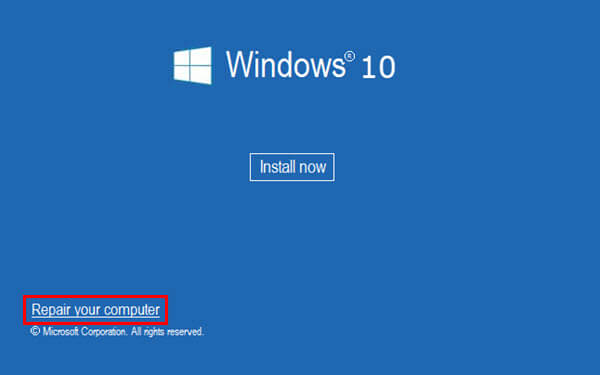
    Windows Automatic Repair

    You will see a menu of options; select  Troubleshoot, then Advanced options.  From this Advanced options menu, select Automatic Repair.  Let the process go through, then restart your computer when it’s done.
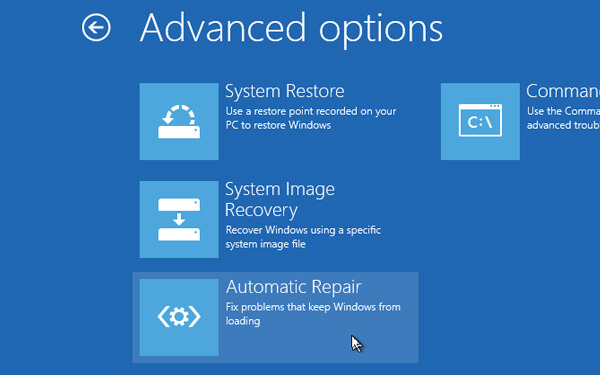
    Windows Automatic Repair

    Try booting again normally. If error code 0xc0000225 doesn’t appear, you’ve fixed the problem!

    #3: Run SFC And Check Disk Scans

    If Windows automatic repair doesn’t work, you can try some system scans. To do so, repeat the above process to open the Advanced options menu, but don’t select Automatic Repair.  Instead, select  Command Prompt to open the command-line interface.

    First, run the System File Checker (SFC) command, which checks for corrupt or missing Windows system files and attempts to repair them:

    sfc /scannow
    

    Once this is done, run a Disk Check scan to check for errors on your hard disk. Use the following command, replacing  c: with the letter of your primary partition if you have changed it:

    chkdsk c: /r
    

    Once you have run these two scans, reboot and try loading your PC normally again. Hopefully, the error won’t appear again.

    #4: Rebuild BCD

    If you are still having problems, the next step you can try is the command to rebuild the BCD. Since this is what often causes errors, this might be the trick for you guys.

    Again, boot from your Windows 10 installation media and open the Advanced options menu Select  Command Prompt again. Run the following commands one by one:

    bootrec /scanos 
    bootrec /fixmbr 
    bootrec /fixboot 
    bootrec /rebuildbcd

    The first command scans your disk for compatible installations, which can help it find your “lost” Windows installation. Commands two and three write a new MBR and boot sector to your disk. The last command scans again for the Windows installation after repair. Restart your computer once again, and hopefully, this will clear error code 0xc0000225.

    #5: Set Your Active Partition

    Windows allows you to change the active partition so you can tell the system where to boot. If this somehow goes wrong, you can change it to point Windows to the correct partition.

    Open the Command Prompt as above from your Windows repair disc. Type the following commands one by one to open the Disk Partition tool and list your available disks:

    diskpart list 
    disc
    

    You will see a series of entries labeled Disk 0,  Disk 1, and so on. Your internal hard drive is most likely Disk 0 — you can tell by Size.  Type the following one by one, replacing  X  with  0 or whatever number of HDDs you have:

    select disk X 
    list partition
    

    The second command will list all the partitions on your internal drive. Your primary partition maybe 0 or marked as Primary.
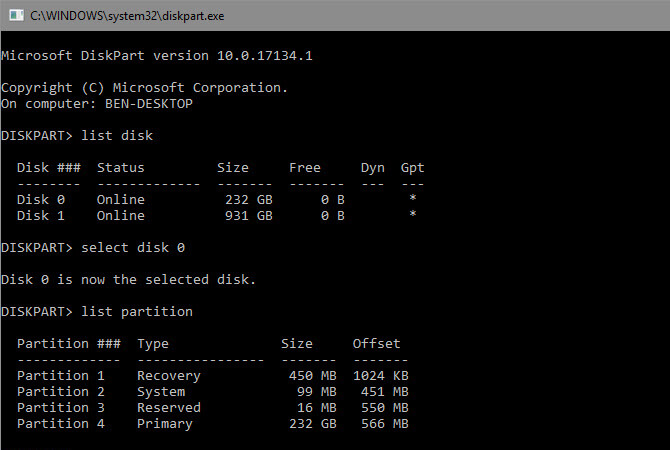
    Set Your Active Partition

    Then enter this command, replacing  X with your partition number:

    select partition X 
    active
    

    Exit the Command Prompt, reboot, and see if your problem is fixed. This marks the partition where you installed Windows as the one Windows uses to boot.

    #6: Check for Damaged Hardware

    At this point, you have done a lot of software troubleshooting to fix this error. If you still won’t boot, you should consider checking your hard disk for physical problems.

    Check to make sure the drive cable is not damaged, and plug it back in if possible. Depending on your computer manufacturer, you may also have some internal diagnostic tests that can check for drive problems.

    #7: Try System Restore Or Reinstall Windows

    If this problem started recently, you can try System Restore from the recovery disc to go back to before the error occurred. Boot from your install media again, navigate to the Advanced options menu, and select System Restore. Select the most recent restore point, and Windows will return to those point without affecting your files.
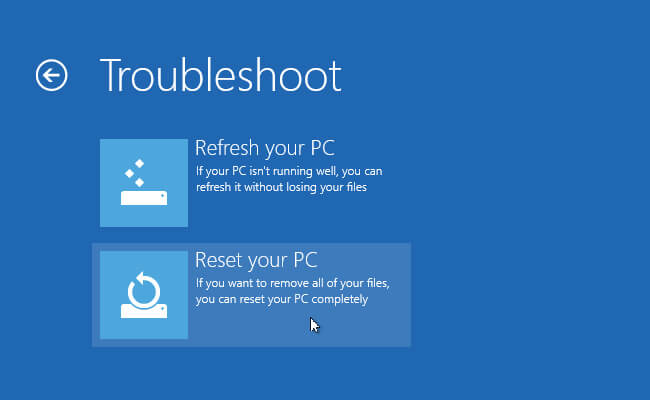
    Try System Restore Or Reinstall Windows

    If you don’t have restore points or recovery doesn’t fix the problem, we recommend reinstalling Windows to replace corrupted system files and make everything else fresh. It’s time-consuming, but it’s your best bet if you’ve come this far. You will find the Reset this PC option under Advanced options > System Restore on your recovery disc.

    Read more:

    Conclusion:

    Hopefully, one of these methods will clear error 0xc0000225 on Windows 10 for you guys. Whether this is caused by a failed upgrade or a hardware glitch, you luckily have the option to fix it. If the error is specifically related to Windows updates, Microsoft’s free SetupDiag tool can help you solve the problem.


  • 1500+ Free FF Sultan Accounts Original Unused 2025

    1500+ Free FF Sultan Accounts Original Unused 2025

    1500+ Free FF Sultan Accounts Original Unused – Almost all FF players want to have a free FF Sultan account for Free Fire. The reason is that the sultan’s account has lots of premium items at very expensive prices.

    1500+ Free FF Sultan Accounts Original Unused

    1500+ Free FF Sultan Accounts Original Unused 2025

    Sultan FF’s account is also often the target of other FF players who want to take over the account. Of course, anyone can hack someone else’s account easily.

    Read more:

    However, this method is not commendable and is prohibited by Garena’s side. In addition, there are still many ff players who are looking for free Sultan accounts that are already widespread on the internet.

    There are lots of free FF Sultan accounts that you can get easily based on their login access. Of course, this Sultan account is equipped with lots of cool features and other expensive items.

    So, don’t be surprised if the existence of the FF Sultan account is sought after by survivors. Therefore, if you are interested and want to get it directly. Please see the explanation below.

    Know All About Free FF Sultan Accounts

    Free FF Sultan account is an account that you can use with login access to Facebook and others. The reason is, that an account like this has many low tiers to the highest tiers.

    In this free Fire Sultan account, you can get a lot of advantages in it, and can be used to play games later.

    You can show the account to friends and others, usually accounts like this have lots of coins and lots of diamonds. Therefore, you can look for several FF Sultan accounts that we will share in this article.

    In addition, there are many collections of heroes or characters that you can choose from freely. You can use it directly without having to top up diamonds first.

    Therefore, we will provide some of the latest free FF Sultan accounts in 2023 that you can get easily. However, be aware of some of the terms and conditions below.

    Free FF Accounts Terms & Conditions

    To be able to get this free Sultan account, you must know some terms and conditions that must be met first. You can also claim it for free, without having to spend money. Please see the full explanation of the Terms & Conditions below.

    • The free Sultan free fire account has the term “get it fast”
    • Has different tiers
    • Doing updates every time, and not specified
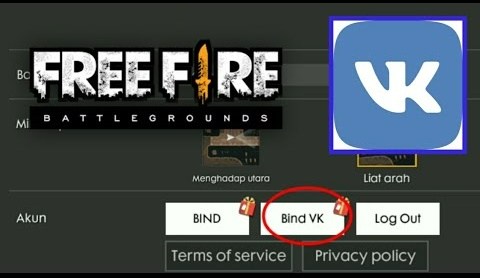
    • Have access to login to Facebook and VK
    • Only one person, one account can be claimed for free
    • If you manage to get an account, make sure to change the password now
    • Each of you will be responsible for all the responsibilities

    Latest Unused Free FF Sultan Accounts List

    If you can’t wait to get a free FF Sultan account, here we will provide a list of the latest 2024 Sultan accounts that you can claim for free without having to spend any more money.

    Therefore, please specify one of the accounts below and if successful, please change the password directly. Please check the details below.

    #1. Free FF Sultan Accounts

    The account that we will share below has many skins, items, and more for you to get for free. And the account below uses Facebook login access. Please specify now.

    #2. Master Free FF Accounts

    The following is a Sultan account that has a high-tier rank. You can choose one to use for free. Please check below.

    #3. Diamond Free FF Accounts

    Some of the accounts below have lots of weapon skins, diamonds, and other items that you can get for free. And have login access to Facebook. Please claim now.

    #4. Free Fire Platinum Accounts

    You can have an account with a platinum tier below, so please specify some accounts that we will share below and that have lots of skins and diamonds.

    #5. Free FF Gold Accounts

    Some of the accounts below are not very important, but if you are interested then you can choose one of them below for free.

    #6. Free FF Silver Accounts

    The account below has a silver rank and has access to login to Facebook and use email login. There are lots of diamond prizes in it, please check the details below.

    #7. Bronze Free FF Accounts

    We will share a free fire account with a bronze rank below, and please claim it for free and easily. You can define one of them as follows.

    #8. Free Fire Basic Accounts

    Register FF Sultan Accounts for Free Full Original Skin

    Register FF Sultan Accounts for Free Full Original Skin

    You can also get a free Sultan account by offering lots of cool and interesting skins in it. Accounts like this are also the target of many FF players, therefore you can take one of the FF accounts below.

    Register FF Sultan Accounts Free Login with Facebook

    • Email: 082280281149
      Password: mustamal1234
    • Email: 082292591111
      Password: sonyadholu
    • Email: 081366483303
      Password: marcel01
    • Email: 083126180573
      Password: rizky444
    • Email: 082268484844
      Password: fInta231
    • Email: 089626702848
      Password: fatimah1234
    • Email: [email protected]
      Password: francisnicole1
    • Email: 087783381296
      Password: gaming1274
    • Email: [email protected]
      Password: creelimifsTP6
    • Email: [email protected]
      Password: abby99608
    • Email: 082251122608
      Password: Indrafqo
    • Email: 082301889300
      Password: aa1234aa
    • Email: [email protected]
      Password: 42976345
    • Email: [email protected]
      Password: nous98765
    • Email: 081207964421
      Password: sahuankit
    • Email: [email protected]
      Password: fabiocs7891

    Register FF Sultan Accounts Free with VK

    Register FF Sultan Accounts Free with VK

    FF Sultan Accounts Free Original Unused

    You can determine which type of account to use. If you manage to find one of the accounts, then please change the password directly.

    That way, other people won’t be able to access it anymore. In addition, you can only use one account. And still, follow some of the terms and conditions that we have shared above.

    List of Free FF Sultan Accounts Hack Applications

    After you see some of the ff Sultan’s accounts above, but after checking the Free Fire account it can’t be used because it has been used by someone else. Then you can use several applications that can be used to hack full-skin FF accounts.

    What are the applications? You can check for yourself some of the FF Sultan account hack applications that work below:

    • Hacker Dark VIP
    • V Gaming Apk
    • P King Apk
    • Hack VIP Emzet
    • And so on

    Those are some ff account hack apk that you can use to get a free Free Fire Sultan account. There are many other applications and methods to get a free account with phishing tips, injections, and others.

    Attention: Technadvice does not support any kind of hijacking or illegal use of accounts. The accounts mentioned on Technadvice are submitted by users or collected from other open-access portals.

    Conclusion:

    So, friends, this is the explanation of 1500+ free FF Sultan accounts originally unused, which you can use right now. Find one of the Sultan’s accounts above based on the categories we have shared in this article. Hopefully, what we say is useful for all. Thank you so much.

  • 5 Ways to Turn Off Cortana In Windows 10 (100% Working) 2025

    5 Ways to Turn Off Cortana In Windows 10 (100% Working) 2025

    5 Ways to Turn Off Cortana in Windows 10 (100% Working) – Are you planning to turn off or disable Cortana, but don’t know how to do it? Follow this article guide to find out how to turn off Cortana in Windows 10.

    5 Ways to Turn Off Cortana In Windows 10 (100% Working)
    5 Ways to Turn Off Cortana In Windows 10 (100% Working)

    How to Turn Off Cortana in Windows 10 (100% Working)

    Although Cortana is a pretty useful virtual assistant in Windows 10, not everyone needs it. If you don’t like it, you can disable or turn off Cortana on your PC. Here are some ways to turn off Cortana in Windows 10.

    Read more:

    How To Turn Off Cortana on Windows 10 Laptop PC

    #1. Turning off Cortana via Startup

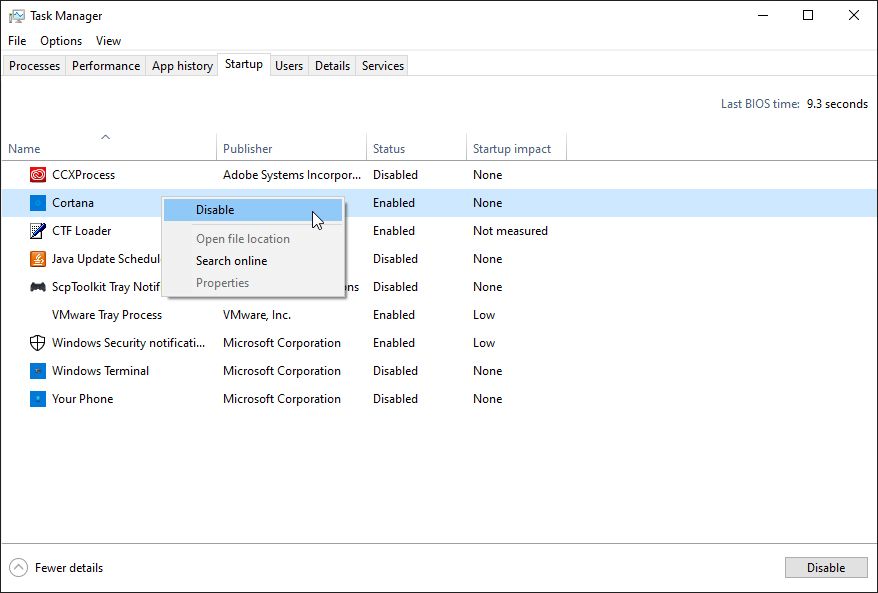
    The first way to turn off Cortana in Windows 10 is to use Startup in the Task Manager. Here’s how to do it:

    How To Turn Off Cortana In Windows 10 Laptop PC
    1. In the  Start menu search bar, search for  Task Manager and select the Best match.
    2. Go to the Startup tab.
    3. Right-click  Cortana and select  Disable.
    4. Reboot your PC.
    5. Check Task Manager again to check for changes.

    #2. Turning Off Cortana Through the App

    This is a safe way to disable or turn off Cortana, and you can easily revert your changes whenever you want.

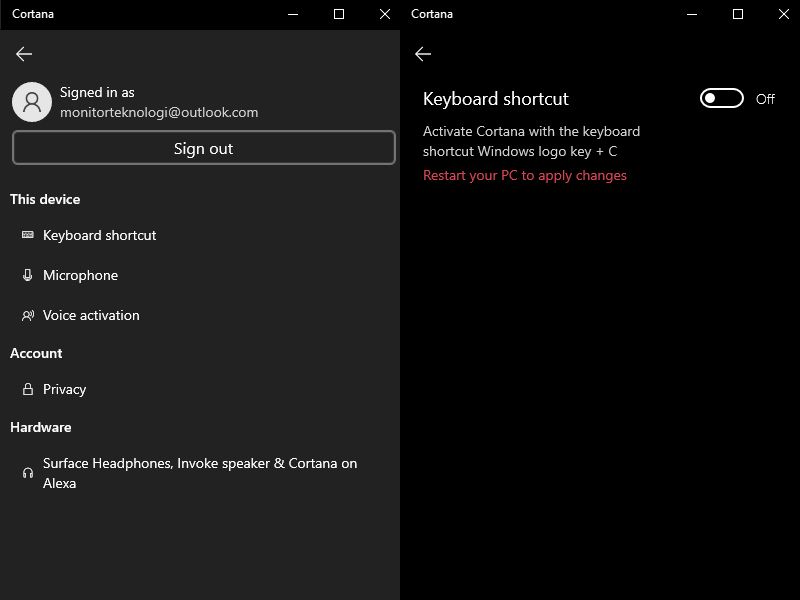
    Disable the Cortana Keyboard Shortcut

    Turning Off Cortana Through the App
    1. Open  Cortana.
    2. Click the three-dot menu from the top-left corner, then select  Settings.
    3. Click the Keyboard shortcut and turn off the toggle.
    4. Reboot your PC.

    This way, you can’t accidentally activate Cortana using a keyboard shortcut.

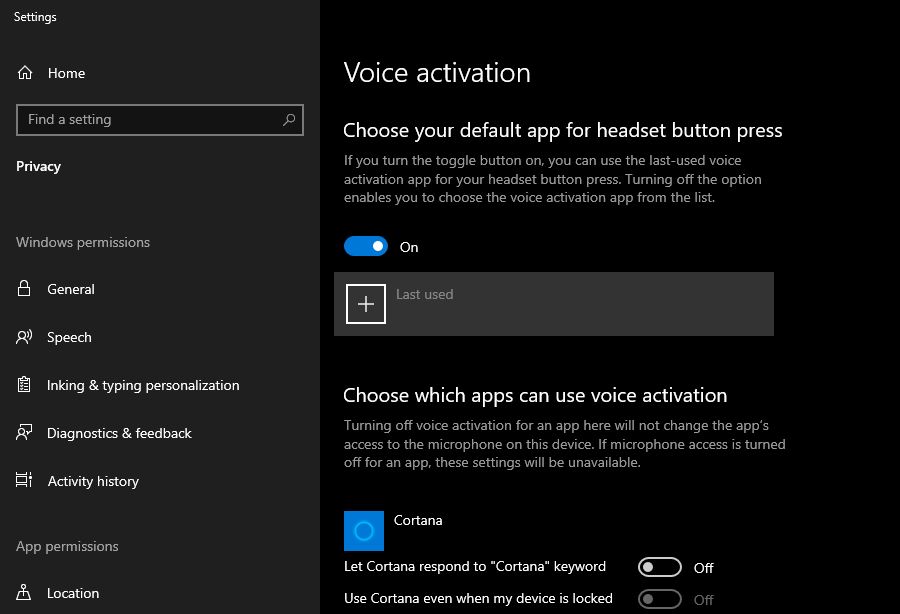
    Disable Voice Activation

    You can do this if you want to keep Cortana microphone access but don’t want to accidentally activate it:

    Disable Voice Activation
    1. Go to the Cortana Settings menu.
    2. Click  Voice Activation > Voice activation permissions.
    3. Scroll down to choose which apps can use voice activation.
    4. Turn off the toggle for  Cortana.

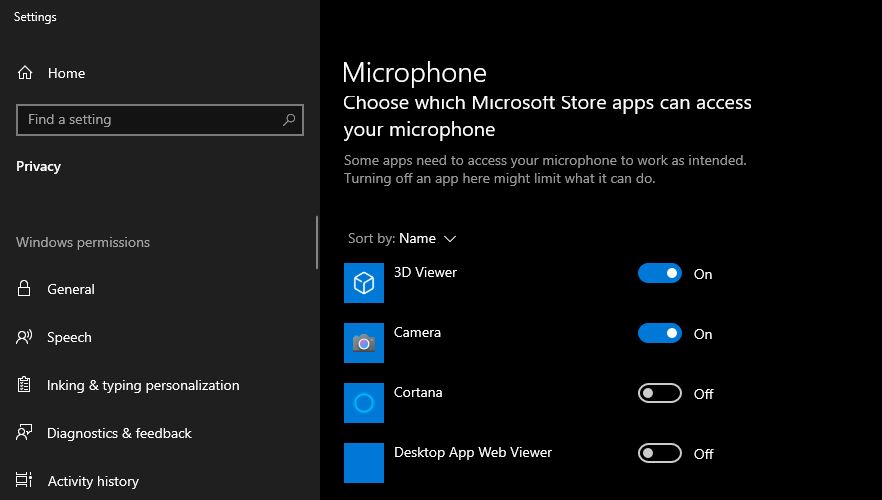
    Disable Cortana Microphone Access

    Disable Cortana Microphone Access
    1. Open the Cortana Settings menu.
    2. Click  Microphone > Microphone Permissions.
    3. Scroll down to choose which Microsoft Store apps can access your microphone.
    4. Turn off the toggle for  Cortana.

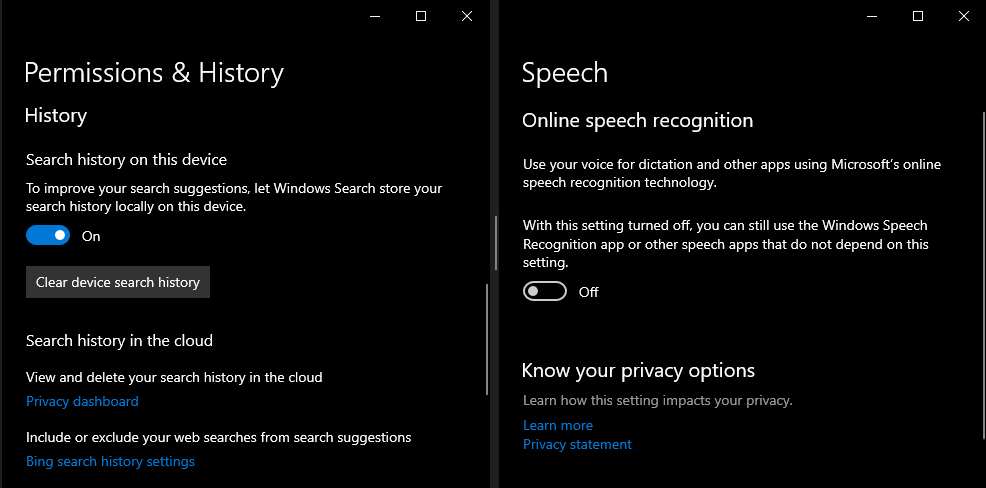
    #3. Turn Off Cortana To Record And Save Search Habits And History

    If you are concerned about the information being managed by Cortana, you can turn off the settings that allow it to record and store information about you. Follow these steps to change Cortana’s default settings:

    Turn Off Cortana To Record And Save Search Habits And History
    1. Right-click Start > Settings.
    2. In the Find, a settings search bar, look for  Permissions and History.
    3. Scroll down to the History section, then turn off the toggle and click  Clear device search history to clear Cortana’s search history.
    4. Look for  Speech Privacy Settings in the Find a setting search field.
    5. Turn off the toggle under  Online Speech Recognition.

    After changing this setting, Cortana will not be able to collect and report information or interact with you in any way. If you want to go back to the original settings, follow the steps above and turn on the toggles.

    #4. Turn off Cortana in Windows 10 Home

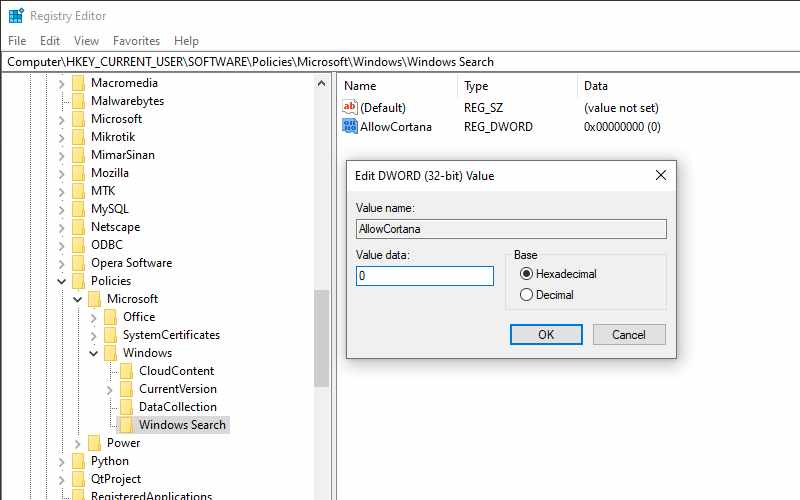
    If you are using Windows 10 Home, you will have to edit the Windows Registry to disable Cortana. Keep in mind that you have to be careful while editing the Windows Registry as this tool can stop your system from working properly. Follow these steps to edit the Windows Registry:

    Turn off Cortana in Windows 10 Home
    1. Press the Windows key + R  to open the Run window.
    2. Type  Regedit, then press Enter.
    3. Open the HKEY_CURRENT_USER menu, then go to  Software > Policies > Microsoft > Windows > Windows Search.
    4. Open Allow Cortana.
    5. Set  Base to  Hexadecimal and set  Value data to 0.
    6. Reboot your PC.

    If no Windows Search folder  is available:

    1. Right-click  Windows, then select  New > Key.
    2. Name it as  Windows Search.
    3. Right-click the Windows Search > New > DWORD (32-bit) Value folder.
    4. Name it  AllowCortana.
    5. Open  AllowCortana, set  Base to  Hexadecimal, and set  Value data to  0.
    6. Reboot your PC.

    #5. Turning Off Cortana On Windows 10 Enterprise Or Pro

    On Windows 10 Enterprise or Pro, you need to access the Local Group Policy Editor to disable Cortana. If you’re using a company-owned device, you’ll need to contact the admin first as the device may be part of a domain.

    However, the domain policy will override the local group policy. To disable Cortana through the Local Group Policy Editor, follow these steps:

    Turning Off Cortana On Windows 10 Enterprise Or Pro
    1. Press the Windows key + R  to open the Run window.
    2. Type gpedit.msc, then press  Enter.
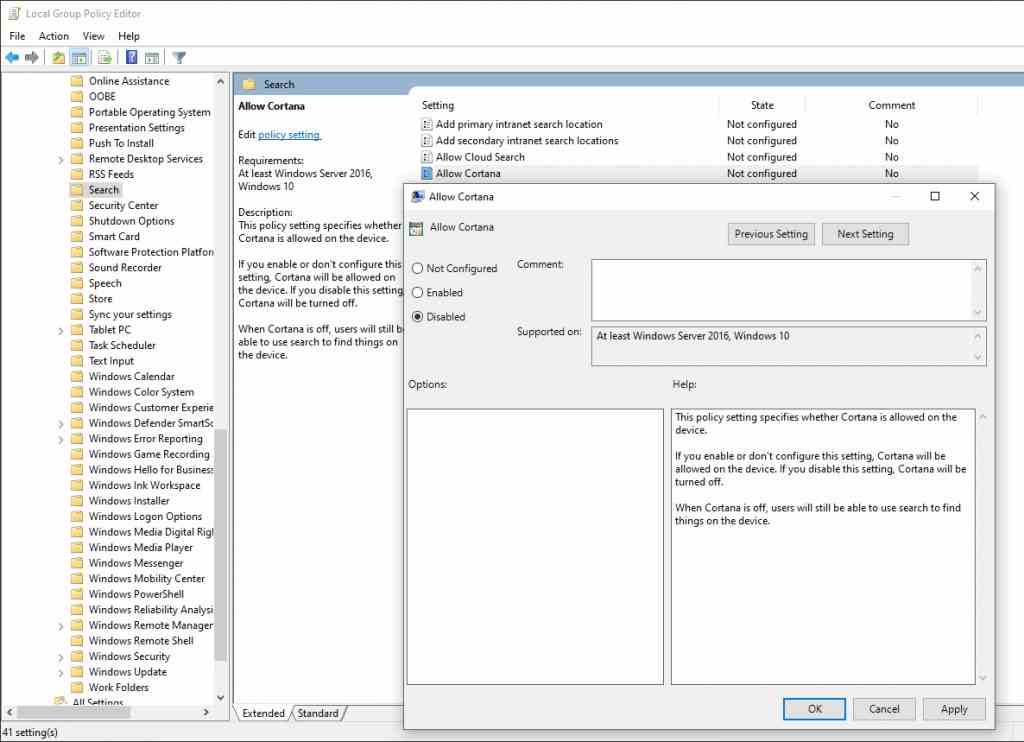
    3. Using the left menu, go to  Computer Configuration > Administrative Templates > Windows Components > Search.
    4. Open  Allow Cortana.
    5. Under  Allow Cortana, select  Disabled.
    6. Reboot your PC or log out and log back in.

    If you want to re-enable Cortana, do steps 1-4; in step 5, select Enabled.

    Read more:

    Conclusion:

    So those were some ways to turn off Cortana in Windows 10. Since the Windows 10 Anniversary Update, you can’t turn off Cortana with a toggle. However, if you are looking for a method to remove some of its capabilities or disable Cortana completely, this article will show you how.

  • 3 Ways To Remove Eliminate Red Lines in Word 2025

    3 Ways To Remove Eliminate Red Lines in Word 2025

    3 Ways To Remove Eliminate Red Lines in Word – When you make college assignments or work again using Microsoft Word.

    How To Remove Eliminate Red Lines in Word Complete
    How To Remove Eliminate Red Lines in Word Complete

    How To Remove Eliminate Red Lines in Word

    When you type words, a wavy red line appears on each word.

    Those red lines are annoying, right? Yes, I agree with you. When we do the red-line task, we fail to focus.

    Read more:

    No need to worry first, because there are still many ways to eliminate red lines in words. I am discussing this because it is my experience that is uncomfortable with this feature.

    The Red Line Feature Function in Microsoft Word

    Before we remove this feature, you should know what this feature was created for by Microsoft. Not only do red lines appear in words, but there are also green lines that have their own function.

    So, if you don’t know what its function is, I will briefly explain the use of the red and green line feature in Microsoft Word.

    • Redline

    The red line in Microsoft Word has a very useful use for some people as well. Usually, for foreigners who use English, this feature is very valuable.

    This feature functions as a spell-checker, which is useful for correcting the spelling of a word, depending on the language you use.

    In general, Word will always correct English users, so it would be very useful if you are one of those people who often make typing typos, so that you can correct typing mistakes.

    • GreenLine

    The green line is different from the red line, the green line doesn’t appear very often in MS. Word. The function of the green line is more detailed than the red line.

    A green line will appear if the grammar of your typing is problematic. It will appear more often if you use English.

    The green line in Microsoft Word is actually one of the advantages, although it is very annoying too. Just like red lines, green lines can also be removed.

    Na, curious, right? How do you get rid of the red line in the word? Keep listening to our discussion until it’s finished so that you understand.

    How to Get Rid of Red Lines in Word

    On this occasion, I will give you 2 ways to get rid of the red line in the word. The method I will teach you is the easiest way that you can immediately practice it yourself.

    #1. Eliminating Red Lines in Word Through MS Settings. Word

    How to get rid of the red line in Word can be done manually on the settings menu. This method can immediately erase red lines or green lines permanently.

    So, without the need for much further ado, please immediately follow some of the steps I teach you below.

    • Step 1 – Open the Microsoft Word Office application on your Laptop / PC.
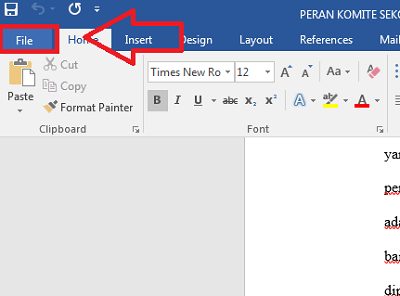
    • Step 2 – After you open it, please click the File menu in the top menu bar.
    How To Remove Eliminate Red Lines in Word Complete
    Click File
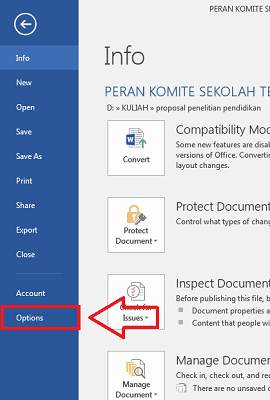
    • Step 3 – Then you click the Options menu at the bottom of the File menu.
    How To Remove Eliminate Red Lines in Word Complete
    Click Options
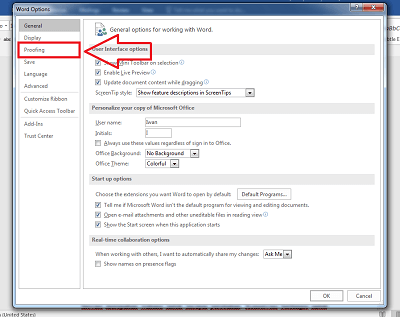
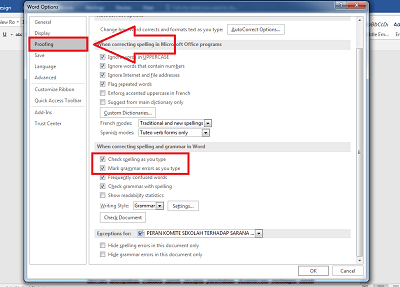
    • Step 4 – After that, the Options menu page will appear. Please select the Proofing sub-menu.
    How To Remove Eliminate Red Lines in Word Complete
    Click Proofing
    • Step 5 – In the Proofing sub-menu, there are many settings; you should pay attention to When Correcting Grammar in Word.
    • Step 6 – Please remove the Check Spelling as you type the checklist column to remove the red line.
    • Step 7 – Also, remove the checklist in the Mark grammar errors as you type column to remove the green line.
    How To Remove Eliminate Red Lines in Word Complete
    Follow Pictures

    Well done! Now you can check the results of your typing, there are no red lines or green lines anymore. Good luck!

    #2. How to Get Rid of Red Lines in Word Through the Language Menu

    Apart from using the Microsoft Word settings menu, you can also use the Language menu in Word..

    However, this method has a drawback, namely that you only delete the file you are working on. For example, a red line will appear again if you open a new file.

    Even so, I will still teach you. The following is how to get rid of the red line in the word through the language menu, just follow the steps!

    • Step 1 – Open the file in which you want to get rid of the red lines.
    • Step 2 – After you block all the posts you have to type the command Ctrl + A.
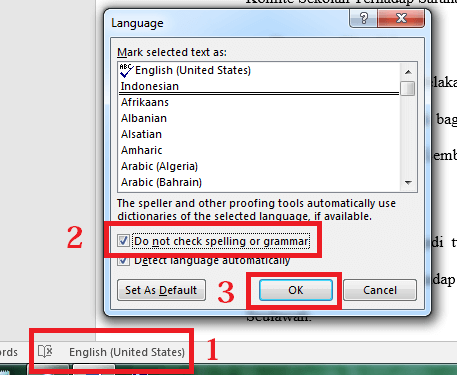
    • Step 3 – After completing all writing blocks, please click Language at the bottom. Make sure the Language menu is checked! If it is checked, the menu will be like the image below.
    • Step 4 – After that, you click the Language menu again, and then the Language menu page will appear. Please check. Do not spell check or use grammar.
    How To Remove Eliminate Red Lines in Word Complete
    Follow Pictures

    Well done! Please check your typing again to see whether the red line is gone. If so, then your writing will look cleaner and tidier.

    It’s easy, isn’t it? How do I get Rid of Red Lines in Word? Please practice it yourself in your Microsoft Word.

    Read more:

    Conclusion:

    So, friends, this is the explanation of the 3 ways to remove and eliminate red lines in words. Thank you for agreeing to read our article. If there is an error in the delivery of information, please comment in the section below.

  • Top 10 Best RPG Offline Games for Android (Updated 2025)

    Top 10 Best RPG Offline Games for Android (Updated 2025)

    Top 10 Best RPG Offline Games for Android Updated – From time to time, RPG-themed games have become the most popular among gamers. It’s really fun when we can adventure in a fantasy world that is much different from the real world.

    Top 10 Best RPG Offline Games for Android (Updated)
    Top 10 Best RPG Offline Games for Android (Updated)

    Top 10 Best RPG Offline Games for Android (Updated)

    But playing RPG games without an internet connection is even more fun. That way, you can play without worrying about the internet.

    Read more:

    If you want the best Android offline RPG game, here are the best choices that can be played; some are free, and some are paid.

    Best Offline RPG Games for Android

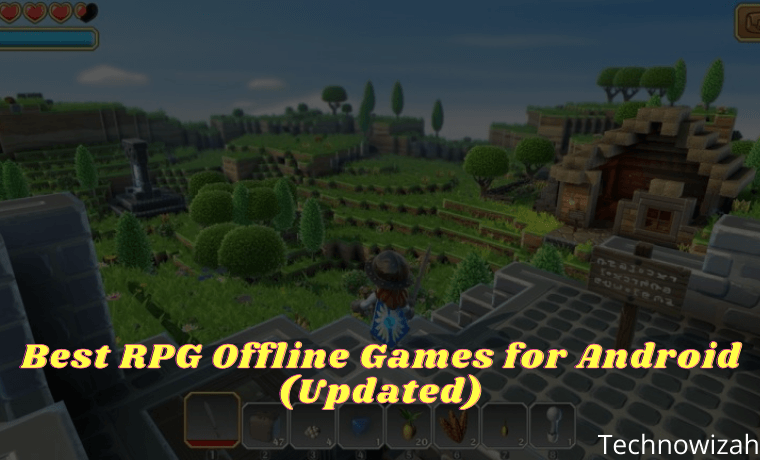
    #1. Portal Knights – US$4.99

    Portal Knights
    Portal Knights

    In terms of graphics and typical gameplay, Portal Knights is very similar to Minecraft. But the difference is, this game has graphics and visuals that are more pleasing to the eye.

    Later, you will explore a unique fantasy world that is connected through a mysterious portal. Each portal has its unique environment, creatures, and resources.

    And your task is to explore every world through the portal to eliminate the evil enemy who wants to rule the fantasy world. You don’t go on an adventure alone, you will meet comrades in arms who act as NPCs.

    Some NPCs you meet later need your help. In addition, some of them also sell equipment such as potions or other resources. They will also help you to build new ancient portals, so you can explore other parallel worlds.

    Download

    #2. Arcane Quest Legends

    Arcane Quest Legends
    Arcane Quest Legends

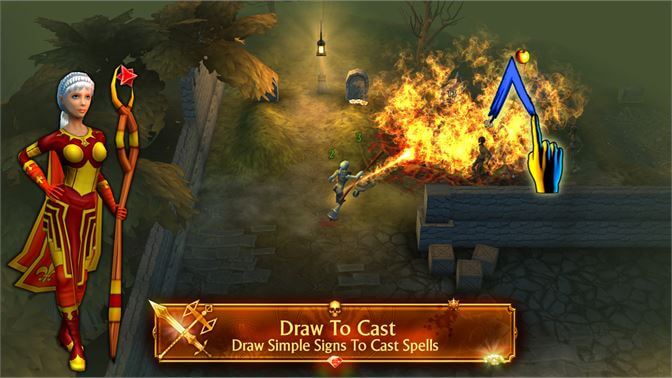
    If you pay attention, Arcane Quest Legends has a gameplay mechanism that resembles Diablo. Arcane Quest Legends presents visuals that are pleasing to the eye, with various environments for you to explore, ranging from deserts, forests, and caves.

    Interestingly in this game, you can make your character as free as possible. In other words, you can customize it to suit your playing style.

    Like most RPG games, you can also use different abilities to destroy enemies. The treats of slick game graphics will certainly make you feel at home for a long time playing this game.

    Download

    #3. Crashland – US$6.99

    Crashland
    Crashland

    Have you ever played a survival game like LIMBO? If so, then this game is somewhat similar to the game. However, Crashland is packed with RPG nuances. The RPG concept itself is fairly simple with deep features and replayability.

    As the name of the game implies, in this game you are required to survive on a terrifying planet inhabited by a horde of terrible creatures. To survive, you are required to find a way out, don’t forget to also find hidden items during your adventure.

    Crashland will test your patience with various ordeals. Which of course, will make your brain think to find a bright spot to get through every obstacle.

    Download

    #4. Dungeon Quest

    Dungeon Quest
    Dungeon Quest

    In terms of gameplay, Dungeon Quest has a 3D graphic presentation that is fairly ordinary, but it’s still pretty good. In each level, you will find so many weapons, both dropped from enemies and those from treasure chests that you will meet along the way.

    Because weapons are the main strength of this game, you have 2 additional features, namely enchant and reroll. Enchant itself serves to increase the status of a weapon, while Reroll functions to change the status of weapons randomly. Both of course require Gold.

    In this game, you need to complete 100 levels where you also have to fight a Boss. The battle against the boss is very interesting because each boss has its characteristics. And of course, it’s not easy for you to beat.

    Download

    #5. Ethernium

    Ethernium
    Ethernium

    Launched in 2014, this offline Android RPG game titled Eternium continues to get special attention from the developer. This means that this game is always getting feature updates and so on.

    Yep, with improvements in terms of features as well as visual and graphic presentations, this game managed to seize gamers. Eternium is predicted to be one of the best offline RPG games with a rating of 4.8.

    In this game, there is quite a lot of equipment that can be obtained while adventuring. The higher the equipment you get, the stronger the character you use. Side of the gameplay , this game is quite boring because it has a lot of levels and folders.

    Download

    #6. Cat Quest – $4.99

    Cat Quest
    Cat Quest

    For those of you who have tried many RPG games, you may already be familiar with Cat Quest. This game itself takes inspiration from Legend Of Zelda, Final Fantasy, and Skrym.

    Which, you will be presented with the concept of the game from Final Fantasy, the battle and action series similar to Zelda, and the open-world style like Skyrim. The main character you will play is a cat.

    Later you will be assisted by villagers who are also cats to find a lost cat that was kidnapped by an evil monster. To be able to beat him, you need to practice a lot and improve your abilities.

    Download

    #7. The World 3: Rise of Demon

    The World 3 Rise of Demon
    The World 3 Rise of Demon

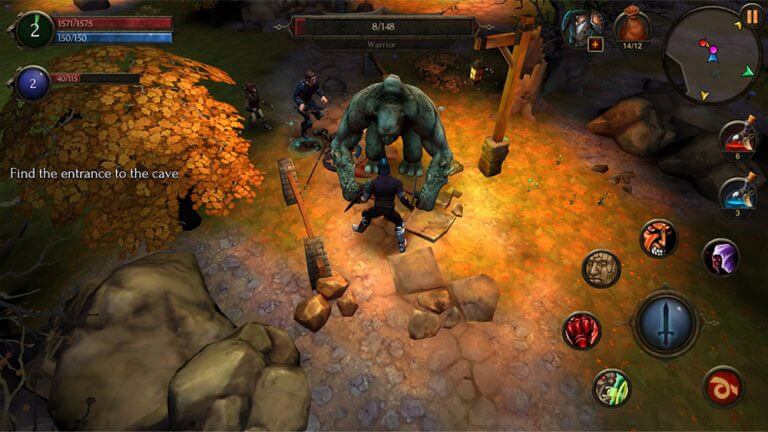
    The World 3: Rise of Demon is one of the best offline RPG games that you deserve to play because it has stunning 3D graphics. Although the presentation of the graphics is good, the size of this game is quite small. And an advantage here is that you can play it without an internet connection.

    In this game, there are only 2 characters that you can play later, namely the Warrior who is a warrior or fighter, and the mage who is a magician. For the game mode itself, there are 3 choices, namely Limbo or adventure mode, Arena or battle, and Forest Hunt or hunting.

    You need to know, that Warrior characters have greater damage than mages with close attack distances. But for a longer attack distance, Mage is superior with his magic power.

    Download

    #8. Smashing The Battle – $4.99

    Smashing The Battle
    Smashing The Battle

    Smashing The Battle is an android offline RPG game that carries the concept of a combination of action and hack and slash. In this game, the character you will play is a sexy girl, who wears tight clothes.

    The story of the game itself begins in 2085 in a large construction company. Well, this woman became the victim of large-scale hacking. Because the hack of all the construction robots is getting out of control, these robots will attack the factory workers.

    Later, in this game, you will control two female characters, each of which has a different side of the story but is still related. Of course, each of these characters has unique abilities and gameplay. Curious?

    Download

    #9. Animus – Stand Alone – $3.99

    Animus – Stand Alone
    Animus – Stand Alone

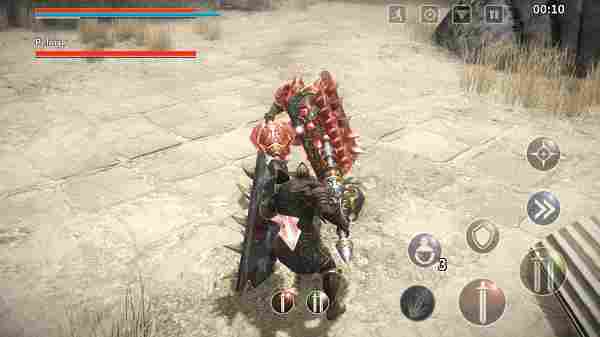
    Animus – Stand Alone is also one of the action RPG games that you can play offline. In terms of gameplay, this game has similarities to Bloodrone, Demon Souls, and Dark Souls.

    If you like RPG games with exciting and challenging 3D graphics, then this game is worth playing. Unfortunately, this game is not free, you need to buy it first to be able to enjoy this cool game made by TENBIRDS.

    Download

    #10. Ravensword: Shadowlands 3d RPG – $6.99

    Ravensword Shadowlands 3d RPG
    Ravensword Shadowlands 3d RPG

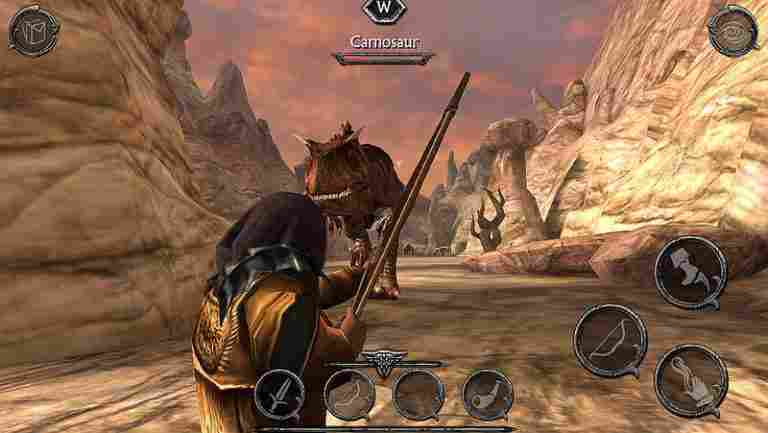
    In the last position, there is a game called Ravensword which presents the concept of an open-world RPG. This means you can later complete only the main mission or side missions and do whatever you want in this game.

    You need to know, that side missions in this game are useful for raising all fighting skills and getting paid in the form of equipment. Later, you are assigned to kill the dark forces with a special sword called the Ravensword.

    Download

    Read more:

    Conclusion:

    Well, that’s the 10 choices of the best offline RPG games for Android that are worthy for you to play right now. If you have recommendations for other exciting offline RPG games, don’t hesitate to share them in the comments column.