How To Hide IP Addresses on Windows 10 (3 Easy Tips) – Make your web browsing activity private by hiding your IP address (IP Address). The internet is here to bring many advantages and facilitate many activities in our life and we all admit that the internet is good in many ways. However, protecting your online privacy on the internet is a must.

How To Hide IP Addresses on Windows 10 (3 Easy Method)
How To Hide IP Addresses on Windows 10 Laptop PC
Did you know that the websites you visit the things you buy online, search engines, websites, and advertisements track your every click and move? Avoid these attempts to monitor your activity by hiding your IP address. Here are three popular ways to hide your IP address and cover your tracks on the web.
An IP address is a number that uniquely identifies your computer or mobile device when connected to the internet network. Think of it as a mailbox or home address for your computer. Every web request you make is sent from your IP address, and data sent to you is routed to your IP address.
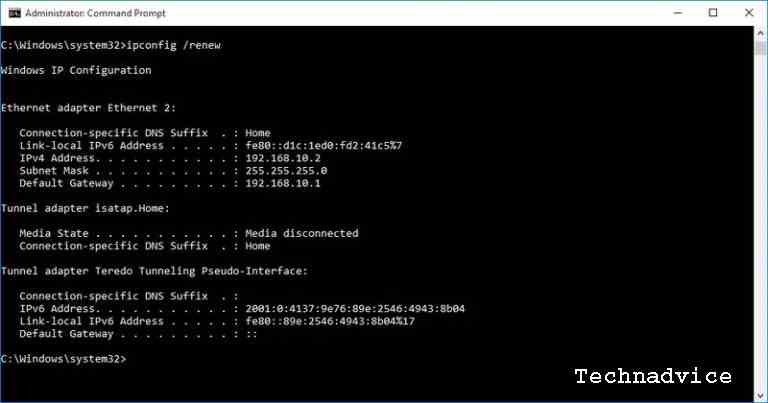
The various categories of IP addresses include private, public, static, and dynamic. Most IP addresses assigned by internet service providers (ISPs) are dynamic, which means that a new IP address is assigned to your device every time you log on to the web. However, dynamic does not mean personal. Because your online activities can be tracked using a dynamic IP address.
Why Should You Hide Your IP Address?
Your IP address is linked to all your online activities. Your online activity can reveal your internet searches, the websites you visit, the products you buy, and much more. One of the ways to hide your online activities is to use IP masking.
IP masking is responsible for hiding your real IP address and location. This makes your activity more difficult to track or trace for you. IP masking is accomplished using encrypted VPN services, proxy servers, or Tor.
Note: Hiding IP addresses is not the same as encryption. Unlike VPNs, proxies and Tor don’t offer encryption. So choose the right technology for your needs.
#1. Hide IP Address Using VPN Tunnel
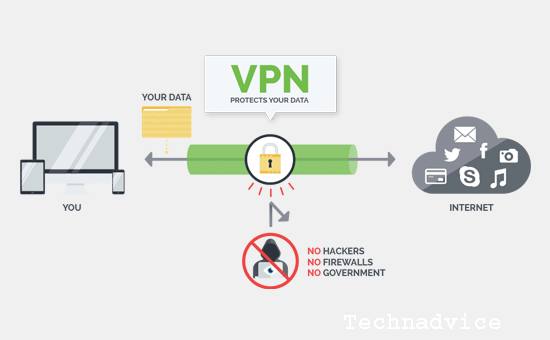
Using a VPN (Virtual Private Network) is one of the best ways to block outside entities from tracking your IP address or IP Address and spying on your online activities. This includes spying carried out by ISPs, search engines, websites, governments, hackers, and ad marketers.
The VPN masks the IP address and sends internet traffic through an encrypted VPN Tunnel. If anyone tries to view or hack that data, they’ll only see the VPN Tunnel, not what’s inside. Also, a VPN can connect to servers from different countries, so you can access geographically restricted websites and content.
To take advantage of a VPN, you need a VPN client or service. Many VPN service providers offer a variety of VPNs, service plans, and advanced features for different operating systems and mobile devices.
#2. Hide IP Address With Proxy
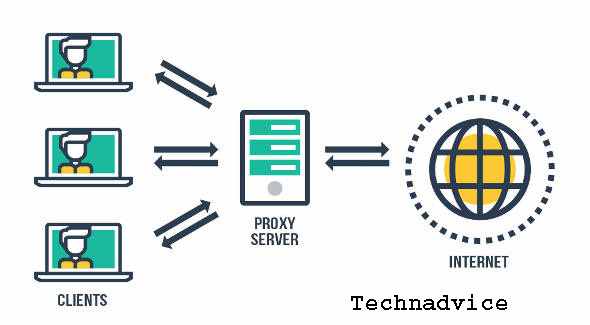
The web proxy acts as an intermediary between you and the internet. With proxies, internet requests are sent from the proxy server, and information is sent back to you from the proxy. In other words, it adds an extra leap to internet requests so they appear to be coming from the proxy, not from your IP address.
Like a VPN, an anonymous proxy masks the real IP address and prevents devices from knowing where the traffic is coming from. Unlike VPNs, proxies do not encrypt internet traffic.
Also, proxies only secure browser traffic, while VPNs replace your local ISP routing for all services. Proxies are fast and convenient to use, but if you want encryption, consider using a VPN. Proxies also don’t provide encryption and may not be as secure as other types of technology.
#3. Block Your IP Address Using Tor
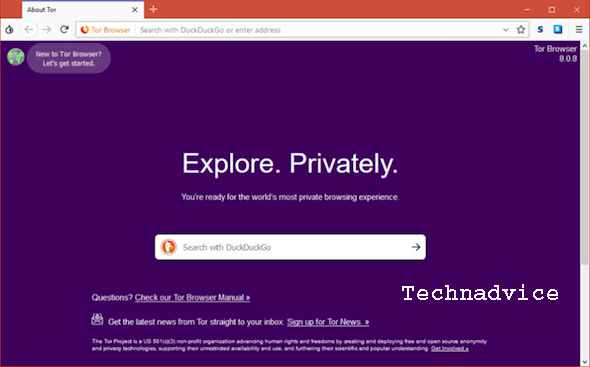
If your goal is to be completely anonymous and avoid being tracked online, then Tor (The Onion Router) can be another tool you can use to protect your online privacy.
Tor bounces web traffic on various servers so that your IP address cannot be traced back to you. Anyone trying to trace your data request sees only the nodes on the Tor network, not you.
To use Tor, download the Tor Browser Bundle from torproject.org, the official Tor site. As free and open-source software, Tor costs nothing to use and is easy to set up. Like proxies, Tor doesn’t offer encryption. If you want encryption, it’s better to use a VPN service.
Tor doesn’t provide encryption and may not be as secure as other types of technology. Don’t use Tor for torrenting and don’t use third-party plug-ins with Tor, as this can also intrude on your privacy.
So, friends, this is the explanation of how to hide IP addresses on Windows 10 (3 easy tips), and protect your privacy online so it’s safe from tracking and other harmful actions. Hopefully, this article is useful for you.

How to Download and Install Lucky Patcher on Android – This is one of the most popular applications on Android. This app is a magic tool that would not be possible with ordinary tools that allow users to do multiple jobs.
How to Download and Install Lucky Patcher on Android
Such as removing ads in apps, changing app permissions, removing system apps, and buying free apps in apps.
In general, you don’t need Lucky Patcher. However, imagine that you download a good game but the characters, articles, and resources you need to unlock it are limited.
To unlock it, you have to spend money to buy through the Google Play payment portal. But are you broke right now?
Developers writing games/apps have to make money too. But sometimes there is no other way. It’s time to use Lucky Patcher.
How to Download Lucky Patcher on Android
Lucky Patcher is a great Android tool for removing ads, fixing app permissions, backing up and restoring apps, bypassing premium license checks, and much more.
This app can surprisingly do a lot of work. It is also regularly updated to support most Android phones and various games and applications.
The following features are offered by Lucky Patcher:
Remove and block ads
Games or apps on Android often contain AdMob ads. Disappointed while you are playing games and ads are shown to hinder your progress.
Lucky Patcher makes it easy to get rid of annoying ads in all apps.
MOD and easy game crack
You can easily MOD/Crack some games with Lucky Patcher, and you can get lots of gems in games with a feature called Custom Patch.
The Custom Patch feature may not apply to all games. There are only a few games that act like this.
There is a list of custom patches that is updated daily, and you can refer to the game where you can apply custom patches in the app.
Buy in the app for free
You don’t even have to waste money to buy in-game items. You can buy Pretty Lucky Patcher and your favorite stuff without real money.
Bypass High School
Not all apps on the Google Play Store are free. This paid app has a protection mechanism called license verification, so it can’t even run with an APK. If you pass the license check, you can run it properly without buying any paid apps.
Buy paid apps for free
By skipping the checkout process on Google Play, you can buy paid apps without losing your money.
Delete and change program status
Some apps or games have suspect rights. Do I have to be connected to the internet as an offline game? Remove unwanted permissions from your apps.
Create Clone app
Lucky Patcher allows users to clone their apps on their phones. It’s very simple.
Switch Lucky Patcher
This switch is part of Lucky Patcher and contains other tool features that are not included in the basic functionality. Basically, switches help automate application management tasks, including:
Move apps to SD card automatically
Move apps to devise memory automatically
System app auto-update
Automatically back up your APK to install and update apps
Google license verification emulation
Google billing emulation
How to Install Lucky Patcher on Android
Download Lucky Patcher Apk via the link provided in this article.
Enable your device settings so that it can be downloaded from unknown sources. Access “Settings” and then click “Unknown Sources” to confirm and select “OK”.
Select the “Install” button in the lower right corner.
Wait until the installation process is complete.
Open and run.
Simple, safe, and easy to use. This is a great app for your Android device. I often play games on google play.
Lucky Patcher is a great Android tool for changing app permissions, MOD games, and removing ads and in-app purchases.
Apart from the features mentioned above, this app has a number of useful features to help you manage and “play” your apps on your Android phone.
You can download the app to your phone via the link above in this article. Good luck and thank you.
Disclaimer: All forms of download files on the Technadvice.com site are just for educational purposes only.
DMCA: Technadvice.com complies with 17 U.S.C. * 512 and the Digital Millennium Copyright Act (DMCA). It is our policy to respond to any infringement notices and take appropriate action. If your copyrighted material has been posted on the site and you want this material removed, Contact us.
FAQ:
Does Lucky Patcher require a rooted device?
Some features of the app can work without root. But I recommend rooting your Android device before use to avoid problems.
My device is blocking Lucky Patcher installation, what should I do?
You must allow the installation of apps from unknown sources and disable Play Protect on Google Play to be able to install.
Why does Google warn Lucky Patcher is a virus?
During use, you will receive a warning from the system that Lucky Patcher is a virus. Don’t worry. This is a hacking tool, but the app is harmless. It is secure for all devices and has no access to user data.
How To Root Andromax G2 AD681H on Android – Andromax is not a new name in the Indonesian smartphone market, although its current name is not as famous as it used to be, many Andromax smartphones are still using it today. One of them is Andromax G2 (AD681H).
How to Root Andromax G2 AD681H on Android
Andromax G2 is just like any other Android phone that can get root access to maximize performance and also have full rights to access the operating system from this smartphone.
For some people, Root is important because it can improve the performance of the smartphone used. After all, there are indeed some applications or programs that cannot be run without root access.
Before you root, you should first understand and know what root is so that after doing it you won’t regret it.
Broadly speaking, the root is that we have full access or control of the smartphone operating system that we use.
Because some people argue that root will damage the smartphone system that we are using.
However, many people who understand Android argue that root access can maximize the performance of an Android smartphone to be more efficient and sophisticated. For example, it can save battery and change the appearance as we want.
Then, how do you get root access to the Andromax G2 AD681H?
You don’t need to worry, because in this post the admin will share the tutorial with you.
You should just follow it so that nothing is missed about how to root the Andromax G2 AD681H below.
Root Andromax G2 AD681H without a PC
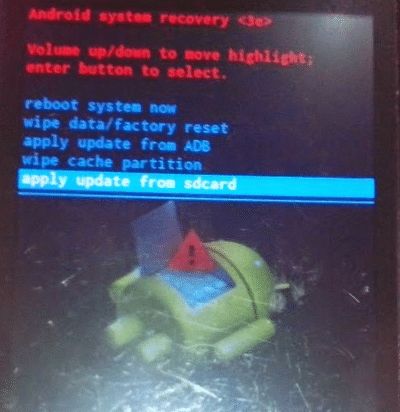
To be able to root Andromax G2 without a PC smoothly, you need to display the ‘Apply update from SD card feature in stock recovery as follows
If you have downloaded the two files above, immediately place them in the external SD Card (not in the folder, just put them outside)
Then turn off the Andromax G2 smartphone that you are using
After the cellphone is dead, now turn it back on by pressing the Power + Volume Up button simultaneously and holding it for a while until the new smartfren logo appears, release the button
If you have entered recovery mode and the “Apply update from sdcard” feature appears as shown below
How to Root Andromax G2 AD681H without a PC
The next step is to select “Apply update from sdcard” and then select the 1Philz-CWM-Andromax-G2.zip file on the SD Card
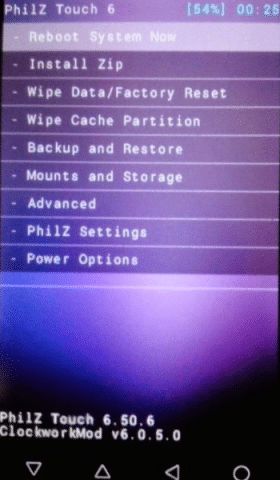
If all the processes are correct, then your cellphone will restart and will enter the Philz CWM Recovery menu as shown below
How to Root Andromax G2 AD681H without a PC
Continue to the next stage, namely select install.Zip
Then select UPDATE-SuperSU-v2.46.zip
Then wait a few moments until the SuperSU install process is complete. When finished, select Reboot System Now
After entering the home screen, check if there is a SuperSU application. If there is, it means that your Andromax G2 is successful in Root.
How to Root Andromax G2 with Kingroot
You also need to know that Root has many advantages, for example, it can improve smartphone performance by overclocking the processor, and moving applications or games to external memory so that when you download and install any application you will not worry about full internal memory.
Besides that, you can also delete unused default applications and many others.
You should not be confused about which applications require root access, because currently in the Playstore many applications can be maximized with root access.
There are two types of Andromax smartphones, namely the Andromax G2 (AD681H) and the other one with the Andromax G2 Qwerty (AD9A1H) keyboard which the admin discussed in the previous post.
This Smartfren Android smartphone has a 4.5-inch screen with a TFT capacitive touchscreen and runs Android OS 4.3 Jelly Bean. It has a 1.2 GHz quad-core processor.
It has 512 MB RAM and 4 GB storage, which can be enlarged by adding external memory up to 32 GB.
In addition, Andromax G2 is also equipped with a main camera on the back of 5 MP, 2592X1944 pixels, and a 1.3 MegaPixel front camera.
15 Ways to Improve Low Resolution Video Quality – Are you confused about how to improve video quality? If so, here are the best video quality enhancers that you can use.
15 Ways to Improve Low-Resolution Video Quality
How to Improve Low Resolution Video Quality Windows PC Laptop
Most people must have experienced when the quality of the video they took was not what they wanted. The problem usually occurs when using a mobile device such as shaking hands when recording video, less than ideal lighting, or poor quality hardware that can damage the video recording.
If you’re wondering how to improve video quality, you’re in luck. Because the admin has sorted some of the best video quality enhancers that you can use.
What is a Video Quality Enhancer?
Video quality enhancer is a tool that allows you to increase video resolution. This app allows you to easily change the brightness, saturation, and contrast of clips. It helps you to crop, rotate, edit, and enlarge clips.
Why Should You Use Video Enhancer?
Video enhancer has many features that can give a new atmosphere to your footage. Usually, not all apps include all the features, but usually, you can get the following features:
Upscaled resolution
Better lighting
Improved stability
Denoising
Brightness adjustments
Cropping, rotating, and flipping
Filters
Effects and animations
Best Video Quality Enhancer Application
Here is a list of the best Video quality enhancers with popular features. This list contains both open-source (free) and commercial (paid) software.
#1. Adobe Premiere Pro CC
Adobe Premiere Pro CC
Adobe Premiere is an application that helps users improve video quality easily. It allows its users to export videos in formats like AVI (Audio-Video Interleaved), MXF (Material Exchange Format), and more.
Features:
Automatically reformat videos
Help manage curve adjustments
Expand editing platform
This video enhancement app allows the combining of audio with video.
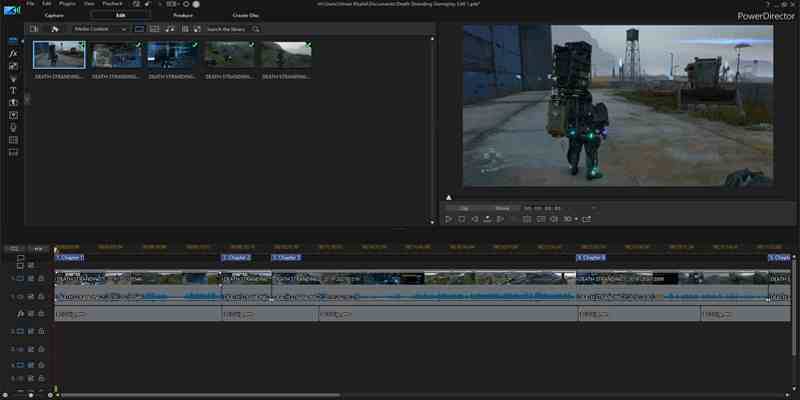
PowerDirector is an application that helps its users improve video quality. It allows its users to add customized shapes and objects to the video. This is an application to improve video quality that can be used on Android.
Features:
It is possible to import 8K videos.
This free video enhancement app allows the production of videos in a 1:1 output ratio.
Topaz Video Enhance AI is a video quality enhancer that allows users to increase video resolution. It allows its users to enhance videos in batches. This app supports DVD, DSLR, Game, and HD stock recording.
Features:
It is possible to recreate high-resolution videos from low-resolution footage.
Help improve video quality up to 8K.
This free up-scaling video app can quickly analyze multiple videos.
Can be used for advertisements, movie content, YouTube videos, etc.
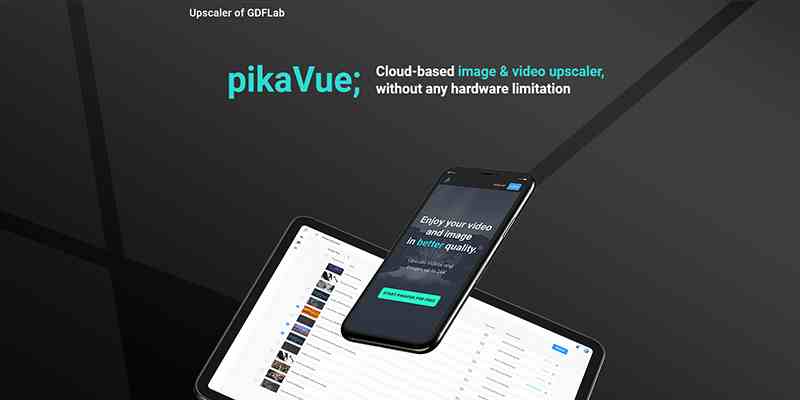
GDFLab is a tool to improve video quality and resolution. It allows its users to improve video quality without any hardware limitations. This application allows users to convert low-definition videos to full HD.
ISize (Online) is a tool that uses machine learning solutions to improve video quality. This application helps users save bitrate using standard codecs.
Features:
Can process any content input such as sports, thermal images, and surveillance footage.
Compatible with any codec, including HEVC, AVC, VP9, and more.
Help save battery life in drones and smartphones.
Allows improving video quality online.
Offers a quick solution to improve video streaming quality.
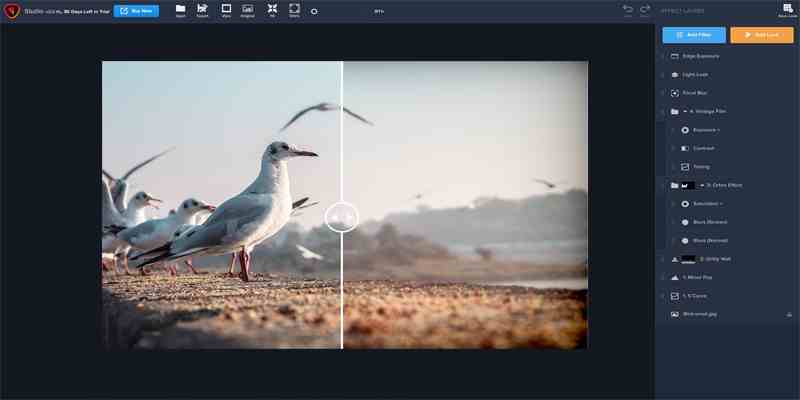
IMovie is a video enhancement app that allows users to choose from a variety of styles to animate titles. This application also allows you to change the capture speed or improve the quality of video clips for free.
Features:
Can add finishing touches such as color correction to videos.
Allows users to start editing on an iPhone or iPad, and then finish on a Mac.
Built-in music, sound effects, and voiceover recording
This free video enhancement app helps to create 4K resolution movies.
It is possible to create movie trailers from easy-to-use templates.
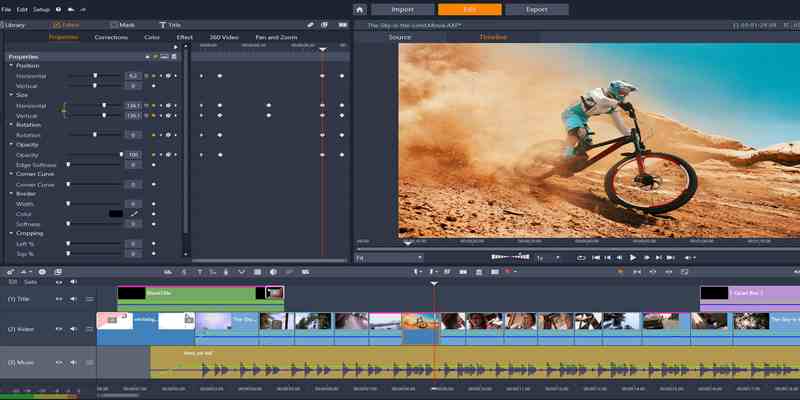
Pinnacles Studio is a video quality enhancement application that has an improved color grading feature to improve video quality. It contains more than 2000 effects. This app helps its users to stabilize shaky videos.
Features:
Can efficiently edit videos across tracks in 4K and HD formats.
It provides 360 video editing.
Can crop, rotate, edit, and zoom videos.
This application allows its users to split-screen videos.
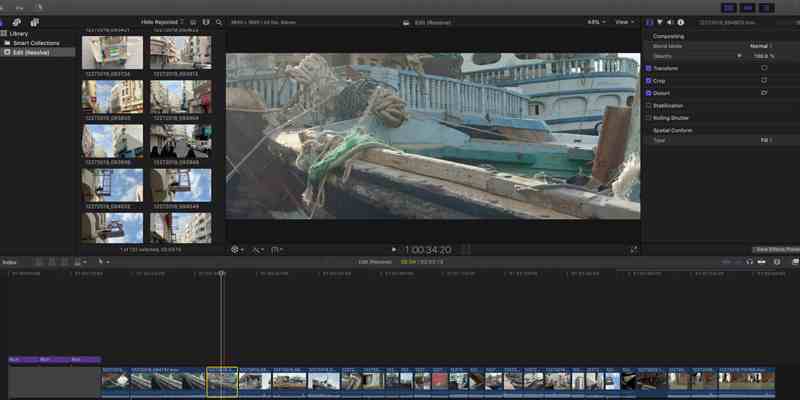
Final Cut Pro X helps users speed up graphic tasks such as rendering, dramatic real-time effects, and exporting. It’s also possible to use gift cards for digital content and Apple subscriptions.
Features:
Automatically sync up to 64 video angles using various formats.
Final Cut Pro includes an intuitive and comprehensive set of tools for closed captioning in a variety of formats.
Dramatically speeds up graphic tasks such as rendering real-time effects and exporting.
Final Cut Pro helps speed up post-production work.
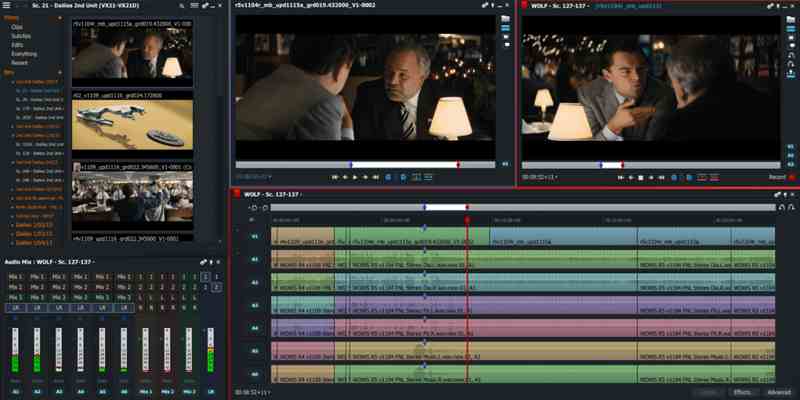
Lightworks is a platform for editing any digital video in multiple formats, including 2K resolution, 4K resolution, and HD format. This video-enhancing app allows its users to export videos for YouTube, Vimeo, etc.
Features:
Can easily edit timeline videos and trim them.
Can create 2D and 3D titles.
Lightworks allows its users to share clips with others and assign read or write access.
Allows customizing shortcuts.
Lightworks supports English, German, Italian, and many more languages.
Provides a simple way to trim your videos.
Supported platforms are OS like Linux, Windows, Mac, and OS.
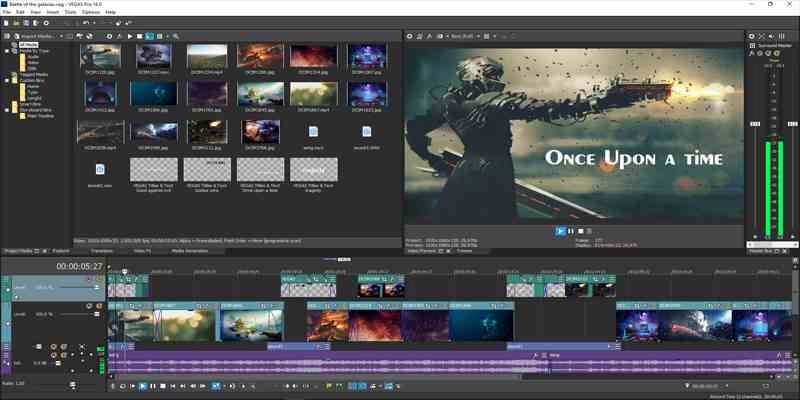
Vegas Pro is an app that allows its users to improve video quality without any hassle. It helps its users to import videos from tablets, video cameras, and smartphones. The app offers nested timelines to speed up workflows.
Features:
Provides hundreds of effects.
Can delete entire video clips without any hassle.
Supports HDR (High Dynamic Range).
Can edit 8K videos.
Automatically saves the user’s work.
Provides a drag-and-drop interface.
The advanced version of Sony Vegas Pro provides a lens correction plugin.
Clideo Adjust Video Tool is an online application that allows its users to adjust the brightness, saturation, and contrast of videos. It offers a very convenient slider bar to enhance the quality of any clip.
Features:
It is possible to convert the uploaded file to any format before downloading it.
Compatible with formats like WMV, MOV, VOB, MP4, AVI, etc.
Can automatically delete users’ videos after 24 hours.
Easy to use for people with no video editing experience.
Video clips can be downloaded to Google Drive or Dropbox.
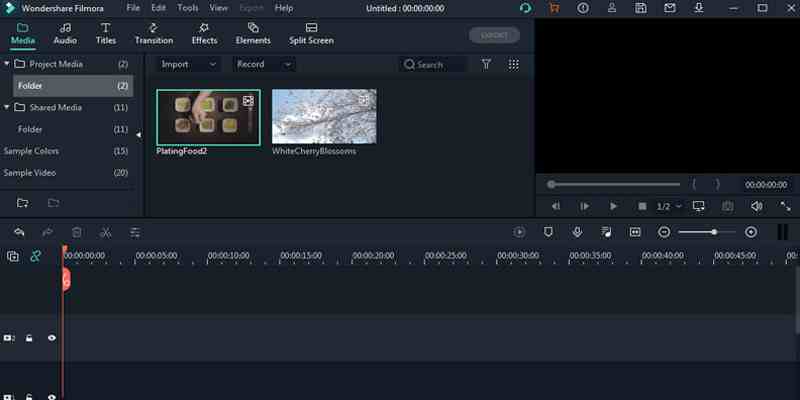
Filmora is a simple video enhancement application that offers a drag-and-drop facility. It helps its users to rotate, merge, trim, and flip videos with UI. The app has an intuitive user interface and lots of video effects.
Features:
Supports 4K quality video editing.
Can control video speed.
Help users import GIF files to videos.
Provides frame-by-frame preview.
Can separate audio from video.
Divide the film into many segments.
Can fix camera problems like camera shake and fisheye.
Videoshop is a cross-platform smartphone application that aims to provide convenience in the video enhancement process. This is the perfect app for people who want to create social media-friendly content.
Features:
Allows for slow motion, fast motion, voiceovers, and reverse playback of videos.
InShot is a very popular cross-platform mobile app. The Android version alone has more than 100 million downloads. This app is a video editor and video maker, meaning its users can have complete control over how to improve the quality of their videos.
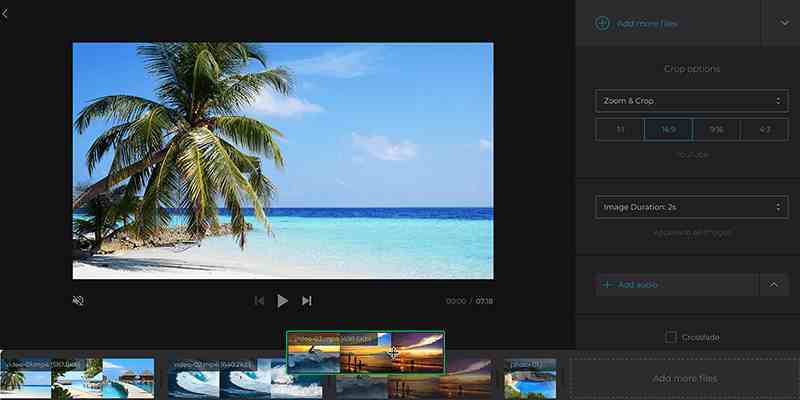
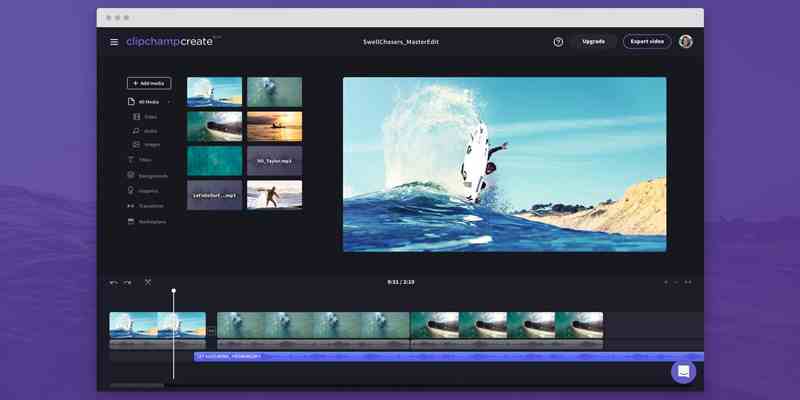
Clip Champ is an application that helps its users to edit and improve the quality of clips. This app offers customizable video templates. Allows to mix and match stock recordings and audio.
Features:
It is possible to compress, covert, collect, record, and create videos without any hassle.
Allows to cut, crop, and rotate videos.
It makes it possible to generate videos with media assets from the stock library.
Help reduce file size, convert clips to MP4, and more.
Are you guys wondering if can we convert low-quality videos to high-quality? The answer is yes. Low-quality videos can be converted into high-quality videos by using video quality enhancers. You can use the available sites and apps to convert any clip to HD without any hassle.
Here are some ways to improve video quality:
Use upscale video resolution.
Adjust frame rate, codec, aspect ratio, and bitrate.
Remove or reduce noise.
Make sure you fix shaky videos.
Optimize contrast, brightness, and saturation.
Rotate, crop, and flip clips.
Apply transitions, filters, and visual effects.
Add text, sound, music, subtitles, and watermarks.
Conclusion:
So that’s how to improve video quality. Simply we need a third-party application to do it. Video quality enhancers can convert low-quality videos to high-quality videos. The app will check various parameters like sharpness, bitrate, stability of the recording, contrast, brightness, etc. To improve your videos.
11+ Best Junk Cleaner Apps for Windows 10 PC – Junk files can be a serious problem on any PC as they can make them very slow. To delete unwanted files, you need to run certain applications. Your PC can sometimes be filled with unnecessary temporary files and programs that can slow it down.
11+ Best Junk Cleaner Apps for Windows 10 PC
Most users don’t know which files can be easily deleted and which data are important system files.
To make sure you don’t delete anything useful, you should proceed with caution and use professional software to clean your laptop.
Junk files and apps can be a problem, so today we are going to show you the best tools or laptop junk cleaner apps in Windows 10.
Here are The Best Junk Cleaner App on Windows 10 PC Desktop Laptop
#1. Restoro (recommended)
Restoro (recommended)
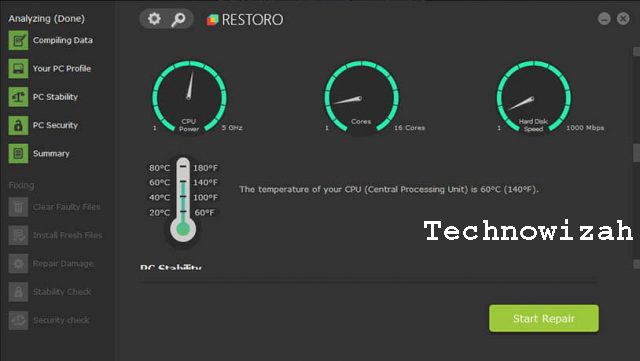
Restoro is a highly recommended system repair tool for your PC.
This professional Windows system repair tool is a complete program that not only replaces missing DLLs with its patented technology but can also recover corrupted or missing entries in the registry.
Here are some examples of its superior features:
• It corrects settings, removes junk, and deletes corrupted files to help you free up disk space
• Can be an excellent help to restore your computer after a serious infection
• Drastically improves computer stability and dramatically increases its speed
• Includes a remote database of genuine and up-to-date Windows files that can replace corrupted files on the scanned system
• This app is the perfect solution for adware, ransomware, Trojans, and other malicious programs.
The analysis process and scan results are free of charge, but users who wish to fix problems automatically must purchase the licensed version.
Get rid of unwanted files on your Windows 10 computer forever with Restoro!
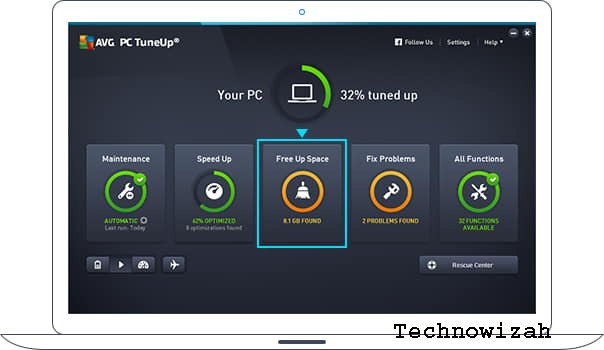
#2. AVG TuneUP (recommended)
AVG TuneUP (recommended)
Finding the best PC cleaner isn’t always easy, but if you’re looking for software to remove unnecessary files in Windows 10, then AVG TuneUP might be what you need.
Here are the features of the garbage cleaning application on this laptop:
• Will automatically clean your registry and fix various problems
• Automatic maintenance that will clean browser residue, track cookies, cache files, etc.
• Sleep Mode technology that puts resource-intensive programs or background programs into sleep mode to improve your PC’s performance
• Ability to find and remove unwanted software such as bloatware or old software
• Delete cache files, old backups, and temporary files thanks to the Disk Cleaner feature
• Browser Cleaner feature that will delete residual files from all your browsers
• Ability to automatically update outdated software
#3. CCleaner
CCleaner
Perhaps one of the most famous junk file cleaning applications on Windows 10 laptops is CCleaner.
This app can remove junk files, but it also has many other features.
Regarding the features, here are the most prominent ones:
• Ability to clean temporary files (temporary files), cookies, history, and other files from all major and less popular browsers
• Can clean the Recycle Bin, recent documents, temporary files, log files, clipboard, DNS cache, error reports, memory dumps, and jump lists
• Delete temporary files and list of recent files associated with various third-party applications
• Software updates (professional version only)
• Real-time monitoring (professional version only)
• Scheduled cleaning (professional version only)
#4. Revo Uninstaller
The next application for cleaning junk files on laptops that also has a very good feature is Revo Uninstaller.
Regarding features, here are some of the best features this app has to offer:
• Can uninstall any application and delete all files associated with it
• Hunter Mode which allows you to define and delete unknown apps
• The Autorun Manager feature allows you to control which applications start automatically with your PC
• Ability to delete junk files and speed up your PC and delete files and folders permanently
Pro version features:
• Forced Uninstall – Remove residual files from any applications that were not properly uninstalled
• Quick/Multiple uninstall – Manage queues for the apps you want to uninstall and delete them one by one
• Real-time installation monitor lets you see changes live on your PC while certain apps are being installed
• Ability to make system and registry backups before making any changes
#5. Wise Registry Cleaner
If you need a good laptop junk file removal app, then you should give Wise Registry Cleaner a try.
This software comes in two versions, Free and Pro, and the differences are very slight.
Regarding features, here are some important features that this laptop cleaning app offers:
• Ability to scan the registry and remove damaged or unnecessary entries
• Can easily restore the registry to a previous state if you encounter any problems
• You can add the Clean Registry shortcut on your desktop to clean the registry whenever you want
• Three different scan modes: normal, safe, and deep
• Support for exceptions that let you bypass certain sensitive areas of your registry
• Multi-user support (only in the Pro version) – Thanks to this, you can clean the registry for all users on your PC, as long as you have administrative rights
#6. Magic Utilities
The next junk file cleaning application in Windows 10 is Magic Utilities.
The app has a simple user interface, but it makes up for it with its features.
Speaking of features, here are a few that stand out:
• Ability to quickly and easily remove applications from your PC
• Can easily detect corrupted registry entries
• It finds leftover files from deleted apps
• Detect recently installed programs or programs that have been added to the startup
• It configures your startup applications
• Built-in task manager that can immediately close applications
• Can find and delete temporary or junk files from your PC
#7. Easy Duplicate Finder
Easy Duplicate Finder is one of the junk file cleaner apps for Windows 10 laptops.
This application has a friendly user interface so you can easily find and delete duplicate files.
Regarding features, here are some important features that this app offers:
• Very simple user interface to use
• Multiple scan modes
• Ability to remove duplicates from cloud storage services
• Folder comparison mode
• Ability to find correct duplicates
#8. Wise Disk Cleaner
If you are looking for the best PC cleaning app, you might want to give Wise Disk Cleaner a try.
The app is easy to use but also packs a lot of useful features.
Here are some of the most prominent features:
• Ability to delete unnecessary files and free up valuable disk space
• Advanced options that let you delete all kinds of junk files
• Ability to clear your browsing history, cache files, and browser cookies
• Can also clean up various traces left by your operating system
• Built-in defragmentation tool
• Ability to schedule cleaning sessions
#9. FileCleaner
The junk cleaner app on laptops is also quite great and can help you remove junk files from your Windows 10 PC is FileCleaner.
According to the developers, this application will free up space on your PC, while speeding up your browser and PC.
As for the features, here are some of the most prominent features that FileCleaner has to offer:
• Clean junk files in real-time
• Can easily clean Internet and application history
• Ability to delete search history, temporary files, and recent documents
• Can delete browser extensions, toolbars, and cache
• File shredder feature that will permanently delete the desired files
• Scheduler for iterative optimization
• Support for all major browsers
#10. R-Wipe and Clean
R-Wipe & Clean is another junk file removal app, and it works with both Mac and Windows computers.
Regarding features, here are some that stand out:
• Ability to remove traces of any activity from your browser and other communication programs
• Can clean traces of activity including various lists, logs, cache, temporary files, etc.
• Ability to delete registry entries, temporary files, system history, and logs
• Can delete cache, temporary files, logs, other traces, and junk files left by third-party applications
• Ability to easily delete files and free up disk space
• Support for deleting files directly from File Explorer or the shortcut menu
• Can work with SSDs while minimizing wear and tear by cleaning only the data that is needed
#11. Digeus Junk Files Cleaner
One of the software that can delete unnecessary files in Windows 10 is Digeus Junk Files Cleaner.
Regarding the features, here are some that stand out the most:
• Ability to delete large files and free up hard drive space
• Improve your system performance
• Can speed up your hard drive search performance
• Ability to find and delete more than 50 types of junk files
• Can remove invalid Start Menu items, shortcuts, empty, old, and temporary files
• Ability to manually check files before you delete them
Conclusion:
If you are looking for the best Windows 10 laptop junk file cleaner app, be sure to try the top picks from this article. Hope this short guide helped you to clean junk files on your laptop.