Author: Nazrul Islam

  • 11 Best Open Source Browsers For Linux PC 2025

    11 Best Open Source Browsers For Linux PC 2025

    11 Best Open Source Browsers For Linux PC—A web browser is a software that provides an interface for browsing the web. Since its introduction around 1991, it has undergone considerable development and progressed to its present stage.
    11 Best Open Source Browsers For Linux! PC
    11 Best Open Source Browsers For Linux! PC

    11 Best Open Source Browsers For Linux! PC

    In the past, most sites were text-based with little to no image and graphic content, so only text-based browsers sufficed with some of the early browsers: Lynx, Netscape, and Opera. Linux open-source browser.

    Read more:

    However, with the advancement of technology to support audio, video, images, and even flash content, browsers must also be sophisticated to support such content. This has driven browser advancements as we see them today.

    Modern browsers require the support of many software which includes: web browser engines such as Geeko, Trident, WebKit, KHTML, and rendering engines to render website content and display it in a proper format.

    Linux as an open-source community gives developers around the world the freedom to experiment with the features they expect from an ideal browser.

    Multiple Open Source Browsers on Linux

    Listed below are some of the perfect Open Source web browsers. Usually, the features that distinguish a normal browser from a good one are the ability to support all types of data including audio, video, flash HTML, and HTML5, fast performance, memory friendly to fully adapt to old and new systems, ability to support maximum architectures such as Intel, AMD and operating systems such as Windows, Mac, Unix-like, and BSD.

    #1. Google Chrome

    Considered the most popular web browser on smartphones and PCs with more than half the share of web browser usage, Google Chrome is freeware developed by Google. No wonder we put Google Chrome at the top of our list of the best open-source Linux browsers.

    Chrome used the WebKit layout engine until version 27 and Blink thereafter. Written mostly in C++, it is available for many Operating Systems including Android, iOS, OS X, Windows, and Linux.

    Features provided by Chrome include: bookmarks and synchronization, enhanced security, malware blocking, and the addition of external plugins such as AdBlock are available on the Google Web Store and is provided as a default extension in Chrome. Also, it supports a user-tracking feature which can be enabled if needed.

    It’s fast due to the inbuilt mechanism it uses, it’s also very stable with tabbed browsing mode, speed dial, and incognito mode (private browsing), providing custom themes that can be installed as extensions from the web store. It is widely accepted as one of the default browsers that can be found on almost all systems, with mostly positive reviews.

    #2. Firefox

    One of the popular Web Browsers, Firefox is also Open Source and available for major operating systems including OS X, Linux, Solaris, Linux, Windows, and Android. Firefox is written in C++, Javascript, C, CSS, XUL, and XBL and is released under the MPL2.0 License.

    Since its introduction, it has been praised for its speed, and security and has even been cited as the spiritual successor of Netscape Navigator. Firefox uses the Geecko web engine on all supported platforms leaving the latest on iOS which doesn’t use Geecko.

    Features supported by Firefox include tabbed browsing, spell check, incremental search, direct bookmarks, private browsing, and additional support that allows easy integration of many features.

    Moreover, it supports many standards including HTML4, XML, XHTML, SVG, APNG, etc. It has become one of the popular web browsers in many Asian and African countries with more than one billion users worldwide.

    #3. Opera

    Another popular web browser, Opera is one of the oldest to date, with the initial version being released in 1995, 20 years ago. Opera is written in C++ with marked availability for all Operating Systems including Windows, OS, Linux, OS X, Symbian, and mobile phones including Android, and iOS. It uses the Blink web engine, whereas previous versions use Presto.

    Features of this browser include: speed dial for quick search, tabbed browsing, download manager, Page Zoom which allows Flash, Java, and SVG to be increased or decreased according to user requirements, HTTP cookie deletion, browsing history, and other data on click. a button. Despite its critics for compatibility and other UI-related issues, it has become one of the favorite browsers with a total of around 291 million users as of mid-2015.

    #4. Chromium

    A widely known web browser formed from taking its source code i.e. Google Chrome, Chromium is another open-source web browser available for Linux, Windows, OS X, and Android Operating Systems. It is mainly written in C++ with the latest release in December 2016. Chromium is designed with a minimalistic user interface making it light and fast.

    Chromium features include a tabbed window manager, support for Vorbis, Theora, WebM codecs for HTML5 Audio and Video, Bookmarks, and History and Session management. Apart from Google Chrome, Chromium also forms the basis for a large number of other Web Browsers some of which are still active while others have been discontinued. Some of them are Opera, Datum, Epic Browser, Vivaldi, Yandex Browser, Flock (discontinued), Rockmelt (discontinued), and many more.

    #5. Midori

    Midori is an open-source web browser developed in Vala and C with the WebKit engine and GTK+2 and GTK+3 interfaces. With an initial stable release in 2007 and the latest stable release in August 2015, Midori is currently the default browser on many Linux distributions including Manjaro Linux, Basic OS, SliTaz Linux, Bodhi Linux, Trisqel Mini, SystemRescue CD, Raspbian old version.

    Key features provided by it include HTML5 Support, Bookmark Management, Private Browsing, Windows, Tab and Session management, Speed ​​Dial, Easy integration of extensions writable in C and Vala, and Unity Support. Midori has been mentioned as one of the alternative web browsers for Linux by LifeHacker and many other sites including TechRadar, ComputerWorld, and Gigaom.

    #6. QupZilla

    QupZilla is another known web browser that started as just a Research Project with its first release in December 2010 written in Python and later released with C++ to develop a mobile web browser. It is licensed under GPLv3 and available for Linux, Windows, OS X, and FreeBSD.

    QupZilla uses the WebKit engine with QtWebKit to sync with modern web standards. It provides all the functionality of a modern web browser including Speed ​​Dial, built-in Ad Block feature, bookmark management, etc. Additional features that will make you choose this browser include Performance Optimization with lower memory consumption than most popular web browsers including Firefox and Google Chrome.

    #7. Konqueror

    Another multipurpose Web Browser and File Manager, Konqueror is another one on the list. Developed in C++ (Qt) and available for Operating Systems including Linux and Windows and licensed under GPLv2. As the name suggests, Konqueror (starting with ‘K’) was the default browser for the KDE Desktop environment, replacing the then-known KFM.

    As a web browser, it uses the KTML-derived web rendering engine and also supports JavaScript, Java applets, CSS, and JQuery. Its rendering capabilities are unquestionable and better than most web browsers highlighting its performance optimizations.

    Other features include a Customizable search service (even custom search shortcuts are also included which can be added), the ability to display multimedia content within web pages due to Kpart integrated, the ability to open PDF, Open Document, and other specific file types, integrated I/O plugin system that allows multiple protocols including HTTP, FTP, WebDAV, SMB, etc, ability to browse user’s local file system. Konqueror Embedded is another embedded version of Konqueror that is also available.

    #8. Web (Epiphany)

    Originally named Epiphany is another browser that deserves a mention on the list. Written in C (GTK+) it was originally a fork of Galeon and has since been part of the GNOME project and adheres to GNOME guidelines at every stage of its development.

    Initially, it used the Geeko engine but with version 2.20, it started using the WebKitGTK+ engine. The Web provides support for Linux and BSD operating systems with source code available under GPLv2.

    Features include HTML4, CSS1, and XHTML support including support for HTML5 and CSS3, inbuilt plugins from Adobe Flash and IcedTea, bookmarks and “smart bookmarks” features that allow easy search in a find-as-you-type way, full integration with GNOME Features include GNOME Network Manager, GNOME printer, etc, and other features supported by most browsers. While it has received mixed reviews, one ability that many have praised is its fast launch and page readability.

    #9. SwiftFox

    A browser based on Mozilla Firefox, SwiftFox is next on the list. It is built specifically for Linux with code carrying fully Open Source under MPL 1.1 and proprietary binaries.

    SwiftFox is an optimized version of the Firefox platform for Linux. It employs Binary Code Optimization techniques with -O3-level compilation, and optimizations specific to architectures including AMD, AMD64, and Intel.

    Other features that make it more advanced than Firefox are security improvements and Pango disabled to reduce package size and rendering. Version 1.5.6.0 has been reported to have a speed increase of around 1.7%.

    #10. Pale Moon

    Another browser based on Mozilla Firefox, Pale Moon is a replacement for Firefox on Linux, Windows, and Android. It is developed in C/C++ with source code available under MPL2.0 License. It retains the user interface seen in previous versions of Firefox, focusing solely on web browsing capabilities. The latest version will use Gonna, which is an offshoot of Geeko the Firefox web browser engine.

    Pale Moon focuses on speed optimization features and leverages Microsoft C Compiler’s auto-optimization and automatic parallelization features. In addition, it removes unnecessary add-ons to unneeded features i.e. crash reporter, and accessibility hardware features, and targets Windows Vista and newer OS because of which it may fail on older hardware. Other features include DuckDuckGo’s default search engine, IP-API geolocation service, functional status bar, and increased customization.

    #11. Links

    Links is an open-source text and graphical web browser written in C and available for Windows, Linux, OS X, Open VMS, and DOS systems. This browser is released under the GPLv2+ license.

    Links is the ideal browser for those who want to experience GUI elements in a text-only environment. Links 2 is the latest version released in September 2015 and it is an advanced version of Links that supports JavaScript, resulting in a much faster web browser.

    The main feature of Links is that it can run in graphical mode even for systems that don’t have X Server due to its support for Graphics drivers for X Server, Linux Framebuffer, svgalib, OS/2 PMShell, and Atheos GUI.

    Read more:

    Conclusion:

    This is the explanation of some best open-source browsers for the Linux version Technowizah.com, most of which are the best and most popular browsers of choice.
  • Best Ways to Fix Error 0x800F081F in Windows 10 PC 2025

    Best Ways to Fix Error 0x800F081F in Windows 10 PC 2025

    Best Ways to Fix Error 0x800F081F in Windows 10 PC—Although Microsoft has made significant improvements over the last few years, Windows still tends to have occasional error codes. In this post, we will share how to fix the 0x800F081F error in Windows 10.

    Best Ways to Fix Error 0x800F081F in Windows 10 PC
    Best Ways to Fix Error 0x800F081F in Windows 10 PC

    What Causes Error 0x800F081F?

    Error code 0x800F081F is one of four possible error codes that all point to the same underlying problem. The other three are error code 0x800F0906, error code 0x800F0907, and error code 0x800F0922.

    Read more:

    Microsoft .NET Framework 3.5 incompatibility causes all code errors. Typically, they will occur when you activate the .NET Framework using the installation wizard, Deployment Image Servicing and Management (DISM) tool, or Windows PowerShell commands.

    You will only see the code on Windows 10, Windows Server 2016, Windows Server version 1709, Windows 8.1, Windows Server 2012 R2, Windows 8, and Windows Server 2012. On those operating systems, Microsoft .NET Framework 3.5 is a “Feature on Demand” (meaning it is not enabled by default).

    When you enable this feature, Windows update tries to fetch the .NET binary along with other required files. If your computer is not configured properly, you may see those codes.

    • 0x800F081F: Windows cannot find the .NET source files for the installation to continue.
    • 0x800F0906: Windows cannot download .NET source files, cannot connect to the internet, or cannot install roles, role services, or features.
    • 0x800F0907: Either the DISM tool failed, or your network policy settings are preventing Windows from connecting to the web.
    • 0x800F0922: Processing of .NET advanced installers or generic commands failed.

    How to Fix Error 0x800F081F, 0x800F0906, 0x800F0907, or 0x800F0922 in Windows 10

    Fortunately, the way to fix the first three errors is the same. There are two approaches you can try. For error 0x800F0922, you should immediately switch to method two.

    #1: Configure Your Group Policy

    It’s possible that your Group Policy is affecting Windows’ ability to enable installation.

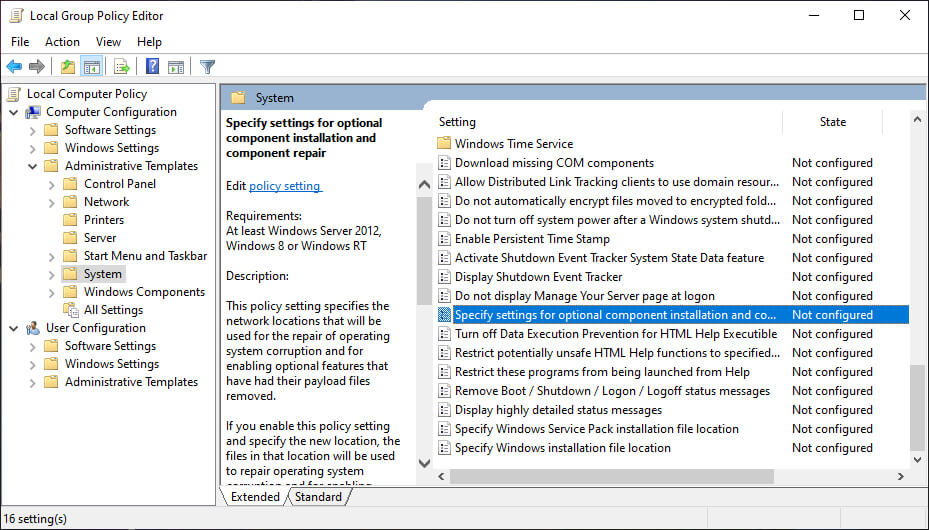
    To get started, press  Windows + R  to bring up the Run dialog. Next, type gpedit.msc and press  Enter. This command will open the Group Policy Editor window.

    Once the editor is on your screen, use the left pane to navigate to Computer Configuration > Administrative Templates > System.

    Configure Your Group Policy

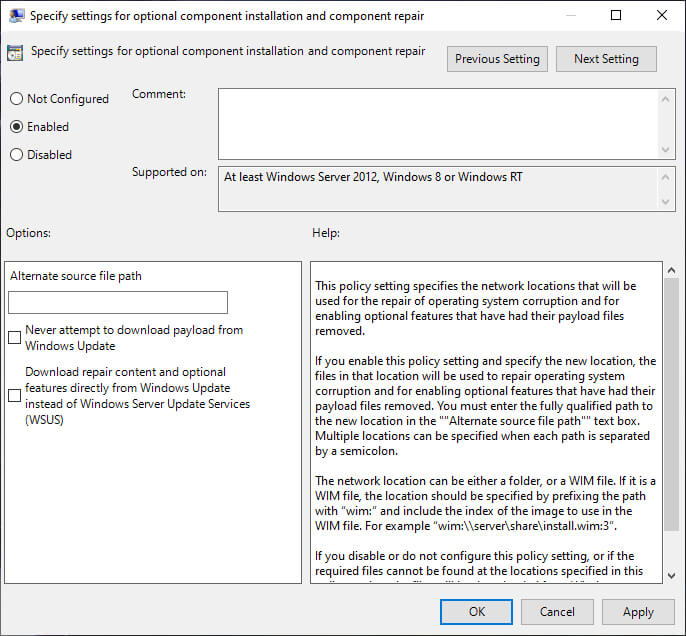
    Move your attention to the right panel. Scroll down until you find the entry labeled Specify settings for optional component installation and component repair. You’ll find it under the folder you see at the top of the list.

    Double link on the entry to open the Settings window. Finally, in the upper left corner, mark the checkbox next to Enabled and click  OK.

    Configure Your Group Policy

    #2: Enable .NET Framework Using DISM Command

    Note:  This is the only method that will fix error code 0x800F0922.

    The second approach requires you to use the DISM command to activate the .NET Framework. Don’t worry, it’s not as complicated as it sounds.

    Before starting the main process, you must first make sure you have an ISO image of Windows 10. The ISO version must be exactly the same as your current operating system.

    You can create an ISO image using Microsoft’s official Media Creation Tool, which you can download from the Microsoft website.

    Once the download is complete, run the tool and click on Create installation media for another PC. On the next screen, select your language and system architecture, then select the ISO file to start the creation process. Burn the ISO file to DVD before proceeding.

    To get started, you’ll need to mount the ISO image you just created earlier. Open File Explorer and double-click on the file. It should be installed automatically. Alternatively, you can right-click on the file and select Mount from the context menu. If the process is successful, you will see the ISO in the virtual drive in the left pane of the window. Take note of the drive letter.

    Note: To unmount the image, right-click on the virtual drive on This PC and select Eject.

    Enable .NET Framework Using DISM Command

    Once the image is mounted, open the Start menu and type cmd. Then right-click on Command Prompt and select  Run as administrator.

    At the command line, type dism /online /enable-feature /featurename:NetFx3 /All /Source:[Drive]:\sources\sxs /LimitAccess. Replace [Drive] with the drive letter you noted earlier, then press Enter when you’re ready.

    #Try Reinstalling Microsoft .NET Framework 3.5

    Once you’ve successfully navigated through the instructions, it’s time to install the .NET Framework 3.5 and see that error code 0x800F081F (or one of the related error codes) has disappeared.

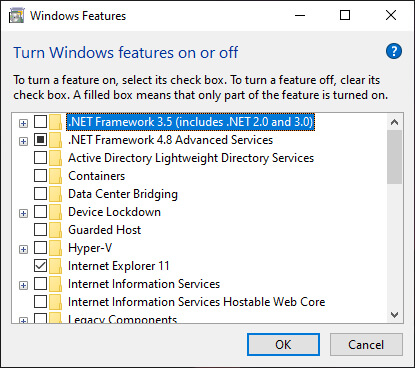
    Open the Settings app and go to Apps > Apps and Features. Scroll down to Related Settings and click on Programs and Features. Next, in the new window, click Turn Windows features on or off in the top left corner.

    Try Reinstalling Microsoft .NET Framework 3.5

    Finally, mark the checkbox next to it. NET Framework 3.5 (including .NET 2.0 and 3.0)  and click  OK. The installation process will take a few minutes, depending on your connection speed.

    So to fix or resolve error 0x800F0922 on Windows 10:

    1. Open the Group Policy Editor.
    2. Go to Computer Configuration > Administrative Templates > System.
    3. Double-click on Specify settings for optional component installation and component repair.
    4. Select Enable.

    If that doesn’t work, follow these instructions instead.

    1. Create and mount a Windows 10 ISO image.
    2. Open Command Prompt as administrator.
    3. Type dism /online /enable-feature /featurename:NetFx3 /All /Source:[Drive]:\sources\sxs /LimitAccess  (replacing [Drive] with the appropriate letter).
    4. Press Enter

    Read more:

    Conclusion:

    That’s an article on how to Overcome Error 0x800F081F on Windows 10, Wait for other interesting articles, and don’t forget to share this article with your friends. Thank you.

  • 20 Best List of 2GB RAM Games for PC Great Graphics! 2025

    20 Best List of 2GB RAM Games for PC Great Graphics! 2025

    20 Best List of 2GB RAM Games for PC with Great Graphics – Many PC games that come out on the market, with a variety of specification guidelines sometimes make gamers inflamed and end up just reading or looking at the reviews listed. Which, on the one hand, sometimes makes gamers jealous.

    20 Best List of 2GB RAM Games for PC Great Graphics
    20 Best List of 2GB RAM Games for PC Great Graphics

    20 Best List of 2GB RAM Games for PC Great Graphics!

    Even though there are a lot of new games coming out, it would be nice if gamers look back again. Many, old games are interesting to try and certainly suitable for your potato pc spec.

    Read more:

    Well, now  YaTekno will recommend the best 2GB RAM games for PC 2024 that should be tried by gamers as well.

    #1. Batman Arkham City

    Batman Arkham City
    Batman Arkham City

    Many Superhero games are adapted by developers, with various forms of gameplay and genre. As if the defenders of this truth will never die, one of whom is Batman Arkham City.

    The interesting plot of the city of Arkham, with exciting stories from various Villains available and epic barehanded battles. In addition, the ability to upgrade here in the sub-category is prioritized to facilitate the desired style of play.

    The game developed by Rocksteady Studios is indeed worth trying. With a large map to explore and Side Missions which are counted with a variety of challenges and bonuses, there are 2 characters that gamers can play with each different story.

    System Requirements (Minimum)

    • OS: Windows XP, Vista, 7
    • Processor: Intel Core 2 Duo 2.4 GHz / AMD Athlon X2 4800+
    • RAM: 2GB
    • Graphics: ATI 3850HD 512MB / NVIDIA GeForce 8800 GT 512MB / Intel HD Graphics 2000
    • Storage: 17 GB

    #2. Darksiders 2

    Darksiders 2
    Darksiders 2

    One of the Hack and Slash games that were successful in the first series. Developed by  Vigil Games and  THQ  which of course the name is already quite well-known in the realm of the gaming industry. Now the series continues in the second game with the name Darksiders 2.

    With a thick Hack and Slash in the initial series, in this second series, the game changed dramatically into an Action RPG game. Skills consisting of 2 parts, items, or equipment to strengthen the character, and of course a myriad of challenging Side Missions with a variety of rewards that are of course interesting.

    The continuation of the second series is comparatively different from the initial series, especially in terms of gameplay that did change dramatically. This game still carries a taste like the original series on various sides of the story and addictive gameplay, of course.

    System Requirements (Minimum)

    • OS: Windows XP, Windows Vista SP1 / Windows 7
    • Processor: 2.0Ghz Intel Core2 Duo Processor
    • RAM: 2GB
    • Graphics: NVIDIA 9800 GT 512MB
    • Storage: 20GB

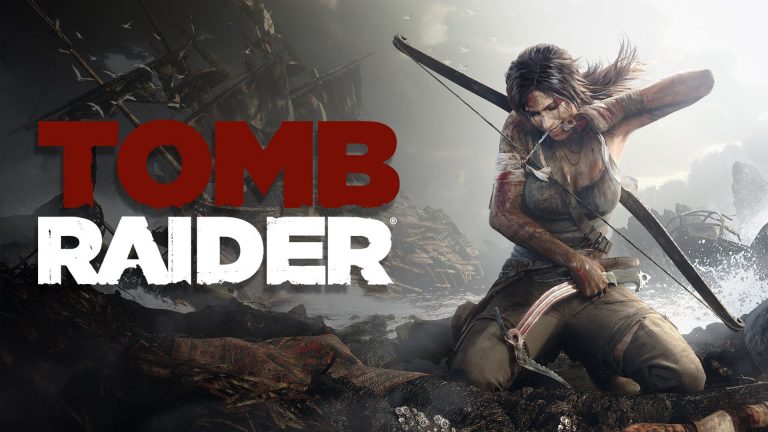
    #3. Tomb Raider (2013)

    Tomb Raider (2013)
    Tomb Raider (2013)

    One of the Reboot series that deserves to be tried what else is a long count in the realm of the gaming industry?

    With time going by and significant gameplay changes, Tomb Raider can become a Reboot series that captivates many gamers’ hearts.

    Of course, Crystal Dynamics and Square Enix deserve to be appreciated because they are brave enough to take this extreme step.

    With the character of the young Lara Croft, he counted weakly and his first big adventure which on the other hand brought development, to the nature of Lara Croft who so far gamers knew.

    With a variety of places that can be explored on various sides, a variety of skills that can be improved, new weapon variants in each game, and puzzles that are presented in each trip, this game indeed feels like Tomb Raider that has been known by gamers, but with a sensation new different.

    System Requirements (Minimum)

    • OS: Windows XP Service Pack 3, Windows Vista, 7.8 (32bit / 64bit)
    • Processor : AMD Athlon64 X2 2.1 GHz (4050+) / Intel Core2 Duo 1.86 Ghz (E6300)
    • Memory: 1GB Memory (2GB Vista)
    • Graphics: AMD Radeon HD 2600 XT / Nvidia 8600 (512 Mb VRAM)
    • DirectX: Version 9.0c
    • Storage: 12 GB

    #4. Dead Space 3

    Dead Space 3
    Dead Space 3

    Exploring the vastness of spaceships with monsters that always lurk in the dark does offer a different sensation of fear, with a somewhat unique Survival Horror element where quiet, dark, and silent outer space becomes an unexpected role.

    Visceral Games as the developer behind the latest series is Dead Space which has now reached the third series with the outside world which is fairly brutal. Dead Space 3 continued from the two series and also offers something similar to the new sensation variants.

    Dead Space 3 in terms of mechanical gameplay is almost the same as the two series where gamers shoot blindly and mutilate each monster. Which of course with a fast enemy variant with a more massive amount.

    System Requirements (Minimum)

    • OS: Windows XP 32-bit, Windows 7 32-bit
    • Processor: Intel Pentium D 840 3.2GHz / AMD Athlon 64 X2 Dual Core BE-2300
    • RAM: 1GB
    • DirectX: Version 11
    • Graphics: Nvidia GeForce 6800 XT, AMD Radeon X1600 Pro 512MB
    • Storage: 10 GB

    #5. Miami Hotline 2

    Miami Hotline 2
    Miami Hotline 2

    Determining the quality of the game is certainly not only a factor in terms of graphics. However, the gameplay mechanics and stories sometimes become a deciding factor of a game is worth playing or not. One of them is the Miami Hotline.

    The shooter game made by Dennaton Games, which has released its second series, is indeed worth playing. Based on pixel graphics and Techno music, making the game look ordinary feels intense.

    With the selection of different characters – different where each character is equipped with different abilities too, with a gameplay system that requires killing all on every floor and of course in a fast way as well.

    System Requirements (Minimum)

    • OS: Windows Vista / 7/8
    • Processor: Intel Core 2 Duo 2.4 GHz
    • Memory: 1GB RAM
    • Graphics: OpenGL 3.2 256MB VRAM
    • DirectX: Version 9.0c
    • Storage: 600MB

    #6. Limbo

    Limbo
    Limbo

    It is a simple offline 2GB RAM game for PC with a variety of awards. With horror and sadistic sensations that seems unique indeed. With no narration, it seems mysterious and the story has been much speculated about by gamers who have played it.

    The gameplay is fairly simple, just telling gamers to walk and jump to get past the obstacles, which sometimes on one side makes gamers feel anxious and frustrated with the obstacles provided in every game that gamers take.

    Limbo, developed by indie developer Playdead, deserves to be appreciated for the various sides it has made. From the tense music, the game is filled with challenging jigsaw puzzles and every course of the horror sensation it carries.

    System Requirements (Minimum)

    • OS: Windows XP, Vista, 7
    • Processor: 2 GHz
    • Memory: 512MB
    • DirectX: Version 9.0c
    • Video Card: Anything with Shader Model 3.0
    • Hard Disk Space: 150MB

    #7. Outlast

    Outlast
    Outlast

    Of the many Survival Horror games that culminate in an approach using a variety of weapons available to defeat the enemy who tries to attack him. Which sometimes gives the impression of being monotonous at all times and makes it feel like a Survival Horror game like that – that’s all.

    However, the indie developer Red Barrels brought the impression of a Survival Horror game with a truly horrific game. Where the way out is just run that is only blanketed by the darkness that never ends.

    Outlast, Survival Horror focuses on gamers only running and avoiding all kinds of dangers whereas gamers only use Handycam cameras with limited battery resources in their use. Make gamers with little guts will be scared on every trip which leads to uninstalling the game.

    System Requirements (Minimum)

    • OS: Windows XP / Vista / 7/8 – 64 bits *
    • Processor: Dual Core 2.2 GHz
    • Memory: 2GB RAM
    • Graphics: NVIDIA GeForce 9800GTX / ATI Radeon HD 3xxx series (512MB)
    • DirectX: Version 9.0c
    • Storage: 5 GB

    #8. Dirt 3

    Dirt 3
    Dirt 3

    Off-Road racing game series which of course is pretty much a lot of gamers who know about it. Dirt 3 in the third series is still offering something similar to the previous series. Various types of Off-Road offered from Rally to TrailBlazer, which is tense.

    One of the developers of Codemasters’ racing game is no doubt his ability to mix an Off-Road game with gameplay mechanics that seem real and of course different from usual racing. 2GB RAM Games for PC.

    Indeed, from the beginning gamers will find it difficult to master this one game. However, if you can master it and can pass various Tracks that are quite difficult, sometimes there will be its satisfaction in playing it.

    System Requirements (Minimum)

    • OS: Microsoft Windows XP, Vista, or Windows 7
    • CPU: AMD Athlon 64 X2 2.8 GHz, Intel Pentium D 2.8 GHz
    • RAM: 2GB
    • Graphics: AMD Radeon HD 2000 256MB, NVIDIA GeForce 8000 Series 256MB
    • Storage: 15GB

    #9. Don’t Starve

    Don't Starve
    Don’t Starve

    A survival game that tells gamers to only survive a variety of threats that make lives lost instantly. With graphics that are not too Wah, which looks simple but makes gamers feel uneasy in every game.

    Don’t Starve indie game made by  Klei Entertainment can reap a positive response in the eyes of world gamers. At that time the Survival game only smelled of blood with a brutal theme. With the presence of this game, able to make the mainstream Survival theme fun with a simple disposition as well.

    This game has 3 deciding indicators that must be considered in this Survival game. Like hunger, Health and Sanity are at the optimal level, which is certainly the main goal in this game. By gathering resources around the map, which is certainly not just about food but building items that are more useful for survival.

    System Requirements (Minimum)

    • OS: Windows XP / Vista / Windows 7 / Windows 8
    • Processor: 1.7+ GHz
    • Memory: 1GB RAM
    • Graphics:  Radeon HD5450 256MB
    • DirectX: Version 9.0c
    • Storage: 500MB

    #10. LA Noire

    LA Noire
    LA Noire

    The game was developed by seasoned developers whom gamers have known all along. Rockstar Games with a game that is somewhat different than the games that have been made. Of course, this LA Noire game is not just an ordinary Open World game, but a game that has a depth of story with a relatively new Crime Investigation genre.

    The game set in 1947 gives a thick classic impression in every corner of the city, places, vehicles, and people – people. Games that require gamers to investigate cases like most detective games. 2GB RAM Games for PC.

    Indeed this is a Rockstar Games game that is different from the others. Usually, this game has an Open World element with a variety of tastes of action that requires taking up arms in each mission. This game focuses on the investigation by collecting clues found and rarely the sequence of actions involving weapons it.

    System Requirements (Minimum)

    • OS: Windows 7
    • Intel CPUs: Core 2.2 GHz / Quad Core 3.2GHz
    • RAM: 2GB
    • Graphics: NVIDIA GeForce 8600 GT 512MB / NVIDIA GeForce GTX 580 1536MB / Radeon HD3000 512MB / Radeon HD 6850 1024MB
    • Storage: 16GB

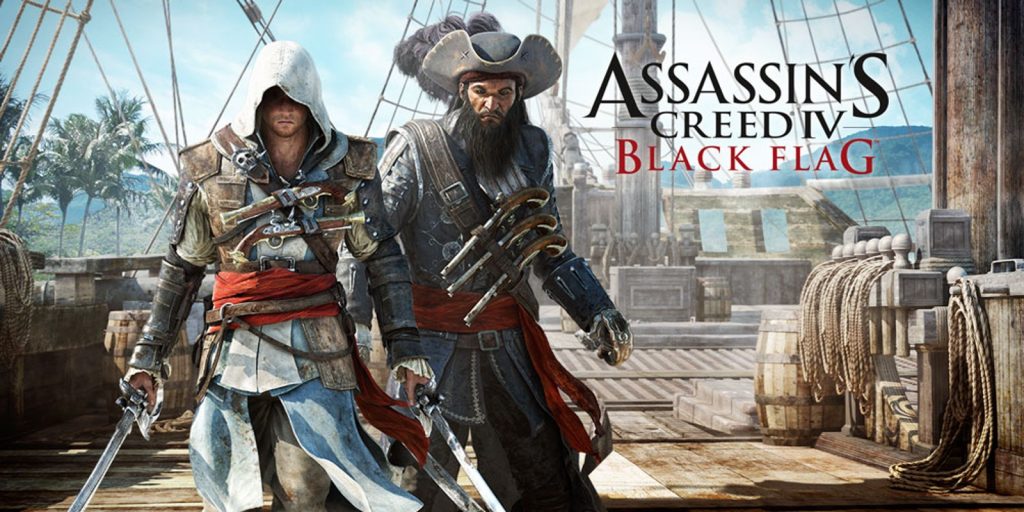
    #11. Assassin’s Creed IV

    Assassin's Creed IV
    Assassin’s Creed IV

    Game with a fairly thick history. Assassin’s Creed IV Black Flag, with the theme of his fantastic pirate history and of course the different sensations he brought was interesting to try.

    Ubisoft the developer behind this latest series, makes the story and gameplay ideas quite different compared to other Assassin’s series. The reason, the game is famous for its game mechanics is Stealth now, a game with a pirate war theme that on one side is almost deviated from the existing series.

    But, of course, the changes in this series certainly do not eliminate the Assassin series that gamers have always known. It’s just an interesting new feature is the bombastic ship war with hijacking ships that are indeed interesting and the Open World theme with a variety of content that is fun to explore.

    System Requirements (Minimum)

    • OS: Windows Vista SP2 / Windows 7 SP1 / Windows 8 (32 / 64bit)
    • Processor: Intel Core2Quad Q8400 @ 2.6 GHz / AMD Athlon II X4 620 @ 2.6 GHz
    • Memory: 2GB RAM
    • Graphics: Nvidia Geforce GTX 260 / AMD Radeon HD 4870 (512MB VRAM)
    • Storage: 30 GB

    #12. Hitman Absolution

    Hitman Absolution
    Hitman Absolution

    The bald journey is endless from time to time. The mechanism of the Stealth game that is thick like the series – the series first and of course, the variant of killing with a variety of creativity is what is interesting about this Hitman Absolution game.

    The developers of   IO Interactive and Square Enix,  indeed make gamers’ dreams come true. Because in this game the ability of the bald is fully maximized in its ability to kill comrades.

    With a fairly clever AI, various variants of target-killing methods that end in decisions taken, and of course disguised modes are certainly interesting, making the playing experience more exciting.

    System Requirements (Minimum)

    • OS: Windows Vista, 7
    • Processor: Dual-core CPU (Intel, AMD)
    • Memory: 2GB RAM
    • Graphics: NV8600 512 Mb
    • DirectX: Version 10
    • Storage: 24GB

    #13. Sniper Elite 3

    Sniper Elite 3
    Sniper Elite 3

    With the ability to shoot that is already famous extraordinary in the series – the series, with a variety of cool animated variants when hit by a shot. Now the sniper’s reliable journey continues in Sniper Elite III.

    The 2GB RAM PC game developed by  Rebellion Games did not disappoint in the development of this series. With a map that is now wider compared to the previous series and of course variants of how to shoot targets that are now more flexible.

    Satisfaction in seeing the bullets fired in slow motion that lead to the target is very much appreciated. With a variety of better organ details and a variety of effects on objects, it also looks epic throughout the game.

    System Requirements (Minimum)

    • OS:  Microsoft® Windows Vista (Service Pack 2) or Windows 7 (Service Pack 1) / Windows® 8 / Windows 8.1.
    • Processor: Intel Pentium D 3GHz / AMD Athlon 64 X2 4200
    • Memory: 2GB RAM
    • Graphics: NVIDIA GeForce 8800 series / ATI Radeon HD 3870 256MB
    • DirectX: Version 11
    • Storage: 18 GB

    #14. Tom Clancy’s Splinter Cell Blacklist

    Tom Clancy's Splinter Cell Blacklist
    Tom Clancy’s Splinter Cell Blacklist

    Tom Clancy is one of the names carrying the game series that is already well-known among gamers who have tasted it. With a variety of weapons that are interesting to use and of course tactical gameplay mechanics, of course.

    Now Tom Clancy’s Splinter Cell Blacklist series developed by the long-time developer Ubisoft is always interesting to follow. With Stealth elements that are thick in this one game and of course, challenging in every game.

    With a variety of limited weapon resource items, with a variety of AI that is smart enough on each trip, and of course, the game mode steps are taken with a variety of variations, it is sometimes enough to make the gamer’s brain spin in the attack steps taken.

    System Requirements (Minimum)

    • OS: Windows XP (SP3) / Windows Vista (SP2) / Windows 7 (SP1) / Windows 8
    • Processor: 2.53 GHz Intel Core2 Duo E6400 / 2.80 GHz AMD Athlon 64 X2 5600+
    • Memory: 2GB RAM
    • Graphics: Anything with 512 MB DirectX with Shader Model 4.0 or greater
    • DirectX: Version 9
    • Storage: 25 GB

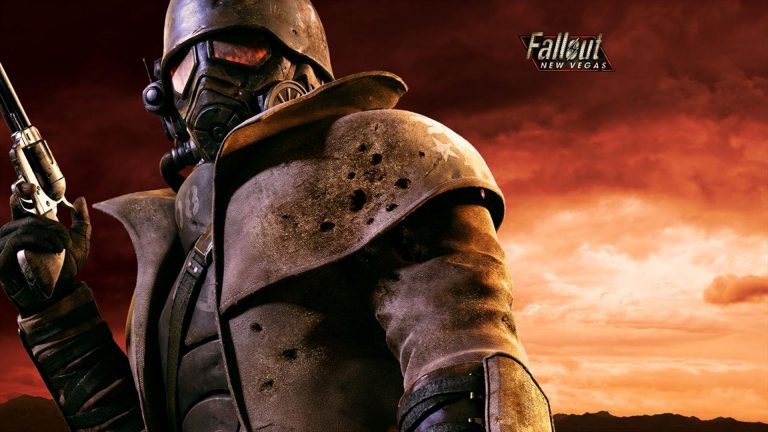
    #15. Fallout New Vegas

    Fallout New Vegas
    Fallout New Vegas

    An old-age Action RPG game with countless fanbase communities. The theme of destruction after the nuclear war is interesting to follow and of course a variety of ways to adapt to the environment that is free to explore.

    The Fallout New Vegas series continued from the previous game Fallout 3. With a wide variety of worlds, with variant items found, and of course, the new area that gamers can explore is New Vegas, which matches the title of the game.

    As a collaboration made by  Obsidian Entertainment and  Bethesda Softwork, it makes the New Vegas Fallout game a success in various aspects and the implementation of the characters that gamers play.

    The RPG being stretched out and of course, the wide Open World, with variants of items and enemies encountered, makes this game exciting and of course fun.

    System Requirements (Minimum)

    • OS: Windows 7 / Vista / XP
    • Processor: Dual Core 2.0GHz
    • Memory: 2GB RAM
    • Graphics: NVIDIA GeForce 6 series, ATI 1300XT series
    • Storage: 10 GB

    #16. Just Cause 2

    Just Cause 2
    Just Cause 2

    One series with free and exciting gameplay mechanics of course. With a variety of massive attacks launched and a variety of explosive effects in every game. Making the Just Cause 2 game which is full of action and an Open World is fun to try.

    One of the developers behind the series,  Avalanche Studios, and  Eidos Interactive is indeed famous for making bombastic action games. With a vast map and game controls that are easily mastered.

    With the variant of weapons that can be upgraded either firearms or explosive weapons which of course also affects the strength of the weapon. Gamers who like Triggy-style gameplay will fall in love with this one game.

    System Requirements (Minimum)

    • OS: Microsoft Windows Vista or greater
    • Processor: Dual-core CPU with SSE3 Athlon 64 X2 4200 / Pentium D 3GHz
    • Memory: 2GB
    • DirectX: Version 10
    • Graphics: Nvidia GeForce 8800 series / ATI Radeon HD 2600 Pro 256MB
    • Storage: 10 GB

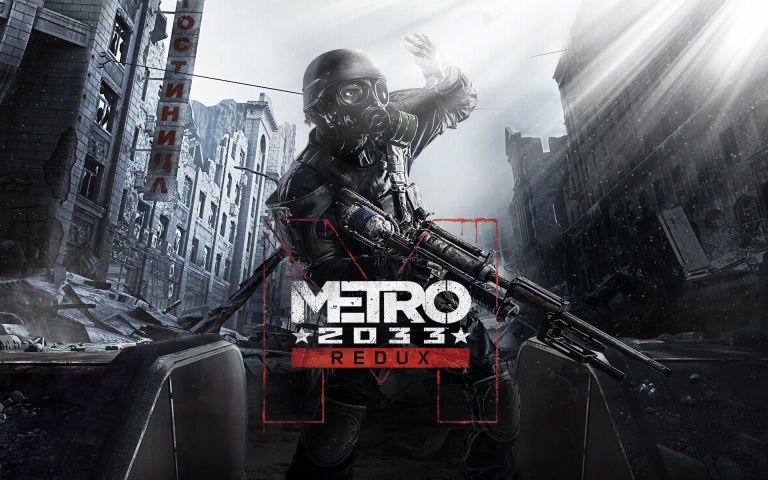
    #17. Metro 2033 Redux

    Metro 2033 Redux
    Metro 2033 Redux

    The following 2GB RAM PC game is one of the successful Remastered games with existing visual developments. With a braid of cool stories and an Apocalyptic world that feels gripping with a sense of despair and of course with the format of the FPS game that is carried on in this game.

    Metro 2033 Redux created by 4A Games can attract the attention of all gamers in the world. With better visualization of a variety of enemy variants that seem more sinister gun control is now more comfortable than in the previous series.

    So what is offered in this Remastered series? of course, the calculated visualization is different from previous games. Which now feels more alive and a more visible gripping world with enemy attacks that feel more intense.

    System Requirements (Minimum)

    • OS: Windows Vista, 7/8 (64-bit only)
    • Processor: Dual Core CPU 2.2+ GHz
    • Memory: 2GB RAM
    • Graphics: GeForce 8800 GT 512MB, GeForce GTS 250
    • DirectX: Version 10
    • Storage: 10 GB

    #18. Max Payne 3

    Max Payne 3
    Max Payne 3

    Old series that was raised into the realm of the gaming industry, which is now handled by veteran Rockstar Games developers who indeed make some gamers worry. Because, with the transfer of hands, the taste of the old series is still the same as before gamers know.

    Well, indeed in the third series of this new Max Payne 3, it does feel new on every side, but this series is still a series that gamers have always known. With action games that still retain their taste and of course with better visuals.

    With Payne’s main character designs that are diverse, easy control to and master, and various unique features that are still maintained, Bullet Time now looks epic and brutal cinematic scenes which of course can not be separated from the Max Payne game itself.

    System Requirements (Minimum)

    • OS: Windows 7 32/64 Service Pack 1
    • Processor: Intel Dual Core 2.4 GHz / AMD Dual Core 2.6 GHz
    • Memory: 2GB
    • Graphics: NVIDIA 8600 GT 512MB VRAM / Radeon HD 3400 512MB VRAM
    • Storage: 35 GB

     #19. Life is Strange

    Life is Strange
    Life is Strange

    Interactive Story is indeed not a genre that is familiar in the realm of the gaming industry today. With the power of the story as its main foundation, which ends with a variety of choices – difficult choices that exist and of course the selection of the storyline run by gamers themselves.

    Life is Strange is one of them. This game developed by  Dontnod Entertainment in collaboration with Square Enix is their first Interactive Story game project that tries to be different from other Interactive Story games.

    With a variety of places that can be explored, NPC interactions are useful for gathering info and the character’s ability to playback the clock which of course this ability is very influential in the gameplay.

    System Requirements (Minimum)

    • OS: Windows Vista
    • Processor: Dual Core 2.0GHz
    • Memory: 2GB RAM
    • Graphics: ATI / NVidia card 512MB RAM (Do not recommend Intel HD Graphics cards)
    • DirectX: Version 9.0
    • Storage: 5 GB

    #20. DMC: Devil May Cry

    DMC Devil May Cry
    DMC: Devil May Cry

    One of the Reboot series with drastic changes it has. With a variety of criticisms that glided from the beginning of the Artwork and Screenshot. It is inevitable, that other gamers have known this series for a long time.

    The Capcom developer who collaborates with  Ninja Theory is indeed brave to take this extreme step. So why should it be played? because after playing it gamers will find out that the Reboot series with this new initial step was amazing.

    With a new story setting and world atmosphere, with 2 battle modes namely Angel mode and Devil mode which enrich the combination of existing attacks and Upgrade and Item systems that are now separate. Of course, after all of this game is still faithful to maintaining its essence with a more humanized character of course.

    System Requirements (Minimum)

    • OS: Windows Vista (R) / XP, Windows 7, Windows 8
    • Processor: Intel Core 2 Duo 2.4 GHz / AMD Athlon X2 2.8 GHz
    • Memory: 2GB RAM
    • Graphics: NVIDIA GeForce 8800GTS / ATI Radeon HD 3850
    • DirectX: Version9.0c
    • Storage: 9GB

    Read more:

    Conclusion:

    So, friends, This is the explanation of the 20 best list of 2GB RAM games for PC with Great Graphics!, What do you think of the gamers, is there anything interesting to play? If gamers have a PC Game recommendation for 2GB of available RAM.

  • 7 Ways To Fix Windows Defender won’t turn on in Windows 2025

    7 Ways To Fix Windows Defender won’t turn on in Windows 2025

    7 Ways To Fix Windows Defender won’t turn on in Windows – Many Windows 10 users reported that they were unable to activate Windows Defender because Microsoft’s antimalware tool detected other antivirus software running.

    7 Ways To Fix Windows Defender won't turn on in Windows
    7 Ways To Fix Windows Defender won’t turn on in Windows

    How To Fix Windows Defender won’t turn on in Windows 10 PC

    This happens even if the user confirms that they have removed all third-party security software.

    Read more:

    This isn’t the first time users have reported that they can’t activate Windows Defender.

    Windows Defender is the built-in antivirus in Windows 10, and it provides solid protection.

    However, many users report that Windows Defender is not working on their PC.

    Talking about how to fix Windows Defender that won’t activate in Windows 10, here are some common problems related to Windows Defender:

    • Unable to activate Windows Defender Windows 8 – This issue can also occur in Windows 8, but you should be able to fix it using one of our solutions.

    • Windows Defender cannot be opened – Many users claim that Windows Defender cannot be opened on their PC. If so, remove all third-party antivirus tools from your PC. Also, make sure to delete all files and registry entries related to your antivirus.

    • Windows Defender turned off by group policy – Sometimes Windows Defender can’t run because it’s disabled from Group Policy. However, you can easily fix this with one of our solutions.

    • Windows Defender could not start unexpected error – In some cases, you may get an error message when you try to start Windows Defender. If that happens, try doing an SFC and DISM scan and check if that solves your problem.

    • Windows Defender won’t turn on after uninstalling Avast, AVG, Bitdefender, McAfee – Sometimes Windows Defender doesn’t work even after you uninstall the antivirus. To fix that problem, make sure to use a special removal tool to remove all leftover files and registry entries related to your antivirus.

    • Windows Defender won’t start Windows 10 Spybot – Many Windows 10 users reported this issue with the Spybot app. To fix this problem, make sure to completely remove Spybot from your laptop and check if that solves the problem.

    • Windows Defender won’t open, run, work, activate, or start – Many problems with Windows Defender can occur, and if you’re having trouble running Windows Defender, don’t hesitate to try some of our solutions.

    How to fix Windows Defender won’t activate on Windows 10 PC

    How to fix Windows Defender won't activate on Windows 10 PC

    Follow these steps to fix Windows Defender not working in Windows 10:

    #1. Check your system files

    1.1 Run SFC scan

    1. Press Windows key + S, type cmd, and click Run as administrator to start Command Prompt as administrator.

    2. Type the following command and press Enter, then wait for the scan to finish:

    sfc /scannow

    System File Checker is a tool for repairing corruption in system files.

    Use this tool to verify whether Windows Defender is broken or not.

    To perform an SFC scan, perform the previous step.

    If the scannow command has stopped before the process is complete, don’t worry, we have an easy solution for you.

    If you can’t run an SFC scan or if SFC can’t fix the problem, you can try using a DISM scan.

    To do so, just follow the next steps.

    1.2 Run a DISM scan

    1. Start Command Prompt as administrator, as shown in the previous step.

    2. When the Command Prompt opens, enter the following command and press Enter to run it:

    DISM /Online /Cleanup-Image /restorehealth

    3. The DISM scan will now start. This scan can take up to 20 minutes or more, so don’t bother.

    After the scan is complete, check if the problem persists.

    If you were unable to run the previous SFC scan, or if the DISM scan did not solve your problem, repeat the SFC scan and check if it solves the problem.

    If you are having trouble accessing the Command Prompt as an admin, then you should take a closer look at this helpful guide to fix the problem.

    #2. Install a better antivirus

    Windows Defender is a decent security solution for your PC, but it can’t match third-party antivirus services and features.

    If you use the Internet for shopping, banking, work, and communication, you need to protect your sensitive data with the best antivirus as recommended below.

    The tool supports all major platforms, including Windows and Android, and provides advanced banking and privacy solutions.

    ESET’s layered protection solutions are trusted by more than 110 million users worldwide, so make sure you try them out.

    You can benefit from a 30-day trial period now.

    #3. Clean boot your computer

    1. Press Windows Key + R and enter msconfig. Press Enter or click OK.

    2. The System Configuration window will appear. Go to the Services tab and check to Hide all Microsoft services. Now click on the Disable all button.

    3. Navigate to the Startup tab and click Open Task Manager.

    4. You will now see a list of startup applications. Right-click the first entry in the list and select Disable. Repeat this step for all startup applications.

    5. After you have disabled all startup applications, return to the System Configuration window and click Apply and OK. Now select restart your PC.

    Sometimes third-party apps can interfere with Windows and cause this problem to appear.

    However, you can find the problematic application by performing a Clean boot.

    After your PC restarts, check if the problem persists.

    This means that one of the disabled apps or services is causing the problem.

    To find the problematic app or service, you have to enable them individually or in groups until you find the problematic app.

    Now disable or uninstall that app and the problem will be solved.

    If you’re interested in more details on how to add or remove startup apps in Windows 10, check out this simple guide.

    #4. Use a special antivirus removal tool

    When you uninstall a third-party antivirus using the Uninstall option from the Control Panel, some files may remain undetected, and this prevents you from running Windows Defender.

    Some antivirus software has its special removal software so you can look for it to remove antivirus quickly.

    You can also use uninstaller software to completely remove the antivirus from your PC.

    If you’re not familiar, software uninstallers are special applications that are optimized for removing programs.

    The uninstaller will remove the selected application, but will also delete all files and registry entries associated with that application.

    As a result, the selected app will be completely uninstalled and it’s as if the app was never installed.

    There are many good uninstaller software, and one of the best uninstallers we recommend is IObit Uninstaller.

    It is very easy to use, so you should be able to remove your antivirus easily.

    Uninstall the remnants of your previous antivirus, restart your computer, and Windows Defender will be activated automatically.

    #5. Restart the Security Center Service

    1. Press the Windows key + R to launch the Run application.

    2. Type services.msc and press Enter or click OK.

    3. In Services, search for Security Center. Right-click on it and select Restart.

    4. After you restart the required services, check if the problem with Windows Defender is resolved.

    For Windows Defender to work properly, you must enable certain services.

    If the service is not running properly, Windows Defender will not be able to start at all.

    However, you can always start the required service by performing the steps above.

    #6. Change group policy

    1. Press Windows Key + R and enter gpedit.msc . Now press Enter or click OK.

    2. When the Group Policy Editor is open, in the left pane navigate to the following path:

    Computer Configuration/ Administrative Templates/ Windows Components/ Microsoft Defender Antivirus

    3. In the right pane, double click Turn off Microsoft Defender Antivirus.

    4. Select Not Configured and click Apply and OK to save changes.

    Sometimes Windows Defender won’t turn on because it’s disabled by your group policy.

    This can be a problem, but you can fix it just by changing that group policy.

    To do so, just follow the steps above.

    After making these changes, Windows Defender should be able to be activated, and it should run without any problems on your PC.

    If you install the Windows Home version on your PC, you will not have access to the Group Policy Editor.

    However, you can follow our expert guide to install it.

    #7. Change your registry

    7.1 Use Registry Editor

    1. Press Windows Key + R and enter Regedit. Press Enter or click OK.

    2. When the Registry Editor opens, navigate to this key in the left pane:

    HKEY_LOCAL_MACHINE/SOFTWARE/Policies/Microsoft/Windows Defender

    3. In the right pane, look for DisableAntiSpyware DWORD and double-click it.

    4. If DWORD is not available, right-click the right pane select New, and select DWORD (32-bit) Value from the menu.

    5. Set Value data to 0 and click OK to save changes.

    If Windows Defender won’t turn on, the problem may be related to your registry.

    However, you can easily modify your registry and fix this problem by performing the previous steps.

    After doing that, Windows Defender should be able to be activated on your PC and it should start working without any problems.

    If you can’t access Registry Editor, don’t panic because we have an excellent guide on how to quickly solve this problem.

    7.2 Use Command Prompt

    1. Start Command Prompt as administrator.

    2. Now enter the following command and press Enter to run it:

    REG ADD “HKLMSOFTWAREPoliciesMicrosoftWindows Defender” /v DisableAntiSpyware /t REG_DWORD /d 0 /f

    If you are an advanced user and you prefer to use the command line, you can do so from the Command Prompt or PowerShell by performing the previous steps.

    Some users have also suggested removing the DisableAntiSpyware DWORD key, so you might want to try that too.

    Read more:

    Conclusion:

    This is the explanation of 7 ways to fix Windows Defender won’t turn on in Windows, How to Fix Windows Defender can’t be activated in Windows 10 with some of the best solutions.

    We hope our solutions help you fix this Windows Defender problem once and for all.

    If Windows Defender is still giving you a headache, consider using third-party antivirus software.

    For other suggestions on how to fix Windows Defender won’t activate on Windows 10, leave a comment below.

  • Best 3 Ways To Fix LAN Network Cable Unplugged 2025

    Best 3 Ways To Fix LAN Network Cable Unplugged 2025

    Best 3 Ways To Fix LAN Network Cable Unplugged – have you ever had problems with the LAN network in your office experiencing problems like the Network cable being Unplugged? or the LAN not wanting to connect to the computer? Office computer users who have or are connected to a LAN network must have experienced this error.

    Best 3 Ways To Fix LAN Network Cable Unplugged
    Best 3 Ways To Fix LAN Network Cable Unplugged

    How To Fix LAN Network Cable Unplugged

    According to my personal experience, those who build office computer networks have experienced this problem. The internet network is not connected or the cable is not connected even though it is already connected is a natural thing in the networking world.

    Read more:

    At the initial setup of the computer to connect to the internet or a Local Area Network / LAN, you must know some basic settings.

    By knowing the computer network settings, especially the LAN network, you will no longer find a network connection that is not connected. If the problem is that the LAN network is not connected, you have to check the settings section in your office network.

    What Causes Network Cable Unplugged / Internet network is not connected?

    Several causes make Network Cable Unplugged, so you must analyze them first in order.

    1. RJ45. Cable Quality
    2. LAN Card or LAN connecting Hardware.
    3. Rooters and HUBs.
    4. Rooter Microtik.
    5. Computer Servers.

    Here are the sections or settings that you should check first:

    #1. Check the LAN Hardware

    • Make sure the RJ45 cable you use to connect the LAN network is of good quality. A good LAN cable is made of copper wire, not copper fiber.
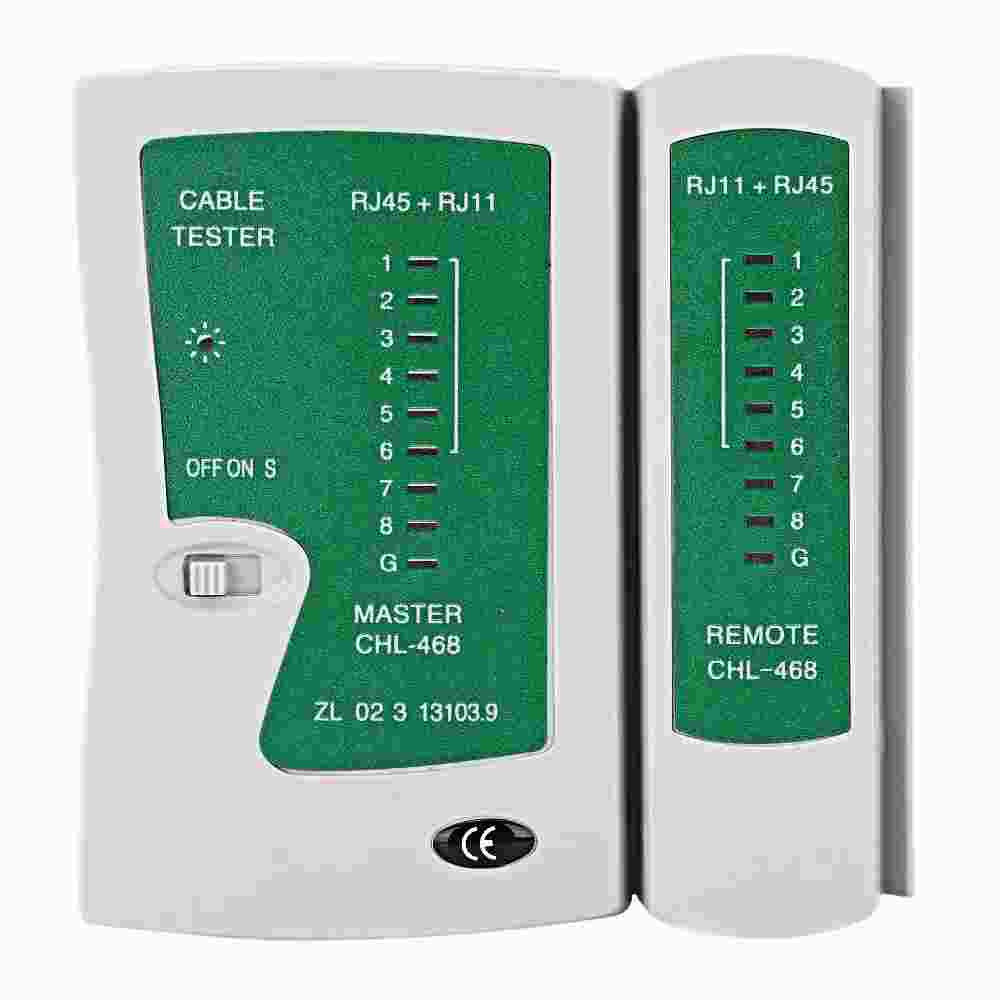
    • Make sure the RJ45 cable is arranged according to the LAN groove, to make it easier to check, use a special tool to check the RJ45 LAN cable.

      Check the LAN Hardware
      Check the LAN Hardware
    • Make sure the LAN Card is installed correctly, if the LAN card is on board check the socket is still good whether there is dirt or corrosion.

    If the hardware has been confirmed to be in a normal state and installed correctly then you must follow the next steps which will be discussed in the section below.

    #2. Check Networking Settings

    To connect or build a local area network, settings are needed because networking involves several hardware such as a Server, Rooter, Hub or connection, and Client / Computer user. For the networking network to be connected and connected, the correct settings must be made.

    Here is the Local Area Network Settings to Connect between Server and Client:

    • Make sure the Ethernet Driver is installed correctly.
    • The first setting is on the server computer and Rooter. You must specify a Static IP for the server so that it can be accessed by the client.
    • Specify an internet IP Gateway as a bridge to connect to the internet, for IP Gateway on telecom indihome is usually 192.168.100.1 without this IP gateway you will not be able to connect to the internet.
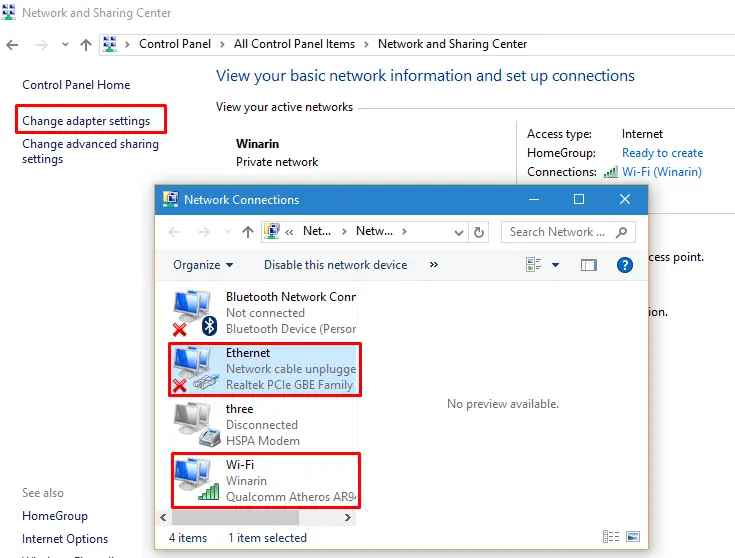
    • Please go to Control Panel / Settings > Network and Sharing Center settings to configure server or client computers.

      Check Networking Settings
      Check Networking Settings
    • Select change adapter setting then the Ethernet and Wi fi network names will appear.
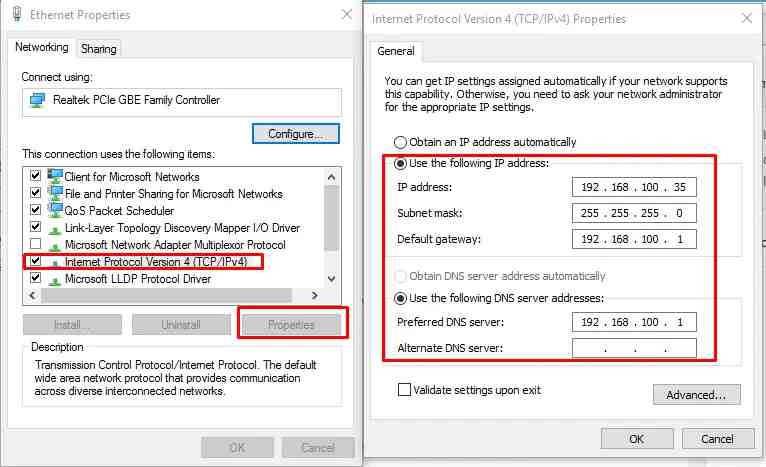
    • If you use a cable then select the Ethernet right click select Properties. then select Internet Protocol Version 4 (TCP/IPv4) > Select Properties, and a new window will appear as shown in the image below.

      Check Networking Settings
      Check Networking Settings
    • Fill in the IP Address that has been determined according to the quota of each client.
    • Fill in the Default Gateway from the Indihome Rooter or the rooter you have with IP number 1.
    • The contents of the Preferred DNS Server if you do not have a special root server only from indihome can be filled with the same as the Default gateway.
    • After everything is filled in, click OK to save the settings.

    I hope that if you have followed the steps above, the problem of the unplugged network cable has been resolved. To be able to create a LAN network you must set the final IP which has a digit range between 1 to 255.

    #3. Troubleshooting Networks

    If you have followed the two methods above but the unplugged chili network problem still appears and cannot connect to the internet, then you need to do troubleshooting. This troubleshooting aims to detect errors or computer device errors. By doing troubleshooting, the computer will automatically detect errors or network errors experienced and will provide suggestions to fix them.

    So how do I troubleshoot a LAN network? Here I will discuss below:

    • Go to Network Connection settings like the IP settings above.
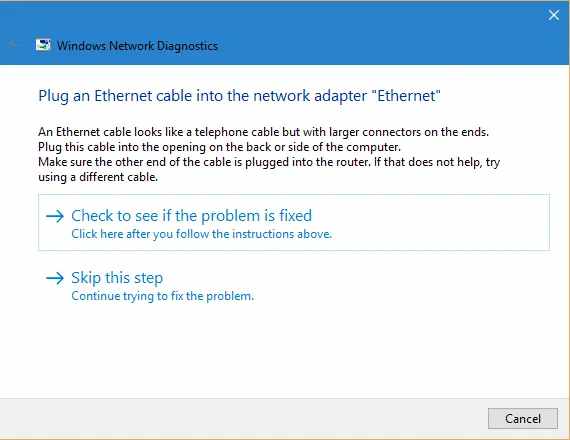
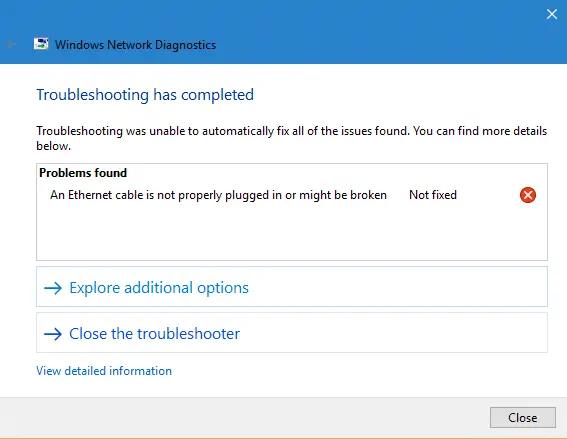
    • Right-click on the name of the network that will be troubleshooting, namely Ethernet or wifi, and select Diagnose, then the computer will scan detecting problems, and wait for it to finish.

      Troubleshooting Networks
      Troubleshooting Networks
    • If a new window appears, please select Check to see if the problem is fixed
    • Then the system will carry out Resolving Problems, namely improving drivers, after which a new window will appear where the problem will be displayed or other actions need to be taken.

      Troubleshooting Networks
      Troubleshooting Networks
    • If the Note Fixed statement and a red cross appear, the trouble cannot be resolved or the system corrected.
    • Finished

    Read more:

    Conclusion:

    This is the explanation of the best 3 ways to fix the LAN network cable unplugged, by using the correct three steps. If you have followed the tutorial above but your problem has not been resolved you can leave a comment below so that I can help with your problem.