3 Ways to Check MBR or GPT Partition Type in Windows 10 – You may not need to know which partition scheme your hard disk is using in most cases. However, if you have just assembled a new PC, you may be asked to choose between MBR and GPT partitions.
3 Ways to Check MBR or GPT Partition Type in Windows 10
How to Check MBR or GPT Partition Type in Windows 10 [2024]
In addition, some software needs to determine the partition scheme before the installation process. Therefore, you need to know how to check the MBR or GPT partition type on your Windows operating system.
Maybe you’ve tried installing Windows 10 on a new computer and you came across an error message that says ‘Windows cannot be installed to this disk’. It will ask you to change your USB disk scheme to GPT because the USB bootable set up for the MBR partition scheme cannot be used to install Windows 10 on a GPT-style disk.
If you are wondering about the differences between the two, GPT is a modern partitioning scheme and is necessary if you are booting your Windows operating system in UEFI mode. On the other hand, MBR is intended for booting older versions of Windows in BIOS mode. If you want to install the latest Windows 10, you may need to use the GPT partition scheme.
How to Check MBR or GPT in Windows 10 PC Laptop
You need to know the disk partitioning scheme before setting up a bootable USB drive to ensure an error-free installation of Windows 10. So, it is best to find out if the Disk drive is using GPT or MBR on your Windows 10 computer.
This time, we will discuss some of the best methods to check if a disk is using GPT or MBR. Okay, let’s go straight to the discussion of how to check MBR or GPT in Windows 10.
#1. Via Disk Management
Via Disk Management
You can use Windows 10’s built-in Disk Management utility to find out if the disk is GPT or MBR. Follow some simple steps given below.
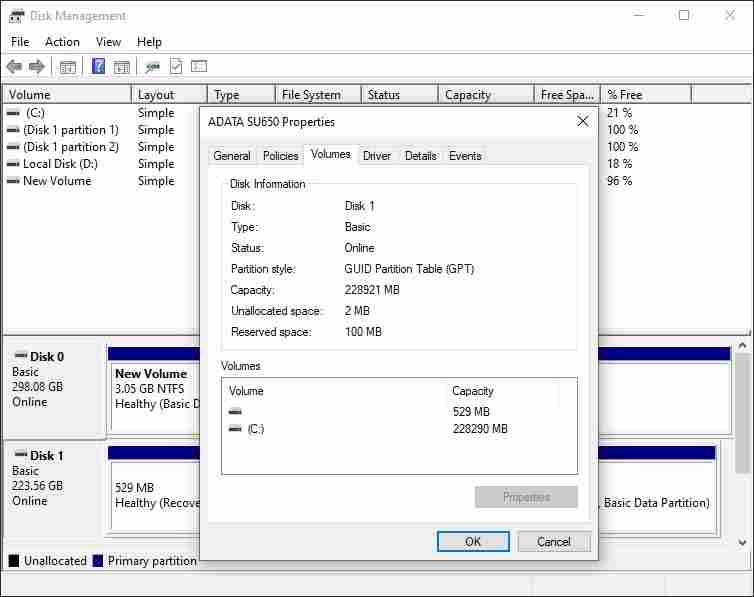
First right-click on the Start button and select ‘ Disk Management ‘ to open the Disk Management tool.
After the Disk Management tool opens. Right-click on the disk on the left (usually the name is Disk 0 or Disk 1 ) whose partition scheme you want to know and select ‘ Properties .’
In the next window, select the ‘ Volume ‘ tab.
Now check the Partition style section, it will tell you about the partition scheme used on the disk.
#2. Using Command Prompt
The Command Prompt method may not be the easiest, but it’s still quite effective. Follow some simple steps given below to check if the disk is using GPT or MBR partition style.
Using Command Prompt
First of all, click on Windows search and search for CMD. Right-click on CMD and select ‘ Run as administrator ‘.
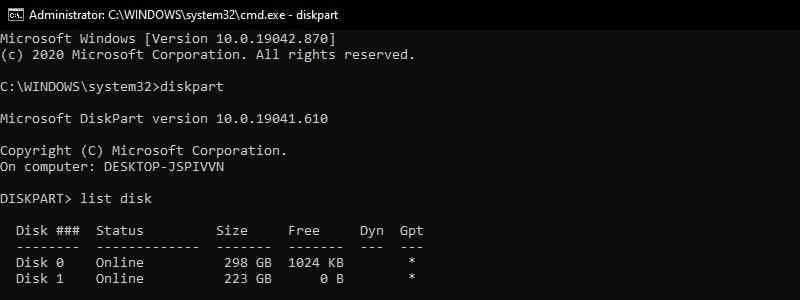
At the Command Prompt, enter the command ‘ diskpart ‘ and press the Enter key.
Next, enter the command ‘ list disk ‘ at the Command prompt and press the Enter key.
If the disk is GPT, it will have an asterisk character (*) under the GPT column. If the asterisk character is missing from the GPT column, it is an MBR disk.
#3. Using Powershell
Like the Command prompt, you can use Windows Powershell to determine whether the disk drive uses a GPT or MBR partition style.
Using Powershell
First of all, search for Powershell in Windows search. Now right-click on Powershell and select ‘Run as Administrator.’
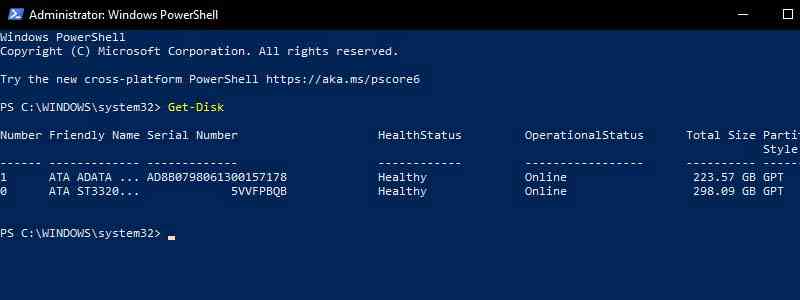
In Powershell, type ‘ Get-Disk ‘ and press Enter key.
Now, look at the ‘ Partition Style ‘ column. The column will list whether the disk drive uses the GPT or MBR scheme.
So that’s how to check MBR or GPT in Windows 10. Now you know how to check the partition scheme or type you have on the Windows 10 operating system and you can now determine which partition scheme is suitable to use when booting your USB drive.
Don’t forget to bookmark and always visit every day Technowizah.com because you can find here the latest Tech Computer Android games How-to Guide Tips&Tricks Software Review etc, Which we update every day.
10 Digital Marketing Tool is Important for Online Business – Running a business in any form is a challenge, especially for small to medium businesses. You need a strong foundation because every little mistake can be your end. This is a difficult world and you should always be the best all the time.
10 Digital Marketing Tool Is Important for Online Business
10 Digital Marketing Tool Is Important for Online Business 2024
Nowadays, every business owner and their employees are armed with essential digital marketing tools to solve various problems.
If you are unsure about what should be in your toolbox, we have prepared 10 essential tools for you to choose from.
To make it easier, these essential digital marketing tools will be divided into categories such as Management Project and Collaboration, Social Media Management, Marketing, and Customer Support.
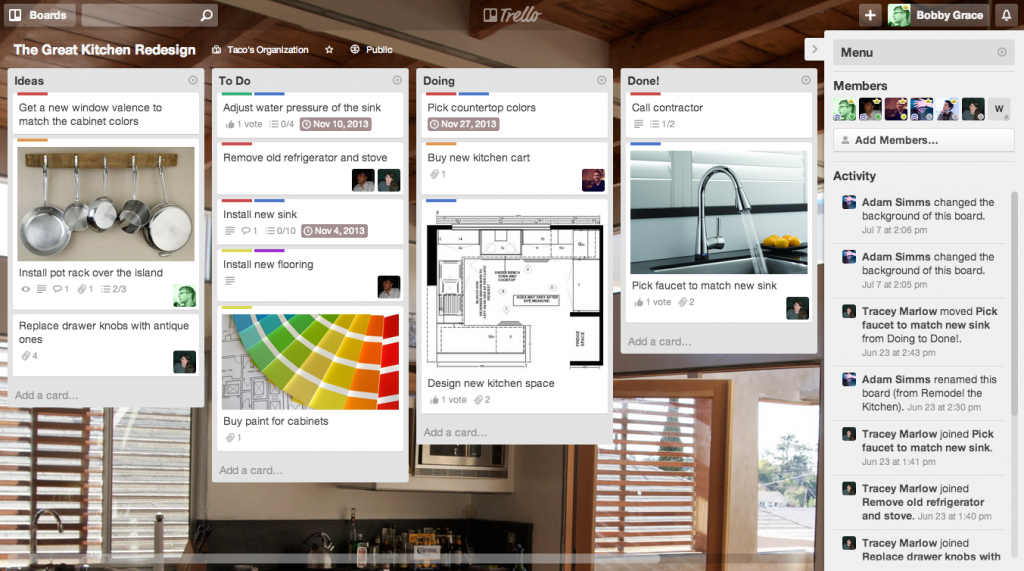
Trello can easily be considered a “must-have” tool. Tool It’s free to use, easy to understand, and provides a smoother teamwork experience.
This is the perfect solution for teams that do many different tasks at the same time and make task management difficult. You can always see the stage of each task in an instant.
Trello Board is very easy to navigate and you can customize it according to your project. In Trello Board, you have the option to create a list and Trello card, which is included with further customization options.
This is a very smart tool that makes life easier for teams that are small to medium-sized.
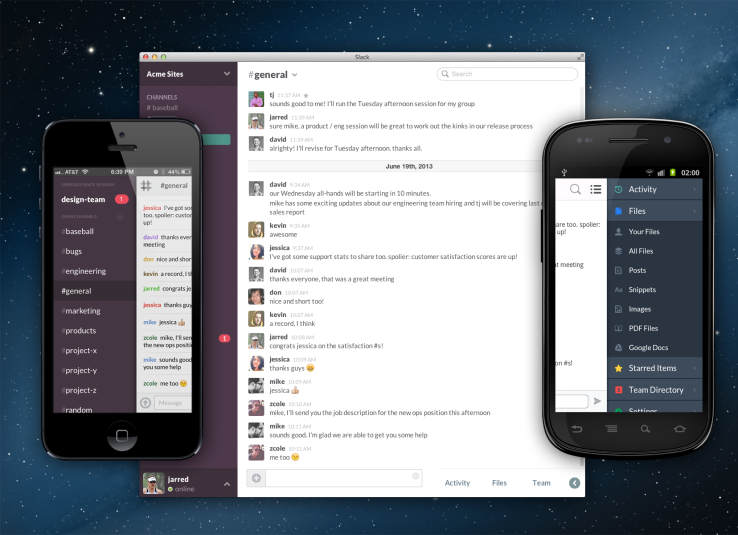
Communication is the key, not only in business but also in life as a whole. Slack is one application that combines the two and gets them to work.
You communicate with your co-workers at any time and in various ways (at work, by email, chat, etc.). You also sometimes talk about different things throughout the day outside of work and things can get a bit messy.
This is where Slack comes in. It comes with many adjustments so it can be fun, but also formal and serious.
This tool allows you to create various channel names (channels). This channel is a group, where you can communicate with friends in the group.
You might be able to create channels per possible division, such as #timfunnel, #timsosmed, or whatever, maybe even a group #hangout. Everything is in one place.
What makes it powerful is the ease with which it integrates with any type of software your team might use. This is a fun and efficient app that teams tend to communicate more easily.
Running a business means you have a lot of very sensitive documents and you need a safe place to hold them.
Storing documents or files only on your computer or simply leaving the paper locked in a drawer will not be done.
You have a risk if your computer hard drive has problems, such as being damaged, flooded, lost, etc. You also limit yourself. What if you need to access certain documents from the office?
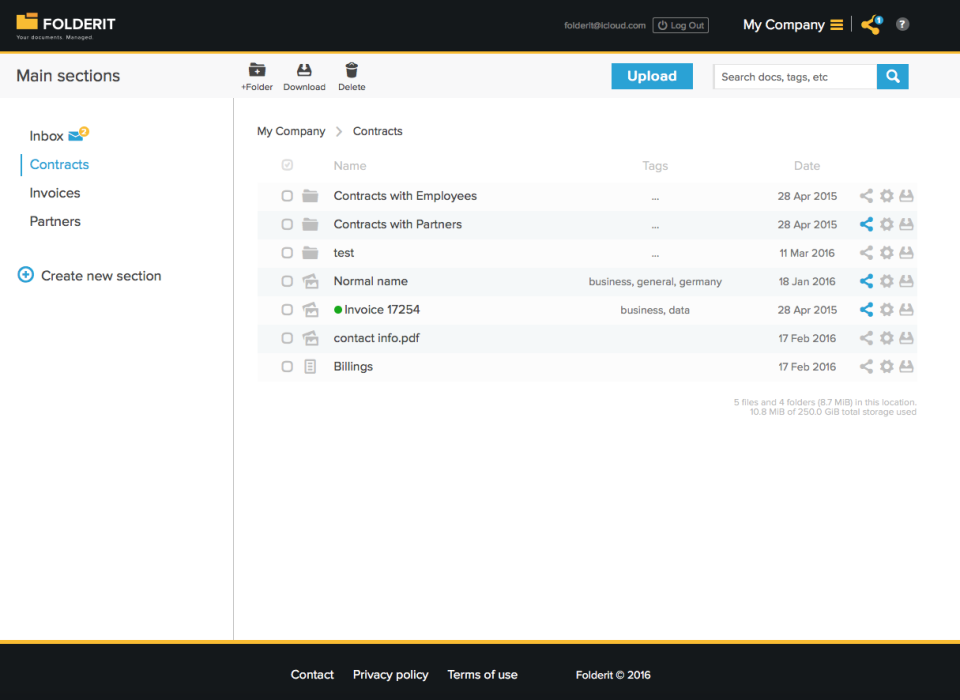
This is where Foldit comes in. Cloud Document Management System, designed specifically to meet the needs of small and medium businesses.
This tool is safe, which is very important when you need to store sensitive and easy-to-use documents. The entire team can use it together, which makes sharing important documents easier and simpler.
Today, every business is not only expected but it should be on a variety of relevant social media platforms because almost everyone is already there.
That’s all fine, but managing all the different social media profiles can be a challenge in itself.
Planning a calendar about what and when to post an update is one thing to a challenge.
But then having to always do it manually can spend a lot of your time. You should also evaluate your efforts continuously. You basically have a lot to do.
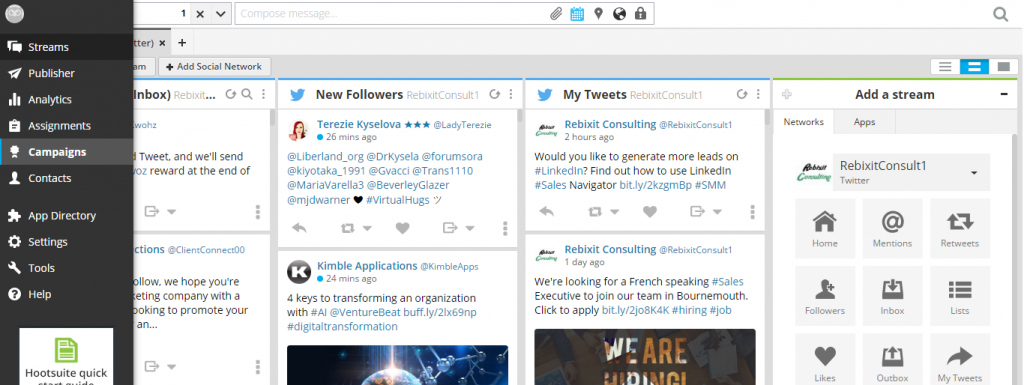
Hootsuite lets you control and monitors your social media accounts in one place. It comes as a full-fledged social media tool, you can engage with people (audience), plan & automate content publishing,
This important digital marketing tool is certainly worth your attention.
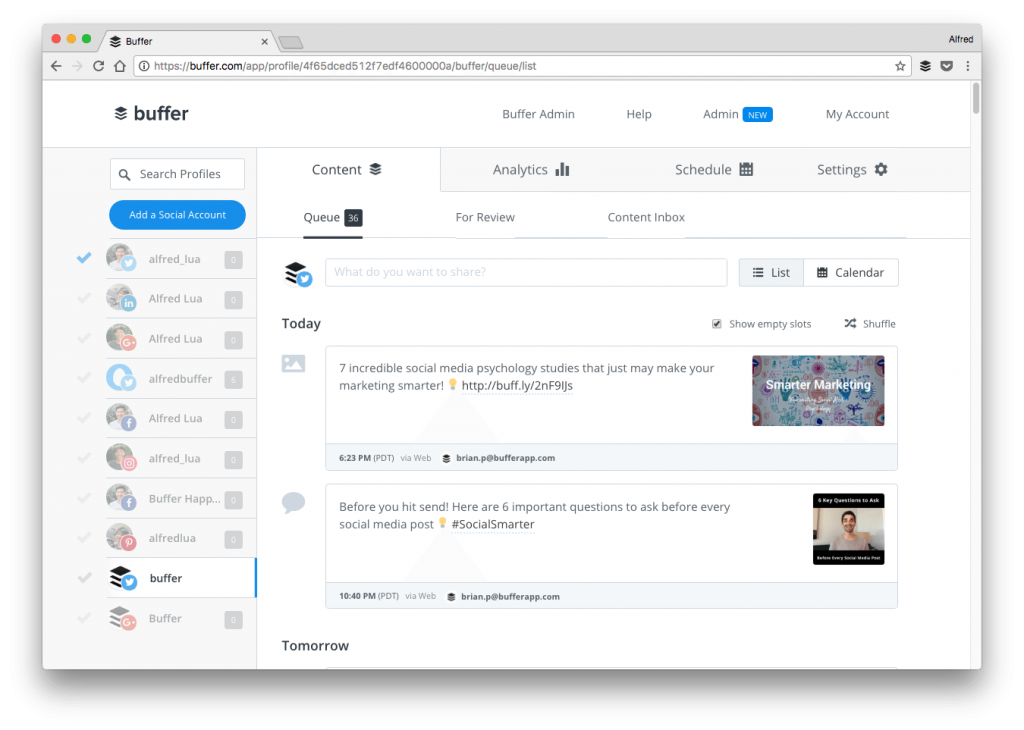
Buffers can be seen as Hootsuite competitors, but in the end, it’s up to you to decide what suits your business and what does not.
With Buffer, you can find the recommended post content and schedule. This allows for a smooth teamwork experience and provides all sorts of valuable insights as well.
Buffer has also introduced a new tool that you can play. We all know the importance of visuals and images to create interesting Social Media posts. This is where Pablo (the drawing tool) gets into the game.
If not just sharing, but also creating prominent social media content is part of your strategy, Buffer is probably the right tool for you.
When it comes to analyzing the performance of your online business, there are many things that need attention. In most digital marketing tools, you’ll have a dashboard with lots of scattered metrics.
Maybe for those of you who just have a small business online, this can be confusing and that’s why you need data that is easy to digest and understand.
You also want to know more about your visitors. Ideally, having a complete profile of your customers will make sales easier.
Metrilo provides you with all of this, easily digestible Analytics data, CRM (Customer Relationship Management) to build customer profiles, and complete email marketing solutions so you can act on all the data your website generates.
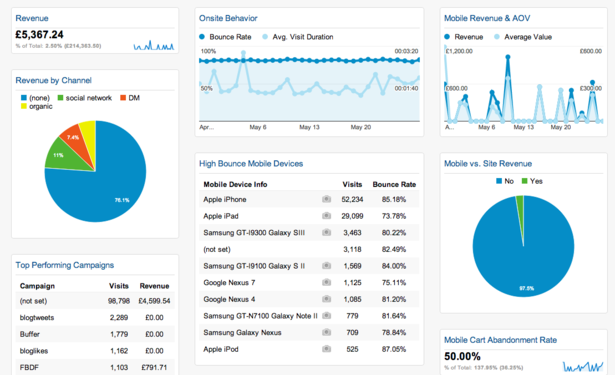
Using Google Analytics is a must now. Even if you use tools or other analytics software (which is also a good idea), Google Analytics gives you the basics. This is very useful when you have to analyze your traffic.
Assuming you are also running your business blog, which everyone is doing right now, then this tool is a must. There’s no easier way to analyze the traffic your blog brings through Google Analytics.
This is a great and free tool that you need to incorporate into your strategy. Maybe this is not the most appropriate analytics tool for your business, but there is definitely a place in your toolbox.
Customer support or customer support can build or even destroy a business. You just have to do it right and have the right solution.
In addition to customer service skills, the following important digital marketing tools can be considered.
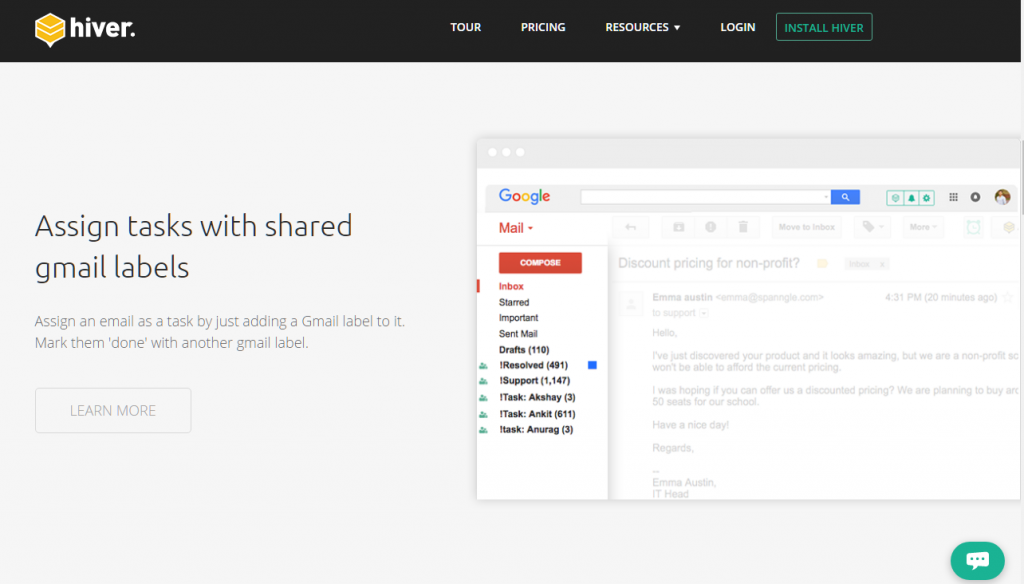
HiverHQ is a perfect choice for smaller teams because their prices are very affordable. This tool gives all team members access to inbox emails along with customer support or sales from Gmail.
Everyone can see it and you can assign an email as a task that your team members need to handle individually.
HiverHQ gives you tools with great functionality on a limited budget. That’s because the tool can solve the problem for small and large teams.
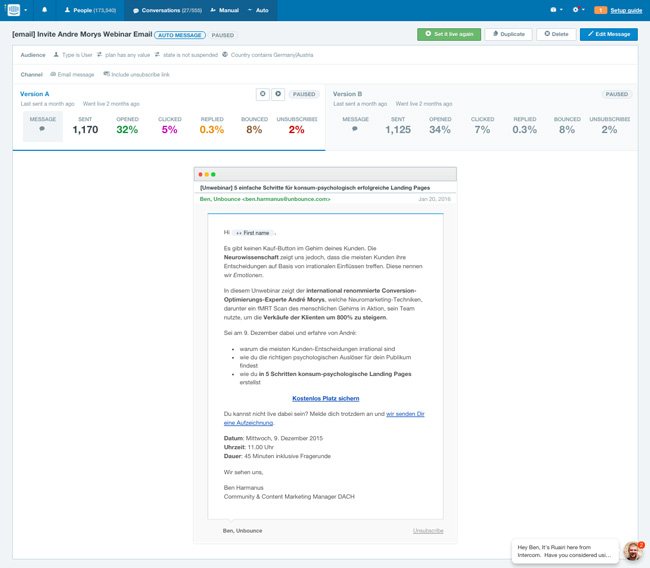
Intercom is a customer support solution that is more tailored to the upper middle teams because the price is slightly higher.
There is also a reason behind the higher price. This important digital marketing tool offers many functions and has strong integration.
You can easily build all the help centers in it. Not only can you use it to build your help center, but it can also simplify your marketing efforts.
Intercom keeps everyone/company interacting with your business in one place, where you can tag, engage, and educate.
Many sales teams use them as well as many similarities to some of the CRM solutions out there.
Intercom
Intercom can be your team’s best friend. Investing in it can get you to the next level faster than expected.
Time to Use Your Important Digital Marketing Tool
Use a selection of project management tools and collaboration, social media management, marketing, and customer support to build a solid foundation or foundation for your business.
Use tools that can make you work more effectively so as to make your business grow more rapidly.
Have you been to some of the essential digital marketing tools above? How do you use it? Or is there another tool you recommend? Tell us about your experience on our TechOught.com in the comments field below.
Don’t forget to bookmark and always visit every day Technadvice.com because here you can find the latest technology information such as How-to Guide Tips and Tricks Blogging Digital Marketing Windows Android Root Social Media games, ETC. Best of luck.
20 Ways to Fix 100% Disk Usage on Windows 10 PC – Getting 100% disk usage on Windows 10, will make the computer hang and freeze. Find your system drive running at 100%. Surely this is impossible, right? In fact, the latest versions of Windows have issues with overworked drives, which slow down the operating system.
20 Ways to Fix 100% Disk Usage on Windows 10 PC
How to Fix 100% Disk Usage on Windows 10 PC Laptop 2024
This issue affects both hard disk drives (HDDs) and solid-state drives (SSDs). But you guys take it easy, there are some fixes available to overcome 100% disk usage. But first, you need to know the cause of the problem.
This performance issue is most obvious when trying to use Windows Search to find a file or program, and anything else that requires the drive to do some work (perhaps copying and pasting a group of files).
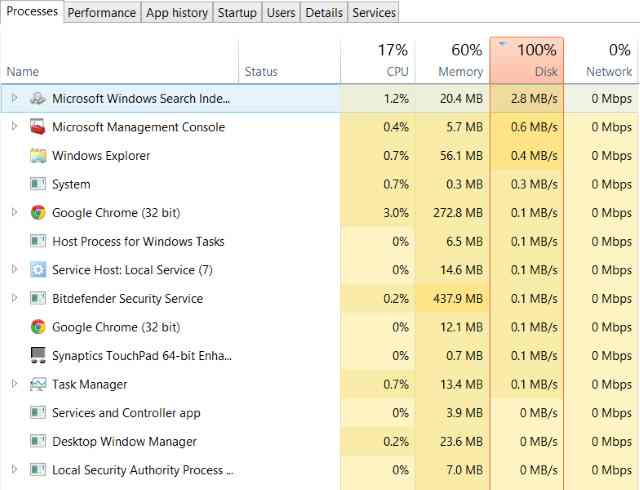
To determine if this is an issue affecting you when your computer is slowing down press Ctrl + Alt + Del and select Task Manager (Alternatively, right-click on the Taskbar and select Task Manager ).
Check Using Task Manager
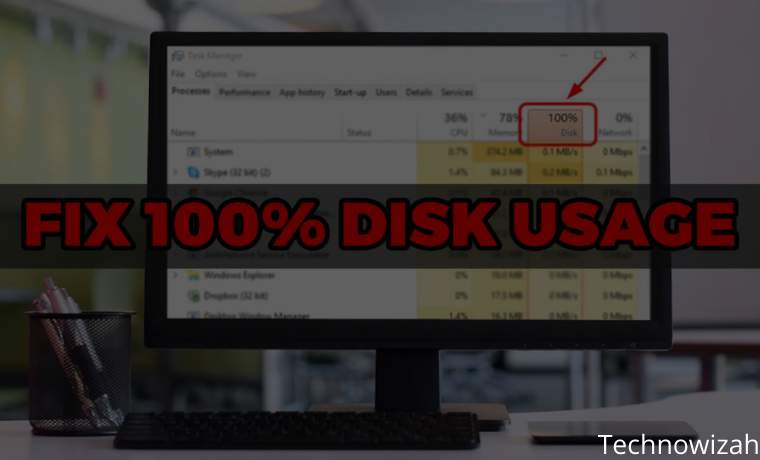
On the first tab, Processes, look for the Disk column. If you’re having issues with drive performance, it should be 100% and shaded in red to indicate whether or not you have a problem.
Troubled sectors on your HDD can cause 100% disk usage issues in Windows 10. However, using Windows built-in disk check can fix it.
Open Windows Explorer and select This PC, then identify your hard drive. Right-click on C: and select Properties. Here, look for the Tools tab, and under Error-checking click on Check.
In the resulting window, click Scan drive. Wait while the system scans the drive. A reboot may be required for a full disk repair. It has to deal with errors.
#2. Scan Using Anti-Virus Apps
As with any performance issue, the first thing to do is to confirm that your computer has not been infected with malware. Your security software should be able to handle this, whether it’s a free or a paid app.
At the very least, a tool like Malwarebytes Anti-Malware should be able to scan your system drive and detect any issues, although, with a heavy load on your drive, this may take some time.
If a threat is found, use the recommended software to remove it and reboot. Next, check the performance of your drive further. Hope you guys have solved this problem, if not then malware is not the cause so read on.
#3. Perform a Clean Boot on Windows 10
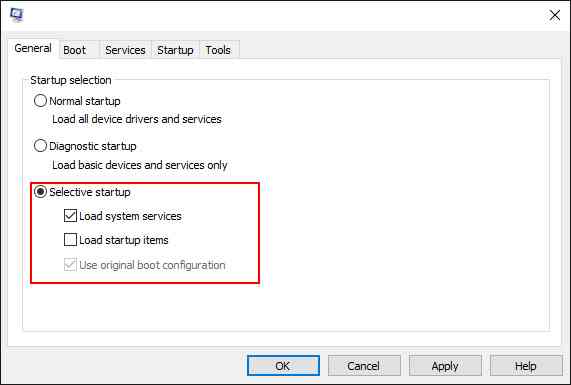
Clean Boot State is used to diagnose and troubleshoot advanced Windows problems. “Clean Boot” starts Windows with a minimal set of drivers and startup programs so you can determine if background programs are interfering with your system’s performance. If you have never done a clean booth, now is the time to learn.
Use Win + R to open the run box, then type MSConfig and press “ Enter ” to open “System Configuration.”
Click the “ General ” tab, then click “ Selective Startup ” Clear the “ Load Startup Items ” checkbox, and make sure “ Load System Services ” and “ Use Original boot configuration ” are checked.
Perform a Clean Boot on Windows 10
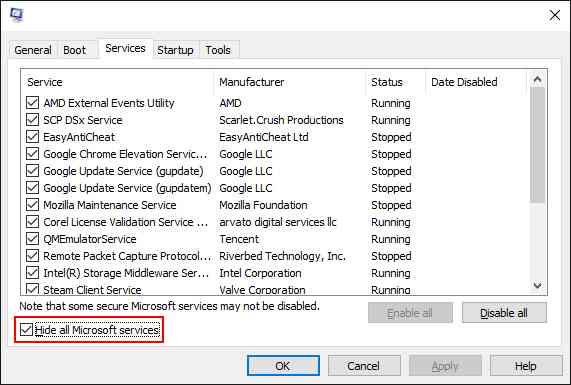
Click the ” Services ” tab. Select the “ Hide all Microsoft services ” checkbox. Select the item and then select “ Disable all “.
Perform a Clean Boot on Windows 10
Click “ Apply/OK ” and restart the computer. This will put Windows into a Clean Boot State.
If you find that everything loads fine on a clean boot, then slowly enable each startup program one by one until you determine which program is causing the slowdown. You can then delete or disable it. For starters, always start by disabling third-party anti-virus/anti-malware programs as those programs can have a tendency to access the disk at any time.
#4. Uninstall Anti-Virus Applications If You Use Windows Defender
By default Windows 10 has a security application for its operating system, namely Windows Defender. But often users install third-party anti-virus applications, this is good for keeping your privacy safe. But this will be a problem if the computer/laptop used has outdated components.
This can lead to excessive disk usage and many other problems. As a result, this can also be the cause of 100% disk usage in your Windows Task Manager. Consider removing an antivirus or anti-malware program like Norton, Kaspersky, AVG, Avast Behavior Shield or Malwarebytes, etc.
#5. Disable Windows Search For Improved Disk Performance
The next thing to check is whether the disk usage 100% error has something to do with Windows Search.
A bug in Windows 10 resulted in a “search loop” which caused an increase in the load on the system drives.
To stop this and prevent it from happening open Windows PowerShell (Admin). You will find this by right-clicking the Windows 10 Start menu.
Enter the command:
HKEY_net.exe stop "Windows search"
To permanently disable Windows Search or Indexing, press WIN + R, enter services.msc, and press Enter. In the Services window that opens find the Windows Search entry and double-click it to open the Windows Search Properties window.
Disable SysMain To Fix 100% Disk Usage in Windows 10
Under Startup type, select Disable. Here you can click Stop to cancel the service. Click OK to save your changes.
Sometime after disabling Windows Search, your Windows 10 performance will improve greatly. If not, continue…
#6. Disable SysMain To Fix 100% Disk Usage in Windows 10
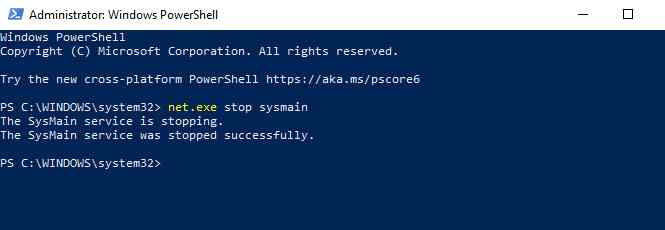
Another Windows 10 feature identified as a potential cause of the 100% disk usage issue is the superfetch service. Since Windows 10 1809 (Windows 10 October 2018 Update) it has been renamed to “SysMain.”
To prevent this service from causing disk usage issues, open another Windows PowerShell (Admin) and enter:
net.exe stop sysmain
Disable SysMain To Fix 100% Disk Usage in Windows 10
Again, wait a while to check if this has any impact on your computer’s performance. You should also run Check Disk:
chkdsk.exe /f /r
You will be notified that your PC must be rebooted for Check Disk to complete, so make sure you have closed all your applications first.
Or you can use the third-party software AOMEI Partition Assistant Standard, which simplifies things in a few clicks. With this tool, you can check a single partition, or check the entire disk.
This software allows you to check based on the partition and disk type according to your situation. No bundled devices and 100% clean. If this doesn’t work, continue to the next step.
#7. Check Is Flash Causing 100% Disk Usage Bug?
Flash remains one of the most vulnerable aspects of modern computing and should be disabled. Adobe plans to shut down multimedia plugins in 2020, so there’s little reason to stick with it.
Flash also seems to be one of the most common causes for 100% hard disk usage on Windows 10 if you use the Google Chrome browser.
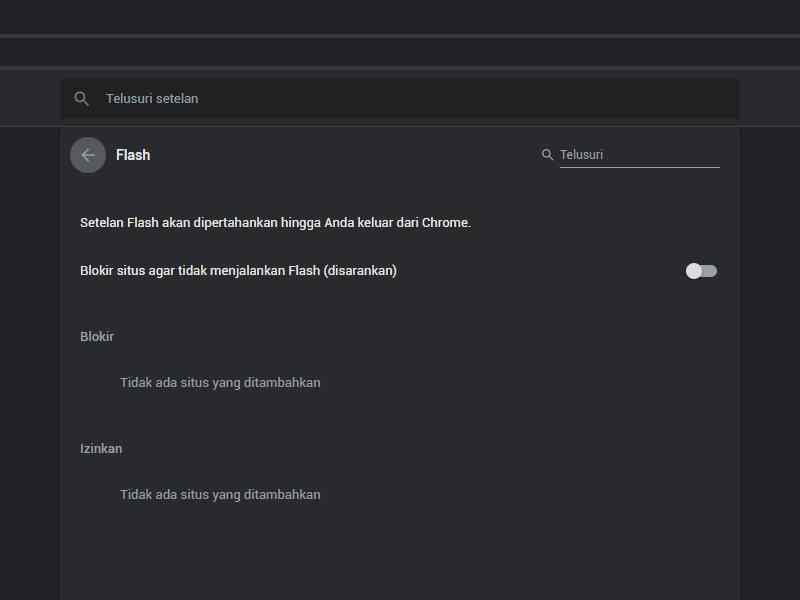
Go to Menu > Settings > Privacy and security and click the section marked Site Settings. Here, search for Flash and set the switch to Block sites from running Flash, then click Back.
Check Is Flash Causing 100% Disk Usage Bug
Restart the browser and check your HDD performance.
#8. Use the Control Panel To Delete All Web Browsers
Maybe it’s not Flash that affects your browser’s performance. Another cause could be the browser itself.
You can use Control Panel to delete all browsers, except Edge and IE (Internet Explorer). Uninstalling the browser is an effective way to isolate issues with plugins.
Otherwise, you will need to remove the plugins one by one from each browser and test them. Adobe Flash and Shockwave Player are the usual culprits of 100% disk usage on Windows 10.
Fortunately, the browser can be reinstalled in seconds. After uninstalling the browser, please delete files including ‘Temp’, ‘%Temp%’, and ‘Prefetch’. After that, restart the system and check if the problem is solved. If it does, wait 10-15 minutes to verify that it doesn’t reoccur, and you can reinstall the browser.
#9. Fix 100% of Disk Usage Due to Skype
Another widely used app that can also cause 100% of your HDD usage: is Skype.
To find out and disable its OTT resource requirements, start by checking if the software is not running. You can do this by looking in the Task Manager, or checking the System Tray. If Skype is running here, right-click the icon and select Quit.
Next, press WIN + R and paste this address into the box:
C:\Program Files (x86)\Skype\Phone
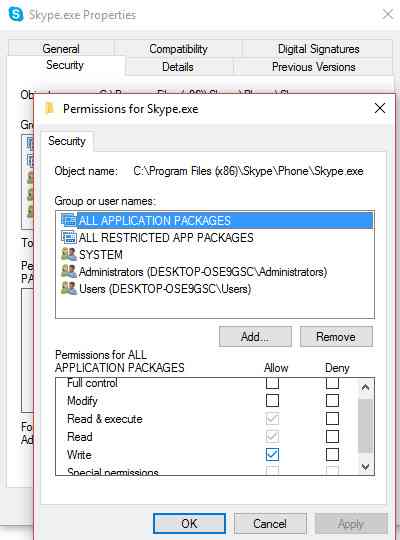
Click OK to find the Skype.exe file and right-click this and select Properties. On the Security tab click Edit, then select ALL APPLICATION PACKAGES.
Fix 100% Disk Usage Due to Skype
Put a checkmark next to Write in the Allow column and finish by clicking Apply, then OK. Return to Task Manager to see the changes. No difference? Keep reading…
#10. Fix StorAHCI.sys Driver Driver
Some drivers don’t run well enough in Windows 10. One that has been found to be causing 100% HDD usage is the StorAHCI.sys driver, which has a firmware bug. StorAHCI.sys is intended for storage devices connected to a PC or laptop motherboard via the Advanced Host Controller Interface PCI-Express. If you have gone so far without success, this could be the cause of the problem.
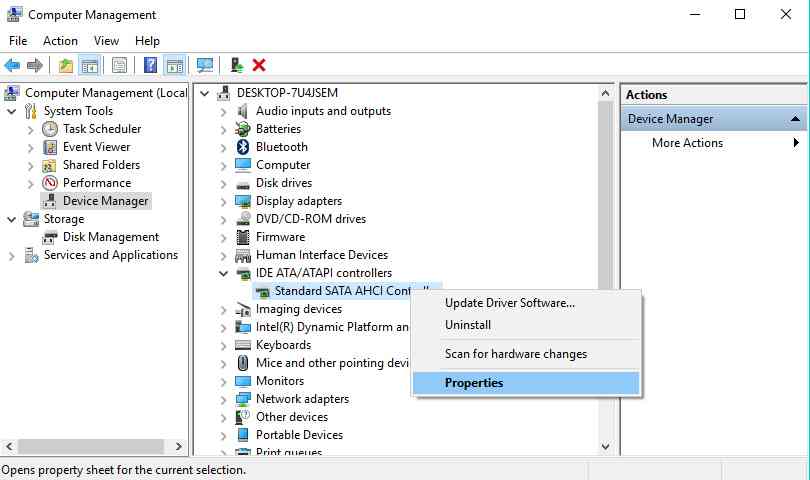
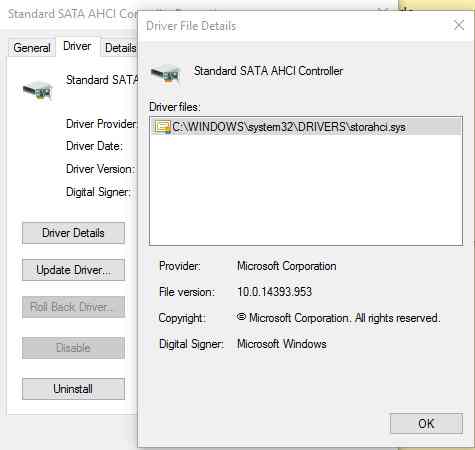
Open Device Manager (use Windows 10 search, or right-click This PC in Windows Explorer, then Properties>Device Manager ) and expand IDE ATA/ATAPI Controllers. If the AHCI Controller entry is listed, double-click it, then go to the Driver tab and select Driver Details.
Fix StorAHCI.sys Driver Driver
Is the driver listed as C:\Windows\system32\DRIVERS\storahci.sys? If so, you may be affected by this bug.
Fix StorAHCI.sys Driver Driver
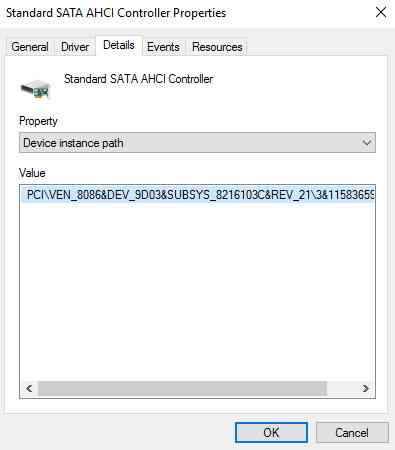
Close the driver details box and switch to the Details tab, select the Device instance path from the drop-down menu. Where Value is listed, right-click, and select Copy. Run your text editor (like Notepad) and Paste in the content.
Fix StorAHCI.sys Driver Driver
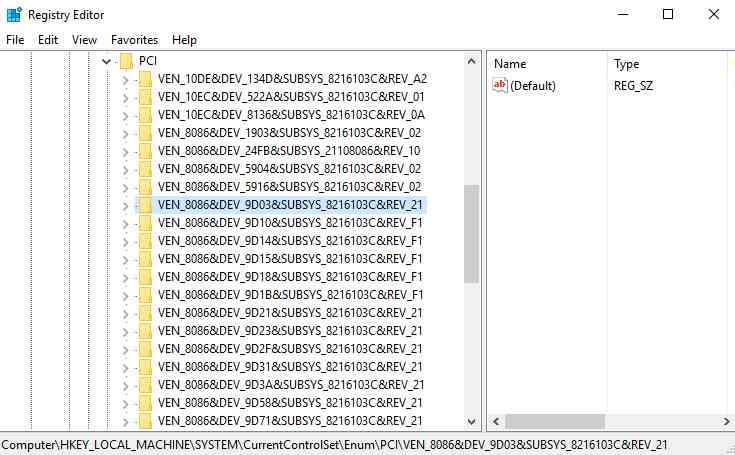
Next, press WIN + R and type Regedit, followed by the OK button. Navigate to this address: HKEY_LOCAL_MACHINE\System\CurrentControlSet\Enum\PCI\ and use the pasted string above to open the correct AHCI Controller, followed by a random number.
Fix StorAHCI.sys Driver Driver
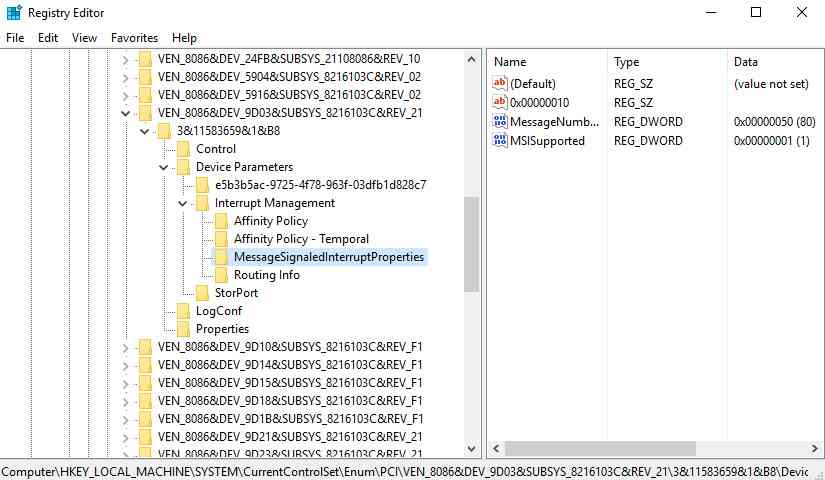
After finding the correct AHCI Controller, then navigate to Device Parameters\Interrupt Management\MessageSignaledInterruptProperties.
Fix StorAHCI.sys Driver Driver
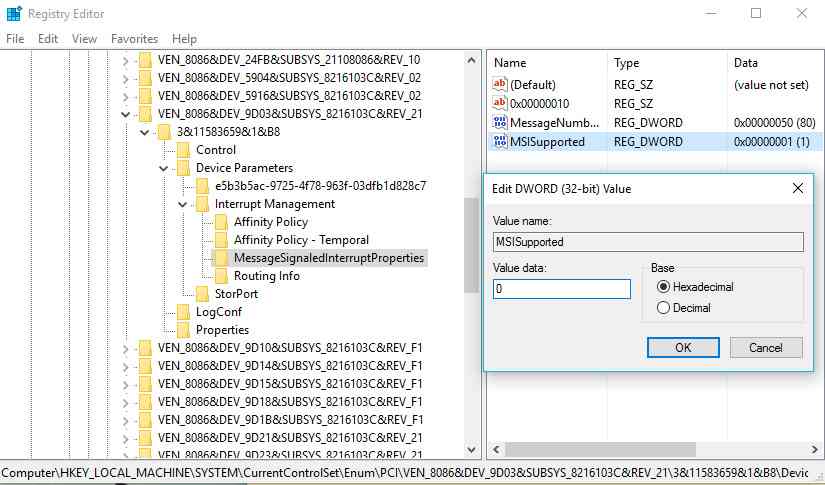
There you will see supported MSIS listed in the right pane. Double-click this, then change the Value data: to 0. Click OK to confirm and follow the instructions to restart Windows.
Fix StorAHCI.sys Driver Driver
#11. Clear Steam Cache?
Enjoy the game and have Steam installed? There is a high chance that this digital sending system is causing 100% disk usage.
Usually, this is due to update delivery, causing the background downloader to get stuck in a loop. Clear the Steam cache to fix it.
First, make sure you have logged out of Steam. Where Steam is the likely cause of the 100% disk usage error, it may hang when you try to exit. In this case, use Windows 10 Task Manager to close the software. Next, open the run box by pressing the WIN + R keys and enter
steam://flushconfig
Clear Steam Cache
You will see a dialog box, notifying you that the content will be deleted.
Click OK to continue. Note that games and saves will be preserved, so there is no risk of being deleted.
#12. Disable Diagnostic Tracking In Windows 10
Finally, it’s worth considering the impact of diagnostic tracking on Windows 10. A feature you may have disabled for privacy reasons, as it causes 100% HDD usage on many PCs.
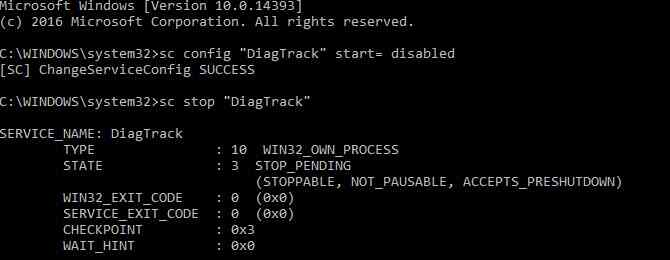
In terms of reducing hard disk drive usage, it is quicker to disable the DiagTrack service. If this is the source of the 100% disk usage error in Windows 10, you can stop the service from launching.
However, to do this, you have to access the Command Prompt in administrator mode.
Do this by clicking Start and typing cmd in the search box. Wait for the results and right-click Command Prompt, and select Run as administrator.
Additionally, you might also go to Settings > System > Notification & actions and disable Get tips, tricks and suggestions as you use Windows. Doing so has been shown to improve things.
#13. Windows Update Can Cause 100% Disk Usage
Windows Update Can Cause 100% Disk Usage
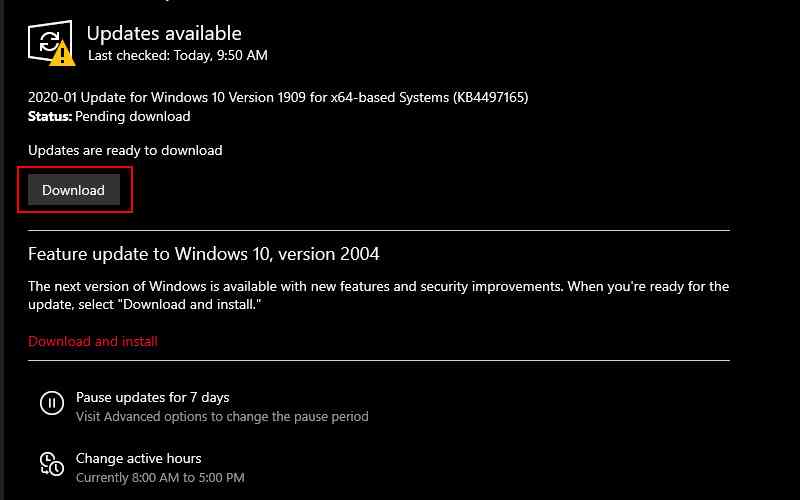
Apart from affecting the changes you make to your PC while fixing the 100% disk usage issue, Windows Updates can also be the cause. This usually only happens when Windows Update has a problem (which is usually caused by a file refusing to download). You have two options here:
Let the computer Update Automatically — close all your open applications and wait. Eventually, the file will be downloaded, but depending on how Windows Update is scheduled on your computer, it may require a reboot.
Shut down your computer— once you’ve done that, restart it and wait for Windows Update to resolve the issue.
Once the update has finished downloading, we recommend running it as soon as possible. Remember to check the previous fix for 100% disk usage before proceeding, as noted above.
#14. Reset Virtual Memory
Virtual Memory is a combination of RAM and hard disk space and can be responsible for overusing your HDD. If there is not enough RAM to perform the task, HDD is used to increase RAM. Data that is moved to the HDD is then returned to RAM when needed.
If you’ve come this far and you haven’t solved the 100% disk usage issue, it might be a good idea to reset your Virtual Memory.
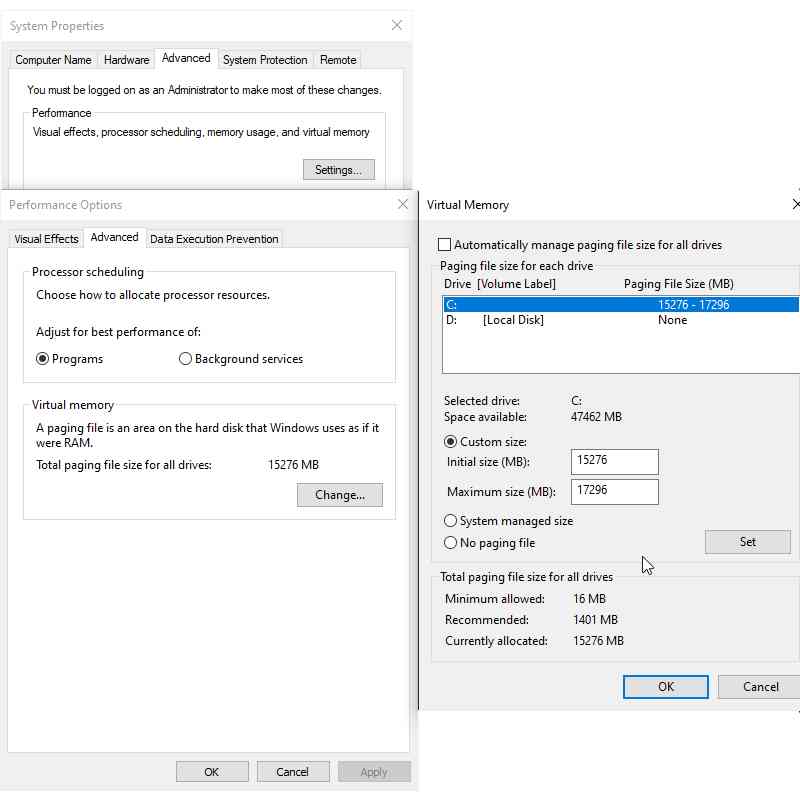
Go to the System screen with Windows + Break/Pause, then Advanced System Settings on the left. In the resulting box, select the Advanced tab, then under Performance click Settings.
Here you will find another Advanced tab, which has a section labeled Virtual memory. Click Change and clear the checkbox to Automatically manage the paging file size for all drives.
Reset Virtual Memory
Staying at this screen, select your Windows drive (usually C 🙂 and then Custom size. Here, add the Initial size and Maximum size. Note both are measured in MB rather than GB.
These numbers can be confusing, so with the first value, rely on the suggested options. For the maximum value, aim for a number no more than 1.5 times your system RAM.
For example, a computer with 4GB of RAM should have no more than 6.5GB (6144MB). With the value input, click Set, then OK to continue. You now need to delete the temporary files that have been used in the previous virtual memory allocation.
Do this by opening the Run box ( Win + R ) and then entering “temp”. When the temp directory opens, select all files ( Ctrl + A ) and tap Delete on your keyboard.
#15. Enable High-Performance Mode
One last thing to try is changing your Windows power settings. The standard power mode is more prone to the 100% disk usage bug but switching to high performance often fixes the problem.
The downside, of course, is that your computer will use more power. Thanks to the modern processor design this shouldn’t be a big problem. However, desktop replacement notebooks and laptops can affect battery life.
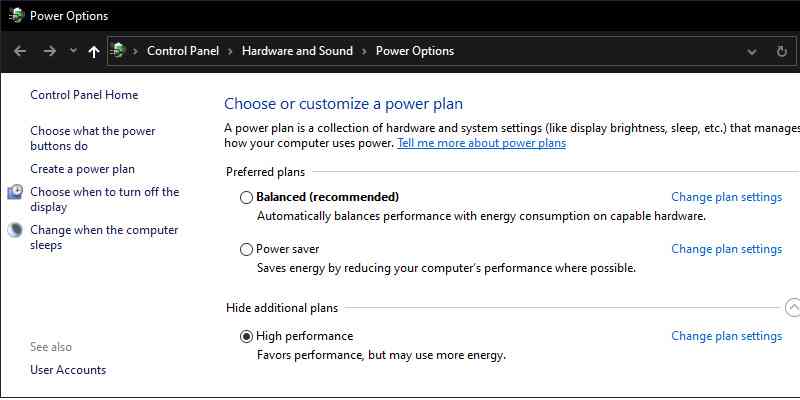
To change to high-performance mode, open the Power & sleep screen with WIN + X > Power Options. Here, click Additional power settings, select High performance, then OK.
Enable High-Performance Mode
If this is not the option shown, you will have to create your own custom power plan. Click Create a power plan, then select High performance. Name the plan, set the personal settings you need, and select it as the power plan to use. In a few moments, the 100% disk usage issue will drop to less than 10%.
#16. Install the Latest SATA Drivers
Your Windows 10 computer will almost certainly use a SATA connection for hard drives, SSDs, and optical drives. If the drivers are not up to date, disk usage errors may occur. Avoid this by upgrading to the latest SATA drivers.
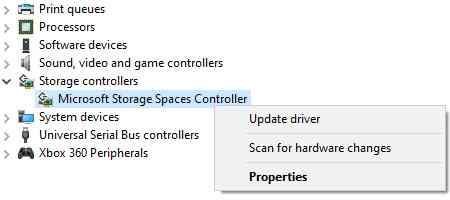
Open the Power User menu with WIN + X and select Device Manager. From here, expand Storage controllers, then identify the correct controller for your SATA device. If you can’t do this, don’t worry about updating both.
To update, right-click on each controller and select Update driver.
Install the Latest SATA Drivers
Select the Browse my computer for driver software option, then Let me pick from a list of available drivers on my computer. Here, select Standard AHCI Controller and see how it affects performance.
You may need to reboot Windows for this to take effect. Note that if it doesn’t work, you can still try this by checking the manufacturer’s website for new drivers. It can be installed using the instructions that came with it or you can use a third-party app like Driver Booster.
#17. Firmware Upgrade For SSD
Firmware Upgrade For SSD
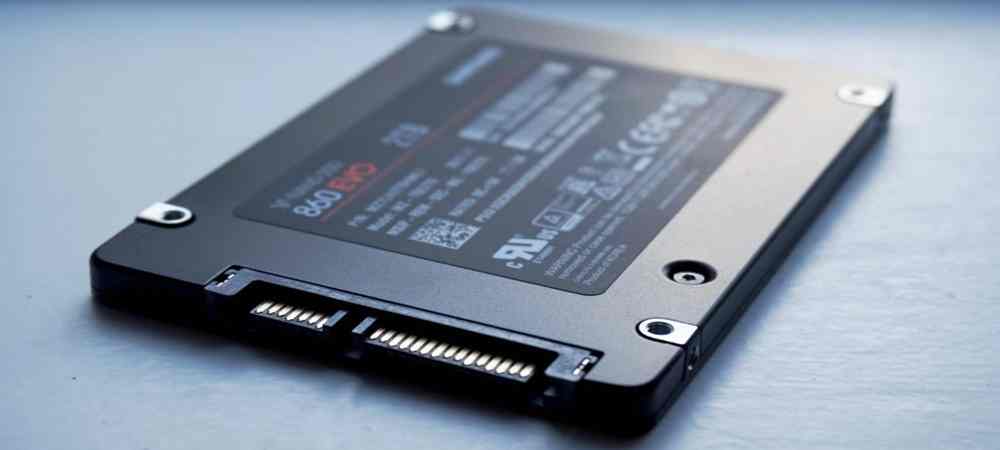
If you have an SSD installed on your machine and are experiencing 100% disk usage issues, it’s most likely a firmware issue. SSDs are very fast and unless you have some program accessing your disk all the time, they shouldn’t be at 100% for more than a few seconds. Here are some links to SSD firmware updates for some of the major brands: Crucial, Samsung, Kingston, Intel, and OWC.
#18. Replace/Upgrade the Hard Disk
ReplaceUpgrade Hard Disk
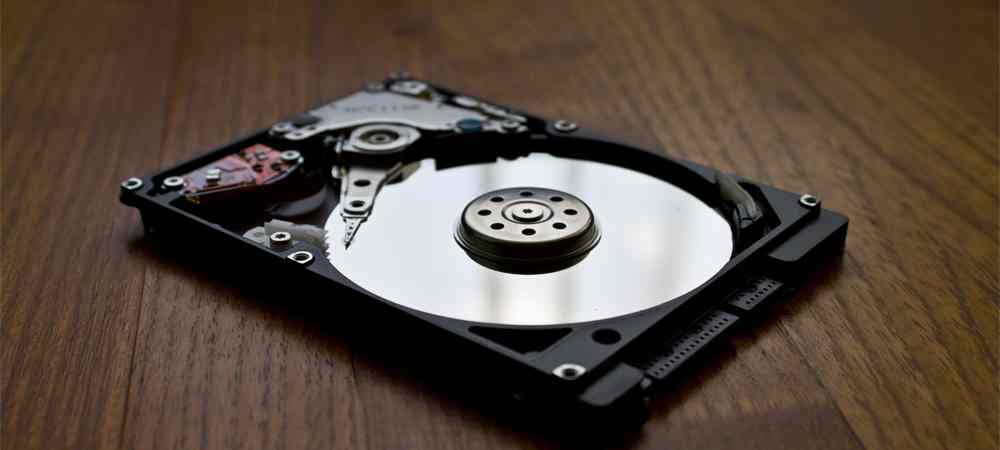
A hard disk that develops too many bad sectors on it will mostly send your computer into a loop with high disk usage. Or, your computer’s hard disk may be too old to function properly, even though there is a lot of unused space.
However, your computer works like a turtle and consistently reports 100% disk usage. If your motherboard supports the use of an SSD, I suggest you use an SSD, you will see a very drastic difference between the two, so you don’t want to go back to using a hard disk anymore.
#19. Upgrade RAM
Another thing you should check is to see how much RAM you have installed on your computer. Because Windows 10 can run on older devices. This is fine, but you need to make sure your computer has a decent amount of RAM, which means no less than 4 GB.
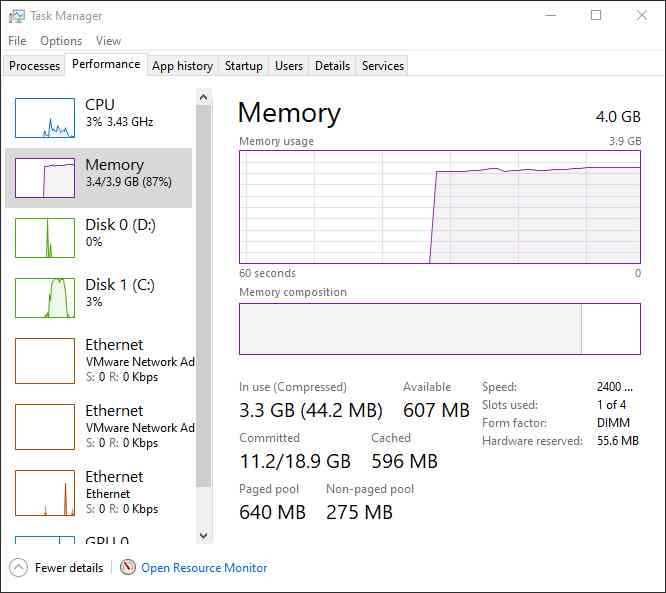
You can also open Task Manager and click on Performance then click on Memory.
Upgrade RAM
As you can see, the admin has 4 GB of memory and about 3.5 GB is in use. This means if you have 2 GB of RAM on your computer, all the memory will be exhausted. Everything that cannot be entered into memory is mapped to the hard disk. So basically Windows will use your hard disk as a temporary memory device.
If you have a lot of data to write to disk, it will cause your disk usage to spike and your computer to slow down. If you notice that the line in this graph is close to the top, then it means that you may need to upgrade the RAM in your computer.
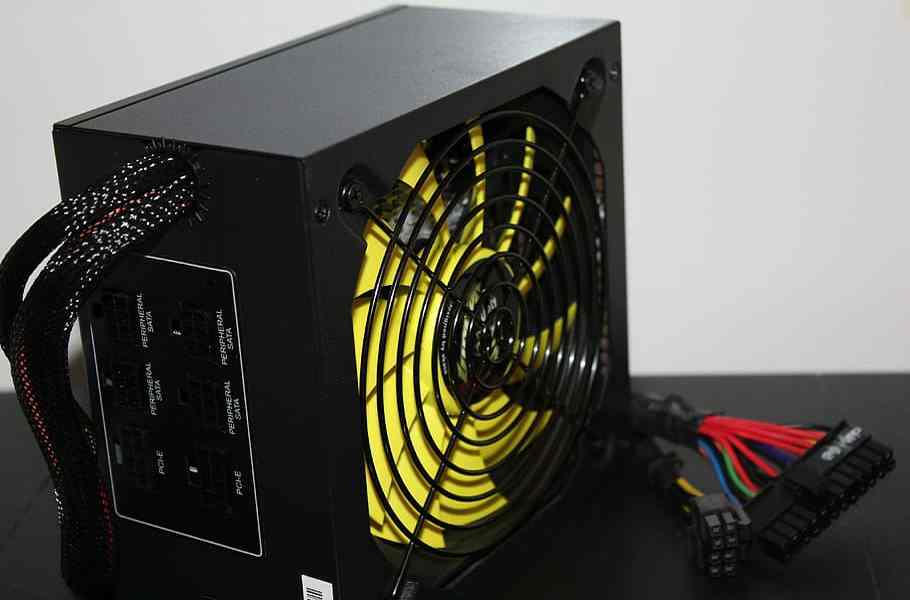
#20. Replace the PC Power Supply (PSU)
Replace the PC Power Supply (PSU)
There is a possibility that your computer hardware is causing the 100% disk usage problem in Windows, especially the PSU. If the disk usage issue can be attributed to excessive disk activity, then there may be a power-related cause. 100% disk usage has been seen on a Windows 10 laptop running on battery. Once plugged into the power adapter, the problem was solved. Similarly, the problem has been shown to subside once a new PSU is installed in a desktop PC.
Simply put, there is little reason for your disk loading to be anywhere near 100%, certainly not under normal use. A slow computer is a computer with a problem, and if you can’t fix it by disabling browser plugins, stopping the service, or you’ve confirmed that there are no viruses on your computer, then the problem may be hardware related.
Maybe your drive is getting old, it may be damaged, or the cable may need to be replaced. Alternatively, it is possible that the problem is connected to the Windows defrag tool. But I still hope that hopefully, one of the solutions above will work for you guys.
Don’t forget to bookmark and always visit Technowizah.com every day because you can find here the latest Tech Computer Android games How-to Guide Tips&Tricks Software Review etc, Which we update every day.
With the development of technology, the function of the printer is also developing, which used to be only used for printing, now many printers can be used for scanning, photocopying, and faxing.
Canon MP287 Printer Error
One of the printer brands that is widely used is Canon MP287, the price is quite affordable and its durability is quite reliable, making this printer have many users.
However, as time goes by and the printer ages, some errors or malfunctions will start to appear as a result of usage.
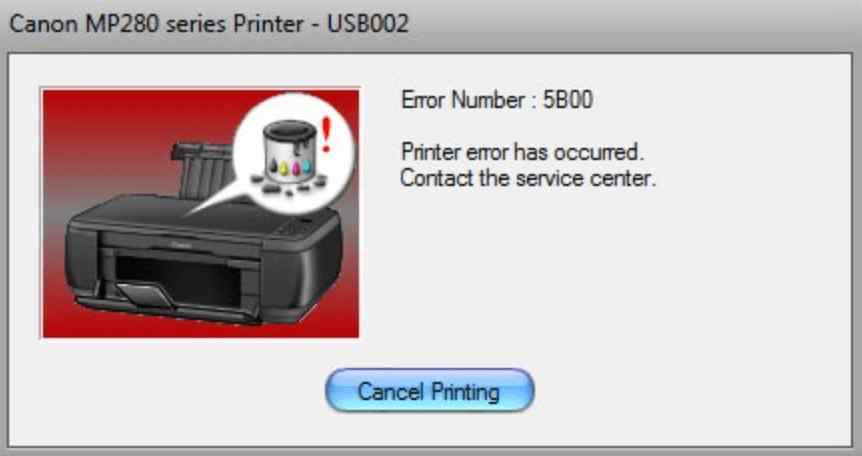
Errors that appear on the printer can usually be detected from the Error Number code that is displayed, for example, the Error Number P07 / 5B00 code on the Canon MP287 printer which is marked with an orange indicator light that continuously flashes.
Canon MP287 Printer Error
The error code above can be solved easily without having to take it to the Service Center, you can repair the printer damage with the error code above by using the Service Tools application whose complete guide we will explain in this article.
Download Resetter Canon MP287
Before resetting the Canon MP287 printer, you must first prepare the service tools, you can download them at the link below.
After you download the Resetter above, and everything has been prepared, then we will reset the Canon MP287 printer, the steps are as follows:
Also Read: How to View WIFI Password on Windows 10 PC
The first stage
Turn off the printer by pressing the OFF button without removing the power cable that is connected to the mains.
Make sure that the USB cable is connected between the printer and the computer.
Turn the printer back on as usual and wait for it to turn on completely.
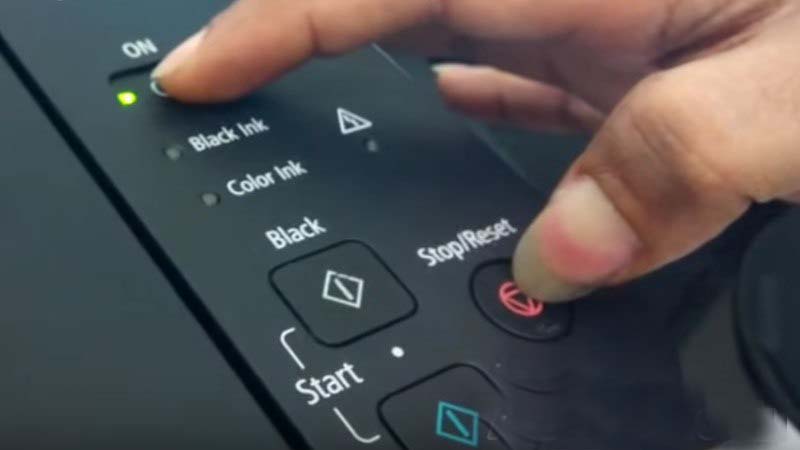
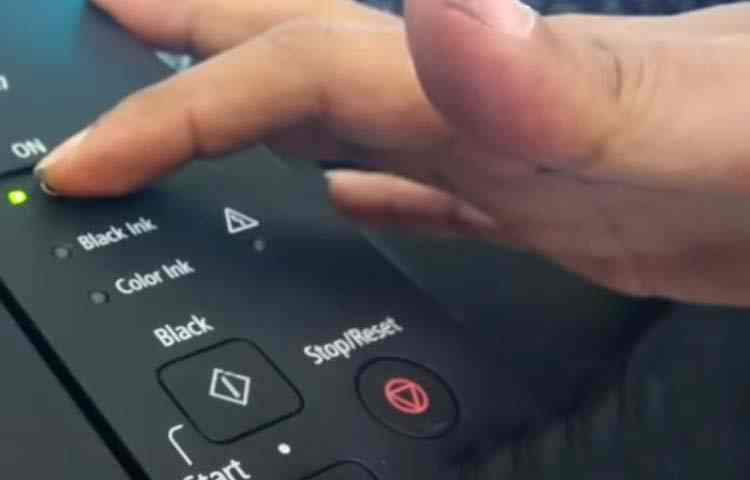
Then press and hold the STOP/RESET button. After that press the POWER button without releasing the STOP/RESET button, so that both buttons are pressed simultaneously.
How to Reset Canon MP287
After that, release the STOP/RESET button but the POWER button must remain pressed and do not release.
How to Reset Canon MP287
Next, press the STOP / RESET as much as 6 (six) times slowly. On the sixth press, hold down the STOP/RESET button briefly then release it simultaneously with the POWER button.
If the reset process is successful, then on the computer screen there will be a notification of reinstalling the Canon printer driver. Please wait until the process is complete.
After that, insert 5 sheets of paper into the printer because the printer will do the printing process during the next reset process.
Second Stage
The next step is to do a reset using the Canon Service Tools application that you downloaded earlier.
Extract the Canon Service Tools file that you downloaded earlier, then right-click and Run as Administrator.
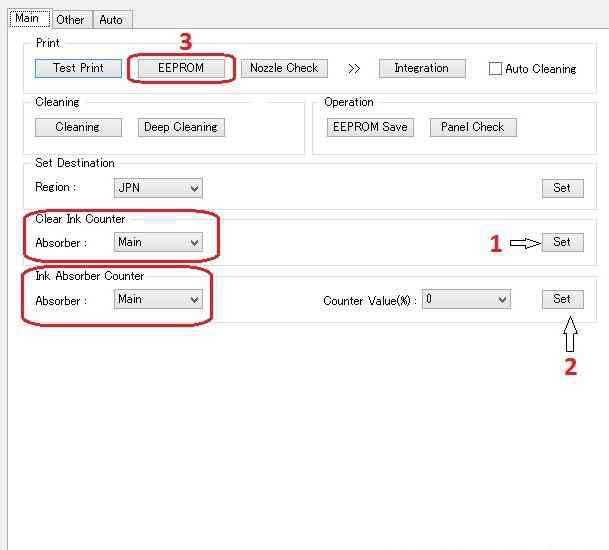
In the Clear Ink Counter section, select the Main menu in the Absorber section, then click Set
Then in the Ink Absorber Counter section select the Main menu and fill in Counter Value (%): 0, then click Set
After clicking the Set button, the printer will print the code ” D=000.0 “.
Then click on the ” EEPROM ” menu then select ” OK ” and the printer will print containing the long code.
The last step is to turn off your printer by pressing the Power button until the printer is completely turned off, then turn it on again and the printer is ready to use.
If the above method works, then your printer is ready to be used to print documents, you can try printing documents using the paper you prepared earlier.
Solution If the Printer Still Error P07/5B00
If your Canon MP287 Printer still has an error and cannot be used to print, then you need to take the following steps.
Remove the cartridge from the printer and clean it using a tissue, thoroughly cleaning all the points where the ink comes out.
dry the area where the cartridge stops (ink absorbent foam) which is on the right. The trick is to roll a small tissue, and then push it into the absorption foam. Do it repeatedly until there is no more ink on the foam.
Reinstall the cartridge and then repeat the reset stage above.
Conclusion:
Those are some ways that you can use to solve the error on the Canon MP287 printer using a resetter.
Hopefully, the tutorial above is useful and you succeed in making your printer usable again.
Don’t forget to bookmark and always visit every day Technowizah.com because you can find here the latest Tech Computer Android games How-to Guide Tips&Tricks Software Review etc, Which we update every day.
6 Ways to Fix Destination Folder Access Denied Windows 10 PC – Do you receive a “destination folder access denied” message when trying to access a specific folder or file? Here are some ways to fix this problem.
6 Ways to Fix Destination Folder Access Denied Windows 10 PC
How To Fix Destination Folder Access Denied Windows 10 PC 2024
You might find it weird when Windows tells you that you don’t have permission to access something on your computer. Usually, this is the result of configuring permissions in the NTFS file system that Windows uses by default.
If you receive an access is denied message in Windows 10 when trying to access a file or folder, there is no need to worry. Because this time we will discuss how to solve destination folder access denied in Windows 10.
#1. Make sure the user has administrator rights
In most cases, you have to be an administrator on your PC to make changes to the ownership of files/folders. You may be able to change permissions in your directory, but you won’t have much access or control elsewhere.
To maintain the confidentiality of everyone’s files on the computer. Only administrators can access files belonging to other users. Also, you have to give admin permission to make changes to system files, such as those in the Program Files and Windows folders.
Make sure the user has administrator rights
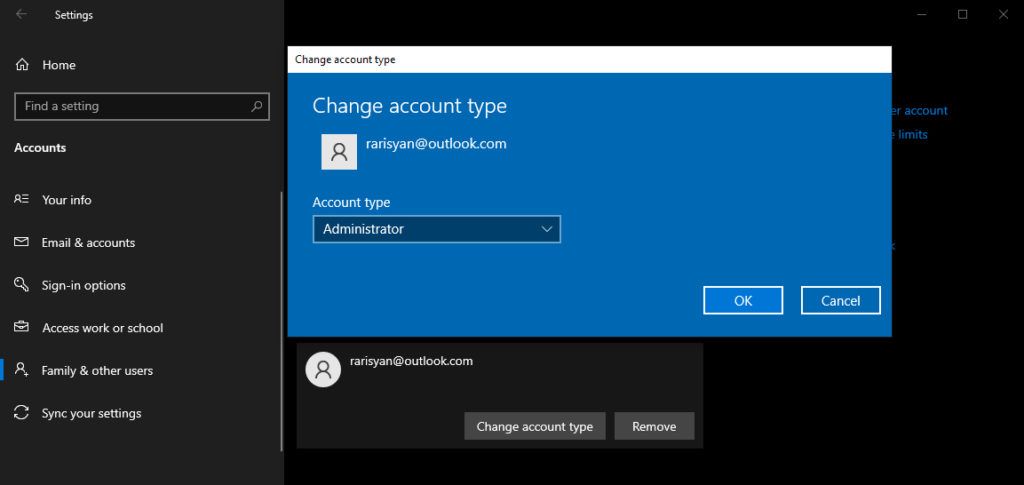
If you want to upgrade your standard account to an admin account, other admins need to visit Settings > Accounts > Family & other users. Select your account under Your family or Other users and click Change account type. Change from Standard User to Administrator and you will have full access rights on your Windows 10 operating system.
#2. Change File Ownership Settings
The most common fix you can try when you see the “destination folder access denied” message is to take ownership of the folder via File Explorer.
Change File Ownership Settings
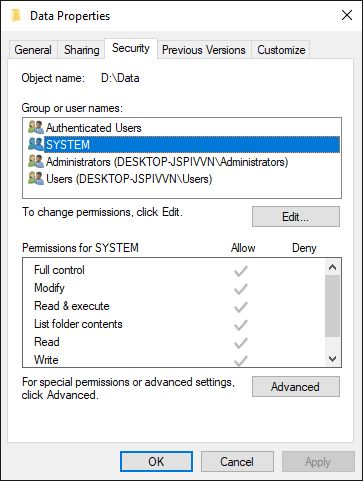
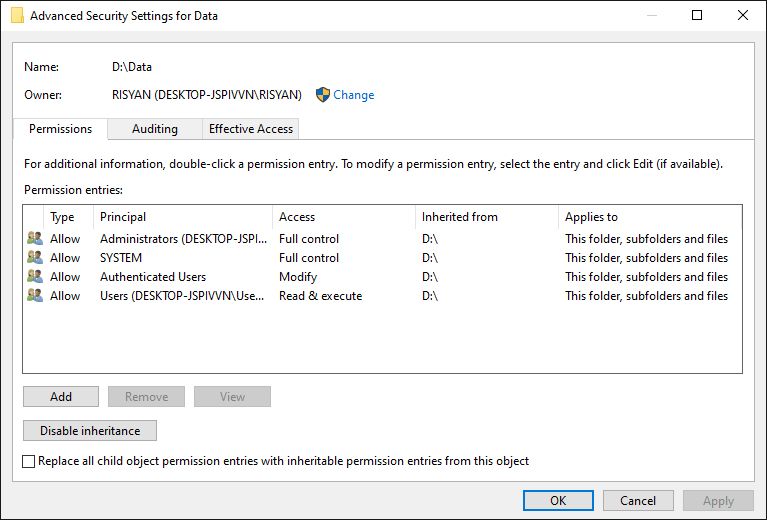
Here’s how to do it. First, right-click the folder or file in question and select Properties. In the resulting window, switch to the Security tab. Next, click the Advanced button for more options.
At the top of the next window, you will see a field labeled Owner. It will likely give an Unable to display current owner message if you run into problems. Click the blue Change link next to this to fix it, note that you have to be an administrator to do this.
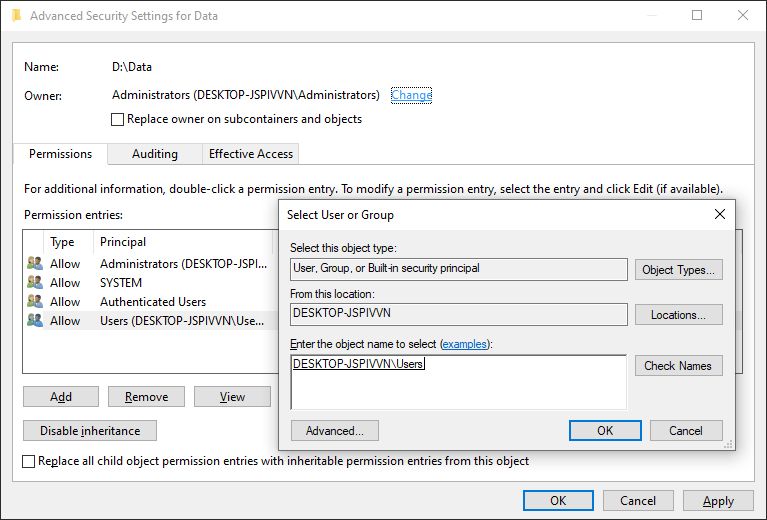
Now you will see a dialog box titled Select User or Group. In it, enter the account name of the new folder owner. This can be an account username or a group of users on your PC.
Groups include standard units such as Administrators (if you want all computer admins to have them), or Users (for everyone to have). In-home use is usually the most sensible choice to assign ownership to one person.
Change File Ownership Settings
Here I assume that you want to take ownership of the folder with your account, so type your username here. If you use a Microsoft account to sign in to Windows 10, your username is the first five letters of your email address. Hit Check Names when you’re done to make sure it’s correct. If yes, it will automatically change to [ PC Name ]\[ User Name ]. Click OK.
Note: Be careful when changing file ownership settings
When handling the “access denied” error, you should apply the steps above carefully. Avoid taking ownership of folders in system directories such as Windows, Program Files, Program Data, or similar.
Doing so will weaken the security of your system, as normal accounts are not meant to be the owners of this directory. They contain important Windows folders that you shouldn’t touch. You can still gain access to most of these folders by navigating to them in File Explorer. You have to confirm admin permissions, then you can view them without being the owner.
#3. Review Folder Permissions
If taking ownership of a folder doesn’t work, or you’re an administrator trying to grant permissions to someone else, you should review what users have permissions on the folder in question.
Review Folder Permissions
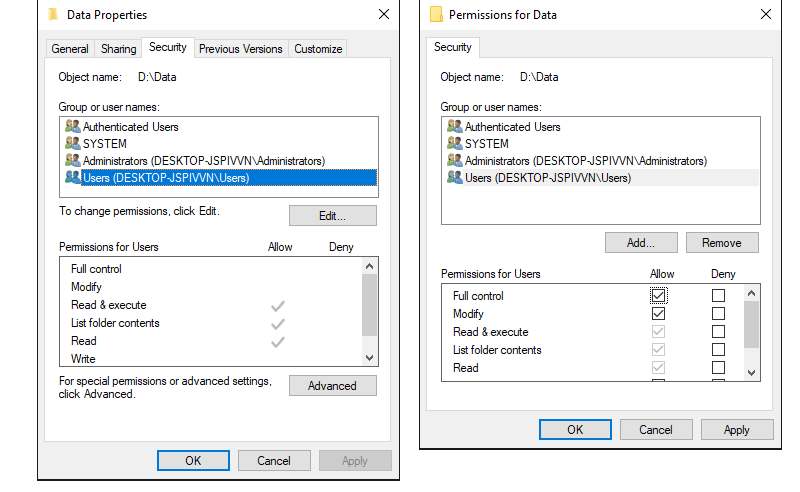
Drag the same Security tab in the Properties folder as before. At the top, you will see a list of users and groups on your PC. Select an entry here, and the bottom pane will show what permissions they have for this folder. Hit the Edit button to change the permissions for each user to your liking.
As you would expect, Full control gives you complete control over the folder and everything in it. Read is the most restrictive option, as it only lets you see what’s in the folder. See Microsoft’s page on file and folder permissions for more detailed details.
#4. Double Check Antivirus Settings
Double Check Antivirus Settings
Sometimes, your antivirus can get overzealous and end up messing with your ability to access files. If you have confirmed that everything is correct with your file permissions above, you may consider testing this next.
Look around the settings of your antivirus program and see if there is a file protector or similar setting. Try disabling this and then try accessing the file again. If it doesn’t have any effect, temporarily disable your antivirus completely and see if that helps.
#5. Check File Encryption
Another reason you may receive a “destination folder access denied” message is that the contents of the folder are encrypted. As you know, encryption protects files by only allowing someone who has the key to view them.
Check File Encryption
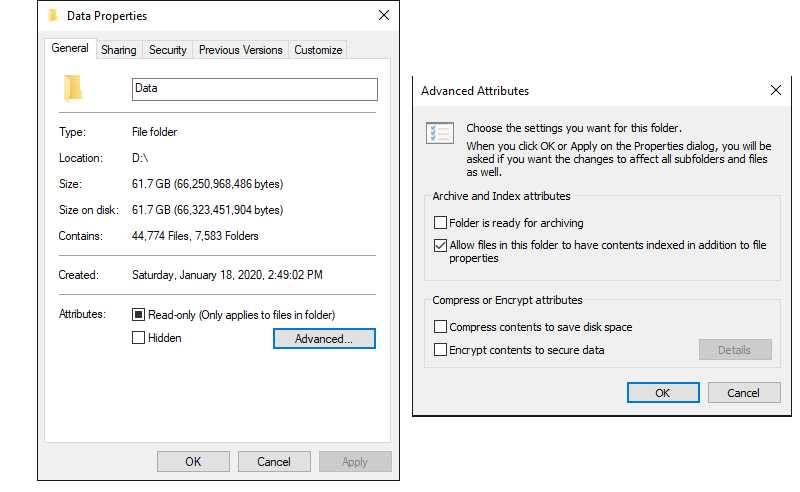
You can encrypt folder contents in Windows, although this feature is only available in the Professional version. To do so, right-click the folder and select Properties. In the window that appears, click the Advanced button on the General tab. Here, check the Encrypt contents to secure the data box. With this, everything in the folder will be locked.
This type of encryption is transparent, meaning that the owner never pays attention to the encryption. As long as they are logged into the system, they can access these files.
But if you don’t have the certificate used to encrypt the folder, Windows will deny you access. Whoever encrypts the file must open it. This isn’t the only way to encrypt files in Windows 10, but it can cause the error message you’re seeing.
#6. Disable User Account Control
The above solution is the most important solution to solve the “destination folder access denied” problem in Windows 10. You will see a lot of suggestions floating around the web for this problem, but not all of them are good. Some of them just give you solutions to get administrator permissions, which we discussed.
Disable User Account Control
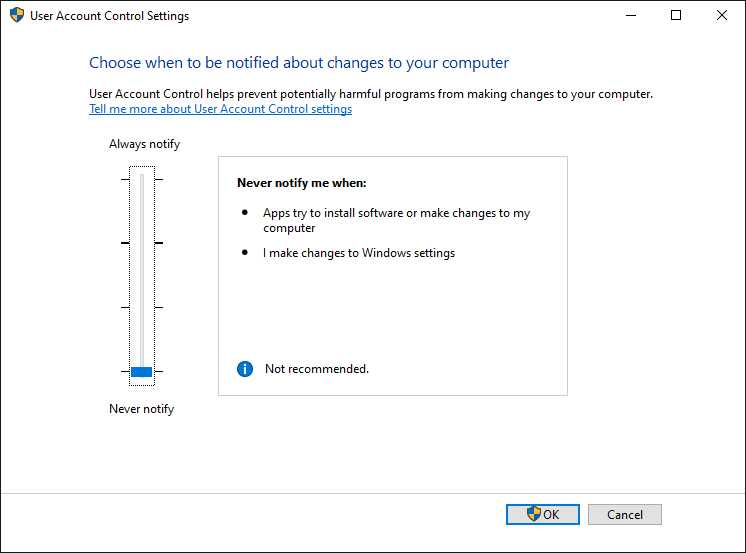
One of the other commonly used solutions for dealing with the “destination folder access denied” issue is to disable User Account Control (UAC). To do this, type UAC in the Start menu search bar and select Change User Account Control settings. Drag the slider down and hit OK.
Once you’ve done that, try to follow the 2nd solution above again to take ownership. Once done, make sure to reset the UAC settings to their place.
Now you know how to solve destination folder access denied in Windows 10. Usually, this problem can be solved by changing simple permissions. Make sure you have administrator rights, then you can try to take ownership and adjust permissions as needed. Avoid changing the ownership of the protected system folder, which can compromise the security of your system.
Don’t forget to bookmark and always visit every day Technowizah.com because you can find here the latest Tech Computer Android games How-to Guide Tips&Tricks Software Review etc, Which we update every day.