Category: Windows

Windows – Here you can find Computer-related updates Windows 10, Windows 8, Windows 7, Linux, technology information, and more.

  • 6 Ways to Fix Driver Power State Failure in Windows 10 PC 2024

    6 Ways to Fix Driver Power State Failure in Windows 10 PC 2024

    6 Ways to Fix Driver Power State Failure in Windows 10 PC – Driver Power State Failure is a rare blue screen error when the driver goes into sleep mode while you are working. The BSOD often appears when the computer exits hibernation mode, Windows cannot wake the device driver at all, or the driver takes too long to respond.
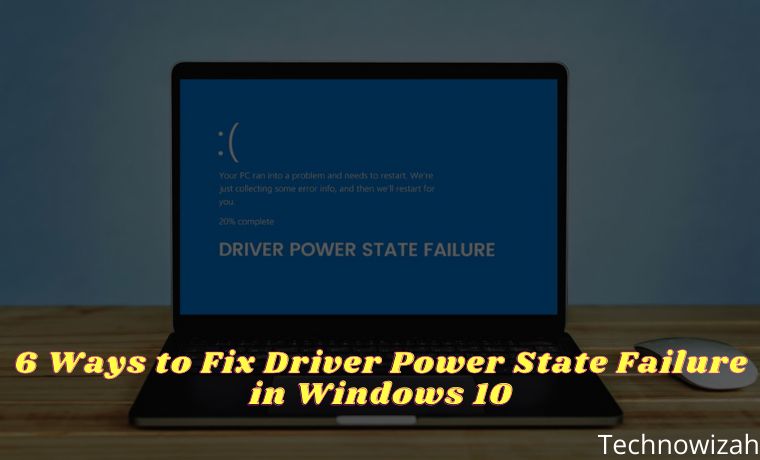
    6 Ways to Fix Driver Power State Failure in Windows 10
    6 Ways to Fix Driver Power State Failure in Windows 10

    How to Fix Driver Power State Failure in Windows 10 PC Laptop 2024

    The error can be fixed with a simple change to the power settings, but some users may have to dig deeper to get rid of the problem. Here are some ways to solve Driver Power State Failure in Windows 10.

    Read more:

    #1. Change Power And Power Plan Settings

    The first step users should take to diagnose this error is to change the power settings of their devices. Here are the steps on how to change power settings in Windows 10.

    Change Power Settings
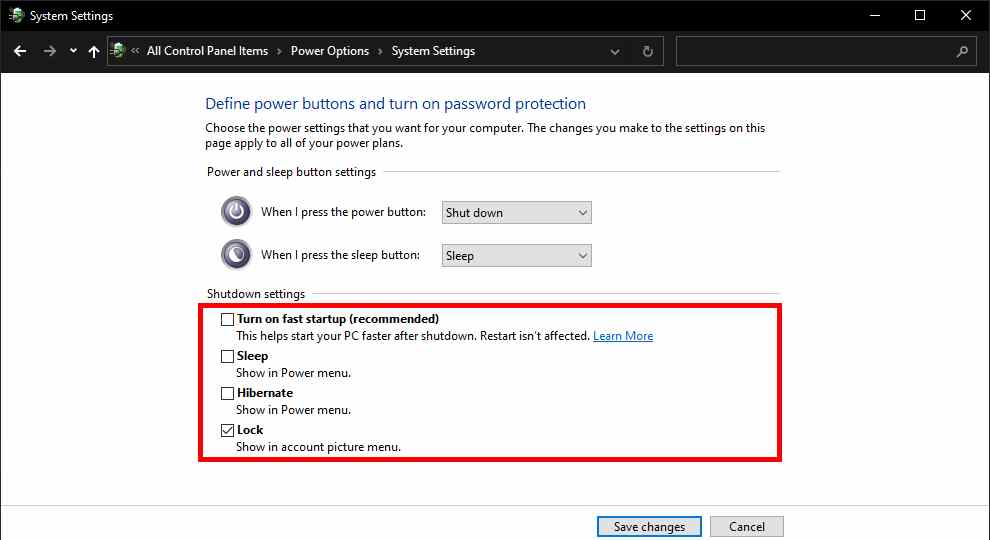
    Change Power Settings
    Change Power Settings
    1. In the Start menu search bar, type, and open Control Panel.
    2. Look for  Power Options, and click on it.
    3. In the window that opens, click on the option that says  Choose what the power buttons do.
    4. Click  Change settings that are currently unavailable. You need administrator rights to do this.
    5. Uncheck the  Turn on Fast Startup, Sleep,  and Hibernate options.
    6. Click  Save Changes and exit.

    Change Power Plan Settings
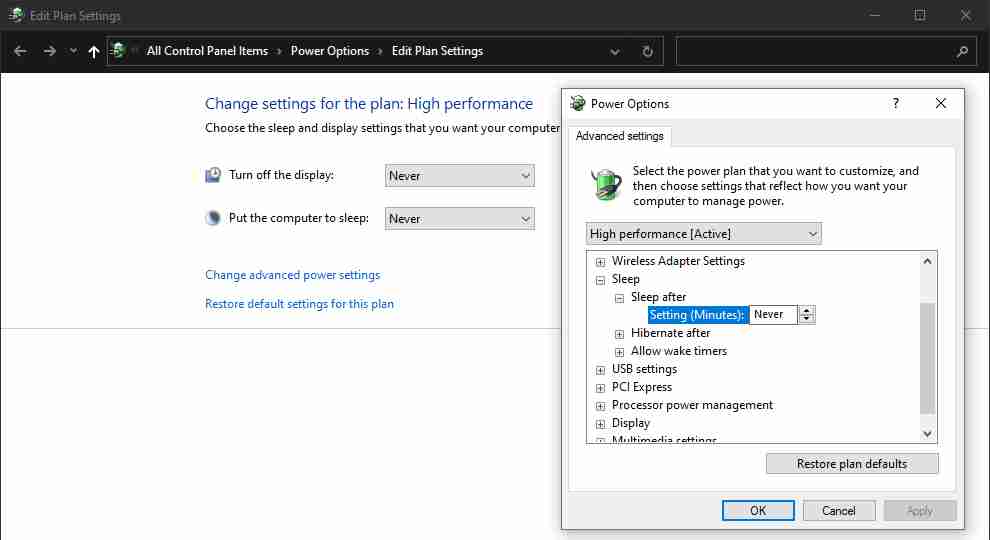
    Change Power Plan Settings
    Change Power Plan Settings
    1. Open the Control Panel and click  Power Options.
    2. Find the currently selected power plan and click  Change plan settings.
    3. Then click  Change Advanced power settings.
    4. Expand the Sleep section and make sure all settings are set to  Never.
    5. Navigate to  Wireless Adapter Settings and  PCI Express. Expand it and set all options to  Never.

    #2. Update Driver Display And Network

    The most common reason for Driver Power State Failure BSOD is a faulty network driver or Display driver. That’s why it’s best to make sure that these two drivers are updated and running smoothly. Sometimes, newer updates can also cause system instability. In such a case, the user should cancel this update.

    How to Update Display and Network Driver
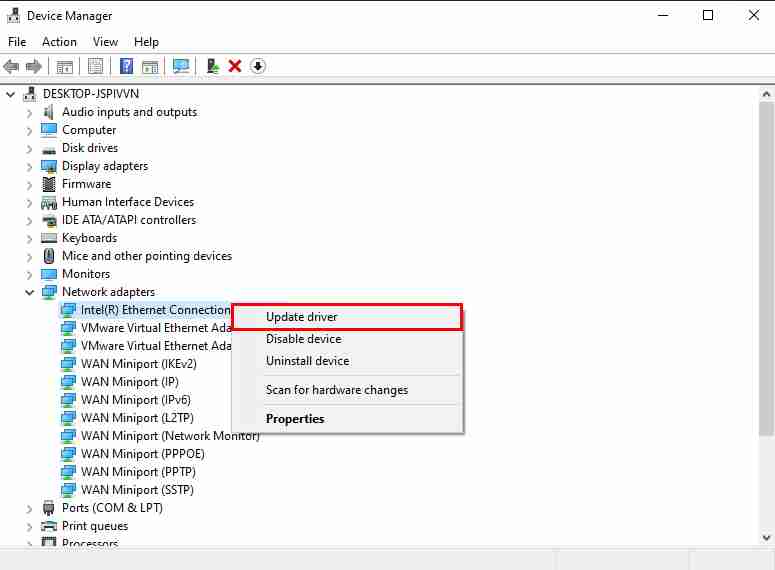
    How to Update Display and Network Driver
    How to Update Display and Network Driver
    1. Press Windows Key + R  and type devmgmt.MSC. The Device Manager window will open.
    2. Look for  Display adapters and expand the menu.
    3. Right-click on the driver and click  Update driver.
    4. Click  Search automatically for updated driver software. Windows will automatically download and install the latest drivers.
    5. Do the same for  Network adapters.

    How to Roll Back Network And Display Driver To Previous Version Versi
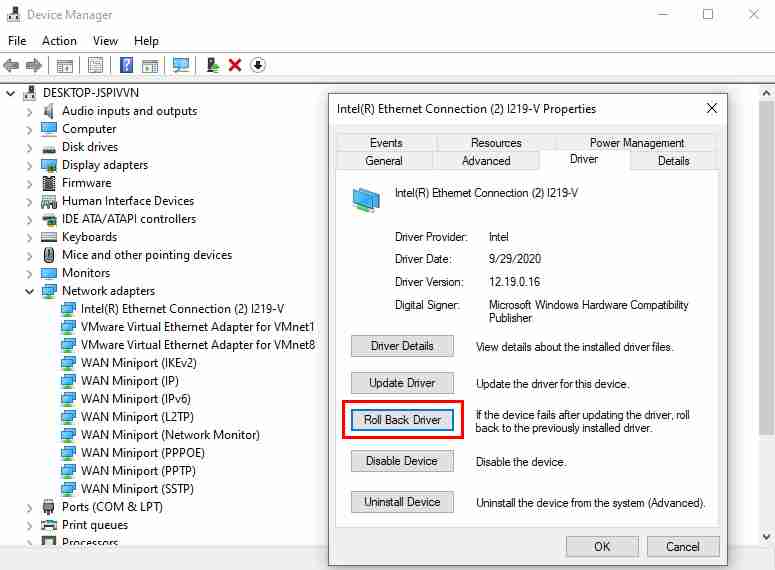
    How to Roll Back Network And Display Driver To Previous Version Versi
    How to Roll Back Network And Display Driver To Previous Version Versi
    1. Open  Device Manager and expand the Display adapters option.
    2. Right-click on the driver and select  Properties.
    3. Navigate to the Driver tab in the Properties menu.
    4. Click  Roll Back Driver and Windows will revert to the previous version of the driver.
    5. Follow the same steps for  Network adapters.

    #3. Repair Corrupt System Files Using SFC And DISM

    SFC and DISM are two of the most effective built-in Windows tools that can be used to fix various system errors. In the case of the blue screen of death error, combining the two proves useful in eliminating the error.

    Users should note that it is very important to create a system restore point before attempting this fix.

    How to Use DISM
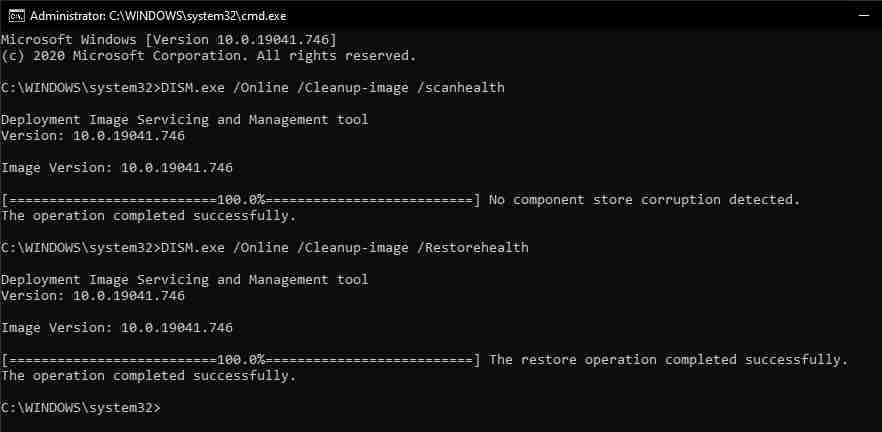
    How to Use DISM
    How to Use DISM
    1. Open  Command Prompt as Administrator.
    2. Type  DISM.exe /Online /Cleanup-image /scan health and wait for the process to complete.
    3. Once done, type  DISM.exe /Online /Cleanup-image /Restorehealth.
    4. Wait until the process is complete.

    How to Use SFC
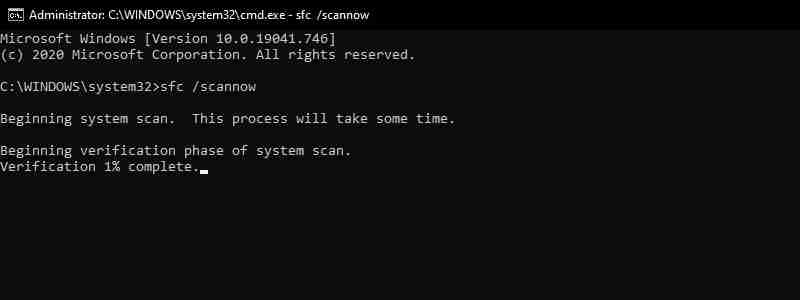
    How to Use SFC
    How to Use SFC
    1. Run  Command Prompt as Administrator.
    2. In the console, type  SFC /scannow.
    3. Windows will automatically look for corrupted files and repair them.

    #4. Restore the computer to its previous state

    When you have exhausted all other methods to resolve the Driver Power State Failure error, the best method is to restore your computer to its previous state. Sometimes, newly installed software makes changes that can cause errors.

    Windows usually creates system restore points automatically before new programs are installed, and now is a great time to use this feature. To use System Restore, follow these steps:
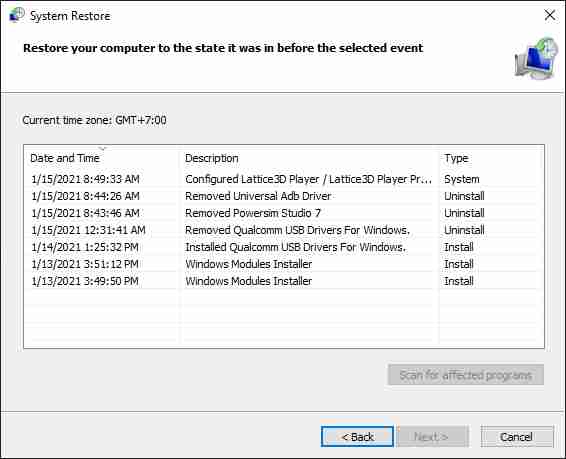
    Restore the computer to its previous state
    Restore the computer to its previous state
    1. Press Windows Key + R  and type  rstrui.exe.
    2. In the System Restore window, click Next and select Restore Point from the list.
    3. Click  Finish, after which the device will boot to the selected state.

    #5. Update BIOS

    When dealing with Driver Power State Failure, users should make sure that their BIOS is updated to the latest version. As we all know, the BIOS is an important part of the computer, so make sure to be careful when making any changes.

    How to Check And Update BIOS
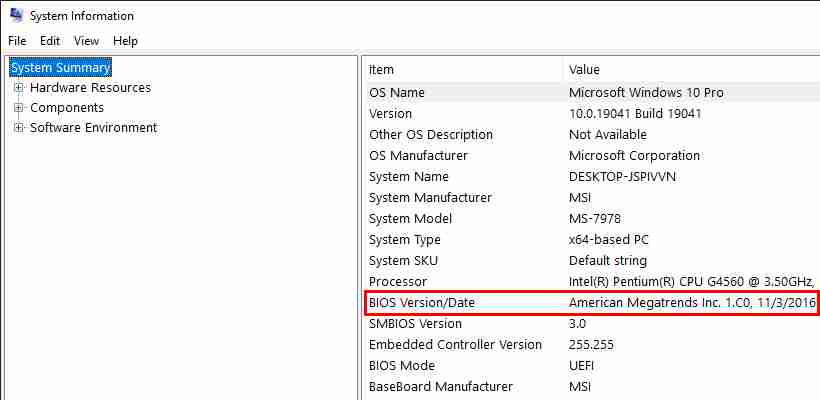
    How to Check And Update BIOS
    How to Check And Update BIOS
    1. Type  System Information in the Start menu search bar.
    2. Look for BIOS Version/Date in the window and note the version.
    3. After this, visit your motherboard manufacturer’s website and look for the latest version of BIOS in the download section.
    4. Download and run the installation file.

    Before installation, you will get the option to back up your current BIOS version. Make sure to select that option to minimize anything unwanted.

    #6. Disable Antivirus And Windows Defender

    Antivirus software can sometimes delete or interfere with important Windows files. This can also happen while updating drivers because sometimes the software flags some files incorrectly in the installation package.

    It’s easy enough to disable your antivirus software temporarily. Just right-click on your antivirus icon in the System Tray and click disable protection. This is the method normally used with most antivirus software, but it may differ from some other antiviruses.

    To disable Windows Defender, do the following:
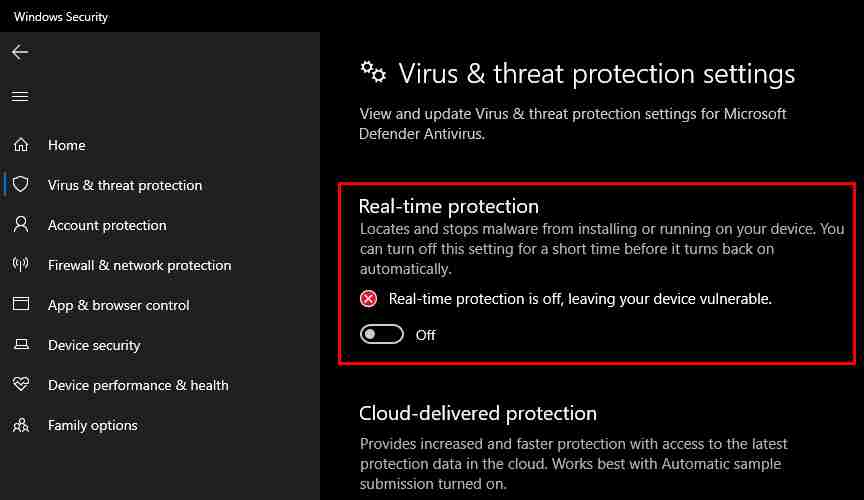
    Disable Antivirus And Windows Defender
    Disable Antivirus And Windows Defender
    1. Search for  Windows Security in the Start menu search bar and select the first result that appears.
    2. In the dashboard, click  Virus & Threat Protection.
    3. Click  Manage Settings and disable Real-time protection.

    Please note that you are only temporarily disabling the antivirus. If disabling your antivirus stops the Driver Power State Failure error, you should consider changing your antivirus software as an alternative.

    Read more:

    Conclusion:

    So those were some of the ways to solve Driver Power State Failure in Windows 10. BSOD is something not everyone likes, but usually, it’s easy to fix. In the case of Driver Power State Failure, a simple driver update can usually fix the problem. But if not, then users can always use other repair methods as listed above.
  • 2 Ways to Fix Broken Corrupt Videos on Windows PC 2024

    2 Ways to Fix Broken Corrupt Videos on Windows PC 2024

    2 Ways to Fix Broken Corrupt Videos on Windows PC – It’s rare for an app to fix a corrupted MP4 video. Luckily, I found two tools that can fix broken videos for free.

    2 Ways to Fix Broken Corrupt Videos on Windows PC
    2 Ways to Fix Broken Corrupt Videos on Windows PC

    How to Fix Broken Corrupt Videos on Windows PC Laptop 2024

    Are you having trouble playing the video file? Whether you’re shooting video on your phone or on a standard video camera, playback can sometimes be a problem. Often, it’s just a case of installing the right video codex, but what if the video file doesn’t work? In this article, we will explain how to fix a broken video.

    Read more:

    If you are having problems with corrupted MP4 video files. Maybe the first thing you will do is transfer it to your PC and try it there.

    There aren’t too many apps to fix broken videos. They are not pre-installed on Windows or other operating systems and are not included with video editing tools. The reason is simple, fixing the video is not easy. Moreover, fixing it without any software, it would be very difficult and the chances of the video being repaired are very small.

    Because of this, admins usually tend to get rid of videos that are no longer working. So what apps are available to help fix corrupted videos? You should try these two powerful apps:

    • VLC Player  is the best media player for most operating systems
    • Video Repair  from Grau GmbH for Windows

    Of the two apps, if you’re repairing videos on Windows, it’s worth considering Video Repair. The trial has a cut-off point, meaning that only the first 50 percent is improved. But before that, we try to use a simpler solution.

    How to Fix Broken Videos With VLC on Laptop PC

    VLC Player is a very versatile application that can play partially downloaded video files. If you find it impressive, you should check out the other amazing features of the VLC Media Player.

    As such, it is ideal for trying to play a corrupted video. If it doesn’t play, don’t worry, because you might be able to convert it to a working file format.

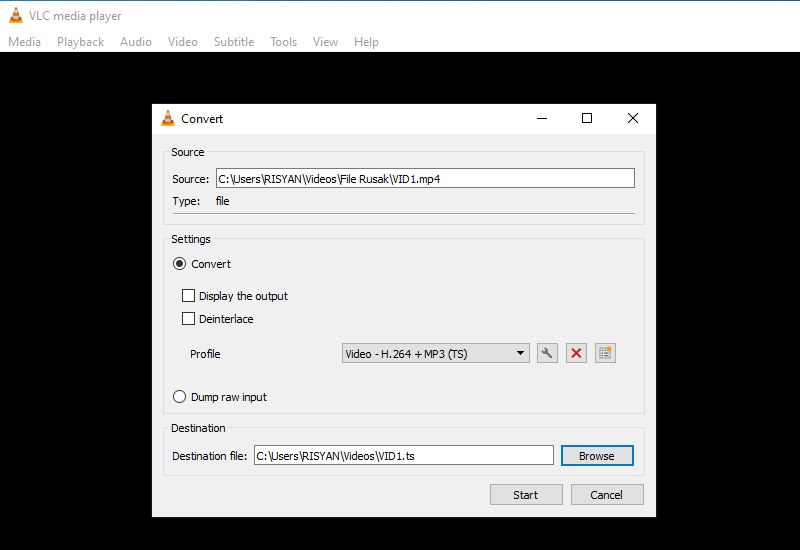
    First, download VLC Player using the link above and install it. Run the app and go to the Media menu. Select  Convert/Save then  Add and find the corrupted video file.

    Next, click the Convert/Save button then  Convert and select Profile from the dropdown menu. Click the Edit Selected Profile button and then name your output file. Once done, click  Start.

    How to Fix Broken Videos With VLC
    How to Fix Broken Videos With VLC

    If VLC can repair your video file, it will create a new file that you can watch.

    How to Repair Broken Videos With Video Repair

    First, download Video Repair then install the application you can also use the Remo Video Repair tool. Next, make sure you have corrupted MP4s and similar files, recorded with the same camera and app. It must also be of the same subject, as it will be used as a reference.

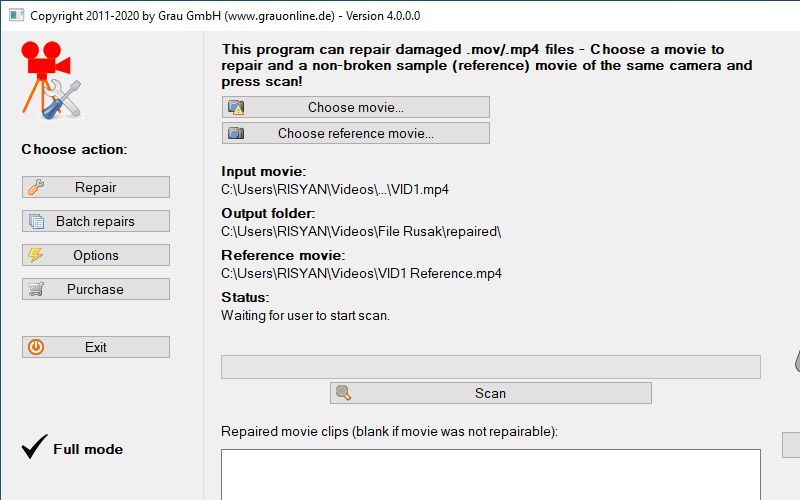
    Run the app and select your language, then browse for the corrupted video file in the Choose movie box. Next, select the reference file in the  Choose reference movie. MP4 and MOV files are compatible with this app. Click  Scan to repair the damaged MP4.

    How to Repair Broken Videos With Video Repair
    How to Repair Broken Videos With Video Repair

    If successful, Video Repair will provide a list of fixes used to make the movie viewable. But if no repair list is provided, Video Repair cannot repair your video.

    Duplicate Video And Repair MP4 With Video Repair

    Still using the Video Repair application, it’s just that there are additional steps. As  YouTube user R3DLIN3S points out, Video Repair can be done to repair an entire video. The idea is simple, we have to create a video file that is double the length and still convert only 50 percent. Since we are duplicating a long video, the converted file is the entire original file. But how do we do this?

    Duplicate Video And Repair MP4 With Video Repair
    Duplicate Video And Repair MP4 With Video Repair

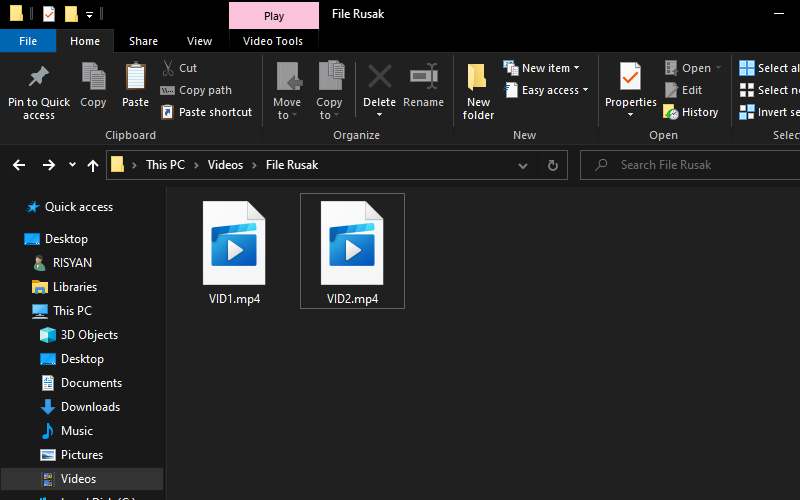
    Create a new folder (probably labeled “Corrupt Files”) and then move the corrupted files into it. Copy the file so that you have two identical corrupted MP4s. This may take a while for larger files.

    Once copied, rename it, preferably using sequential names, such as VID1 and VID2.

    Duplicate Video And Repair MP4 With Video Repair
    Duplicate Video And Repair MP4 With Video Repair

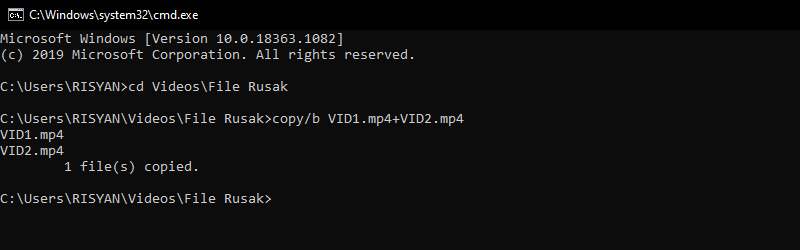
    Next, open a command prompt. Press  Win + R  and enter cmd then click  OK. Use  cd  to navigate to the Corrupted Files directory and enter the following:

    copy/b VID1.mp4+VID2.mp4

    This command combines two files into one MP4, instead of the first file. You have to wait a while, but eventually, VID1.mp4 and VID2.mp4 will be merged into VID1.mp4.

    Confirm this by checking the file size of VID1.mp4. If it’s now twice as long, repeat the same steps when you used the Video Repair app, as shown above.

    Read more:

    Conclusion:

    So that’s how to fix a corrupted video. Corrupted video files are frustrating. If VLC works for you, then great. If not, you can use another solution to completely repair the corrupted MP4 file, namely by using Video Repair. If that still doesn’t work, maybe your video is completely corrupted and beyond repair.

  • 4 Ways to Speed ​​Up Booting Windows 10 PC 2024

    4 Ways to Speed ​​Up Booting Windows 10 PC 2024

    4 Ways to Speed ​​Up Booting Windows 10 PC – Windows 10 is Microsoft’s fastest boot operating system. But can Windows 10 boot any faster? The answer can be. You have a few tips to help boot Windows 10 faster. This speed increase doesn’t require any dangerous changes and can cut a few seconds off your computer’s boot time.

    4 Ways to Speed ​​Up Booting Windows 10
    4 Ways to Speed ​​Up Booting Windows 10

    How to Speed ​​Up Booting Windows 10 Laptop PC 2024

    #1. Fast Startup

    Windows 10 includes a special option to enable your system to boot up quickly, known as a fast startup. Fast startup is an advanced power state that operates as a middle ground between hibernation and shutdown.

    Read more:

    When you enable Fast Startup, Windows 10 creates a small hibernation file to restart it. The hibernation file is smaller than usual because it doesn’t record your active session (whereas if you hibernate normally, the hibernate file is bigger and includes everything you were doing at the time), making it load faster.

    4 Ways to Speed ​​Up Booting Windows 10

    The result is that when you press the power button, the reduced hibernation file boots faster, reducing your Windows 10 boot time.

    How to enable Windows 10 Fast Startup

    If you want to enable fast startup Windows 10, press Windows Key + I,  type power in the search box, and select  Power & sleep. Scroll down and select Additional power settings.

    How to enable Windows 10 Fast Startup

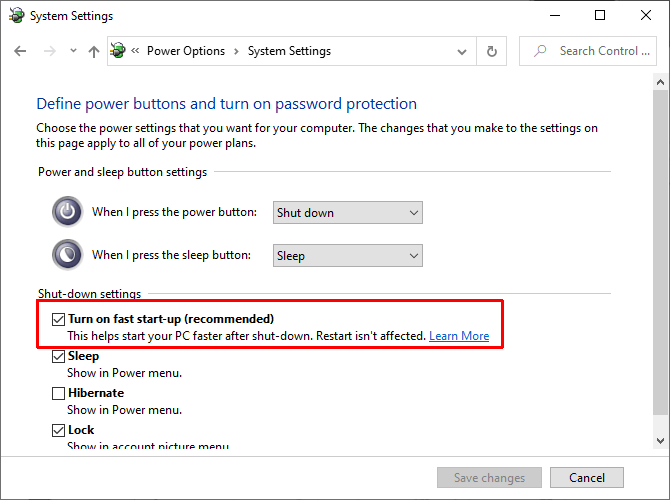
    When the Control Panel window opens, select  Choose what the power buttons do, then Change settings that are currently unavailable. Check the Turn on Fast start-up box to activate it, then select Save Changes.

    Problem With Fast Startup

    If you enabled fast startup and suddenly notice performance problems, or even Windows 10 boots slower than before (due to problems loading the hibernation file), please disable fast startup again.

    #2. Remove or Reduce Windows 10 Startup Items

    Next, consider reducing the number of programs that run when you boot Windows 10. Startup programs increase the time it takes to launch Windows 10 because each program requires system resources to boot.

    Many programs set themselves to launch automatically at boot. Sometimes, you find the option to stop the program booting at startup in the program options, while others don’t. There is also an option to use the Windows 10 Task Manager Start-up tab.

    Remove or Reduce Windows 10 Startup Items

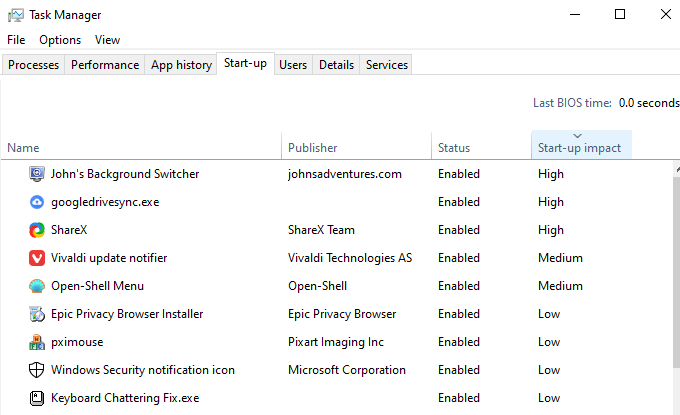
    Right-click the Taskbar and select  Task Manager, then select the Start-up tab. Here you can see a list of the installed programs that run every time you start your computer. Select the programs you want to stop when you turn on the computer, right-click, and select  Disable.

    Reducing the number of startup programs will speed up the boot time of Windows 10. However, you can maintain certain application programs, such as Google Drive or Dropbox, antivirus programs, and so on.

    Remove Startup Items from Windows 10

    If you open the Task Manager and see a list of programs, you should consider removing old apps or those you no longer use.

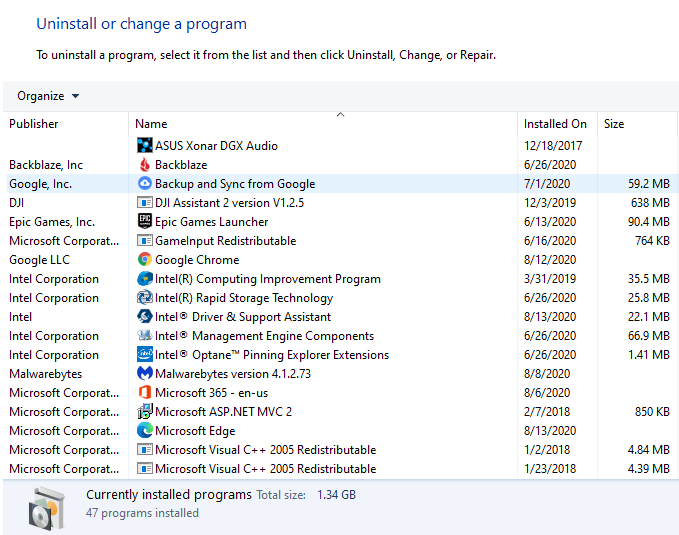
    Press  Windows Key + S, enter Control Panel, and select Best Match. Now, select  Uninstall a program from the options, and open the Uninstall a program list. Here you will see a list of every program installed on your computer.

    Remove Startup Items from Windows 10

    Complete the program list and remove all unused programs. Uninstalling unused and obsolete programs can also help reduce Windows 10 boot time, as well as free up extra space on your hard drive.

    #3. Check for Malware

    Another consideration is malware, which can drastically reduce system boot time. Malware has the effect of slowing down, among other problems. Moreover, some types of malware are stubborn and refuse to leave your system.

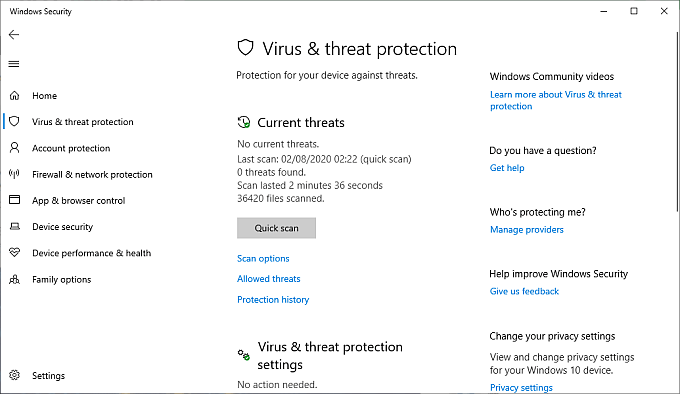
    You can scan your system with the Windows Security suite for malware, and then remove them before restarting your system. Enter Windows security in your Start Menu search bar to open Windows Security Center. Select Virus & Threat Protection from the menu, then run the  Quick Scan.

    Check for Malware

    When the scan is complete, quarantine and remove any malware or potentially unwanted programs found.

    #4. Install the New SSD

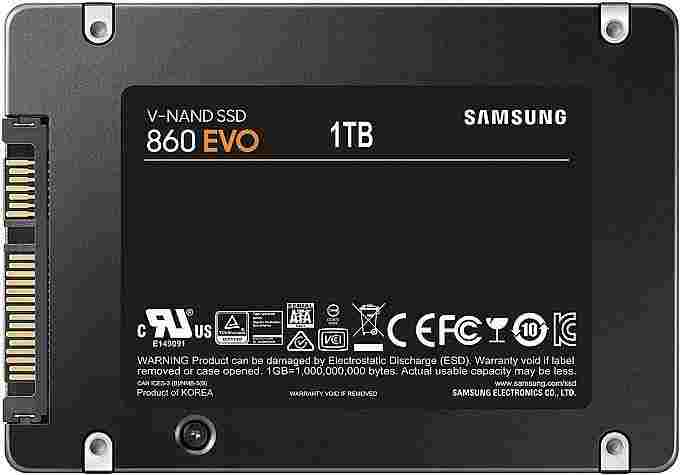
    Installing a new solid-state drive (SSD) is a way to speed up Windows 10 boot time. You can buy a small SSD for a small fee. After installing Windows 10 on an SSD, you can expect Windows 10 to boot down by around 20 seconds compared to a typical hard drive.

    Install the New SSD

    The Windows 10 SSD installation experience will vary, but the difference in boot time is dramatic.

    These four options are guaranteed to speed up Windows 10 boot time. The time reduction will vary from system to system. Start with the two most accessible options – enabling fast startup and reducing startup programs – before moving on to the second option.

    Read more:

    Conclusion:

    If you have trouble installing a new SSD, you can find online tutorials detailing it to step by step. For install time, SSD is one of the best options because it gives a boost to the entire operating system, not just Windows 10 boot time.

  • Fix Usable RAM Windows 10/8/7 32bit & 64bit PC 2024

    Fix Usable RAM Windows 10/8/7 32bit & 64bit PC 2024

    How to Fix Usable RAM Windows 10/8/7 32bit & 64bit PC – The problem of laptop RAM (PC) cannot read everything or Usable RAM often occurs on Windows 7/8/10 computers. As for how to deal with usable RAM in Windows 32-bit and 64-bit it is very simple.

    How to Fix Usable RAM Windows 1087 32bit & 64bit
    How to Fix Usable RAM Windows 1087 32bit & 64bit

    How to Fix Usable RAM Windows 10/8/7 Laptop PC 2024

    This is because fixing usable RAM in Windows only requires a few simple settings.

    Read more:

    Now for a further explanation of what usable RAM means in Windows, here is the review.

    What does usable RAM mean?

    Understanding Usable RAM

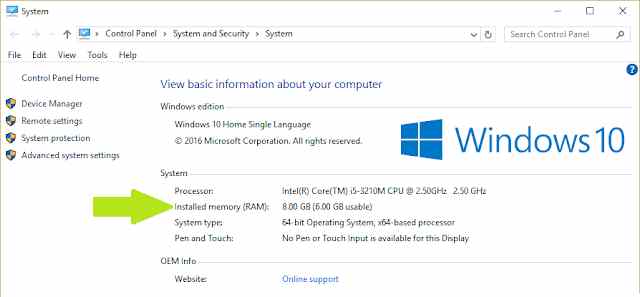
    Usable RAM is Windows’ ability to use computer RAM, usable RAM is identical to the limitations of the Windows operating system in optimizing actual RAM performance.

    For example, for 4GB RAM, it reads 2GB, and usable 8GB RAM 5GB in both cases the RAM is read half of the RAM is not fully read.

    As a result, this fully unreadable RAM will be useless because only half is used (Usable). Now it is clear what usable means in RAM.

    Furthermore, there are several reasons for usable laptop RAM, including the following.

    Causes of Usable Laptop RAM

    #1. Minimum Windows Operating System Specifications

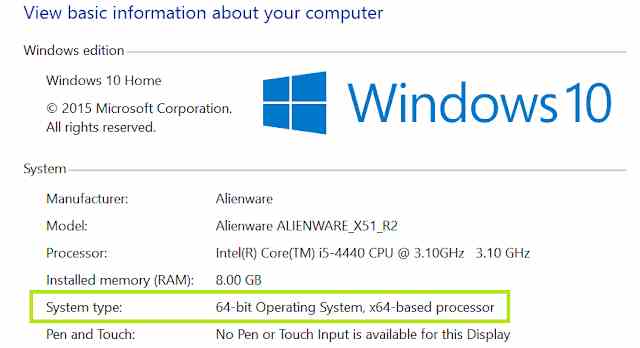
    Windows OS on a computer is divided into two types, namely Windows 32-bit and Windows 64-bit.

    Well, of the two versions of the operating system, some are equipped with the ability to run small programs (applications) with a performance that is not too heavy (Windows 32-bit).

    Conversely, Microsoft also provides a 64-bit version of Windows to run applications with a high minimum specification.

    So do not be surprised if we use the 32-bit version of Windows 7/8/10, of course, we will have a Usable Installed Memory (RAM) problem. This is related to the maximum capacity that the 32-bit version of Windows can run.

    #2. Limited Motherboard Capability

    One of the drawbacks of using an old computer that you can feel is its performance.

    Motherboard specifications in the past were still limited, especially for the middle class. Older motherboards cannot read RAM capacities of more than 2GB.

    This of course causes RAM to be unreadable as a whole, especially today where the minimum capacity of PC RAM that is widely used is 4GB.

    Therefore, it is not surprising that this type of single-rank (single-sided) motherboard has begun to be abandoned. This is because of its limited performance and capabilities.

    More than that, this motherboard can only read 1 RAM slot, 2 RAM slots cannot be used optimally because only 1 slot is read.

    #3. Windows Operating System

    You often encounter usable RAM problems in Windows 7, if so this shouldn’t come as a surprise. Because this type of Windows 7 has a limited ability to read RAM capacity.

    Different from Windows 8 and 10, which can read RAM capacity much better.

    • Windows 7 Starter Edition has a maximum readable RAM limit of 2GB.
    • Windows 7 Ultimate, Professional, Home, and Enterprise maximum RAM readable limit is 4GB.

    #4. Use of Onboard VGA

    The default VGA (Onboard VGA) on this computer has several drawbacks, one of which requires additional RAM which will be taken from Windows RAM.

    This Onboard VGA or Integrated Graphics Processor (IGP) will require VRAM memory from RAM, resulting in usable RAM problems in Windows. This is because of the Shared Memory performance system that we find on many types of Intel HD and AMD APU processors.

    The good news is for an ATi or NVidia-type display adapter that is supported by independent RAM. As a result, its performance will not interfere with RAM in Windows.

    #5. Damaged RAM

    The cause of this usable RAM may be rarely found, but it is possible that it can happen.

    RAM damage can result in RAM not being fully read, the solution is usually by replacing a new RAM chip.

    Several other causes of usable Windows RAM, such as incorrect BIOS settings (BIOS settings) and wrong Operating System settings (OS Settings).

    Next, we will repair Window’s usable RAM through the methods below to maximize this RAM.

    How to Fix Usable RAM in Windows 7/8/10

    How to Overcome Usable RAM in Windows 7810
    How to Overcome Usable RAM in Windows 7810

    There are several ways to read full RAM in Windows when viewed from the root of the problem as we have discussed above.

    For RAM to read everything in Windows, you can fix it by setting problems in either the BIOS or Windows.

    Steps to fix full unreadable RAM in Windows

    #1. Fix Usable RAM Through System Configuration

    Our first usable RAM solution will take advantage of System Configuration in Windows.

    Through this System Configuration, we can manage what applications will run when Windows is first turned on so that we can do it to overcome usable RAM.

    Immediately following the guide.

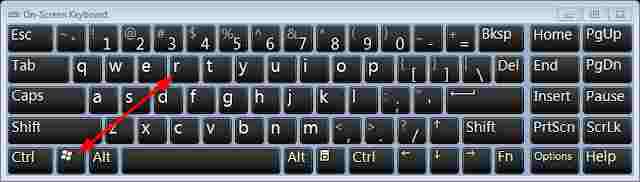
    1. Press the combination of Windows key (Windows logo) + R.

    Overcome Usable RAM Through System Configuration

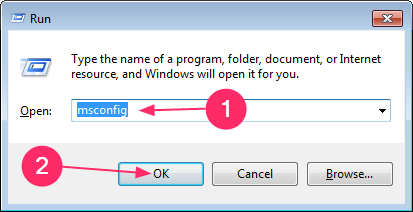
    2. Exit the Run pop-up menu, please enter the command in the Open: Msconfig field then press the OK button.

    Overcome Usable RAM Through System Configuration

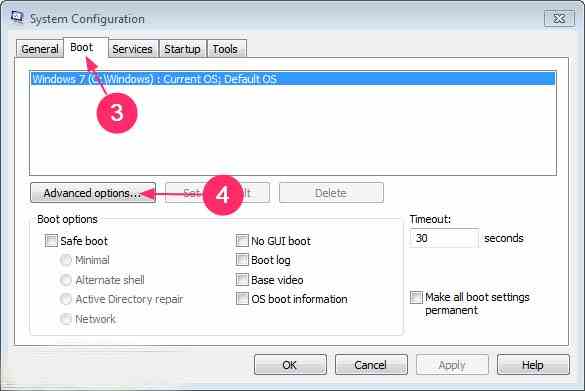
    3. After that go to the Boot tab and then open the advanced settings (Advanced options).

    Overcome Usable RAM Through System Configuration4. In BOOT Advanced Options, you check the Maximum memory option.
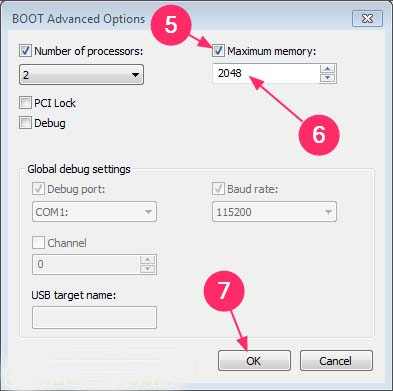
    Overcome Usable RAM Through System Configuration5. Please enter the highest value in the Maximum memory column.
    6. Finally press the OK button to then restart the computer.

    Through this method at least everything can be readable RAM, although not all laptops or PCs can work.

    #2. Usable RAM settings in the BIOS

    The next usable RAM solution is through the settings menu in the computer BIOS.

    Especially for Onboard VGA users, the default VRAM settings in the BIOS can be reduced or added.

    Immediately following the guide.

    Usable RAM settings in the BIOS

    How to Setting Usable RAM in the BIOS

    1. Turn off the laptop or computer.
    2. Press the Power button to turn on the computer.
    3. When the computer boots before Windows, usually the F2 or Del key will come out, please press the key to enter BIOS settings.
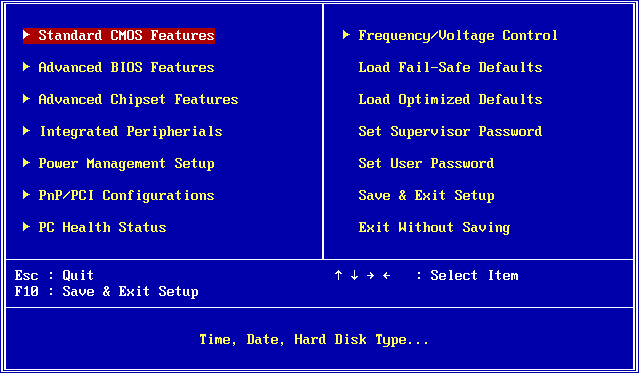
    4. After successfully entering the BIOS menu, you select the Advanced option then Shared memory.
    5. Press the Enter key then enter Shared memory, for a minimum limit of 256MB.

    Usually in the BIOS, there is a RAM setting menu such as PAE, Memory-Extension, Memory_Remapping, and so on. Although not all computers have it.

    In addition, you also need to update the BIOS System to get the latest fixes and features.

    Usable RAM settings in the BIOS

    #3. Install Windows 64-bit

    High computer specifications if not supported by a qualified operating system certainly cannot work optimally.

    Therefore, Windows 64-bit OS installation for Windows 10 and 8 is highly recommended.

    This is because 64-bit Windows can handle 128GB of RAM capacity which cannot be done in the 32-bit version.

    However, for the use of 4GB RAM and below, it’s good to keep using 32-bit Windows OS.

    This is so that the performance of the computer or laptop is not too heavy.

    Install Windows 64 Bit

    #4. Replace Components

    As we discussed earlier, old motherboards can indeed make usable RAM on our computers.

    The solution for this usable RAM problem is that we can replace the default motherboard (VGA Onboard) with another one. For example, VGA Discrete with a dedicated memory system, which means it does not depend on RAM memory.

    Usually, this Discrete VGA has a special PCI-F slot. In addition, replacing a computer processor can also help overcome usable RAM.

    Replace Components

    #5. Computer Service

    Please bring your laptop or computer that has usable RAM to the best computer service place in your city.

    This is the last solution to solve usable RAM on Windows where we have tried various ways but still fail.

    It’s a good idea before repairing usable RAM at a service place first to ask the number of repair costs. This is important so as not to be disappointed in the future.

    The role and function of computer RAM are indeed quite helpful in speeding up the process of reading data and allowing the computer to work in multitasking to store temporary data.

    Therefore, if RAM usage cannot be maximized and it is only read half, it is very unfortunate.

    Read more:

    Conclusion:

    So, friends, these on about how to fix usable RAM Windows 7/8/10 RAM on a laptop or computer can be applied to all computer brands. The tips for fixing RAM that is not fully readable are finished, see you, and look forward to other interesting tips.