5 Ways To Fix Windows Script Host Disabled In Windows PC – Windows Script Host access is disabled in this machine. Contact your administrator for details. This message is usually found in Windows 7, Windows 8, and Windows 10.
How to Fix Windows Script Host Disabled Error on Windows 10 Laptop PC
Antivirus usually causes Windows Script Host or WSH messages. For example Smadav. Maybe you also happen to wear it?
Read more:
- Error Windows Explorer Has Stopped Working (Solution)
- How to Install And Activate Corel Draw X7 on Windows
- How To Activate Windows 7 Permanently Offline 2020
- 17 Best Antivirus Software to Protect Windows 10 PCs
Myself, I usually encounter this message while browsing. For example, opening a site.
Or also when opening certain applications. The effect is that the application cannot function properly.
What is Windows Script Host?
For those who don’t know, please. Windows Script Host is a Windows feature, to run certain commands related to scripting.
Usually, there are special applications.
You can use the method I will explain to get rid of this message. I have tested it myself and it works.
#1. Via Regedit
Here we can manage the Windows system via Regedit—settings so that WSH can be activated again.
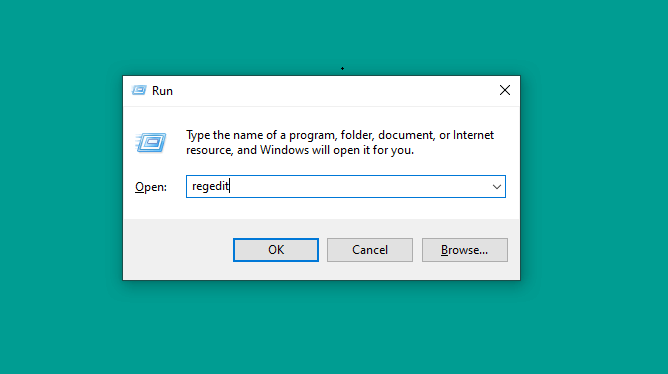
- First please press the Windows key + R> Type Regedit > Then click OK
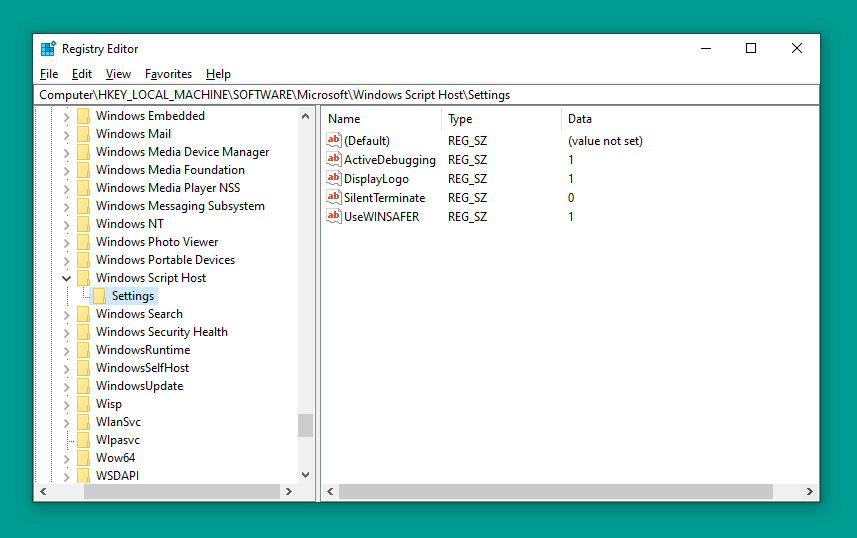
- Next, please go to> HKEY_LOCAL_MACHINE> SOFTWARE> Microsoft> Windows Script Host> Settings.
- Right-click Mouse there> Then select the DWORD (32) bit Value option
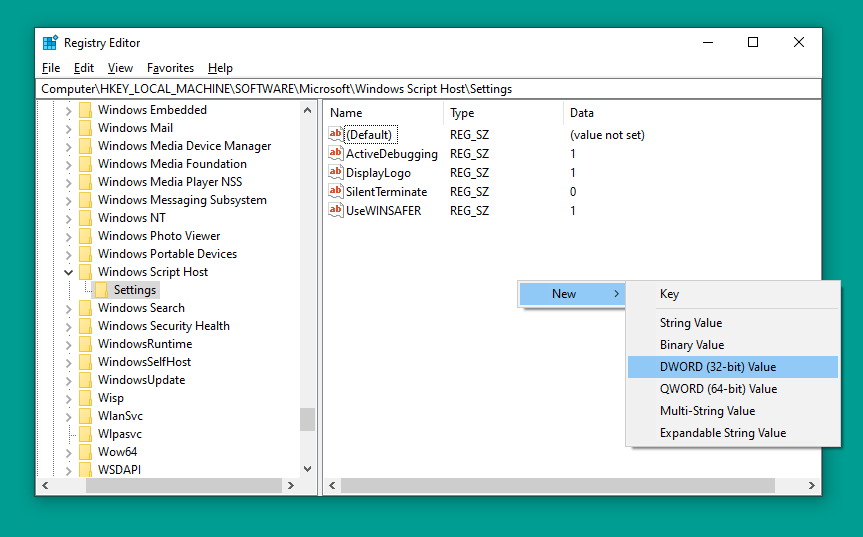
- Click the 2X registry> Then set the name to Enabled
- Right-click Registry> Select Modify > Then set the Value Data to 0 > Click OK
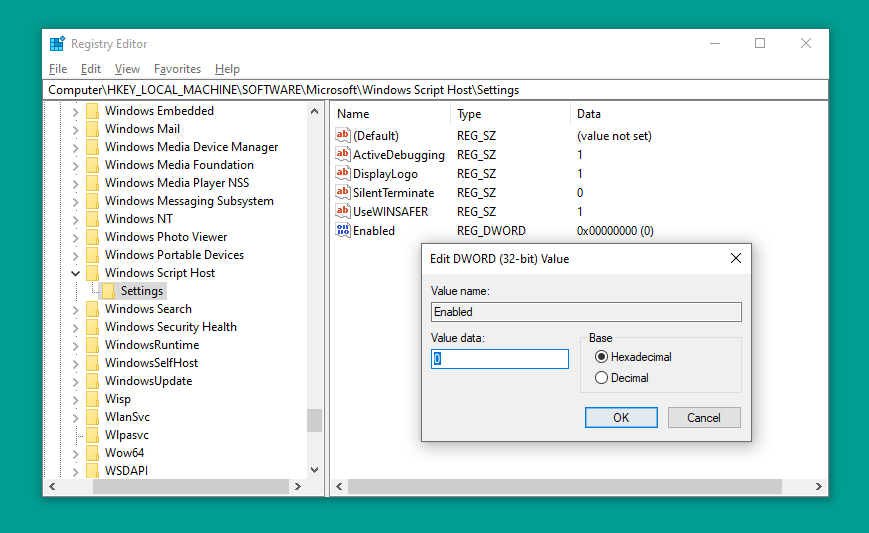
- Restart the computer when done.
Done.
Note: If the Windows Script Host Settings already has a registry with the name enabled, you don’t need to create it again.
Just change the Value Data registry earlier, from 0 ( disabled ) to 1 ( enabled ). That way, there is no double registry later.
#2. If you are a Smadav user
Windows Script Host that initially existed then did not work, usually, because it was disabled by Antivirus. For example Smadav.
Smadav by default does not grant access permissions to the Windows Script Host. Therefore, doing so will cause notifications to be disabled later.
Follow these steps:
- Open the Smadav Icon tray (lower right corner)> Then right-click on the Smadav icon
- Next, please select Allow Windows Script & Office Macro Permanent
- Restart your computer when done
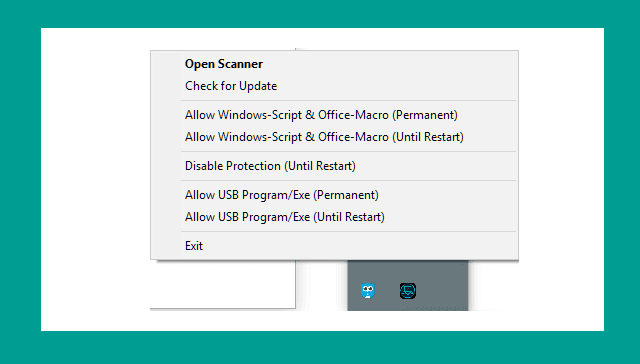
For this step, I made the Windows Script active. If you want to use the Until Restart option, that’s fine too. But don’t forget to set it up again when it restarts.
| Permanent | Until Restart |
| Windows Script will always run (permanently) | Windows Script will run until it restarts |
#3. System Configuration
This method is simpler. The steps are more or less the same as Regedit. Through Run.
Please follow:
- Click Windows key + R > Type MSConfig > Then click OK
- Next, you uncheck Load Startup Items
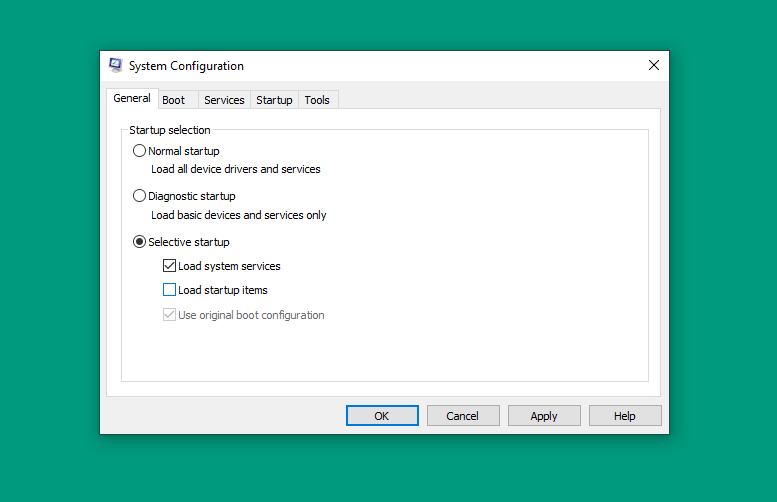
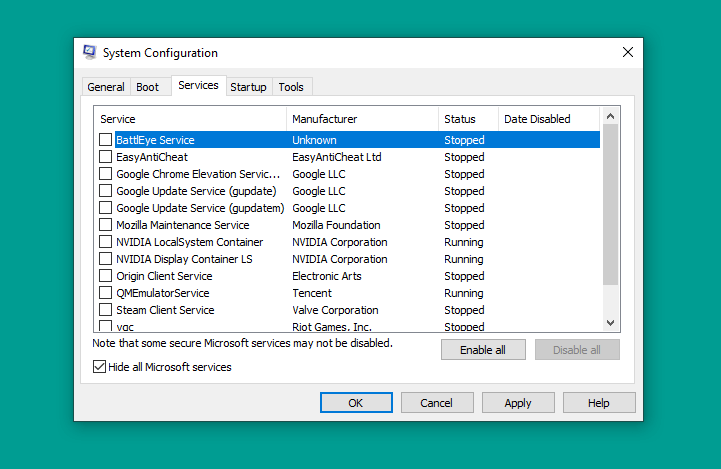
- Continue to open the Service tab > Press Hide All Microsoft Service > Disable All > Then OK
- If so, please restart the computer
#4. Via Command Prompt
Command Prompt or CMD. The goal is the same as before, but we only need to write a few command lines.
Here are the steps:
- Press Windows key + R > Type CMD > Then Enter
- In CMD> Enter the command REG DELETE “HKEY_LOCAL_MACHINE \ SOFTWARE \ Microsoft \ Windows Script Host \ Settings” / v Enabled / f
- If so, please press Enter
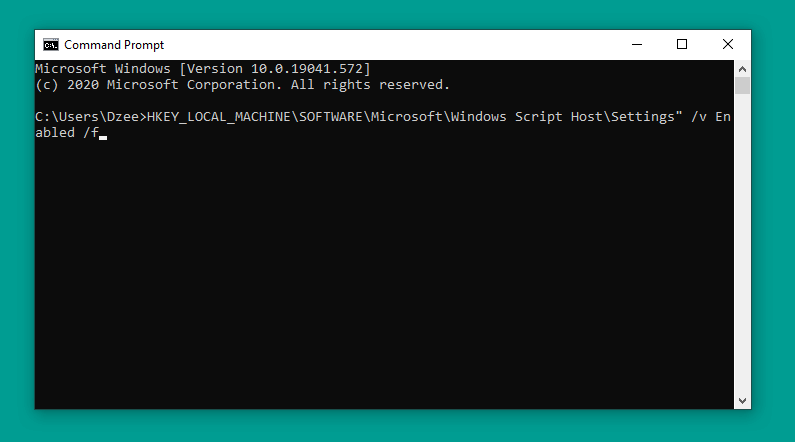
Restart the computer as usual. When done, try the test again.
#5. Delete Registry After Userinit
Back to Regedit again. This last method deletes the registry after the user init, intended so that the Windows Script Host can run.
How:
- Open Regedit just like before
- Then go to HKEY_LOCAL_MACHINE> SOFTWARE> Microsoft> Windows NT> CurrentVersion> Winlogon.
- Under Userinit there are several registries. Please delete everything
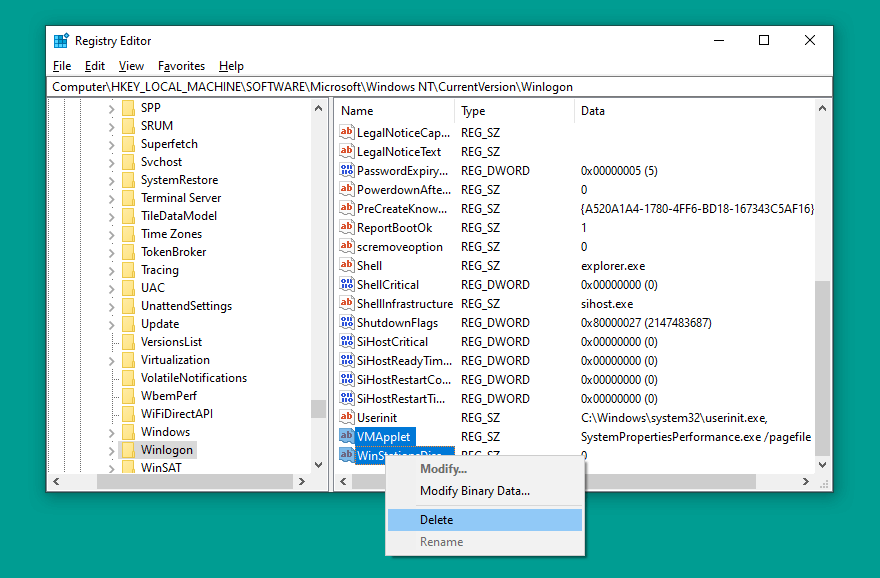
If so, close Regedit then try again.
Read more:
- Fix Windows 10 License Will Expire Soon
- How To Turn Off Windows 10 Auto Updates
- How To Activate Office 2016 Permanently
Conclusion:
So friends, here’s how to Fix Windows Script Host Disabled. Hopefully, the host script notification that you find has been successfully resolved and will not come out again.
If someone is confused about one of the points or hasn’t managed to solve it, please leave a message in the comment box. Later I will help as much as possible.