How To Delete Browser Cache And Cookies on PC Laptop – Whenever you have a problem with the website, one of the first suggestions you will hear from an IT support person is usually, “Please try to clear your browser cache”, and at the same time it’s also a sentence, “and delete the web cookie browser You”.
How To Delete Browser Cache And Cookies on Laptop PC
How To Delete Browser Cache And Cookies on Laptop PC
So what is this browser cache? What is stored, and what is its use? What does your browser cache do? Why do we need to delete it, and how to do it?
If you are looking for Linux browsers, then you can read this post 10 Web Browsers For Linux Operating System
We need to know, that the web browser or browser that we use, often saves the file in the form of cookies and cache.
What Is Cache Browser? and How to remove it
What Is Cache Browser? and How to remove it
Browser cache is a temporary storage location on your computer, for files downloaded by browsers to display website pages.
Locally stored files include documents that make up a website, such as HTML files, CSS style sheets, JavaScript scripts, as well as graphic images, and other multimedia content.
So when you visit a website, the browser checks for content that has just been updated and only downloads the files that have just been updated, or stores anything that has not been stored in the cache space.
This reduces bandwidth usage on both sides, both from the user (visitor) side and also from the server side, allowing web pages to load faster.
Therefore, a cache is very useful when you have a slow or limited internet connection.
Why Do We Need To Delete The Cache?
The browser cache can have considerable space capacity and take up a lot of space on your hard disk, containing data from websites you’ve opened, and probably never visited again.
While you can have a large capacity limit, it’s still a good idea to delete them occasionally to fix some issues that may arise.
Sometimes, cached versions of websites can cause problems. For example when the browser does not download a copy of the new web page, even though the content has been updated since last caching.
Because the issue of browser cache relates heavily to website issues, IT support will usually advise removing your browser cache when you report the issue you are facing.
In addition, the cache data will also show the history of any site you’ve visited before.
How To Remove The Easiest Cache Browser
An easy way to rid the browser cache, can too by reloading the pages of the website and forcing it to display the page without cache data. The general formula is to press the [Ctrl] + [F5] key.
Reload the web page and without cache: [Ctrl] + [F5] or [Ctrl] + [SHIFT] + [R] or [Shift] + Reload button browser
Clear cache: [Ctrl] + [Shift] + [Del], use the menu at the top to select the amount of data you want to delete. Choose from the start to clear everything. Click the CLEAR BROWSING DATA button
Reload page: [Ctrl] + [F5] or [Shift] + [F5] or [Ctrl] + Reload button browser
Reload the web page without cache: [Ctrl] + [Shift] + [R] or reload the page above twice in a row
Clear cache: [Ctrl] + [Shift] + [Del] Use the menu at the top to select the amount of data you want to delete. Choose from the start to clear everything. Click the CLEAR BROWSING DATA button
Clear cache: [Ctrl] + [Shift] + [Del] then click DELETE button
You can also clear the cache through the browser menu. Again, the exact path depends on the browser you’re using.
So, friends, this was above how to delete browser cache and cookies, Also, share this article, and your experiences and opinions with Technadvice.comin the comments field below.
40+ Best Xbox One Games Must Try! – The Xbox One, one of the two most popular gaming consoles today, is getting more and more popular with the new version of Xbox One X. We’re listing the 40+ Best Xbox One Games of 2025, which also makes it easy for players with perks like Xbox Game Pass and EA Access.
40+ Best Xbox One Games Must Try!
40+ Best Xbox One Games Must Try!
Microsoft achieved great success with each of its products so as not to lose the lead in the game console race to the Sony Playstation. Catching a quick start with the Xbox One, Microsoft deserves to be one of the most powerful playmakers on the market, thanks to the massive system configuration of the Xbox One X and Xbox games released exclusively to the console.
Console-specific games like Sea of Thieves make the Xbox indispensable for many gamers. If you’re ready, let’s move on to our latest collection of Xbox-exclusive games developed especially for the console. Here are the 15 best Xbox One games of 2025.
Best Xbox One Games
#1. Forza Motorsport 7
Forza Motorsport 7
The Xbox-exclusive Forza car game series brings gamers the best of their kind. Even though it doesn’t have much competition, it manages to surprise more with every new game. Whether it’s for near-perfect gameplay or impressive graphics, Forza Motorsport 7 deserves to be on the list of the best Xbox One games of 2023.
#2. Minecraft
Minecraft
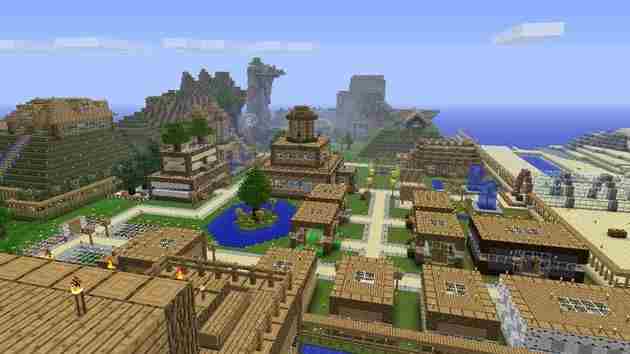
Many players unfortunately underestimate Minecraft. It caused a major revolution in the gaming world. After him, other similar titles appeared, but no one managed to bring what he brought. If you want to take part in the campaign, Minecraft makes it possible. Want to create a world completely from scratch? It can too.
Freedom is the keyword in this game. With some equipment, you can dig through the ground until you find treasures and special items. You can build houses, forests, lakes, and mountains. Whatever you have in your imagination, Minecraft allows you to do it, you could say this is the number 1 game in India that is widely played,
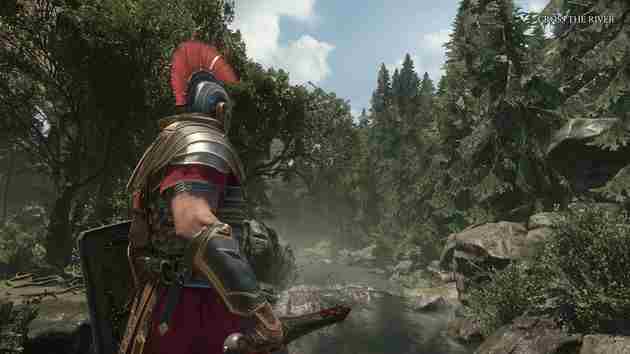
#3. Ryse: Son of Rome
Ryse Son of Rome
Another best Xbox One Exclusive Games of 2025, Ryse: Son of Rome is a beautiful game. It brings gameplay in the best hack n’ slash style, focusing even on forming destructive combos. You assume here the character of Marius Titus, a Roman general who seeks to avenge the death of his family.
For that, you are armed with a sword and shield. You can use a spear if you like, which acts as a ranged weapon. Throughout the game, other weapons are released as development progresses. Stopping enemy attacks with shields and counterattacking is also possible.
#4. Ori and the Blind Forest
Ori and the Blind Forest
Ori and the Blind Forest is a non-mainstream title, precisely because it doesn’t follow a pattern. First of all, this is a title with 2D gameplay. This very beautiful graphic looks a little drawn so it gives an interesting impression.
The protagonists are Ori, the guardian spirit, and Sein, who is the eye and light of the Spirit Tree. The first character explores the environment using special skills, in addition to jumping, jumping, and climbing. Sein shoots fire to eliminate enemies and other obstacles.
#5. Quantum Break
Quantum Break
Quantum Break is an action game. Nonetheless, it offers an innovative gaming experience within the genre. The narrative carries with it scientific experiments seeking time manipulation. However, it ended up being wrong. Time is affected, as are the game’s protagonists, Paul Serene and Jack Joyce, who can now control time.
This presents interesting possibilities in terms of gameplay. Being able to change time allows players different ways of interacting with enemies and with the game itself. Quantum Break, therefore, has consequences for your actions. There is no linear and fixed history.
#6. ReCore
ReCore
ReCore emerged as a fun action and platform game. Another of the best Xbox One exclusives, presenting a very interesting plot. The world was destroyed by the plague, and now a distant planet must be colonized. A mission is sent to the planet, Far Eden, but something goes wrong. Your mission, under the control of Joule Adams, is to find out what went wrong and what this star holds for mankind.
Joule is accompanied by three robots, who assist him in his explorations. Clear, open world, which allows for resource gathering and doesn’t require players to follow missions linearly. There are puzzles to solve, just as you have to face enemies.
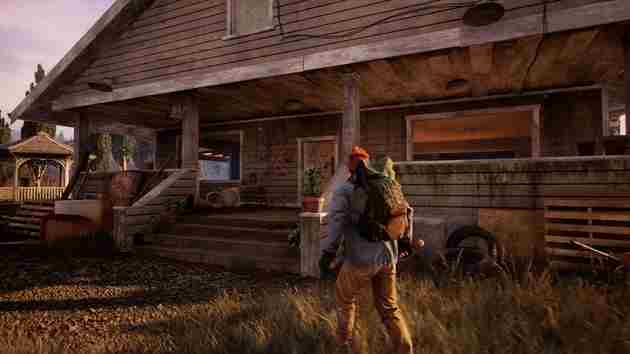
#7. State of Decay 2
State of Decay 2
The state of Decay 2 is yet another best Xbox One exclusives of 2023. It is a successful survival game that puts players in an environment full of zombies. The experience is in the third person and can be in single-player mode or up to three other players. This is in an open world, where the main focus is on finding useful and valuable objects anywhere on the stage.
State of Decay 2’s big asset is its cooperative mode. You and three friends need to form a partnership, which will become a community. This community needs to manage resources, and collect objects, and supplies for the ultimate and most difficult mission: surviving hordes of zombies.
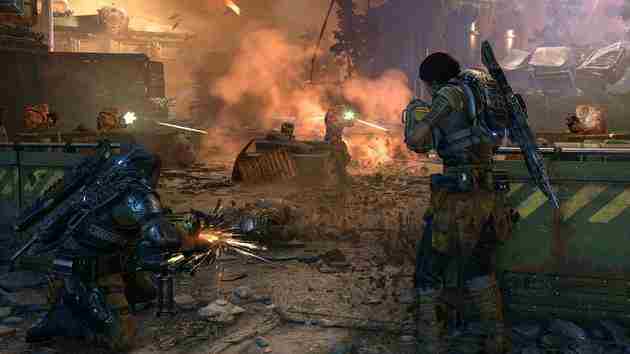
#8. Gears of War 4
Gears of War 4
The Gears of War franchise marks all generations who own an Xbox console. Gears of War 4 is one of the best-known shooters on Xbox One, both for its gameplay mechanics and for details like the narrative and setting. It doesn’t bring much evolution in terms of gameplay compared to previous titles, but it still exceeds expectations.
In terms of innovation for the franchise, Gears of War 4 presents some interesting combat mechanics. New weapons appear in this direction, such as Buzzkill and Dropshot. The first launch sees the sword at the enemy, while the second drops explosives into the environment.
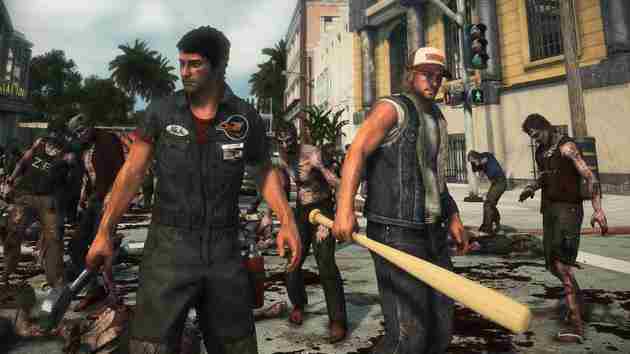
#9. Dead Rising 4
Dead Rising 4
Even though Dead Rising 4 already exists, it’s the 3rd Xbox One player favorite. It’s a bit revolutionary compared to previous titles. There’s now no mandatory timer, for example, although you can play it if you stick to Nightmare mode.
Another important change is that you no longer need to hide in the bathroom to save your game progress. Now you can do it from anywhere. However, other mechanics followed especially successful ones. You still have to search for resources to survive the real zombie army. It’s in an open world that’s larger than the combined map of the first two titles in the series.
#10. Forza Horizon 3
Forza Horizon 3
Forza Horizon 3, according to experts, is one of the best racing games ever made. No wonder, even with Forza Motorsport 7 on the list, he is also present. It happens in the representation of the Australian open world. There are several references to the country, such as the famous Outback restaurant.
Most importantly, Forza Horizon 3 is more than just a racing game. In the previous game, the player was one of the great Festival Horizon runners. Now you’re the owner of the festival, so apart from running and feeling the excitement of the track, you can and have to deal with the bureaucratic aspects. Among them is recruiting and laying off professionals.
#11. Hello 4
Hello 4
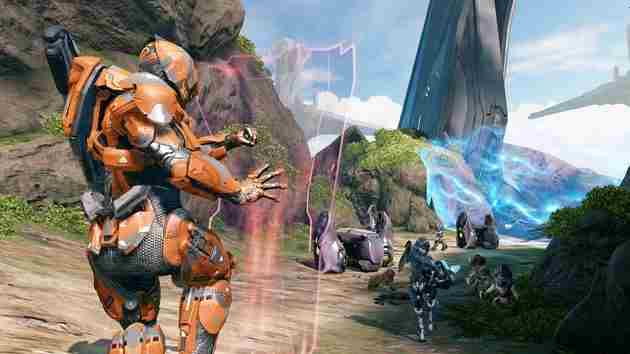
We couldn’t leave the games in the Halo series off the list. The chosen one, Halo 4, represents a new beginning of the franchise, as it is the first in a new trilogy. In addition, this best Xbox One exclusive game brings back the protagonist Master Chief, a superhuman warrior. He is accompanied by an artificial intelligence called Cortana.
Halo 4 is played in a mix of third-person and first-person. Most of the time it’s a first-person shooter, only changing in certain cases when using certain weapons or even vehicles. By the way, the first-person view is quite interesting. It’s as if you’re wearing a tech helmet. You can view information about your life, and your mission and can even detect the presence of enemies.
#12. PlayerUnknown’s Battlegrounds (PUBG)
PlayerUnknown’s Battlegrounds (PUBG)
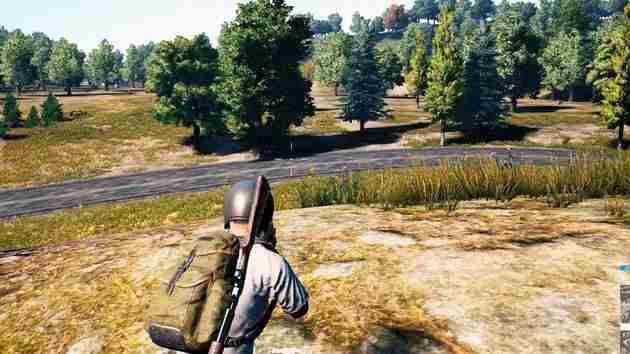
PUBG Battlegrounds was the number 1 game in India but eventually conquered the whole world. Today it is no longer exclusive to Xbox One, as it is now available for mobile. It consists of the following: up to a hundred players at once just parachute onto an island. On this island, you have to collect equipment, PUBG weapons, and everything that can help you to kill other players. And, of course, be the only survivor.
The interesting thing about PUBG is that it’s the best Xbox One-exclusive game of 2023. When you’re cooped up with other players, it becomes even harder to survive. It was as if this was a battle against time, not just against the enemy.
#13. GTA V
GTA V
GTA V is everything an open-world lover could want. The campaign is short but very fun, and the amount of weapons, cars, and things to do doesn’t disappoint.
Apart from that, the online mode is an interesting one, with constant updates from Rockstar. You can spend hours doing crazy missions with friends or alone, taking on other players.
#14. The Witcher 3
The Witcher 3
The Witcher 3 is a must-have for all fans of RPGs or fantasy games in general. There are over 200 hours in Geralt’s company already counting the expansion, with hundreds of quests to complete.
The narration is perfect, the battle mechanics are challenging and there’s a lot to collect, including cards from the famous game Gwent!
#15. Red Dead Redemption 2
This adventure in the Wild West is even better in the second version. Lots of tasks and things to do, like fishing, allowing you to explore the giant world for hours on end.
If that wasn’t enough, Red Dead Redemption 2 is incredibly realistic. It is so realistic that some players are surprised by some of the events.
#16. Star Wars Jedi: Fallen Order
Star Wars Jedi Fallen Order
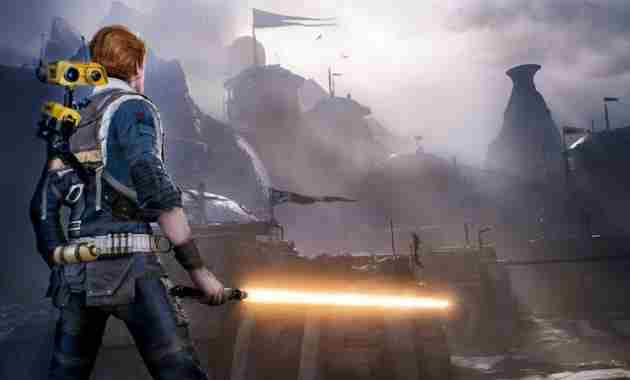
Star Wars Jedi: Fallen Order combines elements from several successful games and creates a cool experience in the Star Wars universe. Being able to choose the color of the lightsaber is one of the coolest things!
But apart from that, we see a fluid combat mechanic, The Witcher 3 style, with semi-open world exploration and strong RPG elements.
#17. Resident Evil 3: Nemesis
Resident Evil 3 Nemesis
The Resident Evil 3 remake changes a few points from the original and makes Jill’s campaign against Nemesis an adventure with more action and less terror. Even so, the villains are even more unforgiving, and the evolution of graphics has made duels more beautiful, dynamic, and enjoyable for players.
#18. Sea of Thieves
Sea of Thieves
One of the most fun pirate games ever made. Explore the 7 seas in a story created by you or other players. The open world is full of riddles, riddles, and lots of gold to steal!
#19. Gears 5
Gears 5
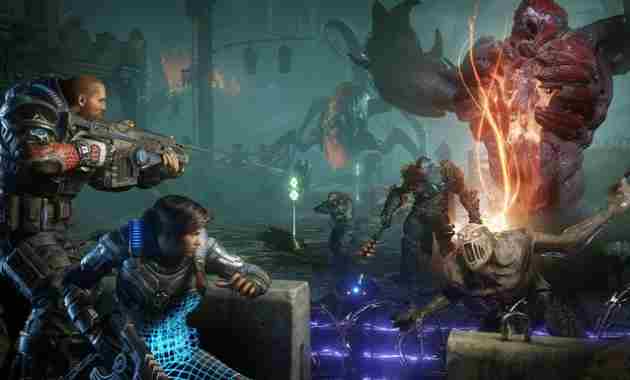
Gears 5 features Kait Diaz as the protagonist, providing a direct sequence of the events of the previous game. In terms of game mechanics, it also follows the style of third-person action games, characteristic of the franchise.
The best thing about this Xbox One game is the fact that you can play with up to 2 other players in local, split-screen multiplayer. Or online!
#20. Cuphead
Cuphead
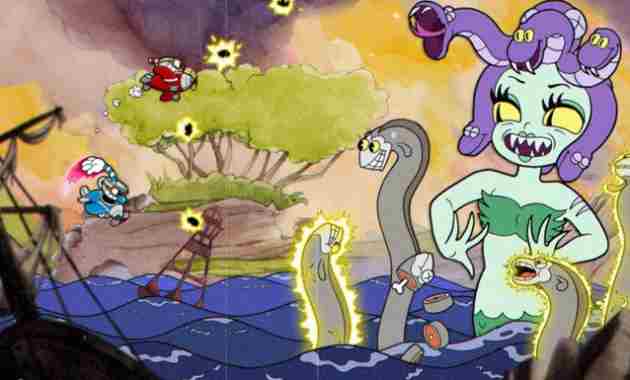
Inspired by 1930s animation, Cuphead puts players on a platform adventure, whose mission is to eliminate several Bosses to pay the debt to the Devil.
There are a lot of enemies per level at the same time, and this game has a typical 90’s characteristic: it’s VERY hard to get to zero.
#21. Borderlands 3
Borderlands 3 is somewhat similar to Far Cry 4 but even better. You can play alone or with other players to complete main and side quests that lead to the destruction of the evil cult.
The strongest point of this game is the variety of weapons that can be built, as well as a very solid and effective loot and evolution system.
#22. Control
The controls don’t bring anything new in terms of storyline, but the game itself is great! The protagonist has psychic powers and weapons that can transform into other weapons.
READ ALSO Number 1 Game in the World
While we’ve seen this more or less in Quantum Break, the combat in Control is well worth your investment. The mix of punches, shots, and psychic powers is so cool on the screen!
#23. Overwatch
Overwatch is a unique FPS, the success of which brings unique characters for players to choose from. It doesn’t have a lot of game modes, but it makes up for the frantic online battles that can be fought with friends.
#24. Monster Hunter: World
The franchise is coming to Xbox One as a major title. The open world was HUGE, and the number of beasts exterminated was also quite large.
The focus is on multiplayer, where you can destroy monsters in the company of other players. And the loot and evolution system is awesome!
#25. Sekiro: Shadows Die Twice
An action and adventure game set in Japanese mythology, bringing many interesting elements from Buddhist history and philosophy.
In addition, the key element is the revenge of a Shinobi against the samurai who killed his master. For anyone who is a fan of Japanese culture, this is a great Xbox One exclusive!
#26. Destiny 2
Destiny 2 is one of the best expressive Xbox One exclusive games today. The solo campaign is solid and you can play it with other players, which makes the game even cooler.
Overall, these games share the same footprint in terms of history and setting. Good graphics and interesting gameplay are the hallmarks of this title.
#27. No Man’Sky
No Man’Sky
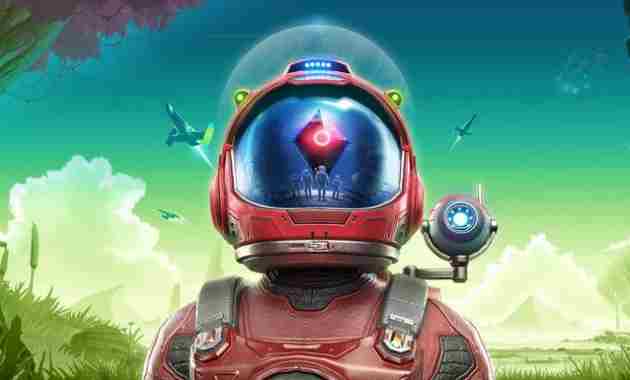
The special exploration game No Man’Sky is quite complete after getting many updates. Today is one of the most fun games on Xbox One for those who love Death Stranding-style walking simulators.
In addition to building a base, you can drive vehicles and ships and have a giant robot.
#28. Devil May Cry 5
Devil May Cry 5
Dante and Nero continue to face demons in Devil May Cry 5, now with the help of another hunter, V. The hack n’ slash combat system is better than ever, and the evolution of 3 hunters throughout the game is essential to getting to those zero points.
Of course, this is the most popular Xbox One exclusive game of 2023, the spotlight goes to the plot, which has always been one of the strongest points of this franchise.
#29. Titanfall 2
The Titanfall 2 campaign is small but captivating. All you want is to be able to summon your Titan from heaven when the bar is full!
The multiplayer mode is excellent, bringing multiple game modes for those who enjoy online competition in shooting games.
#30. Reise Tomb Raider
Rise of the Tomb Raider is the second in a trilogy of reboots for the franchise. Lara Croft returns similarly to what we saw in the first title. What changed was the narrative.
But overall this is the best Xbox One exclusive game of 2023, Rise is a great continuation, having received the Game of the Year award for Xbox One.
#31. Dragon Ball Z Kakarot
Dragon Ball Z Kakarot continues to bring the Z saga to video games, but now with a focus on the RPG experience. Of course, the fights are there, but the evolution of the fighters is very important to this game!
Quite fun and contains several quests that must be completed. And the game may still receive a lot of additional content from time to time.
#32. Final Fantasy XV
Final Fantasy XV is the current 2023 Xbox One exclusive. It has over 100 hours of content, a well-constructed narrative, and charismatic characters.
However, the gameplay and exploration mechanics are a bit “chaotic”, which can annoy some players. And the battles are so intense that it’s easy to lose just because you don’t understand what’s going on in the fight.
#33. Wolfenstein: The New Colossus
The New Colossus is a direct sequel to Wolfenstein: The New Order. In other words, we see the protagonist fighting against the Nazis, who dominate the United States. Your mission now is to try to free the US from the Nazis!
#34. Way Out
Way Out is a game that puts the online experience first. Escape from prison with a friend and see who, in the end, will be the sole survivor of this action-packed survival!
#35. Stardew Valley
Stardew Valley is a farming simulator inspired by Harvest Moon. Graphically and visually the game is very similar to the one that inspired it, and the gameplay also presents several meeting points.
In general, create your farm from scratch. Plant, raise animals, sell products, and build an “agricultural” empire.
#36. What’s left of Edith Finch
An art game, with one of the best narratives of recent years. You explore Finch’s house and the grounds around the house, seeking explanations for the mysterious deaths of family members.
#37. Assassin’s Creed Odyssey
One of the best Assassin’s Creed ever made. Exploring Ancient Greece and encountering mythological creatures is incredible. This game is best on Xbox One in that respect.
Being able to choose which hero to play is also pretty cool, and the hundreds of available missions keep you entertained easily for over 100 hours.
#38. Fortnite
One of the greatest Battle Royals in the world is not to be missed here. With a HUGE community on Xbox One, this game is one of the most competitive for anyone looking for an online experience. You can get Free Fortnite Accounts on the sales digital site.
#39. Metal Gear Solid 5: The Phantom Pain
The Phantom Pain takes place after Metal Gear: Ground Zero. The snake pursues revenge and, for that, travels to Africa and the Middle East.
In terms of graphics and atmosphere, this game is excellent. Snake is even more stealthy and deadly than before, and the game requires more stealth than action from the player.
#40. Fallout 4
Fallout 4 is probably the best franchise ever made. You can be the secret agent and Rambo who shoots everyone, which appeals to a variety of play styles.
It’s a relatively long game, with beautiful graphics and a great narrative. The game mechanics are of good quality, even surpassing Fallout 76, which came later.
Well, that was a collection of the Best Xbox One Games 2025 that you can play for free. If there are other games, you can give suggestions in the comments below.
Regarding how to disable Windows 10 update, you can do it permanently by stopping active services to the Windows network.
There are advantages and disadvantages if you want to follow how to turn off Windows 10 updates. The following is the explanation below.
#1. Advantages of Not Update Windows
You don’t need to worry if your cellphone internet package is sucked in.
The laptop isn’t slow because the update process is usually in background action.
There is no notification to update the Windows operating system.
#2. Disadvantages of Not Updating Windows
Does not have the look and new features provided at the time of the automatic update.
There is no official support from the windows itself.
Has several obstacles including the driver.
Several components are damaged because the OS doesn’t update.
Not only damage but the software that has access to official windows can no longer be used.
Maybe that’s the only advantage and disadvantage if you don’t update Windows. There are many more, but it’s your right to decide which one to choose, update or not.
If you want to update, you can just come to the free wifi then just update.
But in my opinion, not just yet, if the current operating system can still be used and the problem is only the waste of quota.
You can overcome the Windows update that is running permanently below.
#3. How to Deactivate Windows Update Forever
You will feel irritated if there are continuous notifications about being asked to update Windows 10.
So that Windows doesn’t update automatically, you can immediately do the following tutorial.
#3. Disable Using Delivery Optimization Service
The service menu in Windows is often used to manage all kinds of opportunities.
One of them is to stop Windows from updating continuously.
Therefore you can see the shutdown steps below.
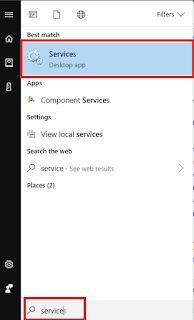
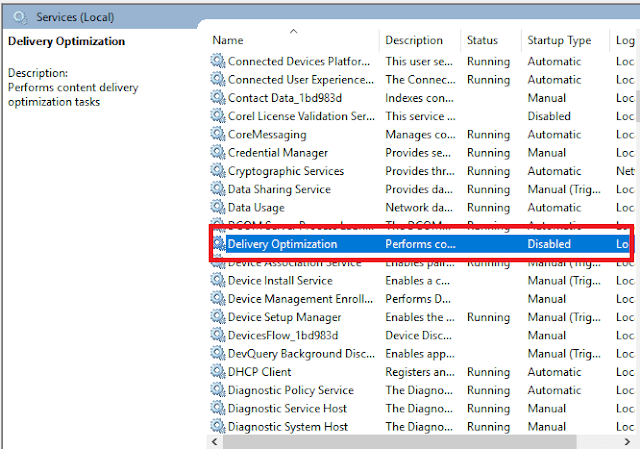
First, you must enter the Windows default service. The trick is to just press the Windows key / Start Menu -> Type Services -> Enter.
Second, you will enter the program. Here you just need to open two programs to shut down.
The first program is called delivery optimization and the second is called Windows update.
Read more: Top cool tech gadgets
Third, for the Windows auto-update process to stop perfectly, turn off the first program by looking for a program whose name is Delivery Optimization.
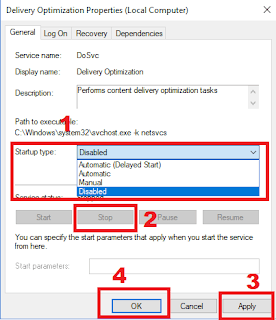
Fourth, double-click the program, and a new popup will appear.
Then click on Startup type changed to disable then click on service status changed to stop -> Then click Apply then OK.
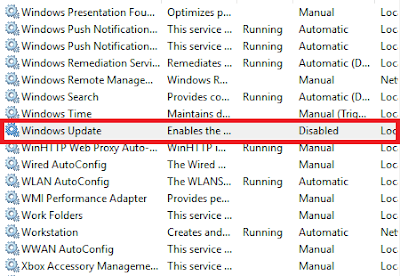
If the previous deactivating step was to stop the Delivery Optimization process, then in this second step directly on the Windows Update menu.
This can be useful for overcoming the internet quota on wasteful laptops.
First, the steps you have to do first to stop Windows updates are as follows.
Still in the service menu, scroll down then look for an option called Windows Update.
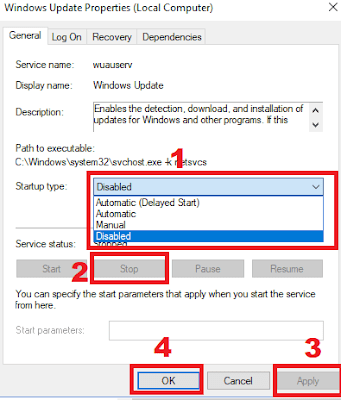
Second, just double-click on the service, and a popup window will appear.
Next, click on the Startup type to be Disable, click Stop then click Apply and OK.
Third, try restarting your laptop now and then entering service again to ensure that the Windows update has been successfully stopped.
If the two services above are still running again, it means that they must be followed up using method number 3.
#5 Disable Using the WUB Application
The third way not to update automatically is that you can use application help. You don’t need to mess around with Windows services to disable it.
The reason is, when using this application you only need to install then press the button in the application, of course, automatic updates have been removed, the tutorial is below:
First, please download the WUB application or Windows Update Blocker via the link here: Download WUB.
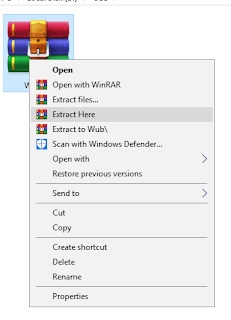
Second, if it’s still in rar form, you must first extract it using WinRAR.
Go to Download Location -> Right Click -> Extract Here -> Done
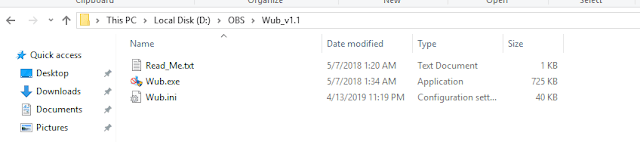
Third, please enter the WUB v1.1 folder. There is already an application there, take it easy, it’s safe because I’ve used it on my laptop.
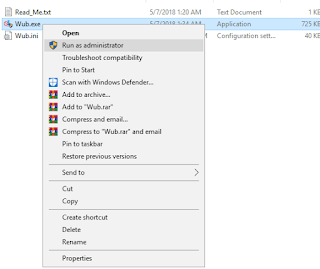
Fourth, right-click on wub.exe, then right-click – Run As Administrator, there will be a prompt, select Yes.
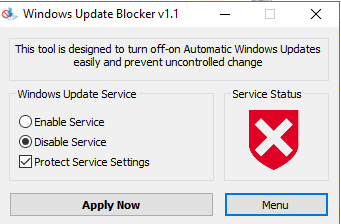
Fifth, select the bullet next to the words Enable service. Don’t forget to check the Protect Service Settings section.
Sixth, the last step is quite easy, point your cursor to the Apply Now menu.
Congratulations Windows, you won’t have any more update notifications and you will save more on your internet quota.
#6 Terminating with PowerShell Command
The PowerShell command itself is a CMD application. Often called CMD instead of the PowerShell command.
How to use CMD to stop Windows 10 updates:
1. Open the start menu.
2. Type CMD.
3. Right-click then Run As Administrator.
4. Enter the following command:
The Regedit menu is a collection of pending files that Windows builders can work with.
So that Windows doesn’t update, you can edit a file in the Regedit program.
Generally, it will be like this:
1. Press the Windows icon + R then type Regedit and then Enter.
2. Then find the folder by going to HKEY_LOCAL_MACHINE \ SOFTWARE \ Policies \ Microsoft \ Windows.
3. Then on a blank page on the right, Right-click then New, and finally select Key.
4. Then name the file WindowsUpdate.
5. In the WindowsUpdate folder, right-click -> New -> Key _ gives the name AU.
6. Right-click Key AU to create a DWORD value given the name NoAutoUpdate.
7. Then double-click on NoAutoUpdate set it to 1 and hit OK.
Now it’s turned off and you can check it in Settings> Update & security> Windows Update then check for updates.
FAQ
Is it better to update it or not?
If your storage space and PC hardware components support it.
Better to update it, because the Windows OS will increase stability and security patches.
What versions of Windows 10 can apply this?
You can apply the above method on Windows Pro, Home, Enterprise, and others.
Because, the entire appearance of the Windows 10 all series is the same, as in this guide.
If you still experience the same thing, you can use the application to permanently disable the Windows 10 Update Assistant. You can say that permanently there will be no update notification, you are already free from it all.
How to Enable IDM in Firefox 6 Quick Ways — Downloading is one of the most frequently carried out by internet users. They usually download files of various types, such as images, music, videos, or even applications.
How to Enable IDM in Firefox 6 Quick Ways
How to Enable IDM in Firefox 6 Quick Ways
Generally, someone uses a browser such as Mozilla Firefox to facilitate downloading activities. In addition, there is also additional IDM software to make the download process faster.
Yes, Internet Download Manager is arguably one of the mandatory applications for downloaders. It is specially designed to help us manage the download process and make it faster and more effective.
Almost all computer and PC users install this one software on their devices. It is very popular and has very useful features.
Usually, when IDM is installed on a PC or computer, it will immediately connect and appear automatically when the download process starts. But sometimes that doesn’t always happen. Now what we will discuss is how to activate IDM in Mozilla Firefox.
Sometimes when we want to download a file such as a video using Mozilla Firefox, IDM doesn’t even appear automatically. Why did this happen and how to solve it ?.
Several things might cause IDM not to appear automatically when there is a download process. Usually, it is not integrated with the browser used.
Sometimes IDM is not compatible with the browser version that is being used. So, what’s the solution? It’s quite easy, you only need to make settings to integrate IDM and the browser so that it is perfectly connected.
Internet Download Manager is indeed very useful for downloading download activities. Now, if IDM is not compatible and is connected to the browser, of course, it will not function properly. S
How to Enable IDM in Mozilla Firefox
Have you been bothered by this kind of problem? It, we have a solution and how to fix it. Please follow the guide on how to activate IDM so that it appears on Mozilla Firefox.
#1. Down the Addon
First of all, we need to open Mozilla Firefox, if you have clicked the button below to be able to install IDM in Firefox.
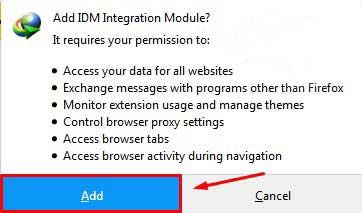
Then a notification will appear to integrate between IDM and Firefox, please click Add.
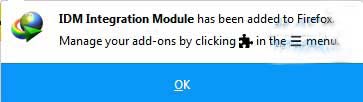
#3. Confirm the Addon
If a notification appears like this, it means that it is connected to Mozilla Firefox.
#4. Open the IDM Folder
For the next step, you need to make a few changes to IDM settings. Please follow the tutorials and guides below:
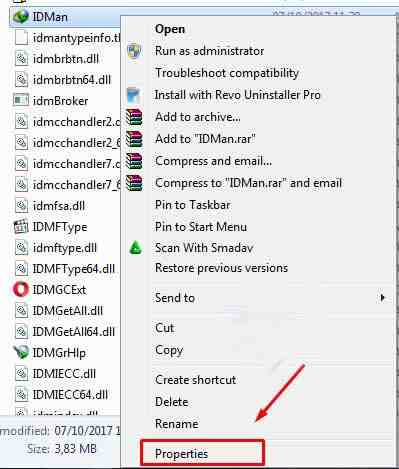
Enter the directory C: \ Program Files \ Internet Download Manager.
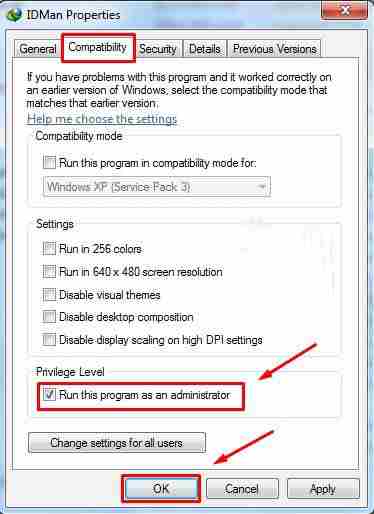
Then right-click on the IDMan file and select Properties.
#5. Run As Administrator
Then paste the menu tab give a checklist on the Run this program as administrator option and click OK.
So, congratulations, now that IDM and Mozilla Firefox are connected, and will automatically appear while downloading.
Installing IDM on Mozilla Firefox
For the second step, if the first step has not been successful, then you can follow the steps below.
Open the Internet Download Manager application
Click the options button
Check Mozilla Firefox, on the display (as shown above).
Click ok, and issue IDM.
Then open it again to download and try downloading with IDM in Firefox.
Some of the methods above can be tried to activate the internet download manager that does not appear during download. So if Google Chrome also experiences? you can read how to activate IDM in Chrome, the steps above have been tested and guaranteed success.
That’s how to Install IDM on Mozilla Firefox so that it can function properly. Hopefully, the tips above can be a solution and overcome the Internet Download Manager that doesn’t want to appear on Mozilla.
For example, how to bring up IDM integration in Google Chrome, as I want to discuss here.
Previously Need To Know Here
First, it should be noted here, as I said earlier that IDM is usually already active in the browser when it’s finished installing.
So why do some users have to turn it on manually?
The answer is that either IDM or Google Chrome is used, it is not the latest version.
So that the compatibility of the two does not match, and the application is unreadable, and even cannot be active.
For that, please try to first update the IDM Application and the Google Chromium Application to the latest version.
But, if you want to manually activate IDM in Chrome, you have to do certain steps.
Let’s discuss this in full below:
How to Activate IDM in Google Chrome
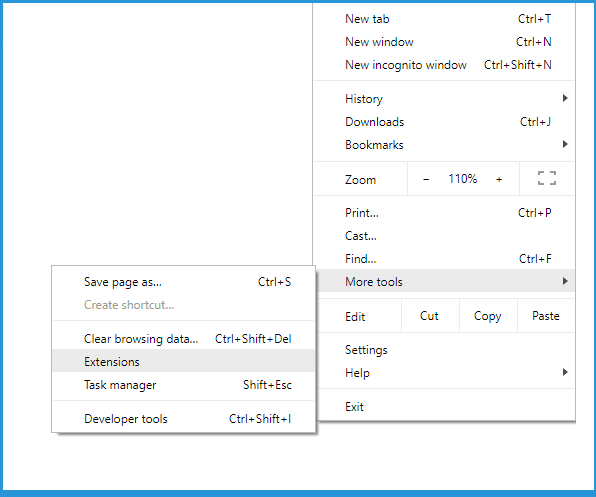
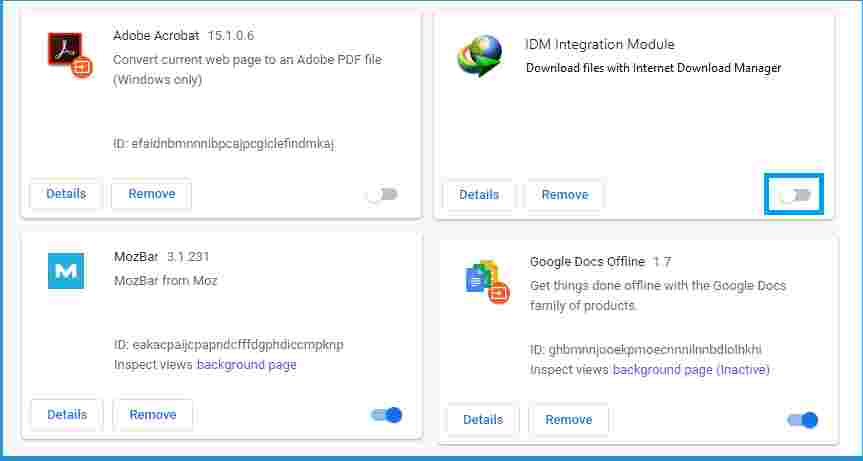
Step 1: Please open Google Chrome, then click the menu at the top right, select more tools then click Extensions.
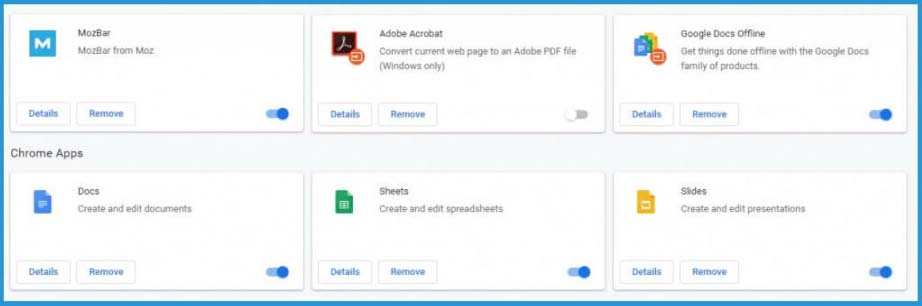
Step 2: Then the Chrome Extensions page will appear.
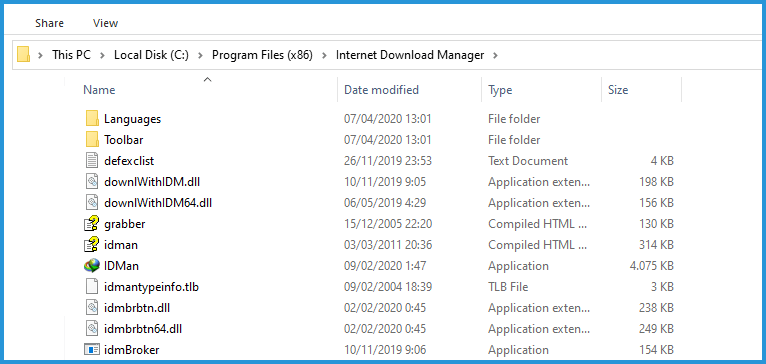
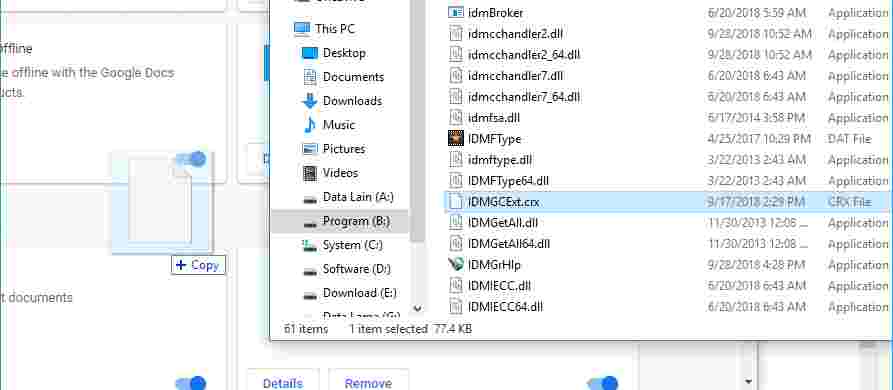
Step 3: Minimize Google Chrome temporarily. Next, go to the Folder where IDM is installed.
The default is in C: \ Program Files \ Internet Download Manager . If there isn’t, please search first ..
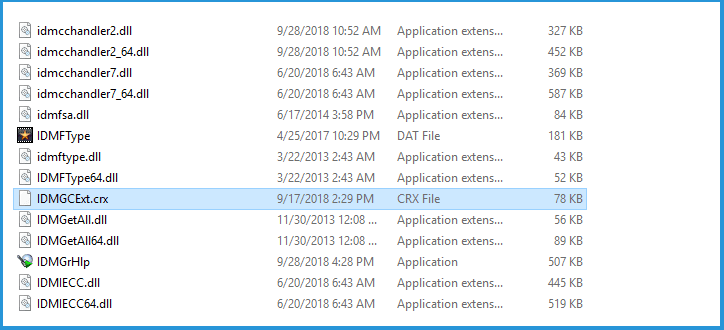
Step 4: In that folder, find a file named IDMGCExt.crx .
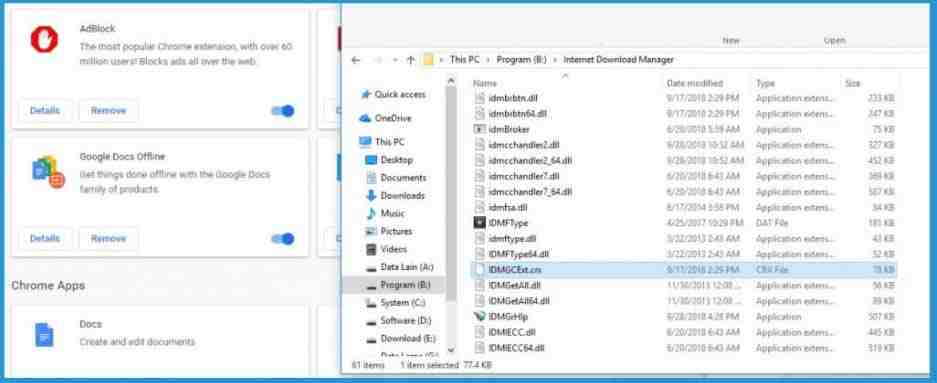
Step 5: Re-open the Google Chrome page, and position it next to the IDM Folder file list.
Step 6: Click and hold on the IDMGCExt.crx file then drag it to the Google Chrome Extensions page.
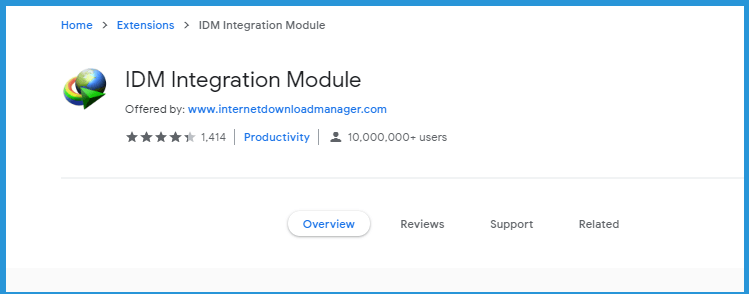
Step 7: If so, click Continue on the notification at the bottom of Chrome. Later a new extension will appear called IDM Integration Module (IDM). Please search and select Activate.
Frequently Asked Questions
Can I Create All IDM Versions? : Of course, I can. For this tutorial, I use the latest version of the application. For the old version, it’s not that different.
IDM is Already Active, But Sometimes You Like Not Working. : Make sure the IDM tray icon in the bottom right taskbar menu is running. Because if it’s not active, it automatically won’t work. Integrating the IDM must also be by the previous steps.
When you drag IDM to the extension page, why isn’t it detected? : The solution is to try reinstalling Google Chrome. I tried it and it worked.
How to turn off IDM?: Please go back to the extensions page. Then select Deactivate on IDM. Then IDM will automatically turn off.
Are There Other Settings That Must Be Done? : So far nothing. Enough with the steps to display IDM above, then IDM is 100% ready to use.
How to Overcome If IDM Still Doesn’t Appear in Chrome
With the above method, IDM should be automatically integrated. I have tried it several times and it works.
Well, you’ve tried it but it hasn’t worked, try to follow these suggestions again:
#1. Make sure IDM settings in Chrome are active
IDM has a special setting that by default should be active.
Even so, sometimes this setting just doesn’t turn on. Whether because it’s accidentally disabled or for other reasons.
Follow these steps:
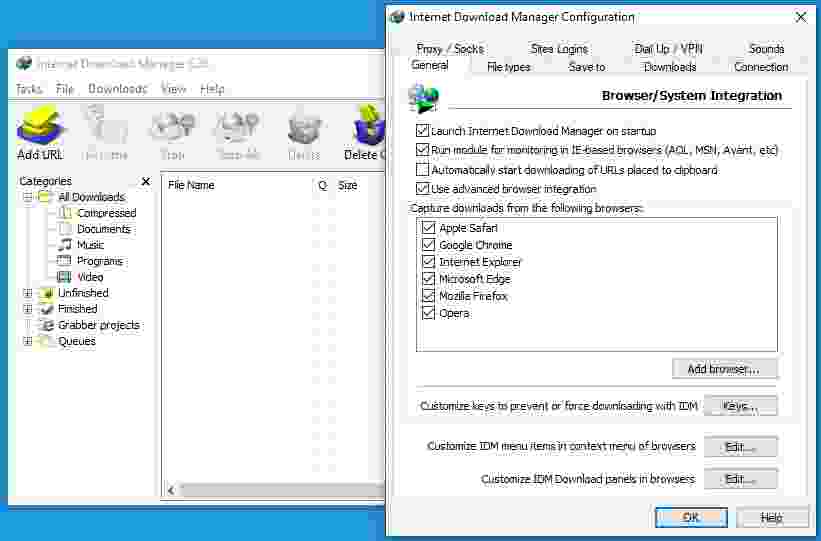
Open IDM in the Windows Taskbar Tray Icon
Click the Options button
Make sure Google Chrome is checked there
Next:
Right-click IDM in the Windows Taskbar Tray Icon
Then select Exit
Open the IDM again when done.
This method is suitable for:
Fixed problematic IDM integration
Fix IDM on Google Chrome not working, even though it is already active
#2. Update IDM and Google Chrome to the Latest Version
It’s like I said before. The IDM update here is intended so that IDM that does not appear in Chrome can be normal again.
The method is really easy:
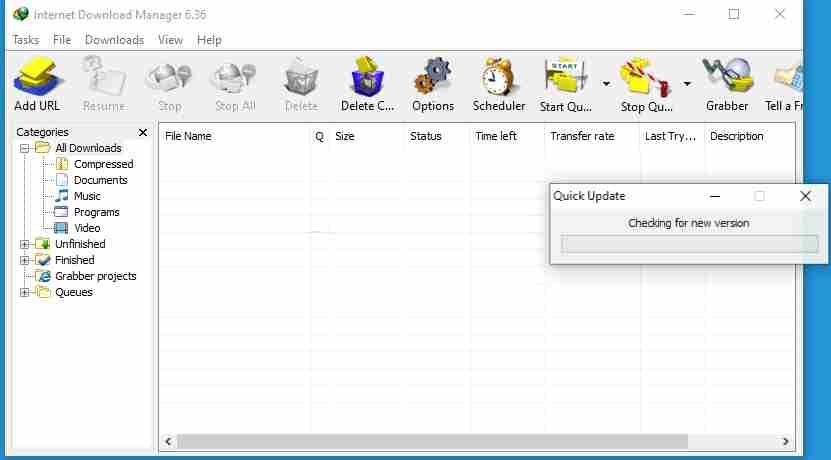
Open IDM via the Tray Icon
Click Help at the top
Then click Check For Updates
Just wait until the IDM is finished checking for updates. Then also check for updates for the Chromenya:
Open Google Chrome
Click the top right three dots button
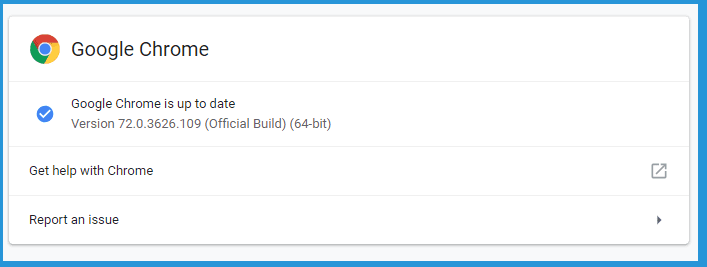
Click Help then select About Chrome
There we can update Google Chrome.
Make sure both are the latest versions
#3. Install IDM Extension on the Google Web Store
In the Google Web Store, there is also an IDM extension. This can help to bring up IDM in Google Chrome.












 Sixth, the last step is quite easy, point your cursor to the Apply Now menu.