Author: Nazrul Islam

  • 12+ Best Offline and Online Pokemon Games For Android iPhone 2025

    12+ Best Offline and Online Pokemon Games For Android iPhone 2025

    12+ Best Offline and Online Pokemon Games For Android iPhone – Pokemon is one of the best games in the world and has a huge fan base. There are several Pokemon Games available on Google Play but not all of them are worth downloading. I will recommend the best Pokemon games for Android that can be played online and offline.
    11+ Best OfflineOnline Pokemon Games For Android iPhone
    11+ Best OfflineOnline Pokemon Games For Android iPhone

    12+ Best Offline And Online Pokemon Games For Android iPhone

    #1. Pokémon Gold and Silver – Best Offline Pokémon Games
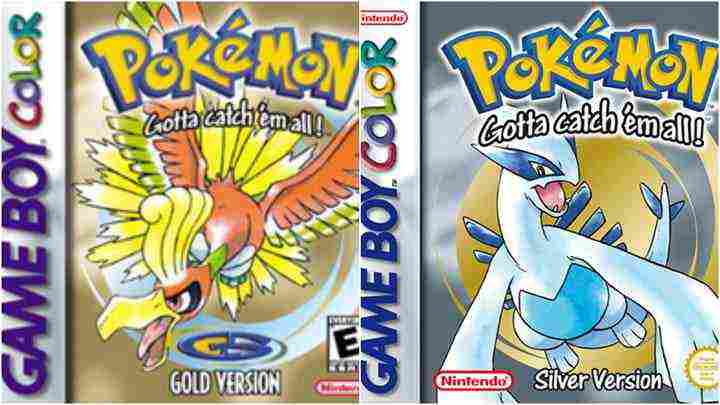
    Pokémon Gold and Silver – Best Offline Pokémon Games
    Pokémon Gold and Silver – Best Offline Pokémon Games

    Pokémon Gold and  Silver is one of the best offline Android & iPhone Pokemon games in 2023, including the best starter trio Pokémon, has ever seen. In addition to adding to the Pokédex, the second generation made big strides in many areas over the original.

    Read more:

    For starters, you should now think about the time of day when trying to catch new friends, as the day/night cycle intelligently adds a layer of depth to the time you spend in the long grass.

    Adding to the system seen in  Pokémon Yellow, generation two leans into two types, allowing you to create more varied and strategic teams to take into battle. The Johto area happens to be our favorite to explore as well and has the best legendary birds (Lugia and Ho-Oh).

    #2. Pokémon Red / Blue / Yellow (Gen 1) – Best Offline Pokemon Games
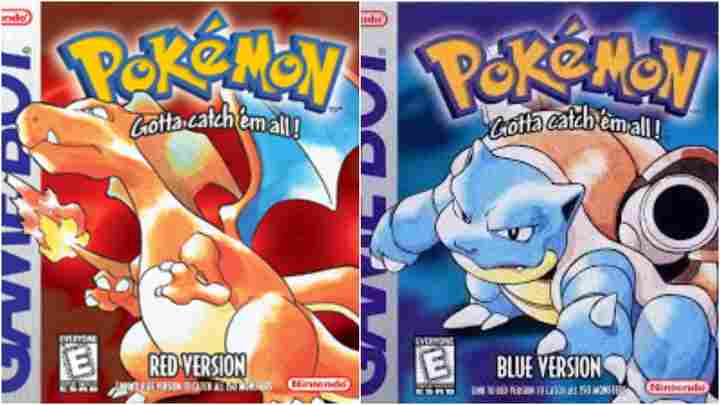
    Pokémon Red Blue Yellow (Gen 1) – Best Offline Pokemon Games
    Pokémon Red Blue Yellow (Gen 1) – Best Offline Pokemon Games

    Partly because of nostalgia, partly because of how the game still feels great to this day, someone’s generation trio of the great Pokemon games took second place. To this day, the first generation has the best collection of Pokémon.

    The original 151 will never be forgotten and neither will Ash’s first adventure. From the opening moment in Pallet Town to choosing your first starter to put on a gym badge and beating the Elite Four,  Pokémon Red and  Blue just feel right.

    Sure, some of the deeper mechanics known for the series aren’t currently in the original game, but there’s something about their sleek identity that still brings a smile to our faces.

    Pokémon Yellow made the series colorful and having Pikachu by my side made it feel like Ash, was on his way to catching them all. Generation One will always hold a special place in our hearts.

    #3. Pokemon UNITE PC
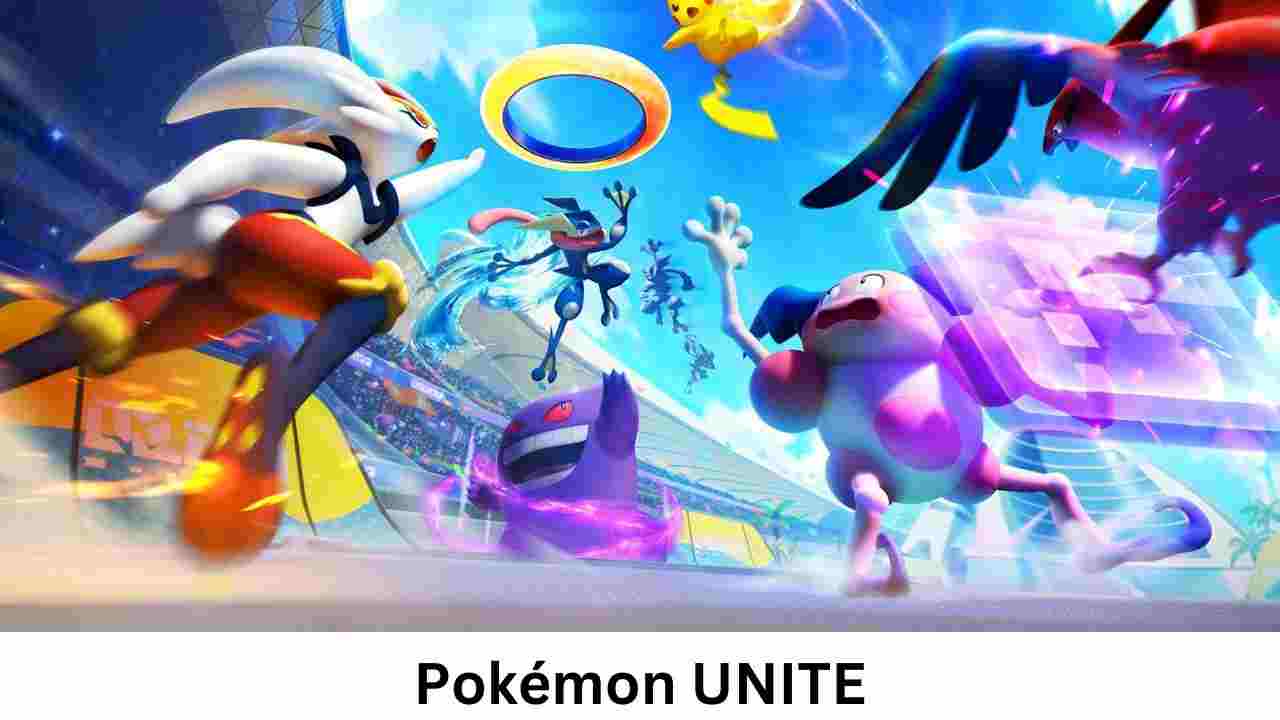
    Pokemon UNITE PCPokemon Unite is a multiplayer online battle arena (MOBA) game developed by TiMi Studios and published by The Pokemon Company. The game is available for free download on Android devices, and you can also play Pokemon UNITE on PC with an Android emulator.

    In Pokemon Unite, players form teams of five Pokemon and battle against each other in a virtual arena. Each Pokemon has its unique abilities, and players must work together to defeat the opposing team’s Pokemon and score points by capturing objectives and defeating wild Pokemon.

    As players progress through the game, they can unlock new Pokemon to use in battles and earn in-game currency to purchase new items and upgrades. The game also features various modes, including ranked matches, casual matches, and quick matches.

    #4. Pokemon Ruby / Sapphire / Emerald (Gen 3)
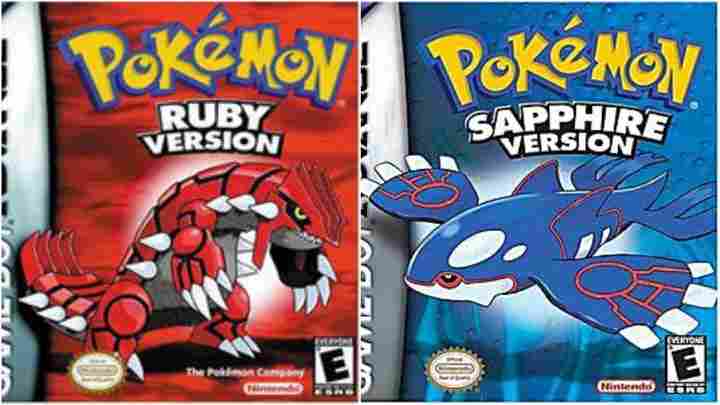
    Pokemon Ruby Sapphire Emerald (Gen 3)
    Pokemon Ruby Sapphire Emerald (Gen 3)

    The third generation is the Best Offline Pokemon Game on Android & iPhone. While I think the 135 new Pokemon, as a group, don’t compare to the 100 added in gen two,  Ruby and Sapphire have one of the neater territories.

    The island area of ​​Hoenn is noticeably larger than the previous one and is generally a more interesting area to explore. A pair of three-star remakes,  Omega Ruby and  Alpha Sapphire, are available on the Nintendo 3DS.

    #5. Pokémon Sword and Shield (Gen 8) – Best Offline Pokemon Games
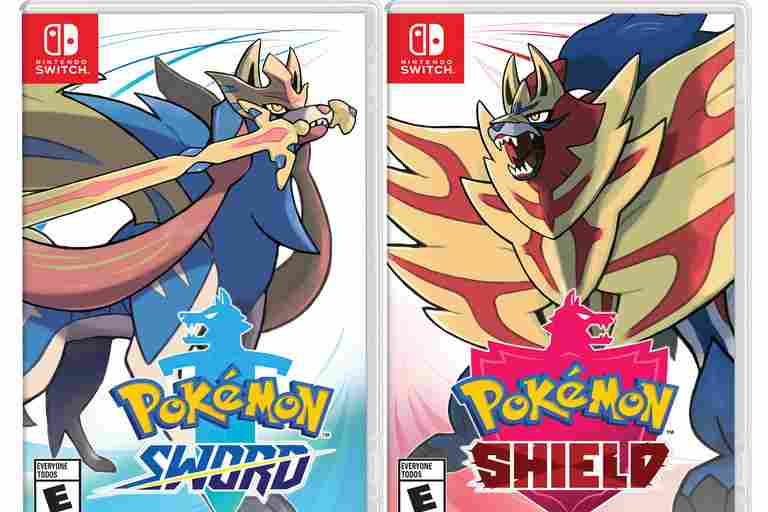
    Pokémon Sword and Shield (Gen 8) – Best Offline Pokemon Games
    Pokémon Sword and Shield (Gen 8) – Best Offline Pokemon Games

    The newest Best Pokémon Games 2024 is the first major title to be released on Nintendo Switch, and Game Freak has finally realized our long-standing dream of having a fully 3D Pokémon adventure on home consoles.

    In the English-themed Galar region, you can venture into new Wild areas and catch monsters, or follow a set path from town to town that’s been in the series from the start. Either way, Pokémon are now just out and about instead of being hidden in random encounters, so frustration is greatly reduced.

    With 400 Pokémon to catch and the addition of the Dynamax system to power up your monsters,  Pokemon Sword and  Shield can keep you busy for hours, although the removal of old monsters from the game, including Psyduck and Squirtle, means you won’t be able to catch them this long.

    #6. Pokémon Ultra Sun/Moon (Gen 7)
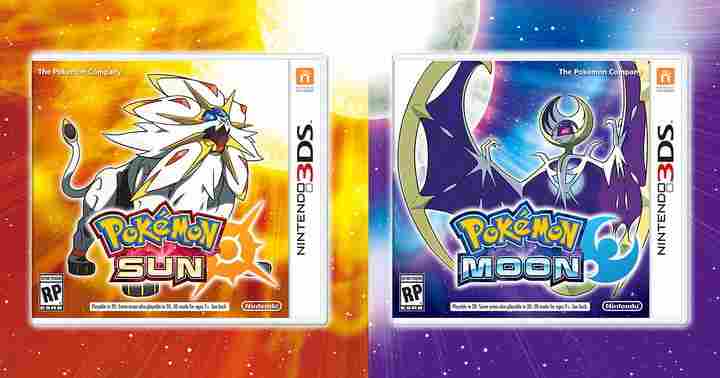
    Pokémon Ultra SunMoon (Gen 7)
    Pokémon Ultra SunMoon (Gen 7)

    This best offline Pokemon game 2024,  Sun and Moon and enhanced Ultra Sun and  Ultra Moon, changes the standard Pokémon progress a bit. Located across from the island of Alola,  Sun, and Moon introduce players to Team Skeletons and the Aether Foundation, a group dedicated to protecting Pokémon.

    Instead of progressing through the various gyms in the city, you’ll need to complete island trials, which usually include small dungeons and battles with powerful Pokemon. After that, you will be able to fight against the island of Kahuna.

    The 80 new Pokemon are some of the most exciting to add since the start of the game, and the original version of Pokemon Pokemon feels inspired. Z-Moves, Ultra Beasts, and an expanded look at Mega Evolutions add welcome mechanics to the fold. There’s even a Pokemon Snap-style mini-game.

    #7. Pokémon X/Y (Gen 6)
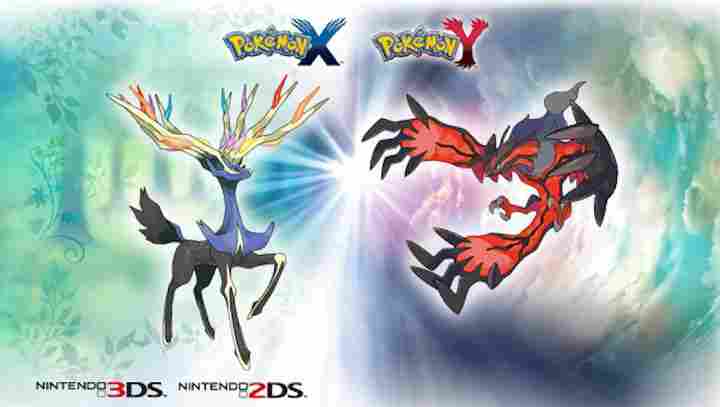
    Pokémon XY (Gen 6)
    Pokémon XY (Gen 6)

    Pokemon X and  Y are the first best 3D Pokemon games in this series. The camera perspective shifts from top to bottom to a closer, behind-the-body angle, giving the Pokemon world a never-before-seen scope. The French-inspired Kalos region has both flair and style and features one of the largest megacities I’ve seen so far.

    Even though  X and  Y only introduced 72 new Pokemon, it marked the beginning of Mega Evolution. The storyline is a bit disappointing. The higher fidelity presentation provided by the Nintendo 3DS emulator makes Pokemon models appear during battle sequences, allowing for sharper battle animations.

    Best Online Pokemon Games for Android and iPhone

    #1. Pokemon Go

    Pokemon Go is the best Pokemon game on Android & iPhone Online 2023. If you are a Pokemon game then you might hear this game because it is played by millions of Pokemon fans around the world.

    What is unique about this game is that it combines augmented reality with Pokemon and produces an amazing game. To catch a Pokemon, the player must move in the real world and catch it.

    Apart from that, the game also comes with battles, in-game events, and several other features that make it even more fun to play. You can play this Android Pokemon game for free but there are in-app purchases.

     Play Store   App Store

    #2. Pokemon Masters

    Pokemon Masters
    Pokemon Masters

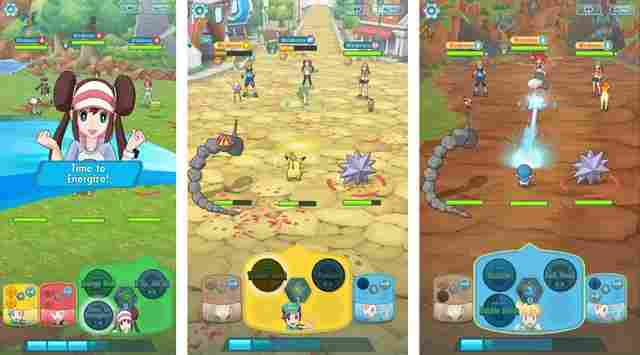
    Pokemon Master is the newest online Android & iPhone Pokemon Game 2023. In the game, you will team up with other trainers for 3v3 battles with all your Pokemon. The game also comes with trainers from most of the Pokemon games out there.

    It also comes with a PvP mode and a Co-op multiplayer mode. This game is still new and you can expect some new content in the future. Overall, it’s a decent Pokemon game and you should try it.

     Play Store   App Store

    #3. Pokemon TCG Online

    Pokemon TCG Online
    Pokemon TCG Online

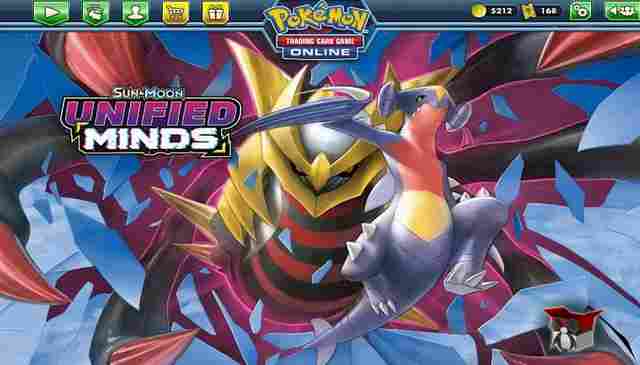
    Pokemon TCG Online is the best online Pokemon Android game in the world in 2023. It is a mobile version of the popular trading card game. In the game, you will collect cards, build decks, and battle against other players.

    The gameplay is very similar to Clash Royale but this one comes with Pokemon Mechanics. It also comes with online PvP, AI opponents, several customization elements, and more. Overall, it is a good game and you can give it a try.

    Google Play Store

    #4. Pokemon Rumble Rush

    Pokemon Rumble Rush is the lightest and newest online Pokemon Android Game 2023. In this game, you will explore islands and oceans to find and catch new Pokemon. You will also upgrade them to make your Pokemon more powerful.

    The game comes with very simple combat where you can attack your enemies by just tapping them and then swiping on the screen to run. Overall, it’s a very good game with decent graphics. Play with Ads and in-app purchases for free.

    Google Play Store

    #5. Duel Pokémon

    Pokémon Duel is a board game developed by Heroz. Download Pokemon games online for free for iPhone, iPad, and Android devices. The goal is to spread your Pokemon figures across the game board and move them to destinations in your opponent’s territory.

    Duel players from all over the world in matches. Win your real-time duels to enter the top League rankings in matches also earn points and items and make your deck stronger. 6 Pokemon figures make up a stack, each with different moves and abilities. 

    Play Store  App store

    Read more:

    Conclusion:

    This is the 12+ best offline and online Pokemon games for Android and iPhone, which you can play online and offline on your Android and iPhone. If you have a suggestion for the best game again, let me know in the comments column.
  • 8 Ways To Send Files Via Bluetooth on Windows 10 PC 2024

    8 Ways To Send Files Via Bluetooth on Windows 10 PC 2024

    8 Ways To Send Files Via Bluetooth on Windows 10 PC – Sending files via Bluetooth is still the most practical way to move files from one device to another. We can use the Bluetooth feature to copy files, images, videos, and documents from cellphones to computers or vice versa.

    How To Send Files Via Bluetooth on Windows 10 PC Laptop
    How To Send Files Via Bluetooth on Windows 10 PC Laptop

    How To Send Files Via Bluetooth on Windows 10 PC Laptop

    Windows 10 has a Bluetooth feature that can be used, on this occasion, I will provide in this article how to send files via Bluetooth on Windows 10.

    Read more:

    For it to function properly, the Bluetooth driver must be properly installed. You can see the tutorial How to Find the Right Driver in Windows 10 and How to Check the Driver Not Installed in Windows 10 to make sure the Bluetooth driver is installed and working properly. After that, follow the steps below.

    How To Send Files Via Bluetooth on Windows 10

    #1. Turn on Bluetooth on your phone

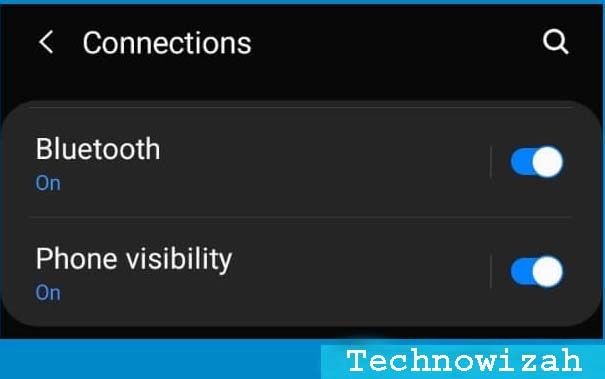
    The first step, make sure the Bluetooth on the cellphone is turned on and in phone visibility mode or can be found or discoverable.

    How To Send Files Via Bluetooth on Windows 10
    How To Send Files Via Bluetooth on Windows 10

    #2. Enter the Windows 10 Settings menu

    Then open your PC or laptop. Click on the Start button then select Settings.

    #3. Select Devices

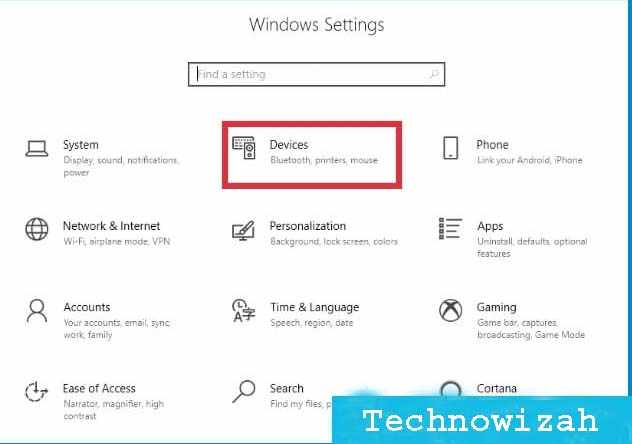
    After the Settings menu appears you will see many options, select the Devices menu.

    How To Send Files Via Bluetooth on Windows 10
    How To Send Files Via Bluetooth on Windows 10

    #4. Click the Add Bluetooth or another device button

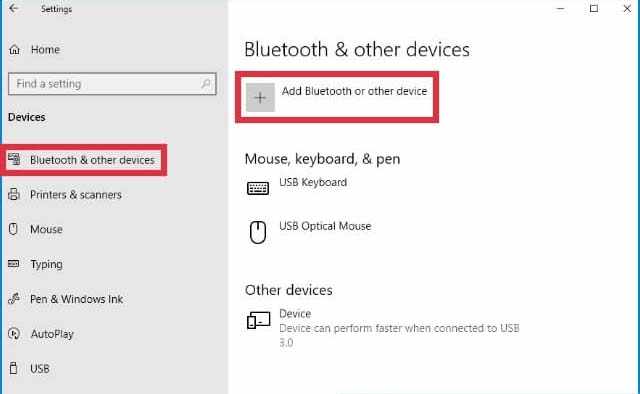
    The Devices window will open, where we can do Bluetooth, printer, and mouse settings. Select the Bluetooth & other devices tab> click on the button Add Bluetooth or other devices.

    How To Send Files Via Bluetooth on Windows 10
    How To Send Files Via Bluetooth on Windows 10

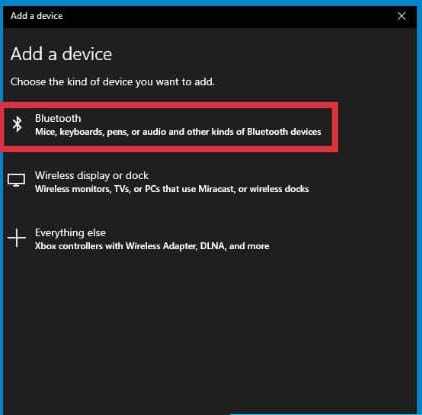
    #5. Select Bluetooth

    Next, a new window will appear to select what device we want to connect to. Click on the Bluetooth option.

    How To Send Files Via Bluetooth on Windows 10
    How To Send Files Via Bluetooth on Windows 10

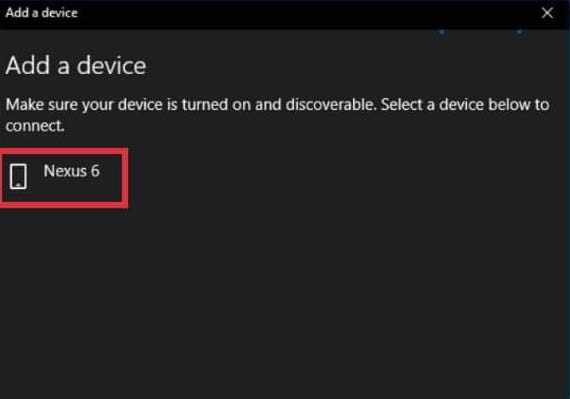
    #6. Wait until Bluetooth cellphone is detected

    Windows 10 will perform a scan to find connected devices. Your cellphone Bluetooth will then be detected and appear on the screen, just wait for the scan to finish.

    How To Send Files Via Bluetooth on Windows 10
    How To Send Files Via Bluetooth on Windows 10

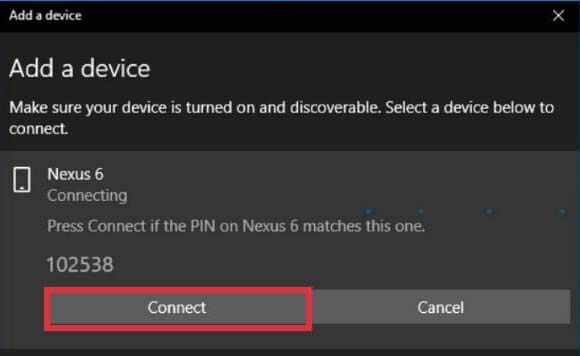
    #7. Select the Bluetooth cellphone you want to connect to then click Connect

    Next, you click on the device you want to connect to, in this case, the cellphone. Click on the Bluetooth name of your cellphone, after which a pop-up window will appear containing the pin. This pin will also appear on the cellphone. Just click on the Connect button.

    How To Send Files Via Bluetooth on Windows 10
    How To Send Files Via Bluetooth on Windows 10

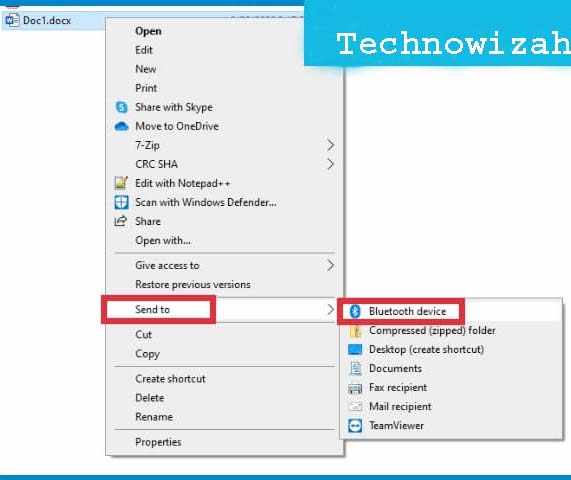
    #8. Send files via Bluetooth from Windows 10 to hp

    After Bluetooth on Windows 10 is connected to the cellphone, you can send files. You do this by opening the explorer> right-clicking on the file you want to send> select Send to> select Bluetooth device> select Bluetooth cellphone.

    How To Send Files Via Bluetooth on Windows 10
    How To Send Files Via Bluetooth on Windows 10

    On the cellphone, a notification will appear asking for permission to enter files, tap on the Allow option. The file-sending process will run, you just have to wait for it to finish.

    How to send files from HP to Windows 10 via Bluetooth

    We can also use Bluetooth to send files from cellphones to computers in Windows 10. This will make it easier for us to move files on our cell phones to a PC or laptop without having to use a data cable.

    Follow these steps:

    First, connect or pair your cellphone with Windows 10 using the same method as above.

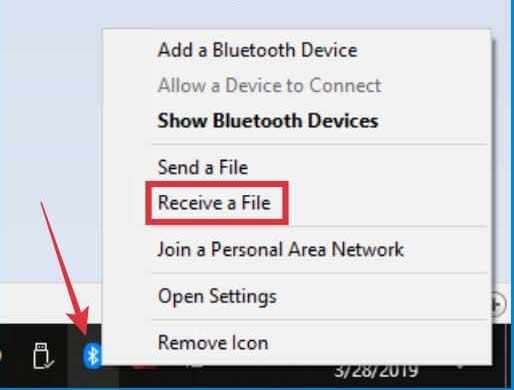
    After the Bluetooth on both devices is connected then on Windows 10 right-click on the Bluetooth icon> select Receive a File> the file transfer window will open.

    How To Send Files Via Bluetooth on Windows 10
    How To Send Files Via Bluetooth on Windows 10

    Then open your cellphone> select the file you want to send> click the options button or you can also tap and hold on the file> select Share> select Bluetooth> select the Bluetooth name of the computer.

    You will see a pop-up appear on Windows 10 asking permission to accept the file> click OK> file transfer will begin immediately.

    You can also send multiple files at once by selecting which files to send and then following the same steps as above.

    Read more:

    Conclusion:

    That’s the article on how to send files via Bluetooth on Windows 10, I hope it is helpful for you.

    Don’t forget to bookmark and always visit Technowizah.com every day because here you can find the latest technology updates such as Blogging Computer Android games Tips&Tricks Social Media Software Reviews etc.

  • 6 Ways to Fix Blur and Small Text in Windows 10 PC 2024

    6 Ways to Fix Blur and Small Text in Windows 10 PC 2024

    6 Ways to Fix Blur and Small Text in Windows 10 PC – Text in Windows 10 that is used on a large screen will usually look blurry, broken, too small, and not sharp enough to make it difficult to read. Especially when reading text in Google Chrome, the letters look so thin that they make the eyes uncomfortable.

    How to Fix Blur and Small Text in Windows 10
    How to Fix Blur and Small Text in Windows 10

    How to Fix Blur and Small Text in Windows 10 PC

    This is because the display settings and text scale are not yet right. To fix this, Fix Blur and Small Text in Windows 10, you can make adjustments so that the text becomes clearer, sharper, and easier to read.

    Read more:

    This kind of problem is often experienced by users with monitor screens with a resolution of 1920 × 1080 and above. Likewise, laptop users use an extended monitor which is much larger than a laptop monitor.

    How to Solve Blur and Small Text on Windows 10 PC

    #1. Open the Adjust ClearType text setting

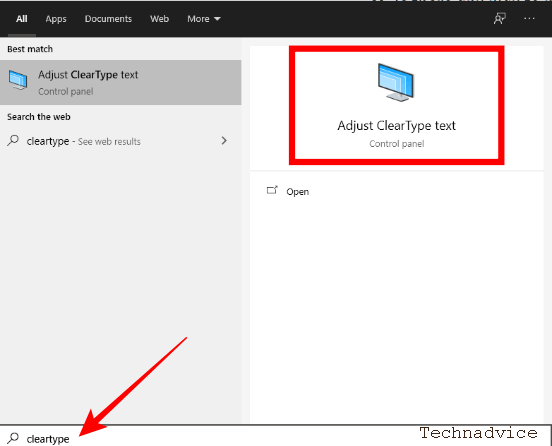
    In the first step, enter the Adjust ClearType text settings in Windows 10.

    The trick is to click on the Windows button> type ClearType > select the Adjust ClearType text menu that appears.

    Open the Adjust ClearType text setting

    #2. Enable Turn on ClearType

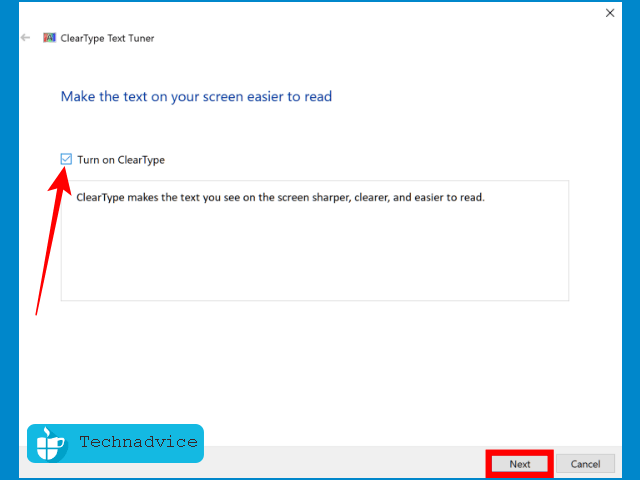
    The ClearType window will appear, check the Turn on ClearType option then click the Next button.

    Enable Turn on ClearType

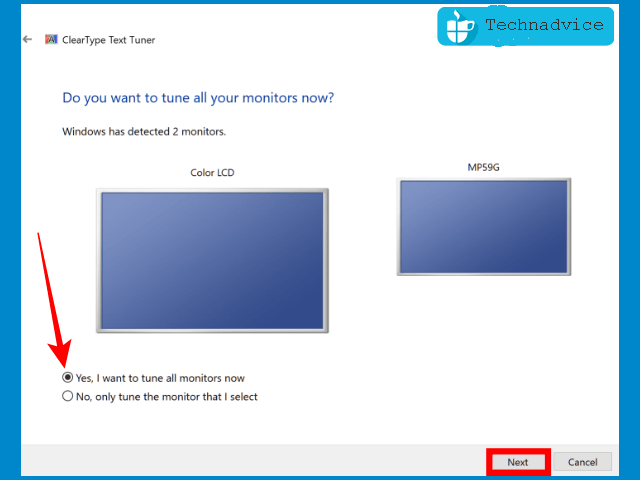
    #3. Enable ClearType on all monitors

    In the next window, there will be an option to activate ClearType on the desired monitor. If you are using two monitors then enable them on both.

    Check the option, Yes, I want to tune all monitors now > then click the Next button.

    Enable ClearType on all monitors

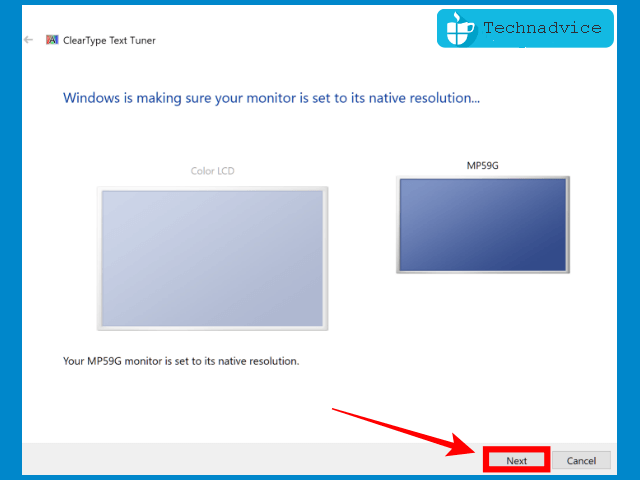
    #4. Set the monitor resolution to the default resolution

    In the next step, ClearType will ensure that your monitor is using the proper resolution (native resolution).

    The detection process will run automatically, when finished you will see a description of “Your Color LCD monitor is set to its native resolution”.

    Then click on the Next button.

    Set the monitor resolution to the default resolution

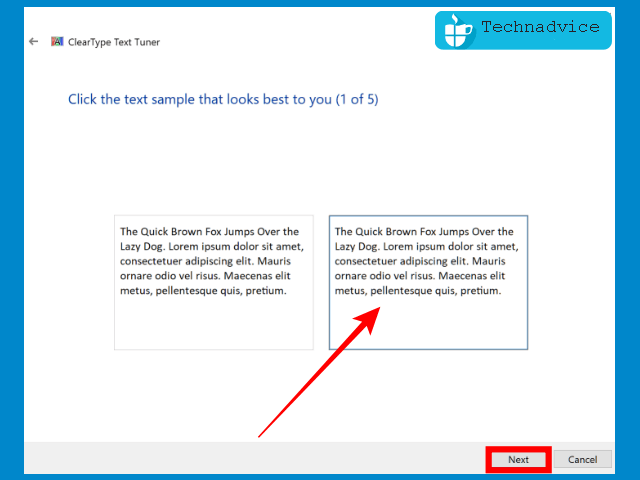
    #5. Select the Sample text that is clearest to your eyes

    Next ClearType will present writing samples for you to choose from, the goal is to determine what type of writing is easiest for your eyes to read.

    Choose the clearest writing, the difference is very subtle, but if you look closely you will see which writing is the easiest to read. Choose the text that has the darkest and thickest black color to make it look sharper on a large monitor.

    After selecting the next text, click on the Next button.

    Select the Sample text that is clearest to your eyes

    Follow the steps to completion, usually, there are 4-5 stages. Make sure you choose the most legible text.

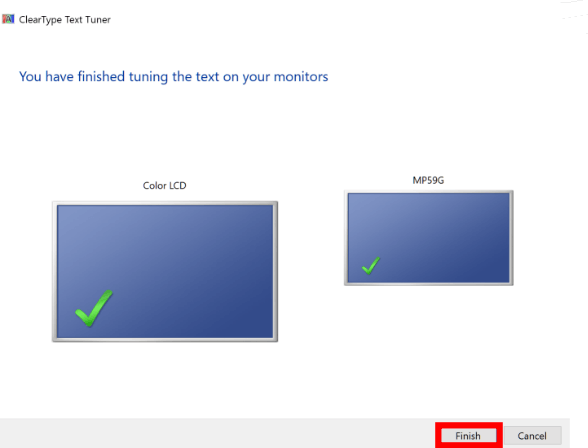
    #6. Continue to the second monitor

    If you are using a single monitor the process will be completed once you have selected all the clearest texts, the final step is simply pressing the Finish button.

    However, for those who use dual monitors, ClearType will make the same adjustments to the second monitor. Follow the same steps by choosing which text is easiest for your eyes to read.

    After all, stages are completed, click on the Finish button.

    Continue to the second monitor

    Done, after adjusting the text with the steps above you should now be able to see the difference. Posts in Windows 10 are no longer blurry, choppy, and unclear.

    Make a scaling adjustment to solve the blur and small text on the big monitor

    If the text still looks too small and light, this means you have to make a scaling on the monitor. Usually, this happens on large monitors (20 inches and above).

    Follow these steps:

    First, go to Settings > select System > click on the Display tab.

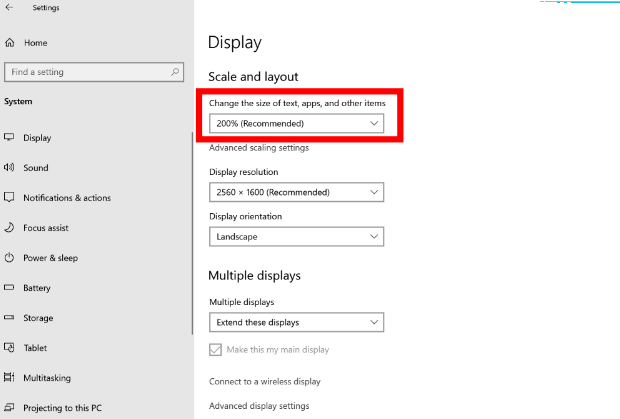
    Pay attention to the Scale and Layout> section in the Change the size of text, apps, and other items option, and select a larger scale percentage.

    Make a scaling adjustment to solve the blur and small text on the big monitor

    You can try several magnification scales until you find the one that best fits your monitor size.

    A monitor with a resolution of 2560 × 1600 using 200% magnification will give the best results. Feel free to try for yourself which scale fits your monitor best.

    After zooming in, the writing will appear clearer and less thin.

    This scale adjustment must be made on both for those who use dual monitors.

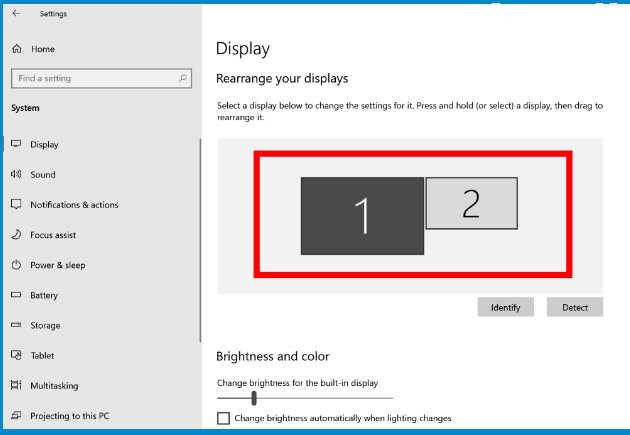
    You do this by selecting a one-by-one monitor in the Display section.

    First, select monitor 1> adjust the scale.

    Then select monitor 2> adjust the scale.

    monitor 2 adjust the scale

    Resolves thin and hard-to-read text on Google Chrome

    The settings we did earlier will only change the writing on Windows systems. When you open Google Chrome, the writing will still look thin, especially on large monitors.

    To fix this, you can use the Zoom feature.

    First, open the Google Chrome application.

    Then click on the Menu button > select Settings.

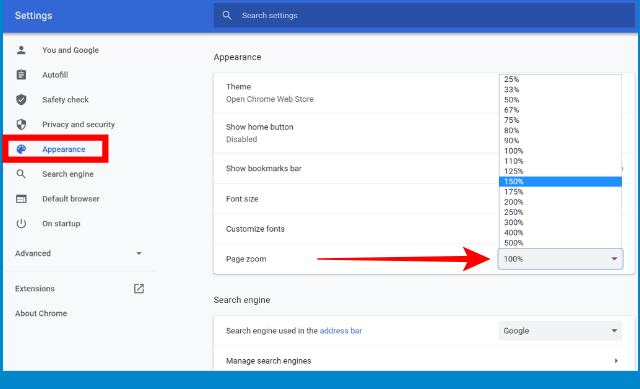
    Next, click on the Appearance tab.

    On the Page, the zoom section selects a larger scale to find the most comfortable text size.

    To fix this, you can use the Zoom feature.

    After changing the zoom scale, the writing on Google Chrome will appear thicker and bigger, making it easier to read.

    Solve blurry text because the display driver (VGA) is not installed

    A graphics card that doesn’t work because the driver hasn’t been installed can also cause Windows 10 to look ugly, such as large icons, the display looks wider, and the writing looks unclear.

    Adjust Windows 10 Performance settings

    The last tip you can do is adjust the Windows configuration for the best appearance.

    You do this by entering the system settings.

    First press the Windows key + R on the keyboard> then type system.CPL > click OK.

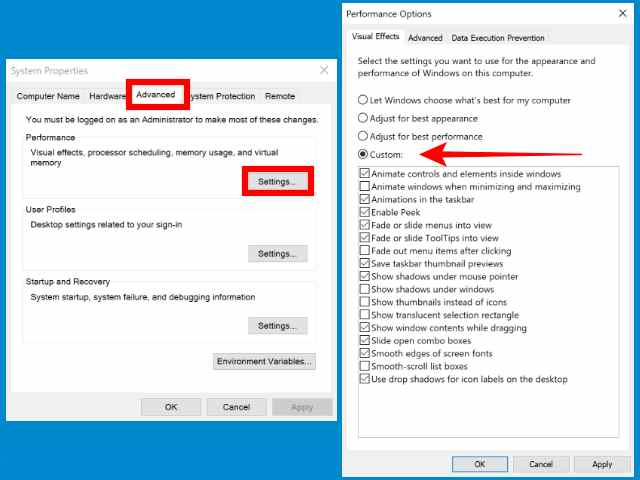
    Then click the Advanced tab > in the Performance section and click the Settings button.

    You can select the Adjust for the best appearance option to activate all graphic features. This will make Windows look nicer, but the consequence will consume more resources. On high-spec computers, this should not be a problem.

    The second Option You can choose the Custom option and then choose one by one which features you want to activate.

    Adjust Windows 10 Performance settings

    When finished, click the OK button. Then restart your computer.

    Read more:

    Conclusion:

    So, friends, That’s on above is how to fix blur and small text in Windows 10, these tips to deal with text that is blurry and hard to read in Windows 10. Please comment below if it still doesn’t work, and we’ll try to help you.

  • 4 Ways to Compress Photo Size Without Losing Quality 2024

    4 Ways to Compress Photo Size Without Losing Quality 2024

    4 Ways to Compress Photo Size Without Losing Quality – Every photo and image has a different size and file type. Among the file types in the photo are JPG and JPEG. The greater the resolution in the image, the bigger the size.

    4 Ways to Compress Photo Size Without Losing Quality
    4 Ways to Compress Photo Size Without Losing Quality

    How to Compress Photo Size on Photoshop MS Paint Offline

    Because the size of the photo is too large it causes wasteful storage space. So the solution is to compress the photo. This is so that the size that was too big before becomes smaller.

    Read more:

    Not only does it save storage space, but now there are also many online registrations that require photo documents. But unfortunately, there are certain limits to uploading these photos.

    Meanwhile, the size of the photos we have sometimes exceeded the size limit set by their system. In the registration of CPNS, for example, their system has set a maximum size of 200 Kb JPG / JPEG for scanning photo documents, ID cards, and selfies.

    Apart from these reasons, compressing photos or images is usually also done by website owners. Because an image size that is too large can cause website loading to be a little slow.

    For several reasons, it is necessary to reduce the size of photos and images. Here are some ways you can reduce the size of a photo, either online, on a computer, or on Android.

    How to Reduce Photo Size on a Computer

    There are several ways you can reduce the size of a photo on a computer. Among the most common and frequently used are using Microsoft Paint and Adobe PhotoShop.

    #1. Microsoft Paint

    If you are using a device from the Windows operating system, then there is a built-in application that can be used to reduce the size of photos or JPG files, namely Microsoft Paint.

    How do I compress a photo with Paint?

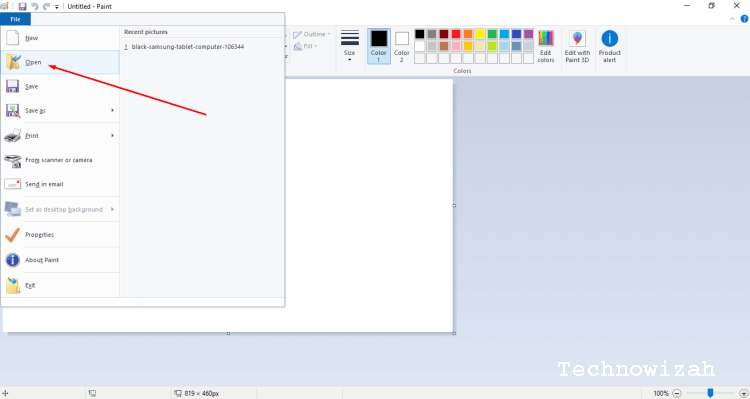
    • After the paint opens, take a photo that will be reduced by clicking File => Open => Select the photo that will be reduced in size.

    How to Reduce Photo Size on a Computer

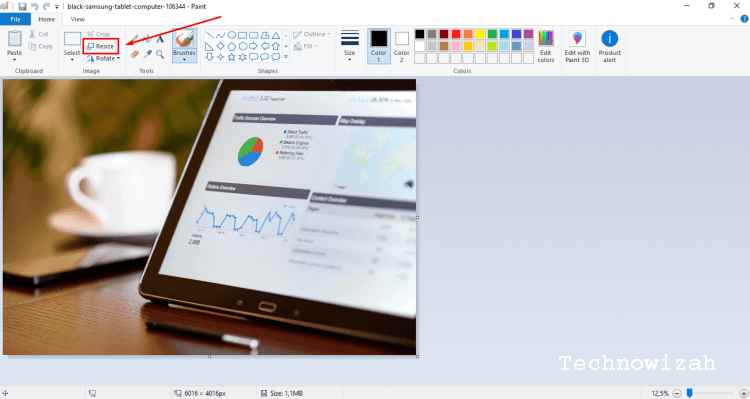
    • Then click the resize button on the toolbar, see the arrow in the image below.

    How to Reduce Photo Size on a Computer

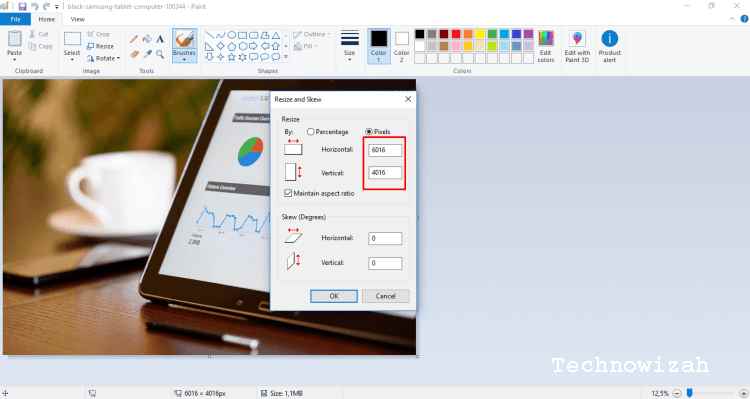
    • After clicking the resize button, you will be faced with a display of the dimensions of the photo. You only need to change it to a smaller size as desired. After that click OK.

    How to Reduce Photo Size on a Computer

    • After the above process is complete, then all you need to do is save it. To save, please click file => Save As => JPEG Picture.

    How to Reduce Photo Size on a Computer

    The photo resizing process is complete. It’s very easy, right? Also, Visit: The Best PC Screen Recording app.

    #2. Adobe Photoshop

    The second way that can be used to reduce the size of a photo on a computer is to use Adobe Photoshop. Adobe Photoshop is multi-functional software that can be used for various photo editing purposes, including compressing photos.

    Some people, or even many people, consider that using this sophisticated software is difficult and complicated. But it’s not that complicated if it’s only for compressing photos.

    How do I reduce the size of a photo with Adobe Photoshop?

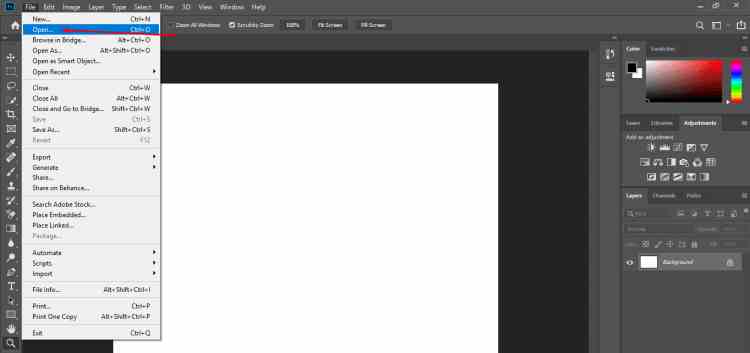
    • Open and run the Photoshop application first, then take the image that will be resized or compressed, namely click file => Open => Select the image that you will shrink on the computer, see the picture.

    How to Reduce Photo Size on a Computer

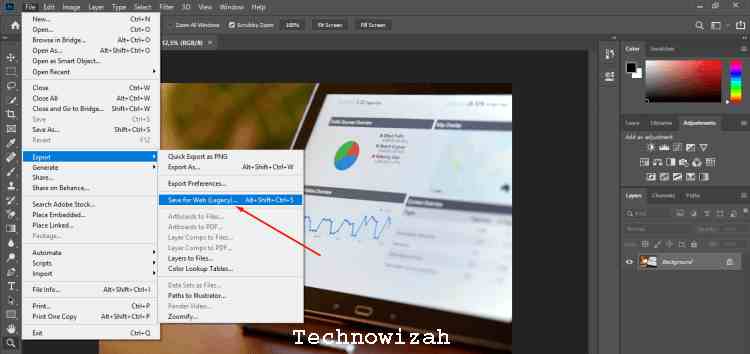
    • After the image is entered, click the file again, select Export, then select Save for Web.

    How to Reduce Photo Size on a Computer

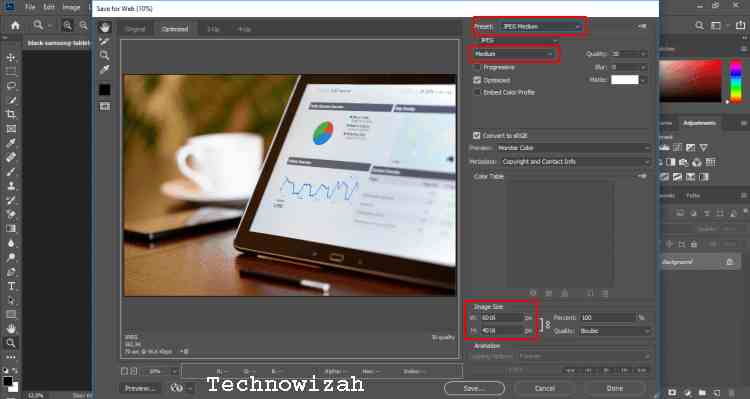
    • After you click Save for Web, a pop-up window will appear with many choices. Focus on only three things, namely: PresetQuality, and Image Size. See the image below:

    How to Reduce Photo Size on a Computer

    In the screenshot above, first, make sure that the Preset used is ” JPG Medium ” and Quality medium. Then set the dimensions to the Image Size as desired.

    In this tutorial, we reduced the dimensions to 1920 x 1282. Once done, you can save it in a storage folder by clicking the Save button.

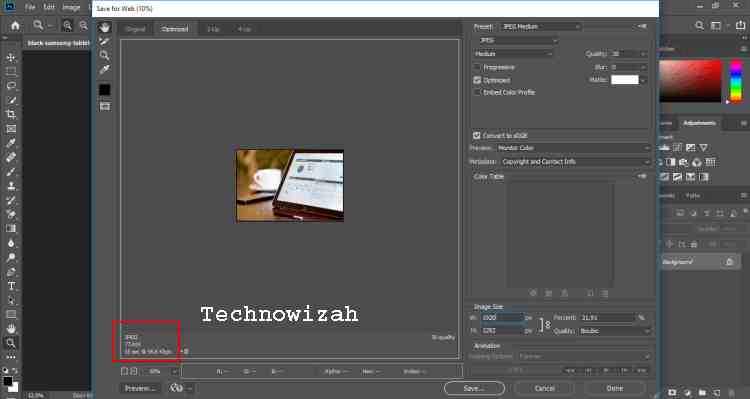
    If you want to see the estimated file size before saving the image. You can see it below the preview image, see the image below:

    How to Reduce Photo Size on a Computer

    Oh yes, this method uses Adobe Photoshop CC 2019. If you are using Photoshop versions before CC 2015, after clicking the File menu you can immediately find the Save for Web menu.

    How to Reduce Photo Size on Android

    Because the interests of each person are different, maybe you are better suited to reduce the size of the photo via Android. For whatever reason, you can reduce JPG files or images through the applications below:

    #1. Photo Compress & Resize

    Android application to reduce JPG is Photo Compress & Resize. This application has two simple functions, namely reducing and cropping JPG files.

    In this application, two terms are used, compress and resize. In order not to misunderstand, here we will explain it first.

    In fact, the two terms are the same thing. The difference is only in the treatment of image dimensions. When you compress a JPG file, you only reduce the file size, without reducing the dimensions of the image.

    Meanwhile, resizing is to change the dimensions of the image and also automatically resize the file. Some applications that compress JPG files also have automatic compression when used for resizing.

    Here’s how to reduce the size of a photo using Photo Compress & Resize:

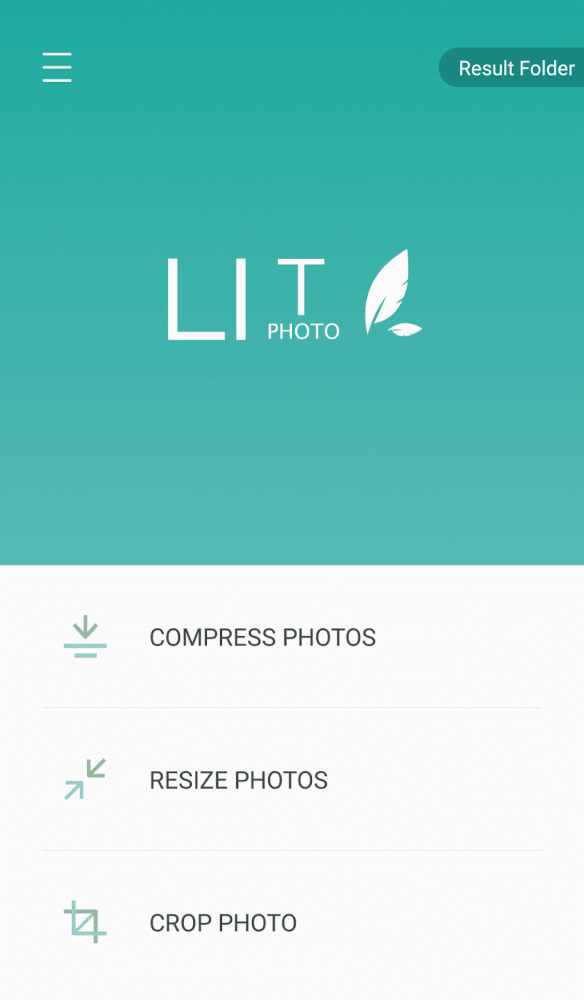
    • First, download the application here.
    • Choose Compress or Resize

    How to Reduce Photo Size on Android

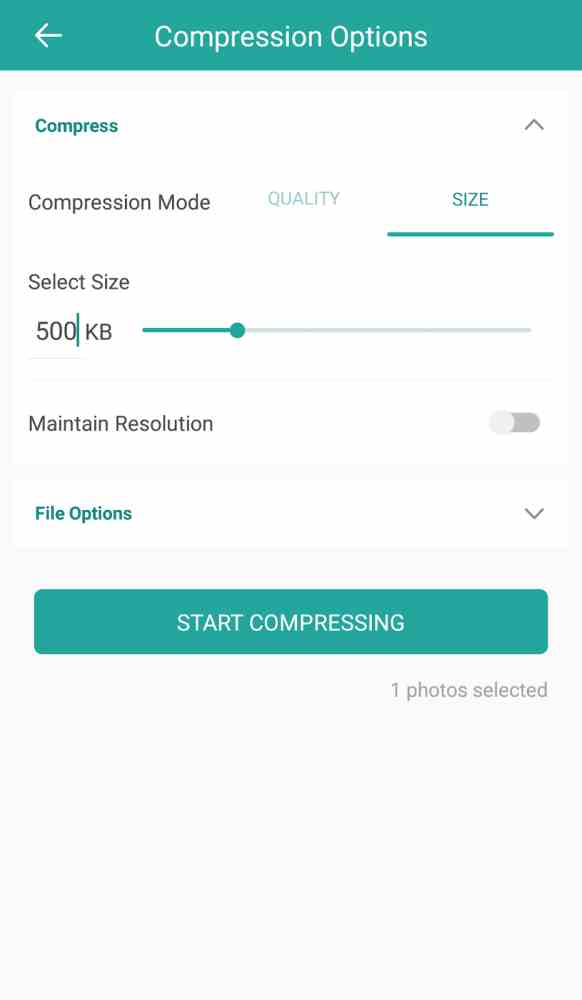
    • If you choose “Compress”, it will look like this:

    How to Reduce Photo Size on Android

    You need to specify the file size and image quality you want. And so that the image dimensions do not change, please activate the slider “Maintain Resolution”.

    If so, continue by clicking the Start Compressing button. The image compression process begins. And files that have been compressed will automatically be saved.

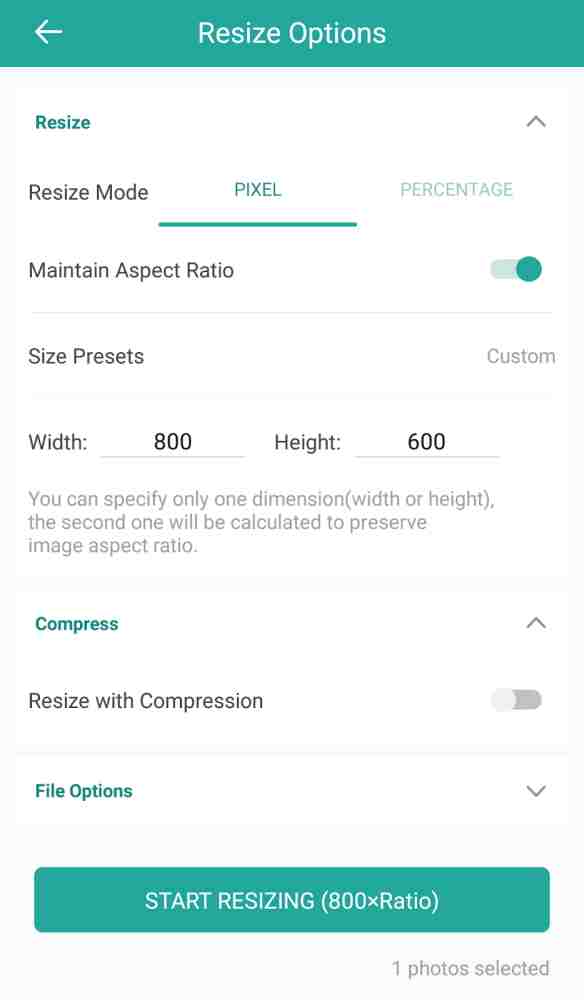
    As for the resize option, you can determine the photo’s dimensions and compress it simultaneously.

    How to Reduce Photo Size on Android

    It’s easy isn’t it, please try and good luck. Also Visit: 15+ Best and Free Apps from Microsoft Store For Windows 10

    #2. Photo & Picture Resizer

    Another application that can be used to reduce JPG files is Photo & Picture Resizer. Then, how do you use it?

    • Please download the application first here.
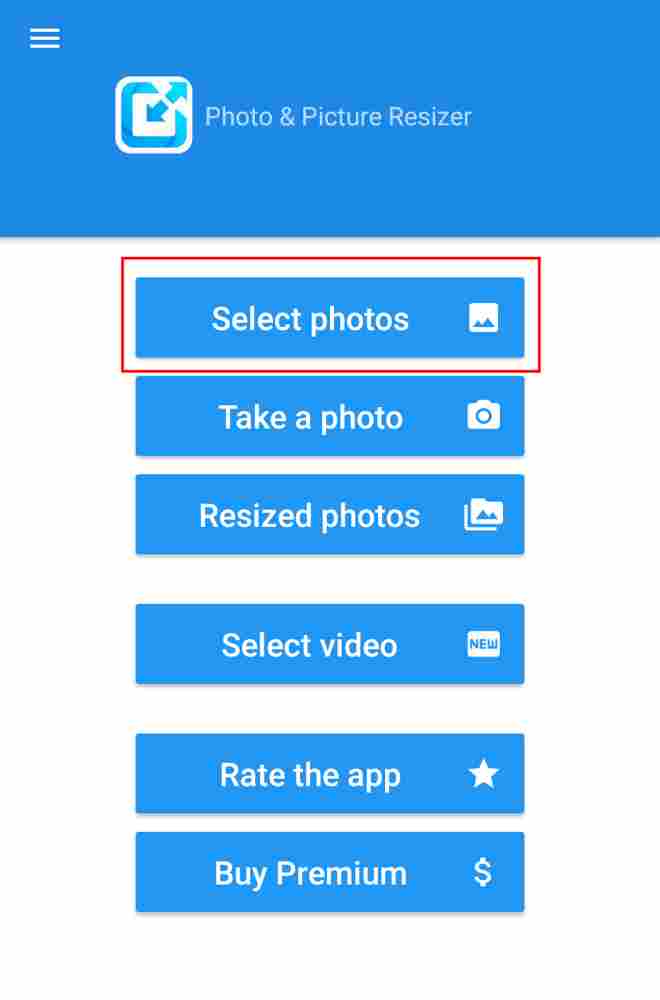
    • After the download is complete, please open the application, click select photo, and select the photo that will be reduced in size.

    How to Reduce Photo Size on Android

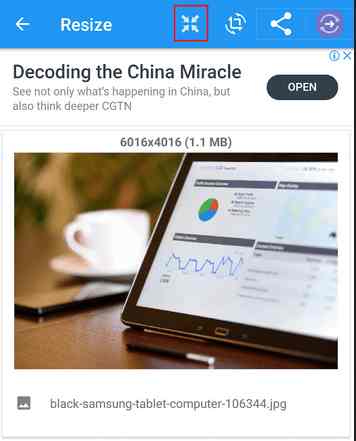
    • Next, click on the button shown below:

    How to Reduce Photo Size on Android

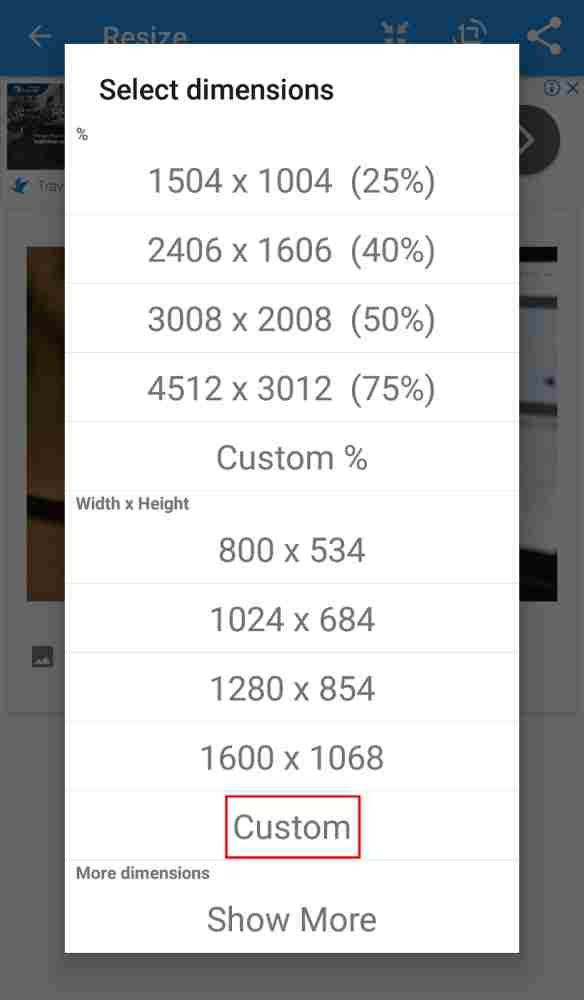
    • After that, you can choose the dimensions of the image as shown on the application display. But if you want to customize the size yourself, you can select the custom button and set the size yourself.

    How to Reduce Photo Size on Android

    After determining the size in the desired dimensions. The compressed photo / JPG file will automatically be saved on the smartphone device.

    Read more:

    Conclusion:

    This is an explanation of 4 ways to compress photo size without losing quality, Hopefully, the methods mentioned above can help you in the process of how to compress or reduce the size of the photo as you want.

  • 10 Best Graphic Apps for Your Android 2024

    10 Best Graphic Apps for Your Android 2024

    10 Best Graphic Apps for Your Android – Graphic design is a part and parcel of a marketing strategy, as it has a crucial role in the competition between the companies for being noticed.  It’s an influential combination of images, headlines, slogans, and fonts that performs as a mediator between the customer and the business.

    Best Graphic Apps for Your Android

    10 Best Graphic Apps for Your Android

    Graphic designers are highly valued for their skill to speak the message clearly, elaborating on every single detail. However, the efficiency of their work depends on the programs and applications they use.

    When working from the office or home, there’s a desktop computer with the required software. When on the go, it’s important to have the apps at your disposal, to make quick sketches of the ideas that unexpectedly appear in your mind.

    Designer programs are often thought to be one of many Adobe components because it’s a leading player on the market. However, recent years have seen the rise of quite a few decent designer apps, which can be used with the Android system.  Sometimes, mobile apps offer more features than desktop ones.

    We have prepared a list of the best graphic design apps for Android with their main characteristics, apart from the Adobe world.

    #1. Canva

    An application offers a big library of templates, icons, photos, and fonts, helping users to draw online and create high-quality visuals and presentations for social media.

    #2. VistaCreate

    This app is an abundant source of tools for creating brands, logos, posters, ads, videos, etc. Its service works efficiently from any Android device letting you create unique visuals and designs.

    VistaCreate has a huge library of templates, fonts, illustrations, stickers, and other elements that complement the perfection of the picture. It is also a helping tool for regular users of social media platforms, who require high-quality content, yet have no basic skills in design.

    VistaCreate

    #3. Infinite Design

    Infinite design is about the infinite possibility to create everything you see anywhere you are. Android combined with a tablet will replace professional software on the desktop.

    The options are endless; scale, rotate, flip, distort, and skew the image; shape detection and grids for snapping. One of the main hooks for the users is an opportunity to create 3D images with five types of tools.

    #4. Sketchbook

    Sketchbook is fully equipped with all the necessary tools for creating simple sketches or complete artwork anytime you have inspiration. All the tools are highly customizable, giving the users freedom of expression and the ability to illustrate the tiniest details.

    #5. Ibis Paint X

    Popular application among users for its simplicity of usage and functionality: 2,100 materials, over 700 fonts, and 142 brushes create a good foundation for beginners, who just start their way in design, as well as for professionals, as the variety of tools is impressive.

    This helpful tool comes in free form, however, the number of ads is quite annoying; Also, there’s a pre-paid premium membership.

    #6. Paint VR

    Quite a budget option for VR painting which will also require headsets like Google Daydream or Samsung Gear VR. The choice of paints, colors, and brushes is quite limited, yet the experience is quite enjoyable. It may be too simple for professionals, however, only beginners will have fun and a basic vision of how everything works.

    #7. Find My Font

    If you are a music lover and hear a beautiful yet unknown song, you just Shazam it. If you are a graphic designer who notices the details of all the visuals around and wonders about every new type of font, you just find my-font it.

    This application is a treasure trove, as it helps to identify up to 150,000 fonts. It initially was developed as desktop software, and later designed for Android devices. With this app, all the valuable and interesting bits and pieces around are stored in your library for later use.

    #8. Paperless

    Quite a basic app as it offers all the necessary tools for drawing and painting, including various brushes, feather ink, watercolors, pencils, a set of lines, and an eraser.

    It can be used only for basic digital sketches, and the export is only to PNG. Have they developed the product, it could be much more functional.

    #9. Color Reference

    Color reference is the treasure trove of colors and their combinations; a perfect tool for those who like to play with pigments and shades as it allows you to create, export, and auto-generate color palettes, and import colors from the uploaded images. It also lets you create unique wallpapers for the devices.

    #10. ArtFlow

    A highly-rated application, suitable for beginners, as well as for professionals. The supported resolution is 4096×4096 pixels, which helps to elaborate on every single detail and create a unique vision of the message.

    The free version offers 20 tools, which can fit the elementary level, If you upgrade the app, more than 70 tools, 16 layers, and many other professional features will be at your disposal.

    Conclusion:

    Graphic Design is a unique way to deliver the message of the product owner to the customer. The more precise and sophisticated the message is, the better the impression and connection it creates.

    The variety of applications offers all the necessary tools to create masterpieces everywhere—at the workplace or on the go. Let your imagination build the best visuals and designs.