Author: Nazrul Islam

  • 7 Best Ways To Enable WiFi on Laptop Windows 10 PC 2025

    7 Best Ways To Enable WiFi on Laptop Windows 10 PC 2025

    7 Best Ways To Enable WiFi on Laptop Windows 10 PC – Before discussing how can I activate fast and easy wifi on a laptop, let’s discuss it first. New laptops are equipped with a built-in WiFi adapter. If not, who wants to buy it considering that currently, WiFi is a necessity for the majority of people?
    7 Best Ways To Enable WiFi on Laptop Windows 10 PC
    7 Best Ways To Enable WiFi on Laptop Windows 10 PC

    How to Turn on or Enable WiFi on Laptop PC Windows 7, 8, 8.1, & 10

    Our laptops are not always connected to WiFi. Usually, we have to turn it on manually to activate it. This is useful when we want to save the laptop battery. If you are still confused about how to activate WiFi, let’s follow these seven steps!

    Read more:

    #1. Using the WiFi button

    Using the WiFi button
    Using the WiFi button

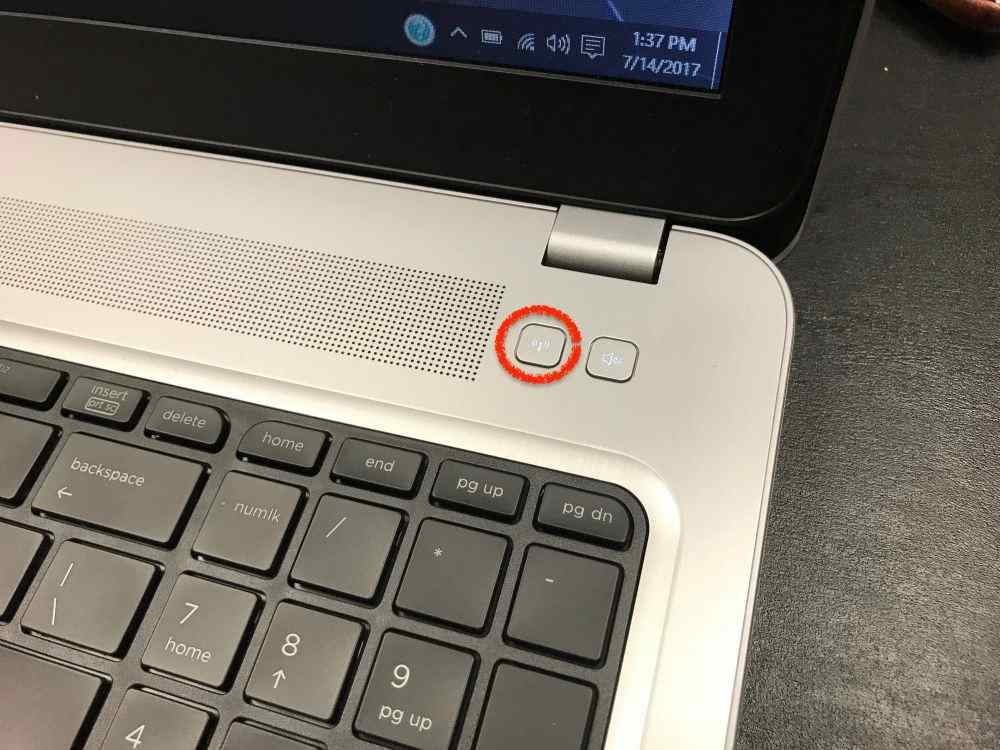
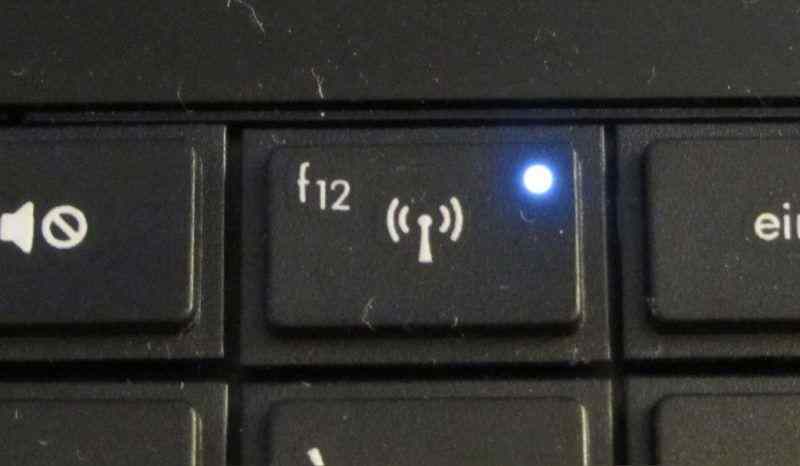
    The easiest way to activate Wi-Fi on your laptop is by pressing the WiFi button. Some laptops provide a dedicated WiFi button at the top of the keyboard. Just press the button with the signal icon, and your connection will immediately turn on.

    In addition, the button is usually equipped with an indicator light. So you know whether WiFi is active or not. If you don’t find it, then follow the next steps.

    #2. Using the Fn key and function key
    Using the Fn key and function key
    Using the Fn key and function key

    Try observing the function keys (F1-F12) on your laptop keyboard. Is there an icon like the image above? It is a button to turn on WiFi. On some laptops, we can immediately press it to activate WiFi. For others, we have to press Fn followed by the function key.

    #3. Enable WiFi in Windows 8
    Enable WiFi in Windows 8
    Enable WiFi in Windows 8

    drivereasy.com

    If your laptop doesn’t have a WiFi button and function key, try turning it on through the settings. Here are the steps:

    1. Click Start, look for Settings ;
    2. Click the Change PC Settings option, click Network ;
    3. In the Wireless devices column, turn on WiFi until the On sign appears ;
    4. Don’t forget to turn off Airplane Mode if it’s still on.

    #4. Enable WiFi in Windows 10
    Enable WiFi in Windows 10
    Enable WiFi in Windows 10

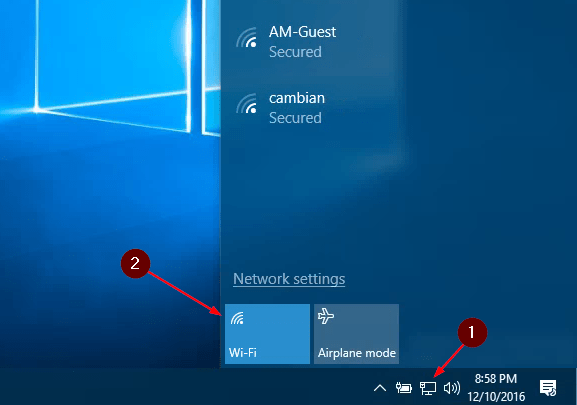
    For those of you who use Windows 10, WiFi settings are easier to access. Follow the steps below:

    1. On the taskbar, click the network icon ;
    2. Click WiFi until the box turns blue;
    3. Select the network you want to connect to, click Connect ;
    4. After that, you only need to enter the WiFi password.

    #5. Enable the WiFi adapter on the laptop
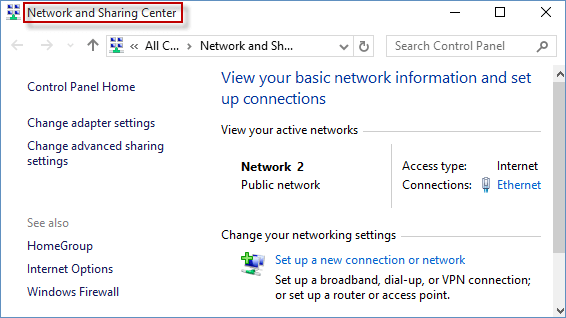
    Enable the WiFi adapter on the laptop
    Enable the WiFi adapter on the laptop

    isumsoft.com

    If the methods above have not turned on your WiFi connection, try checking whether your WiFi adapter is turned on or not. You can apply it in Windows 7, 8, and 10. Here’s how:

    1. Go to Control Panel ;
    2. Open Network and Internet, then click Network and Sharing Center ;
    3. Click Change adapter settings ;
    4. Right-click on the WiFi you are currently using, and click Enable.

    #6. Reinstall the WiFi driver on the laptop
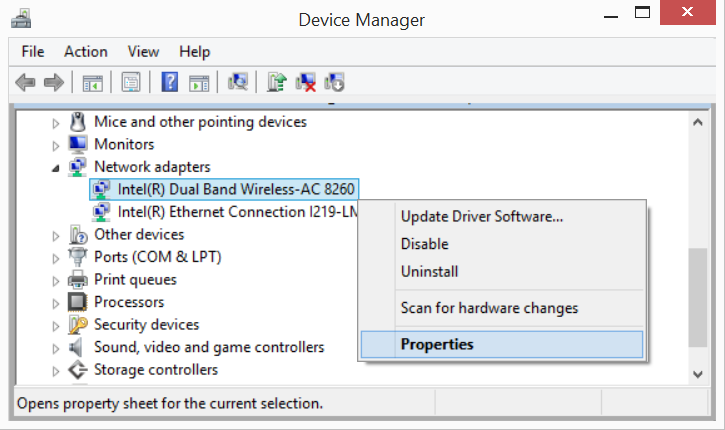
    Reinstall the WiFi driver on the laptop
    Reinstall the WiFi driver on the laptop

    intel.com

    If you reach this stage, you cannot connect to WiFi, then try reinstalling the WiFi driver. To do this, you need an ethernet or LAN cable. Here are the steps:

    1. Open Device Manager or press Windows + R then type devmgmt.msc;
    2. Open Network adapters, find which WiFi connection you want to connect to;
    3. Right-click on the WiFi name, click Properties ;
    4. Select the Driver tab, click Uninstall ;
    5. Then connect the laptop to an ethernet or LAN cable;
    6. Restart the laptop;
    7. When turned on, Windows will install the adapter automatically;
    8. Click Run when the command box appears;
    9. After the install process is complete, open WiFi via the taskbar ;
    10. At this stage, the laptop should be able to connect to WiFi.

    #7. Perform a system restore when the methods above are not successful
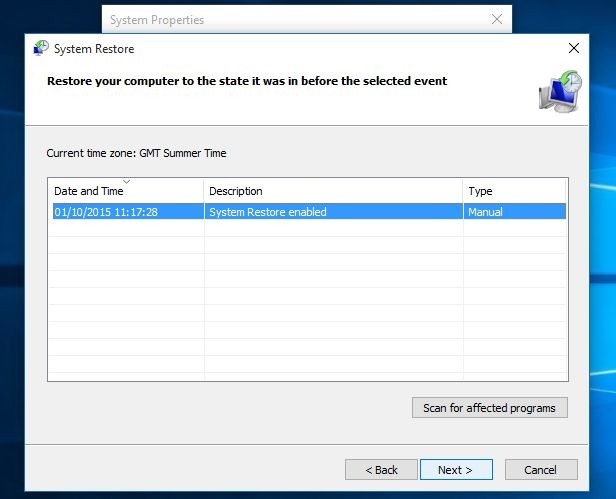
    Perform a system restore when the methods above are not successful
    Perform a system restore when the methods above are not successful

    Before doing a system restore, you need to know that this method should be done when the situation is urgent. System restores can restore the state of the laptop to the date you choose. All files, settings, and changes you made after that date will be deleted. Follow the steps below:

    1. Open the Start menu ;
    2. Locate and select System Restore (Windows 7 and Vista) or Recovery (Windows 8 and 10);
    3. Click Open System Restore, click Next ;
    4. Choose the restore date you want;
    5. You can check the changes that will be made by clicking Scan for affected programs ;
    6. If you are sure, click Next, then Finish ;
    7. After that, Windows will reboot ;
    8. Try testing your WiFi connection, in general, this method has high success.

    Read more:

    Conclusion:

    So, friends, This is an explanation of the 7 best ways To enable WiFi on a laptop Windows 10 PC, Know the steps above because you will need them from time to time.
  • 5 Ways To Fix Slow Download Steam Updates 2025

    5 Ways To Fix Slow Download Steam Updates 2025

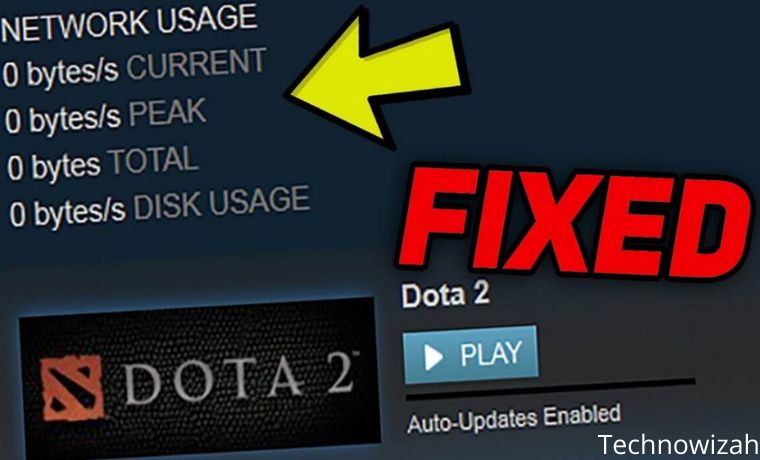
    5 Ways To Fix Slow Download Steam Updates – You want to play and not spend time waiting for your Steam games to update or download. If your internet connection is bad, you can download it for days. Find out how to increase the slow download speed of Steam updates. These tips will help you optimize the bandwidth from your ISP as well as Steam’s own connection to its servers.

    5 Ways To Fix Slow Download Steam Updates
    5 Ways To Fix Slow Download Steam Updates

    Close Unused Application Connections

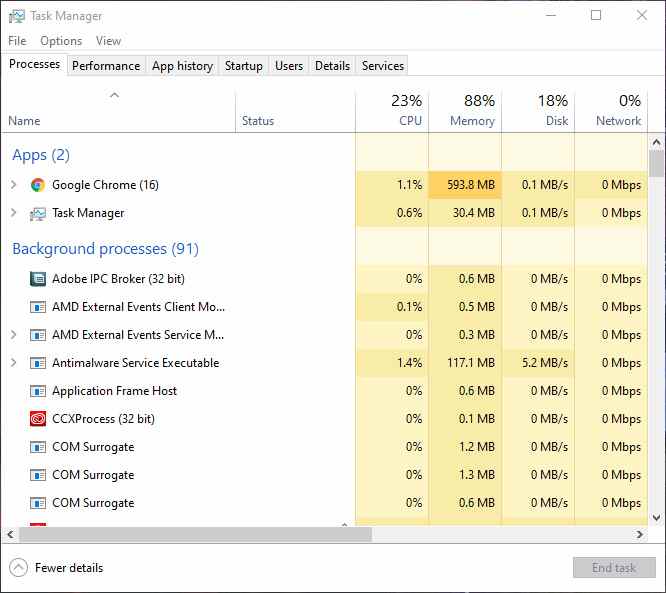
    Close your browser. Because there are some obvious ways to reduce your data usage. The easiest method is to use your Taskbar. Right-click on your Taskbar and select Task Manager.

    Close Unused Application Connections
    Close Unused Application Connections

    Next, click on the Network category. If you see a program blocking your network connection, especially a running game, right-click on the program and select End Task. When it comes to learning how to speed up Steam downloads, ending unnecessary programs is probably the most important tip you can try.

    #1. Optimize Steam Software

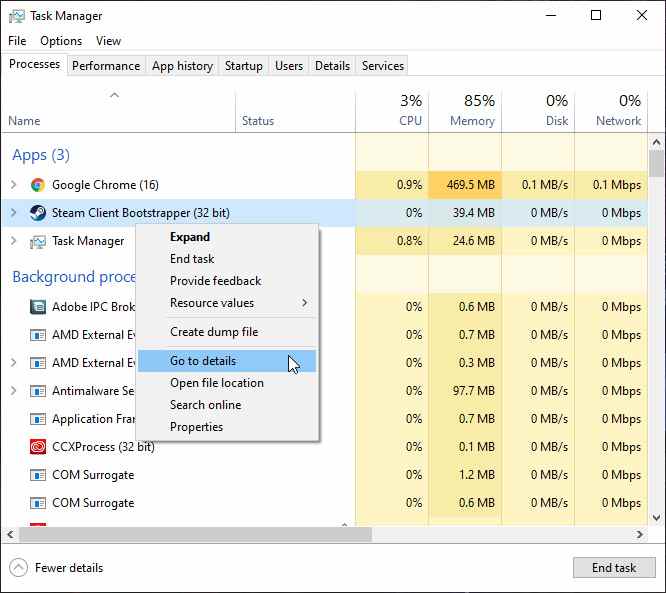
    Another little trick to optimize Steam’s downtime speed is also in your Task Manager. First, run the  Steam app and find the software in your Task Manager. Right-click on the Steam Client entry and select  Go to details.

    Optimize Steam Software
    Optimize Steam Software

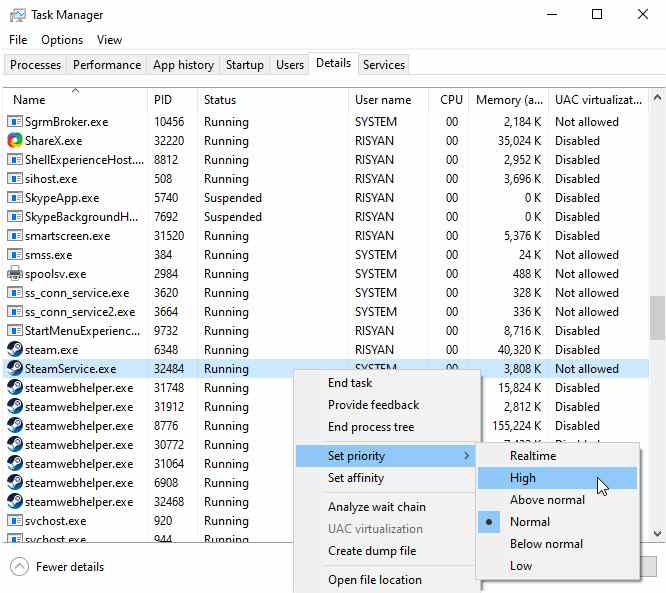
    Next, from your Details panel,  right-click on  SteamService.exe  and select  Set priority, then High.

    Optimize Steam Software

    While this won’t change the download speed directly, it will tell your PC that Steam deserves a higher priority than any other program, background or otherwise.

    #2. Optimize Your Data Connection

    While Steam does its best to provide users with the most optimal speed available, Steam’s download speed will largely depend on the speed of your own internet connection.

    While it’s understandable that not everyone has access to a strong internet connection, there are some things you can immediately do to improve your overall online connection. The top recommendation is to download the game using a physical Ethernet connection.

    #3. Use the Nearest Server

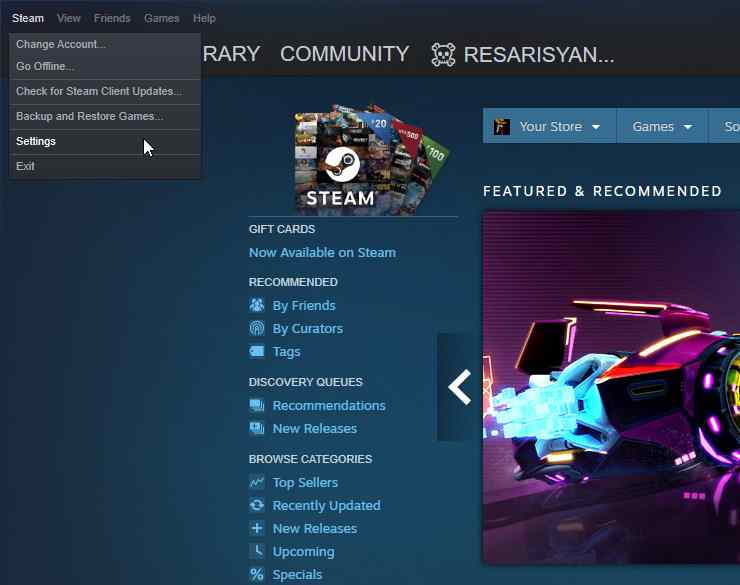
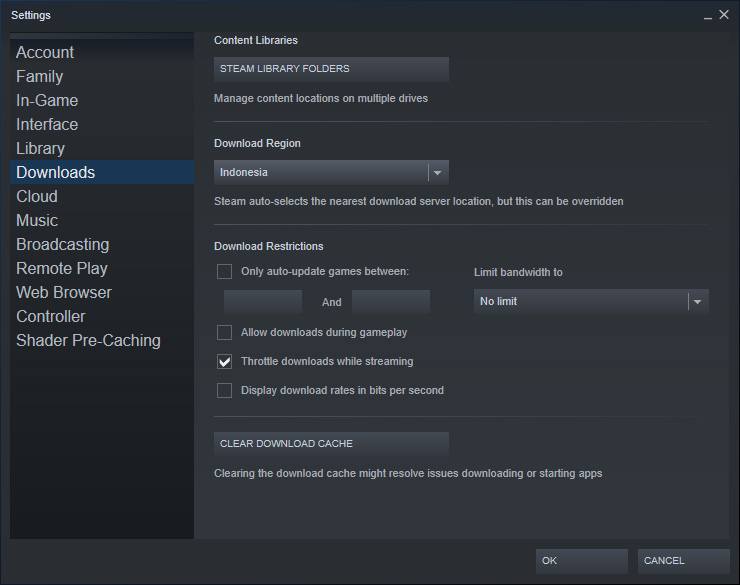
    Steam downloads are regional, not centralized in one global location. Sometimes, Steam will misread your location. This means you can be located in Malaysia, while your downloads are based in Indonesia, which can dramatically affect download speeds. To change your download region, open Steam, and click Steam    Settings in the top left corner.

    Use Nearest Server

    Then you click on the Downloads category Next, click on the drop-down menu under  Download Region.

    Use Nearest Server

    Set this option to the nearest available server in your area. For additional action, set the Limit bandwidth to option in this window to  No limit.

    #4. Server Relocation

    While choosing the closest server is usually your best bet, it’s not always. For example, I live in an area with high download rates and high traffic. This affects your overall download speed, the higher the incoming traffic, the more clogged your connection will be. However, you can move servers to find the right balance of traffic and download rates.

    First, head over to Steam Download StatsFrom this interactive map, you will be able to check the average download rate and percentage of global traffic.

    Server Relocation

    Click on a country to see download rates and traffic. While your download speed results may not change drastically (since proximity is also a factor in download speed) changing your current server to a server with a higher download rate or less traffic will certainly help speed up Steam downloads. If you have chosen a country with low traffic, you can change the Download Region Steam settings again.

    #5. Disable Your Antivirus and Firewall Applications

    Programs such as antiviruses and firewalls are a list of programs that can interfere with Steam. Even if you have one of the best antivirus apps for your PC, it can still slow down Steam downloads. To prevent this, you can try disabling your firewall as well as your antivirus software.

    Read more:

    Conclusion:

    There’s nothing sadder than slow download speeds. These tips can hopefully help you learn how to make Steam download faster. If you’re experiencing slow download speeds on Steam, take a few minutes to do these tips.

  • How to Record the Screen On Windows 11 [2025]

    How to Record the Screen On Windows 11 [2025]

    How to Record the Screen On Windows 11 – In this blog post, we are going to show you how to record the screen on Windows 11. There are a few different ways to do this, and we will go over each of them in detail. Whether you want to record a video tutorial or just capture some gameplay footage, recording the screen on Windows 11 is easy! Let’s get started.

    How to Record the Screen On Windows 11How to Record the Screen On Windows 11

    To record the screen on Windows 11, you will need to use the built-in Screen Recorder tool. To access this tool, go to the Start menu and type in “screen recorder” (without the quotes). You should see the Screen Recorder app appear in the search results. Click on it to launch the app.

    The Screen Recorder tool is very simple to use. Just click on the “Record” button and then select the area of your screen that you want to record. Once you’ve done that, just click on the “Start Recording” button and your recording will begin!

    When you’re finished recording, just click on the “Stop Recording” button and your video will be saved automatically. You can then view it by going to the “Videos” folder in your File Explorer.

    #1. Alternative Ways To Record Your Screen On Windows 11

    In addition to the built-in Screen Recorder tool, there are also a few other ways that you can record your screen on Windows 11. One popular option is to use the “Game Bar” feature. To access this, just press the “Windows Key + G” on your keyboard while in any game or app.

    Once the Game Bar has been activated, you will see a bunch of different options appear on your screen. To start recording, just click on the “Record” button (it looks like a circle with a camera in it). Your recording will then begin!

    Another popular way to record your screen is by using third-party software such as OBS Studio or Bandicam. These programs are more powerful than the built-in Screen Recorder tool, and they offer a lot of different features and options. However, they can also be a bit more complicated to use.

    If you’re looking for something simple and easy to use, then the built-in Screen Recorder tool is probably your best bet. However, if you’re looking for more powerful recording capabilities, then you may want to consider using one of the third-party options.

    No matter which method you choose, recording your screen on Windows 11 is easy! So go ahead and give it a try!

    #2. Best Practices When Recording Your Screen On Windows 11

    Now that you know how to record your screen on Windows 11, there are a few best practices that you should keep in mind. First of all, make sure that you have a good reason for recording your screen. For example, if you’re recording a video tutorial, make sure that it is clear and concise.

    Secondly, try to avoid using copyrighted material when recording your screen. This includes things like music, movies, or TV shows. If you do use copyrighted material, make sure to get the permission of the copyright holder first.

    Finally, make sure to save your recordings in a safe and secure location. This is because recordings can take up a lot of space on your hard drive. So make sure to save them in a place where you won’t accidentally delete them!

    Recording your screen can be a great way to create tutorials or capture important moments. Just make sure to follow these best practices and you’ll be sure to have a great experience!

    #3. The Importance of Using a VPN When Recording Your Screen

    One last thing to keep in mind is the importance of using a VPN when recording your screen. This is because a VPN can help to secure your IP address and prevent others from seeing what you’re doing. Make sure you secure your IP using CyberGhost Windows VPN whenever you’re recording your screen.

    There are a lot of different VPN providers out there, but the CyberGhost Windows VPN is the top choice. This is because it is one of the most secure and reliable VPN providers. Plus, it’s very easy to use!

    Conclusion:

    Recording your screen is a great way to create video tutorials, capture gameplay footage, or share what’s on your screen. By following these best practices, you can ensure that your recordings are high-quality and helpful! So go ahead and start recording!

  • 8 Ways to Fix Windows 10 Start Menu Not Working 2025

    8 Ways to Fix Windows 10 Start Menu Not Working 2025

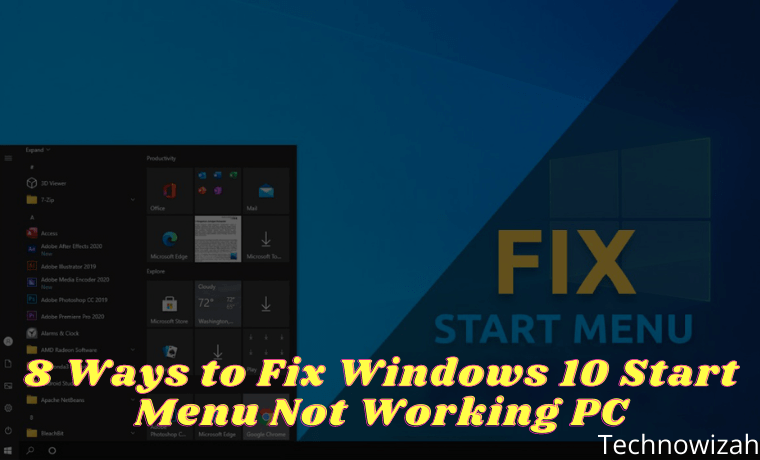
    8 Ways to Fix Windows 10 Start Menu Not Working – Is now your Windows 10 Start menu search bar can’t be opened or clicked? If so, take it easy, because this time the admin will provide several ways to overcome the Windows 10 Start Menu not working so that you can use it normally again.

    8 Ways to Fix Windows 10 Start Menu Not Working PC
    8 Ways to Fix Windows 10 Start Menu Not Working PC

    How to Fix Windows 10 Start Menu Not Working

    If you want to do a quick search on your Windows 10 PC, you use the Start Menu. But when you try to click on the search bar, you find that the feature doesn’t work.

    Read more:

    Make no mistake, even though Windows 10 is a phenomenal operating system, it is still prone to many errors, such as the Start menu search not working. In the following, you will learn how to fix Windows 10 Start Menu not working.

    How to Fix Windows 10 Start Menu Not Working

    While there’s still no definitive explanation as to what causes the Windows 10 Start menu search to stop working, we’ve rounded up some of the best methods to get rid of it, starting with removing the latest Windows Update.

    #1. Uninstall Windows 10 Updates

    Updates play an important role in the Windows 10 environment. Regular updates are necessary to fix all kinds of bugs that appear in any software, and more importantly, to fix security holes that make programs a target for malicious hackers.

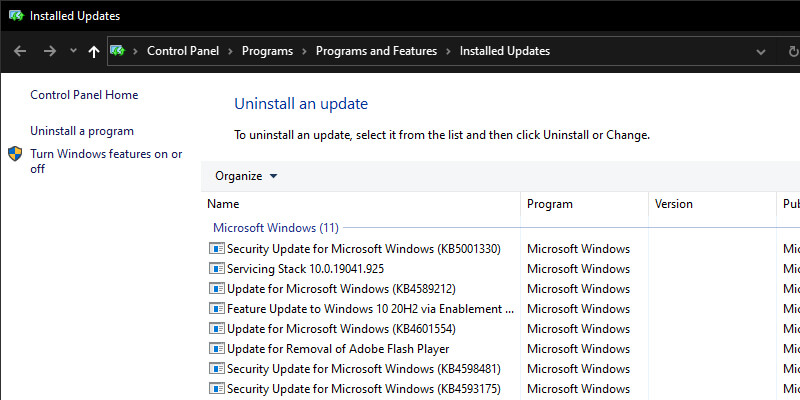
    But often, updates can also be the cause of some system crashes in Windows 10. So, if your Windows 10 Start menu search doesn’t work after updating, you need to uninstall the update. To get started with rolling back updates, follow the steps below:

    Uninstall Windows 10 Updates
    Uninstall Windows 10 Updates
    1. Go to  Windows Settings > Update & Security > Windows Update.
    2. Once there, click  View update history > Uninstall updates.
    3. From the list of updates,  right-click on the latest update and click uninstall to remove the update.

    If the Start menu search starts working after uninstalling the update, then the update is the cause of the problem. But wait, does this mean you can’t update Windows 10 anymore? Not exactly. Microsoft is famous for releasing buggy updates.

    Whenever a new update comes, usually it brings a lot of problems with it. But since updates are important for security, you can’t avoid installing them either. In such a situation, you can use the Windows search tool. free. As soon as Microsoft fixes the bug, you can start using the Windows search bar again.

    #2. Run SFC System Scan

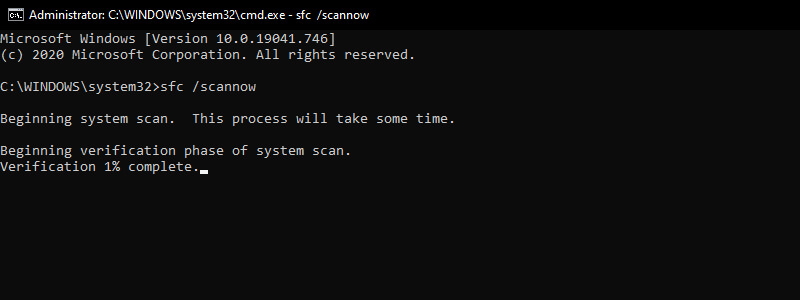
    All systems are susceptible to accidental data loss, which will result in the breakdown of important functions. You can use an SFC (System File Checker) scan to fix your computer in such situations. This is a free tool from Microsoft designed to find and repair corrupted Windows 10 files.

    Run SFC System Scan
    Run SFC System Scan
    1. Press Windows key + R type cmd then press CTRL + SHIFT + Enter to open Command Prompt as administrator.
    2. Once the Command Prompt opens, type the command sfc /scannow and press Enter.
    3. SFC will check your entire computer for corrupted files and other problems.

    If it finds anything, it will try to repair the corrupted files. Give it a few minutes for the scan and repair to complete, and if Windows 10’s Start menu search doesn’t work due to corrupted system files, the problem will be fixed for good. If not, don’t worry, you can move on to the next method.

    #3. Reset File Explorer

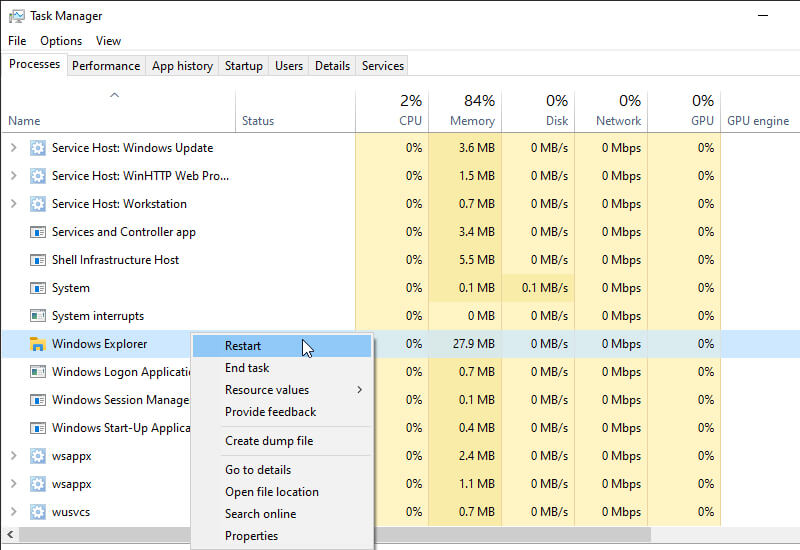
    File Explorer, formerly known as Windows Explorer, is a file manager application that provides a graphical user interface for managing Windows file systems. To make sure that File Explorer doesn’t affect the smooth running of the Start menu search, it’s not a bad idea to reboot it. Here’s how you do it:

    Reset File Explorer
    Reset File Explorer
    1. Press  Ctrl + Alt + Delete to open Task Manager. Next, click on the Task Manager option.
    2. Click  More Details to see all programs and background processes running in the background.
    3. Right-click on  Windows Explorer and select  Restart.

    File Explorer along with the Start menu search box will reboot quickly. But if your Windows Start menu search is still not working, don’t give up just yet. Try one of the other fixes below.

    #4. Turn off Cortana

    Due to unknown issues, Windows programs are prone to crashing. If you are using Cortana for your search, maybe your Start menu search is not working due to some issues with Cortana. To make sure that’s not the case, a quick restart will probably fix the problem. To do this, follow the instructions below:

    Turn off Cortana
    Turn off Cortana
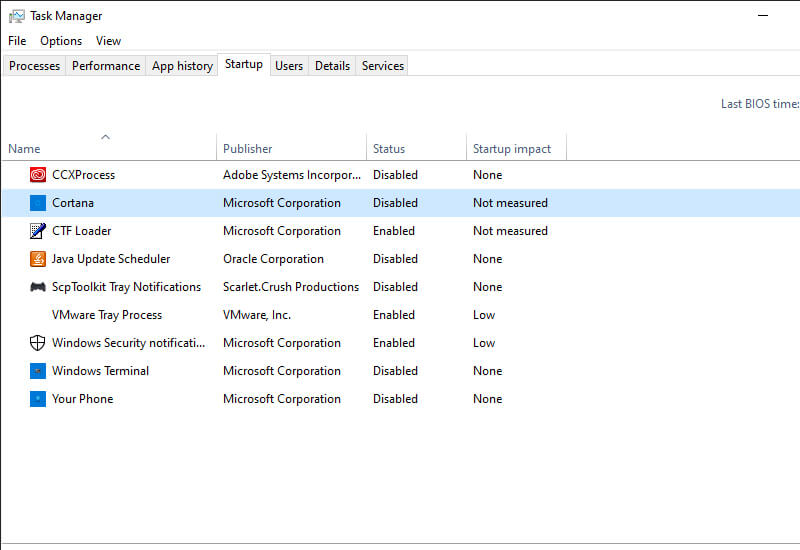
    1. Press Ctrl + Alt + Delete and select Task Manager.
    2. Right-click the Cortana process and select End Task.
    3. Still in the Task Manager, go to the Startup section.
    4. Right-click on Cortana then select Disable.
    5. This will close or kill the Cortana app.

    If Cortana is the cause of the problem, then you should not face any problems with the Start menu search after this.

    #5. Reset the Entire Start Menu Search Bar

    This guide contains many resets. If your Start menu search is still not working, then you can try a reset. Note that you have to reset all the pre-installed and later installed apps along with the Start menu. For that, you have to use Windows PowerShell (with administrative privileges) for this one.

    Reset Entire Start Menu Search Bar
    Reset Entire Start Menu Search Bar
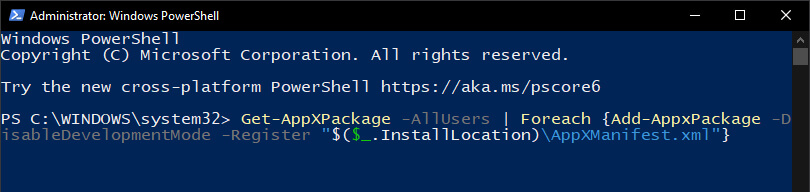
    1. Press the Windows key + R  to open the Run box. There, type  PowerShell and press  CTRL + SHIFT + Enter.
    2. In the PowerShell terminal, type the following command: Get-AppXPackage -AllUsers | Foreach {Add-AppxPackage -DisableDevelopmentMode -Register “$($_.InstallLocation)\AppXManifest.xml”}
    3. This command will install native Windows applications, including the Start menu search.

    Wait for the command to be fully executed, and once it’s done, restart your computer for the changes to take effect. Windows 10’s start menu search should work now.

    #6. Open Windows Search Service

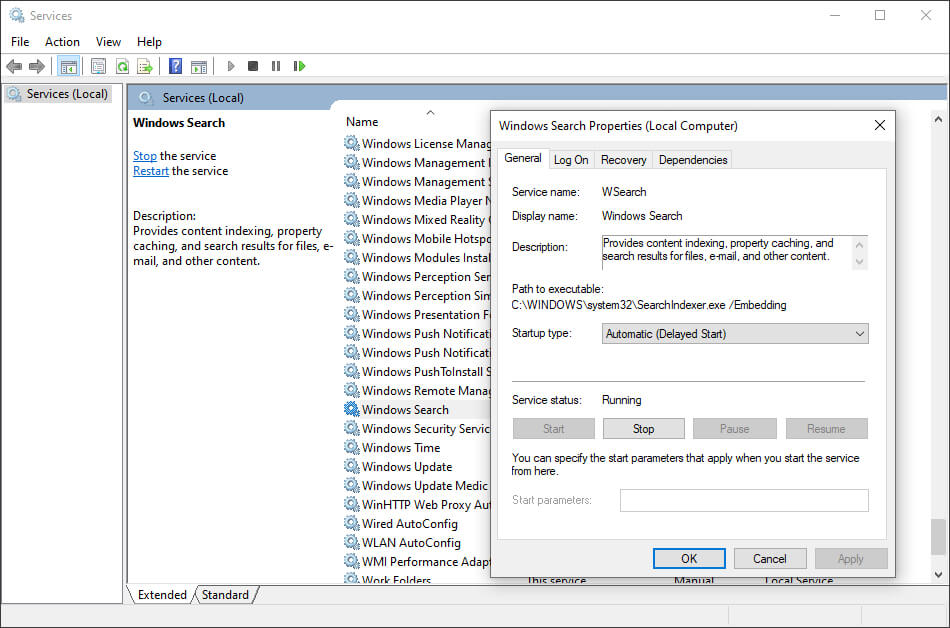
    Another possible reason your Start menu search is not working is that the Windows Platform Search service that indexes content on your Windows computer has stopped working. To make sure that’s not the case, open Windows services.msc. Here’s how you do it:

    Open Windows Search Service
    Open Windows Search Service
    1. Press the Windows Key + R shortcut to open  Run, type services.msc, and press  Enter.
    2. Find the Windows Search program in the list and check its status, it should be set to running. You have to start again otherwise.
    3. Right-click on  Windows search and select  Properties. From there, click  Start to start the service e. Also, set the  Startup type to  Automatic.
    4. Finally, click  OK  to apply the changes.

    #7. Run Windows Troubleshooter

    Windows Troubleshooter is another free utility from Microsoft. This can be useful for dealing with minor bugs on your Windows device, such as update issues, app crashes, and more. Running the Troubleshooter will help you fix the Start menu search problem. Follow the steps below to do this:

    Run Windows Troubleshooter
    Run Windows Troubleshooter
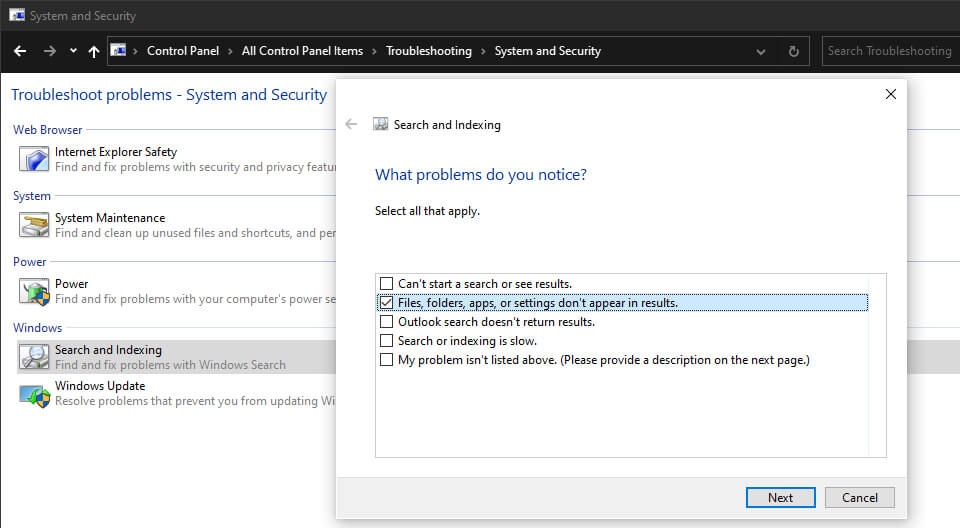
    1. Press the Windows key + R   to open the Run window.
    2. Type control and press  Enter to open the Control Panel.
    3. Click  Troubleshooting > System and Security > Search and Indexing.
    4. Now, click  Next and check  Files, folders, apps, or settings don’t appear in the search result.
    5. Click  Next to continue scanning.

    This tool will automatically scan and fix any problems it finds, including fixing the Start menu not working properly.

    #8. Do a Factory Reset

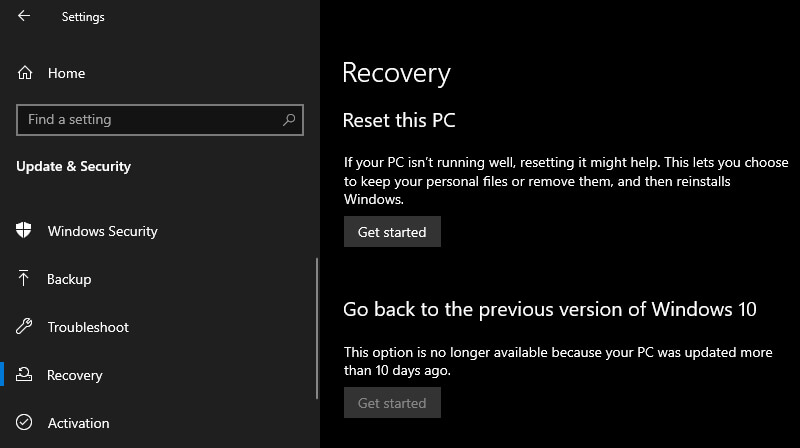
    Alright, so this is the last method. And with good reason too. Remember, only continue with this solution after you have tried all the methods from above. Why? Because Factory Reset does exactly what it says in its description: it will wipe your Windows operating system and then install it again. This will make your Windows like new.

    You can apply Factory Reset in two ways. First, you can do a full reset and delete the operating system and all files from your system, or the second method, you can keep your files and only the operating system will be deleted.

    Do a Factory Reset
    Do a Factory Reset
    1. To get started, go to Settings > Update & Security > Recovery.  Under the Reset, this PC heading, click  Get Started.
    2. Select Reset settings and follow the simple steps to complete Factory Reset.
    3. Factory Reset will format your entire PC to make it almost new, without any additional files and applications

    Read more:

    Conclusion:

    This is the explanation of 8 ways to fix the Windows 10 start menu not working, I Hope this short guide helped you fix your problem. Although the cause of the error is not known with certainty, now you know how to get rid of it.