Author: Nazrul Islam

  • 15 Fun Android Apps To Download Now 2025

    15 Fun Android Apps To Download Now 2025

    15 Fun Android Apps To Download Now – Tired of scrolling through your social media apps? Don’t worry, there’s still entertainment left in this world! You probably still haven’t seen much, and have only explored the tip of the iceberg when it comes to knowing about the fun apps can bring.

    14 Fun Android Apps To Download Now
    14 Fun Android Apps To Download Now

    Best Fun Android Apps To Download Now

    Apps don’t always need to serve a practical function to be deemed worthy. Sometimes they just need to take up space in our phone’s memory for our enjoyment.

    Read more:

    So if you are looking to pass the time or just be giddily entertained by your devices, you might want to try these 14 apps that we listed.

    These Google Play applications are a mix of fun games, wacky and quirky tools, and even just seemingly senseless apps that you never thought you needed. This list even has a couple of fun editing/photo-enhancing tools to twist your captured images!

    Are you wild about your creativity? Why not use your Android phone to nurture your creative photo editing skills with these 10+ Best Photo Editing Applications for Android? Spoiler alert, most of them are free of use! The apps listed in this article are too! So keep reading, and be amused!

    #1. Bubble Wrap

    It’s quite expensive to always order a delivered parcel just to satisfy your bubble-popping itch. (Because you know, bubble wraps are there to protect the parcels and they’re free when you buy something!)  But did you know you can satisfy that desire without paying for any delivery? Download Bubble Wrap! It’s a bubble-popping game that can give you the same satisfying bubble-popping sound that you experience when doing it on the real thing.

    #2. Ugly Camera

    It is what it is – a camera that makes you look ugly. If Snapchat filters are meant to make you look more attractive than you are, then this is the antithesis of that. You can choose effects that actively distort your face or exaggerate your features to make you look “uglier.” You can capture your ugly selfie or even record a hilarious video that you can post on Instagram.

    Everyone tries to look good nowadays, so why not take the road less taken? Or should we say – the photos less taken? By the way, you can always do in-app purchases to remove ads and flawlessly enjoy the Ugly Camera experience.

    #3. Ownage Pranks

    This app boasts more than 100 hilarious prank calls that you can anonymously send to anyone you like. The pranks can range from an annoying neighbor who demands your victim’s wifi password to a furiously jealous woman who would accuse your victim of flirting with her boyfriend! These automatic pranks are performed by professional voice actors who can easily convince your victim that they’re talking to a real person right away.

    The calls are also made more believable because of their use of a funny online soundboard. If you are going to ask us, this is one (if not the most) innovative and funny app on this list. You can send one of their pranks to your friends and family.

    Send prank calls as much as you, please! There’s no way of them knowing that it’s you, anyway. They value your privacy best and won’t tell on you. Well, doesn’t that make them heaven of a pranking partner?

    #4. Dad Jokes

    We love our dads. But their jokes? Not so much. (Sorry, Dad!) But occasionally, they land just fine. If you are sick of memes on 9gag or shorts on TikTok, you might want to give this app a try to give yourself a good belly tickle.

    They might not be the funniest out there, but there is some unusual warmth to this kind of joke that gives out its appeal. You can surprise your dad by downloading this on his phone too to give him more inspiration for funnier jokes next time. He’ll love it!

    #5. Easy xkcd

    Easy xkcd is simply one of the coolest apps in the market. Why wouldn’t it be? It’s a one-stop app if your humor falls under romance, sarcasm, math, and language. The topics are extracted in a simple and hilarious series of webcomics.

    The comics are said to induce a few existential crises in their readers. This could be one of those hilarious comic strips you can see in newspapers back in the day. It even allows you to download the hilarious pieces offline! Sounds promising, doesn’t it?

    #6. Psychedelic Camera

    If you feel like taking a trip to the Kaleidoscope, then you should try Psychedelic Camera. Everything about this app is a trip! Unlike the Ugly Camera whose main objective is to, well – make you ugly; this camera can give an abstract and creative twist to your photos.

    You will realize that everything we see is just about perspective and that seeing the world through a psychedelic lens is so much fun! If you are going to ask us, it’s just the normal world – but on acid!

    #7. Daddy Long Legs

    If you’ve heard about Daddy Long Legs in Judy Abbott’s story, these Daddy Long Legs have nothing to do with that persona except, well – the long legs part. This game is so fun because it has a well-made interface, but the game is so absurd it sometimes feels surreal. Daddy’s long legs aren’t a person. Sometimes it resembles a bug or a horse.

    You can choose how it would look through a platter of options like adding a propeller hat, beard, and more traditionally masculine accessories. The main objective of this game is to let Daddy Long Legs walk without falling or stumbling. It may not sound as charismatic as it is, but you should try this one yourself and observe the charm that it will give you!

    #8. Pimple Popper

    When a round white-ish popping pimple comes up, no matter who you are, you can never escape the want to let it pop and explode. Both are disgusting yet deliciously satisfying! But if you know basic skincare, you probably know that this can be bad for your skin and may cause irreversible harm like scarring.

    Yikes! Satisfy this temptation by downloading this Pimple Popper app! This gives you the same amount of satisfaction as popping an actual zit, but without the ugly scars.

    #9. iFunny

    iFunny is about as typical of a funny app as we’ve seen. You open the app and scroll through thousands of random images, GIFs, videos, comics, etc. The app can also apparently generate memes. That’s it.

    It’s super simple, easy to use, and just delivers the goods when you want them. Some people complain about things like account problems and the occasional bug. However, we didn’t notice anything too wrong during our testing. The app is also free with no in-app purchases. It has ads, though.

    #10. Robbery Bob

    Some of us are fascinated with robbery stories portrayed on media and TV. But you know you’ll get in trouble for doing it, don’t you? Robbery Bob lets you live vicariously through this hilarious 2D game character.

    You’ll learn some ninja techniques like camouflaging yourself in places and stealing mundane things into luxury items. But, other than this absurd concept, you’ll love the script of this game that will leave you wanting to help Bob with his mission!

    #11. Goat Simulator GoatZ

    If you think about animals fighting the zombies, goats won’t easily come to mind. That’s what makes this game so alluring to its players. But, again, things don’t have to make sense, and you have to agree to disagree with a universe that doesn’t really make sense but is indeed kicking you out of your boredom! You’ll be training these goats to hide, kick, run, and make other survival moves. As fun as this app sounds, it’s no longer free. It’s still a bang for your buck!

    #12. Shake Me

    Shake Me is probably one of (if not the most) straightforward apps on this list. If you are in a kind of situation that needs some lightening up, simply shake your phone, and you will hear the Dark Knight (yup, THE Dark Knight) sing the Chacarron Macarron. Maybe the app is also called by its name because it shakes other people into laughter.

    #13. Granny

    If you are a fan of horror games, then Granny might appeal just right to you! The main challenge of the game is to escape Granny’s house without making a sound. If she catches you, she will knock you out with a baseball bat, and trust us, you wouldn’t like the look and the sound of that! However, we love how frightening this game is because it is enough to keep you entertained scarily!

    #14. Crossy Road

    Not everyone can feel so safe crossing the road – chickens and other animals included! A good game doesn’t need to make sense; it’s just meant to be enjoyable. Indeed, Crossy Road checks the boxes out for this! You will play to let these animals cross the road.

    Make sure to avoid collisions and stay away from the mighty eagle that may harm these animals. This fun game app comes with a reward system with gifts and prizes to motivate you to play even more. If you’re not satisfied enough by playing this on your device, you can try this game on a screen-mirroring Android TV. Cool, huh?

    Did you find anything on the list that makes you want to download it immediately on your Android phone? Great! They’re free anyway, so what’s stopping you? We can only say so much about these awesome apps, and it’s still a different experience to test and try them yourself.

    #15. Solitaire Bliss

    Solitaire Bliss offers dozens of classic card games for free, available online or offline. Try out beloved games such as Solitaire, Hearts, and FreeCell on their app as well as website. Solitaired features single and multiplayer options, difficulty settings, and a comprehensive guide featuring tips and history on each game.

    Read more:

    Conclusion:

    We suggest you download each of them, give the app a good fifteen minutes of exploration or more, and see what will work for you. Whatever sparks joy stays, and whatever feels “meh” gets deleted. For whatever decision you arrive with, we wish you a fun-filled time.


  • 100+ Free course hero accounts and passwords 2025

    100+ Free course hero accounts and passwords 2025

    100+ Free course hero accounts and passwords – Many college and high school students have a lot of homework and classwork to perform on their own, yet passing tests is required.

    Free course hero accounts and passwords100+ Free course hero accounts and passwords

    On Course, Hero, over 20 million students, and professional instructors exchange their textbooks, course-related materials, and other humanitarian educational resources.

    Read more:

    It has the most comprehensive and up-to-date library of classroom-related materials, as well as professional teachers, personalized cards, and classroom suggestions.

    There are numerous resources available online that will assist students with their homework, but you must pay.

    We will discuss the course’s hero and how to get a free course account on all of the websites. I understand how much a student desires Chegg accounts to get their notes and assignments for free.

    What is Course Hero?

    Because of the recent pandemic, we have been obliged to stay at home, and many schools and colleges have closed. Students are unable to attend, leaving them with only one option: to study from home.

    We live in a technological age when everything is online, so why not study? Andrew Grauer created this company in 2006, and it currently assists millions of students in completing their learning journey.

    For each subject, Course Hero provides study materials such as practice questions, study guides, textbook solutions, and step-by-step explanations. There are millions of documents there that provide useful information, answers to your inquiries, and notes.

    Furthermore, Course Hero has a Hero Student Scholarship program that provides scholarships of up to $5000 each year to many students until they graduate.

    What is Course HeroFollow the steps below to establish a free Course Hero account:

    1. First and foremost, go to the Course Hero official website.
    2. In the top-right corner of your screen, click the Sign Up button.
    3. Choose whether you want to be a student or an educator on Course Hero.
    4. Accounts and passwords for Course Hero Choose Sign in and enter your e-mail address and other relevant information.
    5. Complete your profile by entering the name of your school.
    6. When you finish your profile, you will be taken to the dashboard.

    The following are some of the benefits of Course Hero Premium membershipThe following are some of the benefits of Course Hero Premium membership:

    Study Materials: If you do not want to take classes, you can easily have access to 30 course-specific study resources per month. To remove your uncertainties and answer your queries, simply read these materials, textbook solutions, and guidelines.

    Professional Tutors: Having difficulty answering a question? Many qualified teachers on Corse Hero can help you clear your doubts. They can help you through any confusion with an explanation in as little as 15 minutes.

    Textbook Solutions: Course Hero Premium Membership plans provide access to millions of textbook solutions papers and step-by-step instructions. You don’t have to worry about anything because these documents have been validated by a large number of expert tutors.

    Scholarship: Course Hero strongly advises pupils who excel in school and college. The corporation awards them every year until they graduate.

    Friendly Community: In addition to tutors, you may submit your query on the community page. Other students will try to answer all of your questions. You can also assist them with their questions, which will encourage all pupils to help one another.

    Usernames and Passwords for Free Course Hero Accounts Updated

    Without a doubt, Course Hero is one of the best places for students to acquire crucial information and answers to their questions.

    However, you cannot obtain key documents and solutions for free. To access millions of pieces of content, you must first acquire their premium membership. However, many students are unable to budget for study tools.

    It provides all of its users with a premium account. If you don’t have one, don’t worry; we’ll share a couple in working condition with everyone. Give them a shot to find out what’s going on. Furthermore, it enables you to ask clarifying questions without having to spend money.

    The following are some active Course Hero VIP accounts that will assist you in unblurring the answers: Please do not change the password, or these accounts will be permanently canceled.

    Course Hero Premium Subscription Accounts

    Course Hero Unblur Documents Accounts

    New Course Hero Math Solver Accounts

    Alternative Methods for Obtaining a Course Hero Premium Account

    If you have any issues with our free Course Hero accounts, please provide some valid means to gain free access to Course Hero’s material and documents.

    #1. Register for a free account

    There are some free solutions in the library, and you may also ask them questions. However, there will be certain limitations when utilizing the free account, but you will be able to grasp how Course Hero works.

    #2. Submit your study materials for free access

    Submit your own study materials for free accessWhen you create your free Course Hero account, you are asked whether you want to access the content by paying a membership fee or uploading your study documents.

    Premium Course Hero Accounts You may earn free credits on Course Hero by uploading your documents. These credits can be used to open documents in the library. When you upload your study resources to Course Hero, you can unblur several papers of your choice.

    You will always have access to these documents and can read them whenever you want. Simply upload your documents and wait for them to be confirmed.

    After you’ve been confirmed, you’ll have free access to many documents, and you can earn more credits by uploading more documents.

    #3. On Course Hero, rate the contents

    While method 2 may not be available to you, you may simply unblur documents on Course Hero by ranking other people’s documents.

    You must rate the material of other users on the site. Every instructor responds to the questions, and if you like it, rate it positively;

    if you don’t like it, score it negatively. To unlock Course Hero for free, you must give five different ratings in total. It will take an hour to gain access.

    On Course Hero, rate the contents#4. Utilize the Course Hero Promotion

    Numerous deals on Course Hero Free Unblur can be utilized to unblur your papers; you may sign up for a Course Hero Free Premium account to take advantage of these offers.

    You can earn enough offers by referring a friend to unblur your document. You can also apply for a Course Hero scholarship. Course Hero scholarships are legitimate! They have given over $200,000 to around 90 kids from various backgrounds.

    Course Hero scholarships are only one method by which they assist students in achieving their academic goals.

    #5. Make a quiz

    You can also gain free credits by creating a quiz. All you need to do is open the documents to which you have access.

    To create a quiz, use the “Quiz Yourself” option. Now, to design your quiz, follow the on-screen directions. When you create a quiz, you will gain points that will allow you to unblur and access additional papers on Course Hero.

    Conclusion:

    So, these are some legitimate methods for obtaining free Course Hero Premium accounts. You can, however, purchase their membership and gain access to millions of contents, interact with live tutors, take various quizzes, and so on.

    You can use these accounts to study for examinations and other schoolwork. I hope you acquire a Course Hero account that works.

  • Download Latest SuperSU ZIP Root Files Apk [Official] 2025

    Download Latest SuperSU ZIP Root Files Apk [Official] 2025

    Download Latest SuperSU ZIP Root Files Apk [Official] – SuperSu CF-Auto-Root is an application that you use to manage the root permissions of your phone after a successful root process. Mostly, for Samsung mobile devices, once you root and install TWRP, you can add SuperSu right away.

    Download Latest SuperSU ZIP Root Files Apk [Official]
    Download Latest SuperSU ZIP Root Files Apk [Official]

    How to Download Latest SuperSU ZIP Root Files Apk [Official]

    There are two unique types of this application available; there are SuperSu.zip and SuperSU.apk files. The apk version like you probably knows what you are going to install directly on the Android device; Android OS supports apk files.

    Read more:

    Also, as I said before, you can install this app on Samsung or any other mobile device via TWRP. To install SuperSU via TWRP, all you need is a .zip file. When you get a .zip type/version of this application, then, you will extract its contents on your computer and save them to a specific folder.

    Apart from that, after rooting the Hp, you can install any application to it. However, the application must be a .apk. Otherwise, it won’t accept to install on your Android device.

    SuperSu application

    Meet the # 1 mobile app on any rooted Samsung Galaxy device or any other smartphone. This application serves to allow you to manage root permissions on your smartphone. This means, if your device is not rooted it is highly likely that this app will be irrelevant so just ignore it.

    On the other hand, if your device is rooted, then, you need this amazing app. We will show you where to download zipped and apk versions of the root permission app.

    Things to note before downloading any SuperSu version

    • First and foremost, the mobile device which you are trying to install must be Rooted. We have some helpful tutorials on how to root a successful Android device using a PC or even without a PC.
    • This application is available as a flash file, and is equally a regular application for your smartphone; You have to know which one is the best for you and download it
    • Pay attention to your device model no.

    Download the Latest SUperSU

    This application works on all Android devices, however, the device must be rooted in the full functionality of the application.

    The following is the .zip file of this application.

    Note: You cannot install this version directly on mobile devices. First, you have to download it on your computer, extract the files, then flash them to the desired device. Below are the unique download links to all zipped versions of this app.

    SuperSU Root zip file

    SuperSU v2.82 SR5 (Recommended) Download
    SuperSU v2.82 Stable Download
    SuperSU v2.79 Download
    SuperSU v2.78 Download
    SuperSU v2.76 Download

    SuperSU apk Root file

    Of course, you will have lots of apps on the Google Play store with the name – SuperSU, believe me, more than 80% of those apps are fake. Here, we will provide you with various links to download any version of the SuperSu apk you like.

    SuperSU v2.82 APK Download
    SuperSU v2.79 APK Download
    SuperSU v2.78 APK Download
    SuperSU v2.76 APK Download

    How to install the SuperSU.apk file

    Below is how to install this application on your smartphone directly. This process/step does not require a computer. It has to be something you already know;

    • Download the SuperSu.apk version of your choice by following any of the links we provide above
    • After downloading, select and install the application
    • If you prevent installing this application if you have not enabled “Unknown sources” on your device. So, when you get the message ”  Installation Blocked  “, click on settings and enable “Unknown Sources.”
    • After enabling the unknown sources option, the application can be installed
    • Launch it and grant access to it {allow all permissions requested by the app}

    Read more:

    Disclaimer: All forms of download files on the Technowizah.com site are for educational purposes only.

    DMCA: Technowizah.com complies with 17 U.S.C. * 512 and the Digital Millennium Copyright Act (DMCA). It is our policy to respond to any infringement notices and take appropriate action. If your copyrighted material has been posted on the site and you want this material removed, Contact us.

  • 6 Ways to Fix Windows Boot Manager Error 0xc00000e9 PC 2025

    6 Ways to Fix Windows Boot Manager Error 0xc00000e9 PC 2025

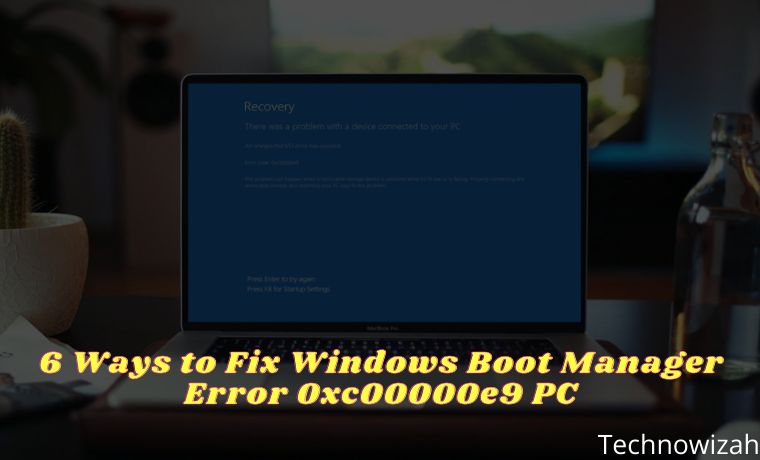
    6 Ways to Fix Windows Boot Manager Error 0xc00000e9 PC – Windows error code 0xc0000e9 is a common Windows Boot Manager error that indicates a hardware failure or corrupted system files encountered during the boot process. It appears when the computer starts up, but before the Windows login screen, the following error appears: “An unexpected I/O error has occurred. Error code: 0xc0000e9″.

    6 Ways to Fix Windows Boot Manager Error 0xc00000e9 PC
    6 Ways to Fix Windows Boot Manager Error 0xc00000e9 PC

    How to Fix Windows Boot Manager Error 0xc00000e9 PC Laptop

    If you are experiencing the error code 0xc0000e9 on your computer, don’t panic. This is one of the most common errors in Windows 10, 8, and 7. The good news is, there are several ways to fix this 0xc0000e9 windows boot manager error.

    Read more:

    Cause of Error Code 0xc0000e9

    Error code 0xc0000e9 is always related to the boot process for Windows. I/O (input/output) errors occur when the system cannot access the drive or disk, which means it cannot read or copy data. Therefore error 0xc0000e9 can be caused by many problems, such as:

    • Damage to external hardware or PC components.
    • I/O ports are damaged.
    • Incorrectly installed components.
    • Incorrectly configured UEFI, BIOS, or CMOS settings.
    • Corrupted system files or Windows Registry problems.
    • Problems with Windows Updates.
    • Virus or malware corrupts Registry files or data which is responsible for booting the operating system successfully.

    How to Solve Windows Boot Manager Error 0xc0000e9

    After you know the causes of the “0xc0000e9 Unable to Boot Error”, you can start the troubleshooting process. Here’s how to solve Windows boot manager error 0xc0000e9.

    #1. Check Hardware Compatibility

    Check Hardware Compatibility
    Check Hardware Compatibility

    If you have multiple external devices connected to your PC, such as an external hard drive or USB flash drive, disconnect them all (leave your mouse and keyboard connected), then restart your computer.

    If the error stops, you can re-enter your peripherals/external devices individually. Then you can identify which device is causing the problem. After identifying the malfunctioning device, you can replace the device or update the driver to the latest version recommended by the manufacturer.

    #2. Change BIOS Settings

    You can try to boot your computer with the hard drive to fix 0xc0000e9. Follow the steps below:

    Change BIOS Settings
    Change BIOS Settings
    1. Turn off the computer, then press the Power button to boot the computer.
    2. Press and hold a key to enter the BIOS setup, usually the ESC,  F2,  F12, or  Delete key.
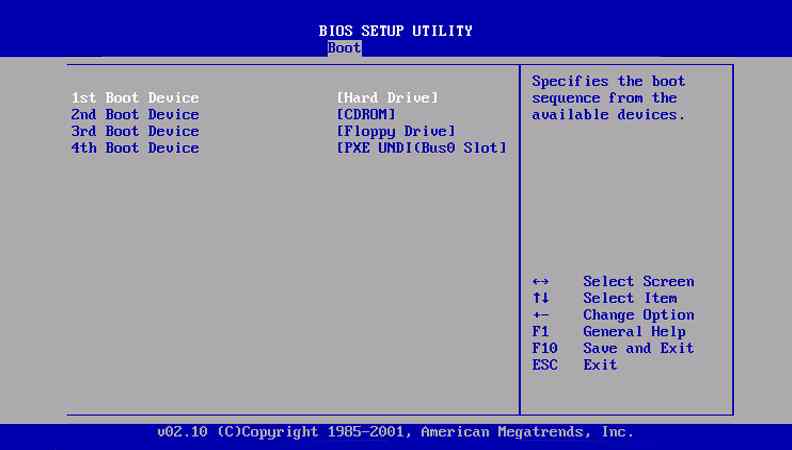
    3. Once you are at the BIOS Setup Utility screen, go to the Boot options.
    4. Once you are in the Boot options, make sure your PC’s Hard drive should be at the top of the list. You can press the arrow keys to highlight the hard drive and move it to the top of the boot device list.
    5. Save the BIOS settings changes, and reboot the computer. This should fix the problem.

    #3. Check the Hard Drive Condition

    A bad disk or bad sectors can be one of the causes of error code 0xc0000e9 on your Windows PC. So it is highly recommended to test the condition of the disk to find errors.

    Check Hard Drive Condition
    Check Hard Drive Condition
    1. Boot the PC into Safe Mode.
    2. In the search box on your desktop, type cmd. Then right-click Command Prompt and click Run as administrator. Then click Yes to confirm.
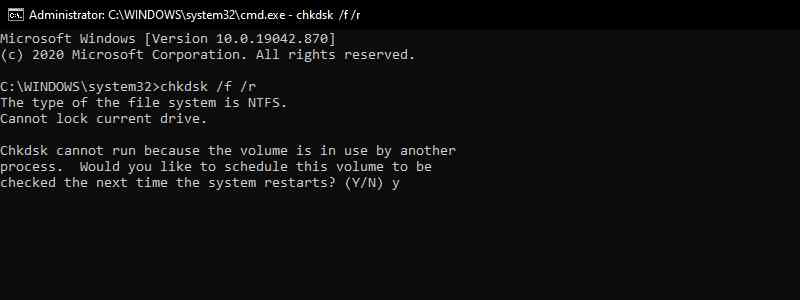
    3. In the Command Prompt, type “ chkdsk /f /r “, and press “ Enter “.
    4. Press Y on your keyboard to run the process.

    #4. Update Drivers

    Driver problems can also be the cause of error 0xc0000e9 because the hardware cannot communicate with the software if there is a problematic driver. You have to verify that all your devices have the correct and latest drivers.

    Note: Before updating drivers, you must boot your computer in Safe Mode.

    You can update the driver manually by visiting the manufacturer’s website and looking for the latest correct and suitable driver for your device. If you don’t want to bother with updating your drivers manually, you can do it automatically with the help of third-party applications.

    #5. Scan PC for Viruses/Malware

    If a virus is preventing Windows from booting, use a bootable antivirus tool. Download an antivirus application for Windows on another computer and copy it to a bootable drive. Most antivirus applications include a bootable rescue tool that scans the system from the command prompt.

    #6. Repair Master Boot Record (MBR) Using Windows PE

    Error 0xc00000e9 can occur when you install Windows without setting the Master Boot Record (MBR), so you have to set your C drive as MBR to fix 0xc00000e9. Here are the steps:

    Note: This is a complicated and difficult process. You should try it only if you are confident in your computer’s capabilities.

    1. Connect an external drive or hard drive with Windows PE to your computer.
    2. Run Windows PE, then set the C: drive as MBR.
    3. Restart your computer.
    4. Try reinstalling Windows and check if the problem is fixed.

    Read more:

    Conclusion:

    So those are some ways to solve windows boot manager error 0xc0000e9. Now you know the cause and how to fix error 0xc0000e9 on your Windows PC. We hope that one of the methods above can fix your PC problem.

  • 10 Ways to Fix DNS Server Isn’t Responding Error Windows PC 2025

    10 Ways to Fix DNS Server Isn’t Responding Error Windows PC 2025

    10 Ways to Fix DNS Server Isn’t Responding Error Windows PC – We will try to explain about  The DNS Server Isn’t Responding Error with some troubleshooting steps to fix this error.

    10 Ways to Fix DNS Server Isn't Responding Error Windows 10 PC
    10 Ways to Fix DNS Server Isn’t Responding Error Windows 10 PC

    10 Ways to Fix DNS Server Isn’t Responding Error Windows 10 PC

    What is DNS Server?

    DNS stands for Domain Name System. It is an important part of the internet for translating domain names like monitortechnology.com into machine-readable IP addresses.

    Read more:

    Simply put, every time you enter a URL in a web browser, the DNS server looks for the IP address associated with the domain name. After matching the IP address with the Domain. So here DNS plays an important role in connecting you to websites.

    What is DNS Server Isn’t Responding Error on Windows 10?

    When you try to connect your computer or device to the internet, sometimes you face problems accessing any website. You get errors like ‘DNS server isn’t responding, ‘DNS Not found’, etc. It causes you to not be able to connect to any site even after getting internet access.

    It also signifies that your device failed to connect to possible hosts for various reasons. The problem may be with the device configuration, or the DNS server is not available. But usually, this error mostly occurs because of DNS conflicts.

    How to Fix DNS Server Isn’t Responding Error on Windows 10

    If you get an error message like ‘DNS server isn’t responding’ but you don’t know how to fix it, don’t worry. In this article, we will share some of the best methods to fix DNS servers that aren’t responding to errors on Windows 10 computers.

    This method can fix most of the DNS-related issues on Windows 10 computers. So, let’s check how to fix the ‘DNS Server Not Responding error message.

    #1. Restart the Web Browser

    This is the first thing you should do after getting DNS-related errors. You just need to restart your web browser. A simple restart can fix most browser-related issues including the DNS server isn’t responding. So, make sure to restart your web browser before following the next method.

    #2. Restart Computer/Router

    If restarting the browser doesn’t help, then you should restart your Windows 10 PC. Also, make sure to restart the router. Restarting the device will fix many problems automatically. After restarting, try again to see if you still get the DNS error or not.

    #3. Reset DNS Settings

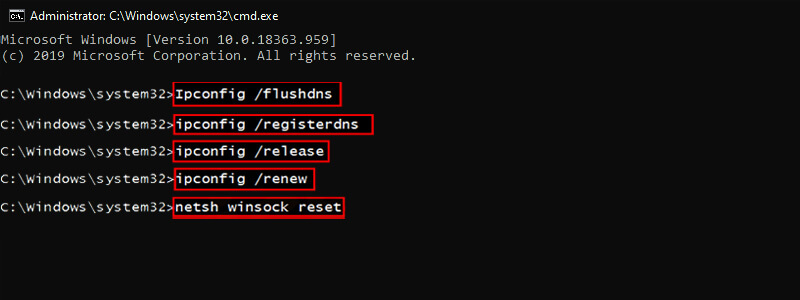
    Windows 10 tends to save links to websites you visit. This is done to prevent DNS lookups every time and this can increase the loading speed of a site. Sometimes DNS cache gets corrupted and because of that, we can see errors like ‘DNS Server isn’t responding. Follow the steps below to do this:

    1. Open Command Prompt, you can use the Windows key + R shortcut then type CMD or you can search in the Windows search menu.

    2. After the Command Prompt window opens, type the following commands one by one:

    • Ipconfig /flushdns -> press Enter.
    • ipconfig /registerdns -> press Enter.
    • ipconfig /release -> press Enter.
    • ipconfig / renew  -> press Enter.
    • netsh winsock reset -> press Enter.

    Reset DNS Settings
    Reset DNS Settings

    3. Finally, restart your operating system to see the changes.

    #4. Change DNS Server Manually

    As we know, every website that we search on the web browser is resolved using DNS Server. When you try to access a certain website, you will automatically connect to your ISP’s DNS server.

    Sometimes, some sites fail to load when the DNS server fails to respond. In this case, you need to change your DNS server to OpenDNS or Google DNS. This is a fairly simple step, and you can do it by following these steps:

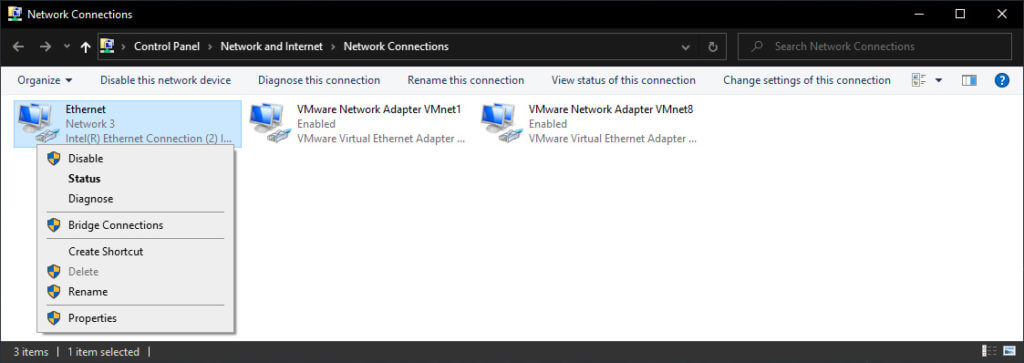
    1. Open  Network Connections. You can do this by pressing  Windows Key + X  on your keyboard and selecting the Network Connections option.

    2. Find the network connections you are using, right-click, and select  Properties from the menu.

    Change DNS Server Manually
    Change DNS Server Manually

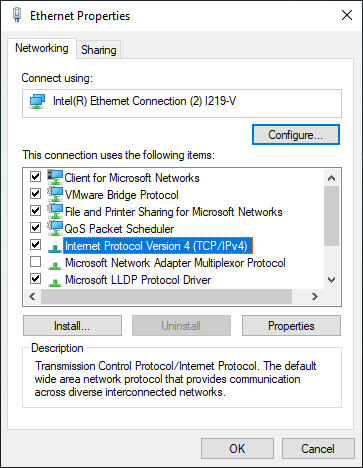
    3. When the Properties window opens, select  Internet Protocol Version 4 (TCP/IPv4)  and click the Properties button.

    Change DNS Server Manually
    Change DNS Server Manually

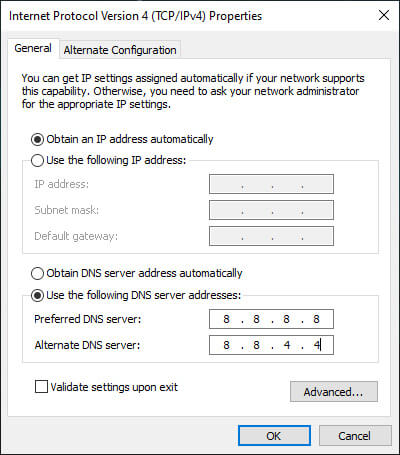
    4. Now select the option Use the following DNS server addresses.

    5. In the Preferred DNS server field enter  8.8.8.8. As for the  Alternate DNS server, you must enter  8.8.4.4. If you want, you can also use  208.67.222.222  as  Preferred and  208.67.220.220  as an Alternate.

    6. When finished, click  OK  to save changes.

    Change DNS Server Manually

    7. Finally, disable the network adapters, then re-enable them.

    Once you are done changing the DNS server, check if the problem is resolved. Bear in mind that changing the DNS server, might make your Internet connection a little slower depending on your location, so you may want to opt for a different DNS server.

    #5. Enter MAC Address Manually

    To enter your MAC address manually, you have to find it first. To do this, follow these steps:

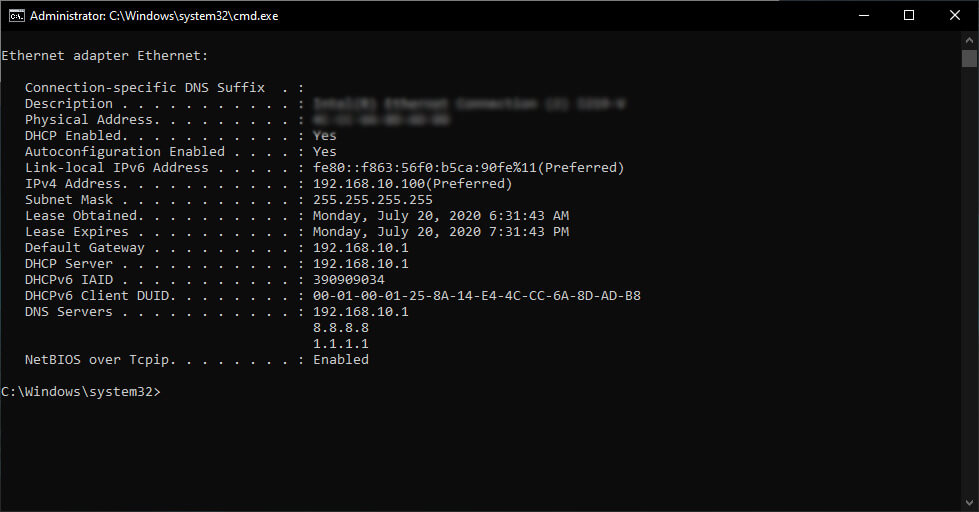
    1. Press the Windows key + R then type cmd, then press CTRL+ SHIFT + Enter to open cmd in administrator mode.

    2. When the Command Prompt window opens, enter the command ipconfig /all and press  Enter.

    3. A list of information will now appear. Find the  Physical Address and write it down.

    Enter MAC Address Manually

    4. Close  Command Prompt.

    After knowing the MAC address, now you need to configure your network connections. To do this, follow these steps:

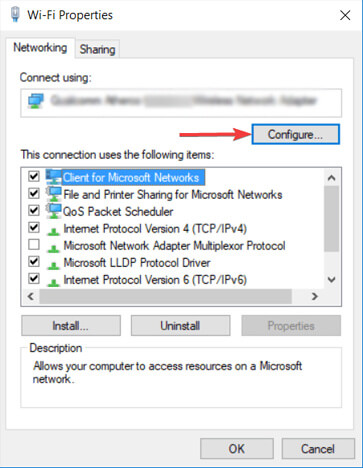
    1. Open the Network Connections window. Find your connection and open its properties.

    2. When the Properties window opens, click  Configure.

    Enter MAC Address Manually

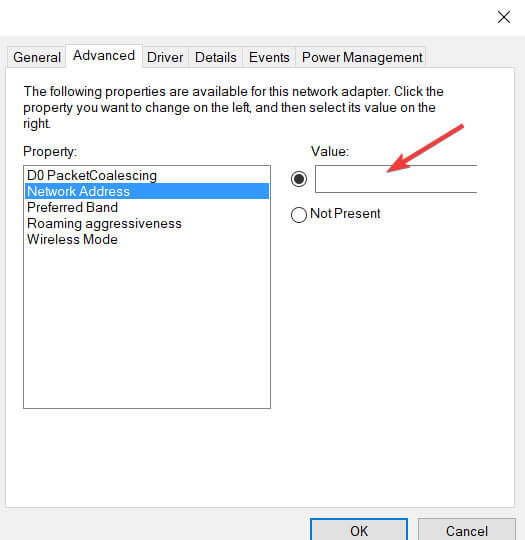
    3. Go to the Advanced tab and select  Network Address from the Property list.

    4. Now select  Value and enter the MAC address that you got from the Command Prompt.

    Enter MAC Address Manually

    5. Click  OK  to save changes.

    #6. Install the Latest Drivers

    Your network adapters depend on drivers to function properly, and if you’re having issues with them, it’s probably because of your drivers.

    To fix DNS server errors on Windows 10, you have to visit the website of your network adapters manufacturer, download the latest drivers and install them on your PC.

    Downloading drivers manually can cause damage to your computer if you download the wrong version. Admin highly recommends doing it automatically. You can use an application like Driver Booster.

    But if you can’t access the Internet at all, it might be caused by an unavailable DNS server, so you have to download the driver on a different device and install it on your PC.

    #7. Disable Unused Network Adapters

    Some users have claimed that they fixed DNS errors and regained access to the internet by disabling unused network adapters. Just follow some simple steps given below to disable the network adapter in Windows 10.

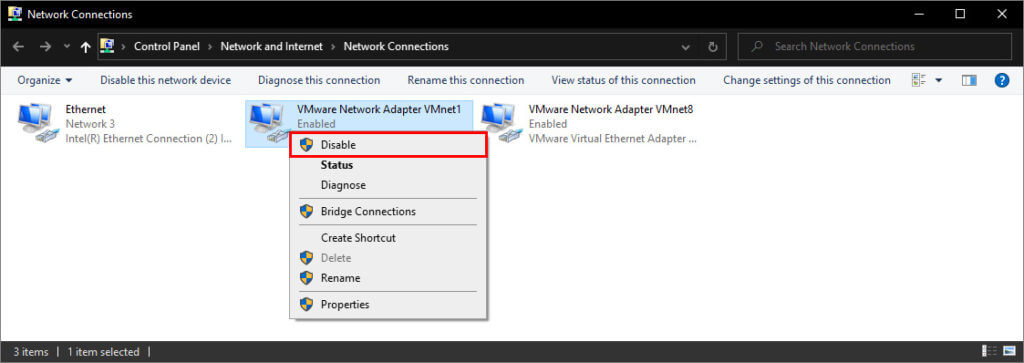
    1. Open the Network Connections window and disable all connections except the active network connection.

    Disable Unused Network Adapters

    2. To do that, simply right-click the connection you want to disable and select  Disable from the menu.

    #8. Disable Antivirus And Firewall

    Enabling an antivirus and firewall is necessary if you want to protect your PC from malicious users, but sometimes your antivirus and firewall can interfere with your Internet connection. To fix DNS server connection issues on Windows 10, try temporarily disabling your antivirus and firewall apps.

    Keep in mind that your PC will still be protected by Windows Defender even if you disable your antivirus, so there’s no need to worry about your security.

    If your antivirus or firewall application is causing this problem, make sure to change its configuration or switch to another application.

    You can also try disabling the firewall on your router. This is a rather dangerous solution. Because by disabling the router’s firewall, your PC will be really vulnerable. If you decide to do so, simply disable your router’s firewall temporarily and check if that fixes the problem.

    If the problem is your firewall, you need to turn it back on and check your firewall configuration for the source of the problem.

    #9. Disable Windows Update Peer-To-Peer Feature

    Windows 10 has a new feature that helps save download bandwidth. This is a new peer-to-peer (P2P) delivery update mechanism. Using the P2P option, you can download a Windows update once, then use that machine to deploy the update to all computers on your local network.

    You can also download Windows updates from other users in your area. This feature can interfere with DNS, and disabling it might fix the “DNS server is not responding” error. To do this, follow these steps:

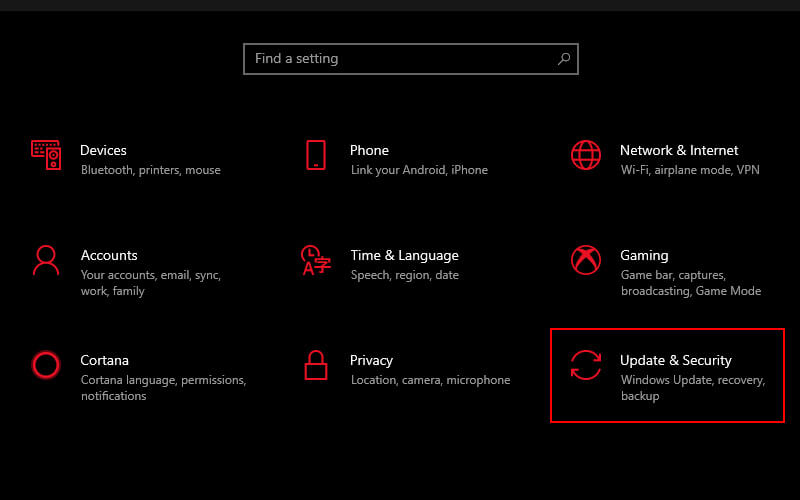
    1. Open the Windows Settings app and select “Update & Security”.

    Disable Windows Update Peer-To-Peer Feature

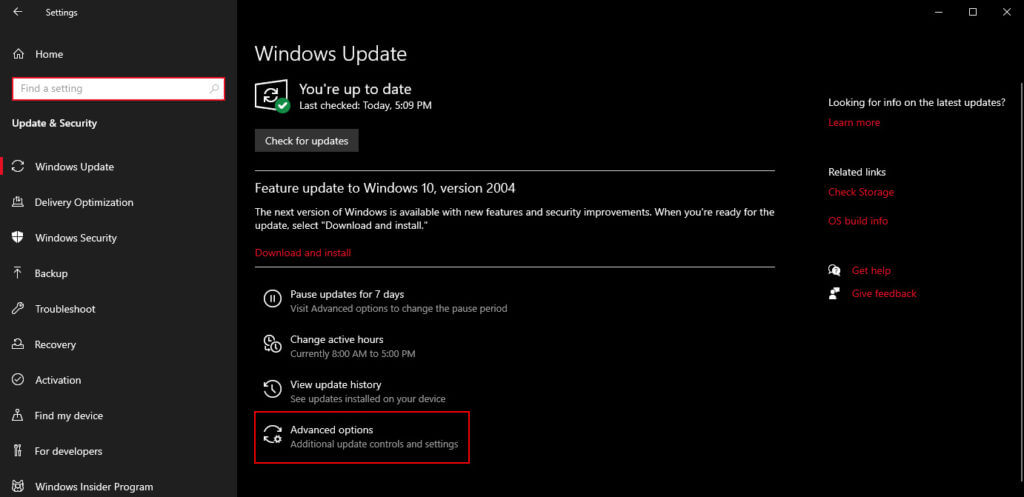
    2. Find “Advanced options” under “Update settings” and click it.

    Disable Windows Update Peer-To-Peer Feature

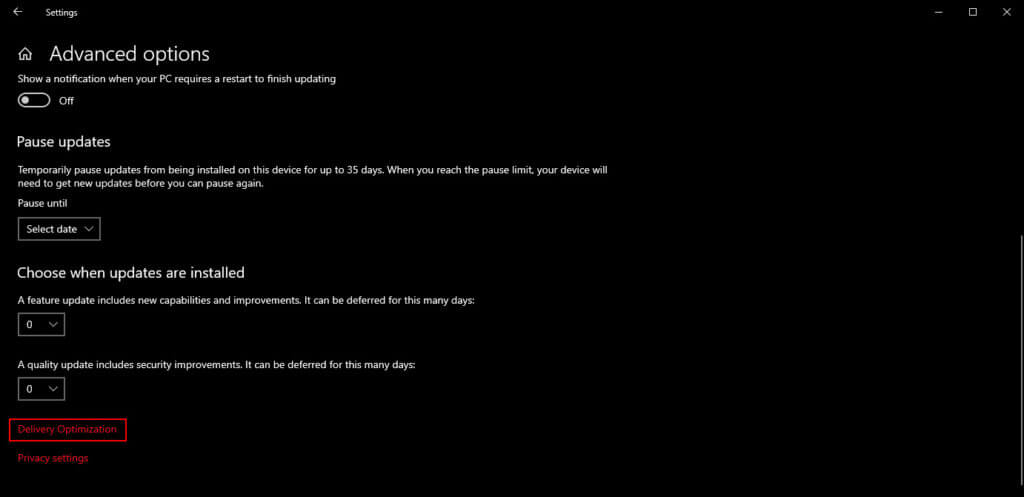
    3. In the Advanced options window, click “Delivery Optimization”.

    Disable Windows Update Peer-To-Peer Feature

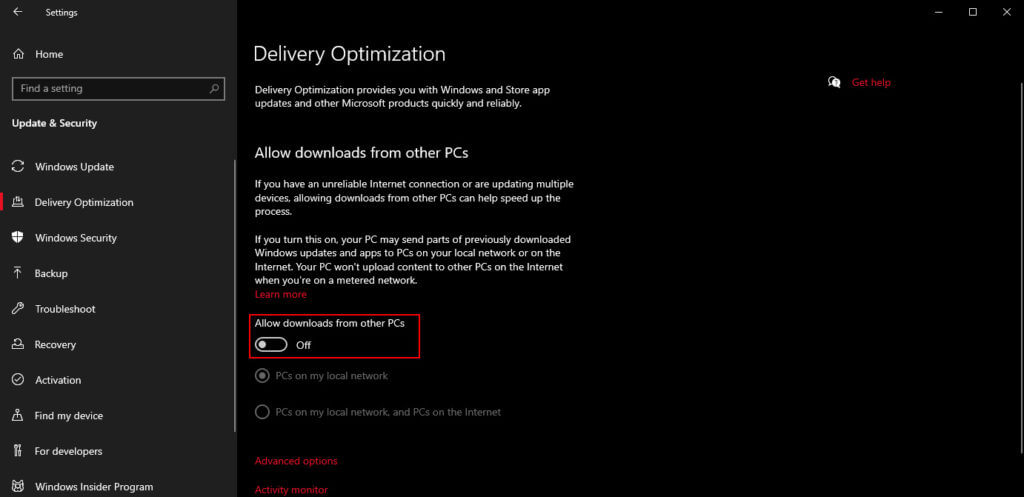
    4. In the Delivery Optimization window, turn off the “Allow downloads from other PCs” option. Check if the “DNS server is not responding” error is gone.

    Disable Windows Update Peer-To-Peer Feature

    10. Wait for the ISP to fix it

    Sometimes  DNS server is not responding errors can be caused by your ISP. Your ISP may be experiencing some issues, so you may have to wait a few hours while your ISP resolves the technical issues.

    The DNS server is not responding error will prevent you from accessing the Internet, but you should be able to fix it by using one of the solutions above.

    Read more:

    Conclusion:

    This is the explanation of 10 ways to fix the DNS server that isn’t responding to errors on a Windows PC, We hope that the method described above helped you fix the “DNS server is not responding” error and you can now connect to the Internet without any network connection issues.

    If none of the solutions above work, the error may be caused by your Internet Service Provider. Wait for your ISP to fix the technical problem and try connecting to the internet again after a few hours