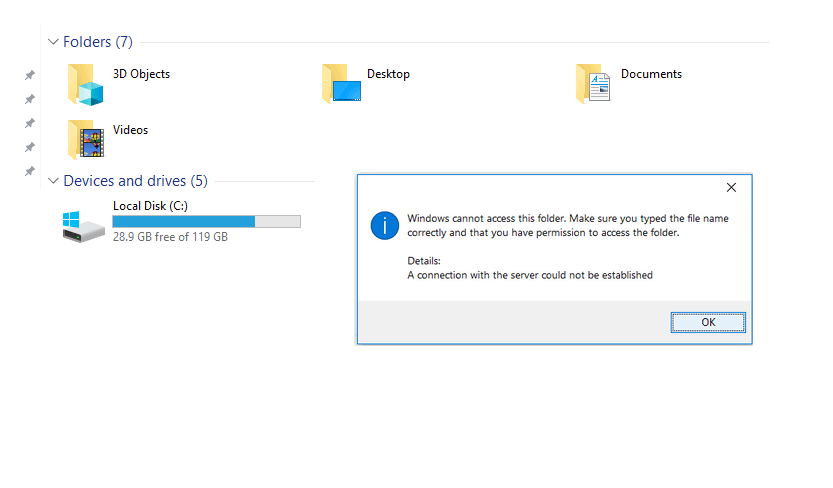
For those of you who don’t know it, there are actually several things that can cause this problem, you know. However, most of them are due to:
#1. Lost Drive Location
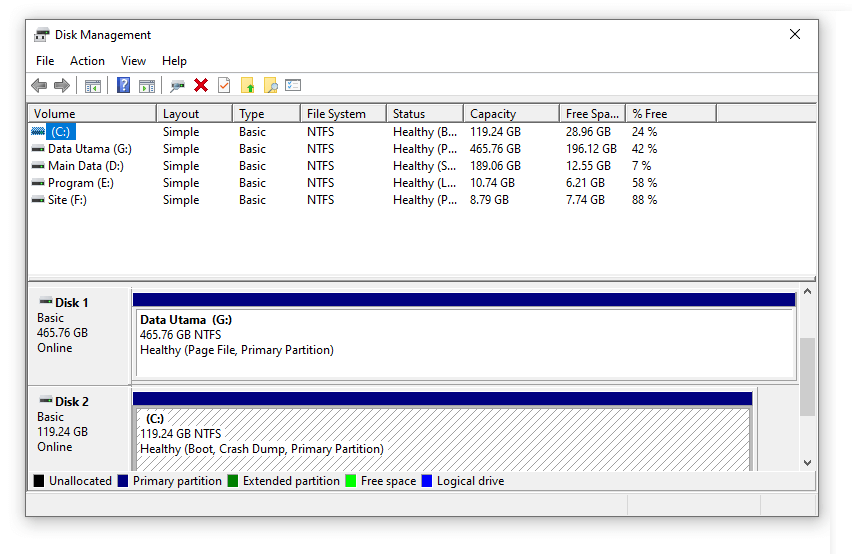
For example flash. If you connect it, a new drive will appear, right? Now try to remove the flash.
So when we access the flash drive, we can’t find it anymore.
#2. Network Not Connected
If this happens in the process of transferring data via LAN (FTP), then there is a network disconnect, then the file location will certainly be lost because it has been disconnected.
#3. Lost Data Access
Not all files can be accessed as usual. Sometimes there is also limited access, so the message appears.
#4. Data Has Been Deleted
Say you delete a game. Then you want to open the game folder again. But because it has been deleted, the folder you want to open earlier cannot be found.
#5. Missing Shortcut Location
Shortcuts ( shortcut ) is related, is a file that is connected directly to the original data. Well, if the data is lost, you will also encounter this error message.
Actually, there are a few more, really. But I don’t think it’s necessary to include all of them here. Because I think it’s better to just discuss ways to deal with it at all.
How to Fix “ Windows Cannot Access The Specified Device, Path, or File ”
Here are some ways you can do, in order to resolve the error message “ Windows cannot access ”.
#1. Preset Drive Permissions
The drive’s permissions are set automatically, according to the device settings.
Actually, this setting is normally open. But for some types of drives may be locked, so we can not access them.
Therefore, we have to open it first, in the following way:
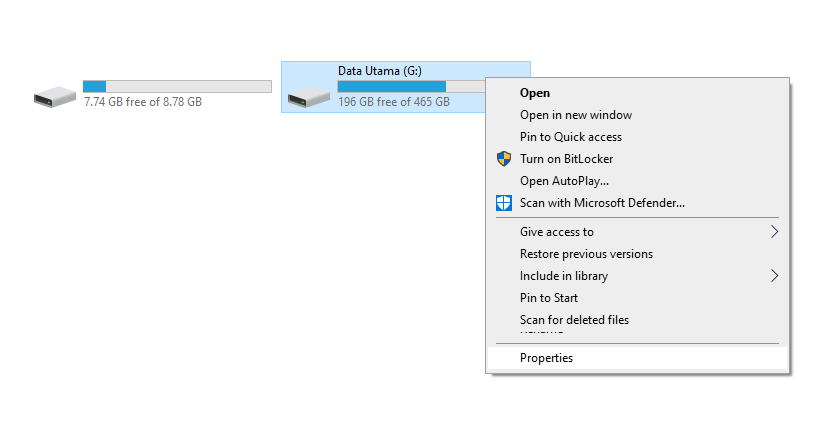
Please right-click on the desired drive.
Then click the Properties menu.
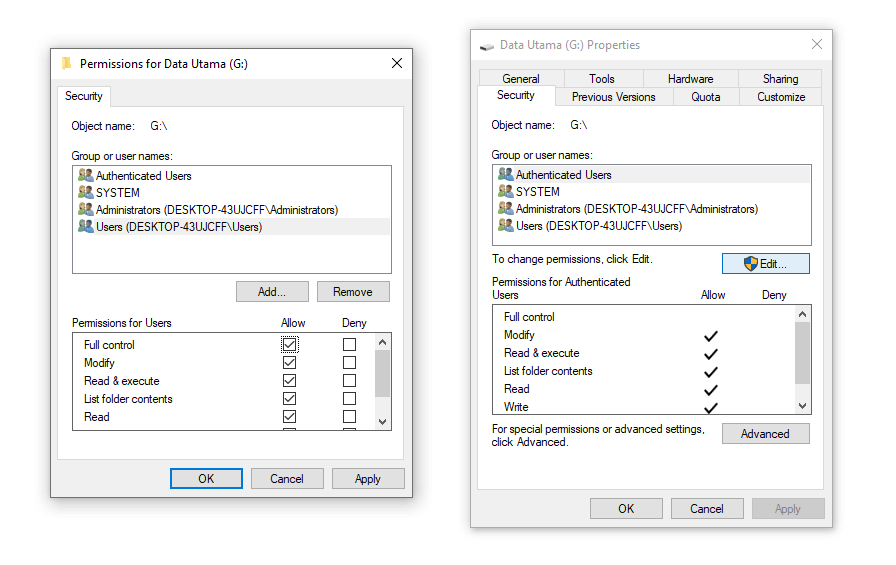
Go to the Security tab.
In the user list, select the one you are using, then check all the fields below, except Special Permission.
If so, click Apply.
In addition to drives, this method can also be used on locked folders. Please try it first, okay?
#2. Check if The Drive You Want To Open Is Still Connected
If you are opening a file on a flash drive, then the message “ cannot access ” appears, then you must first check whether the flash drive is still connected or not.
Because as I said earlier, conditions like this can have an effect. Especially when it is in the process of copying the.
Furthermore, if indeed the flash is not readable, then you can remove it first, then reconnect it.
That way, the error message will disappear.
#3. Make sure the file you want to open is not deleted or moved
If you want to open a file (such as a photo), then this error message appears, then you need to check if the photo data is still there.
This is not without reason, you know. If the photo is no longer there, either because the file was deleted or it was moved by cut, then obviously the system cannot find the location of the file.
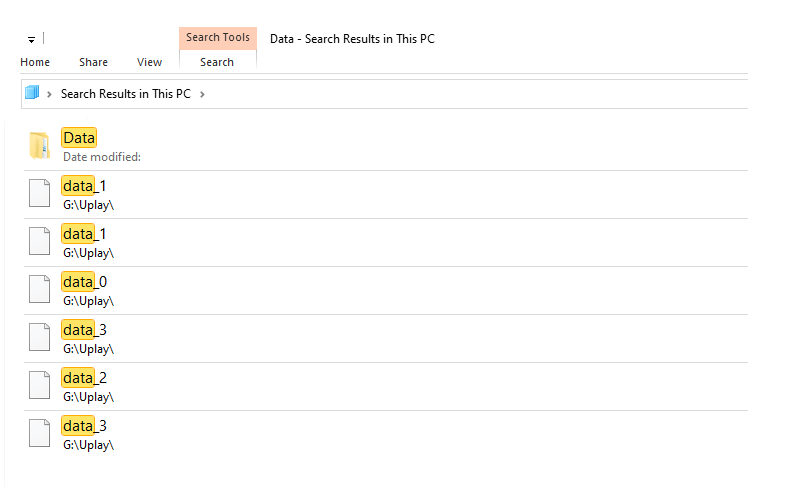
Well, there happens to be a trick to finding the file, here. The trick is to use the search feature.
First, open File Explorer on your computer.
Type the file name in the search field at the top right.
Please wait until the scanning process is complete (as I did above).
Notes:
Conditions like this are relatively common, especially for users who like to use the Quick Access feature in Windows 8 or Windows 10.
#4. Check the Network Used
If we transfer data via a network, then we must ensure that the network used is not disconnected, so that access to the file location is not interrupted.
I myself often experience this condition, you know. Usually when you are transferring files using a WiFi network.
Then make sure the network settings are correct. The method:
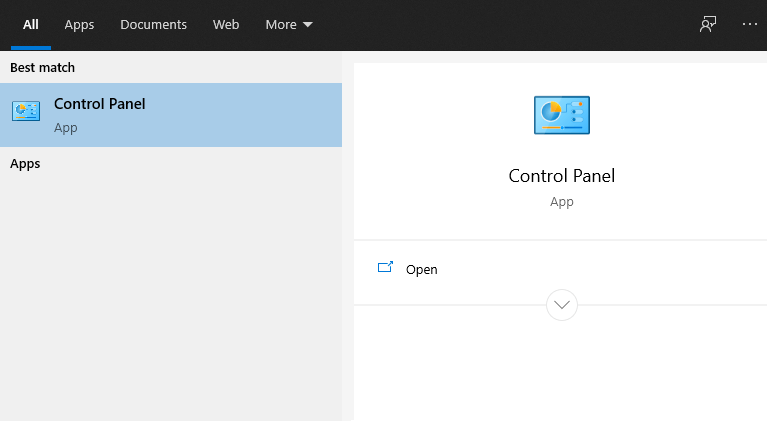
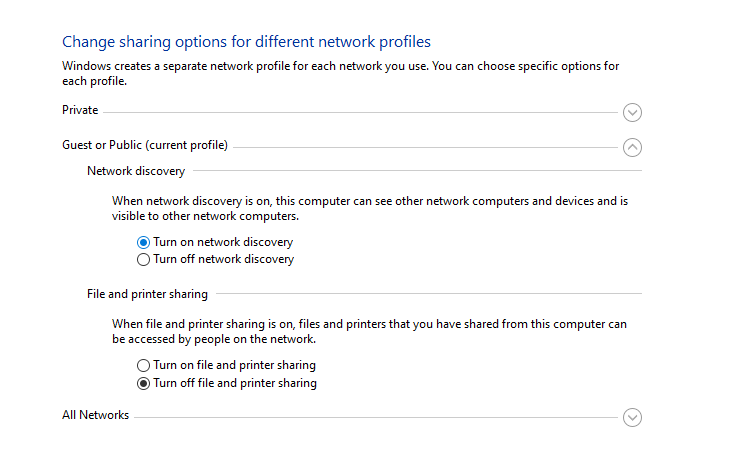
Open Control Panel via Windows search
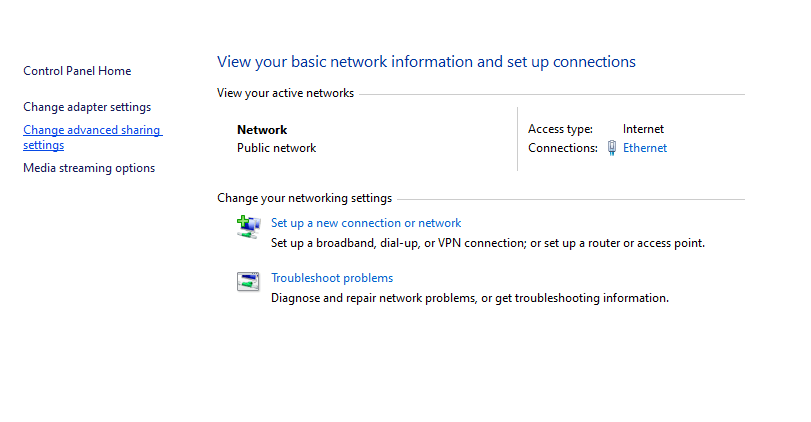
Open the Network and Internet menu > Network and Sharing Center > Then click Change Advanced Sharing Settings
Please enable Network Discovery there
Check the Network Used
Please re-check the data you want to access via the network earlier.
#5. Create a New Shortcut File
A file shortcut will make access to the original desired file.
But what must be known, if we move the original file, the location of the target shortcut remains in its old location, so we have to change it again.
The method is not as difficult as imagined, really. Just create a new shortcut again.
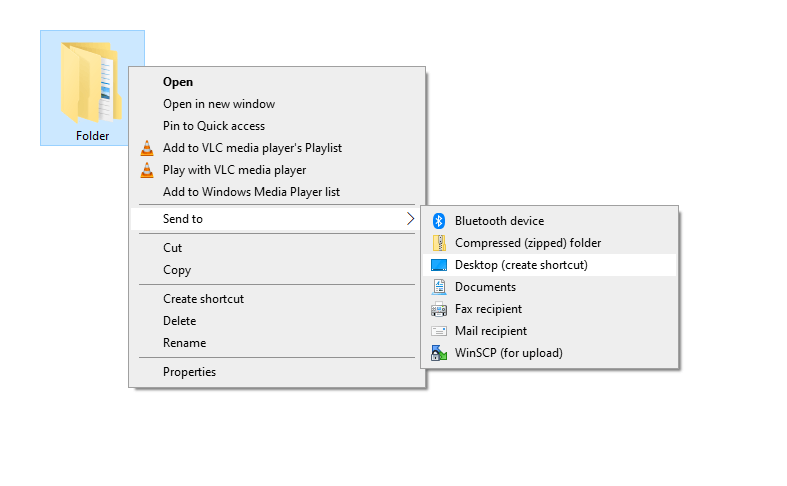
Just right-click the desired file or folder, then click the Create Shortcut option.
Create a New Shortcut File
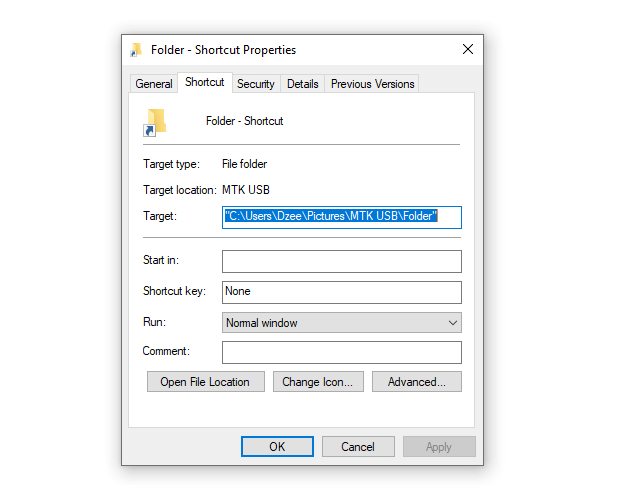
In addition, you can also right-click on the shortcut > Click the Shortcut tab > Then change the Target column to the destination file or folder directory.
Create a New Shortcut File
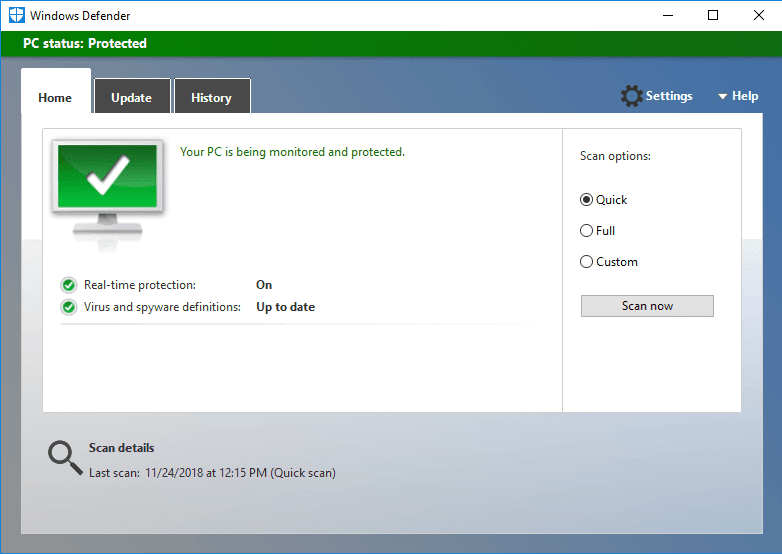
#6. Check Antivirus
Check Antivirus
Lastly, is the antivirus. As you know, every antivirus has an automatic feature, which works to block any files that are considered suspicious.
Well, if you have a file, then the file suddenly cannot be accessed, then it could be that the file has been blocked by your antivirus.
If so, then you have to return it first.
The method:
You have to learn which antivirus you are using because the steps must be different in each antivirus.
Please google according to the antivirus you are using.
Notes:
However, I don’t recommend this step.
But if you think the file is safe, give it a try. At your own risk, yes.
The message “ Windows cannot access the specified device, path, or file “. I thought of sharing this article because I have experienced it quite often.
How To Use Rufus for All OS Installations Laptop and PC – How to use Rufus for installation Operating systems we often encounter today. Many people prefer to use flash drive media to reinstall because it is more flexible.
How To Use Rufus for All OS Installations Laptop and PC
How to Use Rufus for All OS Installations 100% Working
With one software we can make bootable disks from various operating systems available. It is different from the old days when still using CDs or DVDs which are limited to just one operating system. Besides that CDs or DVDs are also more prone to damage if used continuously.
In addition, most laptops or computers today also do not carry optical drives. Products such as netbooks, ultrabooks, and tablet PCs that don’t have an optical drive can certainly be reinstalled via the USB Flashdisk only.
No wonder many people are looking for ways to use Rufus for their devices. How to use Rufus can also be done quickly and easily so that it can be used for the installation of many operating systems.
The Rufus application is small and light, just like any other application such as video player applications, video cutting software, and English dictionary applications.
How to use Rufus is also much more practical because it only takes a few steps.
Of course, if you use a flash disk you can format it if it’s finished installing for other data storage. Unlike a CD or DVD, most of which cannot be erased and last longer.
Apart from that, the usefulness of Rufus also includes extensive BIOS or UEFI flash from DOS. So when there is damage we can use Rufus to install the latest BIOS firmware version on a laptop or computer.
There is also a low-level utility feature that can be used to format that does not pose a risk to storage media.
Rufus can run on various Windows operating systems, for example, Windows 7, 8, 8.1, and also Windows 10 with 32-bit or 64-bit architecture.
How to Use Rufus for All OS Installations
Either those who like computers or technicians can use Rufus for free. Besides that, the installation that is run will also be much faster than the CD or DVD.
How to use Rufus for bootable disks is also easy and fast so that it fits into the choice. Another support is that Rufus can format other storage media such as memory cards.
Is that Rufus?
Rufus is an application made by Pete Badard from the Akeo Consulting company that can be used free of charge because it has a GNU GPL V3 license.
Even the Rufus Source Code can be downloaded for free so the programmer can modify and sell it.
Rufus can be used to make bootable system operations that include quite a lot of Linux, Ubuntu, Fedora Windows XP, Windows Vista, Windows 7, Windows 8, and Windows 10.
How to Use Rufus for All OS Installations 100% Working
Besides that, Rufus provides FreeDOS options so we can boot in DOS mode. One of the uses of DOS booting is when upgrading BIOS or UEFI. Because of its small size, this application can run smoothly and quickly when compared to other software.
Download Rufus
Rufus has 2 different versions namely Installer and Portable with only 1MB of file size. Of course, downloading Rufus will not meet the hard drive or flash capacity.
In addition, users can choose the portable version because it can be run directly without the need to install it. Hindi language support is also not left behind, coupled with support for 32-bit and 64-bit architecture. Please download Rufus by clicking below.
After downloading the portable version, Rufus can be run immediately, while for the installer version, the user is required to install it first. For more details, please refer to how to use Rufus along with the following steps.
#1. Plugin the flash disk to a computer or laptop
Plugin the flash disk to a computer or laptop
Please attach the flash disk to a laptop or computer, and make sure it has been detected in the Windows Explorer window.
#2. Open Rufus
Open Rufus
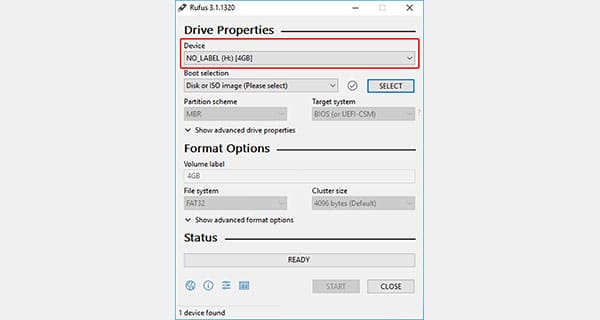
Directly open the Rufus application whether it’s portable or the installer will look like the picture above. In the device section also make sure the flash disk appears complete with its storage capacity
#3. Select the ISO File according to the OS that will be installed
Select the ISO File according to the OS that will be installed
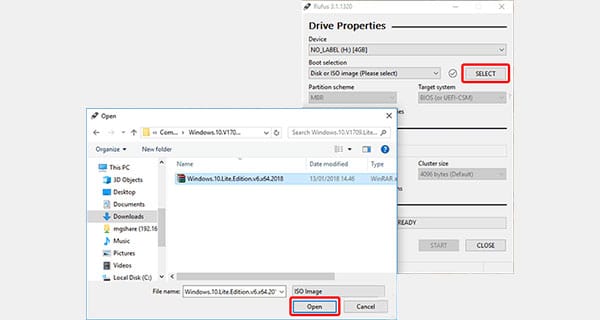
How to use Rufus is quite easy, please just select SELECT as shown above. Then please enter the folder where the operating system ISO file is stored. We example install Windows 10 above, then just click then open.
#4. Boot Selection Settings
Boot Selection Settings
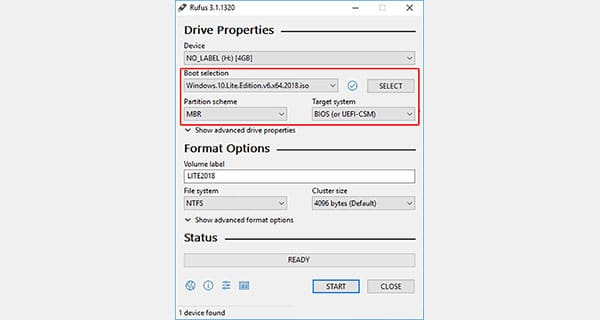
the next way to use Rufus is to set Boot Selection, the application will automatically display the operating system version that we loaded earlier. For Partition schemes, please select the MBR and Target system to be BIOS (or UEFI-CSM) as shown above,
#5. Format Option Settings
Format Option Settings
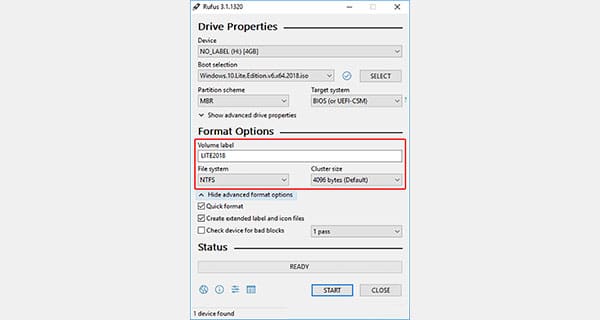
then how to use Rufus next is to enter the Format option, and please name the Volume Label according to taste. Then set the File system to NTFS Show advanced format options check Quick Format and create extended labels and icon files as shown above.
#6. Starting the Bootable Making Process
Starting the Bootable Making Process
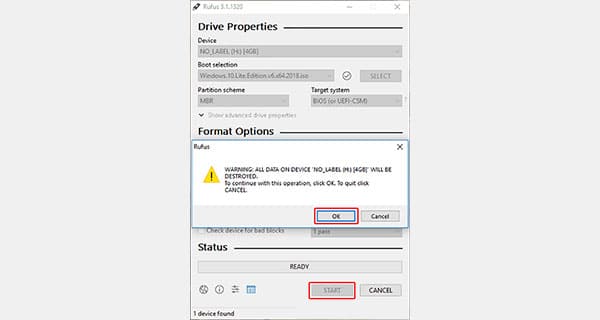
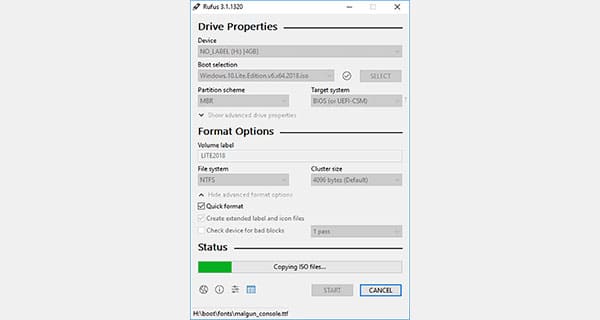
To start the process, please click START, then a warning window will appear, and just press OK. Wait until the booting process is complete and the system operation is complete. More or less it will take 10 to 12 minutes depending on the size of the operating system.
Starting the Bootable Making Process
#7. Bootable Making Completed
Bootable Making Completed
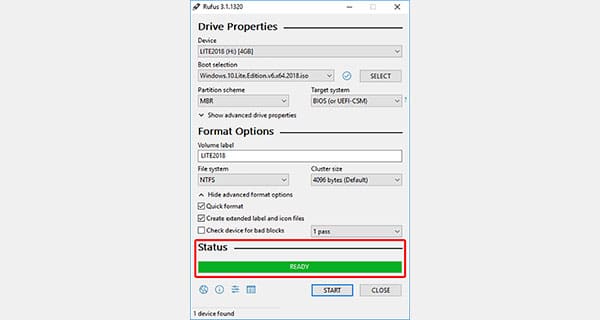
Look at the picture above, if the status is green and the Ready text appears, the process of making a bootable flash disk is complete. Please press the close button and the flash disk is ready to use, don’t forget to eject the flash disk safely too,
How to use Rufus can indeed be done easily because even beginners can understand the above steps. In addition, how to use Rufus is also very helpful when we want to install a laptop or computer with a variety of operating system options.
Rufus can also be used for other purposes such as flashing memory cards, BIOS upgrades, and others. Hopefully, the information we provide can be a reference and use.
How to Reinstall Original Windows 10 on PC Laptop – If your computer has been infected with a virus or becomes slow to use, you may need to reinstall Windows. You can install clean or reinstall Windows 10 using the guide below. Here’s how to reinstall Windows 10 on your PC.
How to Reinstall Original Windows 10
How to Reinstall Original Windows 10 on PC Laptop
Windows 10 allows you to reinstall the latest version of your current operating system. Before doing a reinstall, back up your files or delete them for a new installation. Follow one of the three steps below:
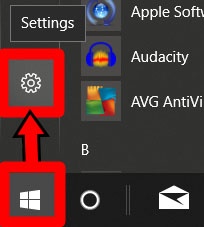
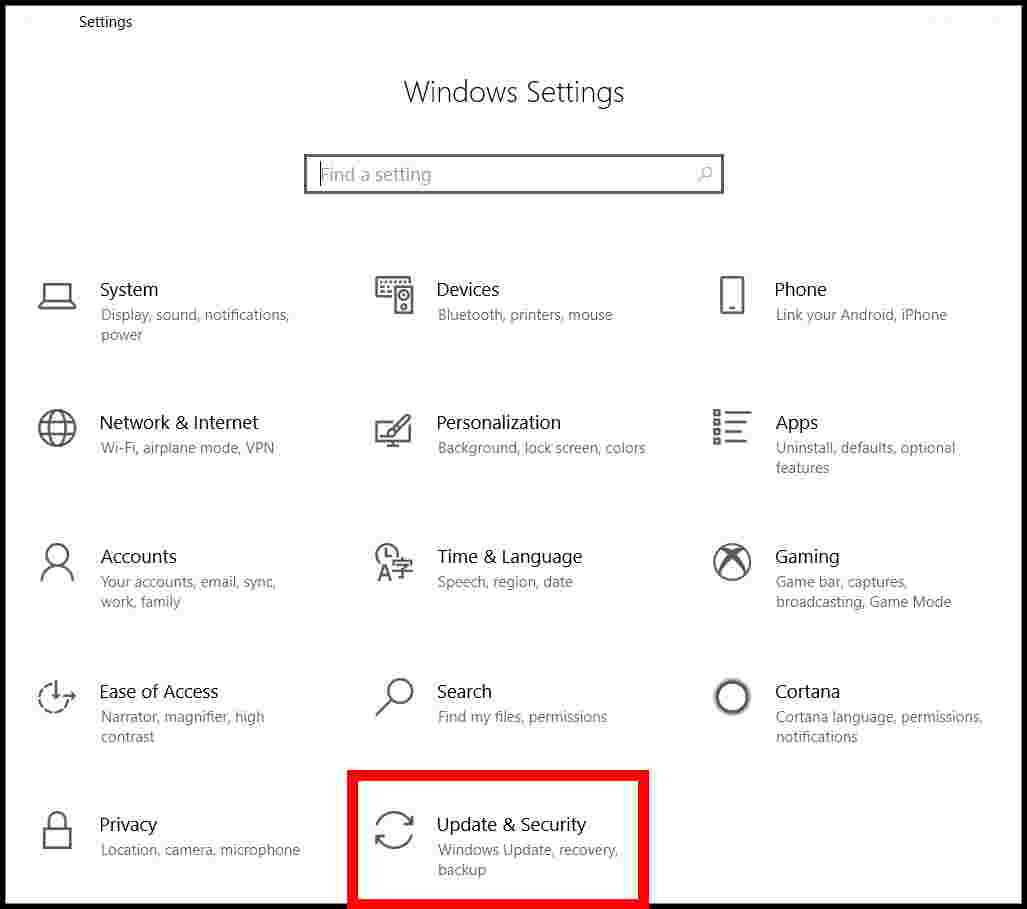
Click the Start button. Button in the lower-left corner of your screen with the Windows logo.
Then click Settings. It is a gear icon just above the power button.
3. Next, select Update & Security.
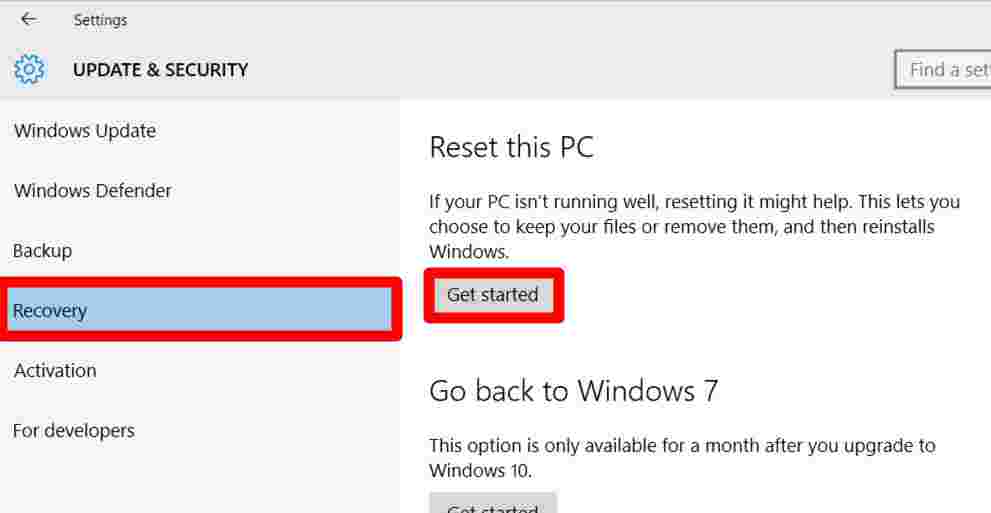
5. Click Recovery in the left menu bar. The right pane will show options for recovery.
6. Under Reset this PC, click Create.
6. Choose to keep your files or delete them all.
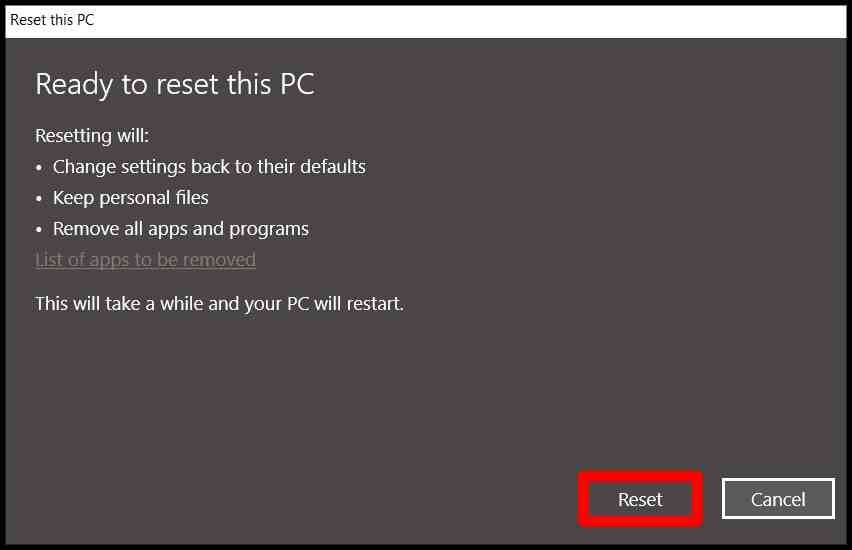
Note: Even if you choose to keep your files, only your personal files will be saved. All the applications and settings you have on your PC will be deleted.
7. Finally, select Reset. The computer will restart with the new installation of your operating system (OS).
If your PC doesn’t work, you will need to create a recovery drive. To do this, you’ll need a USB flash drive with at least eight gigabytes (8GB) of storage.
How to Make a USB Recovery Drive
If you can’t reinstall your operating system (OS) using the reset settings, you can use the recovery drive. Here’s how to create a Windows 10 recovery USB drive.
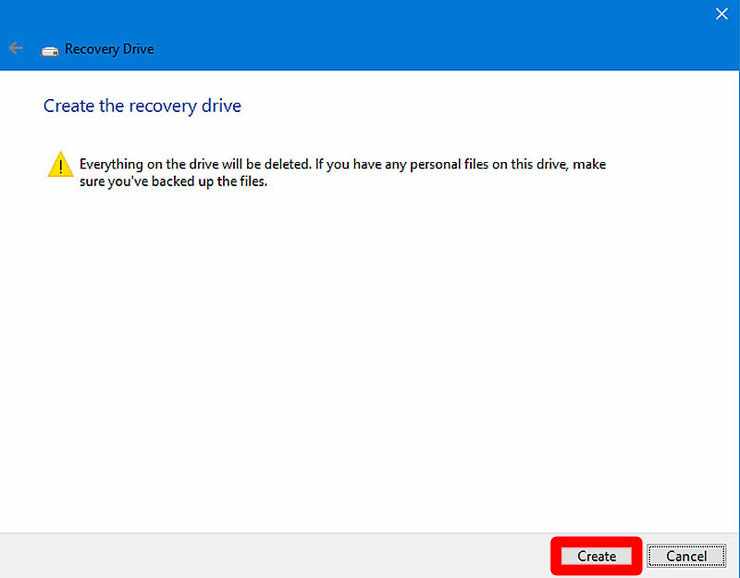
Warning: When you create a recovery drive, you will lose all data on the USB hard drive. Don’t forget to back up your data first.
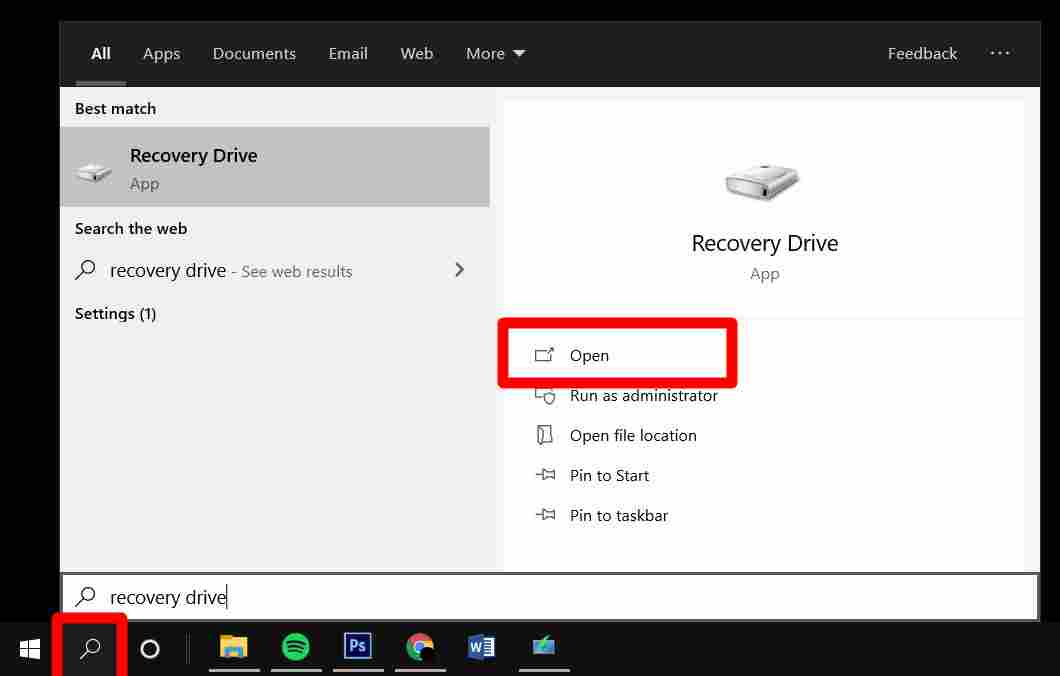
1. Click on the Search button and type “recovery drive” in the search box. The search button is a magnifying glass in the lower-left corner of your screen.
2. Open the drive recovery application and select your drive.
3. Then click Create.
It will take a few minutes to create your recovery drive.
How to Reinstall Windows 10 from a USB Recovery Drive
Now that you have a recovery drive, here’s how to reinstall Windows using a USB recovery drive.
Note: When you restore from a USB drive, you will lose all files on your computer. A clear installation will be carried out and provide the latest version of the operating system.
1. Plug in the USB Recovery drive to your PC.
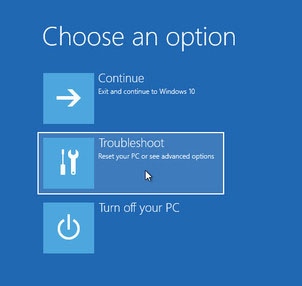
2. Restart the PC. If it is turned on, you will need to reboot. When it starts, you will see a Choose an Option screen.
3. Select Troubleshoot.
4. Then select Recover from Drive.
5. Next, click “Just remove my files”. If you plan to sell your computer, click Full clean drive. This option will take longer, so make sure your computer is connected to power.
6. Finally, set up Windows.
How to reinstall Windows 10 on a malfunctioning PC
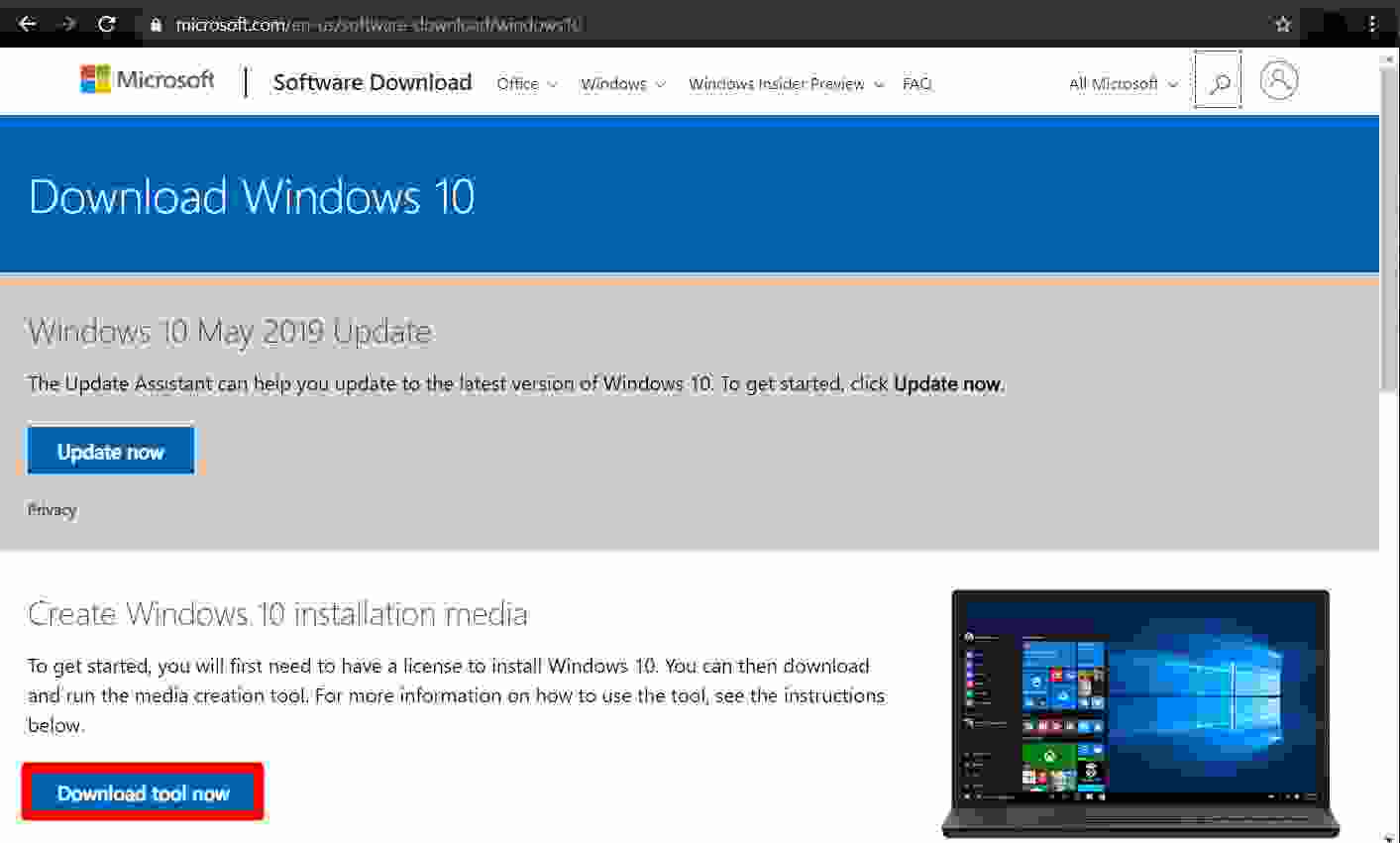
If your PC is not responding, you can try reinstalling Windows with Microsoft’s media creation tool.
2. Open the downloaded tool. You can find the file in the Downloads folder.
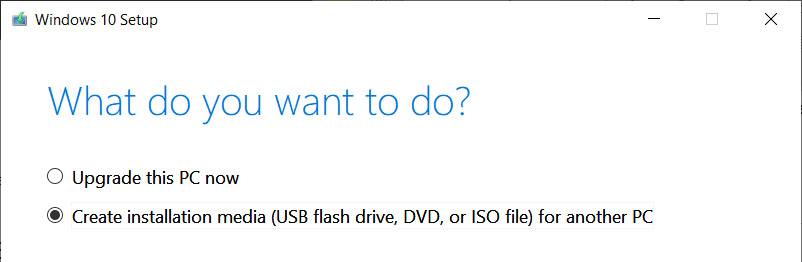
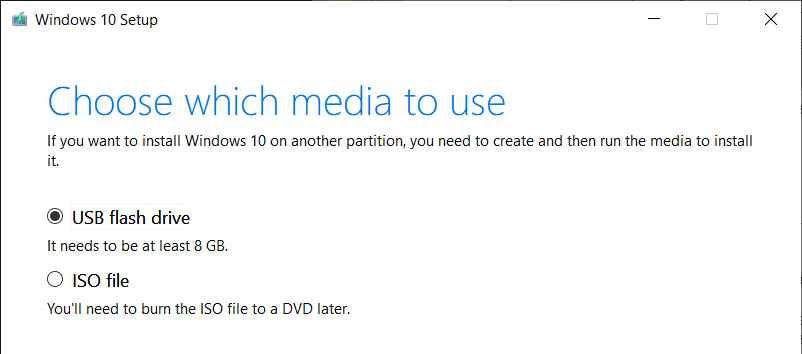
3. Select the option “create installation media”.
4. Use the options recommended for this PC. This is where you can change the language, operating system version, and architecture of your recovery drive.
5. Then select the USB flash drive.
6. Select your USB drive from the list. Wait for the media creation tool to download.
7. Plug in the USB drive to the computer that is not working.
8. Restart the computer. It will start from the USB drive it is plugged in, and the installation process will begin.
9. Select your information and preferences, then click Next.
10. Click Install now.
11. Enter your Windows product key when prompted. You will find it on a sticker affixed to your PC or laptop.
12. On the Term page, click Next. You will be taken to the next steps for installing the OS. Follow the instructions until the process is complete. When the clear installation is complete, you can set it up like a new laptop or PC.
Top 20 Best Download Free VPN For PC and Fastest – There are even some that turn to fully paid and some that offer free for a few hundred MB or just a few GB, then have to pay.
Top 20 Best Download Free VPN For PC and Fastest
Top 20 Best Download Free VPN For PC and Laptop
There are a variety of reasons for using a VPN, but the two main reasons are usually to open access to sites that are blocked by the government.
But using VPNs also have risks, the possibility of VPN service providers will take your private data, such as the websites visited, the IP used, and others. But some of these risks will be ignored by most people.
#1. Windscribe
Windscribe
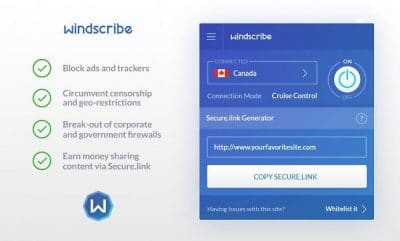
Windscribe is still new in the world of free VPN applications, but the amount of data access provided and the commitment to protect your privacy makes it the best free PC VPN available today.
In the free version, Windscribe gives you 10 GB of bandwidth per month and gives you the option to choose 8 server locations. Sounds enough right?
You only need to create a username and password to register, email is only optional. Windscribe itself does not store any data from you such as connection log, IP that you use or website visited.
Meanwhile, access to 10GB of data for a month is arguably large for the free category and we think it is enough for you who use a VPN for browsing purposes only. But if you think it’s not enough, then the option to buy more data even unlimited can be done.
In addition to the special things above, Windscribe also has an adblocker and firewall installed by default, making it one of the best. Windscribe can also be installed directly in the browser as an extension.
Strengths and Weaknesses of Windscribe:
Large monthly quota, 10GB (+)
Fairly open in terms of the privacy policy (+)
Clients are sometimes not good (-)
#2. Hotspot Shield Free VPN
Hotspot Shield Free VPN
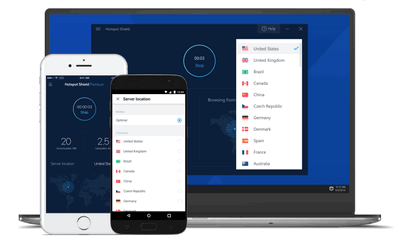
The popularity of Hotspot Shield as a free VPN is certainly unquestionable. You can choose up to 25 countries if you use the Elite version of Hotspot Shield, but if you keep using the free version, there are a number of limitations and it comes with advertisements.
The free version of Hotspot Shield provides a daily quota of 500MB or about 15GB a month and can connect to 5 devices.
Compared to other competitors, 500MB is quite a lot, especially if you use a VPN just to simply open a blocked site without downloading or streaming.
In addition to being generous enough to provide quotas, Hotspot Shield is also very easy to use, be it the mobile or desktop version. You also get a premium trial opportunity for 7 days to enjoy the quality of one of the best VPNs for this PC.
Advantages and Disadvantages of Hotspot Shield Free VPN:
Safe to use because it does not capture your privacy data (+)
500MB daily quota (+)
Easy to use (+)
Unstable performance in the free version (-)
#3. Tunnelbear
Tunnelbear
Tunnelbear might have a rather childish design, but TunnelBear is one of the free VPN applications that you can have. Although in the free version, you only get 500MB each month, the numbers are very small indeed.
But we think it’s enough for you to run a VPN just to open certain blocked sites or for other minor uses. The performance of TunnelBear looks massive, fast, and very easy to use because you don’t need to do any additional settings.
Connect options automatically work very well, you can also set options to choose one of the 20 countries provided.
It’s also worth noting that TunnelBear recently changed its privacy policy a little, so now TunnelBear only takes fewer data than usual so that your privacy is even more secure.
TunnelBear Strengths and Weaknesses:
Easy to use (+)
Low quota, 500MB per month (-)
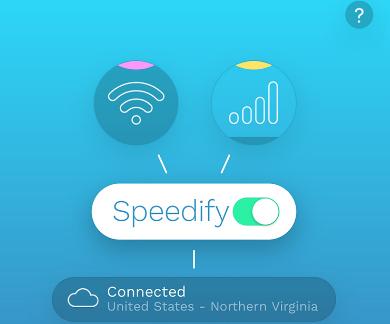
#4. Speedify
Speedify
Speedify, as the name implies, has one clear goal in providing its VPN service, which is to make sure that when you activate a VPN, your internet connection speed will remain as fast as possible.
Therefore, Speedify will use all available connections as much as possible to get good performance, by combining various available connections, such as Ethernet with 3G / 4G networks.
But if you only use one connection, Speedify still claims that the connection will be accelerated with its own technology.
In addition to offering the maximum speed, Speedify also does not take private data from you at all and is available on various operating systems such as Windows, Android, iOS, and Mac and has access to 30 VPN servers. In the free version, Speedify offers 4GB of access in the first month.
But it dropped dramatically to 1 GB in the following month. 1GB might look a little to most people, but again it all depends on your needs in using VPN.
Speedify Advantages and Disadvantages:
Internet speed is not reduced (+)
Open privacy policy (+)
Cannot be used for Netflix (-)
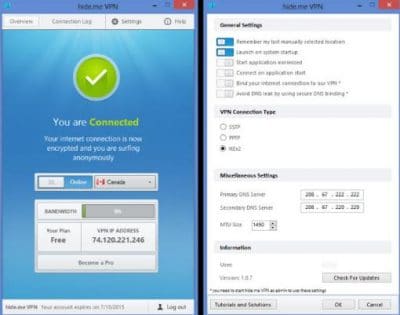
#5. Hide.me
Hide.me
Hide.me is a VPN application from a developer from neighboring Malaysia. Although there are only 3 server locations available, namely Singapore, the Netherlands, and Canada, and maximum data usage of 2 GB per month.
There are various reasons for you to use it, one of which is the maximum speed, and can be paired with other Premium VPN speeds. But unfortunately, due to the small location of the server, it becomes a big drawback.
But for those of us who live in Indonesia, the Singapore server is the closest and can deliver extremely fast speeds.
More pluses, your browsing data or privacy will not be saved. Apart from Windows, Hide.me is also present in various other popular operating systems such as macOS. iOS and Android and Linux.
Hide.me Strengths and Weaknesses:
Privacy policy deserves thumbs up (+)
No adverts (+)
Internet speed not reduced (+)
Can only be used for one device (-)
Only has 3 location options (-)
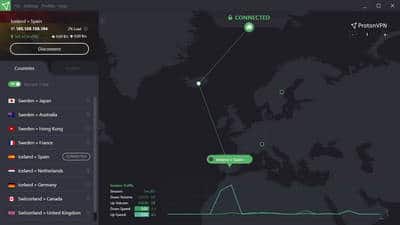
#6. ProtonVPN Free
ProtonVPN Free
If you are looking for a VPN for a PC with an unlimited quota, then your choice must fall to ProtonVPN Free. This application does offer a VPN without quota limits. In addition to the free version, ProtonVPN also offers a premium version.
Very rarely certainly encounter a VPN that offers an unlimited quota like ProtonVPN. Although it looks very good by offering an unlimited quota, ProtonVPN also has some disadvantages.
An example, if ProtonVPN can only be used on 1 device, then there are only 3 locations to choose from, then free users also get lower priority in terms of speed compared to premium users.
ProtonVPN Free advantages and disadvantages:
There is no unlimited quota alias (+)
Open in terms of the privacy policy (+)
Can only be used for one device (-)
Only has 3 location options (-)
#7. Opera Browser VPN (SurfEasy)
Opera Browser VPN (SurfEasy)
SurfEasy was developed by a company or organization that also makes the Opera browser. SurfEasy is also used by the Opera browser as a VPN integrated into the browser.
There are two versions available for this VPN, namely paid and free versions. For the free version, you can use one account for five devices at the same time, you can also choose 1000 servers in 25 countries which are also enjoyed by users of the paid version.
So for server business, free and paid users are treated the same. But there is a noticeable difference in terms of quota, as a free user, you only get a quota of 500MB per month.
With this thin quota, you certainly cannot use this VPN application too often. But the thing to remember, is if you use the Opera browser, then you can use VPN in it unlimitedly.
SurfEasy’s Strengths and Weaknesses:
Can be used on 5 devices at the same time (+)
Have many servers to choose from (+)
There is only a quota of 500MB per month (-)
The speed is not too satisfying (-)
#8. VPNBook
VPNBook
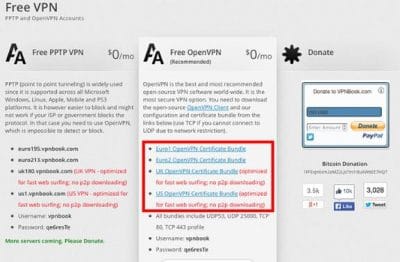
VPNBook is released for free and there is no bandwidth limit and no premium version. But don’t be tempted first, because VPNBook is not designed for beginners. Because VPNBook doesn’t have an application or how to use it.
You will only be given a list of servers and the rest will be left to its users. To use this VPNBook, you must choose to use PPTP VPN or OpenVPN.
PPTP VPN supports almost all operating systems, but it’s easier for operators to block your VPN connection.
OpenVPN is even safer but requires a separate application to run with the configuration of VPNBook and various certifications. If you are already good, VPNBook is worth mentioning as the best free VPN application.
Advantages and Disadvantages of VPNBook:
Can be the best in speed and quota (+)
Difficult to use (-)
Not recommended for everyone (-)
#9. Freelan
Freelan
The installation process of Freelan is somewhat different from the others because it not only installs software as it should, but Freelan also installs new network drivers to take control of your web traffic.
Although actually, it will not be a problem, it still doesn’t hurt us to say that.
Freelan is a free VPN application with code that can be seen by everyone, but the installation process can be more complicated for beginners. For users who already understand the ins and outs of VPN, Freelan is as good as VPNBook.
Maybe for those of you who are still new to VPN, you should avoid this application. But if you feel like learning by trying, it doesn’t hurt to install Freelan to try one of the best VPN applications for this PC.
Freelan’s Strengths and Weaknesses:
Can be the best in speed and quota (+)
Difficult to use (-)
Not recommended for everyone (-)
#10. Hola Free VPN
Hola Free VPN
VPN application for PC that you can use is Hola Free VPN. With this VPN, you can open blocked sites, secure networks, and speed up internet connections.
This VPN will direct your internet service to other countries’ servers such as Singapore, the United States, Canada, or other countries that have pretty good internet quality.
Well, this free VPN application can also be found on smartphone devices. And of course, the way to use it is almost the same, guys.
Simply connect, and you will be connected to a foreign network server. That way you can open all sites that are blocked in India.
Name
Hola Free VPN
Size
600 KB
Download link
#11. AVG Secure VPN
AVG Secure VPN
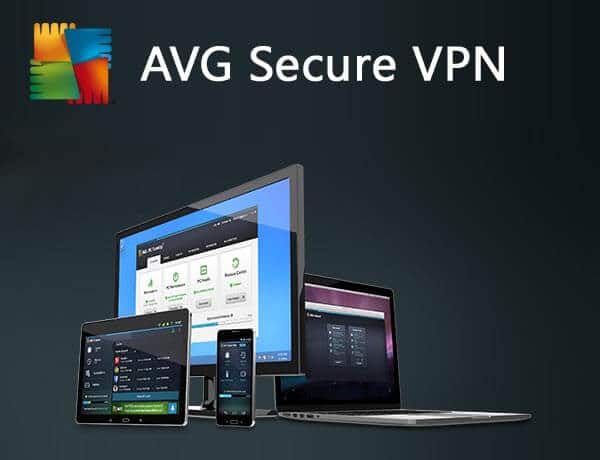
Well, the next VPN application for PC that you can download and try is AVG Secure VPN guys. By using this application, you can surf the internet with anonymous networks. In addition to providing VPN services, AVG also provides antivirus services, guys.
Wah completely yes, in addition to the VPN application, he can be used for Antivirus applications as well. Well, for Mac users and smartphone users, you just calm down guys. Because this application is also present for these devices.
Name
AVG Secure VPN
Size
20MB
Download link
#12. Pure VPN
Pure VPN
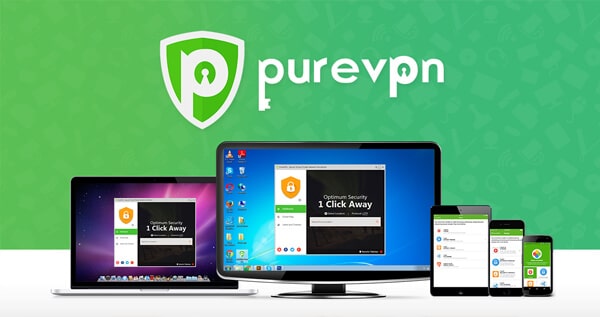
PureVPN is a VPN application for PCs that has incredible speed. You can open various blocked sites using these applications guys.
There are more than 2000 servers in more than 140 countries when you use this VPN application. Of course, this application is very safe for you to try and use.
Not only on PC, but you can also use the PureVPN application on a smartphone. Oh yeah, PureVPN also has an exciting event, don’t you believe it? Just check out the PureVPN site.
To get full service from this application, you need to pay, yes guys. Eits, although paid, the services provided by this application are very satisfying.
Name
Pure VPN
Size
32MB
Download link
#13. KeepSolid VPN Unlimited
KeepSolid VPN Unlimited
VPN Unlimited is the next VPN application for PC which is highly recommended for you guys. You can use this VPN for free for a trial period of 7 days.
Well, if you are satisfied with the service from Unlimited VPN, you can subscribe by paying some money guys.
Of course with this Unlimited VPN application, you can open sites that are blocked by the government, and speed up your internet network.
Name
KeepSolid VPN Unlimited
Size
34MB
Download link
#14. NordVPN
NordVPN
The next VPN application for PCs is NordVPN. With this application, you can connect to 5000+ servers in 60+ different countries.
Well, this application also has SmartPlay features like DNS that are smart and fast. These features are used to overcome geographical restrictions and unblock all other sites or services.
For speed issues, it seems like this application doesn’t need to be doubted. Once you are connected to a server, your internet speed will increase 2x.
Name
NordVPN
Size
13MB
Download link
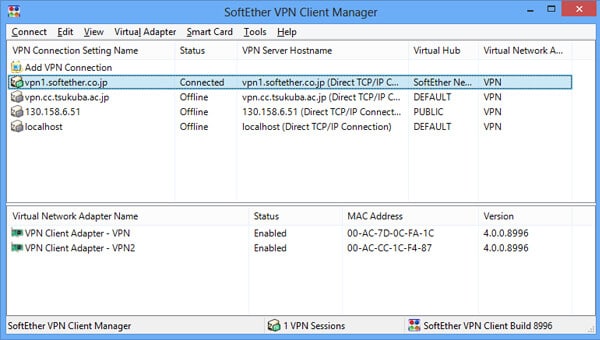
#15. SoftEther VPN Gate
SoftEther VPN Gate
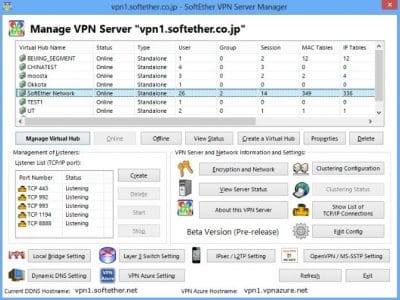
We once discussed this application in the article on how to download and play PUBG Lite. So in addition to opening blocked sites, this application can also be used to run games or applications that are not available in our country.
How use this application is also quite simple and easy to do. There are even many servers that you can try to open blocked sites.
Moreover, the choice of internet speeds available makes it easier for us to choose which server has a very fast internet connection.
Name
SoftEther VPN Gate
Size
51MB
Download link
#15.Open VPN
Open VPN
Compared to other VPN applications for PCs, the Open VPN application is quite complicated for guys to use. Although complicated, of course very comparable to the results given.
You can get a VPN for free without the need to pay some money, without bandwidth limitations, or other restrictions guys.
So with this application, you will create your own Virtual Private Network (VPN). Well, to make your own VPN you have to get access to the Open VPN server.
Of course, you can find server access via a free VPN site or service provider. One free VPN provider that you can use is TcpVPN.com guys.
Besides TcpVPN, you can also search for free VPN service provider sites on Google with the keyword ” free PPTP VPN ” or ” Free OpenVPN “.
Name
Open VPN
Size
3MB
Download link
#16.Hide Me
Hide Me
With the Hide Me application, you will look completely anonymous when browsing blocked sites. That’s because the VPN application for PC will hide your identity and location on the internet.
In addition, this application can also protect your activities from hackers or other dangerous activists when connected to public networks.
Hide Me will unblock all the sensors that are on the sites so that you can browse any website at will without any restrictions.
Name
Hide Me
Size
5MB
Download link
#17.SurfEasy VPN
SurfEasy
SurfEasy VPN can unblock internet access and secure your internet connection. That, of course, makes you able to surf the internet safely.
SurfEasy VPN also allows you to browse any website without any censorship or blocking from the government. How to Cool right guys?
This VPN application for PC also offers protection of your identity or privacy so that you will not be known to others online even when you are connected to a Public WiFi network.
Name
SurfEasy VPN
Size
44MB
Download link
#18.ZPN
ZPN
ZPN is the next VPN application for PC that you can count on to open sites that are blocked by the government and other agencies.
ZPN will hide your IP Address while surfing the internet. That way you will really look anonymous when connected to public WiFi without fear of your activity being seen by hackers or trackers.
You can enjoy ZPN for free and get a 10 GB quota limit for each month, or you can subscribe to a premium to get unlimited data access and unlimited bandwidth.
Name
ZPN
Size
10MB
Download link
#19.HideMan VPN
The next VPN application for PC is HideMan VPN. This VPN application offers data anonymity and encryption for internet sessions and activities.
For free users, this application provides bandwidth and internet speed limits. But if you want to spend a little money, then you will not get the limit, aka unlimited.
Well, if you use free access, you can only connect to a few servers. Meanwhile, if you upgrade to Premium, you can connect to many different servers.
Name
HideMan VPN
Size
2MB
Download link
#20. PrivateTunnel
PrivateTunnel
The last best PC VPN application that I recommend to you is PrivateTunnel. Just like other free VPN services, PrivateTunnel is available for various platforms such as Mac, Android, Windows, and iOS.
PrivateTunnel has a limited and free package apart from paid services. If you want to use the PrivateTunnel service at any time then I suggest you use the annual package with a $ 30 fee where you will get unlimited data.
As one of the best free VPN service providers, PrivateTunnel works well, although sometimes the connection is slow this application is very easy to use. Therefore you can consider this application if you are looking for a free VPN for your PC.
So, friends, This is the explanation of the top 20 best downloads free VPN for PC and the Fastest application recommendations for PC that you can use to open blocked sites or play games that are not available in your region.