How to add a printer in Windows 10 Laptop PC – Adding a printer to your current Windows 10 laptop or desktop is very easy for users with little technical knowledge. You can add a printer via USB, a wireless network such as WiFi, or Bluetooth. Here’s how to add a printer in Windows 10
How to add a printer in Windows 10
How to add a printer in Windows 10 Laptop PC via WiFi 2024
If your printer supports networks that Windows does not automatically detect, you will need to set it up manually. Through the printer menu, configure the TCP / IP port, and install the driver. Follow the below steps to add a network printer in Windows 10.
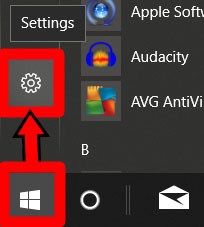
1. Open the Windows Start menu. It’s a button in the bottom-left corner of your screen that resembles the Windows logo.
2. Then click Settings. It’s the gear icon directly above the power button in the Start menu.
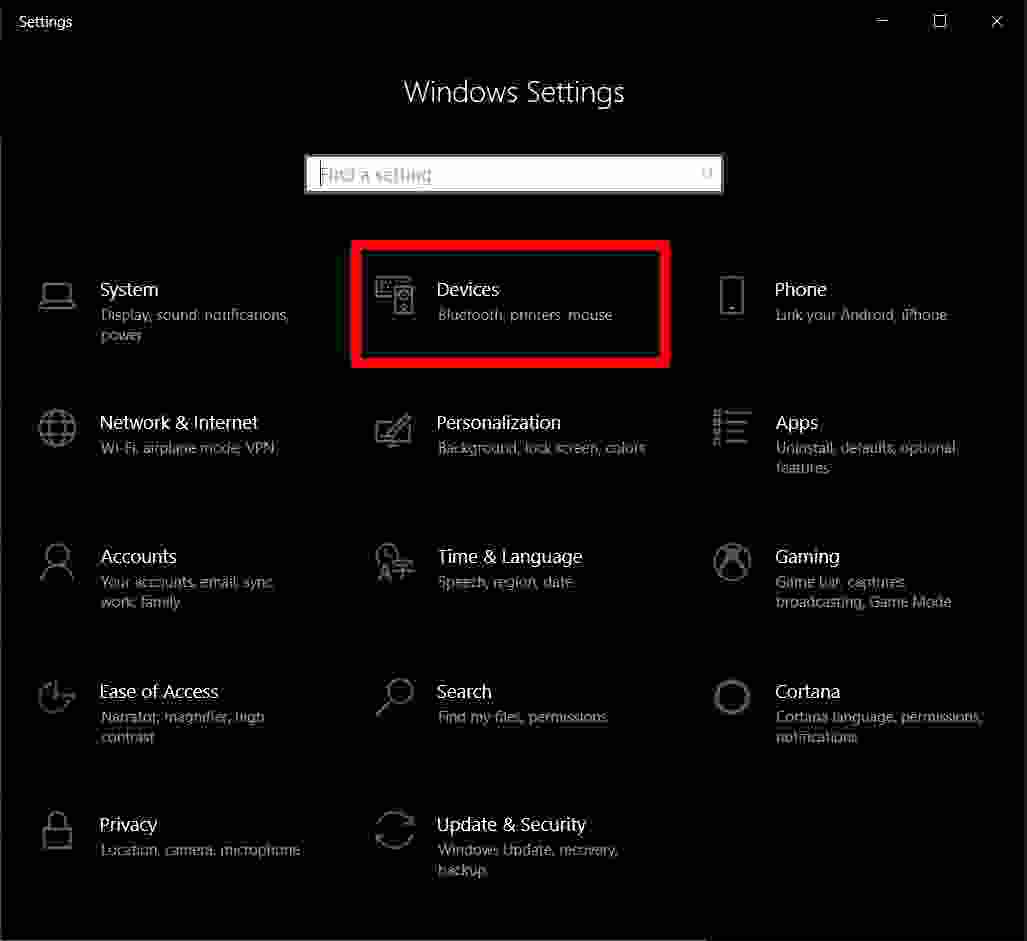
3. Then click Devices.
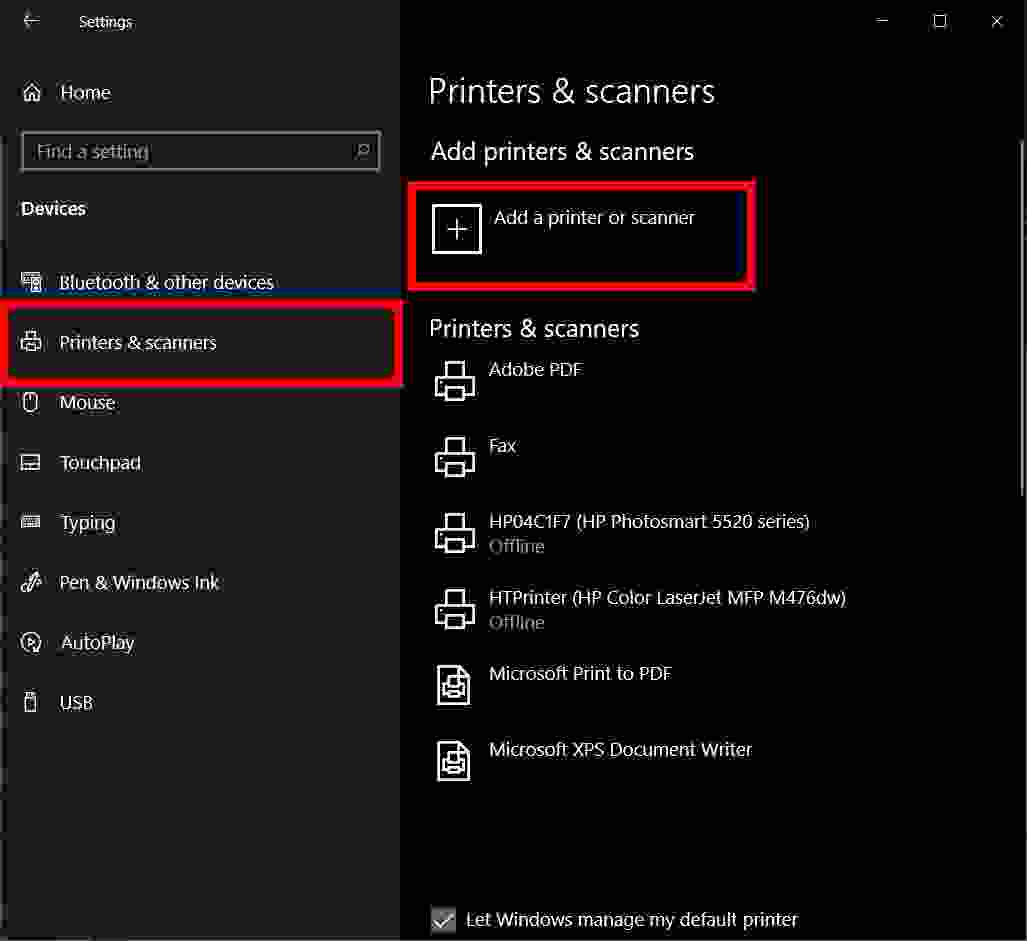
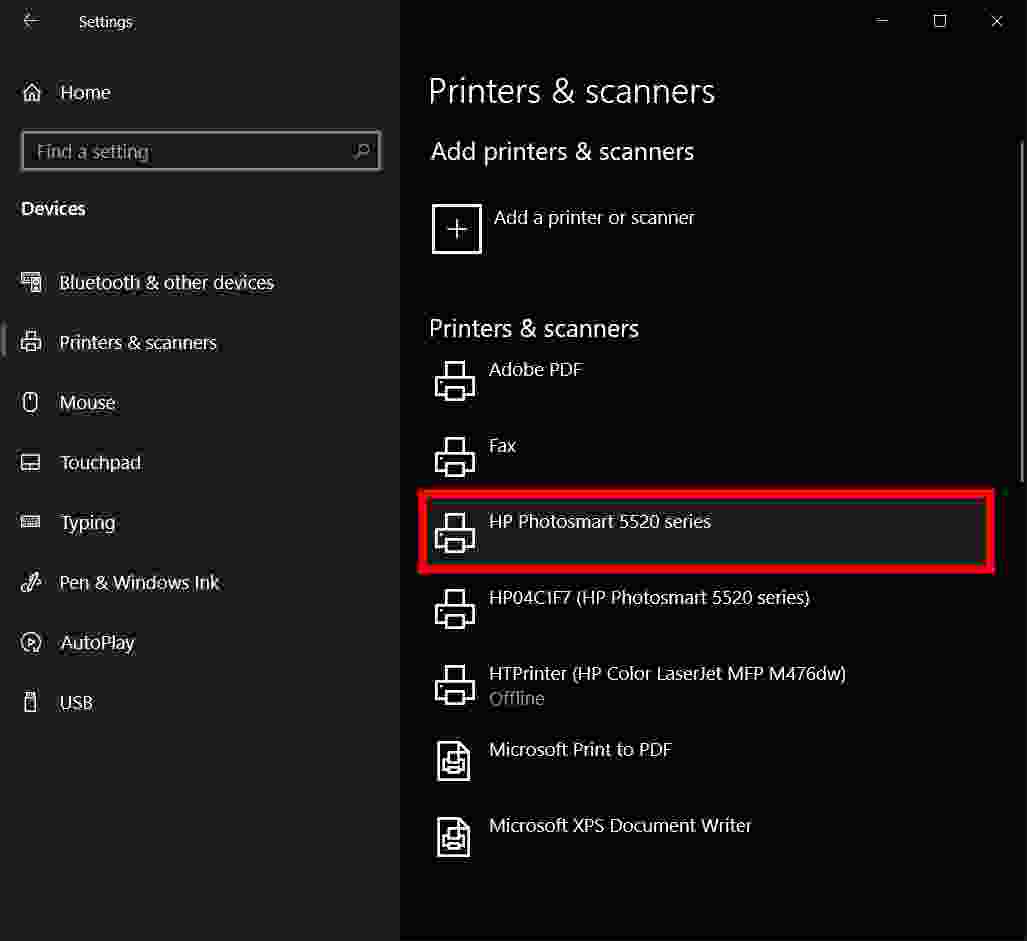
4. Next, select Printers & Scanners. You can find it on the left sidebar.
5. Then click Add a Printer.
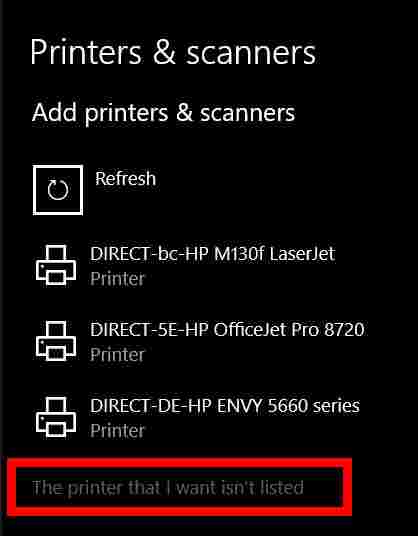
Once Windows detects your printer, all you have to do is follow the on-screen instructions to set it up. If this is the case, you can stop here. However, if Windows doesn’t automatically detect your printer, continue to the next step.
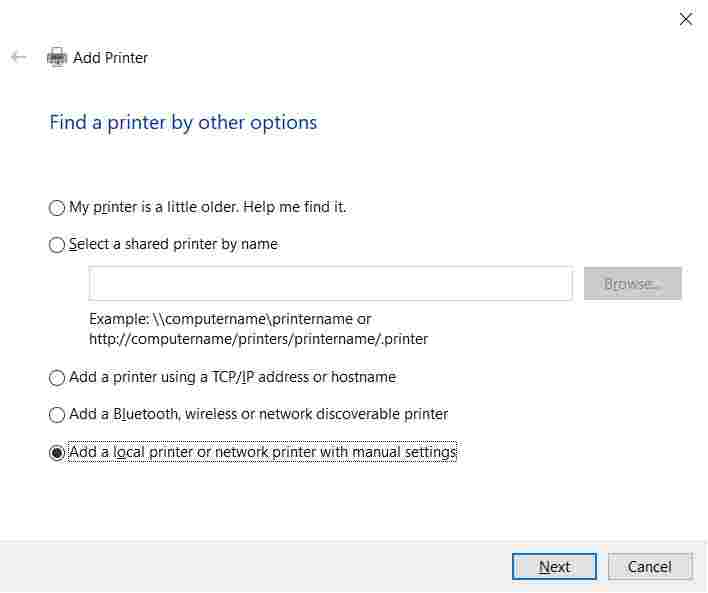
6. Click “The printer that I want isn’t listed”. After you select this, the “Add Printer” screen will appear.
7. Select “Add a local printer or network printer with manual settings”, and click Next.
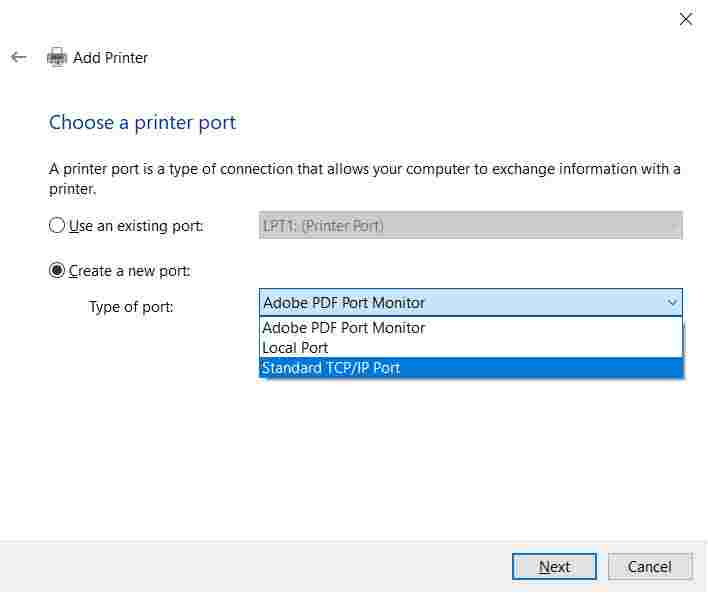
8. Click “Create a New Port” and select Standard TCP / IP from the drop-down box.
9. Type the IP address of your printer and click Next. At this point, your computer will try to detect the TCP / IP port. This may take some time.
10. Select the appropriate device type
In the drop-down menu for Standard Device Type, select the device type that matches the printer brand. For example, if you have a Canon printer, choose Canon Network Printer or Canon Network Printing Device. Windows will detect the driver model. You will notice that after detecting the driver, your printer will be added to the list of devices in the Printers & Scanners menu.
11. Install the print driver. Select your printer manufacturer in the left-hand column and the driver for your printer model in the right-side column. Click Next.
If you don’t see a driver for your model, click the box that says Have Disk. You will be instructed to install the driver from the manufacturer’s installation disc and copy it from the drive where the driver is located.
12. Select “Use the driver that is currently installed (recommended)” and click Next.
13. Set up optional preferences. Type a name for the printer if you want. If not, click Next. In the next window, you can set up printer sharing if you want. When finished, click Next.
14. Print a test page. You will get a message that you have successfully set up the printer. From here, you can print a test page or click Finish.
How to add a printer in Windows 10 via USB
Before setting up your printer, make sure it is connected to a power source and your computer is connected to the internet to download the required drivers.
1. Connect your printer and computer with a USB cable. Plug one end of your printer’s USB cable into your computer’s USB socket.
2. Follow the on-screen installation steps. Windows will automatically detect your printer and guide you through the steps for installing the print driver.
3. Check if your printer is set up successfully. To do so, click the Start button, which resembles the Windows logo, in the lower-left corner of your screen. Then navigate to Settings> Devices> Printers & Scanners. Alternatively, you can do this under Control Panel. Just go to Hardware and Sound> Devices and Printers.
If you’ve set it up correctly, you should be able to see the printer in the printer list. You can print a test page to confirm that the setup is complete.
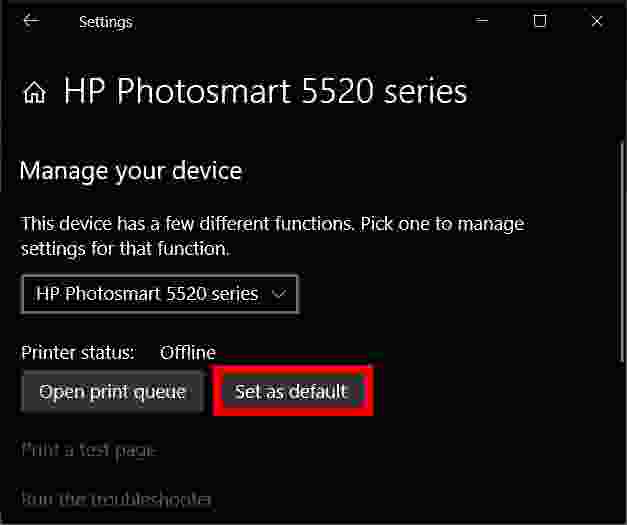
You can set any printer to be the default printer. Windows will send a print job to the default printer every time you print. You can set this in the Printers and Scanners menu under Settings. Just click on the printer you want to set as default, then click Manage> Set as Default.
How to add a Printer in Windows 10 Via Bluetooth
Adding a printer in Windows 10 via Bluetooth requires you to pair the device just like you would any other Bluetooth device. You have to check if the communication port or COM port that appears in Windows is the same as the one in the print driver. Here’s how to connect your Bluetooth printer to Windows 10.
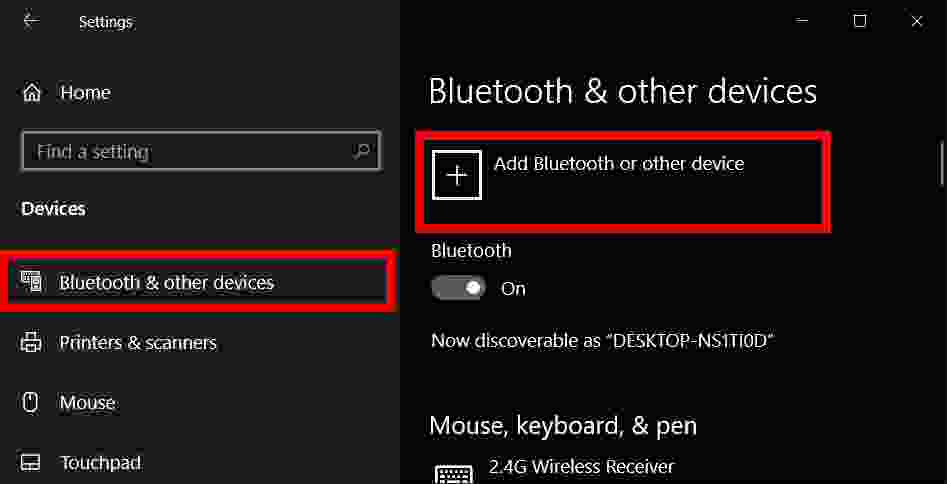
1. Go to Start> Settings> Bluetooth and Other Devices. Make sure to activate the switch for Bluetooth.
2. Click “Add Bluetooth or other devices “.
3. Then select Bluetooth as the type of device to add. Windows will display a list of detected Bluetooth devices. Select your Bluetooth printer from the list by clicking Ready to Pair.
4. Set up your computer and printer.
Some devices will pair automatically if your printer does not require a PIN. If not, enter the PIN for your Bluetooth printer on your computer when prompted. Click Connect. If your printer has a user interface, you may also be asked to enter a PIN on the printer. Follow the on-screen instructions on both devices to confirm the connection.
5. Check COM Port in Device Manager.
Go to Control Panel> Hardware and Sound> Devices & Printers. Right-click on the Bluetooth printer and select Properties. In the Services tab, you can see the COM port used by the printer.
6. Install a print driver with a suitable COM Port.
Follow the on-screen instructions to set up your print driver. On the Ports tab of the printer driver installation window, make sure the port in Windows Device Manager is the same as the one you set up with the print driver. If you have COM3 in Device Manager, for example, check the COM3 box during installation.
7. Print a test page. Make sure your printer is connected by printing a test page.
100+Best Lightweight Games For Windows 10 Laptop – Although currently there are many mobile games, the best light games for Windows are still the number one choice for gamers.
100+Best Lightweight Games For Windows 10 Laptop
100+Best Lightweight Games For Windows 10 Laptop 2024
The reason is, that playing games through a PC is more flexible and there are more choices of game genres that can be played.
In fact, not infrequently of those who are willing to buy a PC to a special gaming chair which is quite expensive.
Even so, for those of you who have a potato PC, you can still play the following lightweight games for windows entertainment.
The Best Small and Lightweight Games for Windows to Get Rid of Bored
Actually, there are lots of lightweight games for windows that can be played without the need for high computer specifications.
With this light game, you don’t have to worry about game problems being hampered because of slow computer performance.
Here are some recommendations for the best lightweight games for windows that can be used as entertainment when bored.
#1. Portal
Portal
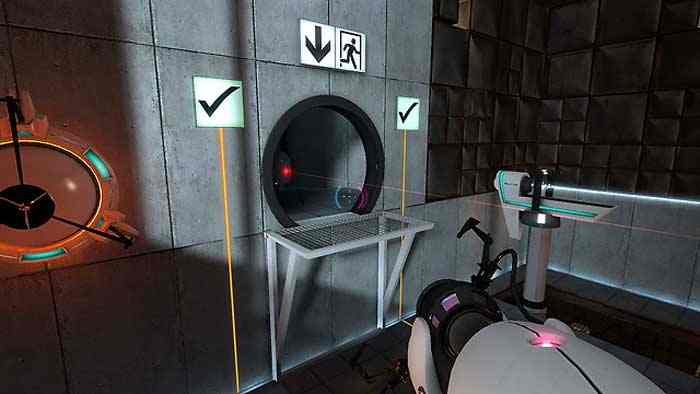
Portal is one of the best super light games worth trying to train your brain skills.
Later, each player will be asked to complete a puzzle in a 3-dimensional room.
The puzzle game presented is known as a fantastic game, unfortunately, this game only provides a resolution of 800×600.
Even so, it will not affect your game.
This game can be played smoothly on a low-end specification computer with a 1.7 GHz CPU, 512 MB RAM, and a video card using an Nvidia GeForce3+ or ATI Radeon 8500+.
This game was first released in 2007 and developed by Valve Corporation.
In 2011, Valve Corporation also developed and released the Portal 2 course with more complete features.
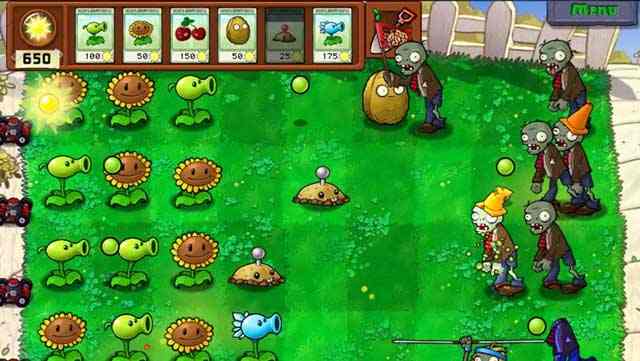
Plants vs Zombies is a lightweight game for windows with a strategy genre that is worth a try.
Not only easy to use, but the strategy needed also doesn’t need to make you think hard so that the game is more relaxed.
In this game, players will take on the role of zombies who fight evil plants and collect as many points as possible from sunflower plants.
Each zombie has different equipment and body resistance, so you have to be good at choosing which zombies you want to use first and leave them at the end.
The first version of this offline game was released in 2009.
As for the latest version, Plants vs Zombies Garden Warfare 2, it can be played by more than one person but must be connected to the internet.
For those of you fans of the Godfather movie, you can try playing the Mafia game.
This game is an action and open-world genre where the gameplay is similar to GTA but uses a setting in the 1930s.
Through this game, you can explore the world in 3 dimensions.
To play this game, you need super lightweight games for windows, specifications that is using a Pentium III 500MHz or Athlon XP 1600+ processor, a minimum of 128 MB RAM, and a 16 MB DirectX 8.1 video card.
This Mafia game was first released in 2002, but now the latest version has been released, namely Mafia III in 2016.
Unfortunately, this latest version requires a gaming PC with fairly high specifications.
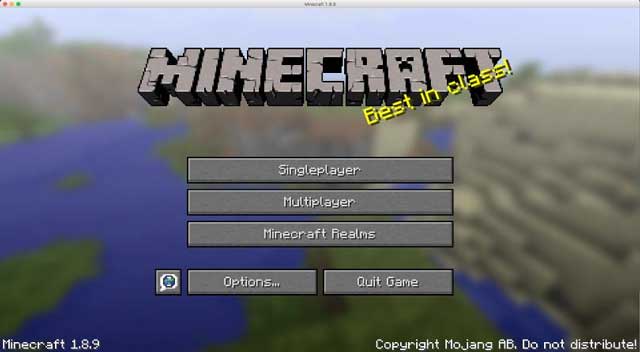
If you want to test your creativity, then you can choose lightweight games for windows Minecraft.
In this game, players are required to be innovative in making any building as desired.
This game is suitable for sharpening children’s creativity because there are no strategies or other difficulties, overall the game is just according to taste.
Minecraft has a capable graphic display without burdening the computer so that it can play games without being constrained.
To be able to use this game, it requires a decent PC specification, namely using an Intel Core i3-3210 3.2 GHz or AMD A8-7600 APU 3.1 GHz with 4GB RAM.
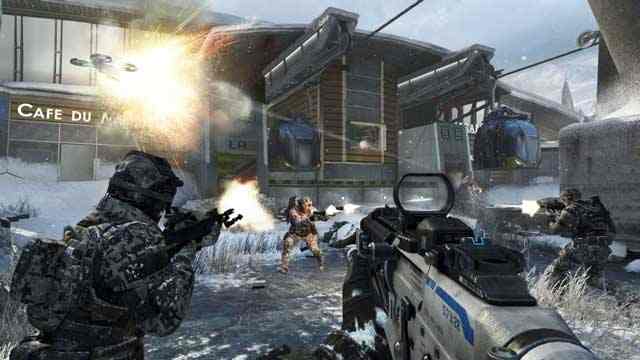
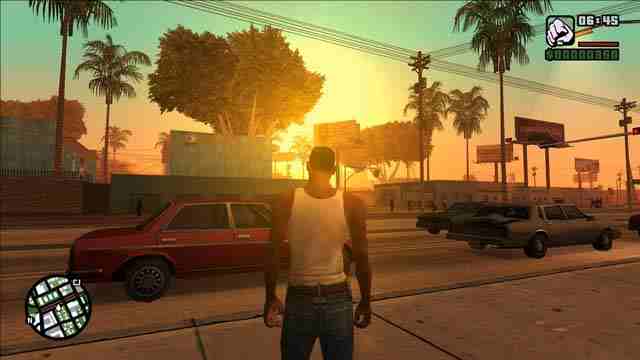
Besides Call of Duty, you can also get the thrill of shooting through the game Grand Theft Auto: San Andres.
This game is suitable for players who like films related to intelligence agencies because later players will be given the task of destroying a gangster group called the Ballas in the city of San Andreas.
Players in the game Grand Theft Auto San Andreas will act as Carl Johnson.
This lightweight game for windows was released in 2004, but it is still popular today.
This game is recommended for teenage gamers who want interesting adult stories, free open-world gameplay, and a wide modding community.
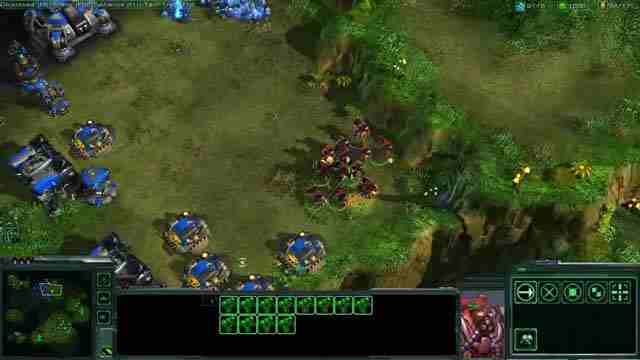
Until now, Starcraft 2 is considered one of the best games that must be played by all gamers.
This science fiction-themed game is good to use to practice your skills in strategizing in real-time in order to win.
This RTS game is available in two play modes, namely single-player or multiplayer.
With all the advantages offered, it turns out that Starcraft II does not require a sophisticated gaming laptop.
The minimum specifications needed to enjoy these challenging games are an Intel Core 2 Duo or AMD Athlon 64 X2 5600+ with 2 GB RAM and an NVIDIA GeForce 7600 GT, ATI Radeon HD 2600 XT, or Intel Graphics 3000 graphics card.
This online game which was released in 2010 can be used on Windows or Mac OS.
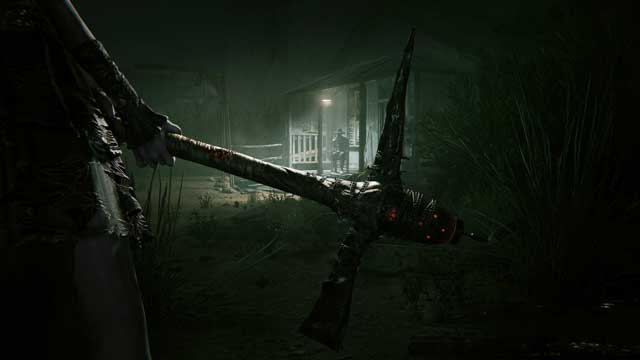
Outlast is a horror genre game developed by Red Barrels.
In this game, players will later fight against strange creatures in a mental hospital.
The asylum has long been exiled and players will not be given weapons to kill creatures that want to eat them.
In this game developed in 2013, you can only run to avoid them.
This game does not require high computer specifications, enough with a computer using a Dual Core 2.2 GHz processor, 2 GB RAM, and an NVIDIA GeForce 9800 GTX or ATI Radeon HD 38xx GPU.
In addition to some of the games above, there are many other lightweight games for windows that you can try.
These games offer several genres at once and can be played online or offline.
The classic fast-paced game is a great choice for Windows. Traditionally played on a wooden “cribbage” board, the online version offers several benefits including strategic guides, tips, history, and even multiple difficulty settings.
Cribbage is played with a standard 52-card deck, usually played by two players, but can also be played with three or four players.
The objective of cribbage is to be the first player to score a total of 121 points. Players take turns playing cards from their hands and trying to score points in various ways.
The engaging game’s board was originally modeled after a horse race track, emulating the quick gameplay that is entertaining and engaging.
As one of the best PC game distributors, Steam also provides a wide selection of lightweight games for windows that can be downloaded for free by Indonesian gamers.
Interestingly, on this platform, there are various genres to choose from, ranging from FPS, RPG, adventure, and many more.
Here are some recommendations for lightweight games for windows that can be downloaded via Steam.
No
Game Name
Genre
Release Year
1
Ultimate Doom
Action
1995
2
Fallout
RPG
1997
3
System Shock 2
Action, RPG
1999
4
Deus Ex: Game of the Year Edition
Action
2000
5
Sid Meier’s: Civilization III
Strategy
2001
6
The Elders Scroll III: Morrowind
RPG
2002
7
POSTAL 2
Action, Adventure, Indie
2003
8
Max Payne
Action
2003
9
Manhunt
Action
2004
10
Dungeon Siege II
RPG
2005
11
STAR WARS™ Knights of the Old Republic™ II – The Sith Lords™
RPG
2005
12
Serious Sam 2
Action, Indie
2005
13
Grand Theft Auto San Andreas
Open World, Action, Crime
2005
14
Star Wars Empire at War
Strategy
2006
15
Left 4 Dead
Action, Zombie
2008
16
Mount & Blade
RPG, Indie
2008
17
CNC: Red Alert 3
Strategy
2008
18
Call of Duty 2
Action, FPS
2009
19
Mount & Blade: Warband
Action, RPG
2010
20
Binding of Isaac
Roguelike
2011
21
Terraria
RPG, Adventure, Indie
2011
22
Limbo
Platformers, Indie
2011
23
To The Moon
RPG, Action, Indie
2011
24
Unity of Command: Stalingrad
Strategy, Indie
2012
25
Miami Hotlines
Action, Indie
2012
26
FTL: Faster Than Light
Simulation, Strategy, Indie
2012
27
Torchlight II
RPG, Action, Adventure, Indie
2012
28
Castle Crasher
RPG, Action, Indie
2012
29
Super House Dead of Ninjas
Action, Indie
2013
30
Kentucky Route Zero
Adventure, Indie
2013
31
Rogue Legacy
RPG, Action, Adventure, Indie
2013
32
Gunpoint
Action, Strategy, Indie
2013
33
Age of Empire II
Strategy
2013
34
Zombies
RPG, Simulation, Early Access, Indie
2013
35
Paper, Please
Adventure, Indie
2013
36
FEZ
indie
2013
37
Half-Life: 2
FPS, Action, Mind Blow
2014
38
The Banner Saga
RPG, Strategy, Indie
2014
39
Five Nights at Freddy’s
Simulation, Indie
2014
40
One Way Heroics
RPG, Indie
2014
41
Xenonauts
Simulation, Strategy, Indie
2014
42
Retro City Rampage™ DX
Action, Adventure, Racing, Indie
2014
43
Tower Fall Ascension
Action, Indie
2014
44
Town of Salem
RPG, Indie
2014
45
Under table
RPG, Indie
2015
46
Kingdom: Classic
Simulation, Strategy, Indie
2015
47
The Banner Saga 2
RPG, Strategy, Story Rich, Turn-Based Strategy
2015
48
Technobabylon
Adventure, Indie
2015
49
Westerado
Action, Adventure, Indie
2015
50
Galactic Civilization III
Strategy, Indie
2015
51
Broforce
Action, Indie
2015
52
Running With Rifle
Action, Indie
2015
53
Crypt of NecroDancer
RPG, Action, Indie
2015
54
Sunless Sea
RPG, Adventure, Indie
2015
55
8BIT MMO
RPG, Free to Play, Indie, Massively Multiplayer
2015
56
UnderRail
RPG, Indie
2015
57
Hotline Miami 2: Wrong Number
Action, Indie
2015
58
Corpse Party
RPG, Horror, Indie
2016
59
Dead Road to Canada
RPG, Action, Indie
2016
60
Stardew Valley
RPG, Simulation, Indie
2016
61
Angels of Death
RPG, Physcology, Adventure, Indie
2016
62
Kingdom: New Land
Simulation, Strategy, Indie
2016
63
Dont Starve
Adventure, Simulation, Indie
2016
64
Owlboy
Adventure, Action, Indie
2016
65
Binding of Isaac: Afterbirth
Roguelike
2017
66
Cuphead
Platformers
2017
67
Night in the Woods
Adventure
2017
68
Crawl
RPG, Action, Indie
2017
69
Unturned
Action, Adventure, Casual
2017
70
Brawlhalla
MMO, Fighting
2017
71
Finding Paradise
RPG, Action, Indie
2017
72
Stick Fight
Action, Casual, Indie
2017
73
Mark of the Ninja
Action, Indie
2018
74
The Banner Saga 3
RPG, Strategy, Indie
2018
75
Pillars of Eternity 2
RPG
2018
76
The Walking Dead Series
Action, Story
2018
Best Lightweight Games for Windows Old Category
The game category old school is a collection of lightweight games for windows, this game was released in 2005 and below.
This old-school game generally does not require a computer with high specifications so it remains smooth when used for various old computers.
Here are some complete old-school games that can be played smoothly on your potato PC.
No
Game Name
Genre
Release Year
Recommended for
1
DOOM collection 1
FPS
1993
A game that likes FPS games with many campaigns
2
DOOM collection 2
FPS
1994
A game that likes FPS games with many campaigns
3
Quake collection 1
FPS
1996
Gamers who like fast-paced FPS games with non-linear levels
4
Quake collection 2
FPS
1997
Gamers who like fast-paced FPS games with non-linear levels
5
Diablo I
RPG
1997
Gamers who like the RPG genre with lots of dungeons and loot
6
Theme Hospital
Simulation, tycoon
1997
Gamers who like tycoons or being the boss of a company
7
Dungeon Keepers
RTS, Dungeon management
1997
Gamers who like to build their own dungeon
8
Fallout 1
RPG, Turn-based
1997
RPG fans who love complex gameplay and mystery stories
9
Starcraft
RTS
1998
RTS fans with fast-paced and high-finger speed games
10
Half-Life 1
FPS
1998
Gamers who like FPS with a scientific theme
11
Grim Fandango
Adventure
1998
Gamers who like an adventure in the form of point-and-click and like funny and interesting stories
12
Fallout 2
RPG, Turn-based
1998
RPG fans who love complex gameplay and mystery horror stories
13
Quake collection 3
FPS
1999
Gamers who like fast-paced FPS games with non-linear levels
14
Baldur’s Gate I and II
RPG
1999
Fans of RPG mechanics that are complex, strategic, and full of lore
15
System Shock 2
FPS, Horror, RPG
1999
Gamers who like cyberpunk and want games with exploration full of mystery
16
Age of Empires 2
RTS
1999
RTS enthusiasts with a little spice to build their own civilization
17
Roller Coaster Tycoon 1
Strategy, Tycoon
1999
Tycoon lover gamers with lots of features and cool gameplay
18
The Sims 1
Simulation
1999
Gamers who want to have a different character from the original
19
Deus Ex
FPS, RPG, Stealth
2000
Stealth fan with a quirky story or a cyberpunk lover
20
Diablo II
RPG
2000
RPG fans with lots of dungeons and loot
21
No One Lives Forever 1
FPS
2000
Secret agent-themed FPS fans
22
Giants: Citizen Kabuto
Action, RTS, Shooter, Platformer
2000
Gamers who are curious about cult classics full of different genres mixed into one
23
Command and Conquer: Red Alert 2
RTS
2000
Fast RTS fans like Starcraft but have a world war theme
24
Max Payne 1
Action, Shooter
2001
Action genre fans with interesting and unique shooting techniques
25
Return to Castle Wolfenstein
FPS
2001
Shooter fans
26
Freedom Fighters
Action, TPS
2001
Gamers who like the simple but still fun TPS genre
27
Clive Barker’s Undying
FPS Horror
2001
Gamers who love the horror cult classic genre written by the legendary author of horror novels
28
Halo: Combat Evolved
FPS
2001
FPS fans who want to try to experience one of the best FPS in the world
29
The Elder Scrolls III: Morrowind
RPG
2002
Gamers who like RPG games with lots of quests
30
Medal of Honor: Allied Assault
FPS
2002
FPS fans who love the world war II theme
31
No One Lives Forever 2
FPS
2002
FPS fans with secret agent themes or complete missions against gangsters
32
Roller Coaster Tycoon 2
Strategy, Tycoon
2002
Tycoon game enthusiasts with lots of features and interesting gameplay
33
Age of Mythology
RTS
2002
Gamers who love Age of Empire, but want a new twist like mythological creatures
34
Warcraft III
RTS
2002
Gamers who want to try to taste the legendary RTS and become the base game for famous mods like DOTA
35
Freedom Force
RPG, Strategy
2002
Gamers who like comic book style with a touch of corny and over the top
36
Battlefield 1942
FPS
2002
Shooter fan with a world war II background
37
Max Payne 2
Action, Shooter
2003
Action genre fans who want a unique shooting mechanic
38
Star Wars Jedi Knight – Jedi Academy
Action, Adventure
2003
Gamers who love Star Wars
39
Sim City 4
Strategy, City-building
2003
Gamers who want to test their creativity in building complex cities full of interesting features
40
Rise of Nations
RTS
2003
Gamers who want AoE with a more modern and more strategic stage
41
Star Wars: Knight of the Old Republic 1
RPG
2003
Star Wars fans or RPG fans with interesting characters and stories
42
Rome: Total War
RTS
2004
Gamers who like to hone strategy in large-scale battles
43
Unreal Tournament 2004
FPS
2004
Gamers who like PVP shooters with fast-paced gameplay
44
Half-Life 2
FPS
2004
Gamers who love FPs Scifi and want to experience the game that has revolutionized the FPS genre
45
DOOM collection 3
FPS
2004
FPS fans with an unlimited collection of campaigns from an active community
46
The Sims 2
Simulation
2004
Gamers who want to try to create a persona much better than the original character
47
Need For Speed Underground 2
Racing
2004
Street racing lover with lots of cars to collect
48
Star Wars Knight of the Old Republic 2
RPG
2004
Star Wars fans or RPG fans in general who want interesting characters and stories
49
Far Cry
FPS
2004
Fans of FPS games with a revolution in graphic quality
50
Prince of Persia: Warrior Within
Action, Adventure
2004
Lovers of challenging action and adventure games
51
Most Wanted
Racing
2005
Gamers who love racing with cool cars
Best Lightweight Games for Windows in Modern Category
Modern games are games released recently around 2005 to 2014 that can still be used on potato PCs.
This modern game consists of various genres, ranging from RTS, FPS, Action, and Horror to Racing.
The modern category of lightweight games for windows can be seen in the table below.
No
Game Name
Genre
Release Year
Required Specifications
1
Star Wars: The Force Unleashed
Action, Adventure
2009
Intel Core 2 Duo 2.4 GHz or AMD Athlon X2 5200+, 2 GB RAM, GPU Radeon HD 2900 or Geforce 8600
2
The Chronicles of Riddick: Assault on Dark Athena
Action, FPS
2009
Intel Pentium D 805 or AMD Athlon X2 +3800, 1GB RAM with GPU ATI Radeon HD 2600 XT or NVIDIA GeForce 6800 Ultra
3
DmC: Devil May Cry
Action, Hack-and-Slash
2013
Intel(R) Core(TM)2 Duo 2.4Ghz or AMD Athlon(TM) X2 2.8Ghz with 2GB RAM, GPU NVIDIA(R) GeForce(R) 8800GTS or ATI Radeon(TM) HD 3850
Pentium D 3Ghz or AMD Athlon 64 X2 3600+ (Dual-core), 1.5 GB RAM, Nvidia GeForce 8600 ATI HD2600 Pro
7
Just Cause 2
Action, Open-world
2010
Dual-core CPU with SSE3 (Athlon 64 X2 4200 or Pentium D 3GHz), 2 GB RAM, DX10 GPU with 256 MB memory ((ATI Radeon HD 2600 Pro or Nvidia GeForce 8800)
8
Saints Row 3
Action, Open-world
2011, 2013
2GHz Dual-Core Processor (Intel® Core 2 Duo or AMD Athlon™ X2), 2GB RAM, 320MB GPU Video RAM GPU w/ Shader Model 3.0 support. NVIDIA® GeForce® 8800 or ATI Radeon™ HD3800
9
Sleeping Dogs
Action, Open-world
2012
Core 2 Duo 2.4 GHz or Althon X2 2.7 GHz, 2 GB RAM, GPU ATI Radeon 3870 or Nvidia GeForce 8800 GT
10
Grand Theft Auto IV
Action, Open-world
2010
Intel Core 2 Duo 1.8GHz or AMD Athlon X2 64 2.4GHz, 1.5GB RAM, 256MB Nvidia 7900 or 256MB ATI X1900 GPU
11
Assassin’s Creed 2: Ezio Trilogy
Action, Open-world, Stealth
2009, 2010, 2011
Intel® Core™2 Duo E4400 @ 2.0 GHz or AMD Athlon™ 64 X2 4000+ @ 2.1GHz, 1.5 GB RAM for XP and 2 GB for Vista or Windows 7, 256 MB GPU DirectX® 9.0–compliant card with Shader Model 4.0
12
Splinter Cell: Blacklist
Action, Stealth
2013
2.53 GHz Intel® Core™2 Duo E6400 or 2.80 GHz AMD Athlon™ 64 X2 5600+, 2 GB RAM, 512 MB DirectX® 10–compliant with Shader Model 4.0
13
Dishonored
Action, Stealth
2012
3.0 GHz dual-core, 3 GB RAM, GPU NVIDIA GeForce GTX 460 or ATI Radeon HD 5850
14
Batman Arkham Asylum
Action, Stealth, Beat-em-up
2009
Intel Core 2 Duo 2.4 GHz or AMD Athlon X2 4800+, 2 GB RAM, 512 MB ATI 3850HD GPU or 512 MB NVIDIA GeForce 8800 GT
15
Arkham City
Action, Stealth, Beat-em-up
2011
Intel Core 2 Duo 2.4 GHz or AMD Athlon X2 4800+, 2 GB RAM, 512 MB ATI 3850HD GPU or 512 MB NVIDIA GeForce 8800 GT
16
Deus Ex: Human Revolution
Action, stealth, RPG
2013
2 GHz dual-core, 2 GB RAM, GPU NVIDIA GeForce 8000 or ATI Radeon HD 2000
17
Max Payne 3
Action, TPS
2012
Intel Dual Core 2.4 GHz or AMD Dual-Core 2.6 GHz, 2 GB RAM, GPU NVIDIA® GeForce 8600 GT 512MB RAM or AMD Radeon™ HD 3400 512MB RAM
, 1.5 GB RAM, DirectX 9.0c compatible, 256 MB VRAM, NVIDIA GeForce 7600 GS, ATI Radeon HD 2400 Pro 256 M
20
Call of Duty Modern Warfare Trilogy
FPS
2007, 2009, 2011
Intel® Core™ 2 Duo E6600 or AMD Phenom™ X3 8750, 2 GB RAM, GPU Shader 3.0 or 256 MB NVIDIA® GeForce™ 8600GT or ATI® Radeon™ X1950
21
Far Cry 3
FPS
2012
Intel Core®2 Duo E6700 @ 2.6 GHz or AMD Athlon64 X2 6000+ @ 3.0Ghz, 4 GB RAM, 512MB GPU Video RAM (1GB Video RAM), DirectX9c (DirectX11) Shader Model 3.0 (Shader Model 5.0)
22
The Darkness 2
FPS
2012
Intel Core 2 @ 2GHz or AMD Athlon 64 X2 4200+, 1.5 GB RAM, 256MB GPU NVIDIA GeForce 8600 or ATI Radeon HD 2600
23
FEAR
FPS Horror
2005
Pentium® 4 1.7 GHz or equivalent processor, 512 MB of RAM, 64 MB GeForce™ 4 Ti or Radeon® 9000 video card, Monitor that can display 4:3 ratio
24
STALKER: Shadow of Chernobyl
FPS, Open-world, Horror
2007
Intel Pentium 4 2.0 GHz / AMD XP 2200+, 512 MB RAM, 128 MB GPU DirectX® 9c compatible card or nVIDIA® GeForce™ 5700 or ATI Radeon® 9600
25
Rayman Origins
Platformers
2011
Intel Pentium IV @ 3.0 GHz or AMD Athlon64 3000 + @ 1.8 GHz, 2 GB RAM, nVidia GeForce 6800GT or AMD Radeon X1950 Pro
26
Dirt 3
Racing
2011
AMD Athlon™ 64 X2 2.8GHz, Intel Pentium® D 2.8Ghz, 2GB RAM, AMD Radeon™ HD 2000 GPU 256MB, NVIDIA® GeForce® 8000 Series 256MB
27
Need for Speed: Hot Pursuit
Racing
2010
Intel Core® 2 Duo 2.0 GHz or AMD Athlon X2 64 2.4GHZ, 1 GB RAM (XP), 1.5 GB (Vista or Windows 7), GPU DirectX® 9.0c Compatible 3D-accelerated 256 MB video card with Shader Model 3.0
28
Grid 2
Racing
2013
Intel Core 2 Duo @ 2.4Ghz or AMD Athlon X2 5400+, 2GB RAM, GPU Intel HD Graphics 3000 or AMD HD2600 or NVIDIA Geforce 8600
29
Sonic & All-Stars Racing Transformed
Racing
2013
2GHz Intel Core 2 Duo with 1GB RAM (XP), 2GB (Vista, 7 and 8), GPU: 256MB with Shader Model 3.0
30
Burnout Paradise
Racing
2009
2.8 GHz Pentium 4 XP or 3.2 GHz Pentium 4 Vista, 1 GB RAM (XP) or 1.5 GB (Vista), Nvidia 6600 or Radeon X1300 GPU
31
Split/Second
Racing
2010
3.0 GHz Intel Pentium D (Windows 7 or Vista) and 2.6 GHz (Windows XP) or 2.0 GHz AMD Athlon 64 X2, 2.5 GB RAM, GPU NVIDIA GeForce 7600 or ATI Radeon X1600
32
Dragon Age: Origins
RPG
2009
Intel Core 2 Single 1.6 GHz Processor or AMD 64 2.0 GHz Processor, 1GB Memory, ATI Radeon X850 256MB or NVIDIA GeForce 6600 GT 128MB
33
The Elder Scrolls V: Skyrim
RPG
2011
Dual-Core 2.0GHz with 2GB RAM, GPU Direct X 9.0c
34
Borderlands 2
RPG, FPS
2012
2.4 GHz Dual Core Processor with 2 GB RAM, NVIDIA GeForce 8500 GPU or ATI Radeon HD 2600
35
Mass Effect trilogy
RPG, Shooter
2007, 2010, 2012
1.8 GHz Intel Core 2 Duo, 1GB RAM for XP and 2GB for Vista/Win 7, 256 MB GPU (with support for Pixel Shader 3.0, NVIDIA 7900, or ATI X1800
36
Fallout 3
RPG, Shooter, Open-world
2008
Dual-Core 2.0GHz, 2GB RAM, NVIDIA GeForce 6 or ATI 1300XT GPU
37
New Vegas
RPG, Shooter, Open-world
2010
Dual-Core 2.0GHz, 2GB RAM, NVIDIA GeForce 6 or ATI 1300XT GPU
38
Dark Souls 1
RPG, Souls Game
2011
AMD® Phenom II™ X2 555 3.2Ghz or Intel® Pentium Core™ 2 Duo E8500 3.17Ghz, 2GB RAM, GPU: NVIDIA® GeForce® 9600GT or ATI Radeon™ HD 5870
39
Dark Souls 2
RPG, Souls Game
2014
AMD® Phenom II™ X2 555 3.2Ghz or Intel® Pentium Core™ 2 Duo E8500 3.17Ghz, 2GB RAM, GPU: NVIDIA® GeForce® 9600GT or ATI Radeon™ HD 5870
40
Company of Heroes
RTS
2006
2.0 GHz Intel Pentium IV or equivalent or AMD Athlon XP, 512 MB RAM, DirectX 9.0c 64MB with Pixel Shader 1.1
41
World in Conflict
RTS
2009
2.0 GHz, 512 MB RAM, and NVIDIA GeForce 6600 GT or NVIDIA GeForce 8500 GT GPU
42
The Sims 3
Simulation
2009
1.8 GHz Intel Core 2 Duo or AMD Athlon 64 Dual-Core 4000+ with 2 GB RAM, GPU NVIDIA GeForce 6600 or ATI Radeon X1300 or Intel GMA X4500
43
The Sims 4
Simulation
2014
1.8 GHz Intel Core 2 Duo or AMD Athlon 64 Dual-Core 4000+ with 2 GB RAM, GPU NVIDIA GeForce 6600 or ATI Radeon X1300 or Intel GMA X4500
44
Civilization V
Strategy, Turn-based
2010
Intel Core 2 Duo 1.8 GHz or AMD Athlon X2 64 2.0 GHz, 2 GB RAM, 256 MB GPU ATI HD2600 XT or better, 256 MB nVidia 7900 GS or Core i3
45
Xcom: Enemy Unknown
Strategy, Turn-based
2011
2 GHz Dual Core, 2 GB RAM, GPU NVIDIA GeForce 8600 GT or ATI Radeon HD 2600 XT
46
Spec Ops: The Line
TPS
2012
Intel Core 2 Duo @ 2Ghz or AMD Athlon 64 X2, 2 GB RAM, GPU NVIDIA GeForce 8600 or ATI Radeon HD 2600XT
47
Binary Domain
TPS
2012
Intel Core 2 Duo @ 2.66 GHz, 2 GB RAM, GPU NVIDIA GeForce GT220 (512MB) or ATI Radeon HD 2600 XT (512MB)
48
Gears of War
TPS
2006
2.4+ GHz Intel or 2.0+ GHz AMD, 1 GB RAM, GPU NVIDIA GeForce 6600+ or ATI X700+
49
Resident Evil 4 HD Edition
TPS, Horror
2014
Intel® Core™ 2 Duo 2.4 GHz or AMD Athlon™ X2 2.8 GHz, 2 GB RAM, GPU NVIDIA® GeForce® 8800GTS or ATI Radeon™ HD 4850
50
Dead Space Trilogy
TPS, horror
2008, 2011, 2013
2.8 GHz Processor with 1 GB RAM (XP) and 2 GB (Vista or Windows 7), NVIDIA GeForce 6800 GPU, ATI X1600 Pro, 256MB GPU with Shader Model 3.0
Best Lightweight Games for Windows in Indie Category
In addition to old and modern games, there are also games that are categorized as indie games.
Indie games are collections of games developed by regular studios (not big and well-known studios).
Even so, indie games are also no less interesting and challenging than games from big studios.
The following is a collection of indie games that can be used as a reference.
4 Ways To Activate Windows 7 Permanently For Free – Have you just installed Windows 7 or are you having a problem because the expired not genuine warning appears? So, you must know how to activate Windows 7 so that the performance of your laptop or PC becomes normal.
How to Activate Windows 7 Permanently For Free
How to Activate Windows 7 Permanently For Free PC 2024
Even though on January 14, 2020, Microsoft announced that they had stopped providing Windows 7 updates, there are still many Windows users who are still comfortable using it. The reason is that Windows 7 has several advantages when compared to the versions above.
In addition, Windows 7 is often considered more stable, easy to understand, and lighter so that it can be used for low computer specifications and supports almost all existing software.
If you have just used Windows 7 or reinstalled Windows 7, then you must activate it. If not, Windows 7 will expire and you will experience more problems.
To activate Windows 7, including a very easy job. You can activate Windows 7 Ultimate, Professional, and other versions in 32-bit and 64-bit offline.
It’s so easy, there are several options for activating Windows 7, starting from using a genuine activator, without a product key, and even just using CMD.
Note: If you fail when downloading the activator file or when opening it. This means that you must first deactivate your antivirus, firewall, and internet connection so that these problems do not occur.
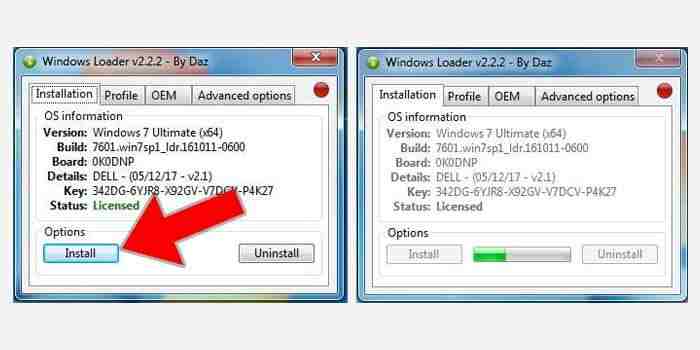
#1. Windows Loader
Windows Loader is a Windows 7 activator that is quite popular nowadays. By using this software, you can activate Windows 7 without having to have a product key for activation.
How to activate Windows 7 with the Windows loader:
First, deactivate the antivirus on the laptop or PC.
Then, download the Windows loader 7 activator file here
Then extract the file and turn off the internet connection.
Run the application by right-clicking> Run As Administrators.
The loader will open and display the specifications of the window.
Click the Install button to start Windows 7 activation.
You have to wait for the process to complete.
The last step is restarting your laptop or PC.
Very easy, right? After your PC or laptop has restarted and is active again, Windows 7 has certainly been successfully activated without having to enter the product key.
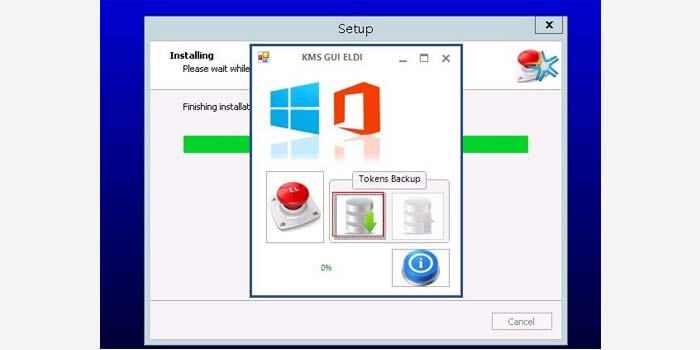
#2. KMSPico
The next software is called KMSPico which is also very popular as an application that is able to provide full access to Windows 7 without requiring a product key. This application is free and can be used to activate Windows 7 permanently.
How to activate Windows 7 permanently without a product key:
In the installation window, click the Next button.
Check the Accept Agreement column then click Next.
The kmspico installation stage will run.
Wait for the process to complete.
If you experience problems when doing the steps above, then make sure to turn off the antivirus or firewall on Windows 7 first.
Well, after you have successfully followed the guide above, don’t forget to restart your laptop or PC so that the Windows 7 activation process is successfully applied.
#3. Activate Windows 7 With CMD
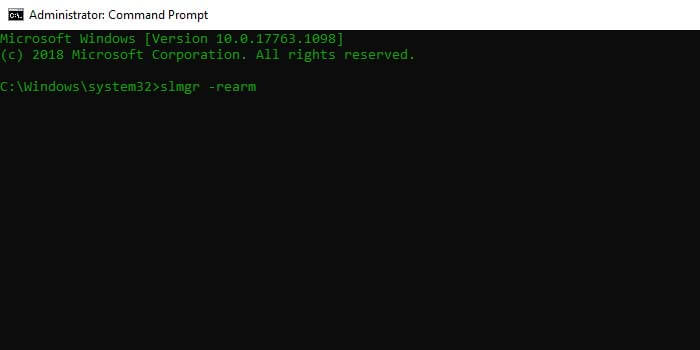
If you don’t want to use activator software to activate Windows 7, then CMD might be the solution. As we know, CMD is a built-in feature of Windows so you don’t need to install any additional software and it can be done offline.
Here’s how to activate Windows 7 with CMD:
Click the windows icon in the corner.
Type CMD in the search field to search for it.
Right-click CMD then select the option Run As Administrator.
Once open, type slmgr -rearm in the CMD window.
Then press the Enter key to send the command.
Finally, restart your PC or laptop.
Done.
Note: Orders sent to CMD are basically for adding Windows 7 activation. This additional activation has a limit, which is only 3x for a total of 120 days.
#4. Activate Windows 7 Without Software
The last way is that you must have a valid product key so that it can be used to activate Windows 7 on your PC or laptop. To do this, you only need an internet connection to go online and validate the product key.
Although the Windows product key can only be obtained by buying it legally. But no need to worry, you can get the product key that matches your Windows 7 edition at the link here.
Here are the steps to enter the Windows 7 product key:
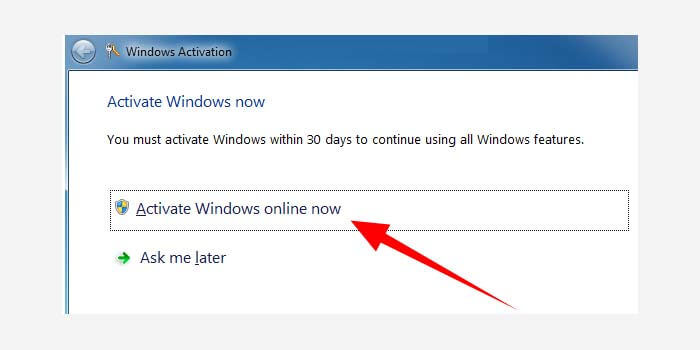
Go to the Start menu> Control Panel> Windows Activation.
Click the Activation Windows Online Now option.
Then enter the product key that you have.
After that, wait for the process to complete.
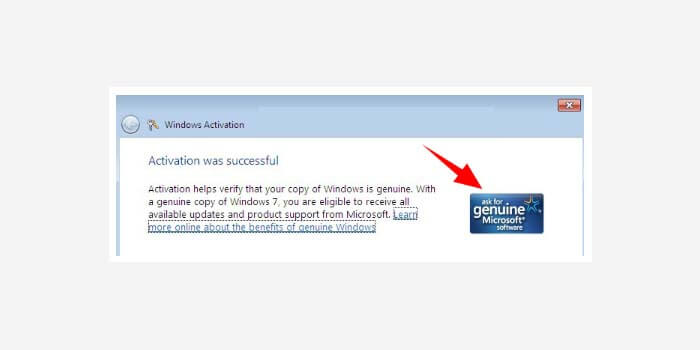
If successful, the Activation was successful message will appear.
Done.
Now features in Windows 7 can be used smoothly without the need to worry about error messages or other problems.
Disclaimer: All forms of download files on the Technowizah.com site are just for educational purposes only.
DMCA: Technowizah.com complies with 17 U.S.C. * 512 and the Digital Millennium Copyright Act (DMCA). It is our policy to respond to any infringement notices and take appropriate action. If your copyrighted material has been posted on the site and you want this material removed, Contact us.
This is the explanation of 4 ways to activate Windows 7 permanently for free. Which method is effective for you? Is it using the software? Without a product key with cmd? Or validate the product key that you have?
How to Create a Table of Contents in Word – In this post, we will explain how to create a table of contents automatically and also explain how to create pages in Microsoft Office ( Ms.Word ).
How to Create a Table of Contents in Word 2024
In writing, a table of contents is a very mandatory component. The reason is that writers are required to provide a table of contents in a written work.
For example in writing a book, the table of contents is very important in writing scientific papers such as theses, papers, theses, dissertations, and many more.
What are the benefits of a table of contents in an essay?
The first is initial information about what will be discussed in a book or scientific paper.
The term table of contents is the subject of discussion, in some books have written a synopsis at the back of the book that tells the reader about the material topics or discussions in a book.
The table of contents also contains information on discussion topics contained in chapters or sub-chapters on each page.
In addition, the table of contents can also make it easier for readers to find information in a book or written work they are looking for.
The contents of the book are applied based on chapters and subchapters on each page. The existence of flat content can make it easier for people who are looking for material on the book page because it can be seen from the table of contents.
The discussion below will explain also how to create pages in the word correctly. Check out the explanation below!
How to Create an Automated Table of Contents and Pages in Word
#1. Create an Automatic Table of contents
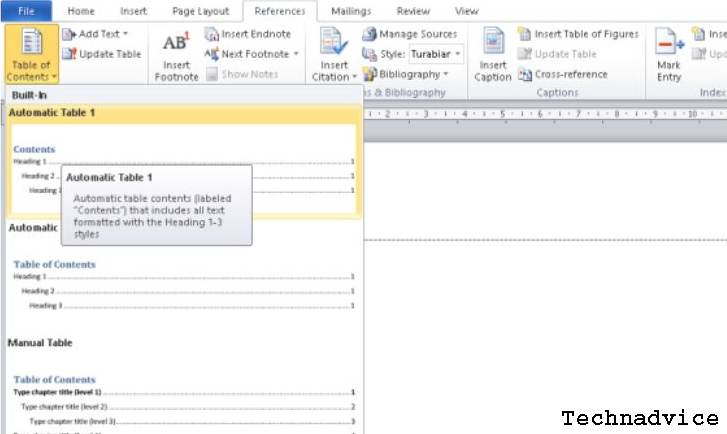
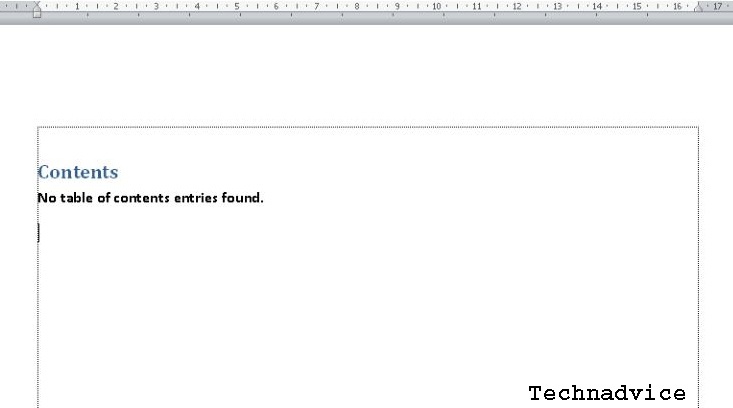
Open the Microsoft Word that you use, then create a file in Microsoft Word. If you have selected the References menu, then select the Table of Contents menu. Choose according to your needs. The explanation here selects the Automatic Table 1 type.
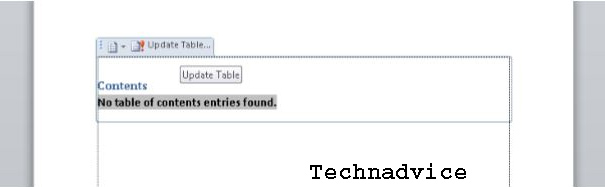
Then on your word screen will appear as shown below.
It can be seen in the picture above that there is a Table of Contents description or the table of contents is not found. Because several steps must be made first.
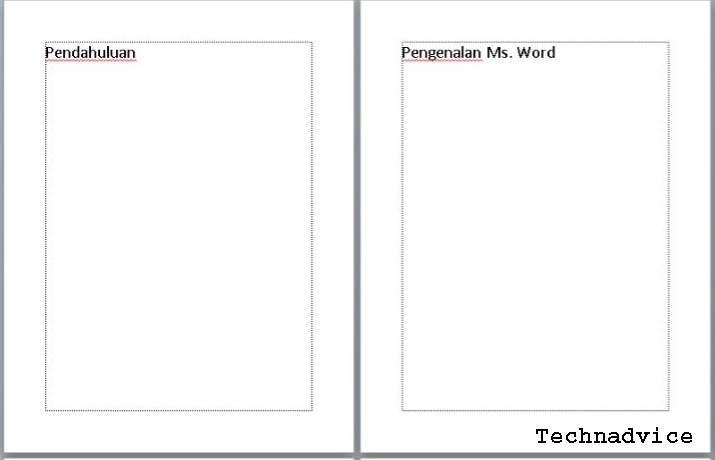
Next, you must first create any chapters or sub-chapters that you will create in the table of contents. For example, as follows:> Preface
>Prologue > Introduction > Introduction to Ms. Word > Benefits of using Ms. Word > How to use Ms. Word > About the Author > IndexThe chapter above is made with different pages.
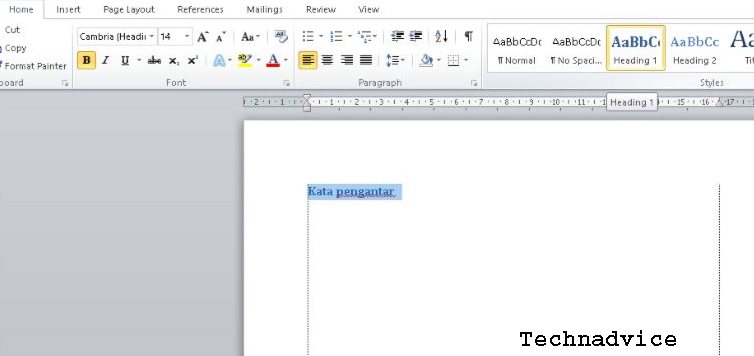
Then set the style of the chapter title writing to be Heading 1 or Heading 2. The trick is to block writing and then on the Styles menu in Home select Heading 1 or Heading 2 and do it on all pages.
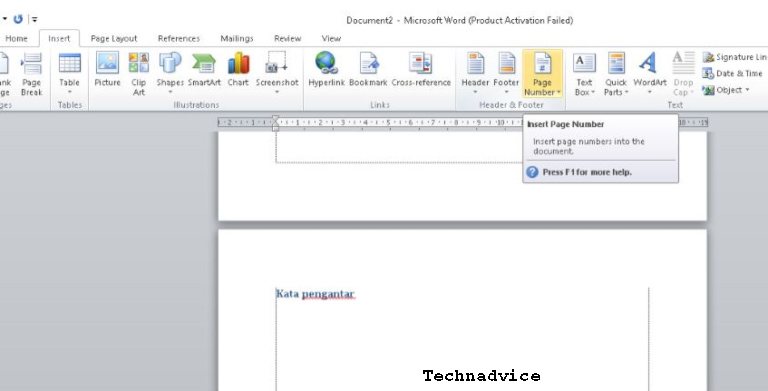
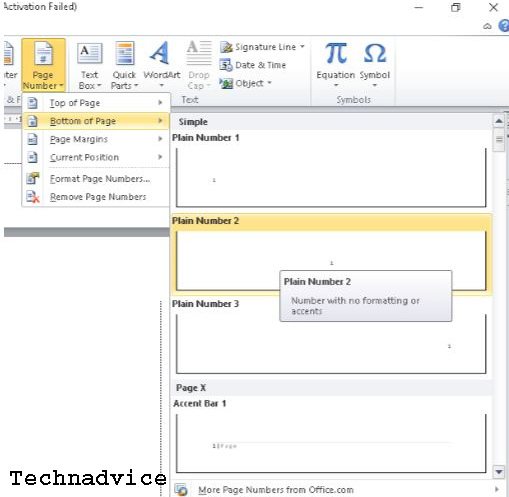
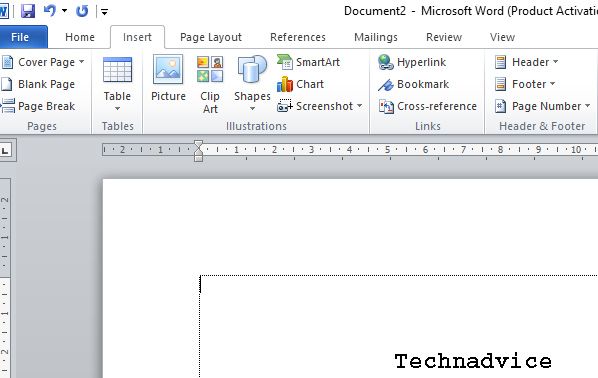
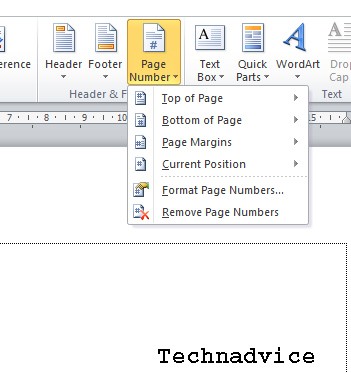
Then if every page has been completed, the next step is to create a page or Page Numbers. The step is that you select the Insert menu, then in the Header and Footer column click Page Number.
If you have selected Page Number, you will see that there are several page number options. Here is an example of using page numbers in the bottom center, see the image below.
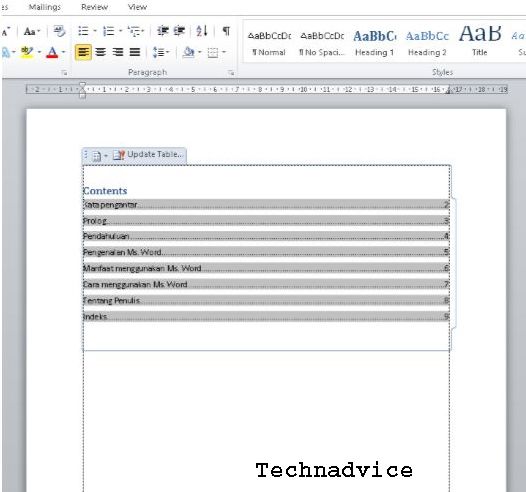
Then the next step is to open the first page where the table of contents will be created, then click Update Table.
If you have selected the update table it will appear writing on each chapter of your page.
Note: The following explains how to create an automatic table of contents for page chapters, if you make changes to each page, change titles or add pages, you only need to click on the update table as in the fourth step above.
The changes you make will appear as shown above. Select Update Page Numbers Only if the table of contents page has not changed, on the title name then select Update Entire Table if there is a change in the title name or the addition of a title on the page.
#2. Creating Word Pages
Creating a Page Number
Open Microsoft Word, select Insert in the header & footer section, then click page number.
Then select the page number location:
Top of Page, the placement of the page number at the top or header.
Bottom of the Page, placement of page numbers at the bottom or footer.
Page Margins, the placement of the page number of the page margin.
Current Position, the placement of the page number at the cursor position.
Then click the page number according to your wishes
If you have closed the header or footer by double-clicking on the inside of the document you can click the Close Header & Footer button.
Change Page Number
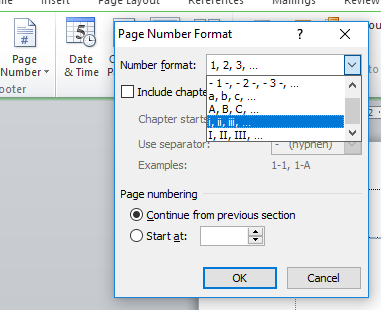
The example here will change the page number format from 1,2,3 to I, ii, iii.
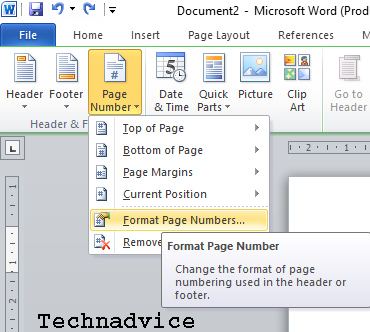
First Double- click on the header or footer on the page number to display the Header and footer Tools.
Then on the Design tab, Header & Footer, select and click Page Number, then click Format Page Numbers in the selection.
In the Page Number Format box view, in Number format, click the arrow section and select the one you want.
Then click OK.
Creating Word Page Margins Size
Open the Microsoft Word that you are using
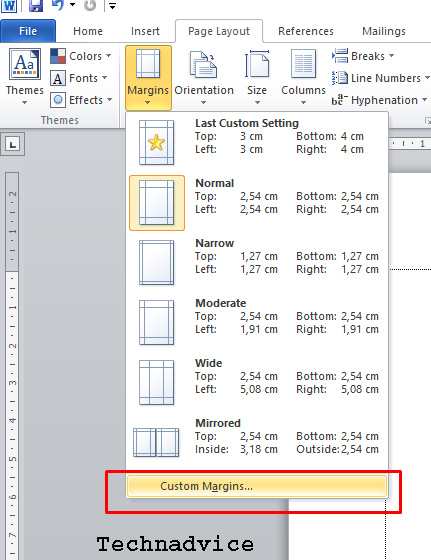
Then on the top menu of the word page select page layout.
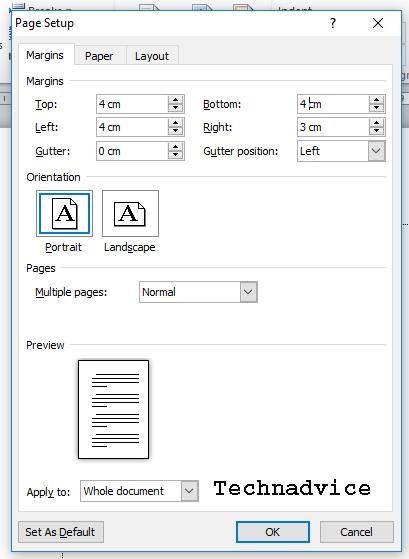
If so, there are many choices, just click on the very bottom ” Custom Margins “.
If you have clicked on the customs margins section, then you will be shown a setup page.
In the page setup section, set the margins to op, left, bottom, right, gutter, and gutter position according to your needs.
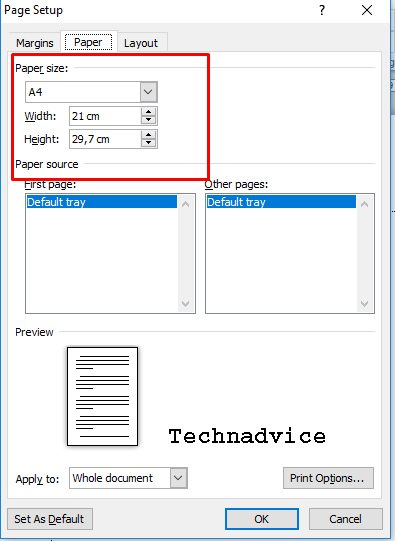
Then click paper in the page setup section, to set the paper you are using.
Then click OK.
Conclusion:
That’s the discussion on how to automatically create a table of contents and pages in Word, hopefully, it’s useful.
1000+ Funny PUBG Names Aesthetics, Symbols, Funny Etc – The PUBG Mobile game was released on the iOS and Android platforms several years ago and is immediately loved by online game lovers.
How not much demand, this game was waiting for its presence at that time by everyone because the game on PC had entered the ranks of games that were played by gamers the most.
The Battle Royale genre game on PUBG Mobile is not the same as the PC game, each round of the game only lasts 30 minutes or 40 minutes on average.
Of course, that period is not long for a Smartphone device, and until the time is effective and also doesn’t take up too much of the players’ time.
One round can be played at leisure, such as during school breaks, work, or at night.
Many PUBG Mobile players want their account names to be funny and unique, the name on a game becomes the identity of each player who makes a difference with other players.
That’s why every player wants an account name that is funny and unique and can also represent or show his personality.
Not infrequently PUBG Mobile players are eager to have a unique and funny nickname.
A funny and funny nickname or account name can entertain you or other players.
For those of you who have a funny personality, here are some funny PUBG names for you.
Here are The Best funny PUBG Names for 2023
Here are some collections of funny and unique PUBG names for your PUBG Mobile account name, to make fun of your friends:
AnakLobby
His younger brother Shroud
AnakChicken
Anak Ayam
AzabKebanyakanNgeloot
AntiGameBuriq
BaruBelajar
AzabNgelootTerus
BucinButProud
OpenJasaSantet
WormGaming
Fugitive In-Law
CieTooSoon
CieMatiDuluan
CumaTemen
Only Worms
DutaKedamaianPUBG
DamaiAjaKita
Nothing to do
Shaman Erangel
GakBisaMainPUBG
Can’tBarBar
GuaProGuys
GakPunyaNama
GreatPochinki
GeludAjaKuy
nickname
Fish Eat Tomatoes
IriBilangBoss
TargetBot
JuaraganPUBG
Momma
KadalGaming
JuaraganErangel
Ex-Love
Dear Mom
KokMatiNgab?
PotatoGaming
KuncenSanhok
Lock Miramar
MaafNoob
ForgotCaveWho
Christ Newbie
Note Newbie
By ProneGaming
McQueen
StrangleGaming
NoobTapiBoong
Your worshiper
Hunterdon
PremanBaik
Poultry
RajaNgeloot
RajaLooting
Dear Mom
Missing ex
SukaAyam
SenggolBacok
Like to die
SukaLobby
TayoGuling
Scared Red
TukangAyam
Forced Handsome
Prone Craftsman
TukangHeadshot
ZZZSleepy
YaHayukkk
The way to change the name of the PUBG Mobile account is by using an item called Rename Card, when you have just installed this PUBG Mobile game you will be asked to fill in a nickname.
Not infrequently players want to change their nicknames for various reasons, ranging from boredom or maybe wanting to change them to a much funnier name, like the name above.
So how do you change the PUBG Mobile account name by cursing the Rename Card? here are the steps.
Please enter the PUBG account, then enter the Shop menu.
Then go to the potion treasure.
After that, you select the Rename Card, which is an item with a picture such as a card that says ID to be able to buy it.
Please return to the lobby menu, and select the Inventory option.
Then select the Rename Card option.
Then you select the Use option in the Rename Card option description.
Please type a new nickname or use the nickname above, and OK.
After that check your PUBG account name change, and OK.
You have to buy the Rename Card with 180 UC. UC can be obtained by using money
from the original or can be exchanged for using Battle Coins.
Done.
Conclusion:
So, friends, this is the explanation of 1000+ Funny PUBG Names Aesthetics, Symbols, Etc, Maybe there will be a change if your PUBG account name fails, maybe the reason is that the name you chose has been used by another player.
If that’s the case, you just need to change the PUBG account name with another or a different name.
Please combine the two names to create a new PUBG account name that is much more unique and funnier.
You can also add some symbols or turn some letters into a number so that they are not the same as other players.


 The classic fast-paced game is a great choice for Windows. Traditionally played on a wooden “cribbage” board, the online version offers several benefits including strategic guides, tips, history, and even multiple difficulty settings.