Author: Nazrul Islam

  • 12 PS4 Games For Children, Guaranteed Safe 2024

    12 PS4 Games For Children, Guaranteed Safe 2024

    12 PS4 Games For Children, Guaranteed Safe – Playstation 4 has games with many genres, for example, horror games, car racing, adventure games, and many more. However, not all of them are suitable for children. Therefore, we will recommend PS4 games for children.

    PS4 Games For Children, Guaranteed Safe
    PS4 Games For Children, Guaranteed Safe

    12 PS4 Games For Children, Guaranteed Safe 2024

    In this article, you will find the best PS4 games for kids. To make it easier, we will classify a list of PS4 games that are family-friendly and without violence in them.

    Read more:

    #1. Tearaway Unfolded

    Tearaway Unfolded

    Tearaway is a game that emphasizes creativity. Where there is a world built using paper as a storybook. In the game, you will act as a messenger who tries to bring the message to “you” in the high sky.

    In this way, the game will allow you to interact with all the objects on the screen, such as using the PS4 controller to pick up and move objects.

    Tearaway games will not display inappropriate content, so they will provide opportunities for your child to be creative in the game.

    #2. Knack 2

    Knack 2

    While not the best, Knack 2 is a great choice for kids who are new to video games. The reason is, this game provides a Co-op mode that allows mental training of children to work together.

    Older players can help younger players solve difficult challenges. You can use your abilities, such as slamming and increasing the options of other players in battle.

    In addition, you can press the R2 button on the joystick to turn to other players and let more experienced players complete complex challenges.

    #3. LEGO Marvel Superheroes 2

    LEGO Marvel Superheroes 2

    Lego Marvel is the best PS4 game for children of all ages because they will love Lego games. Not only, Marvel, but there are also many more series from this Lego game, such as Lego Batman, Lego Indiana Jones, and Lego Jurassic World.

    In the game, they will feature open-world action with LEGO renderings of well-known characters and locations. This LEGO game is very cooperative, so you can play with your little one in completing missions.

    #4. Minecraft

    The next ps4 game for kids is Minecraft, which is an open-world game that is suitable for all ages. In this game, you are free to be creative and do whatever you want. There are several interesting gameplay, such as Survival mode, Creative mode, Adventure mode, Hardcore mode, and Multiplayer.

    Players are free to do what they like, including building houses, buildings, bridges, exploring the world, playing with friends, and even fighting zombies. So, it is highly recommended as a PS4 game for children.

    #5. Spyro Reignited Trilogy

    This Spyro game has been around since the 1990s and Trylogi has been brought back to accompany the children on their adventures, of course, with better graphics and fantastic music.

    You are free to explore the entire map with the character of a good dragon and try to defeat dangerous enemies. This game is very easy to understand the storyline and is perfect for children who want to play video games on their own.

    #6. Rocket League

    As the title suggests, Rocket League is a soccer game with the character of a rocket-powered car. The game is very unique and you are free to do all the tricks to win the match. Rocket League games can be played alone or with friends in online mode.

    #7. LittleBigPlanet 3

    The next best Playstation 4 game is LittleBigPlanet. In this series, players are free to use many tools to level up their own. Most of them contain premade content that kids can enjoy alone or with friends. So, it’s pretty good as a PS4 game for kids.

    #8. Everybody’s Golf

    The next PS4 game for children is a sports game because it is more family-friendly and easy to play. The developer also offers great local multiplayer. If you have many children and like to play together, this game is the best choice for your family.

    #9. Burnout Paradise Remastered

    Burnout Paradise is a car racing game that is suitable for children to play. Your only mission is to win races with a few quite dangerous driving scenes. You have to beat the enemy cars so that they fall behind your car.

    If you are tired of racing, enjoying the city and traveling the world is the right choice. You can choose the free mode to just go around the city without having to keep racing.

    #10. Stardew Valley

    The next PS4 game for children is Stardew Valley. The game is quite calm, you have to take over the grandpa’s farm and take care of all the gardens and animals.

    Punctuality is needed and you will have to perform tasks such as clearing debris, buying city seeds, selling produce, and social interactions.

    #11. Horizon Zero Dawn

    Horizon Zero Dawn

    Horizone Zero Dawn is an interesting and challenging adventure game with the theme of a primitive world inhabited by animal-shaped machines. Meanwhile, you play the role of Aloy who wants to find out where he came from.

    This game has received a lot of praise for its interesting fighting atmosphere, solid story, and great characters. So, this video game is suitable for teenagers who want to feel the sensation of an exciting and challenging adventure.

    #12. Gran Turismo Sport

    If your brother is a fan of racing games, we recommend the Gran Turismo Sport game which is Sony’s mainstay for the PlayStation 4. This game has very good graphics, so it is suitable to be played together with your brother.

    There are many types of sports cars and tracks that you can choose to prove who is the fastest in this game. Also present is a split-screen feature that divides the screen to make playing both easier and more enjoyable.

    Read more:

    Conclusion:

    Those are some PS4 games for kids of all ages. We recommend that you give the Co-op genre game so that the children can help each other and work together.

  • How to Play PS2 Games with PCSX2 on PC 2024

    How to Play PS2 Games with PCSX2 on PC 2024

    How to Play PS2 Games with PCSX2 on PC and Laptop – There are still many people who want to reminisce about PS2 games. Unfortunately, the number of PS2 rentals and device sellers is currently very reduced, so it is difficult for us to get them.

    How to Play PS2 Games with PCSX2 on PC
    How to Play PS2 Games with PCSX2 on PC

    How to Play PS2 Games with PCSX2 on PC and Laptop 2024

    But don’t be discouraged just yet. Nowadays technology is more advanced.

    We can still play PS2 games on a PC or laptop using an application, which is usually called an emulator.

    Read more:

    The emulator in question is PCSX2. It’s been around for quite a while. But if you’ve just heard it, let’s discuss it here.

    Getting to Know the PCSX2 Application

    Getting to Know the PCSX2 Application
    Getting to Know the PCSX2 Application

    PCSX2 is an open-source PS2 game emulator application that was initially released stable in 2016.

    Intended for 4 operating systems at once, namely Windows, macOS, Linux, and Android.

    The purpose of making this application, among others, is to develop and enable computer users, to be able to play PS2 games without using the console directly.

    Functionally, I’ve also tried it myself, and it’s pretty good. My favorite game can be run here without any significant problems.

    Specifications For PCSX2 (System Requirements)

    The PC or laptop used must meet the minimum requirements of PCSX2 so that it runs smoothly when used.

    Berikut system requirements PCSX2:

    Minimum System Requirements Recommended System Requirements
    Intel Pentium 4 or AMD Athlon 64 (or above). Intel Core i3, i5, i7, or AMD Phenom X4 3.2Ghz (or better).
    Any GPU that supports Pixel Shader 2.0 (except certain series). NVIDIA 8800GT (Dengan support minimal DirectX10).
    512MB or 2GB RAM (for Vista). 1GB RAM (XP) or 2GB (Vista or 7).

    Of course, it will be much better if you use a higher computer specification.

    Based on my experience too, the perceived performance is also influenced by what games are played later.

    How to Install PCSX2 on a PC or Laptop Windows 10

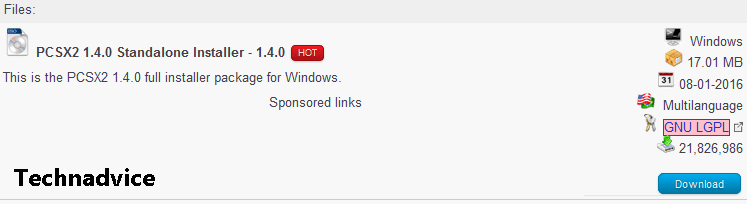
    Step 1. First, please get the file for free on the Windows PCSX2 page. Choose the Standalone Installer, yes.

    How to Install PCSX2 on a PC or Laptop
    How to Install PCSX2 on a PC or Laptop

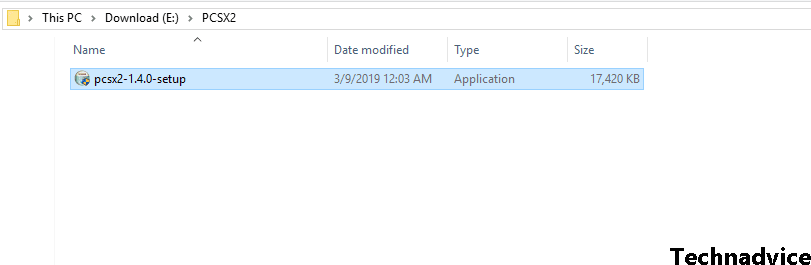
    Step 2. If so, please open the file.

    How to Install PCSX2 on a PC or Laptop
    How to Install PCSX2 on a PC or Laptop

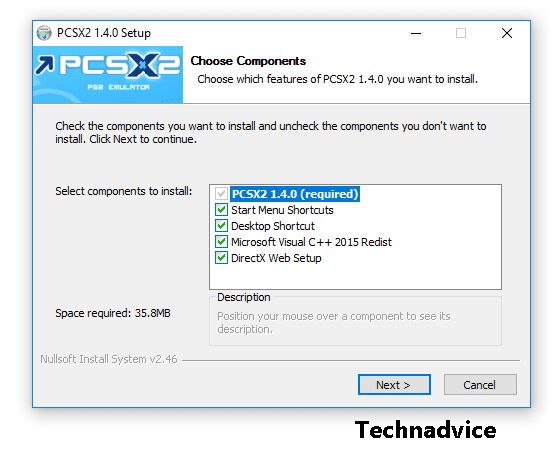
    Step 3. Click Next. For the installation settings option, you can just leave it according to the default conditions.

    How to Install PCSX2 on a PC or Laptop
    How to Install PCSX2 on a PC or Laptop

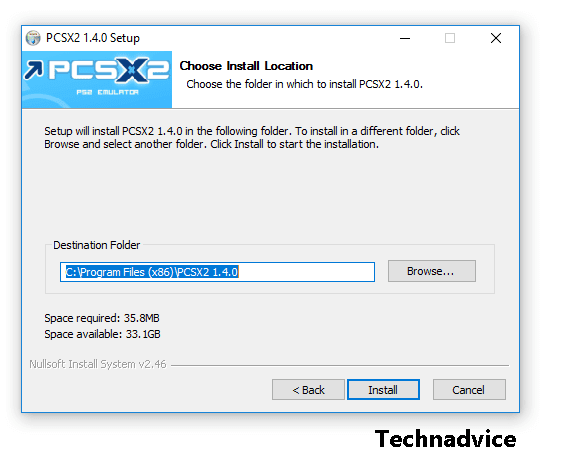
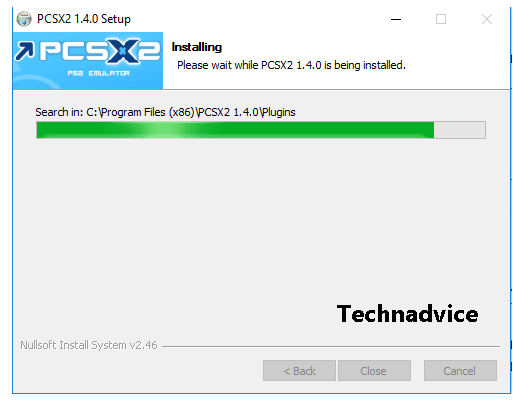
    Step 4. Select the storage directory, where PCSX2 will be installed. If so, click Next again.

    How to Install PCSX2 on a PC or Laptop
    How to Install PCSX2 on a PC or Laptop

    Step 5. Wait for the installation process to complete.

    How to Install PCSX2 on a PC or Laptop
    How to Install PCSX2 on a PC or Laptop

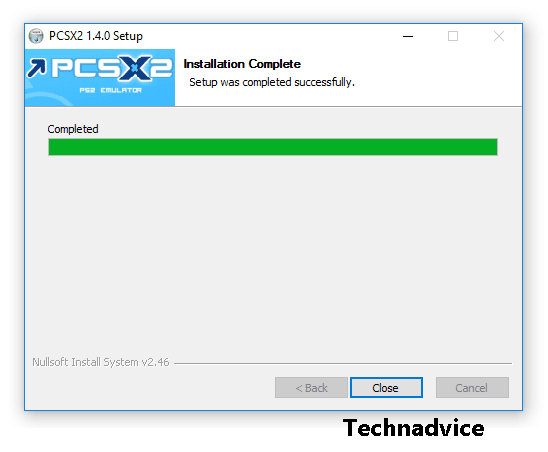
    Step 6. Click Close, then the installation process is complete.

    How to Install PCSX2 on a PC or Laptop
    How to Install PCSX2 on a PC or Laptop

    How to Initial Installation and Installing BIOS

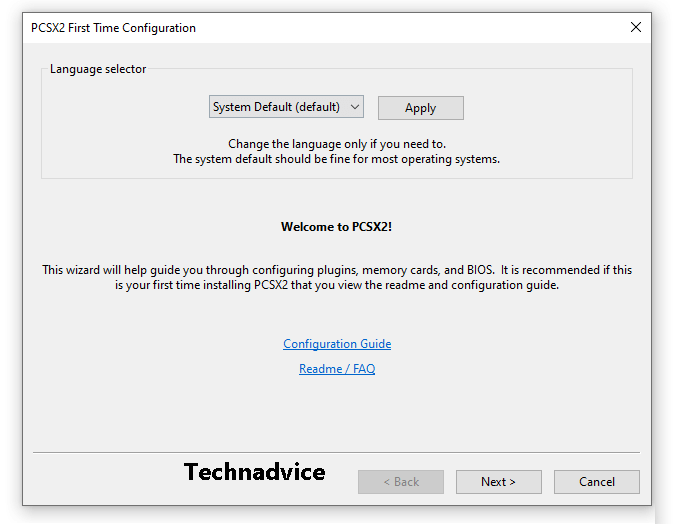
    Step 1: After installation, open PCSX2. Then you will see a display like the one below. Click Next.

    How to Initial Installation and Installing BIOS
    How to Initial Installation and Installing BIOS

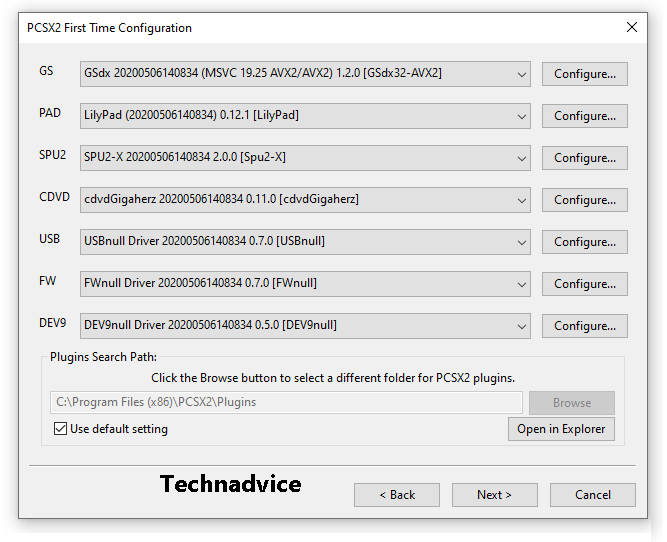
    Step 2: In Configuration, please just leave the default. Click Next.

    How to Initial Installation and Installing BIOS
    How to Initial Installation and Installing BIOS

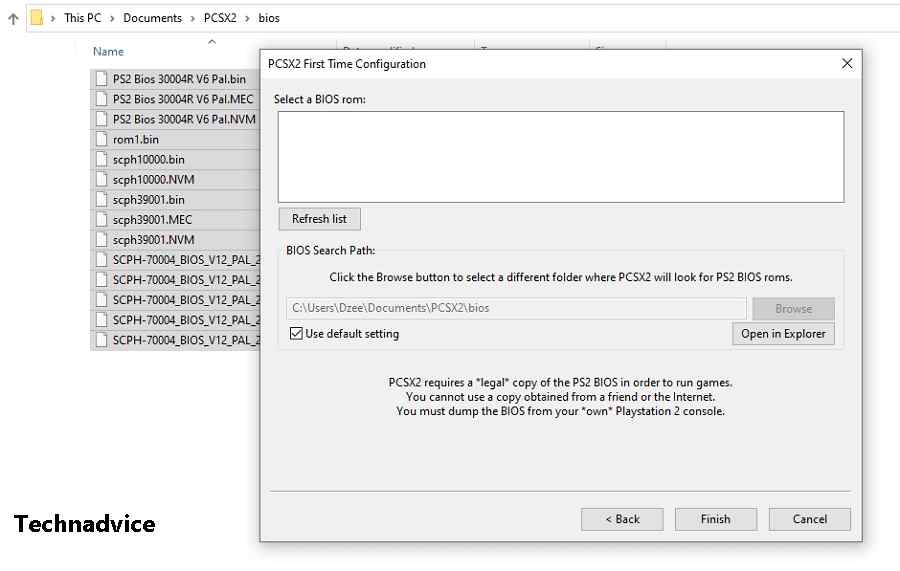
    Step 3: On the Select BIOS menu. Please enter the BIOS file into C:\Users\Users Name\Documents\PCSX2\BIOS. Look at the browse column.

    How to Initial Installation and Installing BIOS

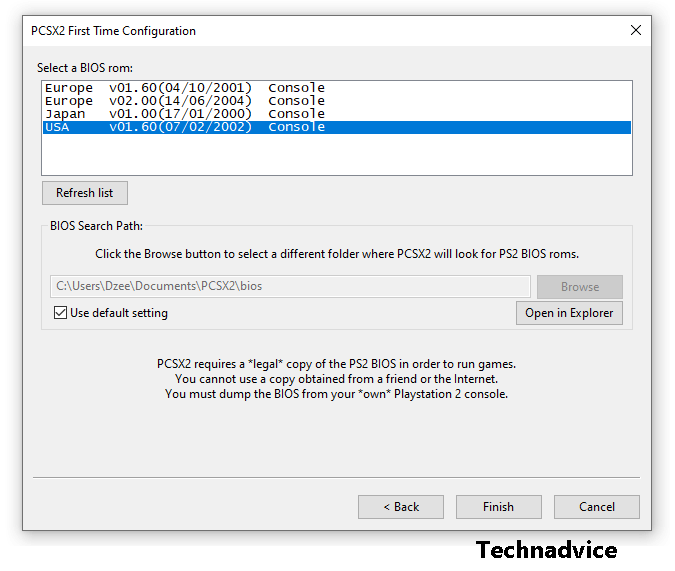
    Step 4: Click Refresh List. Select the desired BIOS, then click Finish.

    How to Initial Installation and Installing BIOS
    How to Initial Installation and Installing BIOS

    How to Open PS2 Games on PCSX2

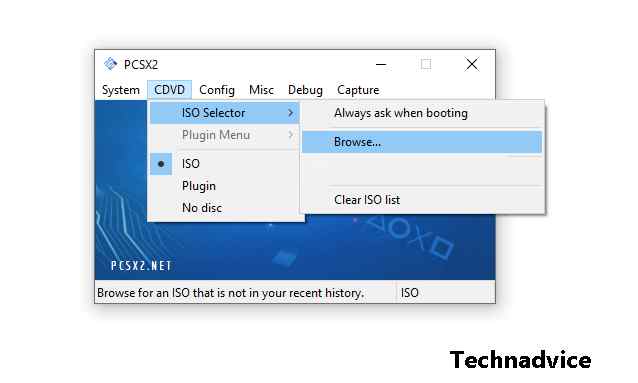
    Step 1: Click the CDVD menu > Select ISO Selector > Then click Browse.

    How to Open PS2 Games on PCSX2
    How to Open PS2 Games on PCSX2

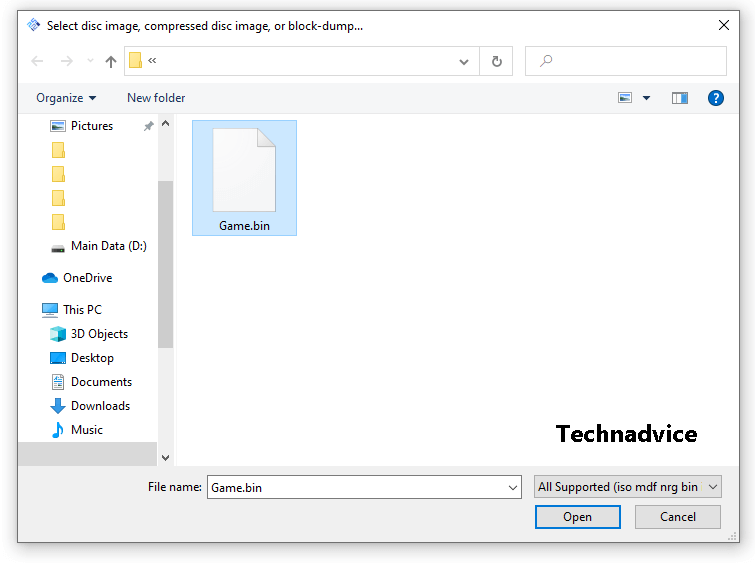
    Step 2: Select the game ISO data that you have saved.

    How to Open PS2 Games on PCSX2

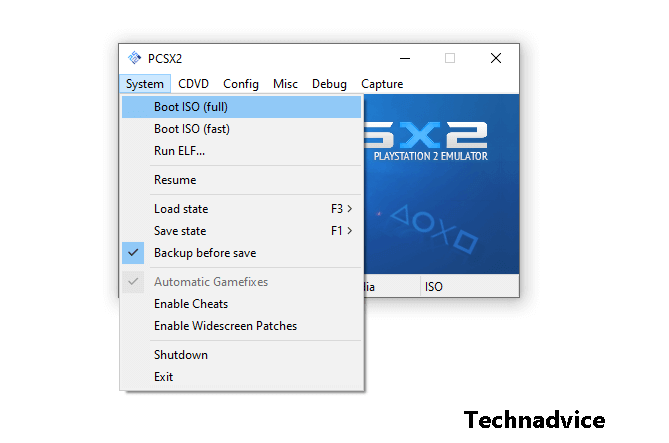
    Step 3: Click System> Select Full ISO Boot.

    How to Open PS2 Games on PCSX2

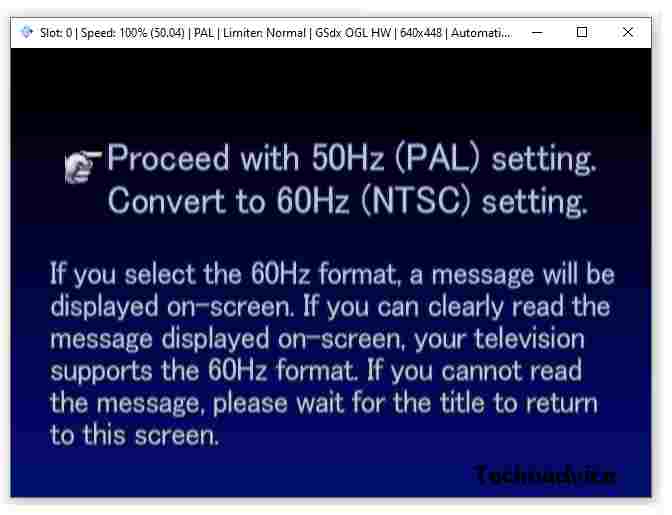
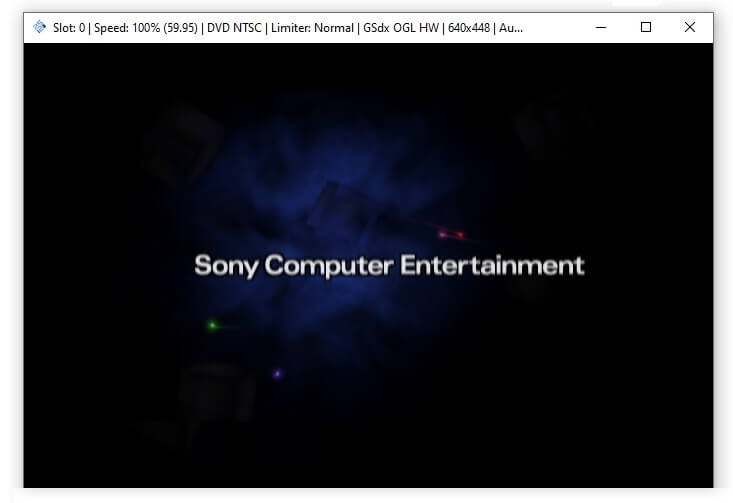
    Step 4: Then the game will automatically run.

    How to Open PS2 Games on PCSX2

    How to Set PCSX2 To Be Smooth and No Lag

    You can set some basic settings so that the risk of lag that may occur can be minimized.

    Here’s how:

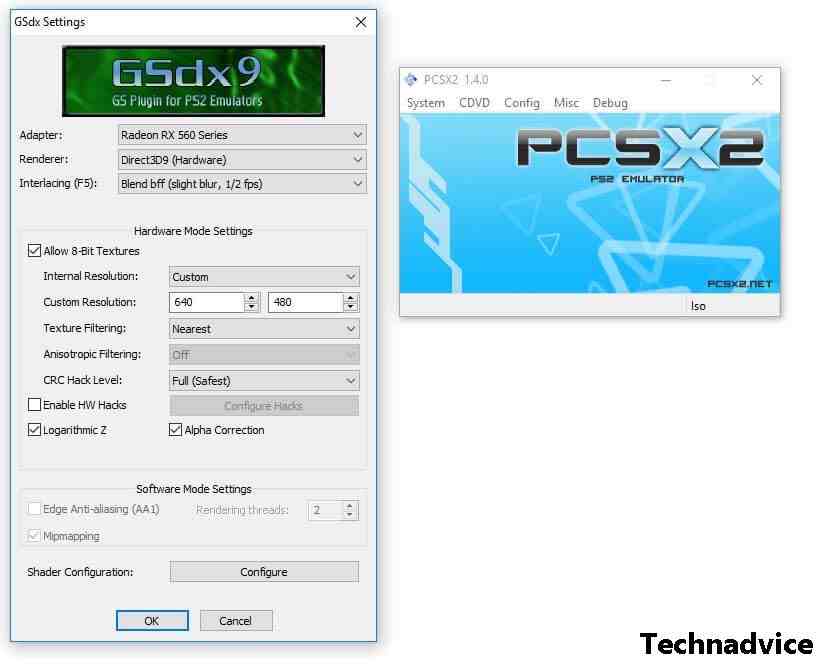
    Step 1. Click Config > Video (GS) > Plugin Settings > Then set it like this:

    How to Set PCSX2 To Be Smooth and No Lag

    Adapter Choose the main VGA used by your computer/laptop
    Renderer Select Direct3D9 Hardware
    Internal Resolution Choose Custom
    Resolution Customize to your needs
    Texture Filtering Select Nearest
    More Settings The rest can be adjusted

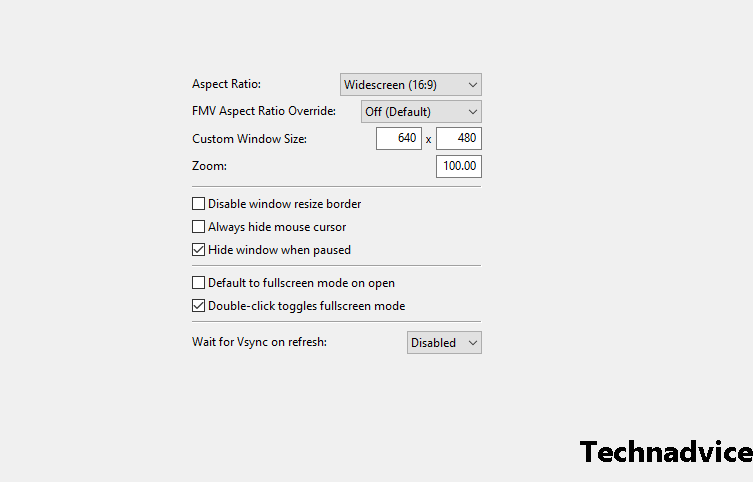
    Step 2. Click Config > Video (GS) > Windows Settings > Then select Aspect Ratio to Widescreen (16:9).

    How to Set PCSX2 To Be Smooth and No Lag

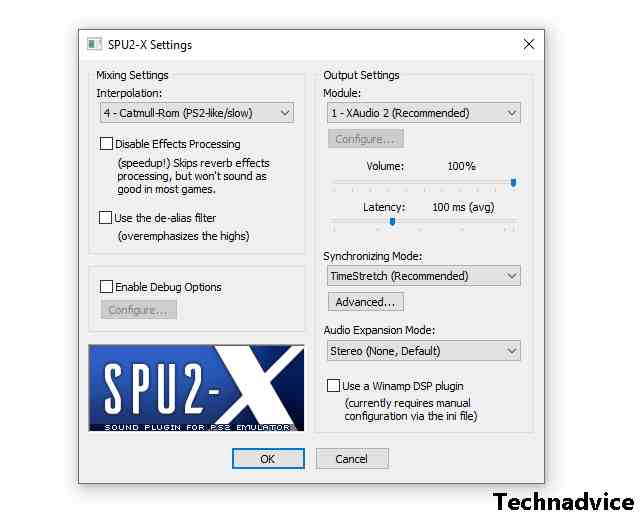
    Step 3. Select Config > Audio (SPU2) > Plugin Settings > Then set it like this:

    How to Set PCSX2 To Be Smooth and No Lag
    • Module: XAUDIO2.
    • Interpolation: Catmull (can be changed to Nearest).
    • Latency: 100MS.

    Frequently Asked Questions

    Frequently Asked Questions

    Do you have a question? Please check the following questions and answers first. Who knows can answer your confusion?

    #1. Are There Other Things That Need To Be Arranged As Well?

    There could be, yes.

    Even though I think the above discussion is complete, maybe on some laptops or computers there are still other things that need to be adjusted again.

    #2. Why When Playing Even Black Screen?

    Check the game file, then adjust the emulator Video Plugin settings as well (maybe not quite right).

    Sometimes in a game, the emulator settings can be different.

    #3. Already Used the Settings Above, Why Still Lag and Broken?

    Every game played with PCSX2 also has different system requirements. I said this above.

    The solution, the easiest is to upgrade the computer components.

    #4. Why is his voice broken?

    This falls into the lag category as well. Same as before.

    Please adjust the settings again, especially in the Audio settings menu as described.

    #5. Can you not play with a stick?

    Very well. Please first connect the stick to your PC or laptop.

    Then go to Config > Controller (PAD) > Plugin Settings > Then set it there.

    #6. Does This Emulator Support All Games?

    Now, on the official website, it is written that 2,632 games support it. So that’s quite a lot.

    Please check the game you want on the following page.

    I created this article as a brief guide for those who are curious about playing PS2 games on a PC or laptop, as well as for those who want to learn how to install the PCSX2 emulator.

    If something is not clear, you can ask in the comments column below. Later we can discuss which one should be explained.

    Read more:

    Conclusion:

    So, friends, This is the explanation of how to play PS2 games with PCSX2 on a PC, I first tried this PCSX2 emulator, when it was recently released. I happen to have known computers for a long time.

    The experience was smooth without any significant problems, although it was a bit laggy because the laptop I used before was inadequate.

  • 6 Ways To Best Secure Your Windows PC Laptop 2024

    6 Ways To Best Secure Your Windows PC Laptop 2024

    6 Ways To Best Secure Your Windows PC Laptop – While Microsoft tries hard to ensure its users’ security, all its Windows versions are vulnerable to cyber threats. This is because this operating system is designed more for ease of use rather than security.

    How to Best Secure your Windows PC
    How to Best Secure your Windows PC

    How to Best Secure your Windows 10 Laptop PC 2024

    Hackers continue to exploit unique vulnerabilities only present in Windows PCs, making Windows the most hacked operating system worldwide. Even Windows 10, the most secure version with vastly improved firewall, antivirus, and disk encryption features, is still at risk.

    Read more:

    The good news is that most of these threats are relatively easy to protect. It only takes a few steps to ensure your PC is safe and secure. But first, here are some of the risks affecting PC users.

    #1. Malware

    Malware (Malicious Software) comes in many forms and can cause tremendous damage to your computer. The various forms of malware include viruses, Trojans, and worms, among others. Malware is a collective term used to refer to any software invented to cause harm to a computer network server.

    #2. Spam

    While most spam is always considered harmless, some may come with links that can install venomous software on your computer in case you click on it.

    #3. Phishing

    Nearly all successful cyberattacks start with a phishing scheme. Phishing schemes come disguised in many forms; it can come as an email from your bank or service provider, with the main aim of luring you into clicking some links or attachments and asking you to confirm personal information, account details, or passwords.

    While most phishing attacks are associated with emails, hackers are now employing other methods like phony apps, text messages, social media quizzes, and phone calls to trick unsuspecting victims.

    How you Can Protect your Devices

    #1. Always Keep Your Software Up To Date

    Keeping your Windows and other software up-to-date is a simple but effective way of protecting your device from hackers. Running on old and outdated software is risky as it provides a backdoor for hackers. Unfortunately, many users are operating on old software versions, and hackers have an easier time exploiting the same susceptibilities for years. Windows 10 updates automatically as long as you are connected to the internet.

    #2. Use a Firewall

    A firewall is meant to monitor both incoming and outgoing traffic from your network, and in the process, blocks incoming traffic from dubious locations. This way, malicious files, and hackers will not be able to invade your system through your internet connection. You can access Windows’s built-in firewall through the control panel or go for any of the third-party options that are extra powerful.

    #3. Use a VPN to Remain Anonymous Online

    By using a VPN, you’ll be able to hide your location through an encrypted tunnel and keep your browsing private. That means anyone trying to track your internet activity will only see the IP of the VPN server. VPNs are particularly important when using free public Wi-Fi networks as they are more vulnerable to hacking.

    Read more:

    Conclusion:

    Windows PCs face a lot of threats, but the good news is that with a little tweaking of your system, you are able to keep the bad guys away. Use the above tips to keep your Windows PC safe and secure.

  • 3 Easy Ways To Find Wifi Password on Laptop 2024

    3 Easy Ways To Find Wifi Password on Laptop 2024

    3 Easy Ways To Find Wifi Password on Laptop – Have you ever really needed a Wi-Fi network but forgot the Wi-Fi password? No need to worry, here you will find how to find out the wifi password on a Windows PC and laptop easily.

    3 Easy Ways To Find Wifi Password on Laptop
    3 Easy Ways To Find Wifi Password on Laptop

    How to Find Wifi Password on Laptop and PC 2024

    There are several ways to find out the wifi password on a PC, one of which is to see the wifi password on the laptop using CMD. Please note, that this is not breaking into other people’s wifi networks, more precisely, you can see the wifi passwords that were previously stored on your Windows laptop.

    Read more:

    Apart from going through the command prompt, you can also see the wifi password on the PC through the control panel, precisely in the network settings. Usually, Windows 7 uses the control panel method, while Windows 8 and Windows 10 use cmd to see the wifi password.

    Best and Easy Ways To Find Wifi Password on Laptop and PC

    How to see the wifi password is quite easy, with this method, you can see any wifi password. You simply follow the following steps below.

    Only by using the Command Prompt (CMD), you can see the wifi password on the laptop. Keep in mind again that this guide is not breaking into other people’s wifi, but only looking at the saved wifi passwords.

    You can apply how to find this wifi password using Windows 7, Windows 8, and even Windows 10.

    Viewing WIFI Password on Windows

    In Windows, the system saves the previously connected wifi password. In Windows 7 or earlier, you can simply open the wireless profile saved in the Network and Sharing Center.

    Whereas in Windows 8 or Windows 10, you have to use the Command Prompt to find out the wifi password that has been connected.

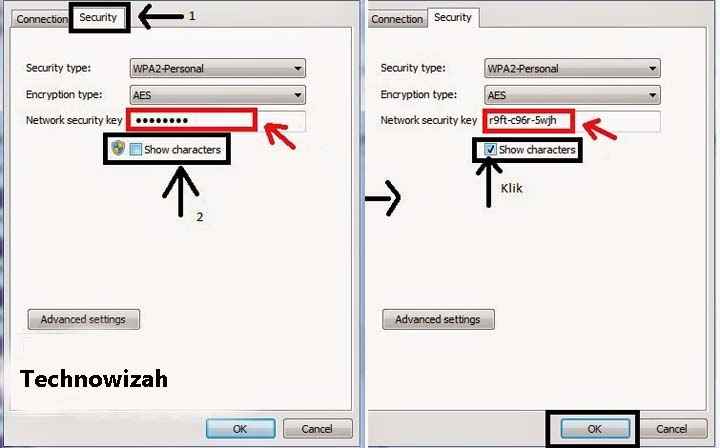
    #1. Knowing Wifi Password in Windows 7

    Knowing Wifi Password in Windows 7
    Knowing Wifi Password in Windows 7

    Windows 7 already has a feature to see the wifi passwords that have been connected. The connected wifi password will usually be stored on the Windows system.

    Here’s how to see the wifi password:

    1. The first step is to open the Network and Sharing Center.
    2. Click the Manage Wireless Networks menu in the left sidebar.
    3. A list of networks that have been connected will appear.
    4. Double-click on the network name and select properties.
    5. Go to the Security tab and check the Show characters box.
    6. Then you will see the wifi password.

    Very easy isn’t it? You can use this method for all wifi networks that have ever been connected to your PC or laptop. In only 6 steps, you have managed to find out the wifi password.

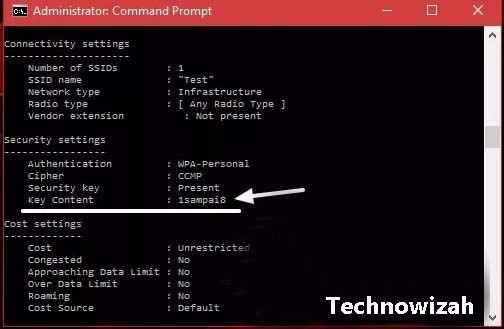
    #2. View Wifi Password in Windows 8 and 10

    View Wifi Password in Windows 8 and 10
    View Wifi Password in Windows 8 and 10

    In Windows 10 and Windows 8, you need to use the command in cmd to see the wifi password. To do this, follow the following guide below.

    How to find out the wifi password:

    1. Click on the Start button and select Command Prompt.
    2. Type the following command:
      netsh wlan show profiles
    3. You will see a list of all the WiFi networks you have ever connected to.
    4. To see the wifi password type the following command, do not forget to replace namawifi with the wifi name you want to see her password.
      netsh wlan show profile name=namewifi key=clear
    5. Then you will see Key Content which is the wifi password.

    #3. View the connected Wi-Fi password on the PC

    If you want to share the wifi password with your friends but forget the wifi password that is currently connected, you don’t need to worry. These easy steps will help to see the wifi password that is currently connected to your laptop.

    1. Right-click the small WiFi icon on the taskbar.
    2. Click Open Network and Sharing Center.
    3. Then click on the name of the WiFi network you are currently connected to.
    4. Just click Properties. Then move to the Security tab and check the Show Characters box.
    5. After the show character box is checked, you can be sure to see the wifi password.

    Cause Wi-fi is Not Connected

    If you fail to connect to wifi using the tutorial above, maybe the wifi password has been changed by someone. Windows only save wifi passwords only when you connect wifi.

    So if at any time the wifi password has been changed, then you have to break the new wifi password first.

    Windows, systems can also implement automatically connect to a wifi network. If the wifi password is still fixed and not changed, you can automatically be connected to the wifi network.

    And vice versa, if the wifi password has been changed, you cannot connect automatically even though you have activated the automatic connection setting.

    Read more:

    Conclusion:

    There are several ways to find the Wi-Fi password on a laptop, such as Windows 7, 8, and 10, via CMD and control panel settings.

  • Three APN Settings – Step by Step configuration guide 2024

    Three APN Settings – Step by Step configuration guide 2024

    Three APN Settings – Step-by-Step Configuration Guide – Three is one of the most widely used cellular providers. Apart from being able to provide a fast and stable network connection, the price of Internet package 3 is also not too expensive when compared to other providers.

    Three APN Settings – Step by Step configuration guideList of Fastest and Stable Three APN Settings 2024

    Even so, there are times when the 3 internet networks that is presented become slow and unstable. Well, one way to overcome this is to set the APN used.

    Read more:

    For those of you 3 users who are looking for an APN for your internet connection to be more stable, then you can try some of the APN settings for operator 3 below.

    There are several settings that you can use. Of course, the APN settings can be adjusted according to the purpose of your internet use. Therefore, here are some recommendations for the best APN settings for the 3 best.

    #1. APN 3 4G Stable and Fast

    A stable and fast network connection is a desire for internet users. If you feel that the internet connection used 3 is less stable and still slow, try using the APN 3 settings as follows.

    • Name: Hutchison
    • APN: Hutchison
    • Proxy: No need to change
    • Port: No need to change
    • UserNama: 3gprs
    • Password: 3gprs
    • Server: No need to change
    • Mmsc: No need to change
    • Mms proxy: No need to change
    • Mms port: No need to change
    • Mcc: 510
    • Mnc: 89
    • Authentication type: Pap Or Chap
    • APN type: default,supl
    • APN protocol: Ipv4
    • APN roaming protocol: Ipv4
    • Bearer: unspecified
    • Mvno type: None

    #2. APN 3 4G LTE

    For those of you who are in an area with a full 4G LTE signal, you can increase the speed of the internet connection used. The trick is to use the APN 3 4G LTE settings as shown below.

    • Name: LTE
    • APN: LTE
    • Proxy: No need to change
    • Port: No need to change
    • UserNama: 3gprs
    • Password: 3gprs
    • Server: No need to change
    • Mmsc: No need to change
    • Mms proxy: No need to change
    • Mms port: No need to change
    • Mcc: 510
    • Mnc: 89
    • Authentication type: Pap Or Chap
    • APN type: default,supl
    • APN protocol: Ipv4
    • APN roaming protocol: Ipv4
    • Bearer: unspecified
    • Mvno type: None

    #3. APN 3 Internet Streaming

    Have you ever run out of an internet data package during an emergency? Don’t panic and rush to find a credit seller or data package first. You can try the following APN 3 settings, which might help resolve the issue.

    • Name: Free
    • APN: Free
    • Proxy: No need to change
    • Port: No need to change
    • UserNama: 3gprs
    • Password: 3gprs
    • Server: No need to change
    • Mmsc: No need to change
    • Mms proxy: No need to change
    • Mms port: No need to change
    • Mcc: 510
    • Mnc: 89
    • Authentication type: Pap Or Chap
    • APN type: default,supl
    • APN protocol: Ipv4
    • APN roaming protocol: Ipv4
    • Bearer: unspecified
    • Mvno type: None

    #4. APN 3 GPRS

    In a certain place, sometimes the only available internet network is GPRS. As is well known, the speed of the network is not very reliable. Well, to make it faster, try after APN 3 GPRS which is below.

    • Name: Tri GPRS
    • APN: 3gprs.net
    • Proxy: 82.145.208.20
    • Port: 80
    • UserNama: 3gprs
    • Password: 3gprs
    • Server: No need to change
    • Mmsc: No need to change
    • Mms proxy: No need to change
    • Mms port: No need to change
    • Mcc: 510
    • Mnc: 89
    • Authentication type: Pap Or Chap
    • APN type: default,supl
    • APN protocol: Ipv4
    • APN roaming protocol: Ipv4
    • Bearer: unspecified
    • Mvno type: None

    #5. APN 3 Unlimited Free Quota

    Many people choose to use the 3 Unlimited packages because there is no quota limit. However, it is not uncommon for the connection presented in the package to feel slow and less stable. If you use this Unlimited package, then you can try the following APN 3.

    • Nama: Unlimited
    • APN: Unlimited
    • Proxy: No need to change
    • Port: No need to change
    • UserNama: 3gprs
    • Password: 3gprs
    • Server: No need to change
    • Mmsc: No need to change
    • Mms proxy: No need to change
    • Mms port: No need to change
    • Mcc: 510
    • Mnc: 89
    • Authentication type: Pap Or Chap
    • APN type: default,supl
    • APN protocol: Ipv4
    • APN roaming protocol: Ipv4
    • Bearer: unspecified
    • Mvno type: None

    Note: Maybe some of the APN settings that we provide can no longer be used, because they are no longer supported.

    #6. Fastest APN 3

    Not only for special package 3 users, it turns out that there are also recommended APN settings for regular package 3 users. With this APN setting, it is guaranteed that the connection presented will feel faster than using the default or original APN.

    • Nama: APN Tri
    • APN: redir.tri.co.id
    • Proxy: No need to change
    • Port: No need to change
    • UserNama: 3gprs
    • Password: 3gprs
    • Server: No need to change
    • Mmsc: No need to change
    • Mms proxy: No need to change
    • Mms port: No need to change
    • Mcc: 510
    • Mnc: 89
    • Authentication type: Pap Or Chap
    • APN type: default,supl
    • APN protocol: Ipv4
    • APN roaming protocol: Ipv4
    • Bearer: unspecified
    • Mvno type: None

    #7. APN 3 YouTube

    When we are engrossed in watching videos on YouTube, sometimes we are annoyed by the buffering. Buffering is of course closely related to the network connectivity used. To handle it, then try to use the following APN.

    • Name: Tri
    • APN: tri.co.id
    • Proxy: No need to change
    • Port: No need to change
    • UserNama: 3gprs
    • Password: 3gprs
    • Server: No need to change
    • Mmsc: No need to change
    • Mms proxy: No need to change
    • Mms port: No need to change
    • Mcc: 510
    • Mnc: 89
    • Authentication type: Pap Or Chap
    • APN type: default,supl
    • APN protocol: Ipv4
    • APN roaming protocol: Ipv4
    • Bearer: unspecified
    • Mvno type: None

    #8. APN 3 Default

    If you have tried all of the above APN settings and failed or are no longer valid, then there is no other way but to restore the APN to its original state. Don’t be confused, below are the default APN 3 settings that you can copy.

    • Name: 3 data
    • APN: 3 data
    • Proxy: No need to change
    • Port: No need to change
    • Username: No need to change
    • Password: No need to change
    • Server: No need to change
    • Mmsc: No need to change
    • Mms proxy: No need to change
    • Mms port: No need to change
    • Mcc: 510
    • Mnc: 89
    • Authentication type: Pap Or Chap
    • APN type: default,supl
    • APN protocol: Ipv4
    • APN roaming protocol: Ipv4
    • Bearer: unspecified
    • Mvno type: None

    #9. APN 3 Default GPRS

    The default APN 3 mentioned earlier, is after the default APN for HP which already supports 4G network connectivity. But if the cellphone you are using does not support 4G, then return it after the APN as below.

    • Nama: GPRS
    • APN: 3gprs
    • Proxy: No need to change
    • Port: No need to change
    • UserNama: 3gprs
    • Password: 3gprs
    • Server: No need to change
    • Mmsc: No need to change
    • Mms proxy: No need to change
    • Mms port: No need to change
    • Mcc: 510
    • Mnc: 89
    • Authentication type: Pap Or Chap
    • APN type: default,supl
    • APN protocol: Ipv4
    • APN roaming protocol: Ipv4
    • Bearer: unspecified
    • Mvno type: None

    Conclusion:

    So, friends, This is the explanation of three APN settings – a step-by-step configuration guide, The internet speed you are using will be by the type of package or purpose of use. However, if the APN is no longer valid, it is highly recommended to return it to its original state (default).