Category: Guide

Guide – Here you can find Reviews-related updates, How-to, Tips & Tricks, information, and more.

  • 7+ Ways to Root Android with PC Until Success (100% Working) 2024

    7+ Ways to Root Android with PC Until Success (100% Working) 2024

    7+ Ways to Root Android with PC Until Success (100% Working) – Several problems can occur when we root via a smartphone. If a problem occurs, the root becomes an error, which in turn causes the root process to fail.
    7+ Ways to Root Android with PC Until Success (100% Work)
    7+ Ways to Root Android with PC Until Success (100% Work)

    How to Root Android with PC Until Success (100% Working) 2024

    If it’s like that, usually for the next root process it will end up the same. Namely, fail, fail, and keep failing.

    Read more:

    Even though rooting on a cellphone is not that difficult, the process is simple, unfortunately for the result sometimes our cellphones find it difficult to show satisfactory things.

    But besides that, there are other methods you can use. Namely, rooting through a PC. At least you can root even if you have to use help from another device, right?

    This method is not that different from rooting the cellphone. Because even when using a PC, we ask for help from third-party applications/software.

    Not much different from when we root on an Android cellphone which also uses additional root applications as assistance.

    An example of an application that a cellphone uses to root is Kingroot.

    That’s for the one on the cellphone, then what about the root software for the PC?

    If on a PC, you will use some root software assistance such as Root Genius, iRoot, OneClickRoot, iSkysoft Toolbox, Kingo Root, and so on.

    But unfortunately the root method via PC, it’s more complicated than on a cellphone. But if the results are satisfactory, why don’t we just try to follow them?

    And here are some ways to root Android with a PC that you can follow.

    How to Root Android with a PC Computer Laptop

    Before rooting Android with a PC, we first prepare a few things that are mandatory for this cellphone root tutorial.

    Things that must be prepared

    1. Your smartphone battery is charged. At least 50%, if it is charged under that power, please charge it for a while until it meets the requirements.

    2. Enable USB Debugging mode.

    For how to activate this mode, follow the steps below:

    • Open Settings on your smartphone, then look for the About Phone menu then click on the menu.
    • On the About Phone menu, scroll your screen down to find a menu called ‘ Build Phone ‘.
    • Click ‘ Build Phone ‘ several times or about 5 times. Anyway, click until you see a warning that reads ‘ You are Now Developer ‘.
    • Then back in Settings, look for the menu named ‘ Developer Options ‘ or Developer Options.
    • Click on it and look for USB Debugging in the menu. If you have found it, all you have to do is click the checkbox to enable USB Debugging.
    • The activation process has been completed.

    3. Enable the install feature of applications from unknown sources, the method is very easy:

    • Open the Settings menu
    • Then click Security or Security Settings
    • Inside the menu, find ‘ Unknown Source ‘ or Source Unknown
    • Activate that menu. That way, the feature to install applications from unknown sources is active

    4. Prepare the USB cable that came with HP. If there is none, use whatever USB is as important as it is compatible

    5. Have internet access on a PC

    After you have the things above, it is time to enter the steps to root Android via PC.

    Steps to Root Android Through a PC Computer Laptop

    #1. Using Root Genius

    Using Root Genius
    • First of all, first, turn off the antivirus that is on your PC. Because your PC antivirus may detect something dangerous in your Root Genius software or consider the software to be a virus
    • Download the Genius Root software at Shaume.com
    • Install and run
    • Plugin the data / USB cable into the PC to connect your Android phone. After that, a notification will appear as shown in the picture
    • Then click check the I Accept User Agreement option, then click ‘Root It’ to start the root process
    • The root process will run, you just wait until the process ends
    • When finished, unplug your data cable from the PC then check your Android phone. There will appear a new application called ‘Kinguser’
    • Until here you have successfully rooted Android via your PC

    #2. Using Kingo Root
    Using Kingo Root
    • Download this software on their official site
    • After you download, install, and then open the application as usual
    • Then connect your phone to the PC using a data cable
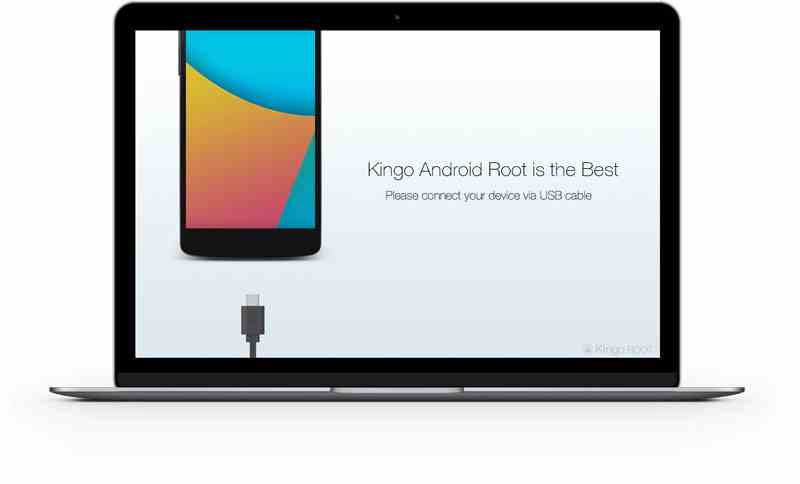
    • Kingo Root will search for devices connected to the computer. If your phone has been detected by Kingo Root, a notification will appear as shown
    • Click Root to start the root process
    • Wait for the process to end
    • When finished, unplug your data cable then check on your Android application menu. If successful, an application called Kingo Superuser will appear

    #3. Using iRoot

    Using iRoot
    • Download the software on their official site. On the ‘Product’ page, there is a choice of iRoot devices for Android and PC. Since you are using a PC, then click download for PC devices
    • Once downloaded, install the application as usual
    • Then connect your Android phone to your PC using a data cable. After that, click the green command that says ‘Connect’
    • iRoot is looking for your device, just wait. And after your device is found, the name of your Android smartphone will appear on the laptop screen.
    • Click Root to start the root process on your Android
    • Wait for the process to complete. When it’s finished, unplug the data cable to disconnect then check your cellphone because a new application will appear as a result of your root
    • And congrats, your phone has been rooted successfully

    #4. Using OneClickRoot
    Using OneClickRoot
    • First of all, download the OneClickRpot application for PC devices on their official site
    • Open the software, then the display will appear as shown
    • Connect your phone to your PC with your data cable. Then click the command ‘Root Now
    • Unlike other software that recommends that the battery be charged with at least 50% power, for this OneClickRoot software, you must have a 25% remaining battery.
    • After you click the ‘Root Now’ command, the software will work in just one click, as the name suggests.
    • Wait until the process is complete, if so, unplug your data cable and the latest Superuser application from OneClickRoot will automatically appear

    #5. Using iSkysoft Toolbox
    Using iSkysoft Toolbox
    • Download this software by searching on Google. Just type the keyword download iSkysoft Toolbox for PC
    • Install and open the application as usual
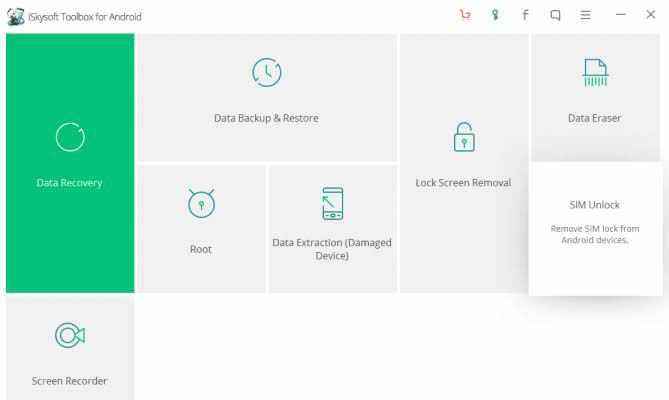
    • In the initial screen, several menu options will appear. You just click the ‘Root’ menu because here you will root the cellphone
    • Connect your smartphone to a PC using a data cable
    • Wait until iSkysoft Toolbox captures the devices connected to them
    • Let the detecting process run until 100%. After that, the ‘Root Now’ menu will appear, you click on the menu and the root process takes place
    • Wait for the root process to finish, if so, do the steps described above

    Read more:

    Conclusion:

    Apart from the five software, there are other root software such as Kingroot, Baidu Root, Wondershare MobileGo, and others. You just have to choose one of these software.
  • Epson L220 Printer Specifications and Latest Prices 2024

    Epson L220 Printer Specifications and Latest Prices 2024

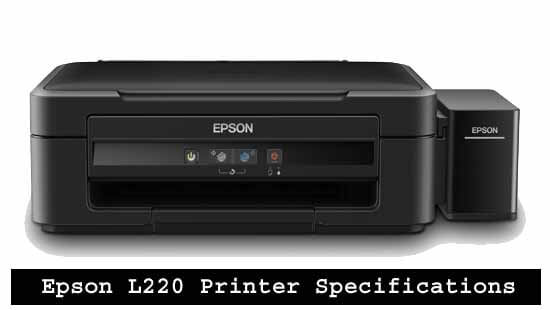
    Epson L220 Printer Specifications and Latest Prices – There are many best-selling printers in the market, one of the real examples is the Epson L220 Printer, dubbed the In One Printer in the world.

    Epson L220 Printer Specifications and Latest Prices
    Epson L220 Printer Specifications and Latest Prices

    Epson L220 Printer Specifications and Latest Prices 2024

    The printer market continues to develop and innovate every year. The original printer is just a printing tool, now it can be used as a photocopy and scanner without having to buy many devices.

    Read more:

    With just one printer, users can get many functions and conveniences in it. The Epson L220 printer has the best features at an affordable price. This article will discuss starting from an about of usage, full specifications, the latest prices, and advantages available on the Epson L220.

    Are you intrigued by the best printer on this one? Let’s look at the following snippet.

    About the Epson L220 Printer

    Epson L220 printer is one of the brands made by Epson. Even arguably the Epson L220 is the latest breakthrough from Epson printers where this printer is an upgraded printer from the Epson L210 printer.

    Whereas on the L220 printer, all the features are made more modern and more multifunctional.

    One additional feature is that it is equipped with a scan and copy feature. EPSON L220 is a type of inkjet printer that is equipped with an ink cartridge and ink hose that goes directly to the cartridge.

    So that when filling the ink, users only need to pour the ink into the ink tube and then discharge then the ink will automatically be distributed to the cartridge.

    Besides this Epson printer is also equipped with efficient use of ink. Estimated that a one-time black ink refill can be used to print about 4000 pages. So it’s not too wasteful to use. For more durability and high-quality print results, use original Epson ink or Epson ColorWorks Inks for the Epson L220.

    Indeed, the price of special Epson L220 ink is a little expensive at + 100,000. But because this printer uses more economical ink. So the use of ink becomes more cost-effective.

    Another advantage of this Epson printer is that the printing process is faster than the previous version, the Epson L210 with a speed of only 6.0 / 3.0 ipm.

    Plus the scan/copy feature there is a one-touch button located on the front. The printer design itself is not too large and more practical so that the printer placement can be anywhere and save space.

    For those who are looking for information about the Epson L220 printer, perhaps a about of the Epson L220 Printer Specifications and the Latest 2019 Price can help you choose the best all-in-one printer.

    Prices and Specifications of the Epson L220 Printer

    Intrigued by the price and specifications of this Epson printer? Come on now, friend, don’t let any important points be missed.

    Prices and Specifications of the Latest Epson L220 Printer 2024
    Printer Type
    • Multifunction Print, Scan, and Copy Printers
    Print Method
    • On-demand ink jet
    Max Magnitude of Paper
    • 215.9 x 1117.6 mm
    Max Resolution
    • 5760 x 1440 dpi
    Black / White Print Speed
    • 27 ppm / Print
    Color Print Speed
    • 15 ppm / Print
    Connectivity
    • Hi-Speed ​​USB 2.0
    Input Tray # 1
    • 50 sheets
    Copier Function
    • Copy Speed
      • Max Draft Text – Memo (A4): Approx. 5 sec / 10 sec (Black / Color)
    • Maximum Copies From Standalone: ​​20 copies
    • Maximum Copy Size: A4, Letter
    Scanner Function
    • Scanner Type: Flatbed color image scanner
    • Sensor Type: CIS
    • Optical Resolution: 600 x 1200 dpi
    • Maximum Scan Area: 216 x 297mm
    • Scan Speed ​​(Flatbed): Monochrome 300 dpi 11 sec,
    • Color 300 dpi 33 sec
    Power consumption
    • Operating: 12W
    • Standby: 3.8W
    • Sleep: 0.8 W
    • Power off: 0.3 W
    Dimension
    • 482 x 300 x 145 mm
    • Packaging Dimensions: 53 x 40 x 20 cm
    Weight
    • 4.3 kg
    Latest Price
    • Rp 2,134,000

    Advantages and Advantages of the Epson L220 Printer

    Priced at 2 million, this Epson Printer certainly has advantages and advantages we need to know. The advantages of this Epson printer are as follows.

    • Has 3 functions in one printer (multifunction), namely print, scan, and copy.
    • The printer printing method is inkjet
    • Supported paper sizes A4, A5, A6, B5, Letter, Legal, Half Letter, Folio
    • Maximum resolution of 5760 (horizontal) x 1440 (Vertical)
    • Black and white print speed reaches 15 ppm
    • Color print speeds reach approx 7.0 / 3.5 ipm
    • Copy speed of 12/6 cpm
    • Scan resolution of 600 × 1200 dpi
    • Support USB Connectivity (standard)
    • Support Windows XP operating system / 7/8/10 and Mac OSX

    The advantages of the Epson Printer above make this Epson printer much in demand even in demand by home-based business people. Where is this Epson printer is suitable for use in developing business businesses, especially for printing, scanning, and copying businesses?

    Besides that, the power consumption used is only 10 watts. So it is very fitting to support your business because the use of electricity becomes more efficient and very profitable for your business.

    Download the Latest EPSON L220 Printer Resetter and Driver

    For those of you who are in need and looking for an Epson L220 driver or Epson printer resetter software, we will share it specifically for loyal visitors.

    You can download one or both of the Epson L220 software that we have provided. Please download according to their individual needs.

    How to Reset Epson L220

    Before resetting the Epson L220 Printer, the thing to do is download the printer Driver and Resetter. For those who don’t have it, you can download it via the link above first and install it on a computer, laptop, or PC.

    The way to reset Epson L220.

    1. Make sure the Printer is turned on.
    2. Open Folder Resetter run Epson Adjustment.exe and Select L220
    3. Next Particular adjustment mode> waste ink pad counter> OK
    4. Check the link pad counter and click check the numbers will appear.
    5. Check back to the initialize section
    6. Click OK and turn off the printer.
    7. Wait 2-5 minutes and turn on the printer again.

    Read more:

    Conclusion:

    So, friends, that’s above Epson L220 printer specifications and Latest Prices, known as a million people printer. I hope Hopefully for you.

  • 8 Steps To Change Windows DNS To 1.1.1.1 for Faster Internet 2024

    8 Steps To Change Windows DNS To 1.1.1.1 for Faster Internet 2024

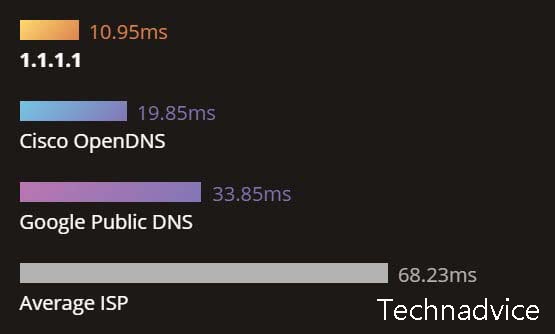
    8 Steps To Change Windows DNS to 1.1.1.1 for Faster Internet – Did you know that there is a DNS that is three times faster than Google (8.8.8.8)? DNS from Cloudflare (1.1.1.1) is claimed to have a response time of 10.95 milliseconds, which means your internet will be much more responsive.

    8 Steps To Change Windows DNS To 1.1.1.1 for Faster Internet
    8 Steps To Change Windows DNS To 1.1.1.1 for Faster Internet

    How To Change Windows DNS To 1.1.1.1 for Faster Internet 2024

    Not only that, but Cloudflare’s DNS is also more secure and private because they don’t sell user data.

    For Windows users, there is no harm in switching to this DNS configuration.

    Here’s how to change Windows 7/8/10 DNS to 1.1.1.1 in 3 minutes.

    Change Windows DNS to 1.1.1.1

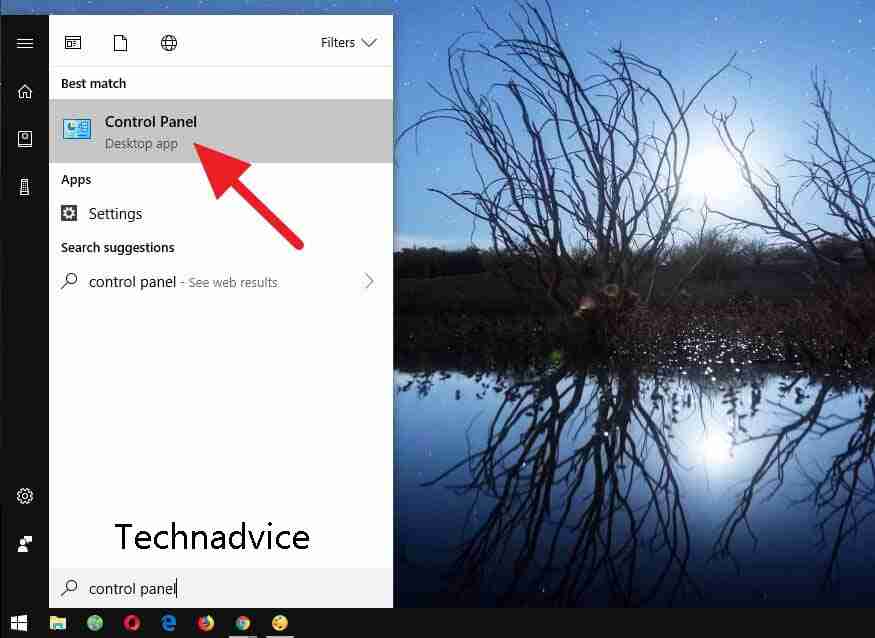
    1. Click the Start Menu, find Control Panel, and run the program.

    Change Windows DNS to 1.1.1.1

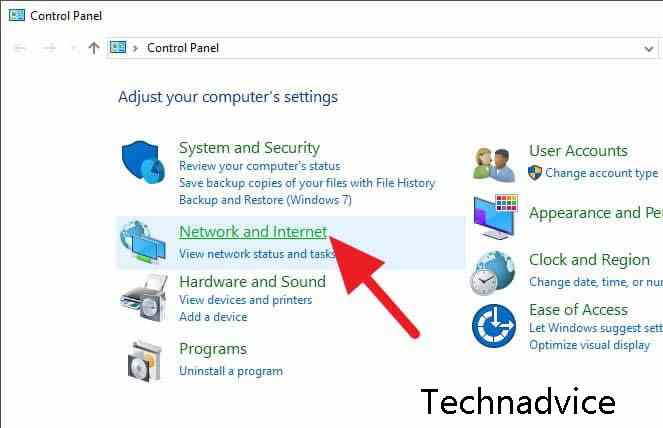
    2. Then select Network and Internet.

    Change Windows DNS to 1.1.1.1
    Change Windows DNS to 1.1.1.1

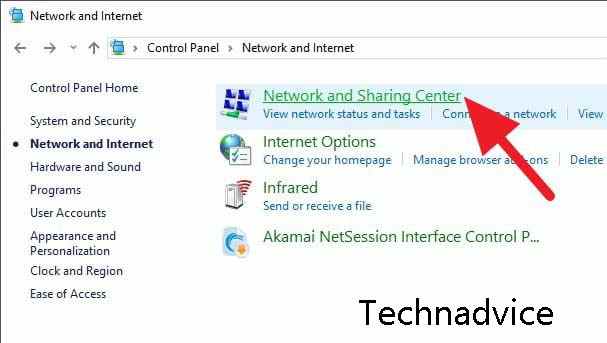
    3. Click Network and Sharing Center.

    Change Windows DNS to 1.1.1.1

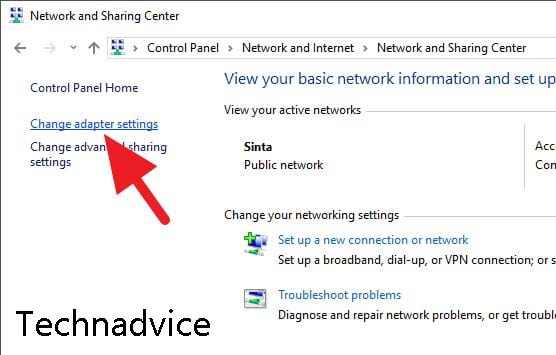
    4. In the left menu, select Change adapter settings.

    Change Windows DNS to 1.1.1.1

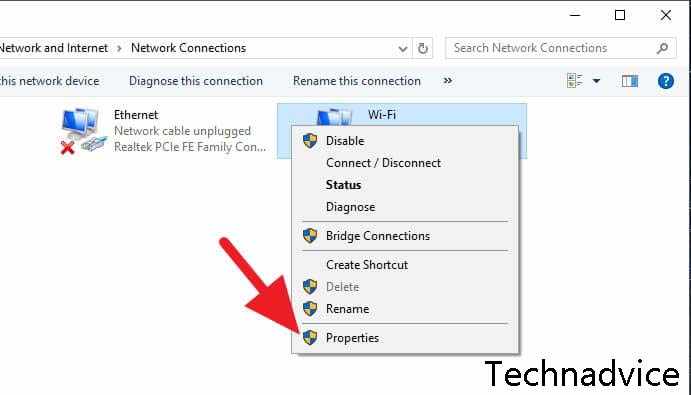
    5. Right-click on the internet network you are using, then select Properties.

    Change Windows DNS to 1.1.1.1

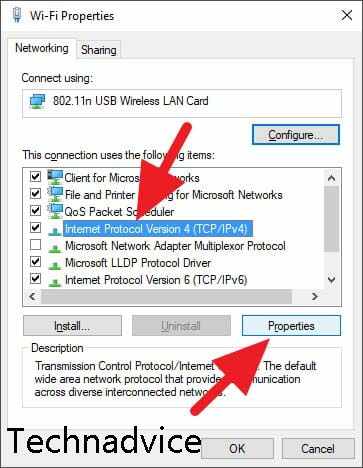
    6. Select Internet Protocol Version 4 (TCP/IPv4) then click Properties.

    Change Windows DNS to 1.1.1.1

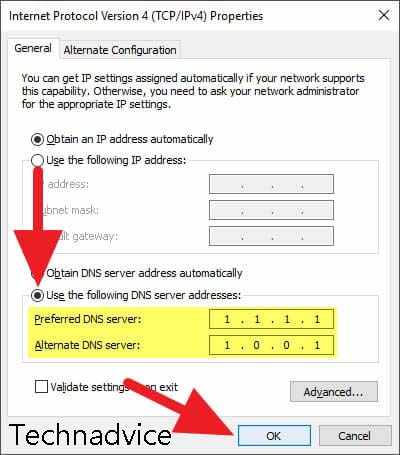
    7. Check the Use the following DNS server addresses option and fill in the following DNS:

    Preferred DNS Server: 1.1.1.1
    Alternate DNS server: 1.0.0.1

    Change Windows DNS to 1.1.1.1

    8. Click OK, then restart your browser and enjoy super-fast internet with minimal latency.

    Cloudflare DNS questions and answers

    Cloudflare DNS questions and answers

    Here is some information that you must know after installing DNS 1.1.1.1 on your Windows computer.

    What is 1.1.1.1?

    1.1.1.1 is a DNS resolver from Cloudflare designed to be extremely fast, secure, and private. Cloudflare collaborated with the non-profit APNIC in developing this system. That way, the service is 100% free for everyone at any time.

    What is DNS?

    DNS or Domain Name System is a system that translates website domains into IP addresses so that the browser can display the requested website page.

    Why should I use 1.1.1.1?

    Most DNS from internet providers (ISPs) are very slow. In addition, the absence of encryption makes data transactions insecure and prone to information leakage.

    In addition, ISPs can also collect user activity data for later sales without the users realizing it.

    How to use 1.1.1.1 on Android and iOS?

    Luckily for users of the mobile platform, DNS 1.1.1.1 is already available in the form of an application that you can download for free on the Play Store and App Store.

    Is DNS 1.1.1.1 always fast?

    On average, 1.1.1.1 is indeed faster than big names like Google, Verisign, to Akamai. You can see the full comparison on the DNSperf site.

    What are the benefits of lower latency?

    Lower latency (PING) means less lag between request and response from the server. For example, when playing online games, low latency allows you to avoid lag so that the game is smoother.

    Some activities with low latency requirements such as online exams, video calls, video streaming, data uploads, and so on are also very helpful.

    I’m already using 1.1.1.1 why is it still slow?

    Latency is only one parameter of the definition of fast internet. There is more that must be met, such as the read/write speed of storage media and internet bandwidth.

    So, 1.1.1.1 will only really have an impact if your internet bandwidth is adequate.

    How is your internet performance after using 1.1.1.1?

    Is it more responsive?

    Write your experience!

    Read more:

  • 4 Ways To Fix api-ms-win-crt-runtime-l1-1-0.dll is missing 2024

    4 Ways To Fix api-ms-win-crt-runtime-l1-1-0.dll is missing 2024

    4 Ways To Fix api-ms-win-crt-runtime-l1-1-0.dll is missing – When you fail to open a program or file on your Windows computer, and you see this error: The program can’t start because api-ms-win-crt-runtime-l1-1-0.dll is missing from your computer. Try reinstalling the program to fix this problem, it can be very frustrating.

    How To Fix api-ms-win-crt-runtime-l1-1-0.dll is missing
    How To Fix api-ms-win-crt-runtime-l1-1-0.dll is missing

    How To Fix api-ms-win-crt-runtime-l1-1-0.dll is missing 2024

    But there’s no need to panic. You are not the only one. In this article, you will certainly be relieved to know that this is an easy matter to fix.

    IMPORTANT: Do not download dll files from dll download websites! Not only their dll files are not up-to-date, but also the source is unclear. And there are lots of other reasons you shouldn’t do that. But if you have already downloaded it, I hope to remove it completely.

    Why is api-ms-win-crt-runtime-l1-1-0.dll missing?

    The api-ms-win-crt-runtime-l1-1-0.dll file is included in the Microsoft Visual C ++ Redistributable for Visual Studio 2015.

    Read more:

    If this software does not exist, or the existing software is missing, incompatible or corrupt, you will likely face this problem.

    How to fix api-ms-win-crt-runtime-l1-1-0.dll is missing error?

    Since the api-ms-win-crt-runtime-l1-1-0.dll file is included in the software, we can solve this problem by doing a reinstall on this software:

    Note: If you already have Visual C ++ Redistributable for Visual Stadio 2015 on your computer then follow the 3rd way to repair the software.

    Method # 1: Install software via Windows Update

    Microsoft has built the Visual C ++ Redistributable for Visual Studio 2015 in Windows Update KB2999226. So you can install it via the Windows Update feature.

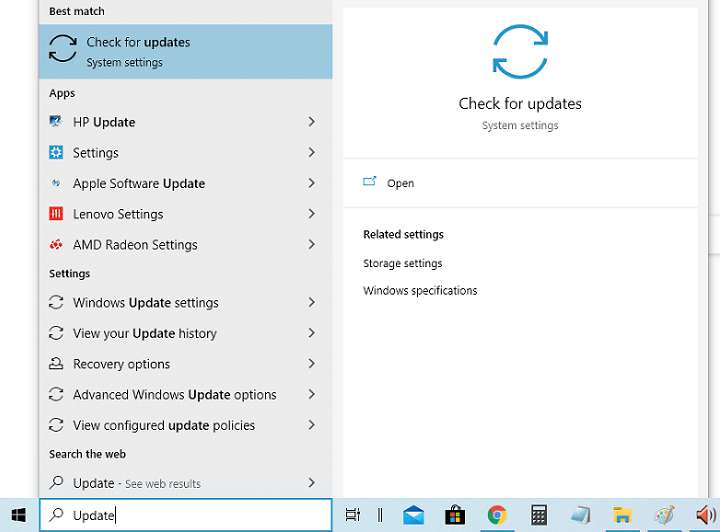
    1. Type Update in the search box from Start. Then click Check for updates ( Windows 10 ) or Windows Update (Windows 7) from the results.
    Install software via Windows Update
    Install software via Windows Update
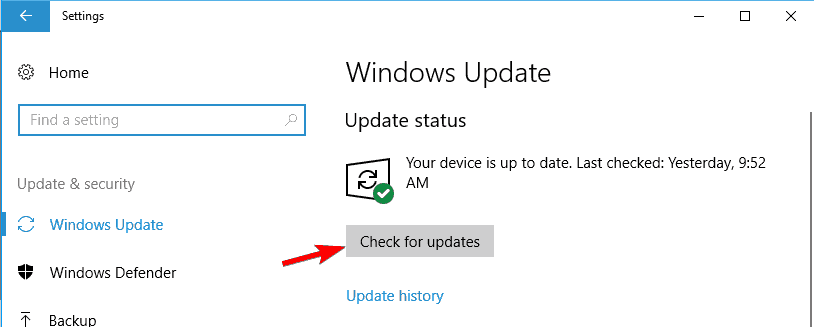
    1. Click Check for updates.
    Install software via Windows Update
    Install software via Windows Update
    1. Windows will then check for updates automatically.
      If you are using Windows 10, Microsoft will install updates that are detected automatically;
      If you are using Windows 7, click Install Update.
    2. Restart your computer. Then repeat the steps above again until there are no more updates available.
    3. Open the same program or file to see if it works. If you open the program successfully, great!

    If this error is still there, don’t worry, there is something else you can try. Please continue to the second solution below.

    Method # 2: Download Visual C ++ Redistributable for Visual Studio 2015 from Microsoft directly

    You can download the software directly from the official Microsoft website. Here’s how you can do it:

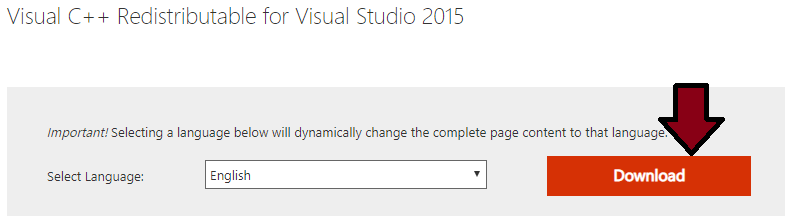
    1. Go to the Microsoft Download website.
    2. Click Download.

    Download Visual C ++ Redistributable for Visual Studio 2015 from Microsoft directly

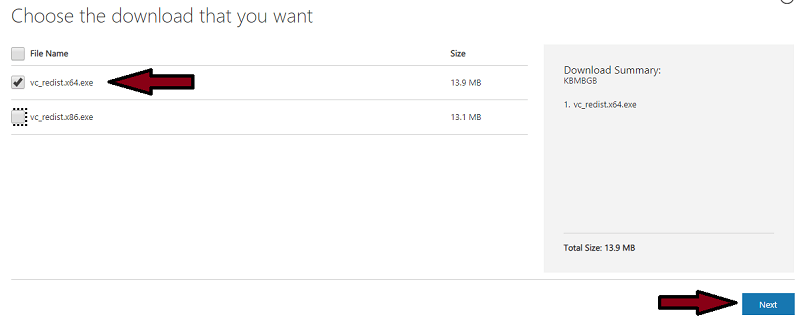
    1. Choose your system type x64 or x86 (x32), for example, I choose 64-bit according to my system then I select vc_redist.x64.exe, then click Next.

    Download Visual C ++ Redistributable for Visual Studio 2015 from Microsoft directly

    NOTE: If you are not sure which type of System your Windows is running, check it like this: type system in the search box from the Start menu , then click System Information (Windows 10) or System Information (Windows 7) from the results. You will then see your system type in the popup window.

    1. Then the file will be downloaded.
    2. Once done, double-click the downloaded .exe file and follow the on-screen instructions to complete the installation.
    3. Open the same program or file to see if it works. If you open the program successfully, great! If the error is still there, don’t worry, move on to solution 3.

    Method # 3: Repair Visual C ++ Redistributable for Visual Studio 2015 on your computer

    If you already have Visual C ++ Redistributable for Visual Studio 2015 on your computer, you can try to fix it to solve this problem.

    Follow these steps:

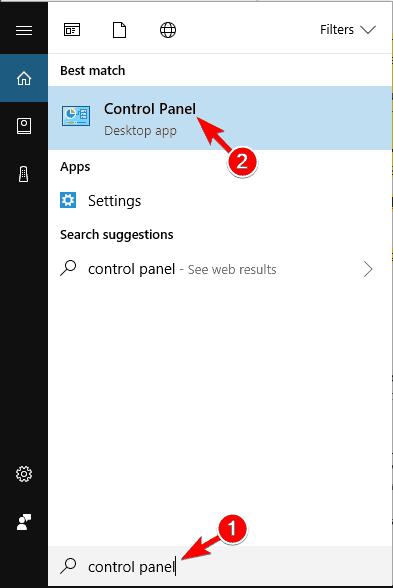
    1. Type Control Panel in the search box from the Start menu. Then click Control Panel.

    Repair Visual C ++ Redistributable for Visual Studio 2015 on your computer

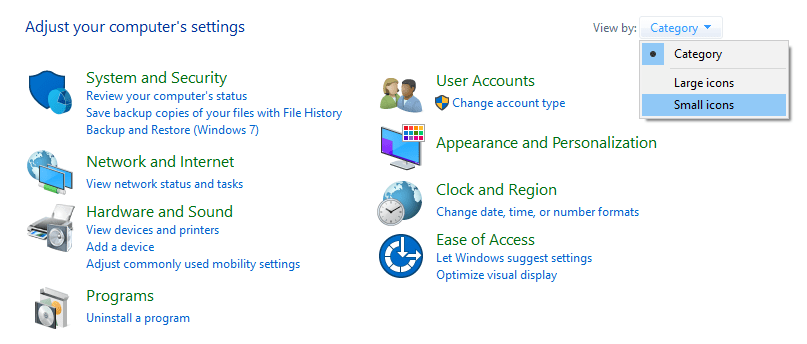
    1. In the View By section, change the Category to Small Icons.

    Repair Visual C ++ Redistributable for Visual Studio 2015 on your computer

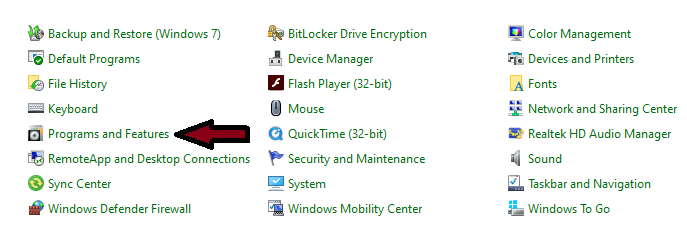
    1. Then click Program And Feature.

    Repair Visual C ++ Redistributable for Visual Studio 2015 on your computer

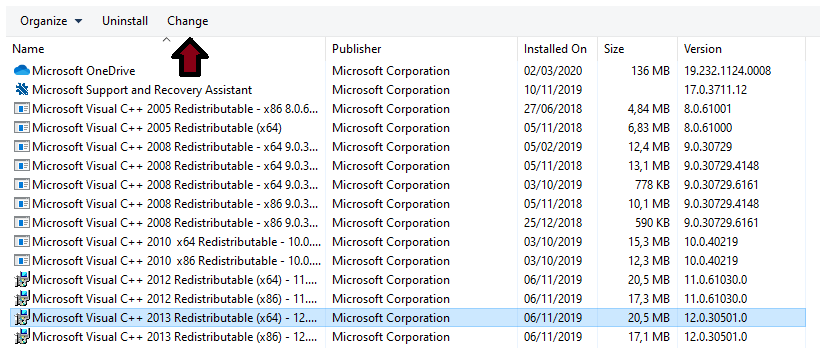
    1. Click Microsoft Visual C ++ 2015 Redistributable, then click Change.

    Microsoft Visual C ++ 2015 Redistributable

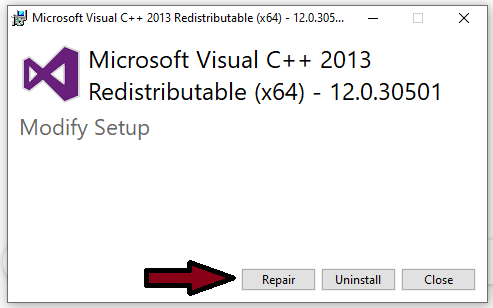
    1. Click Repair.

    Microsoft Visual C ++ 2015 Redistributable

    1. Click Yes when prompted by User Account Control and continue to follow the on-screen instructions to complete the repair.

    Method 4: copy api-ms-win-crt-runtime-l1-1-0.dll file from your friend’s PC

    If all the above methods failed to fix the api-ms-win-crt-runtime-l1-1-0.dll is a missing problem, then you can copy or copy the api-ms-win-crt-runtime-l1-1-0 file. dll from a PC running the same Windows system as yours.

    Part 1: Check your Windows system type and find the computer running the same system as yours.

    Here’s how you can check your Windows computer type:

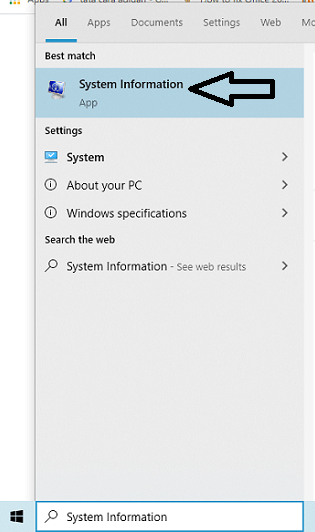
    1. On your keyboard, press the Windows logo key to open a search box.
    2. Type in System Information and then select System Information from the results.

    copy api-ms-win-crt-runtime-l1-1-0.dll file from your friend's PC

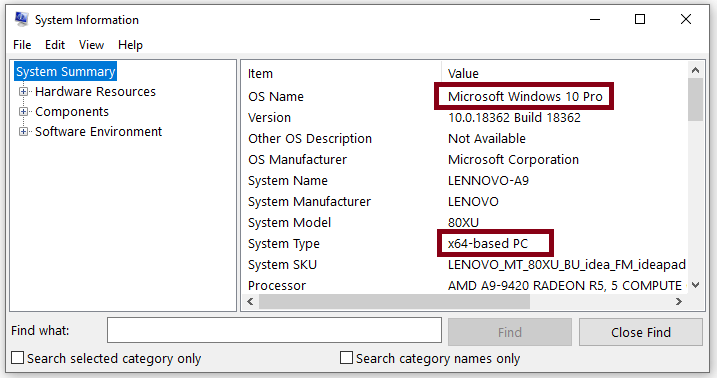
    1. You will then see your computer system type.

    copy api-ms-win-crt-runtime-l1-1-0.dll file from your friend's PC

    Part 2: Copy the api-ms-win-crt-runtime-l1-1-0.dll file from your friend’s computer and then paste it onto the problematic computer.

    Here’s how you can find dll files:

    1. On a working computer keyboard, press the Windows logo key and E simultaneously to open File Explorer.
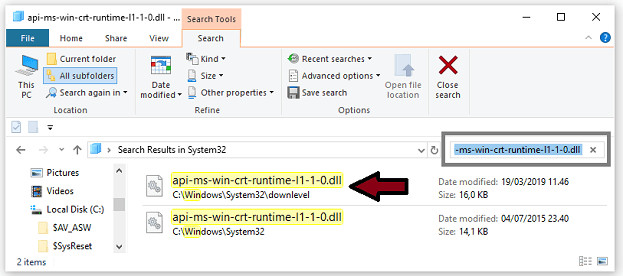
    2. Go to C: \ Windows \ System32, then type api-ms-win-crt-runtime-l1-1-0.dll and press Enter. If it doesn’t show any results, go to C: \ Windows \ SysWOW64 and search for api-ms-win-crt-runtime-l1-1-0.dll again.

    copy api-ms-win-crt-runtime-l1-1-0.dll file from your friend's PC

    1. Copy the api-ms-win-crt-runtime-l1-1-0.dll file if it is found and paste it in the same location where you copied the files on your problematic computer.

    Note: Keep in mind that not all computers that come with the same system type have dll files that you want to restore, so this method only works on two computers that have the same Windows version and bit.

    Read more:

    Conclusion:

    That’s the whole way to fix api-ms-win-crt-runtime-l1-1-0.dll is missing that you can follow and has proven successful in fixing this problem according to the admissions of several Windows 10 and Windows 7 users.

  • How to Install Naruto Ninja Storm 4 PPSSPP 2024

    How to Install Naruto Ninja Storm 4 PPSSPP 2024

    How to Install Naruto Ninja Storm 4 PPSSPP – For how to install the Naruto Ultimate Ninja Storm 4 PPSSPP game so that it can be played smoothly on an Android device, please follow the following tutorial:

    How to Install Naruto Ninja Storm 4 PPSSPP Complete Guide
    How to Install Naruto Ninja Storm 4 PPSSPP Complete Guide

    (Complete Guide) Here is How to Install Naruto Ninja Storm 4 PPSSPP 2024

    1. Download and Install ZArchiver Pro v1.0.8.
    2. Install PPSSPP Emulator, then open it briefly and remove it again.
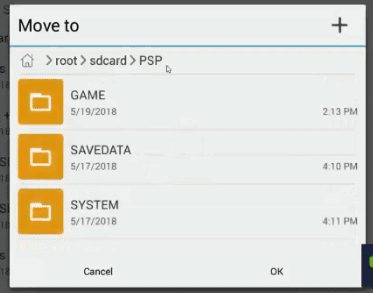
    3. Move the file in the textures + save the data folder to the PSP folder (place it here).
    4. Also, move the files in the system + cheats folder to the PSP folder (paste here).
      How to Install Naruto Ninja Storm 4 PPSSPP Complete Guide
      How to Install Naruto Ninja Storm 4 PPSSPP
    5. Open Zarchiver then extracts the file from the Naruto Ultimate Ninja Storm 4.rar game that you downloaded earlier until you get the game file in the.ISO format.
    6. If the game file is in ISO format, it means you don’t need to extract it.
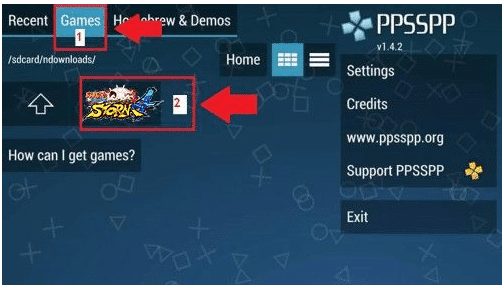
    7. Open the PPSSPP Emulator then look for the ISO file from the Naruto Ultimate Ninja Storm 4 game which is located in the extracted folder.
    8. If you’ve found it, just click on the Naruto Ninja Storm 4 game icon and start the game.
      How to Install Naruto Ninja Storm 4 PPSSPP Complete Guide
       How to Install Naruto Ninja Storm 4 PPSSPP

    Apart from the games above, there are other versions of games that are smaller in size. So it will still run smoothly even if it is played on a potato]

    o cellphone.

    Naruto Ultimate Ninja Storm 4 PPSSPP

    SaveData Textures File

    Don’t forget to bookmark and always visit every day Technadvice.com because here you can find the latest technology information such as How-to Guide Tips and Tricks Blogging Digital Marketing Windows Android Root Social Media games, ETC. Best of luck.