Author: Nazrul Islam

  • 6 Ways To Fix Printer Not Detected During Driver 2024

    6 Ways To Fix Printer Not Detected During Driver 2024

    6 Ways To Fix Printer Not Detected During Driver—A printer that doesn’t want to be read is quite annoying, especially when it’s needed to print documents. So, how can you solve the printer not being detected problem? Can you do it yourself?
    6 Ways To Fix Printer Not Detected During Driver
    6 Ways To Fix Printer Not Detected During Driver

    How To Fix Printer Not Detected During Driver on PC

    Like other electronic devices, printers are also potentially unreadable on a computer. You may already feel connected to the computer correctly.

    Read more:

    However, the printer that is already connected is still not responding and is offline. This condition is quite common, so you don’t need to panic when you experience it.

    The following reviews will help you solve the problem of a printer not being detected.

    How to Solve Printer Not Detected With Your PC Laptop

    There are various reasons why the printer cannot be detected properly. Not only do one or two users experience it, but this printer problem is also quite common for many people.

    Therefore, you must understand some of the possible solutions. The following are some ways to overcome the printer that can not be read.

    #1. Restart Print Spooler

    If you are one of those who often print documents, you may already be familiar with the term print spooler. Basically, this feature is a service in Windows that functions to manage system activities as well as read printers.

    If the printer is not detected, it could be that the problem lies in this one feature. Therefore, you can restart the print spooler by following these steps:

    1. In the first step, type “service.msc” in the Windows search field.
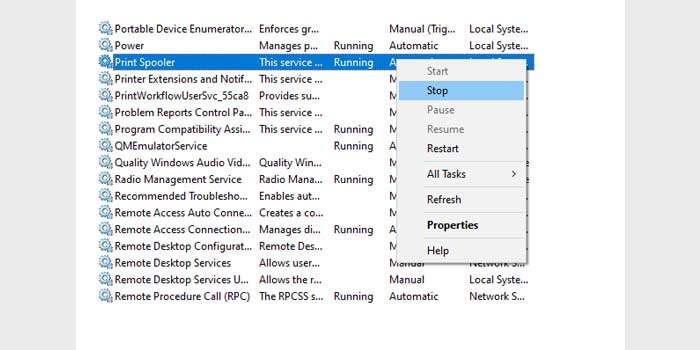
    2. Scroll down and then right-click the Print Spooler option.
    3. Then click the Stop option.

      Restart Print Spooler
      Restart Print Spooler
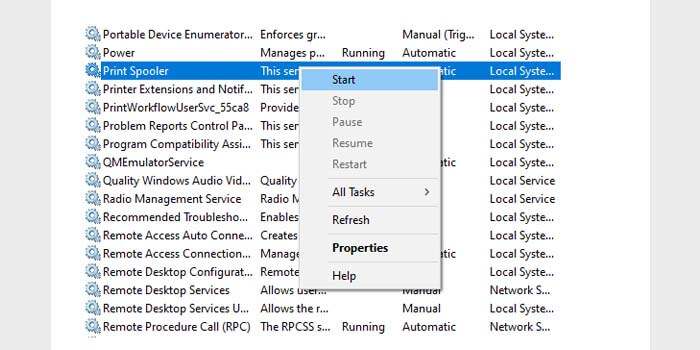
    4. When done, right-click and select Start.

      Restart Print Spooler
      Restart Print Spooler
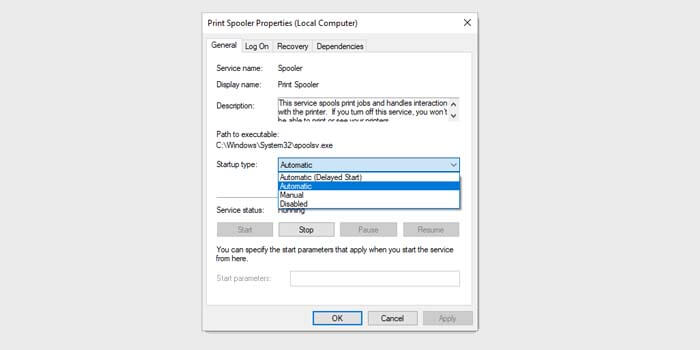
    5. Next, click Print Spooler then Properties.
    6. In the Startup Type section, select Automatic.

      Restart Print Spooler
      Restart Print Spooler
    7. Finished.

    There are indeed differences between the automatic startup options and manual startup options. By selecting automatic startup, the print spooler will continue to be active. While the manual startup option makes the print spooler only active when turned on.

    Resetting the print spooler is indeed recommended so that the printer can be read easily. Thus, the printer can be read easily and can be used properly.

    #2. Check the Printer’s USB Cable
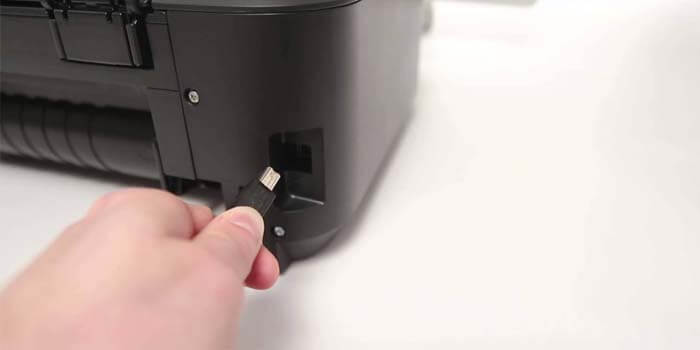
    Check Printer USB Cable

    For users of non-wireless printers, USB cable problems often occur. Therefore, you need to check the condition of the printer cable whether it is properly installed or not, considering that damage can occur to the printer’s USB cable.

    For example, because the cable is bent, the part is broken, and there is dirt attached to the port. These conditions are indeed at risk of affecting the function of the printer device itself.

    To work around this, follow these ways to resolve the printer not detected:

    1. The first step, check the condition of the printer’s USB cable.
    2. Check the USB port on the printer, and clean it if it looks dirty.
    3. Next, connect the printer cable to the computer/laptop device.
    4. You can also disconnect and then reconnect the USB cable until it is detected.

    The USB port and USB slot are indeed quite susceptible to dust. Therefore, you need to check this section so that it can be easily connected to the computer or laptop that will be used.

    #3. Add Printer Manually
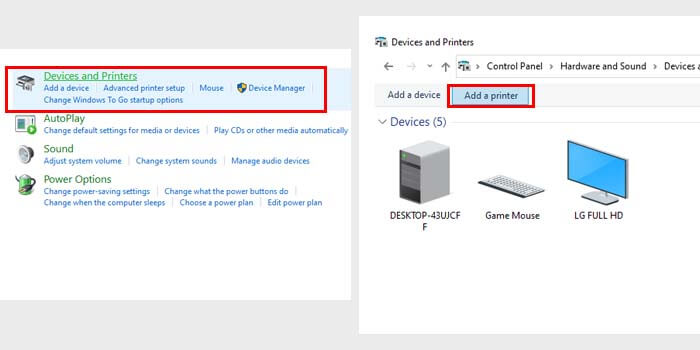
    Add Printer Manually
    Add Printer Manually

    The system in Windows can indeed read the printer automatically. However, you can also add them manually via the Device and Printers feature. This option can also be a solution when Windows cannot detect the printer.

    Here are the steps below:

    1. The first step is to open the Control Panel menu on your laptop/computer.
    2. After that, open the Hardware and Sounds Settings menu.
    3. If it’s already open, you just need to click on the Device and Printers option.
    4. Select Add Printer and then follow the given guide.
    5. The guide will add the printer to be detected on the computer/laptop.

    Basically, the Device and Printer feature is available by default on the Windows OS you are using, for example, Windows 7, Windows 8, Windows 8.1, and Windows 10.

    #4. Reinstall the Printer Driver
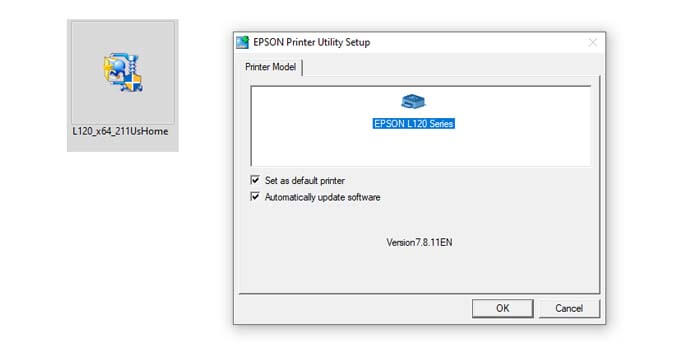
    Reinstall the Printer Driver

    Problematic printer drivers often make the printer unable to be detected properly. Some of the driver constraints in question are as follows:

    • Default driver issue (bug)
    • Driver compatibility that does not match the system used
    • Error in the installation process

    You can solve the problem of the printer not being detected due to driver problems by reinstalling it. Not only that, users can also update drivers if the update is available.

    #5. Reinstall the System

    The next problem with the printer not being read is because of a system error. The solution that can be done is to reinstall the system.

    Basically, this happens because the driver compatibility is not suitable. However, you should try the printer first on the laptop/computer you are using, especially if the version of the system you are using is not the same.

    Thus, users can understand whether the problem lies in the system or not.

    #6. Printer Service
    Printer Service
    Printer Service

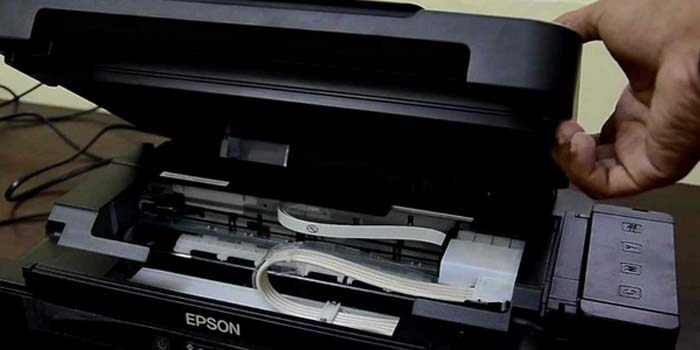
    If you have done the various things above but the printer is still unreadable, you can do this one method. It could be that the real problem lies in the printer component itself which is damaged.

    For example, damage to cables or other components make the printer unable to connect properly. Therefore, the last step that can be done is to carry out printer service by professionals.

    By taking it to a repair shop, you can find out what damage the printer has suffered. Especially if the printer you own still has a warranty in it, of course, there is nothing wrong with doing service.

    Read more:

    Conclusion:

    Well, those are some reviews on how to solve printers not detected that can help you. Thus, the printer can be used again to print documents normally.

    But if it’s still a problem, do a printer repair as suggested above. So that the printer can be repaired by a more competent person.
  • How to Reset Canon iP2770/iP2700 Printer on Laptop PC 2024

    How to Reset Canon iP2770/iP2700 Printer on Laptop PC 2024

    How to Reset Canon iP2770/iP2700 Printer on Laptop PC – The Canon iP2770 and iP2700 printers are quite popular printers because they are very good in terms of functions and prices.

    How to Reset Canon iP2770iP2700 Printer
    How to Reset Canon iP2770iP2700 Printer

    How To Reset Canon iP2770 / iP2700 Printer

    Some users of the Canon iP2770 and iP2700 printers still don’t know how to Reset Canon iP2770, when they experience the error code Error 5200 Waste Ink Tank Absorber Full or Error 5200.

    Read more:

    If your Canon iP2770 or iP2700 printer appears with an error code Error 5200 Waste Ink Tank Absorber Full or Error 5200, you don’t need to worry. The reason is, how to fix or reset the Canon iP2770 or iP2700 printer is simply to reset it.

    To reset Canon iP2770 or iP2700 printer is also very easy to do. There are even 2 types of methods that you can try on your Canon iP2770 or iP2700 printer.

    A printer that is often used quickly with a lot of work, causes the printer to experience errors. On the Canon iP2770 and iP2700 printers, the error code Error 5200 Waste Ink Tank Absorber Full and Error 5200 will usually appear, Reset Canon iP2770.

    The printer cannot be used to print or print as usual. Even sometimes the printer will jam and not respond on your computer or laptop.

    If you experience errors on your Canon iP2770 and iP2700 printers. Then you don’t need to panic. Here are 2 ways to repair Canon iP2770 and iP2700 printers manual reset and software resetter, Reset Canon iP2770.

    #1. How to Manual Reset Canon iP2770 / iP2700

    The first way to reset Canon iP2770 and iP2700 printers is manually without the help of software. By resetting the printer, you completely reset it so that you can overcome the error code that always appears on your Canon printer.

    This is how to reset the canon ip2770 printer without software:

    1. Turn off the Canon iP2770 and iP2700 printer machines first.
    2. Unplug the printer power plug from the mains.
    3. Press and hold the printer power button.
    4. State of pressing the button, turn on your printer again.
    5. Wait for 2-5 seconds, press the Resume button 2 times, and release it together with the power button.

    To ensure whether you have successfully reset the Canon iP2770 or iP2700 printer in total or not, go to Control Panner.

    If in the printer settings, there is a new printer option, then it means that you have successfully reset the Canon iP2770 or iP2700 printer in total to default or factory settings.

    #2. Software Resetter Printer Canon iP2770 / 2700

    The second way to reset the Canon iP2770 / iP2700 printer is with the help of a software resetter. You can also use this software to reset the Canon printer completely and completely.

    How to download and use the latest Canon iP2770 / iP2700 resetter:

    1. If the printer is on, turn it off first.
    2. Press the Resume button for a few moments.
    3. In the state of pressing the Resume button, continue to press the Power button simultaneously until the green indicator light turns on.
    4. Release the Resume button but keep the Power button pressed.
    5. While pressing the Power button, press the Resume button 5 times until the light changes color to orange.

      Software Resetter Printer Canon iP2770 2700
      Software Resetter Printer Canon iP2770 2700
    6. Then release the two buttons.
    7. The light will flash and turn green.
    8. The computer will detect a new printer device, which means it shows you have entered Service Mode.
    9. Download and install the Canon iP2770 / iP2700 resetter software
    10. Open the Canon iP2700 printer resetter application or software.
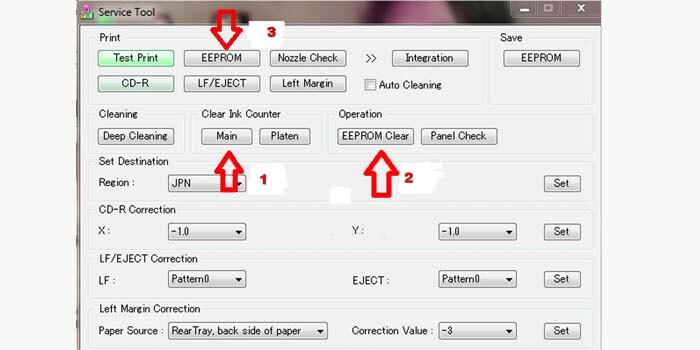
    11. Click the MAIN button to give the print command D = 000.0
    12. Next, click the EEPROM Clear button to reset the printer.
    13. Finally, click the EEPROM button to print some text.

      Software Resetter Printer Canon iP2770 2700
      Software Resetter Printer Canon iP2770 2700

    14. Turn off the printer and your printer has been successfully reset when it is on.

    DMCA: Technadvice.com complies with 17 U.S.C. * 512 and the Digital Millennium Copyright Act (DMCA). It is our policy to respond to any infringement notices and take appropriate action. If your copyrighted material has been posted on the site and you want this material removed, Contact us.

    Read more:

    Conclusion:

    So, friends, Those are how to Reset Canon iP2770 Printer and iP2700 printers manually and totally and how to reset them through the help of resetter software. You can use this method to fix or reset Canon iP2770 and iP2700 printers that keep showing error codes.

  • Solve: Product Activation Failed Error in Office [Word Excel] 2024

    Solve: Product Activation Failed Error in Office [Word Excel] 2024

    Solve: Product Activation Failed Error in Office [Word Excel] – Resolving the Word Product Activation Failed notification in the title bar is one of the problems that Microsoft Office users often encounter because many don’t know about it.

    Solve Product Activation Failed Error in Office [Word Excel]How to Product Activation Failed Error in Office [Word Excel]

    Therefore, you need to know how to deal with Word Product Activation Failed so that your comfort in using Microsoft Office is not disturbed.

    Read more:

    This Microsoft Office software is the software most widely used by the public for various needs, especially at work.

    There are problems causing daily activity and productivity at work to be hampered, what actually causes Word Product Activation to fail to appear?

    Causes of Product Activation Failed Error in Office Word Excel Notification

    Causes of Product Activation Failed Error in Office Word Excel Notification

    Before getting to the heart of the discussion, namely how to deal with Word Product Activation Failure, it’s a good idea to first know the cause of the notification about product activation failure in your Microsoft Office.

    #1. Pirated Software

    The first cause is that you are not using the official Microsoft Office software. Meanwhile, there are lots of risks in using pirated Microsoft Office software such as getting a virus, force close, not responding and word product failed activation.

    #2. The software’s Active Period Has Expired

    Microsoft Office and Microsoft 365 software have different active periods. You can subscribe monthly or annually, if the active period or software subscription period has expired, what will usually happen is an unlicensed product or a product activation fails.

    #3. Installing the Trial Version of Microsoft Office

    Another cause that can cause a product activation failed notification is that the Microsoft Office that you installed on your PC or laptop is the trial version. Trial or trial versions generally have an active period of up to 30 days.

    This means, if within 30 days or one month, you don’t install the paid version, then suddenly the word product activation failed notification will appear.

    #4. There is a problem with Microsoft Office

    Finally, most likely the word product activation failed notification appears due to errors or bugs contained in the Microsoft Office program itself.

    How to Solve Product Activation Failed Error in Office Word Excel

    Below, you can find various ways to deal with Word Product Activation Failure so you can get back to working with Microsoft Office without a hitch.

    #1. Check the Microsoft Office Software License

    The first way is to ensure that you have a Microsoft Office software license. The following steps must be taken to find out which Microsoft Office product license you have:

    1. Open one of the Ms. applications. Office for example Ms. Word.
    2. Enter the “File ” menu, and select the “Account” option.
    3. Look in the “Product Activation” section.
    4. Pay attention to the description “Product Activated”.
    5. If there is an “Activation Required” statement, it means that Microsoft Office needs to be activated

    #2. Re-enter Product Key

    Several conditions may allow Microsoft Office to ask its users to re-enter the product key or official license code to activate the software. This can happen if the software you are using is pirated or still in a trial version.

    Here are the ways to enter the product key:

    1. Open one of the Ms. applications. Office for example Ms. Word.
    2. Enter the “File” menu, and select the “Account” option.
    3. Look in the “Product Information” section.
    4. Select the “Change Product Key” option.
    5. Input the official license code that you have.
    6. Follow the directions given and wait for the process to complete.

    #3. Update Microsoft Office Software

    If the two ways to deal with Word Product Activation Failed don’t work, you can try updating the Microsoft Office software that you have.

    1. Open one of the Ms. applications. Office for example Ms. Word.
    2. Enter the “File ” menu, and select the “Account” option.
    3. Look in the ” Product Information “.
    4. Select the “Update Options” option.
    5. Select the “Update Now” option.

    Conclusion:

    So, friends, This is the explanation of the three ways to Solve the Product Activation Failed Error in the Office, above to get rid of the notification.

  • 7 Ways to Fix Windows File Explorer Not Responding 2024

    7 Ways to Fix Windows File Explorer Not Responding 2024

    7 Ways to Fix Windows File Explorer Not Responding – File Explorer error or not responding? Don’t worry, there are here the 7 ways to deal with File Explorer not responding.

    7 Ways to Fix Windows File Explorer Not Responding
    7 Ways to Fix Windows File Explorer Not Responding

    7 Ways to Fix Windows File Explorer Not Responding

    File Explorer or Windows Explorer is the main navigation system that allows us to view, access, and manage all files on your PC or laptop.

    Read more:

    If the file explorer doesn’t respond, freezes, or won’t open, there will be a lot of frustrating problems accessing important data on your computer.

    Fortunately, here ApkVenue has prepared 7 ways to deal with file explorer not responding that are easy to follow and an explanation. Check out the details below!

    What Causes File Explorer Error?

    Unfortunately, there is no definite cause that could be the source of this somewhat annoying problem.

    Based on user reports from the Windows 10 community, there are several reasons that could cause Windows Explorer to not respond, freeze, or not open at all.

    #1. File Explorer history needs to be deleted

    It is possible that your File Explorer history is stuck and is causing Windows Explorer to run improperly.

    The solution is to delete the file explorer history which ApkVenue will explain more fully in this article.

    #2. The display settings have been changed

    Users reported that changes to display settings such as font size could cause Windows Explorer to crash.

    If you recently changed a setting or allowed the app to change it, returning it is the best option.

    #3. The version of Windows 10 that you are using is old

    If you are still using Windows 7, there’s nothing wrong with upgrading from Windows 7 to Windows 10 for better performance.

    Updating Windows is very important, gang. Even though sometimes there are annoying bugs that make us want to turn off Windows updates, the latest versions usually fix a lot of problems.

    #4. No space is available on the system drive

    If the system drive is full, Windows Explorer may not function properly.

    If so, then you need to provide more space on the system drive to deal with file explorer errors and speed up laptop performance.

    #5. Something is wrong with the system

    Sometimes system files can cause Windows Explorer to stop responding or open.

    Fortunately, there are various options for how to deal with file explorer not responding that are easy and fast to do.

    How to Solve File Explorer Not Responding Through the Task Manager

    One of the fastest ways to deal with file explorer not responding is through the task manager.

    Check out the following steps to solve Windows 10 file explorer not responding error.

    1. Right-click the taskbar and select task manager.
    How to Overcome File Explorer Not Responding Through the Task Manager
    1. Select the file explorer, then click end task.

    2. Restart the file explorer. In this step, you will make Windows start the file explorer process again by clicking on the file, then clicking run new task.

    How to Overcome File Explorer Not Responding Through the Task Manager
    1. Type explorer.exe, then OK. Done! Windows will reload the file explorer via the task manager steps.
    How to Overcome File Explorer Not Responding Through the Task Manager

    How to Solve File Explorer Not Responding Through CMD

    Another method to restart Windows Explorer / File Explorer is using commands in the Command Prompt.

    Here’s how to restart Windows Explorer / File Explorer using only the Command Prompt:

    1. Press Windows + R keys at the same time.
    2. Type “cmd” and press Ctrl + Shift + Enter to launch Command Prompt with administrative permissions.
    How to Overcome File Explorer Not Responding Through CMD
    1. Enter the following command to quit Windows Explorer, then press Enter to run the command:

    taskkill / f / im explorer.exe

    How to Overcome File Explorer Not Responding Through CMD
    1. Next, enter the following command to restart Windows Explorer. Don’t forget to hit enter after you type the command!

      start explorer.exe

    How to Overcome File Explorer Not Responding Through CMD
    1. Close the Command Prompt and check if you can use Windows Explorer now.

    How to Fix File Explorer Not Responding Through Batch File

    If the method for overcoming the file explorer not responding above still doesn’t work, then you can use the batch file method as an alternative.

    Basically, you just need to create a batch file (.bat) and run it with administrator permission to terminate and restart Windows Explorer / File Explorer.

    1. Right-click on an empty space on the Desktop, then click New, and select Text document.
    How to Overcome File Explorer Not Responding Through Batch File
    1. Name the file Restart Explorer and open it with any notepad application.
    How to Overcome File Explorer Not Responding Through Batch File
    1. Paste the following text into the file.
    How to Overcome File Explorer Not Responding Through Batch File

    taskkill / f / IM explorer.exe

    start explorer.exe

    exit

    1. Select “All Files” as the file type, then rename the text document to “Restart Explorer.bat” and click Save.
    How to Overcome File Explorer Not Responding Through Batch File
    1. Open Desktop and right-click on Restart Explorer.bat file, then select Run as administrator.

    2. Check if you can use Windows Explorer now.

    How to Fix File Explorer Not Responding By Deleting History

    As mentioned above, your Windows Explorer / File Explorer history might get stuck causing all kinds of problems.

    You can easily fix this by deleting File Explorer’s history.

    1. Press the Windows key + R to launch Run. Type “control” and press the OK button.
    2. Make sure the display mode is set to a large icon.

      How to Overcome File Explorer Not Responding By Deleting History
    3. Click File Explorer Options.

      How to Overcome File Explorer Not Responding By Deleting History
    4. Click the Remove button in the Privacy section.

      How to Overcome File Explorer Not Responding By Deleting History
    5. Check if Windows Explorer is working now.

    How to Fix File Explorer Not Responding Through Display Settings

    In certain cases, users reported that returning their display settings to default allowed them to use Windows Explorer / File Explorer without any problems.

    1. Click the Windows logo at the bottom left of the screen, then select Settings. You can also press the Windows + I keyboard at the same time to open it.
    How to Overcome File Explorer Not Responding Through Display Settings
    1. Click system.

    2. Click display.

    3. Scale the size to 100%.

    How to Overcome File Explorer Not Responding Through Display Settings
    1. Check if Windows Explorer is working now.

    How to Fix File Explorer Not Responding Through System File Checker

    Another way of dealing with File Explorer involves System File Checker or SFC for short.

    SFC allows you to fix several problems on Windows systems automatically.

    By running it, you can fix Windows Explorer / File Explorer errors.

    1. Press the Windows key + R on your keyboard to launch the Run utility.

    2. Type “cmd” and press Ctrl + Shift + Enter. This will open a Command Prompt with administrative permissions.

    How to Overcome File Explorer Not Responding Through System File Checker
    1. Type the following command and press Enter: sfc / scannow
    How to Overcome File Explorer Not Responding Through System File Checker
    1. Wait for the SFC to finish scanning your computer. If there are any errors, you can fix them automatically via the SFC command.

    How to Fix File Explorer Not Responding to Windows 10 Update

    If none of the above methods for overcoming file explorer’s not responding have worked, then the only way is to update to the latest version of Windows 10.

    This method is also used as a powerful way to deal with the Windows 7 explorer.exe error. You can listen to how to upgrade Windows 7 to 10 first.

    1. Open the Settings app using the Start menu or the Windows + I keyboard shortcut.

    2. Click update and security.

    How to Fix File Explorer Not Responding to Windows 10 Update
    1. Click check for updates.
    How to Fix File Explorer Not Responding to Windows 10 Update
    1. If new updates are found, click the Install button.

    Read more:

    Conclusion:

    So, there are 7 ways to Fix the Windows 10 file explorer not responding error that you can easily follow.

    It is important to fix this problem because if the file explorer cannot be accessed, then you cannot open the documents on the laptop.

    If the file explorer not responding problem has been resolved, it’s a good idea to also use a file backup site as an alternative so that your important files are not lost.

  • Top 10 Best Offline Warship Games on Android 2024

    Top 10 Best Offline Warship Games on Android 2024

    Top 10 Best Offline Warship Games on Android – There are currently a lot of games provided by the Play Store. Various game genres that you can download such as FPS, MOBARPGPPSSPP, MMORPG, and others.

    Top 10 Best Offline Warship Games on Android 2021
    Top 10 Best Offline Warship Games on Android

    10 Best Offline Warship Games on Android

    Not only that anyway, but there are also online and offline games provided by the Google Play Store. Talking about games that are popular right now are PUBG MobileMobile Legends, and Free Fire. Isn’t that right?

    Read more:

    However, the game can only be played online. But just calm, down because this time we will recommend an offline game that you can play without having an internet quota.

    Well, if you want a war game, this is perfect! The thing is, here are some recommendations for the best offline battleship game on Android that you can play!

    If you want to play other war games, there are also things like royal war games, robots, and zombies. However, this time we only discuss warship games, guys.

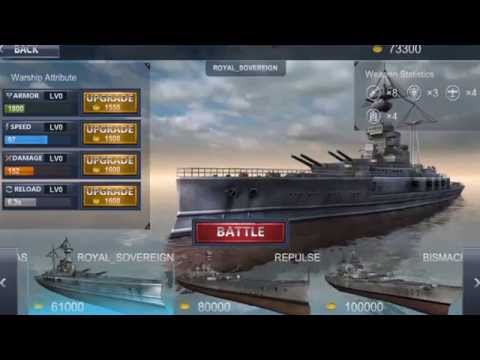
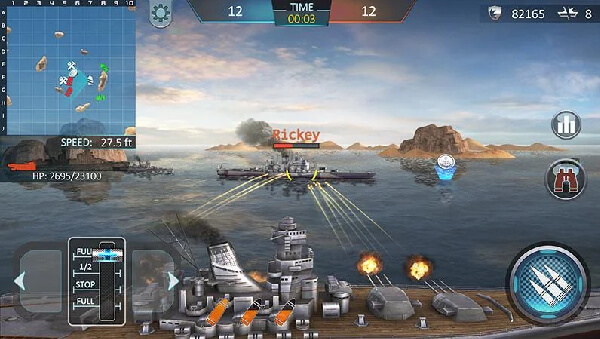
    #1Battle of Warships: Naval Blitz

    Battle of Warships Naval Blitz
    Battle of Warships Naval Blitz

    The first offline battleship game on Android is the Battle of Warships: Naval Blitz. Oh yeah, this game can’t only be played offline, guys. But, it can also be online if you have enough internet packages.

    In this game, you are ordered to destroy enemy ships using the weapons available on the ship. If you manage to destroy the enemy ships, you will get points.

    The warships provided were also various. Moreover, you can ask for help jet or fighter to destroy the enemy. This game should also be included in the list of fighter war games.

    Game Name Battle of Warships: Naval Blitz
    Download Size 89MB
    Download link

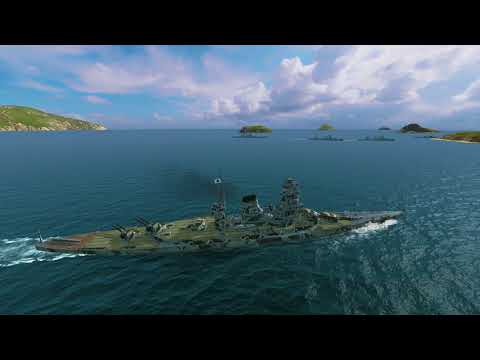
    #2World of Warships Blitz: Gunship Action War Game

    World of Warships Blitz Gunship Action War Game
    World of Warships Blitz Gunship Action War Game

    The second offline battleship game is the World of Warships Blitz: Gunship Action War Game. This game that uses 3D graphics can be played simultaneously with your friends, it’s similar to a multiplayer game. But, the condition is you have to be online.

    Even so, you can still play offline in this game if you play alone. This warship game tells about world war 2 in the navy.

    So, you have to do battle using warships that already have weapons available. If you manage to destroy and sink the enemy, then you are a very formidable navy.

    Game Name World of Warships Blitz: Gunship Action War Game
    Download Size 1GB
    Download link

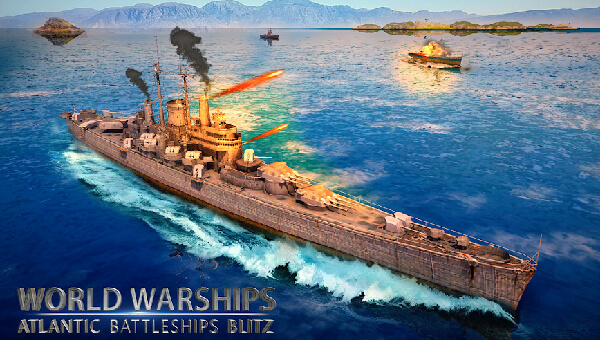
    #3World Warships: Atlantic Battleships Blitz

    World Warships Atlantic Battleships Blitz
    World Warships Atlantic Battleships Blitz

    The third warship game on Android is World Warships: Atlantic Battleships Blitz. This game tells about the war between warships in the ocean. In this game, you are a fleet of battleships assigned to destroy enemy ships.

    Oh yes, you are also required to destroy ships quickly, so that the warship you use does not sink and can continue the war with other warships.

    The weapons used are also missiles and long-range shooters. Yes, although this game is not a 3D sniper game, this game uses a 3D graphic display that is no less real when played.

    Game Name World Warships: Atlantic Battleships Blitz
    Download Size 86MB
    Download link

    #4Sea Battle: Warship (3D)

    Sea Battle Warship (3D)
    Sea Battle Warship (3D)

    The fourth best marine battleship game on Android is Sea Battle: Warships (3D). Same as the previous game, in this game, you get a mission to destroy enemy warships to sink.

    As a commander of a cruiser, you also have to adventure in the ocean to find enemies and destroy them. Well, even though it’s not an adventure war game, with this game you feel like you’re adventuring too.

    Oh yes, the types of warships provided in this game also vary with different weapons as well. If you succeed in destroying enemy battleships, you can get points, guys.

    Game Name Sea Battle: Warships (3D)
    Download Size 30MB
    Download link

    #5Warship Attack 3D

    Warship Attack 3D
    Warship Attack 3D

    The fifth offline battleship game on Android is Warship Attack 3D. In this 3D war game, you are a naval captain who is ordered to destroy enemy ships.

    Oh yes, you can also play with friends if you use the online mode. So, this game also includes online games on Android that you must try!

    You also need to know, guys, if there are about 40 battles in the ocean. Although this game is not included survival games. But, you are required to stay alive and avoid enemy fire.

    Game Name Warship Attack 3D
    Download Size 18MB
    Download link

    #6Navy Battleship Attack 3D

    Navy Battleship Attack 3D
    Navy Battleship Attack 3D

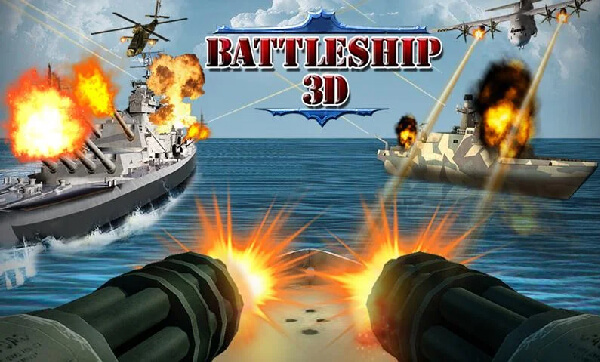
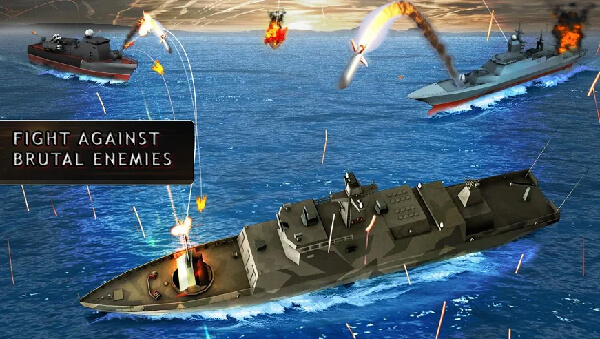
    The sixth offline ship war game on Android is Navy Battleship Attack 3D. In this game, you are a naval soldier assigned to destroy enemy soldiers using weapons available on the ship.

    Yeah, even though this game is not necessarily said to be an army war game. However, in this game, you don’t only fight warships. But, you have to fight against helicopter gunships, war jets, and so on.

    So, the enemy in this game is quite complete in its fleet. Oh yes, this game also has a 3D graphic display that if played will look real so goes. How are you guys, are you interested in downloading this war game?

    Game Name Navy Battleship Attack 3D
    Download Size 33MB
    Download link

    #7Enemy Waters: Submarine and Warship battles

    Enemy Waters Submarine and Warship battles
    Enemy Waters Submarine and Warship battles

    The seventh-best ship war game on Android is Enemy Waters: Submarine and Warship Battles. In this game, you have to fight pirates who want to steal natural resources such as oil in the ocean.

    Therefore, you must fight with the pirates. Well, you can use battleships or submarines to fight the pirates.

    Even though this game is not an adventurous war game, you also have to keep adventuring in the ocean to continue to search for pirates. If you manage to destroy the enemy ships, you will get points.

    Game Name Enemy Waters: Submarine and Warship battles
    Download Size 72MB
    Download link

    #8Global Warship Battle

    Global Warship Battle
    Global Warship Battle

    The eighth offline battleship game is Global Warship Battle. In this game, you are a navy that has a mission to destroy the warships belonging to the terrorists.

    So you have to destroy the terrorist ship using warships that already have weapons. In addition, you are also required to defend warships in the sea defense line.

    Therefore, you also have to set a strategy to avoid the attacks of terrorist warships games. Although this game has not been entered into the list of war strategy games, this game is very exciting to play in your spare time anyway!

    Game Name Global Warship Battle
    Download Size 51MB
    Download link

    #9Warship War: Navy Fleet Combat

    Warship War Navy Fleet Combat
    Warship War Navy Fleet Combat

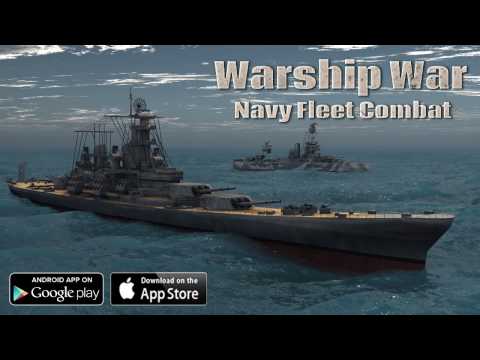
    The next offline battleship game is Warship War: Navy Fleet Combat. This game also tells about the Second World War. However, the war was fought in the ocean.

    Well, in this game you are a naval fleet admiral who must lead a battleship, aircraft carrier, submarine, weapons ship, and so forth.

    So, you are required to guard all the ships against enemy attacks. If your ship is attacked, then you also have to do battle with the enemy.

    You do this by setting a strategy so that you do not fall due to fire on enemies who use weapons ships and tanks. Hemm, it looks like this ship battleship game is one of the offline strategy games that you must try.

    Game Name Warship War: Navy Fleet Combat
    Download Size 256MB
    Download link

    #10Ships of Battle: The Pacific

    Ships of Battle The Pacific
    Ships of Battle The Pacific

    The next offline ship war game on Android is Ships of Battle: The Pacific. In this game, you get a mission to do a big battle in the ocean. Edits, but you also have to be careful with airstrikes.

    Because in this game not only battles between warships just games. But, there are also fighter planes. So, it would help if you continued to defend yourself to fight enemies with available weapons.

    Oh yes, if you succeed in destroying the enemy, then you can upgrade weapons and battleships. Yes, even though this game does not include adventure games, you do not forget to keep on an adventure to find enemy ships and planes.

    Game Name Ships of Battle: The Pacific
    Download Size 230MB
    Download link

    So, how are you, smart buddy? You already know there are no offline battleship games on Android right now. Don’t forget to share this list of offline battleship games with other smart friends.

    Read more:

    Conclusion:

    So they also know what the heck of an offline battleship game is currently on Android. Oh yes, if you have criticism and suggestions regarding the article listing offline battleship games on Android, you can write it in the comments column below right here