10 Lightest and Best Android Emulators for PC and Mac – There are many reasons why someone would want to run an Android emulator on their computer. App developers may try to test their app before submitting it to the Play Store. Gamers may want to use a mouse and keyboard to play their games on a PC.
10 Lightest and Best Android Emulators for PC and Mac
10 Lightest and Best Android Emulators for PC and Mac 2024
The Android emulator simulates an Android device on your computer so that you can test apps on a variety of Android devices and API levels without having to own a physical device.
The emulator provides true Android device feature capabilities. You can simulate incoming phone calls and text messages, set device locations, simulate different network speeds, simulate rotation and other hardware sensors, access the Google Play Store, and much more.
Three Main Functions of the Android Emulators
#1. Playing Games
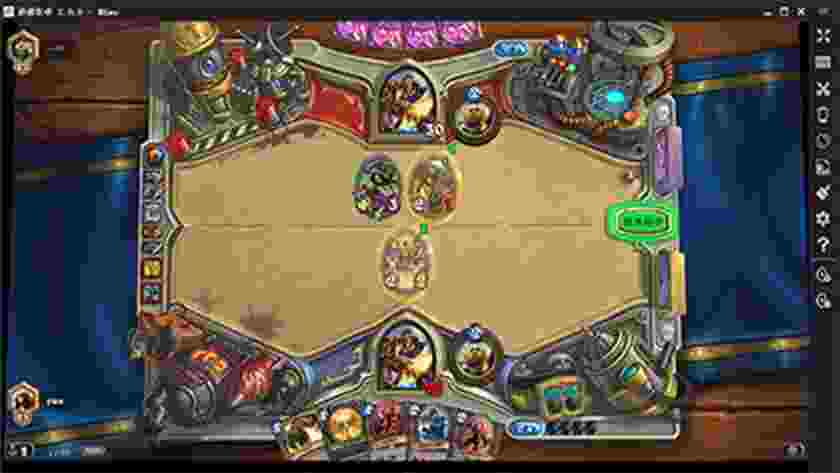
Gamers can use emulators on their computers to make some games easier to play. They don’t depend on the battery life of their device and the presence of macros and other tricks aiding the process. In most cases, these little tricks aren’t illegal (in most games) so no one really matters. The best Android emulators for gaming are LDPlayer, Bluestacks, MeMu, KoPlayer, and Nox.
#2. Application test
Android app developers and game developers like to test as many apps and games as possible on their devices before they launch. Usually using the Android Studio Emulator. However, there are also other Android Emulators such as Xamarin and Genymotion which are also very good for application testing.
#3. Productivity
Any game emulator works as a productivity emulator to some extent. However, those with very specific use cases and a little knowledge can give ARChon and Bliss a try. Even so, in this day and age, we recommend going the Chromebook route if you want to run Android apps on a laptop or computer.
Lightest and Best Android Emulator for PC and Mac
#1. LDPlayer
Price: Free
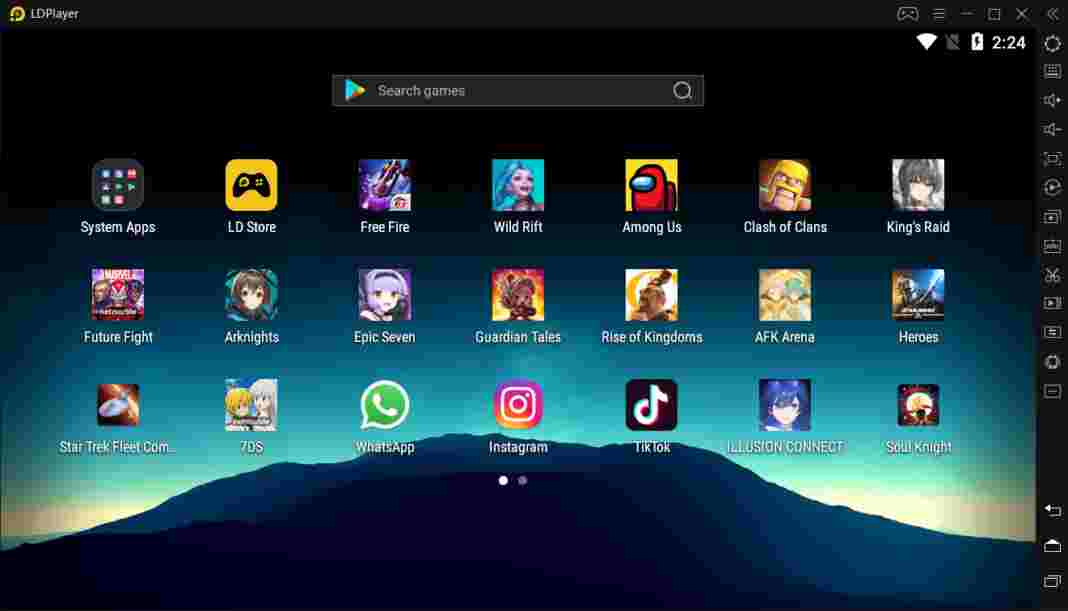
LDPlayer is an Android emulator that focuses on gaming performance. Running Android Nougat 7.1, LDPlayer features a variety of gamers-oriented features in general, such as good keyboard mapping controls, multi-instances, macros, high FPS, and graphics support. LDPlayer is one of the emulators on the list that is getting active updates to improve compatibility.
Apart from that, it supports a wide variety of games, including Garena Free Fire, Among Us, Clash of Clans, and many more. LDPlayer is also a complete emulator for users of TikTok, Instagram, WhatsApp, etc.
Android Studio is the default development console for Android. It comes with many tools to help developers create applications and games specifically for Android. As it turns out, there is also a built-in emulator that you can use to test your app or game. The setup is a bit complicated and can take some time.
So, this is not what we recommend for consumer-level use. However, developers can simply use this tool as an emulator to test their app. Android Studio also supports Kotlin if the developer wants to give it a try.
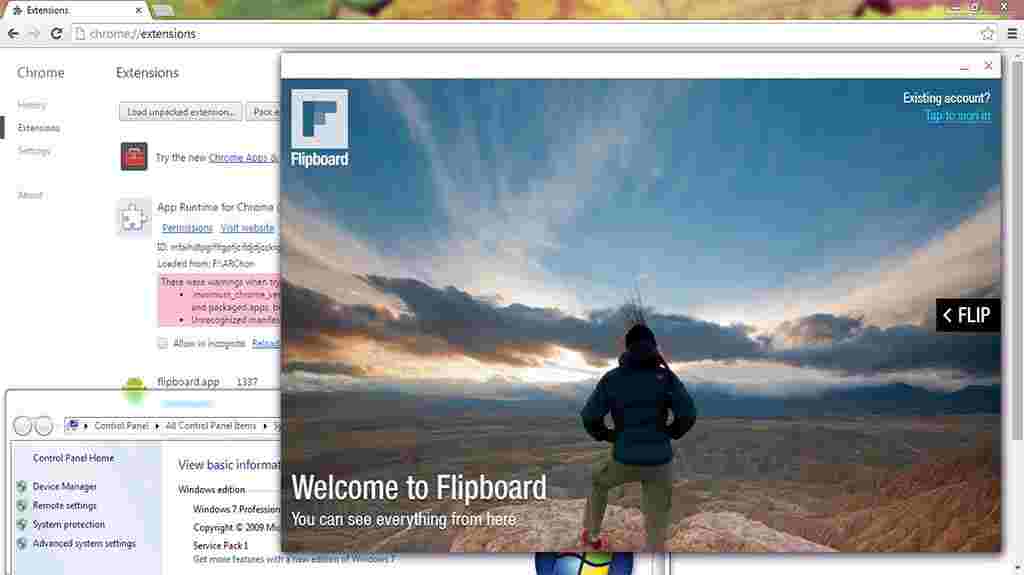
ARChon is not a traditional emulator. You install it as a Google Chrome extension, and then ARChon gives Chrome the ability to run Android apps and games (albeit with limited support). ARChon is not an easy emulator to run. You have to install it into Chrome. From there, you have to get the APK and load it.
In addition, you may need to use a tool to change the APK for compatibility. There are more ways to make this ARChon work than any other Android PC emulator. On the side of its advantages, ARChon works with an operating system that can run Chrome instances (Mac OS, Linux, Windows, etc.).
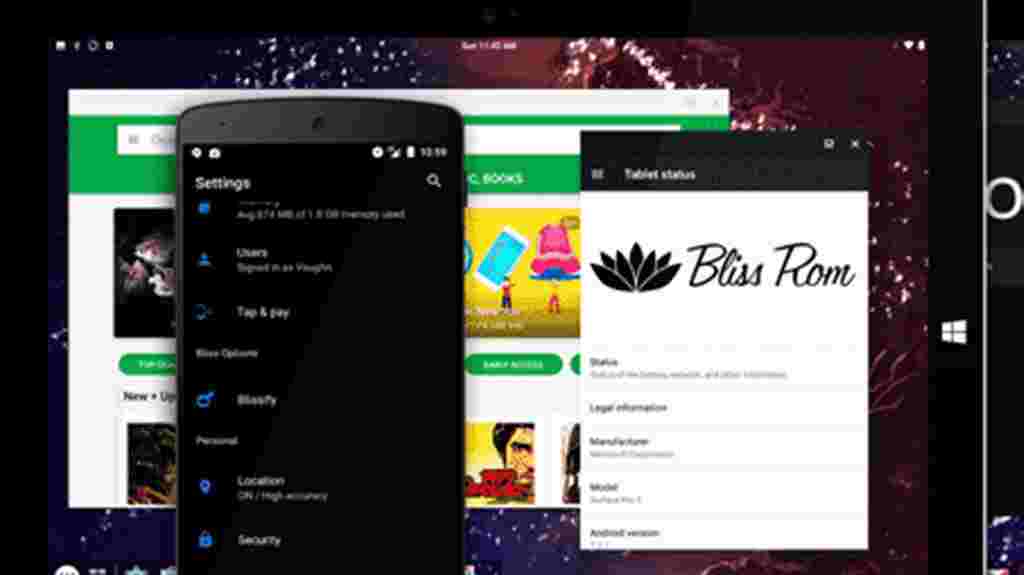
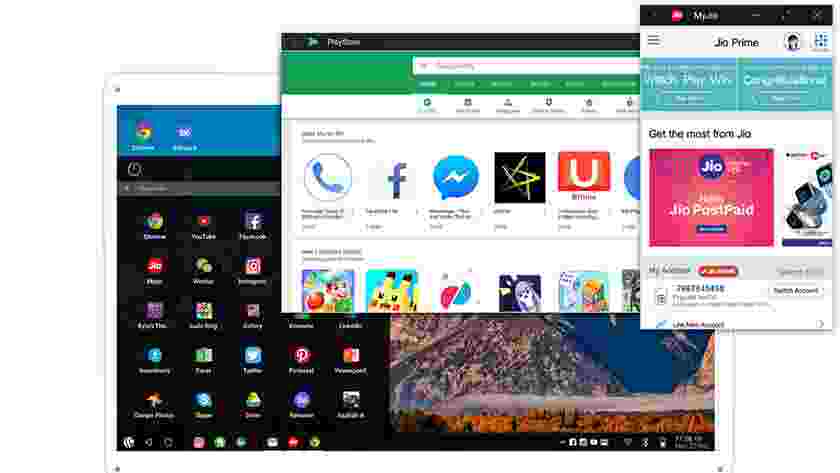
It is an Open Source OS, based on Android, that combines optimizations, features, and device support. Available for almost any Chromebook, Windows / Linux PC, or tablet released in the last 4 years
Bliss OS includes many options for customization and themes throughout the OS, custom options for large and small screens, speed performance and stability with tweaks, and battery-friendly usage. Additional security options and features are found throughout the OS. And AOSP security updates are merged regularly.
Bluestacks is the best-known Android emulator. Bluestacks is compatible with Windows and Mac, which works very well and still gets regular updates. This emulator targets mobile gamers. Bluestacks is one of the toughest emulators around, but it has the most features.
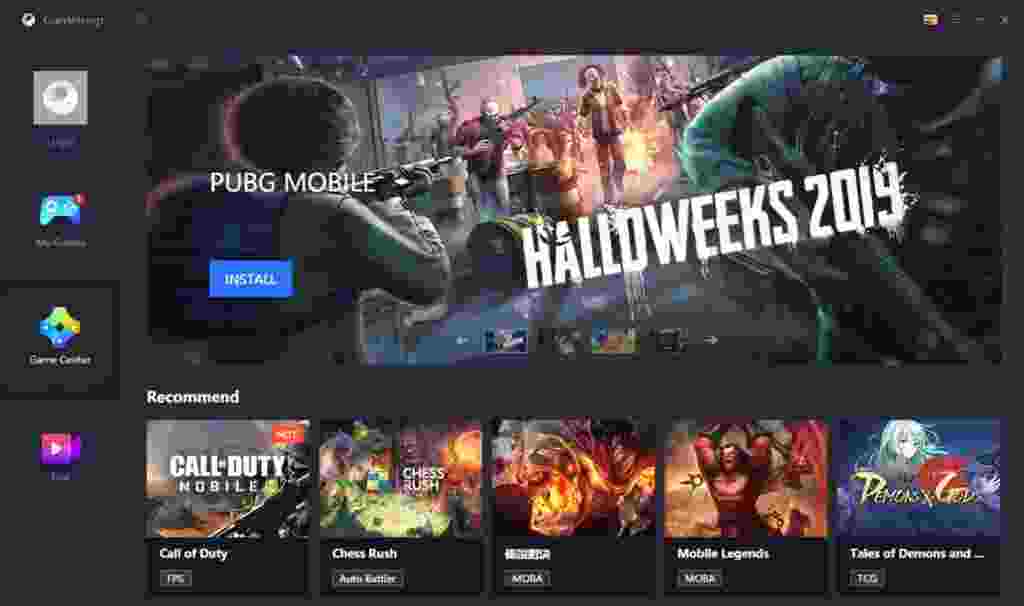
Of course, GameLoop features other games aside from Tencent’s, even if the collection isn’t as big as it should be. The emulator was downloaded and installed properly and the games tested ran smoothly.
This Android emulator is mostly for developers. Genymotion allows you to test your app on various devices without having to have one. You can configure the emulator for various devices with different versions of Android to suit your needs.
For example, you can run a Nexus One with Android 4.2 or a Nexus 6 with Android 6.0. You can also switch between virtual devices at will. Genymotion does offer services free of charge for personal use. The most useful feature is its availability on your desktop and cloud computers.
MEmu is one of the rising Android emulators that seems to be quite popular with gamers. One of its biggest features is support for AMD and Intel chipsets. Mostly work on AMD processors, but it’s nice to see developers paying particular attention to AMD platforms.
Apart from that, MEmu supports Android Jelly Bean, Kit Kat, and Lollipop. You can run multiple games or test features. MEmu is aimed at gamers like Bluestacks and other emulators and can be used as a productivity tool.
Nox is an Android emulator for gamers on PC. It features key mapping with your keyboard, controller support, and even the ability to map gesture controls.
For example, you can assign a function to swipe right over an arrow key and use it in games without actual hardware controller support. Nox works well is completely free and always updates the application to improve compatibility.
#10. PrimeOS
Price: Free
PrimeOS stands out somewhat in the Android emulator space and isn’t an emulator. You install PrimeOS as a partition on your computer and boot up running native Android. It’s a gamer-centric Android experience, although you can use it for productivity.
PrimeOS includes a game center, support for mice and keyboards, and access to Android apps and games. It runs almost like ChromeOS without all the Chrome parts. You can multitask, watch videos, or play games of your choice.
2 Ways to Root Oppo A3s without PC (100% Working) – If you have an Android phone and want to root Oppo A3 without a PC, Computer, or laptop safely then you are in the right place. This article will guide you to Root Oppo A3s.
2 Ways to Root Oppo A3s without PC (100% Working)
How to Root Oppo A3s without PC (100% Working) 2024
A 1.8GHz octa-core processor powers Oppo A3 and comes with 2GB RAM. The phone packs 16GB of internal storage which can be expanded up to 256GB via a microSD card.
Regarding the camera, the Oppo A3 packs a 13-megapixel main camera on the back and an 8-megapixel front shooter for selfies.
Why Root Oppo A3s?
Root your Android device, and you can do as much customization on your device, Just as you can install Custom ROMs, Remove Pre-installed Bloatware, Block Ads in All Apps, Install Incompatible Applications, Change Themes for Your Android, Increase the Speed of Your Android device, and Battery Life, Add External Storage, and much more.
How to easily root Oppo A3s without a PC
Advertisements
Please choose which root method is suitable for your Oppo phone A3s below:
#1. How to Root Oppo A3s without PC with Kingroot
Download the latest version of KingRoot APK.
After downloading KingRoot is complete, install Kingroot APK.
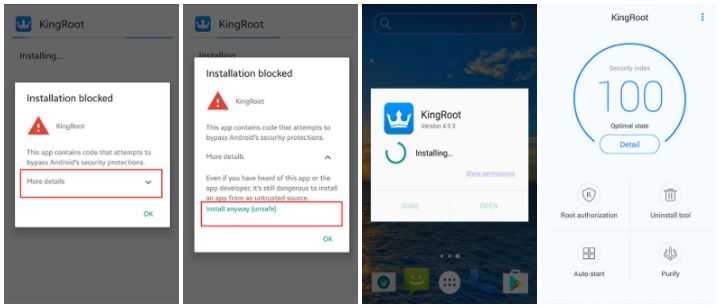
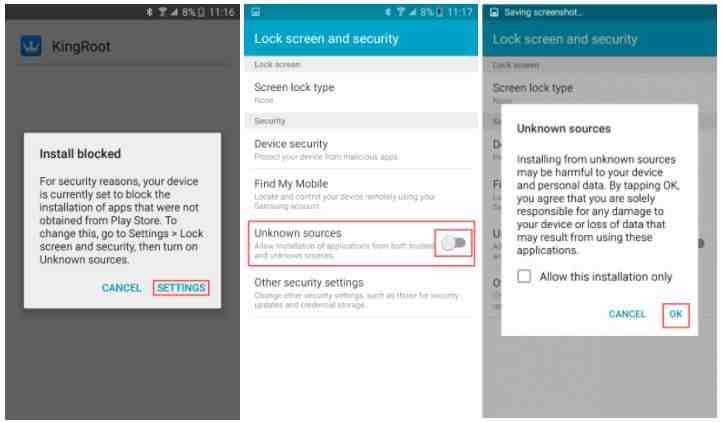
If you receive a ” Google installation blocked ” message, take the following steps.
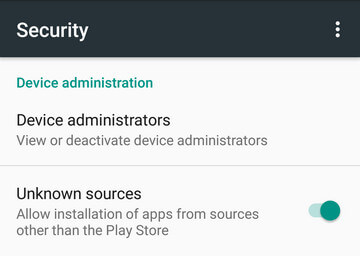
If you have not set it before ” install blocked “, will set a reminder, like the steps in the following picture, if you have set it before, skip this step.
On the System installation screen, click ” install ” to start the installation, when the installation is complete, click the ” open ” button to start using Kingroot.
Click ” try ” to enter the main interface, and click the ” get it now ” button to start rooting.
The implementation process is complete and complete, and after that, you will return to the main screen, then Rooting is complete.
Lastly, go to Google Play App Store search and Download: Root Checker to Check Root oppo a3s successfully.
Done!!
#2. How to Root Oppo A3s without PC with Kingoroot
After Download KingoRoot is complete, install KingoRoot APK.
If Chrome warns you about KingoRoot.apk, click “OK” to continue.
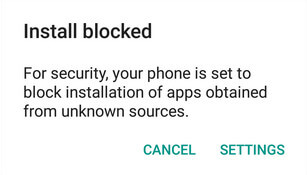
Install KingoRoot.apk on your device. If you don’t check “Unknown Sources” in Settings> Security, then during the installation, you will get “Install blocked”, which states that “For security, your phone is set to block the installation of applications obtained from unknown sources”.
Just follow the phone instructions and install Kingo Root on your device and allow installation from “Unknown Sources”.
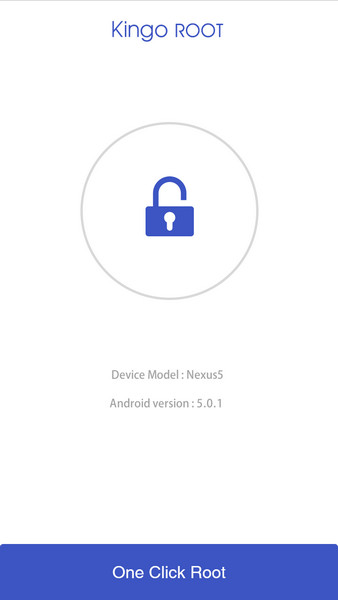
Launch the “Kingo ROOT” application and Click One Click Root to start rooting.
Wait a few seconds for the result screen to appear.
Finally, go to Google PlayApp Store search and Download: Root Checker to Check Root is successful, as the following image represents success.
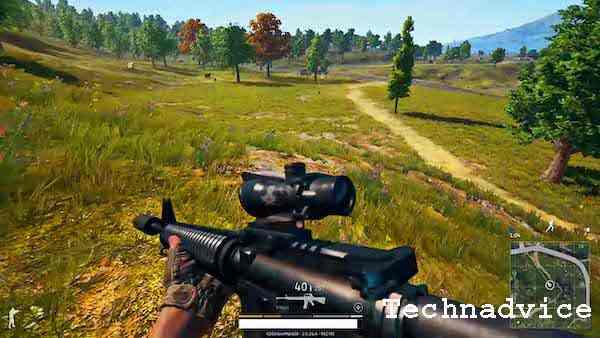
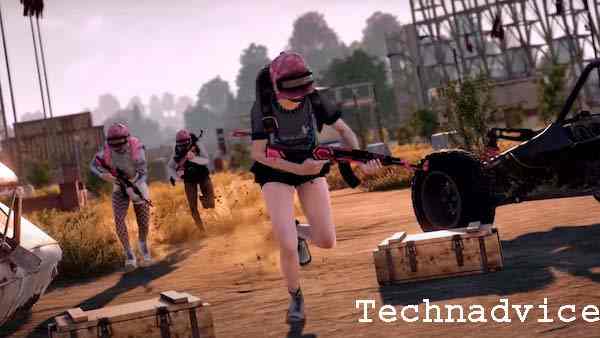
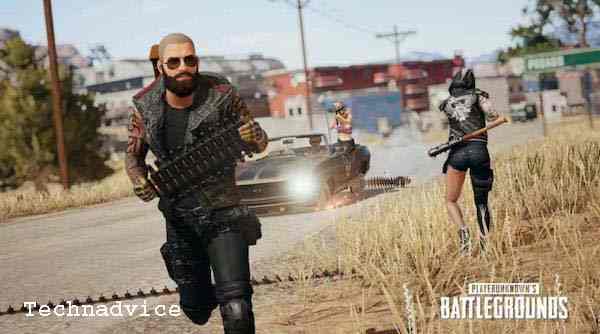
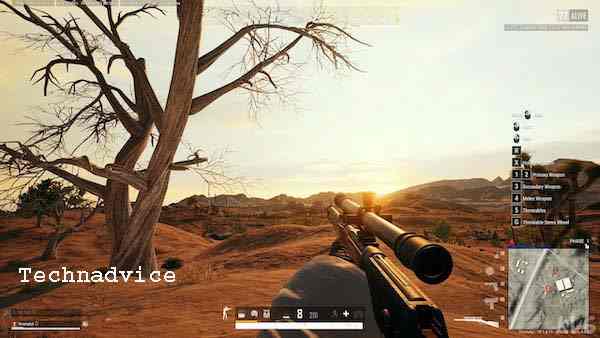
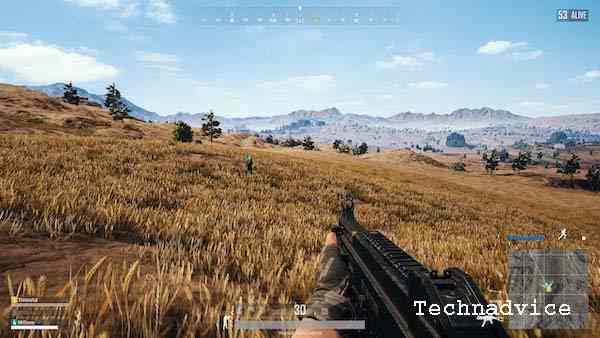
Download PUBG For PC Windows 10 [FREE Working] – Maybe you have a question about how to download a PUBG PC. Yes, PUBG itself is a game for PC, before the mobile version came out. However, the PC version of PUBG is not free or paid, in contrast to PUBG Mobile which can be downloaded for free on the Play Store.
Download PUBG For PC Windows 10 [FREE Working]
How To Download PUBG For PC Windows 10 [FREE Working] 2024
This is what makes PUBG players feel disappointed because they are not free to play on PC. Well, for those of you who want to play PUBG on PC for free, there is one way you can try. Namely with the help of an emulator application.
For those of you gamers who want to play this game on a PC, this game is already available. Before entering the Mobile market, they were already in the PC market. You can see more details as follows.
Download PUBG Free for PC
It can be said that in fact, the PC version of PUBG and PUBG Mobile is no different. Both of them also use the same server, so that all PUBG PC and PUBG Mobile players can meet in battle in the game.
But some players, feel that playing PUBG Mobile on their cellphones is less comfortable and dissatisfying. However, to download a PUBG PC, you have to pay. So the only way to play PUBG on PC for free is to use an emulator.
Minimum PC Specifications for PUBG
Although this game is run with an emulator, there are still limitations to the PC specifications that can run it. So before downloading and installing the PUBG game on a PC, you need to know the minimum PC specifications needed as follows.
Minimum Processor: 1.8 GHz Dual Core from AMD or Intel
Minimum VGA: ATI/AMD from Radeon HD2600/3600
Minimal GPU: NVIDIA GeForce 8600/9600 GT
Minimal RAM: 4GB
Minimal Memory: 2 GB
Minimum Operating System: Windows 7
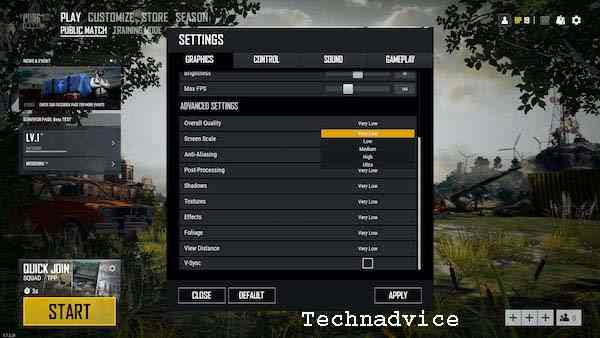
Please first check the specifications of the PC you have, whether it is more than the specifications above or not. Maybe if there is one part that doesn’t match the game it can still run, it’s just that you need to do a little decrease in graphic quality.
What Emulator to Use?
Before you download PUBG on a PC, there is one application that needs to be downloaded first, namely the emulator. Yes, you can use all existing emulators, but one of the recommended emulators is Tencent Gaming Buddy.
You need to know, that Tencent Gaming Buddy is an official emulator made by PUBG developers. Unlike other types of emulators, with this Tencent Gaming Buddy, you will get official PUBG developer support directly.
You no longer need to worry about problems such as errors and bugs. Not only that, this type of emulator also provides a more stable network, and also automatically adjusts the layout on the PC keyboard.
PUBG Mobile Installation Stages on PC
To play the PUBG game on a PC, there are several steps you need to take. The first thing that needs to be done is to install the emulator first. After that, just install the PUBG Mobile game on your PC, and play it right away. For more details, see some of the steps below.
#1. Download Tencent Gaming Buddy
As already said, the first thing you need to do is download the emulator first. If you already have an emulator application on your PC, you can actually try it to play PUBG Mobile.
However, if you choose to use the safest method, then you can download the Tencent Gaming Buddy emulator first. This is an official emulator for PUBG, and here’s how to download it.
In the first step, please open the web browser application on your PC.
If the main page of the site is already open, just press the download button.
Later you will download a .exe format file that can be installed.
Well, now just wait until the process of downloading this file is complete.
#2. Install Tencent Gaming Buddy
Now, after the download process for the Tencent Gaming Buddy emulator is complete, we will proceed to the installation stage of the emulator. The way to install this emulator is very easy, but still, follow the steps below so that there are no errors that fail.
First, open Windows Explorer by pressing the Ctrl+E key combination on the keyboard.
Then find and open the folder where you saved the downloaded .exe file.
If the file is found, just double-click it to open it.
Then on the initial screen of the application, click on the Customize menu.
After that, specify a location to save this emulator application by clicking the Browse button. It is recommended to put it on a drive that has plenty of space left so that the application does not lag when running.
Finally, click Install and wait until the running installation process is complete.
#3. Download PUBG on a PC
If the Tencent Gaming Buddy emulator has been successfully installed on your PC, of course, the next step is to download the PUBG game. But before this is done, first make sure that your internet connection is stable and not intermittent.
In the first step, please open the Tencent Gaming Buddy application shortcut.
After that, click the Start button on the application window that appears.
At this stage, the application will install an Engine.
Just wait until the running Engine installation process is complete.
Well, if the Engine installation process is complete, the PUBG Mobile game will be downloaded automatically by the application. You need to be patient because the data from the PUBG game is fairly large and takes a long time. When the download process is complete, let’s move on to the next step.
#4. PC PUBG setting
After the PUBG game download process is complete, you can actually play the game right away. But it would be better if you did the settings or initial settings first so that there are no problems when the game is run later.
No need to worry, because how to set PUBG on a PC is not difficult. Especially for those of you who are already familiar with PUBG Mobile settings on mobile phones, then you are familiar with the points that need to be set as follows.
First, first open the PUBG game on your PC.
After that, login to your PUBG account on the game start page. You can choose one of the available login options such as Facebook, Twitter, or Google Play.
Then choose your country or region, and choose the Asian Region for Indonesian servers.
Then press the Continue button, and select the desired avatar. At this stage, you can also set the character that will be used such as choosing a hairstyle, face, clothes, and so on.
Don’t forget to create a nickname as you wish, and press the Create button.
In the next step, choose the experience option you have between Rookie, Experienced, or Pro.
After that, set and select the graphic display according to the PC specifications that you are currently using.
When all settings are done, press the Got button.
Well, now you will be directed to the Lobby section in the game.
Conclusion:
You could say the way to download PUBG PC for free is not like how to download other PC games. The PUBG game used is not the PC version of PUBG, but the Mobile version of PUBG which is played using a PC.
15 Best PSP Emulators for Android iPhone Windows PCLaptop – Gaming companies have produced games specifically for the Playstation, which are most often not available for Android.
15 Best PSP Emulators for Android iPhone Windows PC
15 Best PSP Emulators for Android iPhone Windows PC 2024
But now, you can enjoy PSP games on your Android phone, PC, or Windows. The new technology in the gaming area has introduced me to a new application, which refers to the PSP emulator.
You can easily run your favorite PSP games by using this best PSP Emulator 2021 on Android, PC, and Windows.
What is a PSP Emulator?
PSP emulator is to make your device platform transcribed to PlayStation for certain games or programs. That’s the job of the PSP Emulator, which allows you to enjoy PlayStation portable games on your Android device. Android, but the PSP emulator also works on PC and iPhone to play PSP games smoothly.
Before PSP Emulators were innovated, emulation tasks were handled by JPCSP, which refers to Java-based PSP Emulators with strong compatibility. However many buggy problems are found in this mimic program.
Also, it’s hard to run PSP games using it. That’s the reason the PSP Emulator has launched with a fresh start without any serious issues. Even using this technology is so easy that anyone can use it with just their Android or PC to run PSP games.
List of Best PSP Emulators for Android iPhone Windows 10 PC Laptop
Here, you will find the 15 Best PSP emulators 2022 for Android, PC, Windows & iPhone. I have chosen this emulator based on its compatibility to run the game smoothly on your device.
Most of the time, PSP games demand high-spec devices, especially ROMs. So, I tried to make a list of emulators that will be able to run the game more smoothly and graphically. So, take a look at 15 emulators to pick the best one for you.
#1. PPSSPP – PSP Emulator
The best PPSSPP emulator for Android, PC, Windows & iPhone 2022. To run all the interesting PSP games on your Android device, getting an emulator like this is quite difficult.
Easy to use with a hassle-free process. Also, it is free to download and use. But to get the premium version, you can use PPSSPP Gold.
Important Features
You can play PSP games that support the capabilities of your Android device.
This app is free.
You can convert your mobile game into ISO and CSO files using this app.
Using this app, you can save PSP games in your storage like an SD card.
Running PSP games using this application is very very easy and fast.
If are you looking for the best PlayStation PSP Emulator for Android, PC, and laptops in 2023, then give the PSPlay Emulator a try.
It is available on Playstore, and you can install and use it for free. Again, there are many useful features of this app. Apart from that, it is very easy to use on your updated Android device. I’ve added the specs for you.
Important Features
This app is better to ensure the best performance.
It increases the rendering capacity automatically.
It gives full control over the screen.
It provides a strong network system to support your gameplay.
Allows you to use hardware controllers supported by your device.
Playstore
#3. PSP Rocket Emulator
Emul World Limited has presented one of the Best PSP Emulators for Android 2022. It is a Rocket PSP Emulator. It’s free, and you can use it to run your favorite PSP games.
Even for many of its users, it’s good to have the same feeling on PlayStation PC games. However, you can keep an eye on the features of this app before making a decision.
Important Features
Advanced technology is used to ensure the best performance.
Lets you run PlayStation games without time and network issues.
It runs well on both low-end and high-end devices.
It includes ISO, CSO, and cool ROM formats.
It includes beautiful themes and sound effects.
Playstore
#4. DamonPS2 Pro
For those who don’t like to compromise and want to enjoy a full-function emulator, DamonPS2 Pro PSP Emulator is for them. To get all that, you have to pay a small amount of your money because this is not a free app.
But it’s also true that it works better than other free apps. The features included in this app may not be present in many of the familiar and best PSP Emulators for Android.
Important Features
This is the fastest PSP Emulator in the world.
It can run 90% of the total PSP games such as war games, racing games, and so on.
It is free from any kind of ads.
You can try it as a free trial for a few days.
You can use every cheat code and gamepad.
You can also use a PSP memory card to store your favorite games.
Playstore
#5. PSP Emulator Pro
Let’s meet another best & Lightest PSP Emulator for Android, which will always be your friend to provide a way to run your favorite PSP games. This is PSP Emulator Pro.
This application, with the most advanced technology, will allow you to enjoy almost all PSP games with a great system and network speed. If you are interested, you can take a look at the important features from the list below.
Important Features
Lets you play PSP games at very high resolution and speed.
It runs well on any updated smartphone and tablet.
This ensures a very high definition of game graphics.
Very few great games can’t run if your phone’s specs are lower than its interface.
All the essential features you need to have a great PSP gaming experience.
Playstore
#6. Rapid PSP Emulator
Now you can get or source PSP games from anywhere and play flawlessly on your mobile with Rapid PSP Emulator. It’s very possible to use, and best of all, it doesn’t clash with the game’s source files.
You don’t have to buy a PlayStation portable to run Sony’s premium titles. You can play almost all PSP games on your mobile device anytime from anywhere. It provides beautiful graphic rendering and comes with a simple interface for better accessibility.
Important Features
It supports many variations of game controller input and works with most 3rd party controllers.
You will rarely encounter compatibility issues with this app.
It delivers high-quality sound and stunning in-game graphics performance.
It supports all kinds of file formats and offers platform-based support.
It doesn’t natively include PSP ROMs, ISOs, and more, so you’ll have to download games manually for console devices.
Playstore
#7. PSP Emulator – Ultra Emulator for PSP
You can play PlayStation portable platform games on your mobile device, just like playing on PSP with PSP Emulator – Ultra Emulator for PSP.
It is one of the open-source applications with fantastic graphics performance. It supports almost all games but depends on your host device. The system interface of this emulator is easy to use with many useful features.
Important Features
It offers HD gaming performance and enhanced textures depending on the device configuration.
It lets you have the gameplay experience of a real PSP device.
It supports online gaming sessions and a lag-free gaming experience.
You can easily save and load your in-game progress.
It supports multiplayer options using Bluetooth connectivity and also supports dedicated game controllers for convenience.
Playstore
#8. PSP Emulator for Mobile Pro Version
If you want the perfect PSP-like gaming experience on your mobile device, check out PSP Emulator for Mobile Pro Version. It is free to use on Android devices and provides high-definition graphics.
You can adjust the graphics quality of the game if you wish. This emulator supports different ROMs for wide accessibility. It works with most external storage, such as sd cards on your phone and USB storage.
Important Features
You can control how you play and change the screen size of your DS in various modes.
It offers smart storage options and a fast game-loading speed.
This emulator offers excellent compatibility with a large number of titles.
You can play with any Android-supported game controller without any problem.
It does not consume much battery life and includes a battery-saving feature.
The sound and graphics quality of the games is comparable to the original device.
download
#9. PPSSPP Gold
Are you looking for a premium PSP gameplay experience on an Android device? Then PPSSPP Gold will be your perfect friend. It is an emulator with high compatibility and fewer system issues.
It comes with easy system navigation and a modern user interface. This emulator app comes with a lot of features and requires relatively low system resources. You have to buy it from Playstore to access it.
You will have an ad-free gaming experience and it supports almost all PSP games. You can also try the free version before upgrading to the gold edition.
Important Features
It offers smooth performance and a captivating gaming experience.
The user’s age rating is 3+, and the operation is widely accessible.
It supports an external SD card, and USB-accessible storage to save and access game files.
This emulator does not include ROMs and game files; You have to manage game files.
It offers console-like visuals and performance with zero system errors.
PSP GAME is one of the few PSP emulators for Android that comes with ready-made download ROMs and offline PSP games. You can download and play from any ISO game file. This app also allows you to download from its list of games.
It’s very easy to access the game collection. This emulator comes with a downloader. You can play downloaded games anytime, anywhere. It supports various PSP game ROMs.
Important Features
It supports the latest game titles.
You can make PSP games into ISO files and play them on this emulator.
External storage is supported, and you can access game ROMs via PSP GAME.
It supports original PSP games of all categories, such as arcade, action, sports, classic, and so on.
You can also download the Naruto Shippuden series, God of War series, and FIFA series in this application directly.
This emulator offers an excellent control system and supports Android gamepads.
download
#11. Enjoy Emulator for PSP
To turn your device into a real PSP console, you can also try Enjoy Emulator for PSP. This best PSP emulator 2022 includes the best functionality to emulate your favorite PSP games with high graphics and smoothness.
With this supported emulator app, you can easily download PSP games and run them too. Even the performance quality of these games with this emulator is very similar to the games you play on PS4 or PC.
Important Features
It can run ROM, ISO, CSO, COS, and PPS smoothly.
It will always save and restore the game state whenever you stop.
Provides high-quality sound effects and an audio system.
Includes stunning graphics and fps in most games.
It can emulate homebrew PSP in HD resolution and PSP games.
download
#12. Free PSP Emulator
The Best Android, PC & Windows PSP Emulators 2022 which you can try to enjoy your favorite PSP games are here. This is a Free PSP Emulator. It is also a very popular PSP emulator for your Android Phone.
The best part about this app is that it works for free, and won’t ask you to pay a penny for each activity. You can play games with high-quality graphics and sound effects if you start using this app. Also, you don’t have to worry about how to use it. There is a guide on how to use this emulator, available here.
Important Features
This emulator app can play more than 90% of PlayStation games.
This will restore and save the game state and start again from where you left off.
You do not need the PSP BIOS to run this application.
It includes multi-threading acceleration.
You have to enter the PSP iso image of the PSP game you want to play.
Download
#13. Sunshine Emulator for Android
If you want to enjoy the best gaming speed on your favorite PSP games, you should try Sunshine Emulator for Android. This best Android PSP emulator 2022 is very good for running PSP games on any platform device.
At the same time, it will help you to enjoy the game with the most smoothness and graphics. If you want to learn more about this game, you can take a look at its features. This will help you learn about the game properly.
Important Features
It provides sound quality, which is almost the same as the sound of games on the PlayStation.
The most satisfying graphics and visual effects are also provided here.
It includes very smooth game controls.
It can save and load games from the exact place you stopped.
It is easy to use and all additional information on how to use the emulator is given in it.
Download
#14. Emulator for PSP Games
Another option for you is Emulator for PSP Games. It’s also fast to use to run most of the popular PSP games on Android devices.
Running games on your device using this app is easy. The exact instructions are also mentioned so you can do it yourself. Also, the game speed and sound system are satisfactory for users of this emulator.
Not all of these apps can help. The following features are also very important in the case of this emulator.
Important Features
It is capable of emulating thousands of PSP Games.
It provides the fastest and smoothest gameplay.
The performance is good enough for both high and low-spec devices.
It also supports PSP Homebrew.
It delivers huge fps on a variety of powerful PSP games.
Download
#15. Gold PSP Emulator
The latter is the Latest and completely free PSP Emulator for Android devices. This is PSP Gold Emulator.
Now you can achieve incredible performance with the satisfying graphics and sound system of the most popular PSP games with this emulator.
Also, it’s a good idea to save and restore game stays so you can start where you left off. So you don’t have to worry about how it works with the emulator.
You can play and enjoy high-definition games just like you would any other Android game.
Important Features
It includes high-definition game graphics and visual effects.
Able to run games with 3D effects.
It provides a vest game controller.
Fastest game speed and high-quality sound effects.
Easy Network System and able to save the state of gaming.
This is the explanation of the 15 best PSP emulators for Android iPhone and Windows PC, which you can use to enjoy your favorite PSP games. This emulator is great for providing the best quality gaming experience and graphics.
At the same time, you will enjoy the most satisfying sound effects. If you want to enjoy the most premium service, you should try PPSSPP Gold. But using Enjoy Emulator for PSP and PPSSPP will also be a good choice.
10 Best Offline MOBA Games for PC and Laptop – MOBA games are currently becoming popular games and are widely played by smartphone owners. Especially gamers are very fond of MOBA games.
10 Best Offline MOBA Games for PC and Laptop
10 Best Offline MOBA Games for PC and Laptop 2024
MOBA itself is a Multiplayer Online Battle Arena, which involves many players in one game. Many game developers are developing MOBA games. Games like Mobile Legends and Arena of Valor are popular MOBA games.
One of the important things about the MOBA game is an internet connection because this MOBA game can only be played online. This often creates problems for players with slow internet connections.
But calm down, there are some of the best MOBA games that you can play offline, not only on Android but can also be played on a PC.
Here’s a list of the best offline MOBA games that can be played on PC
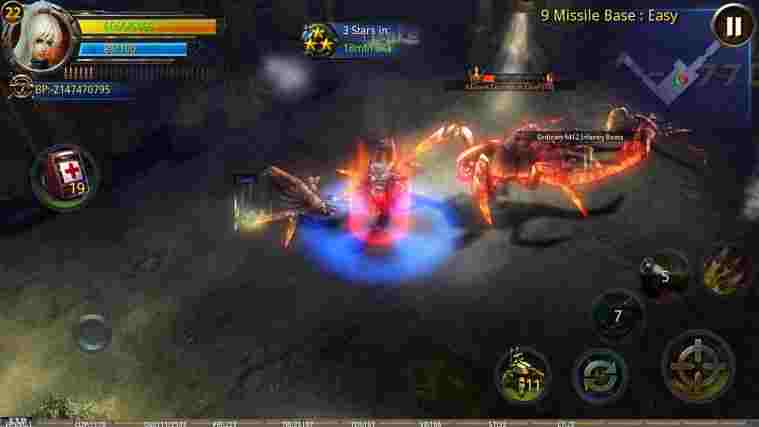
#1. Broken Dawn II
The first PC offline MOBA game is Broken Dawn II, this game tells the story of the existence of a dangerous virus that can threaten living things on Earth, besides that the virus can also turn humans into monsters.
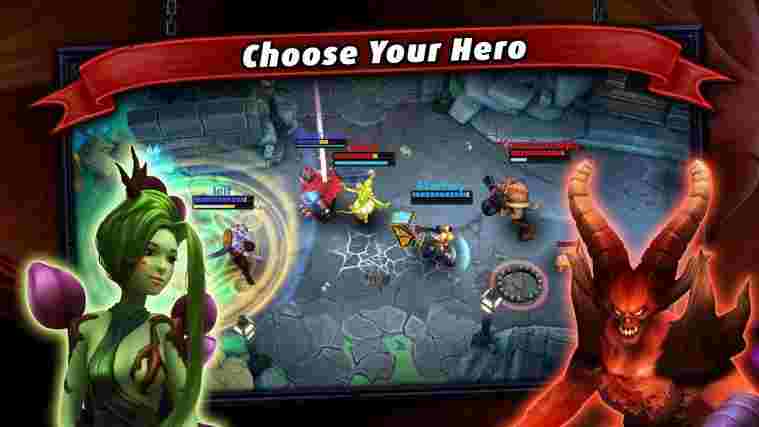
The main mission of this game is to prevent the spread of the virus from happening. To play in this game, we will be given a choice of 2 heroes as players. This game can also be played on a PC, even though it is intended for Android.
Through a game emulator, we can play Android games on our PC. For those who are curious to play Broken Dawn II on PC, you can click here to download the game.
Next up is Legendary Heroes. This offline PC MOBA game is quite popular, in fact, it almost rivals Mobile Legends.
The advantage of playing this PC game is that you will avoid sluggishness when you are having fun playing. By using an Android game console on a PC, we can play the Legendary Heroes game.
For those who are curious to play the offline version of Legendary Heroes on PC, you can click here to download the application.
The next best offline MOBA game is Soul Craft 2 which tells the story of the war between two opposing worlds. Heaven and Hell Worlds. In Heaven, it is inhabited by angels while in Hell it is inhabited by Satan.
We will play as one of the angels to fight against 8 evil demons. The heroes to choose from include Master, Barbarian, Gladiator, DawnGuard, Duswing, Phoenix, Ghostwing, and Crystal Night.
This game is a game that can be played on a PC using an emulator. For those who are curious to try this game directly, you can click here to download the application.
Next is the best offline MOBA game Dungeon Quest which tells about adventures in dungeons that consist of several stages. Each stage has 5 missions that must be completed.
This game is an offline PC MOBA game that can be played on a PC using an emulator. There are three heroes that you can choose from in this game as a player, namely Wizard, Warrior, and Rouge. Each character has unique weapons and strengths.
For those who are curious to play this offline PC MOBA game, you can click here to download it. Of course, this game can also be played on Android, because it is a game for Android.
But by using a game emulator on a PC, this game can be played on a PC and will prevent us from being slack when playing it.
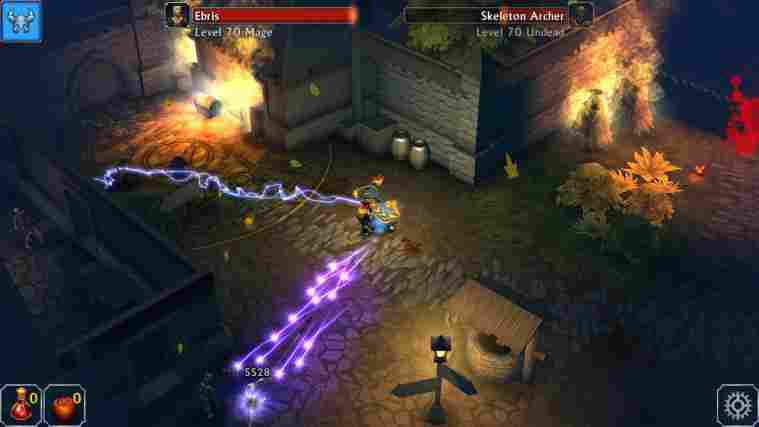
The next game is Eternium, the maker and developer of this game is Making Fun Inc. This game has a similarity with the MOBO game called DOTA. Because by playing this game, we will feel the very clear atmosphere of DOTA.
This game is also quite interesting compared to the others because it has around 60 levels to pass. This will certainly make us avoid boredom when playing this MOBO game.
There are three characters that we can play, namely Mage, Warrior, and Bounty Hunter. The enemies that will be faced in this MOBO PC offline game are aliens, dragons, demons, and zombies.
The skill increase will be achieved every time you defeat the enemy. For those who are curious and want to try this game right away, you can click here.
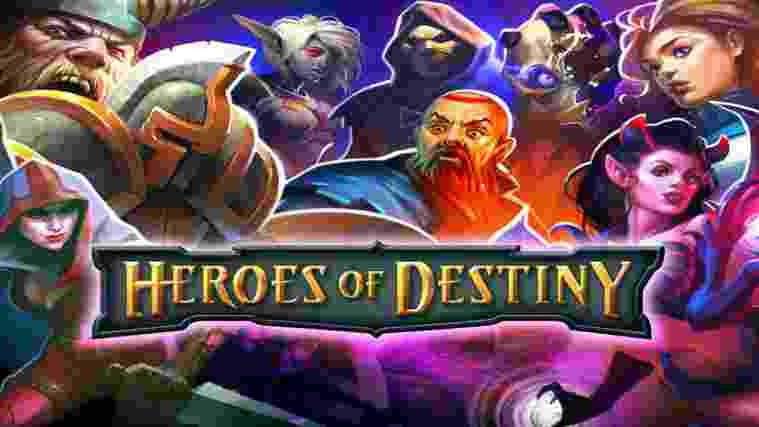
The next game is Heroes of Destiny, this game was released by a well-known publisher that was successful with the previous game, the D-Day FPS game. Heroes that we can play in this MOBA game are Tanker, Healer, and Archer.
The advantage of this MOBA game is how to play it which is quite easy, we just have to tap on the screen and drag the hero we choose to attack the enemy. The graphics and background of this game are also very capable and interesting.
Click here to download the MOBA offline apk game file download, so you can try and play it immediately.
Download
#7. Heroes of Order & Chaos
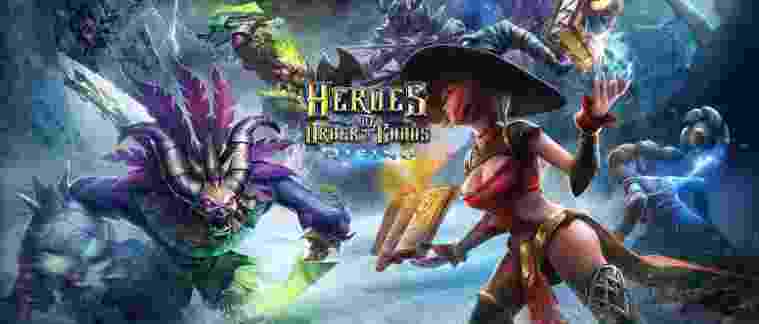
The next MOBA game that can be played offline is the Heroes of Order & Chaos game. This game is very interesting to play because it offers more than 50 heroes that we can play.
The ability of a very unique and different hero will be able to prevent us from getting bored when playing this game. The graphics of this game also compete with the Mobile Legends game.
Click here to download the offline MOBA game apk, and enjoy the excitement of the Heroes of Order & Chaos game right now.
Download
#8. Plants War 2
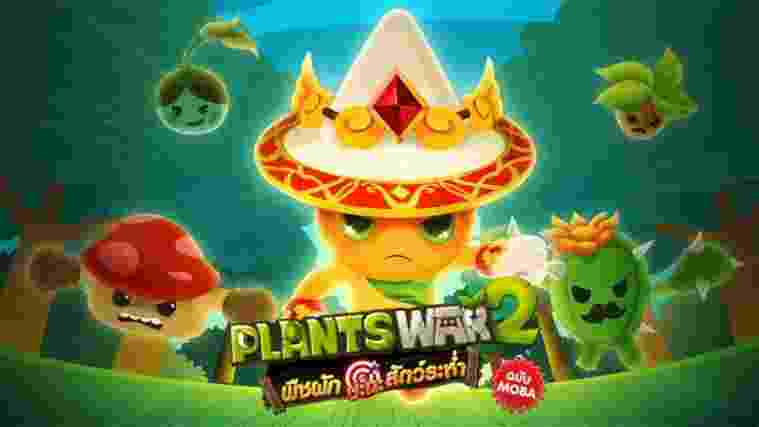
This game is quite popular throughout 2019. The characters and heroes available in this game are cute and funny, far from being violent and rude. This is a breakthrough in MOBA games.
This MOBA game will be very friendly to play by children because there are no characters that look erotic and creepy. Children are guaranteed to be calm and calm playing this MOBA game.
In this MOBA game, the atmosphere will be felt the same as in other MOBA games. There are also playing modes such as 1v1, 3v3, and 5v5. This MOBA game is also not listed on Google Playstore. But for those who are curious, you can click here to download the game.
This MOBA game can also be played on a PC using a game emulator, and can also be played on Android 4.1 and above, with a very light size, around 70 MB.
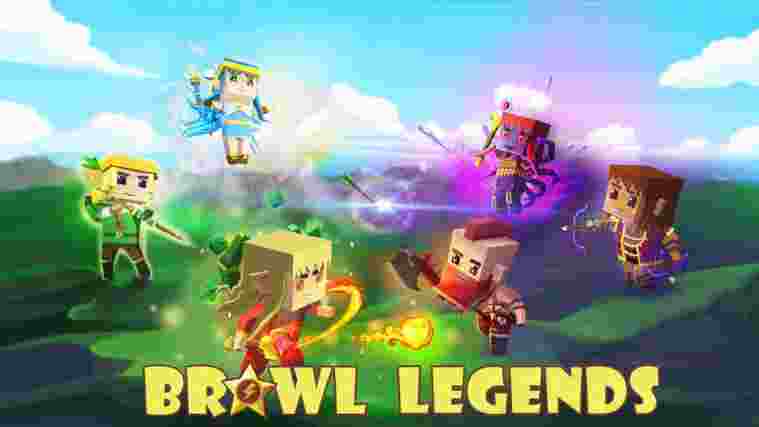
This MOBA game is unique, namely its cute and funny characters. Can create a relaxed impression when played. There are also many heroes available in this game, with character designs similar to the Minecraft game.
As we know, the Minecraft game itself is a very popular game to play. Funny game characters and exciting games are the reason Minecraft is fun to play.
This MOBA game is a type of combined MOBA and RPG game, which are usually games with combined genres that usually have creepy heroes or characters. But the Braum Legends.io game is the opposite, the heroes and characters are cute and funny.
For those who want to try it right away, you can click here to download the game.
MOBA games are indeed very popular and loved by smartphone users and gamers alike. However, playing the MOBA game often causes several problems, including slow-down and connection problems.
By playing the MOBA game offline and playing it on a PC, we will avoid slow problems and connection problems. Hopefully, the list of MOBA games above can be a reference, good luck!
![Download PUBG For PC Windows 10 [FREE Working] 2024](https://technadvice.com/wp-content/uploads/2021/11/Download-PUBG-For-PC-Windows-10-FREE-Working.jpg "Download PUBG For PC Windows 10 [FREE Working] 2024 3")
 Although this game is run with an emulator, there are still limitations to the PC specifications that can run it. So before downloading and installing the PUBG game on a PC, you need to know the minimum PC specifications needed as follows.