Category: Windows

Windows – Here you can find Computer-related updates Windows 10, Windows 8, Windows 7, Linux, technology information, and more.

  • How to Download and Reset Resetter Canon MP287 [2024]

    How to Download and Reset Resetter Canon MP287 – A printer is one device that is quite widely used for personal, business, or agency purposes.
    How to Download and Reset Resetter Canon MP287
    How to Download and Reset Resetter Canon MP287

    Download and Reset Resetter Canon MP287 [2024]

    The printer itself has the main function as a computer output media that can be used to print media or write.

    Read more:

    With the development of technology, the function of the printer is also developing, which used to be only used for printing, now many printers can be used for scanning, photocopying, and faxing.

    Canon MP287 Printer Error

    One of the printer brands that is widely used is Canon MP287, the price is quite affordable and its durability is quite reliable, making this printer have many users.

    However, as time goes by and the printer ages, some errors or malfunctions will start to appear as a result of usage.

    Errors that appear on the printer can usually be detected from the Error Number code that is displayed, for example, the Error Number P07 / 5B00 code on the Canon MP287 printer which is marked with an orange indicator light that continuously flashes.
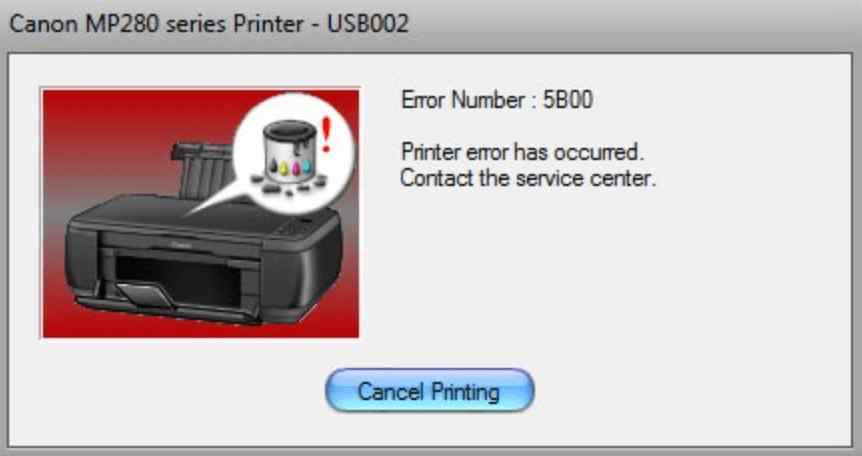
    Canon MP287 Printer Error
    Canon MP287 Printer Error

    The error code above can be solved easily without having to take it to the Service Center, you can repair the printer damage with the error code above by using the Service Tools application whose complete guide we will explain in this article.

    Download Resetter Canon MP287

    Before resetting the Canon MP287 printer, you must first prepare the service tools, you can download them at the link below.

    Download Service Tool v3400

    File Canon Service Tool
    Size 175.11 Kb
    Windows 7, 8, 8.1, 10 (32bit / 64bit)
    Printer Canon
    Series MP287 MP258 MP237 iP2770
    Link 🡇 Download

    How to Reset Canon MP287

    After you download the Resetter above, and everything has been prepared, then we will reset the Canon MP287 printer, the steps are as follows:

    Also Read:   How to View WIFI Password on Windows 10 PC

    The first stage

    1. Turn off the printer by pressing the OFF button without removing the power cable that is connected to the mains.
    2. Make sure that the USB cable is connected between the printer and the computer.
    3. Turn the printer back on as usual and wait for it to turn on completely.
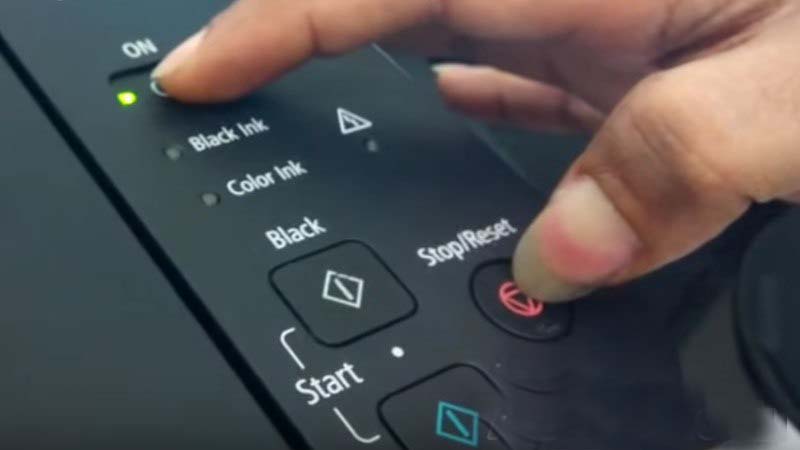
    4. Then press and hold the STOP/RESET button. After that press the POWER button without releasing the STOP/RESET button, so that both buttons are pressed simultaneously.
      How to Reset Canon MP287
      How to Reset Canon MP287
    5. After that, release the STOP/RESET button but the POWER button must remain pressed and do not release.

      How to Reset Canon MP287
      How to Reset Canon MP287
    6. Next, press the  STOP / RESET as much as  6 (six) times slowly. On the sixth press, hold down the STOP/RESET button briefly then release it simultaneously with the POWER button.
    7. If the reset process is successful, then on the computer screen there will be a notification of reinstalling the Canon printer driver. Please wait until the process is complete.
    8. After that, insert 5 sheets of paper into the printer because the printer will do the printing process during the next reset process.

    Second Stage

    The next step is to do a reset using the Canon Service Tools application that you downloaded earlier.
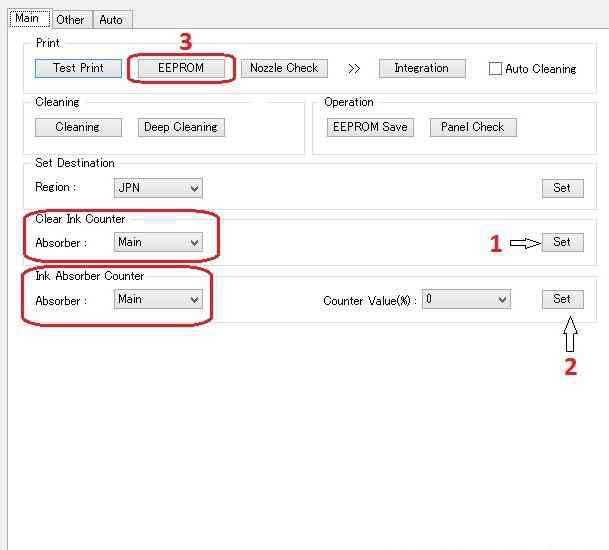
    Reset Canon MP287
    1. Extract the Canon Service Tools file that you downloaded earlier, then right-click and Run as Administrator.
    2. In the Clear Ink Counter section, select the Main menu in the Absorber section, then click Set
    3. Then in the Ink Absorber Counter section select the Main menu and fill in Counter Value (%): 0, then click Set
    4. After clicking the Set button, the printer will print the code ” D=000.0 “.
    5. Then click on the ” EEPROM ” menu then select ” OK ” and the printer will print containing the long code.
    6. The last step is to turn off your printer by pressing the Power button until the printer is completely turned off, then turn it on again and the printer is ready to use.

    If the above method works, then your printer is ready to be used to print documents, you can try printing documents using the paper you prepared earlier.

    Solution If the Printer Still Error P07/5B00

    If your Canon MP287 Printer still has an error and cannot be used to print, then you need to take the following steps.

    1. Remove the cartridge from the printer and clean it using a tissue, thoroughly cleaning all the points where the ink comes out.
    2. dry the area where the cartridge stops (ink absorbent foam) which is on the right. The trick is to roll a small tissue, and then push it into the absorption foam. Do it repeatedly until there is no more ink on the foam.
    3. Reinstall the cartridge and then repeat the reset stage above.

    Conclusion:

    Those are some ways that you can use to solve the error on the Canon MP287 printer using a resetter.

    Hopefully, the tutorial above is useful and you succeed in making your printer usable again.

    Don’t forget to bookmark and always visit every day Technowizah.com because you can find here the latest Tech Computer Android games How-to Guide Tips&Tricks Software Review etc, Which we update every day.
  • 6 Ways to Fix Destination Folder Access Denied Windows 10 PC 2024

    6 Ways to Fix Destination Folder Access Denied Windows 10 PC – Do you receive a “destination folder access denied” message when trying to access a specific folder or file? Here are some ways to fix this problem.

    6 Ways to Fix Destination Folder Access Denied Windows 10 PC
    6 Ways to Fix Destination Folder Access Denied Windows 10 PC

    How To Fix Destination Folder Access Denied Windows 10 PC 2024

    You might find it weird when Windows tells you that you don’t have permission to access something on your computer. Usually, this is the result of configuring permissions in the NTFS file system that Windows uses by default.

    Read more:

    If you receive an access is denied message in Windows 10 when trying to access a file or folder, there is no need to worry. Because this time we will discuss how to solve destination folder access denied in Windows 10.

    #1. Make sure the user has administrator rights

    In most cases, you have to be an administrator on your PC to make changes to the ownership of files/folders. You may be able to change permissions in your directory, but you won’t have much access or control elsewhere.

    To maintain the confidentiality of everyone’s files on the computer. Only administrators can access files belonging to other users. Also, you have to give admin permission to make changes to system files, such as those in the Program Files and Windows folders.

    Make sure the user has administrator rights
    Make sure the user has administrator rights

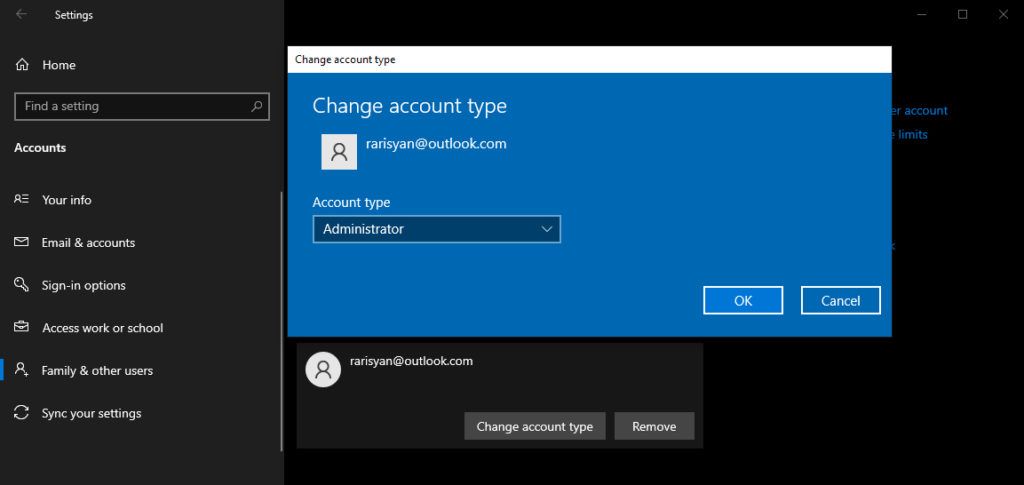
    If you want to upgrade your standard account to an admin account, other admins need to visit Settings > Accounts > Family & other users. Select your account under Your family or Other users and click Change account type. Change from Standard User to Administrator and you will have full access rights on your Windows 10 operating system.

    #2. Change File Ownership Settings

    The most common fix you can try when you see the “destination folder access denied” message is to take ownership of the folder via File Explorer.

    Change File Ownership Settings
    Change File Ownership Settings

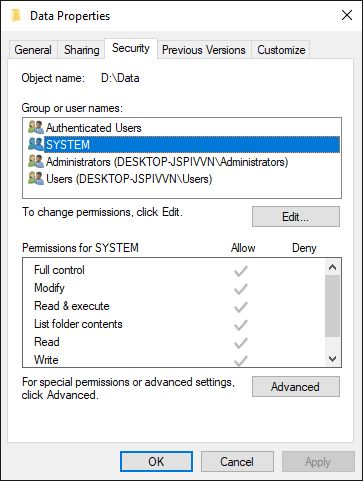
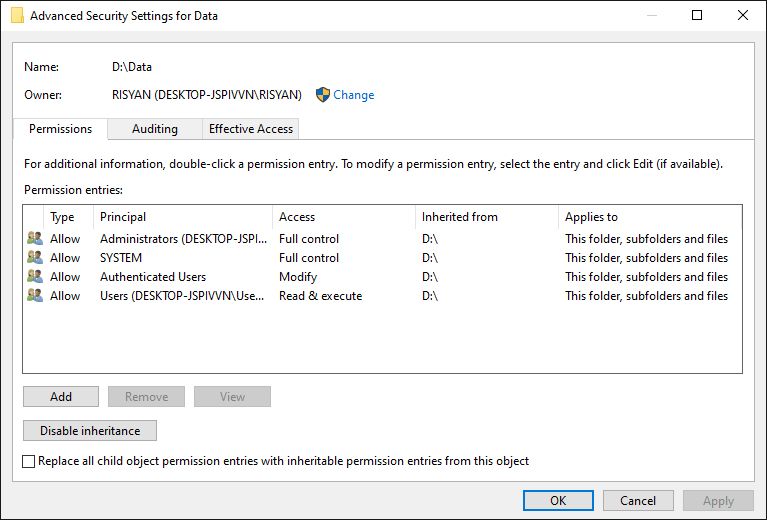
    Here’s how to do it. First, right-click the folder or file in question and select Properties. In the resulting window, switch to the Security tab. Next, click the Advanced button for more options.

    Change File Ownership Settings

    At the top of the next window, you will see a field labeled  Owner. It will likely give an Unable to display current owner message if you run into problems. Click the blue Change link next to this to fix it, note that you have to be an administrator to do this.

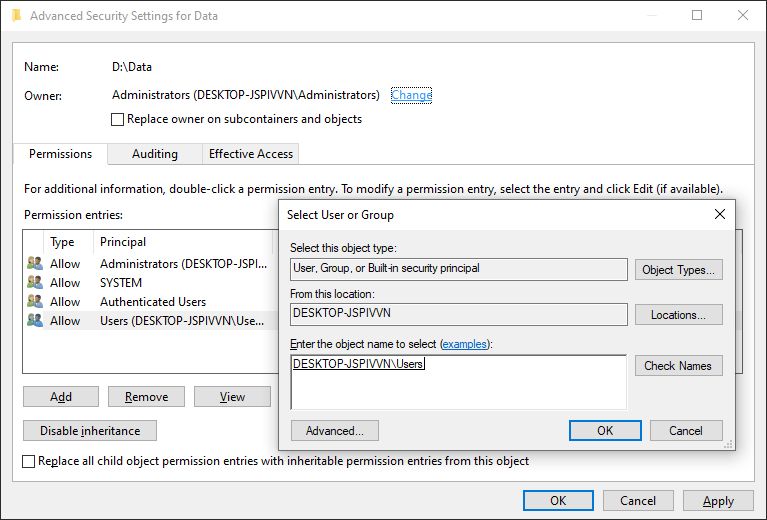
    Now you will see a dialog box titled Select User or Group. In it, enter the account name of the new folder owner. This can be an account username or a group of users on your PC.

    Groups include standard units such as Administrators (if you want all computer admins to have them), or Users  (for everyone to have). In-home use is usually the most sensible choice to assign ownership to one person.

    Change File Ownership Settings
    Change File Ownership Settings

    Here I assume that you want to take ownership of the folder with your account, so type your username here. If you use a Microsoft account to sign in to Windows 10, your username is the first five letters of your email address. Hit Check Names when you’re done to make sure it’s correct. If yes, it will automatically change to [ PC Name ]\[ User Name ]. Click OK.

    Note: Be careful when changing file ownership settings

    When handling the “access denied” error, you should apply the steps above carefully. Avoid taking ownership of folders in system directories such as Windows, Program Files, Program Data, or similar.

    Doing so will weaken the security of your system, as normal accounts are not meant to be the owners of this directory. They contain important Windows folders that you shouldn’t touch. You can still gain access to most of these folders by navigating to them in File Explorer. You have to confirm admin permissions, then you can view them without being the owner.

    #3. Review Folder Permissions

    If taking ownership of a folder doesn’t work, or you’re an administrator trying to grant permissions to someone else, you should review what users have permissions on the folder in question.

    Review Folder Permissions
    Review Folder Permissions

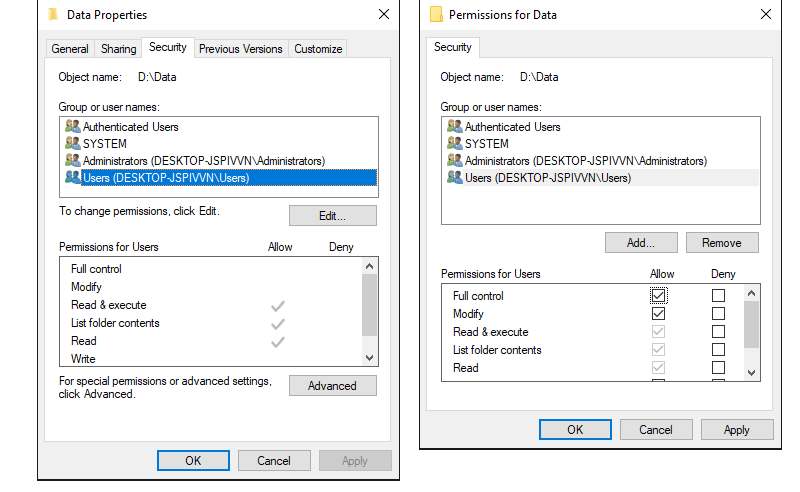
    Drag the same Security tab in the Properties folder as before. At the top, you will see a list of users and groups on your PC. Select an entry here, and the bottom pane will show what permissions they have for this folder. Hit the Edit button to change the permissions for each user to your liking.

    As you would expect, Full control gives you complete control over the folder and everything in it. Read is the most restrictive option, as it only lets you see what’s in the folder. See Microsoft’s page on file and folder permissions for more detailed details.

    #4. Double Check Antivirus Settings

    Double Check Antivirus Settings
    Double Check Antivirus Settings

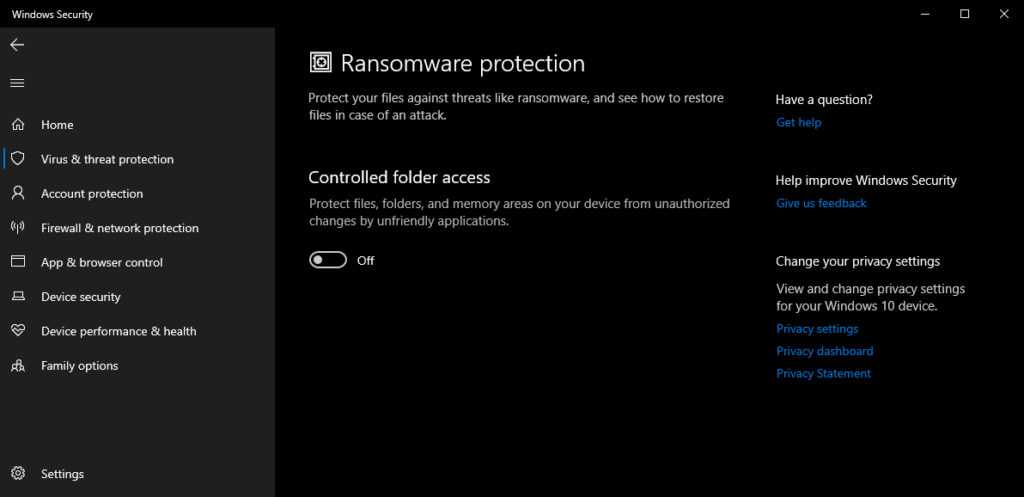
    Sometimes, your antivirus can get overzealous and end up messing with your ability to access files. If you have confirmed that everything is correct with your file permissions above, you may consider testing this next.

    Look around the settings of your antivirus program and see if there is a file protector or similar setting. Try disabling this and then try accessing the file again. If it doesn’t have any effect, temporarily disable your antivirus completely and see if that helps.

    #5. Check File Encryption

    Another reason you may receive a “destination folder access denied” message is that the contents of the folder are encrypted. As you know, encryption protects files by only allowing someone who has the key to view them.

    Check File Encryption
    Check File Encryption

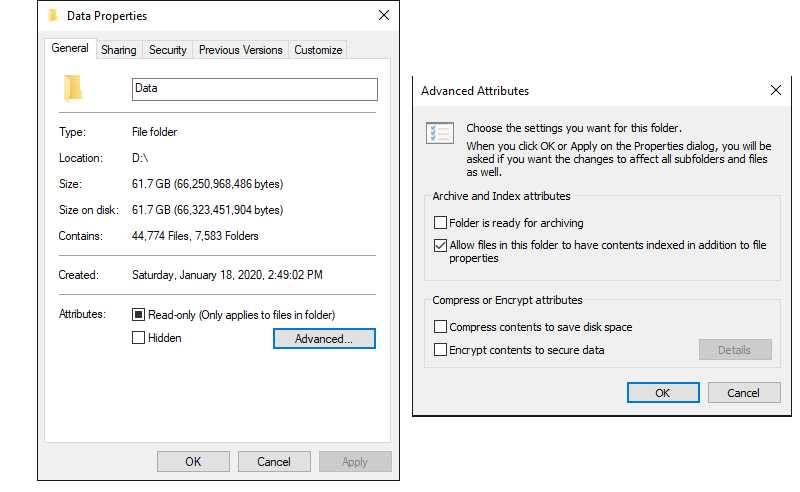
    You can encrypt folder contents in Windows, although this feature is only available in the Professional version. To do so, right-click the folder and select Properties. In the window that appears, click the Advanced button on the General tab. Here, check the Encrypt contents to secure the data box. With this, everything in the folder will be locked.

    This type of encryption is transparent, meaning that the owner never pays attention to the encryption. As long as they are logged into the system, they can access these files.

    But if you don’t have the certificate used to encrypt the folder, Windows will deny you access. Whoever encrypts the file must open it. This isn’t the only way to encrypt files in Windows 10, but it can cause the error message you’re seeing.

    #6. Disable User Account Control

    The above solution is the most important solution to solve the “destination folder access denied” problem in Windows 10. You will see a lot of suggestions floating around the web for this problem, but not all of them are good. Some of them just give you solutions to get administrator permissions, which we discussed.

    Disable User Account Control
    Disable User Account Control

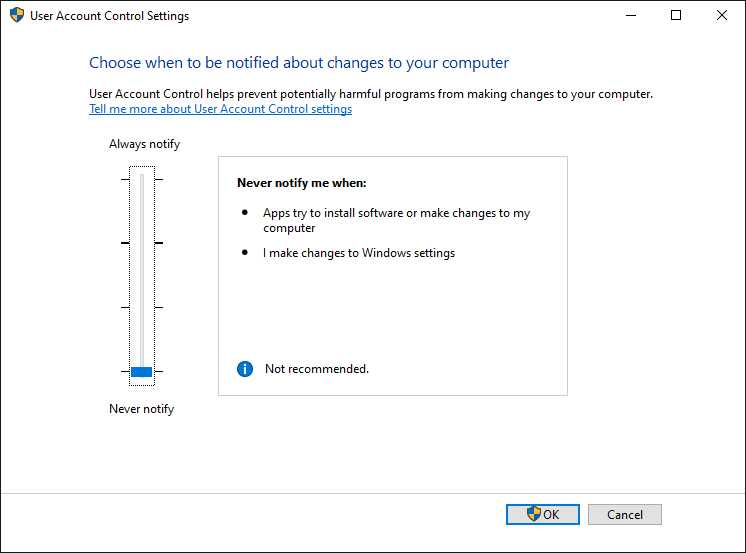
    One of the other commonly used solutions for dealing with the “destination folder access denied” issue is to disable User Account Control (UAC). To do this, type UAC in the Start menu search bar and select Change User Account Control settings. Drag the slider down and hit OK.

    Once you’ve done that, try to follow the 2nd solution above again to take ownership. Once done, make sure to reset the UAC settings to their place.

    Read more:

    Conclusion:

    Now you know how to solve destination folder access denied in Windows 10. Usually, this problem can be solved by changing simple permissions. Make sure you have administrator rights, then you can try to take ownership and adjust permissions as needed. Avoid changing the ownership of the protected system folder, which can compromise the security of your system.

    Don’t forget to bookmark and always visit every day Technowizah.com because you can find here the latest Tech Computer Android games How-to Guide Tips&Tricks Software Review etc, Which we update every day.
  • How To Download Microsoft Office 2010 for Free 2024

    How To Download Microsoft Office 2010 for Free 2024

    How To Download Microsoft Office 2010 for Free – This time the admin will share the download link for the free Microsoft Office 2010 full version. As we all know Microsoft Office is a collection of computer applications that are mainly used for business or office purposes. First introduced in 1990, Office software was created by Microsoft Corporation.

    How To Download Microsoft Office 2010 for Free
    How To Download Microsoft Office 2010 for Free

    Download Microsoft Office 2010 for Free 2024

    MS Office helps simplify basic office tasks and increase work productivity. Each application is designed to handle specific tasks, such as word processing, data management, creating presentations, and managing email.

    Read more:

    Microsoft has also developed several versions of Office that can be supported by different operating systems, including Windows, Linux, and macOS. Microsoft Office is also offered in 35 different languages.

    Advantages of Using Microsoft Office

    #1. Universal Software

    Microsoft Office is now compatible with mobile devices after they recently developed Office Mobile, which offers free-to-use versions of Office applications for mobile devices. Microsoft also runs Office Online, a web-based version of the core Office applications, which is included as part of a Microsoft account.

    Over the years, Office has been compatible with Apple’s macOS, a move that was questionable at the time due to the rivalry between Apple and Microsoft, but one that has proven good for both tech giants.

    #2. Used by more than 1.2 billion people and most businesses

    It’s an absurd number. To put it in context, that’s nearly 20% of the world’s population using Microsoft Office. Many people can’t be wrong.

    Recent statistics show that the percentage of enterprises with at least 100 users increased from 87% to 91%, and usage within the enterprise grew by more than 320%.

    These statistics show that Microsoft has succeeded in reinventing Office as a cloud-based program that can be accessed anywhere.

    #3. Microsoft Office offers access anytime, anywhere

    When Office 365 was developed, it allowed Microsoft to use cloud technology while still offering its existing services. You can access it from anywhere as long as you have an Office 365 login (for example, the company you work for).

    In the fourth quarter of fiscal 2017, Office 365 revenue surpassed conventional Microsoft Office software license revenue for the first time, proving its growing popularity.

    #4. Online Support from Microsoft

    With an Office subscription, you get help from Microsoft. They offer invaluable support for any user who wants to get the most out of their program, which is an important way to maximize productivity and use of your product.

    #5. Easy to use

    MS Office applications can be used for complex operations, depending on how you want to use them. However, one of the standout features of Office is that it can be used by people of all ages to simplify functions and increase productivity, which is why Office was developed in the first place.

    #6. Versatile

    Tracking your accounts or analyzing business data? Excel can do it. Writing a CV or cover letter? Word can do that. Writing a business proposal or presentation? PowerPoint can do it.

    Microsoft Office is the best suite of applications to achieve your personal or business goals simply because of its ability to adapt to your needs.

    #7. Security

    There has been a lot of news recently about the increasing threat of cyber attacks. Attacks thrive on sophistication and scale.

    Microsoft has taken responsibility for keeping your data and information safe. All data stored in the cloud is stored in one of Microsoft’s data centers, providing real-time security scanning of messages and documents for cybersecurity threats, making it one of the safest cloud services.

    #8. Tutorials

    Do you want to build your knowledge in Office? Easy. There are lots of training and even tutorials out there that you can learn and all of them can be obtained for free. Because of its popularity, many people out there share tutorials on how to operate some of the applications in Microsoft Office, whether it’s Word, Excel, PowerPoint, or others.

    Some Common Applications In Microsoft Office

    The most common Office applications are Word, Excel, PowerPoint, and Outlook. Other apps include Publisher, Access, and OneNote. Here’s a brief description of each of the different applications and what we use them for:

    • Microsoft Word: is a word processor that allows users to create and edit text documents, such as reports, letters, and resumes, and to run spell checks while writing
    • Microsoft Excel: is an electronic spreadsheet program that helps us store, organize, and manipulate data by creating simple to complex spreadsheets
    • Microsoft PowerPoint: allows us to visually display information, using anything from basic slideshows to professional multimedia presentations
    • Microsoft Outlook: is a personal information manager primarily used for email but can also be used to store calendar and contact information, manage tasks, and organize meetings
    • Microsoft Publisher: is a graphic design application that gives users creating materials for marketing or publication more options in the layout and design of their documents
    • Microsoft Access: is a database management system that allows us to link and use data from other sources, manipulate the data we have collected in various ways and create simple business applications.
    • Microsoft OneNote: is a digital alternative to paper notebooks that allows us to easily create, organize and share notes

    How to Install Microsoft Office 2010

    1. Download Microsoft Office 2010 for free first.
    2. Extractor Mount Microsoft Office 2010 files.
    3. Run the Office 2010.exe file.
    4. Follow the installation process.
    5. Finished.

    System Requirements Microsoft Office 2010 Pro Plus

    Before you start downloading Microsoft Office 2010 for free, make sure your PC meets the minimum system requirements.

    • Operating System:  Windows XP/Vista/7/8/8.1/10
    • RAM:  1GB
    • Hard Disk:  2.5GB

    Microsoft Office 2010 download link

    Download

    Read more:

    Note:  If there is a problem with this free Microsoft Office 2010 download link, please tell us in the comments column below so that it can be fixed immediately.

    Don’t forget to bookmark and always visit every day Technowizah.com because you can find here the latest Tech Computer Android games How-to Guide Tips&Tricks Software Review etc, Which we update every day.
  • How to Remove Password From Windows 11 PC 2024

    How to Remove Password From Windows 11 PC – This guide will cover everything you need to know about how to remove Windows 11 laptop passwords. Entering a password every time you log into a laptop may seem overwhelming to many people. However, we cannot ignore the security and privacy aspects of a password-protected device.

    How to Remove Password From Windows 11 PC
    How to Remove Password From Windows 11 PC

    How to Remove Password From Windows 11 PC 2024

    But many users who only use laptops for simple purposes, who may also not store important items on them, often choose not to use passwords, as it saves time and minor hassle.

    Read more:

    While there’s no way to remove a password on a laptop from a Microsoft Account, you can disable it.

    When you disable a password, you will not be prompted to enter it every time you log into Windows 11.

    In the following sections, we will walk you through several ways to disable Windows 11 passwords.

    It works for both Microsoft Accounts and Local Accounts.

    Note: It is not recommended that you delete the Windows 11 password, because that will expose the data stored in it.

    How to Remove Password from Windows 11 with User Accounts Panel

    How to Remove Password from Windows 11 with User Accounts Panel
    How to Remove Password from Windows 11 with User Accounts Panel

    This is probably the easiest way to disable Windows 11 laptop passwords, be it for Micorosft or Local accounts.

    Here’s how to disable Windows 11 passwords.

    To remove the password with the User Accounts panel, press WINDOWS + R to launch the Run command, enter ‘ netplwiz ‘ in the search box, then click OK  at the bottom or press ENTER.

    In the User Accounts pane, select the account whose password you want to remove, uncheck the box above for ‘ Users must enter a user name and password to use this computer .’, and click OK  at the bottom.

    Now, enter the sign-in details, for the Microsoft/Local Account linked to your computer.

    You can enter a username or email ID in the Use Name section and then enter a password in the following two sections.

    Finally, click OK  at the bottom to save changes.

    Now, every time you restart the laptop with the account selected above, you don’t need to enter the sign-in details.

    How to Remove Password from Windows 11 with Registry

    How to Remove Password from Windows 11 with Registry

    You can also disable the login password through the Registry.

    Making changes to the registry is an important process that requires extra care on your part, as any error can render the system malfunctioning.

    Follow the steps mentioned below as is without making any other changes to the Registry.

    Here’s how to delete a Windows 11 laptop password through the registry:

    1. To clear the Windows 11 password with Registry, press WINDOWS + R to launch the ‘ Run ‘ command, enter ‘ Regedit ‘ in the search box, then click OK at the bottom or press ENTER to launch Registry Editor.

    Click Yes in the confirmation box that appears.

    In the Registry Editor, navigate to the following path or paste it into the address bar at the top and press ENTER.

    Computer\HKEY_LOCAL_MACHINE\SOFTWARE\Microsoft\Windows NT\CurrentVersion\Winlogon

    In the Winlogon folder, find the string ‘ DefaultUserName ‘.

    If it’s not available, right-click on an empty area, hover over New, and select String Value from the list of options. Name the string as ‘ DefaultUserName ‘.

    Next, double-click on the string you just created, enter your Microsoft Account username or email ID in the Value data section, and click OK  to save the changes.

    Now, create another string and rename it to ‘DefaultPassword’.

    Double-click on the DefaultPassword string you just created, enter your Microsoft account password under the Value data section, and click OK  at the bottom to save the changes.

    Now, look for the string “AutoAdminLogon” in the Winlogon folder.

    If you can’t find it, create it as we did before.

    Now, double-click on the AutoAdminLogon string to change the value data.

    Finally, enter ‘ 1 ‘ under Value data instead of ‘ 0 ‘, click OK  at the bottom to save changes, and close Registry Editor.

    Now, you don’t need to enter the login password for the account you entered in the Registry.

    How to Remove Password from Windows 11 by Creating a Local Account

    How to Remove Password from Windows 11 by Creating a Local Account
    How to Remove Password from Windows 11 by Creating a Local Account

    The above two methods simply disable the log-in password but if you want to remove it completely, there is a way out.

    But you have to sacrifice some Microsoft Services, like OneDrive, Microsoft Store, and the ability to sync settings across multiple devices, among other things.

    To completely remove a password from your PC, all you have to do is create a Local Account without a password and then delete your profile with a Microsoft account, so you have successfully replaced your admin account with one without a password.

    A local account is an option to set a password and you can create one without a password, thus fulfilling your dream of a no-password system.

    Conclusion:

    That’s how to remove passwords from Windows 11 PC, So you can enter the laptop without any hassle.

    However, we would like to reiterate that you should not delete the password if you have important data stored on the system.

    Don’t forget to bookmark and always visit every day Technowizah.com because you can find here the latest Tech Computer Android games How-to Guide Tips&Tricks Software Review etc, Which we update every day.
  • 7 Ways To View Computer Specifications in Windows 10 PC 2024

    7 Ways To View Computer Specifications in Windows 10 PC 2024

    7 Ways To View Computer Specifications in Windows 10 PC – There are several ways that we can use to see the type and specifications of the laptop being used. For Windows 10 users you can find this information on the settings page. Another way is to use diagnostic software such as dxdiag or third-party applications such as CPU-Z.

    7 Ways To View Computer Specifications in Windows 10 PC
    7 Ways To View Computer Specifications in Windows 10 PC

    How To View Computer Specifications in Windows 10 PC 2024

    This information can be useful when you want to install a new program and want to confirm whether the hardware meets the minimum requirements. To speed up Windows 10 performance, understanding the specifications can help determine which hardware needs an upgrade.

    Read more:

    In Windows 10 there are several methods to view your laptop’s specifications starting from basic information such as system knowing BIOS or UEFI, laptop brand and series, device model number, processor speed, RAM capacity, VGA series, Windows version, and other specifications details.

    #1. See Computer specifications in Windows 10

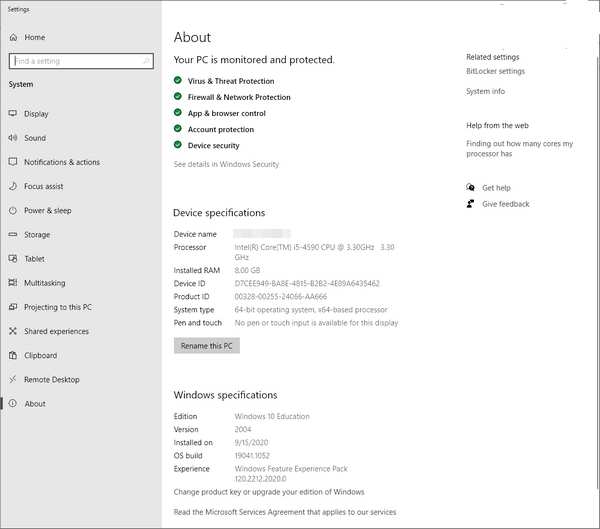
    1. Go to the Settings menu on your laptop by clicking on the Windows button and then clicking on the gear icon.

    2. Select the System menu.

    3. On the bottom left tab, click the About menu.

    4. In the tab view on the right you will see information about laptop specificationsWindows 10 versionCPU typegraphics card or GPU, and RAM capacity used.

    5. Use the information obtained for your purposes.

    See Computer specifications in Windows 10
    See Computer specifications in Windows 10

    In the Device Specifications section you will see information about the hardware specifications of the laptop, namely:

    • Device name > computer name information.
    • Processor > processor specification, type, series, generation, number of cores, and speed.
    • Installed RAM > RAM capacity installed on the laptop.
    • System type > system architecture on a laptop (32-bit or 64-bit) is often also referred to as a laptop bit.

    The Windows specifications section contains details about the Windows 10 series installed on your laptop, namely:

    • Edition > Windows 10 edition information used (Home, Pro, Enterprise, Education).
    • Version > Information of installed release updates.
    • OS build > contains information about the installed Windows 10 build version.

    #2. Using dxdiag (DirectX diagnostic tools)

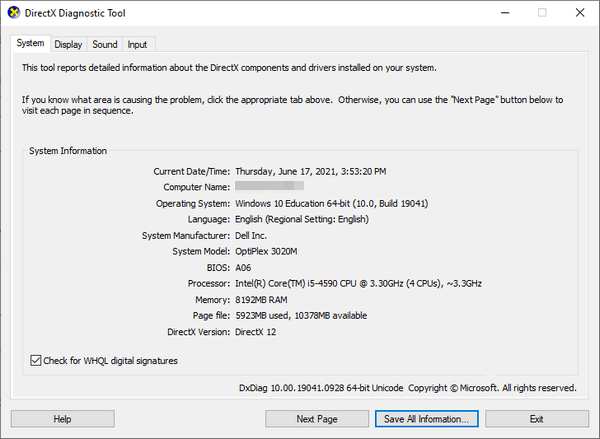
    Furthermore, you can also check laptop specs using a feature called dxdiag which stands for DirectX diagnostic tools.

    Using this method, you no longer need to install applications because every Windows 10 must have this tool in it.

    1. In the first step, you press the Windows key + R on the keyboard
    2. Then type: dxdiag
    3. Then click on the OK button
    4. The dxdiag program will open
    5. To see information about the laptop series and specifications, click on the System tab
    6. To see specifications for VGA or graphics card click on the Display tab

    Using dxdiag (DirectX diagnostic tools)
    Using dxdiag (DirectX diagnostic tools)

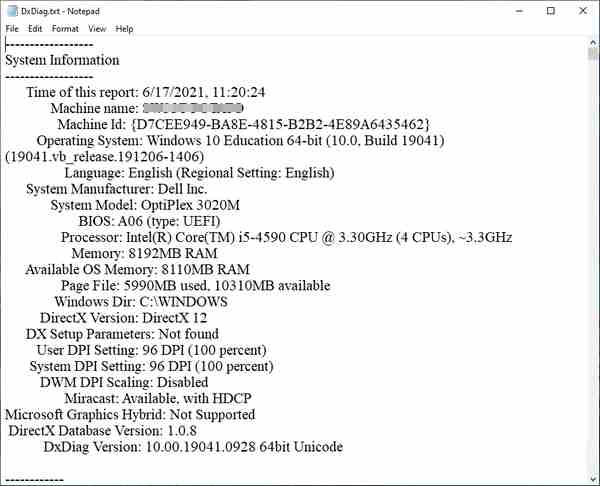
    The specialty of using this method is that we can create a specification report in text form. The results of the report will contain complete information about the hardware and software on your laptop.

    To create a spec report file in text form, click the Save All Information button at the bottom > select a storage folder.

    The result will look like this:

    Using dxdiag (DirectX diagnostic tools)
    Using dxdiag (DirectX diagnostic tools)

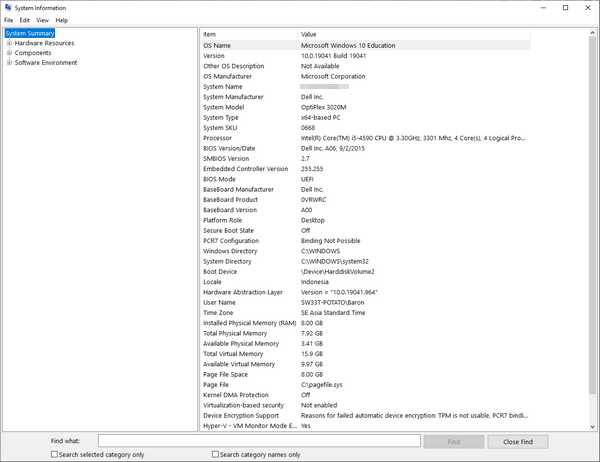
    #3. Using the System Information menu

    Windows 10 provides many features that you can use to check the series and type of laptop you are using. For this third method, we can use the menu in the Windows 10 settings, namely System Information.

    1. Click on the Windows button
    2. In the search field type: msinfo32
    3. A menu will appear when you select an application called System Information
    4. Once the application is open click on the Summary tab
    5. There you will see information about the Windows version, laptop series, and brand, as well as information about laptop hardware specifications
    6. To see VGA specs click on the Components menu then select Display

    Using the System Information menu
    Using the System Information menu

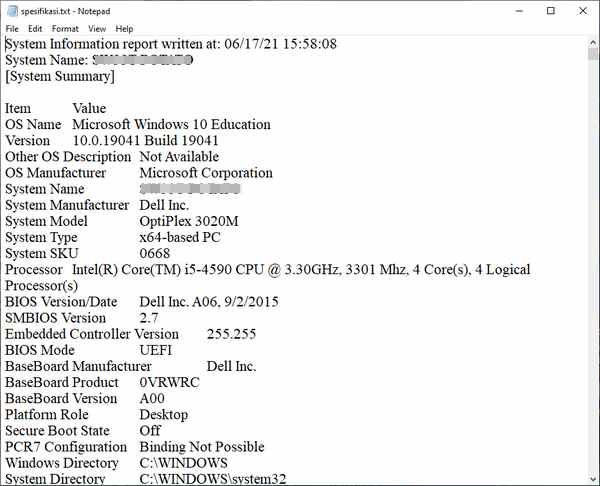
    Similar to the previous method, you can also create a specification file in txt format. You can save this file and use it for technical problems at a later date.

    How to make it very easy, on the System Information page click the File menu > Export > select a storage folder.

    When finished you can check the txt file that was created, its contents will more or less look like in the image below.

    Using the System Information menu
    Using the System Information menu

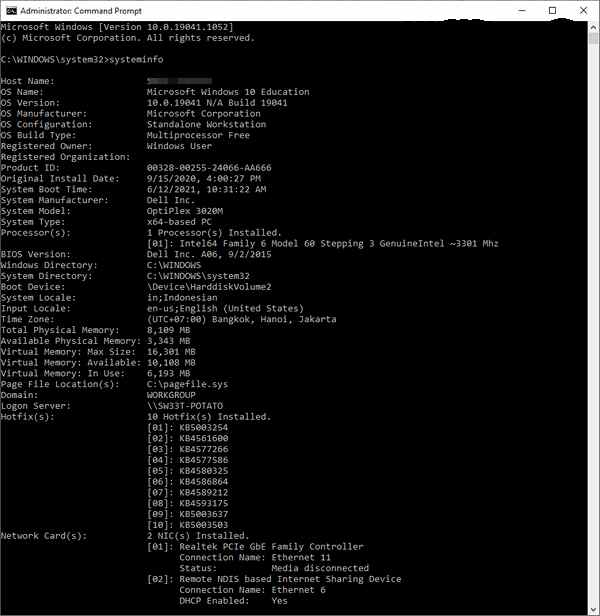
    #4. Using command prompt (cmd)

    To find out the specifications of the laptop, you can also use cmd in Windows 10.

    Cmd or command prompt is a console program that functions to execute commands on Windows, just like terminal applications on Linux and macOS.

    With this program, many things can be done, including checking the type of laptop that is being used.

    How to see laptop specs with cmd:

    1. Your first step is to open cmd in Windows 10 with administrator access, how to click on the Windows button then type: cmd
    2. On the menu that appears click on Run as administrator
    3. In the cmd program type the following command: system info
    4. Press the Enter key
    5. Information about laptop specifications will appear on the cmd screen

    Using command prompt (cmd)
    Using command prompt (cmd)

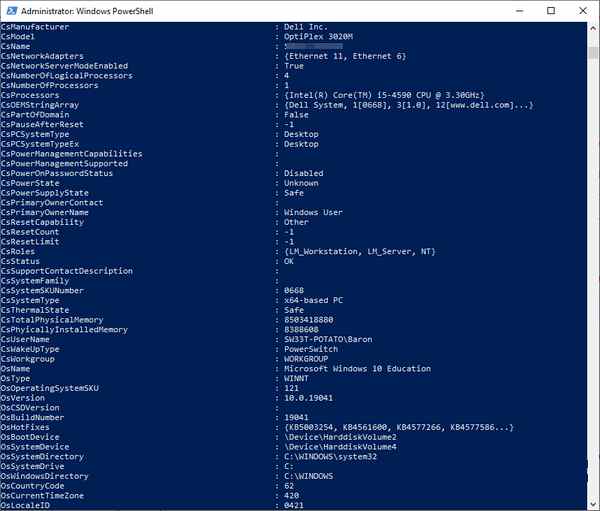
    #5. Using PowerShell

    Powershell is a Windows 10 default program that has a function similar to cmd, which is to run commands with the console.

    You can also use it to find out the specifications, types, and brands of laptops.

    1. The first step click on the Windows button
    2. Type PowerShell in the search field
    3. On the menu that appears, click the Run as Administrator menu
    4. In the Powershell, program type the following command: get-computer info
    5. Press Enter
    6. Information regarding laptop specifications and operating system will appear on the screen

    Using command prompt (cmd)
    Using command prompt (cmd)

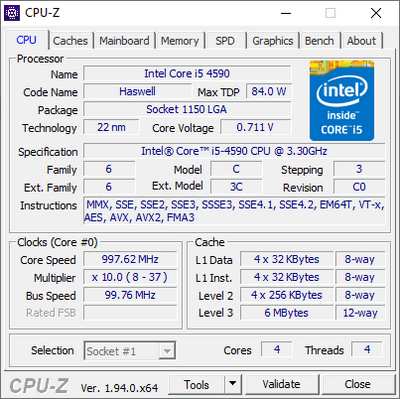
    #6. View the type and specifications of the laptop using the CPU-Z application

    In addition to the five ways above that are done with the built-in features in Windows 10, you can also view laptop specifications using third-party diagnostic programs. One of the light and good programs is CPU-Z.

    This application can detect all the hardware on the laptop and display it completely.

    There is currently a portable version available so there is no need to install the application, just download and run it and all information about the laptop will be visible.

    1. Your first step is to download CPU-Z here: https://www.cpuid.com/softwares/cpu-z.html
    2. Choose the portable version if you don’t want to install the application
    3. After the download is complete, extract the file first
    4. Then open the extracted folder, in which there is a CPU-Z application with 32-bit and 64-bit versions. You choose the one that suits your laptop’s bit architecture
    5. Open the CPU-Z program by double-clicking it
    6. Wait until the detection process is complete
    7. Information about the specifications and type of laptop will be displayed in the application

    View the type and specifications of the laptop using the CPU-Z application
    View the type and specifications of the laptop using the CPU-Z application

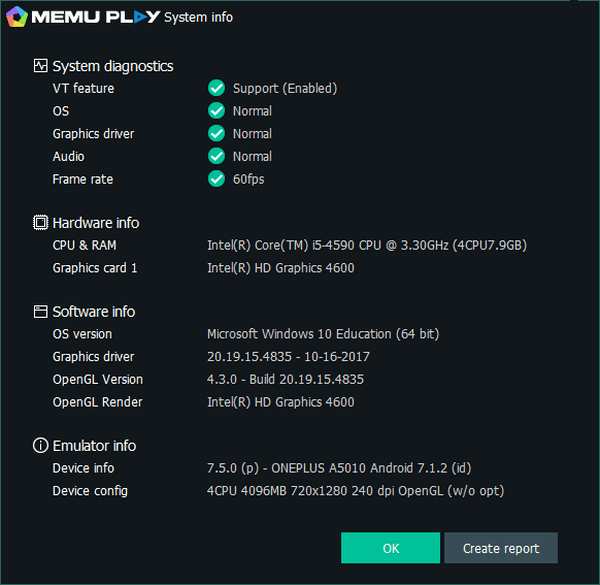
    #7. Using the Memu emulator

    As an alternative, there is one more way that you can use to see a summary of the hardware specifications on your laptop, which is using the Memu emulator.

    In this application, there is a system info feature that can detect important specifications, especially for gaming purposes. You can use this method if you have installed Memu on your laptop.

    1. Open the Memu emulator app on your laptop
    2. Wait until the loading process is complete and go to the main page
    3. Click the menu button in the upper right corner of the application
    4. Select System info
    5. Information about laptop specifications will appear on the screen
    6. To create a report in text form click on the Create Report button

    Using the Memu emulator
    Using the Memu emulator

    Conclusion:

    Those are some ways to see the type, series, brand, and hardware specifications of laptops in Windows 10. You can choose whichever method is easiest as you wish.

    Don’t forget to bookmark and always visit every day Technowizah.com because you can find here the latest Tech Computer Android games How-to Guide Tips&Tricks Software Review etc, Which we update every day.